
How to Add and Prioritize Pick Rules in OrderWise Despatch screen for Efficient Order overview
Learn how to add pick rules and set pick rule priorities in OrderWise. This step-by-step guide helps warehouse staff efficiently manage and prioritize orders using the Orders Requiring Picking screen.
In this guide, we'll learn how to display and manage pick rules and pick rule priorities in the Orders Requiring Picking screen within OrderWise. This process helps you quickly identify which orders need to be picked first, based on their assigned priority. By adding and arranging the pick rule columns, you can keep track of urgent orders and ensure nothing is missed during the picking process.
Let's get started
Pick rules have been created to prioritize orders within OrderWise. This ensures that the highest priority picks are sent to the picking scanners as warehouse staff request them. This means in the office we can display our Orders Requiring Picking screen in priority order too.
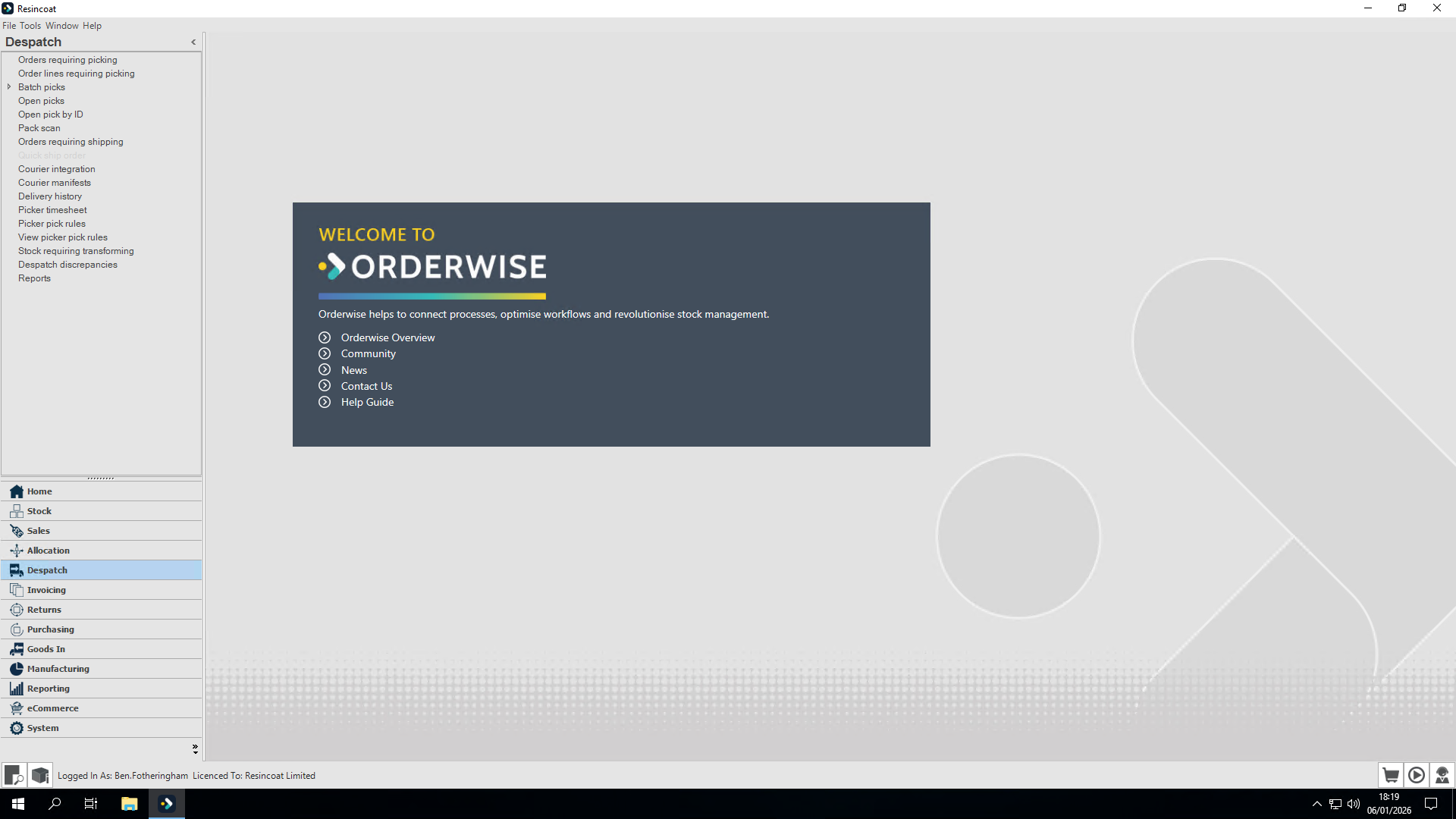
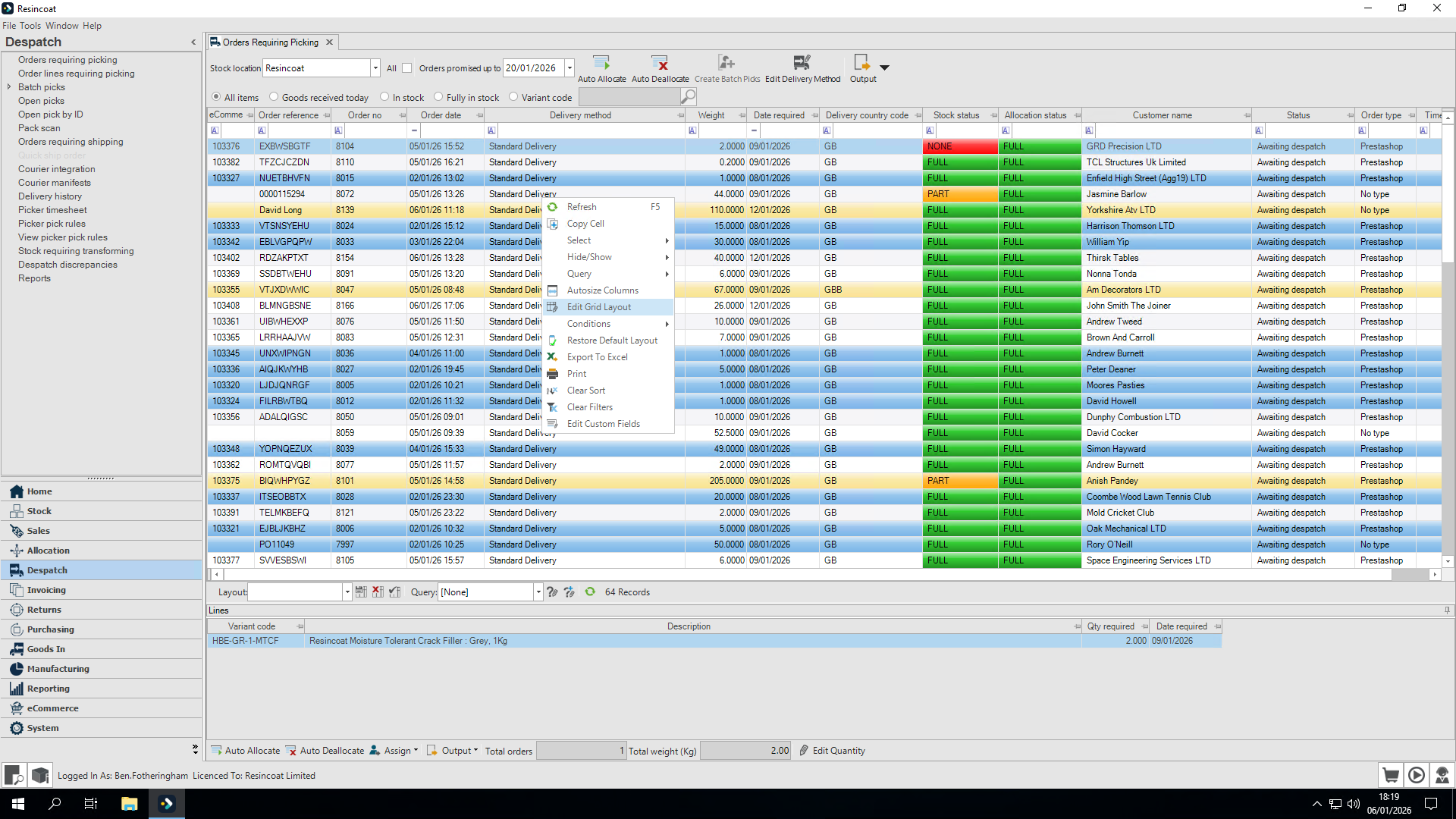
We can set this to show which pick rule is used for each order. If you don't have the pick rules column, I'll show you how to add it now.
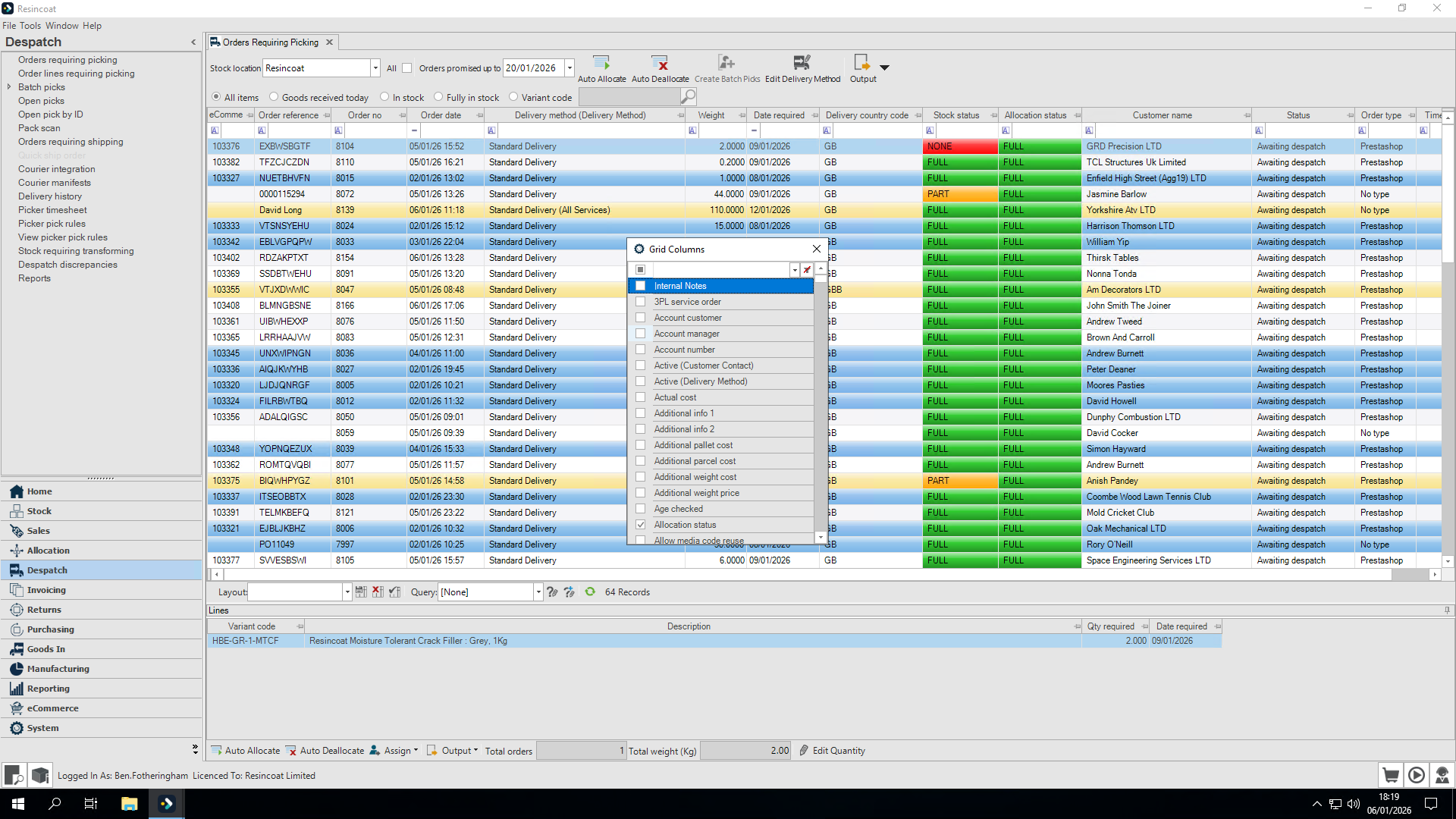
In the filter, type "pick" to find the pick rule column. Select it. I also recommend setting the pick rule priority below.
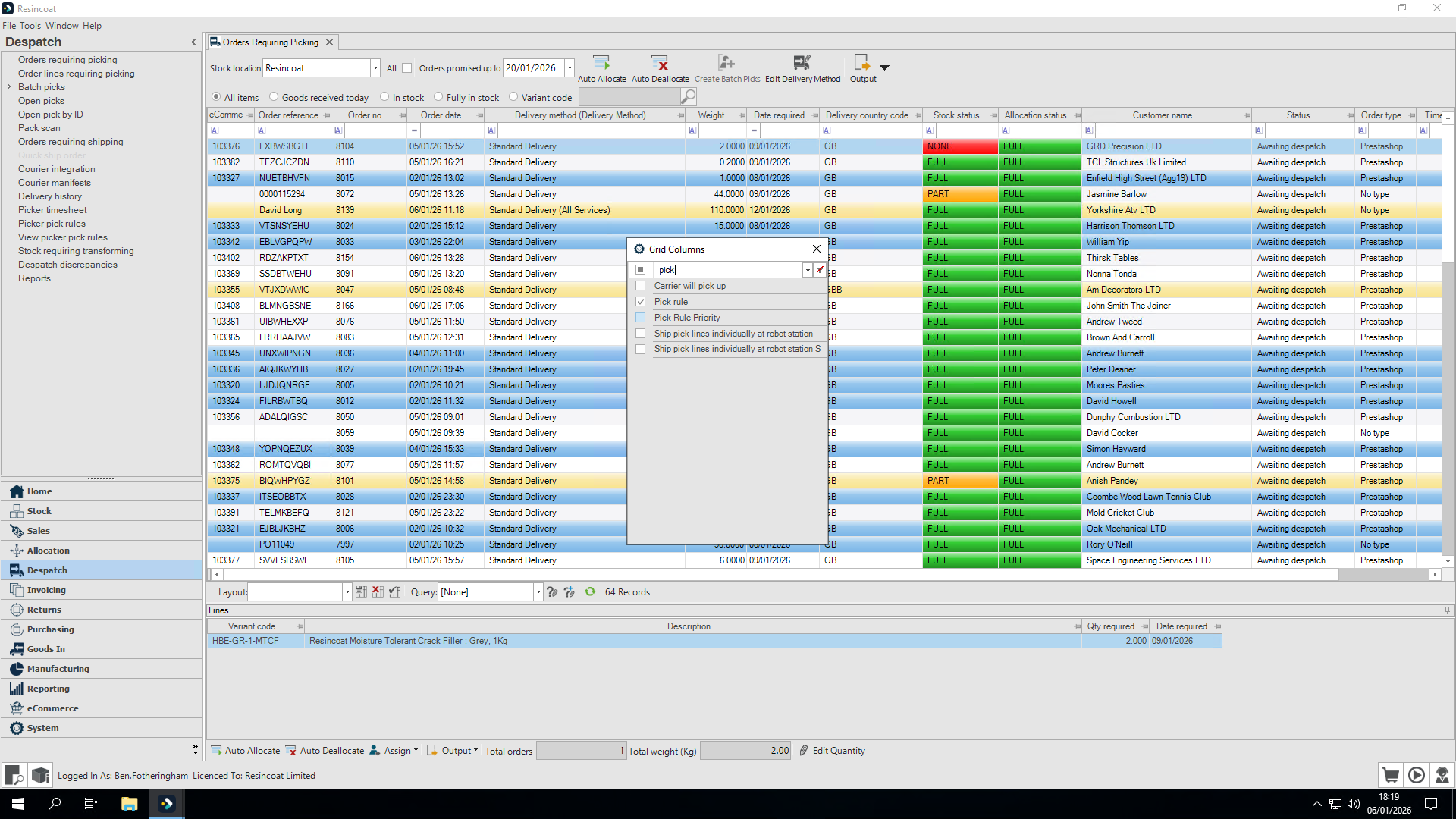
Close this, and the columns will be automatically added to your grid, usually at the end.
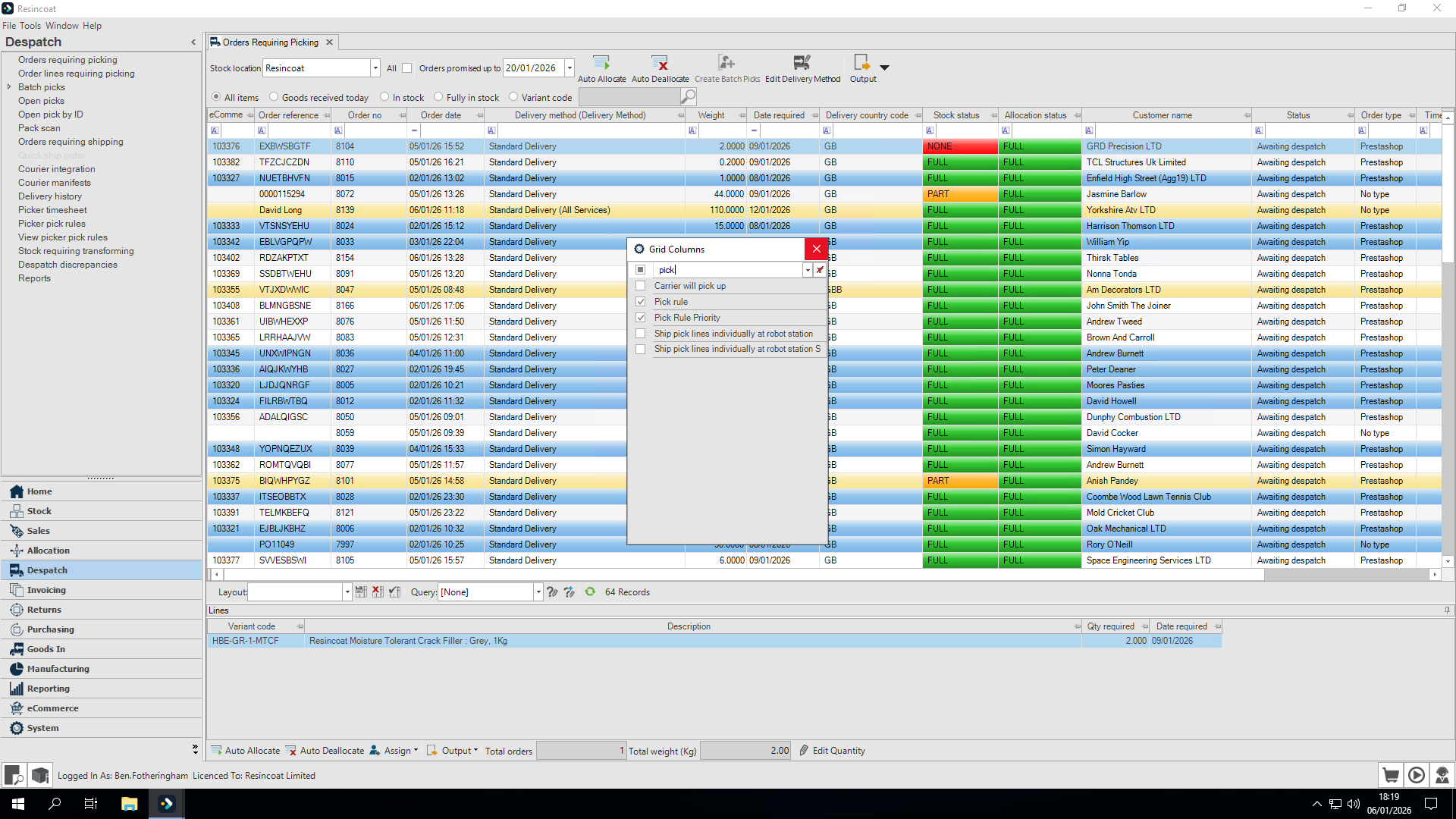
If you want to rearrange this, simply click and drag it to your desired location.
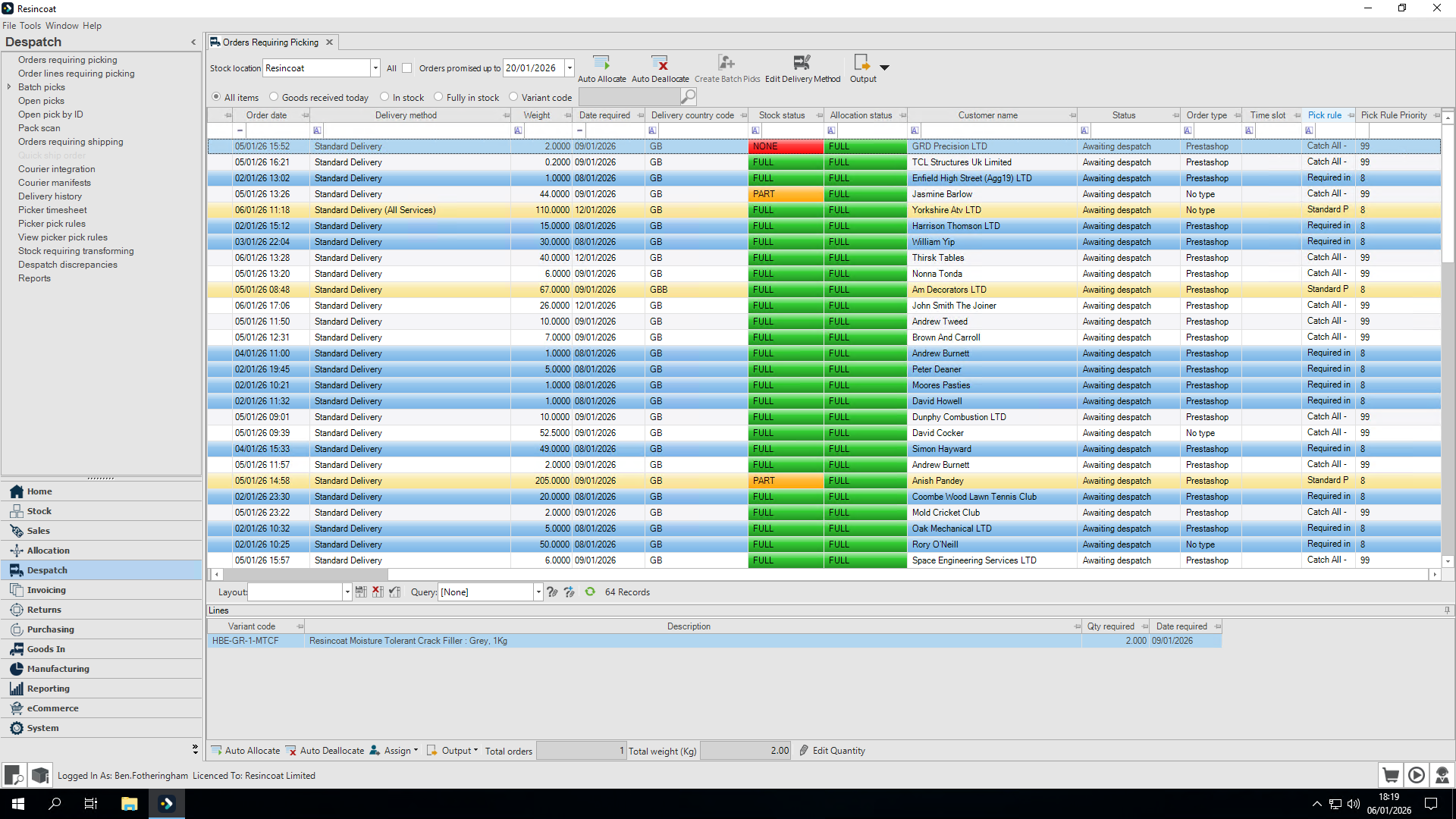
We can now see which pick rule is applied to each order. (Pick Rules are managed by the the Digital Team - Any issues must be reported immediately for investigation)
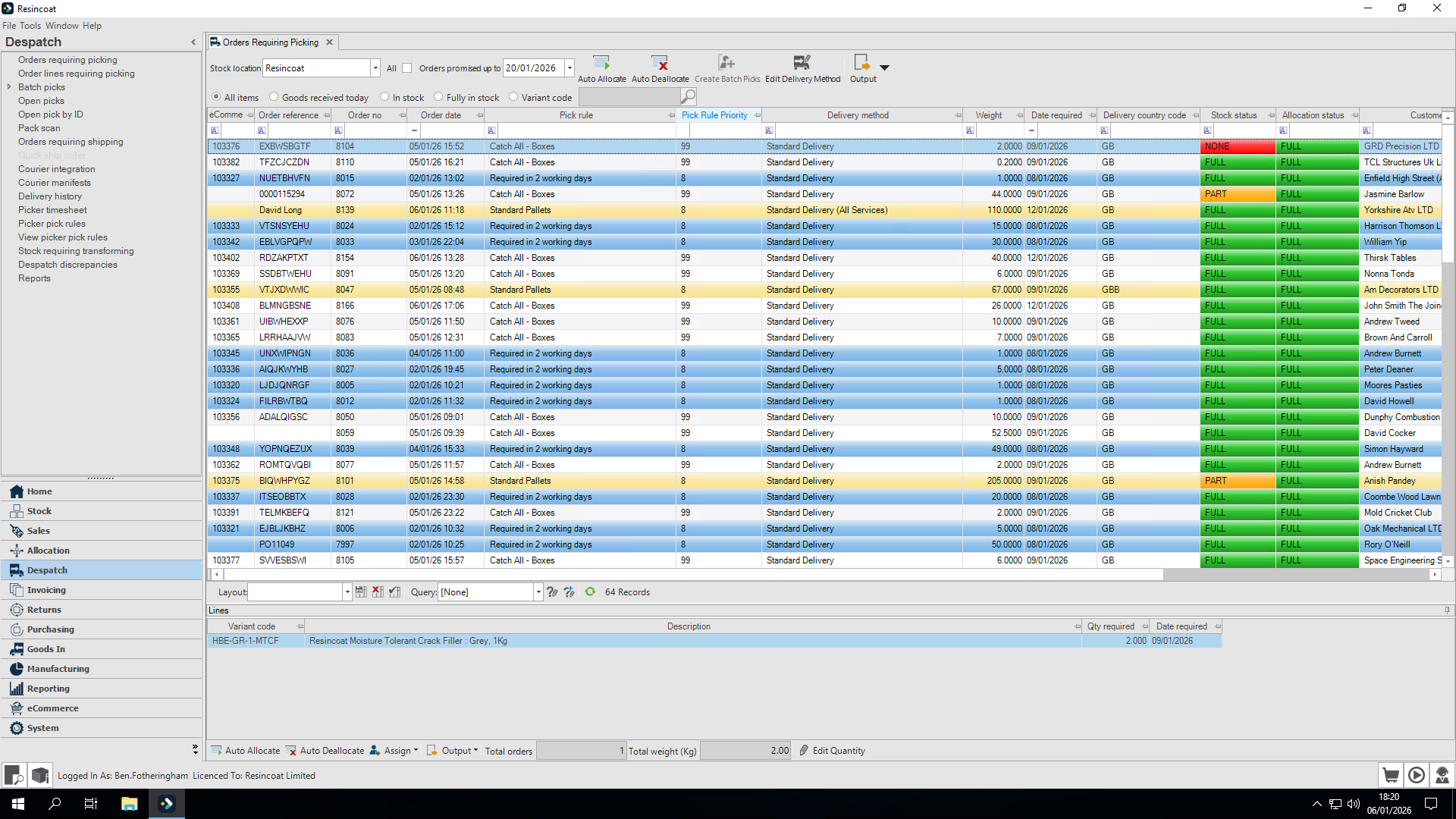
Our pick rule priority column is a powerful feature for office overview. Click at the top to sort these. The lowest number indicates the highest priority, so arranging from low to high will list the highest priority orders at the top of your screen.
This one with zero is an absolute must-go (must go box has been selected by Sales or Customer Service team.
We have highlights in red on my screen, however, your colours may vary depending on your settings.
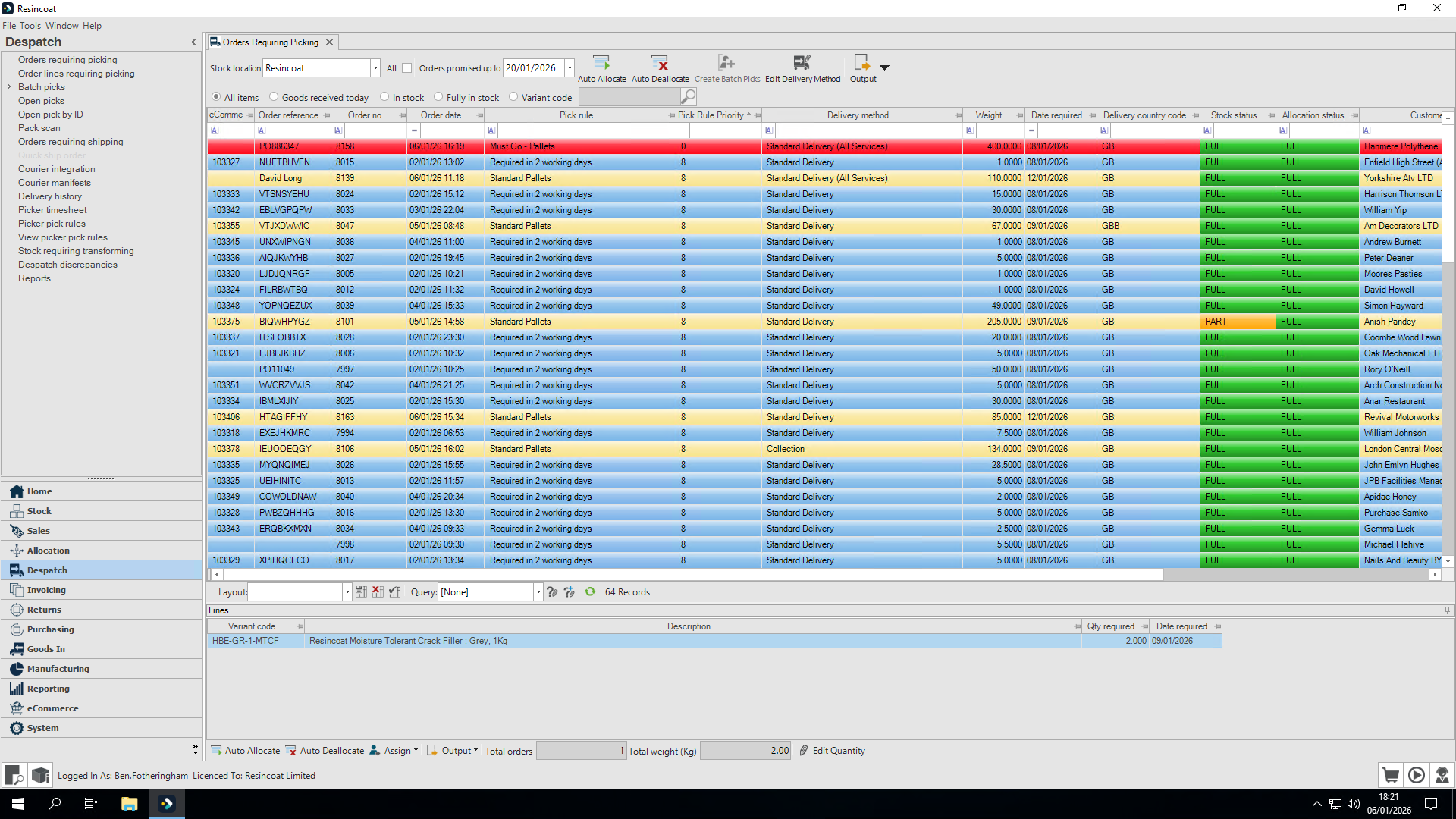
With Pick Rule Priority sorting, if we scroll down, everything is noted in priority order until we see the catch-all. The catch all ensures that no orders are missed by the warehouse scanners.
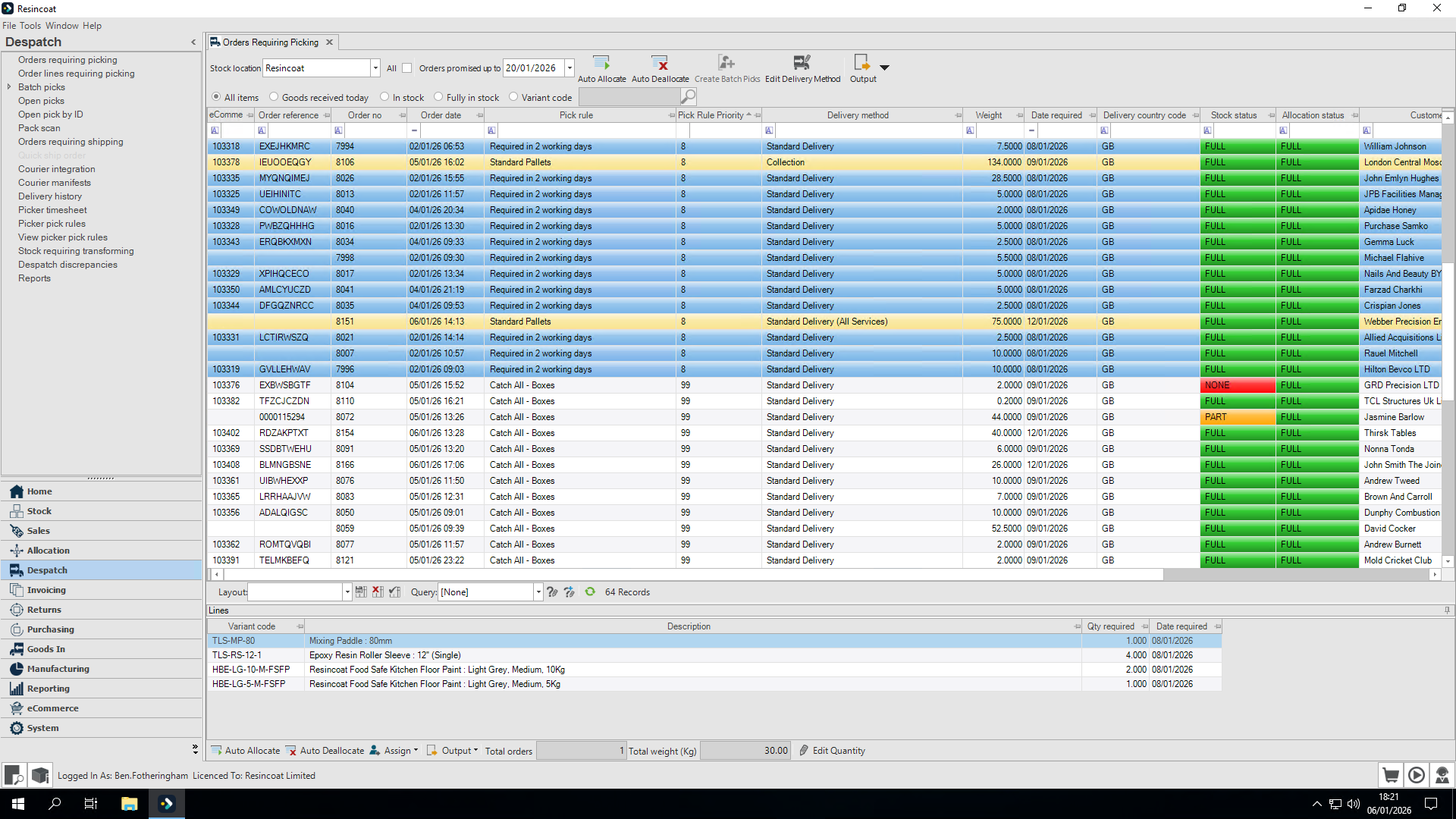
These have required-by dates that are further away for now—about three days from now. Overnight, these pick rules will clear, then reapply and everything will move along the priority chain - highlighted order will become required in two working days. then after another night it will move to required the next day etc.
As you can see, the purple highlighting remains for any orders that... Sorry, excuse me. Any orders that may need to be checked for DGNs and are leaving the British mainland.
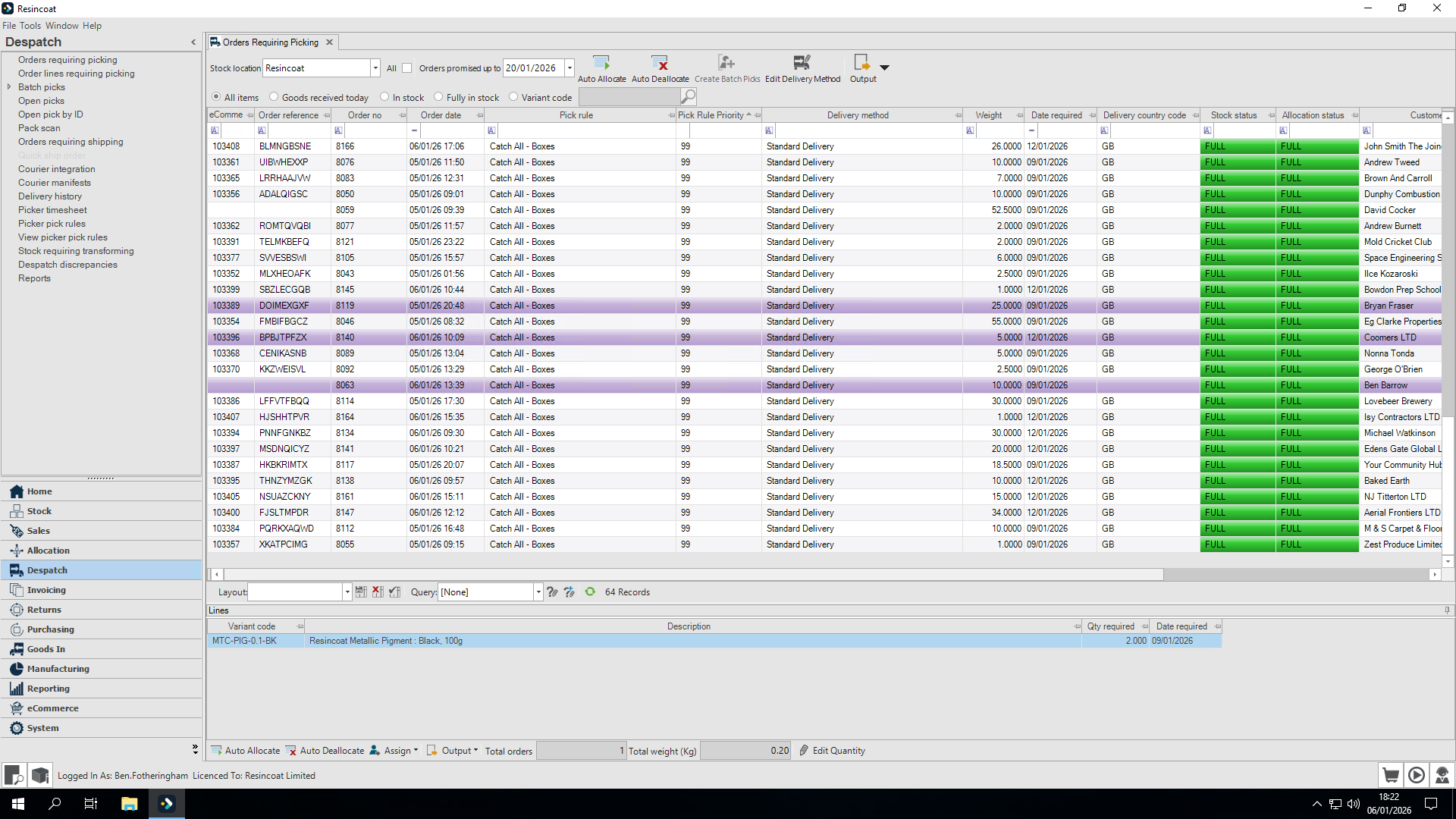
With this guide, you can add pick rules and set pick rule priorities on your screen. This should help you keep track of your orders more easily. Thank you.