
How to Add and Resize Images in Member Vault: Step-by-Step Guide
Learn how to add, upload, and resize images in Member Vault with this easy step-by-step guide. Perfect for career pages like MedPath Careers Pulmonology. Includes tips for using Canva, uploading images, and optimizing image size and alt text.
In this guide, we'll learn how to add an image to a Member Vault career page using Canva. We will cover how to select, download, and upload an image, as well as how to adjust its size and add an alternative description. This process helps you display the right visuals for your career pages and ensures your images appear as intended.
Let's get started
This guide will show you how to add images to Member Vault. Here we have MedPath Careers Pulmonology.
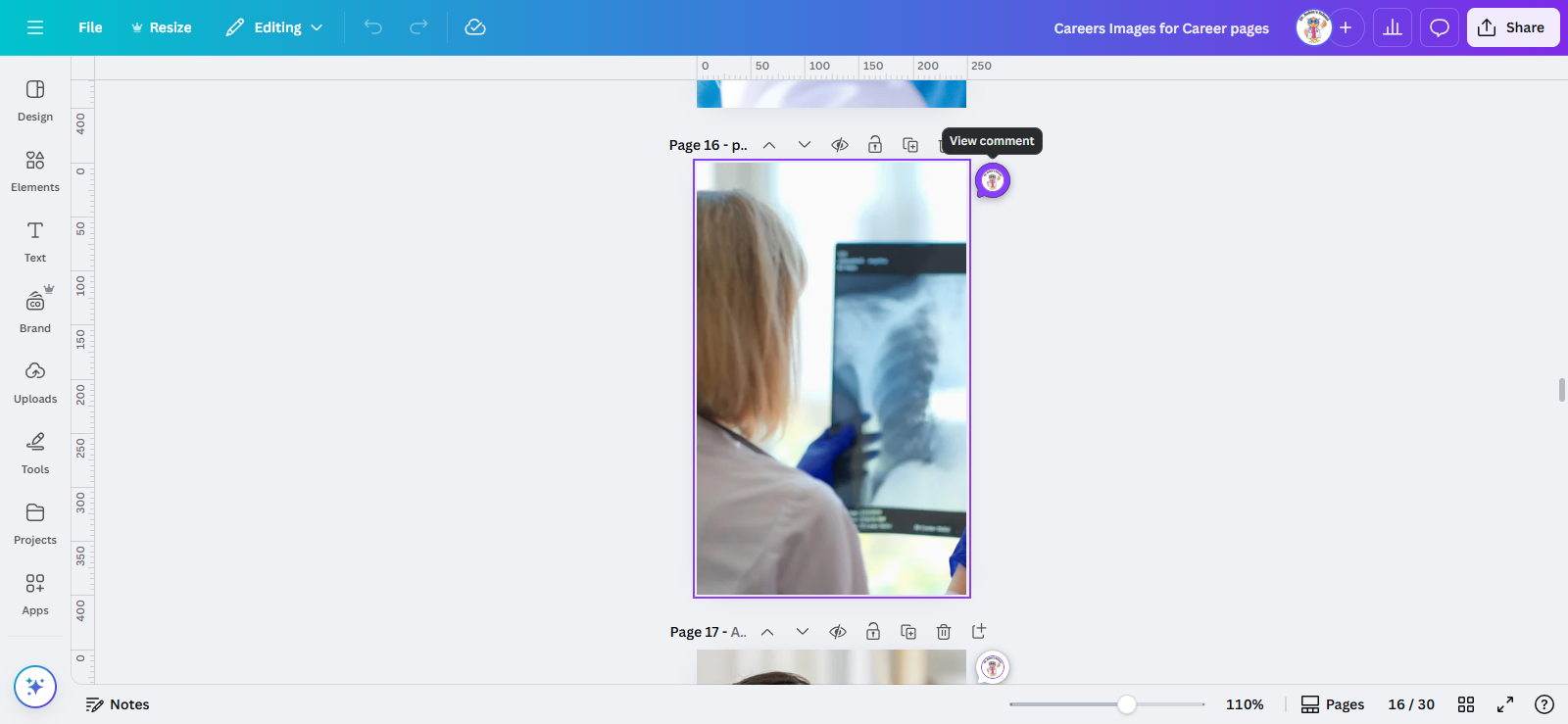
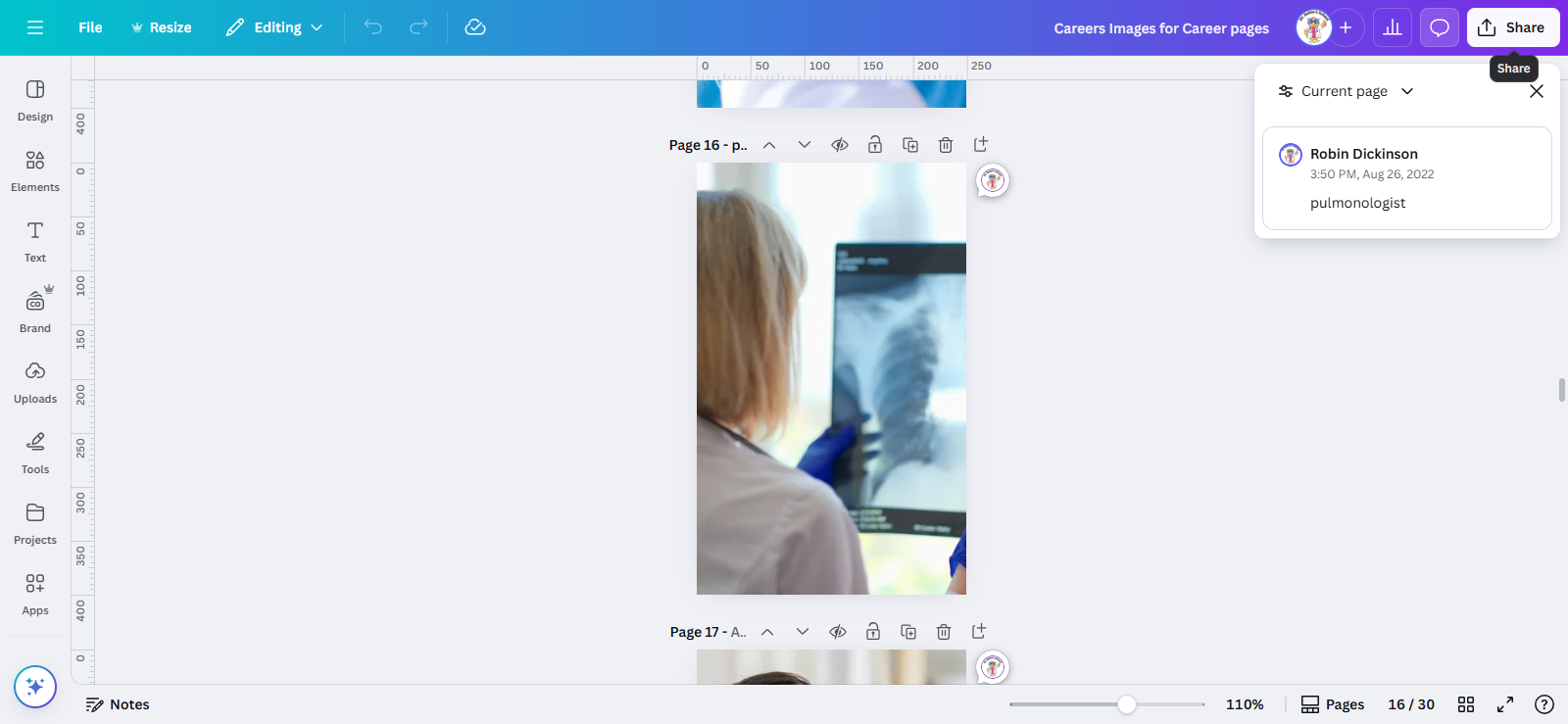
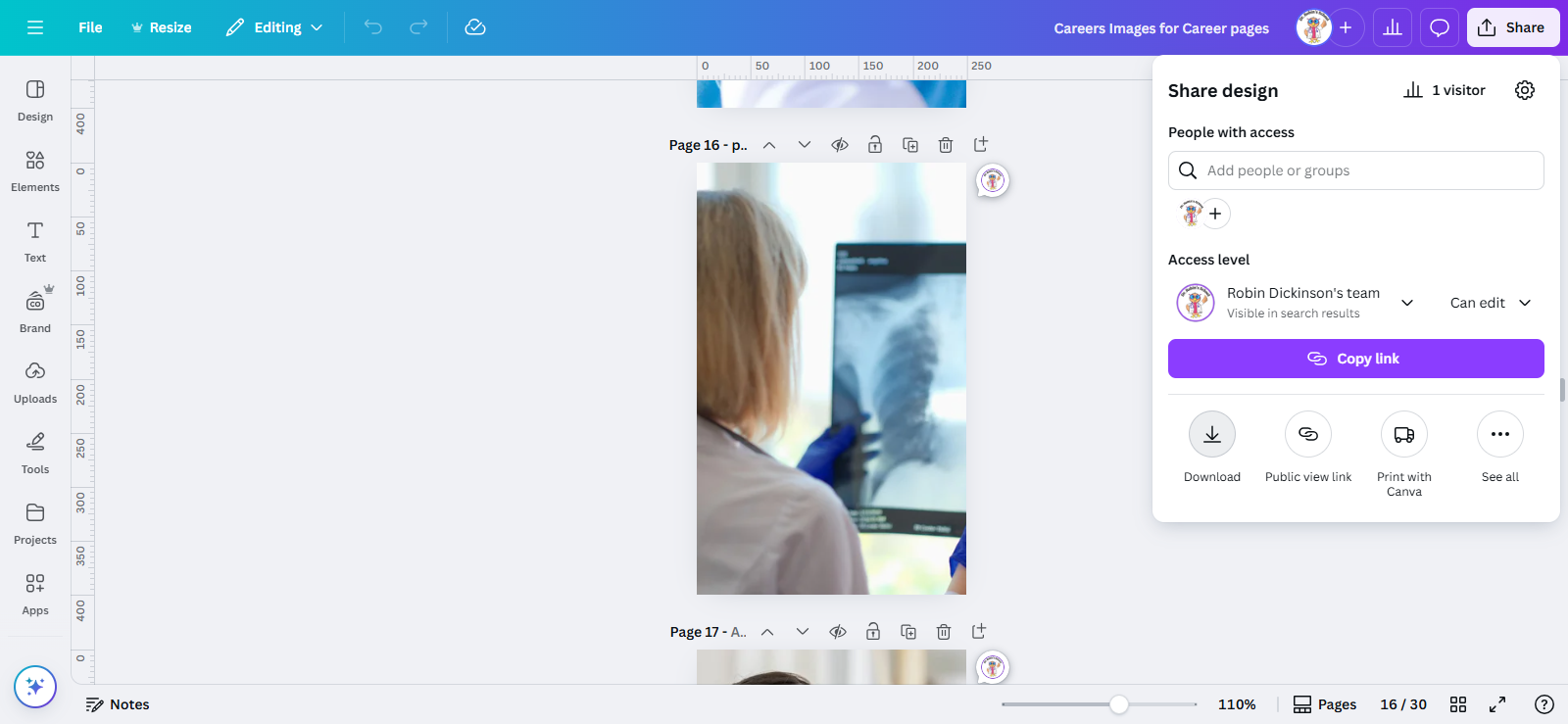
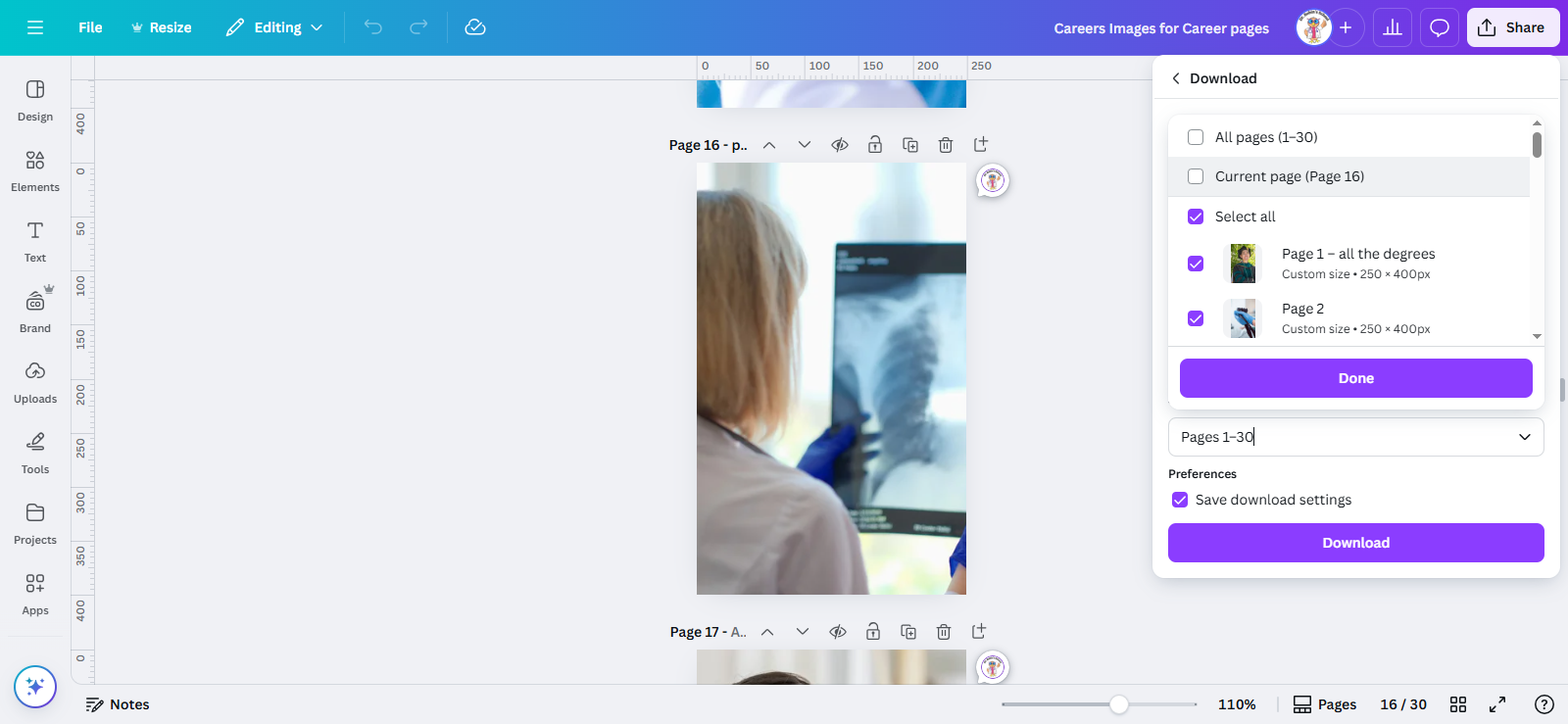
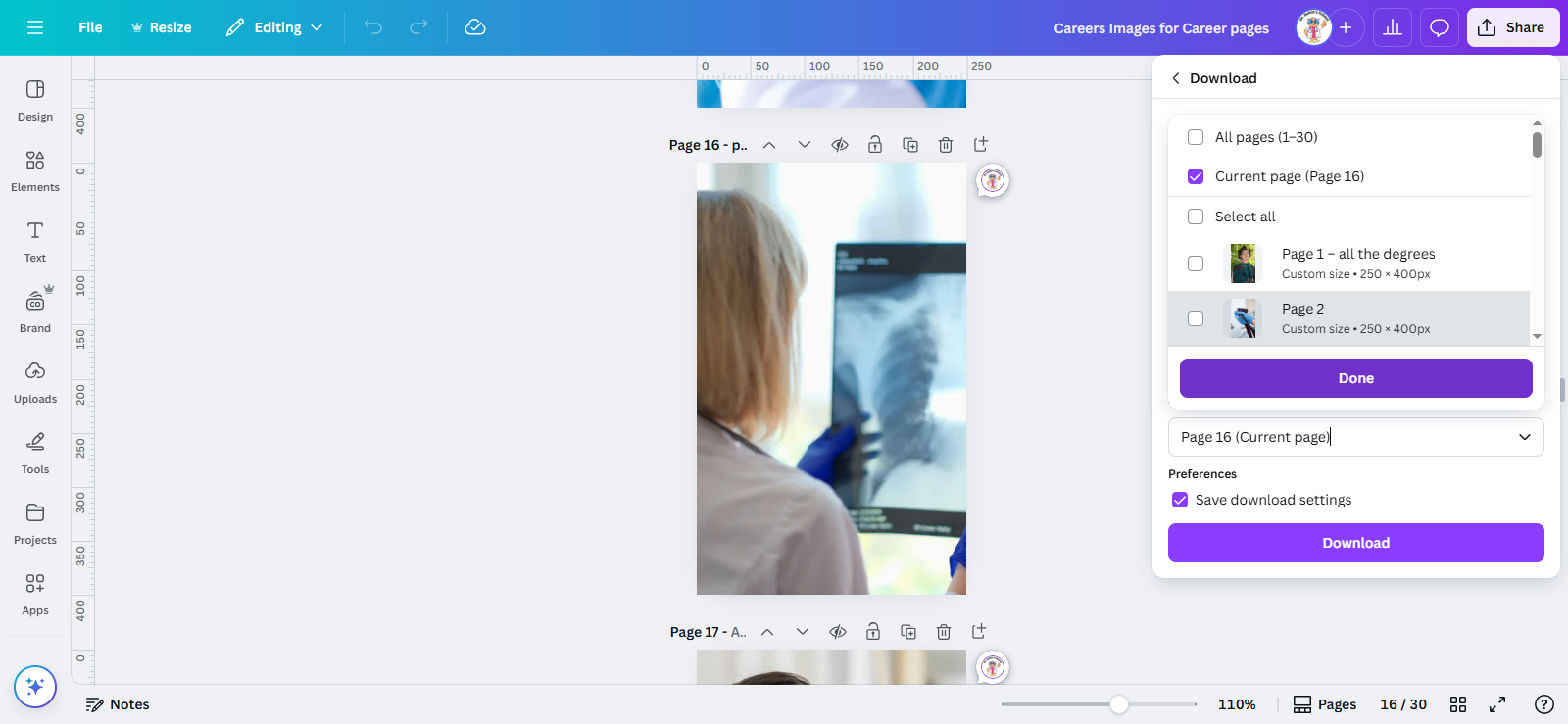
We are on page 16. Click Share, then Download. Select "Current Page" to download only page 16, then click Done.
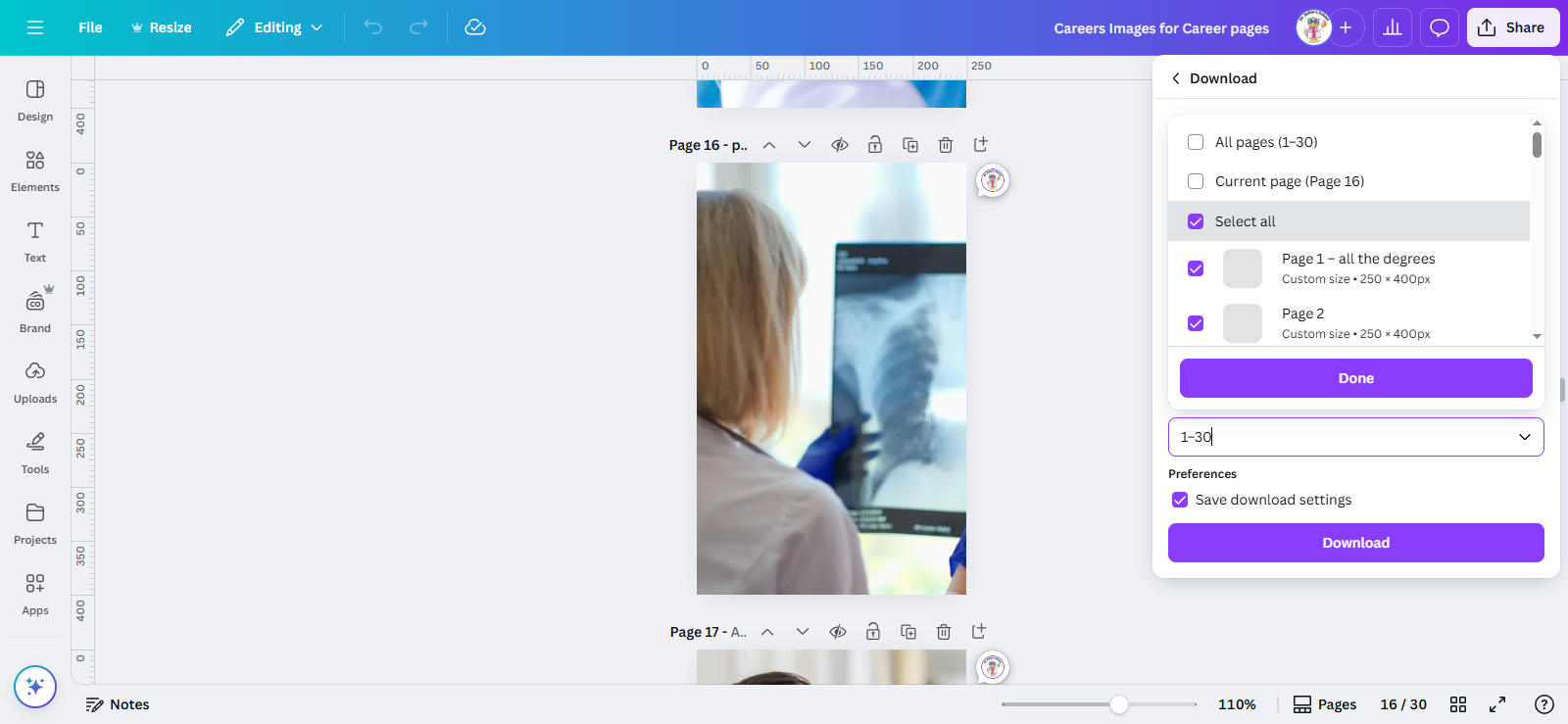
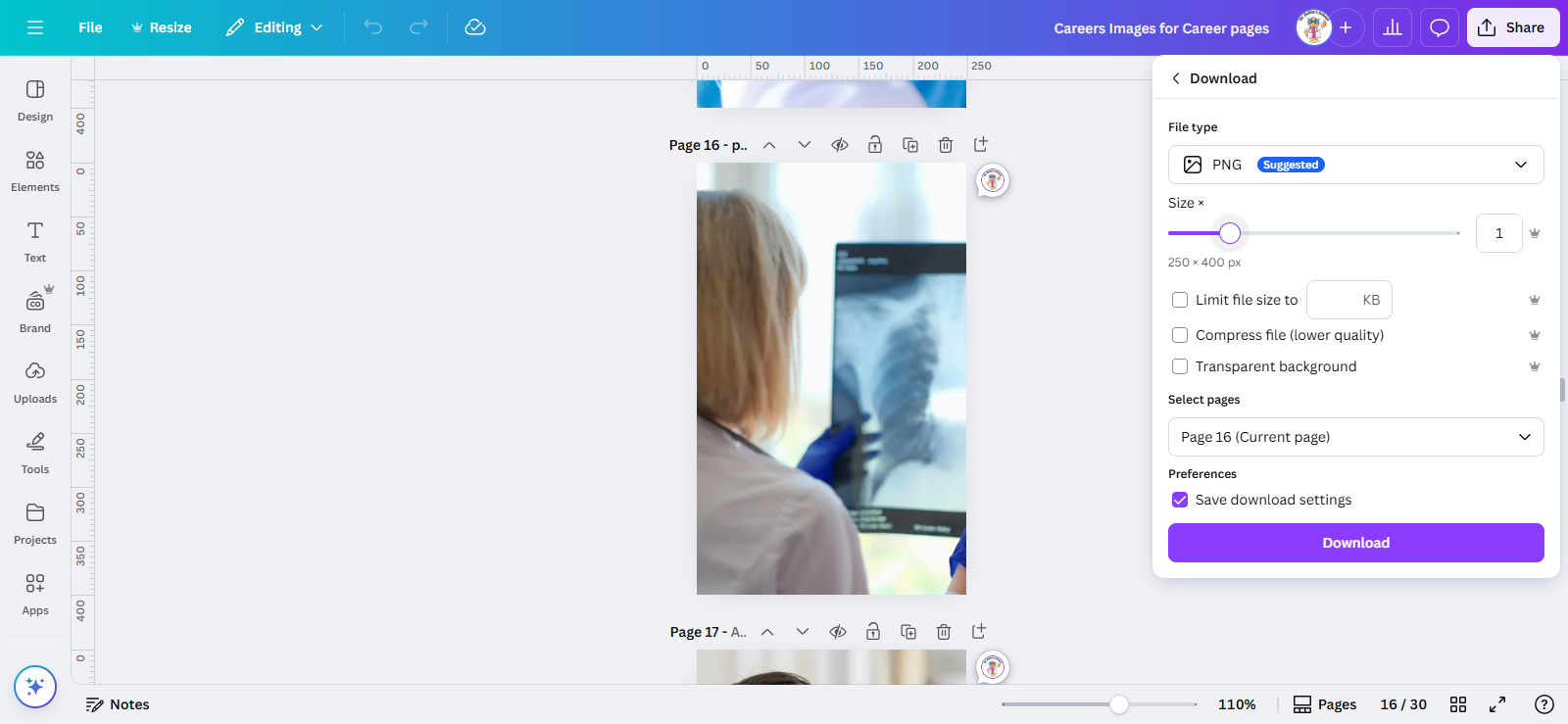
PNG or JPG is fine. Here's how you make it bigger or smaller.
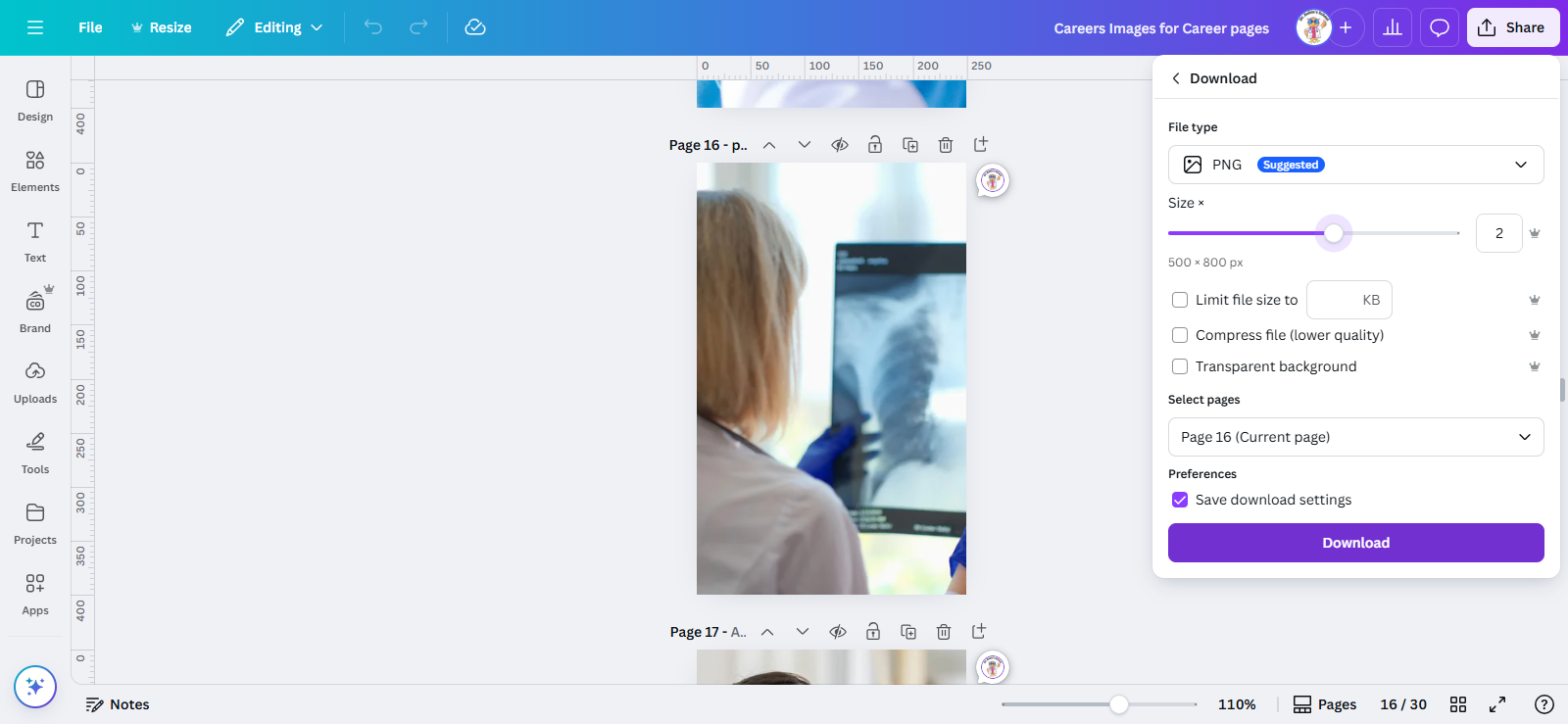
Wait for it to download.
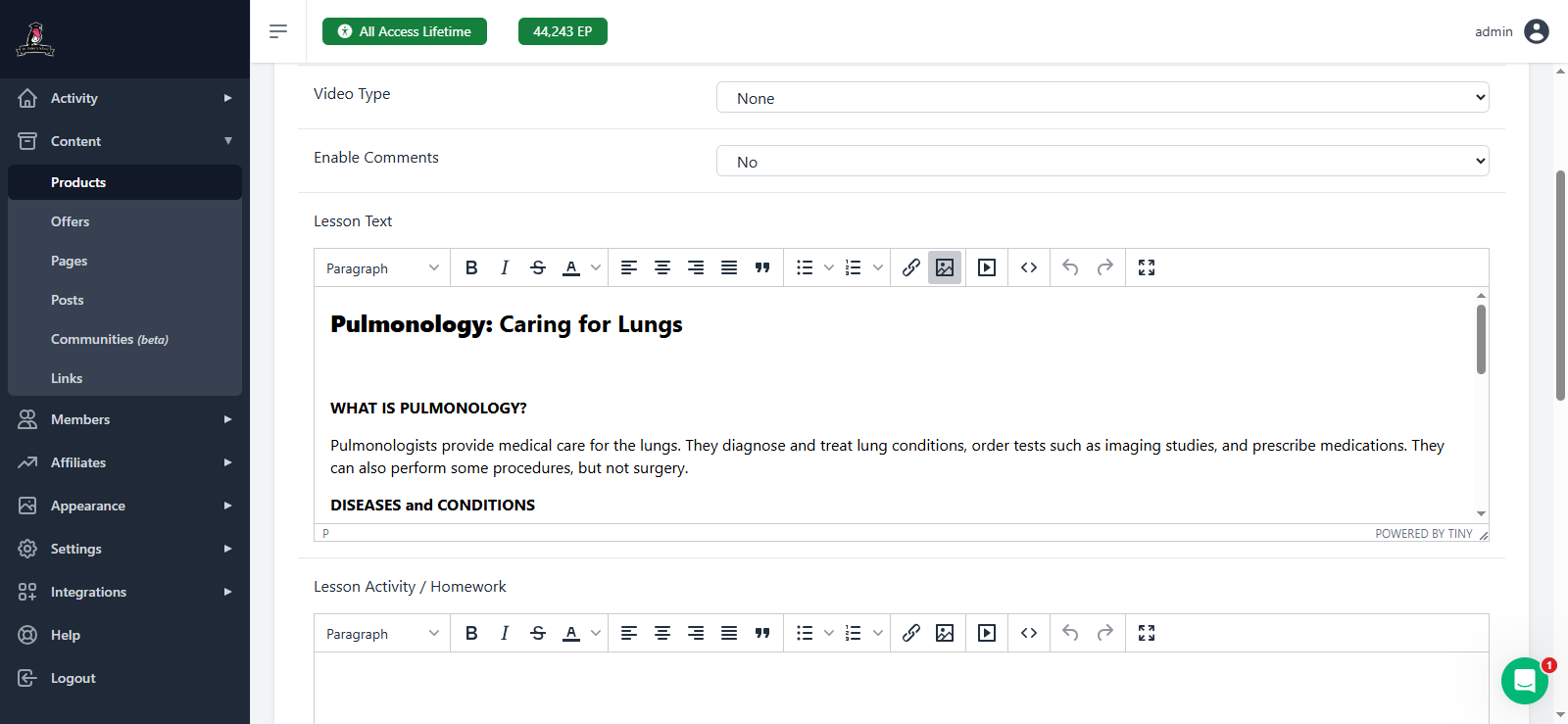
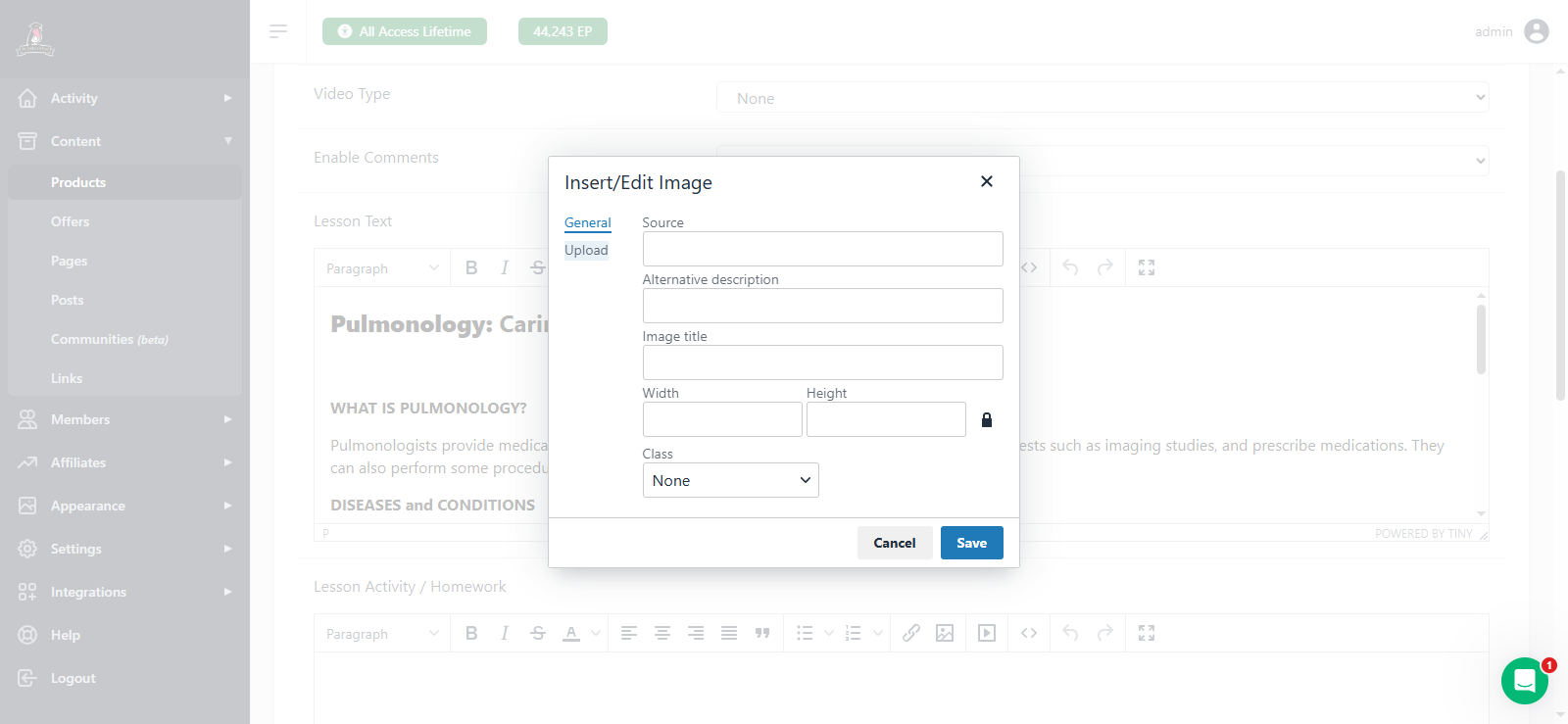
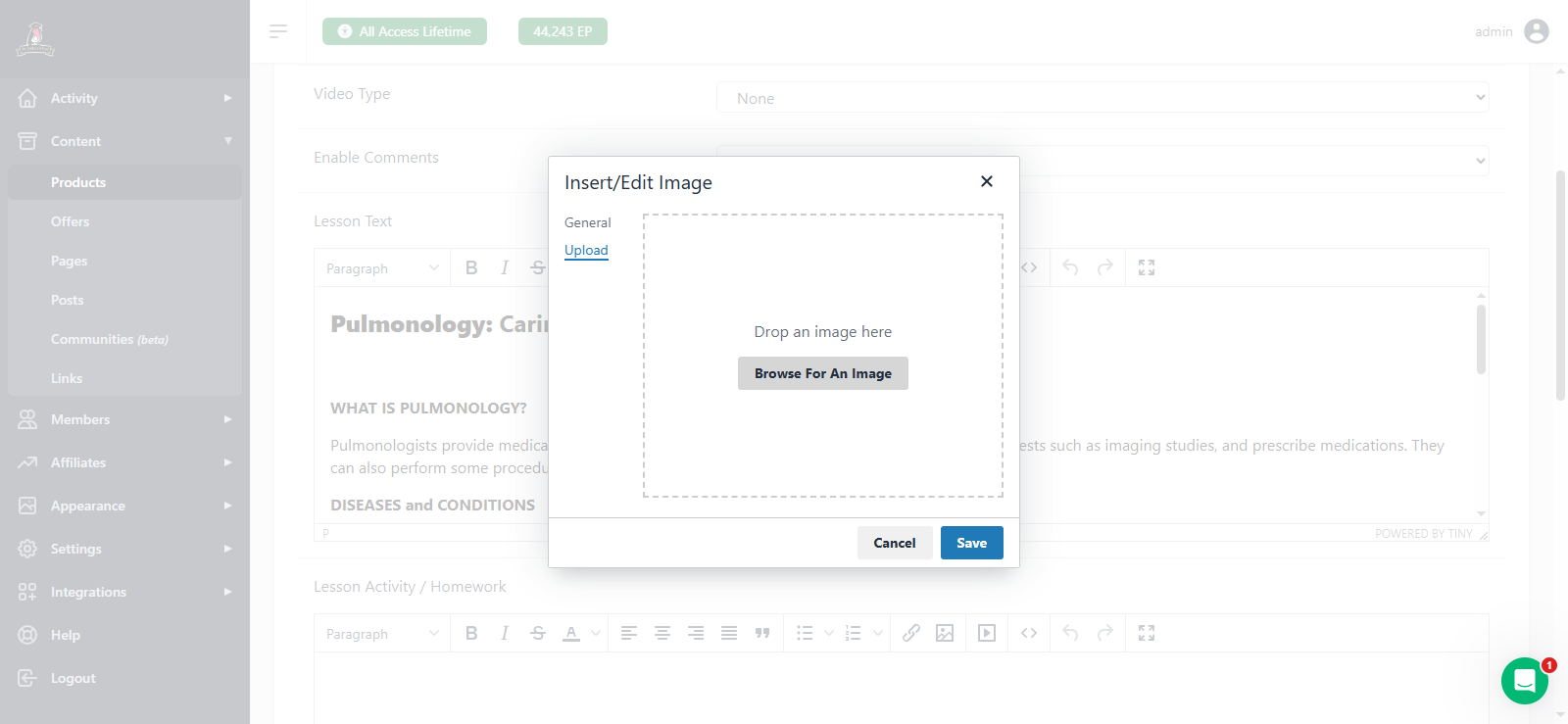
There we go. Then choose where it goes. Left, center, or right.
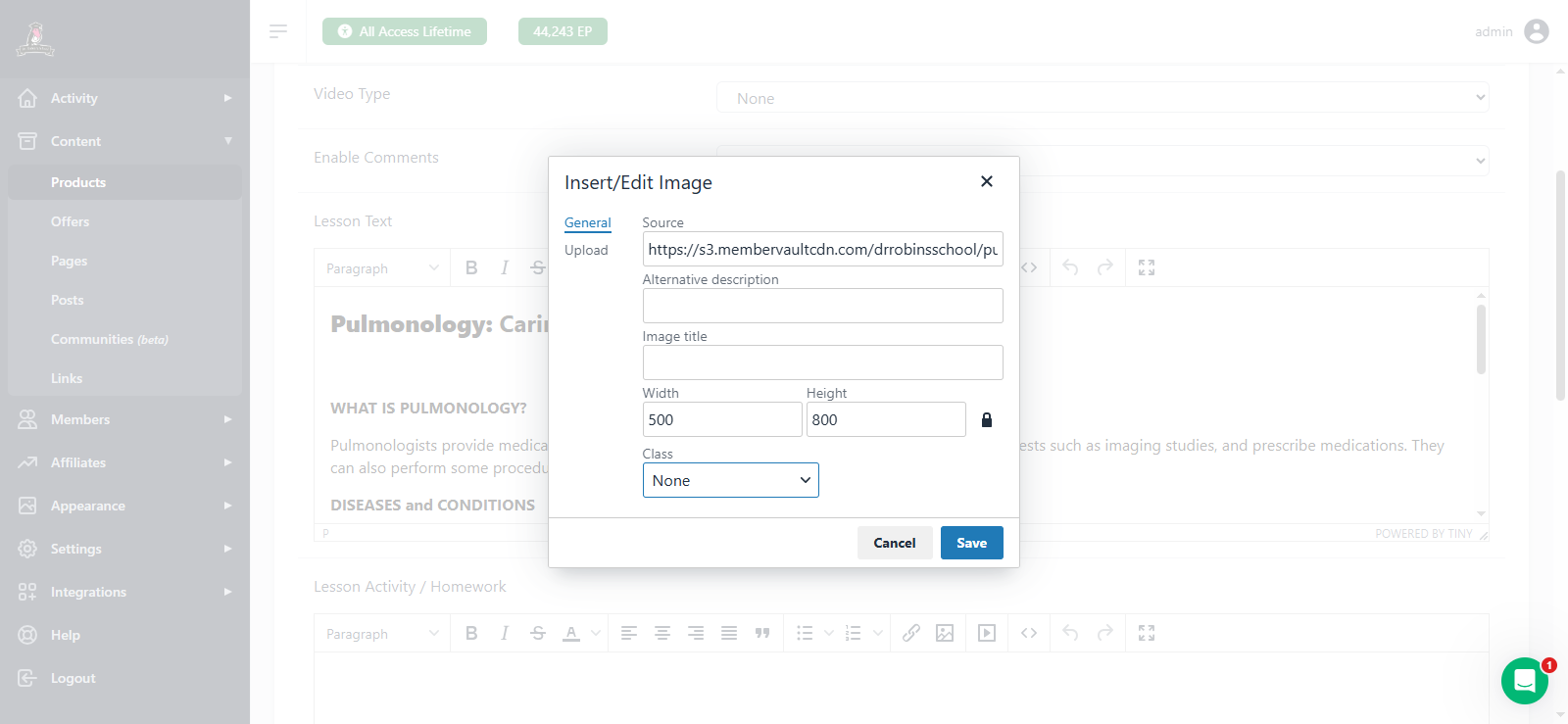
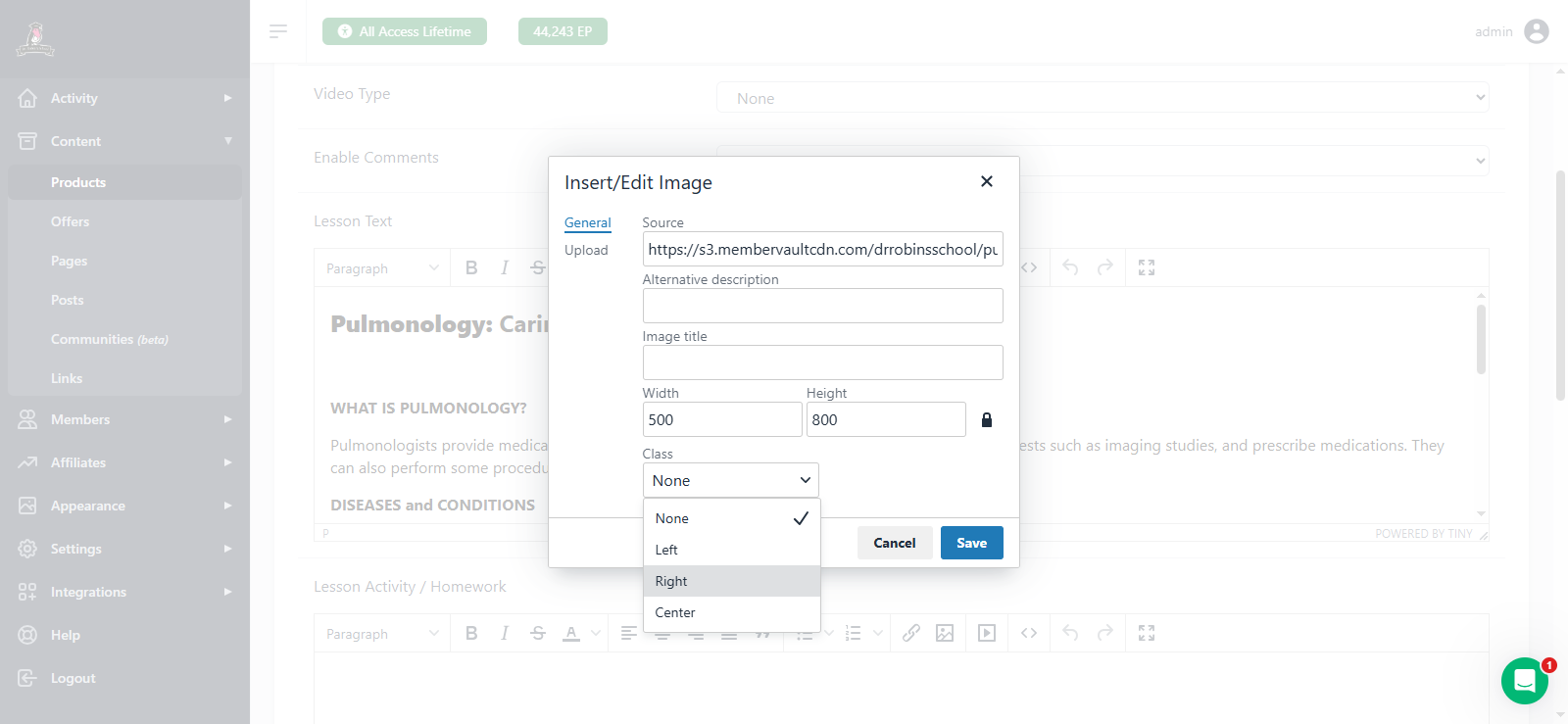
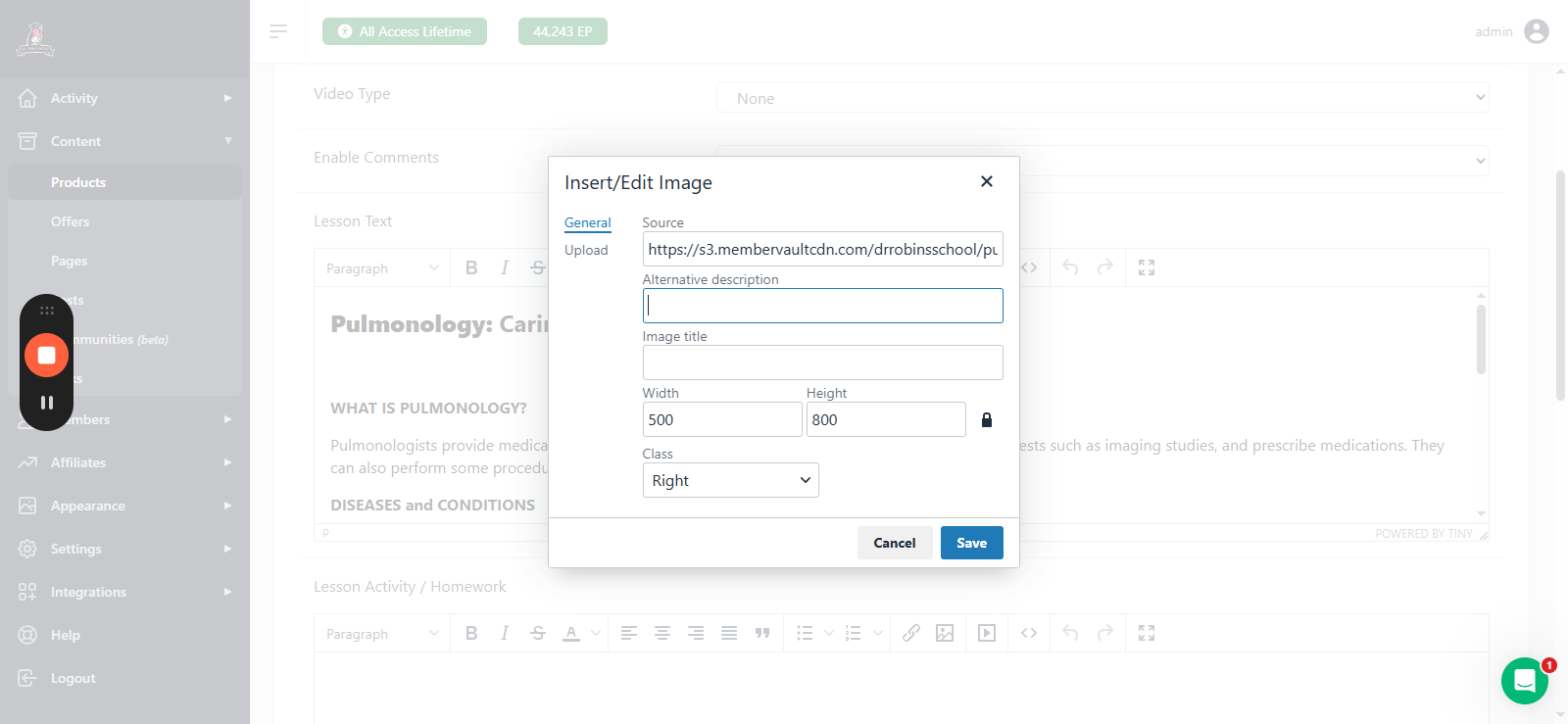
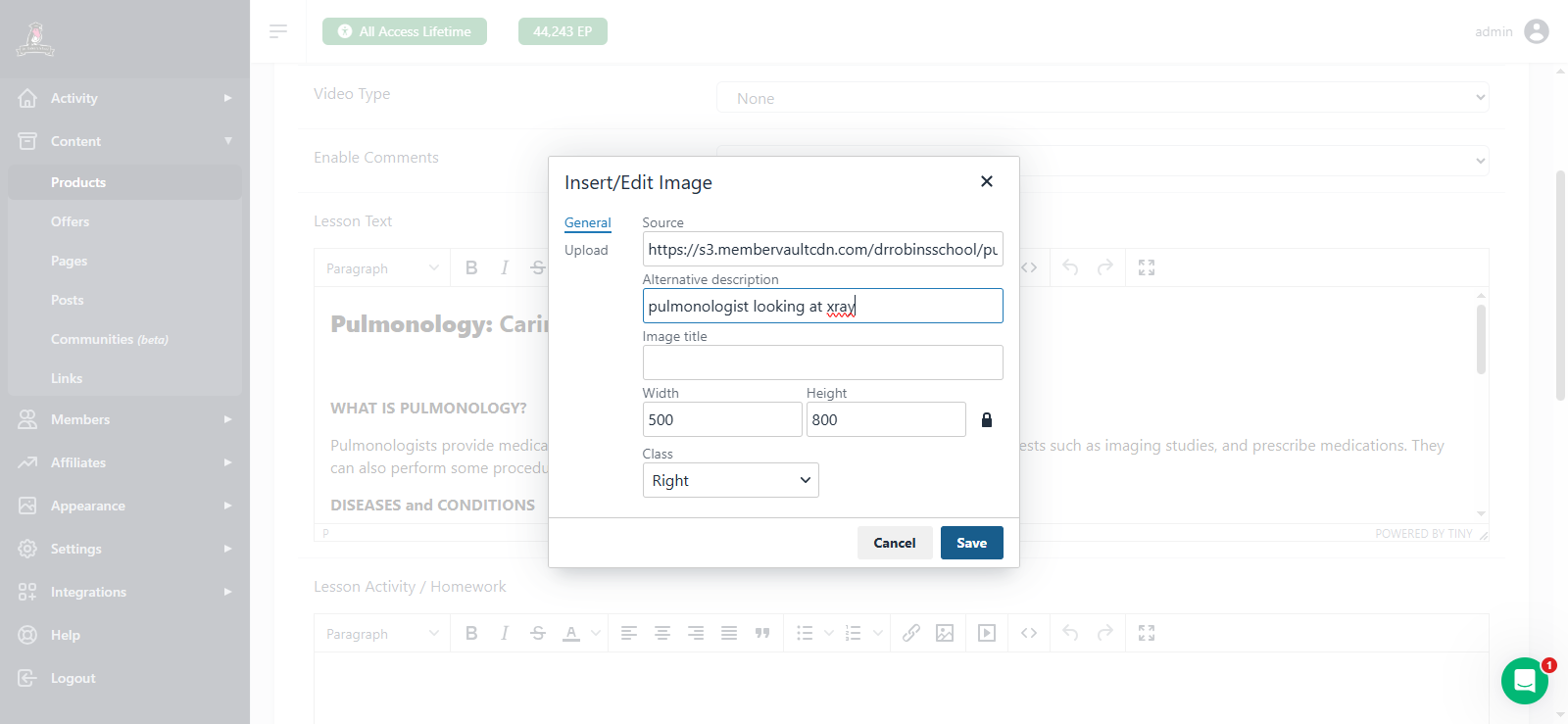
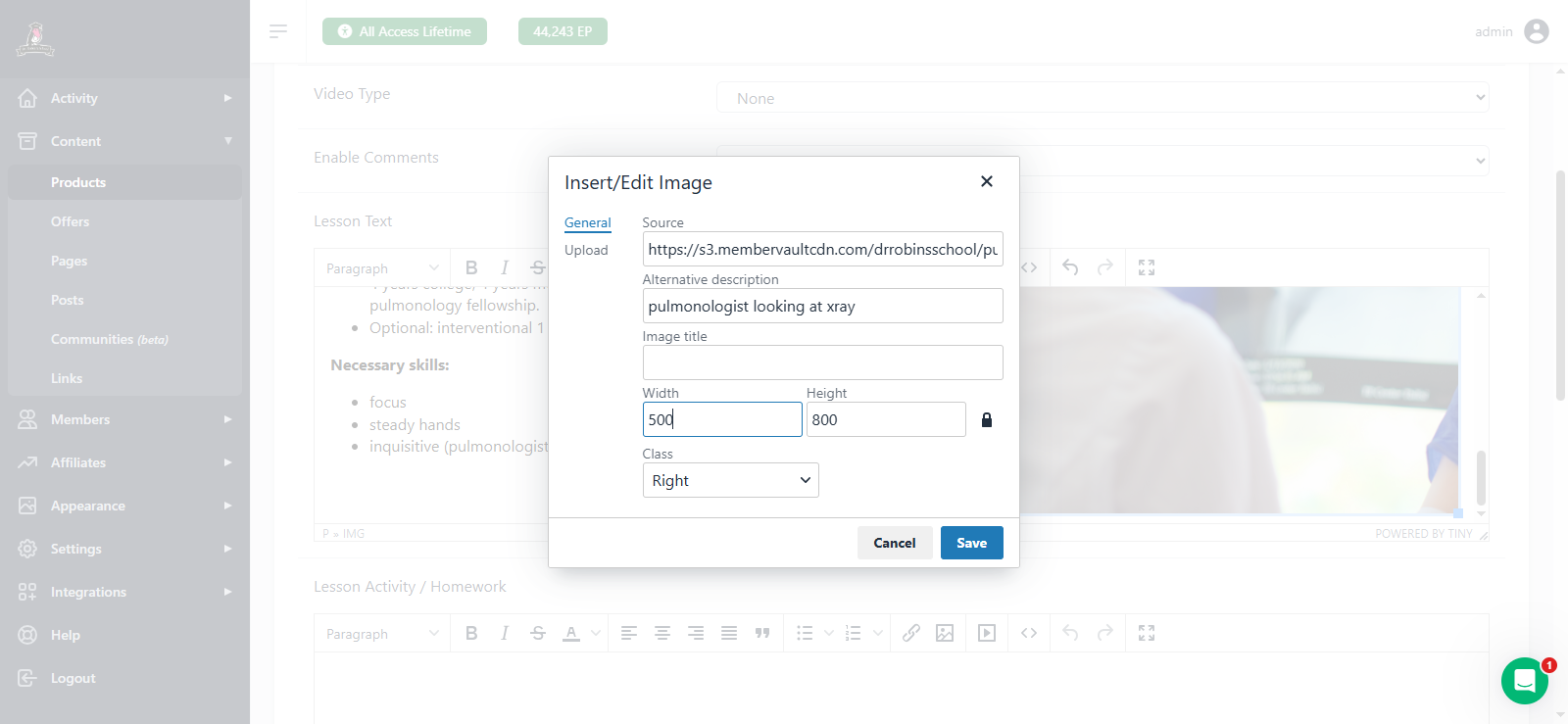
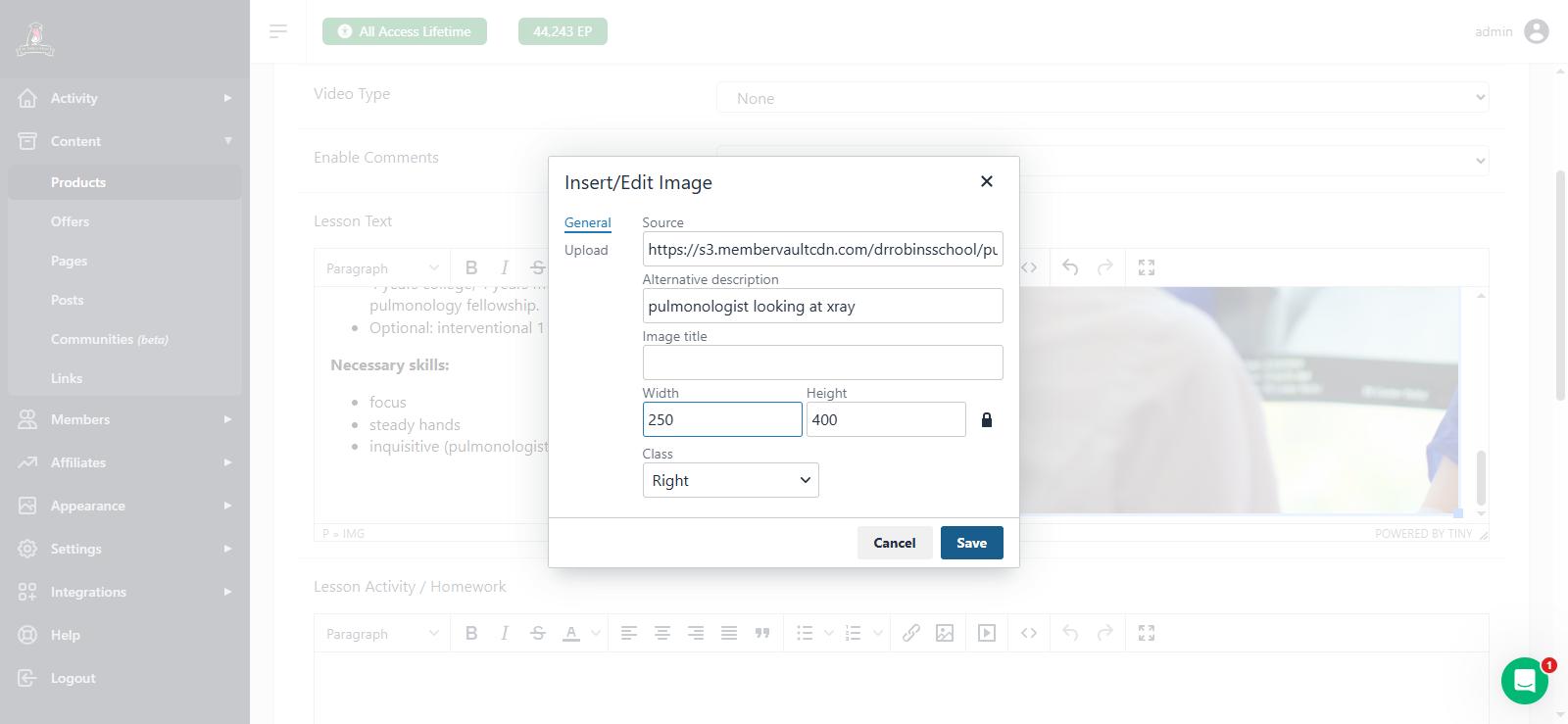
There it is, off to the side. I may have made that too big, so you can make it smaller. When we save it, we can click on preview to check if it looks okay.
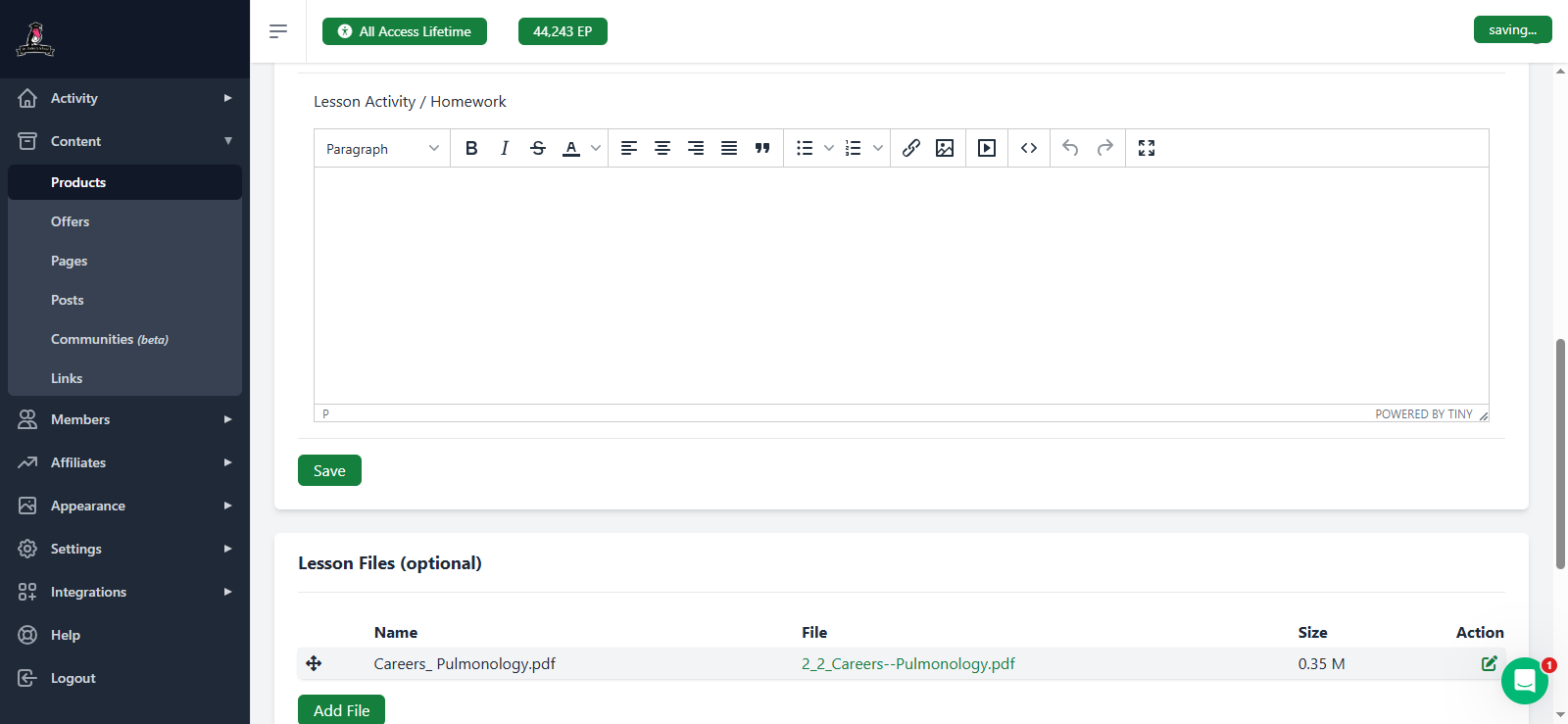
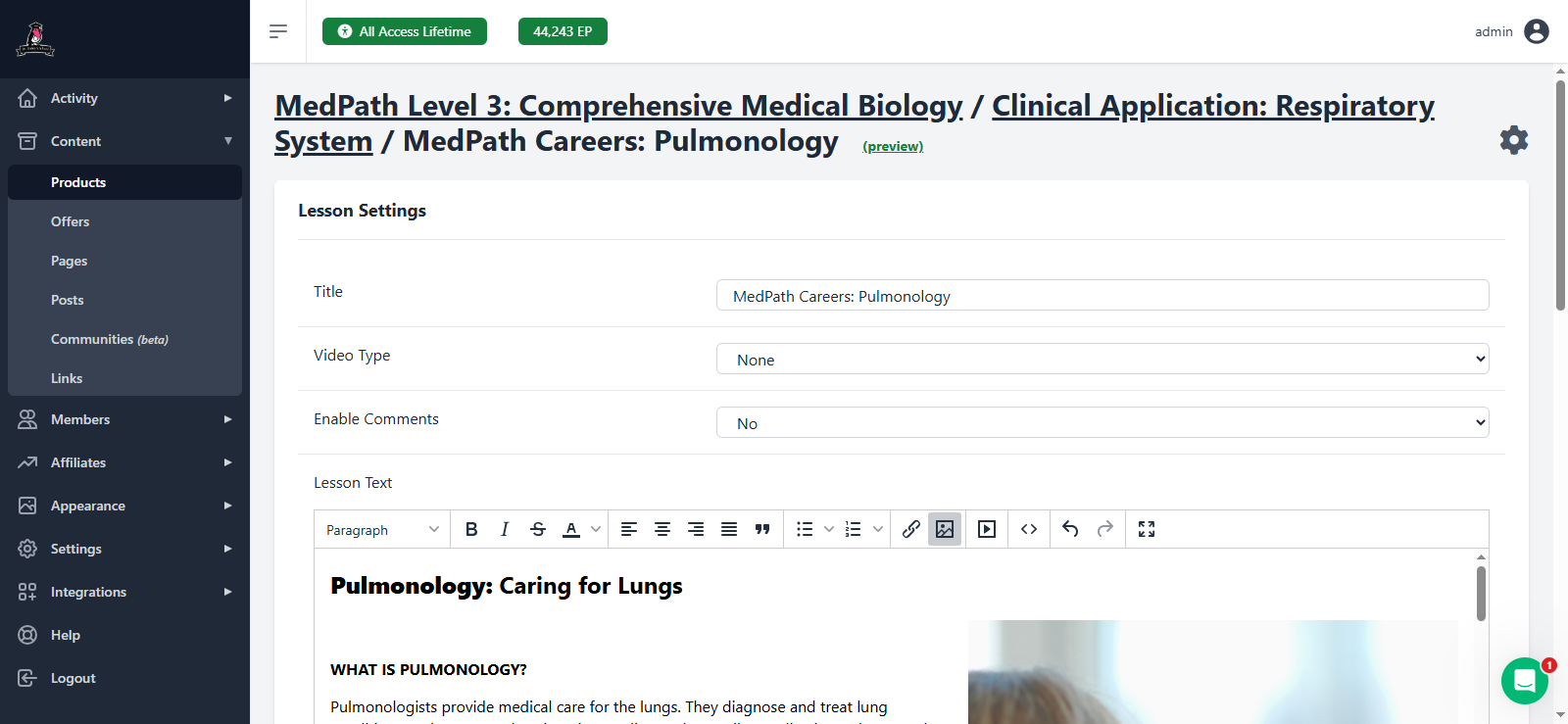
If we think, "That's too big," then we can just make it smaller. I'm glad I did that because now you can see how to change the size.
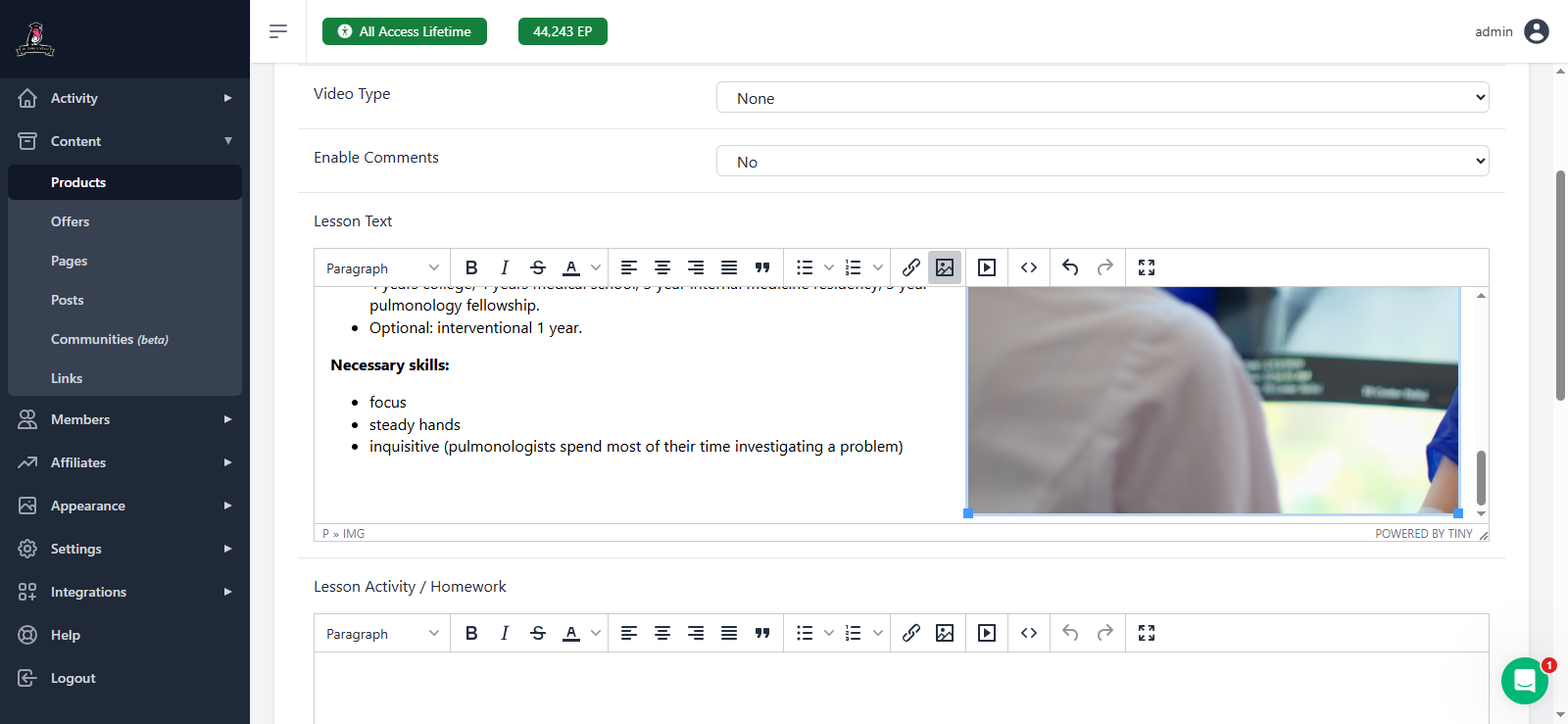
You can click "save" to speed it up, or wait for it to save automatically.
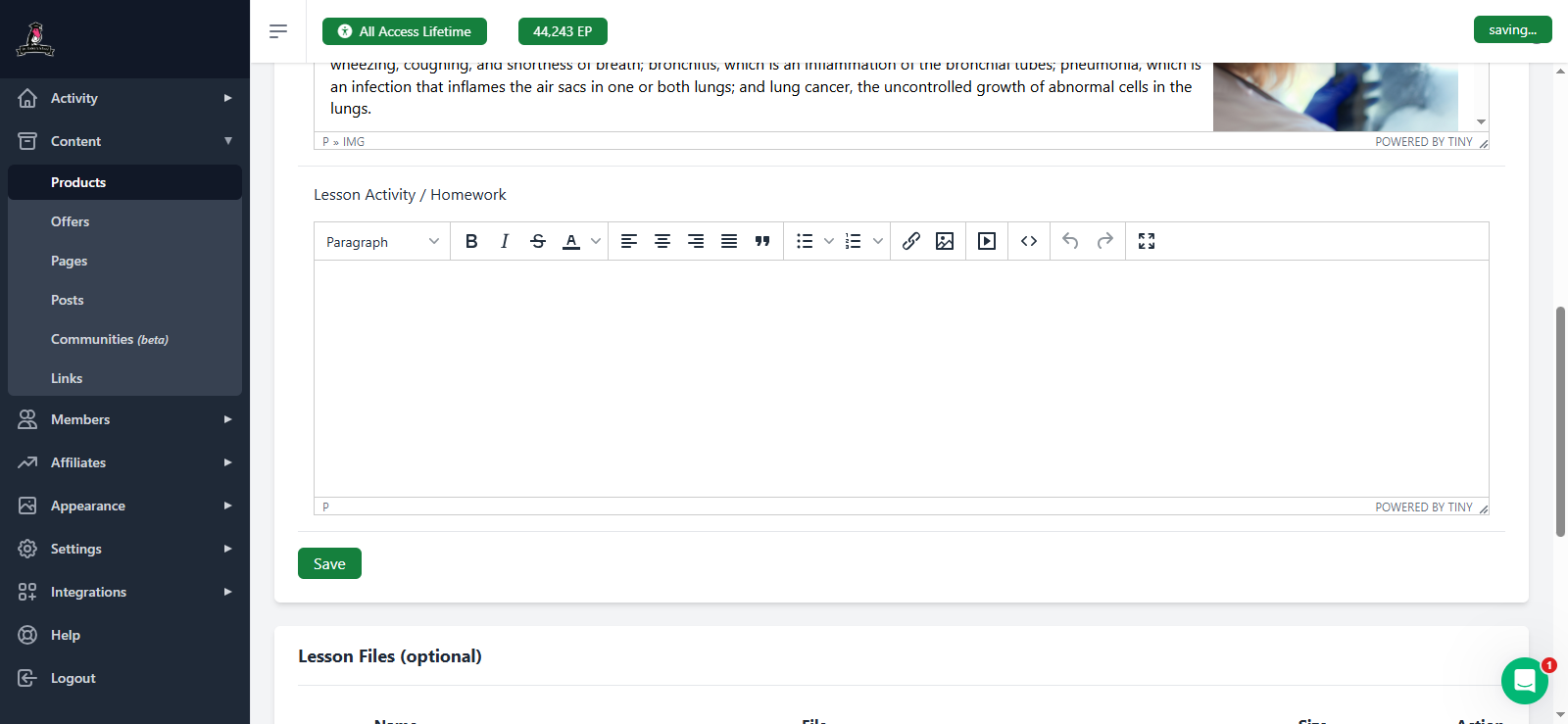
Then go back to the preview and hit refresh to see what it looks like. Ta-da!
We now see our image of a pulmonologist, along with all the relevant information. Don't we look fancy?
Let me know if you have any questions. That is how to insert a picture in this situation. Different situations may require different steps but this is the basic method you'll always use.
You have also learned how to resize an image if it appears at the wrong size.