How to Add Billing Details in your Vsltec Organization Settings
Follow these simple steps to update your billing information.
In this guide, we'll learn how to add billing details to your Vsltec Account through the organization settings. This process is essential for managing your account's financial information and ensuring smooth transactions.
We'll explore how to navigate from the dashboard to the billing information page and update your details efficiently.
Let's get started
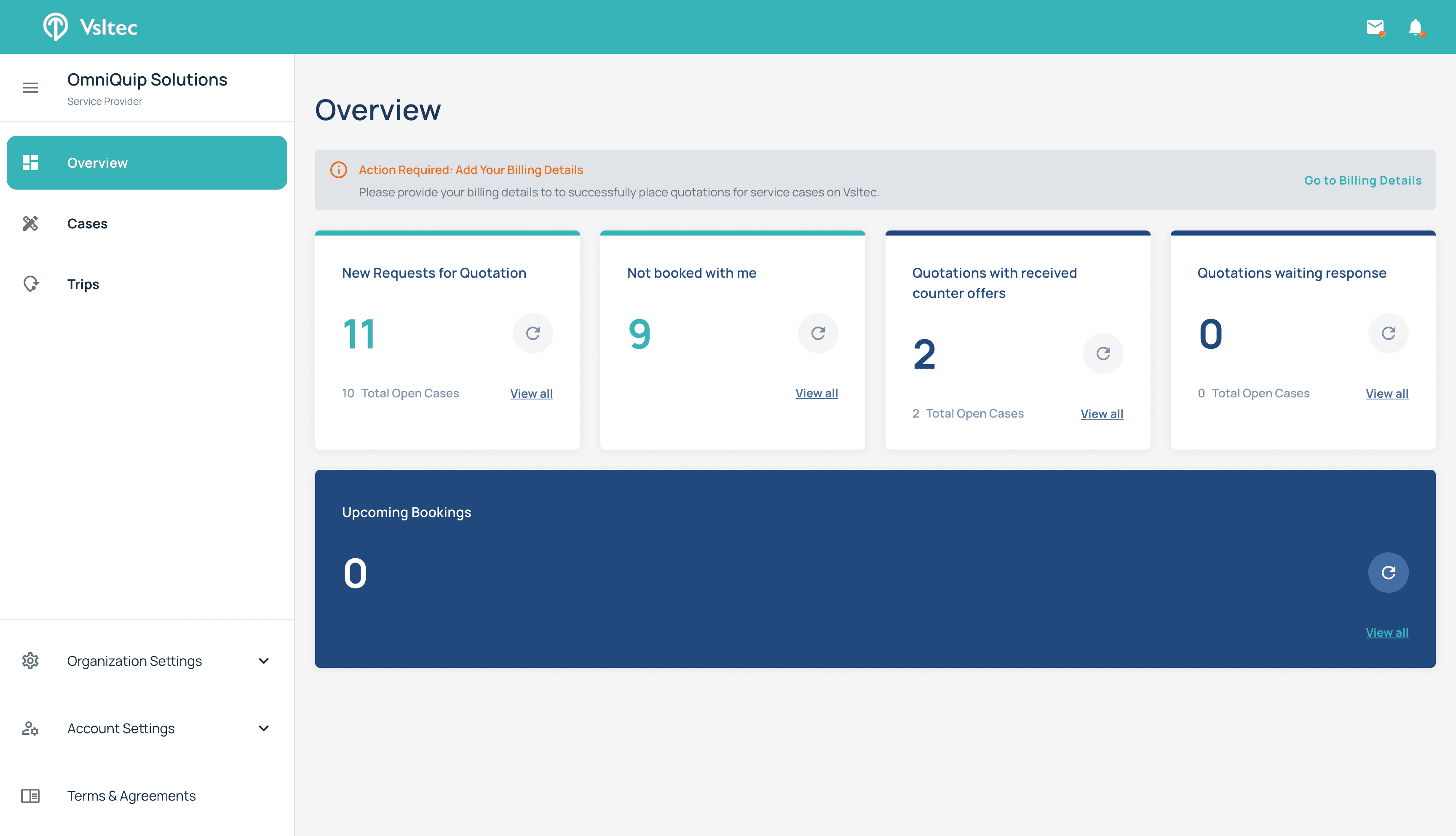
Let's see how to add billing details through organization settings. If you haven't added your billing details to your Vsltec account yet, you will see a message on your dashboard overview that says "Action Required."
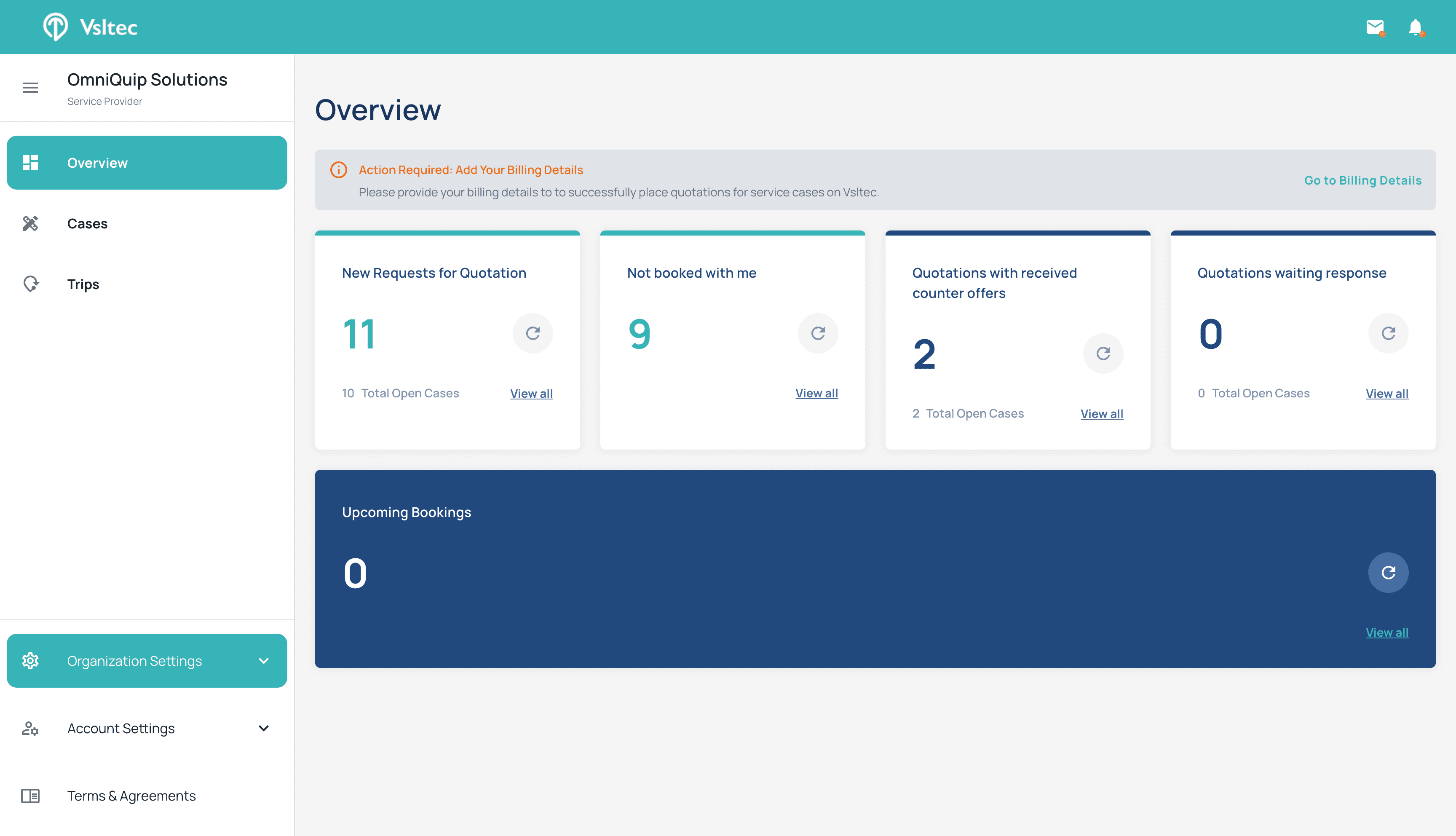
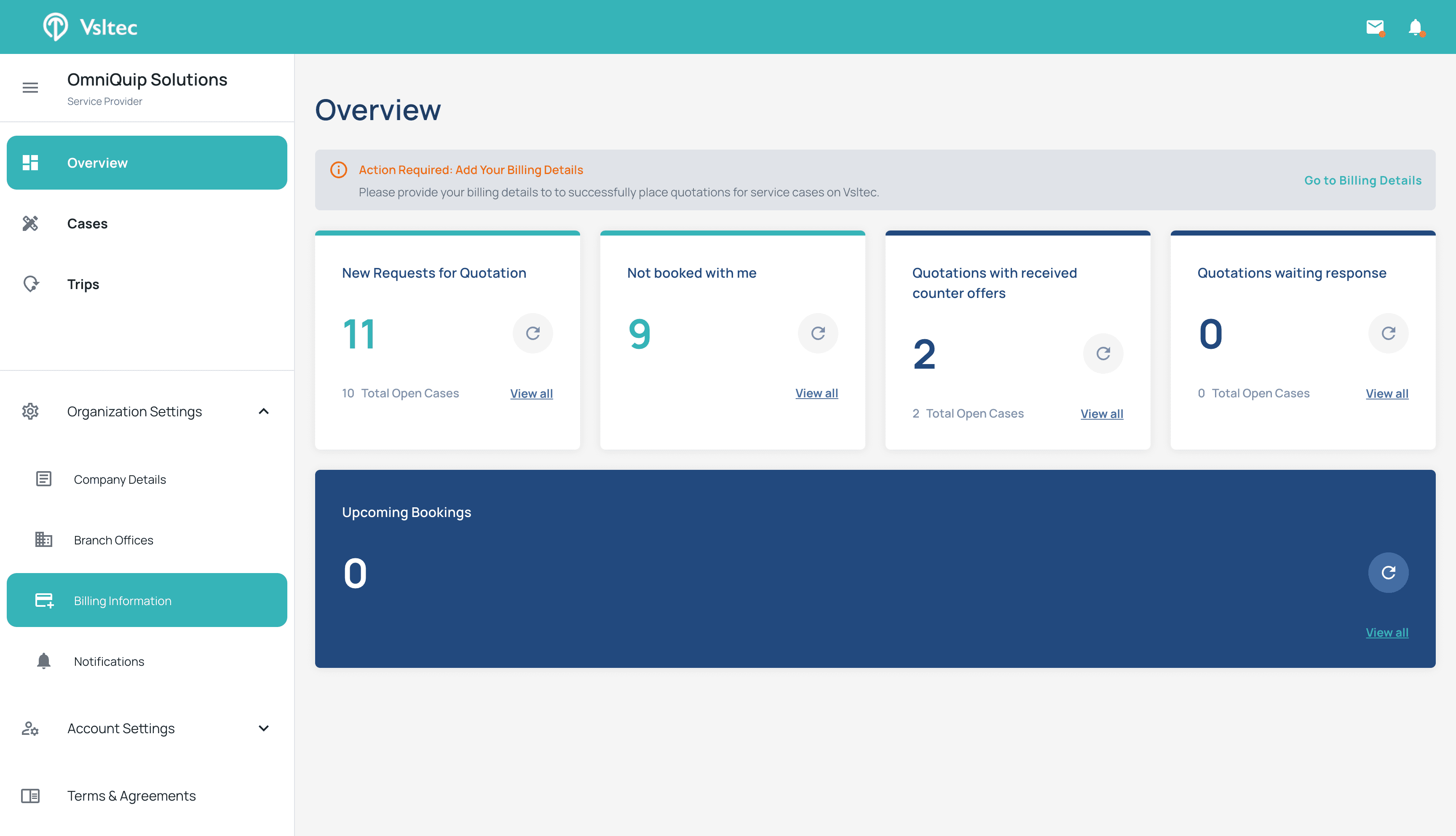
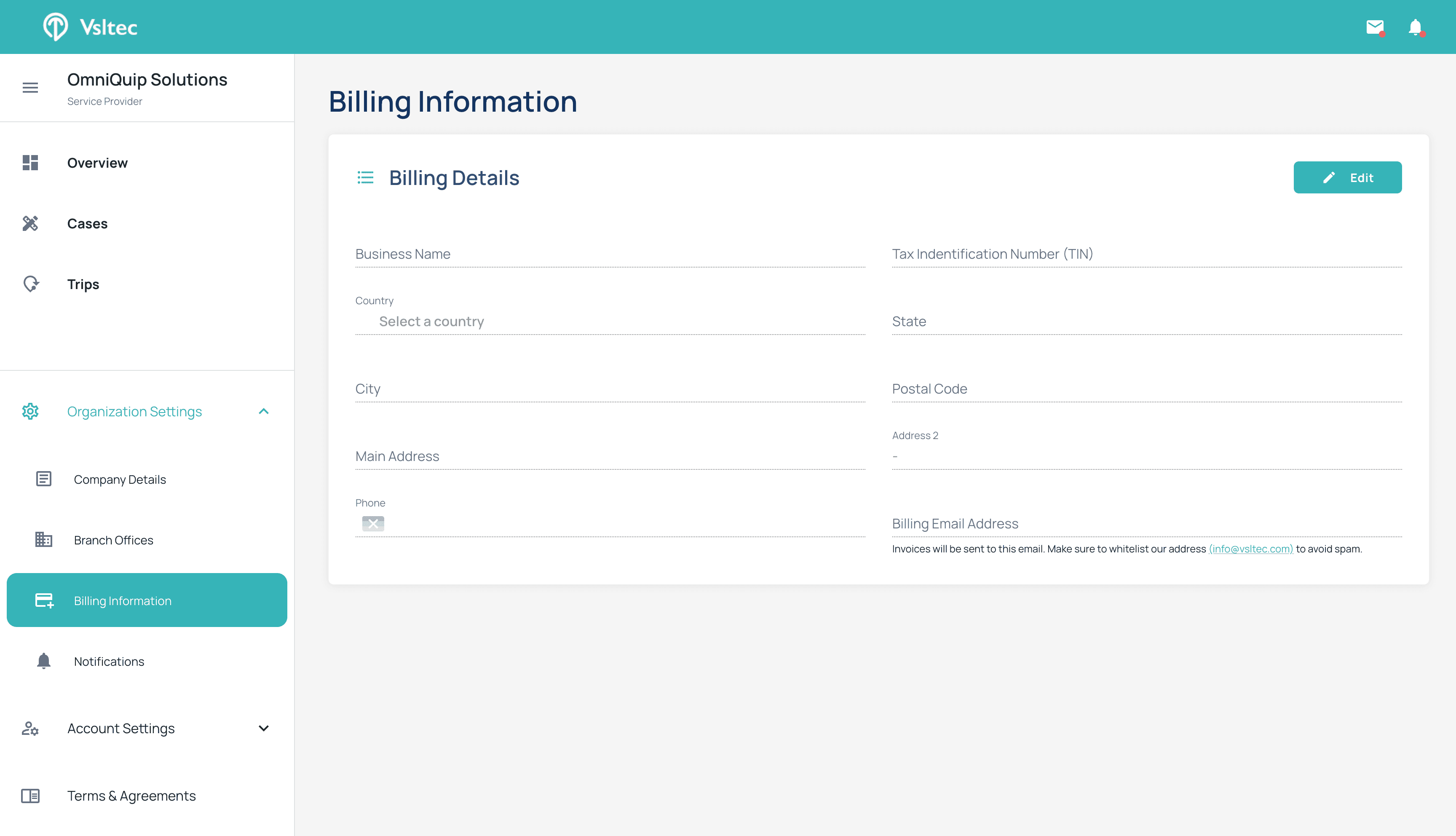
Or, you can navigate the side menu, select organization settings, and then billing information.
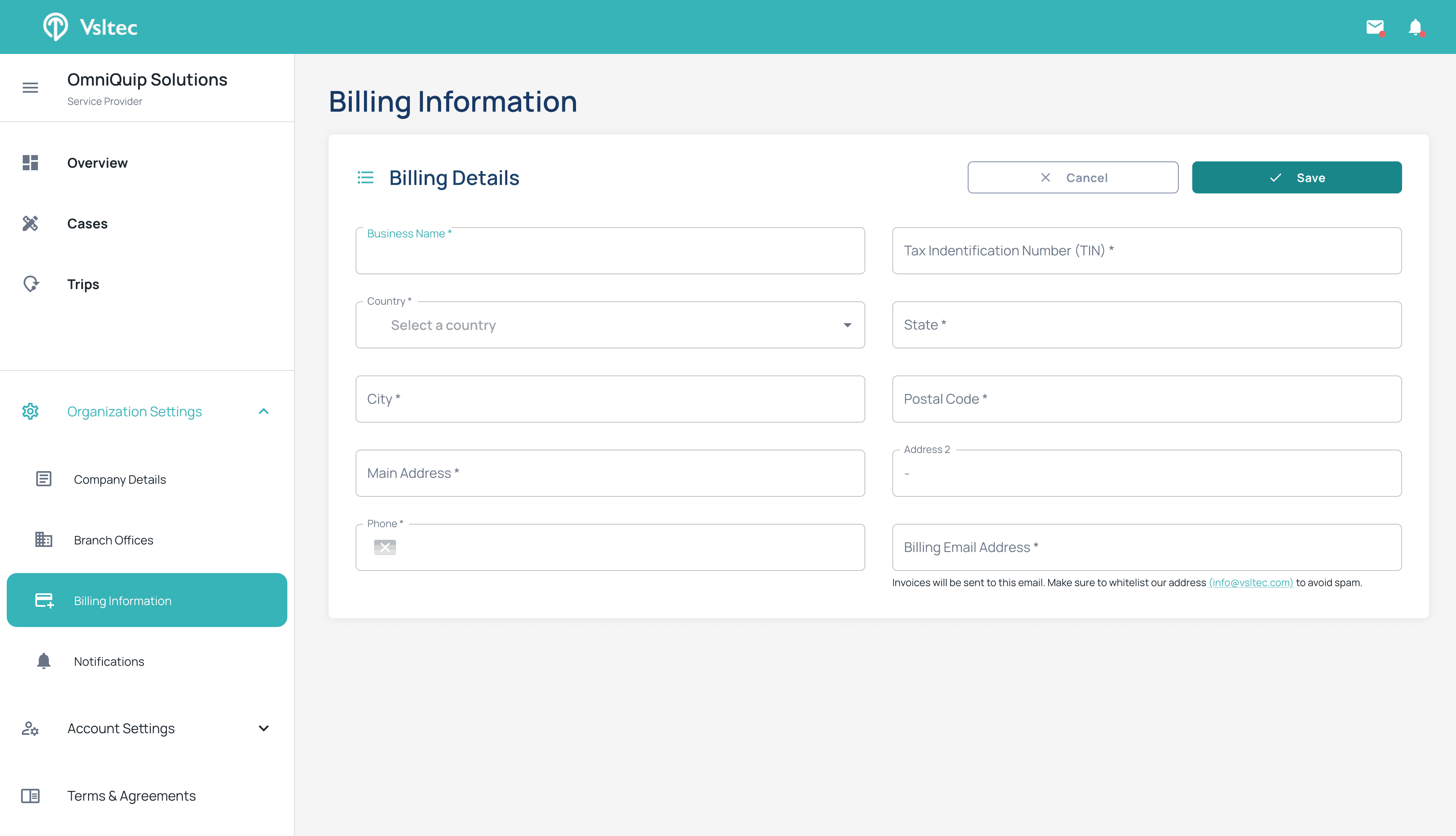
Once you are on the billing information page, click "Edit" and fill in all the relevant information.
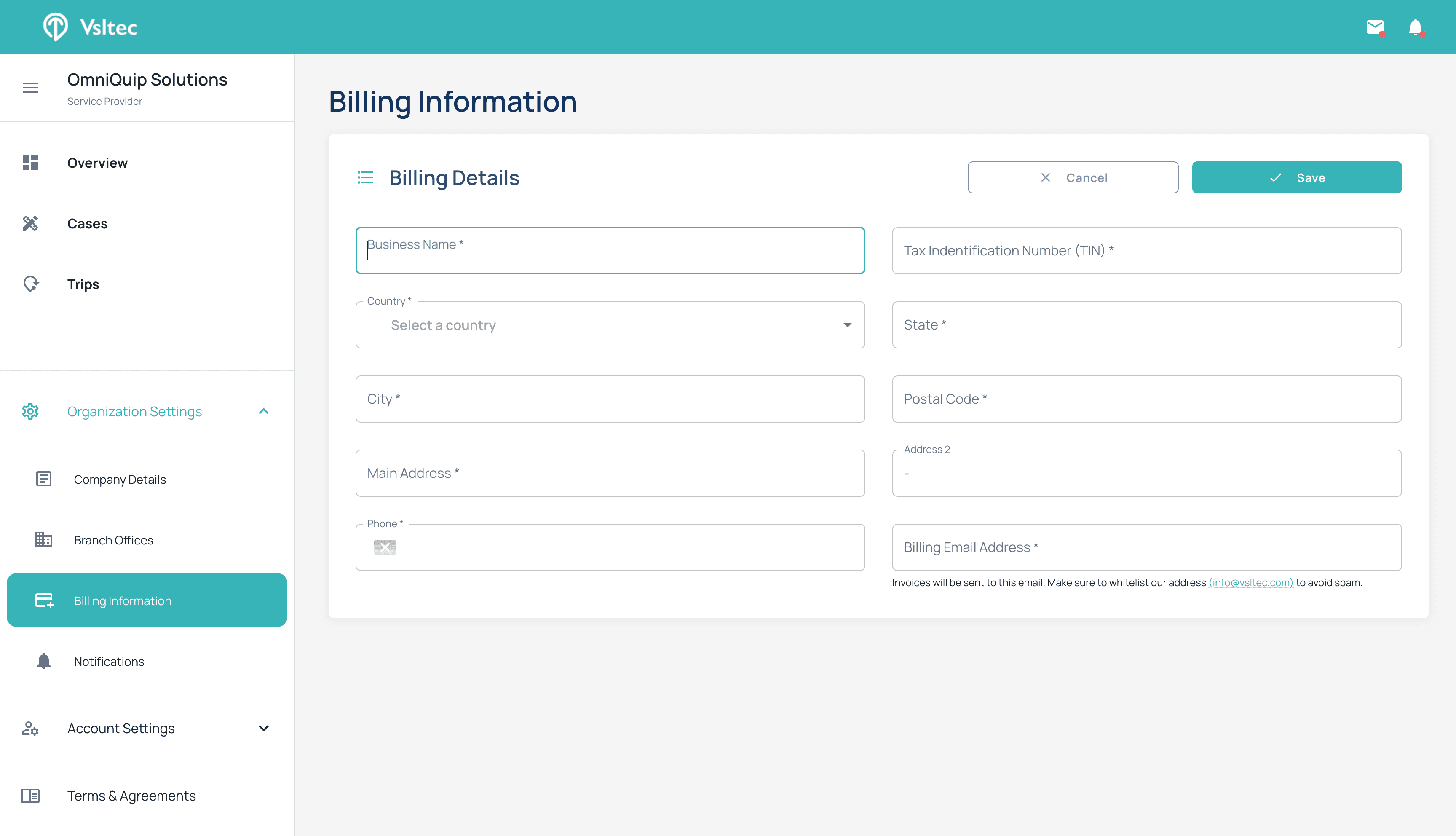
After finishing, click save.