How to Add Looks to a Collection
Learn how to view collections, create collections and seamlessly add new items and looks to an active collection.
By Brent del rosario
Managing your collections effectively requires knowing how to find specific garments and assign them correctly. Follow this guide to learn how to browse existing looks by product and add them directly to a collection.
Browsing Existing Collections
Before adding new looks, you may want to review what is already in your collection.
1
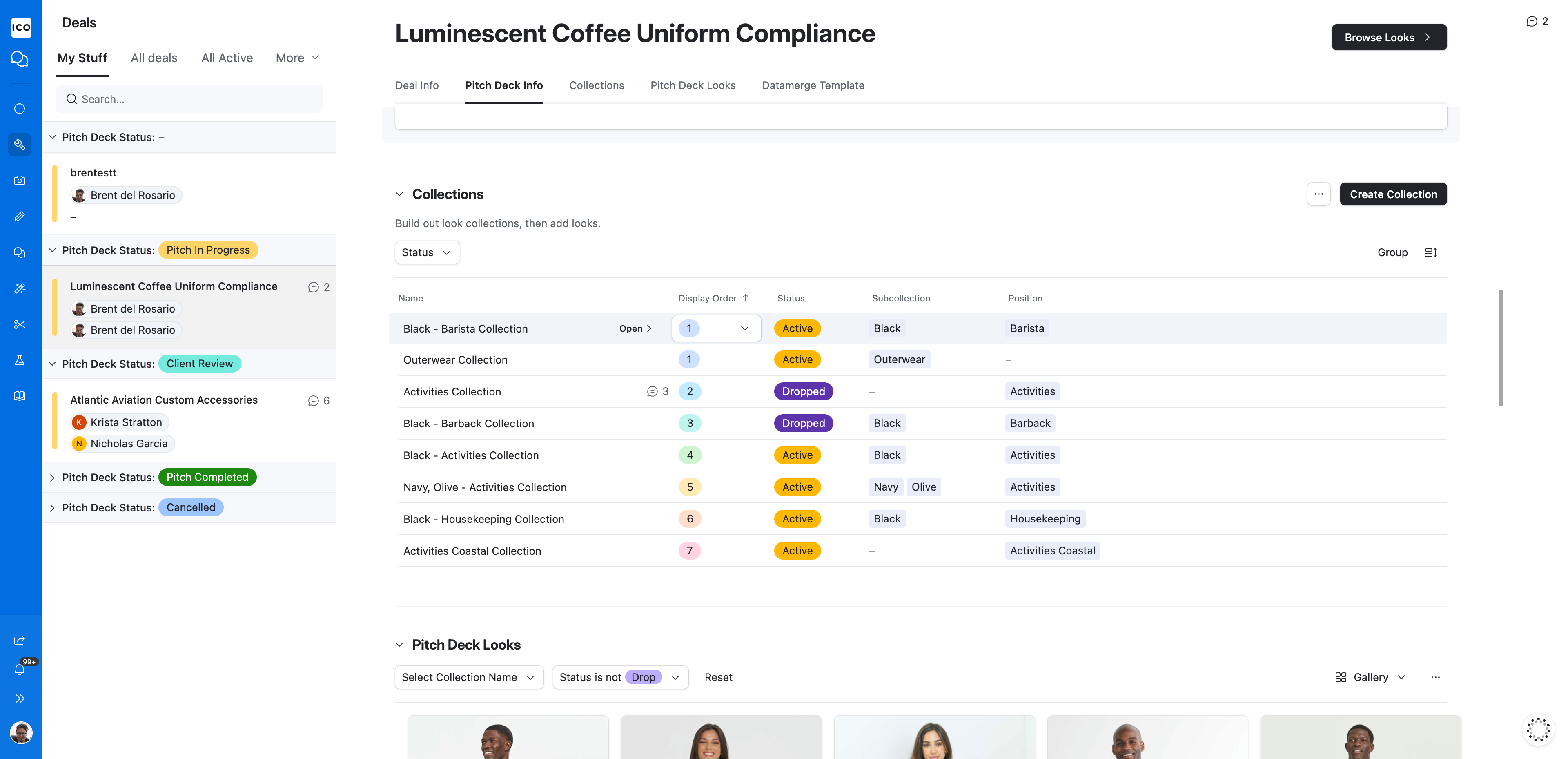
Select your target collection from the project dashboard.
2
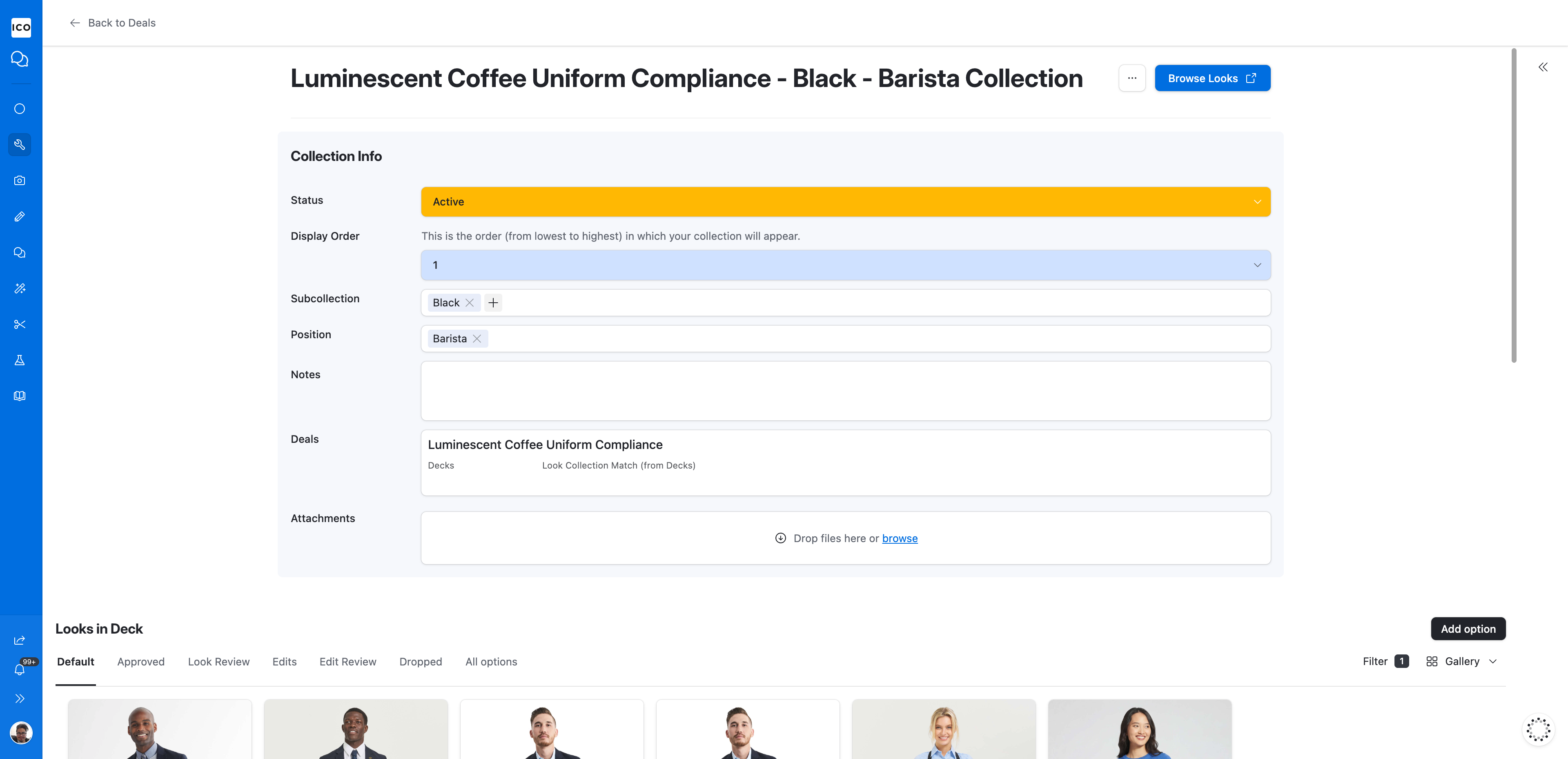
Click Browse Looks to view the items currently included in the collection.
3
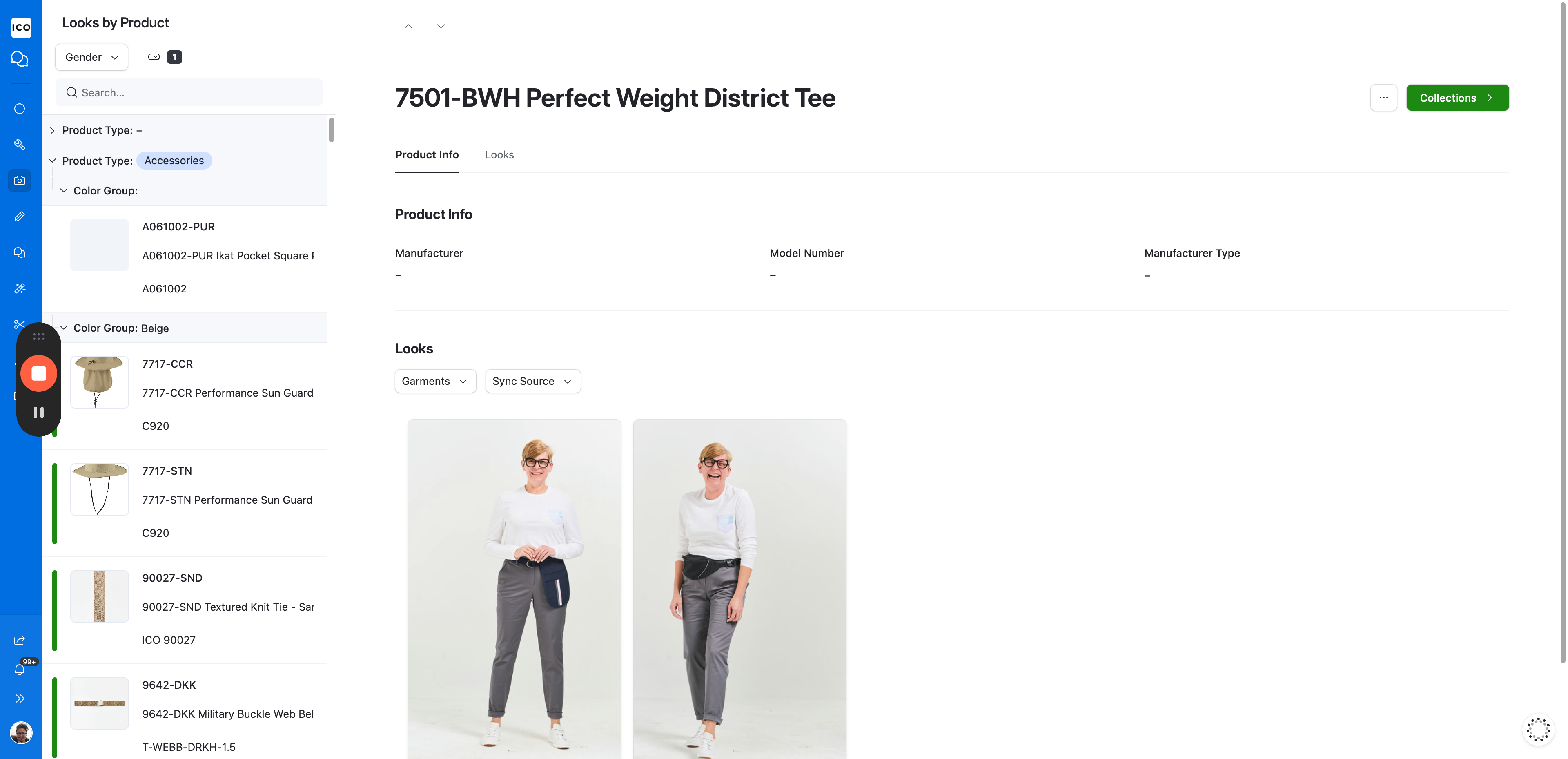
Click the search bar to start searching products. You can search by Code, Name, Color or Model Number. Click the product you want to show all available looks on the right.
Filtering your looks
You can either browse and select your look or you can filter if you know what you're looking for. There are a couple ways to do this.
4
Navigate to the Garments tab to browse all available products.
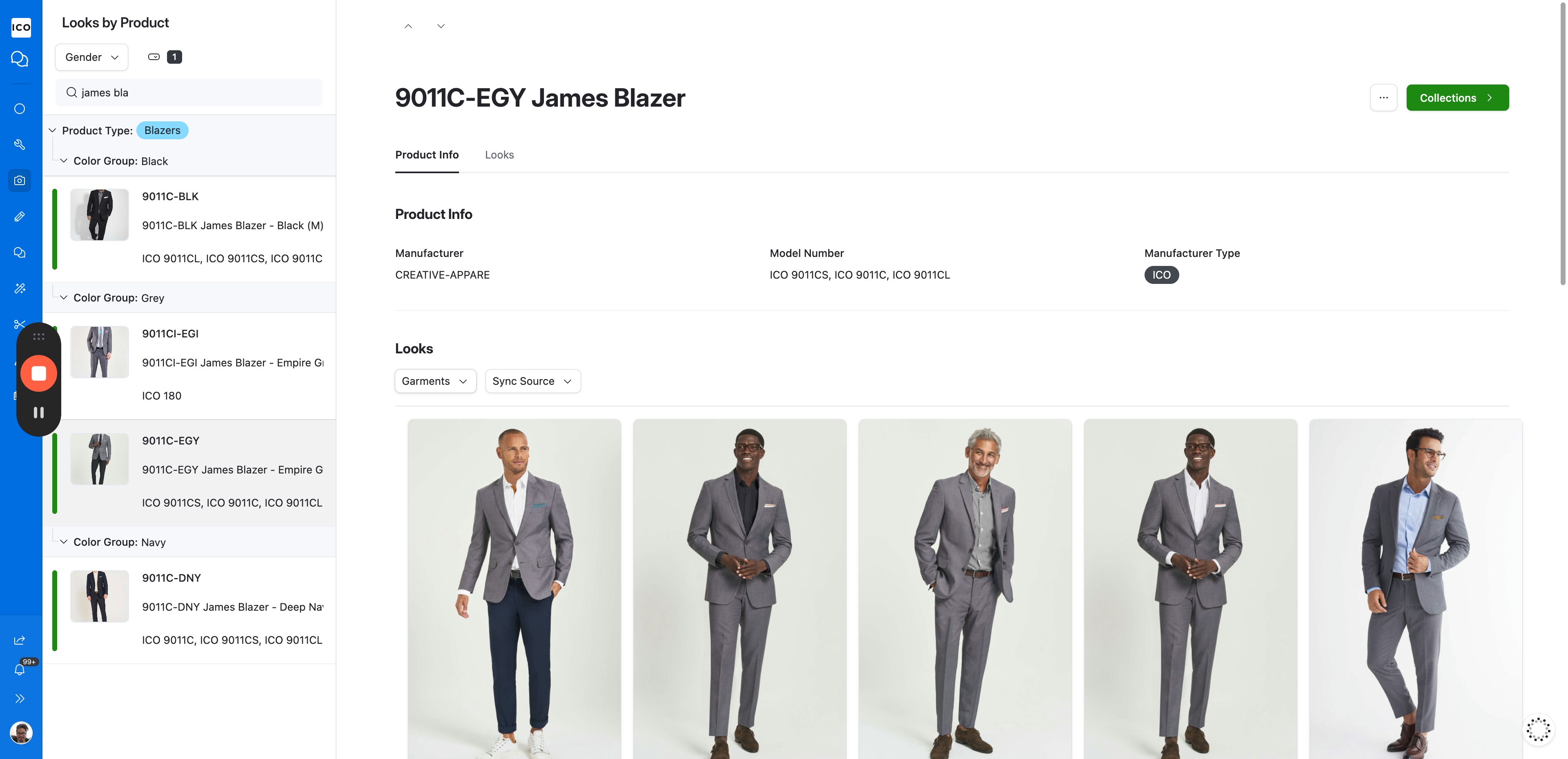
5
Click the search bar and search by Code, Name, Color or Model Number.
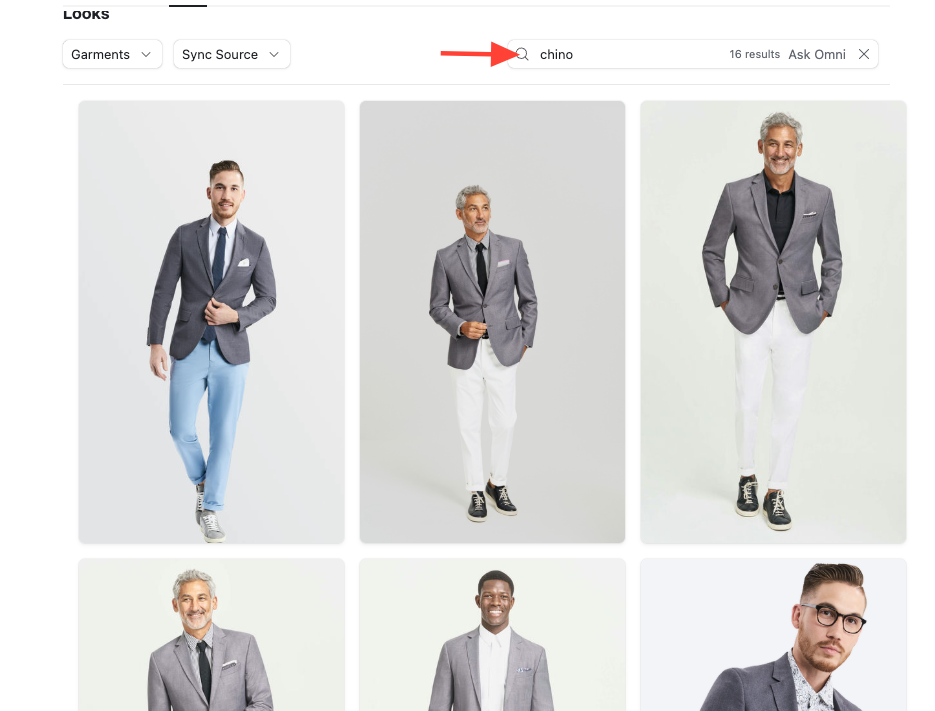
Adding the Garment to a Collection
Once you have found the right look, you can assign it to your desired collection.
6
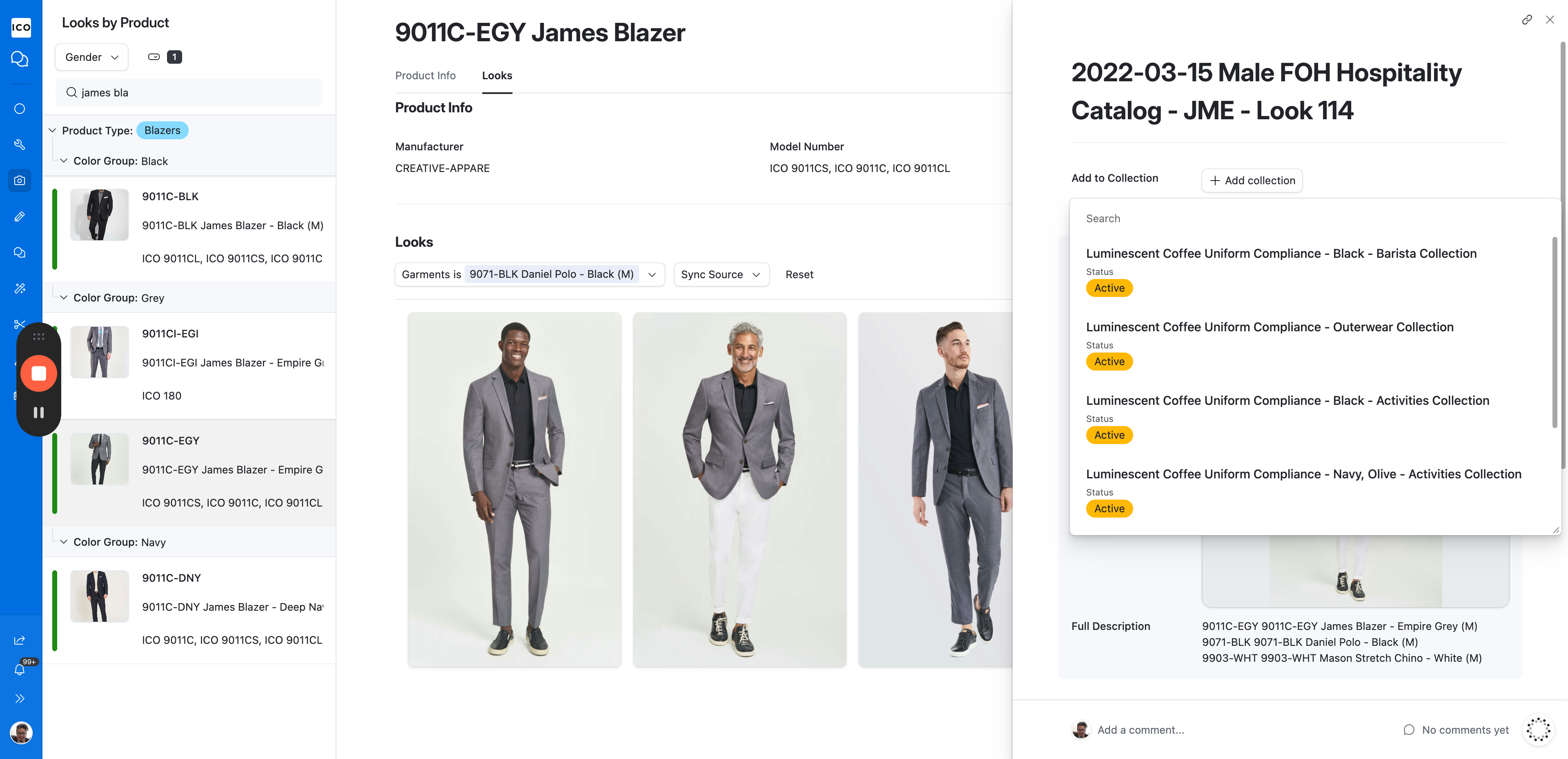
Click the look that you like for the collection you're working on to show a sidebar.
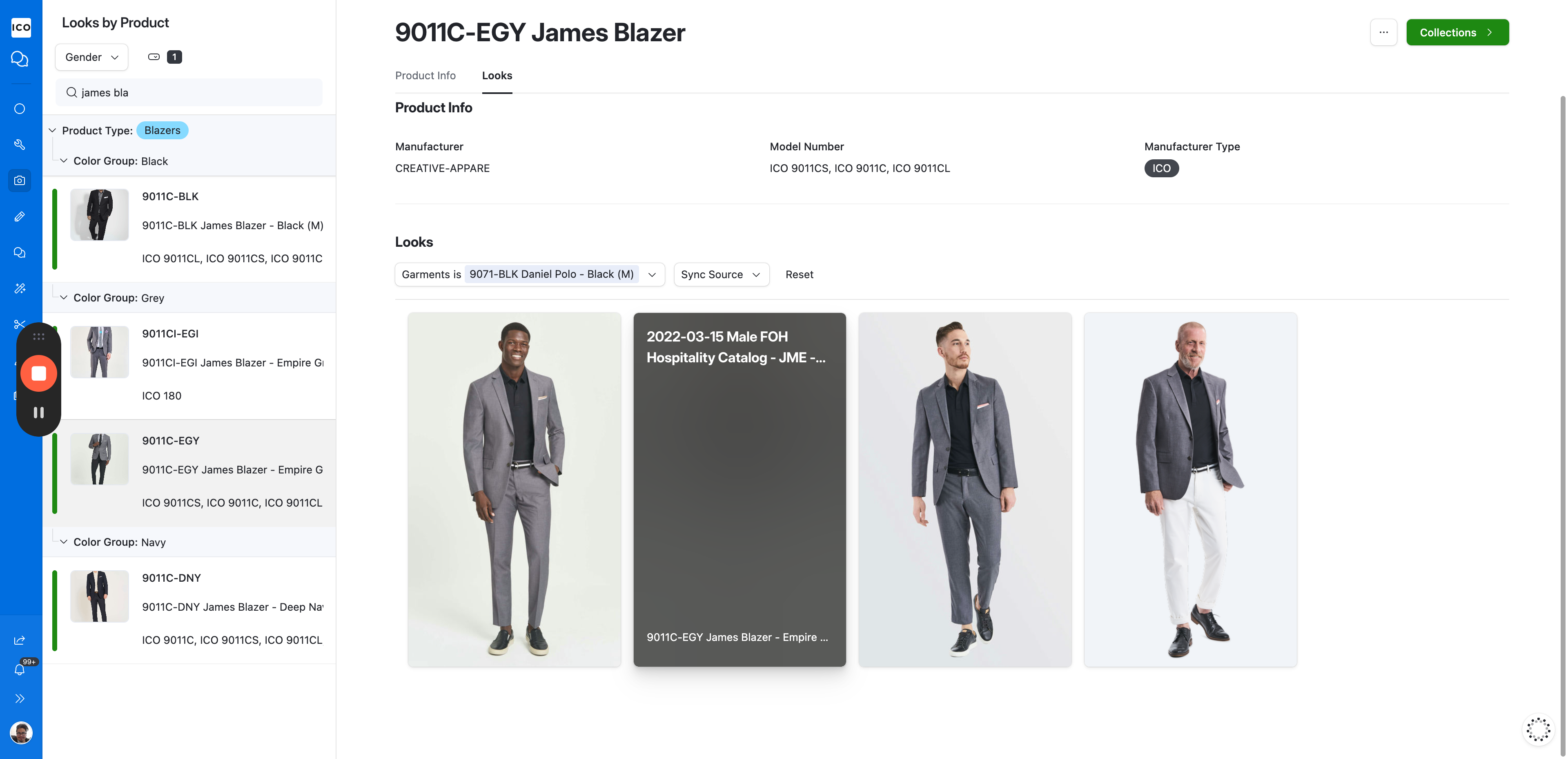
7
Click + Add collection on the right-hand asset panel.
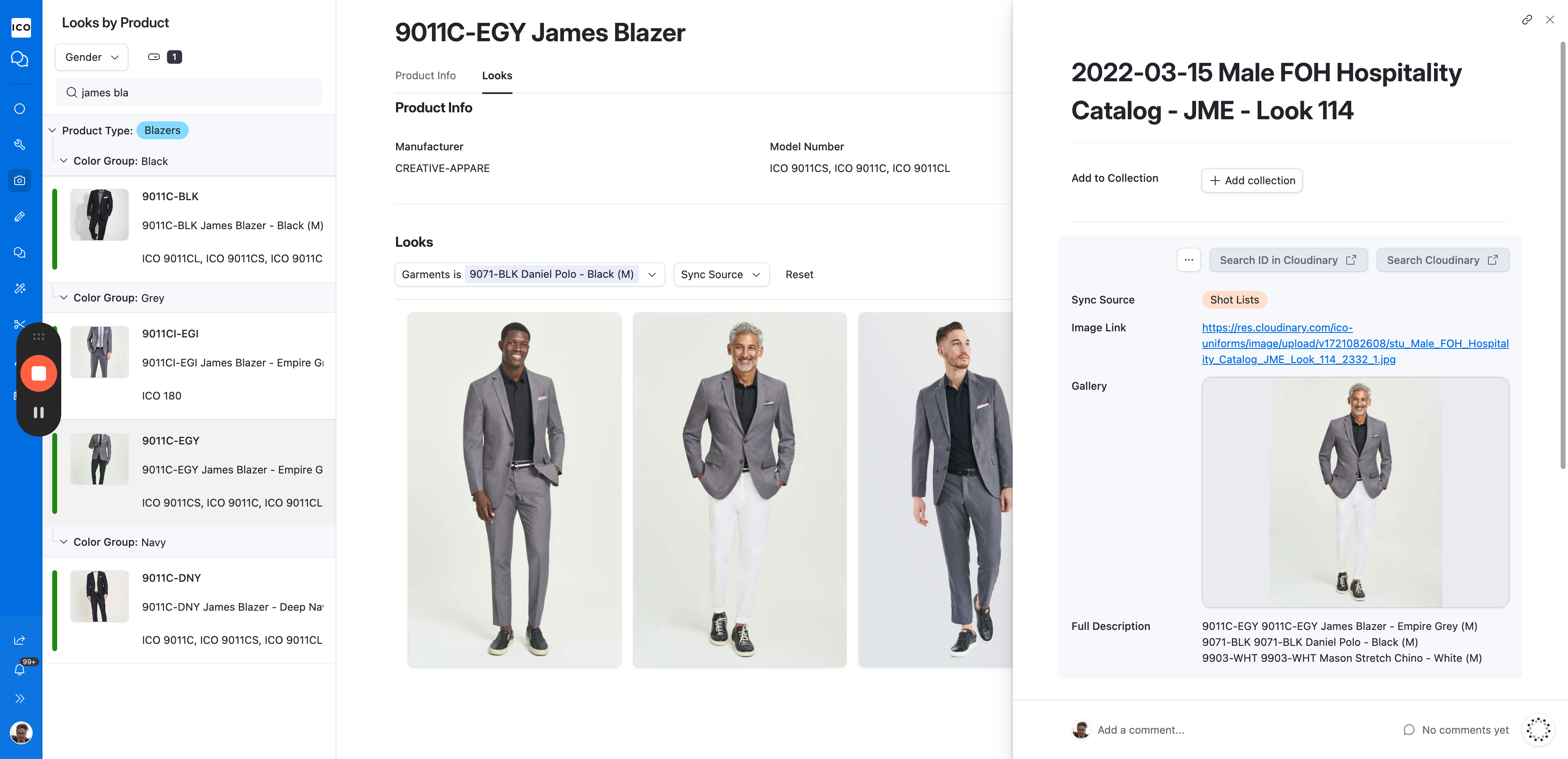
8
Select your active collection from the dropdown menu.