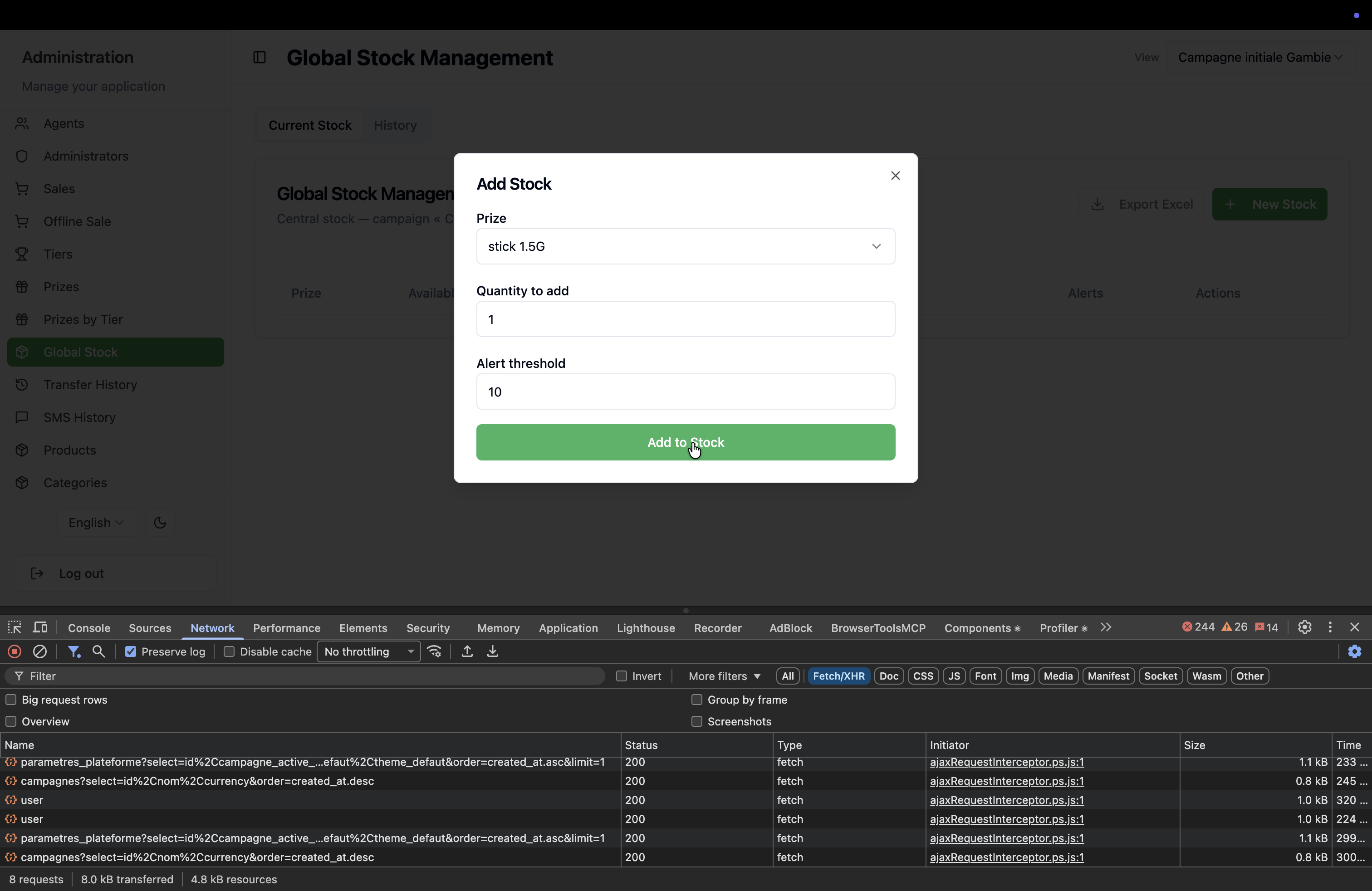
How to Add New Stock to Global Inventory
Learn how to select a prize and increase available quantity in your Global Stock Management dashboard.
By Primael Oswald Lebrun
This guide explains how to add new items to your global stock management inventory. Completing this ensures your available prize pool accurately reflects your on-hand quantities.
This process is intended for inventory managers and administrators who handle global stock configuration. You will use this workflow whenever new physical or digital items arrive and need to be entered into the system.
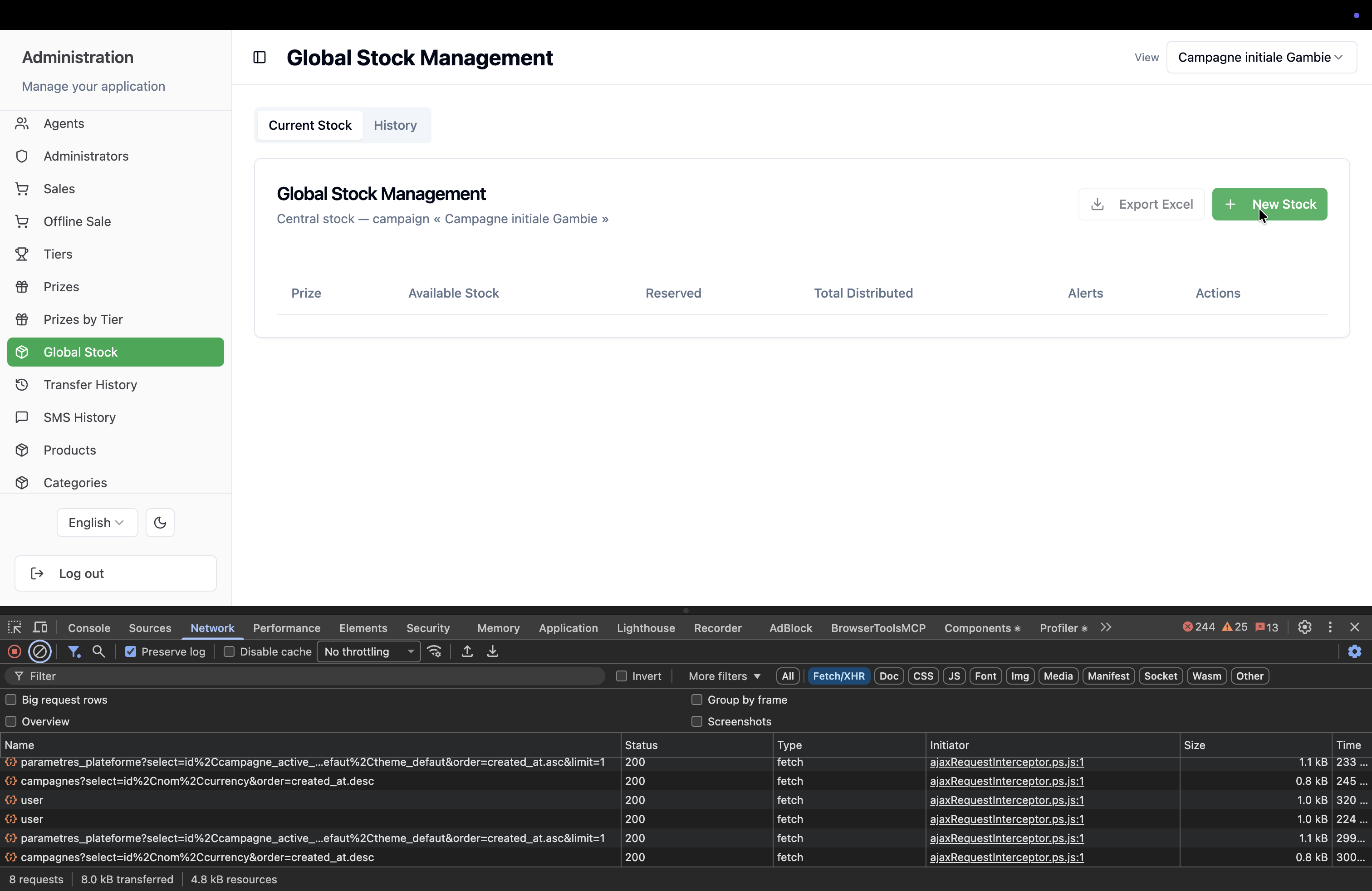
Navigate to your Global Stock Management dashboard to begin adding new inventory.
1
Click New Stock in the top-right corner to open the Add Stock modal.
2
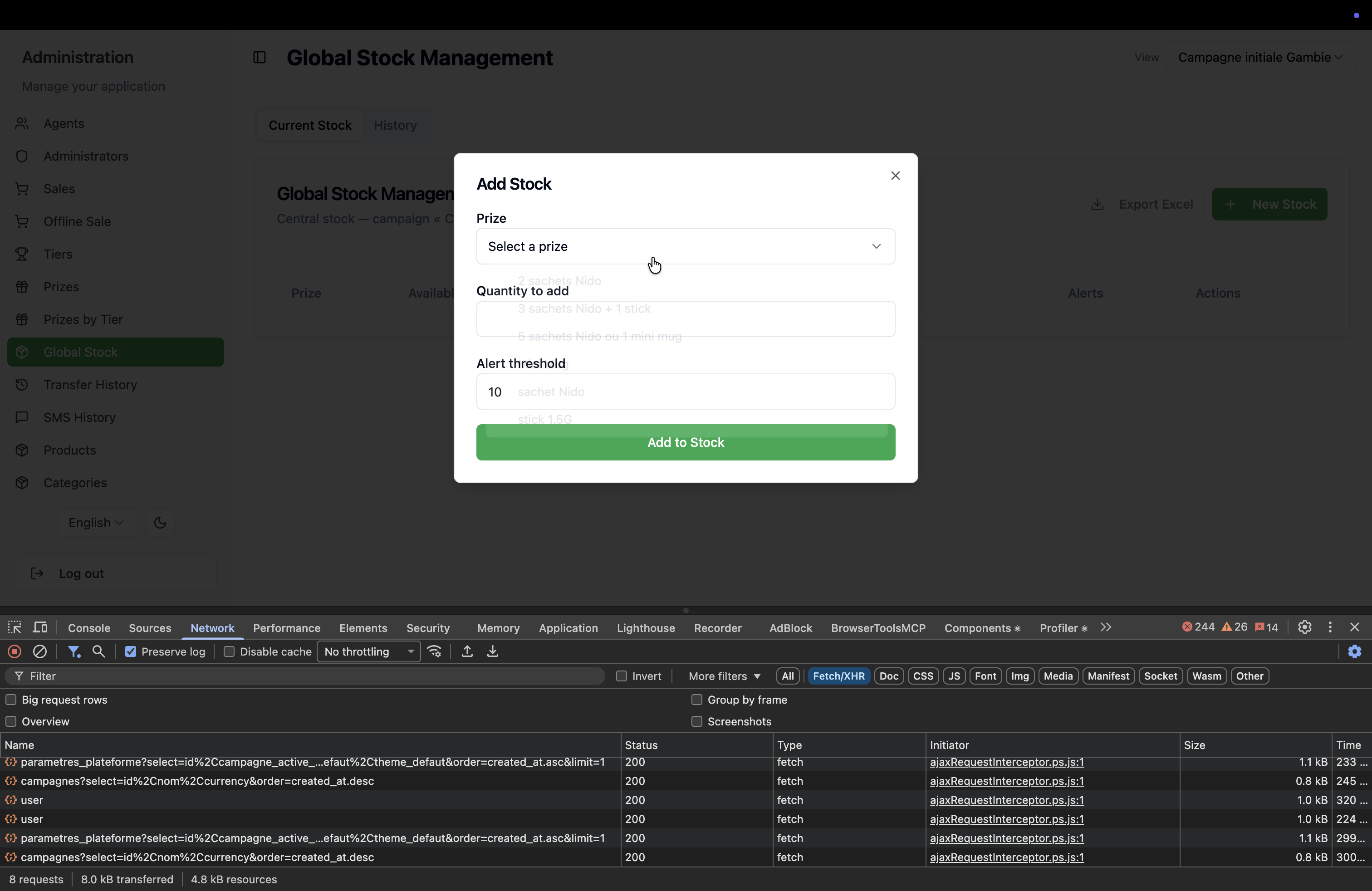
Click the Prize dropdown menu.
3
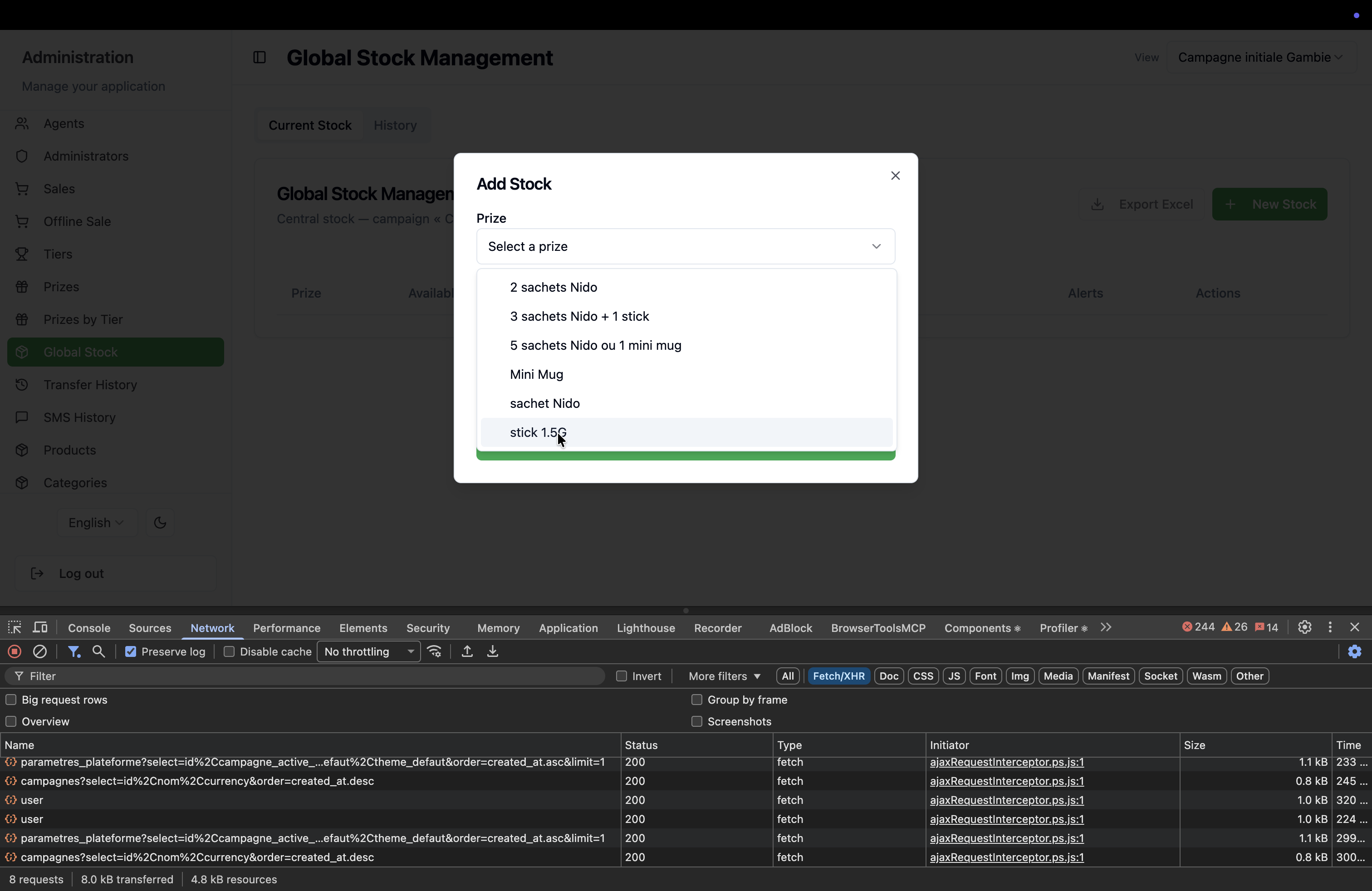
Select the specific item you want to add from the list, such as stick 1.5G.
4
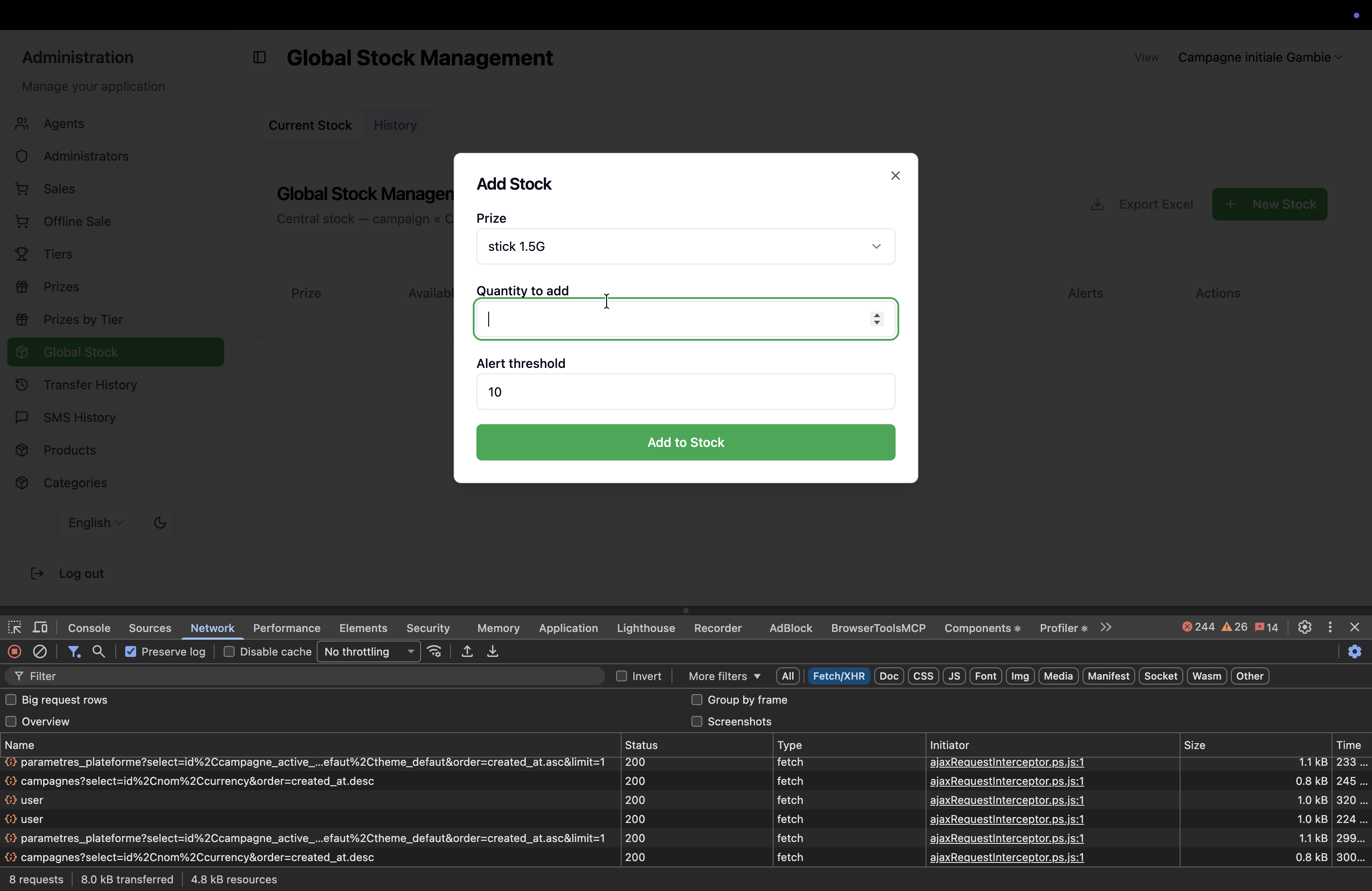
Click on the Quantity to add numeric input field.
5
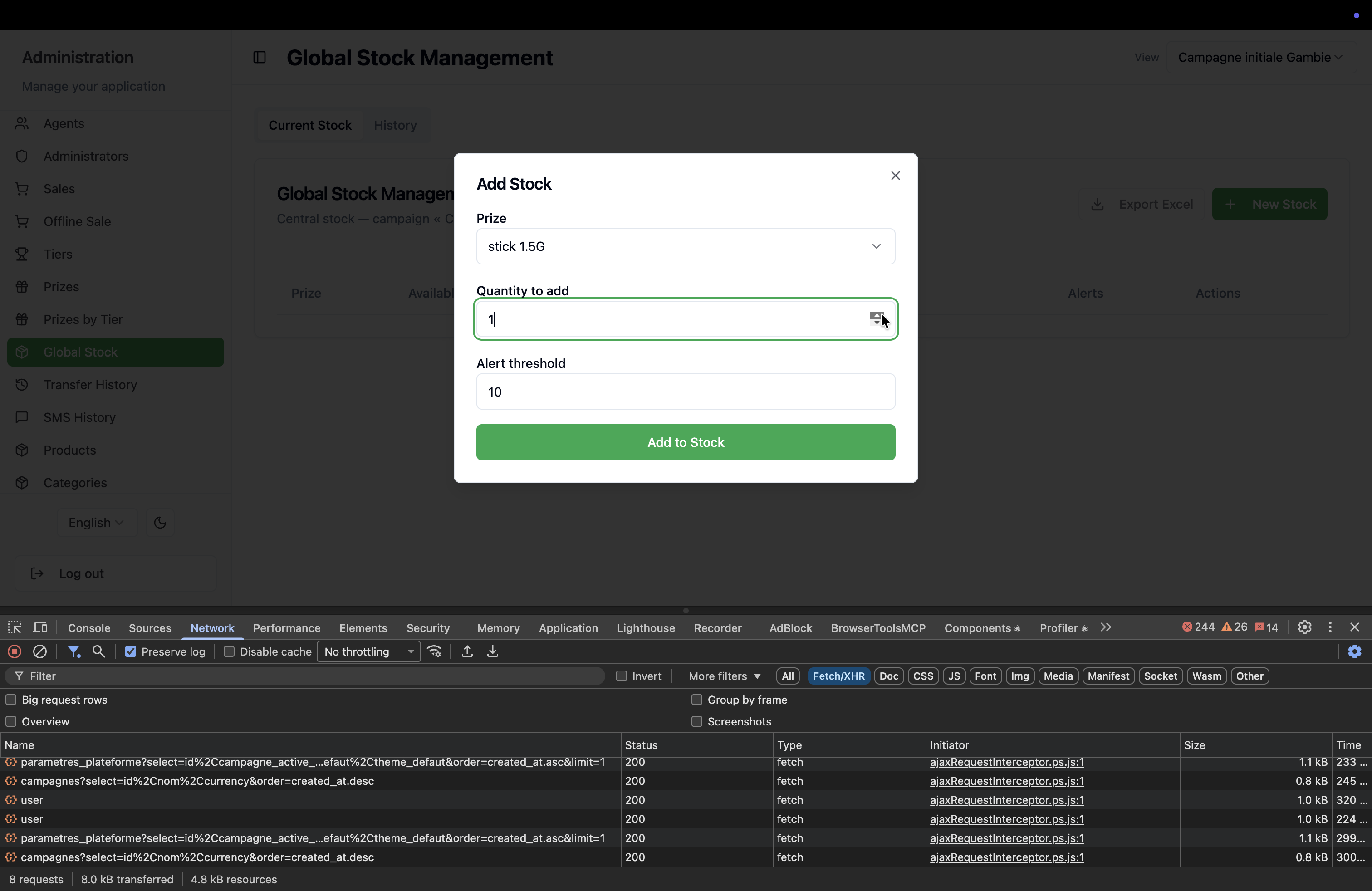
Type in the exact number of items you are adding to the inventory.
6
Click the green Add to Stock button to finalize your entry.