How to Add Notes and Documents to Employee Records in Performance Pro
Learn how to manage employee records by adding performance notes and uploading supplementary documents in Performance Pro.
By Cindy Gil-Avila
This guide demonstrates how to add new notes and upload supplementary documents to employee records. Following these steps allows you to securely capture coaching conversations, one-on-one meeting notes, and other essential discussions.
This workflow is intended for HR personnel, supervisors, and managers who need to maintain accurate documentation of employee performance and interactions.
Log in to Performance Pro.
1
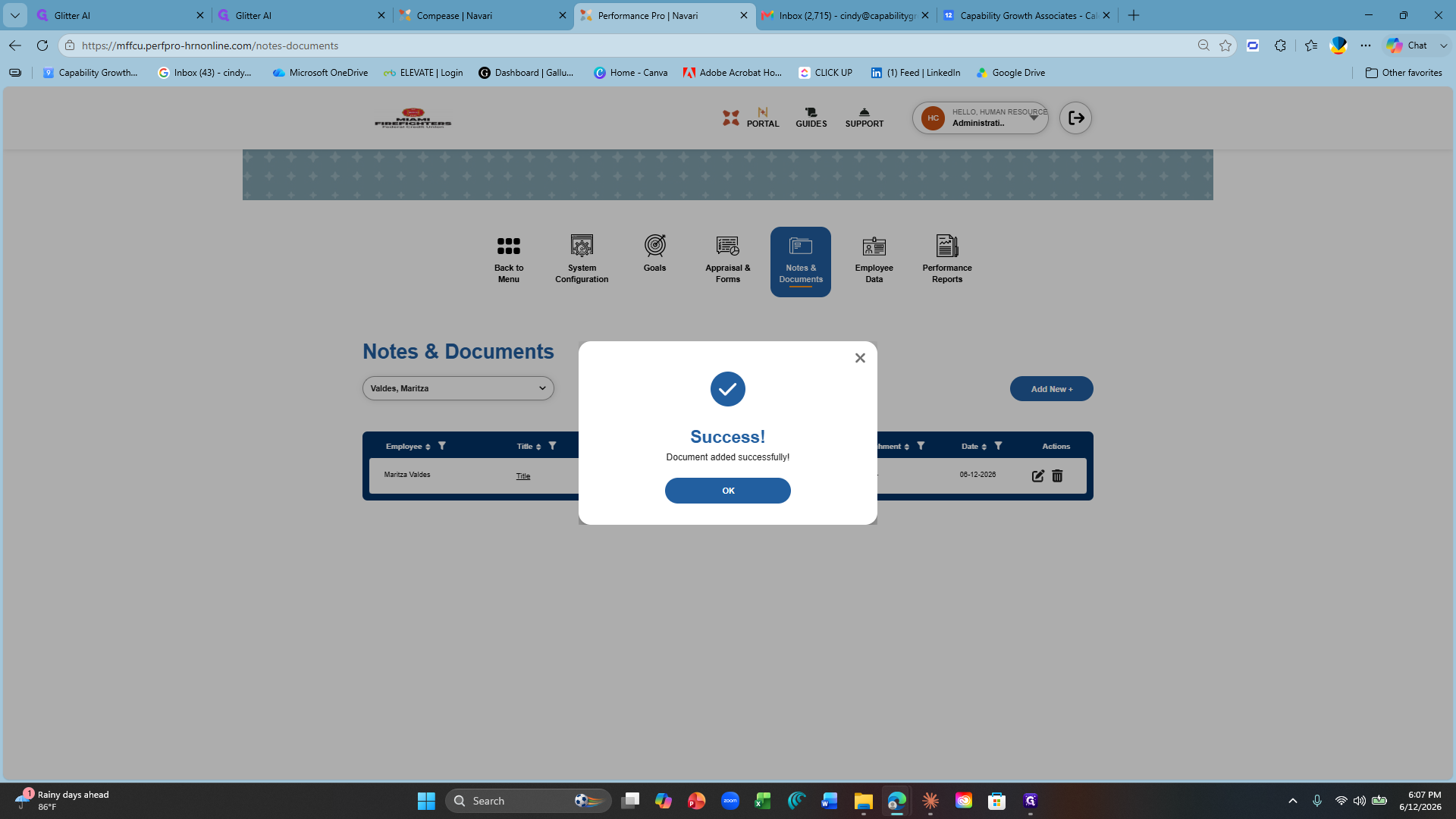
Click Notes & Documents in the main navigation menu.
Adding a New Note
2
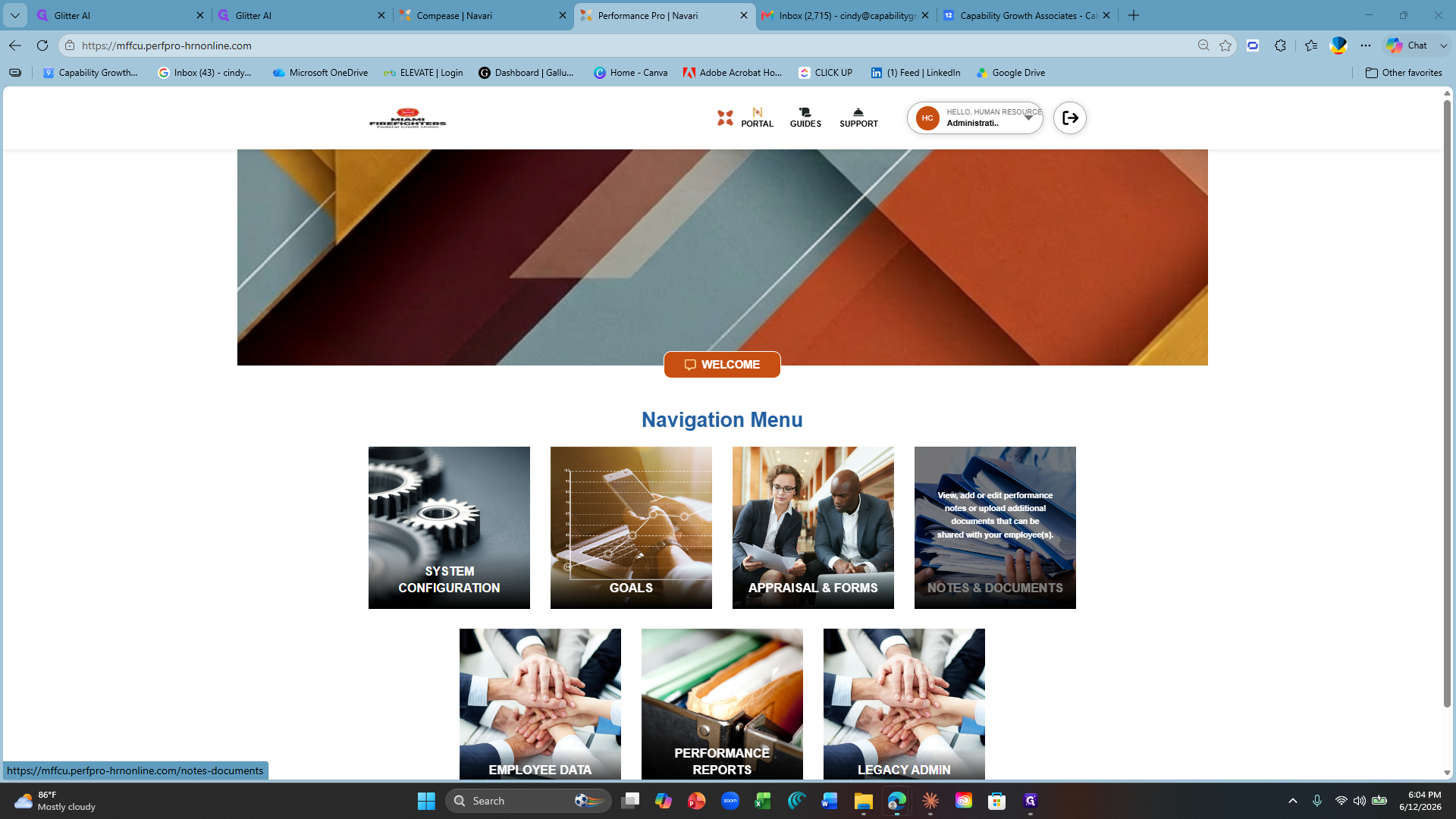
Select New Note from the dropdown menu.
3
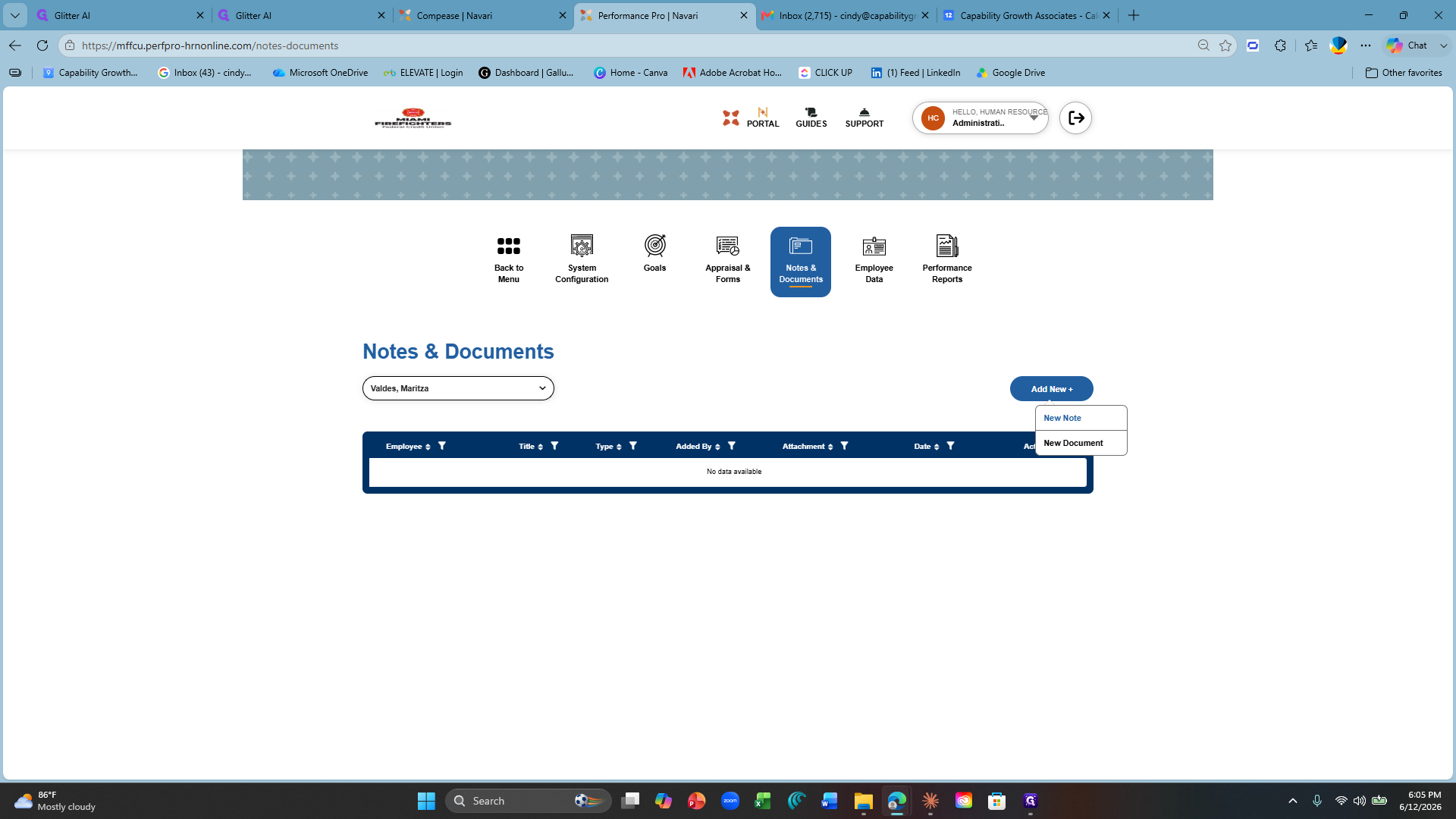
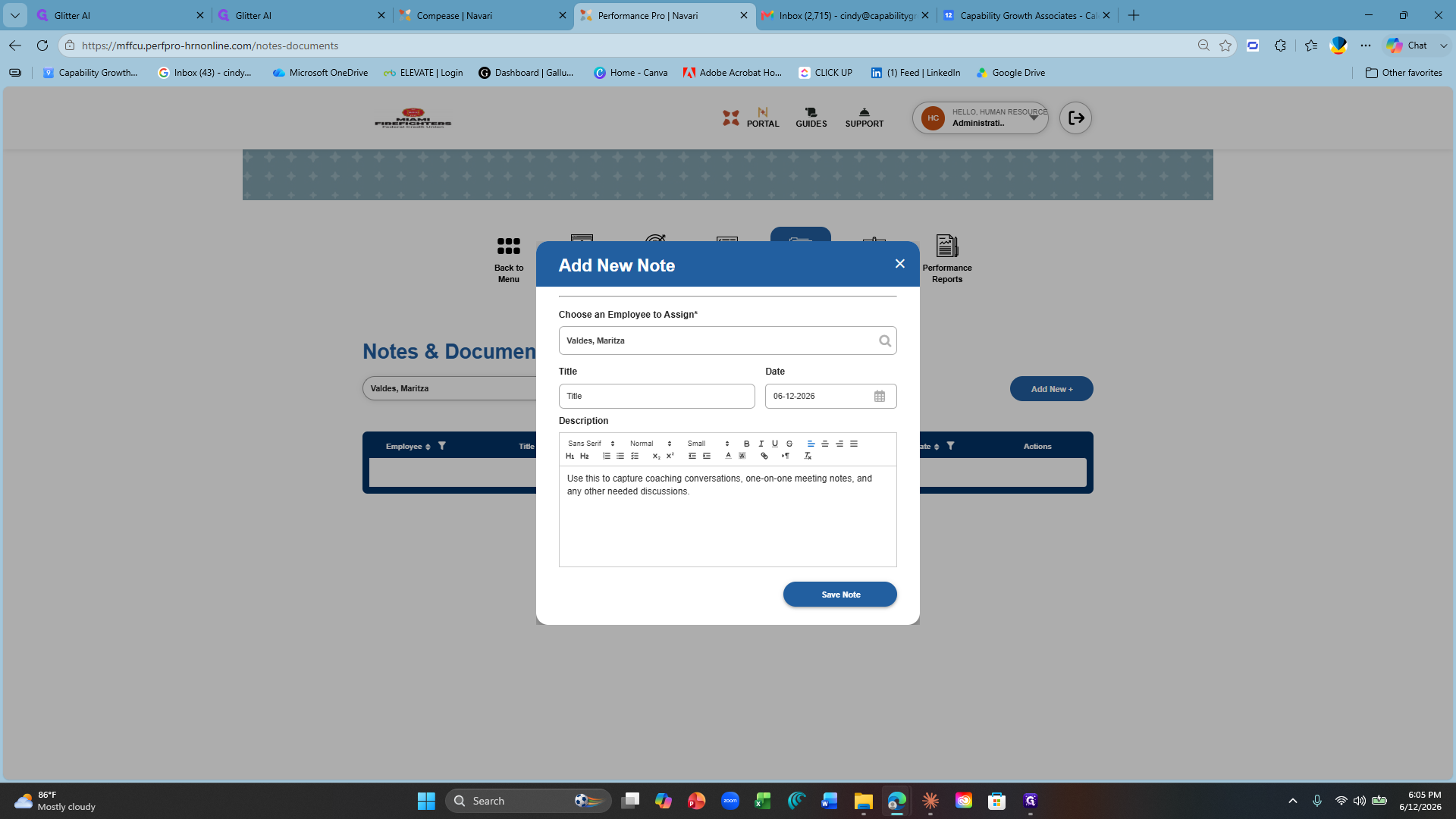
Select the appropriate employee from the dropdown list to assign the note.
4
Enter a title for your note.
5
Type your note details to capture coaching conversations, one-on-one meeting notes, and any other needed discussions.
Determine if you want to share this note with the employee.
If yes, check the SHARE checkbox.
Determine if you want to share this note with the employee.
If yes, check the SHARE checkbox.
6
Click Save Note.
7
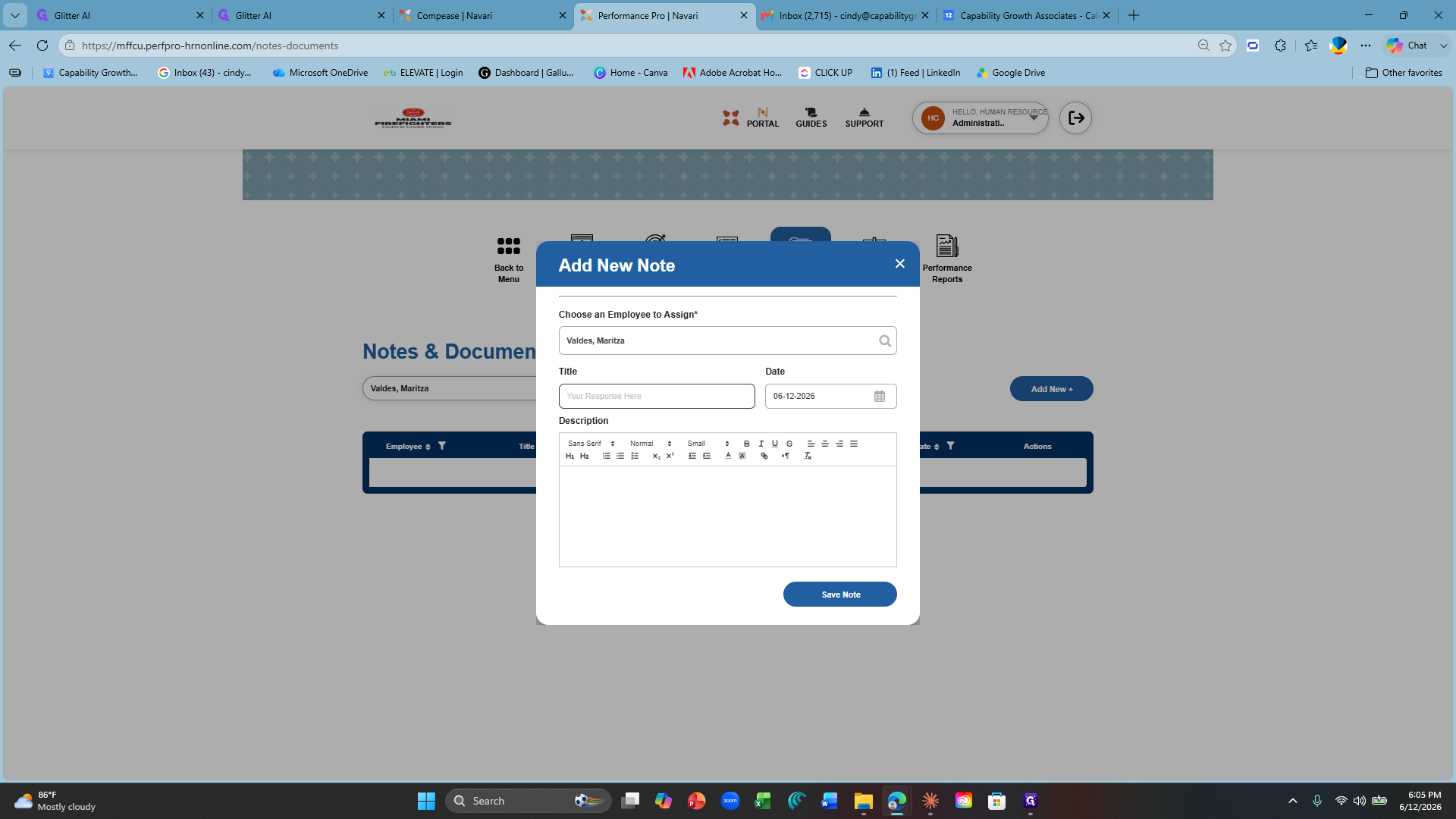
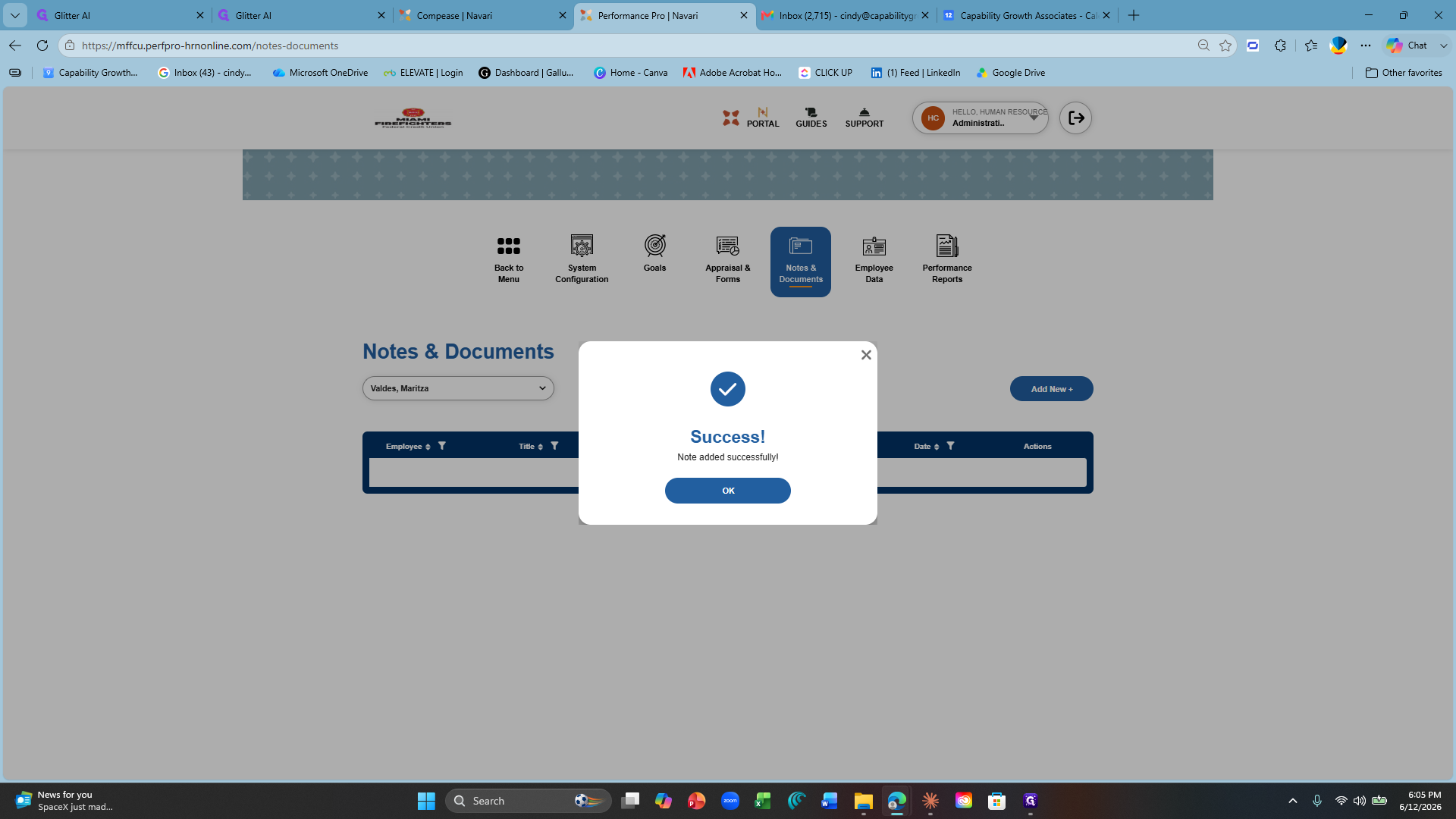
Click OK on the success confirmation window.
Adding a New Document
8
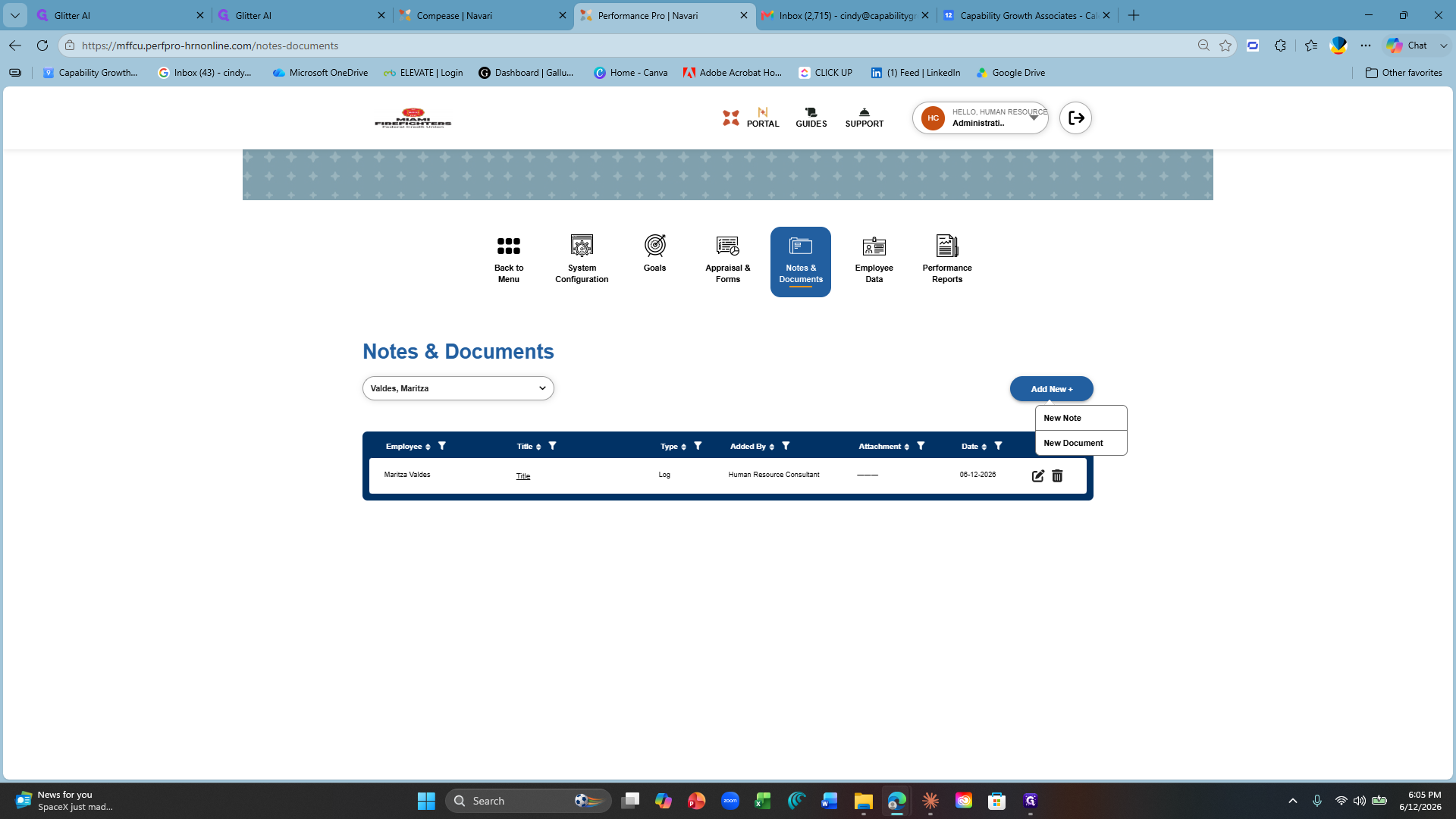
Click Add New +.
9
Select New Document from the dropdown menu.

10
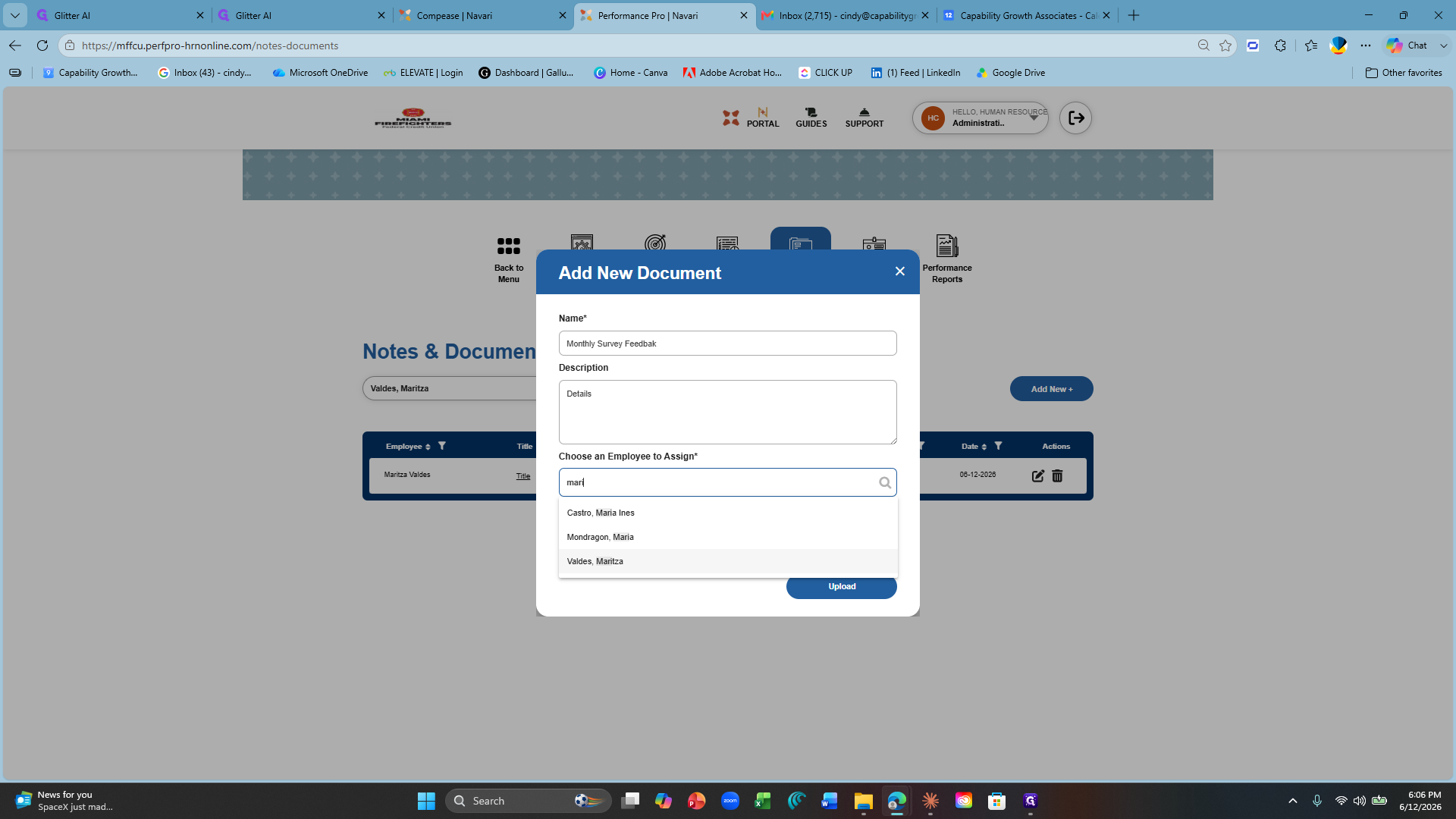
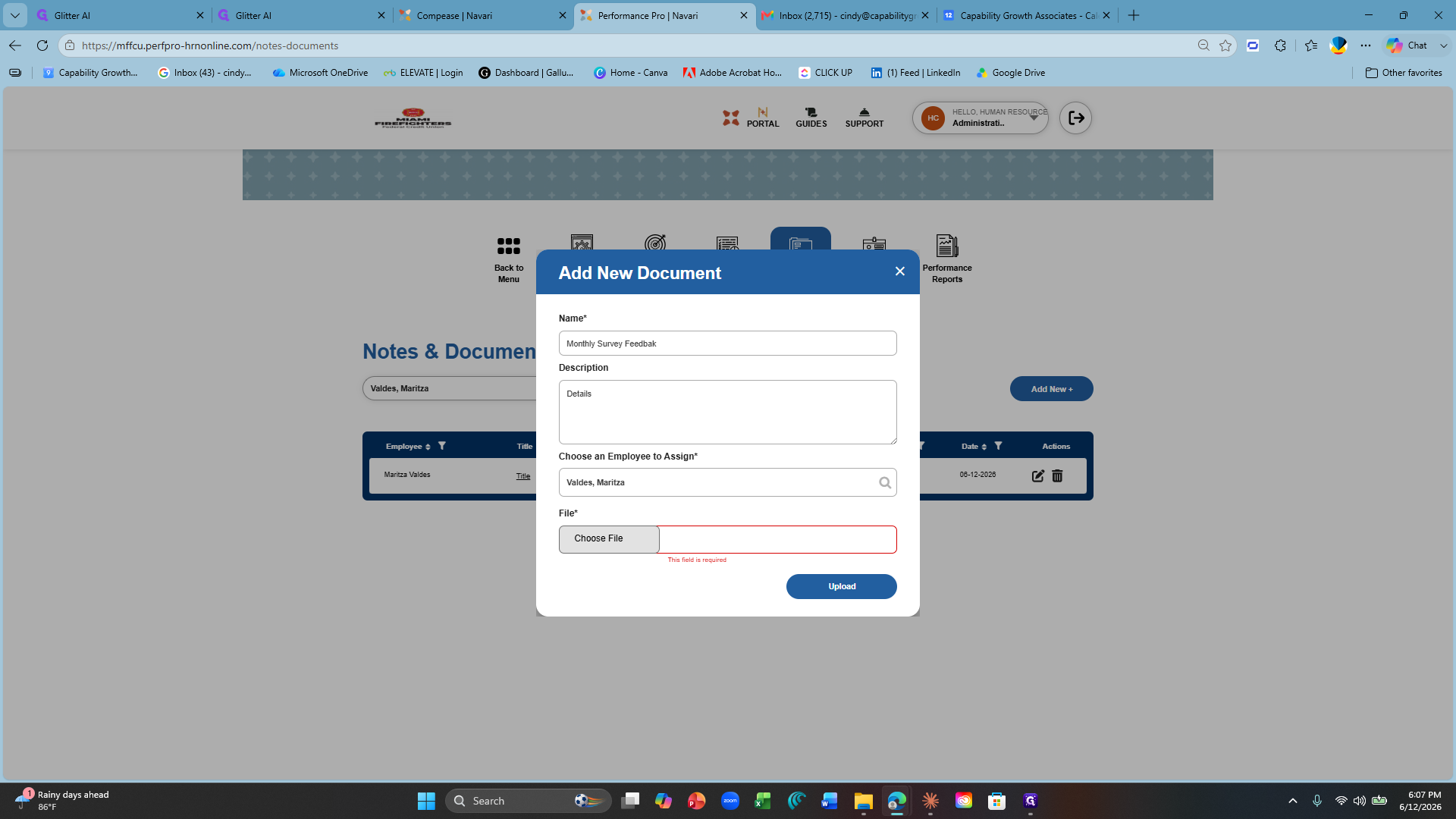
Enter a clear name for the document, such as "June 2026 Member Survey Feedback".
11
Type a brief description of the file in the details field.
12
Search for and select the employee to assign the document to.
13
Click Choose File.
14
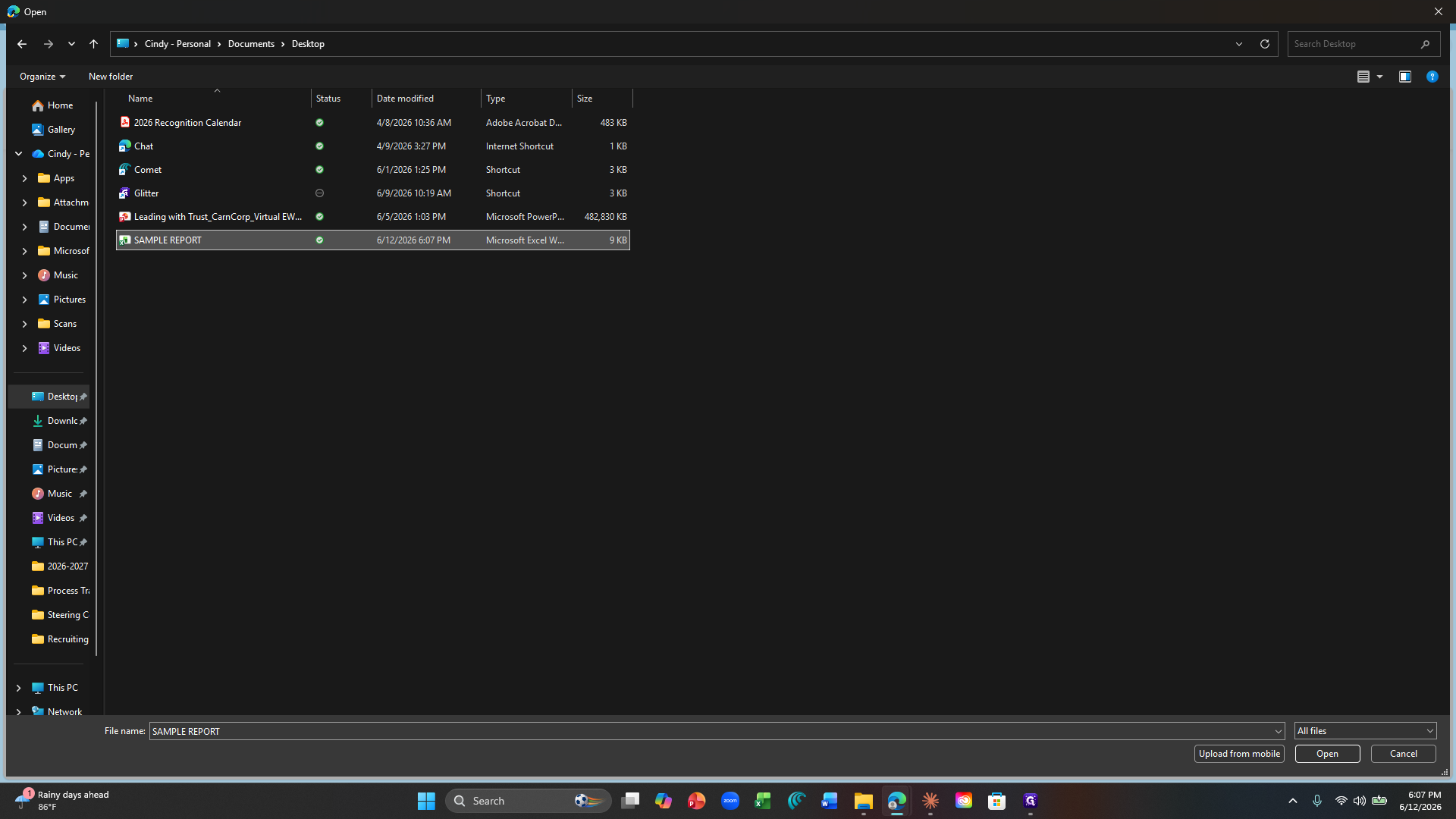
Locate the file on your computer and double-click it to attach.
15
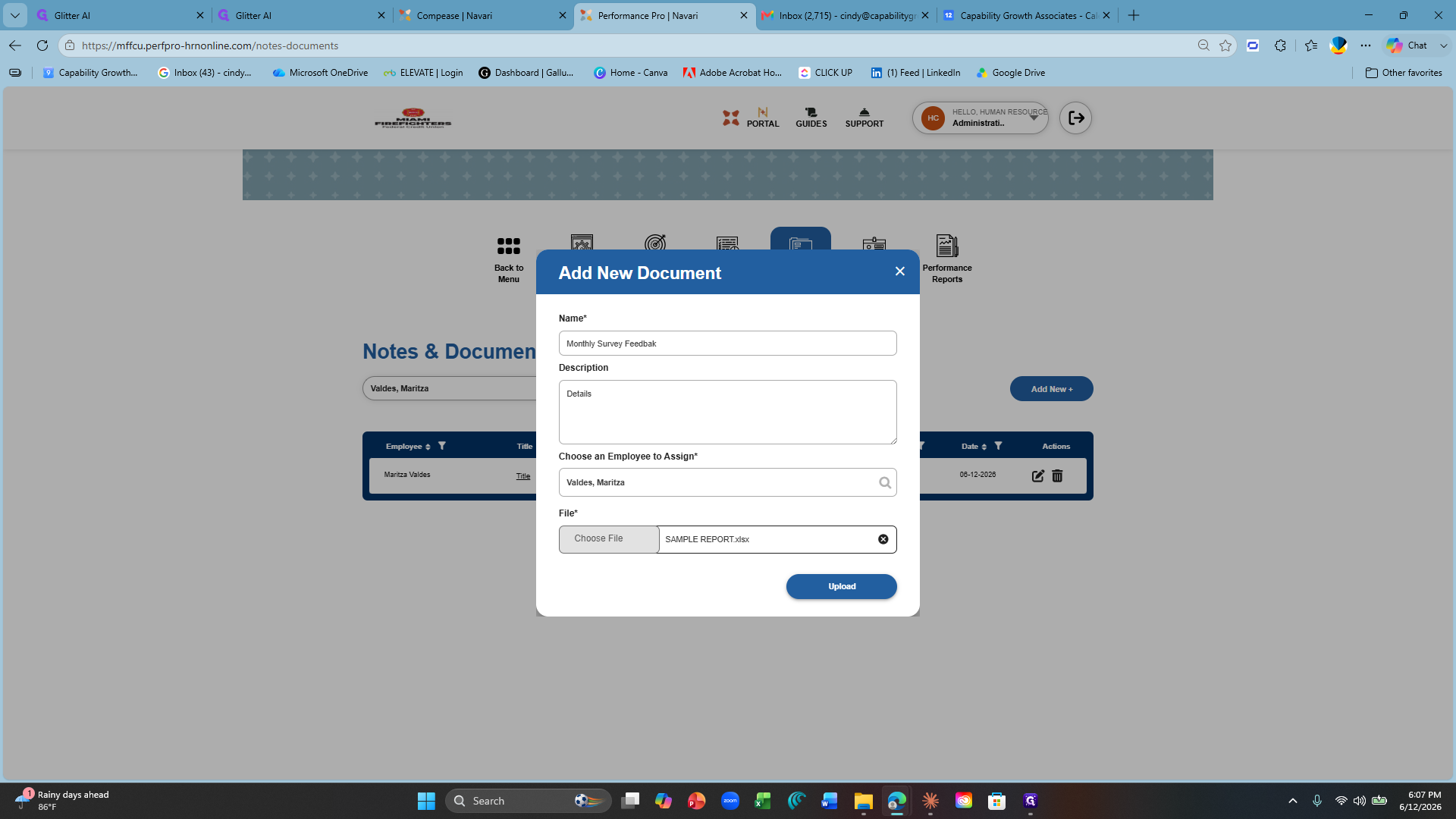
Click Upload to save the document to the employee's record.
16
Click OK to close the success confirmation window.