How to Add Pictures and Songs to JW Library Playlists on Windows
Step-by-step guide for downloading images from Gmail, extracting them, and adding them to JW Library playlists on Windows. Learn how to organize pictures, add songs, and manage your playlists efficiently.
In this guide, we'll learn how to download pictures from Gmail, extract them from a folder, and add them to a playlist in JW Library for a Sunday talk. This process helps organize media for presentations and makes it easier to access songs and images during meetings.
We'll also cover how to manage playlists and add songs, as well as what to do if you receive a playlist file directly.
Let's get started
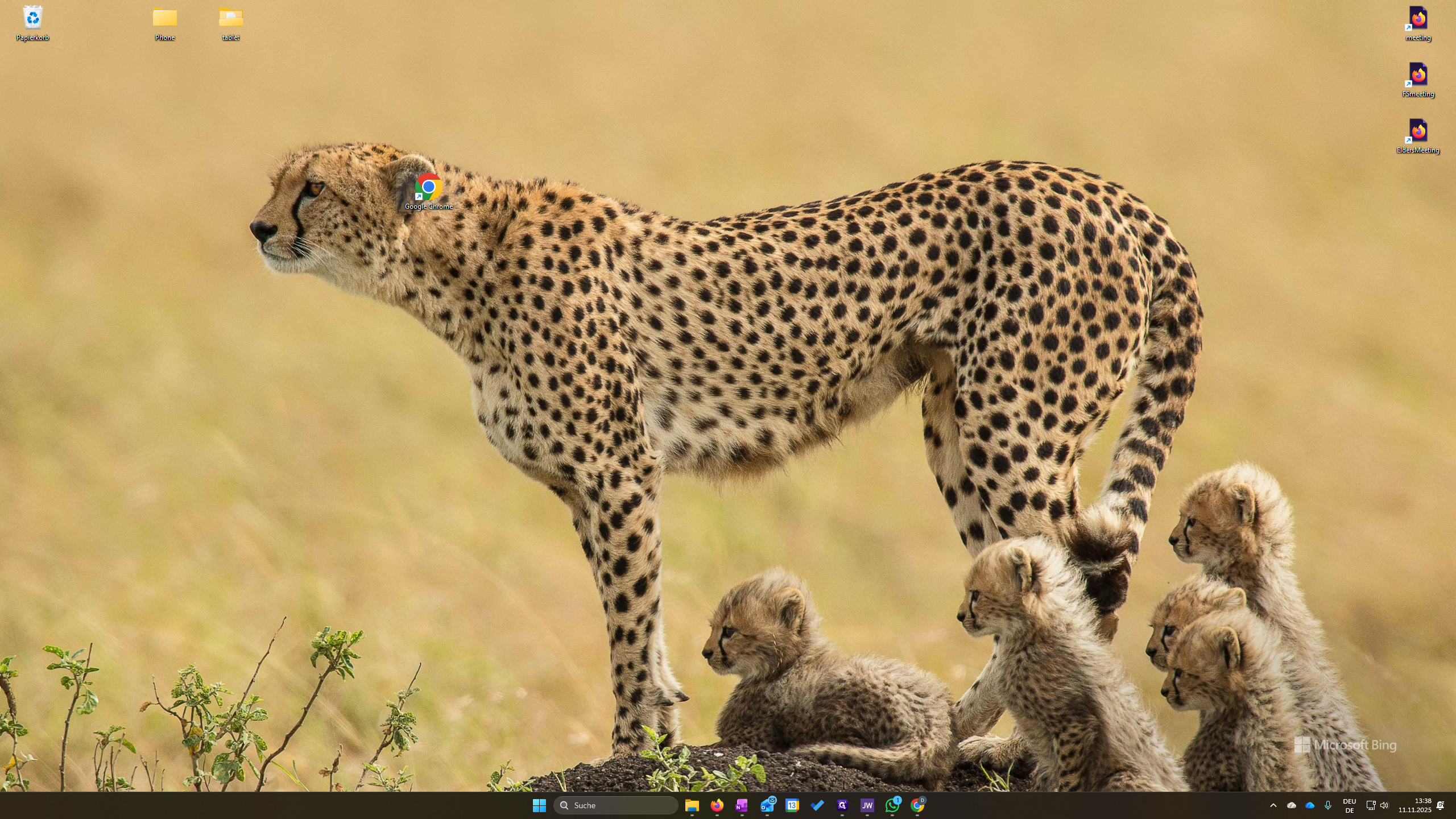
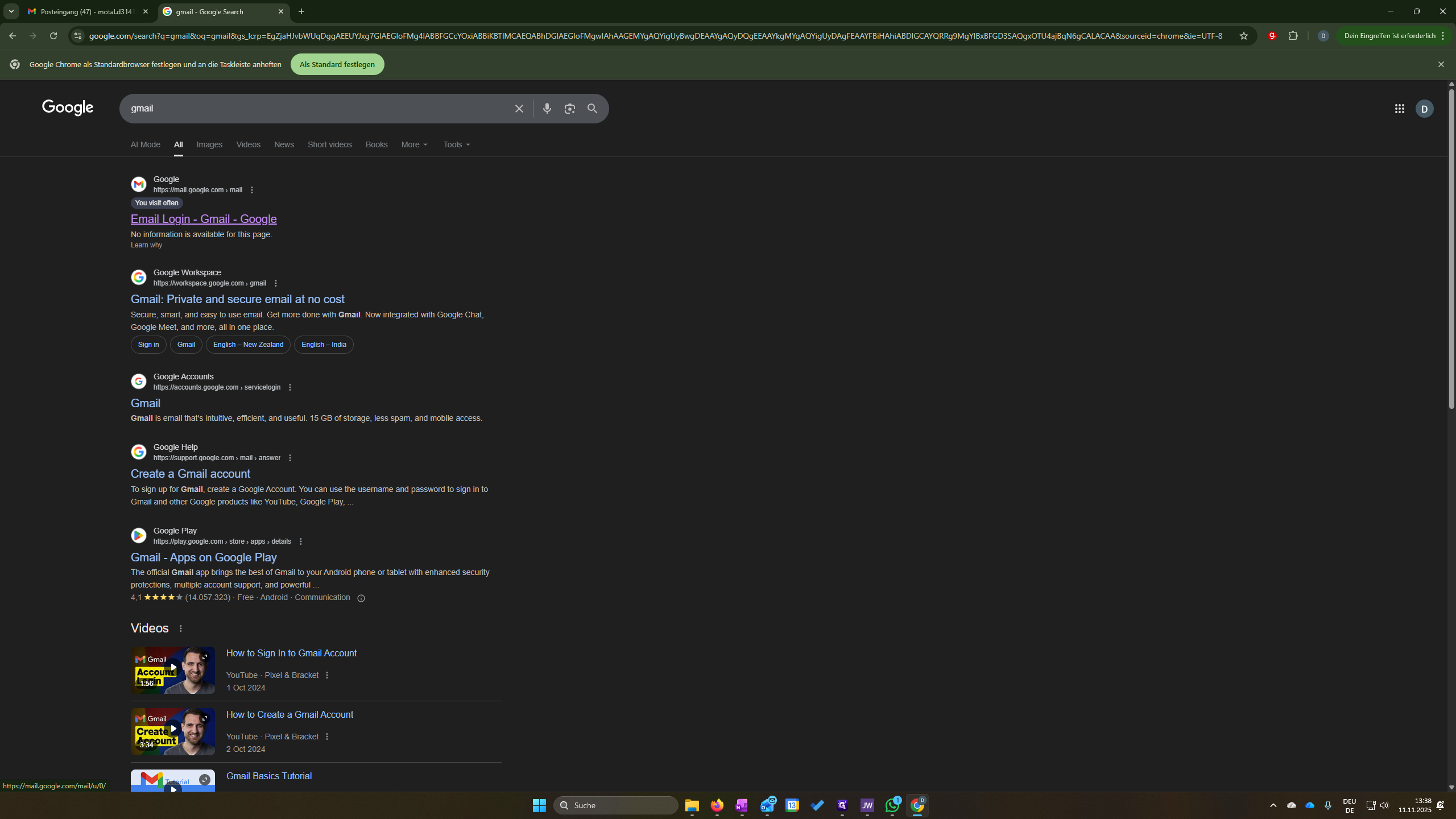
Sometimes, on Sundays, we use pictures for the talk. To get the pictures, double-click Google Chrome. Then type "Gmail" and open the first link.
For example, when we have a talk on Sunday - we may need pictures. You are automatically signed into the correct Gmail account.
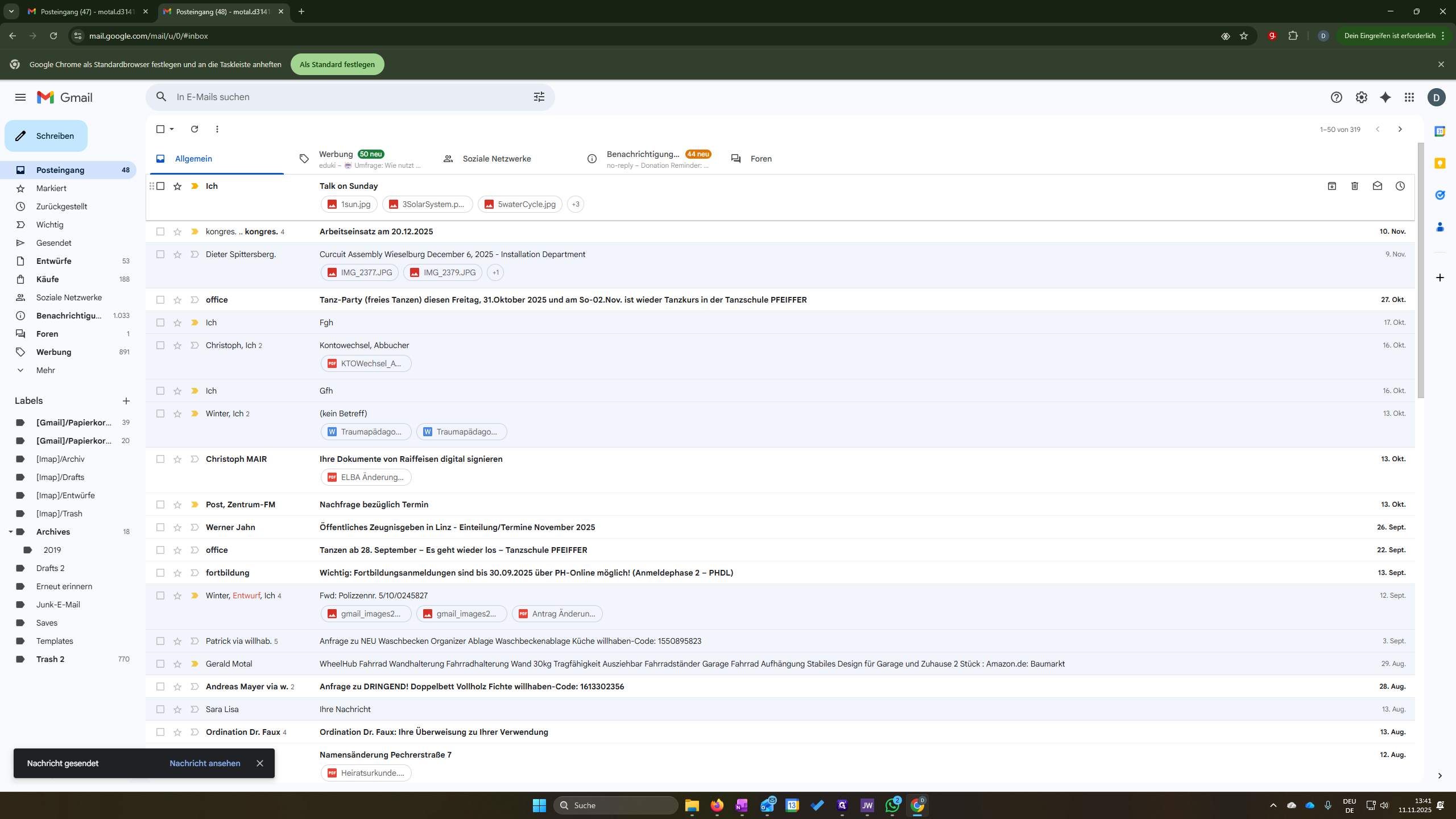
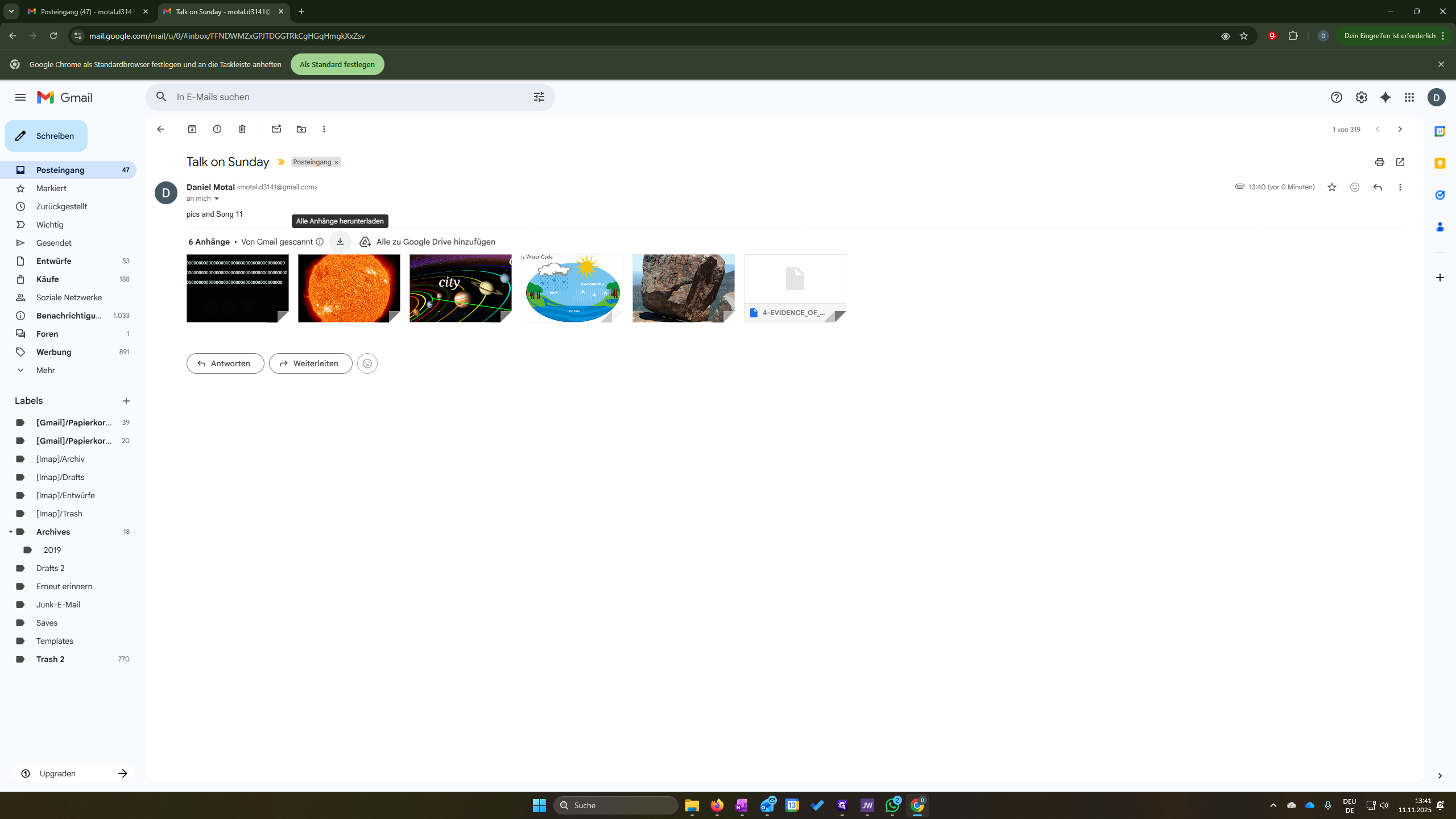
Click on the email and view the pictures. Then, click the download symbol to download all images.
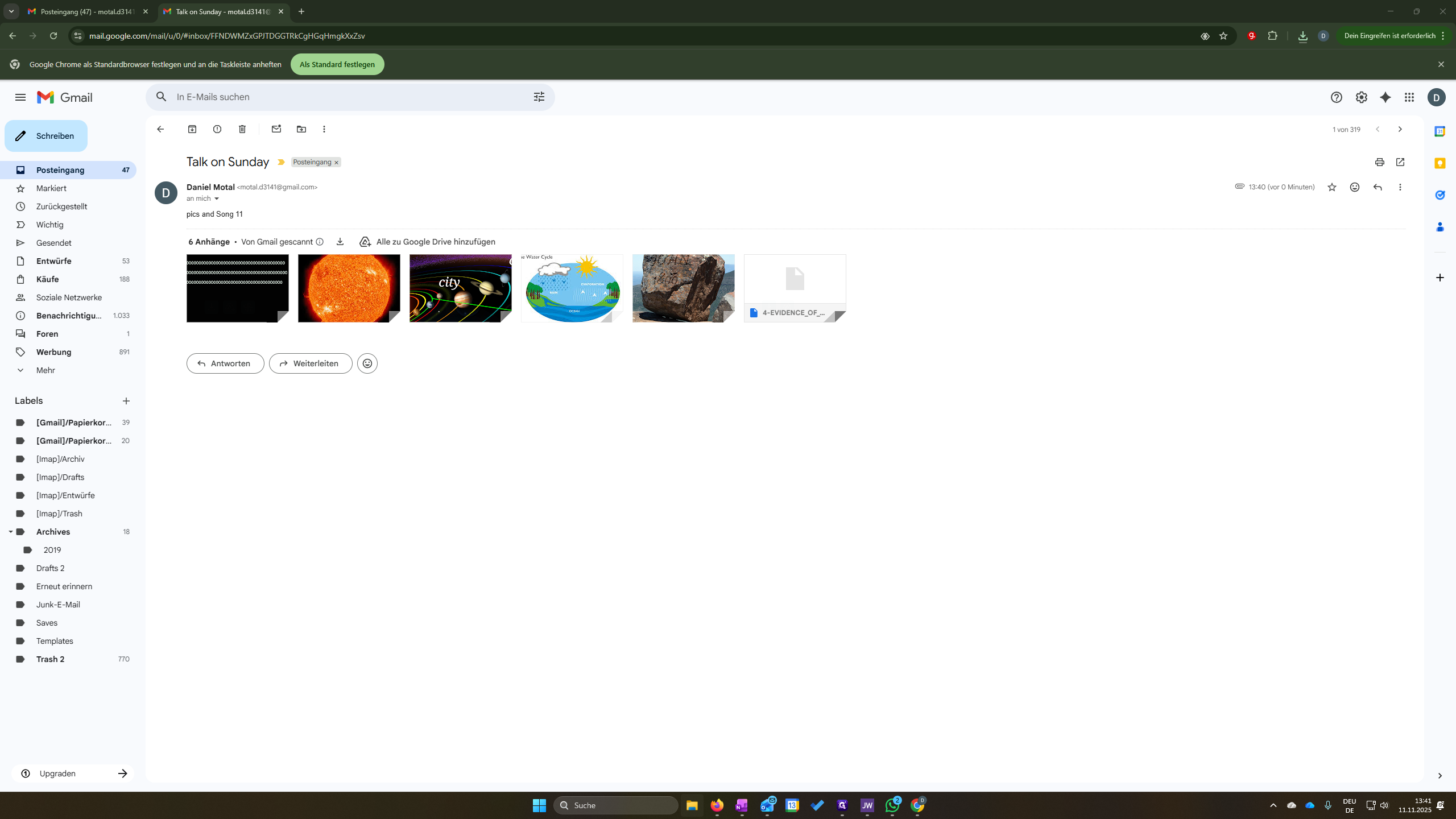
Then, open Windows Explorer from the taskbar. Go to Downloads. Click on the folder, then select "Extract All" (or "Alle extra hier" in German).
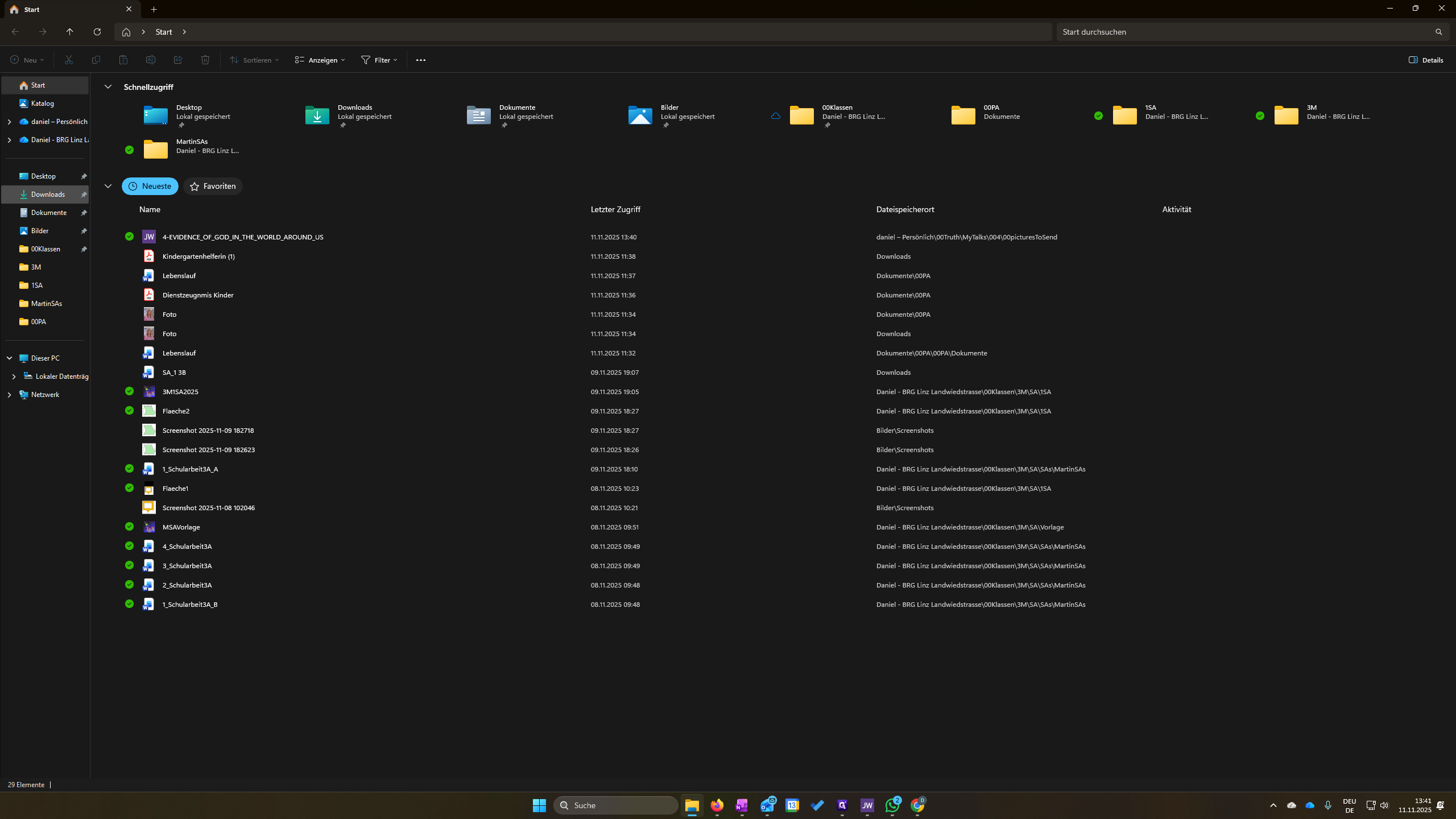
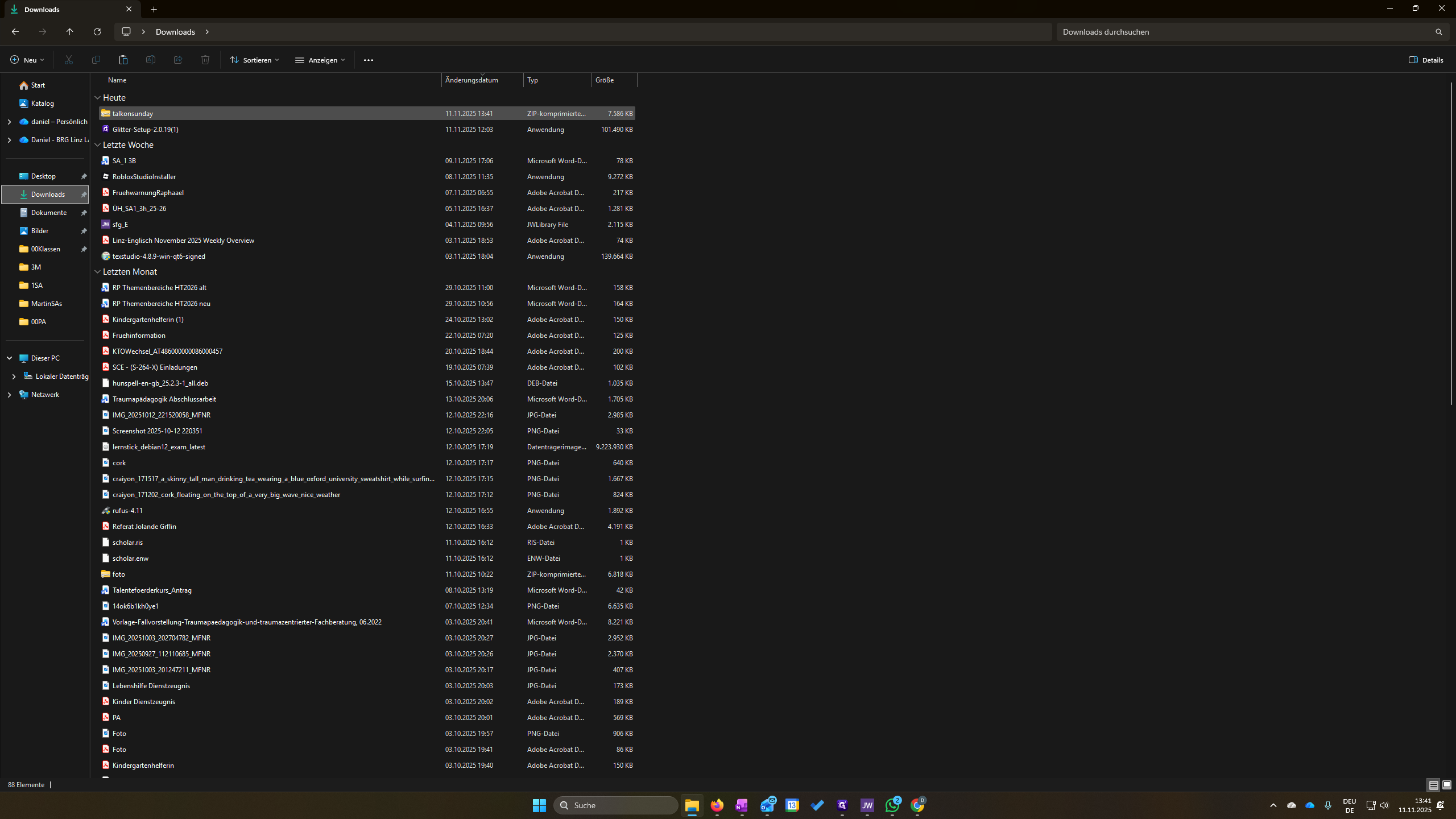
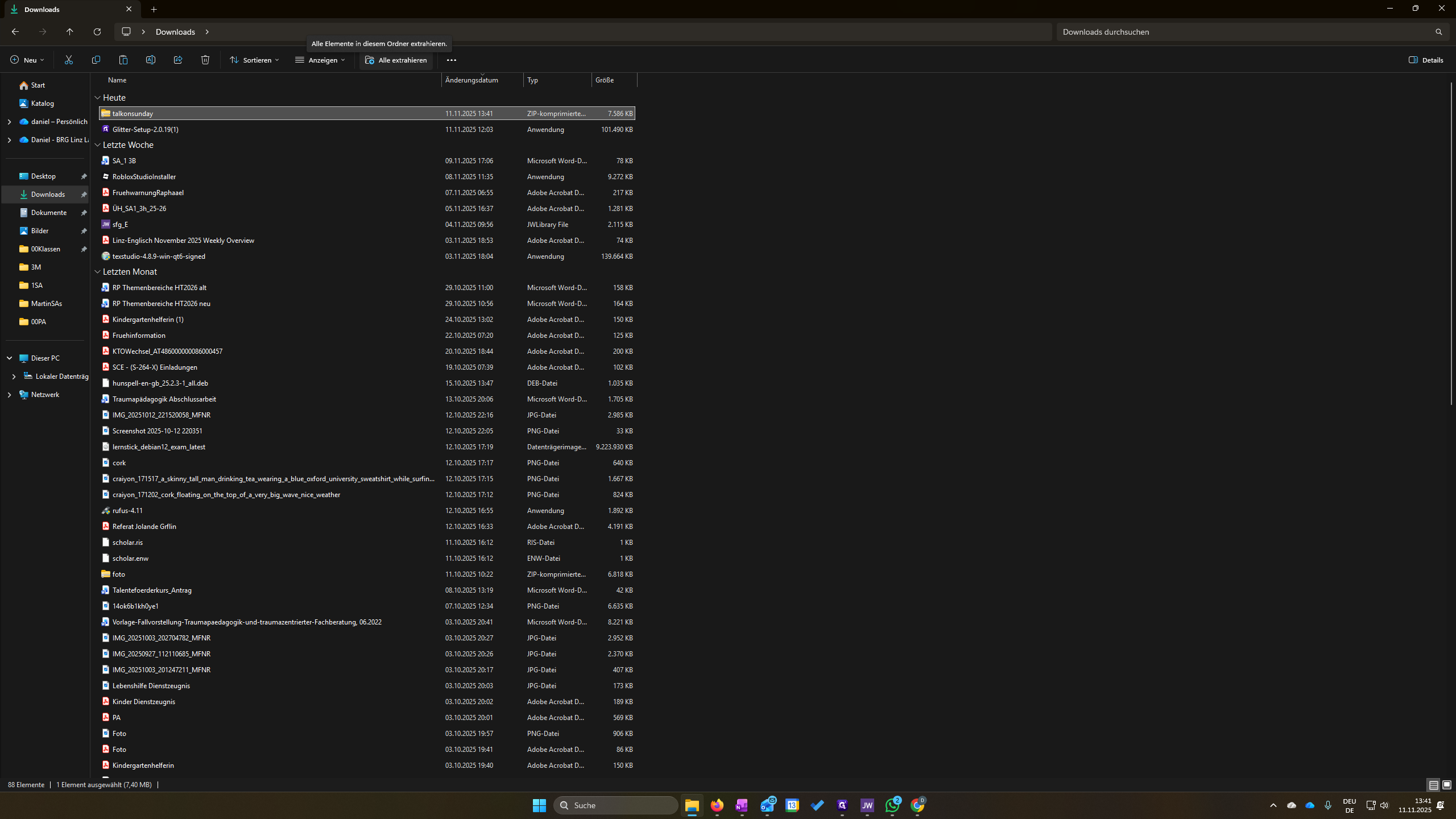
Click on "Extract" here. You should see the pictures you want to add.
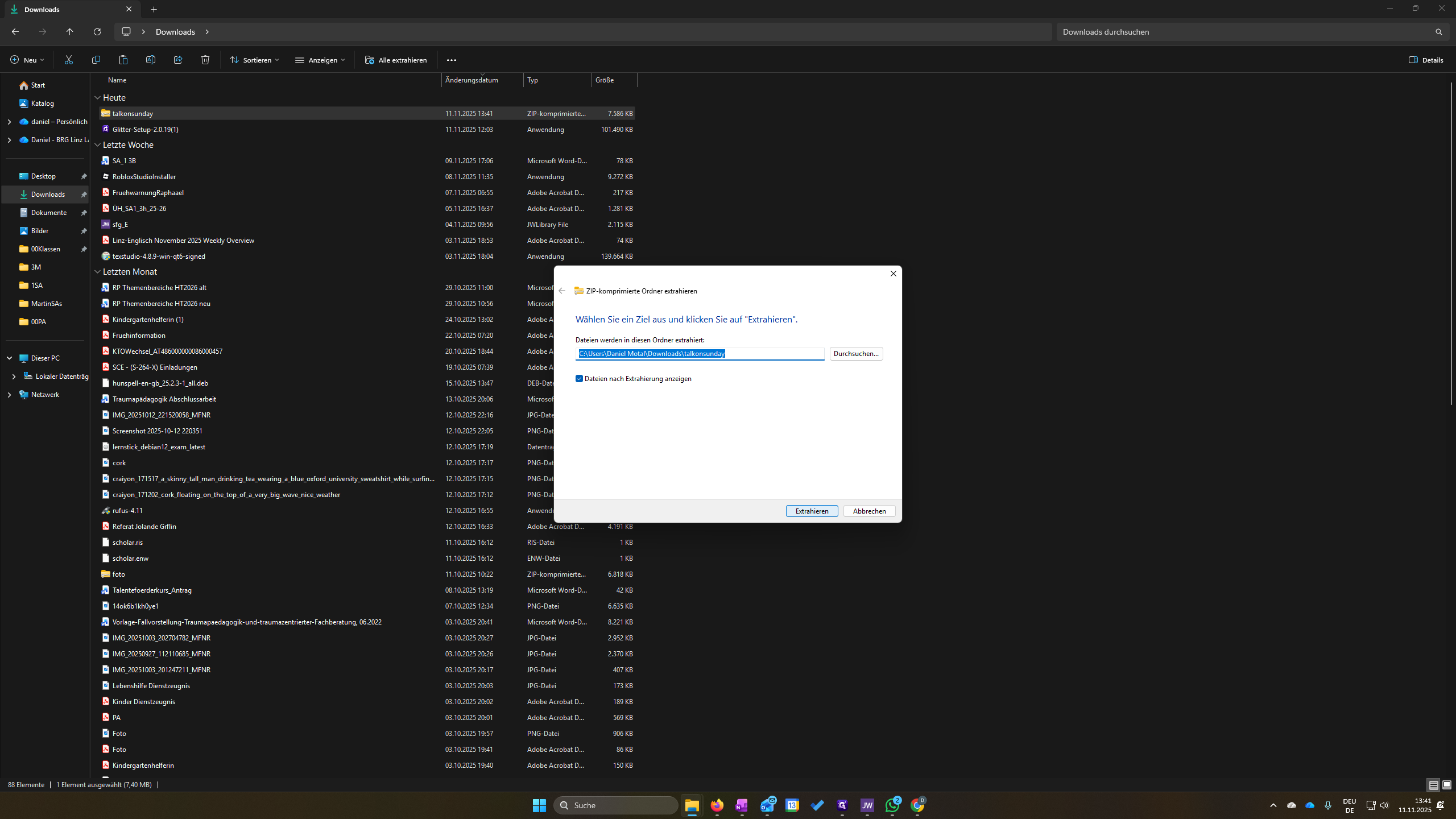
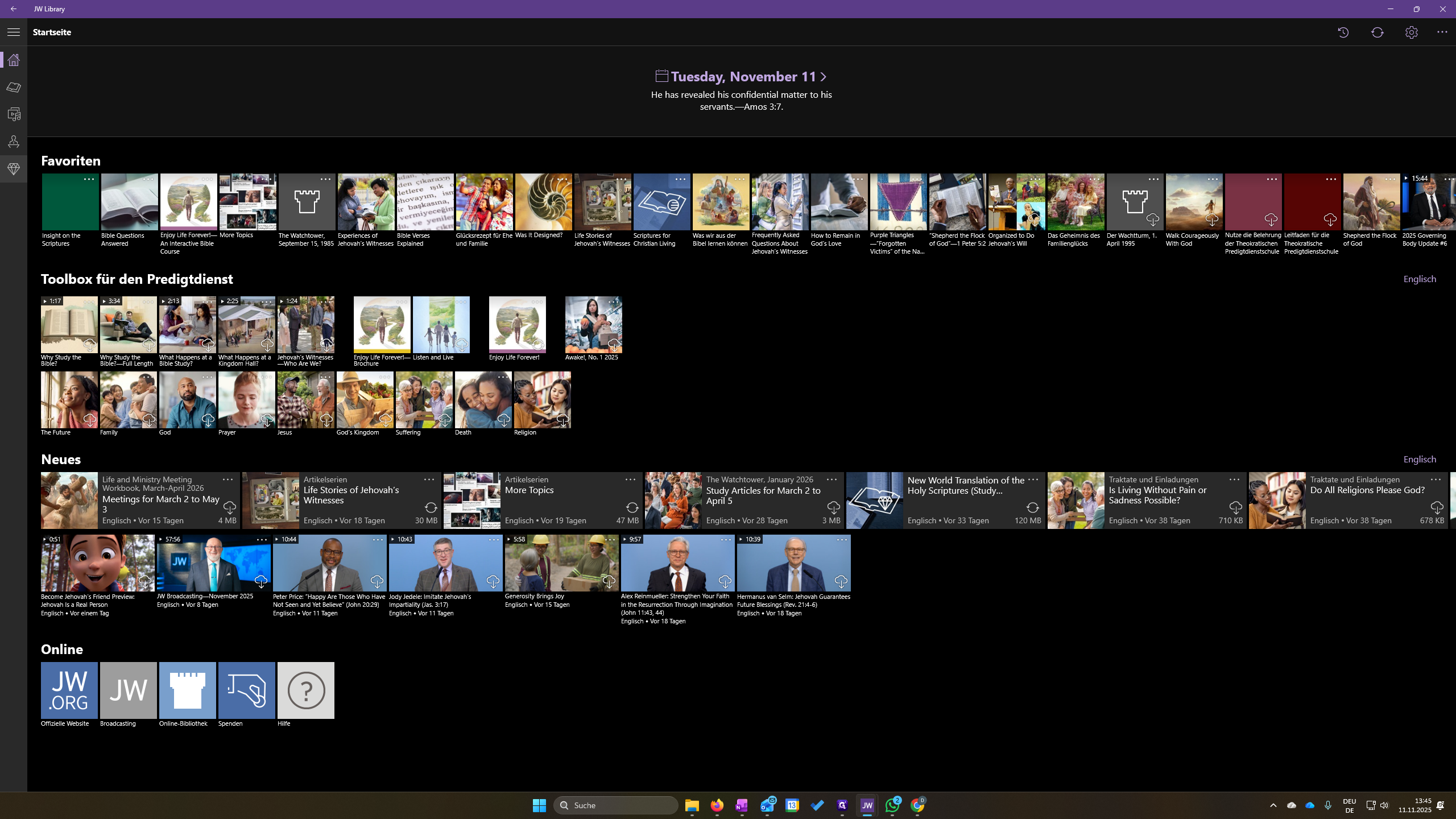
Add the pictures to JW Library to make it easier.
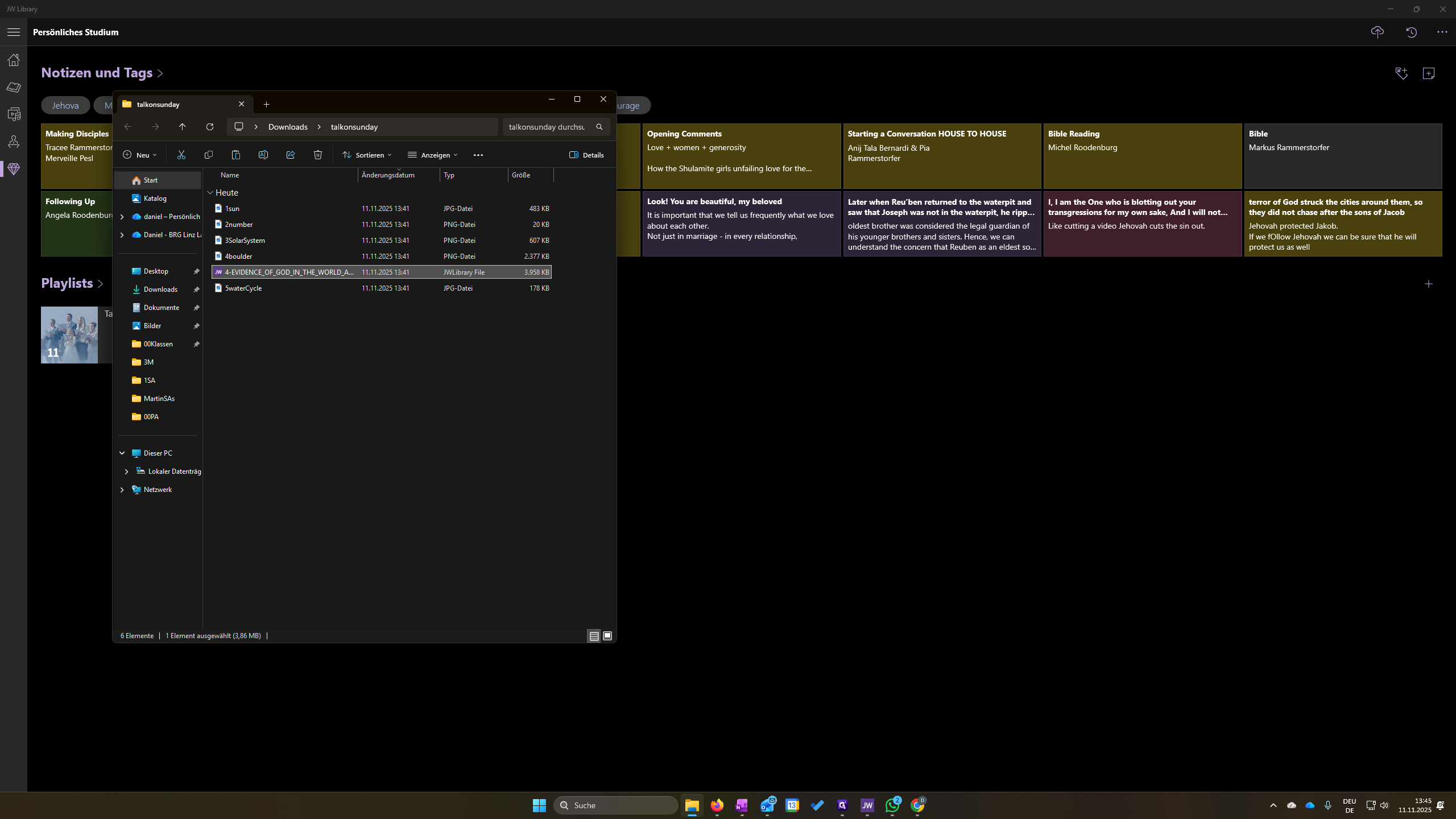
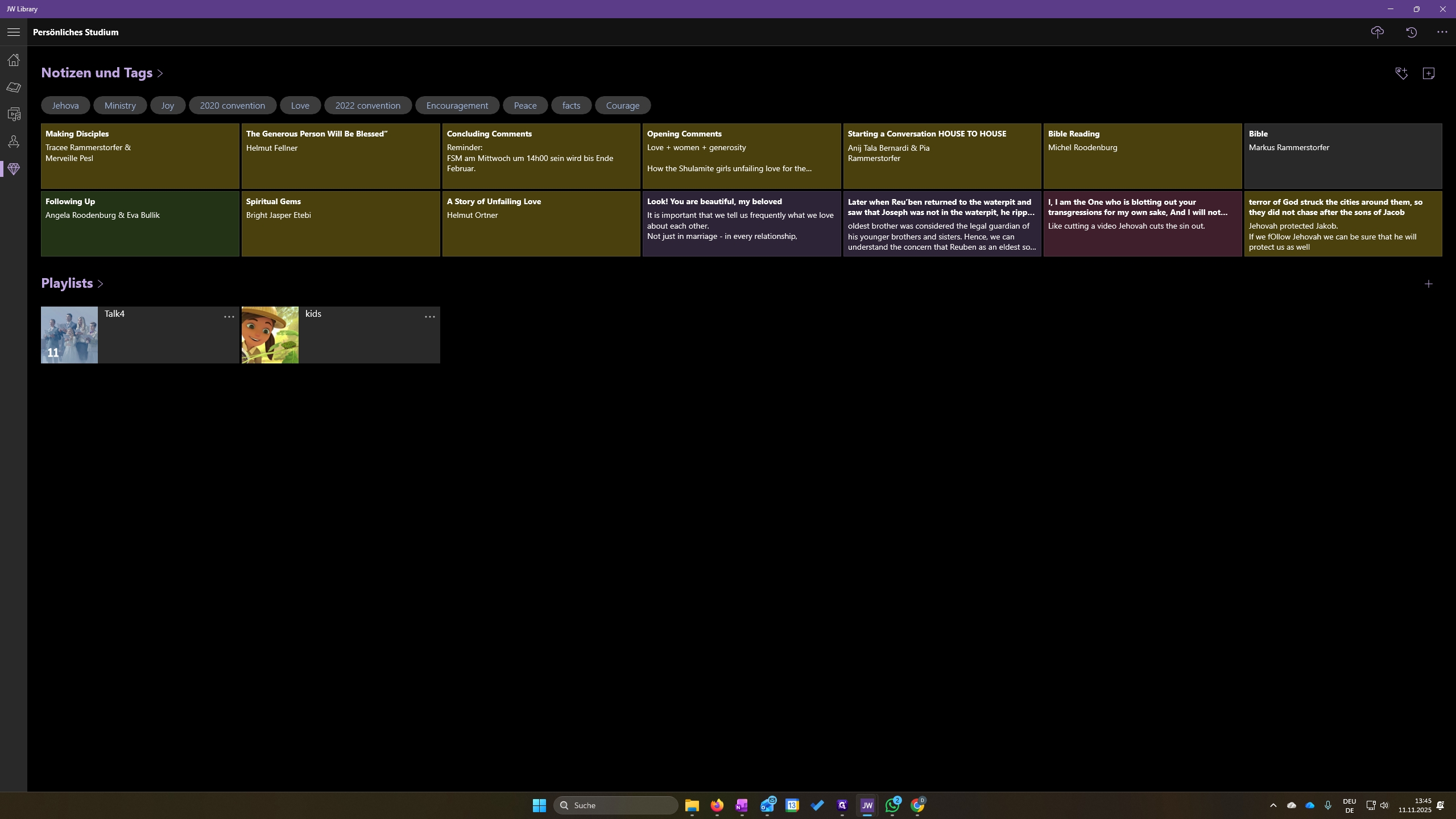
Open JW Library. Go to the diamond symbol and click it. Click the plus sign to create a playlist.
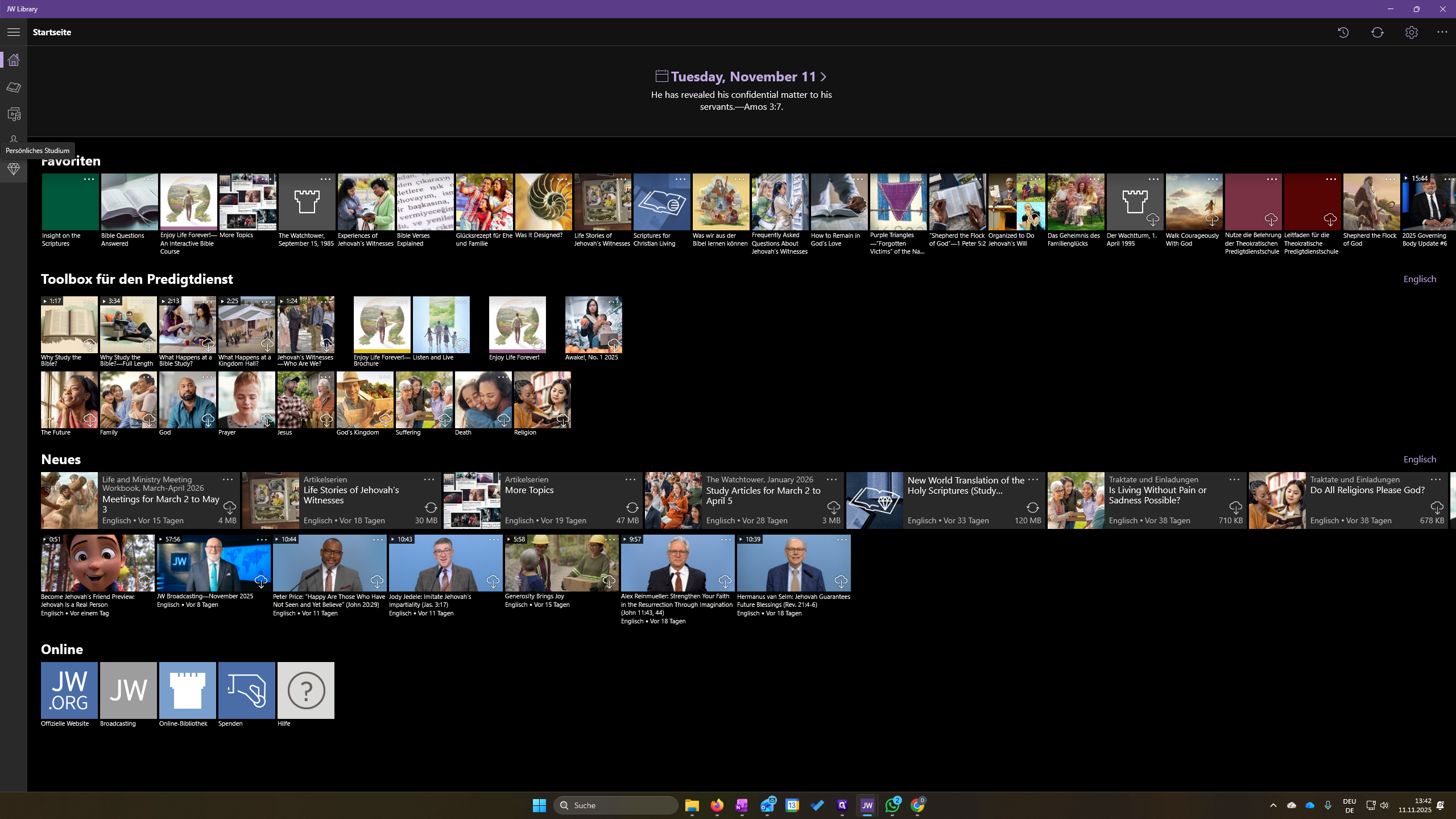
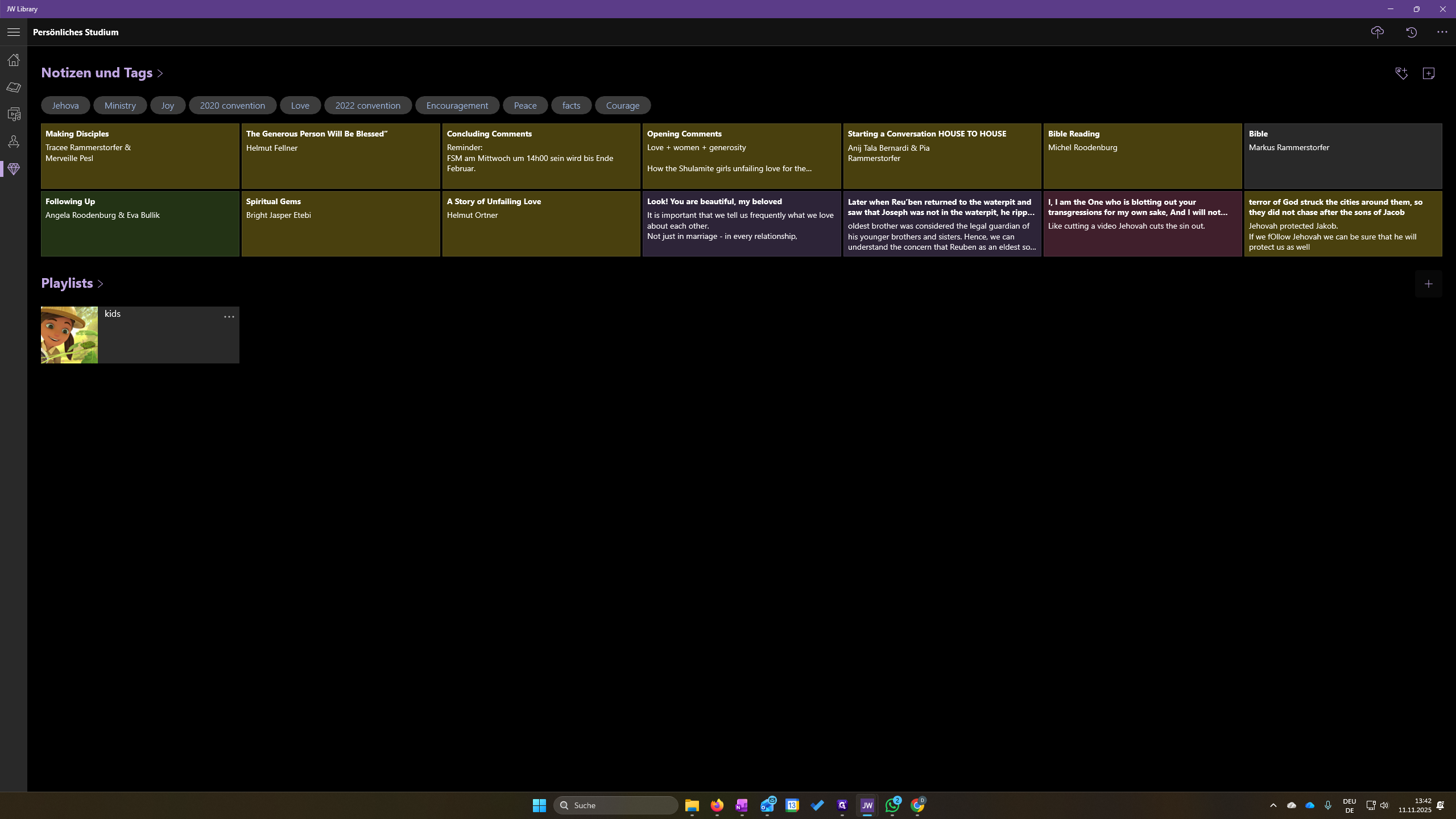
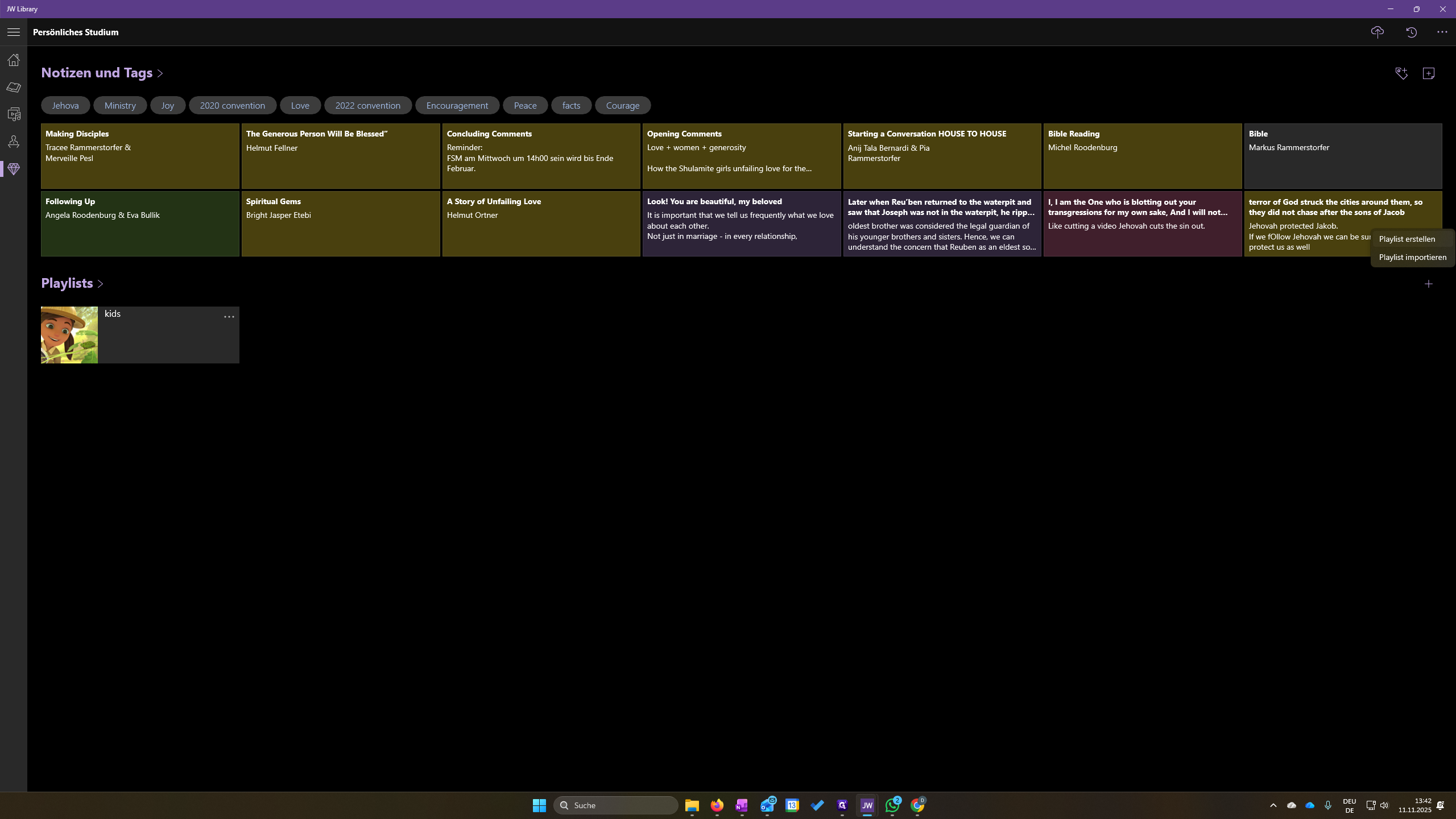
Give it a name, whatever it is. For example, after creating Talk 4, we click on it.
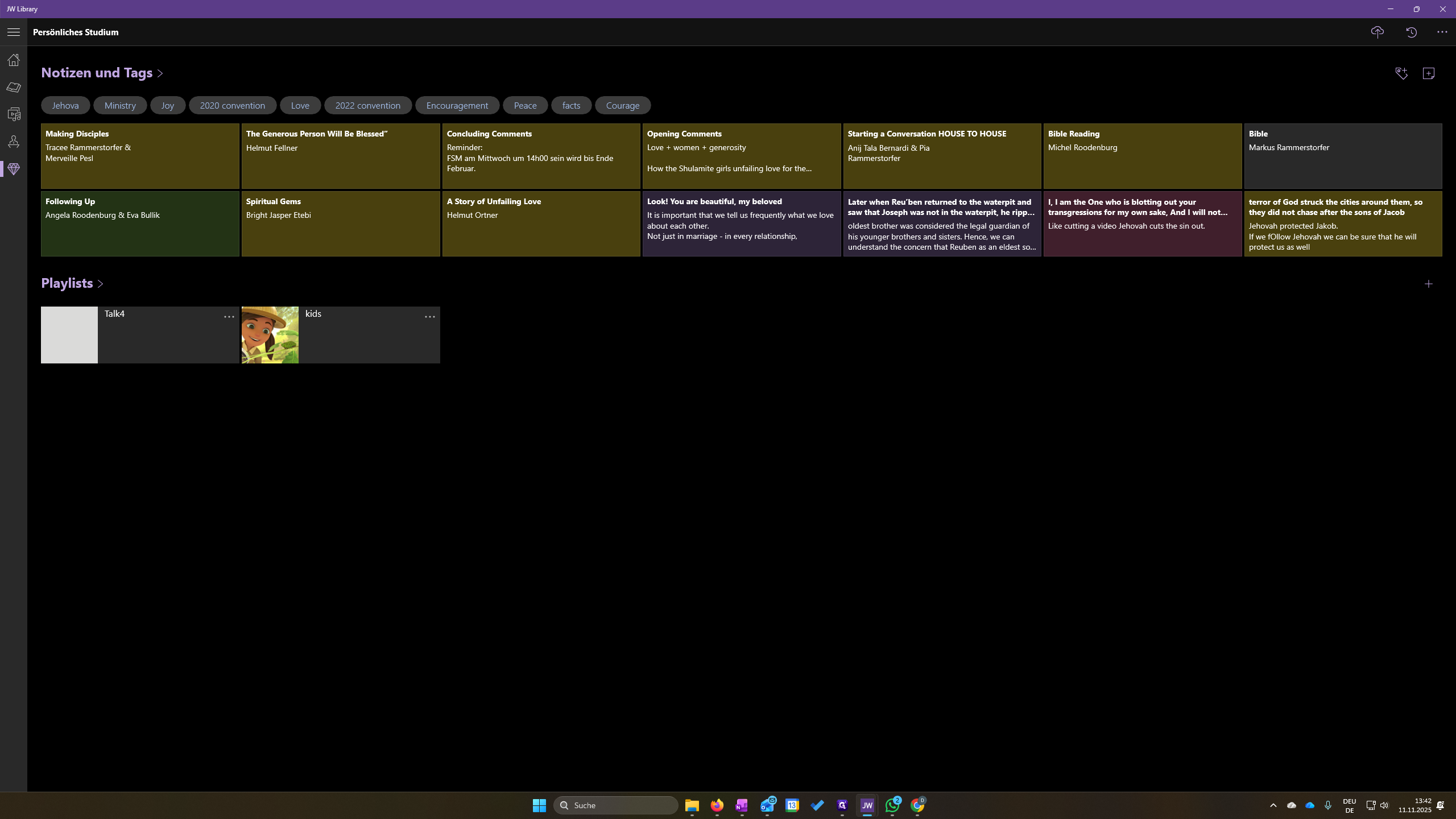
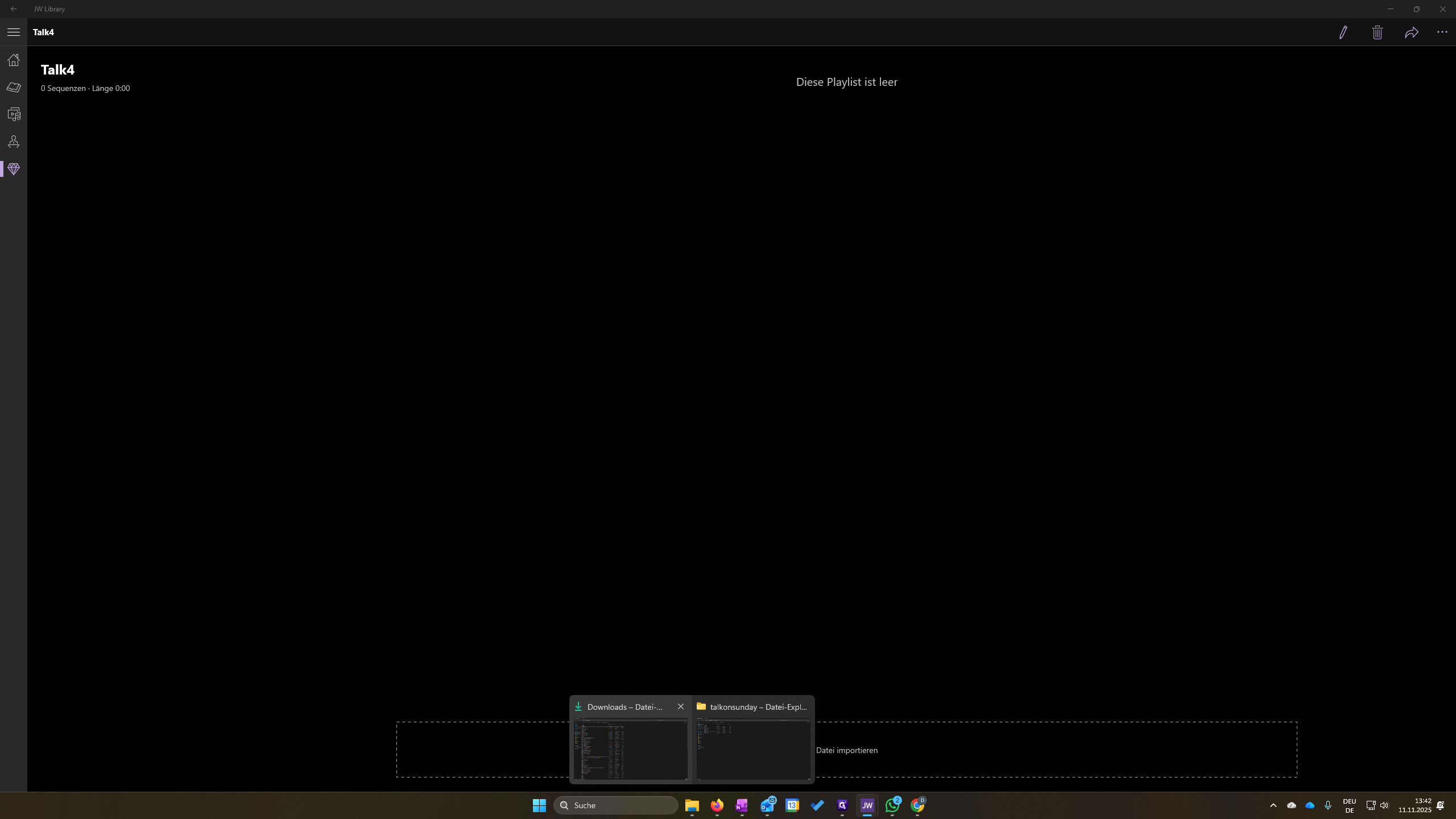
We can click this box to import the files. An easier way is to open Explorer, select the files you want to add, and drag and drop them.
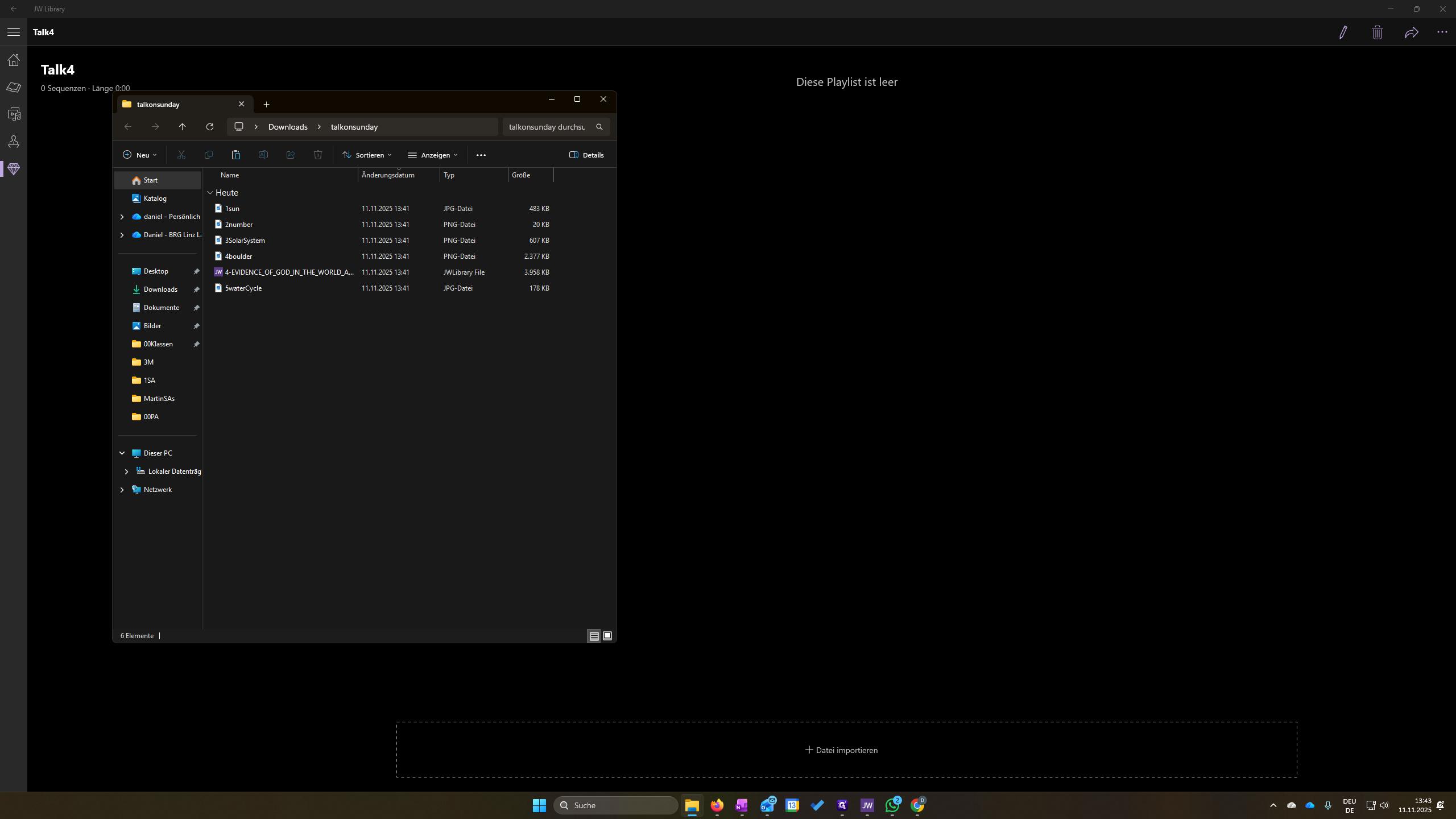
Press them with your left mouse button, then release.
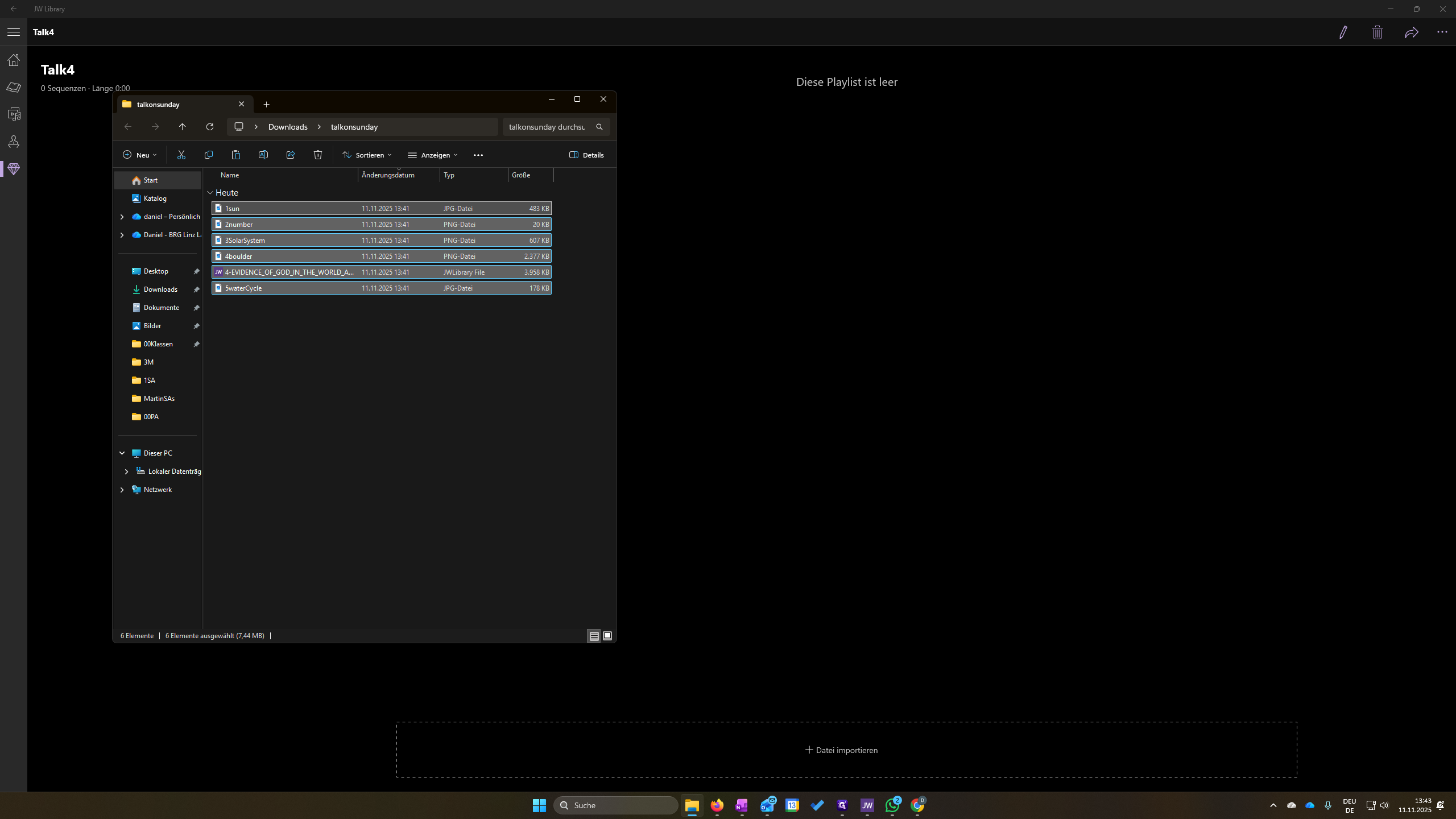
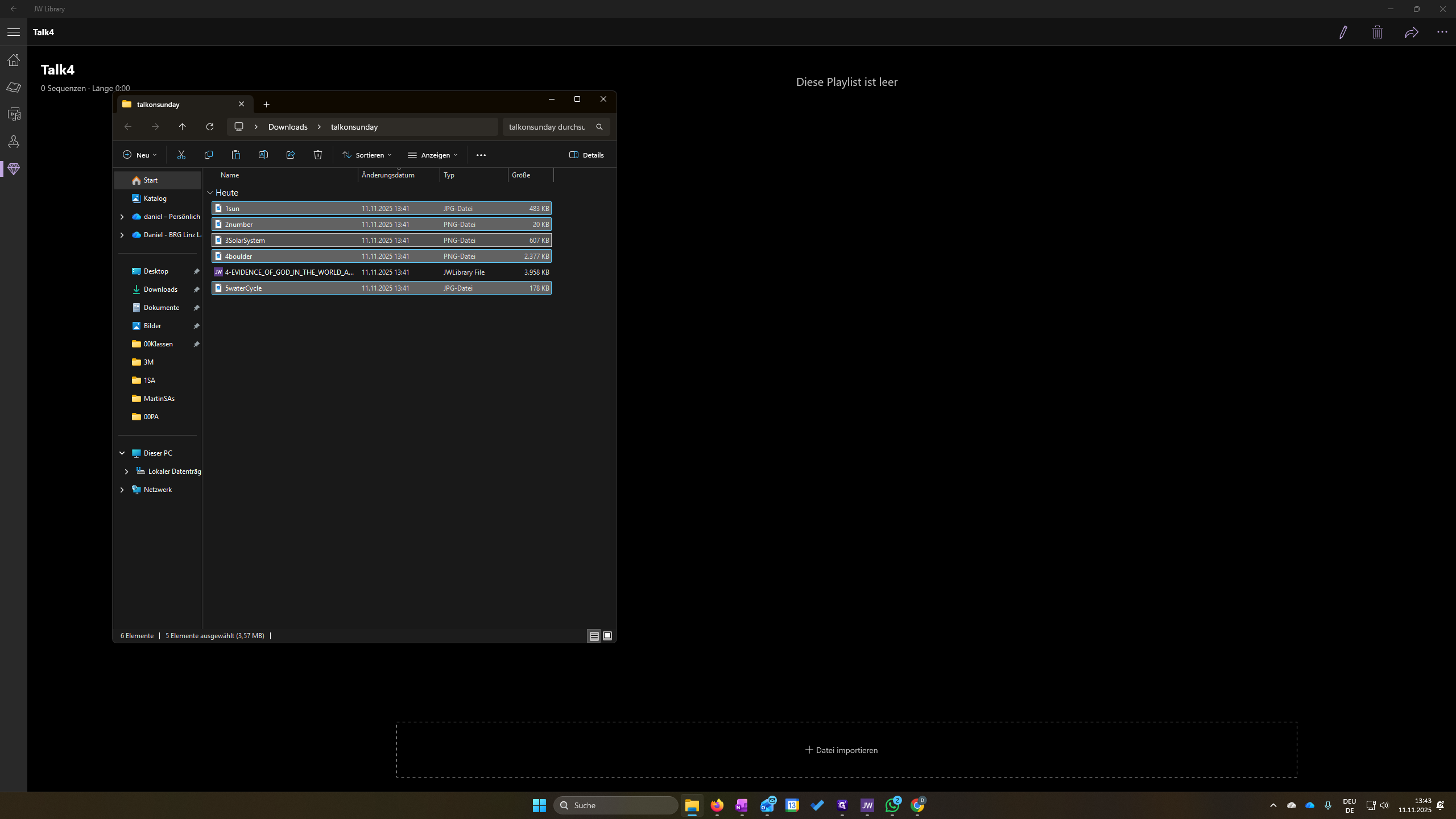
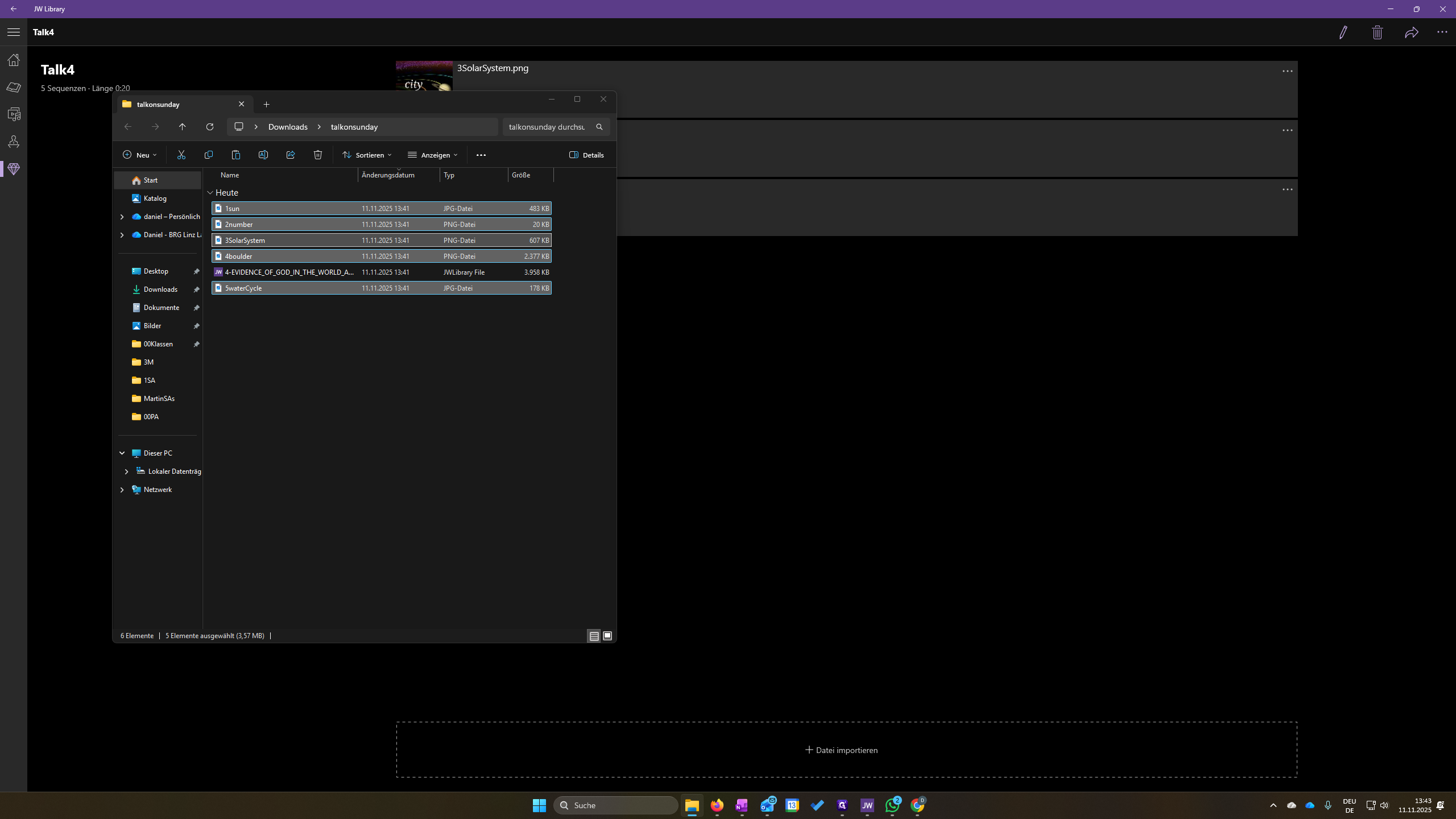
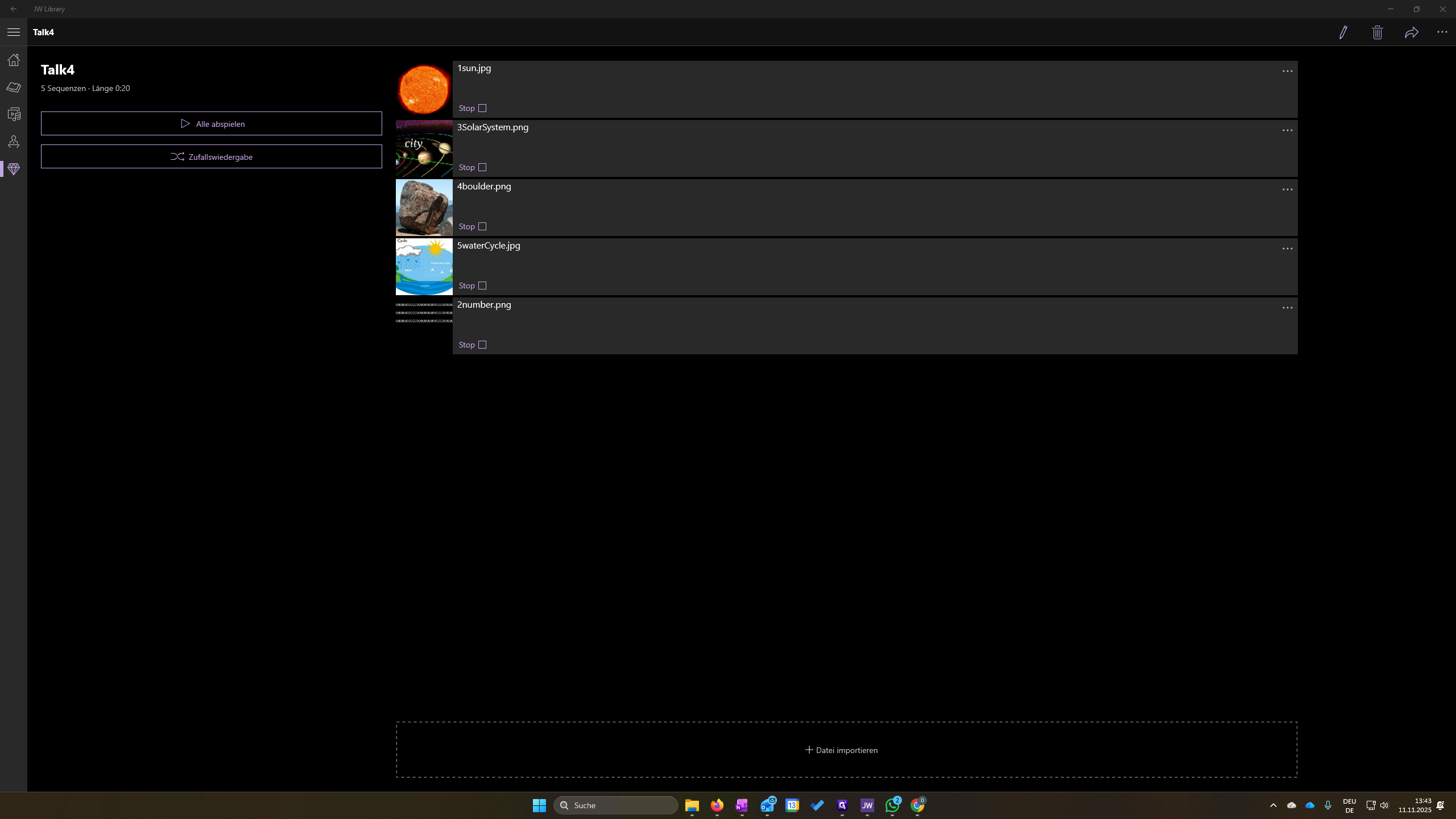
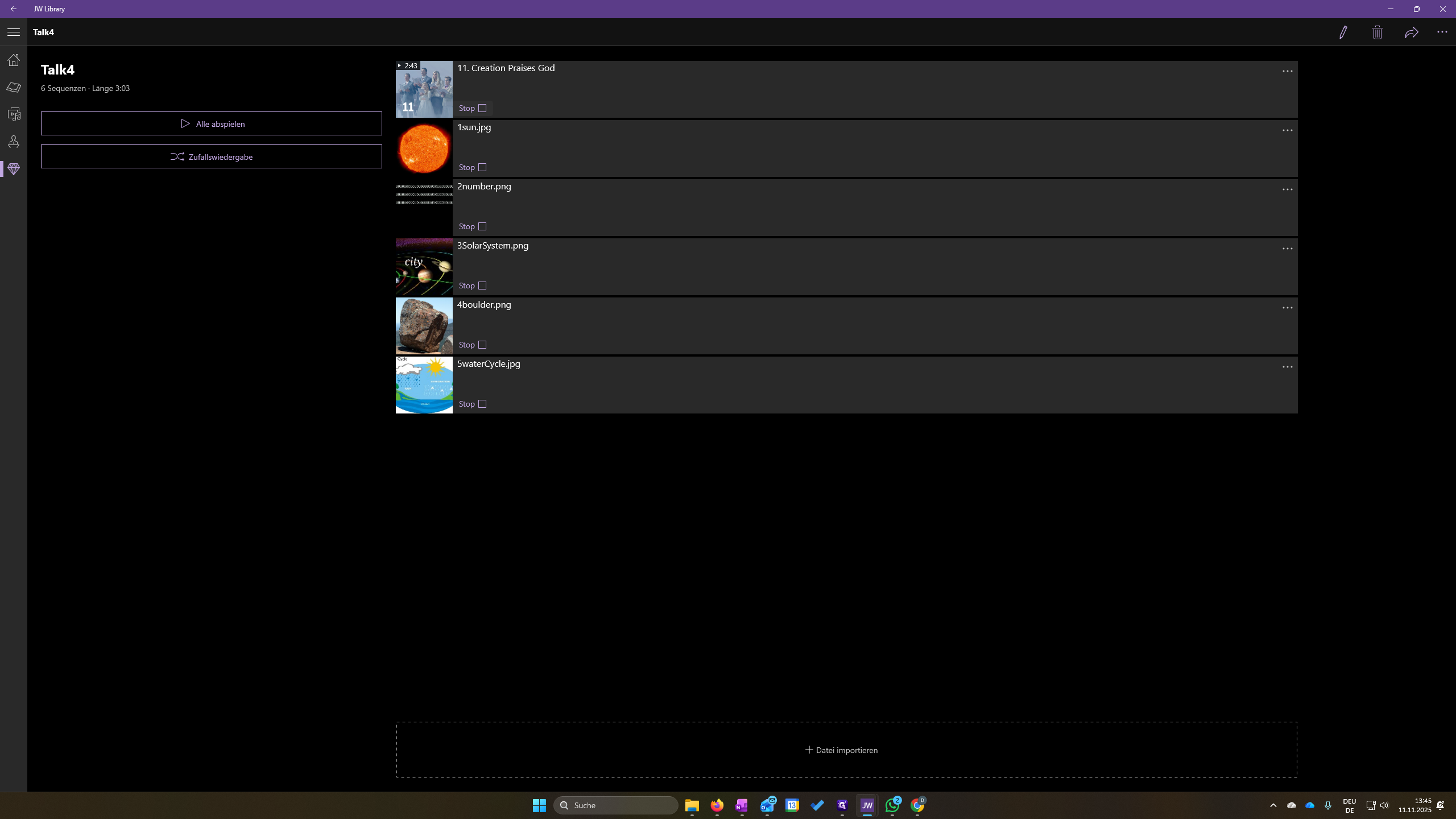
These are five pictures: three, four, and five. Sometimes it can be a bit buggy, so not everything is added. However, if you go back and open it again, you will usually see all five pictures.
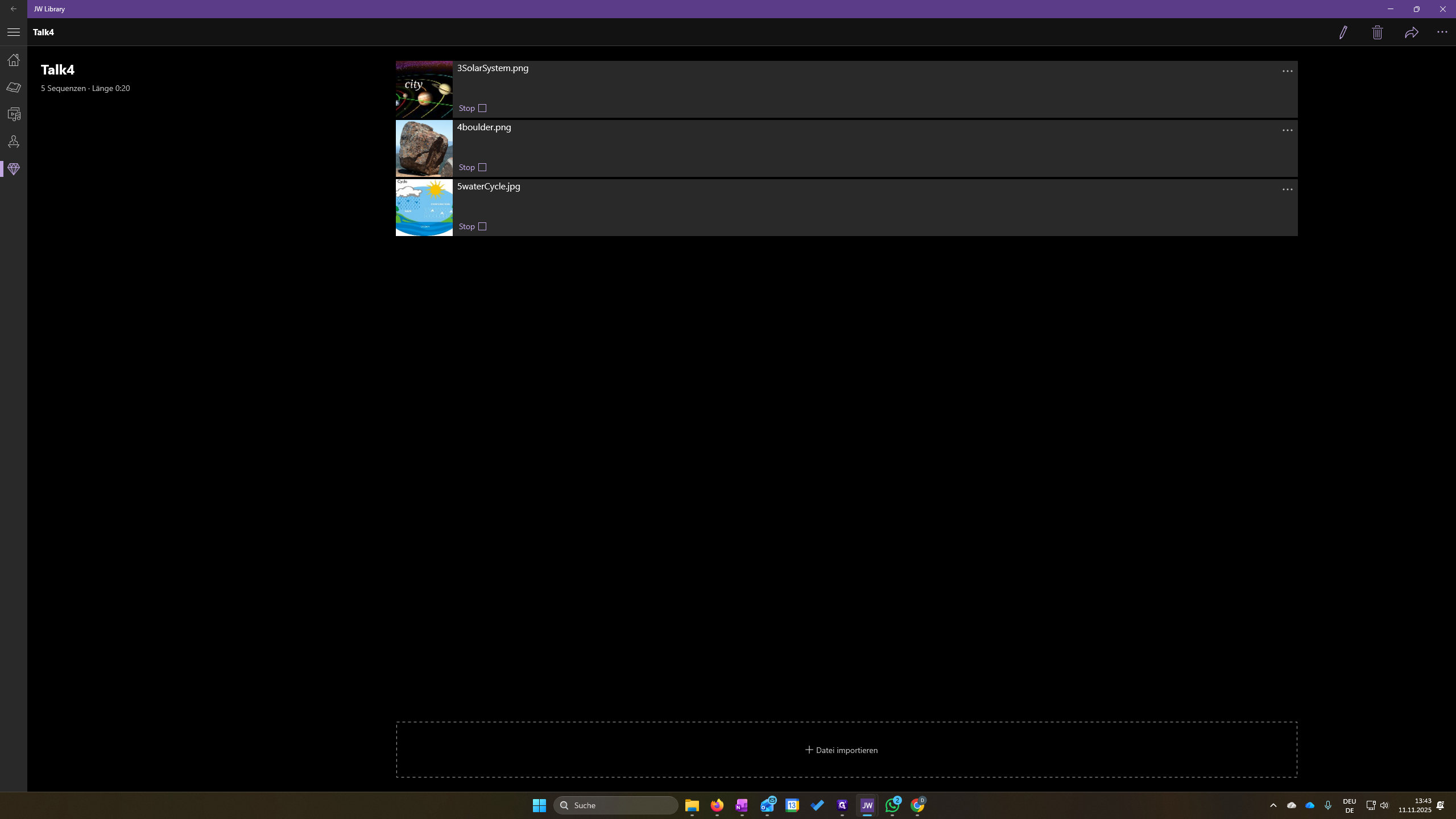
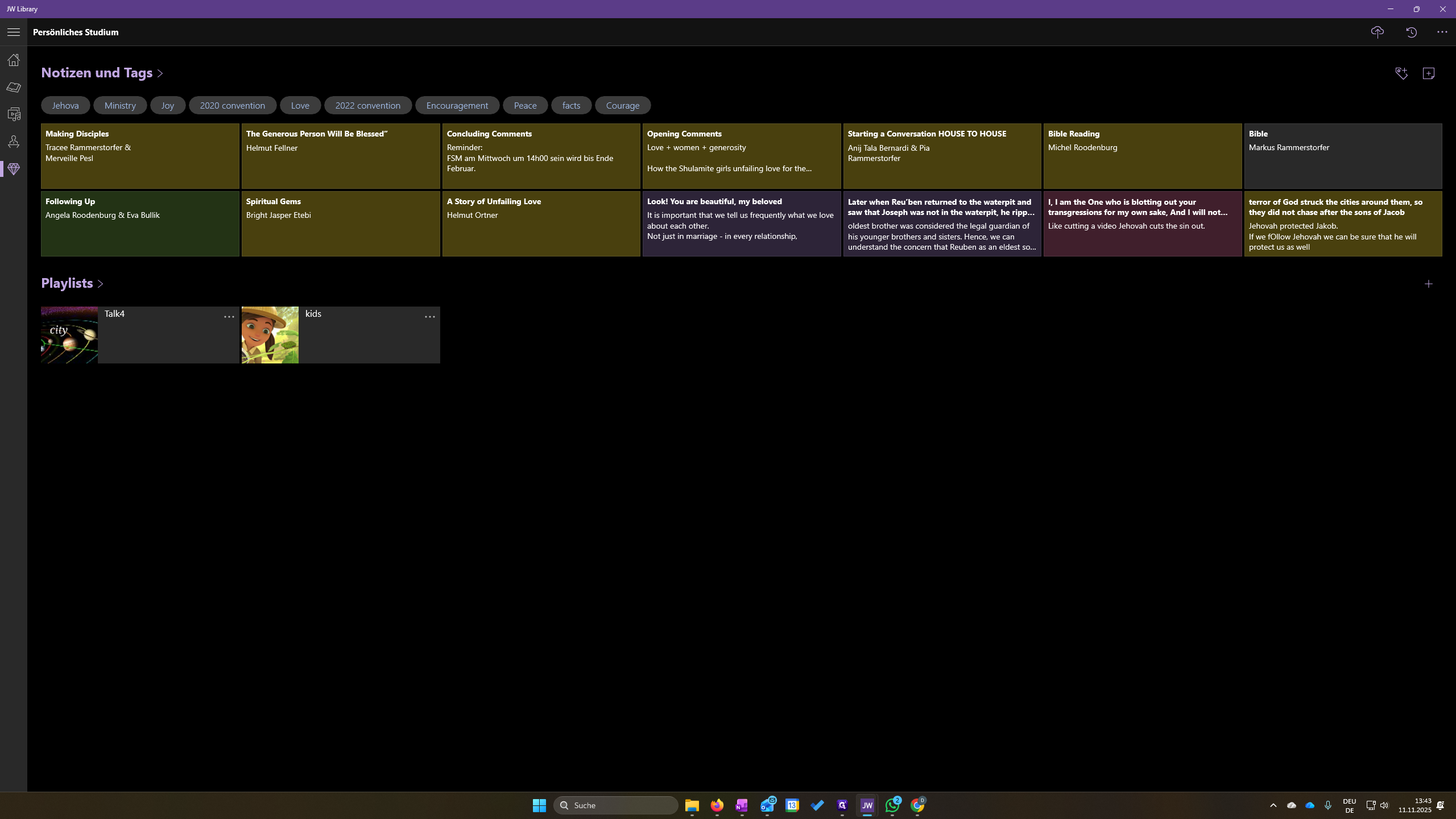
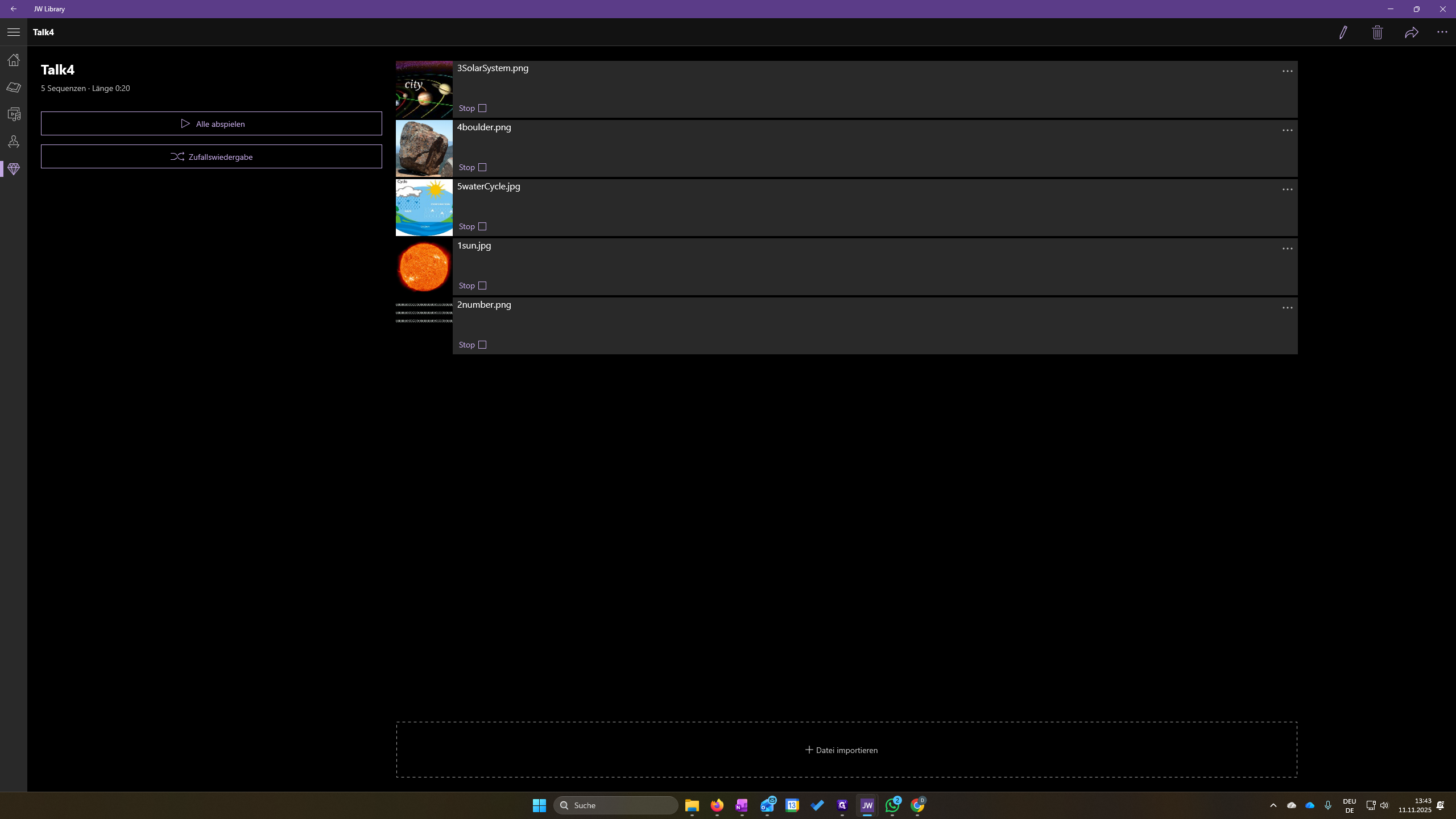
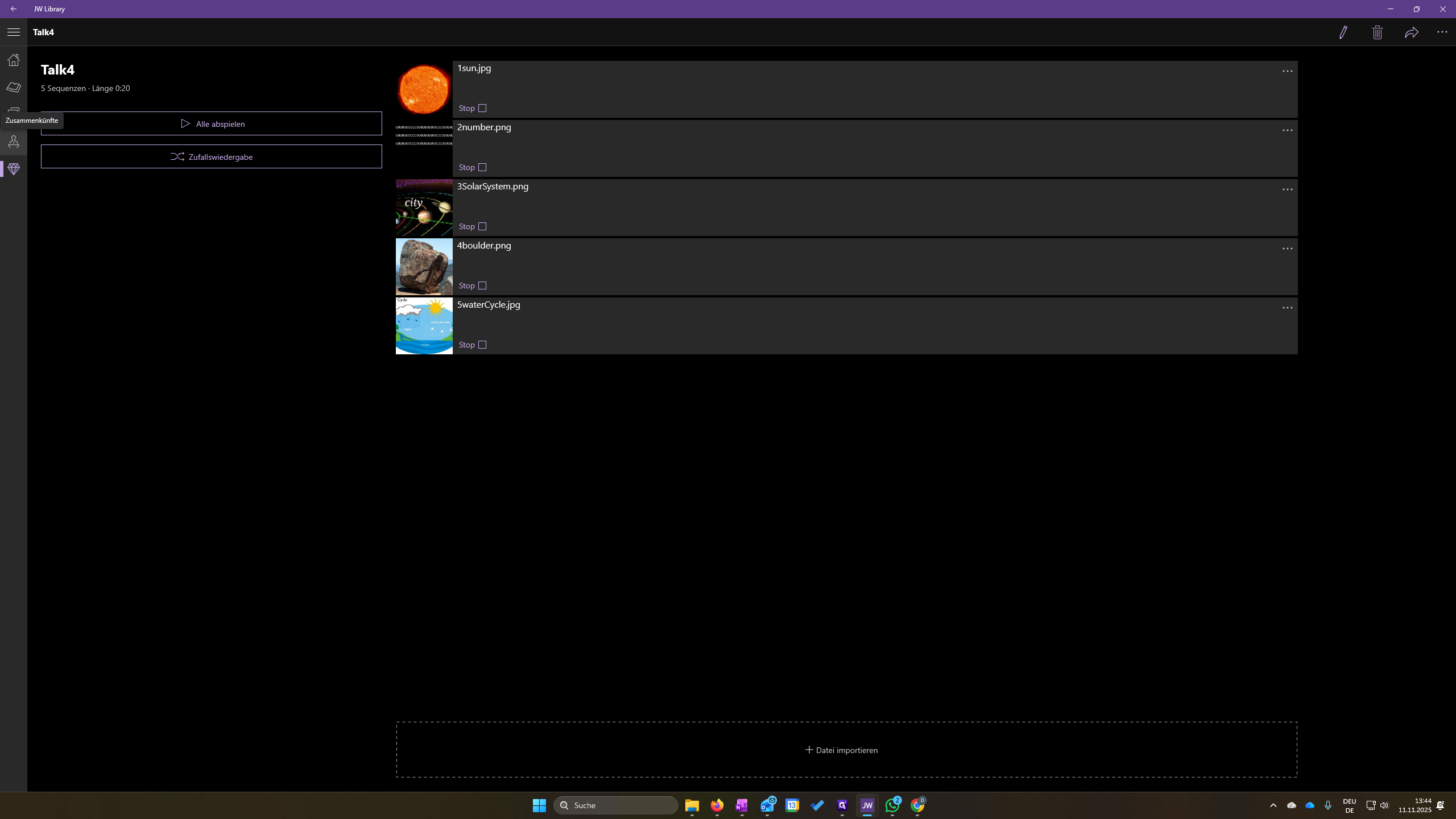
If they're not in the correct order, simply click and drag them.
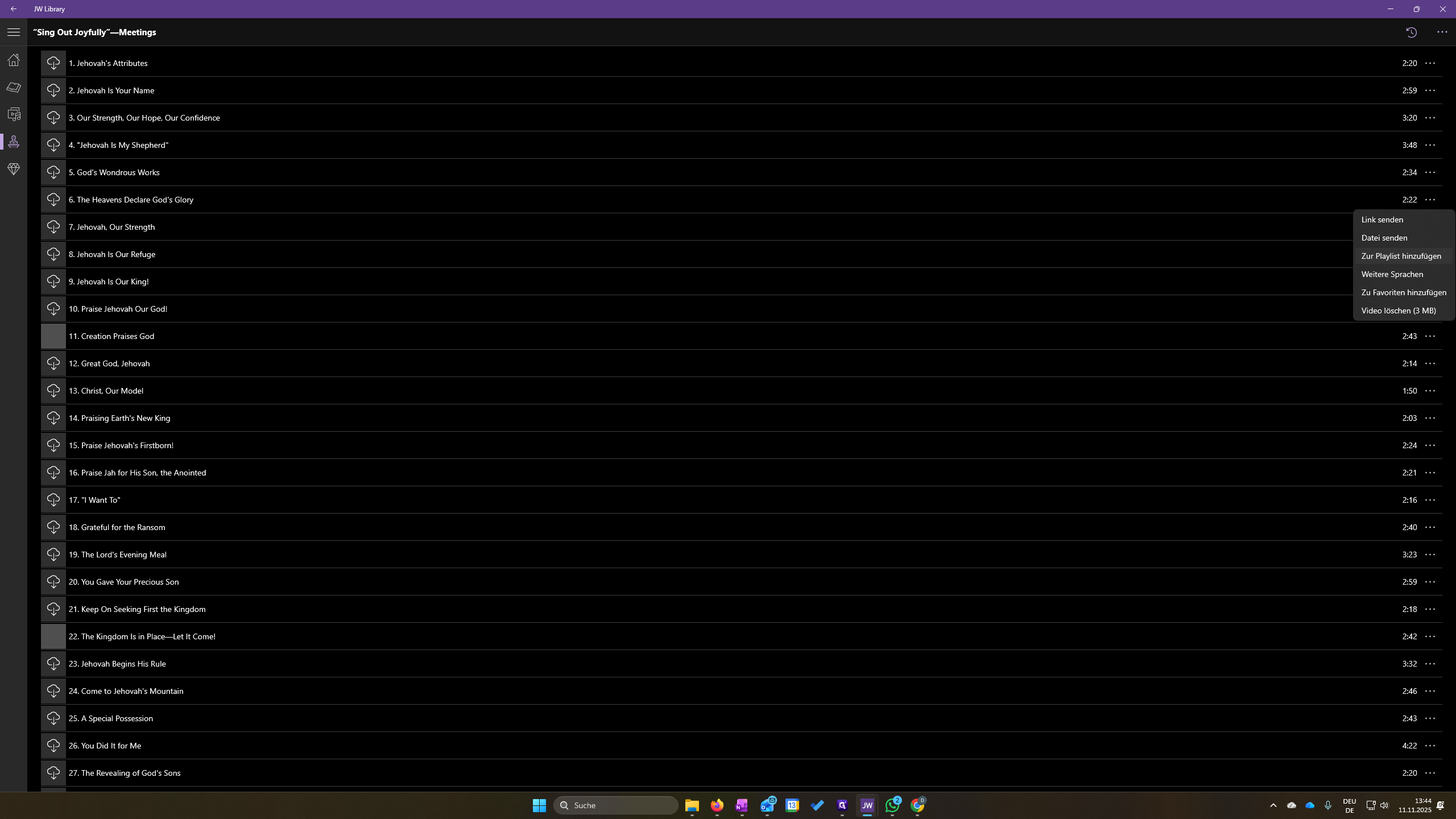
If you have done so, you can add the song as usual. Go to Meetings and look for the song.
lick on the watchtower, then the media symbol, and select "weitere Lieder."
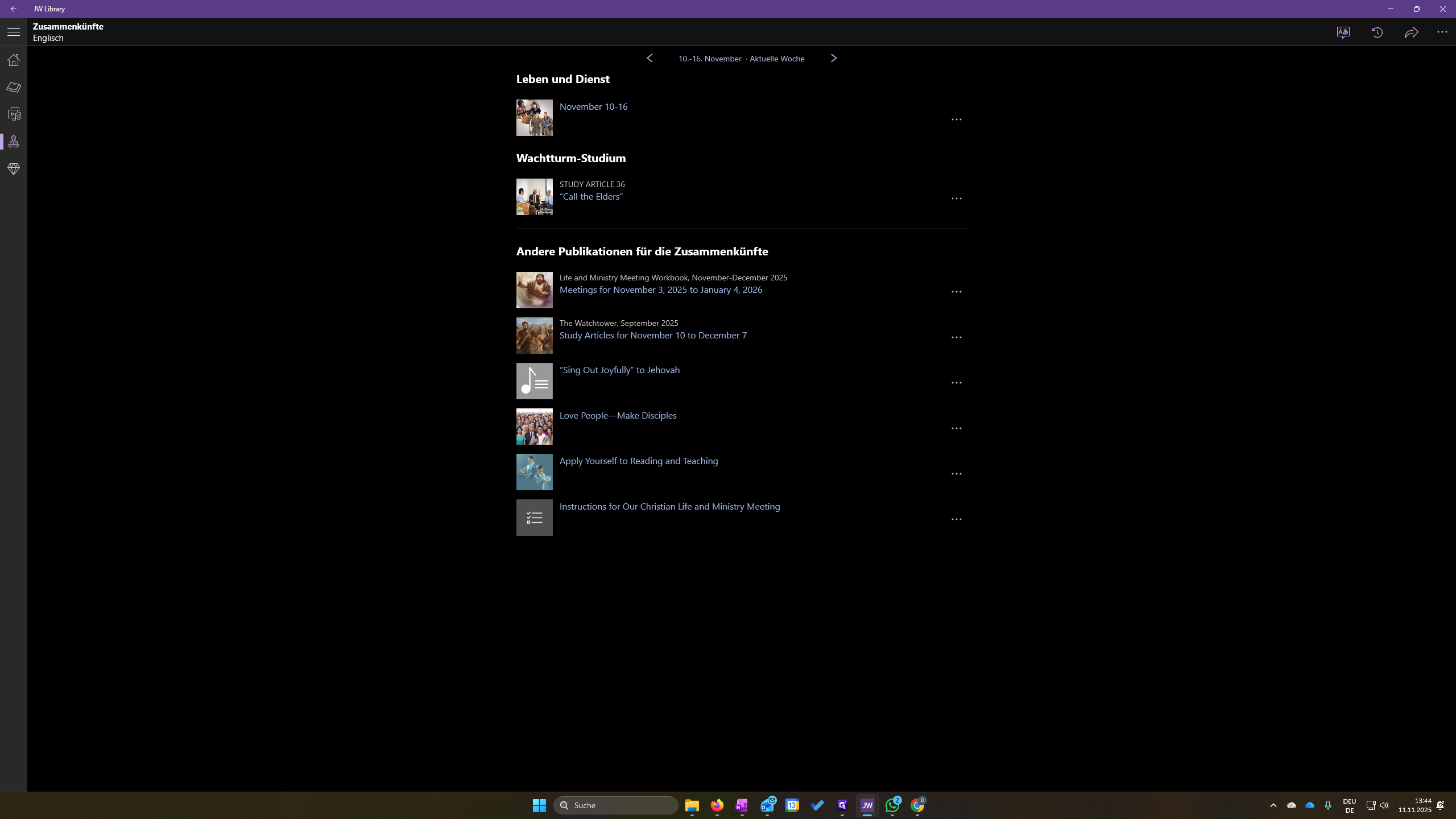
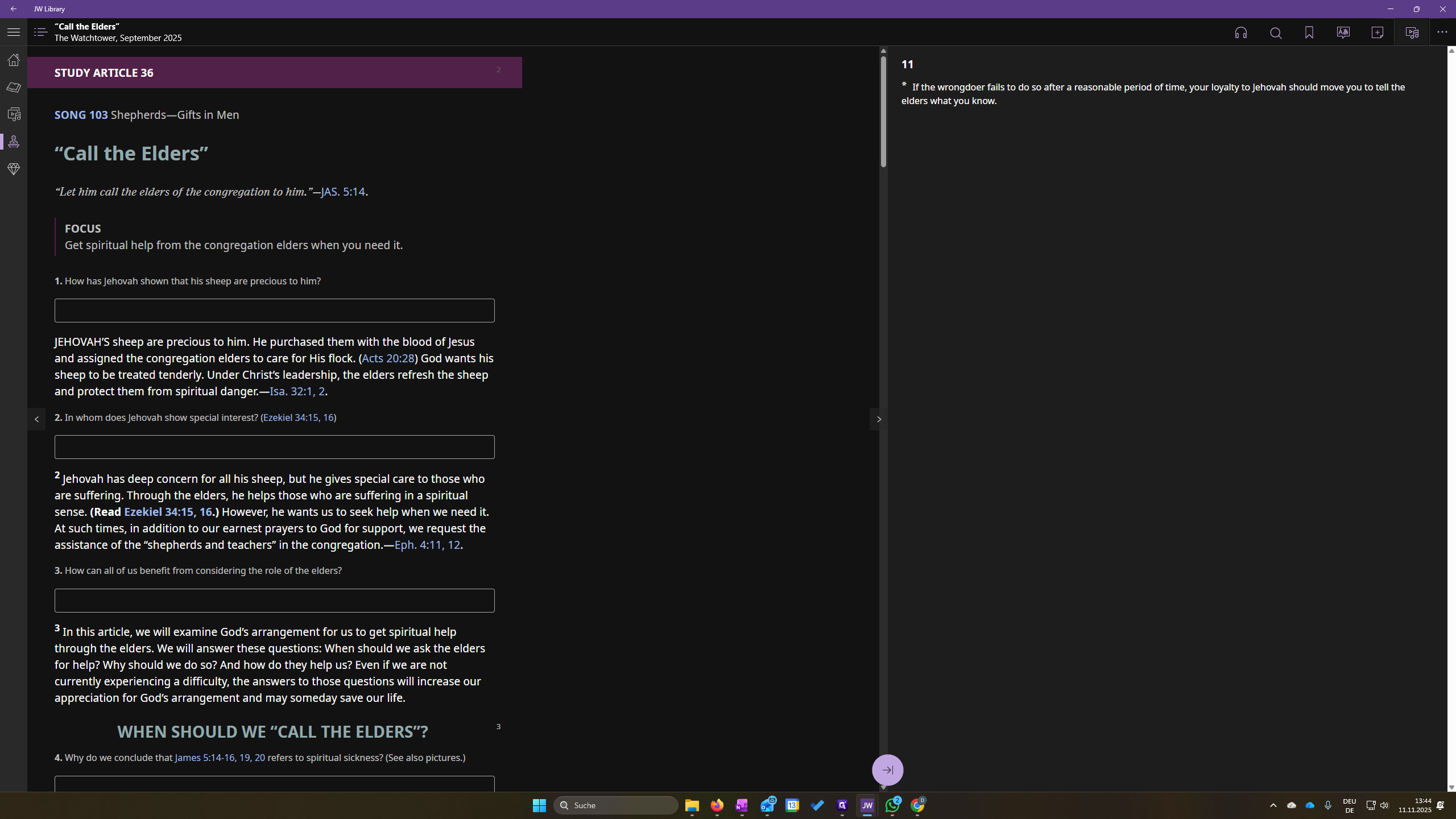
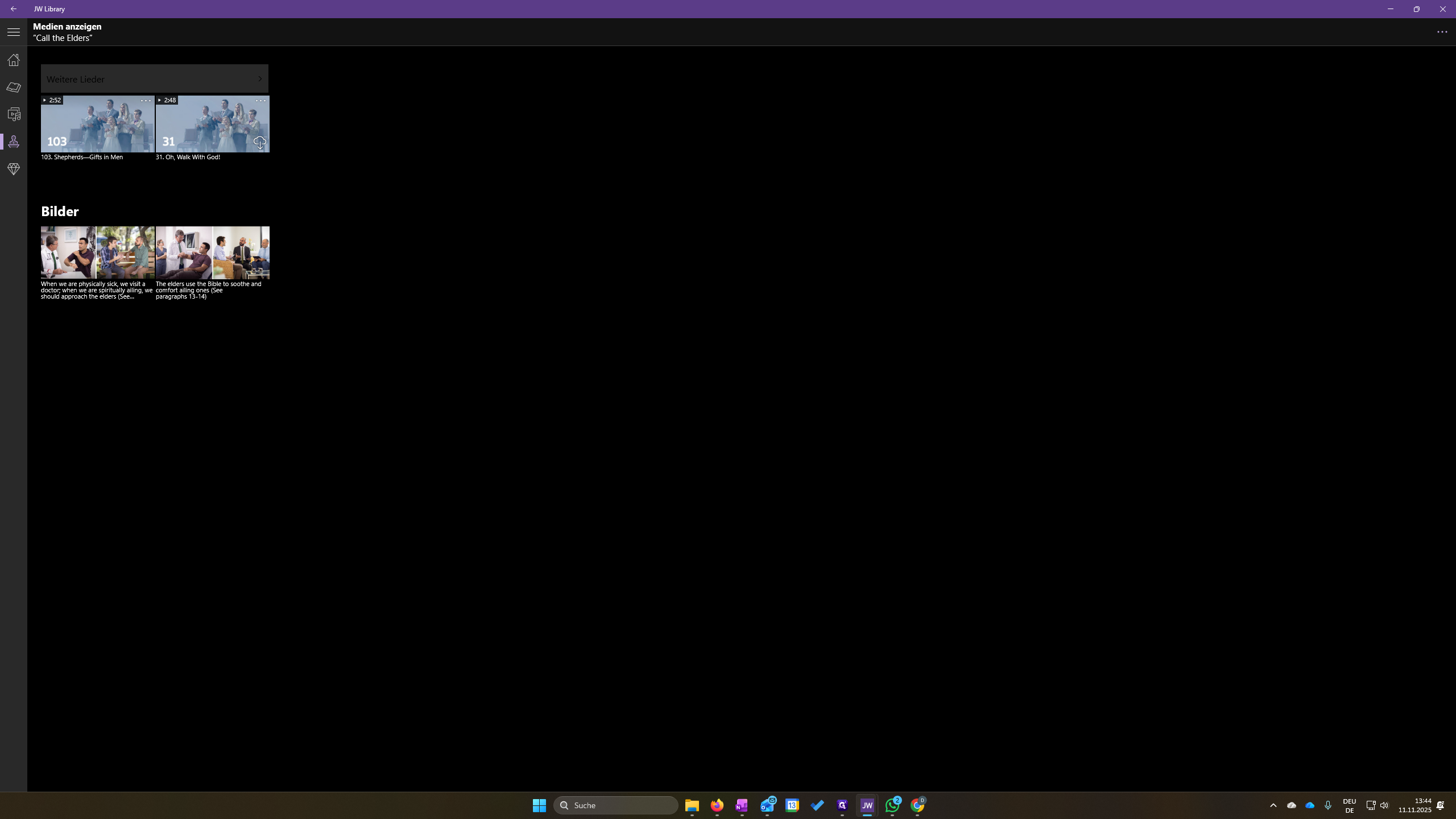
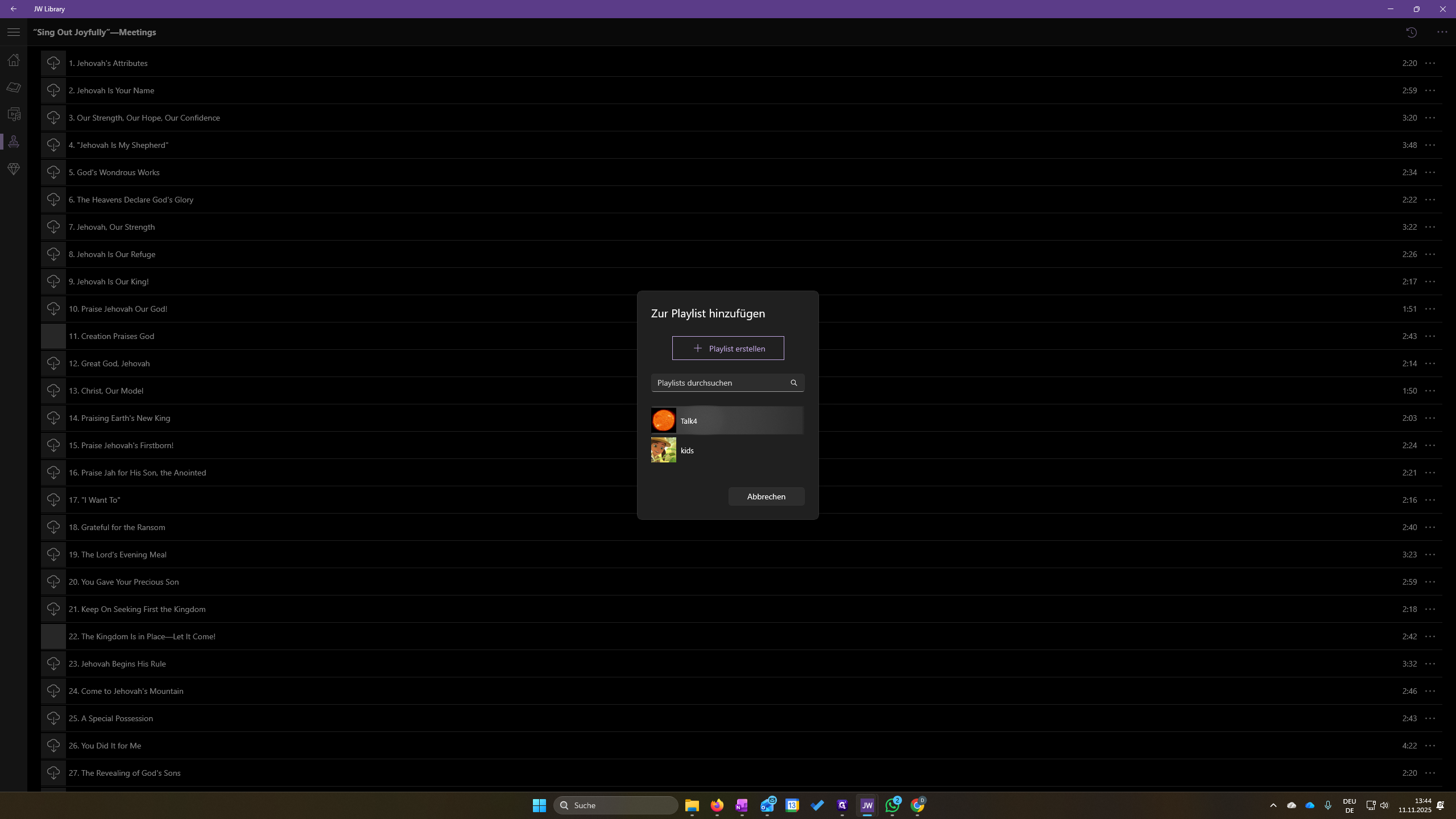
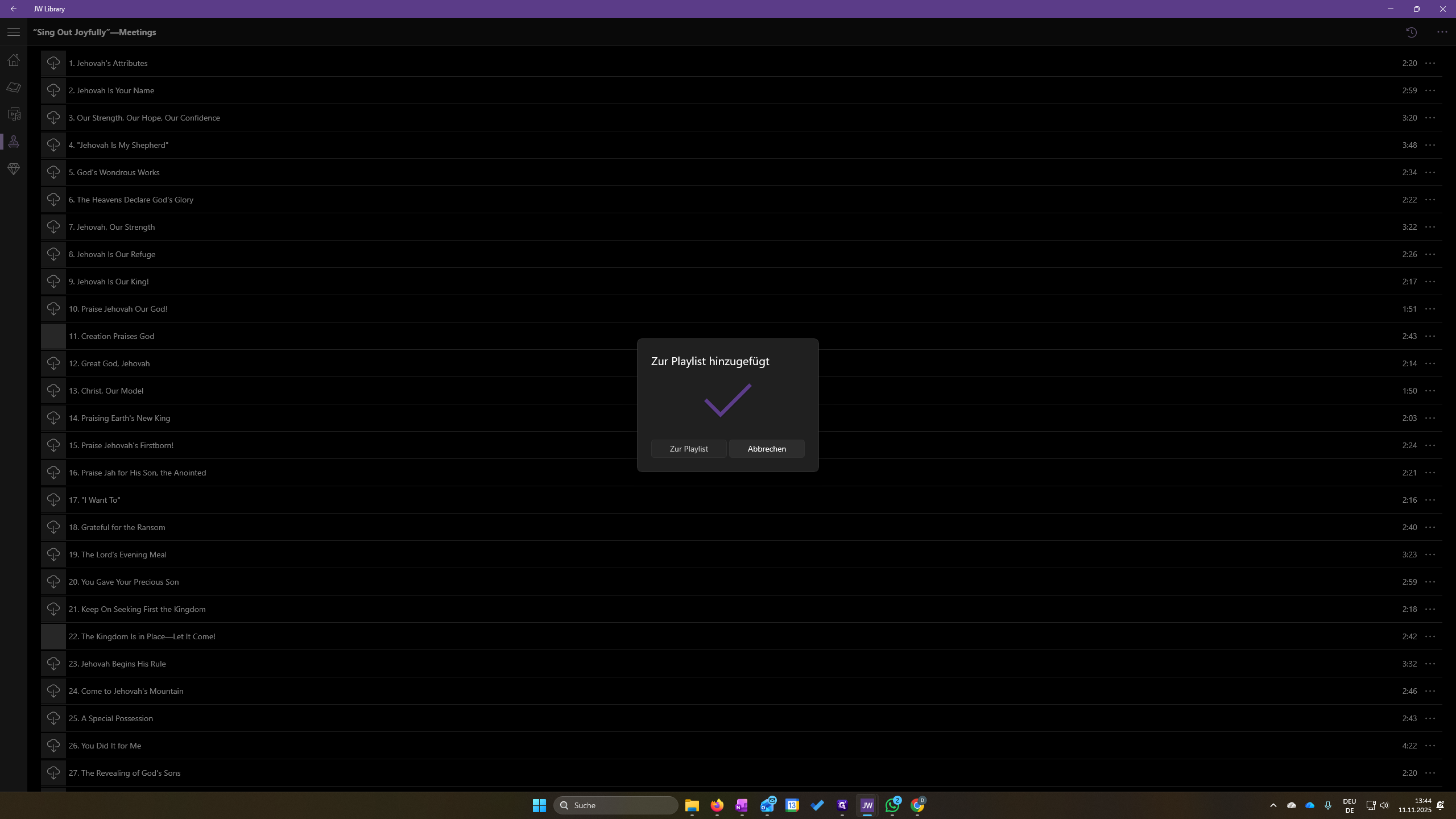
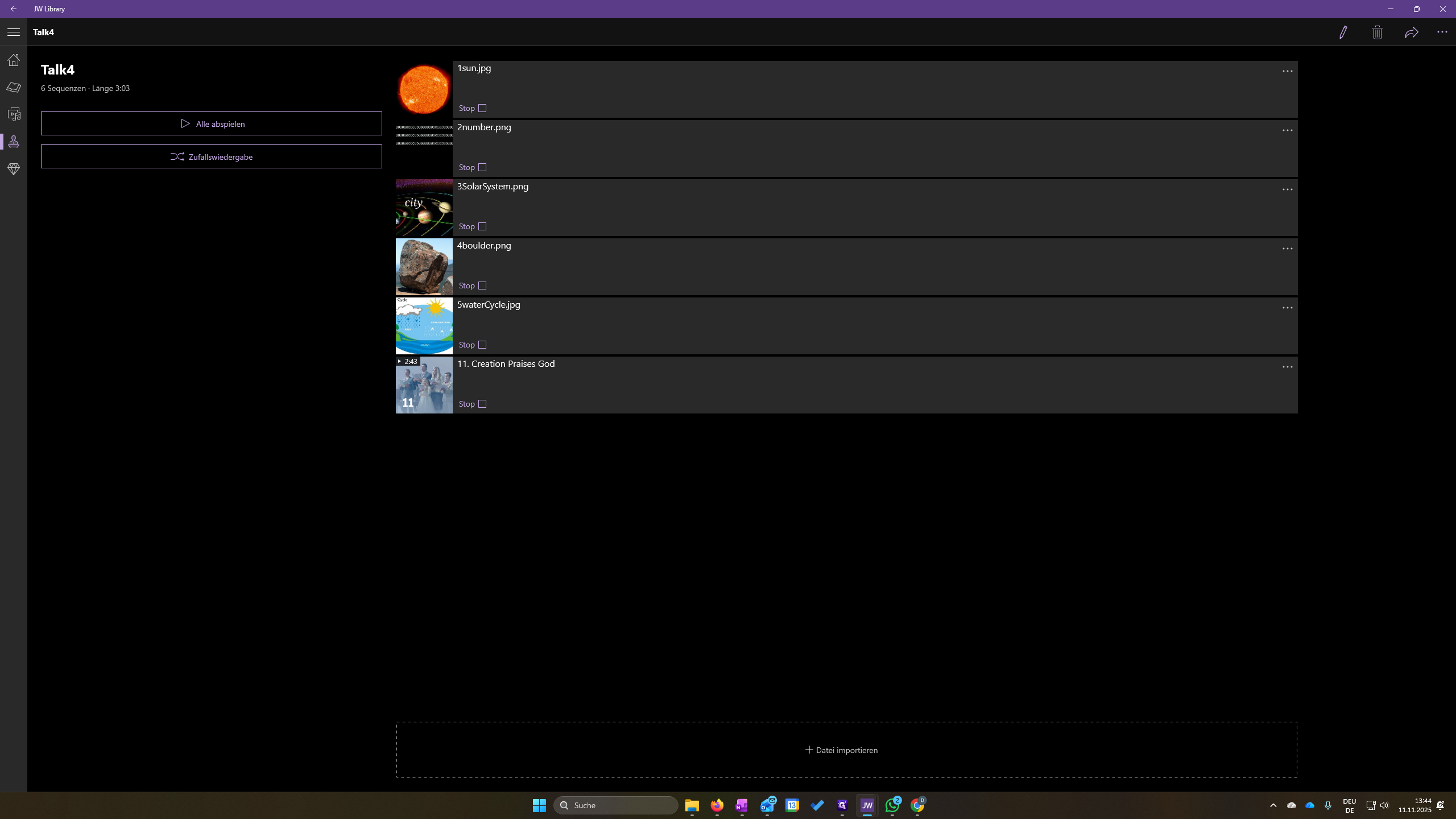
Here, search for a song, such as "11." On the right side, you will see three dots. Click on them, then select "Add to Playlist." Choose the correct playlist. You can then go to the playlist, and the song will be added at the end.
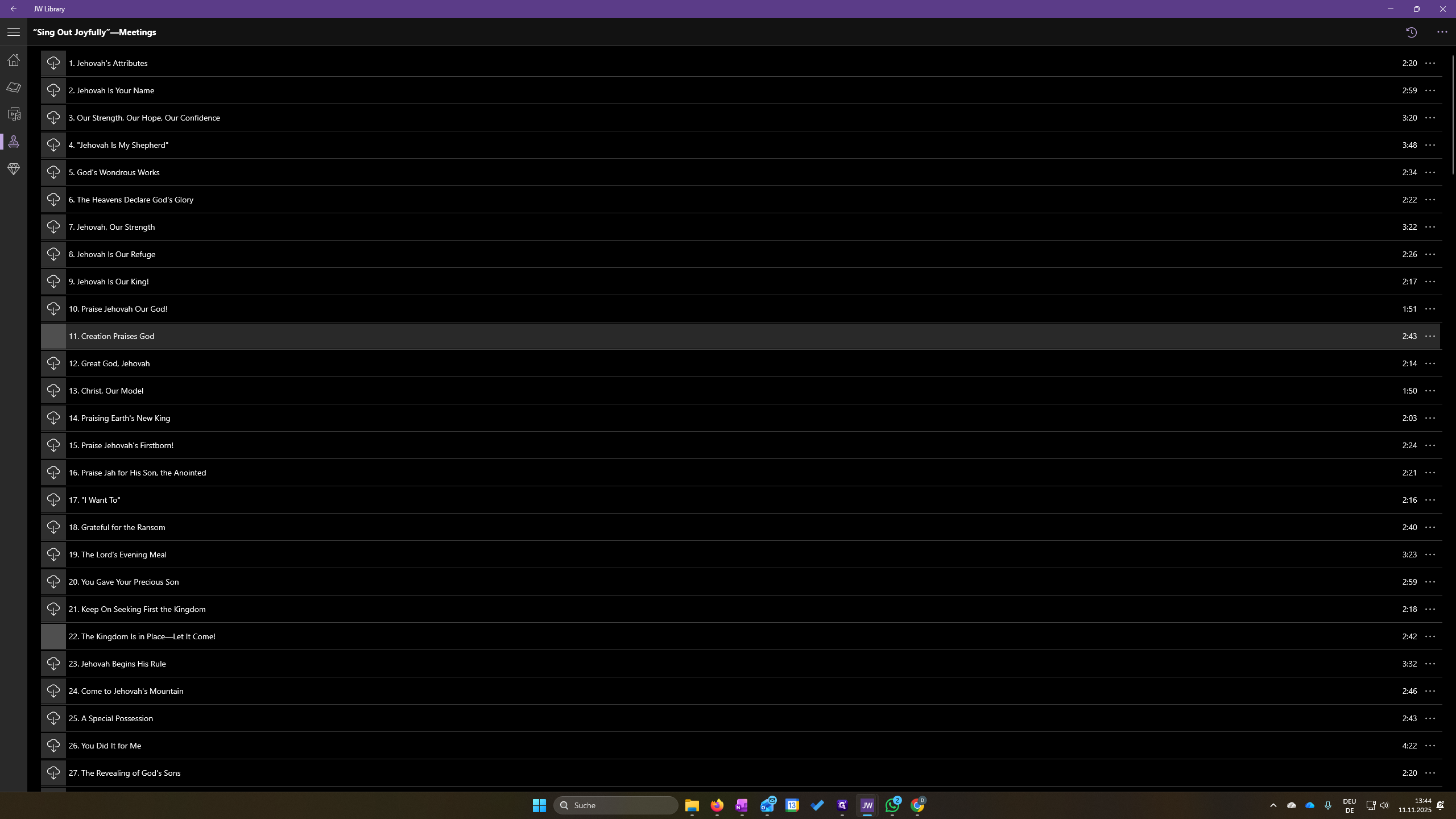
If I click somewhere else later, how do I find the playlist again?
I click the diamond symbol, select Talk 4, and see everything listed in order.
It's a good idea to add a stop here. This prevents you from moving on to the next item immediately. (It should be automaticall selected to be a stop)
Sometimes the brothers send us a JW playlist. In that case, just double-click it to open and add it to your playlist.