How to Add Sellable Products in Reservety: Step-by-Step Tutorial

Learn how to add sellable products like flashlights to your rental website. This step-by-step guide covers product setup, images, pricing, inventory, and publishing.

By Reservety

In this guide, we'll learn how to add sellable products to your Reservety dashboard. This process includes entering product details, uploading images, setting pricing, and managing inventory. By following these steps, you can make products available for purchase on your rental website.

Let's get started

Welcome back to Reservety tutorials.

In this episode, we will show you how to add products that can be sold.

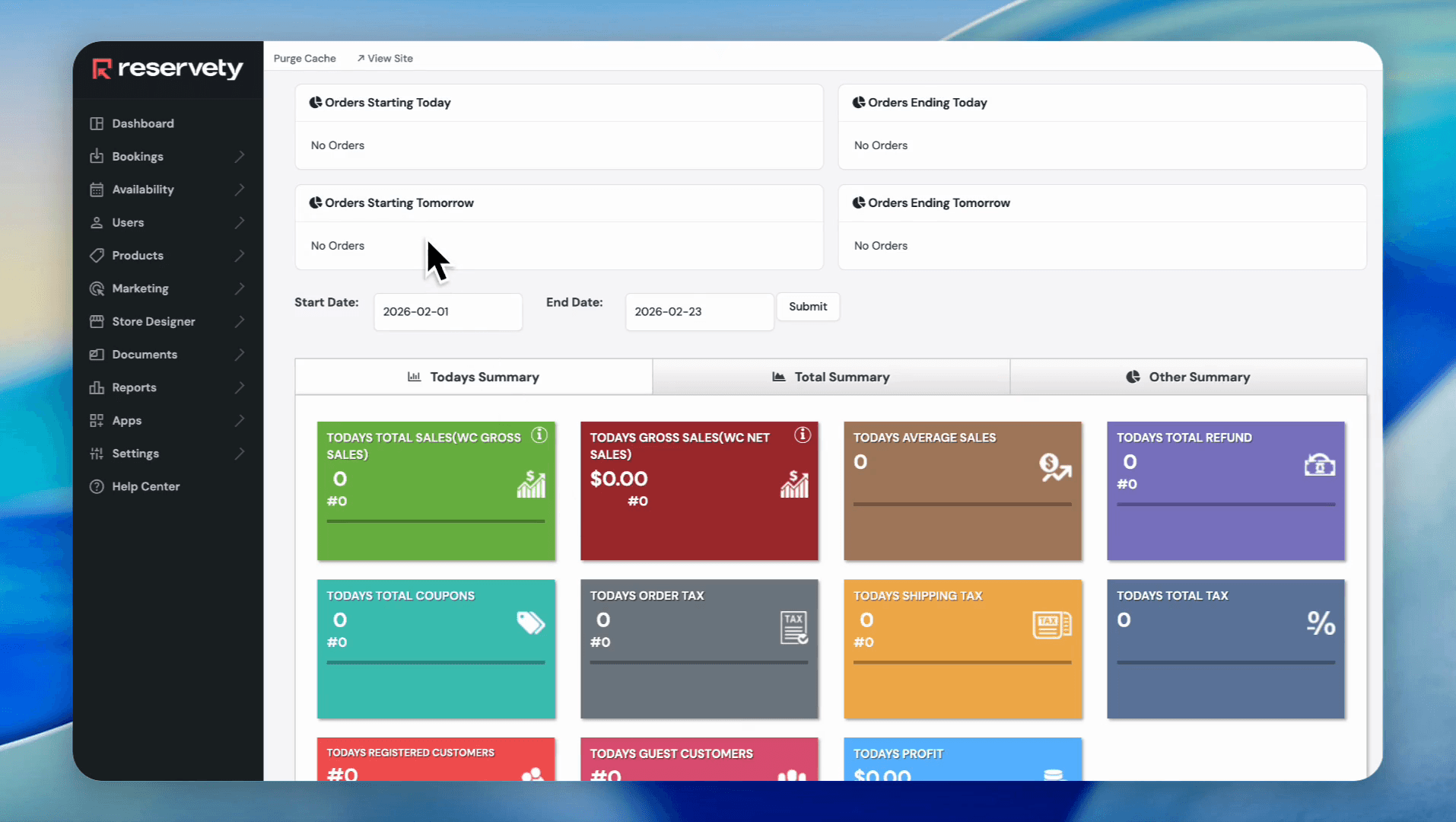
First, log in to your dashboard.
1
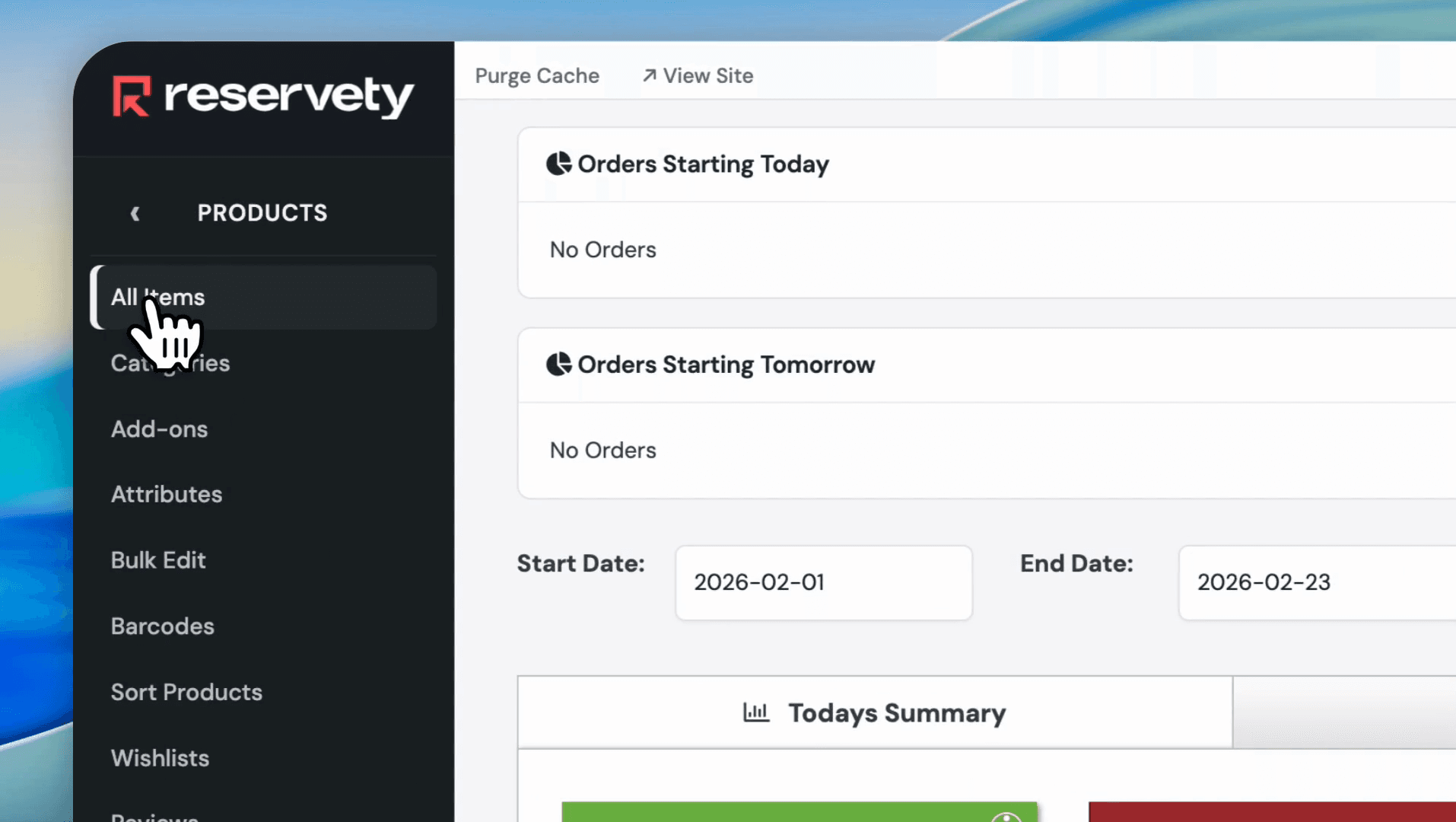
Click on Products in the left sidebar.
Step #1: Click on Products in the left sidebar.
2
Click on All Items.
Step #2: Click on All Items.
3
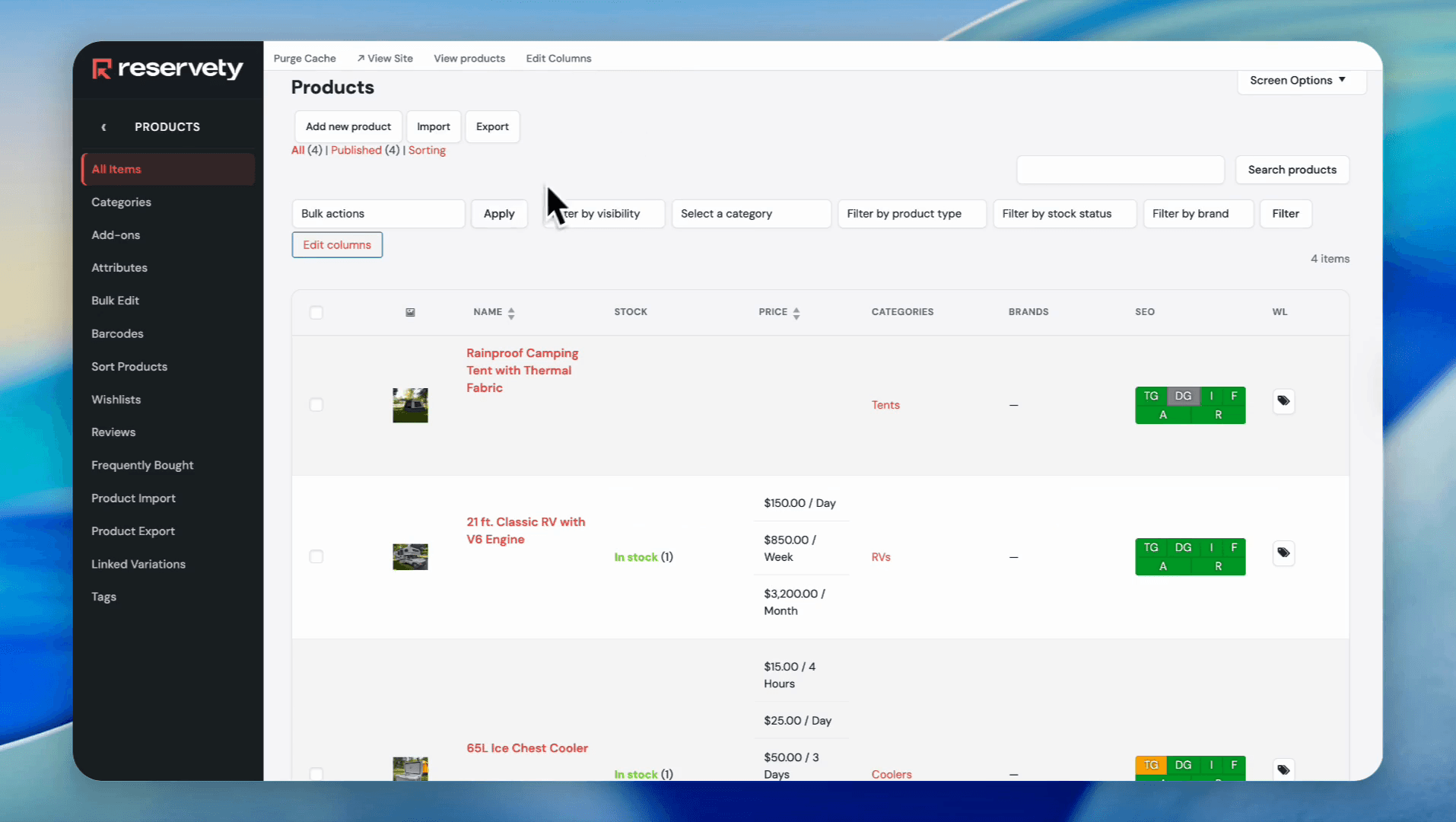
Click the Add new product button.
Step #3: Click the Add new product button.
4
Type the product name in the 'Product name' field.
5
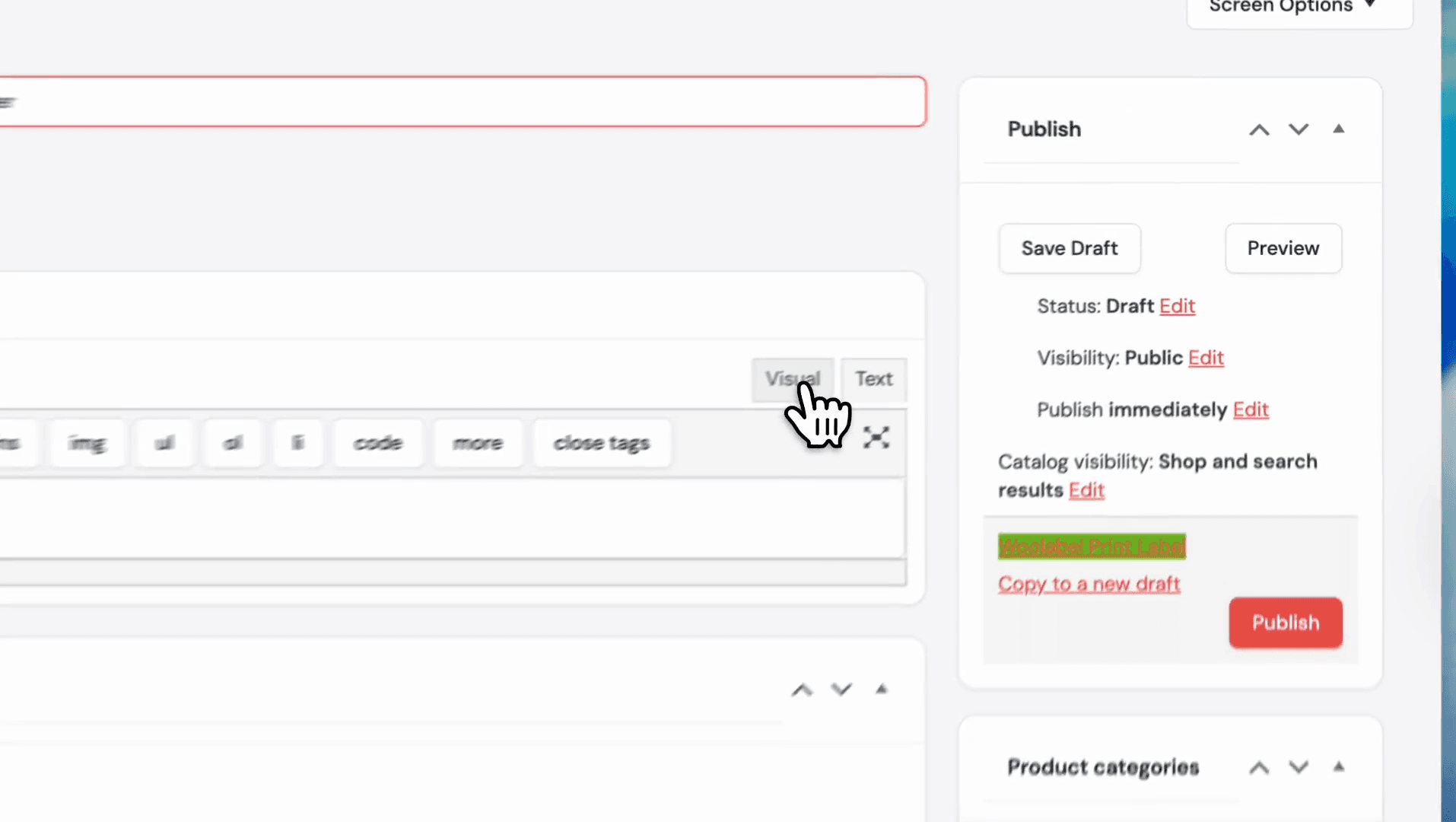
Click the Visual tab in the product description editor.
Step #5: Click the Visual tab in the product description editor.
6
Enter the product description in the text editor.
7
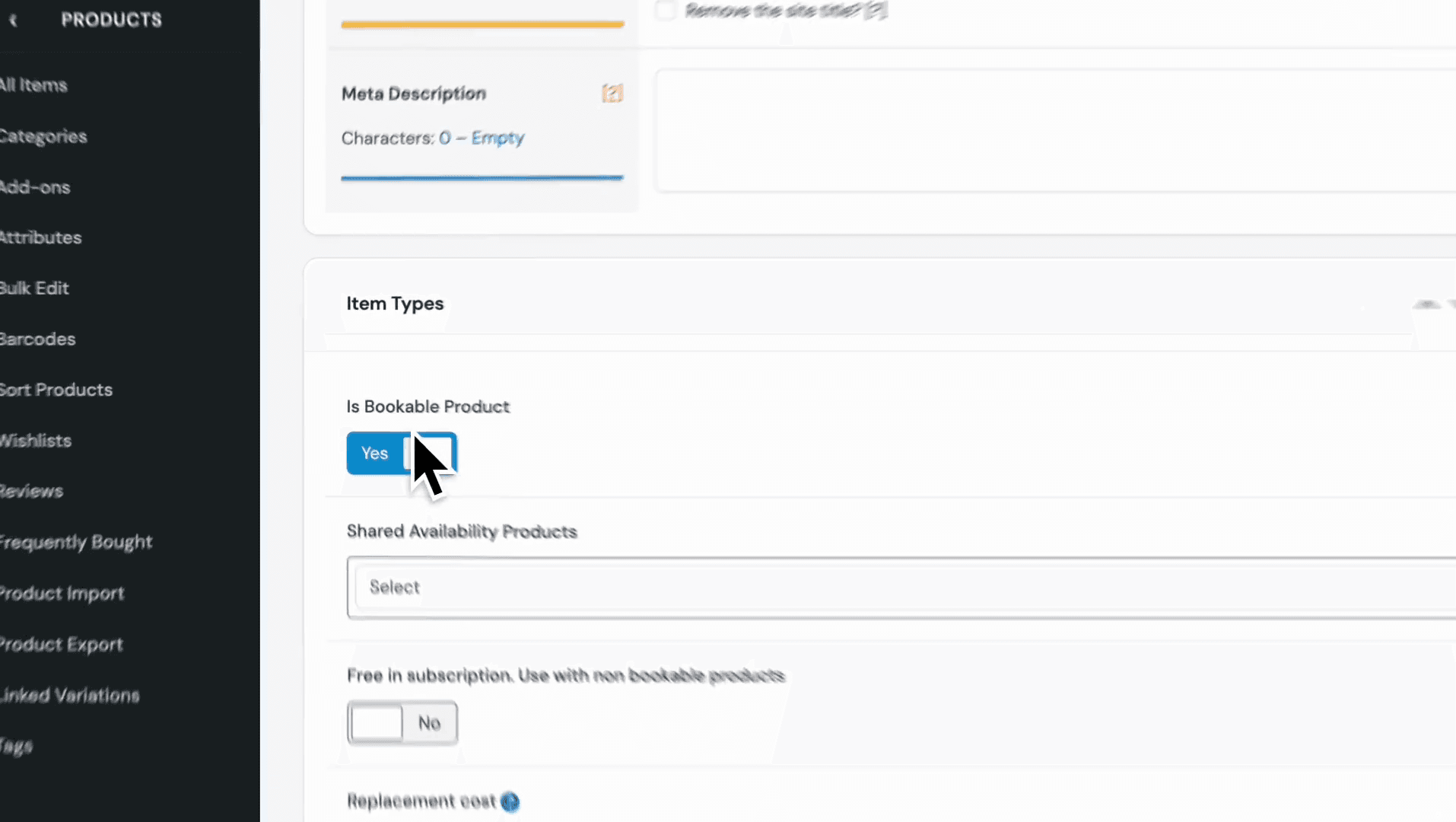
Toggle the 'Is Bookable Product' switch to No.
Step #7: Toggle the 'Is Bookable Product' switch to No.
8
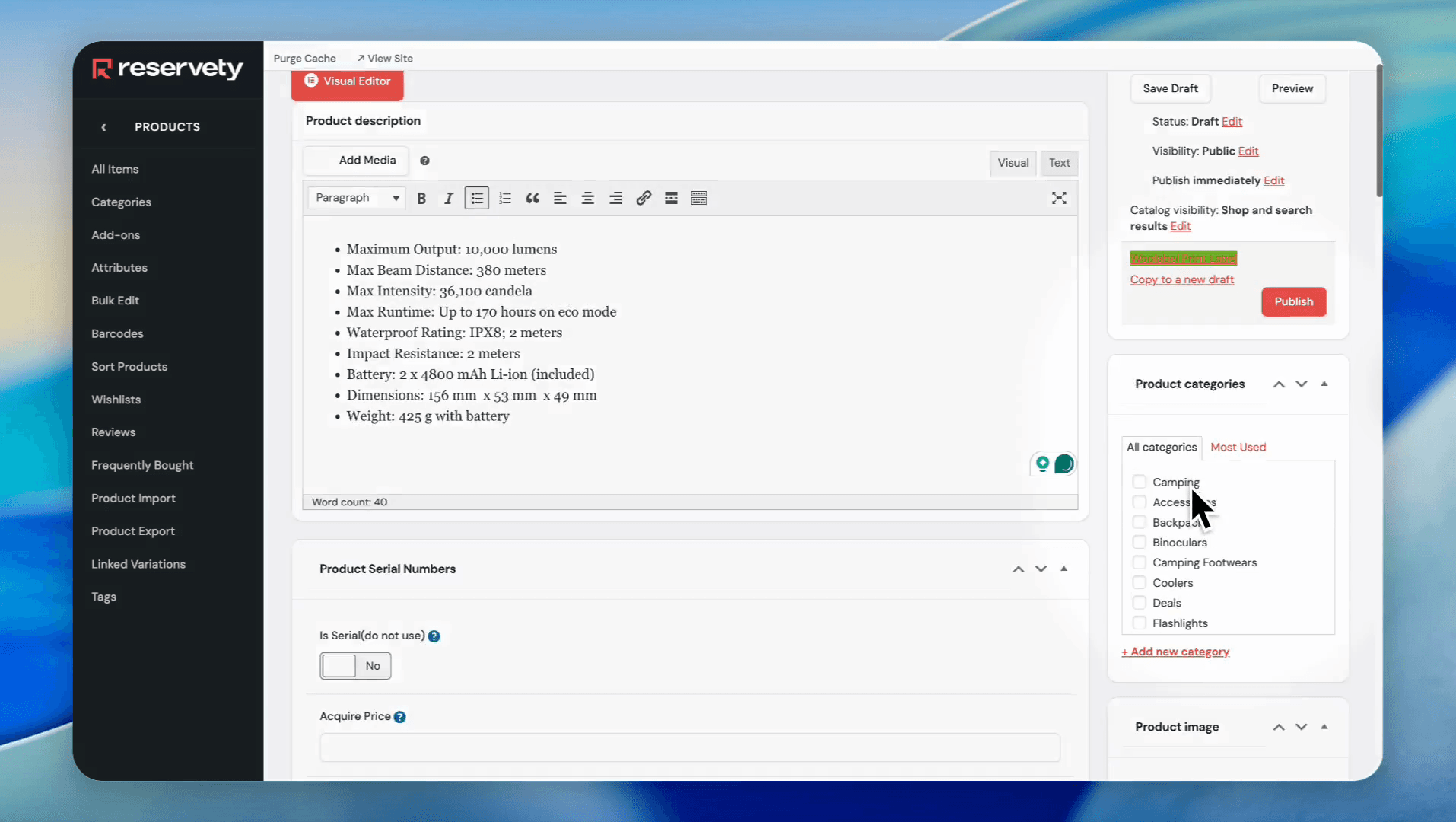
Select a category from the 'Product categories' list.
Step #8: Select a category from the 'Product categories' list.
9
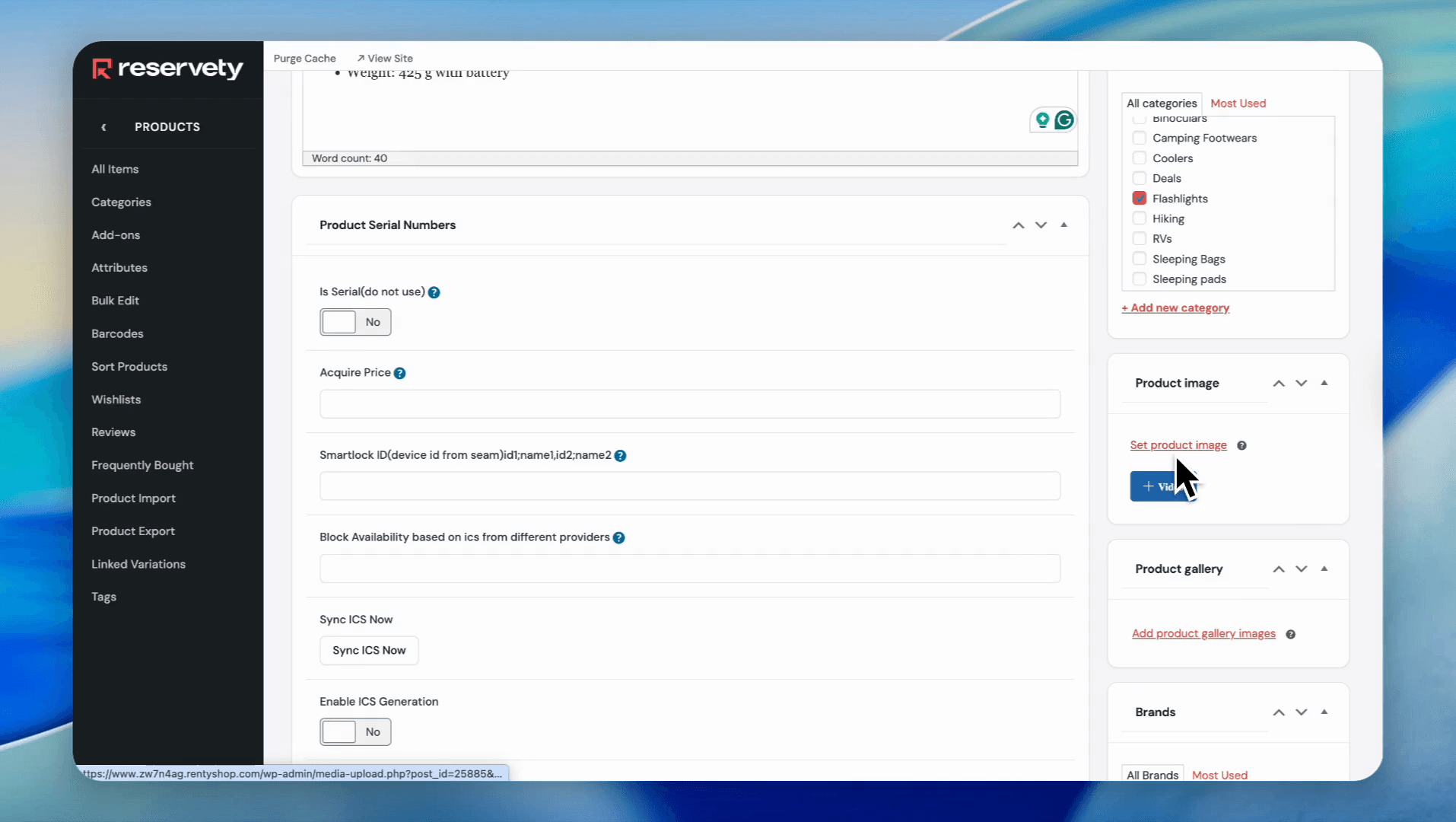
Go ahead and click on set product image
Step #9: Go ahead and click on set product image
10
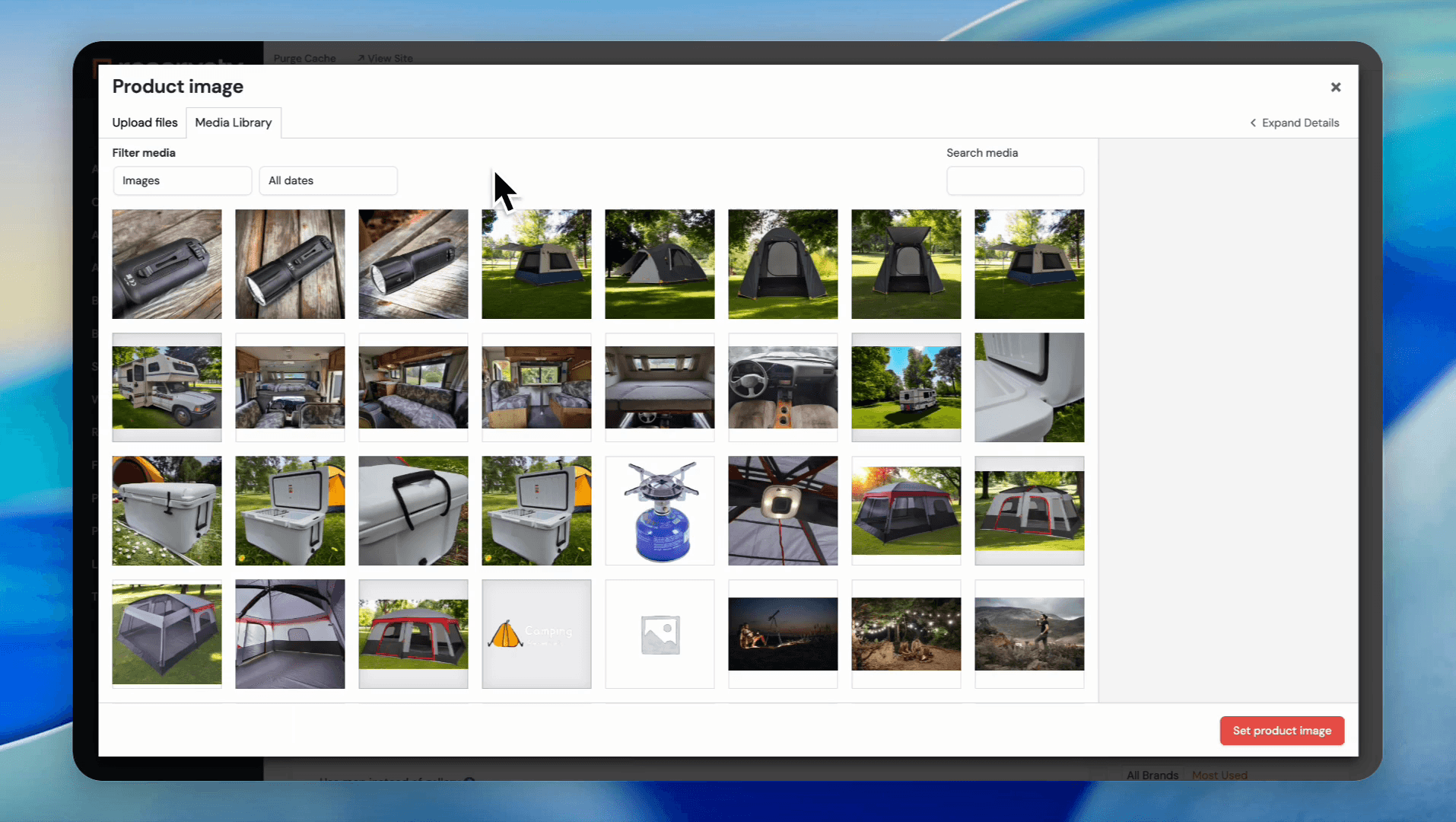
and select your primary image.
Step #10: and select your primary image.
11
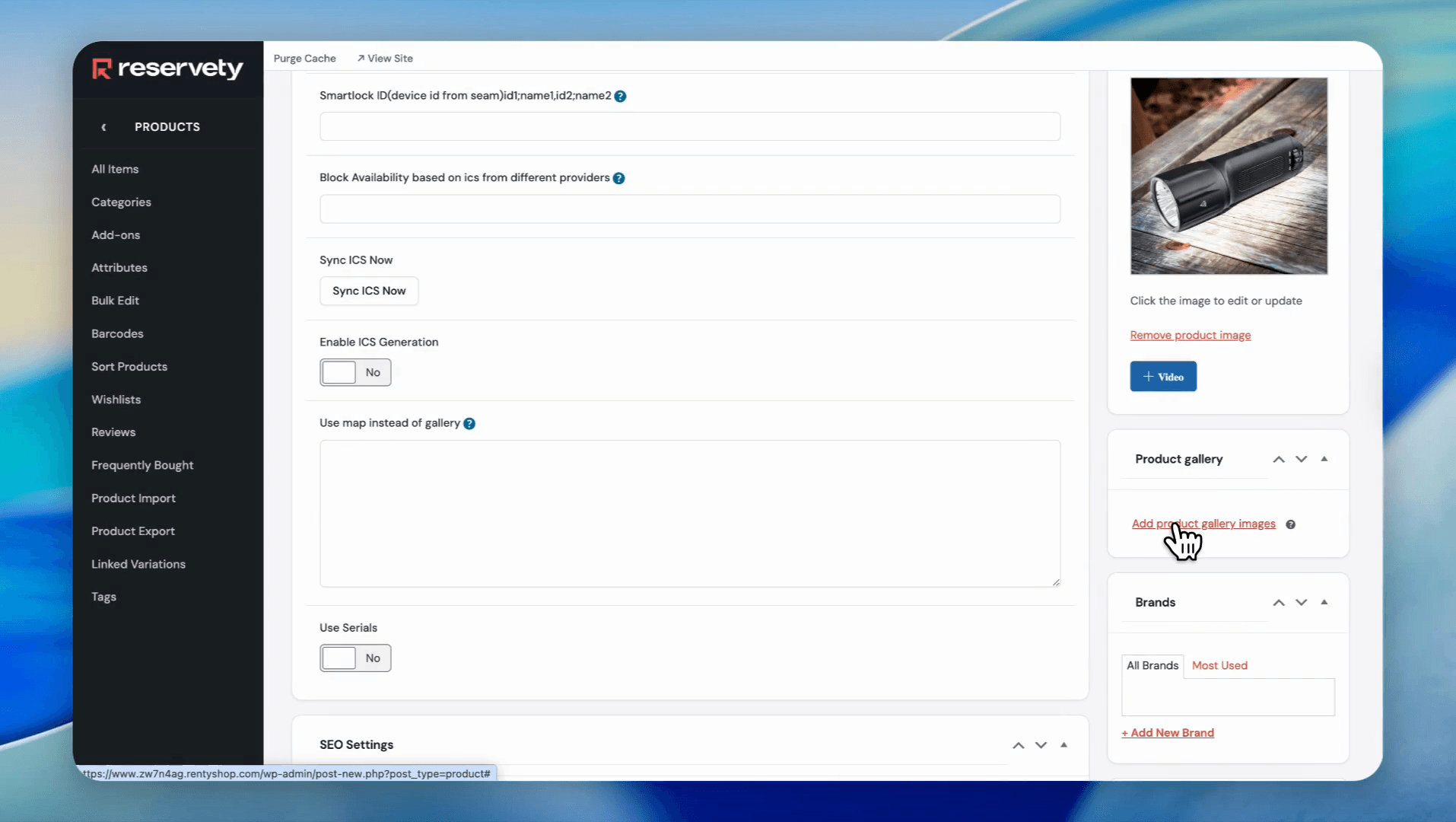
Click on add product gallery images.
Step #11: Click on add product gallery images.
12
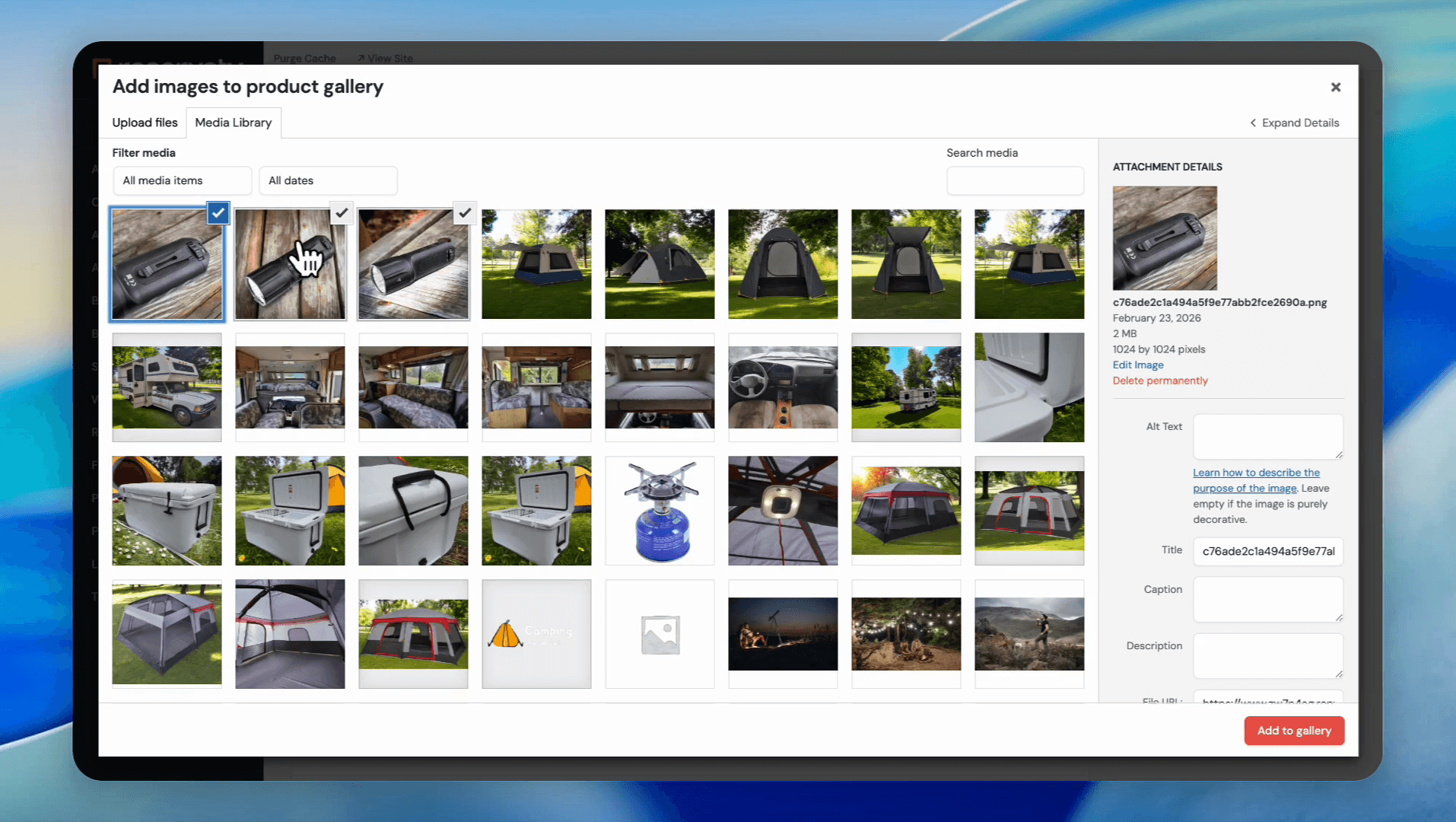
Select multiple images.
Step #12: Select multiple images.
13
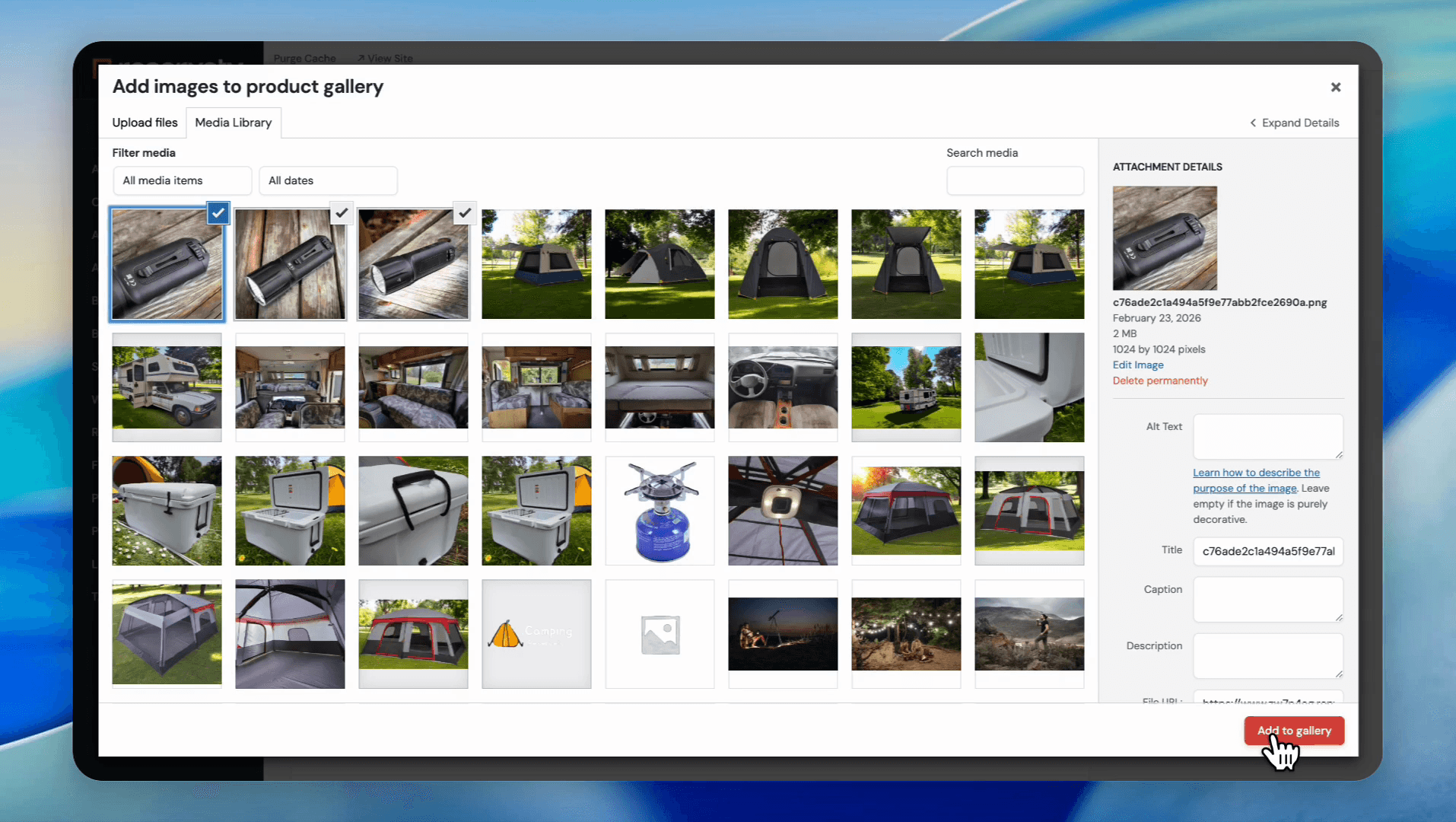
Click on add to gallery.
Step #13: Click on add to gallery.
14
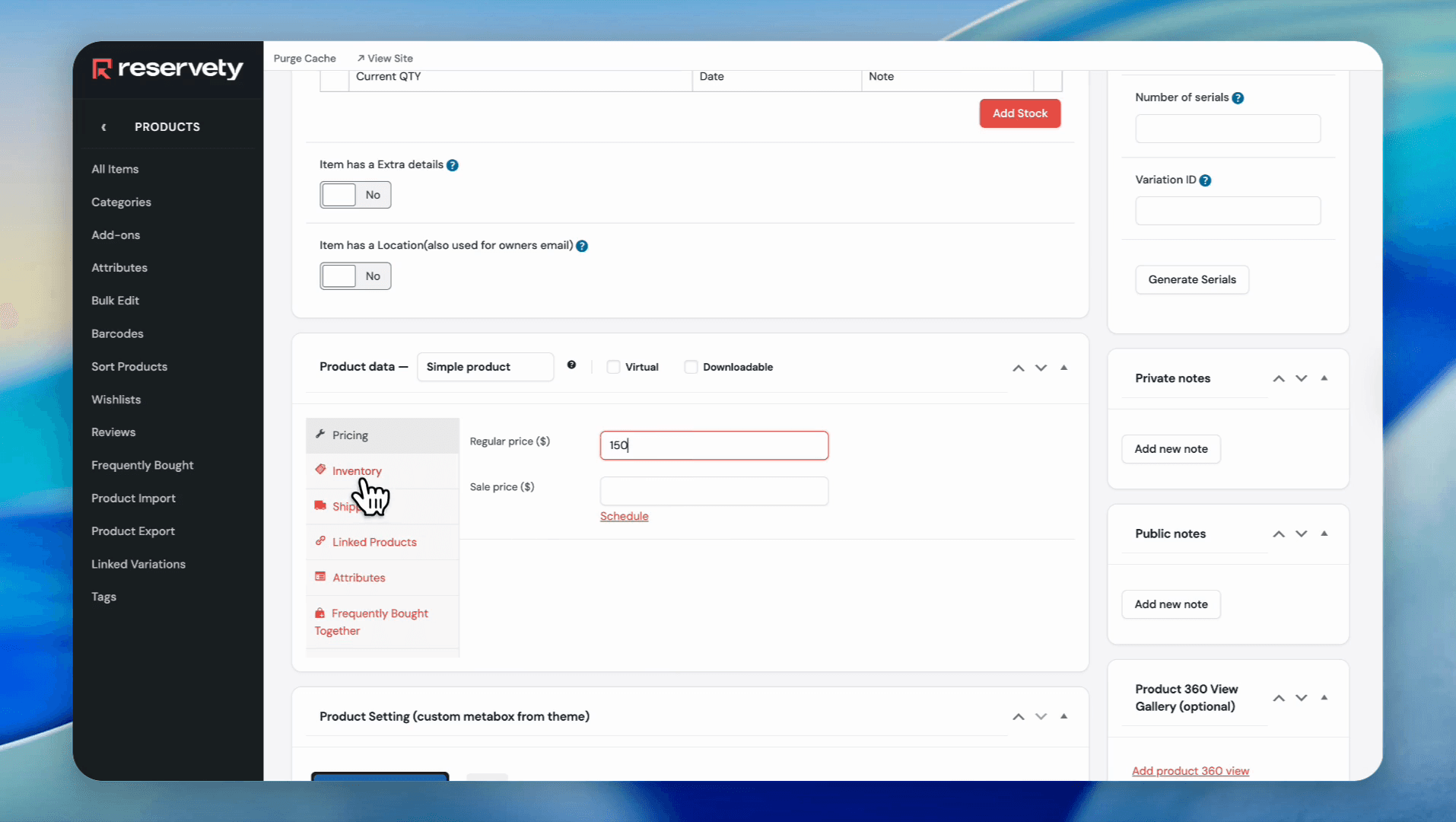
Go to the pricing section and enter your regular pricing. In this case, we will put $150 as an example.
15
Click on Inventory.
Step #15: Click on Inventory.
16
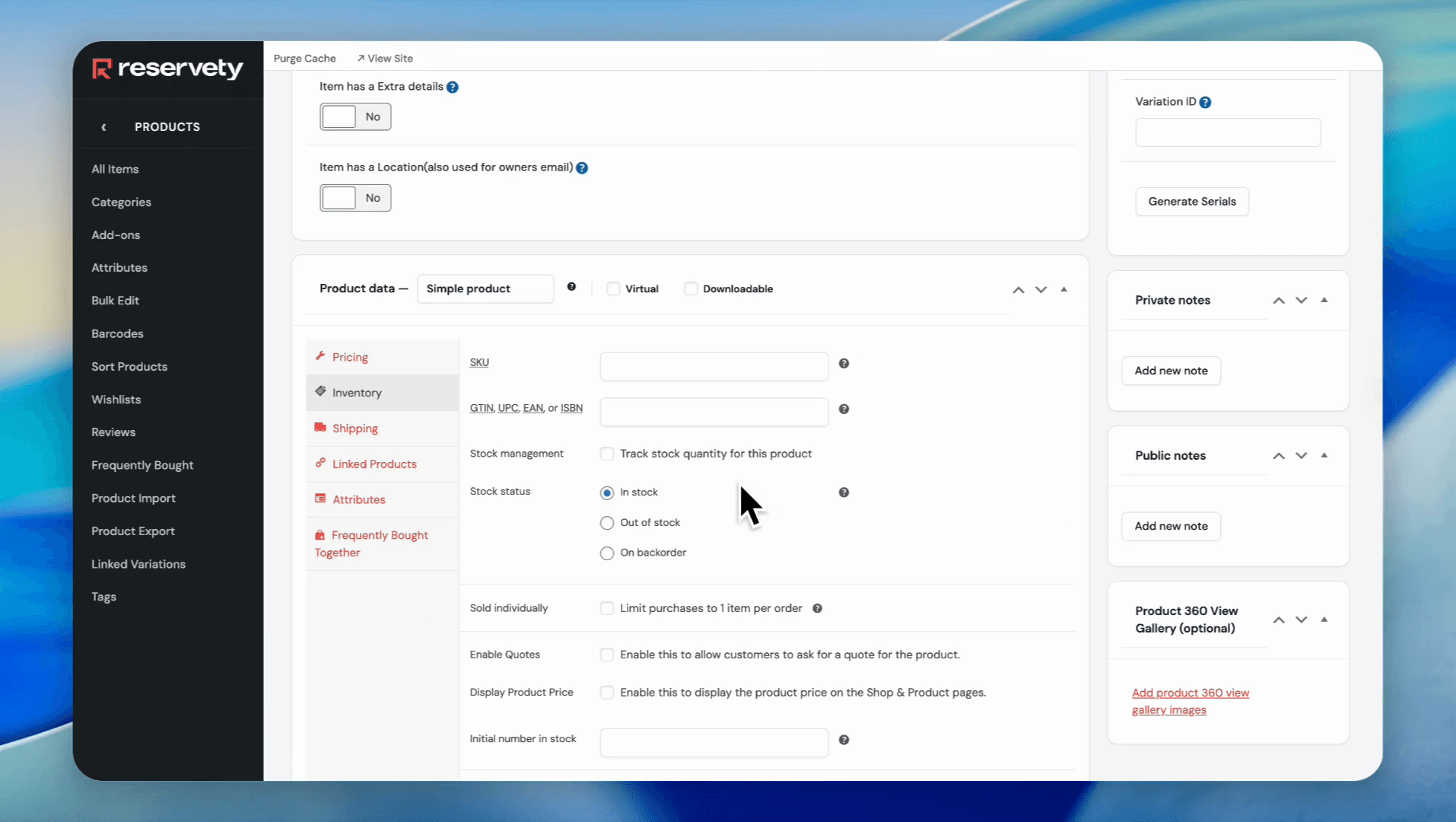
Click the 'Track stock quantity for this product' checkbox.
Step #16: Click the 'Track stock quantity for this product' checkbox.
17
In the Quantity field, type the available quantity
18
Click the Publish button.
Step #18: Click the Publish button.

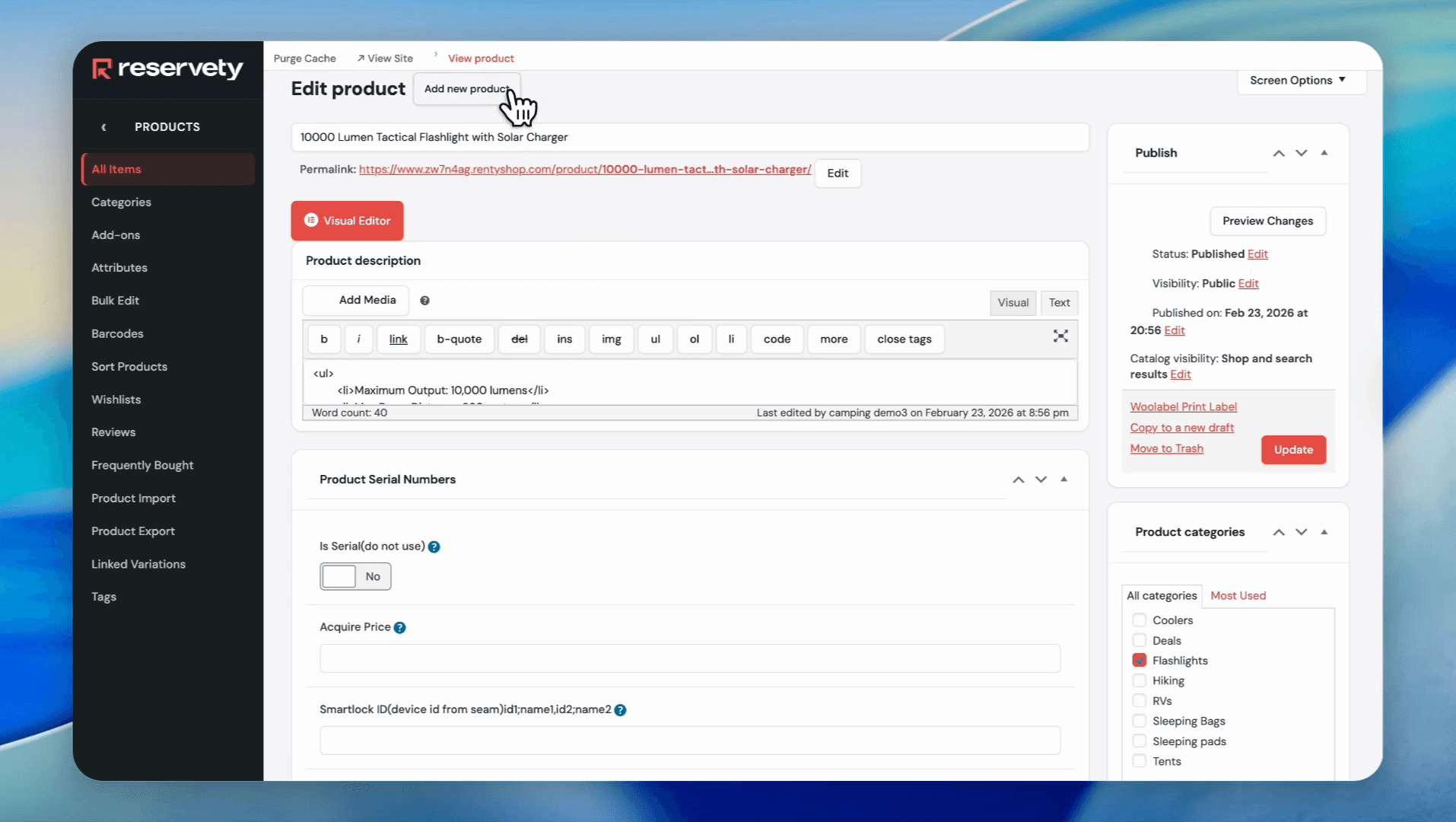
After the product is published, click "View product" to view the product on your website.
19
Click the 'View product' link.
Step #19: Click the 'View product' link.

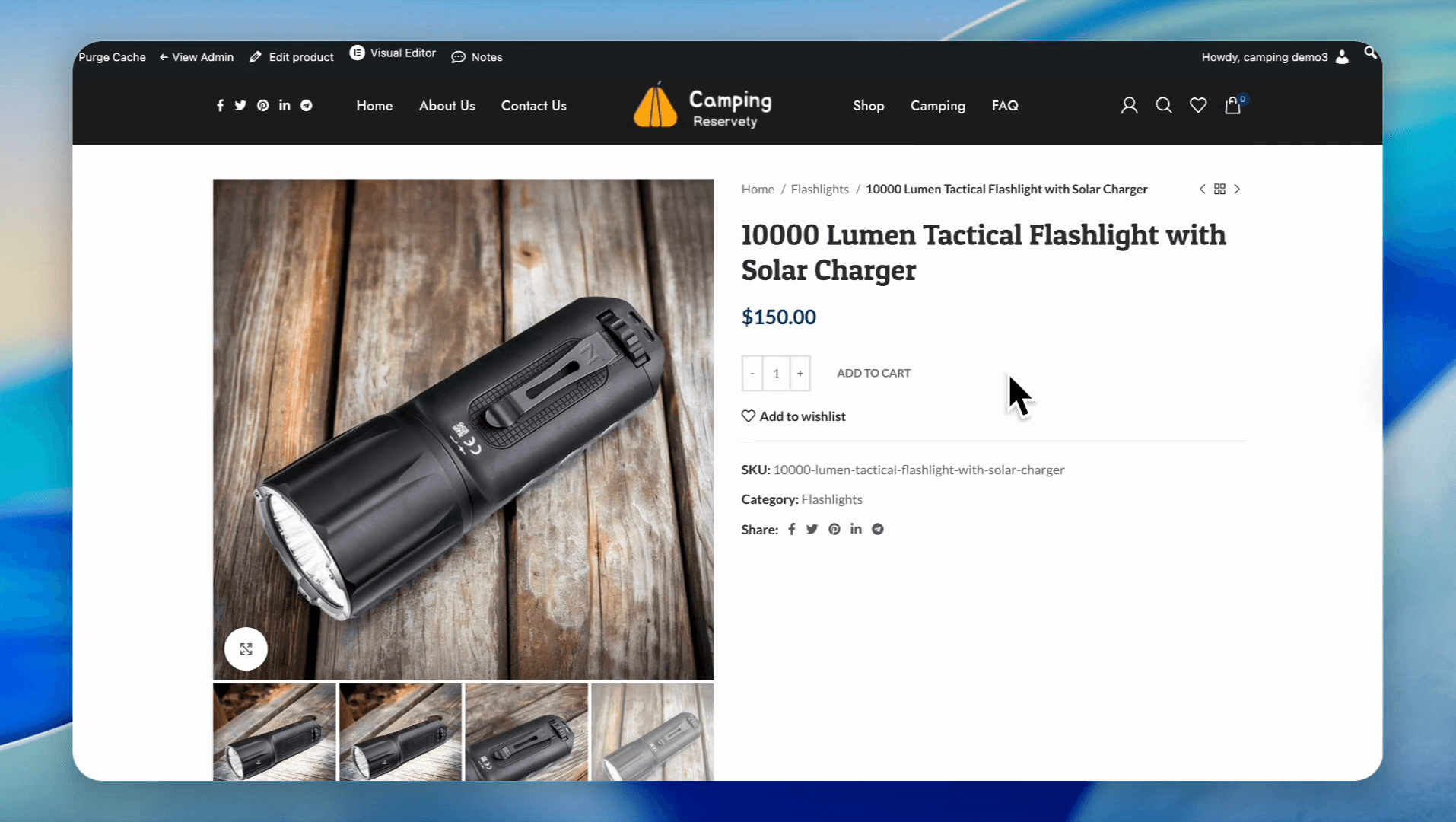
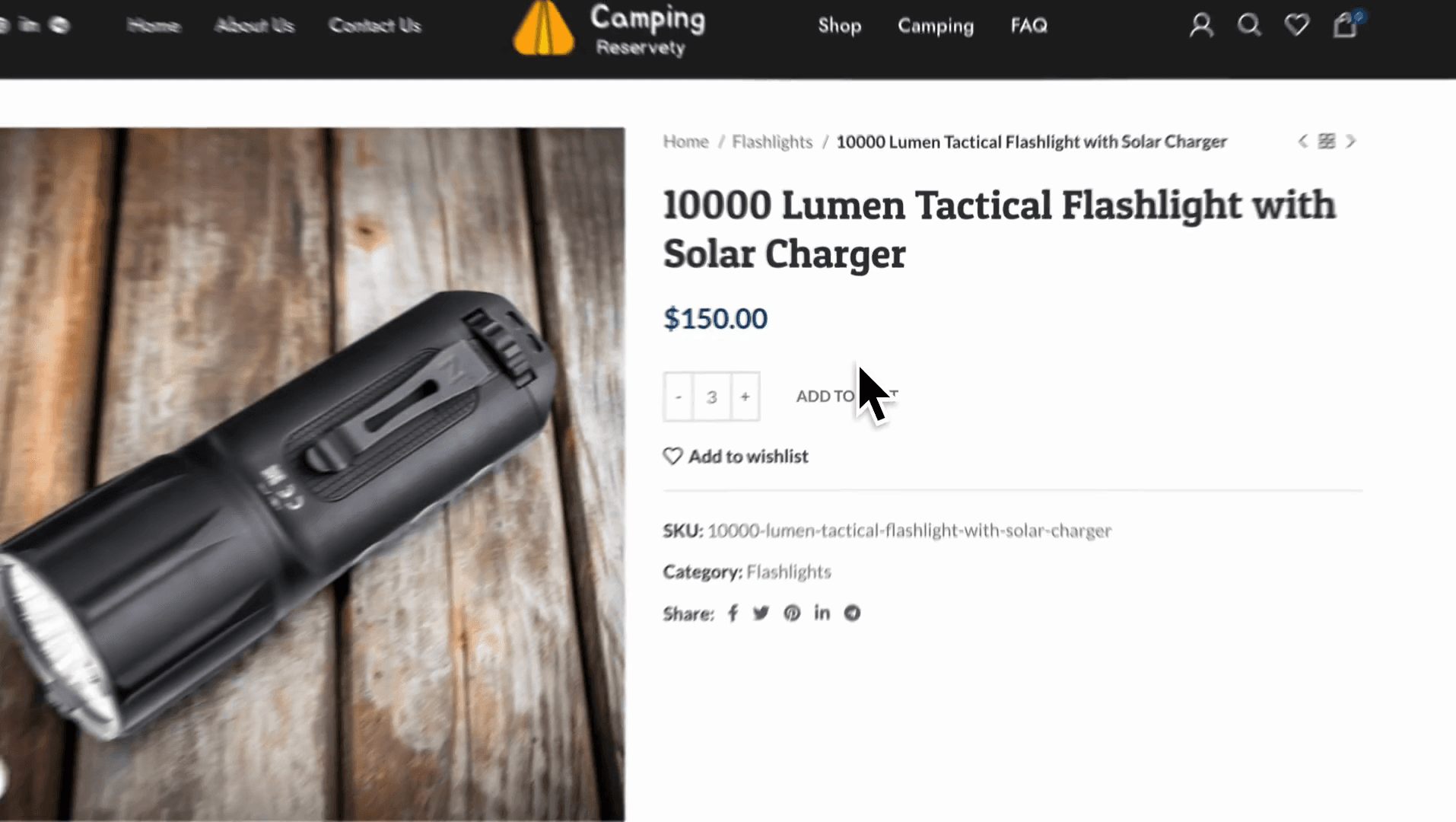
Our sellable product, a flashlight, is prominently featured on our rental website. Your customers can change the quantity, and the system will automatically calculate the price.
20
Click the + button to change the quantity.
Step #20: Click the + button to change the quantity.
21
Click the ADD TO CART button.
Step #21: Click the ADD TO CART button.

This completes our tutorial on adding sellable products.

Thank you for your attention. We will see you in the next tutorials.

How to Add Sellable Products in Reservety: Step-by-Step Tutorial