How to Add Your First Rental Product: Step-by-Step Guide

Learn how to add your first rental product to your website, including setting up product details, images, categories, pricing options, inventory, and calendar settings for a seamless rental experience.

By Reservety

In this guide, we'll learn how to add your first rental product to your website.

This process includes naming your product, writing a description, setting categories, uploading images, and adding pricing options.

We will also cover how to manage inventory and select the right calendar type for your rentals.

By the end, you will know how to display your product and test the pricing system.

Let's get started

First, log in to your dashboard, click Products, and then All Items.
1
Step #1:
2
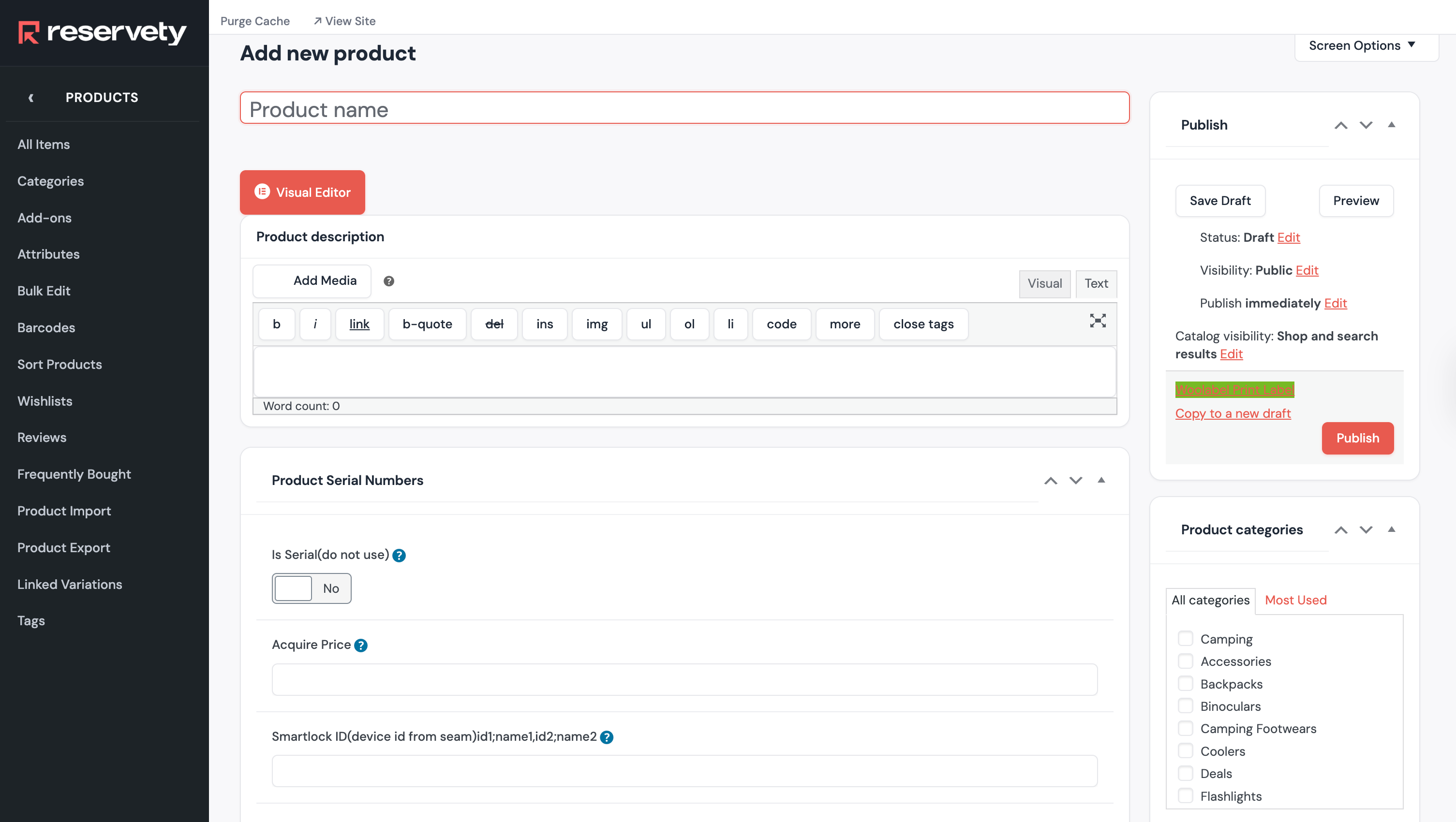
Click on Add New Product and Name Your Product.
Step #2: Click on Add New Product and Name Your Product.
3
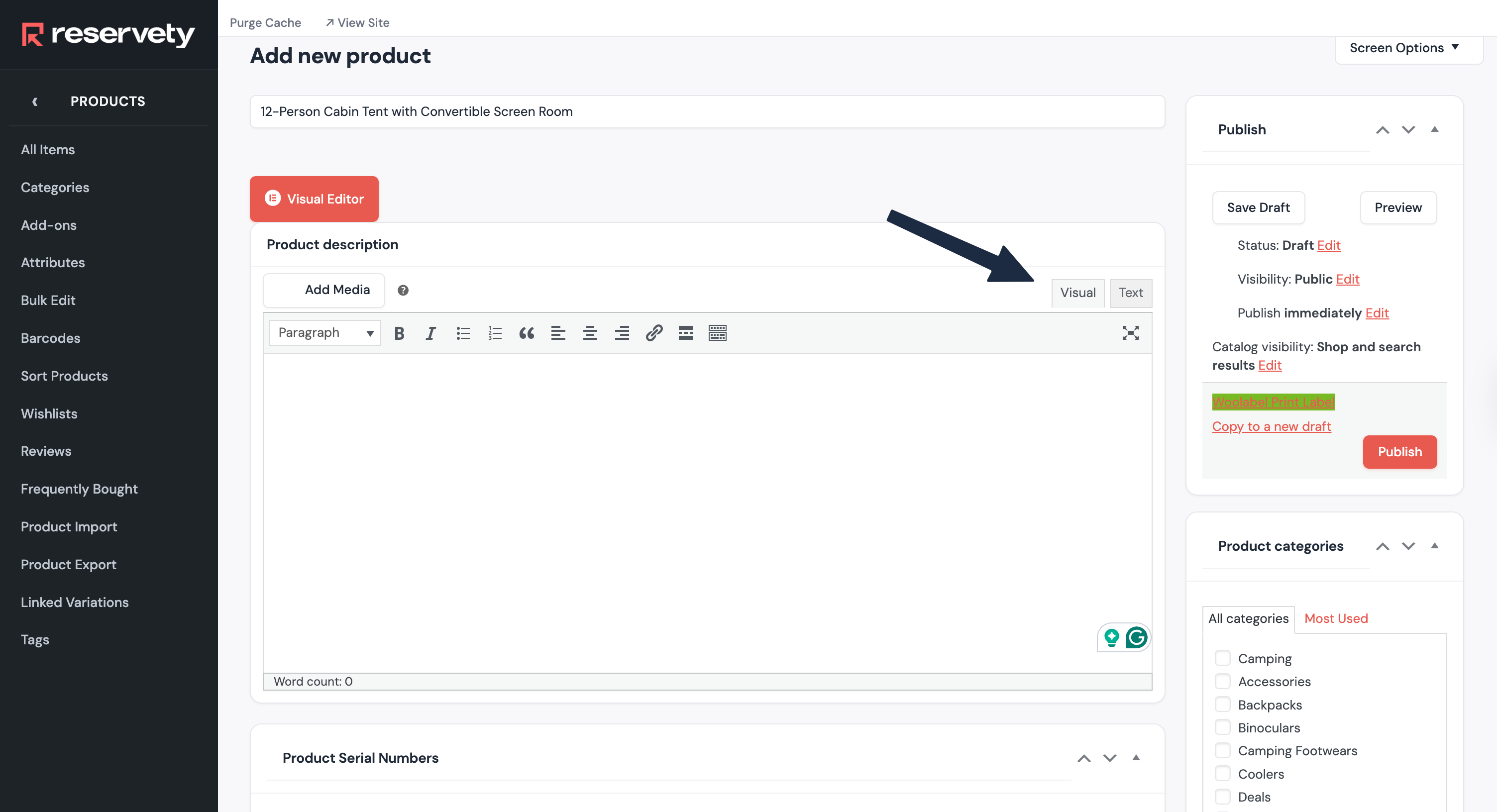
Write Description. Unless you are copying and pasting code, we recommend using the visual tab.
Step #3: Write Description. Unless you are copying and pasting code, we recommend using the visual tab.
4
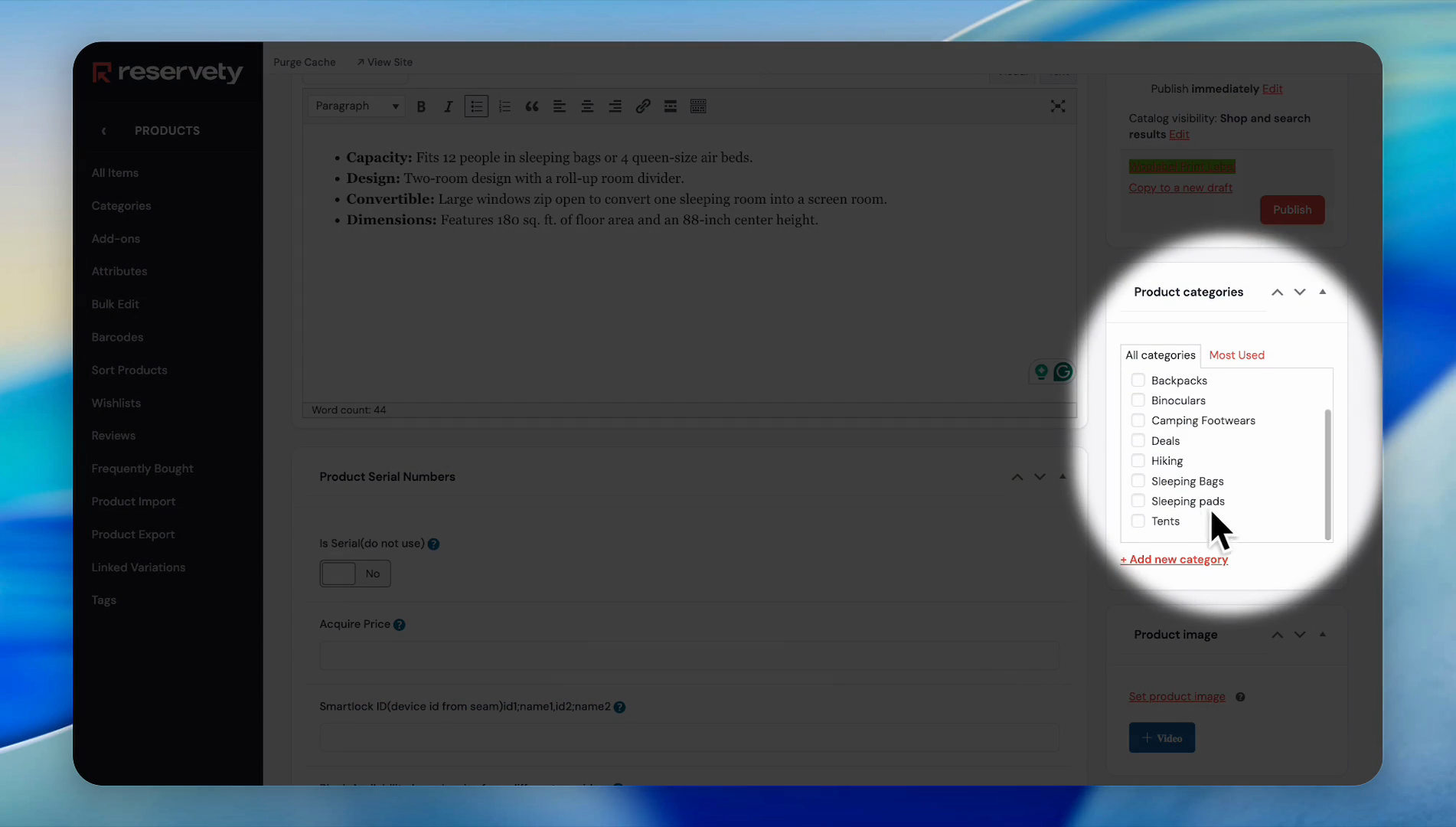
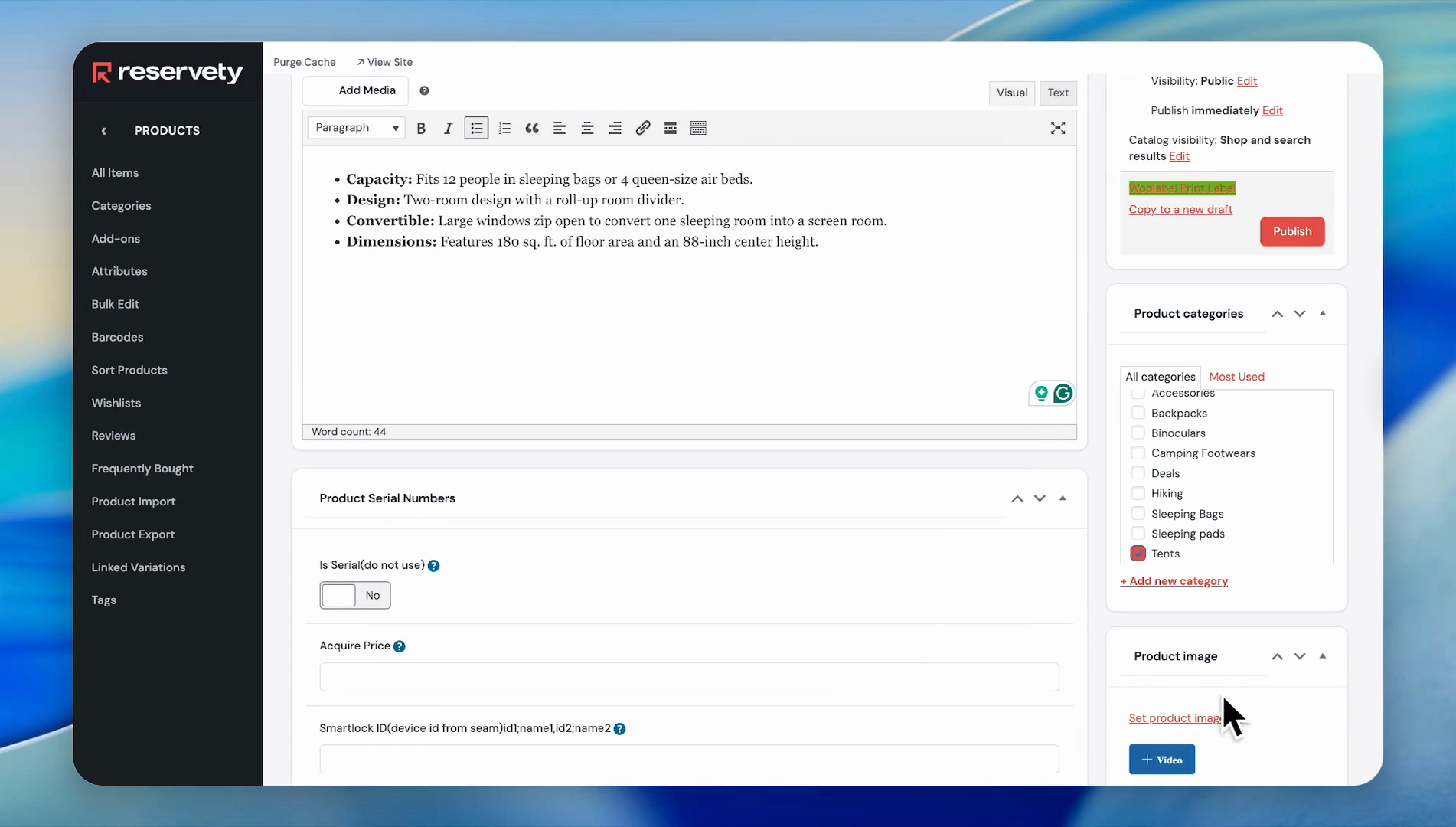
In the Product categories section, select the relevant category.
Step #4: In the Product categories section, select the relevant category.
5
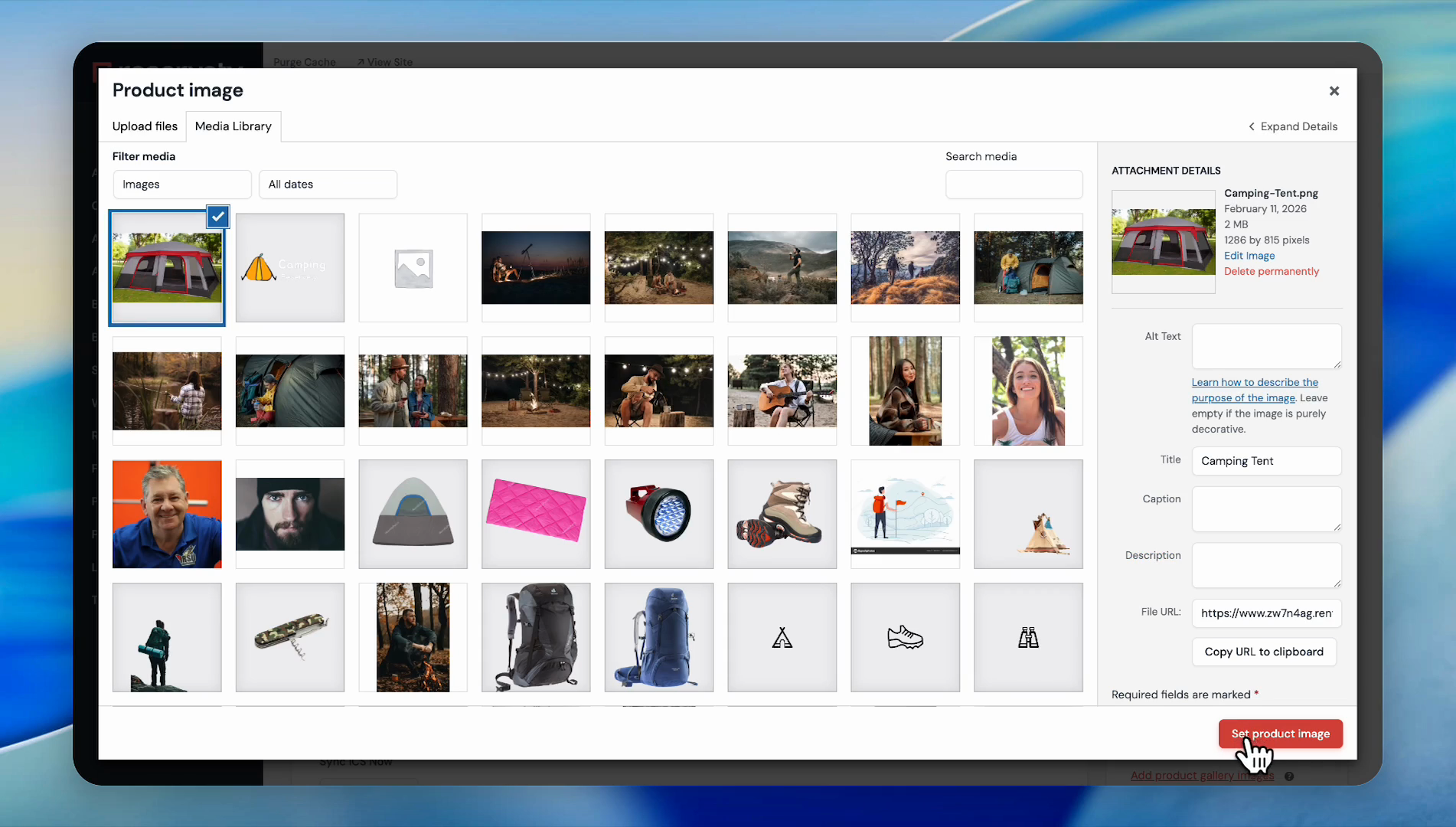
Click Set product image.
Step #5: Click Set product image.
6
Choose the primary image.
Step #6: Choose the primary image.
7
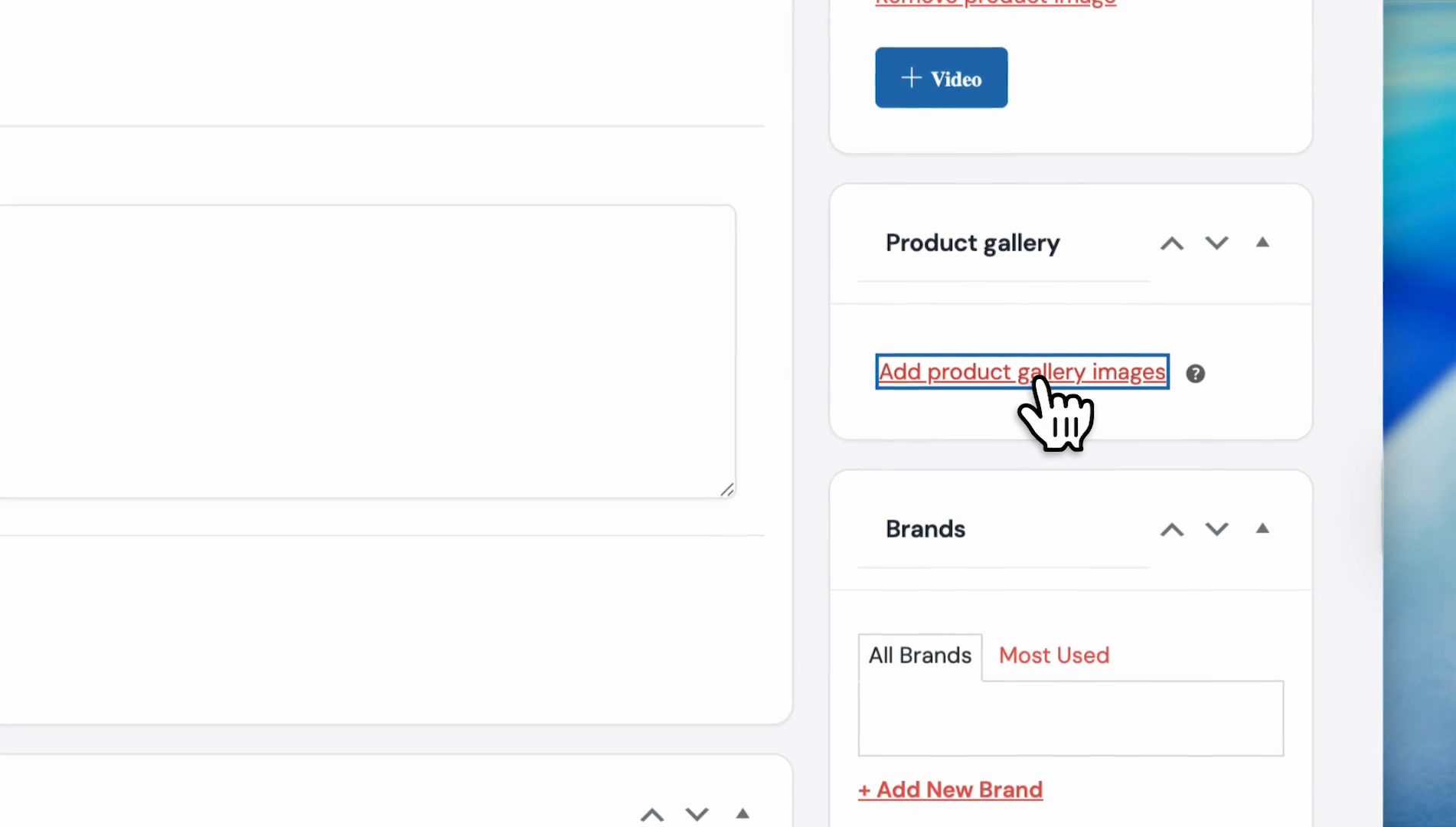
Click on 'Add product gallery images'.
Step #7: Click on 'Add product gallery images'.
8
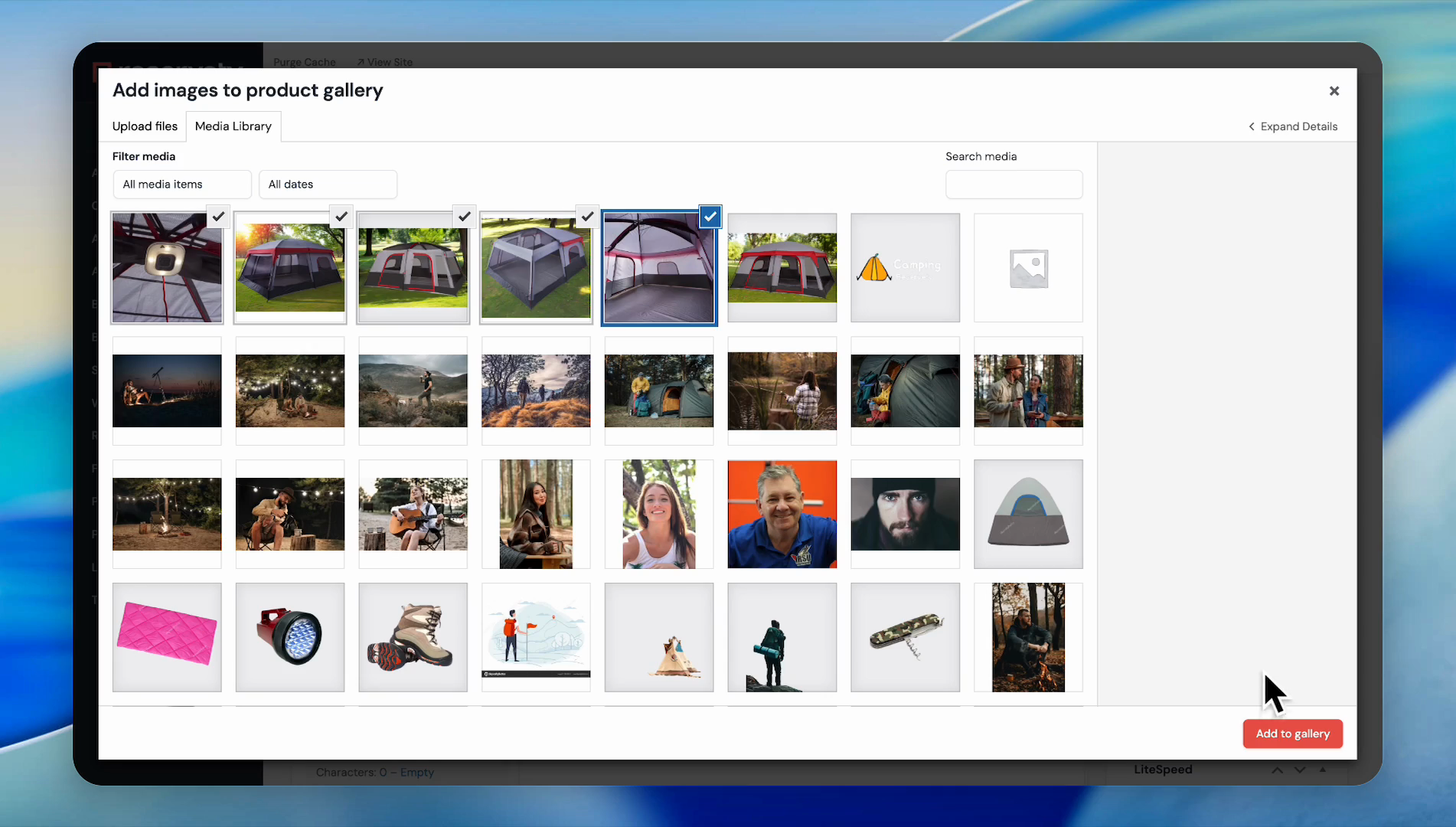
Select Multiple Images and click the 'Add to gallery' button.
Step #8: Select Multiple Images and click the 'Add to gallery' button.
9
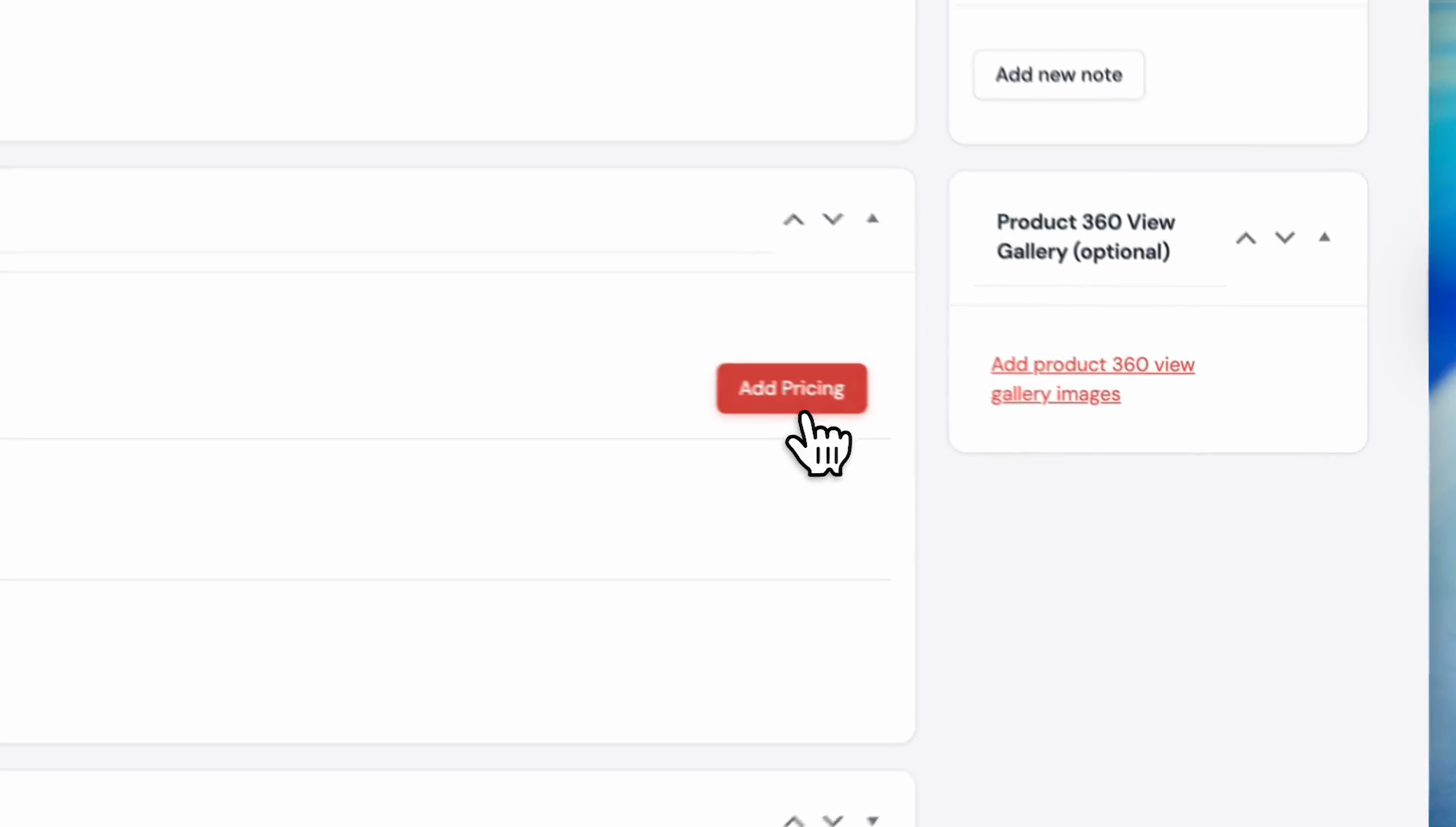
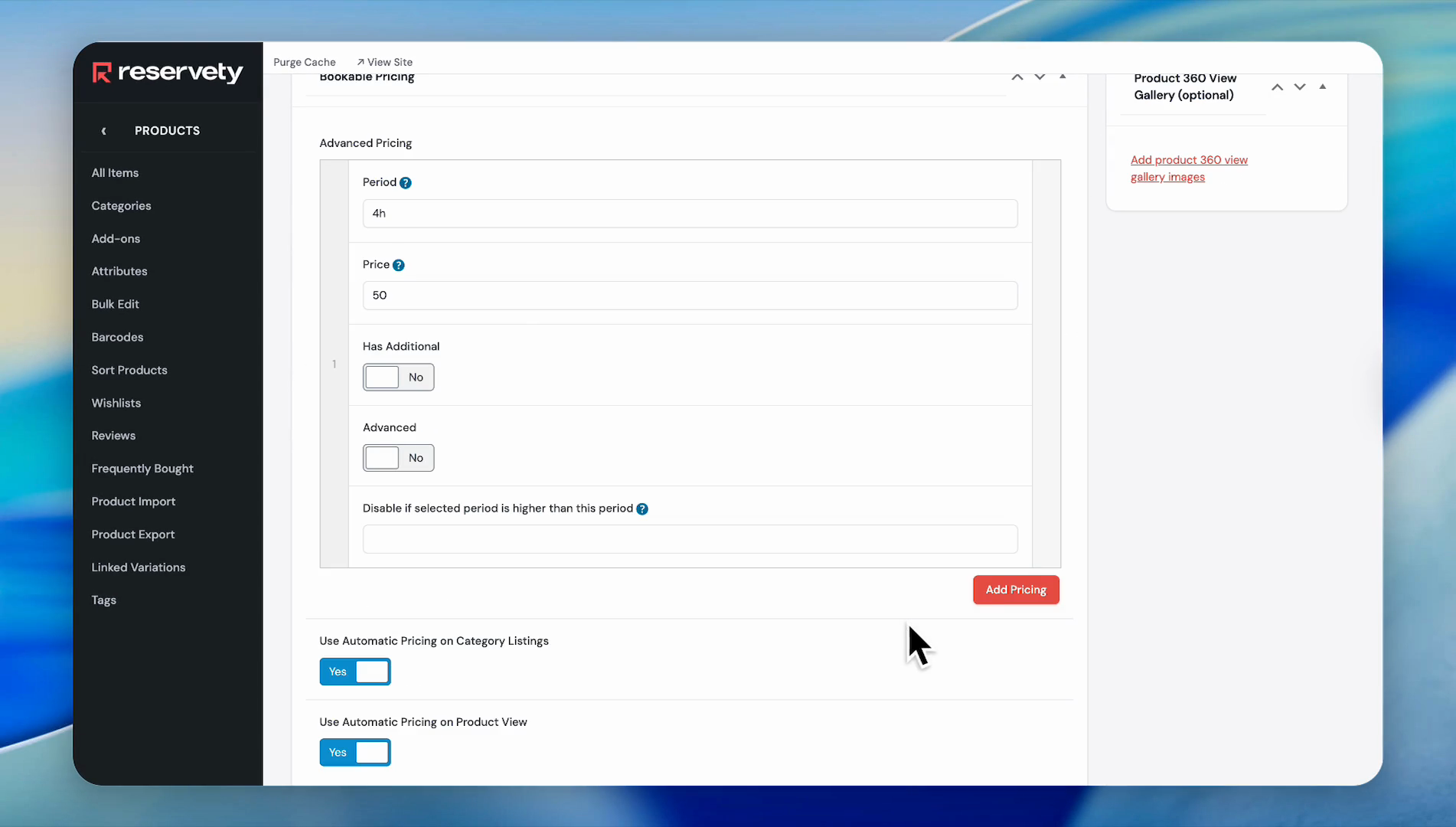
Click the 'Add Pricing' button.
Step #9: Click the 'Add Pricing' button.
10
Enter the price and period. If you want to charge $50 for 4 hours. Write 4h to the period field, and 50 to the Price field. No dollar sign.
Step #10: Enter the price and period. If you want to charge $50 for 4 hours. Write 4h to the period field, and 50 to the Price field. No dollar sign.
11
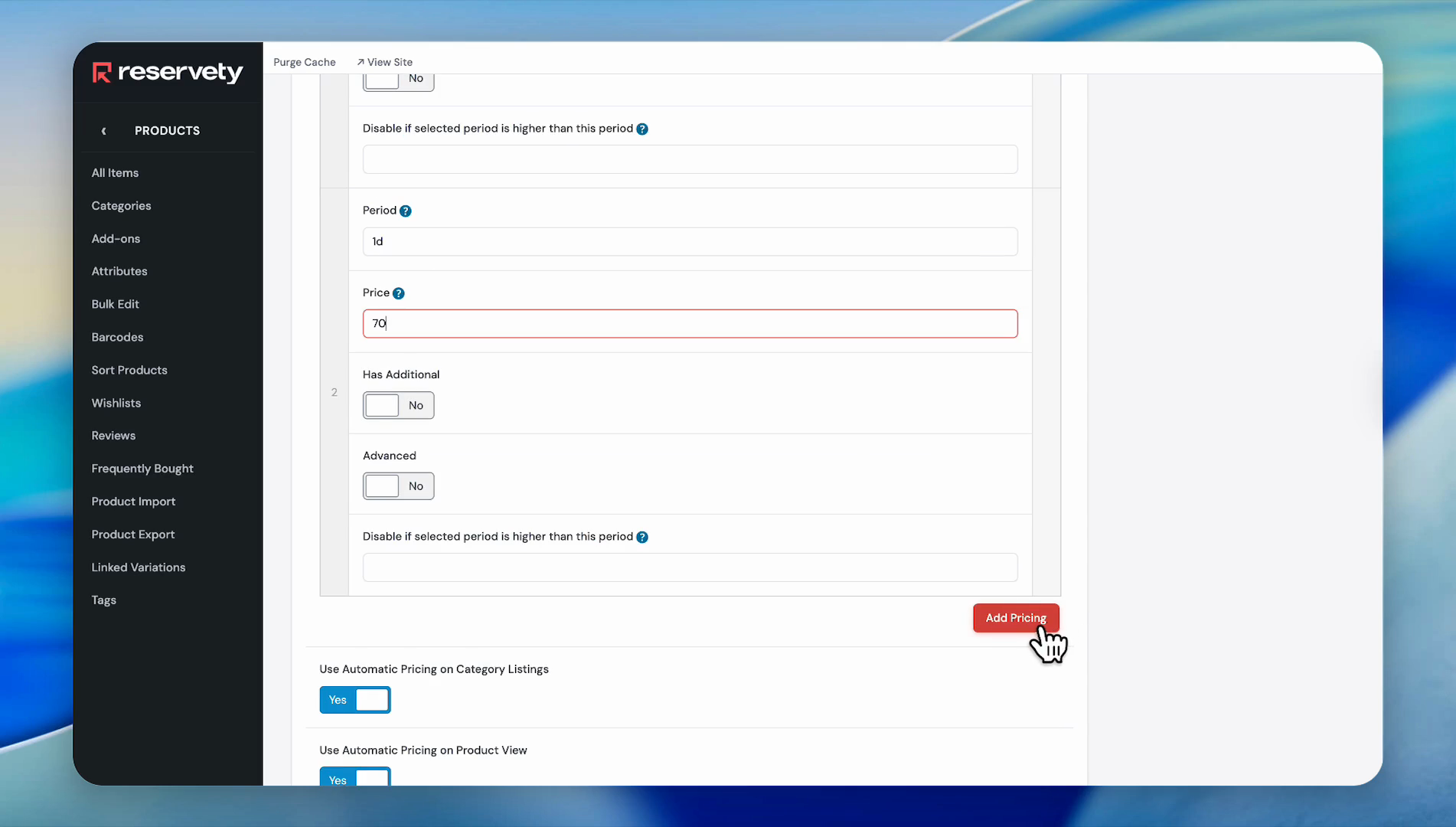
Click the Add Pricing button again to enter new pricing.
12
If you want to charge $70 per day. In the Period field, type '1d'. In the Price field, type '70'.
Step #12: If you want to charge $70 per day. In the Period field, type '1d'. In the Price field, type '70'.

You can add as many pricing options as you prefer, but in this case, we will stop here.

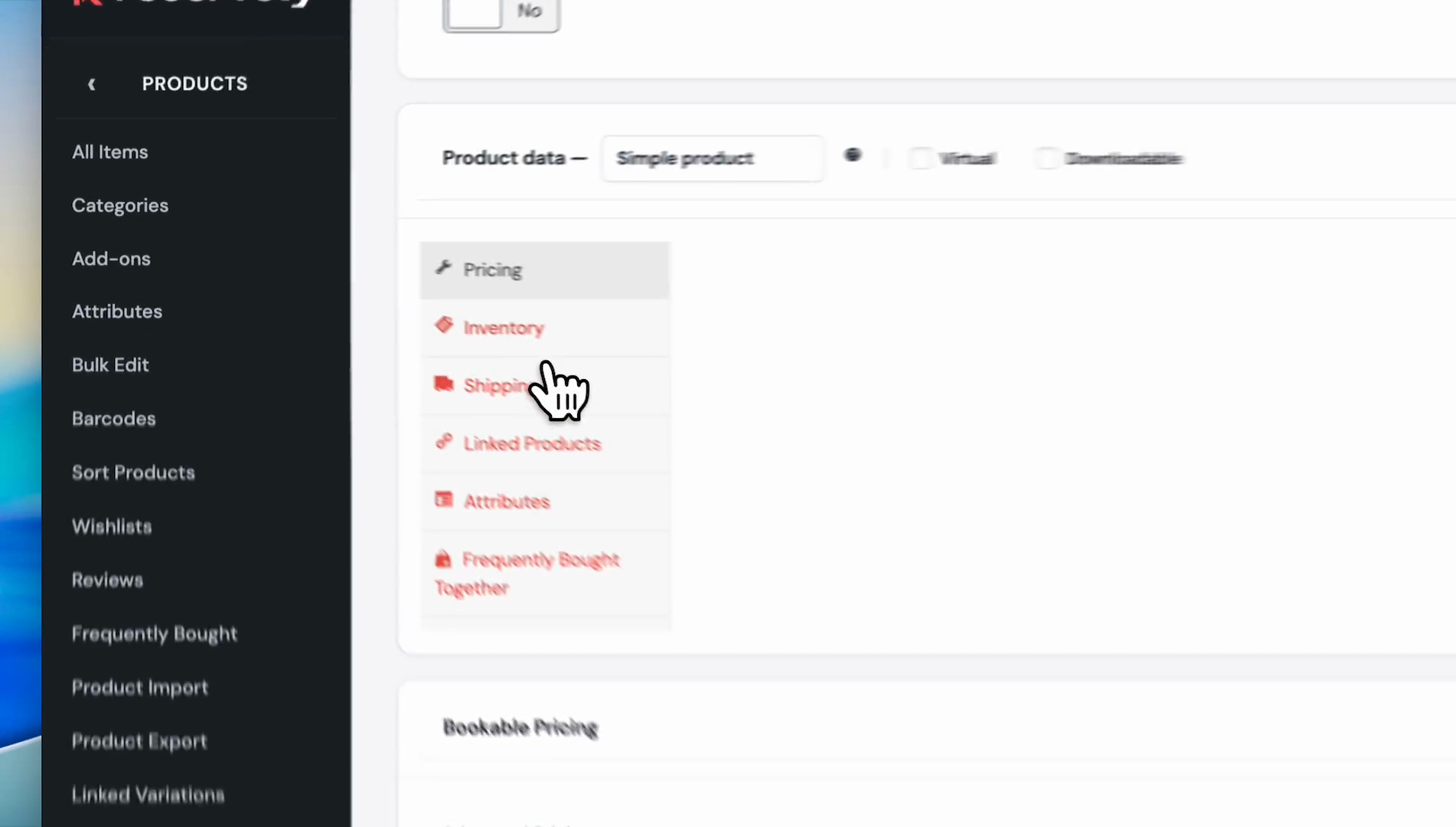
Once you finish setting the pricing, click on the Inventory section.
13
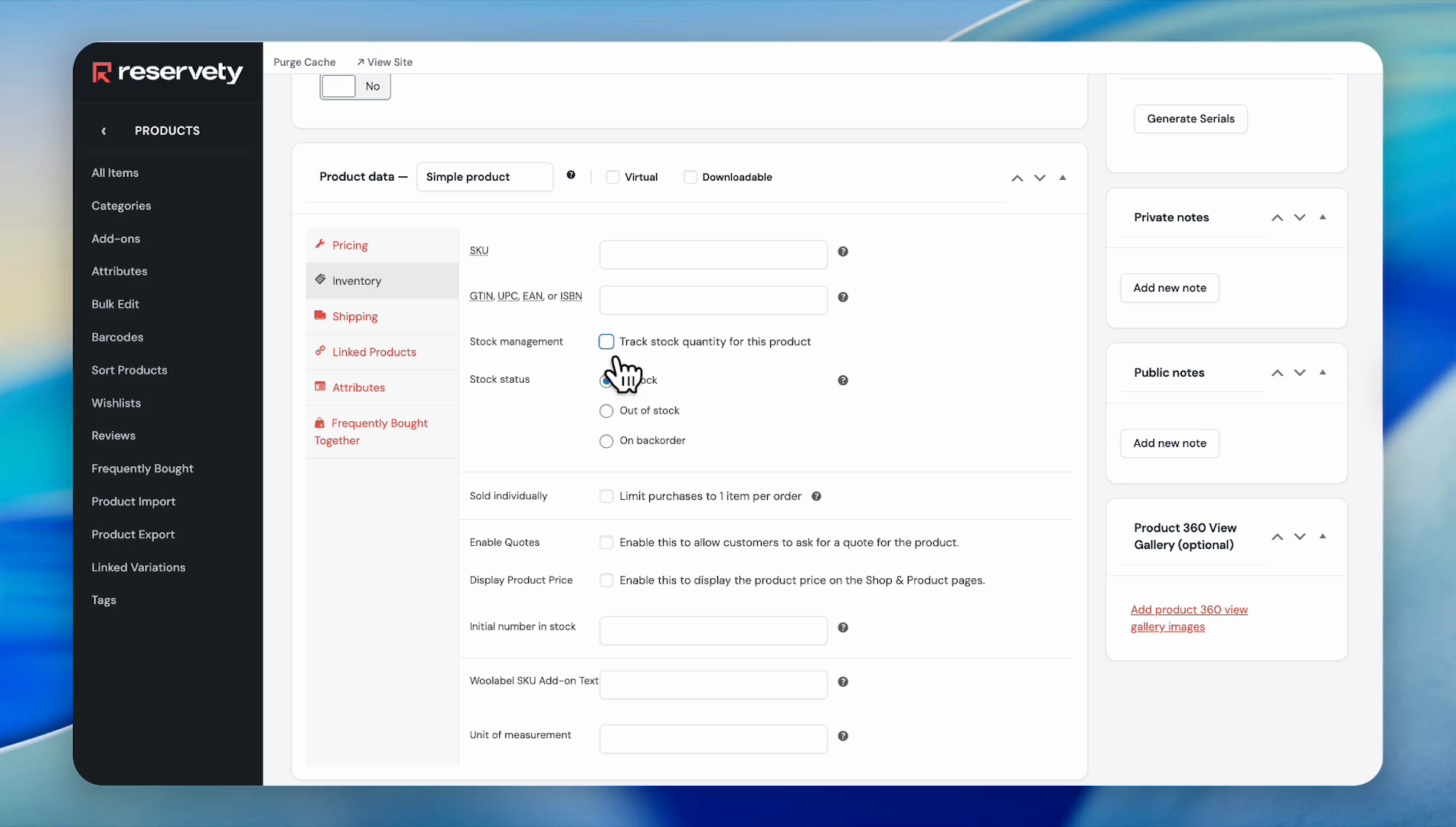
Click on Inventory.
Step #13: Click on Inventory.
14
Click the 'Track stock quantity for this product' checkbox.
Step #14: Click the 'Track stock quantity for this product' checkbox.
15
Enter quantity. Your quantity must include available numbers to avoid overbookings.

Now set the calendar type for your product.
16
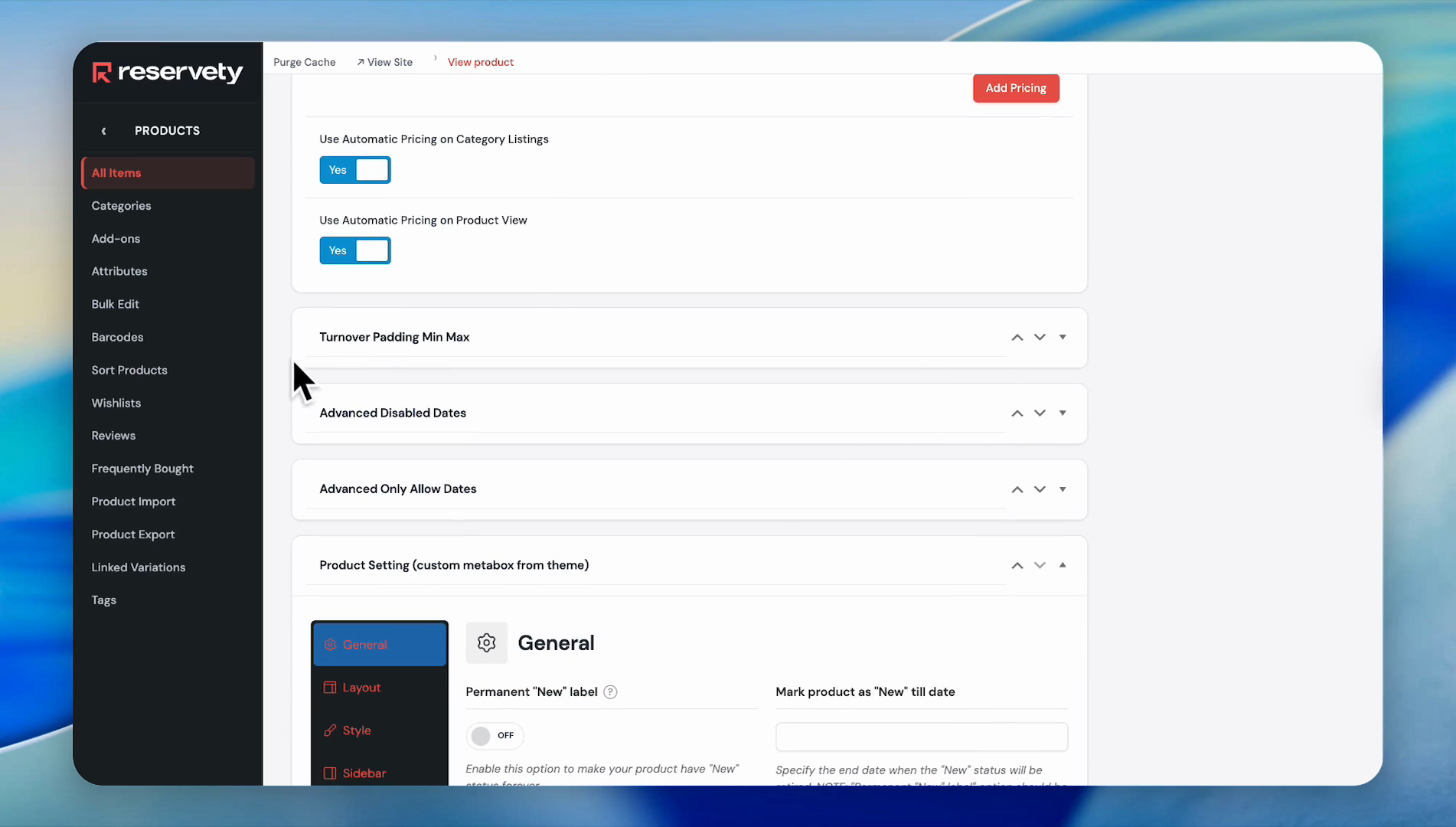
Click on Turnover Padding Min Max.
Step #16: Click on Turnover Padding Min Max.
17
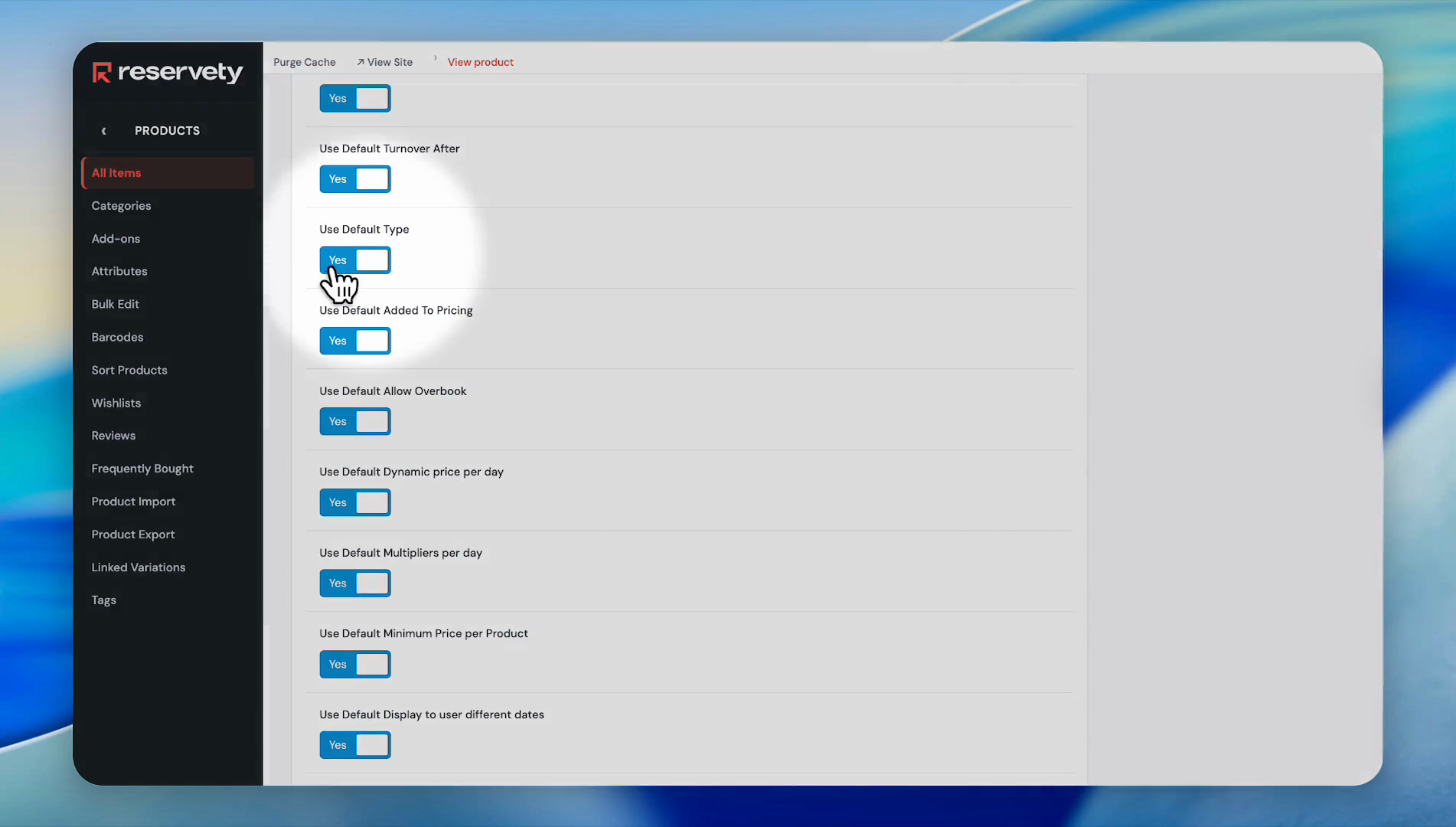
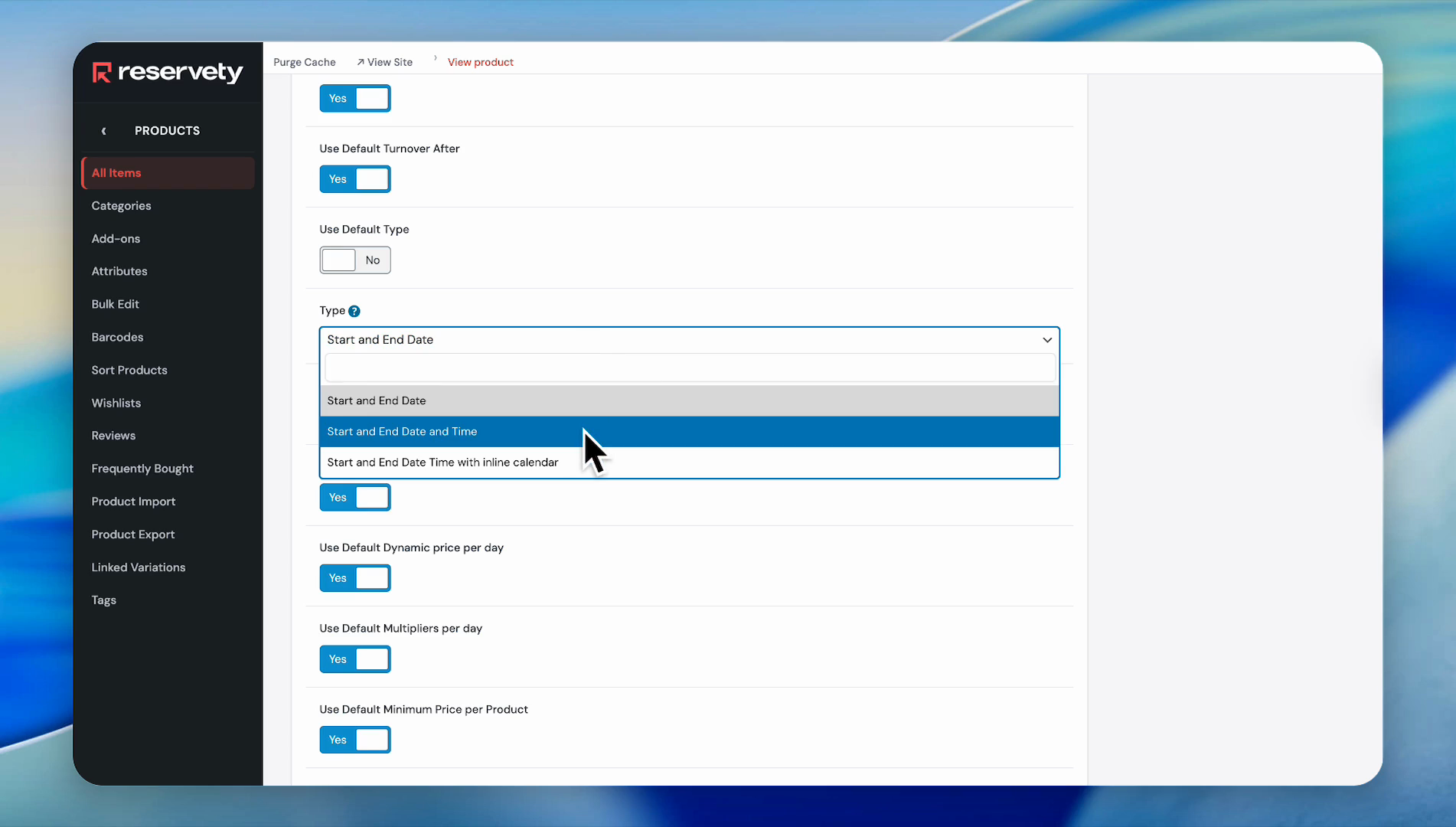
Click on the toggle to set 'Use Default Type' to No.
Step #17: Click on the toggle to set 'Use Default Type' to No.
18
Select 'Start and End Date and Time' from the dropdown.
Step #18: Select 'Start and End Date and Time' from the dropdown.

Since we are setting the date and time, we will select Start and End Date & Time. Then click Update.
19
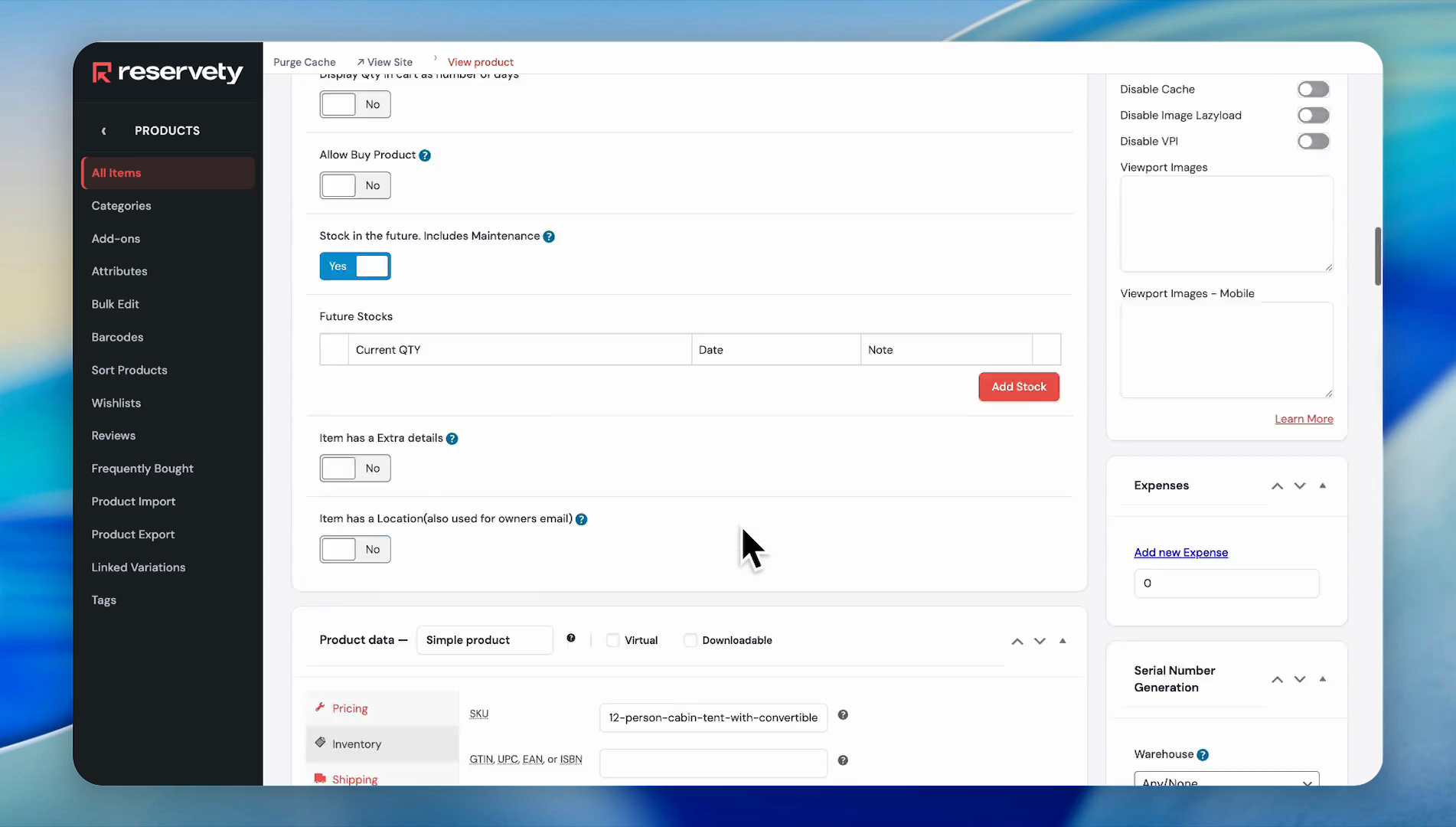
Click the Publish button.
Step #19: Click the Publish button.

Let's check the product on our website.
20
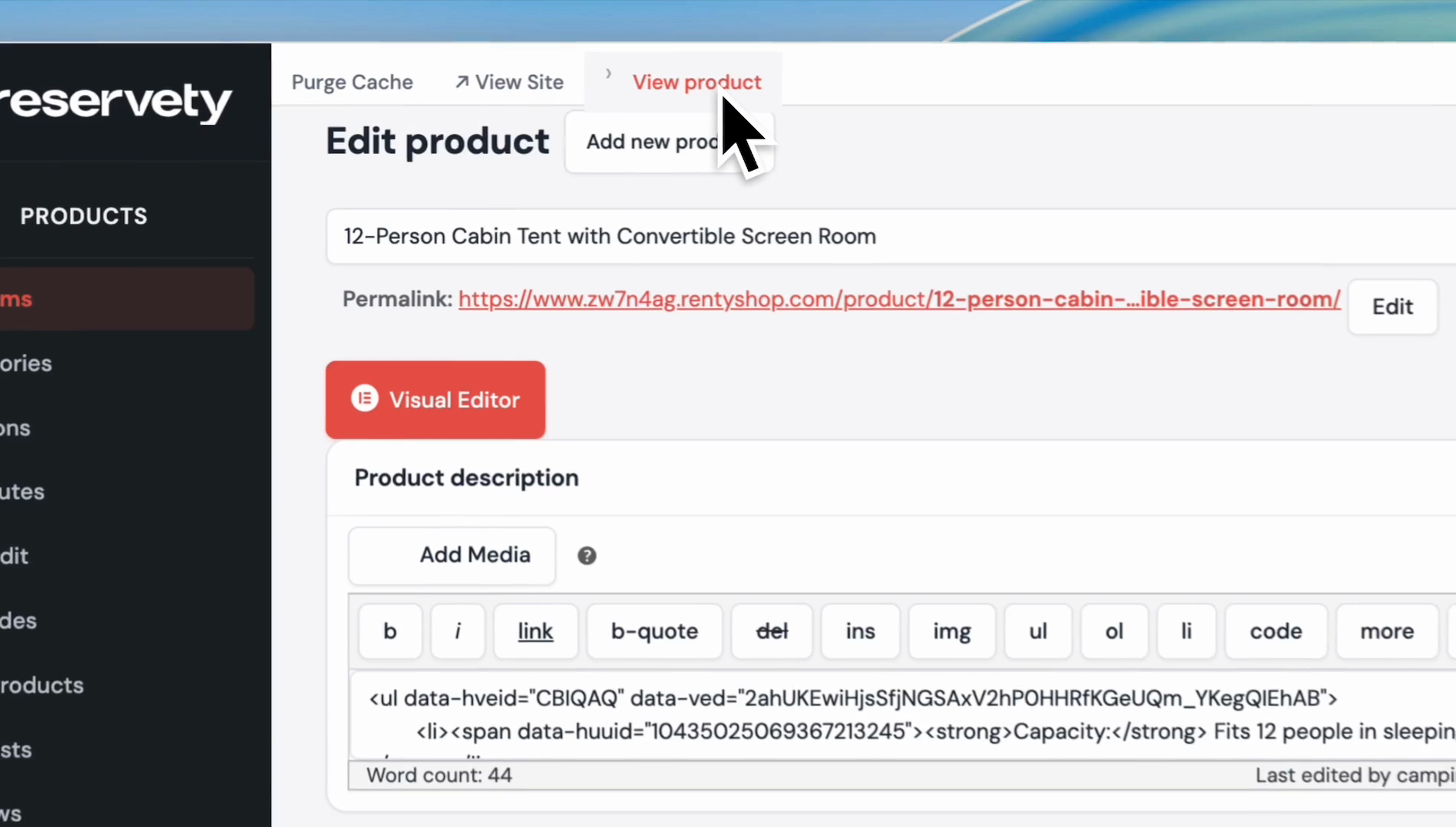
Click 'View product'.
Step #20: Click 'View product'.

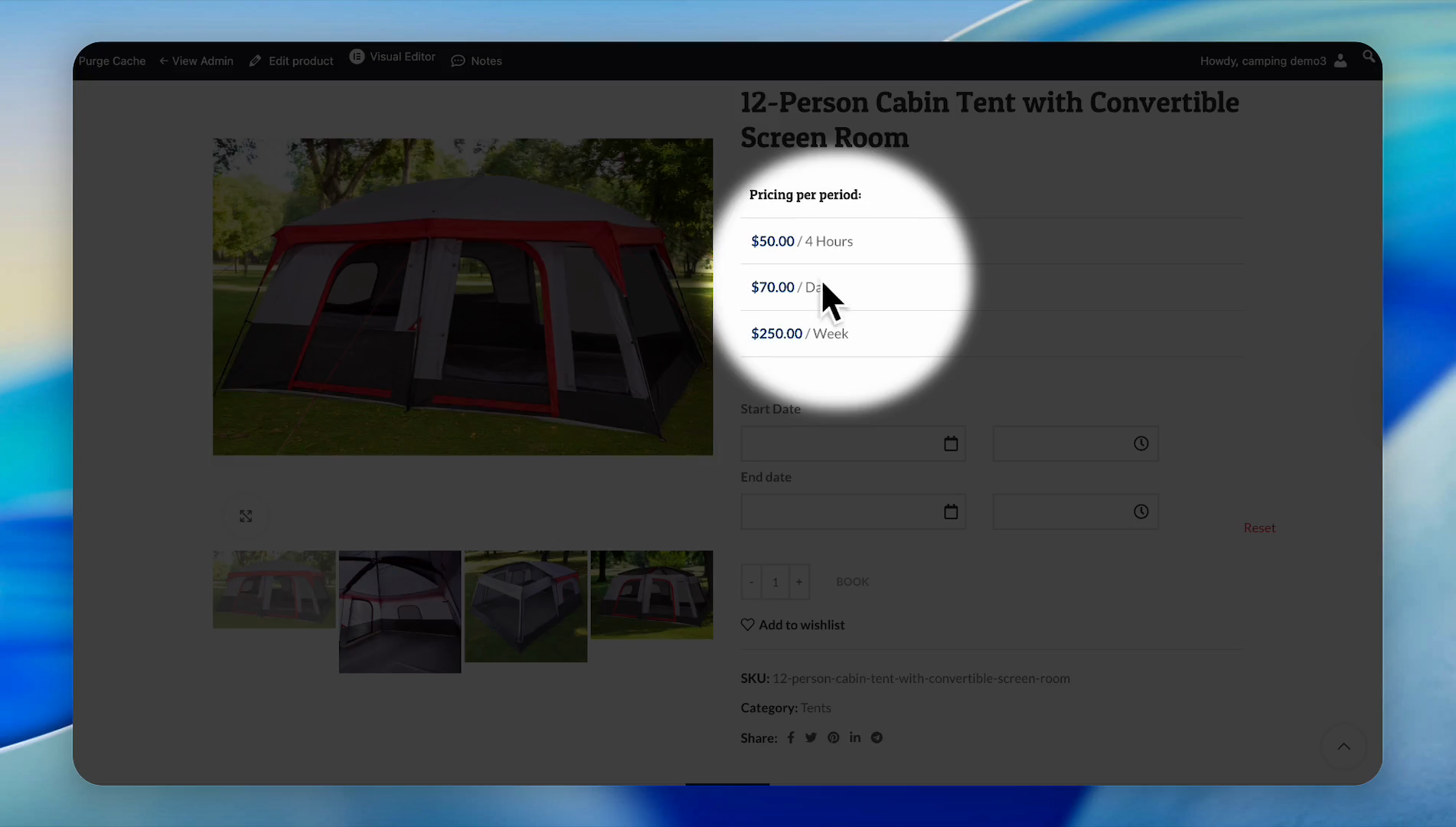
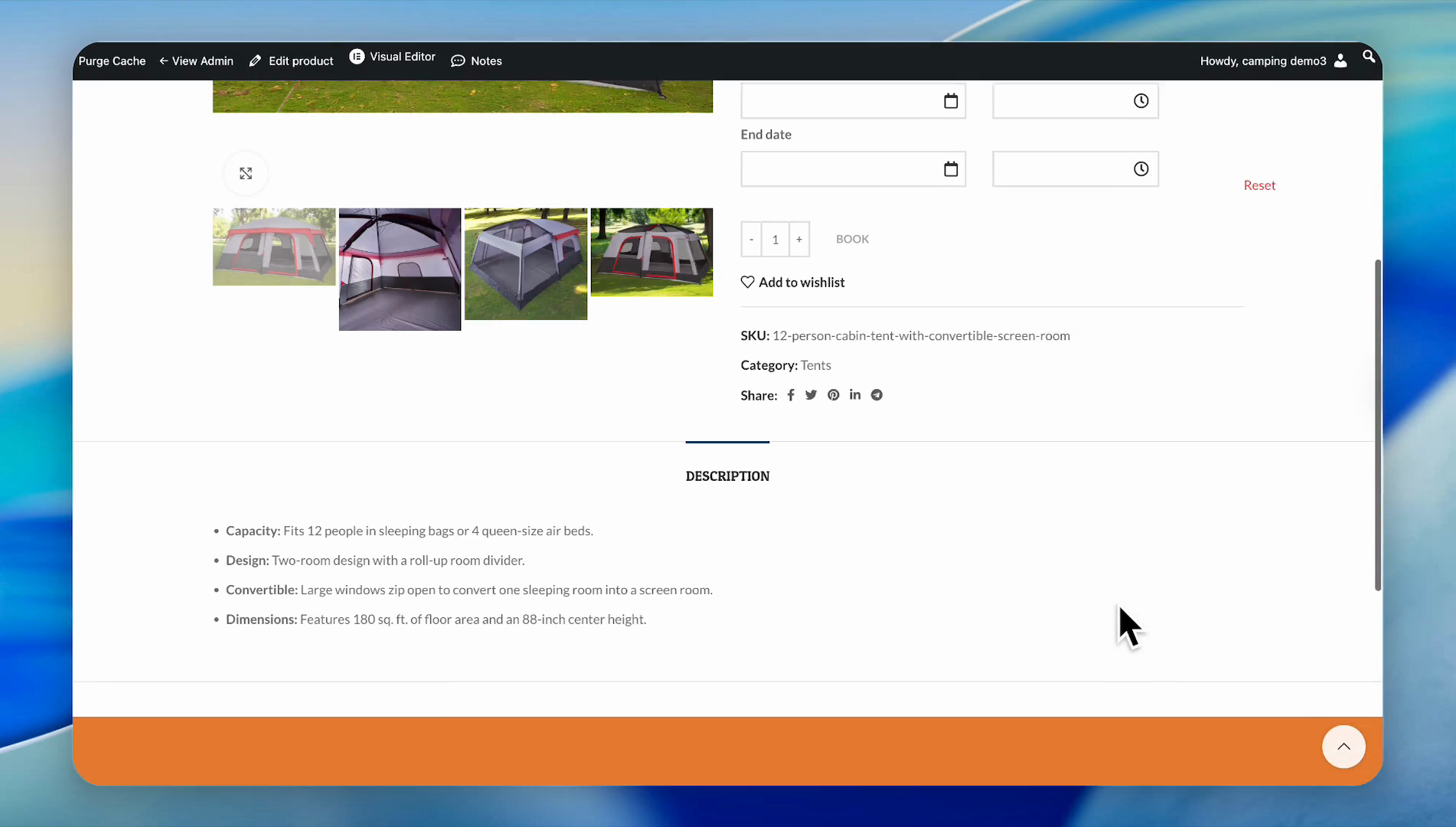
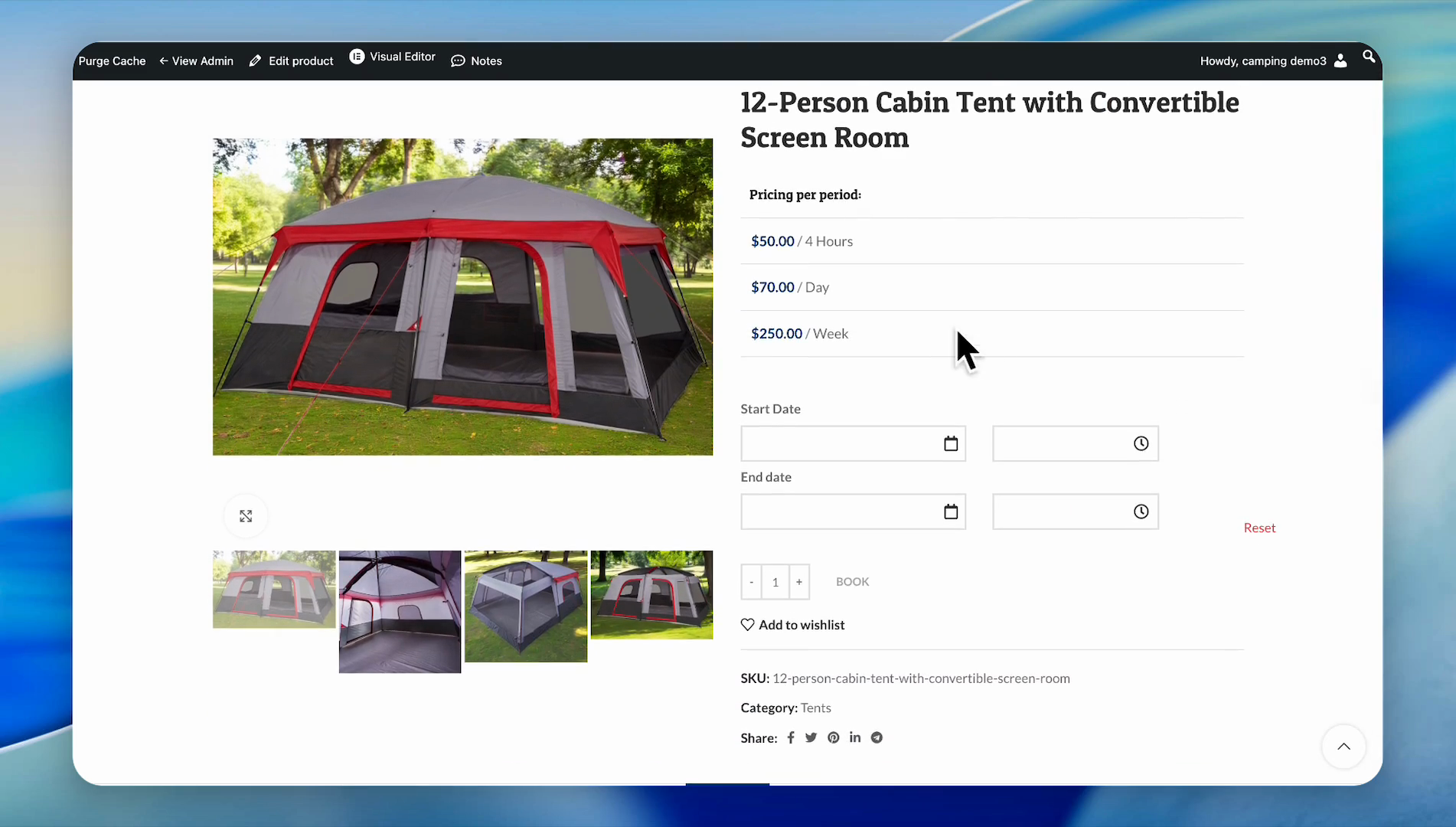
Our title, pricing, calendar type, and description are clearly displayed on our website.
21
View the product title.
Step #21: View the product title.
22
View the product pricing.
Step #22: View the product pricing.
23
View the product description.
Step #23: View the product description.
24
Test the booking system to ensure it calculates pricing accurately
How to Add Your First Rental Product: Step-by-Step Guide