
How to Apply Payments in Taps: Step-by-Step Tutorial
Learn how to apply payments in Taps using the Brex integration. This step-by-step tutorial covers logging in, navigating transactions, identifying invoice numbers, and confirming payments in Taps.
In this guide, we'll learn how to apply a payment in Taps using information pulled from a Brex bank integration. This process helps ensure that payments posted in Brex are matched and applied to the correct invoices in Taps.
We'll cover how to identify the right payment, confirm the details, and update the invoice status.
Let's get started
First thing I will do is say hello. This will be a tutorial about how to apply the payment on Tabs. First, log in to Tabs with your credentials. This is the main screen. From the main screen, first go to Data. Then select the second option, Transactions.
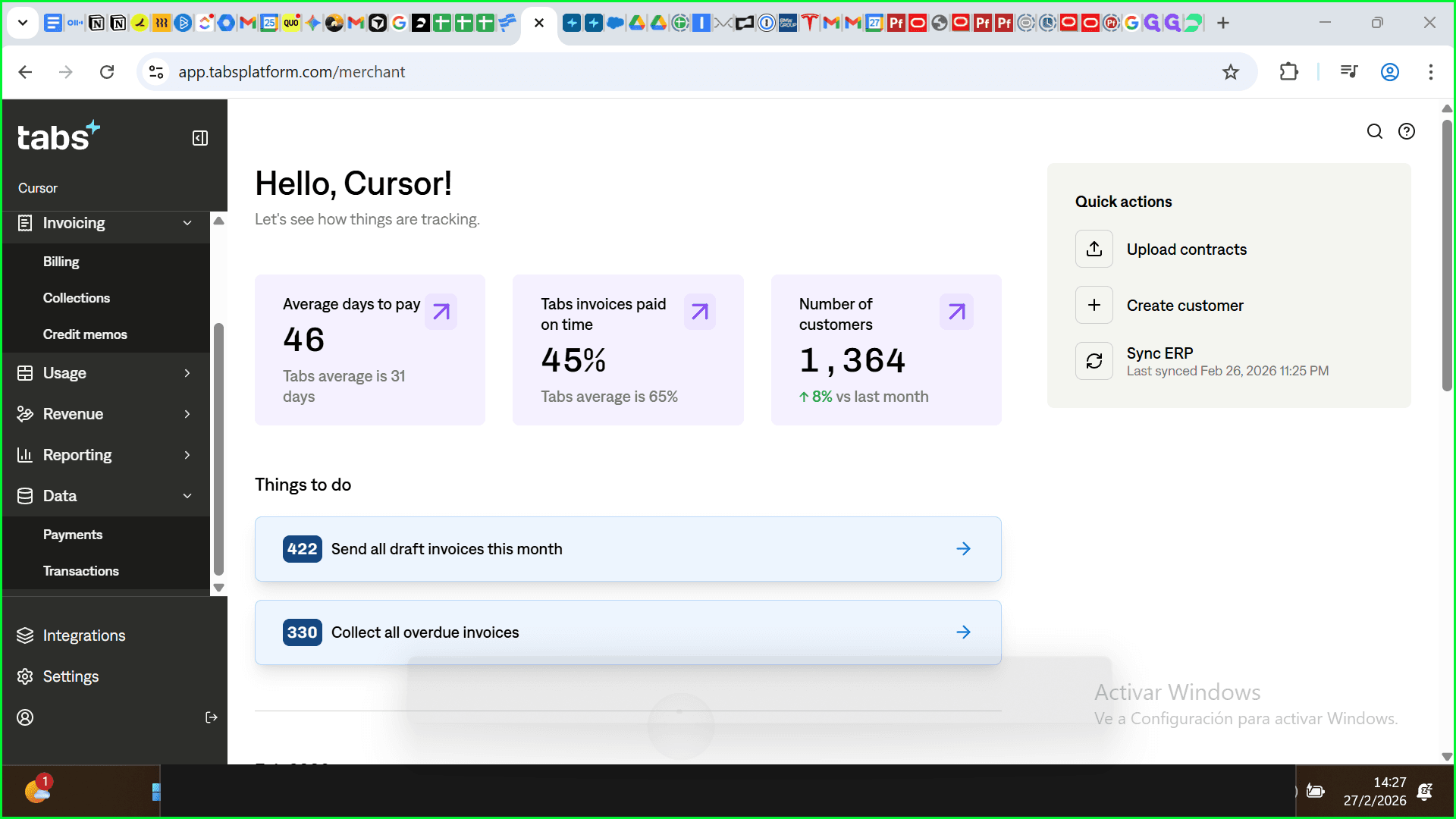
Transaction will show you all the payments that were posted on the bank, on Brex bank, which was explained in a different video. All payments posted there will be pulled through our integration. We have an integration with Brex. All payments posted to the payment account through the Brex integration will be pulled into the Taps tool. First, look at the long payments, as these usually contain the most information.
Some of them, including the TB, which is the invoice number. Once you identify the TB or invoice number, the system will recommend one specific invoice to be paid. In this case, as you can see, 12776 is displayed, and the system will automatically take you to 12776. This is the recommendation for payment posting. The payment amount is 52,224.
You can be certain that this payment is for this invoice. It's easy. Just click on the amount, and the system will automatically take you to the confirmation screen. On the confirmation screen, simply check that the payment matches and confirm. Once you have that, the system will mark the invoice as paid. The status will update to paid, and the payment will disappear from this screen. You can then continue to the next screen. These are the steps to follow when applying the payment.
So you...