
How to Apply the Holiday Bonus Gift Card in Toast: Step-by-Step Guide
Learn how to apply the Thompson holiday bonus gift card promotion in Toast.
In this guide, we'll learn how to apply the holiday bonus gift card promotion in Toast. This promotion allows guests to receive a bonus gift card when they purchase a qualifying gift card, which can encourage repeat visits, cross-brand awareness, and increase sales. We will cover the steps to ring in both the purchased and bonus gift cards, apply the correct discount, and complete the transaction.
Let's get started
Hello, everyone. In this quick video, I will show you how to apply the holiday bonus gift card in Toast. This program is great because when guests buy a gift card, they receive a bonus card. They can keep the bonus card or give it to friends or family. In addition to being a great gift that encourages guests to explore our other brands, gift cards are also an excellent way to increase sales. This, in turn, lowers your labor percentage, since selling gift cards requires almost no time. How does this work?
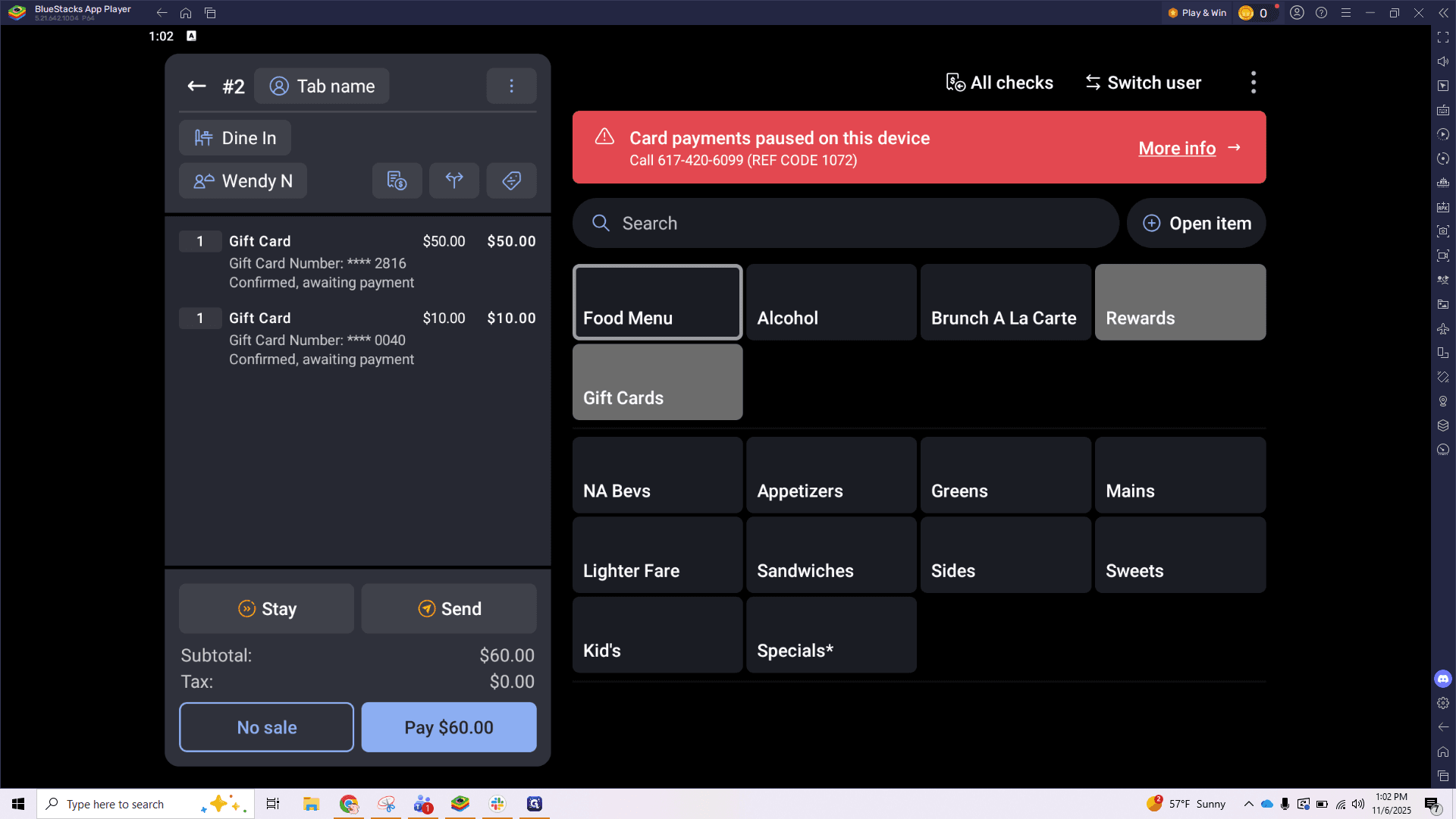
When a guest spends $30 or more, they receive a $5 bonus gift card. If they spend $50 or more, they receive a $10 bonus gift card. If they spend $100 or more, they receive a $25 bonus gift card. Now, let's go through the steps in Toast to apply this promotion. The first step is to ring up the gift card the guest wants to purchase. In this example, we have entered a $50 gift card.
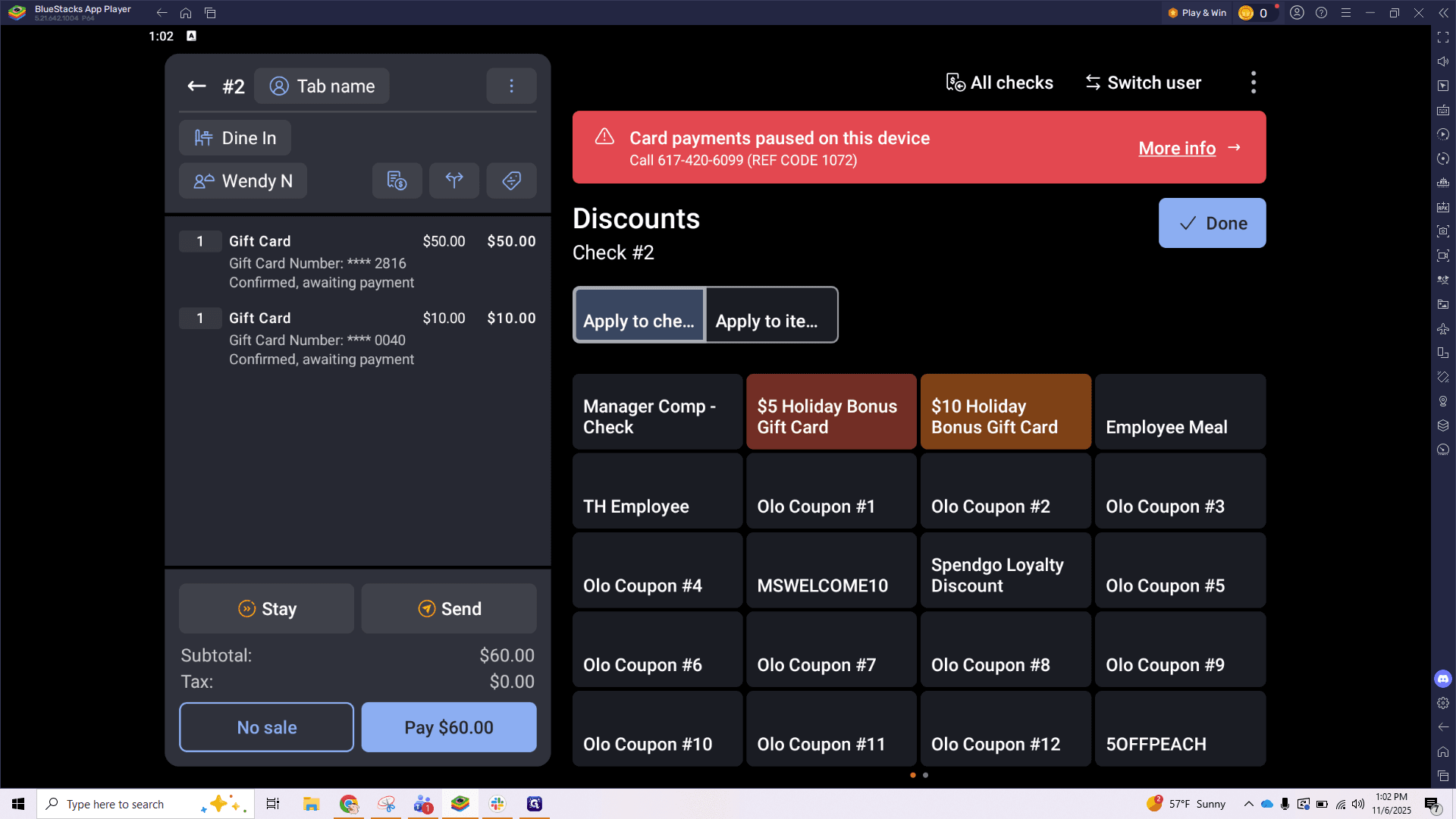
The second step is to ring in the bonus gift card, as shown here. This will be the free option that matches their gift card purchase above. It will be available in amounts of five, ten, or twenty-five, depending on their preference. The third step is to apply a discount. This promotion will be a check-level discount, not an item discount. Before applying the discount, ensure that no items are highlighted on the screen.
Tap the Discount button and choose the option that matches the bonus amount: $5, $10, or $25.
That's it! Go to the payment screen when you're ready and complete the checkout as usual. Share this with your teams and review the steps so everyone knows how to apply the holiday bonus gift card. If you have any issues, please contact IT by submitting a ticket. This will help us address it quickly.
Thank you.