
How to Approve Invoices: Step-by-Step Guide
Learn how to approve invoices efficiently from your dashboard. Follow this simple step-by-step guide to review, enter purchase order numbers, and approve invoices in your system.
By Barış Özperçin
In this guide, we'll learn how to approve invoices on reseller panel. We will go through the steps of finding the invoice, entering the purchase order number, and completing the approval process.
Let's get started
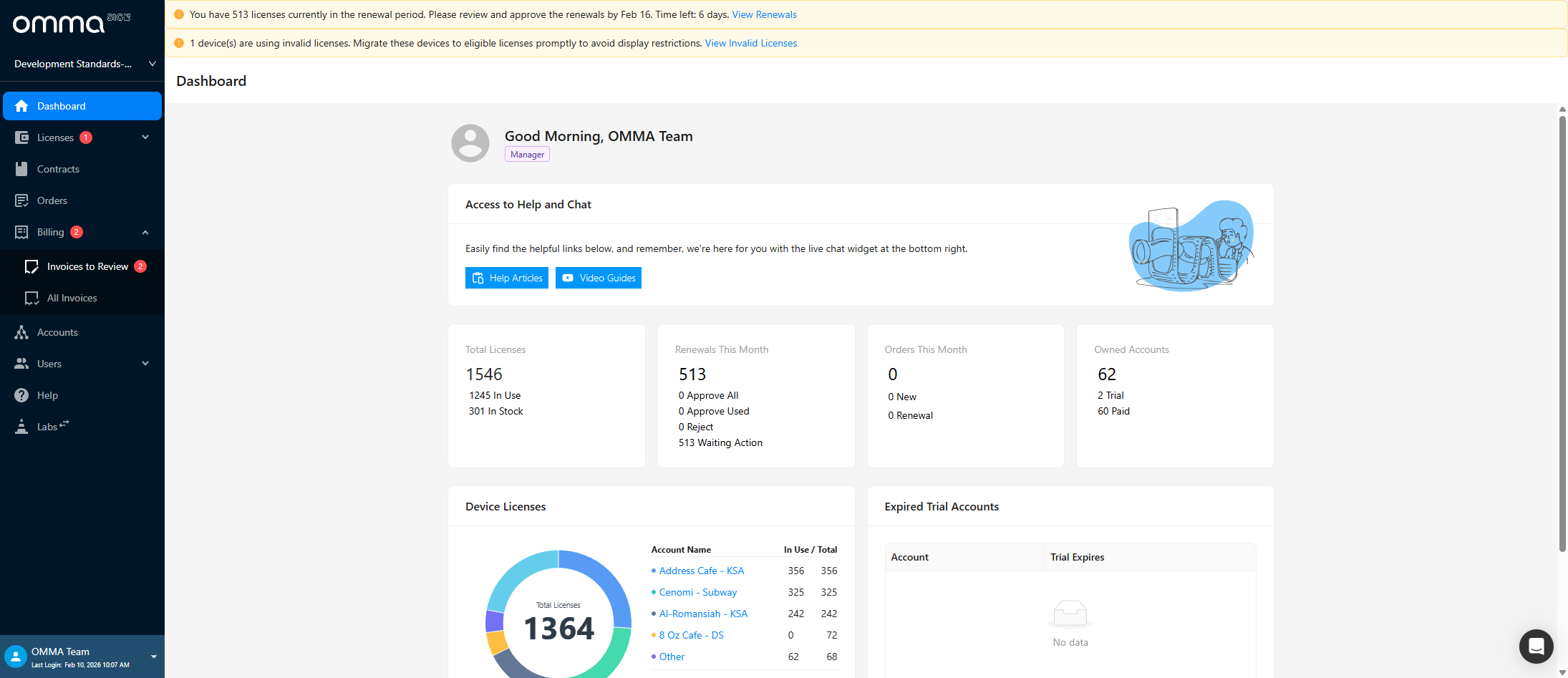
Hello, today I will show you how to approve invoices. While on the dashboard screen, go to the "Invoices to Review" page from the sidebar.
1
On your reseller panel, click on "Invoices to Review"
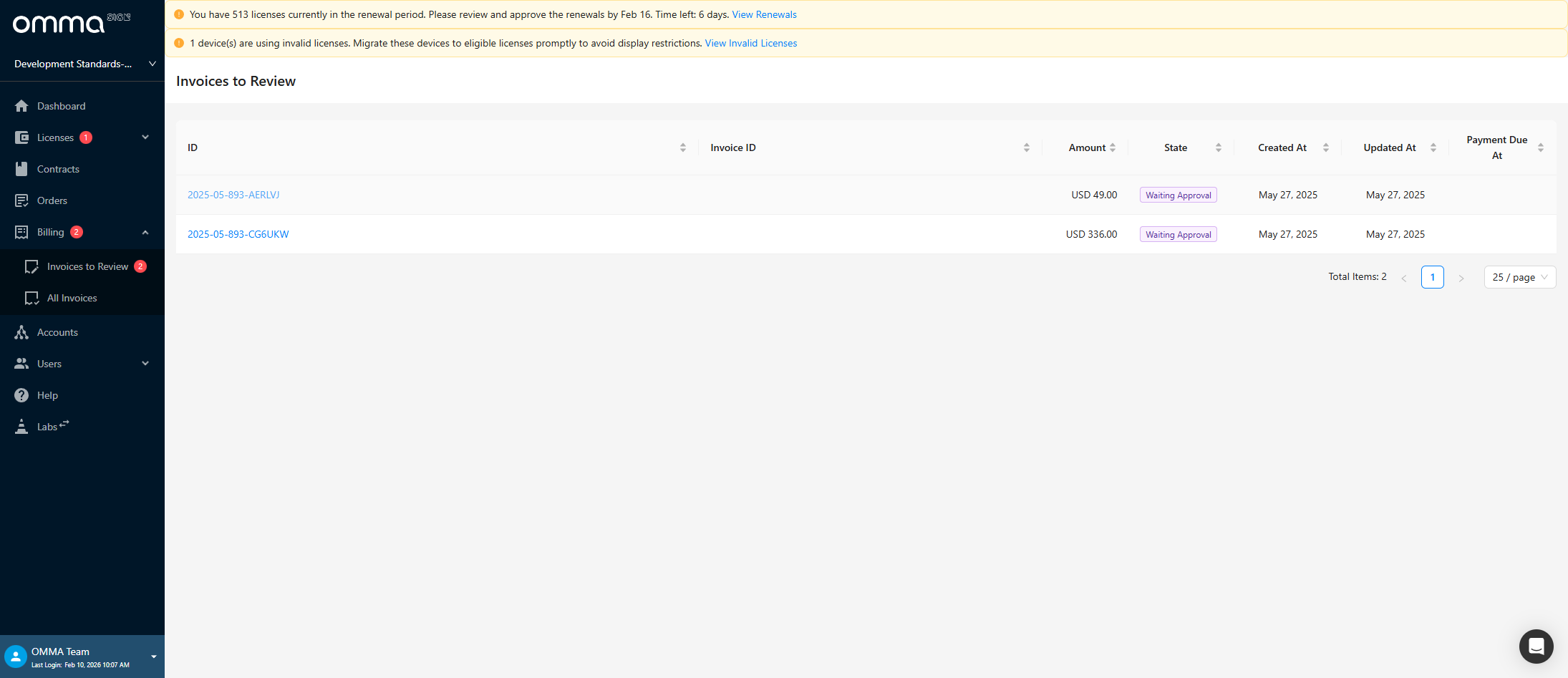
I click on the invoice I want to approve.
2
Click on "2026-05-000- ABCDEF"
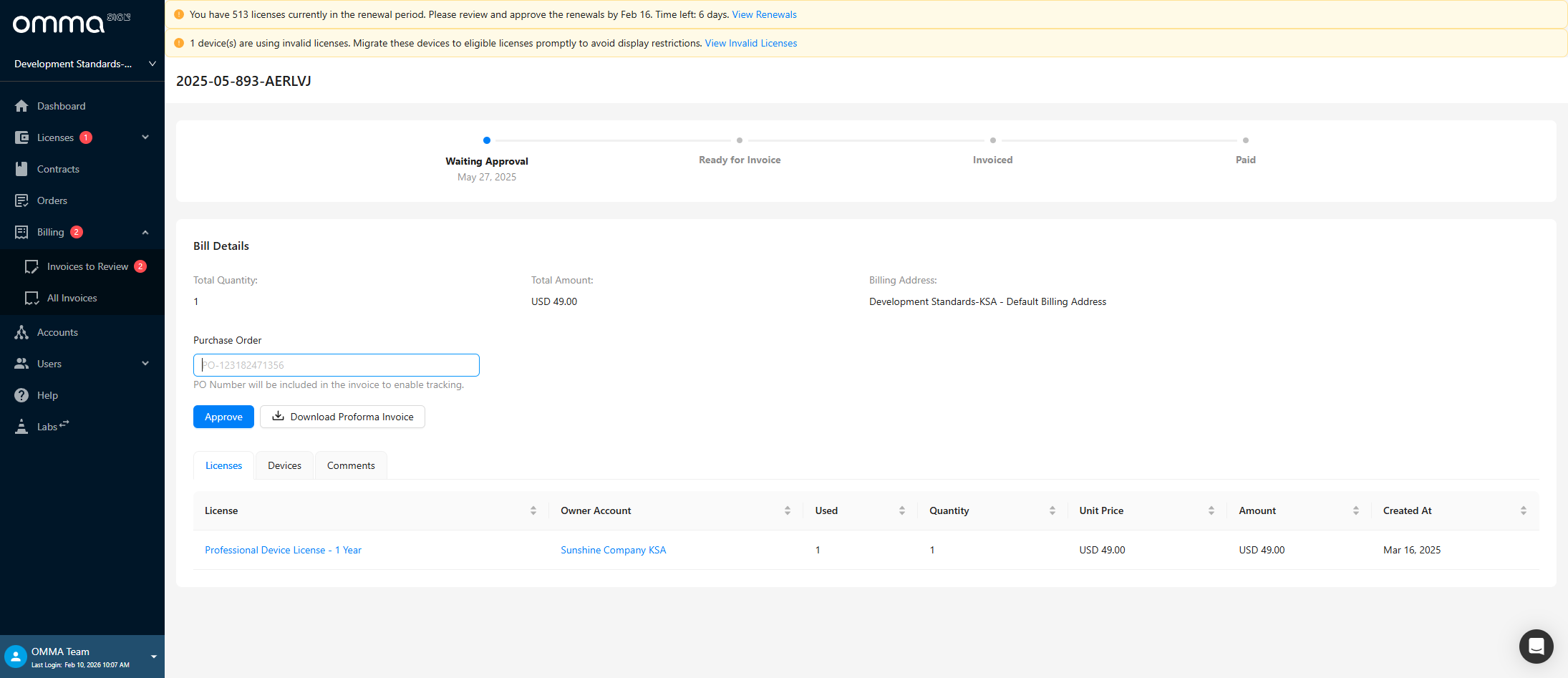
On the invoice details page, I enter my purchase order number in the purchase order field.
3
Type your PO number.
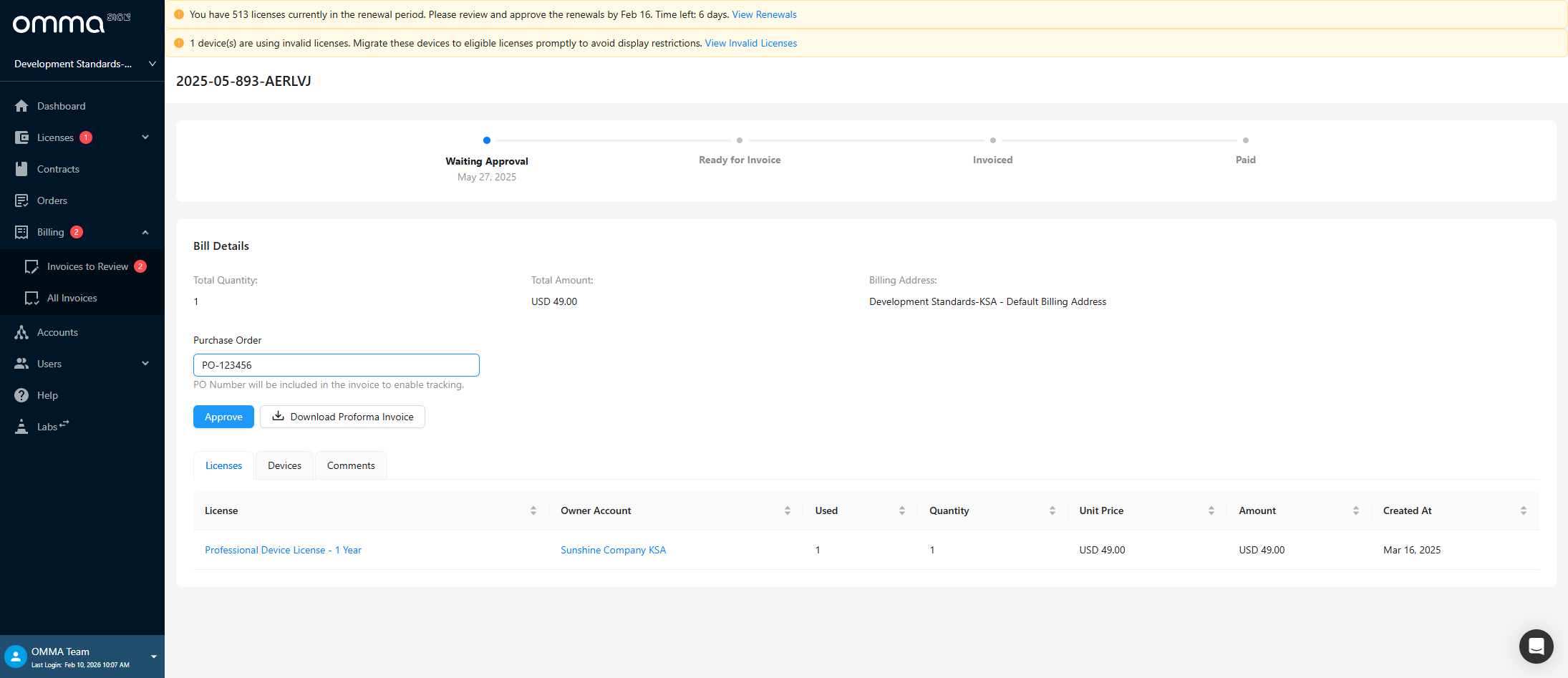
Click the approve button.
4
Click on "Approve"
5
Invoice has been approved.
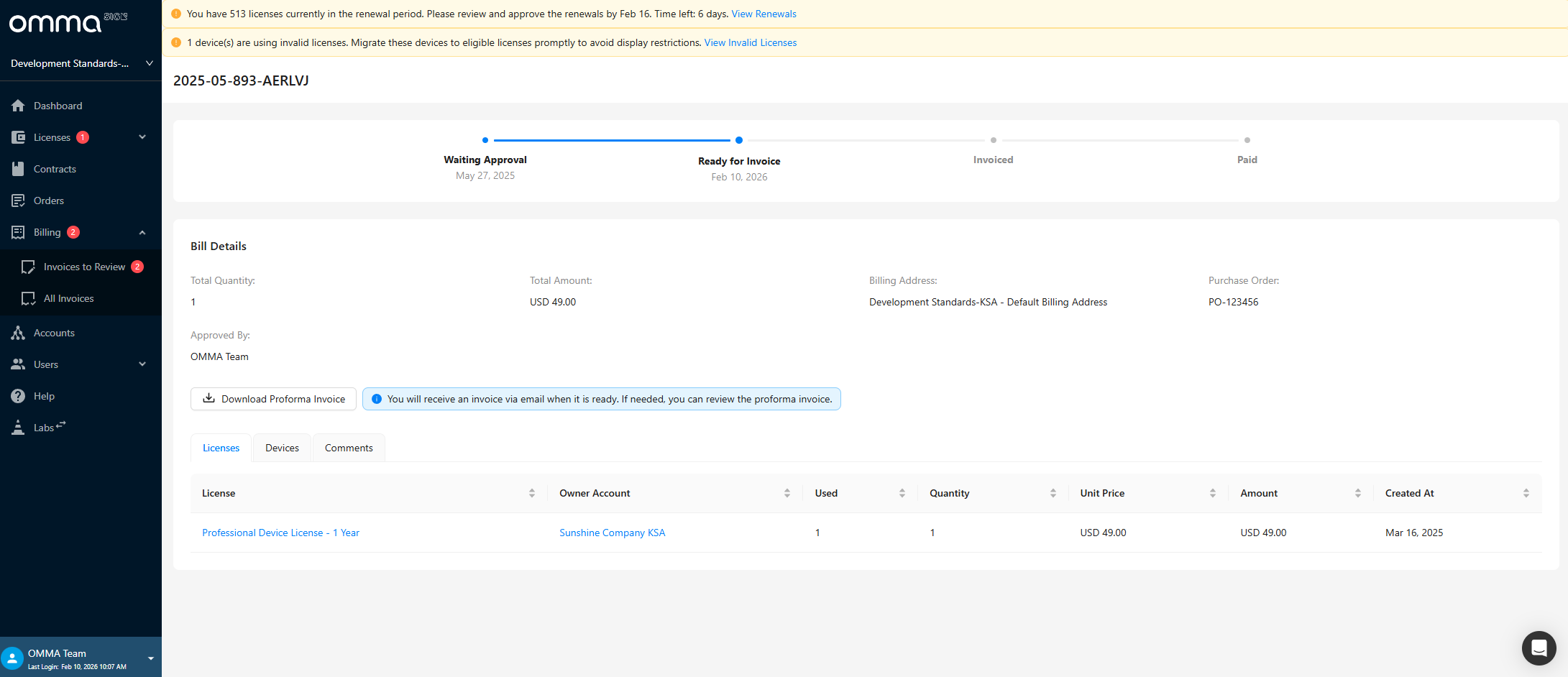
Actual invoice will be created in the system and shared with you via email. Thank you for following.