How to Assign a User to a Card
Learn how to assign users to a card, including sales, F&I, parts, and service users. Follow our step-by-step instructions to manage card assignments efficiently.
By Dominik Black
In this guide, we'll learn how to assign users to a card in Traction. Assigning users helps organize responsibilities, whether the card is in opportunity status or has already been quoted.
You will see how to add different roles, such as sales, F&I, parts, or service users, and how to manage multiple users on a single card. This process ensures that everyone involved is clearly identified and can track their assignments.
Let's get started
In this article, we will explain how to assign a user to a card.
1
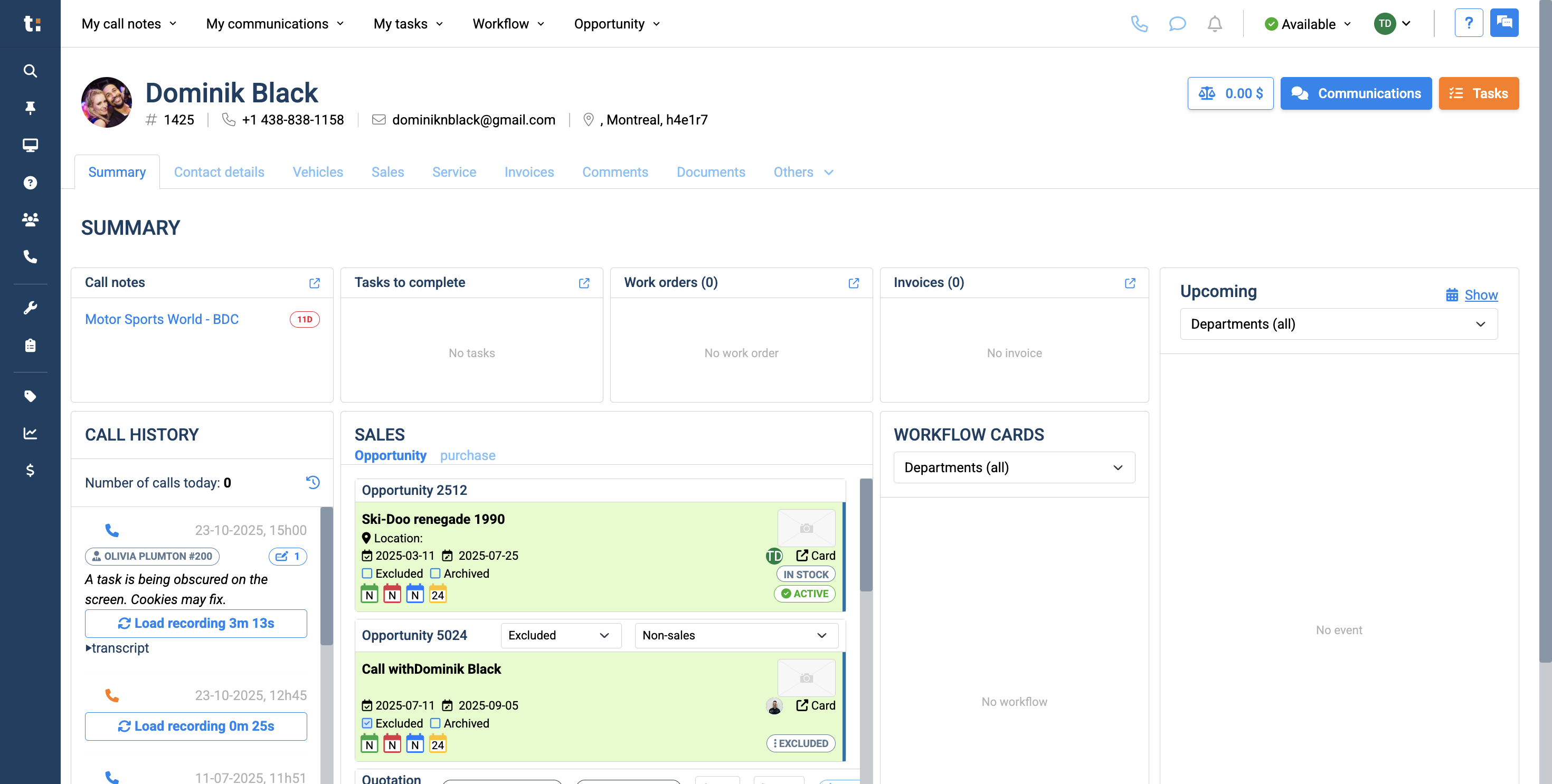
Begin by selecting the card you want to add a user to.
2
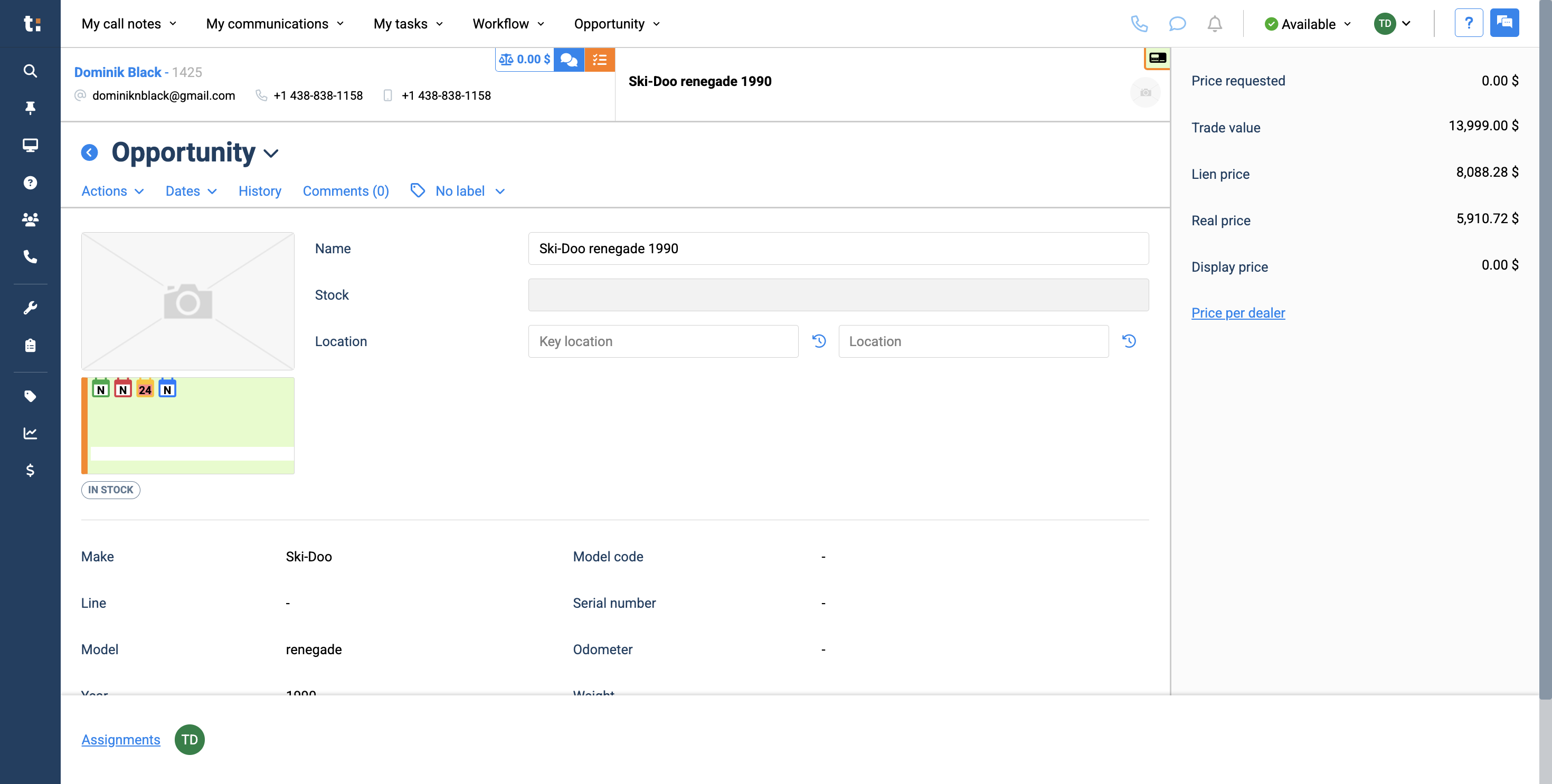
You can assign users if the card is in an opportunity status or has been quoted. In each case, look at the bottom left corner for the word "Assignments." Click this button.
3
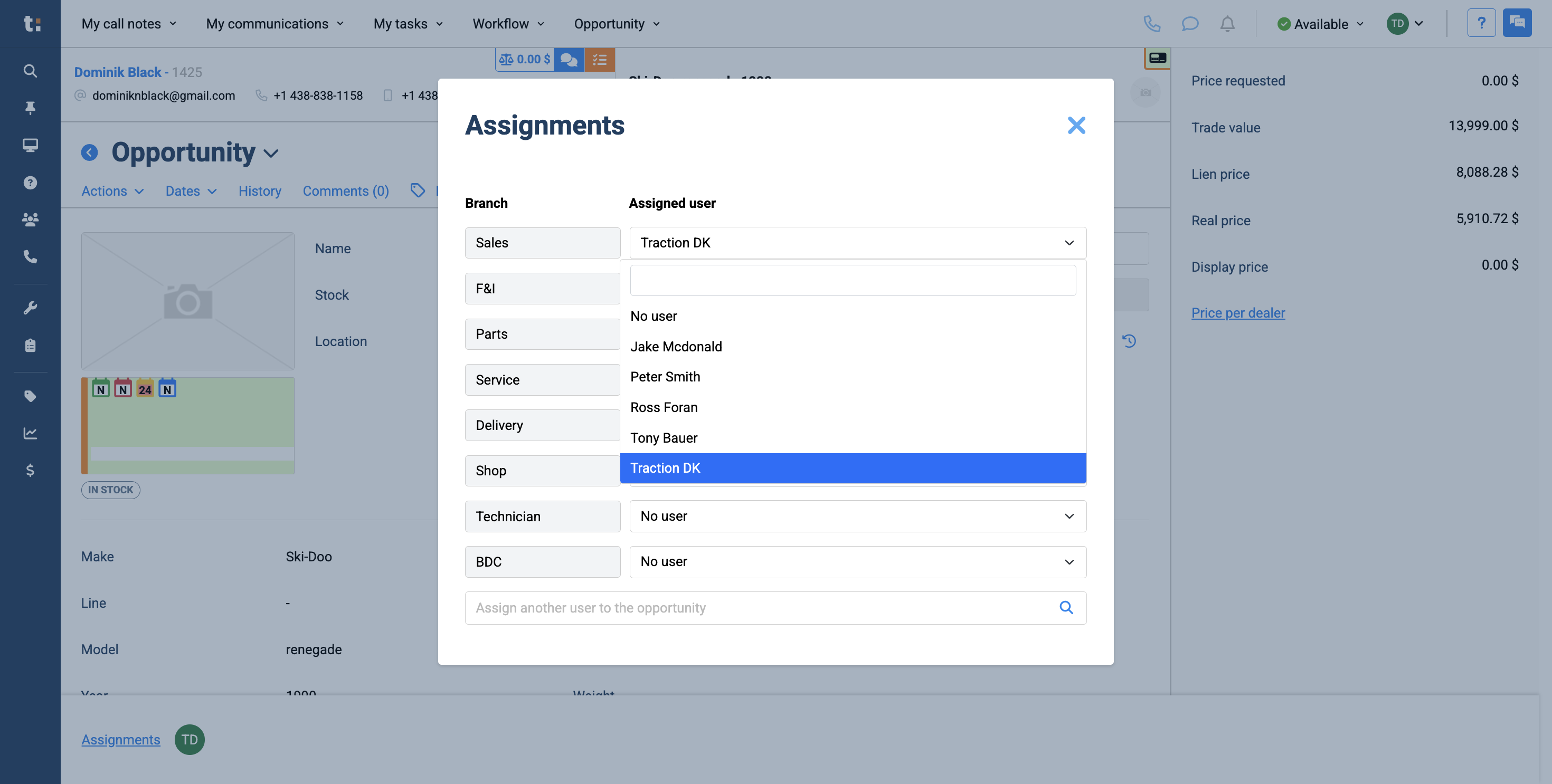
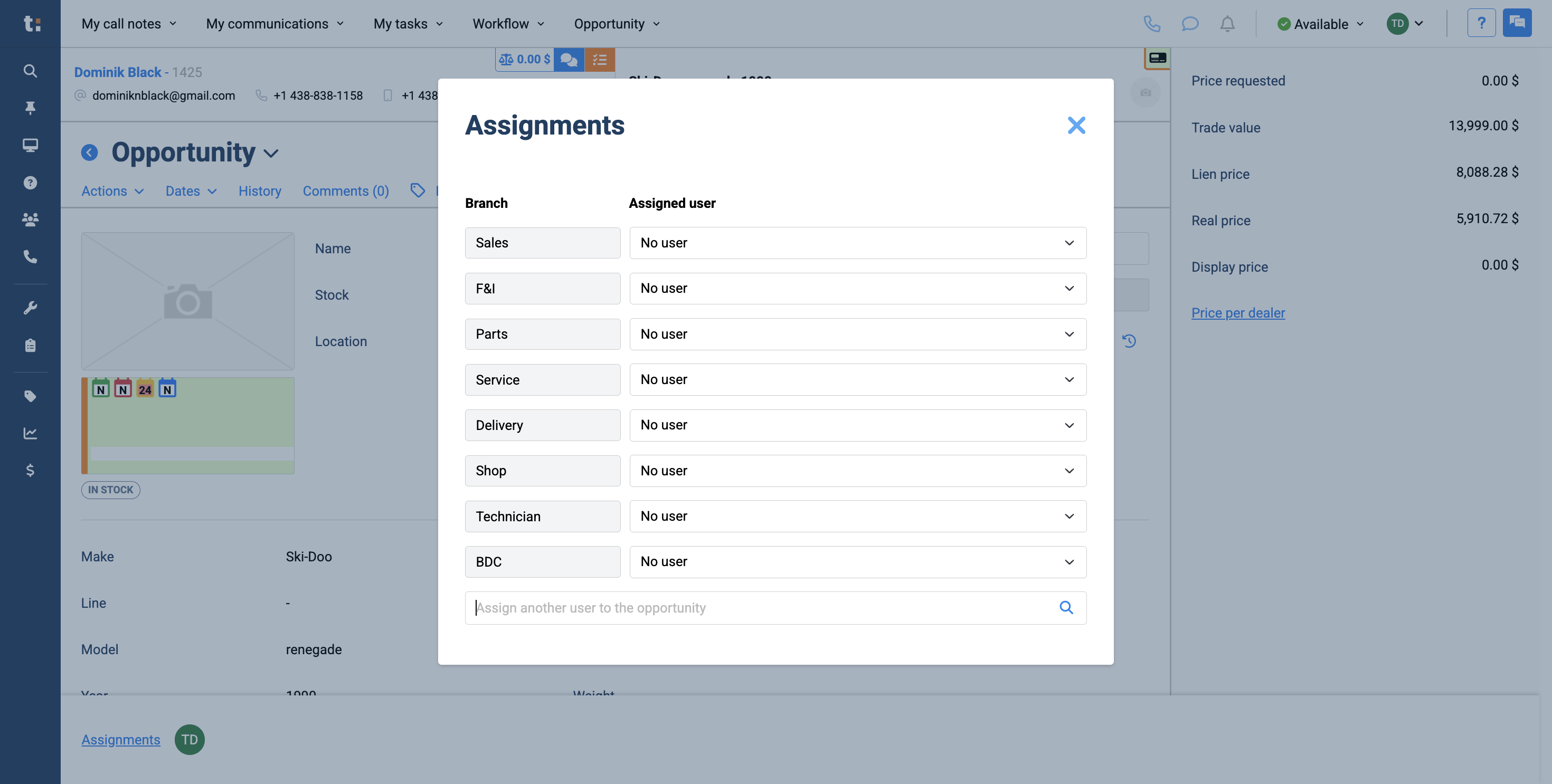
You can assign the salesperson by clicking on "Sales" and selecting a different user.
4
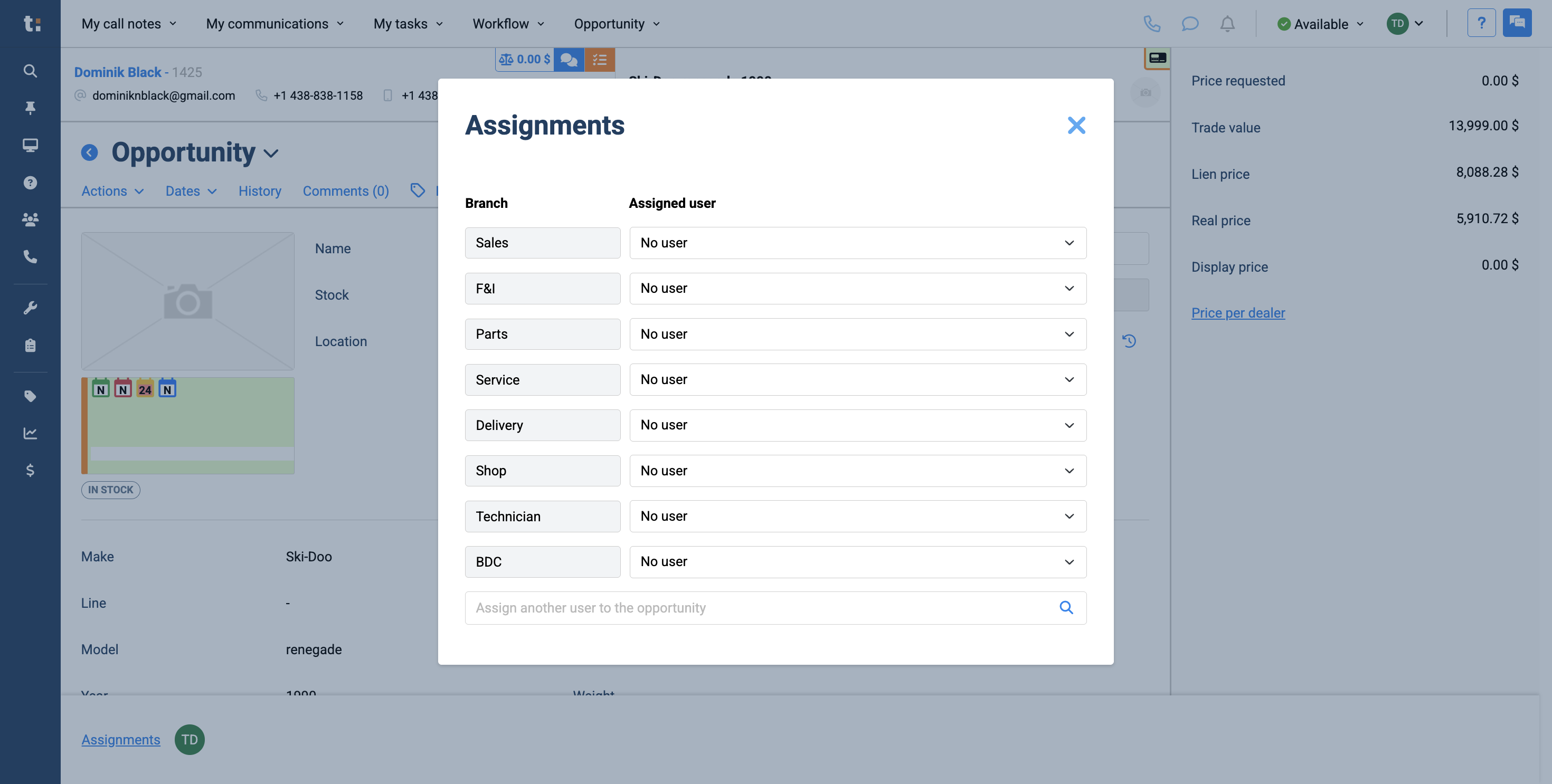
You can also assign an F&I, a parts user, a service user, or other users if you wish.
5
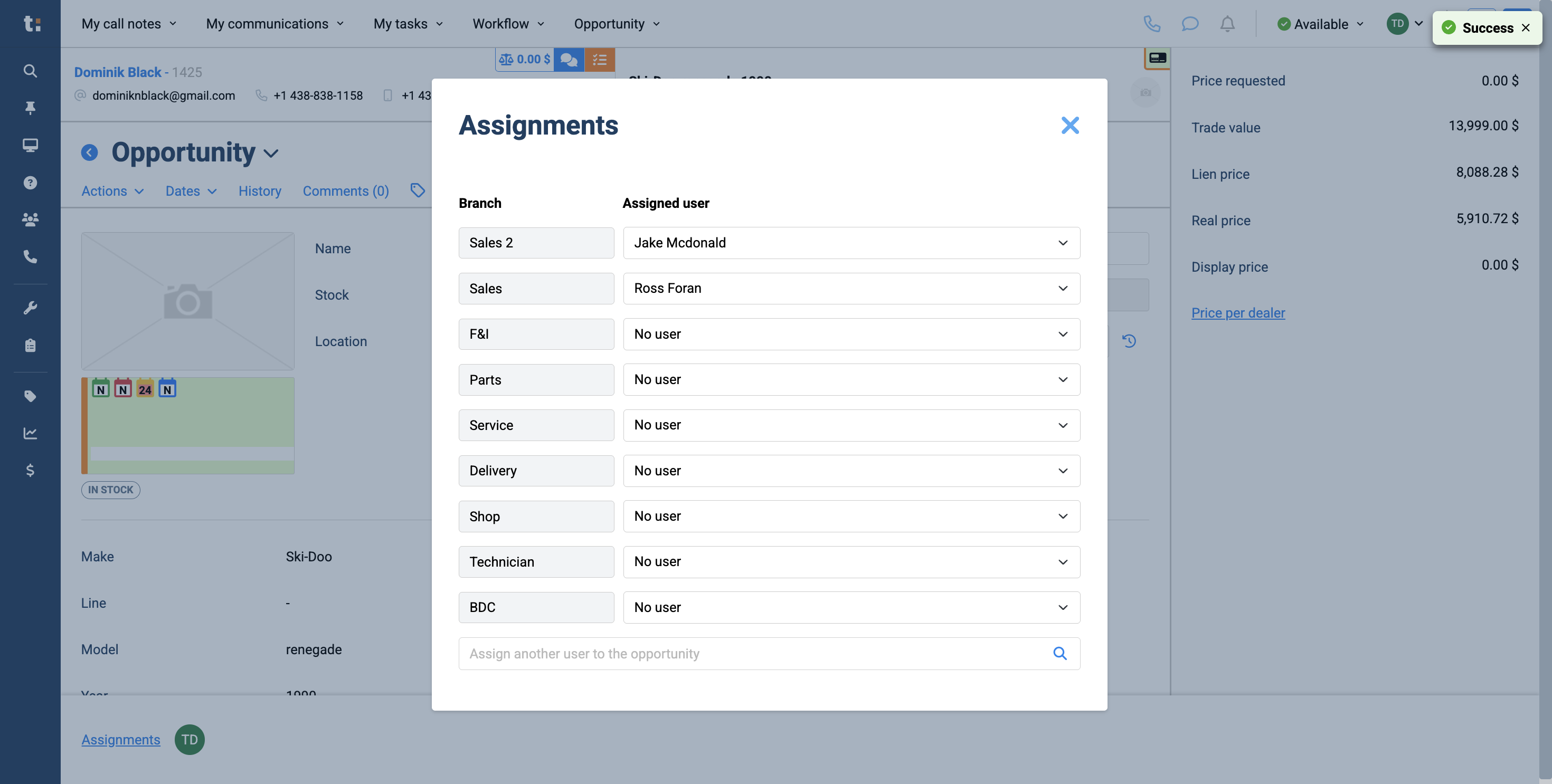
If there are two sales users on one card, select the first user in the Sales field. Then, add the second user in the field below.
6
7
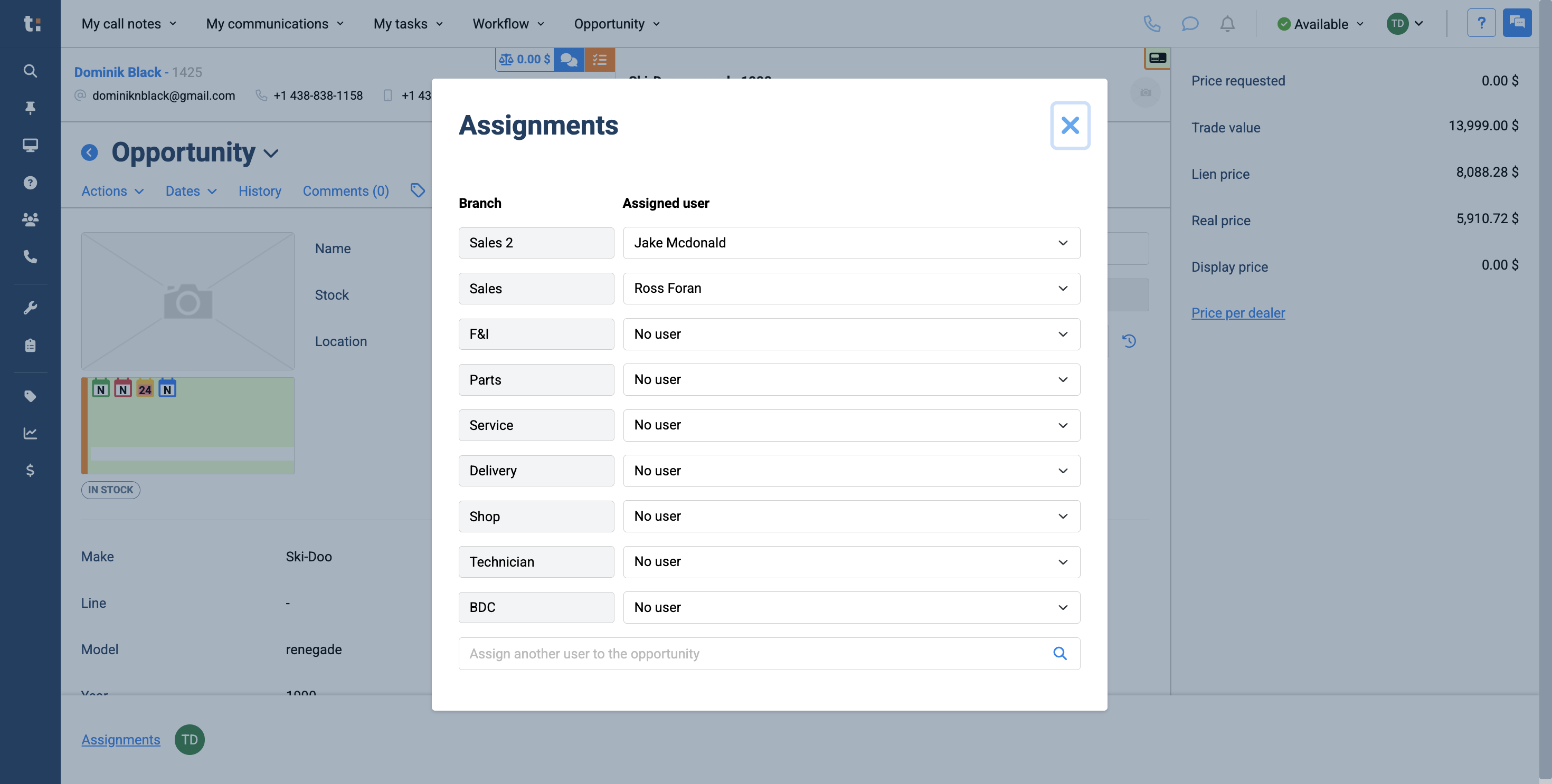
When you're finished, click the X.
8
The assignments will then refresh, and their avatars will appear at the bottom.
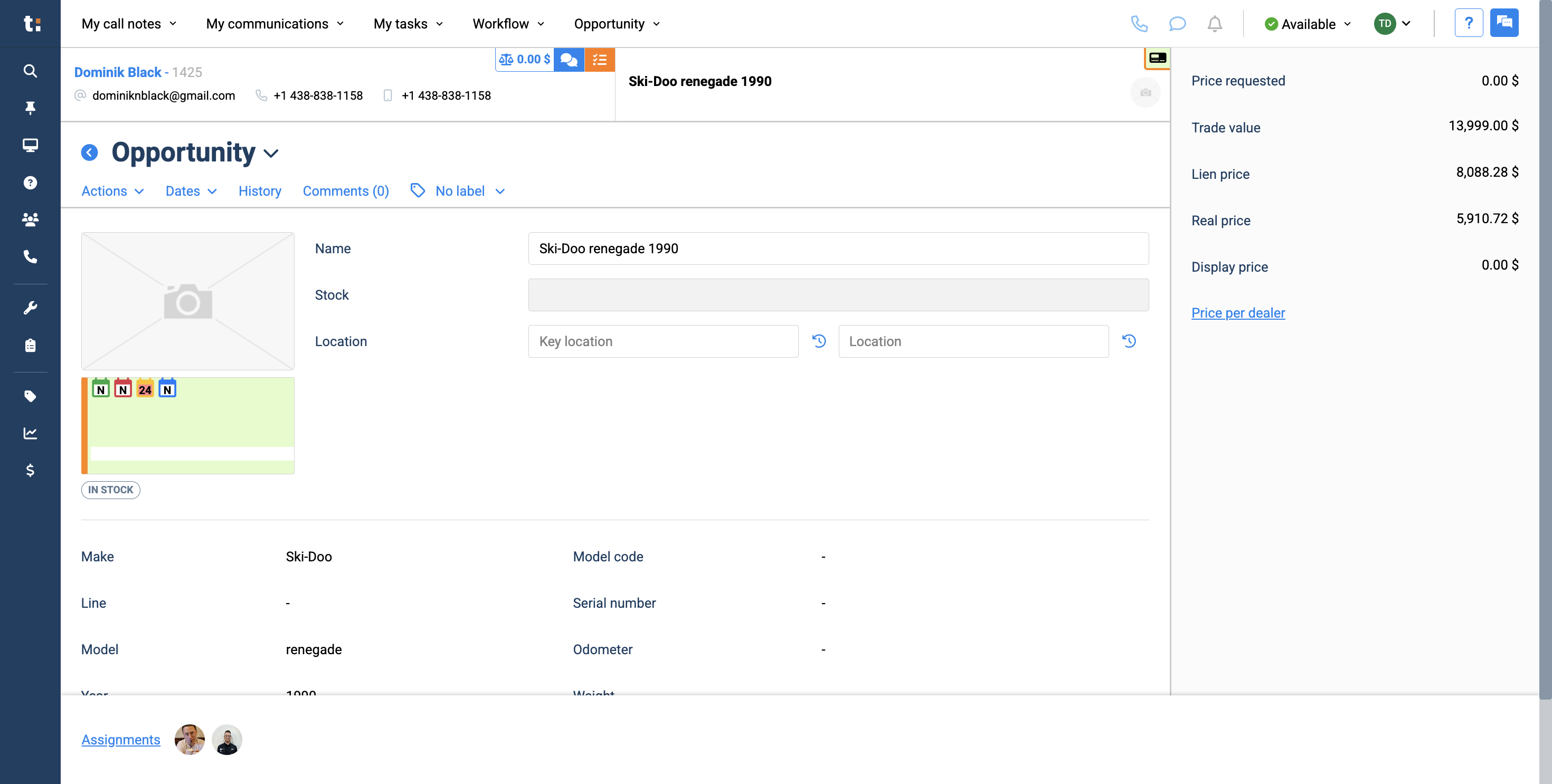
Now, you automatically have two sales assigned to the card.
If you still have questions after consulting this article, please feel free to contact our support team at: support@tractiondk.zohodesk.com