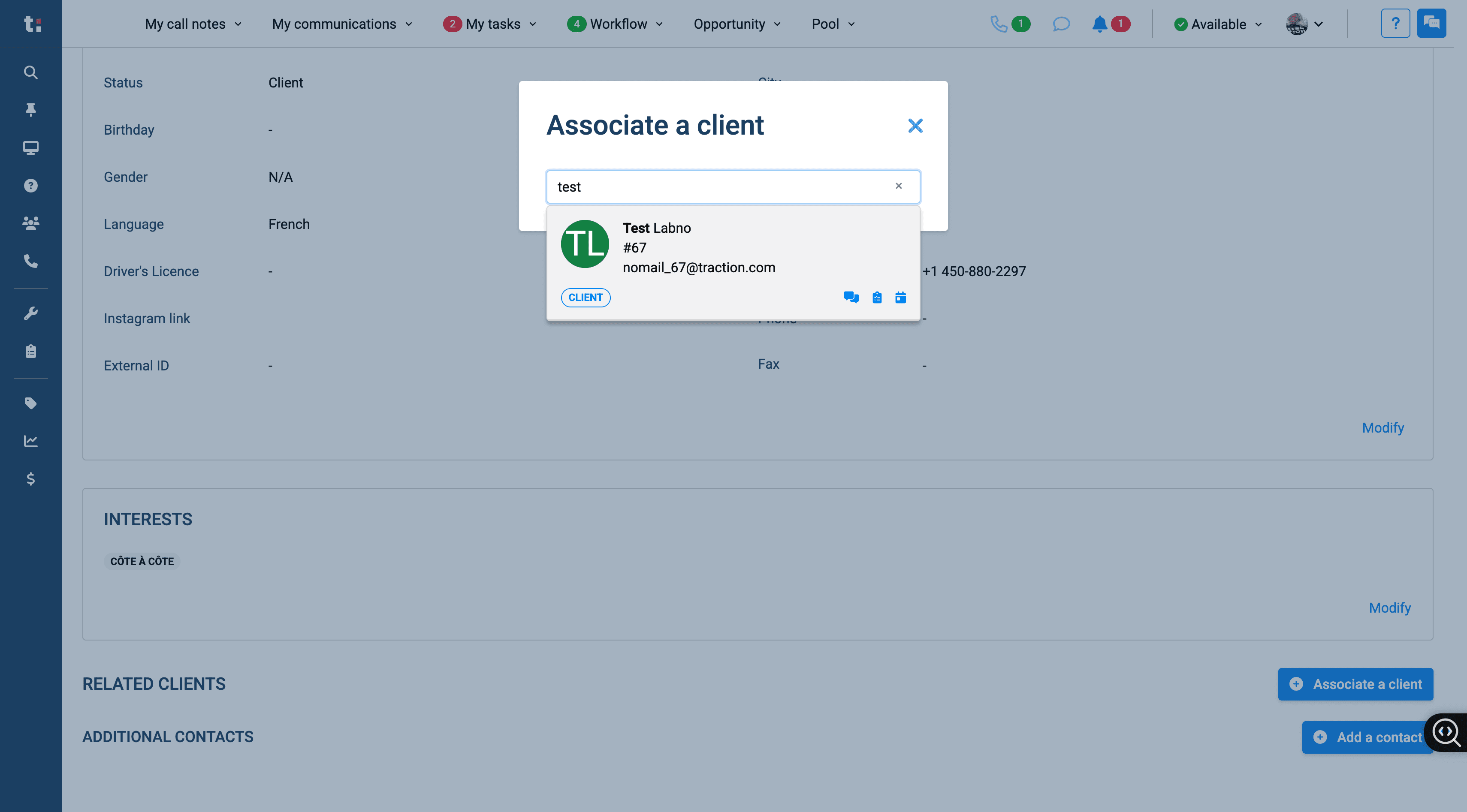
How to Associate Two Customers with the same phone number
Learn step-by-step how to associate two customers who share the same data, such as phone number and name, in the Traction platform. Follow our easy guide to link related customer profiles efficiently.
In this guide, we'll learn how to associate two customers who share the same data, such as a phone number and name, in your system. This process helps keep customer records organized and ensures that related information is linked correctly.
You'll see how to search for a customer, access their profile, and connect another customer with matching details.
Let's get started
Hello, and welcome to the Traction Knowledge Center. In today's episode, we'll show how to associate two customers who have the same data, such as the same phone number and name.
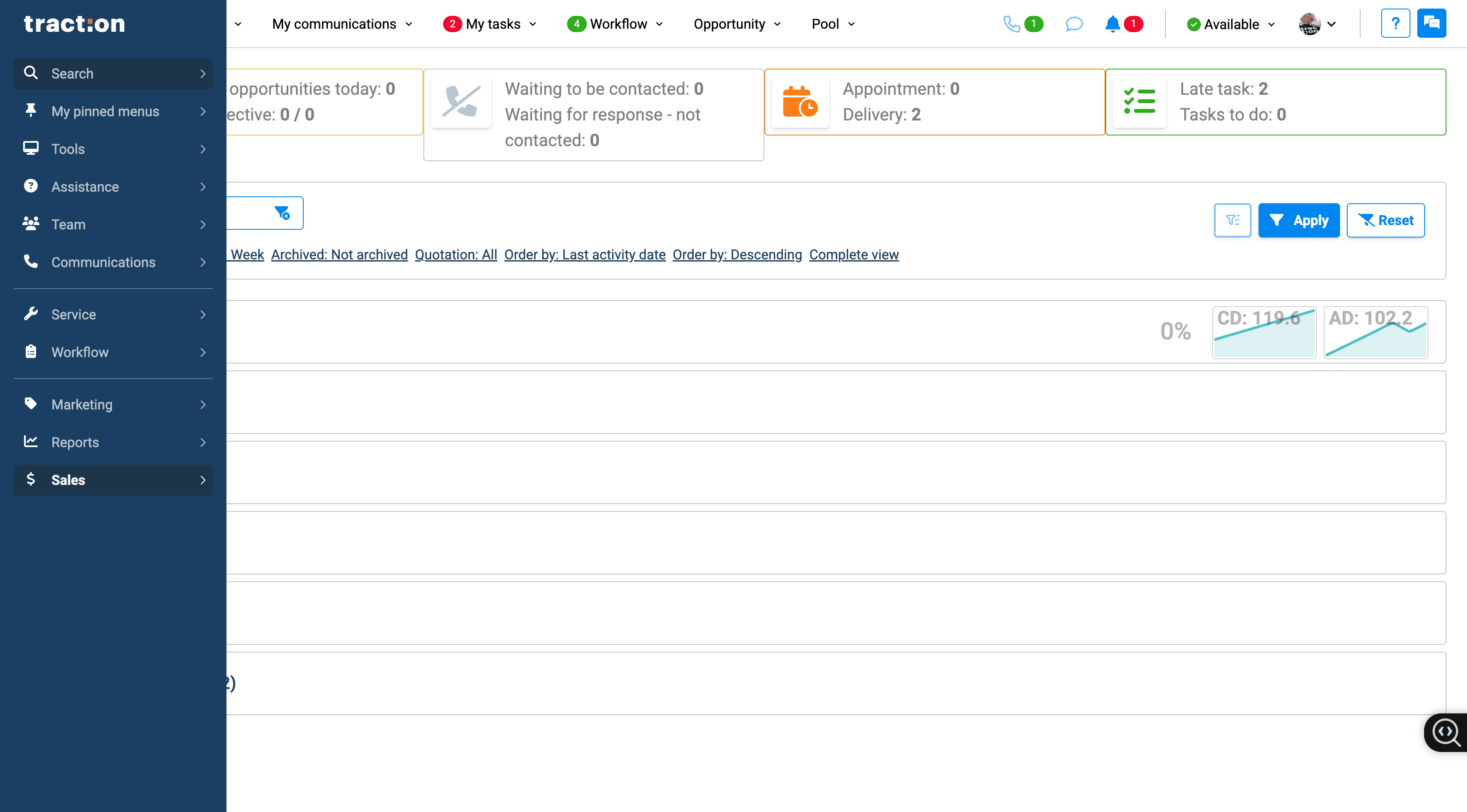
Write the name or phone number of the customer
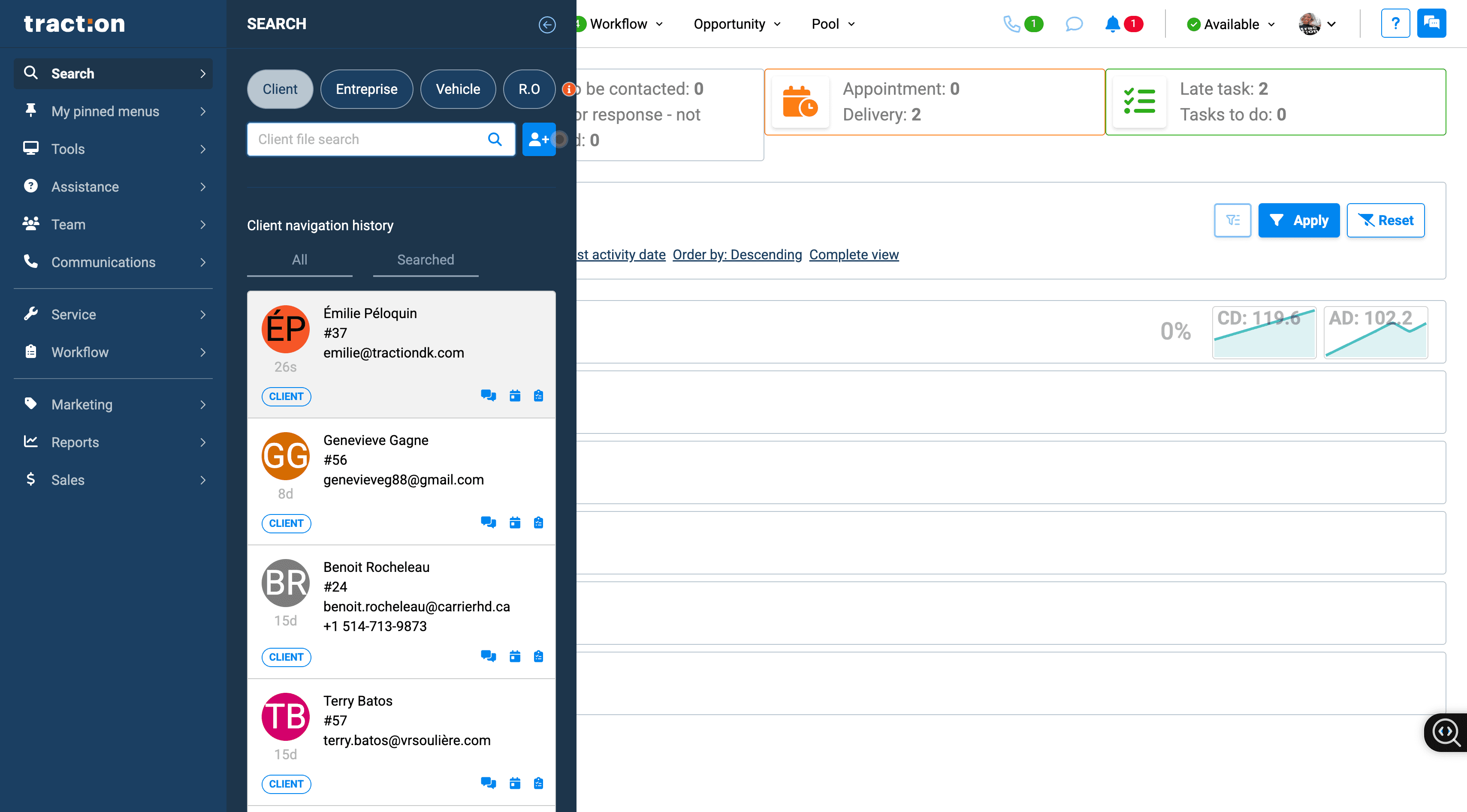
You will be redirected to her summary. First, click on Contact Details.
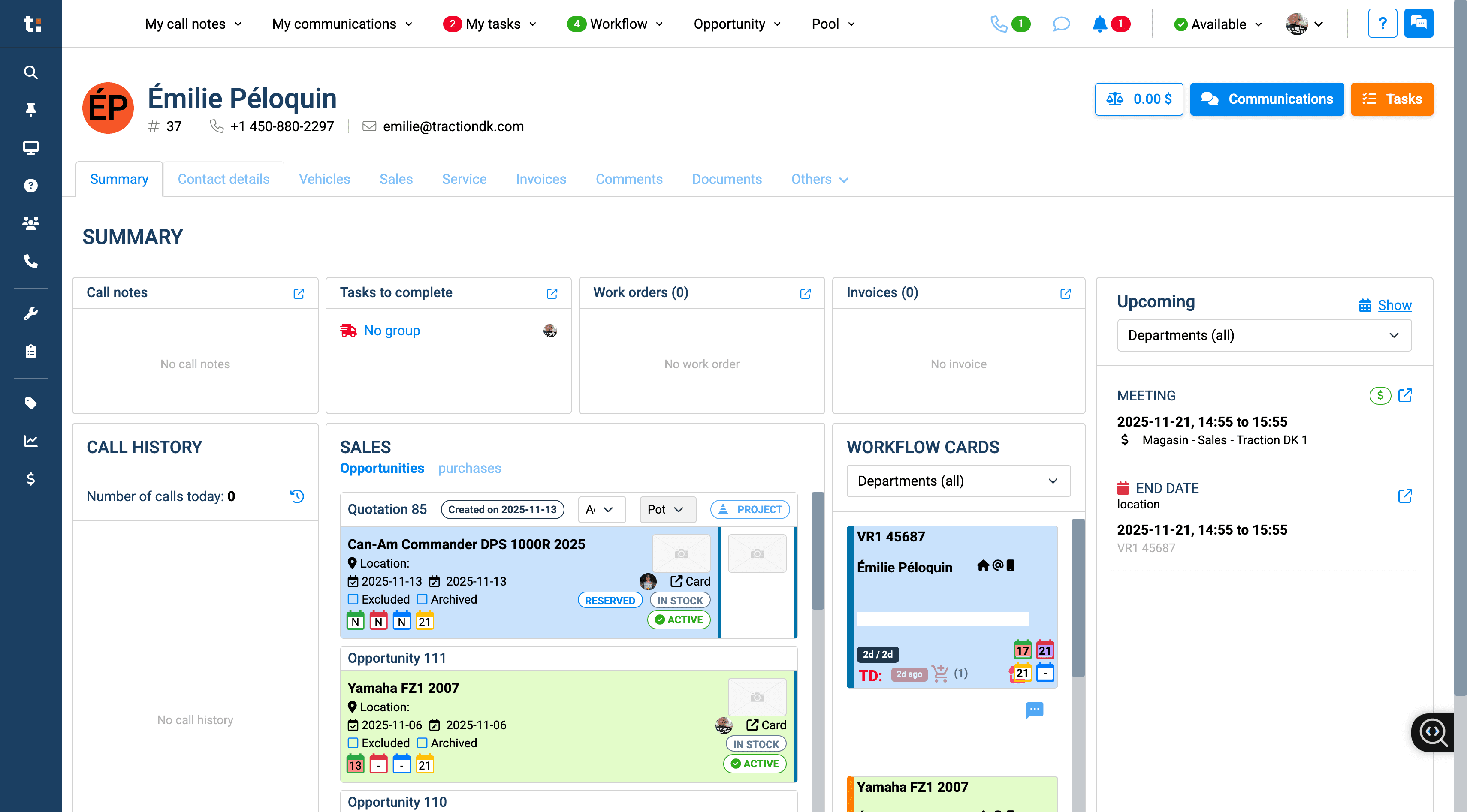
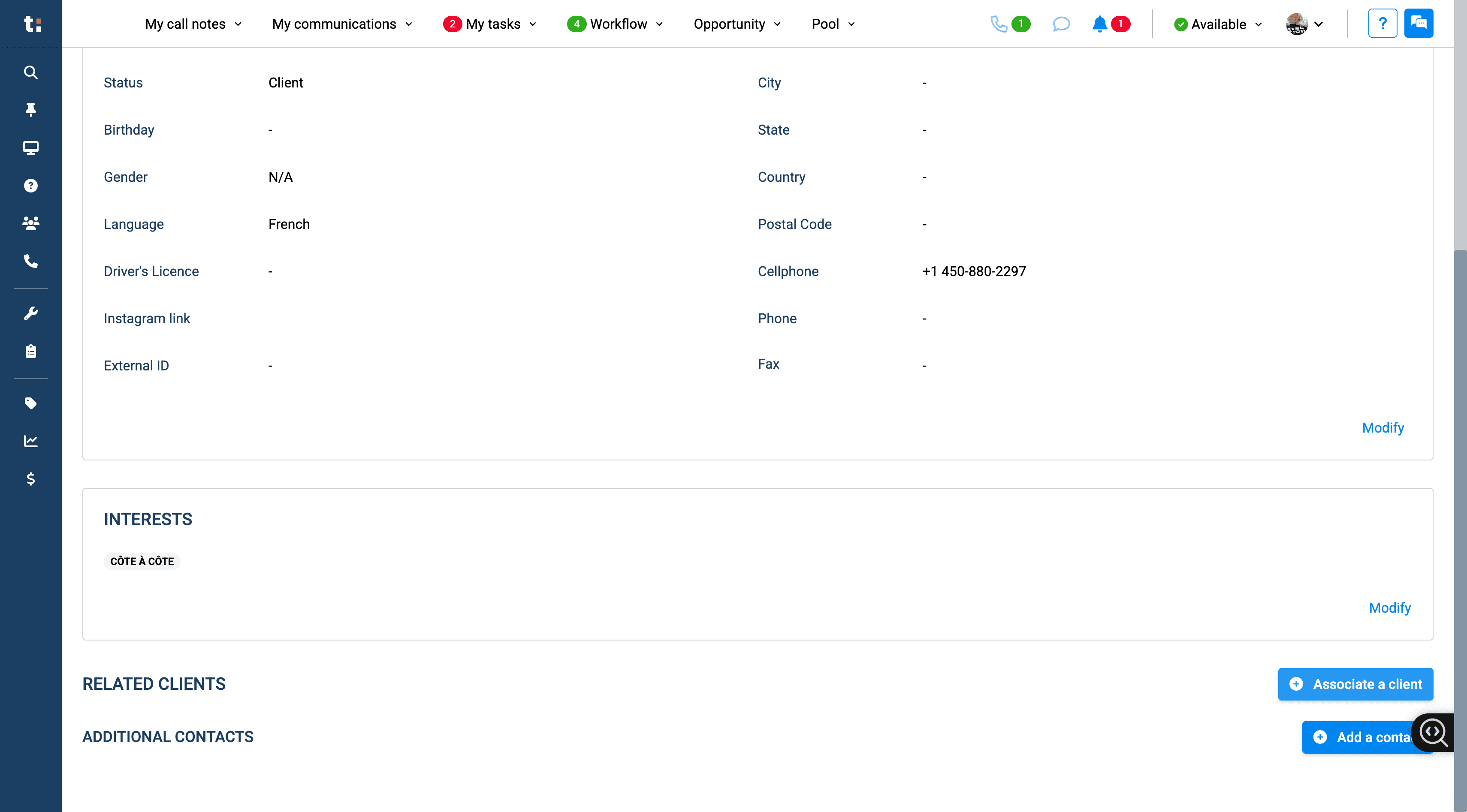
Go down below and associate a customer.
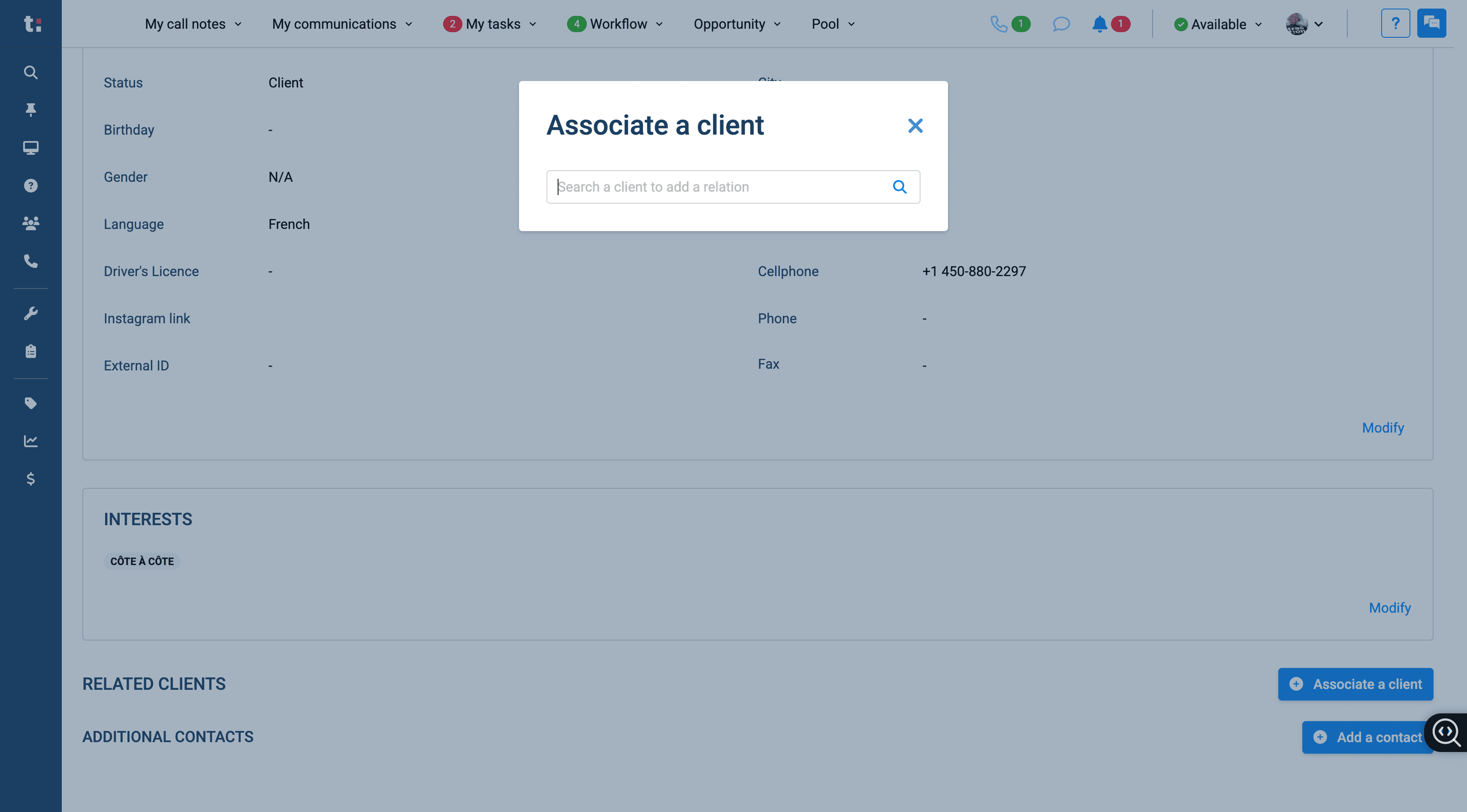
Write the number or name of the customer you want to associate