How to Automatically Manage Stock Quantities in Reservety for Maintenance and Future Procurements
Learn how to use Reservety to automatically manage your product stock quantities based on scheduled maintenance and future procurements. Prevent overbookings and keep your inventory accurate with step-by-step instructions.
In this guide, we'll learn how to manage stock quantities in Reservety by accounting for maintenance schedules and future procurements. This helps prevent overbooking and ensures your inventory reflects real-time availability.
Let's get started
Welcome back to Reservety tutorials. In this episode, we will show you how to automatically manage stock quantities based on maintenance and future procurements.
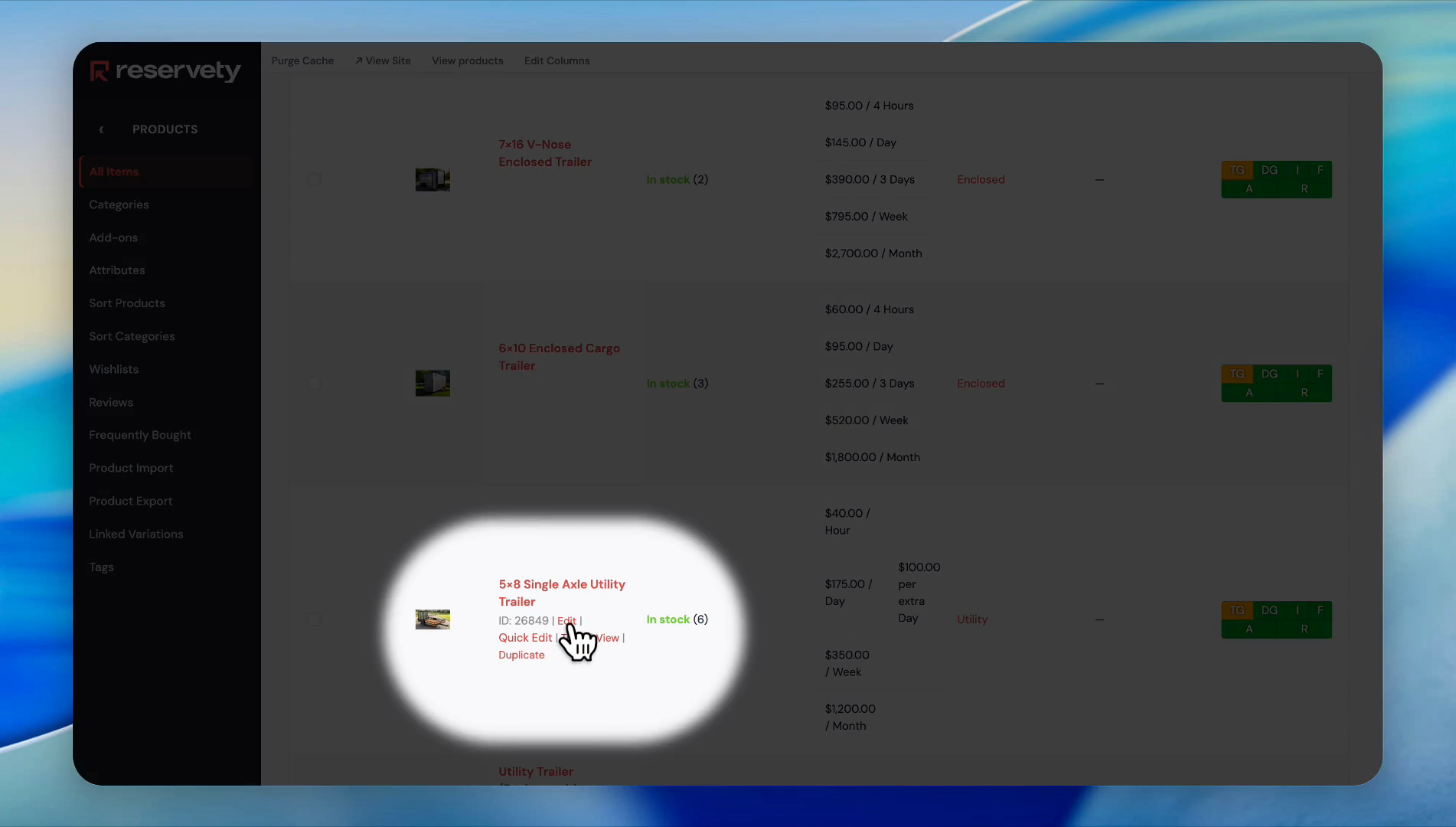
For example, we have six 5x8 single-axle utility trailers.
Suppose you want to remove two of them for maintenance next week.
We need to inform the system that we are removing two items to prevent overbookings.
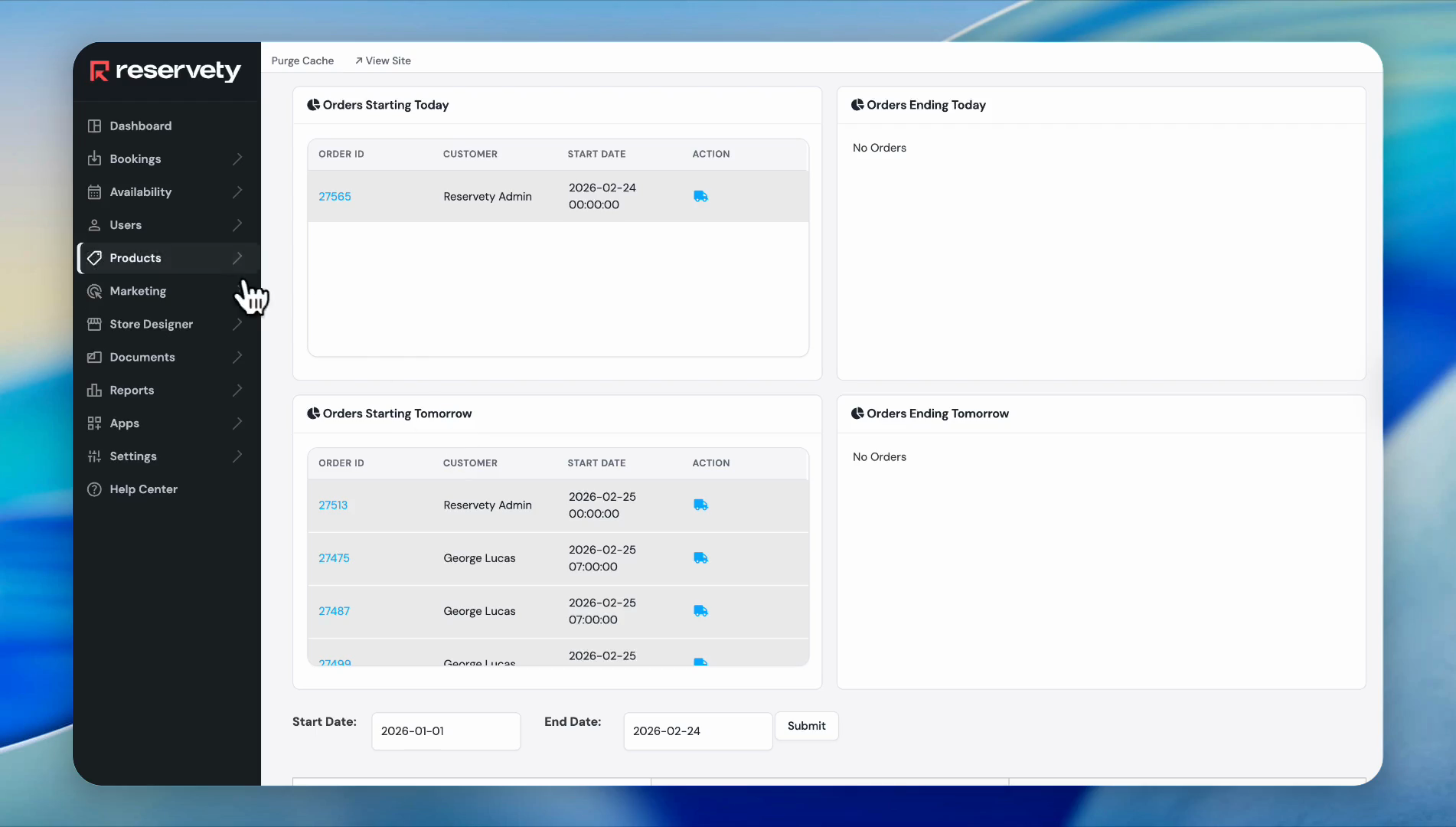
To do that, go to the dashboard.
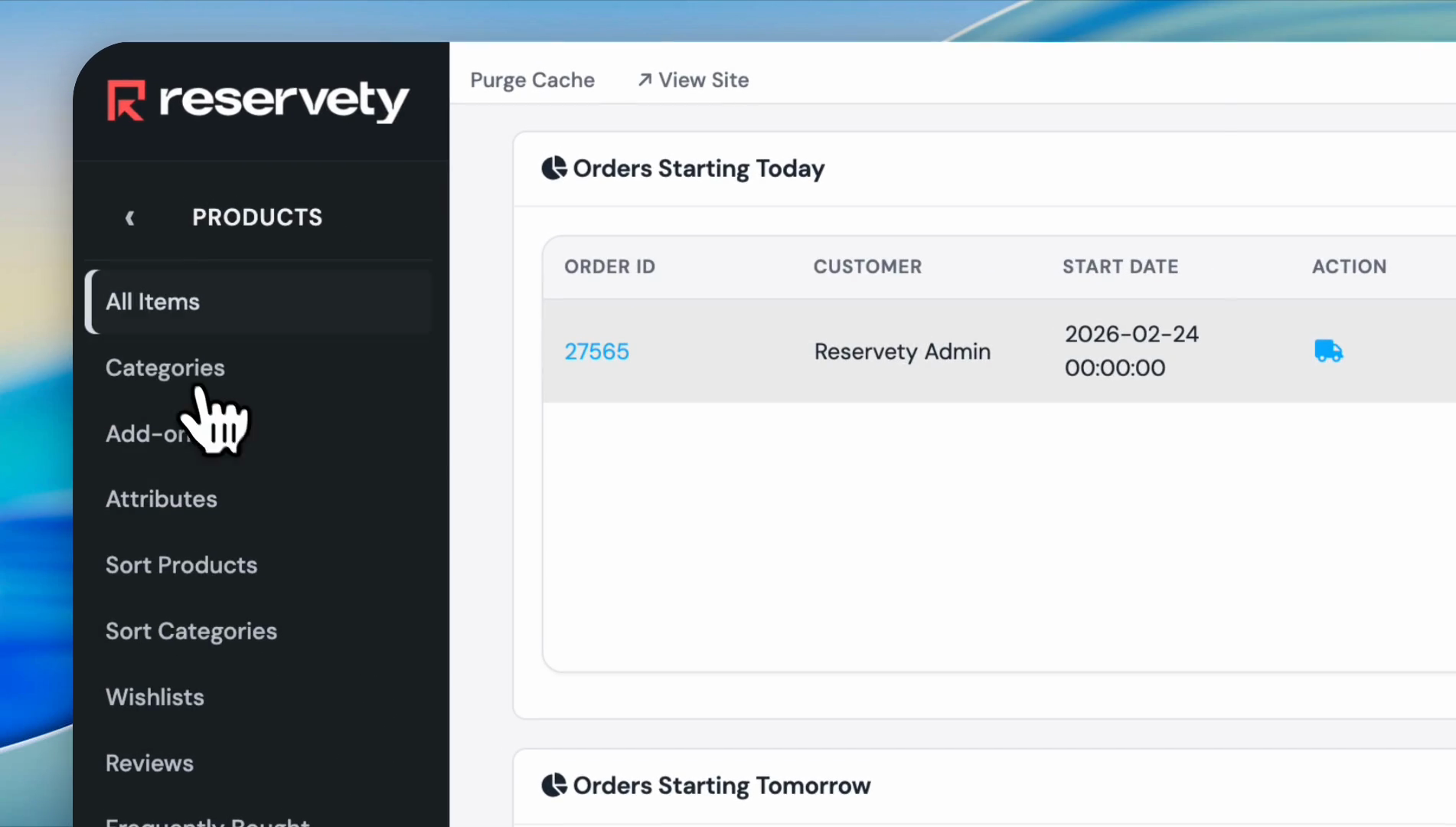
Click on "Products," then select "All Items."
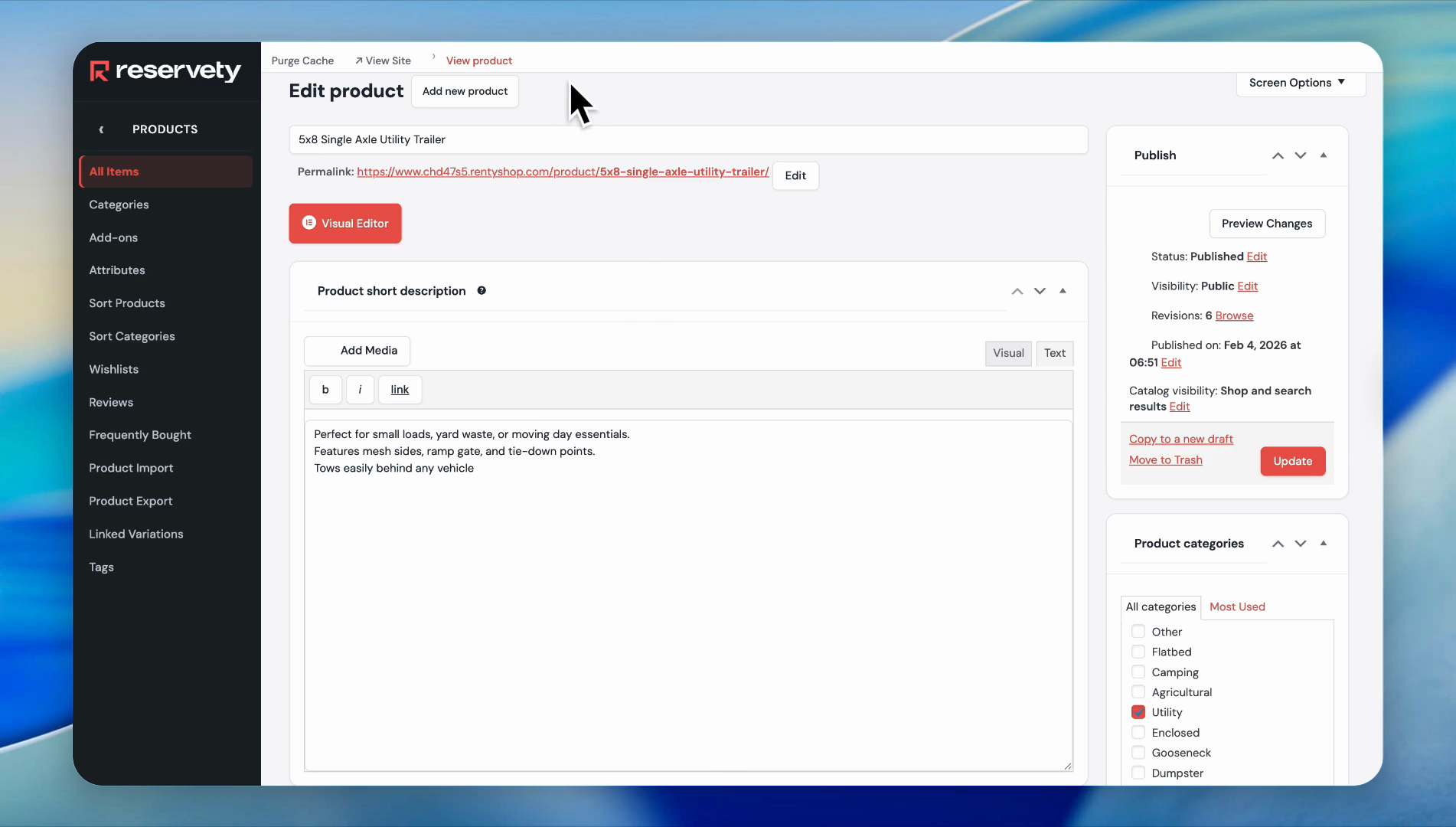
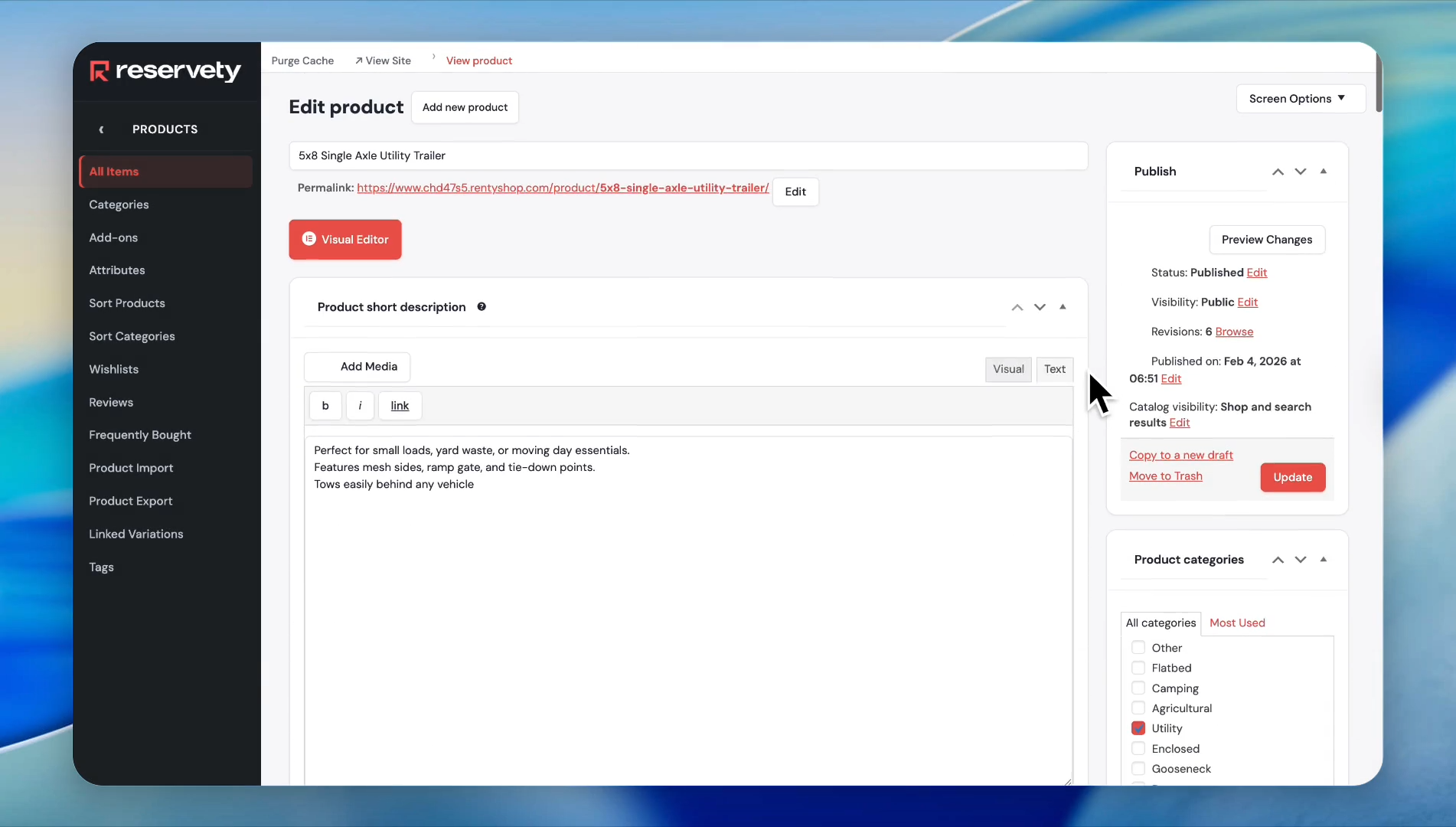
Find the 5x8 single-axle utility trailer, and click "Edit"
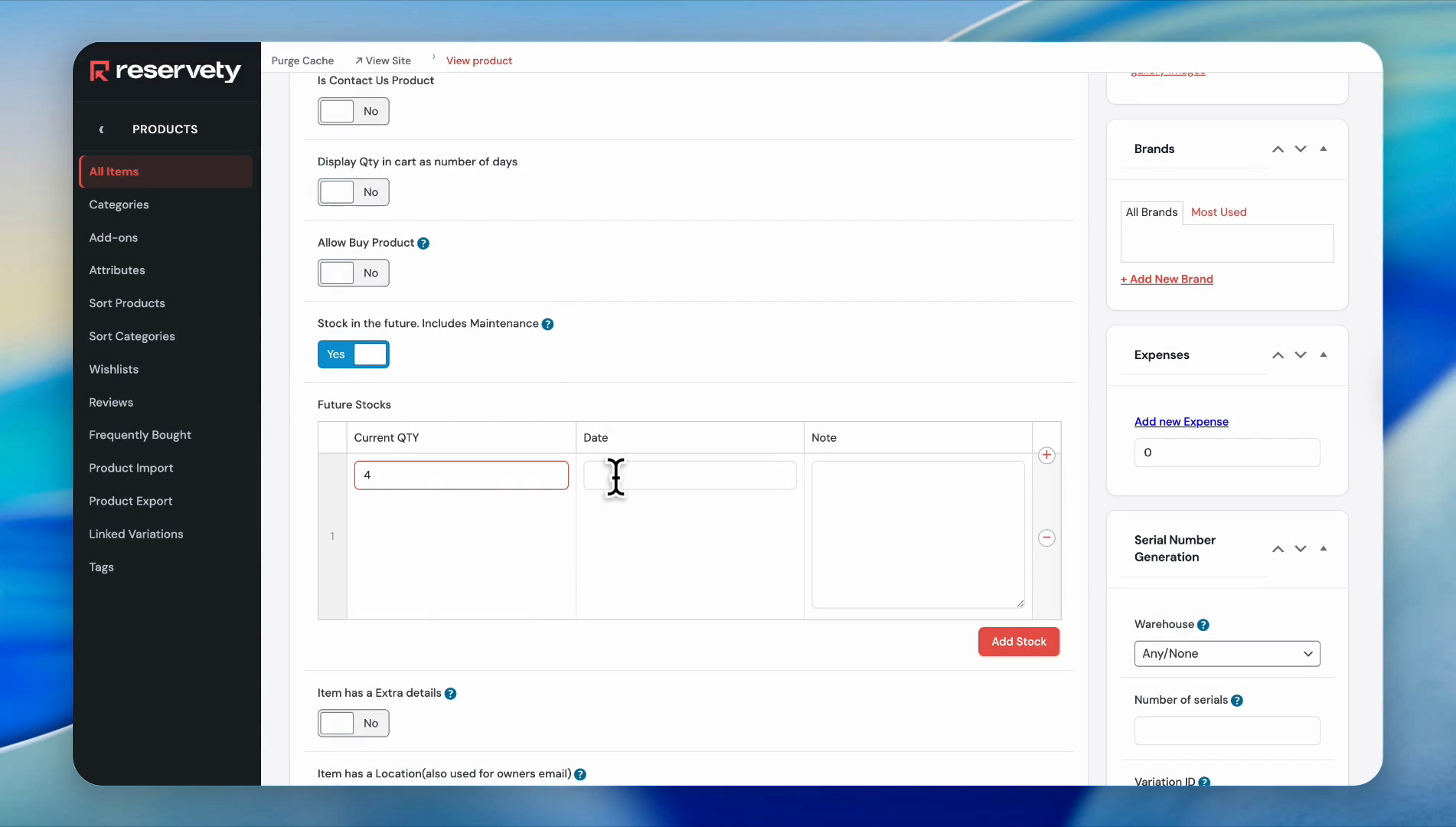
Our stock quantity will be four starting next week.
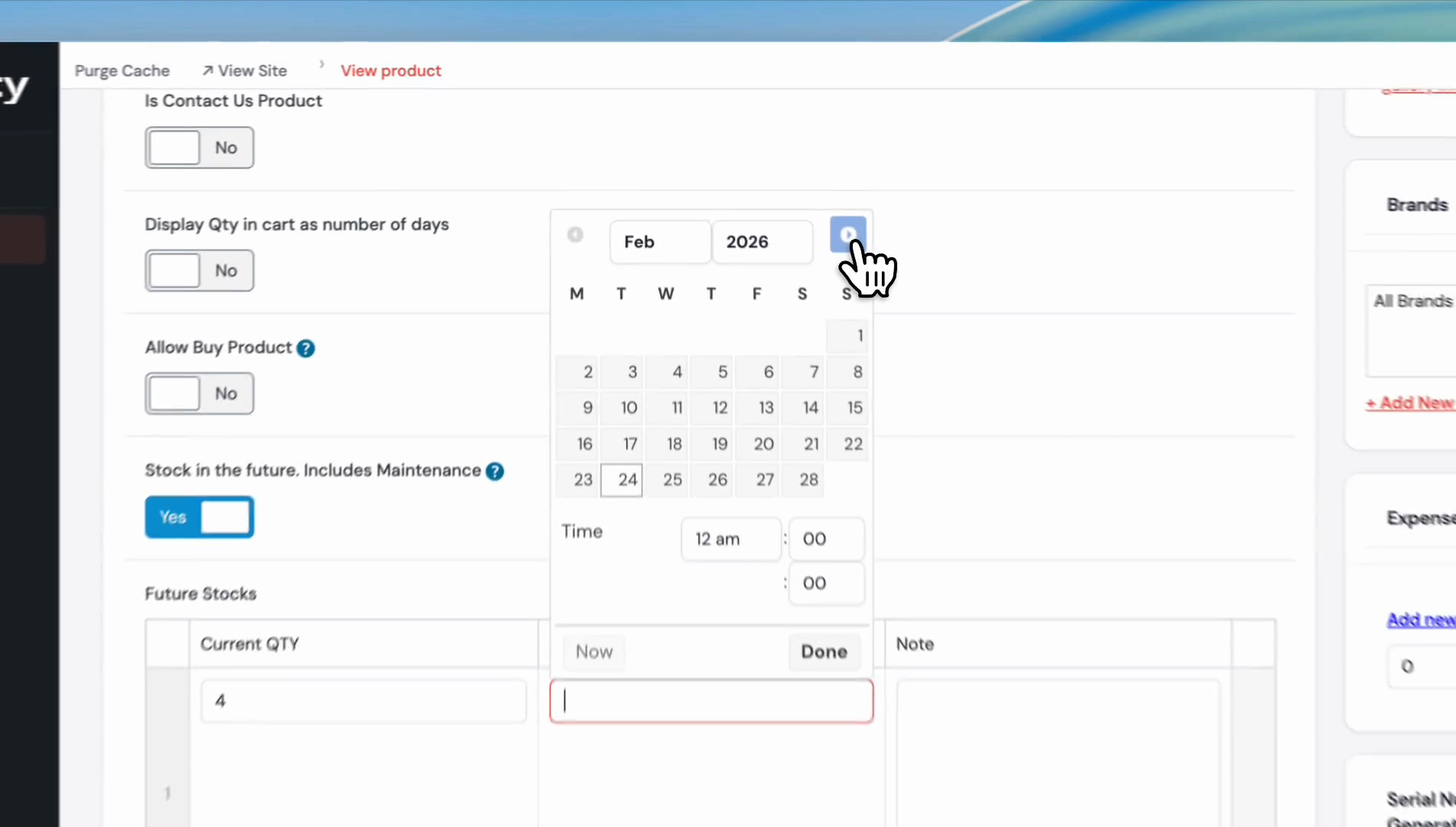
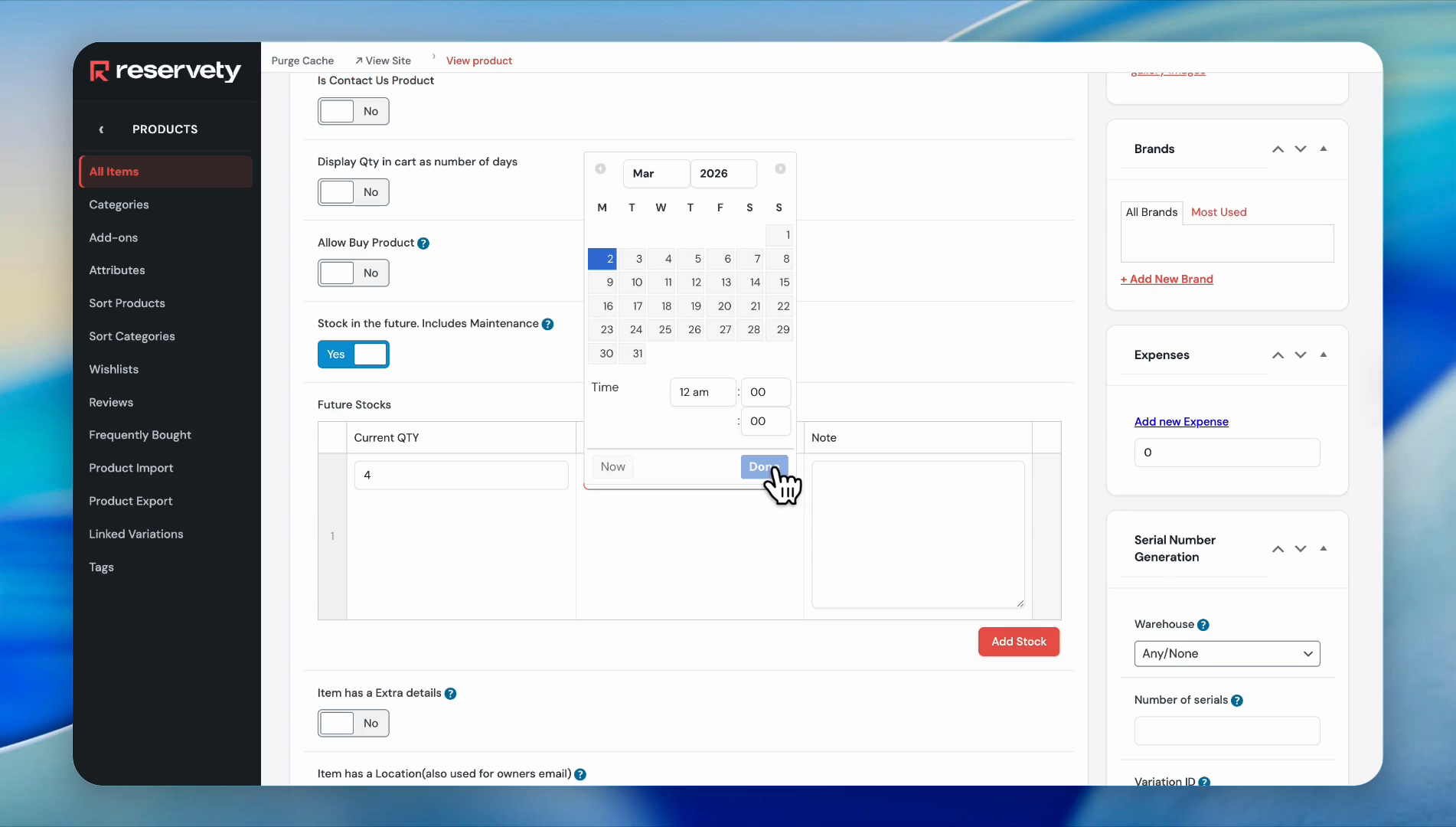
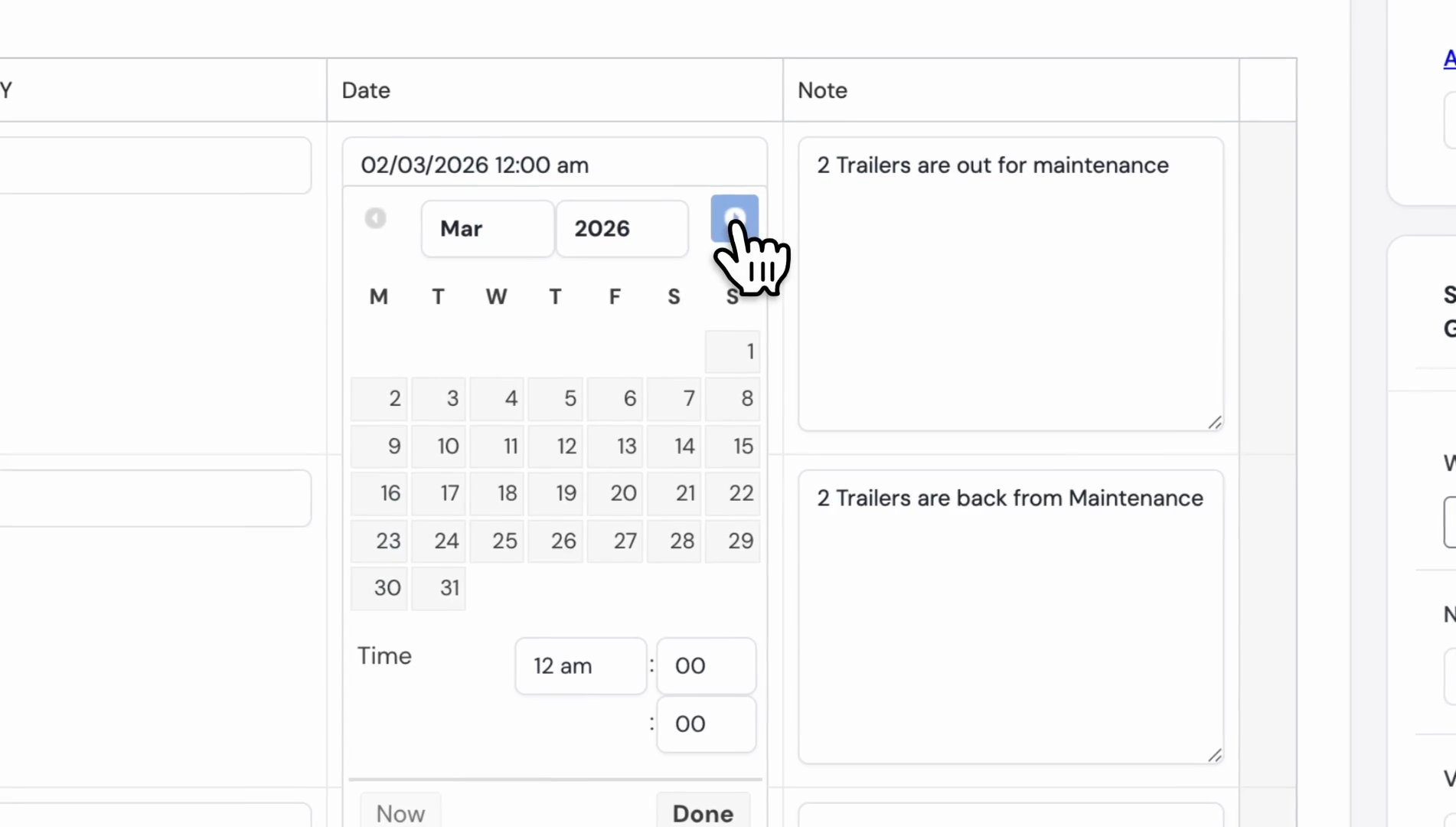
Go ahead and enter four, then select a date.
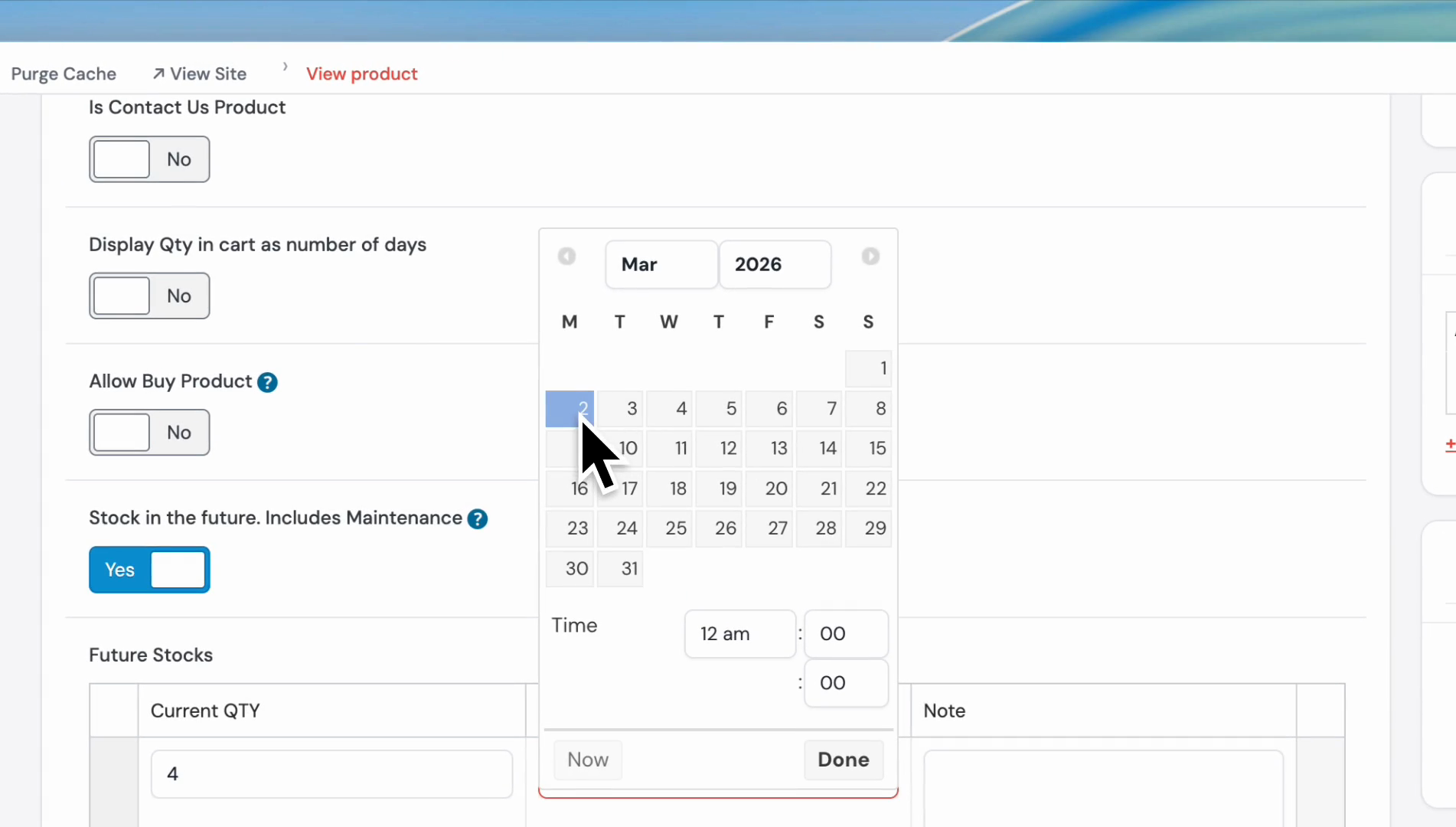
We will select next week, which is March 2nd.
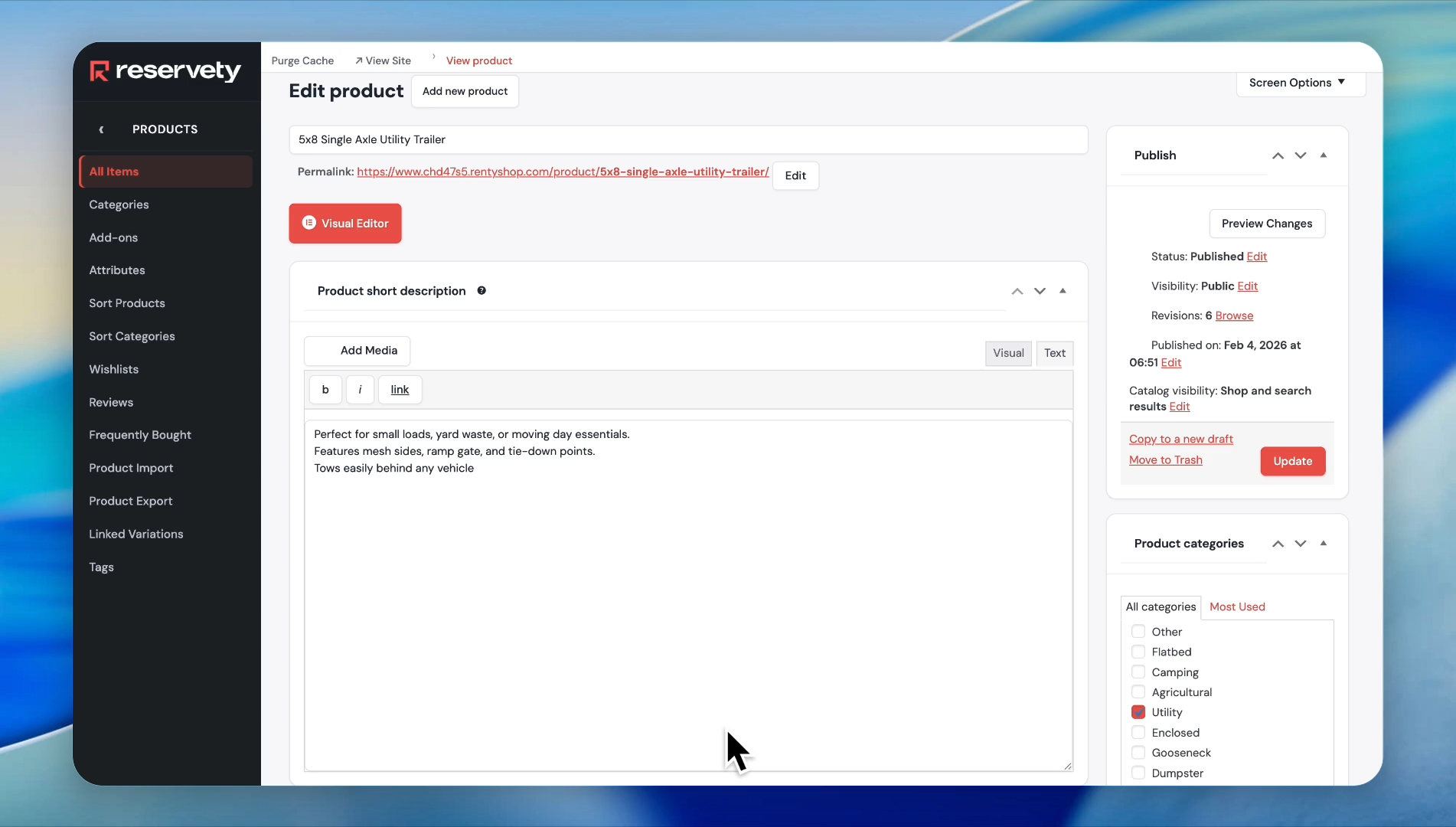
Now let's check if our settings worked.
Go to the product page.
On this product page, we will place two test orders: one for this week and another for next week.
We currently have six utility trailers.
Let's create a test order for this week.
Click the calendar icon.
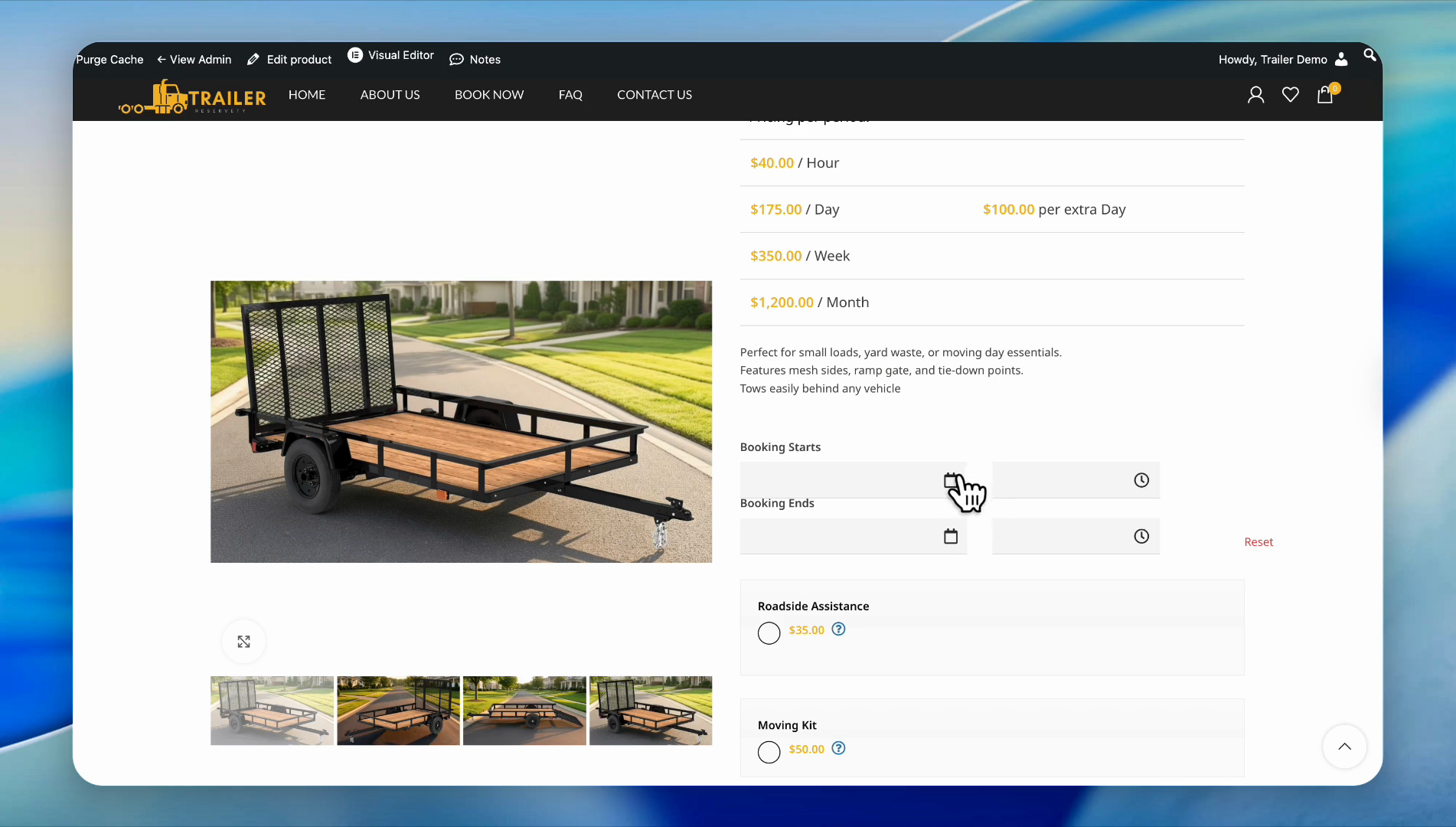
We will set the start time to 7:00 AM on the 24th and the end time to 4:00 PM on the 28th. Set the quantity to six.
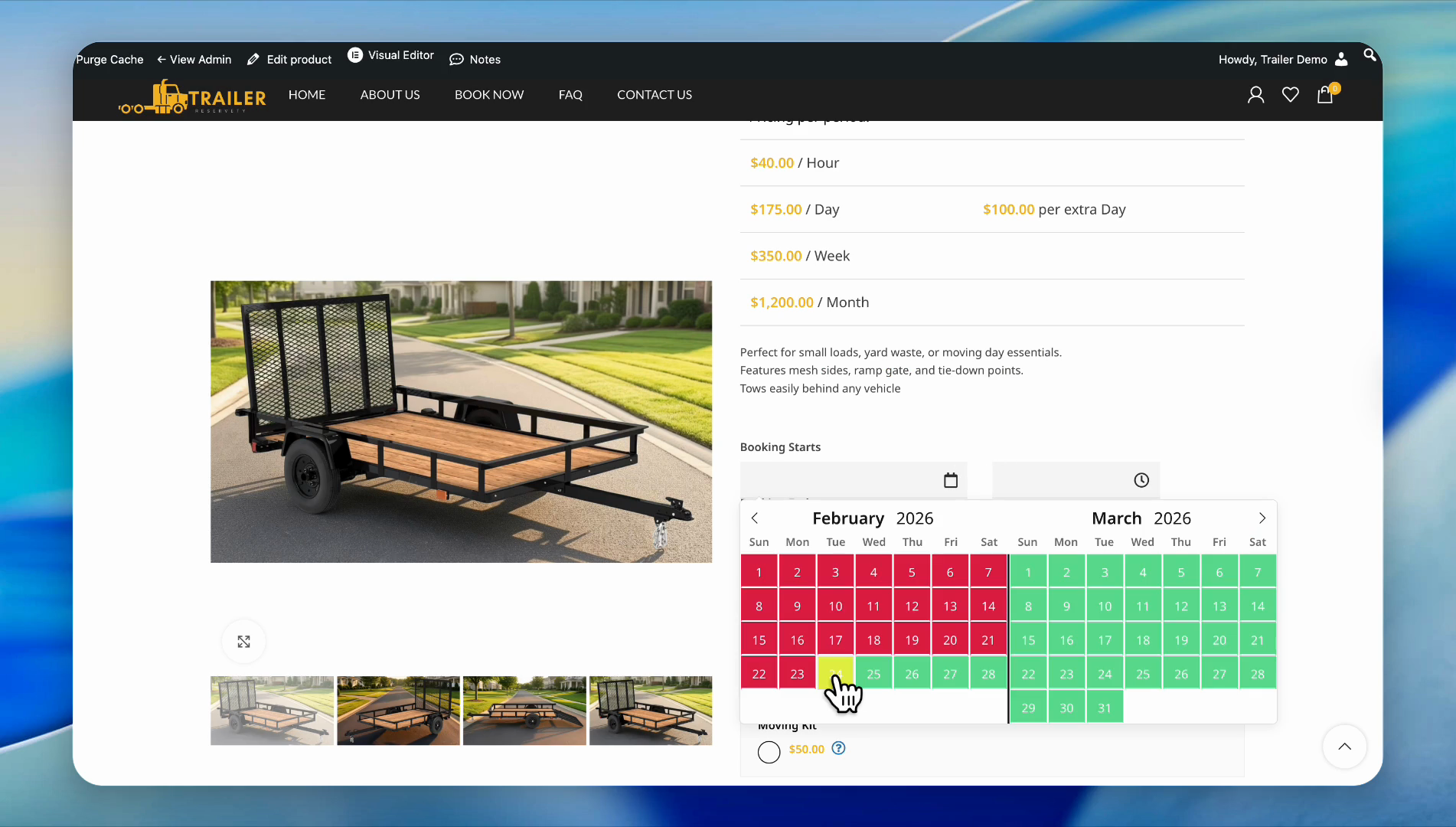
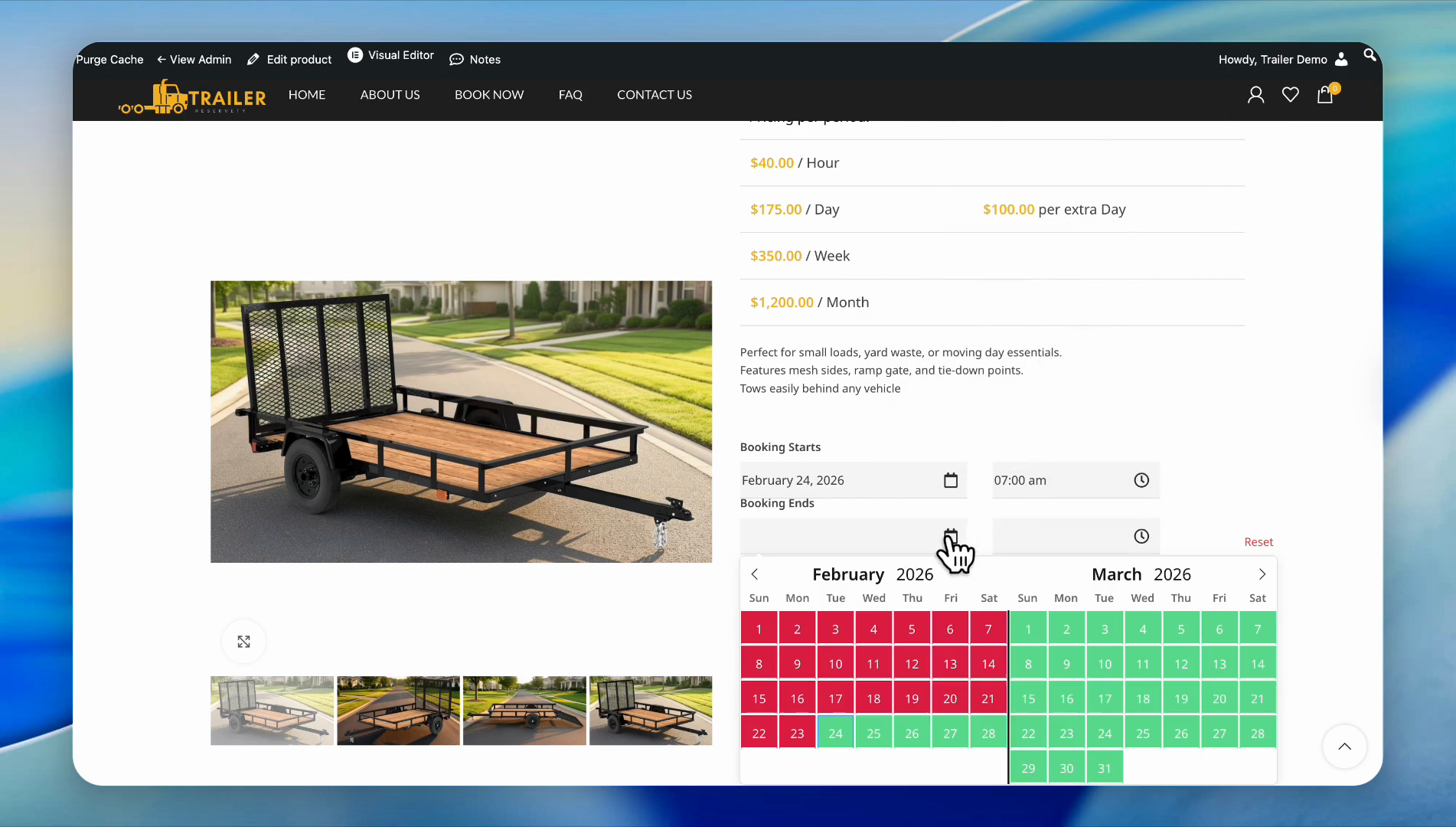
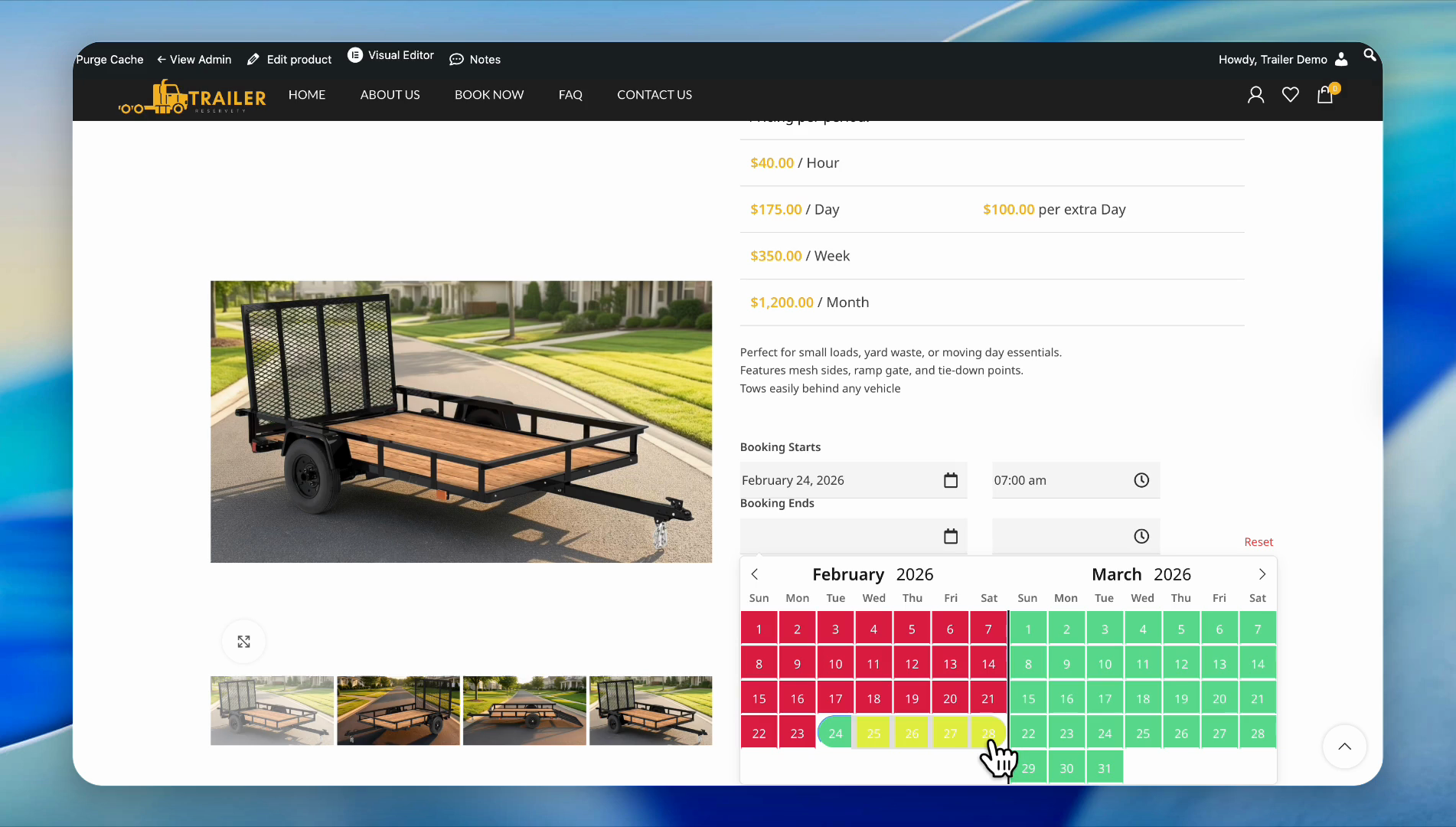
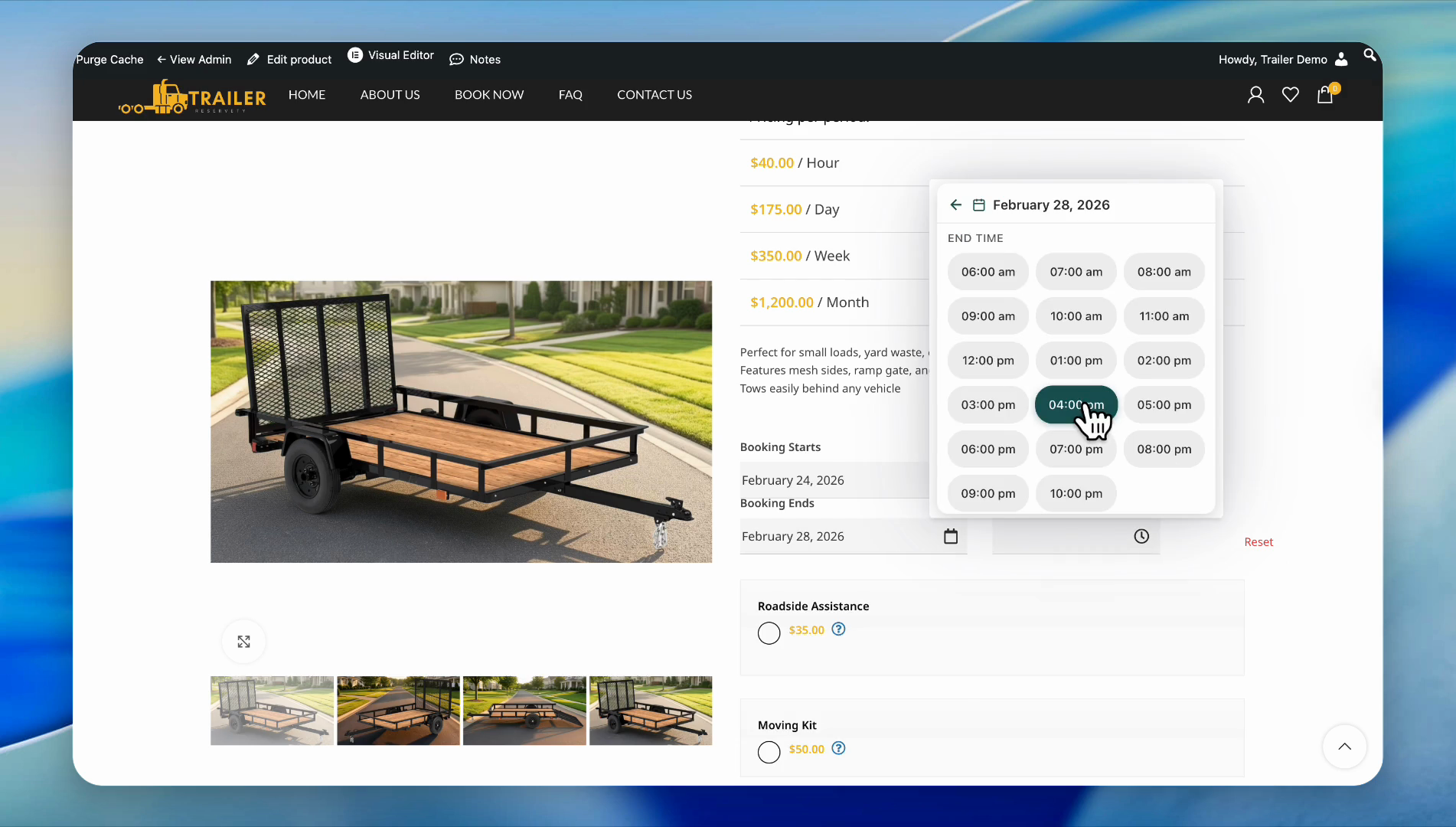
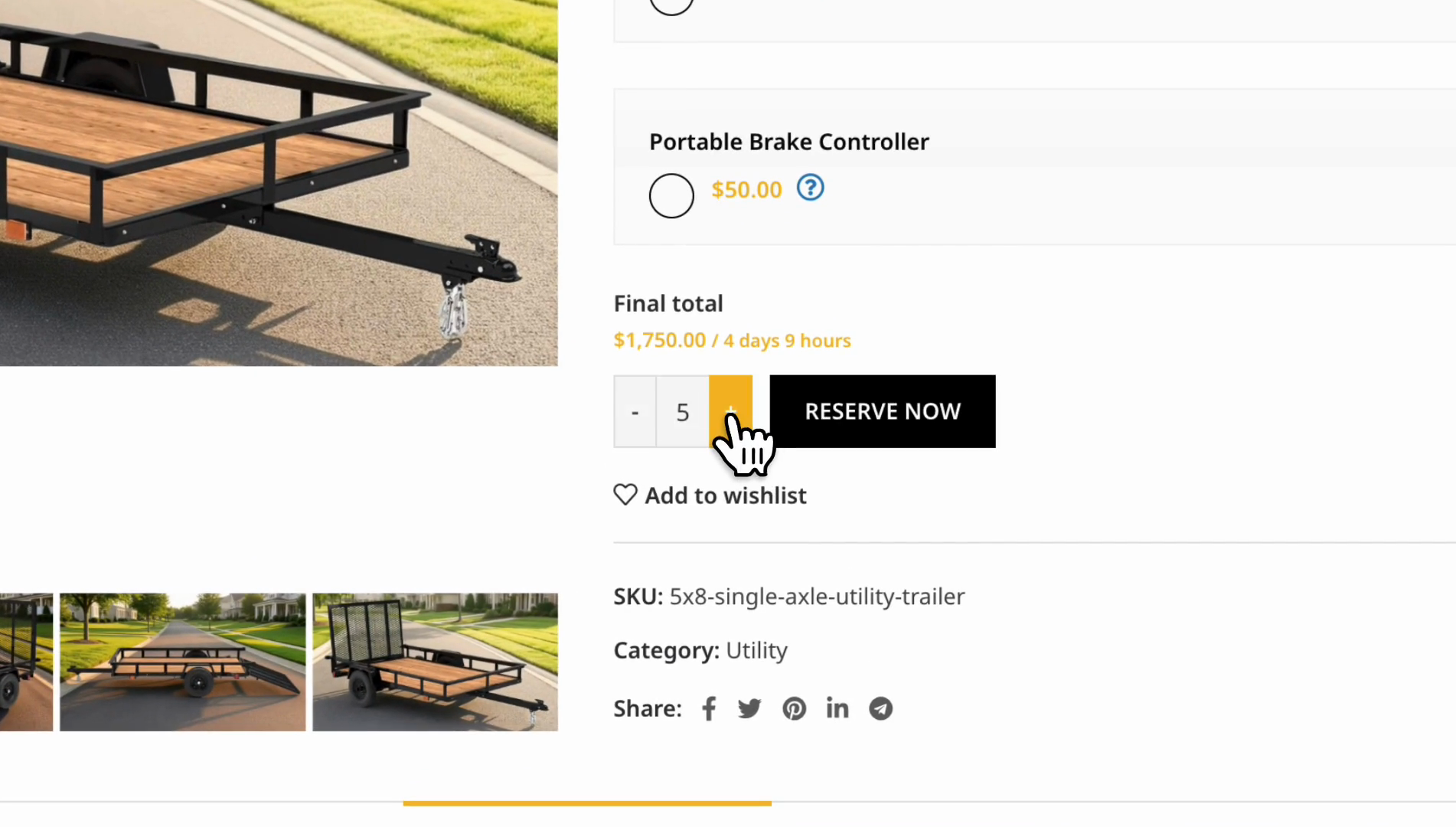
The system allows us to book six of these trailers this week.
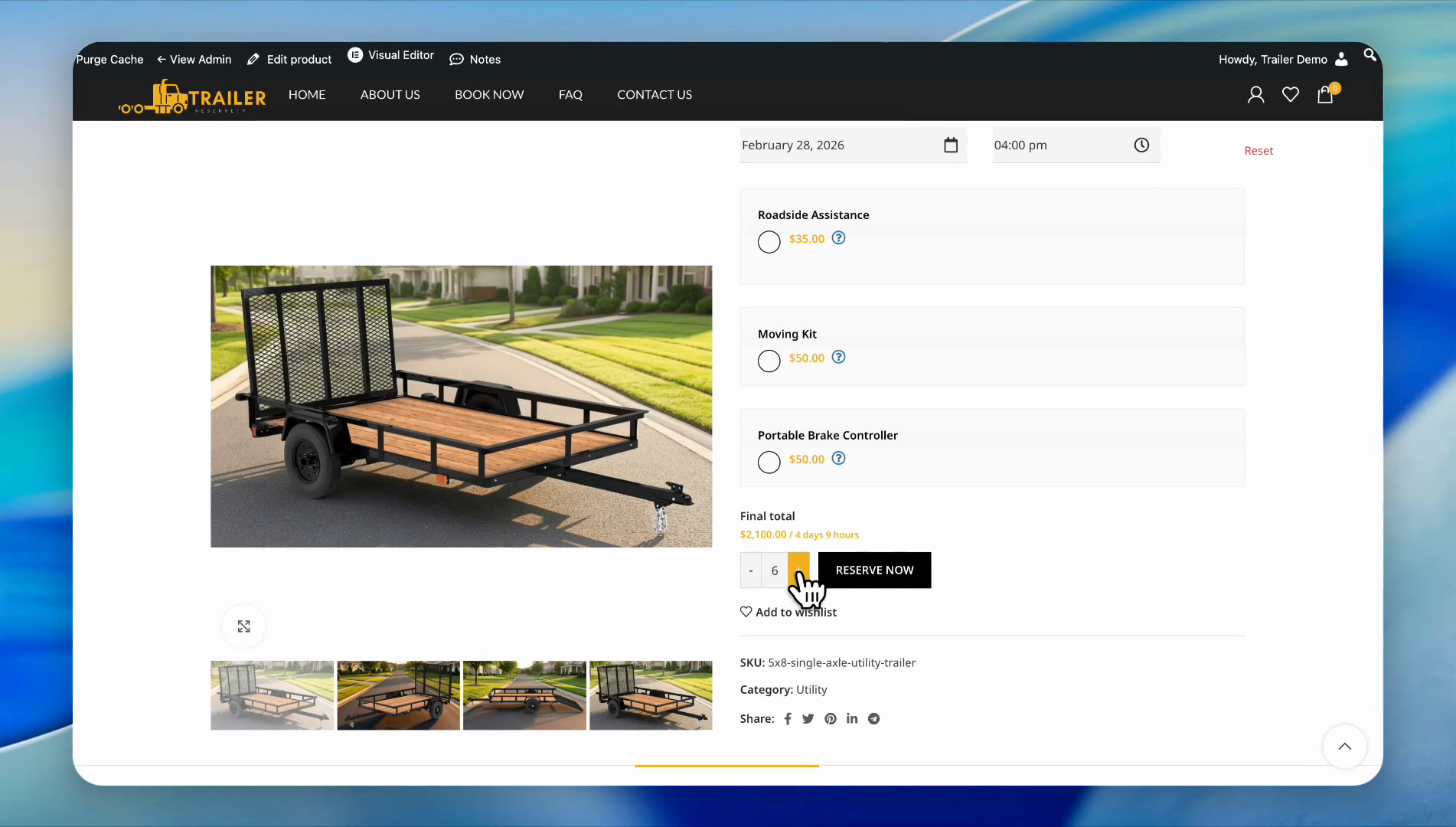
Now let's book the same quantity for next week.
Click the calendar icon here.
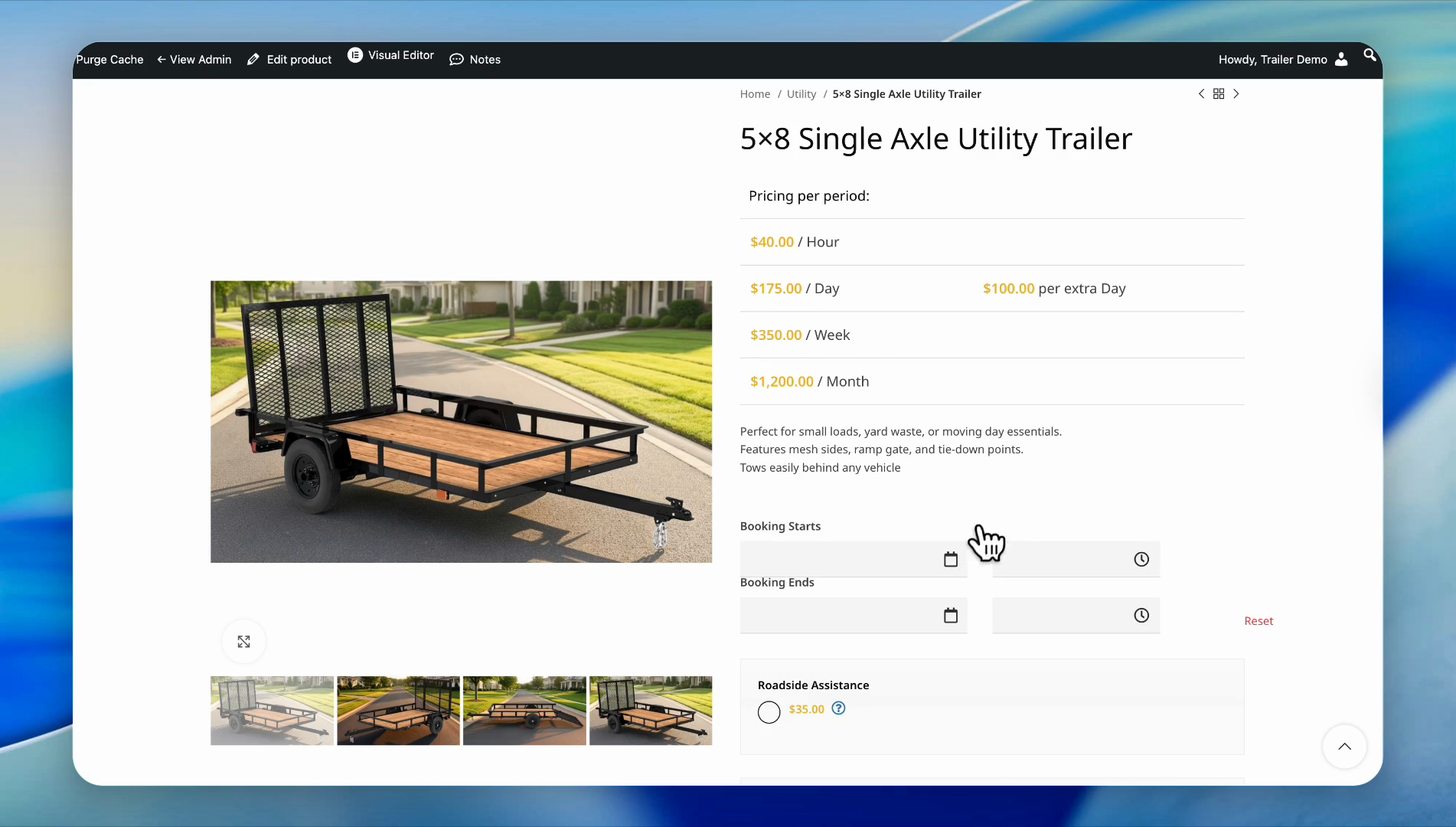
Let's say Monday next week, March 2nd.
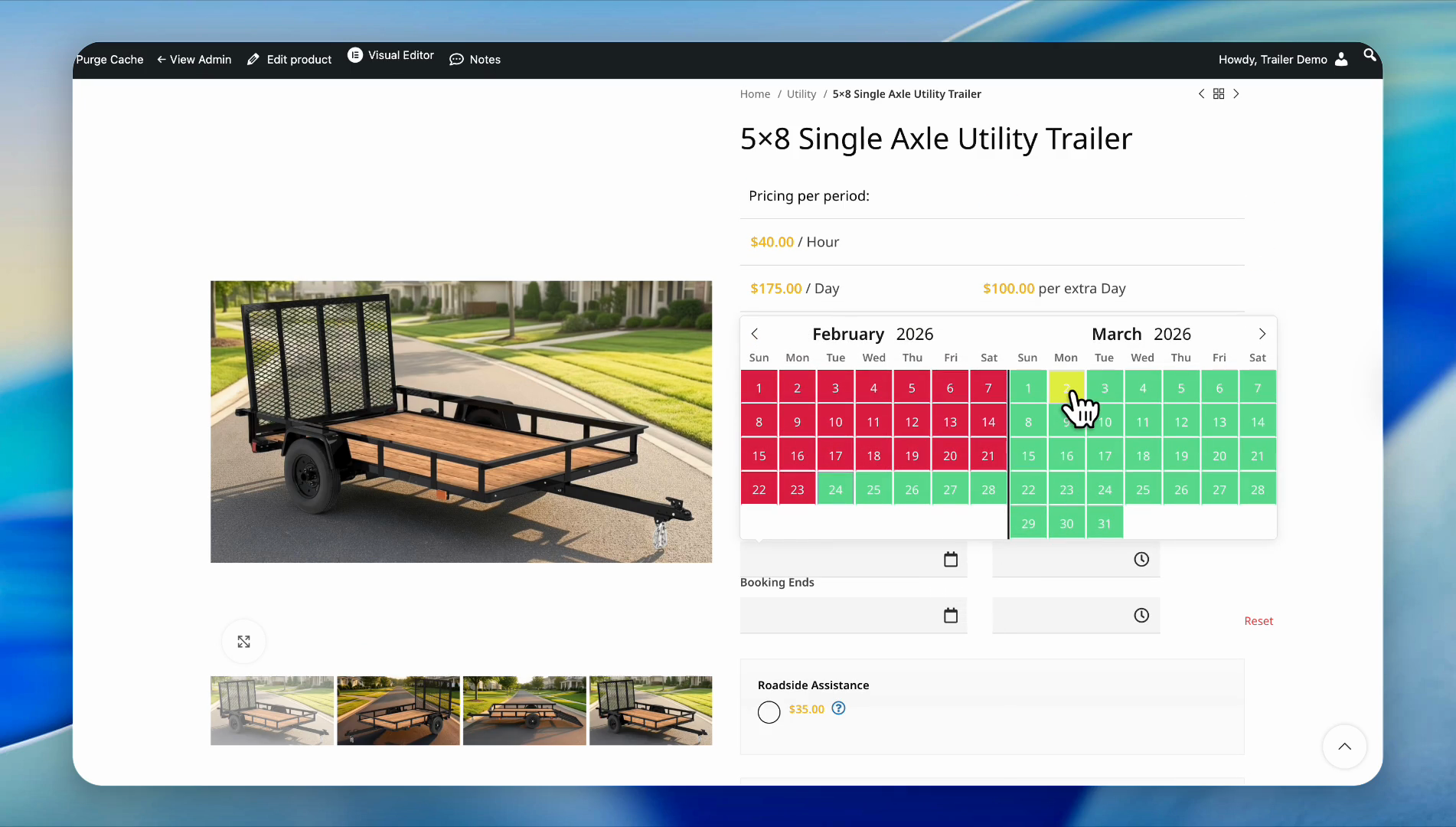
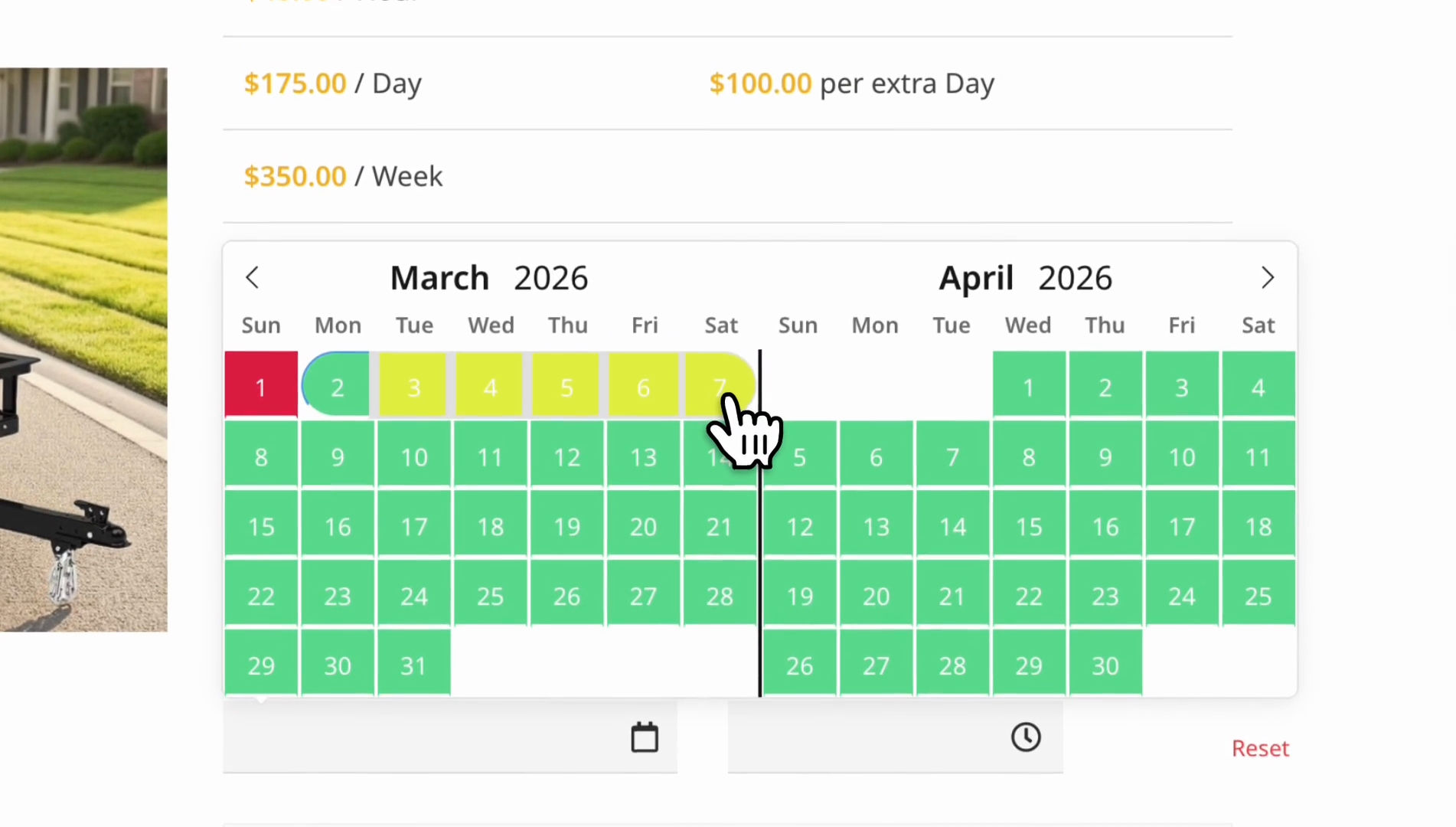
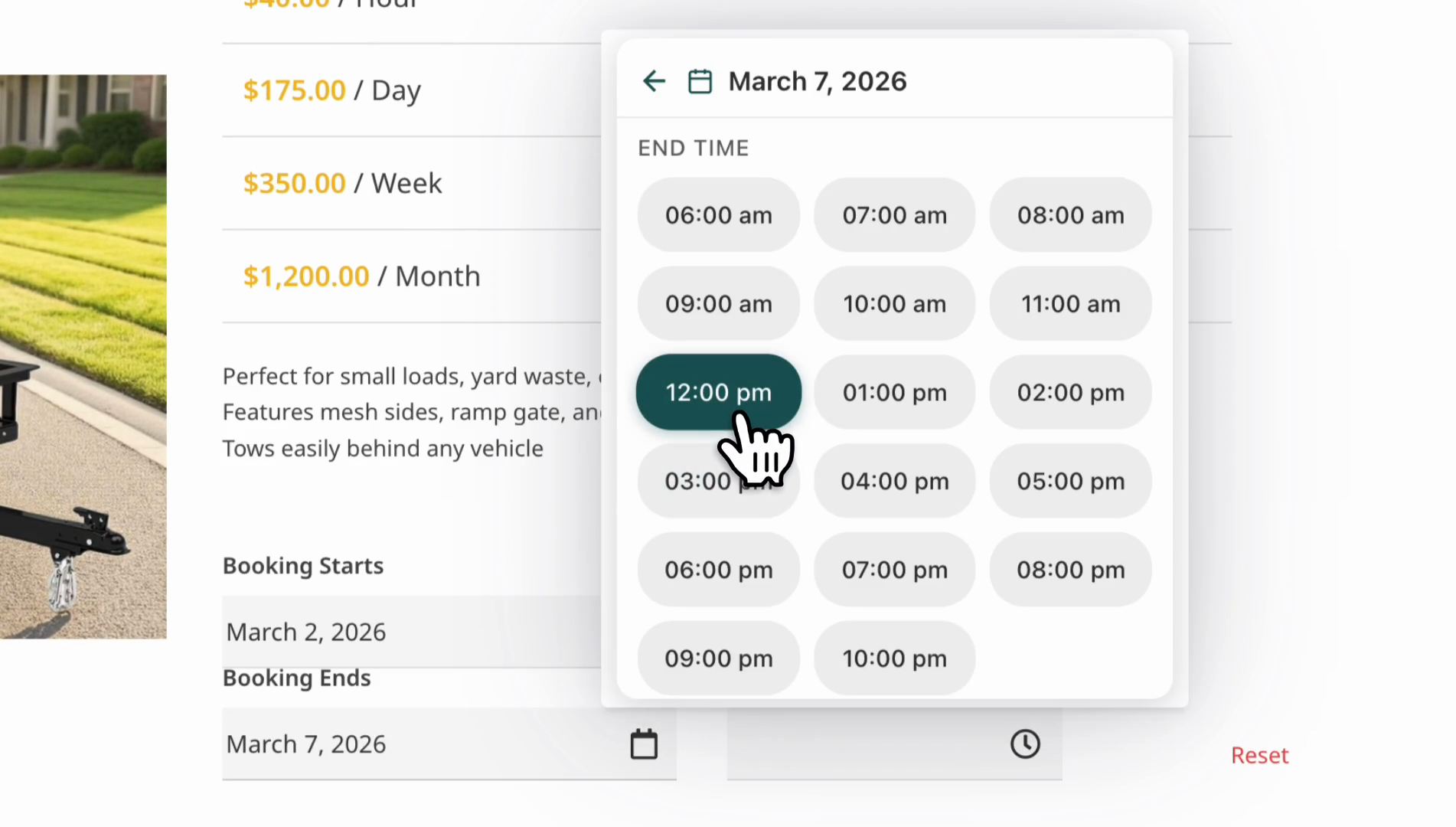
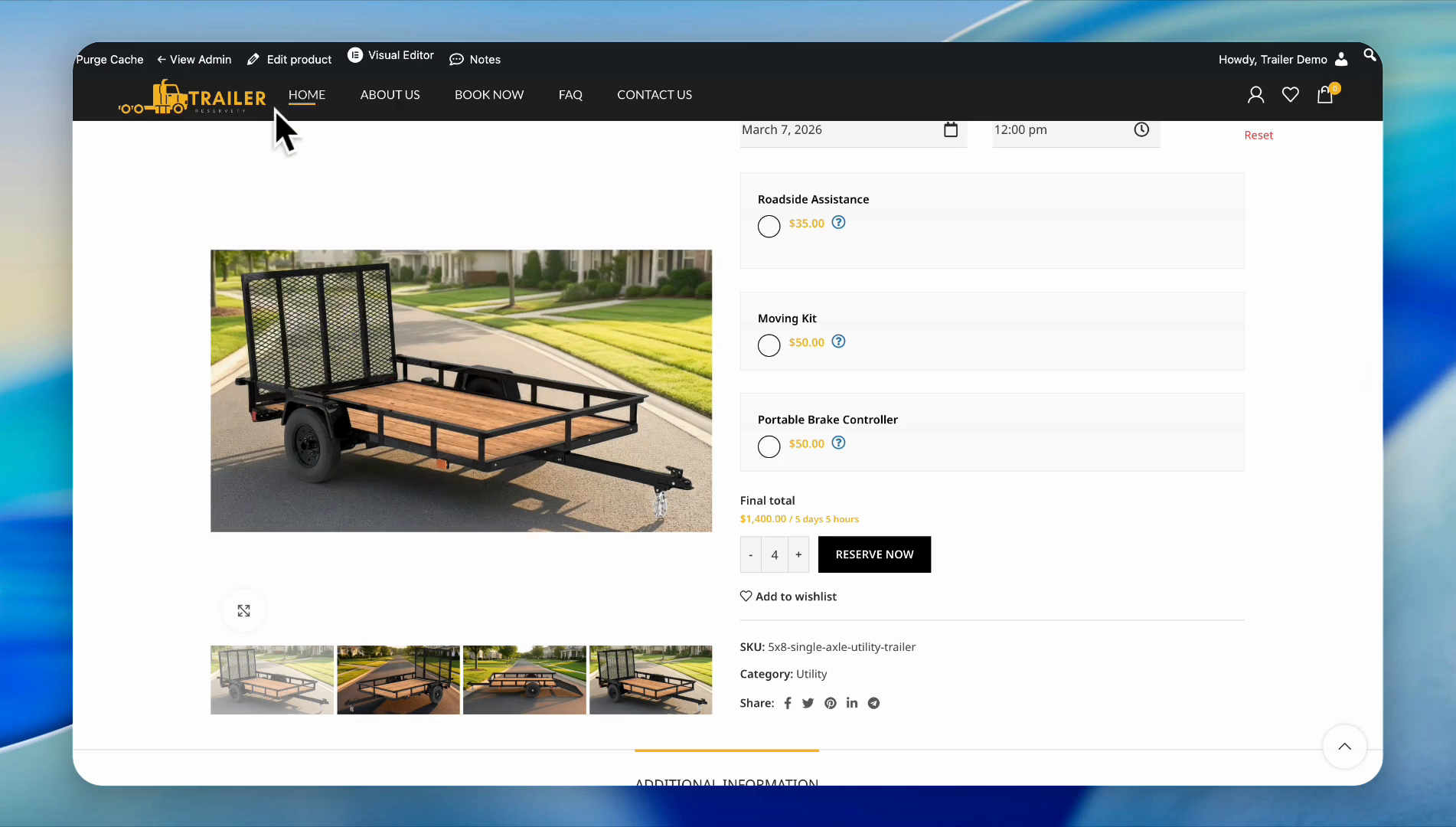
Now let's increase the quantity.
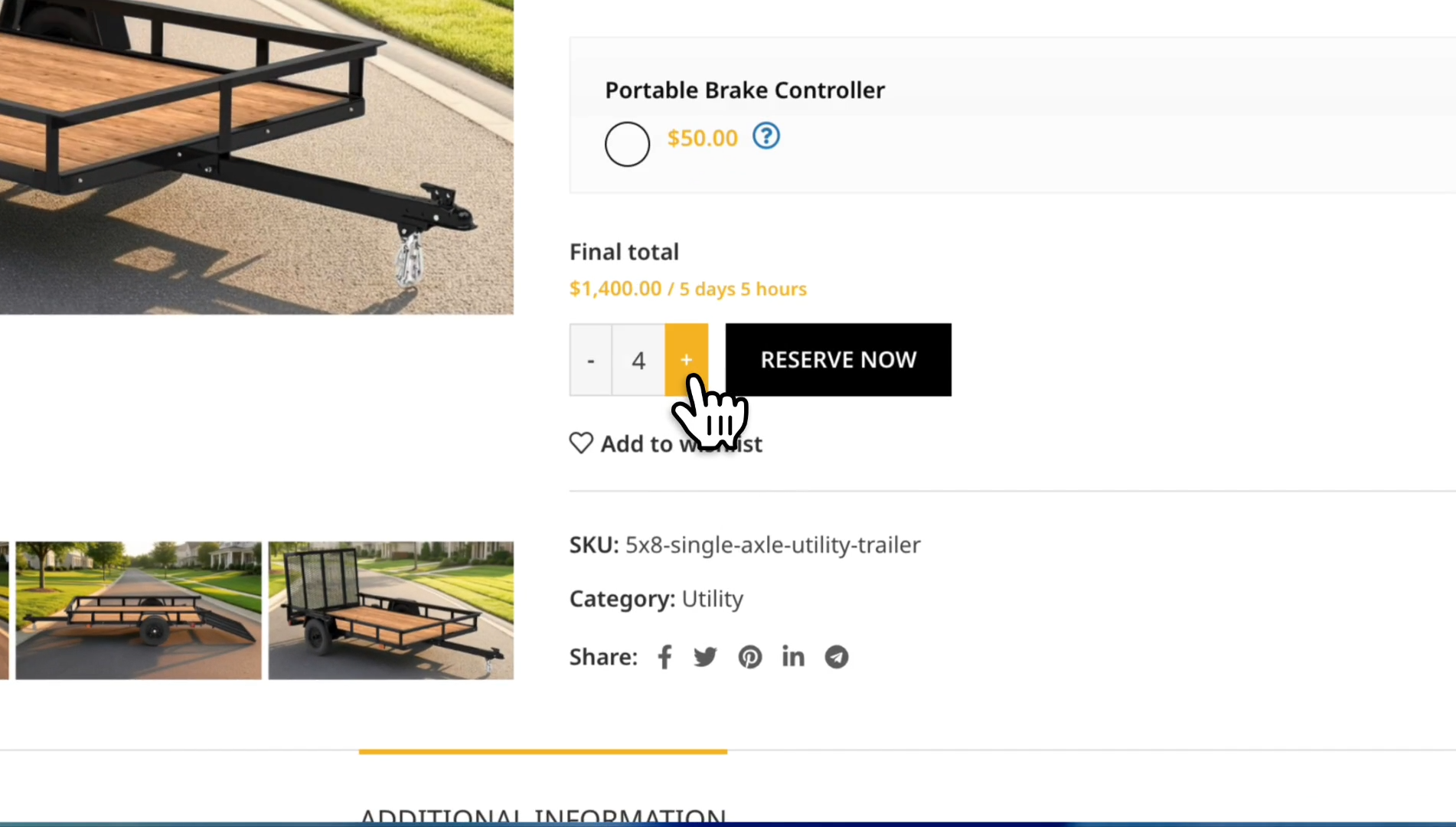
The system only allows us to book up to four trailers because two are scheduled for maintenance.
The question is, how can we restock those two trailers in two weeks?
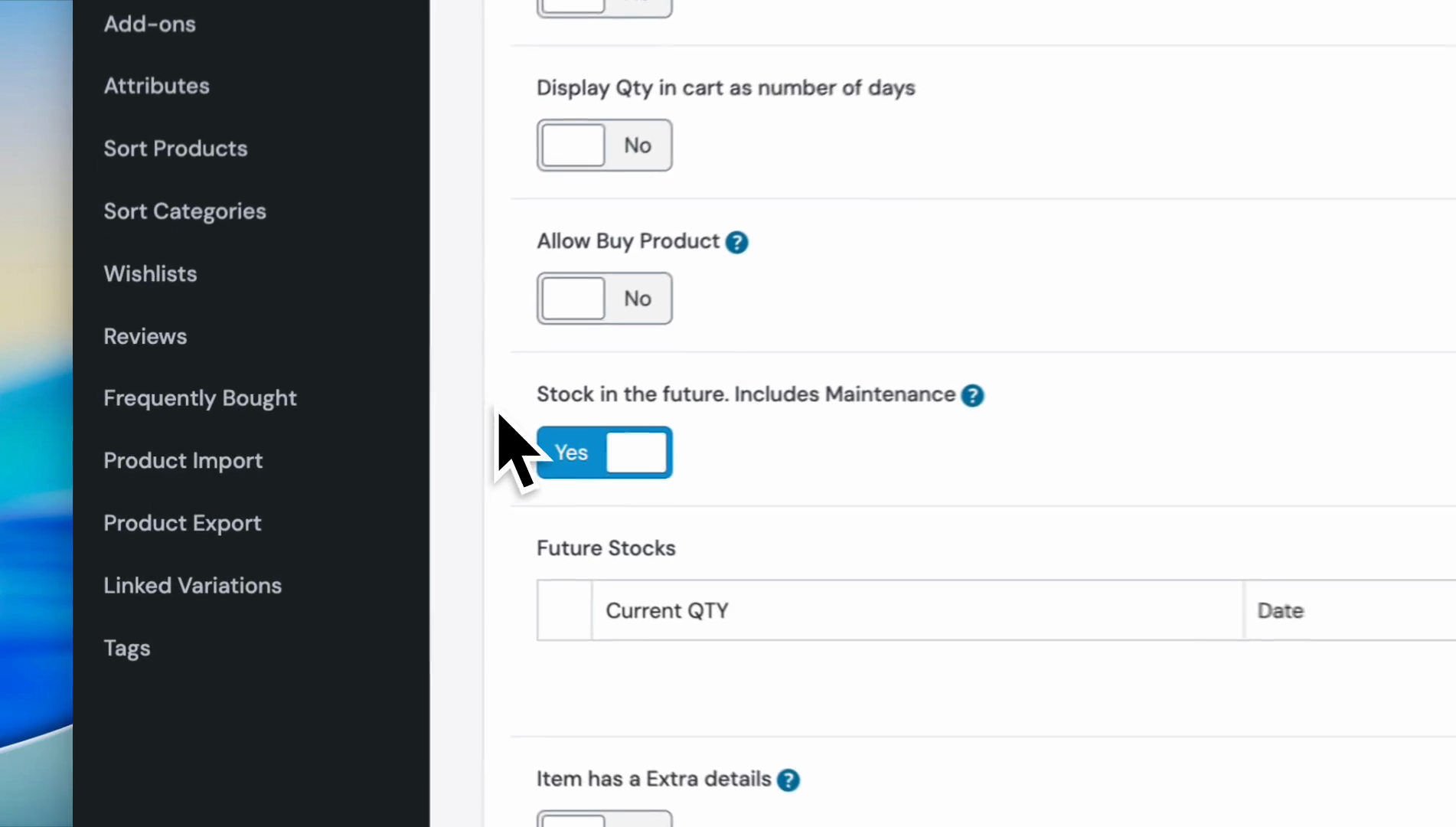
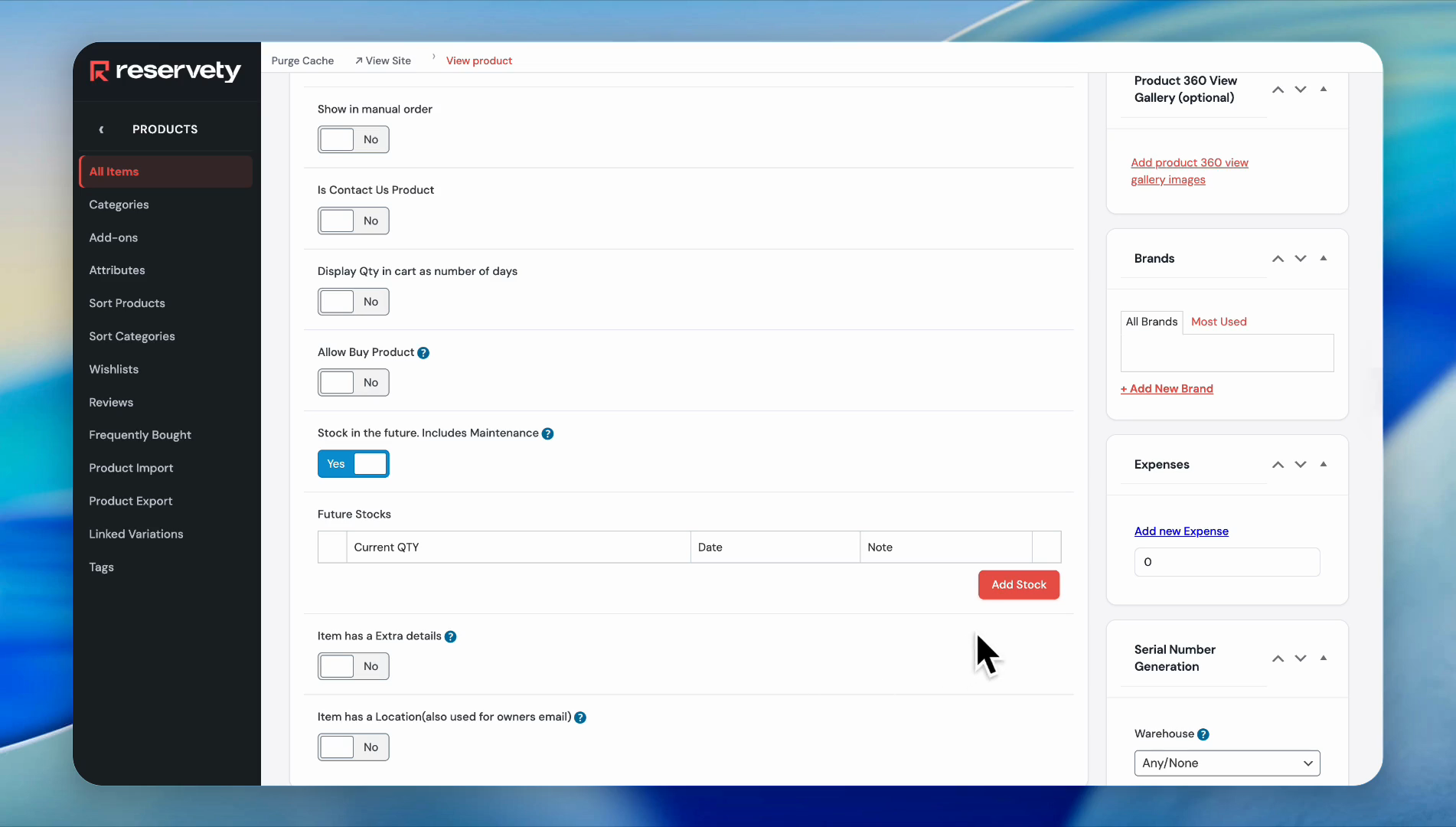
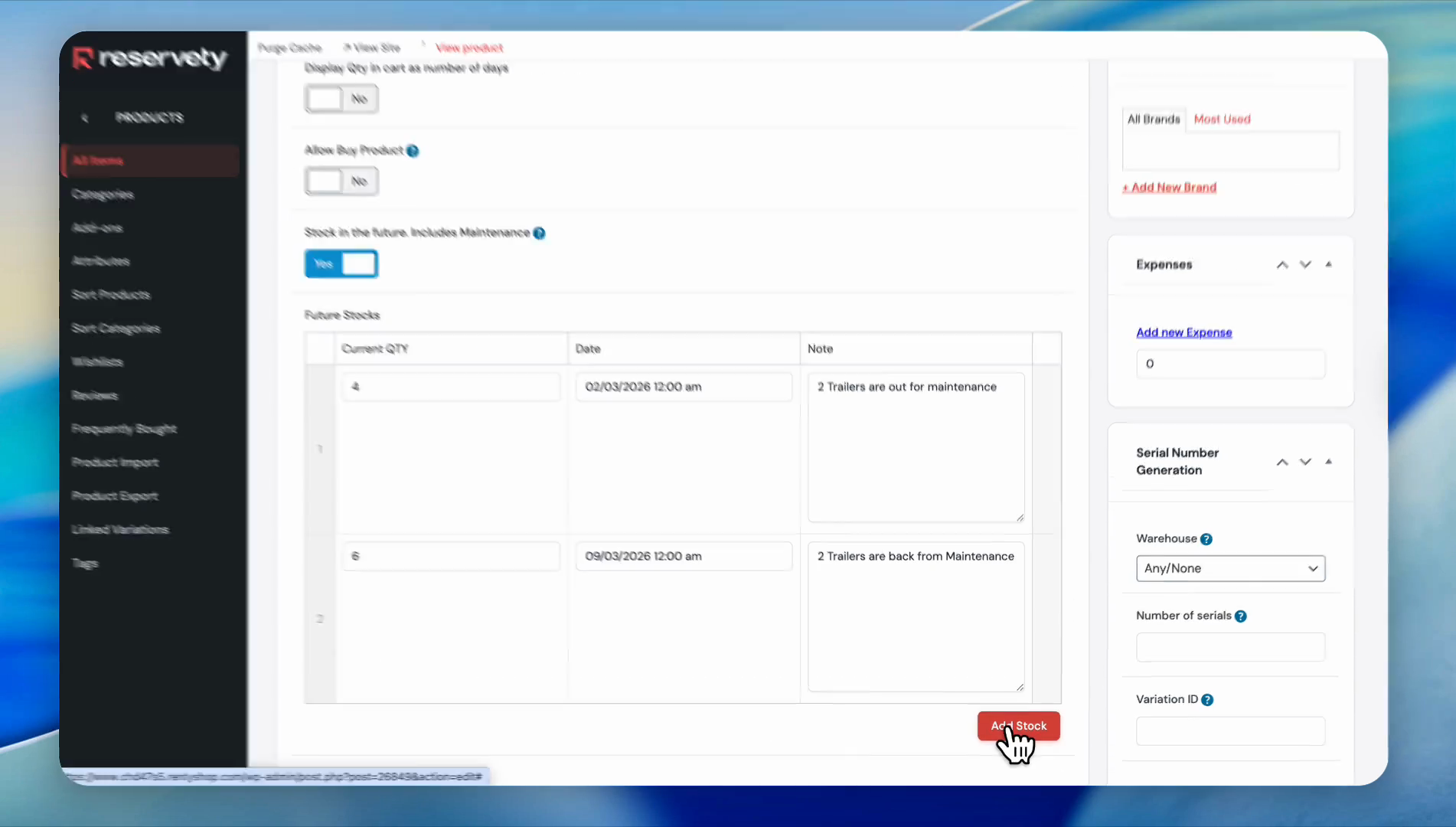
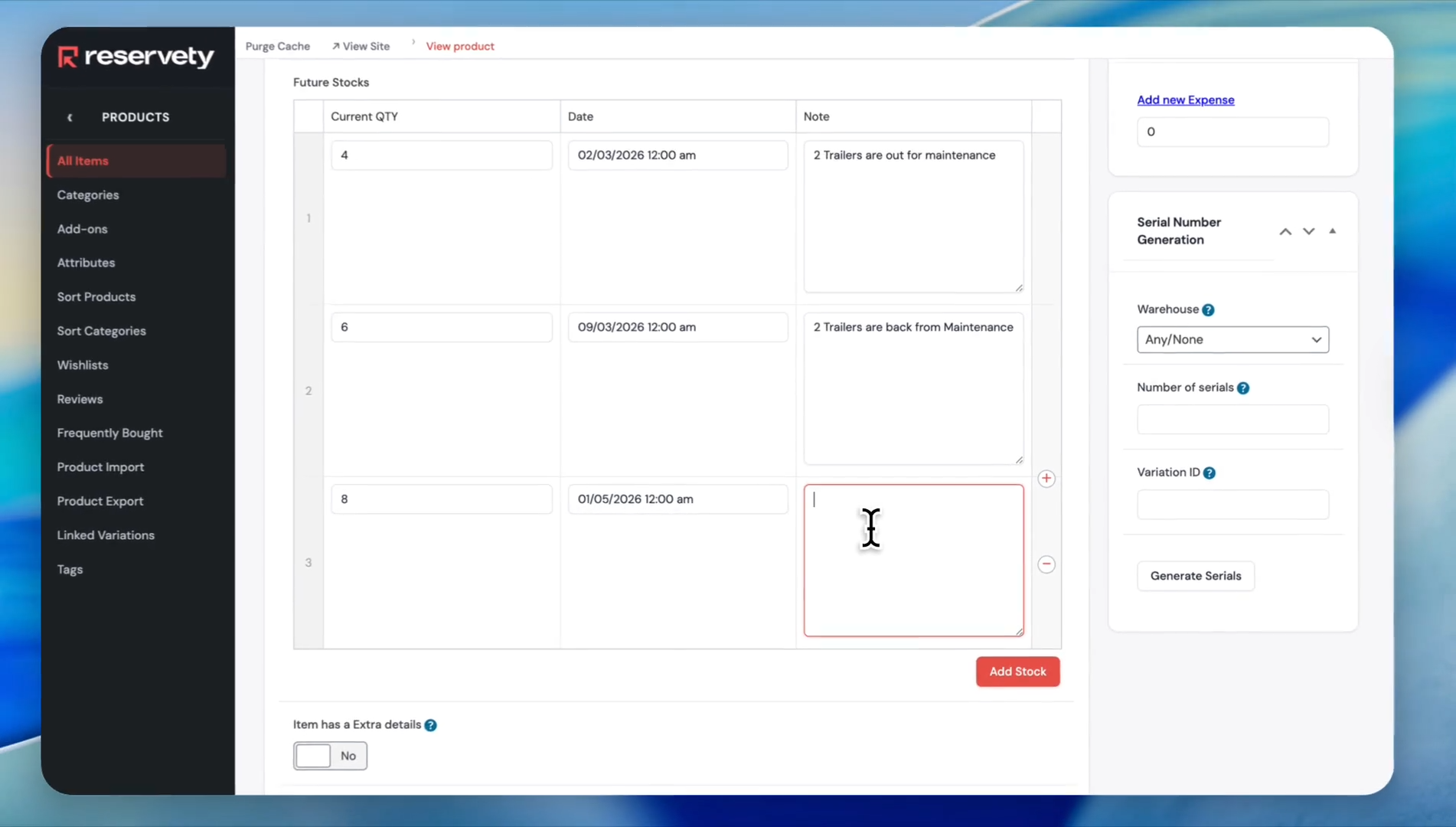
Go back to the dashboard or click "Edit Product." Scroll down and find the section labeled "Stock in the Future."
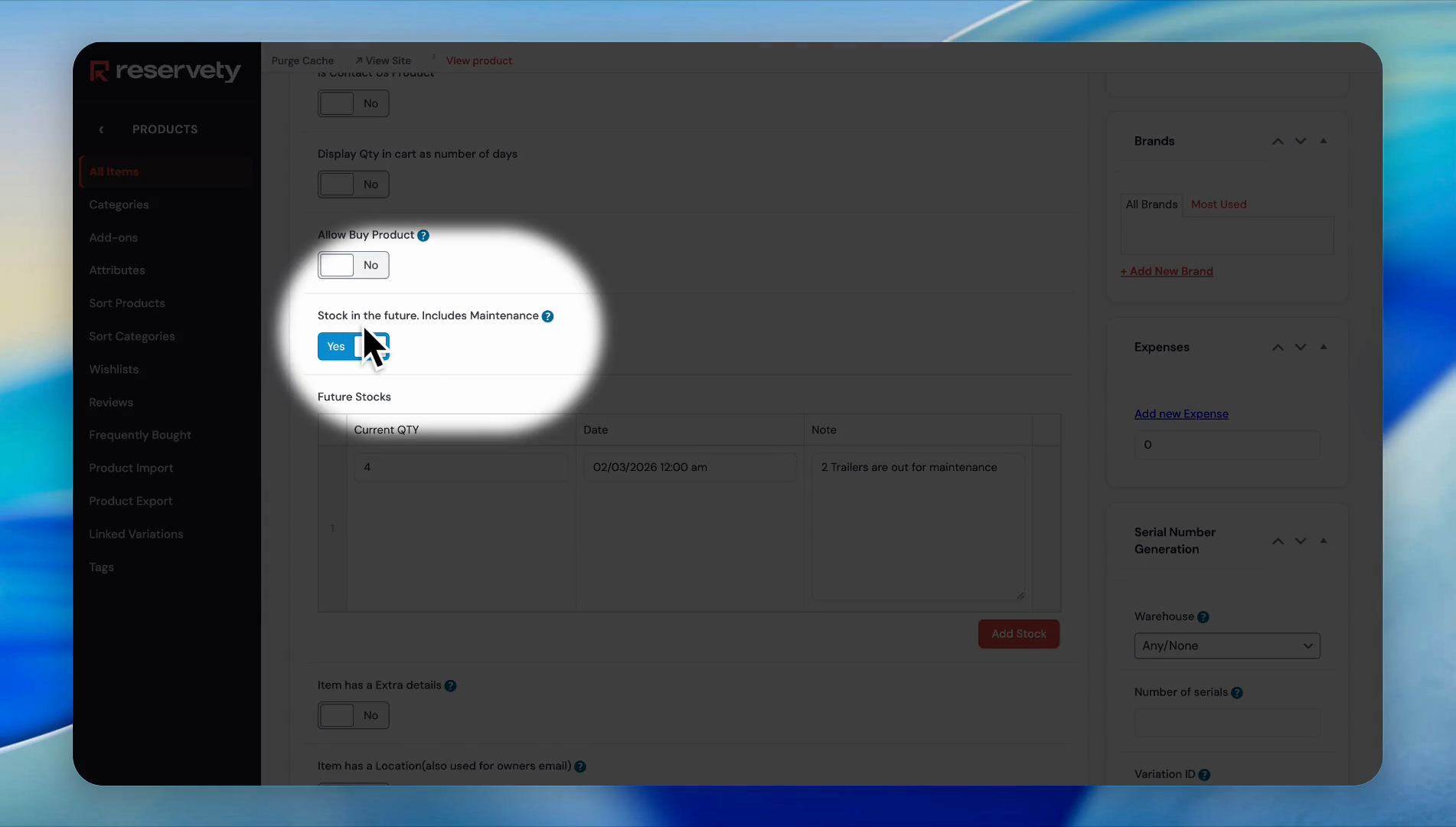
Click "Add Stock," increase the quantity to six, and select the date.
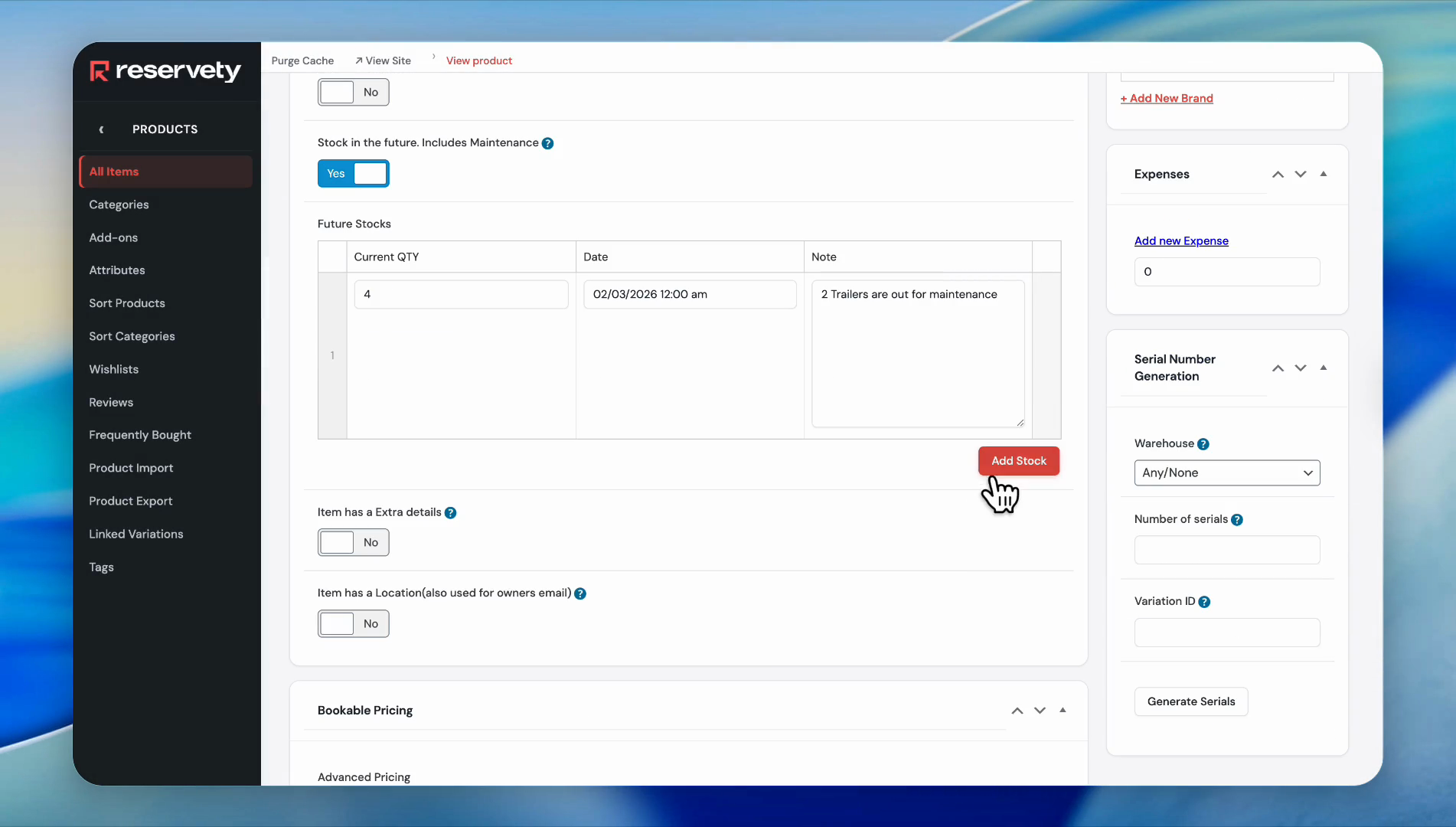
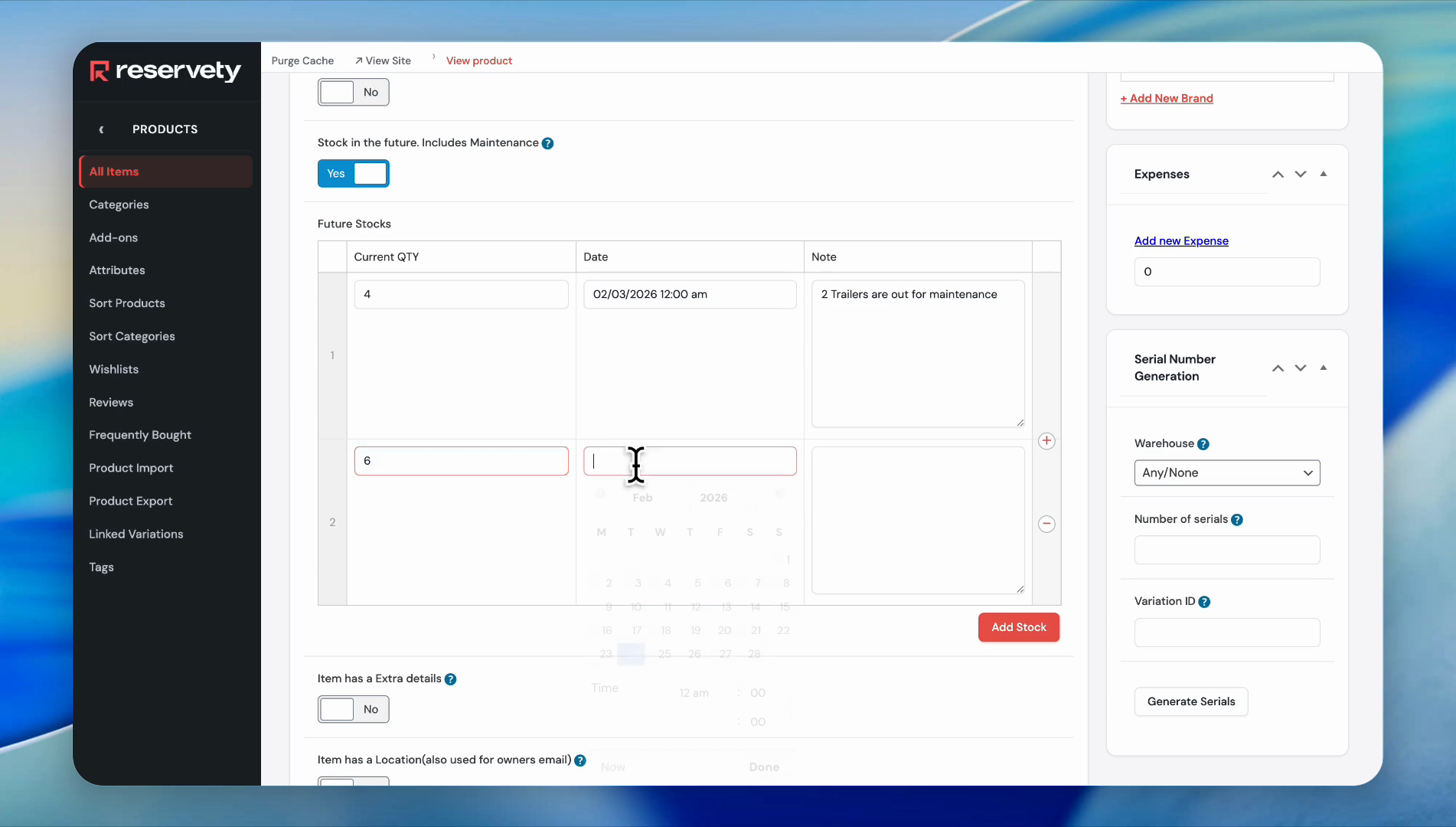
The quantity will return to six, starting on the 9th.
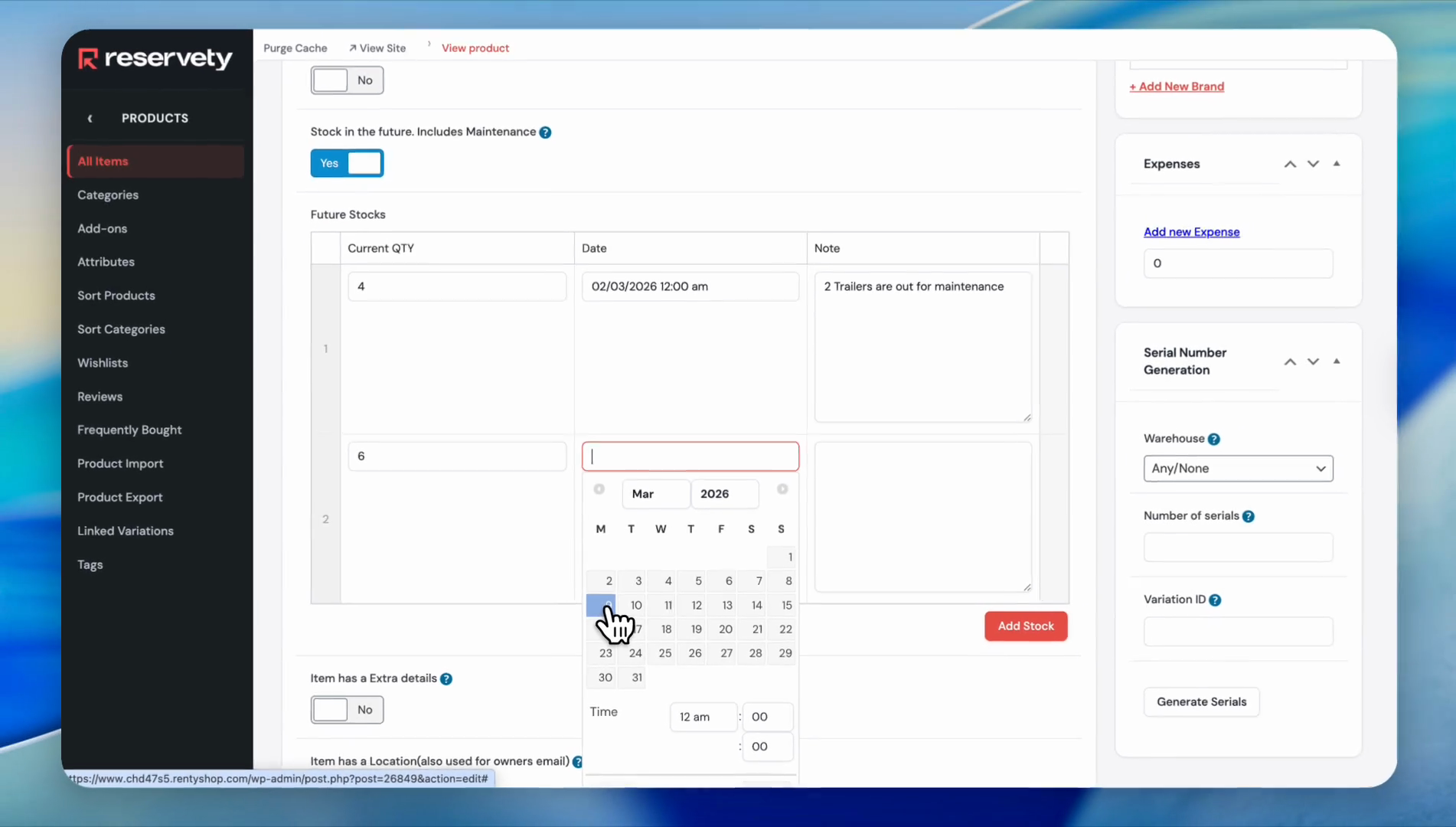
Add a special note. You can put any notes relevant to the inventory there.
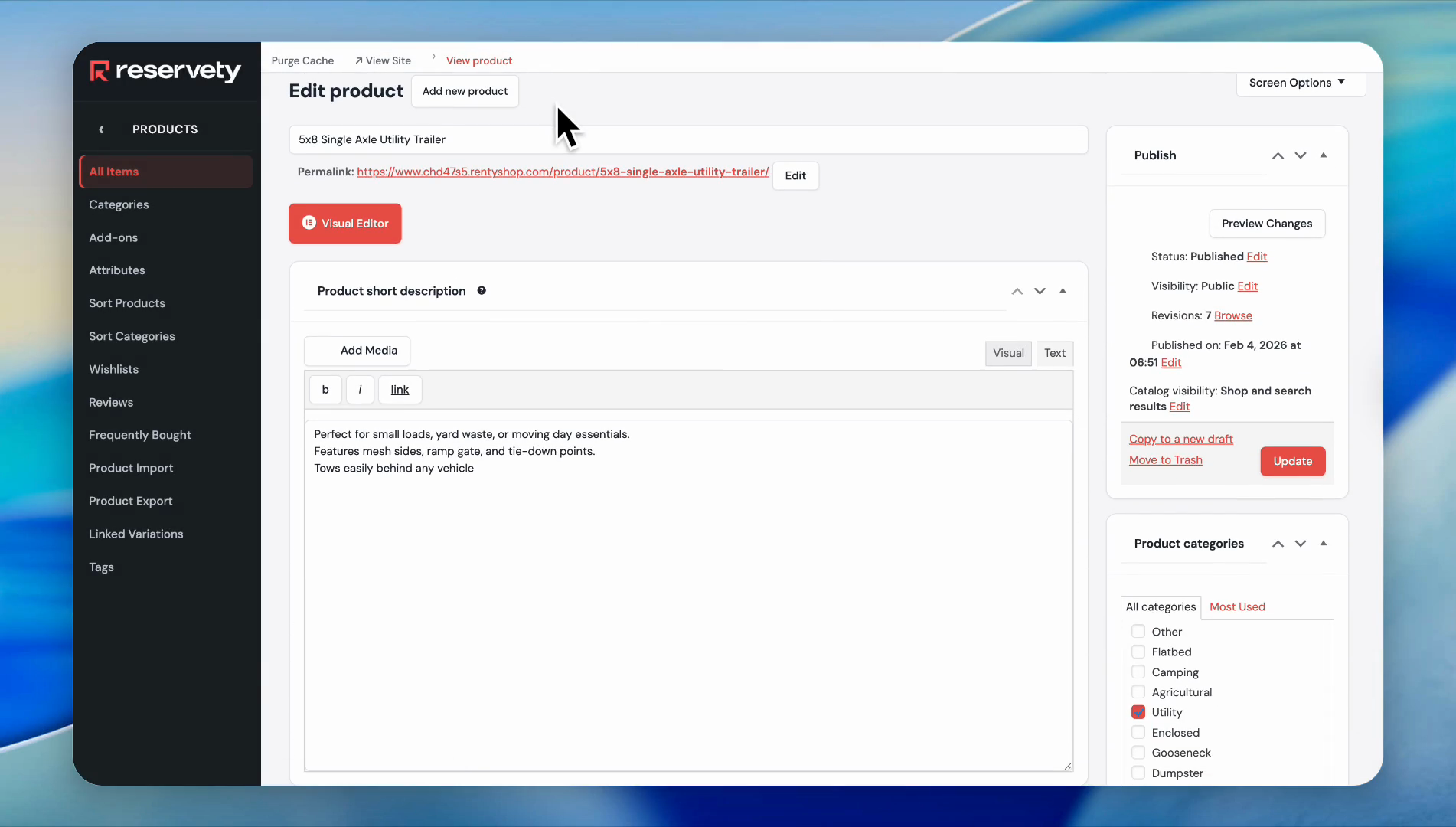
Go to the product page and place a test order.
Let's create a test order for the six trailers on March 9th.
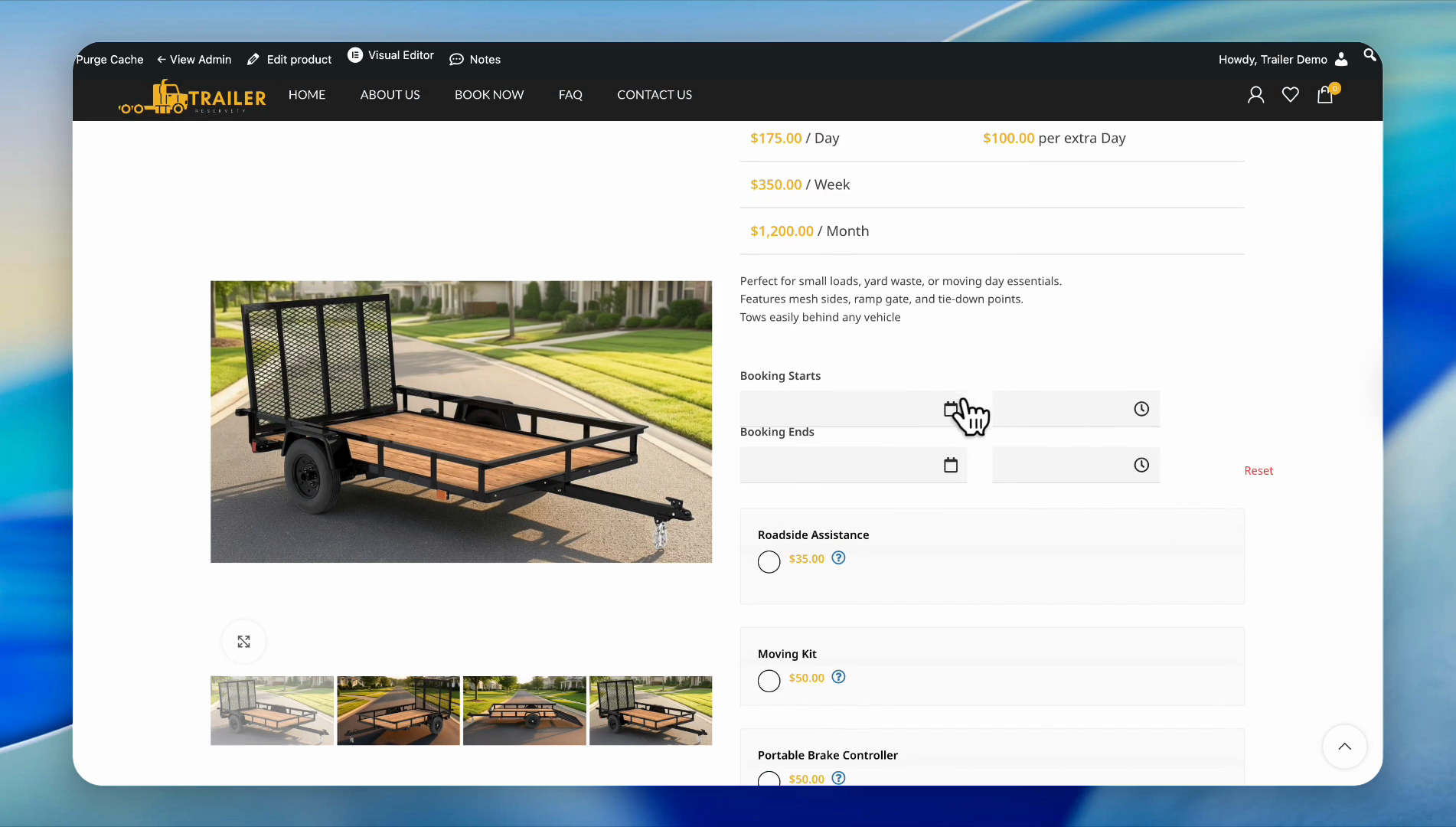
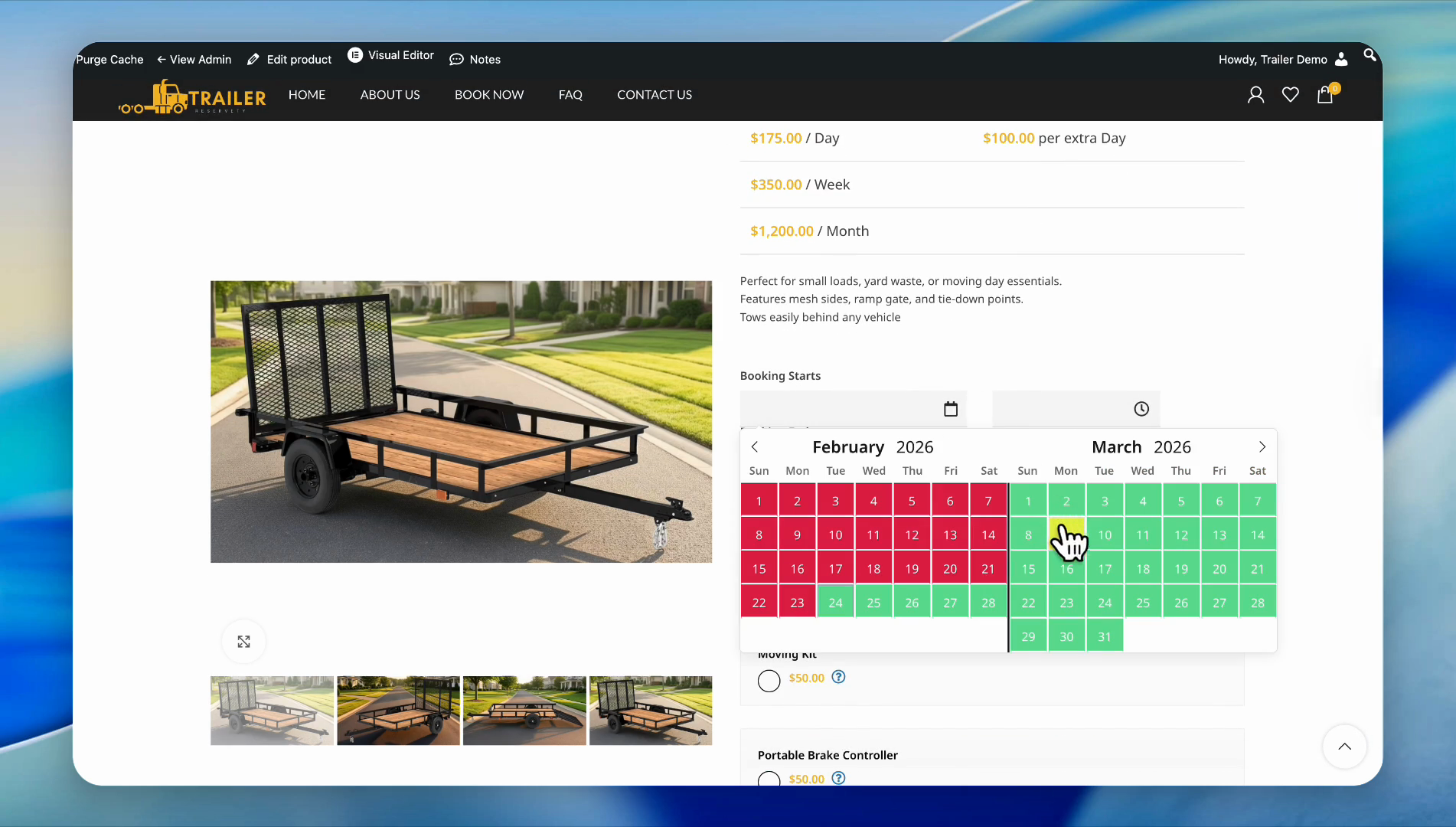
March 9th, starting at 4:00 PM and ending on Saturday, March 14th, at 10:00 PM.
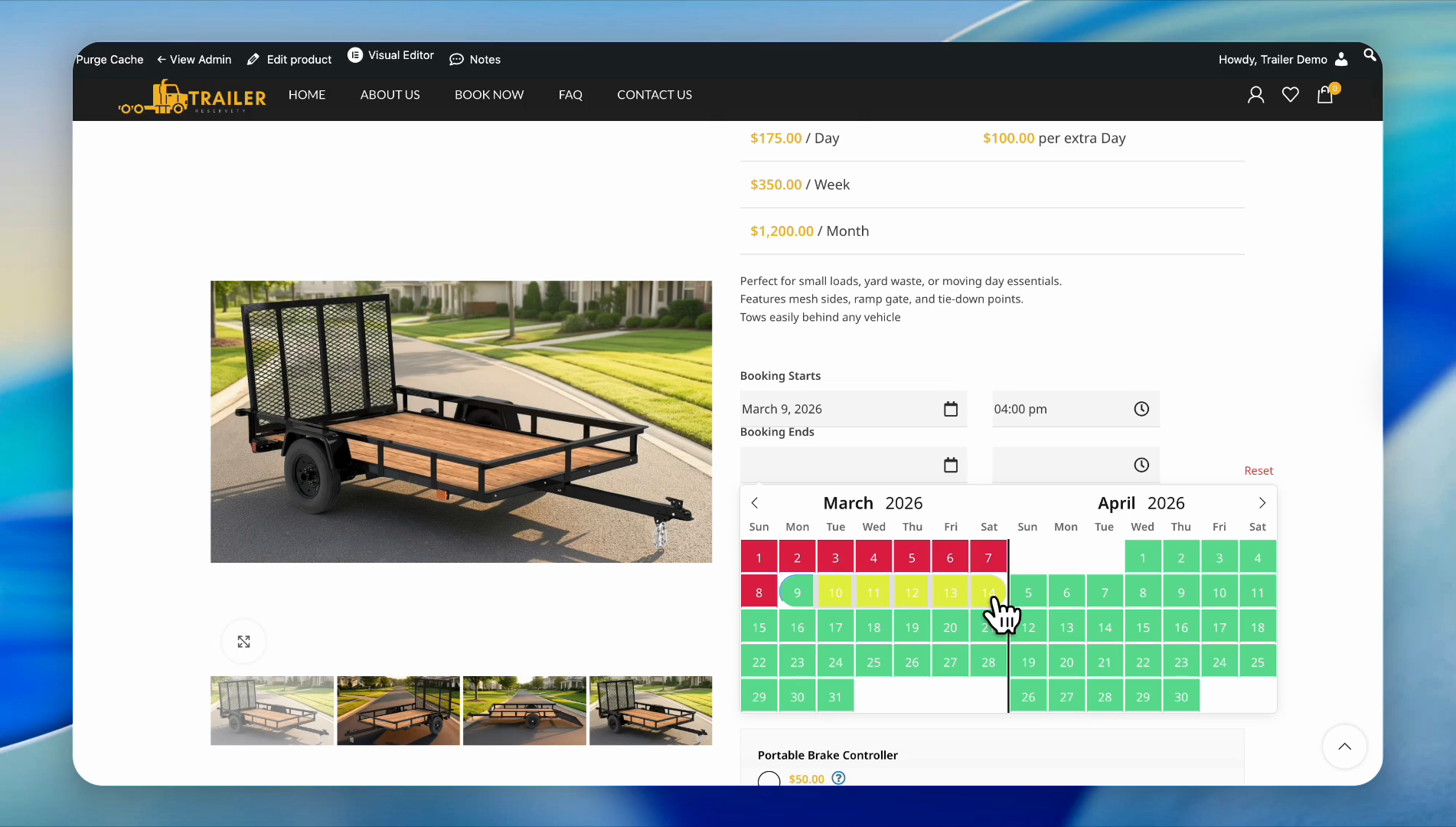
Scroll down and increase the quantity.
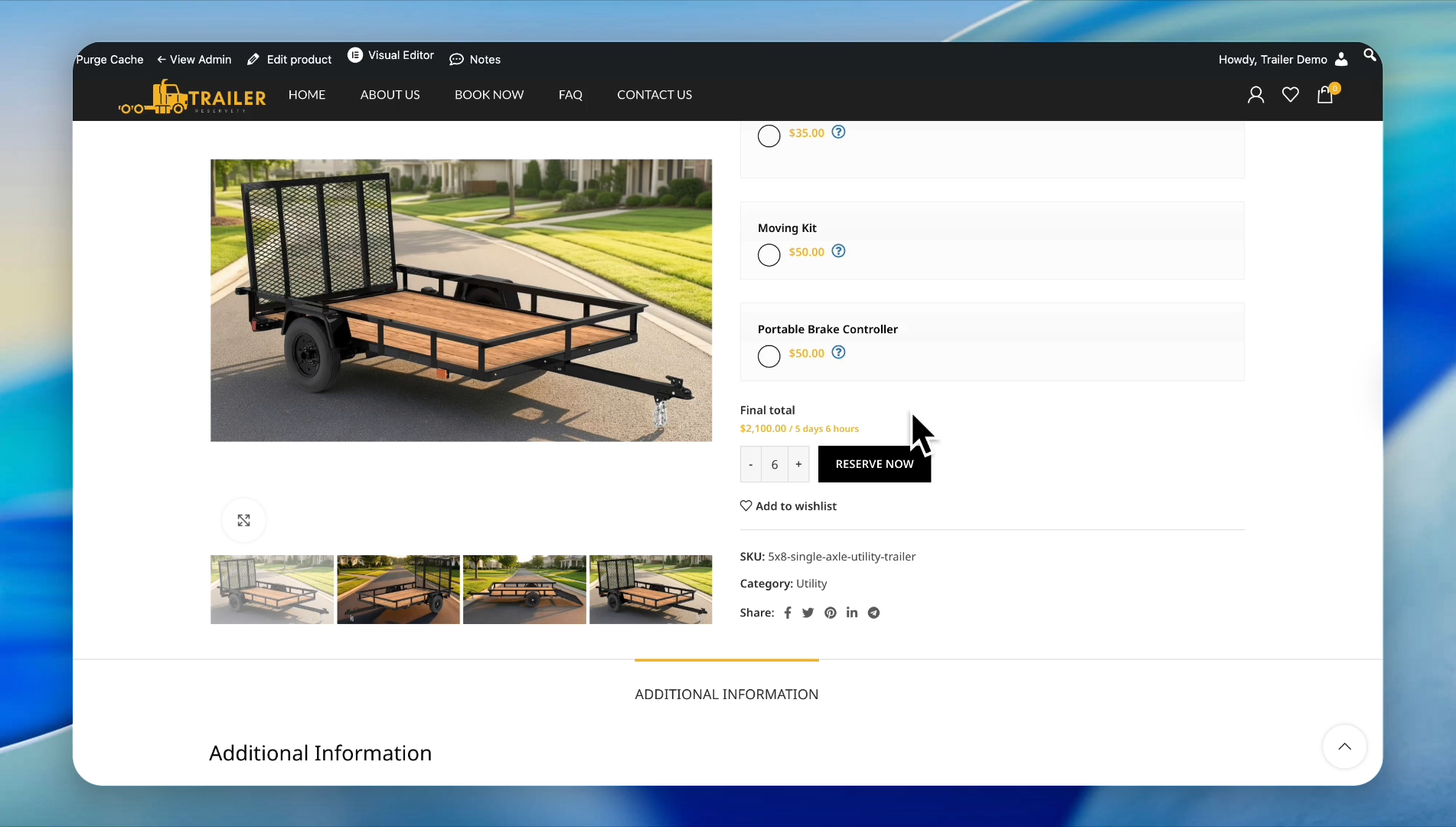
The system allows us to book six trailers starting from March 9th.
That means our settings are working perfectly.
These settings also work perfectly for future procurements.
Let's say we want to increase the quantity to eight because we are buying two new trailers and adding them to the six we already have. In this case, go back to the dashboard or click on "Edit Product." Scroll down to the "Stock in the Future" section.
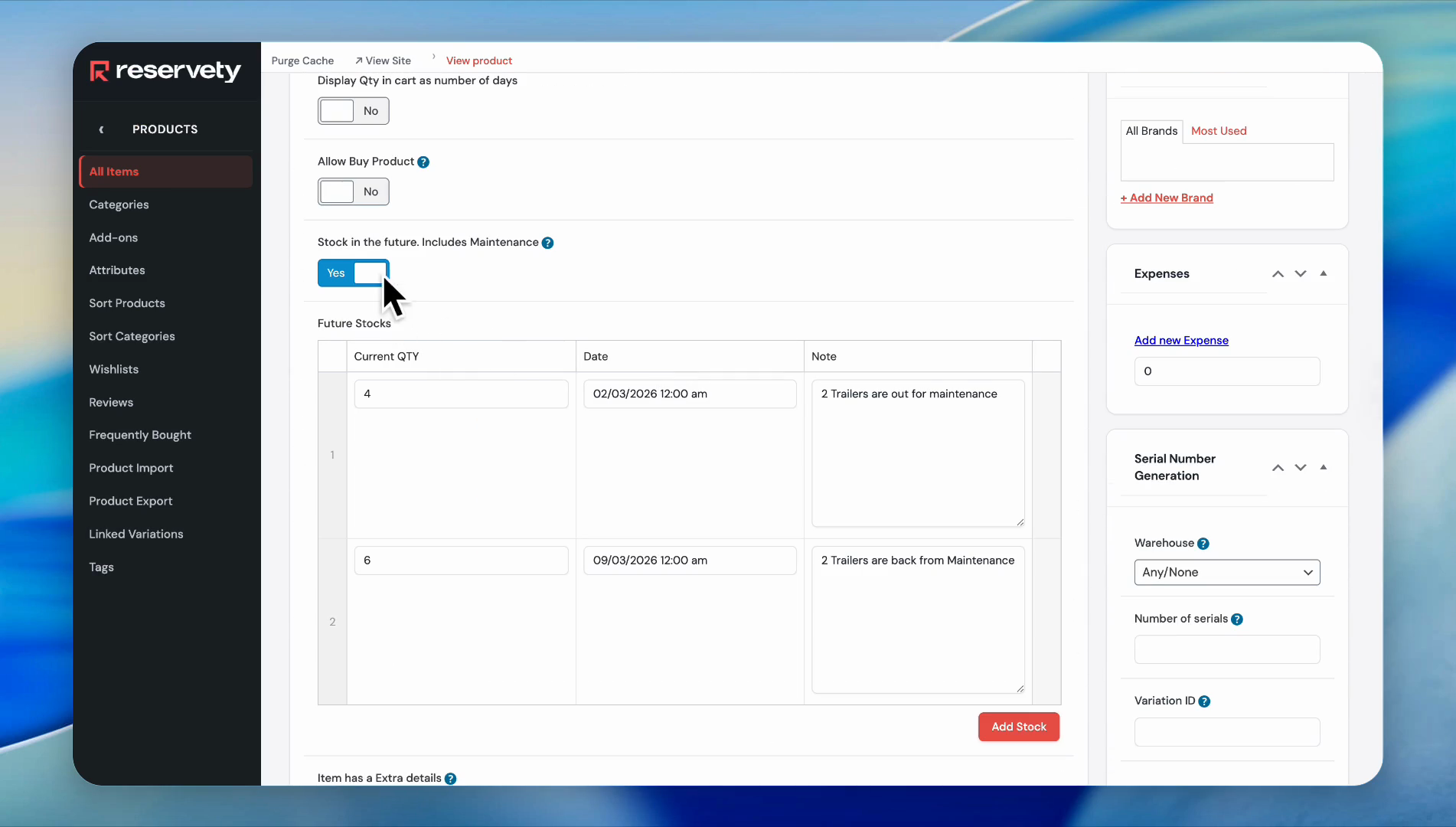
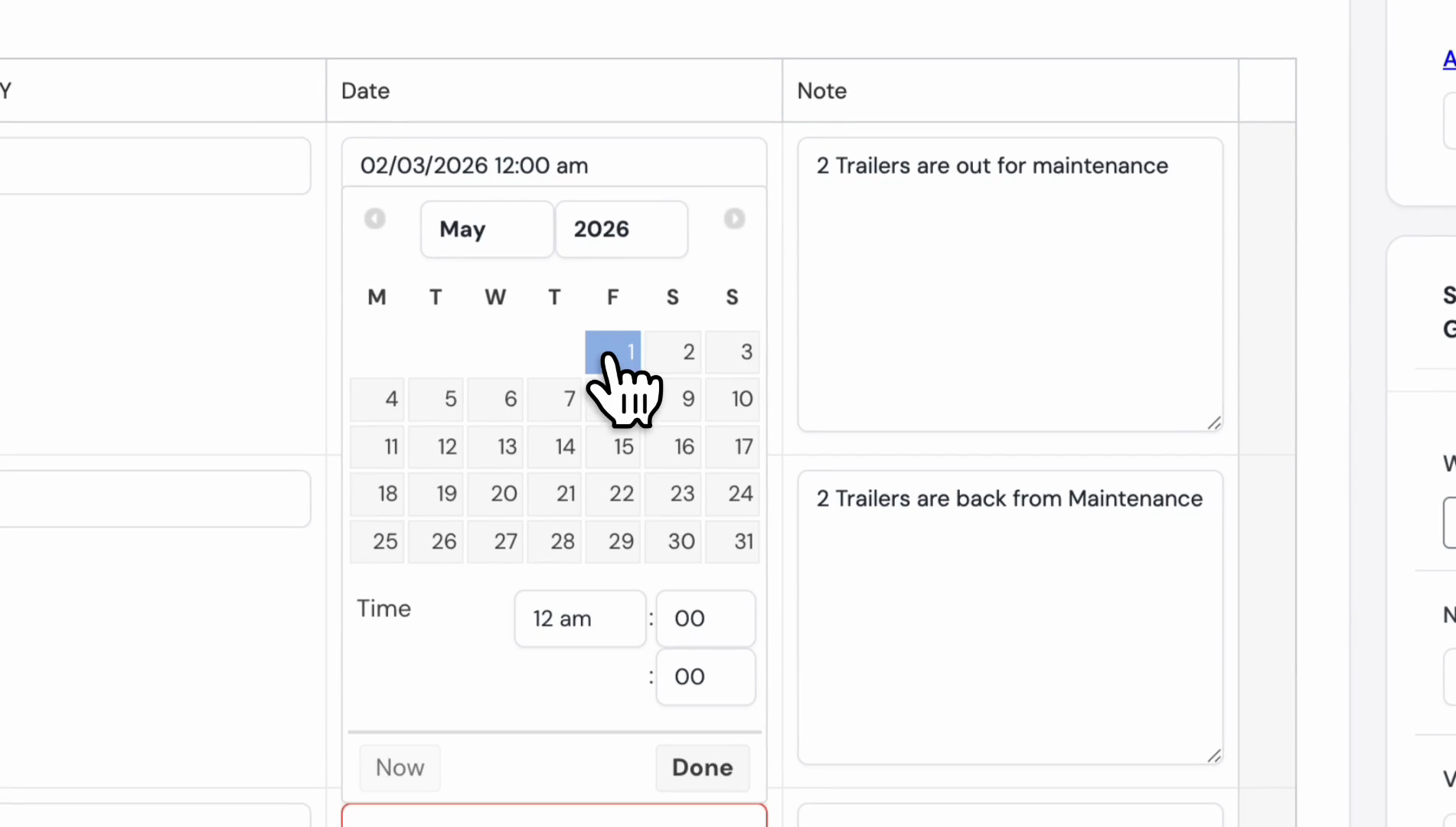
We will increase the stock quantity to eight, starting in May.
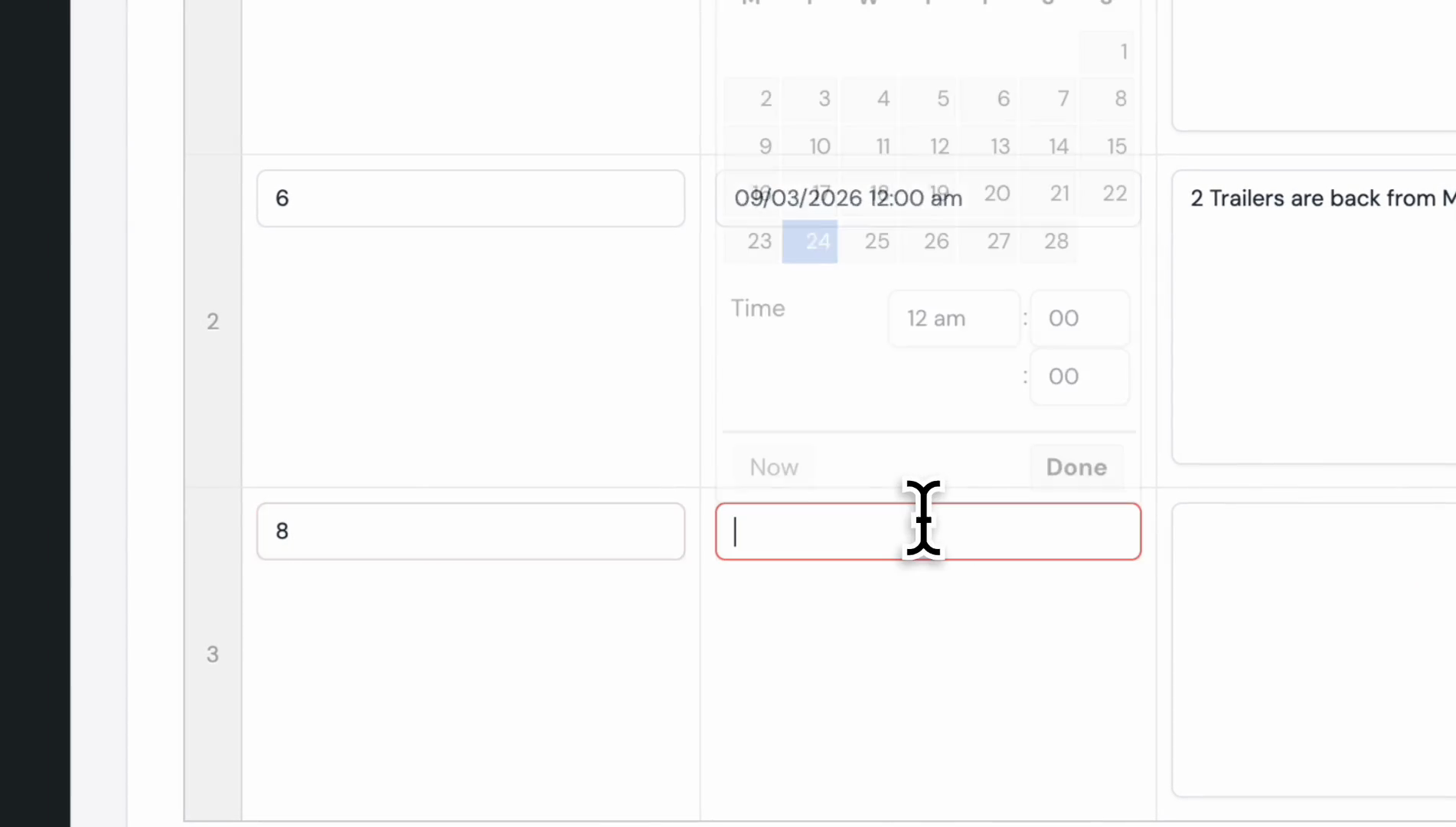
Then add a special note. You can type any message needed to manage the quantities.
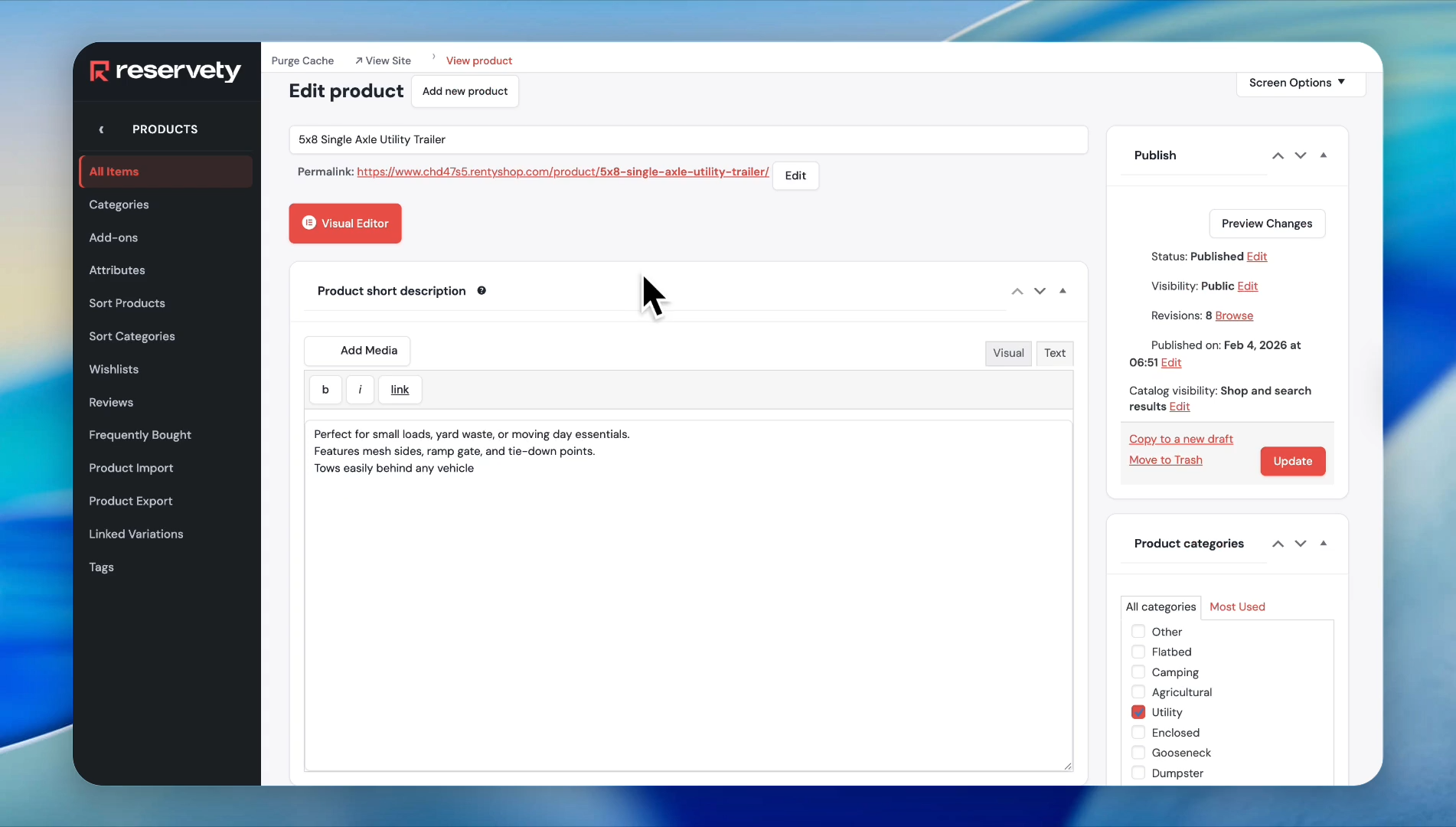
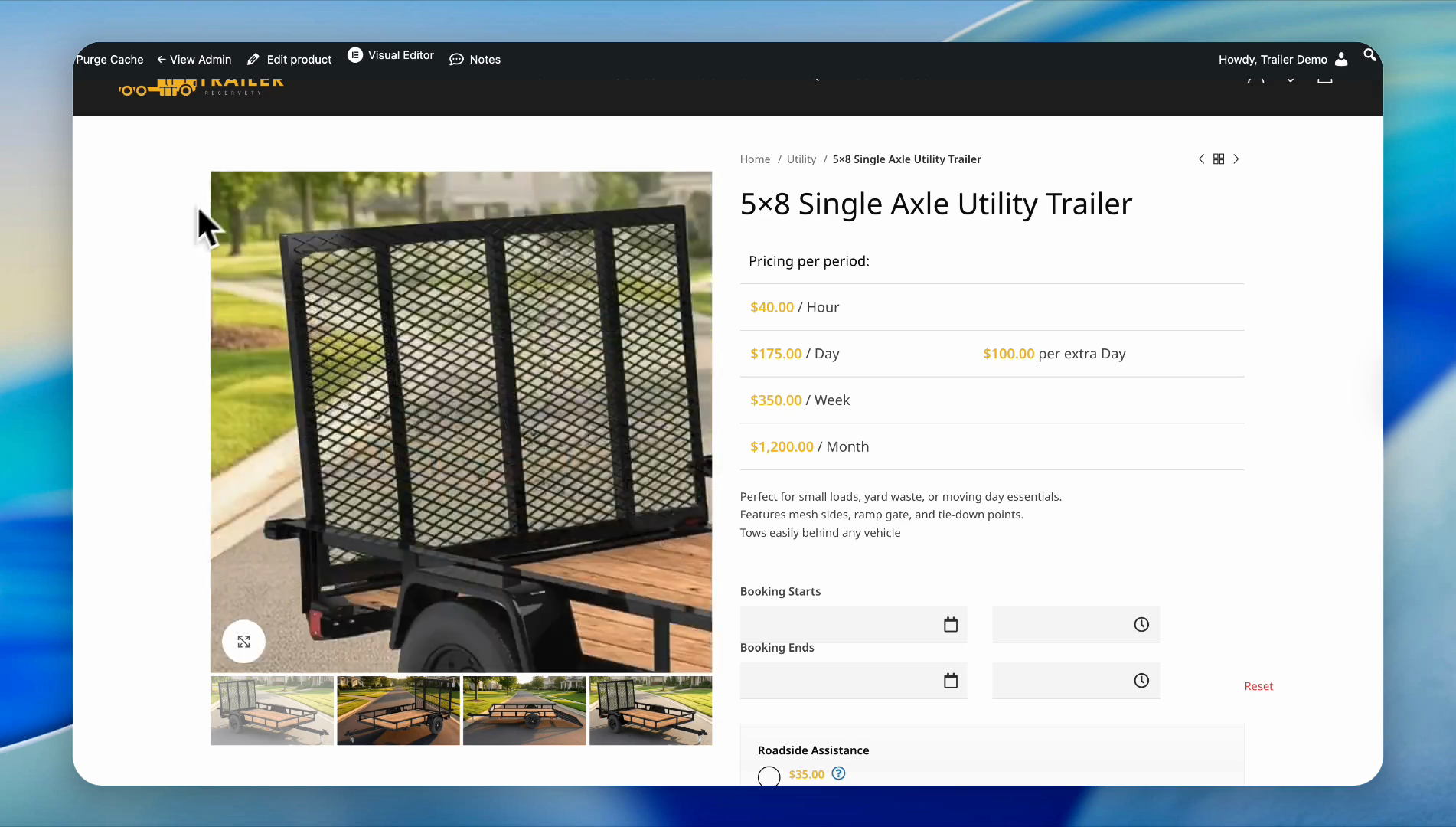
Go to the product page again.
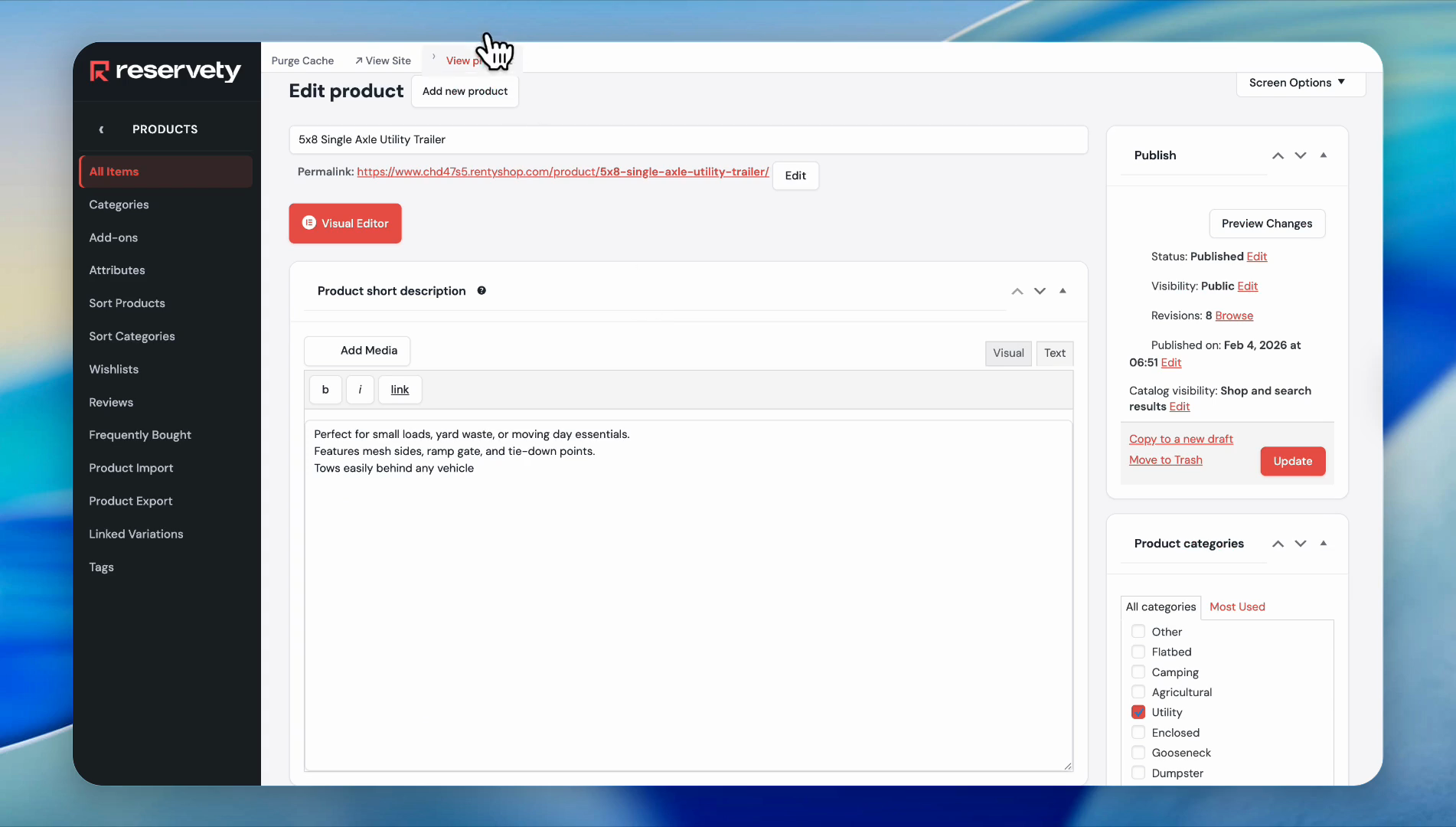
Let's book eight trailers starting in May.
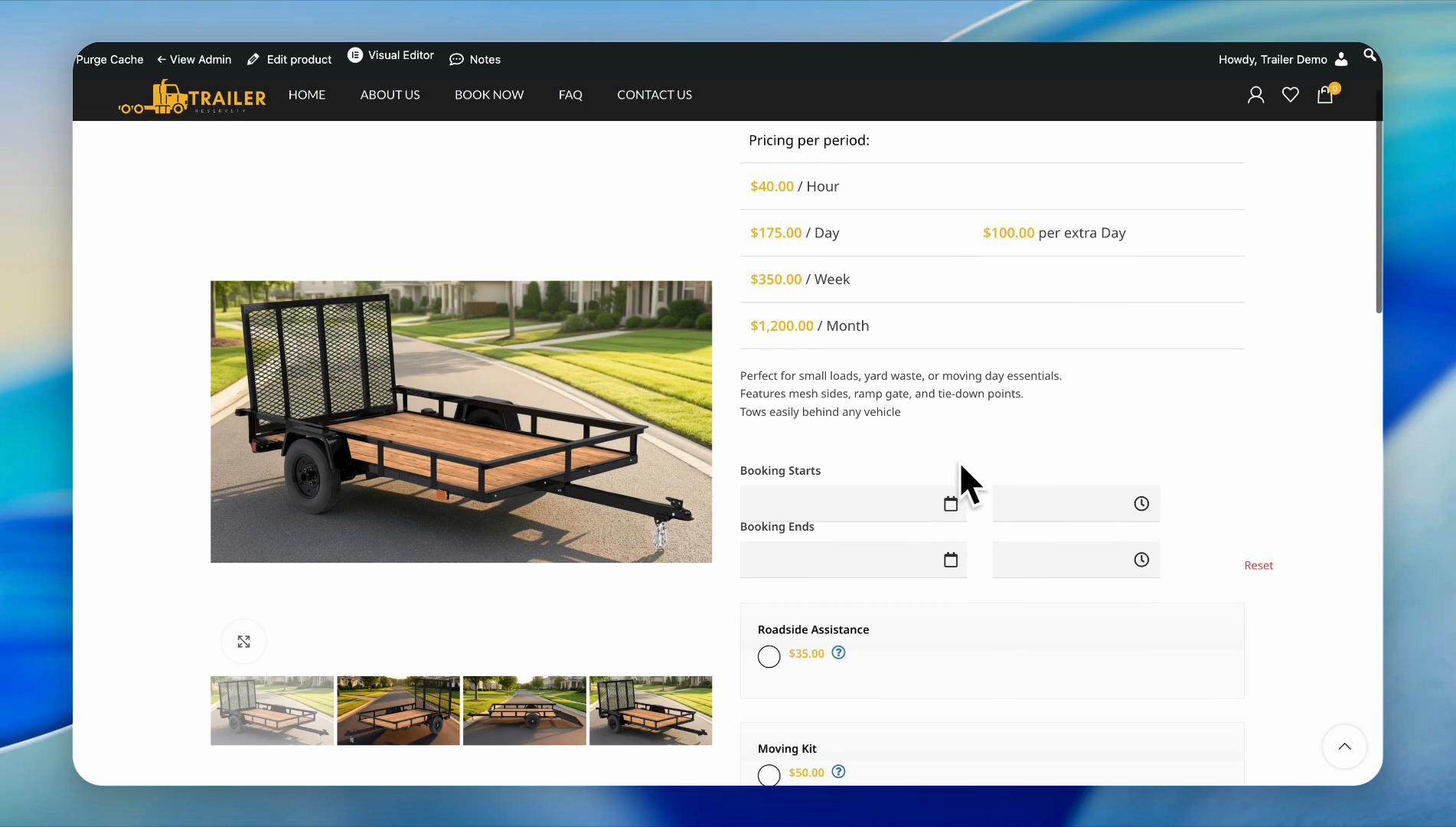
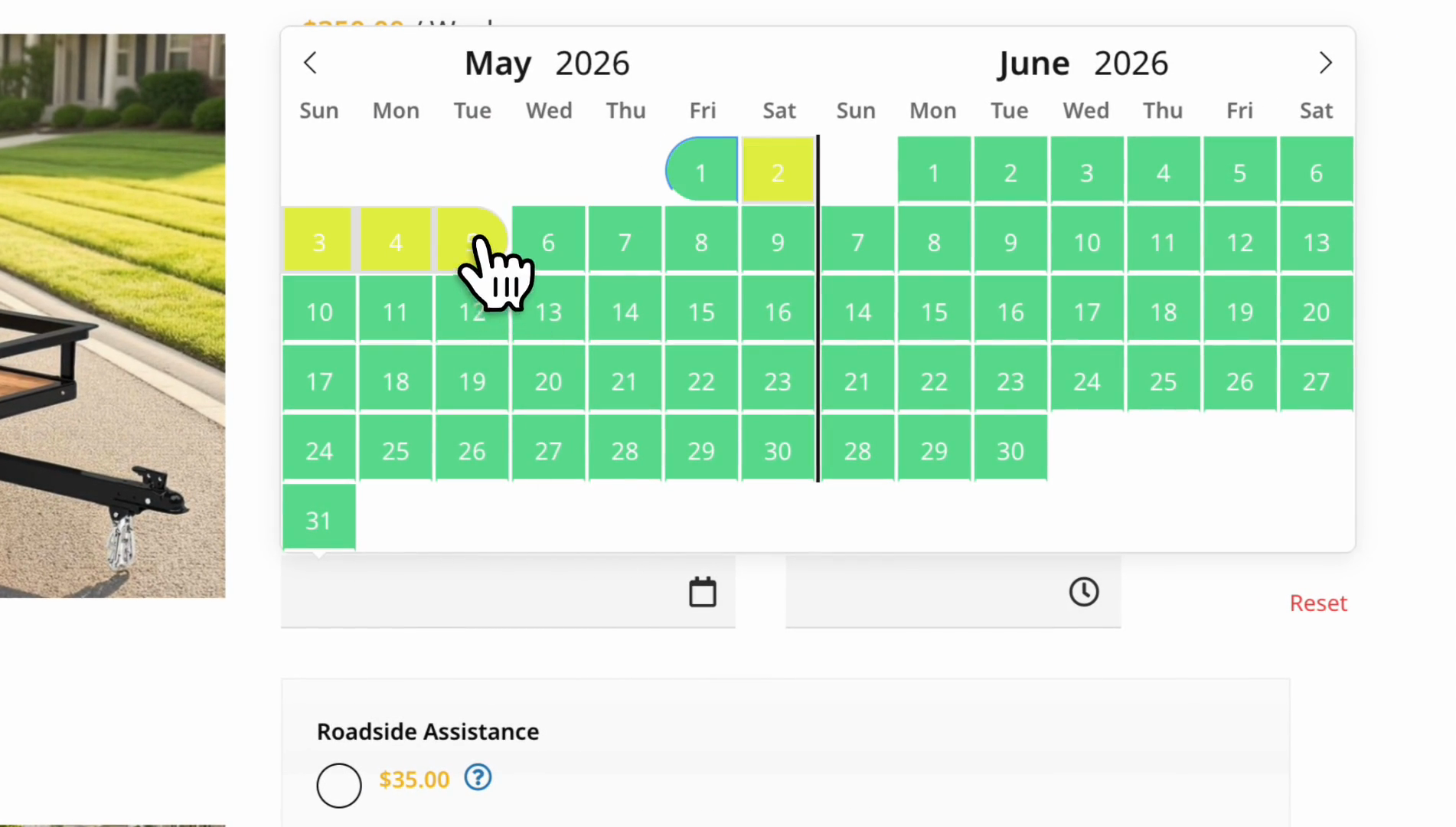
Go to May, select May 1st at 7:00 AM, and choose the ending date.
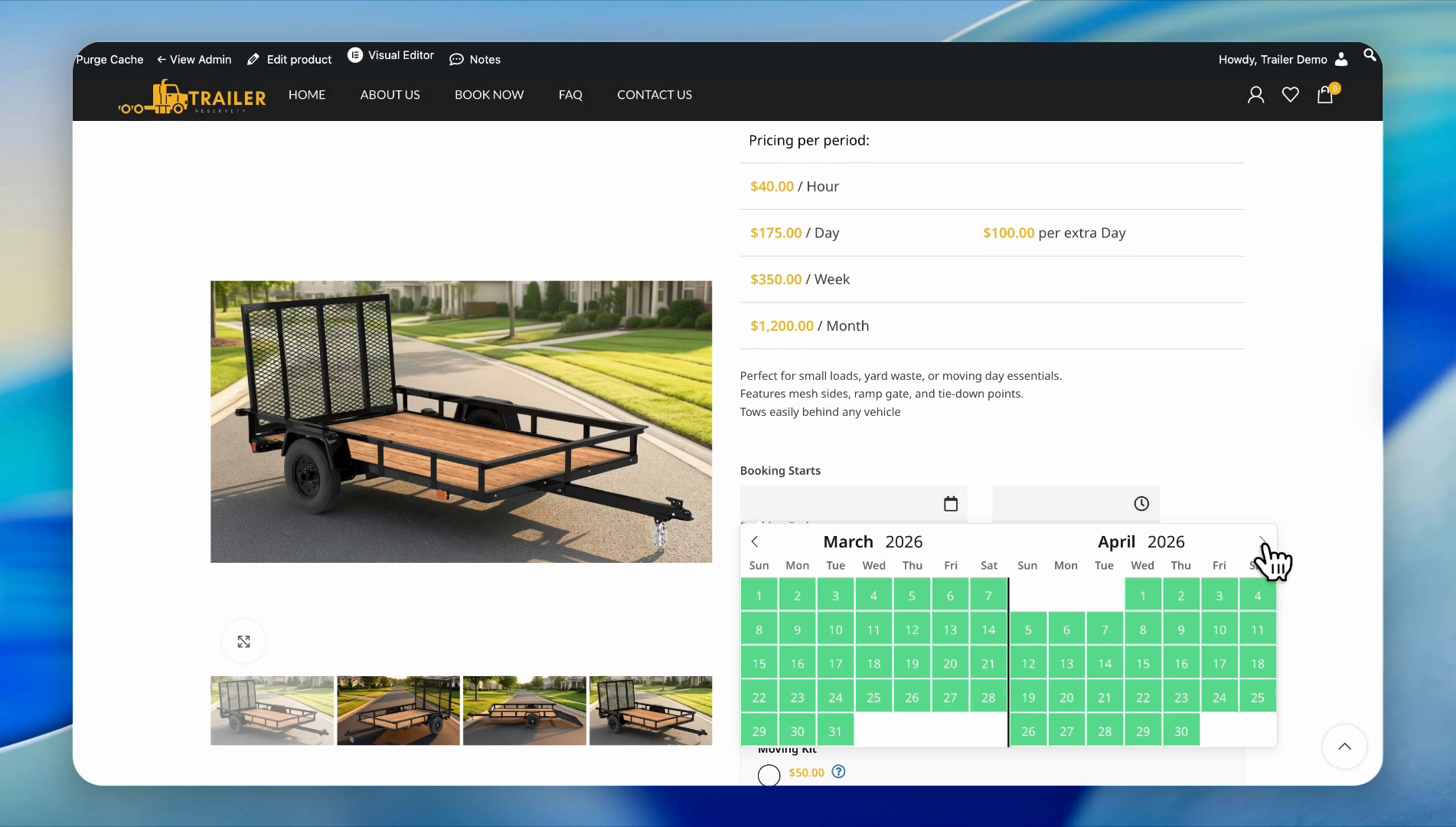
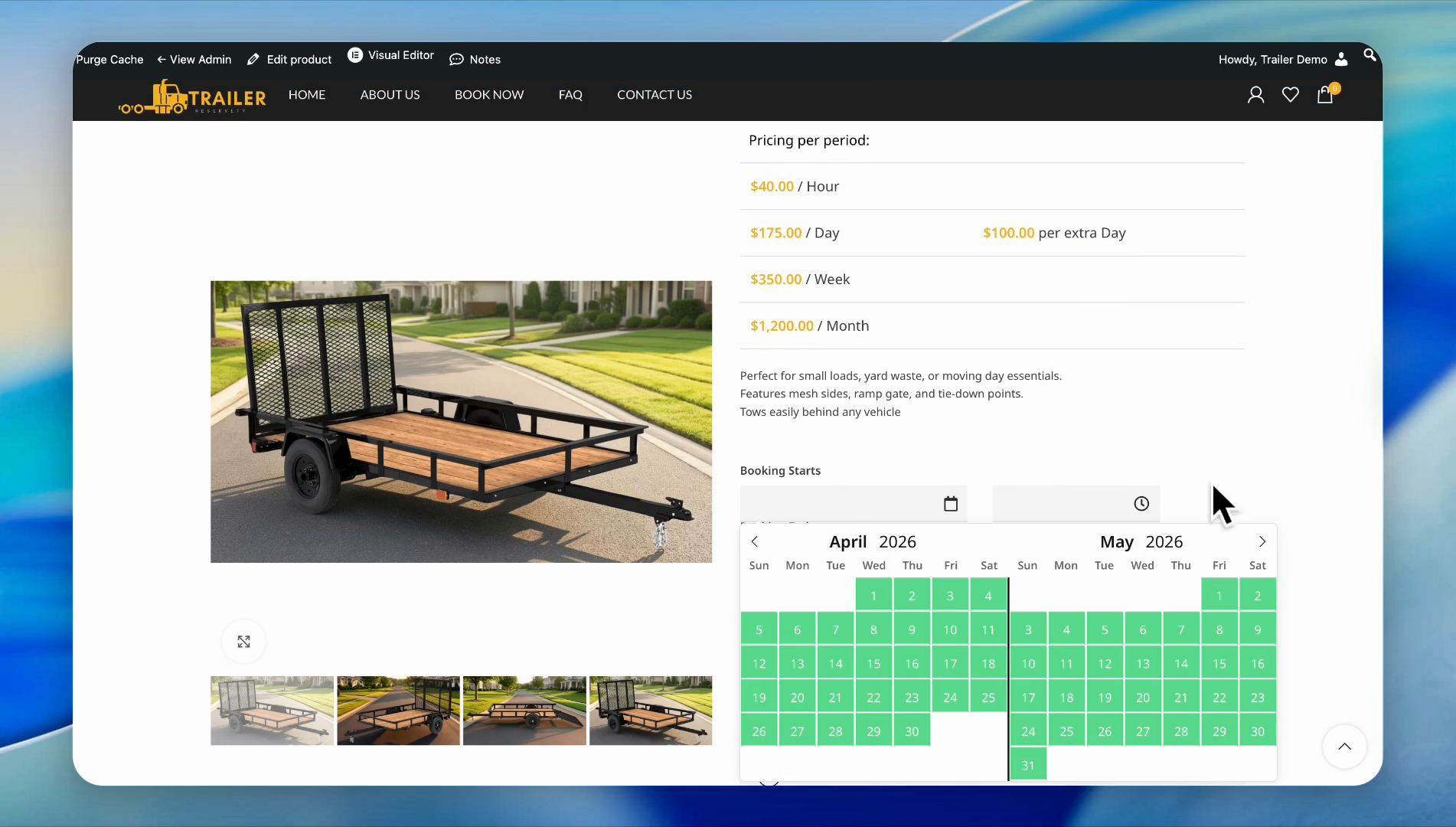
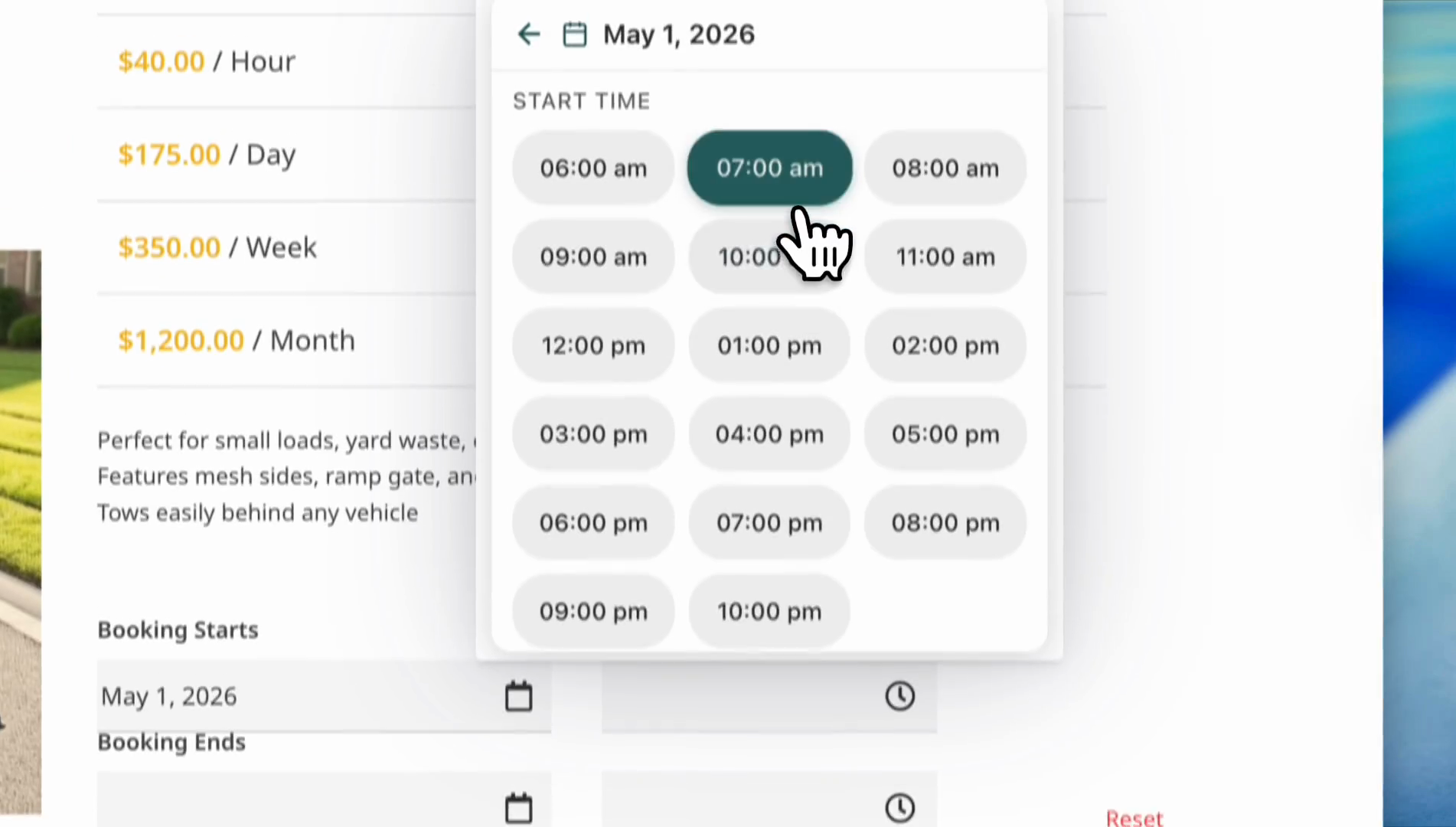
We will select May 5th at 7:00 PM.
Now, let's increase the quantity to eight.
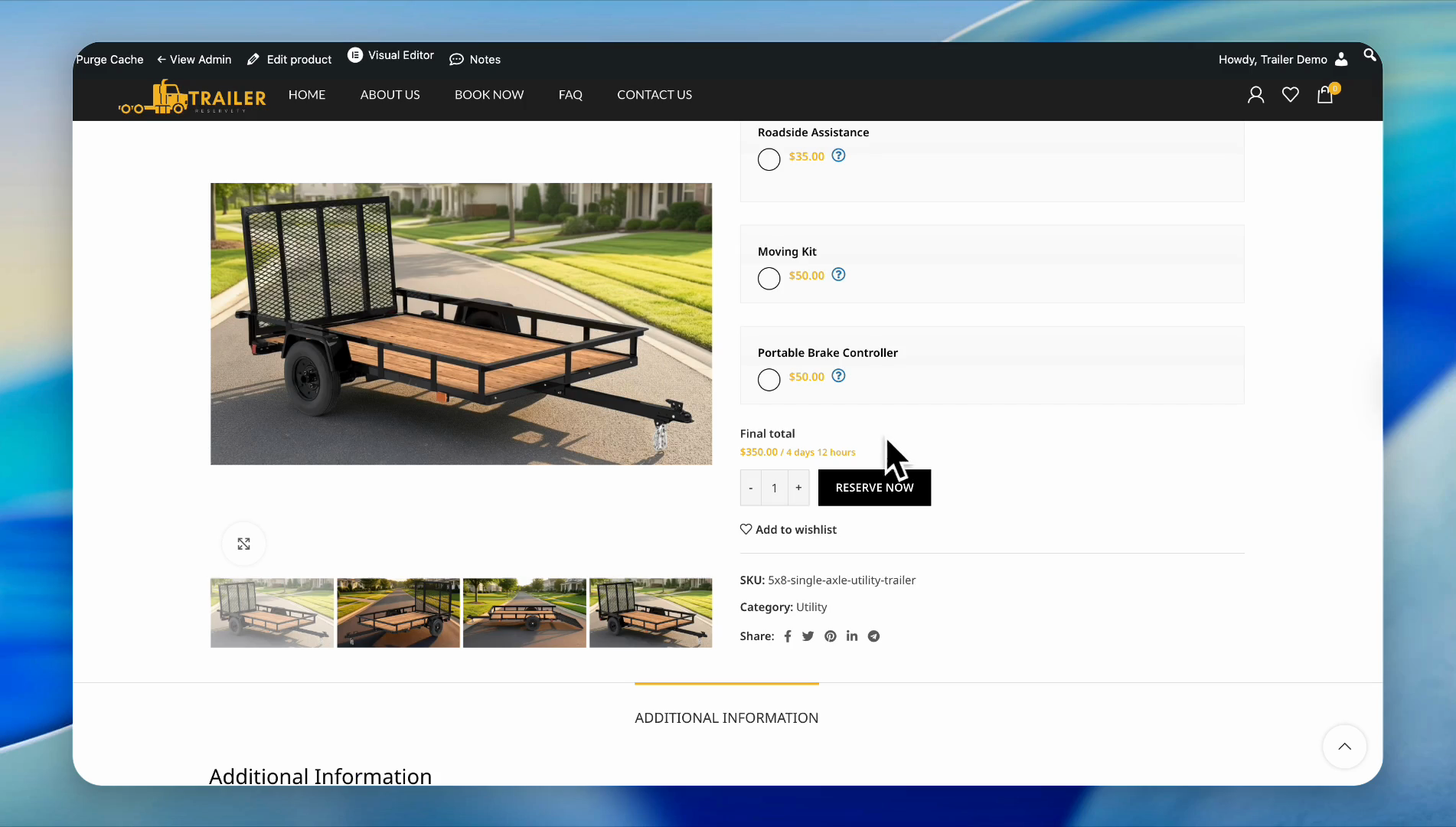
We can order eight of these trailers starting May 1st.
This concludes our tutorial.
Thank you for your attention.
We will see you in the next tutorials.