
How to Backdate and Award a Legacy Level 200 Coach Certification in Rugby Explorer
Step-by-step guide on awarding and backdating a Legacy Level 200 Coach certification in Rugby Explorer, including updating records in the Rugby Learning Center and ensuring accreditation consistency.
In this guide, we'll learn how to award a coaching certification to someone who has historical evidence of completing a course but does not currently hold the qualification in the system.
We will cover how to start the accreditation process in the Rugby Learning Center, update records through Daryl, and ensure the certification appears correctly in Rugby Explorer. This process will also show how to backdate the award to match the original course date and keep all records consistent.
Let's get started
Okay. We will go through the process of awarding a certification to someone who does not currently have it and backdating it. We have an email from someone who does not have a qualification but has historical evidence of one.
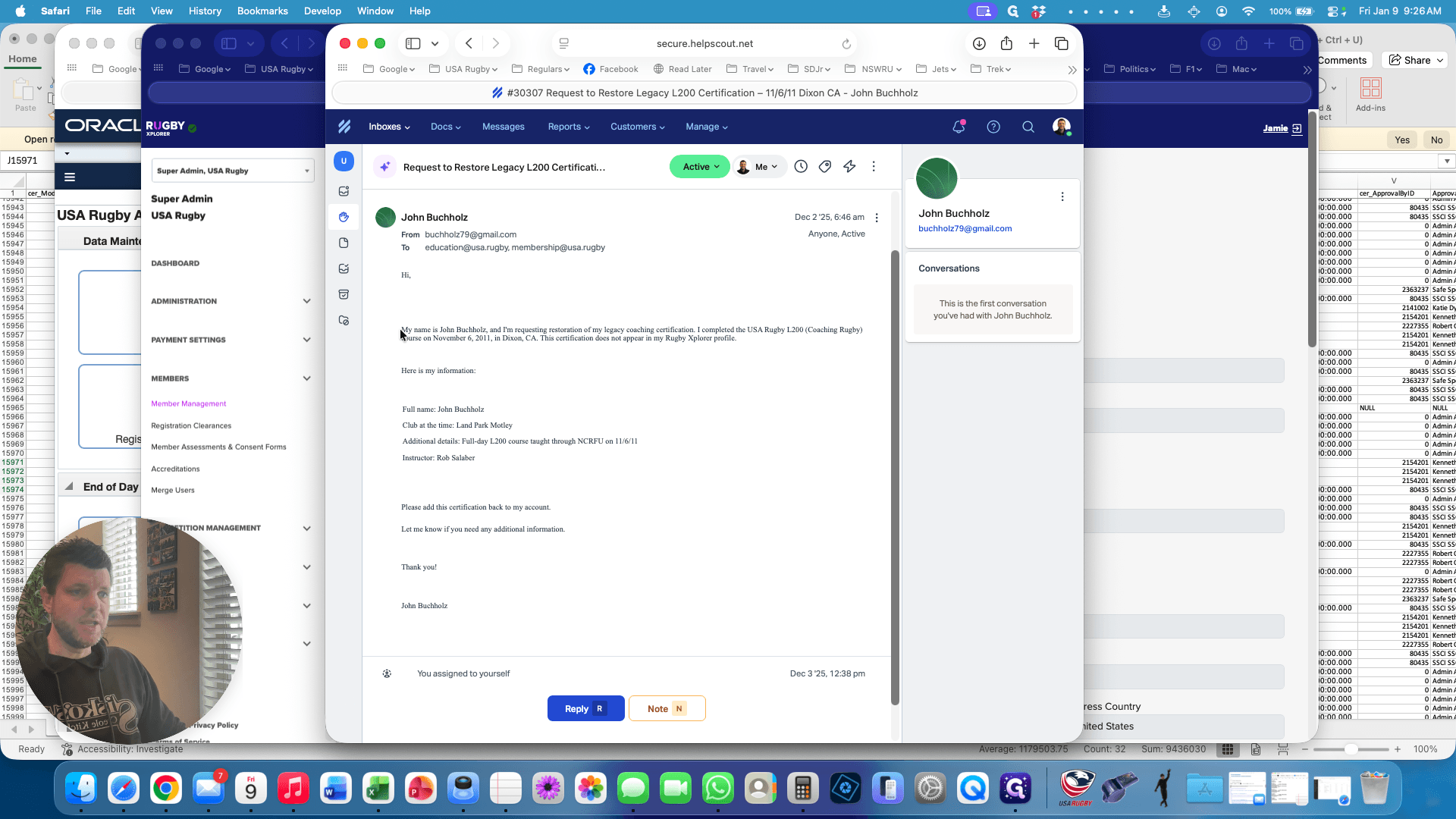
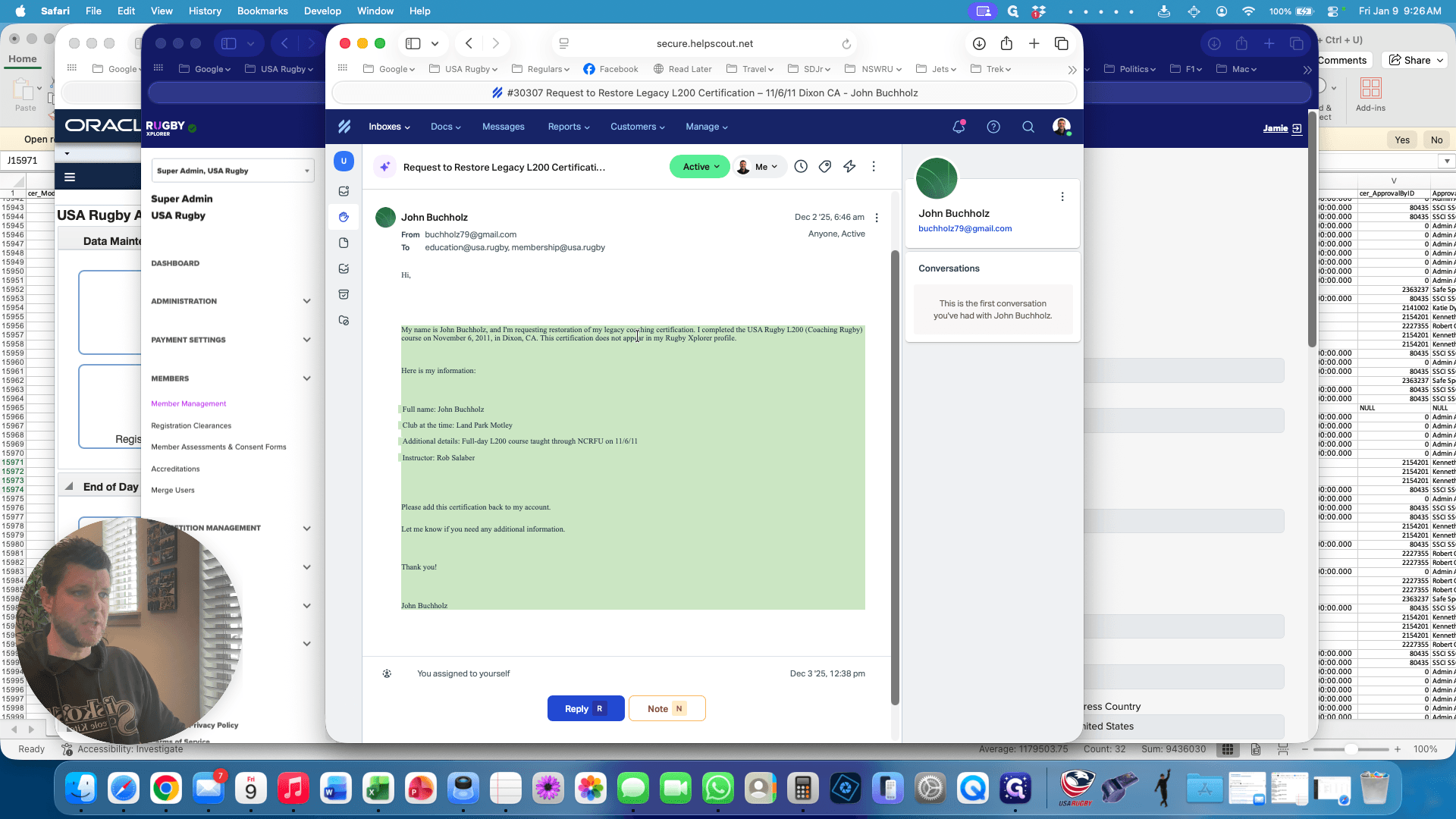
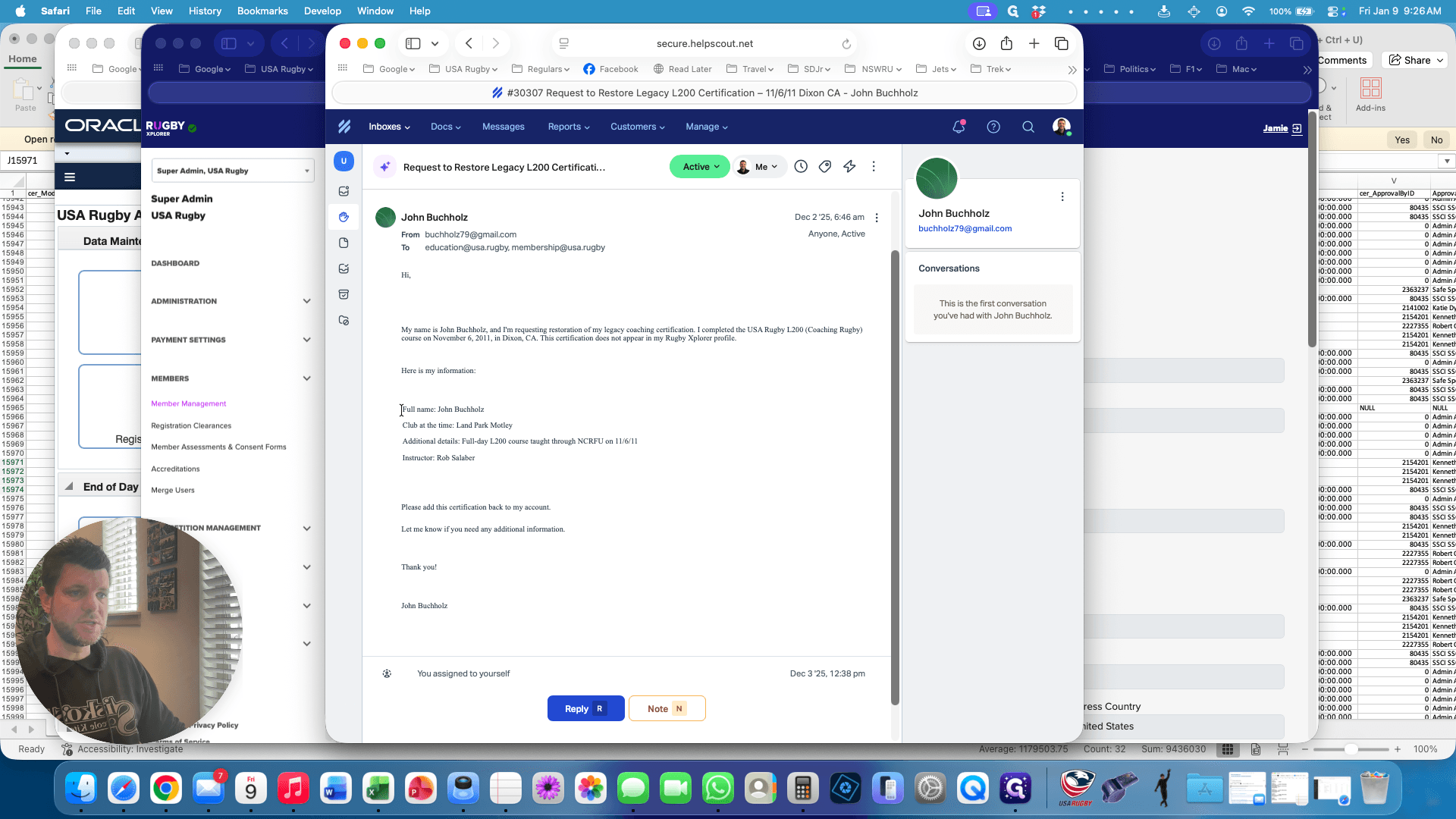
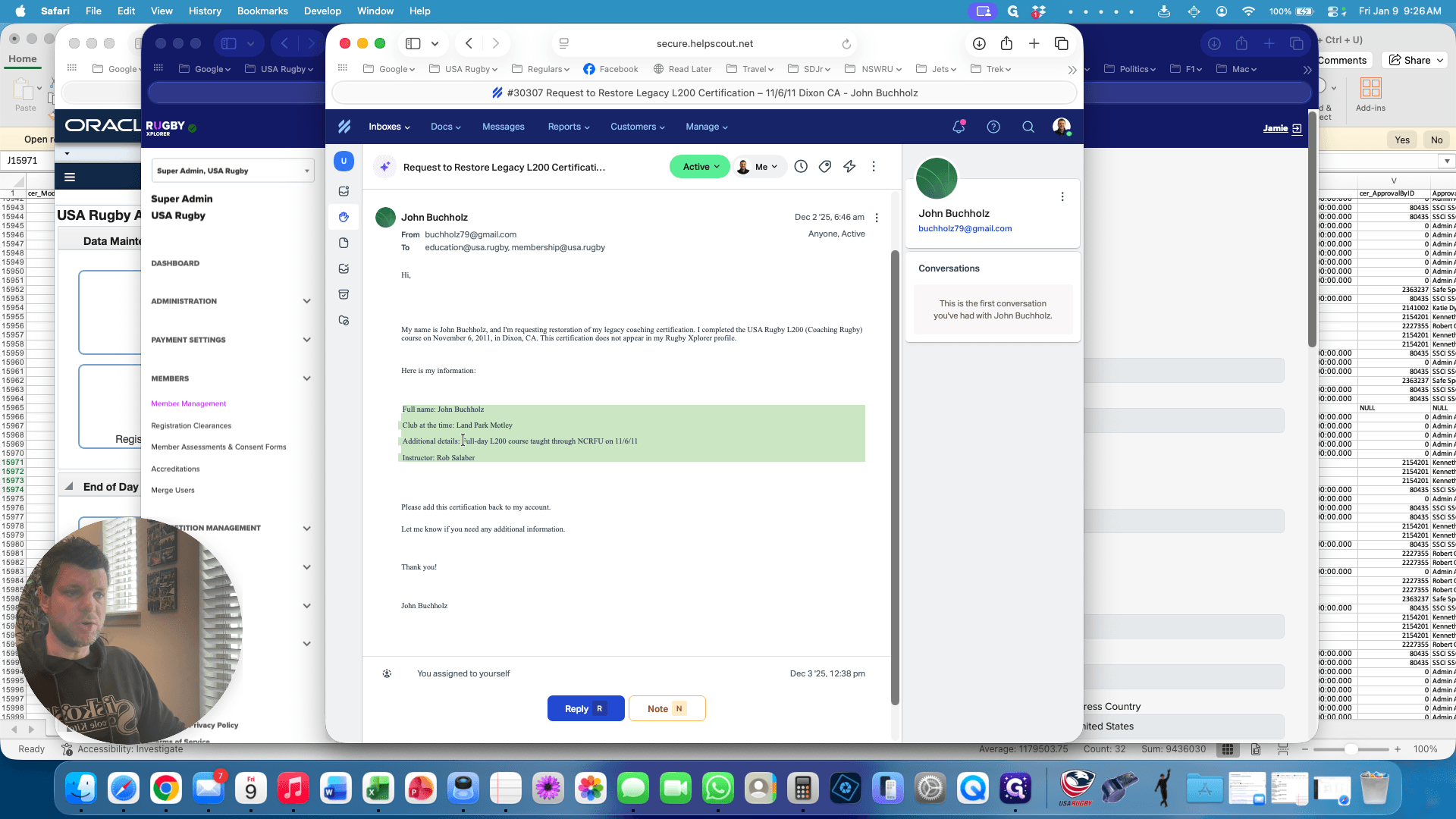
They attended a level 200 course on 11-06-11. The instructor is present, and they have the course details. We can accredit this individual.
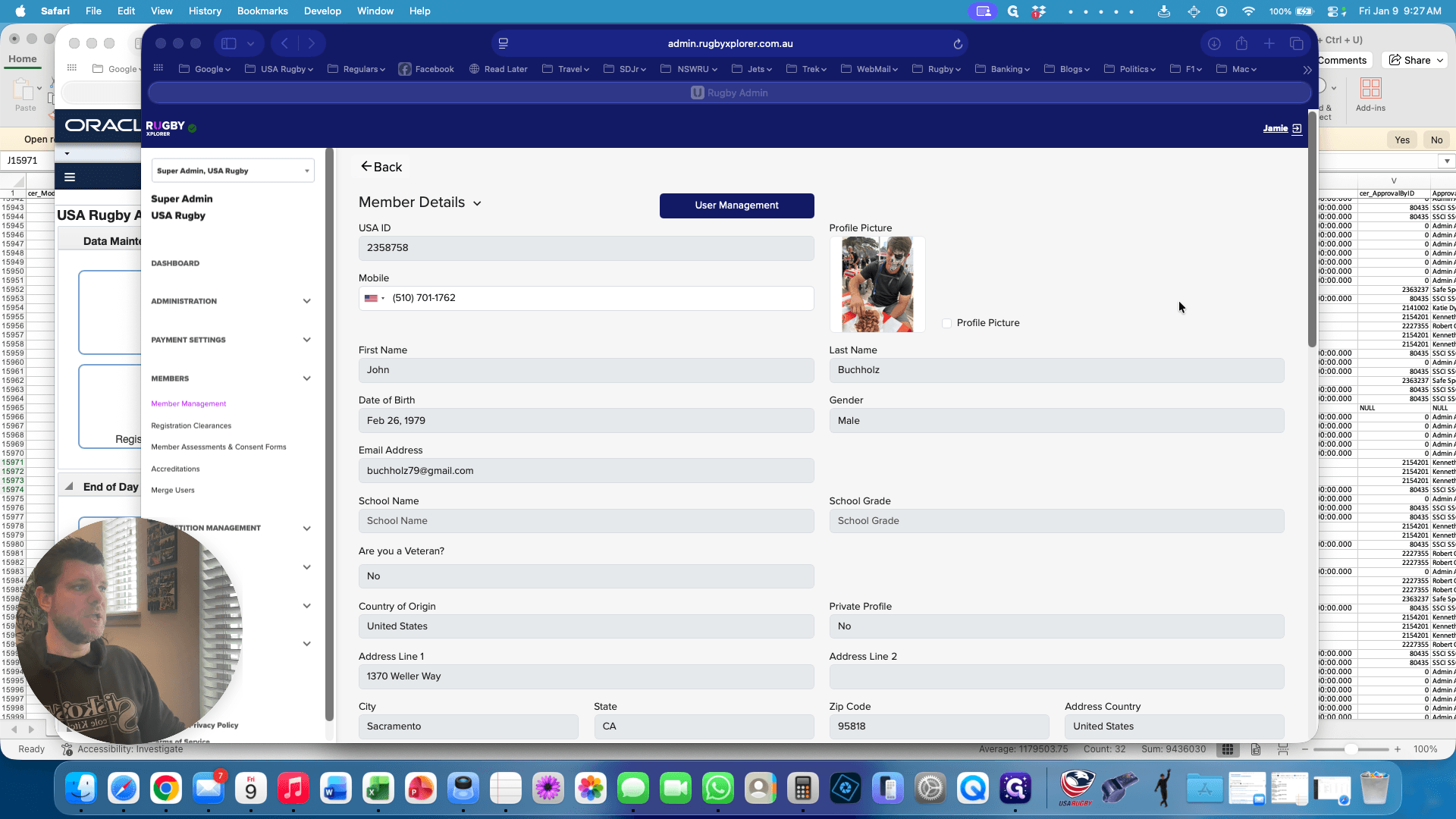
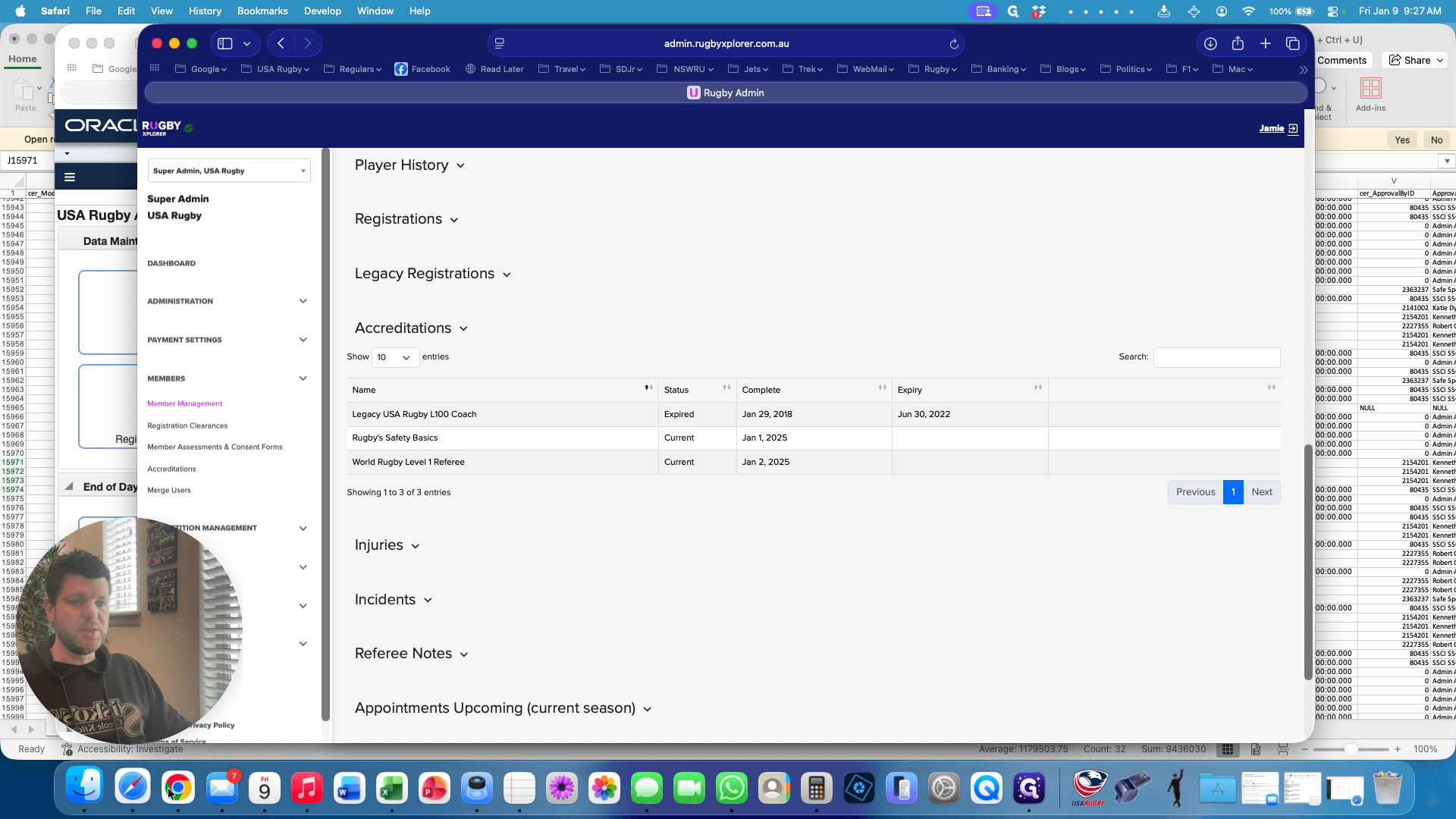
In Rugby Explorer, we can see that the individual does not have coaching accreditation.
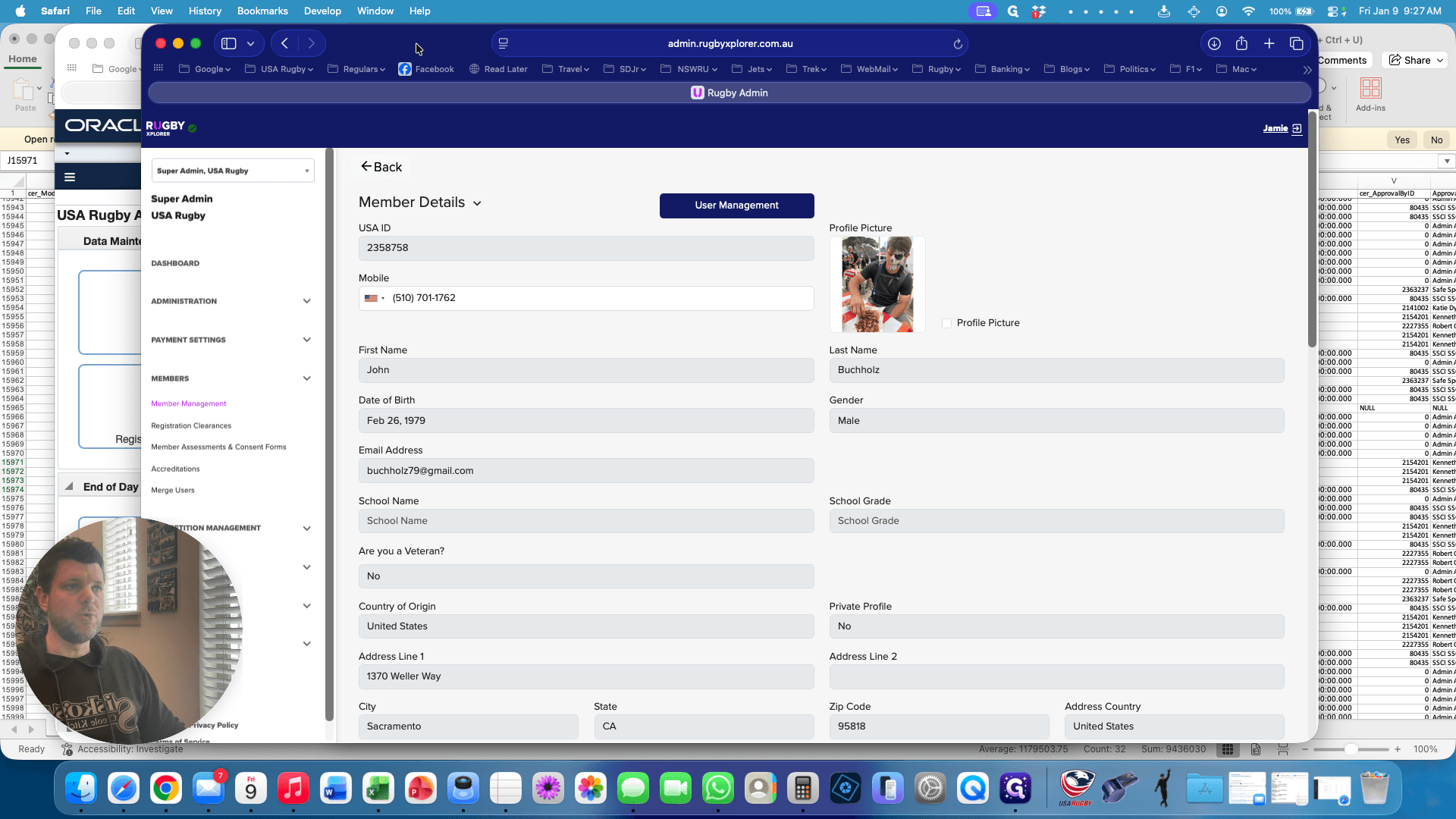
We go to the learning center to give this award. All accreditations must begin in the learning center. Then, they are sent to Daryl, who forwards them to Rugby Explorer. We'll start this process in the Rugby Learning Center.
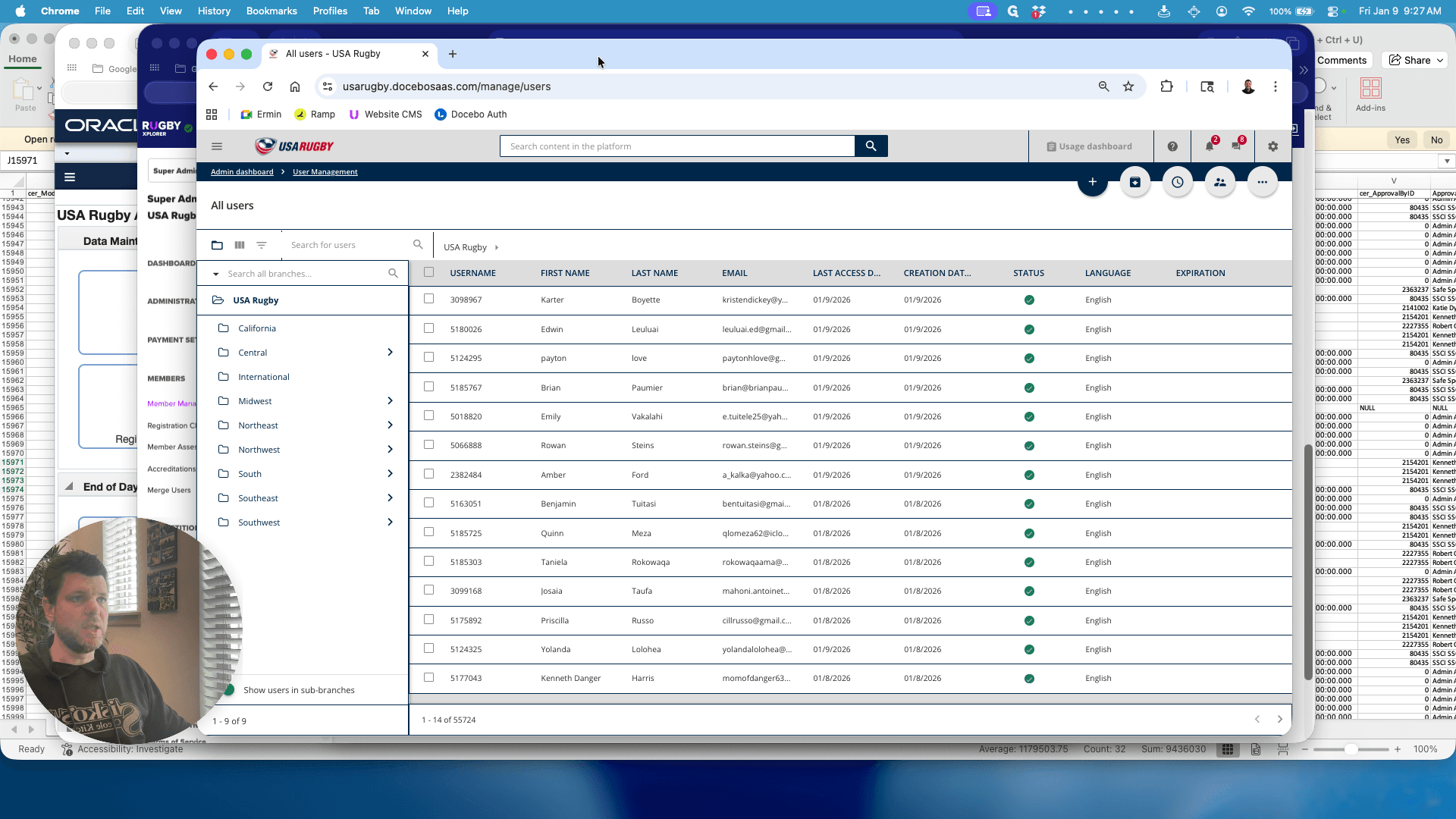
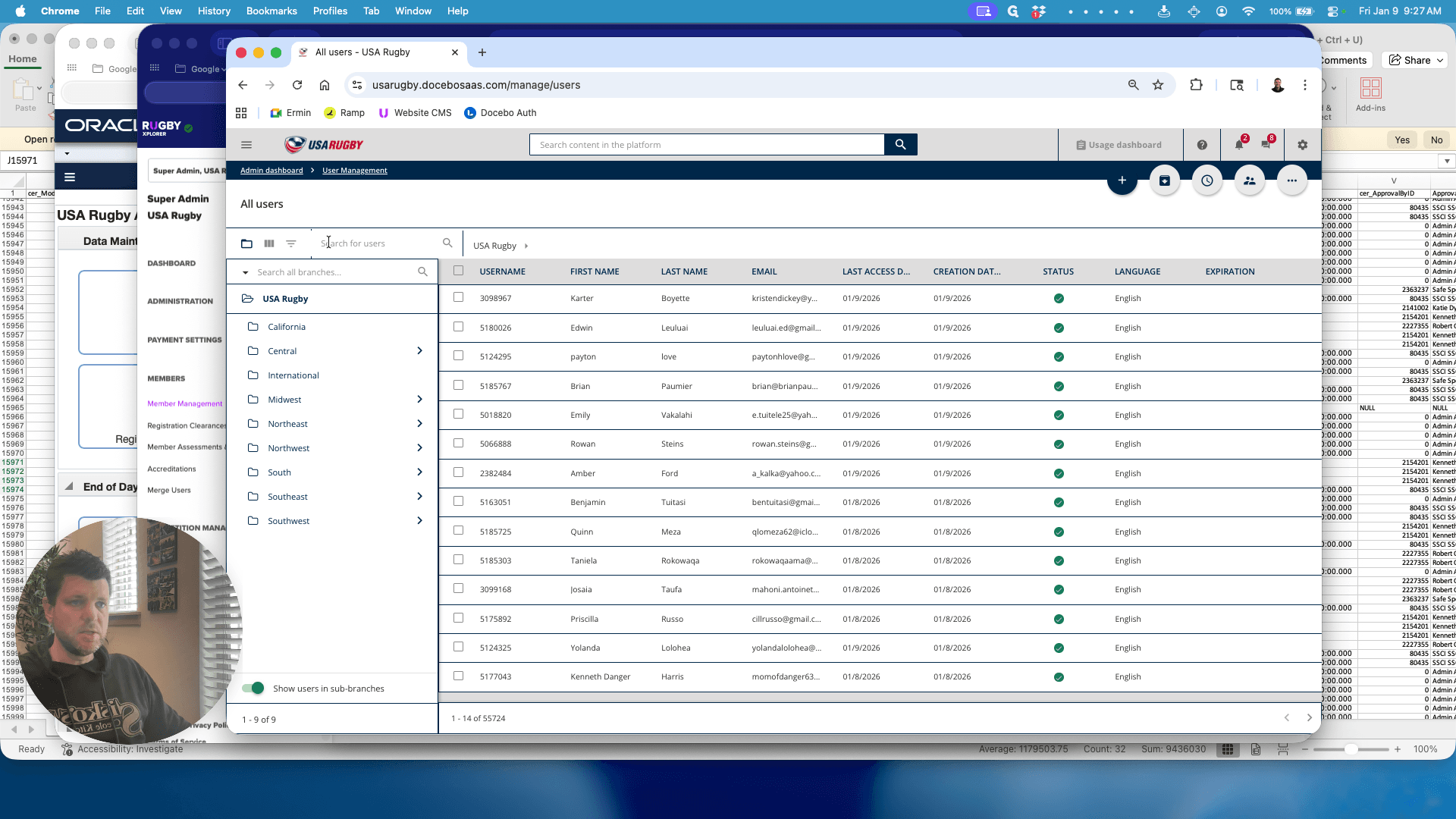
We're going to find John Buckholz.
That's him. Let's get his ID number.
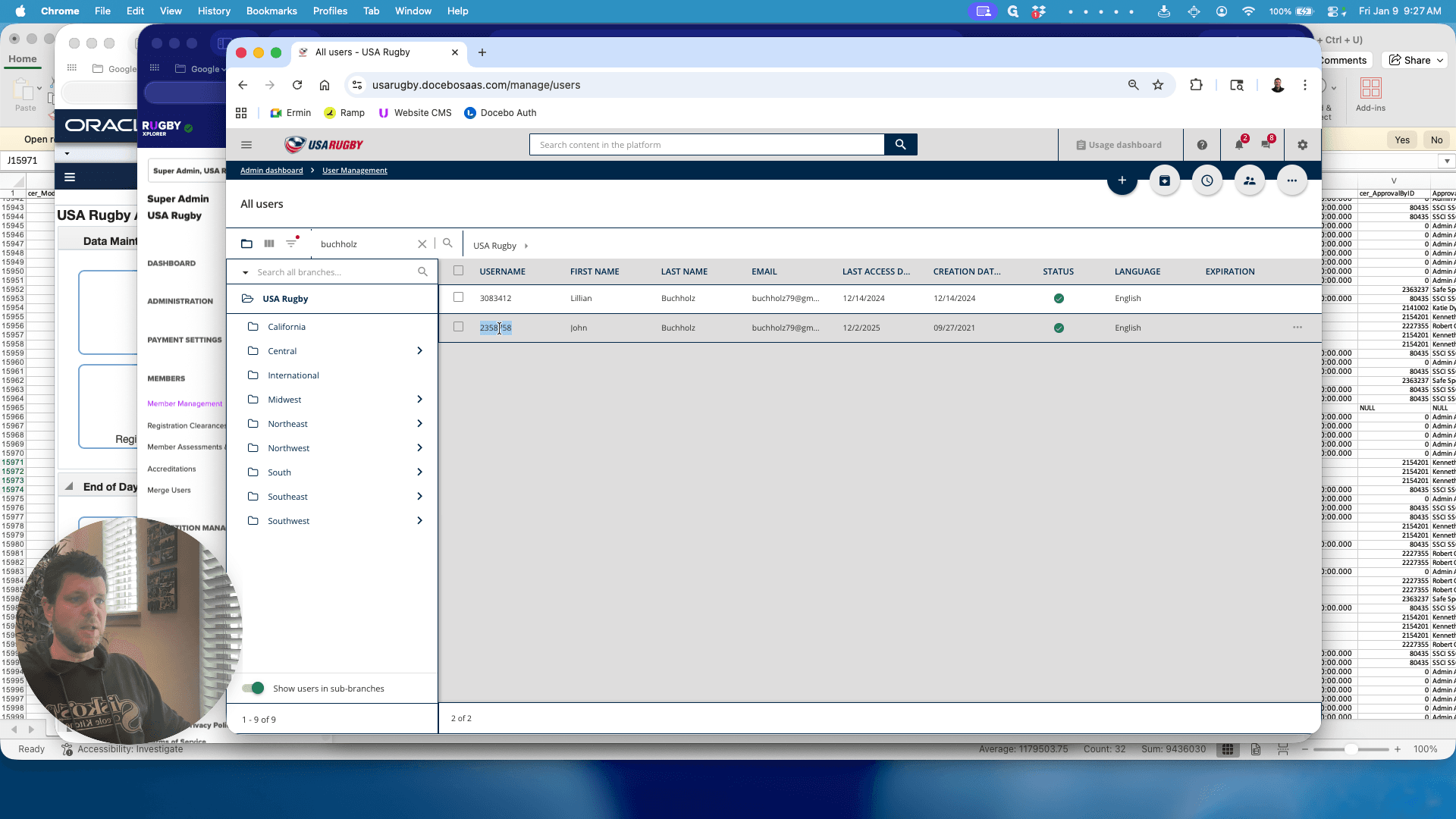
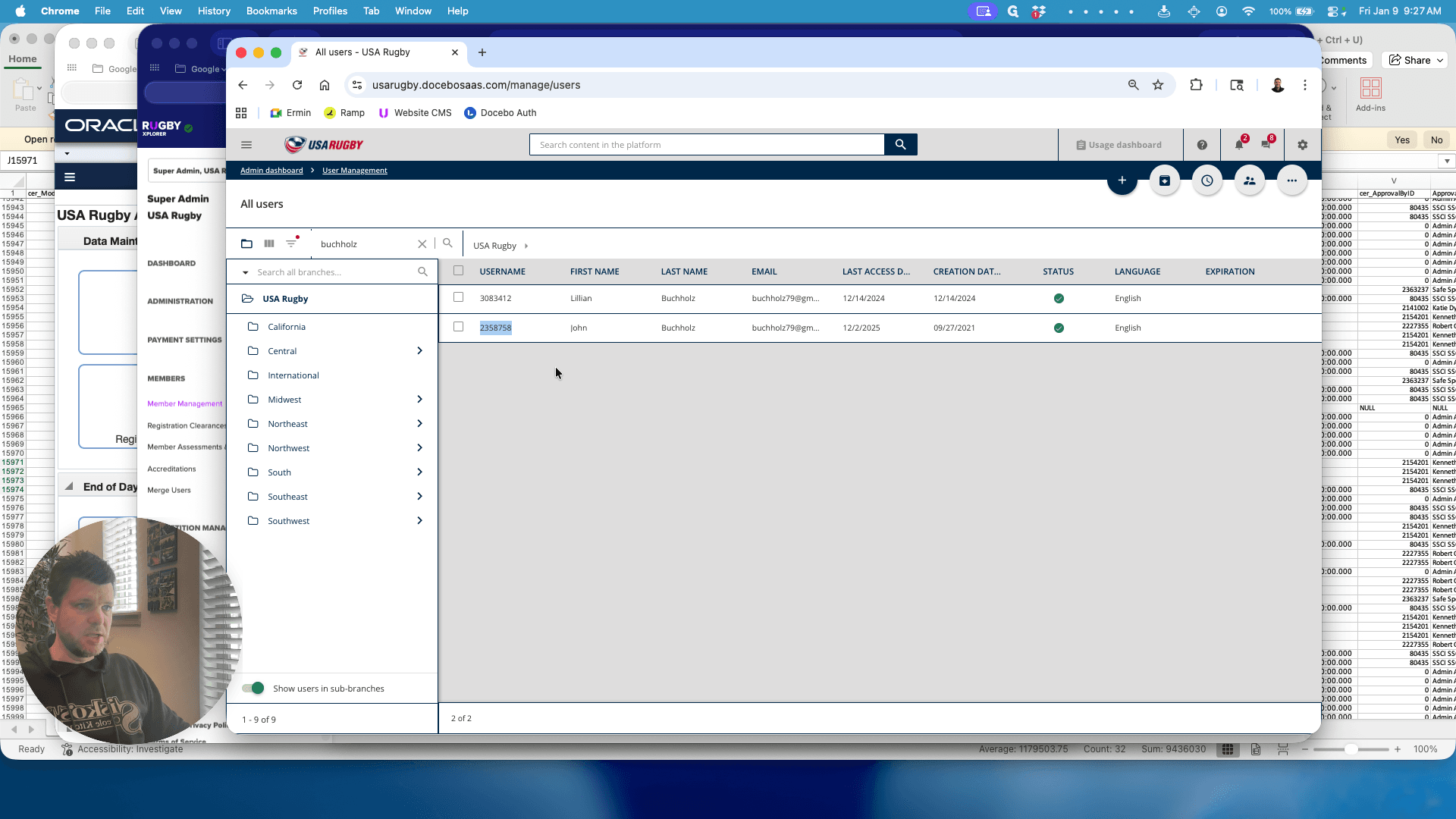
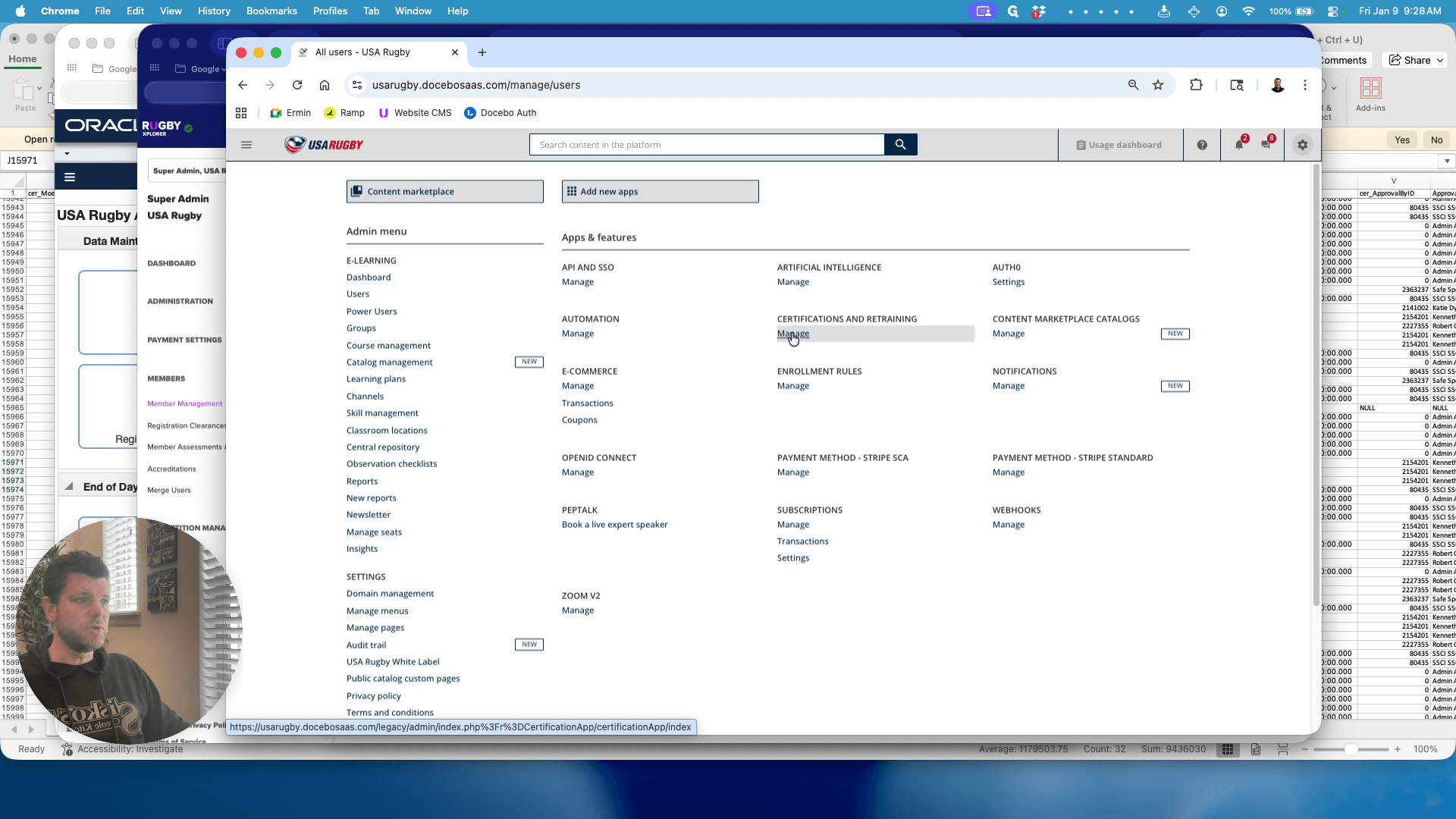
Click the gear icon in the top right corner.
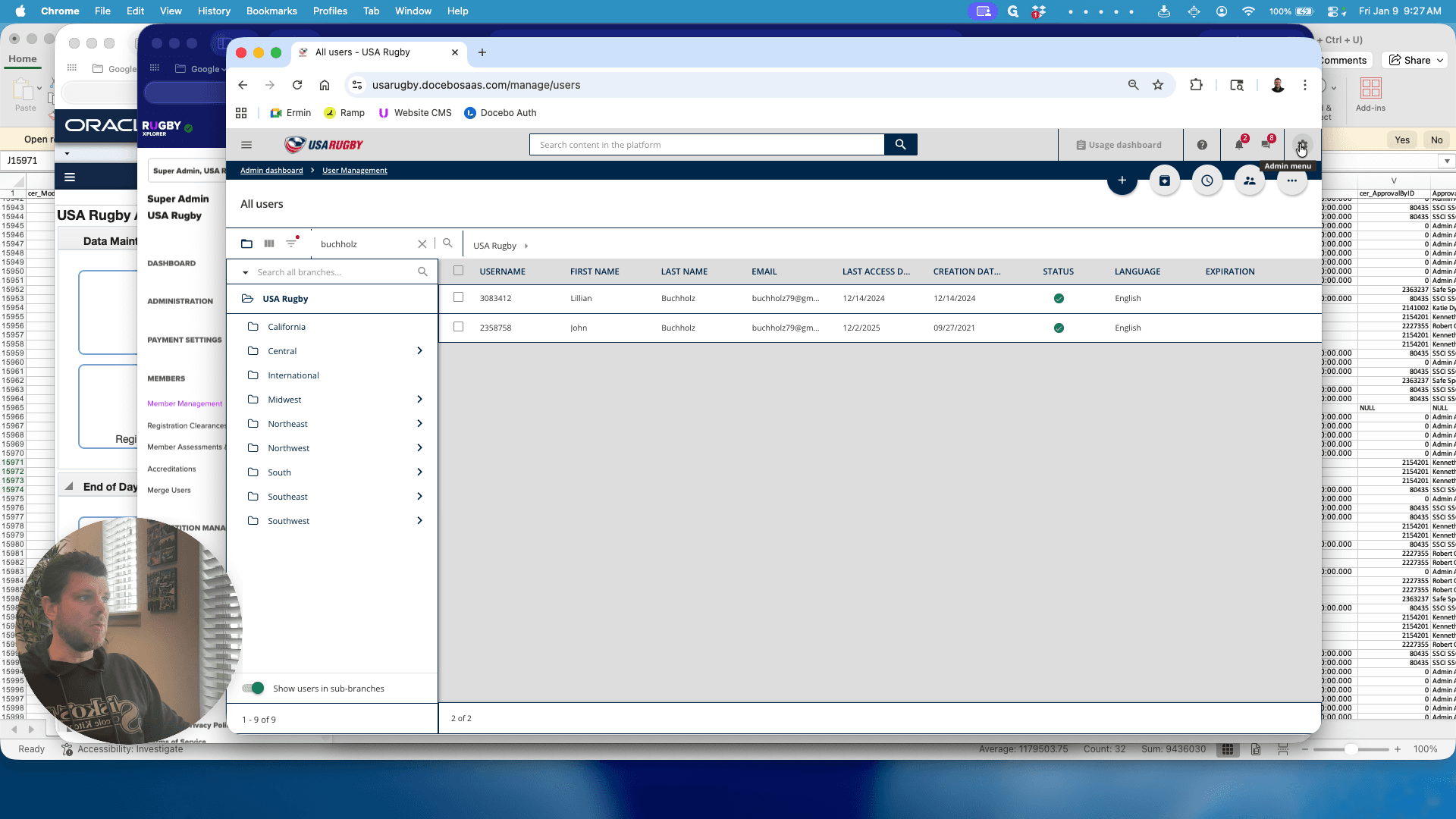
We will select Certifications & Retraining.
We will award him a Legacy Level 200 Coach certification. We do not have evidence that the course was given as a World Rugby certificate, only as a Level 200 for USA Rugby. Therefore, that is what we will grant him.
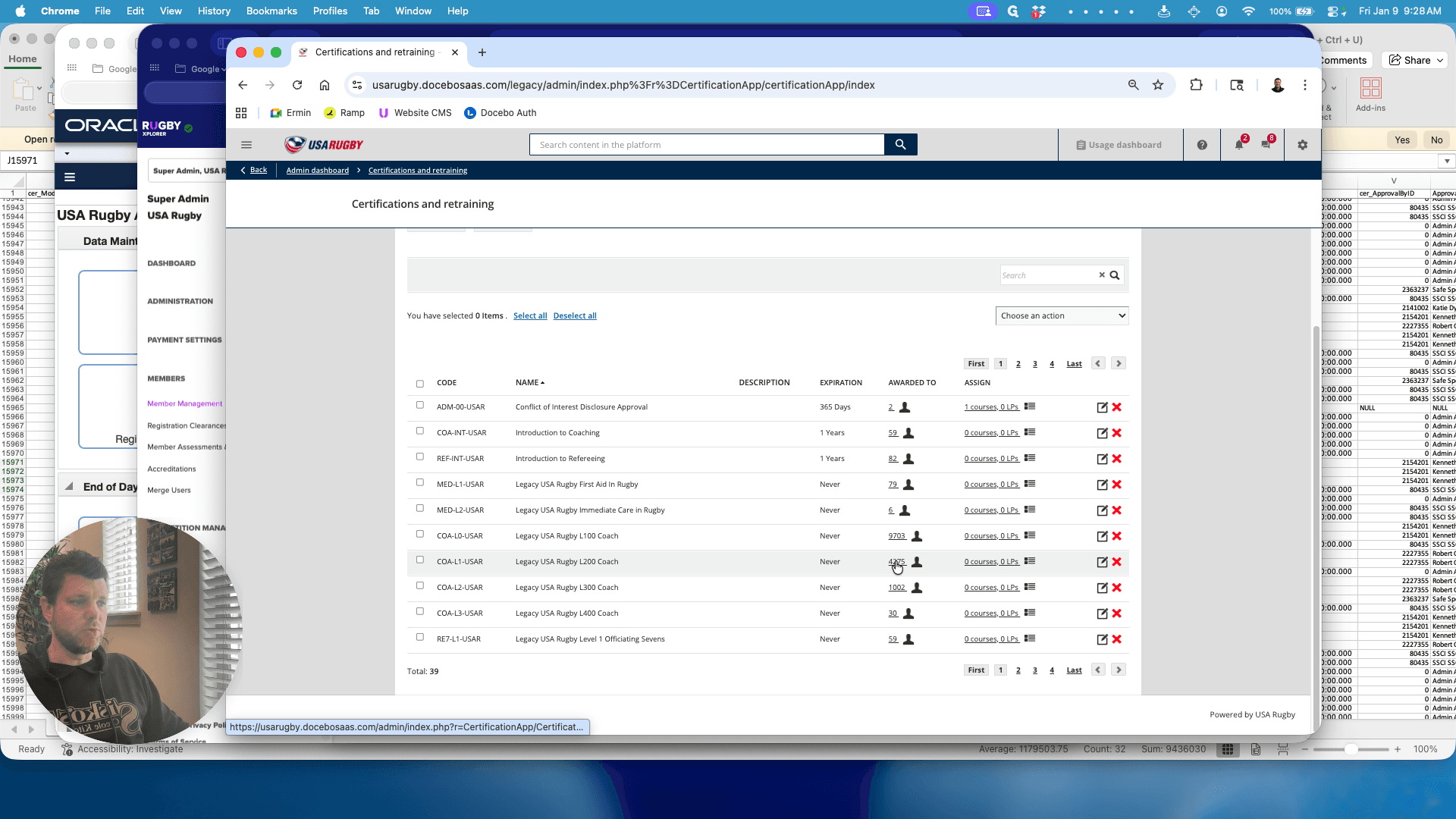
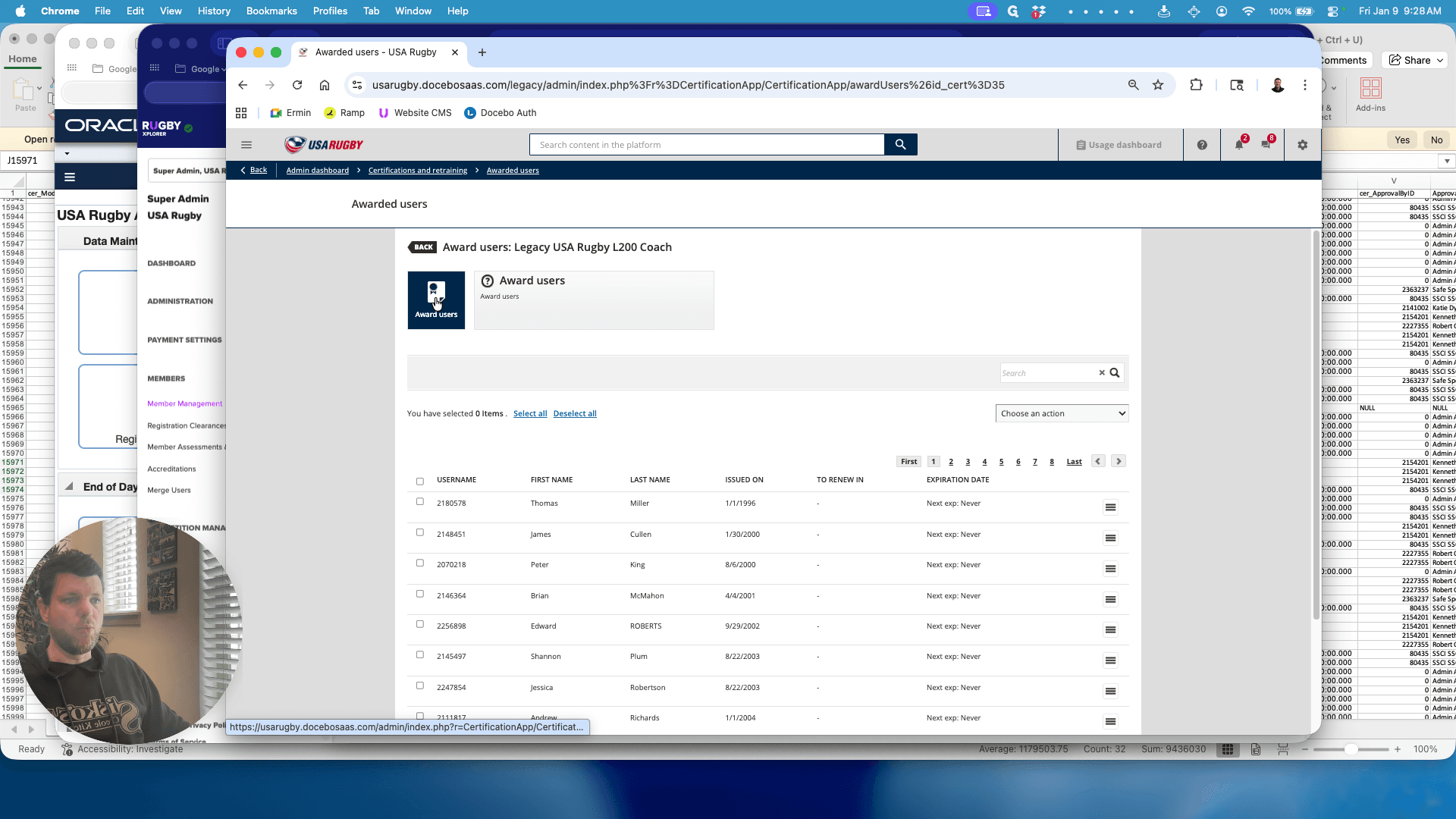
Click on "Awarded To." This displays a list of everyone who has received that certification. Next, click Award Users.
Enter the user's ID number.
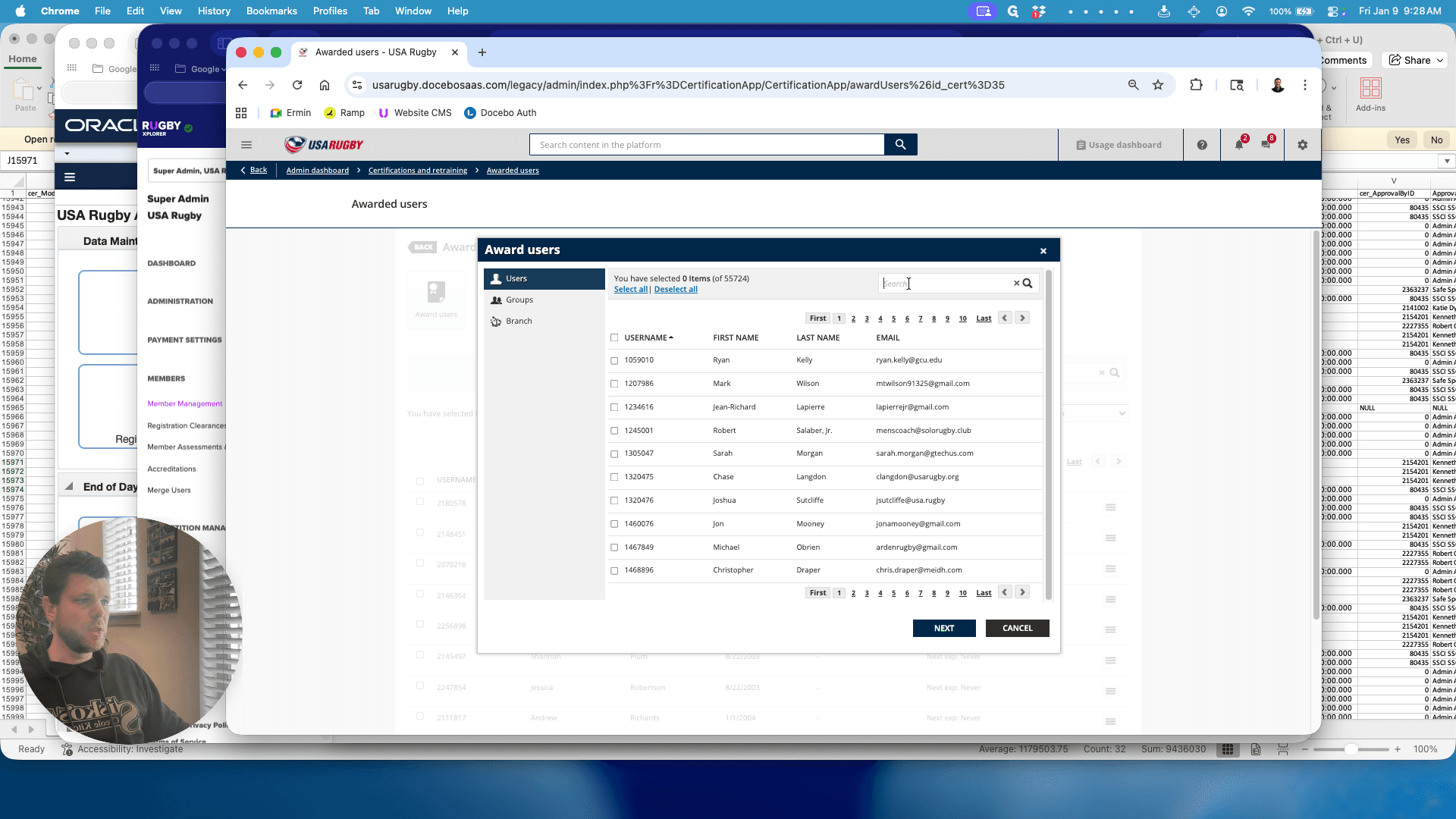
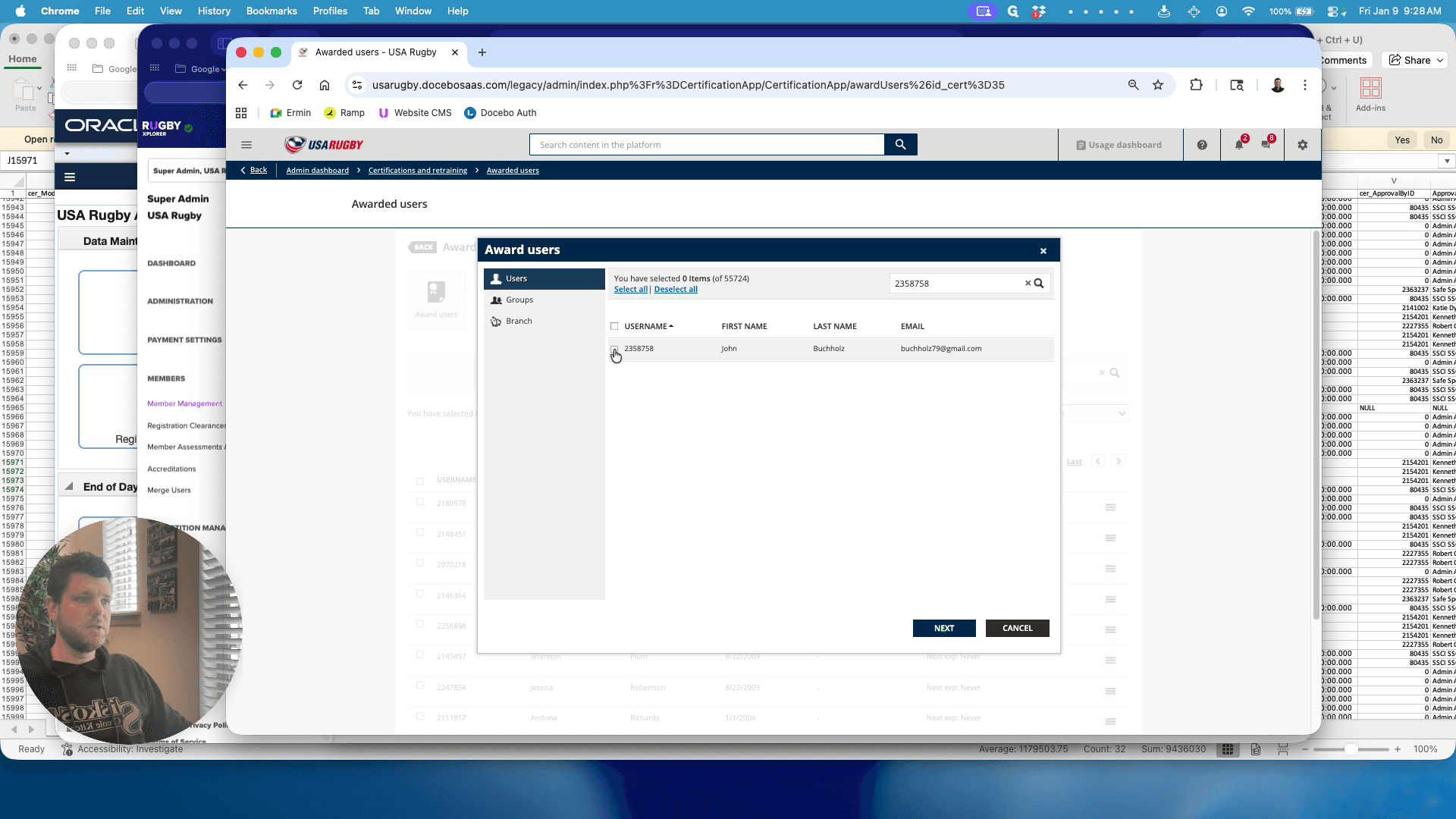
Select him, click Next, and enter today's date.
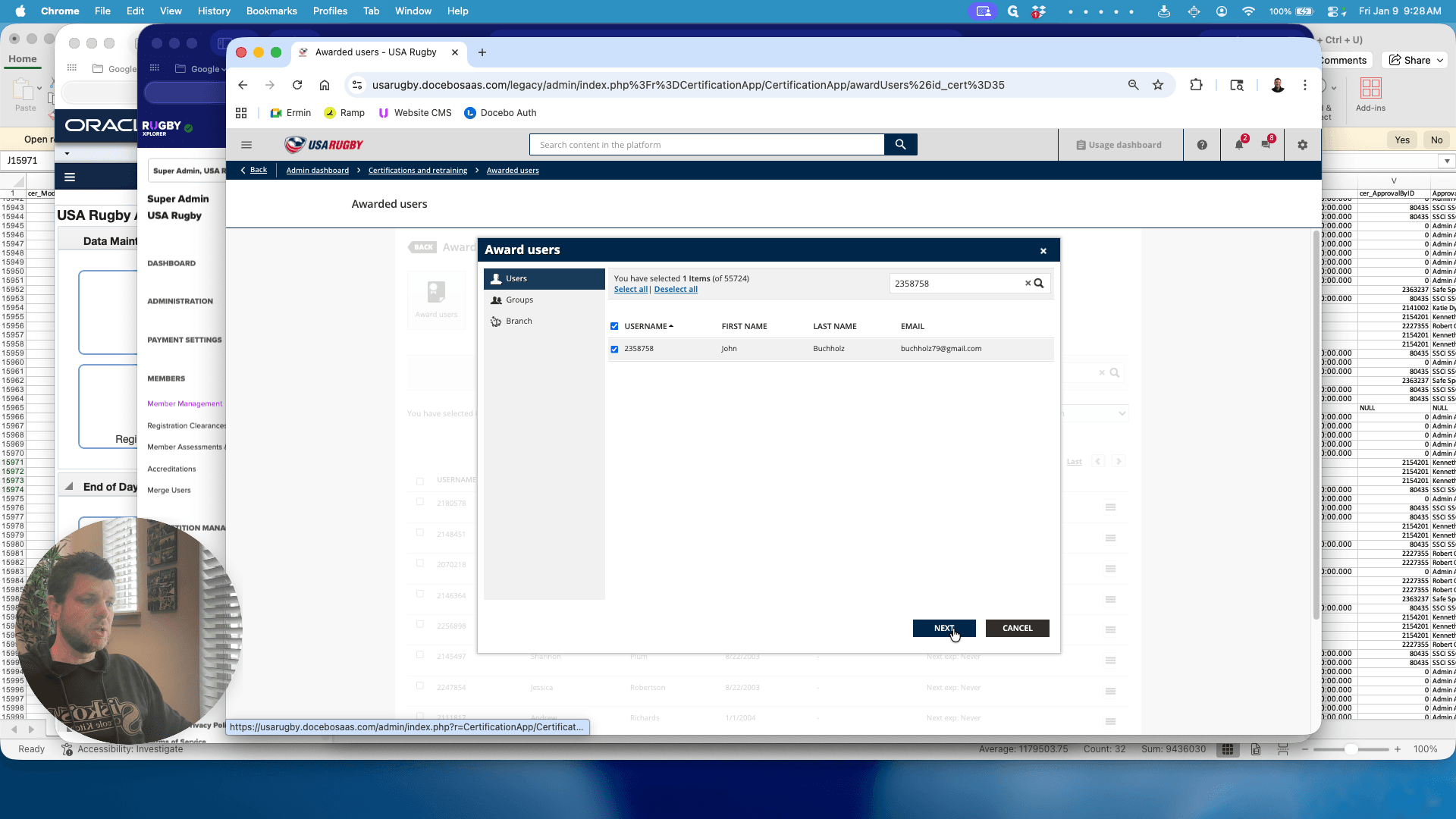
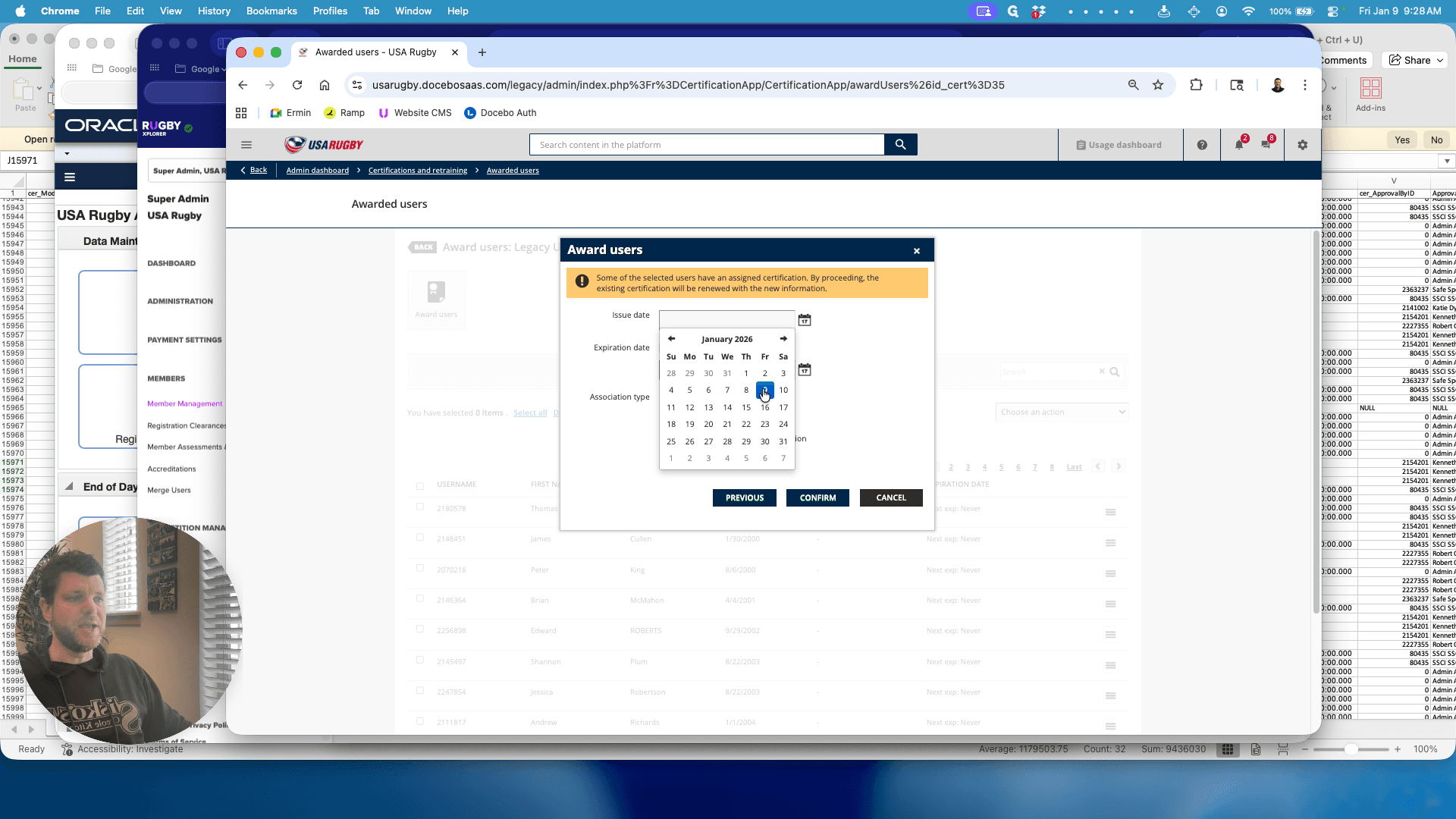
Just click on today's date.
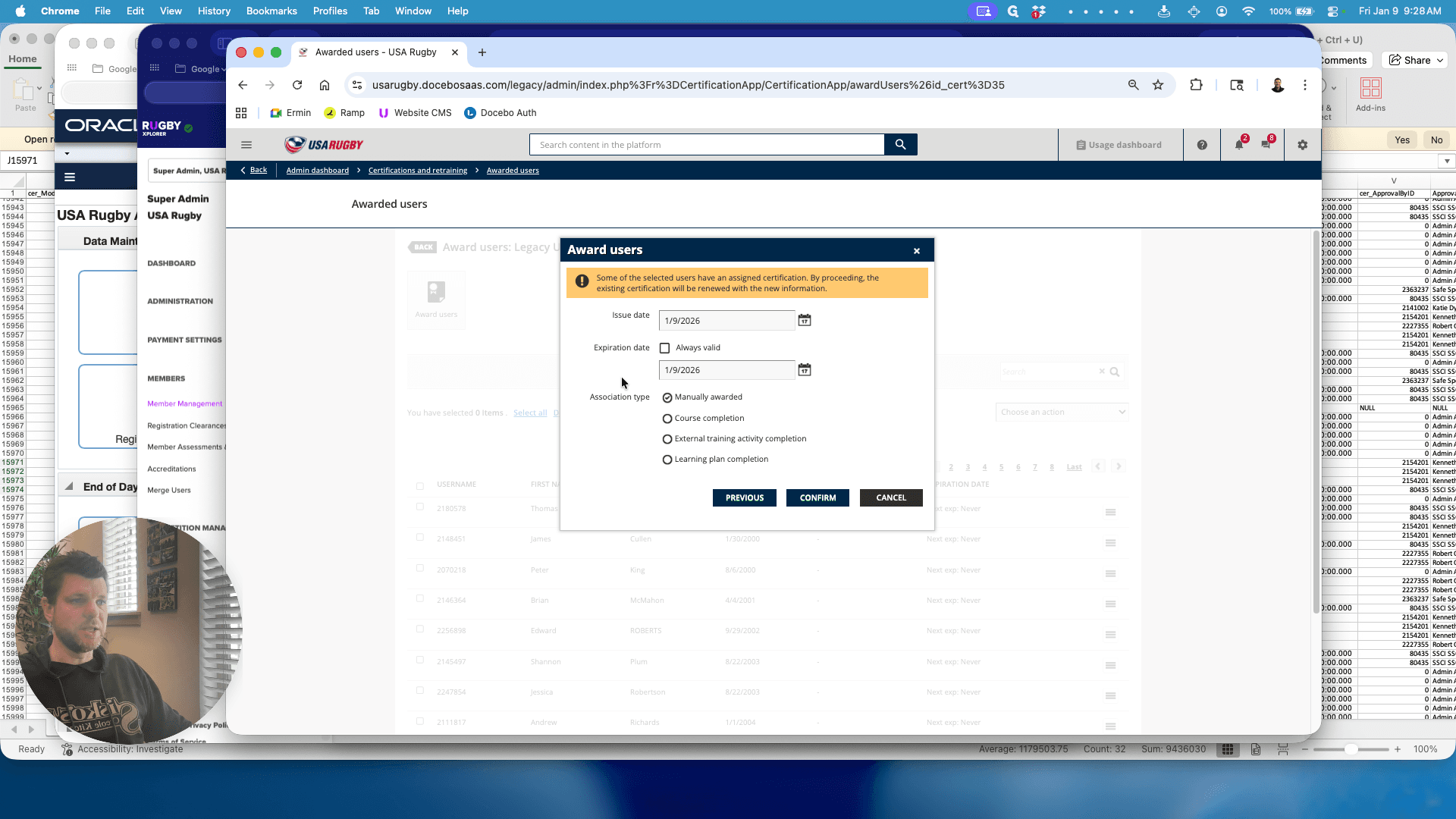
Click "Always Valid."
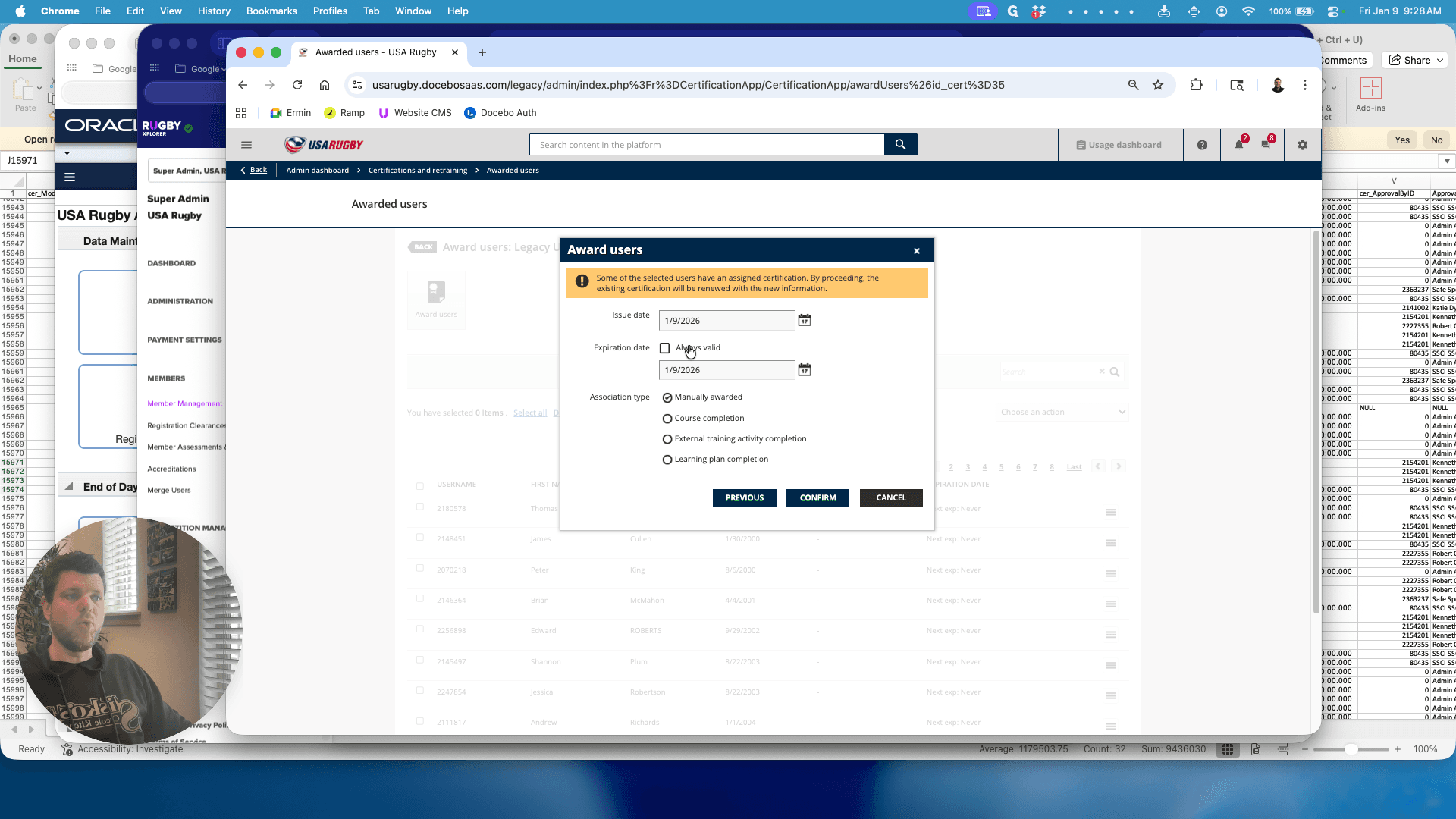
Currently, all certifications remain valid at all times. Click Confirm.
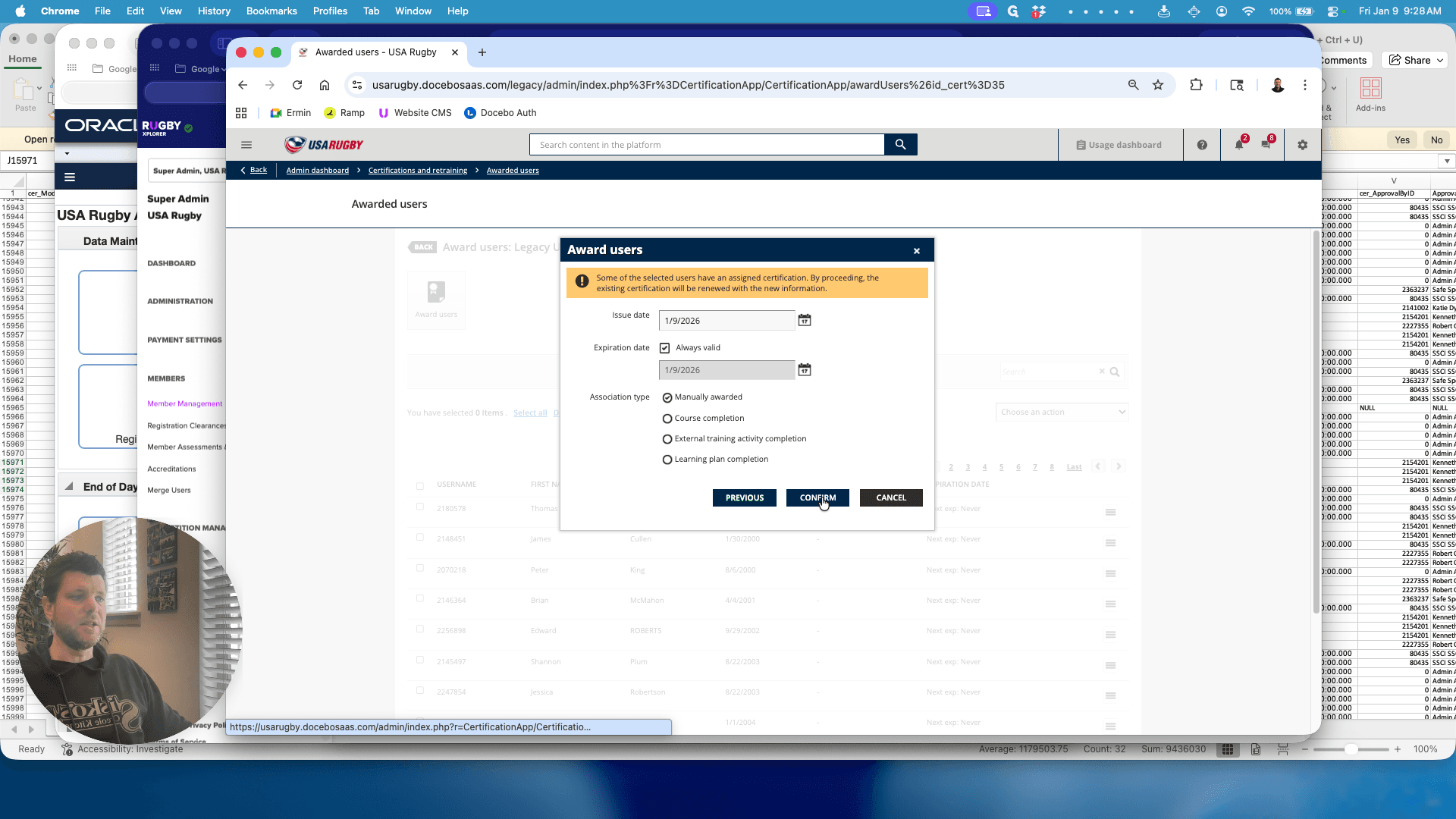
Okay. That gives the individual certification immediately. If we ask Daryl to manually update all current accreditations, they will be recognized and will appear. We go to Daryl and click Docebo Update.
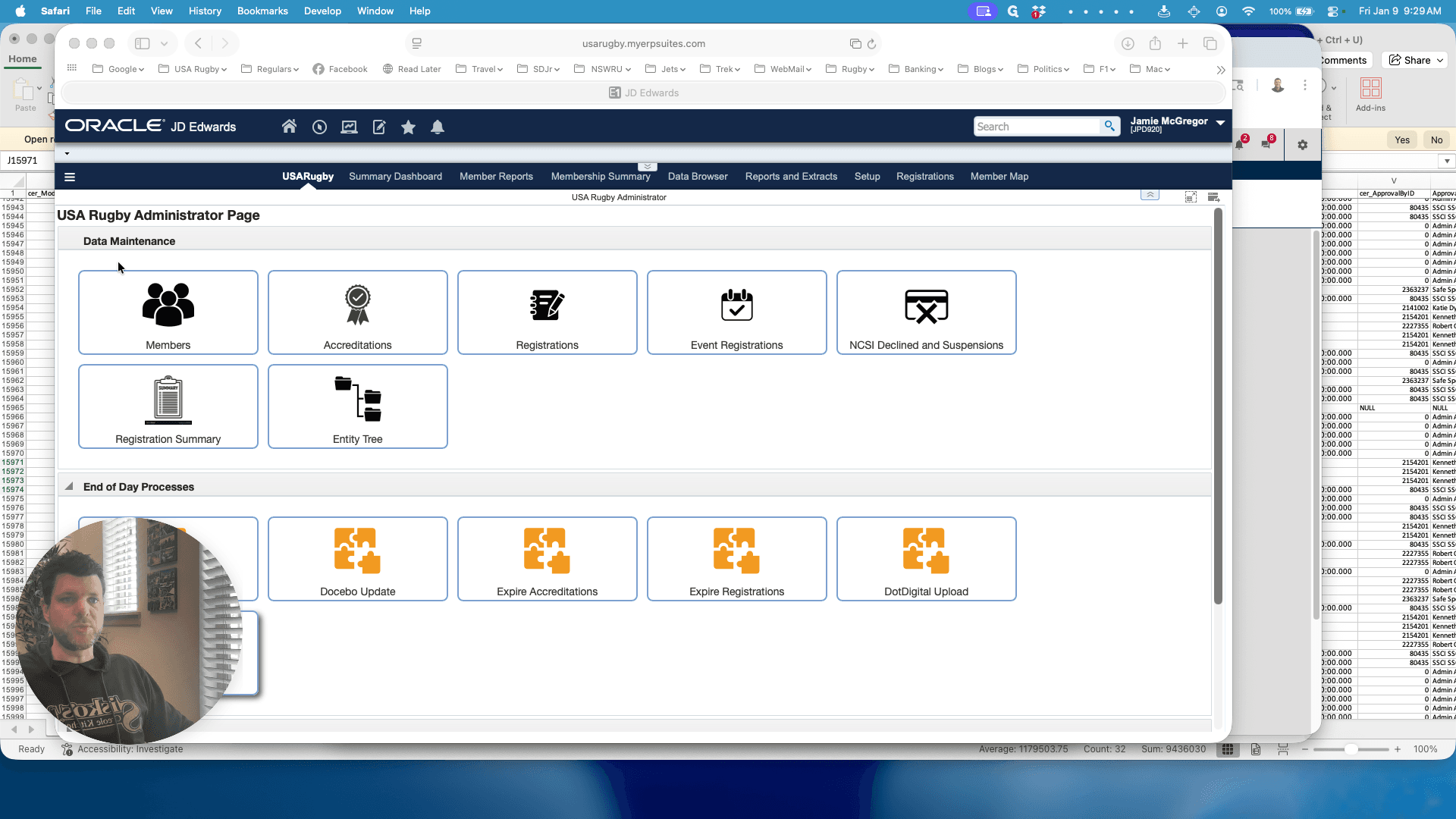
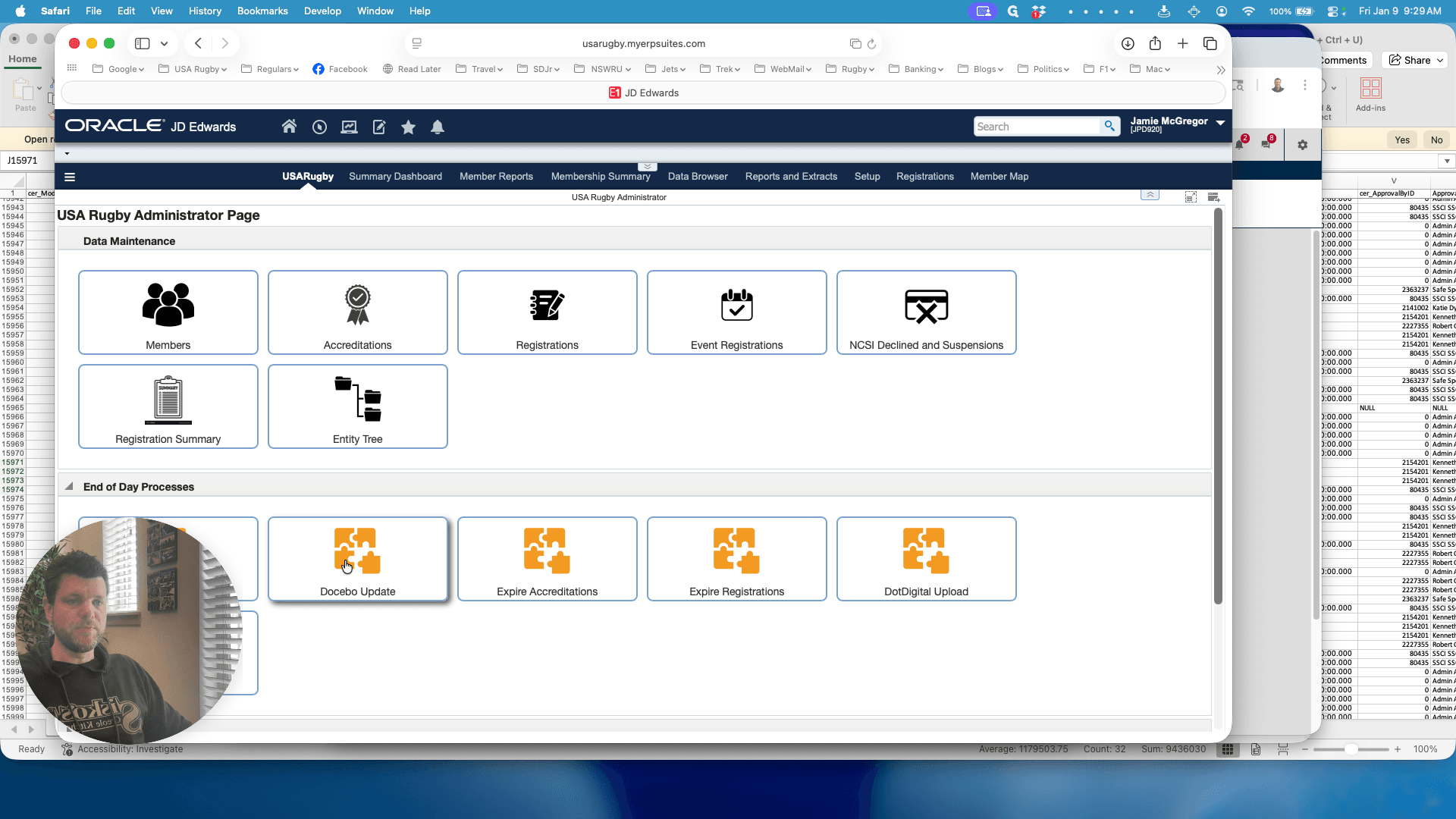
This runs automatically on a regular schedule. If someone earns a qualification, the system will detect it approximately every half hour. We want it done immediately so we can manage that person's accreditation. That's why we click on it. Okay.
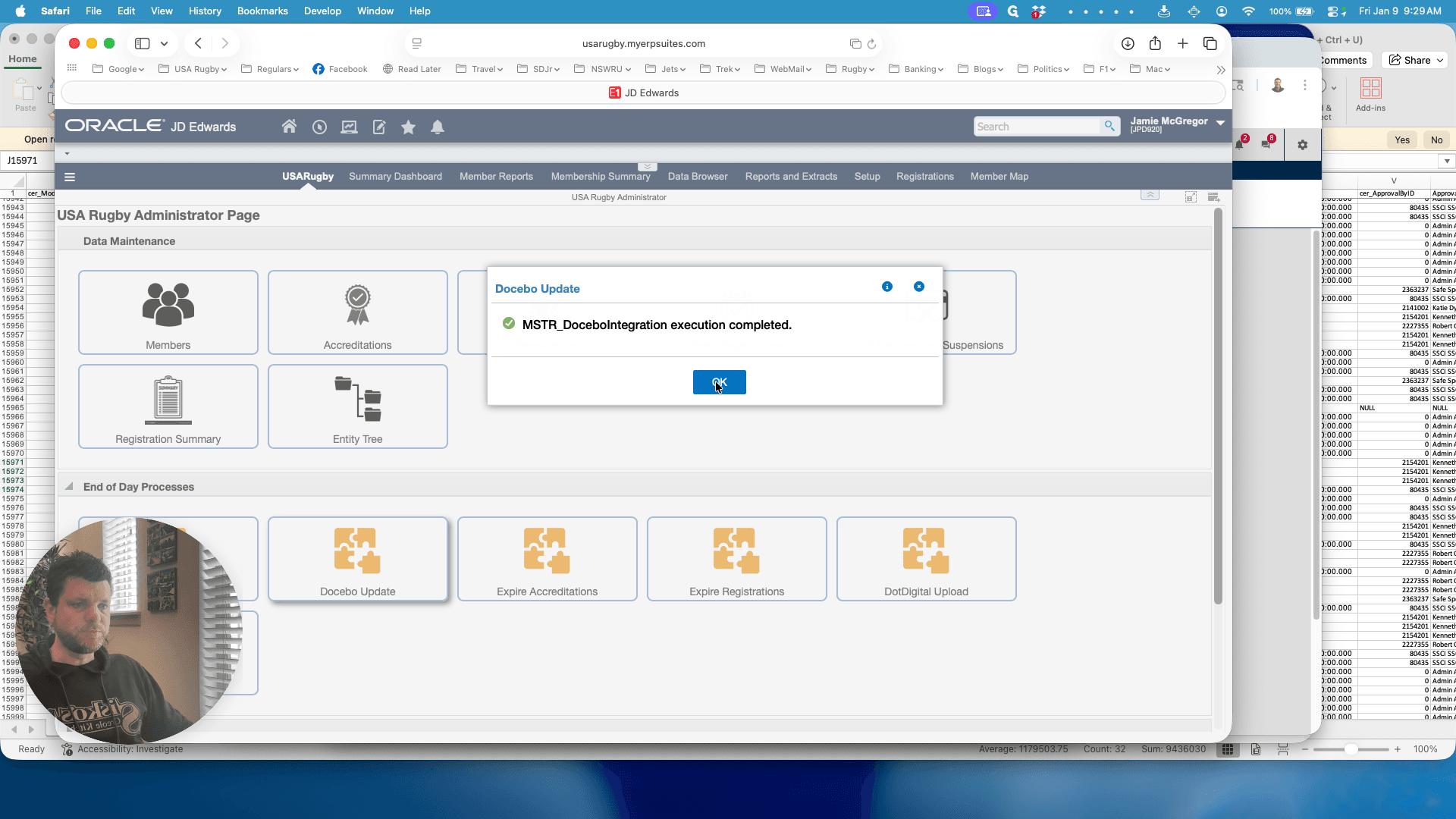
We've completed the update.
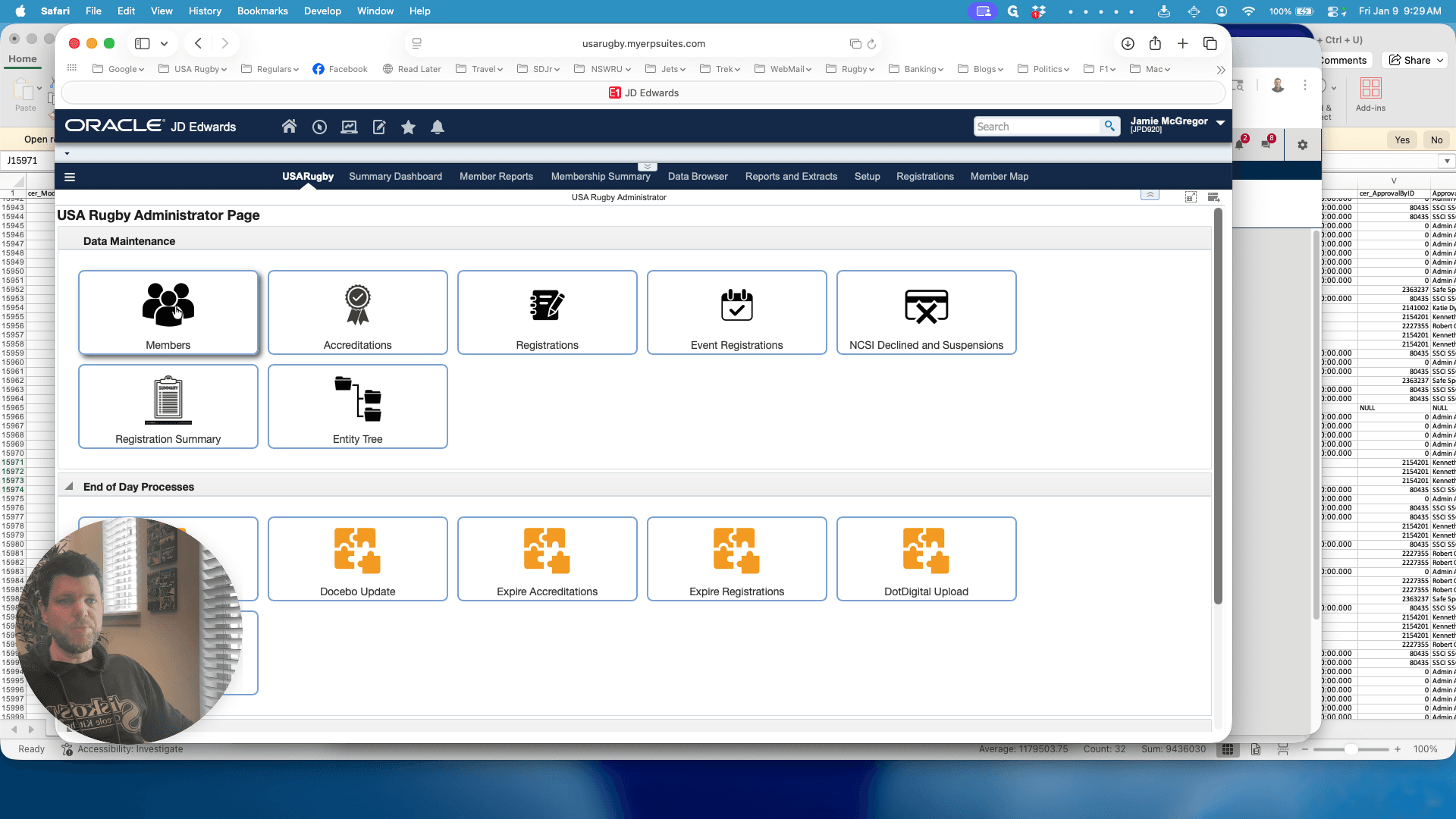
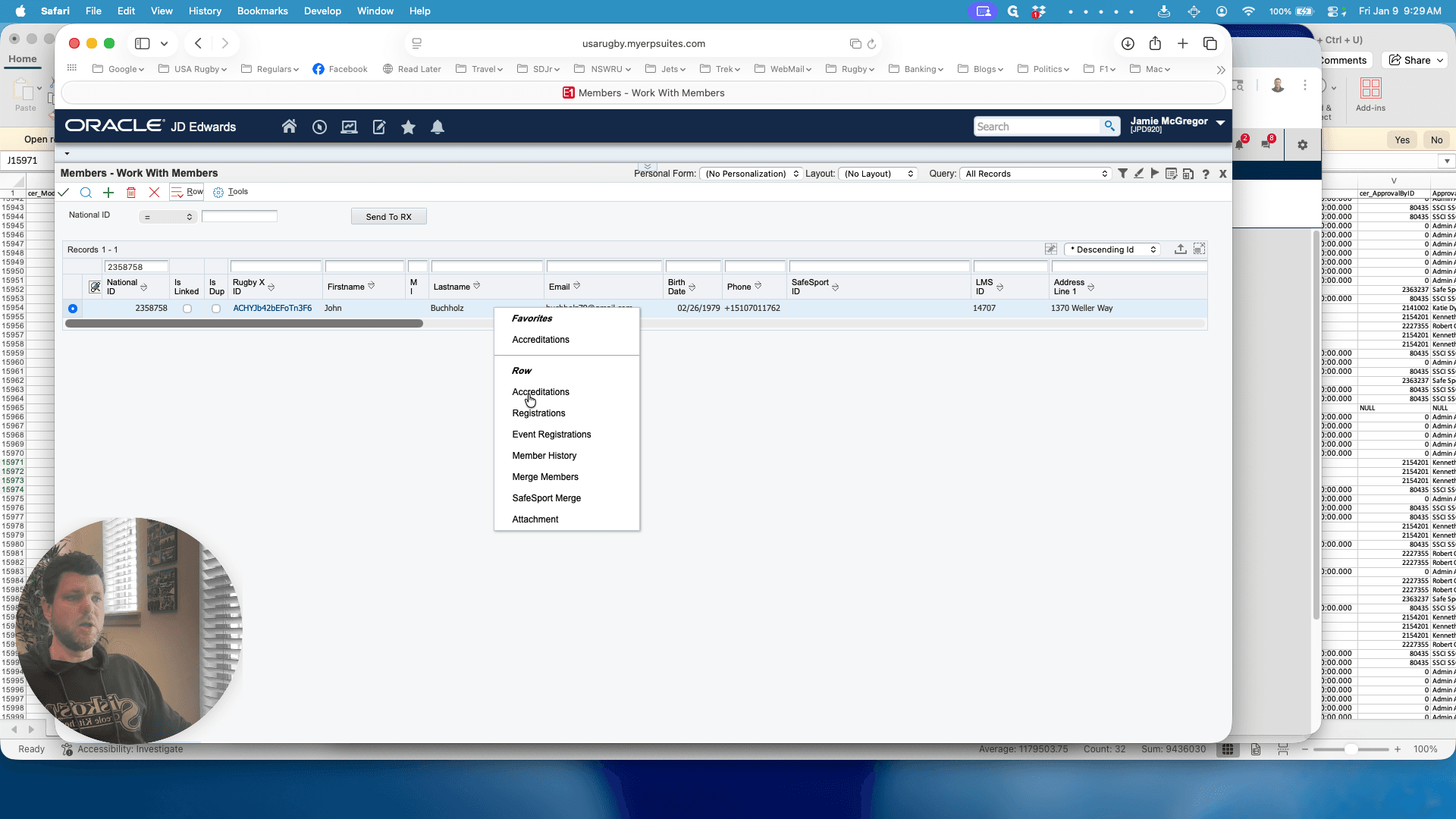
Go to Members, enter the person's ID, and right-click Accreditations. You will see that the Level 200 Coach accreditation has been identified.
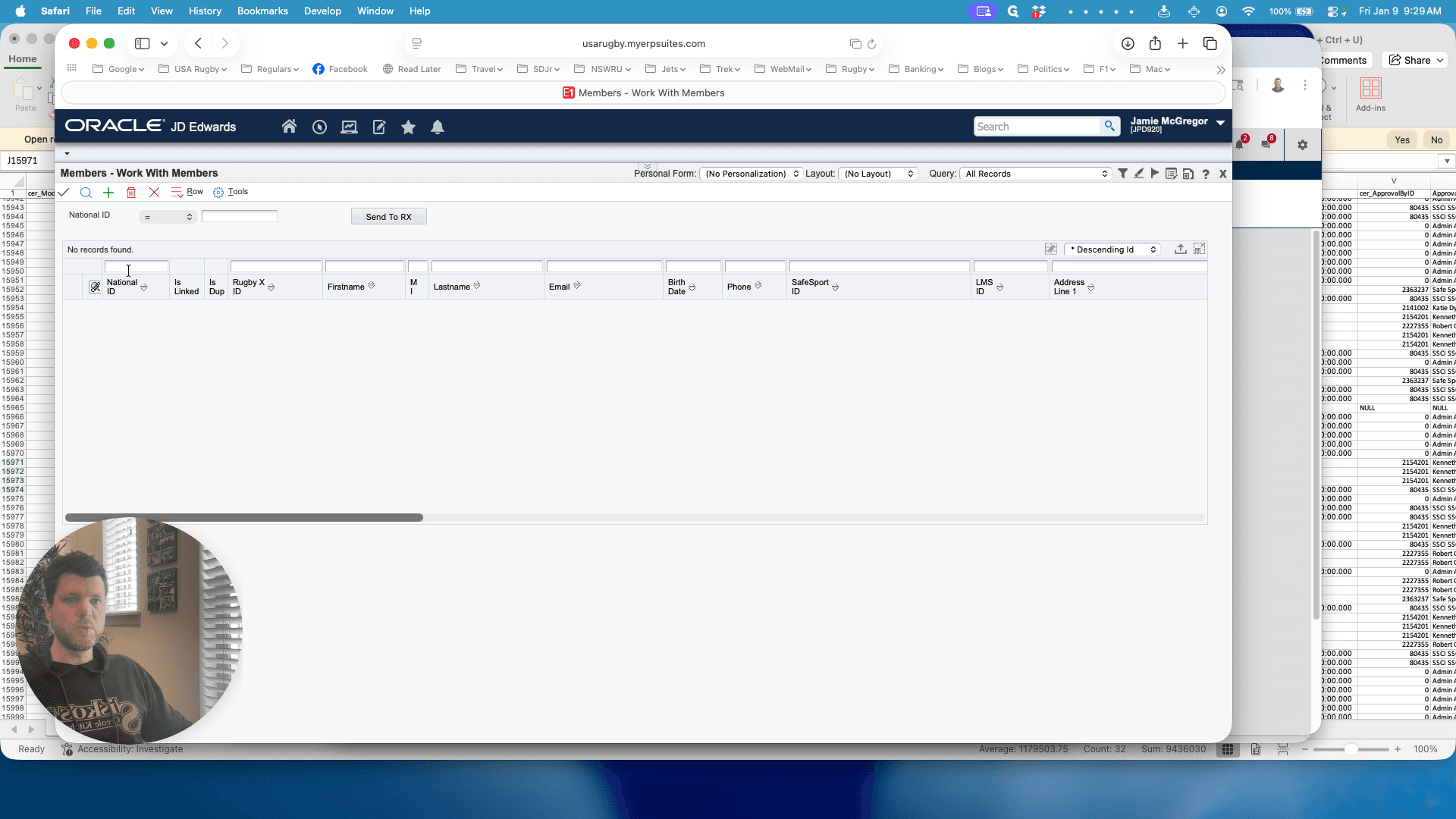
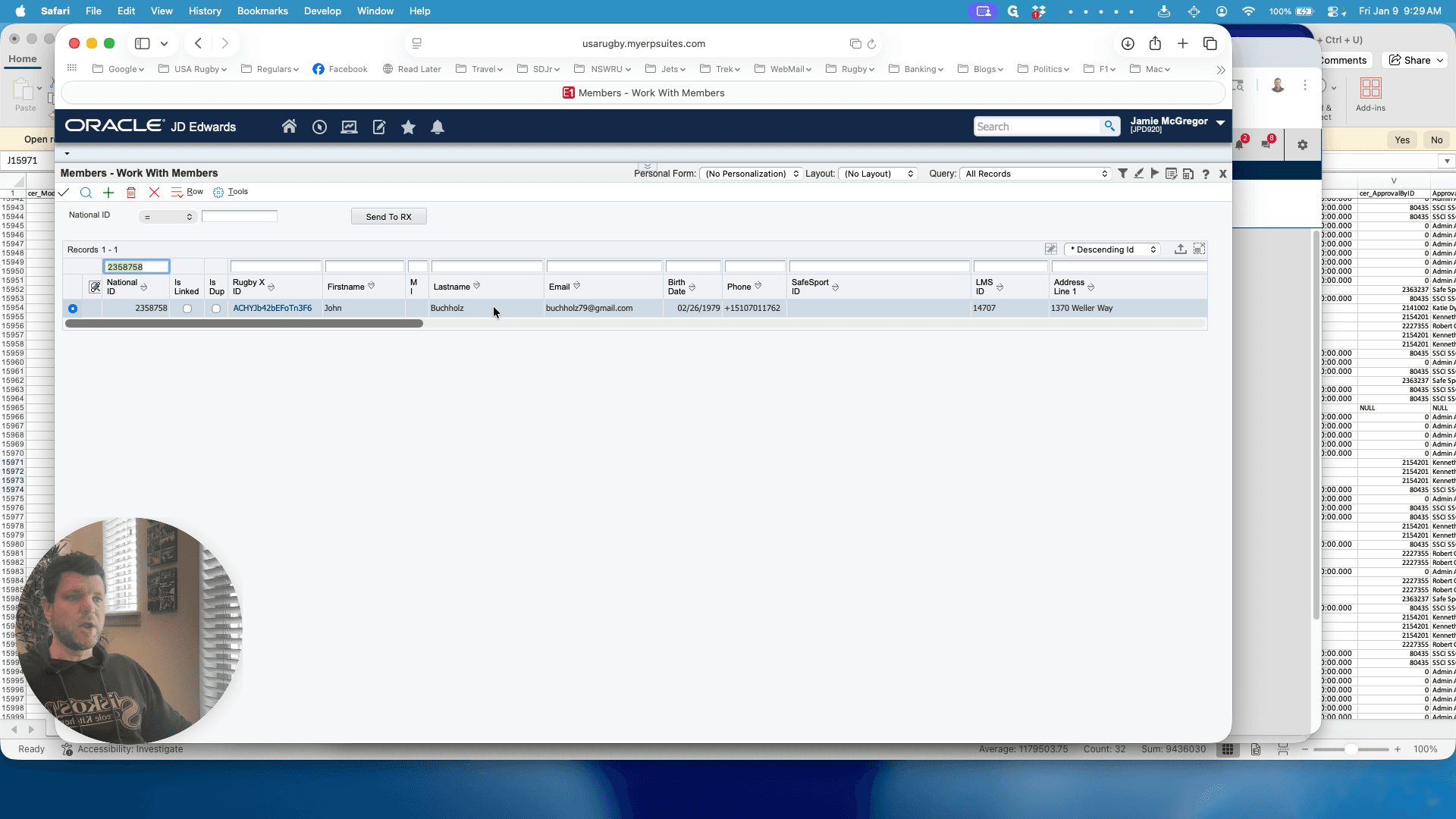
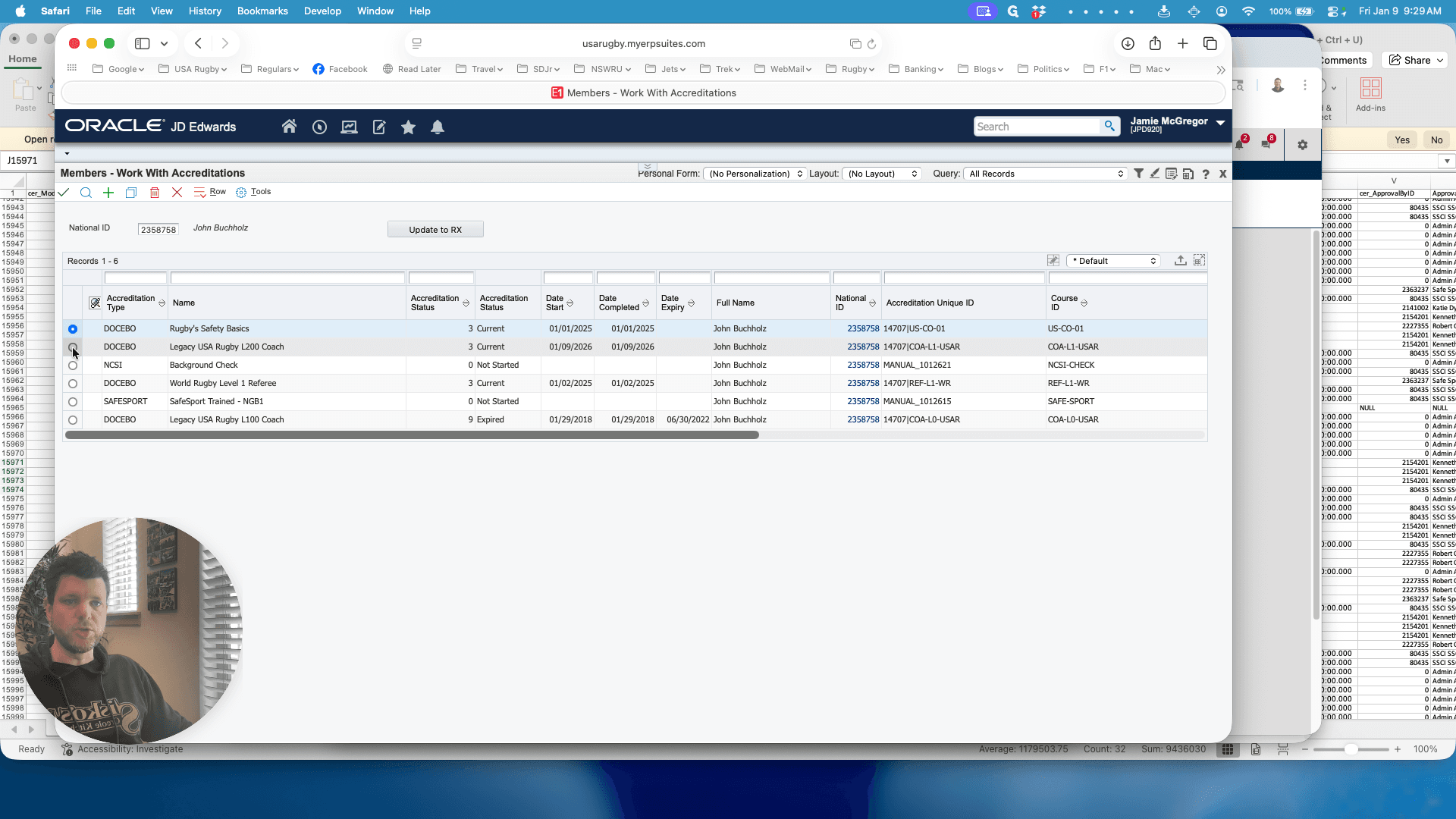
Click on the tick. Now, we can update their certificate award date.
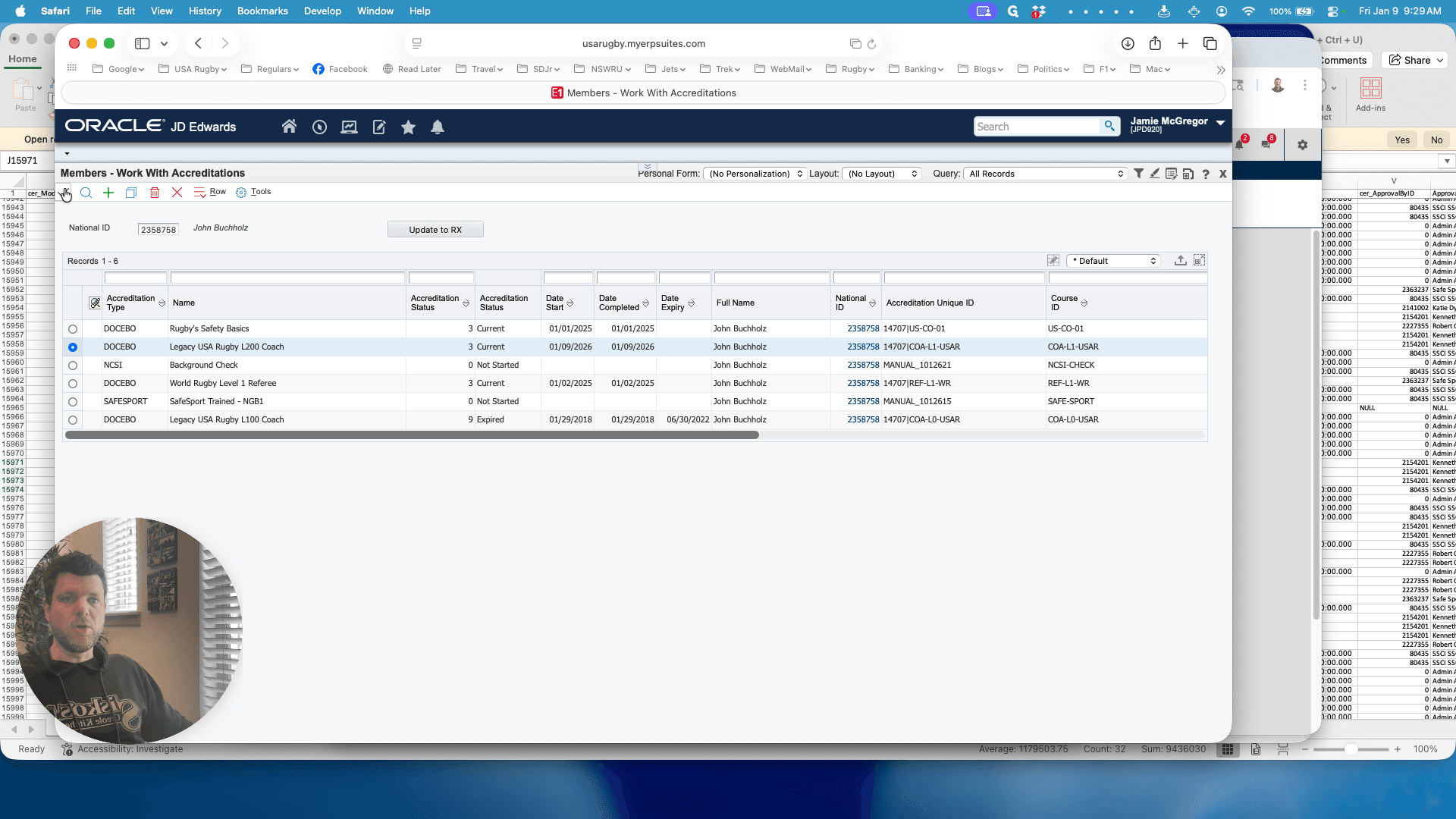
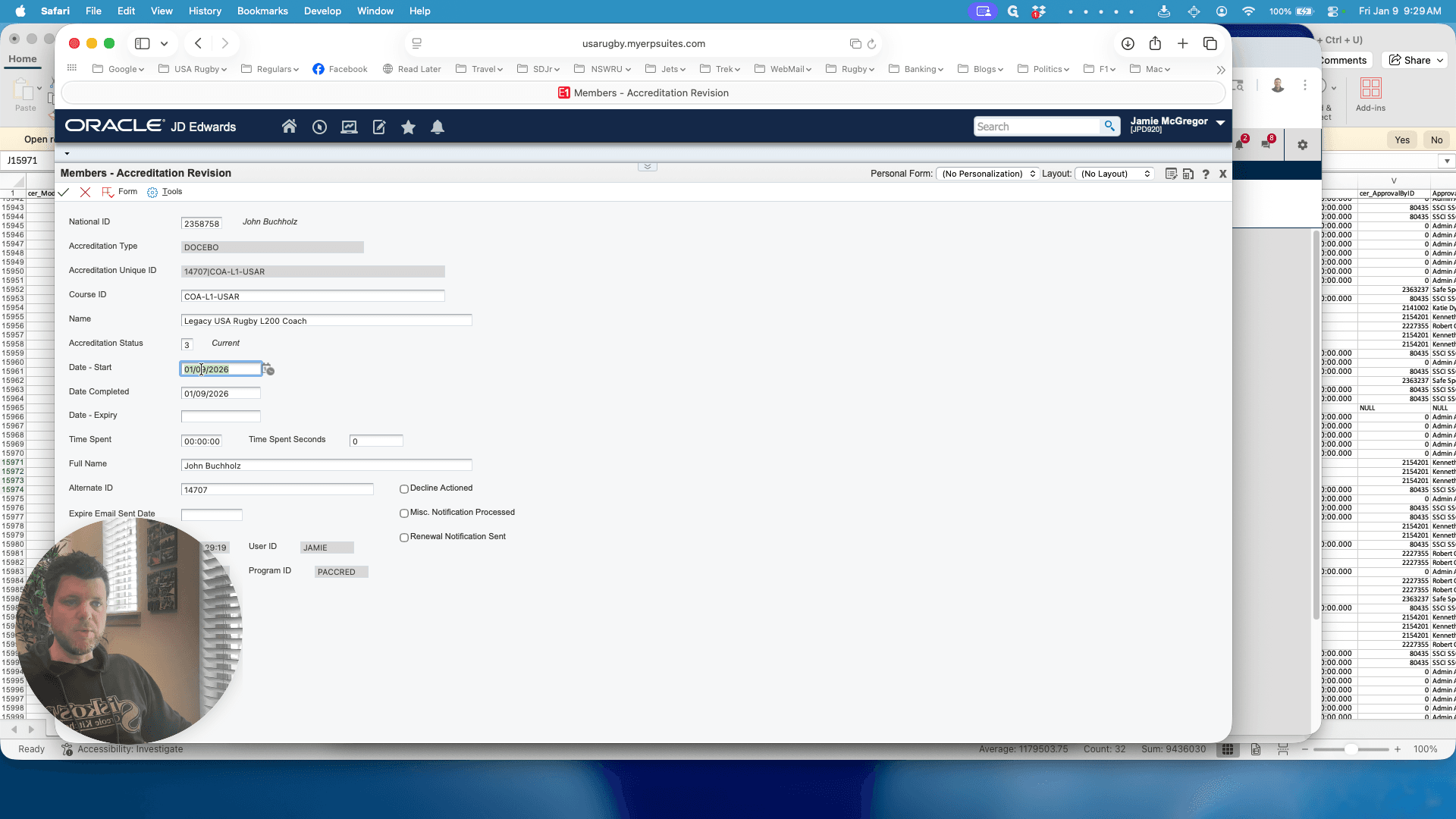
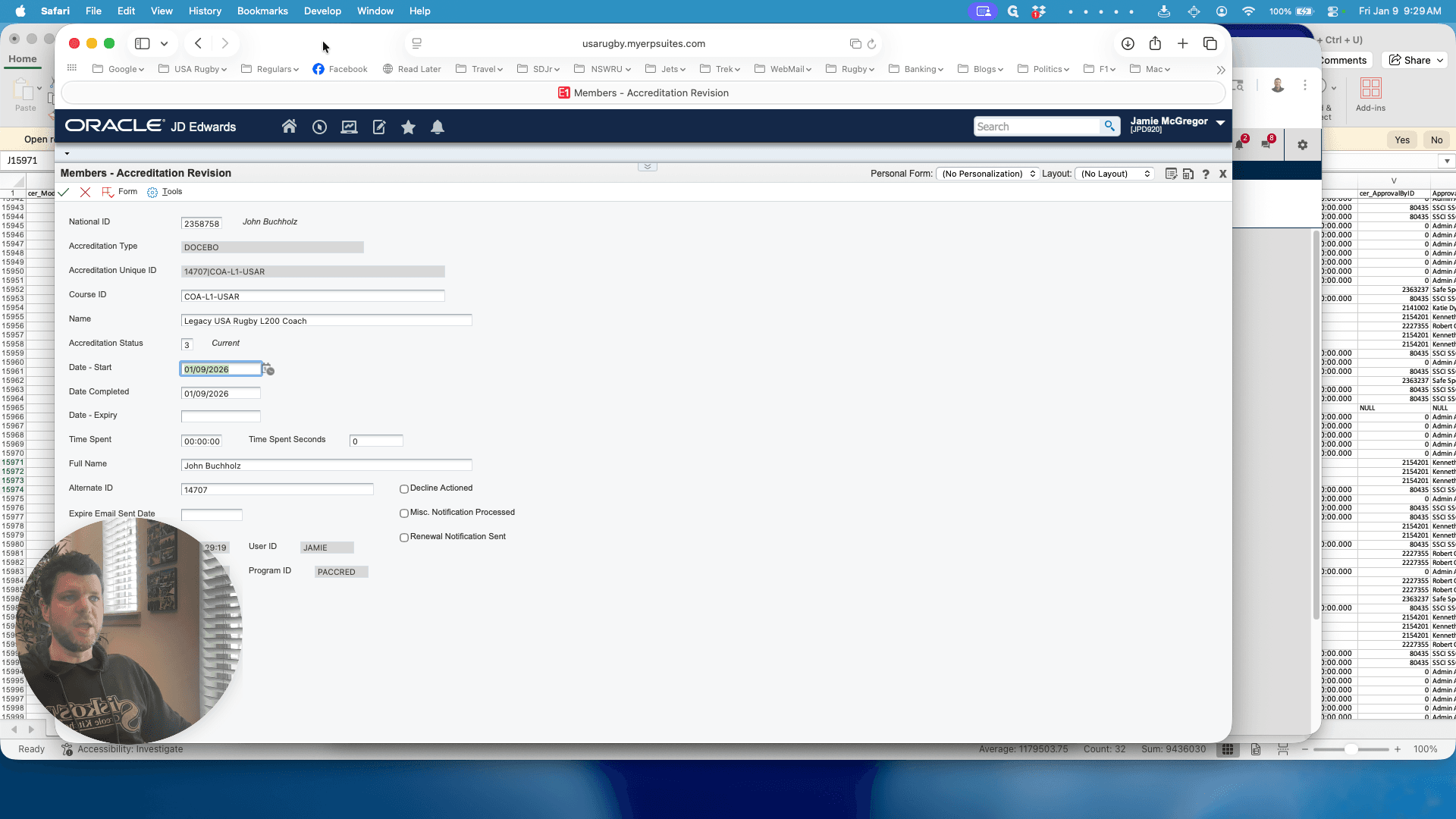
This refers to the email dated 11-06-11.
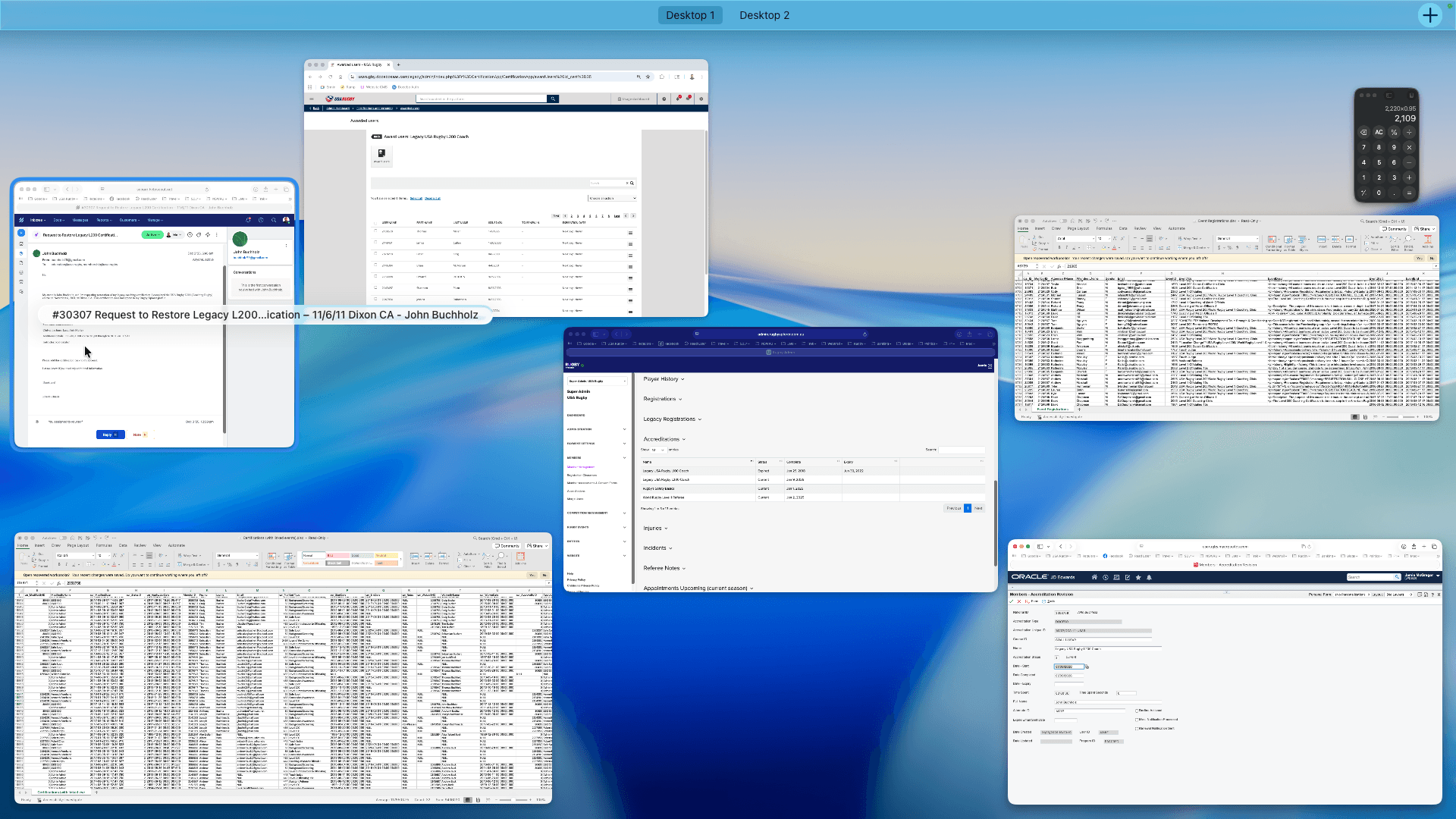
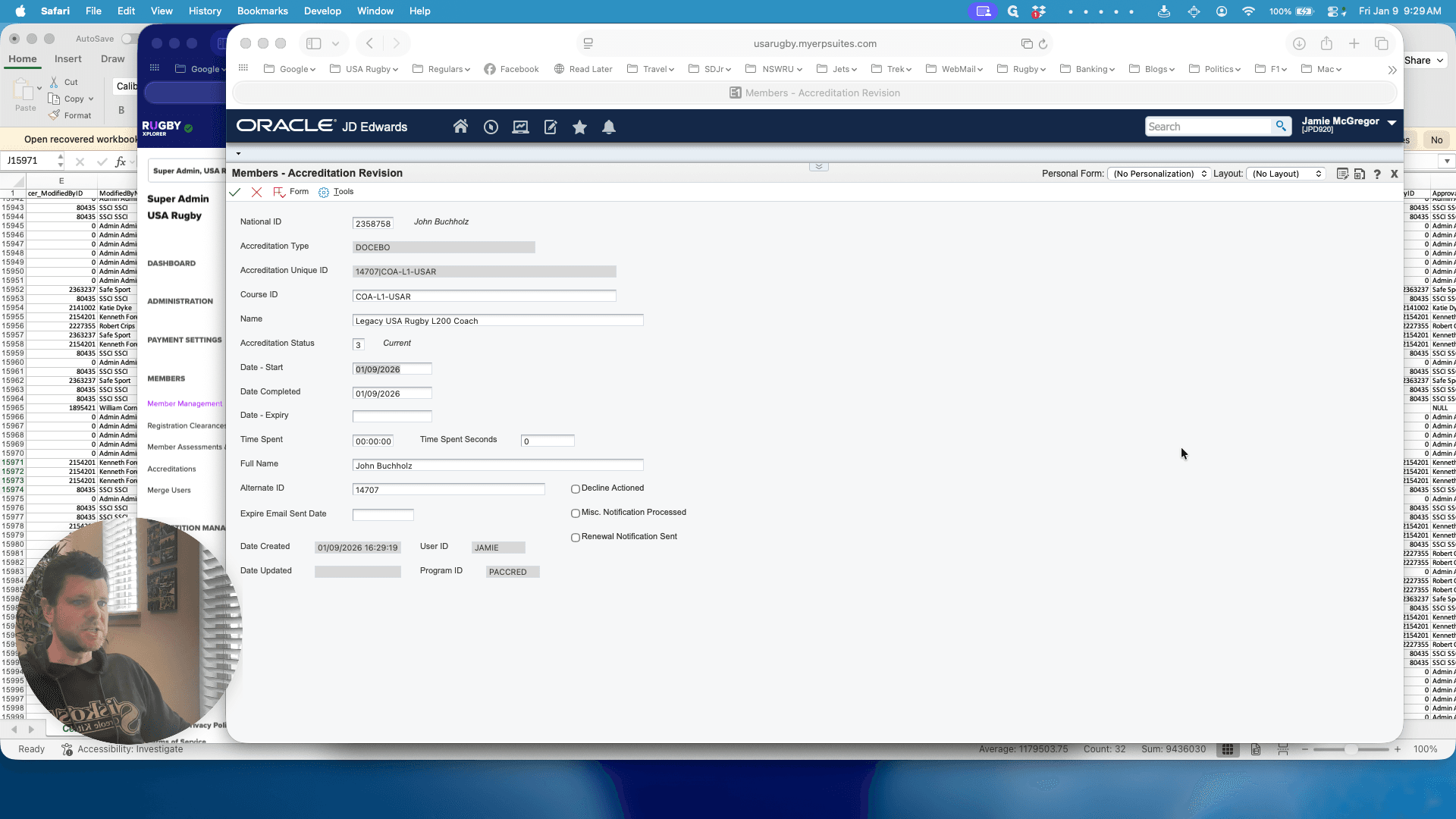
Click here, then select Update to RX.
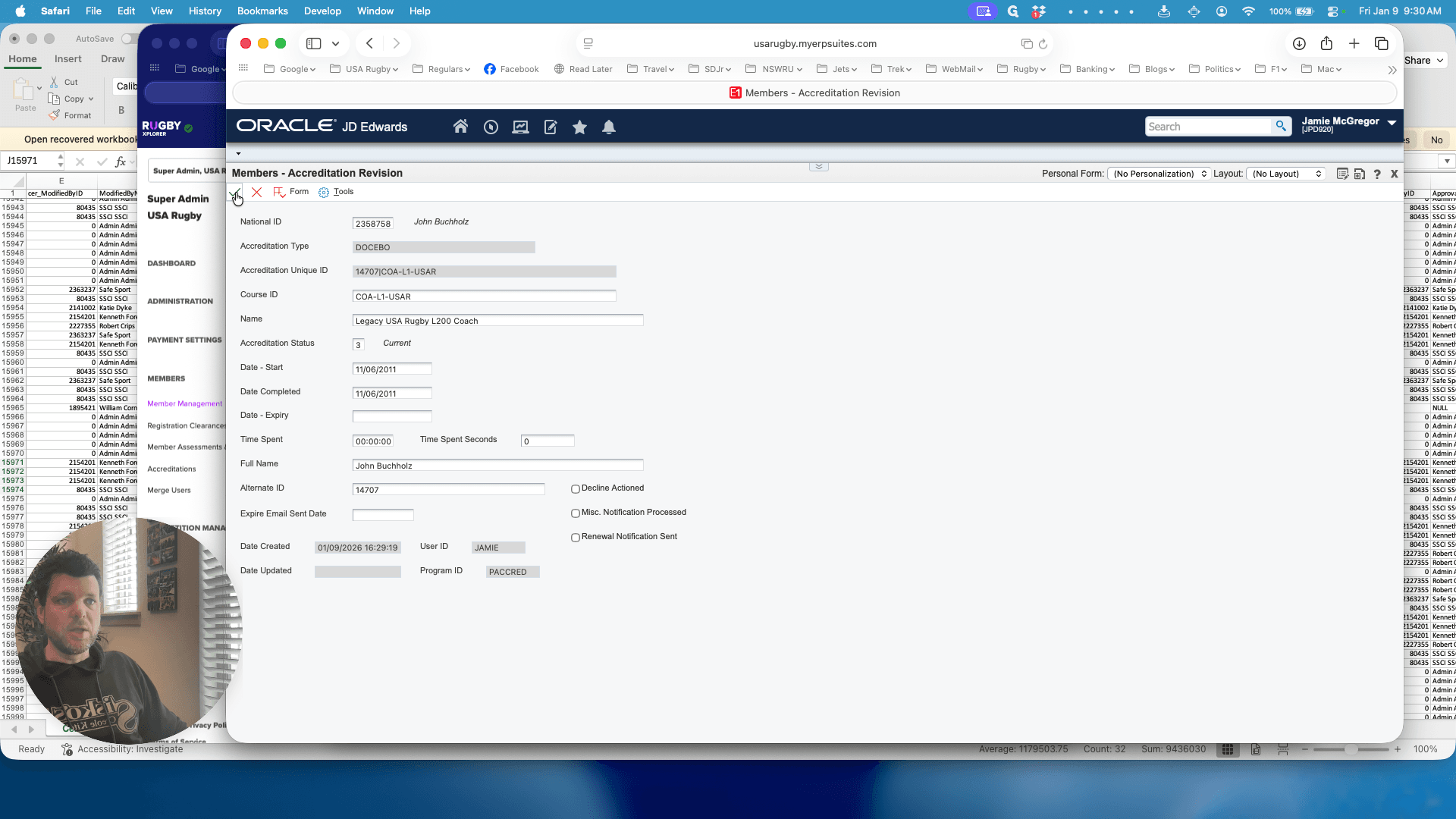
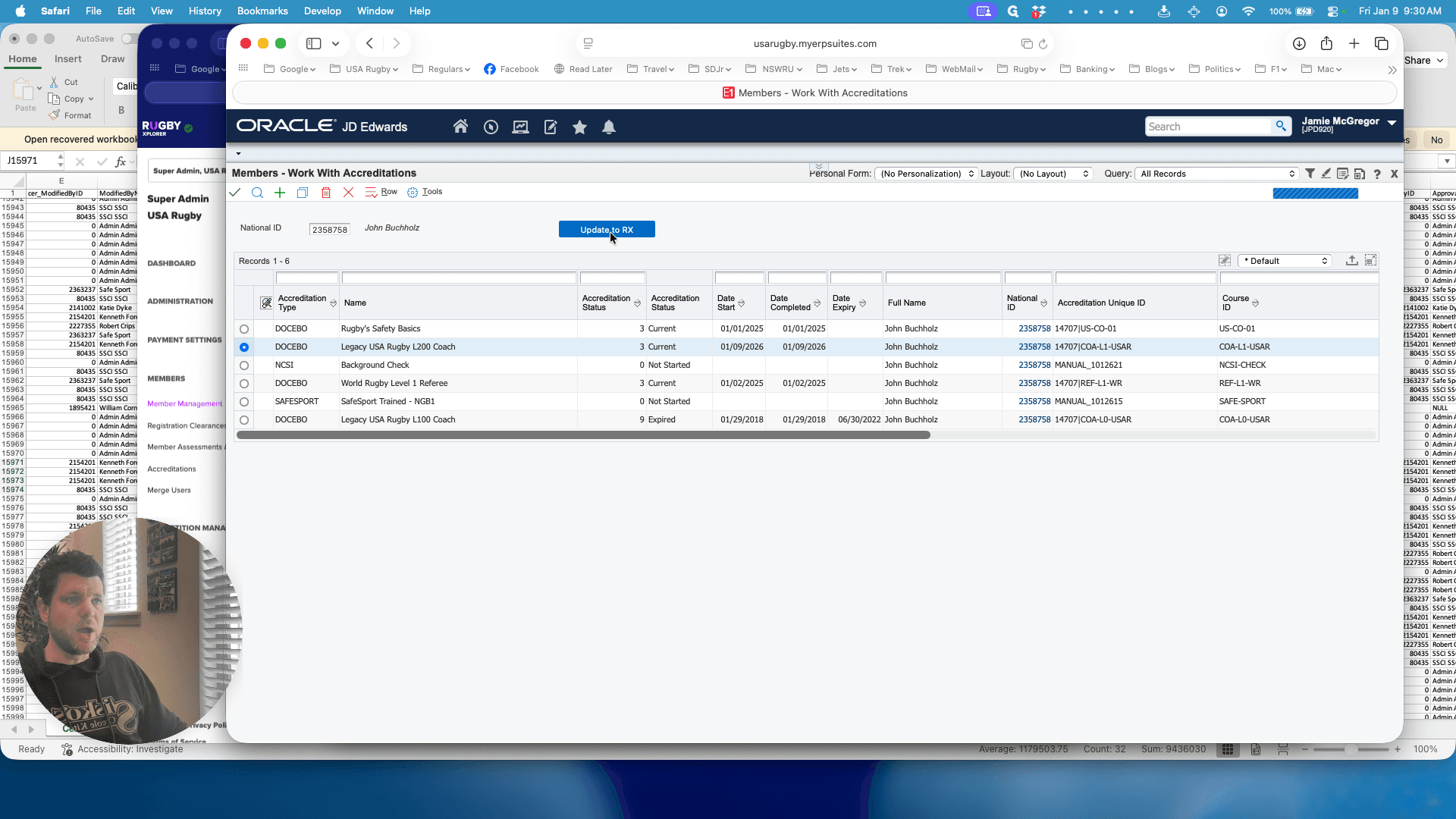
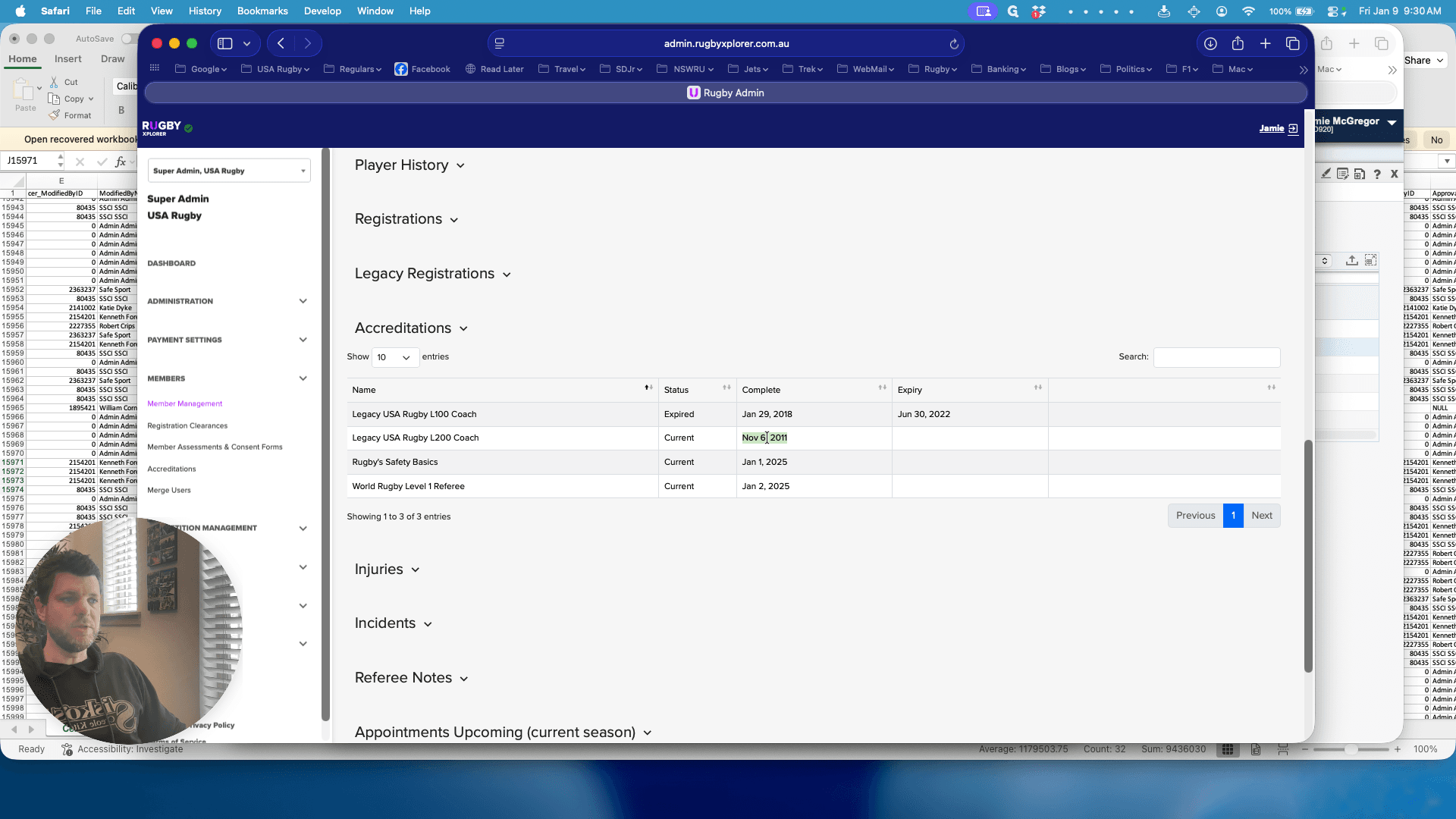
After clicking Update to RX, return to Rugby Explorer. You will see it has been updated to Level 200 Coach as of November 6, 2011.
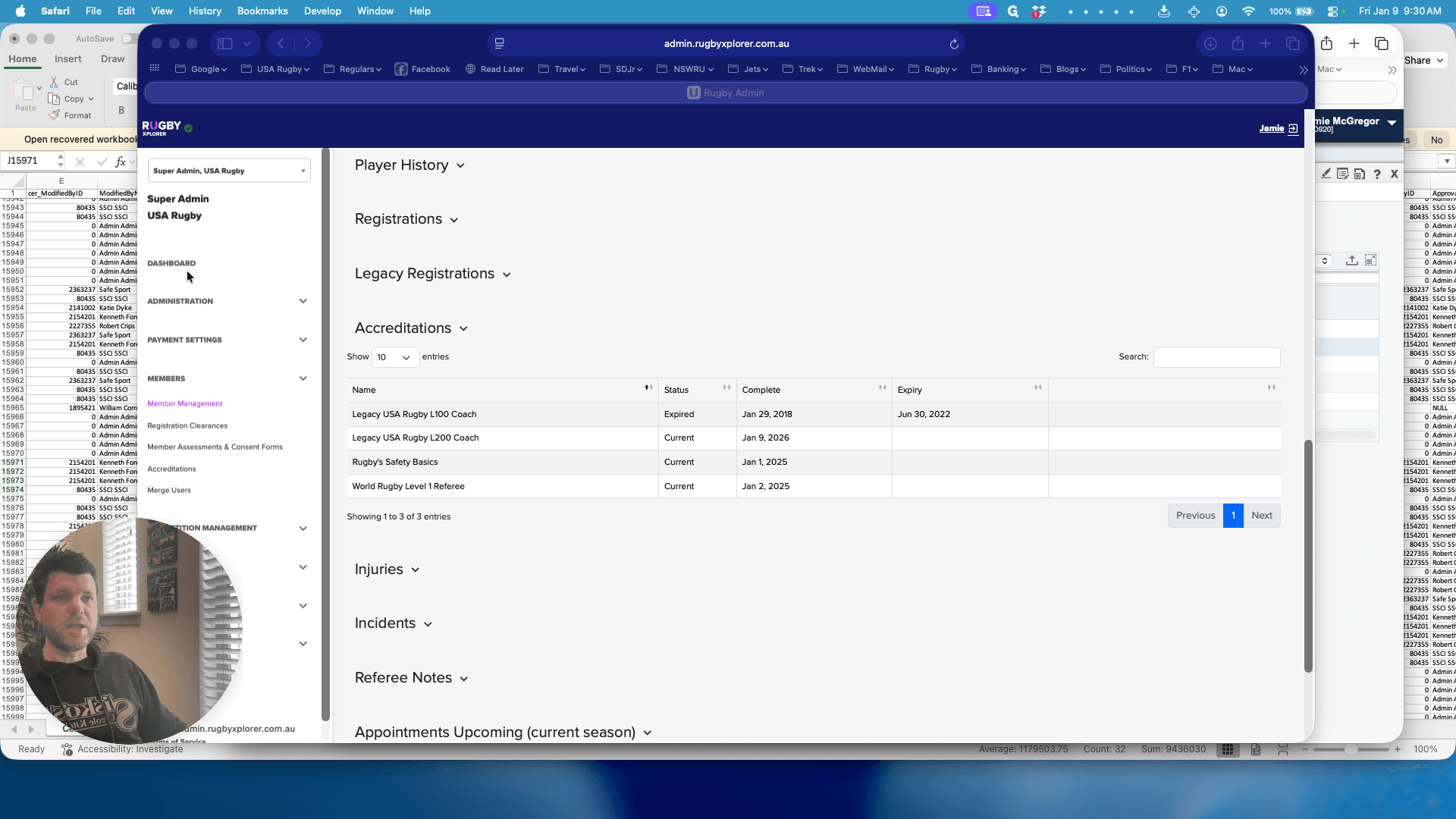
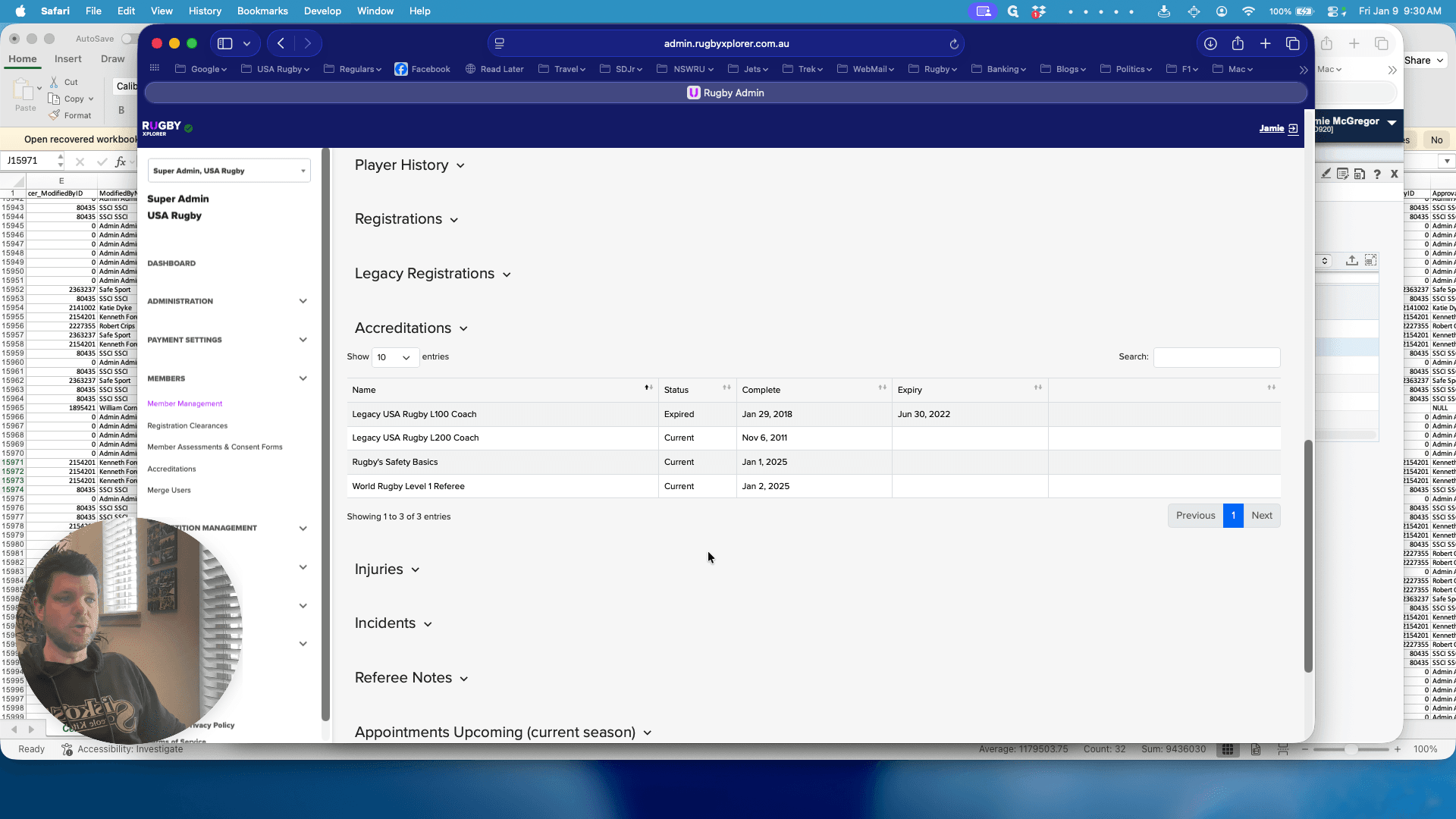
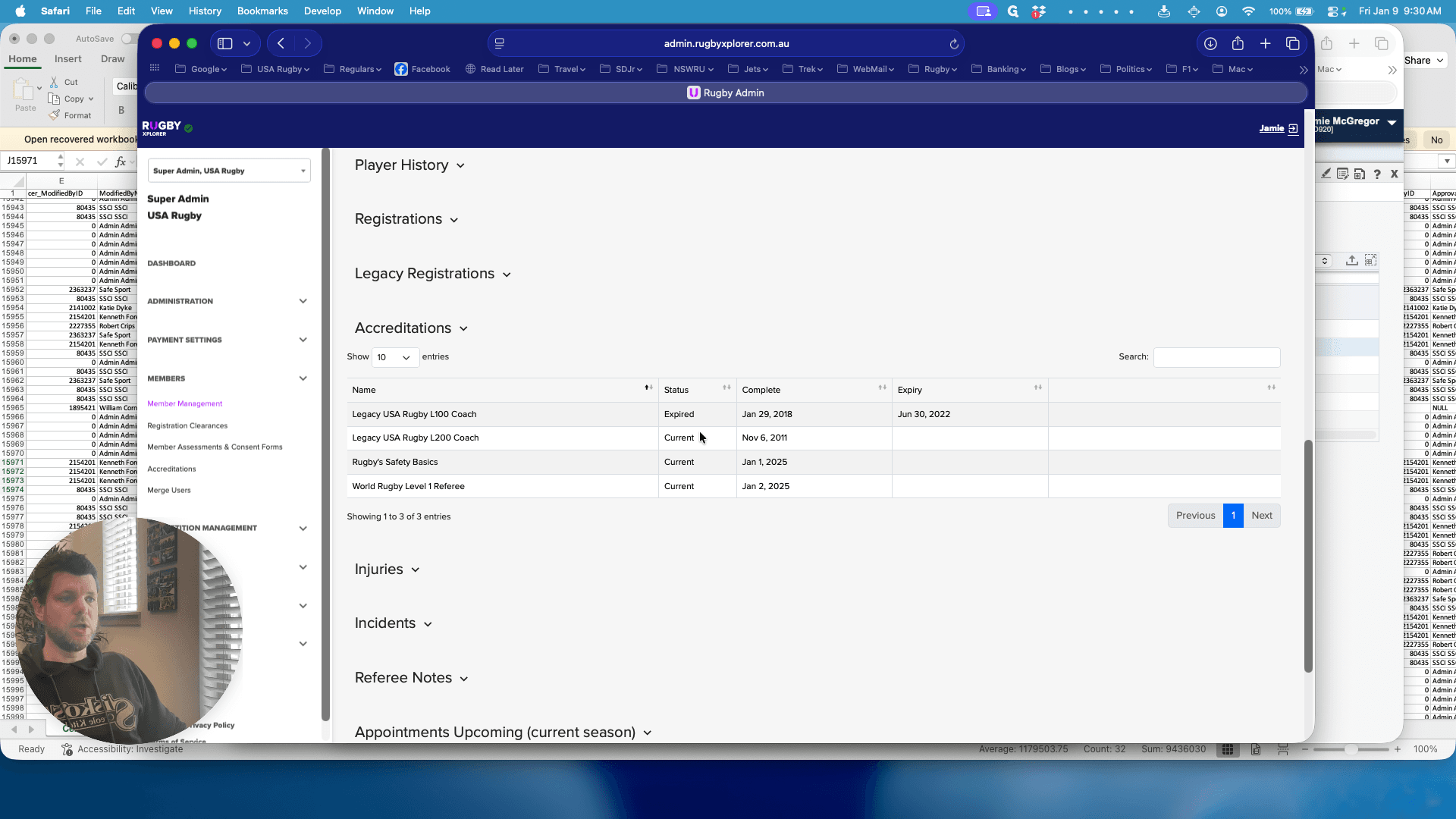
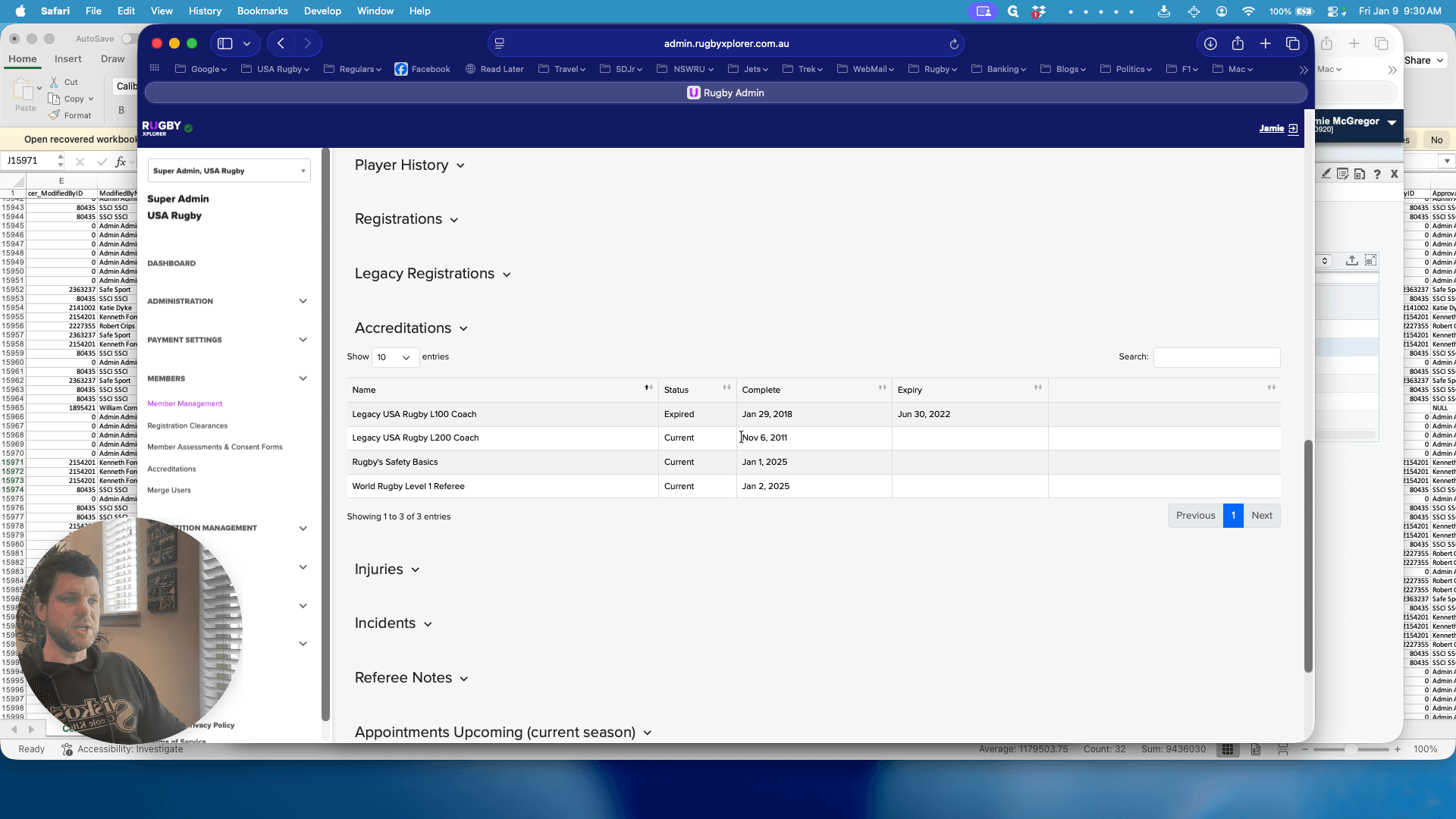
It updates in real time. You don't need to do anything to update that.
The final step is to return to the learning center and update the individual's award date to keep everything aligned.
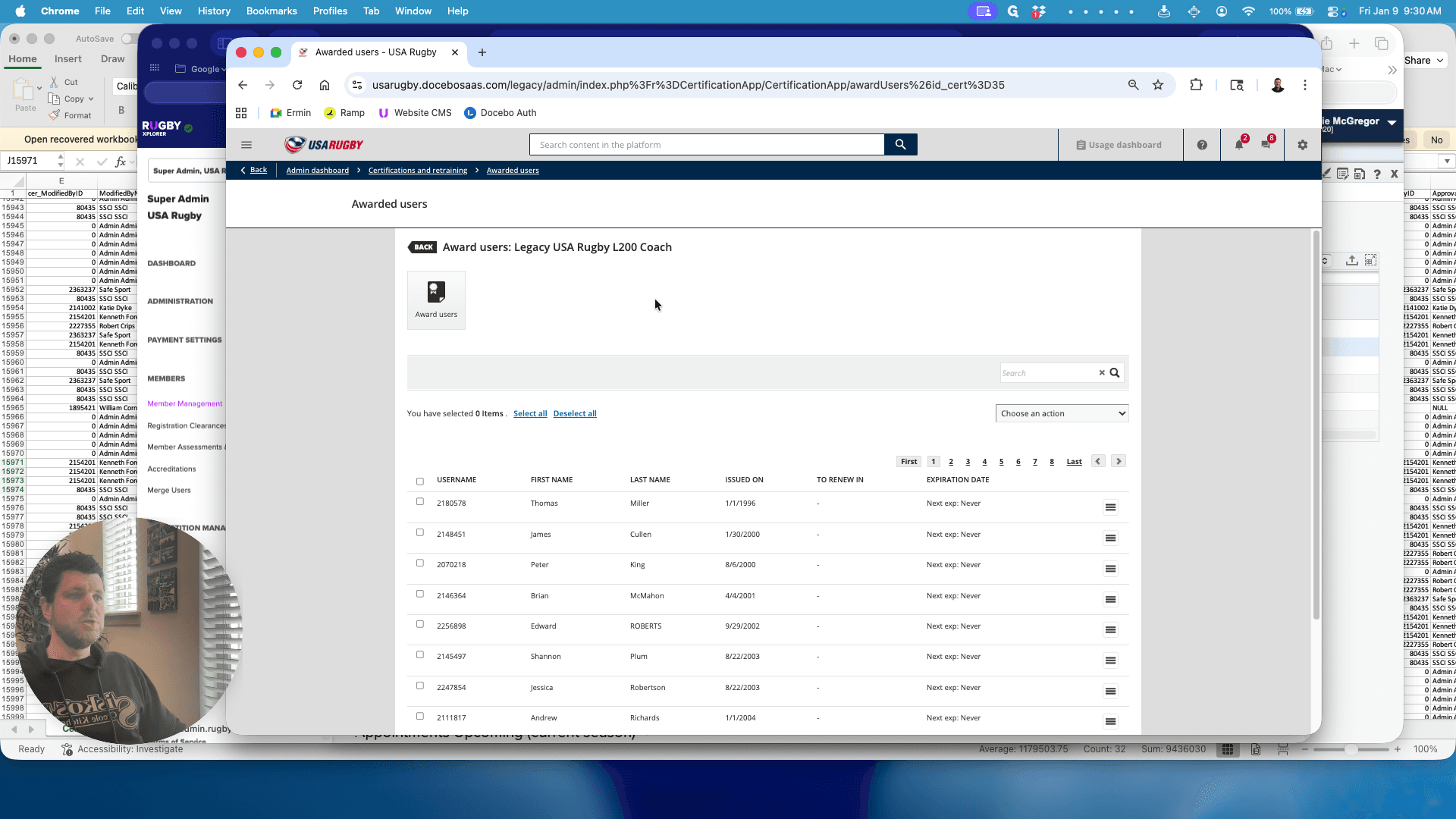
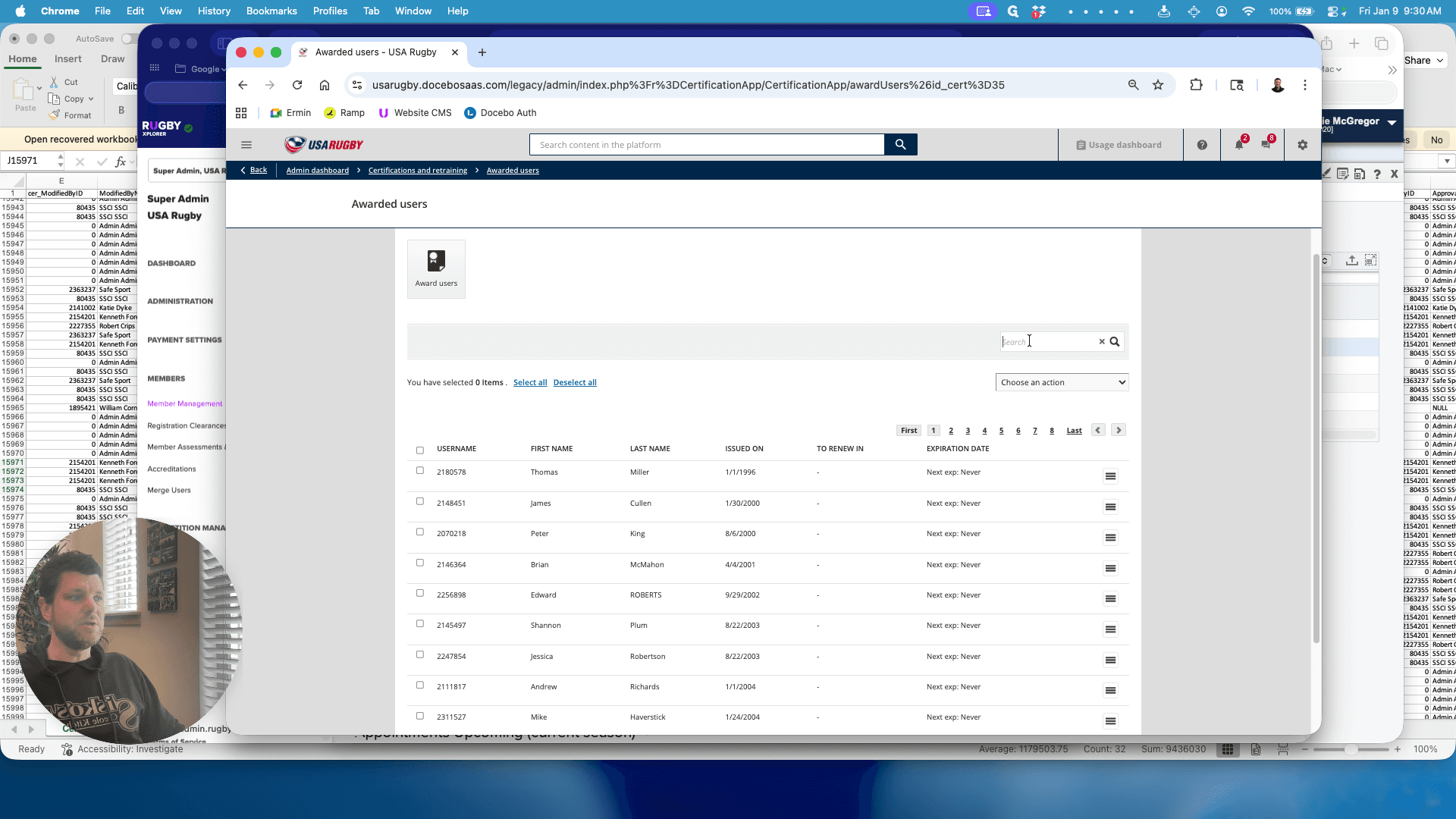
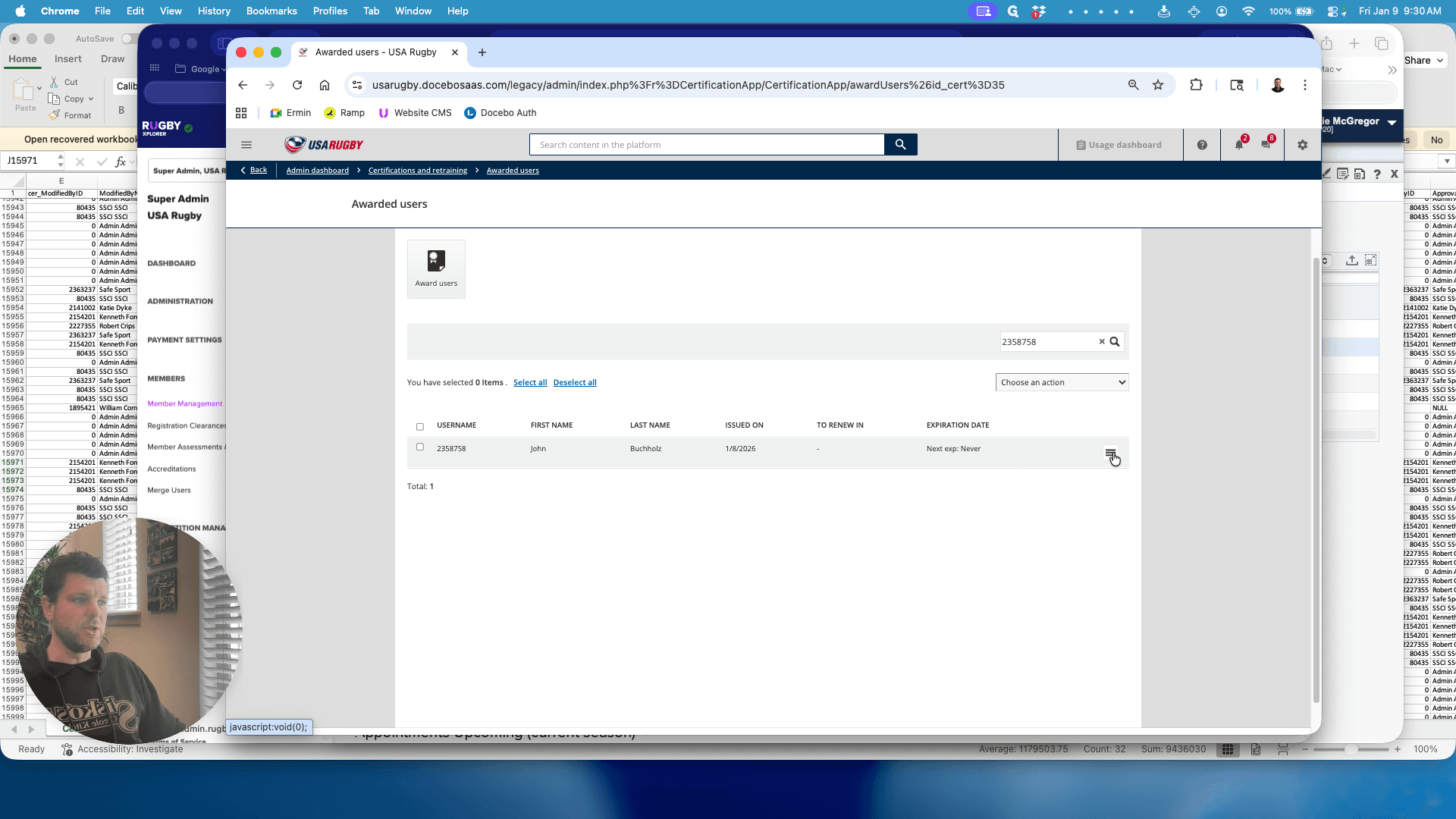
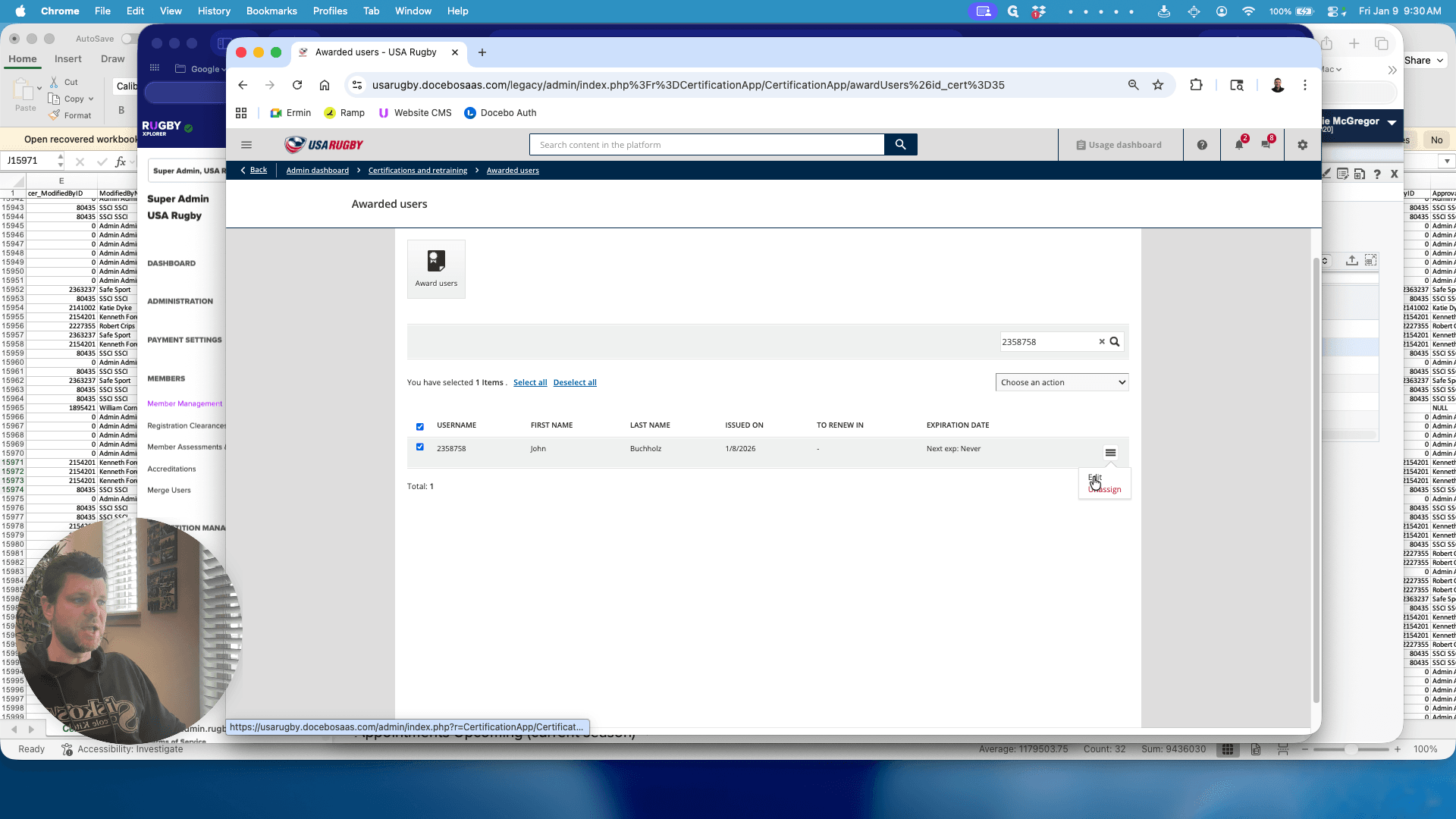
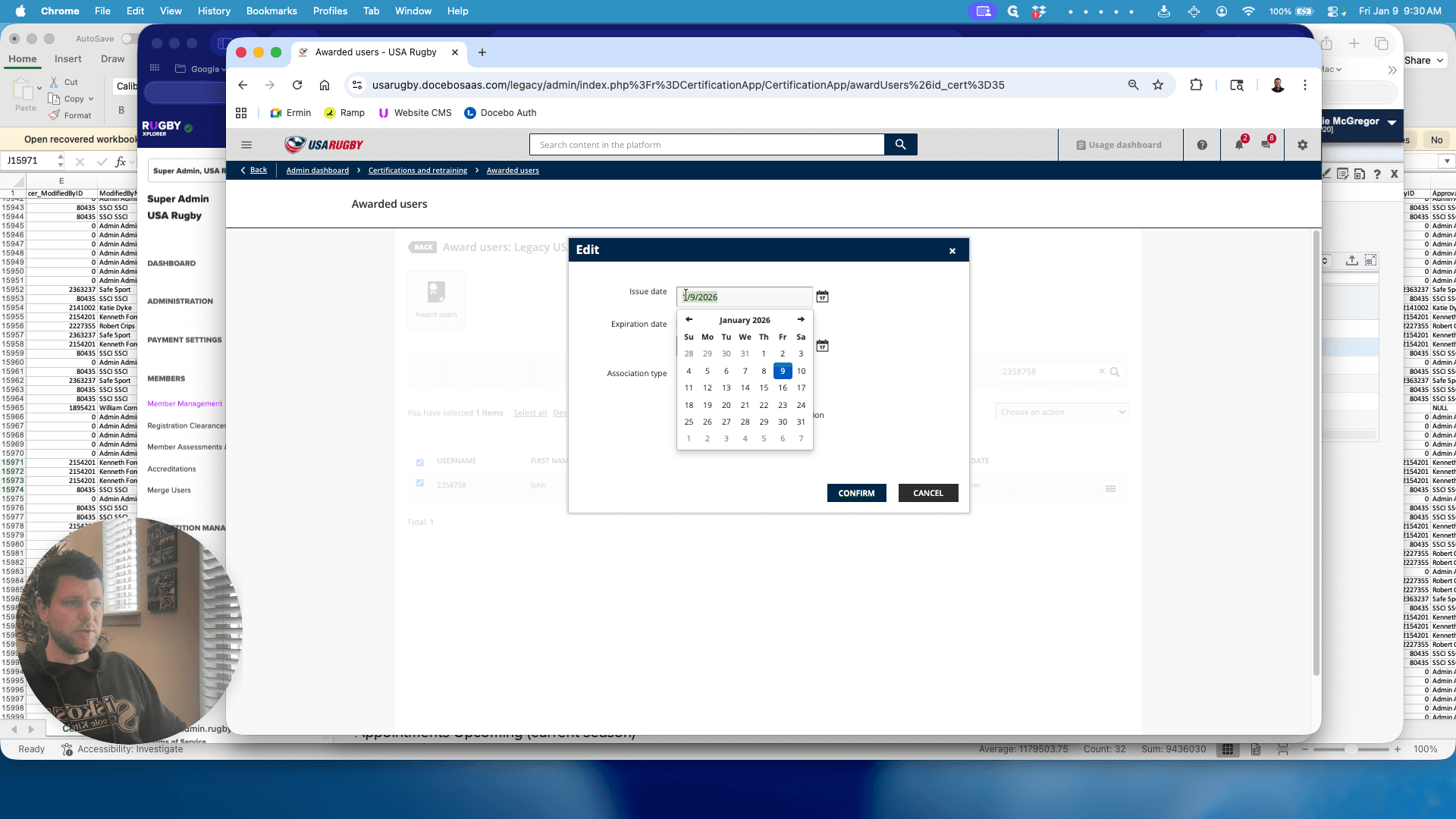
November 6, 2011, and confirm there.
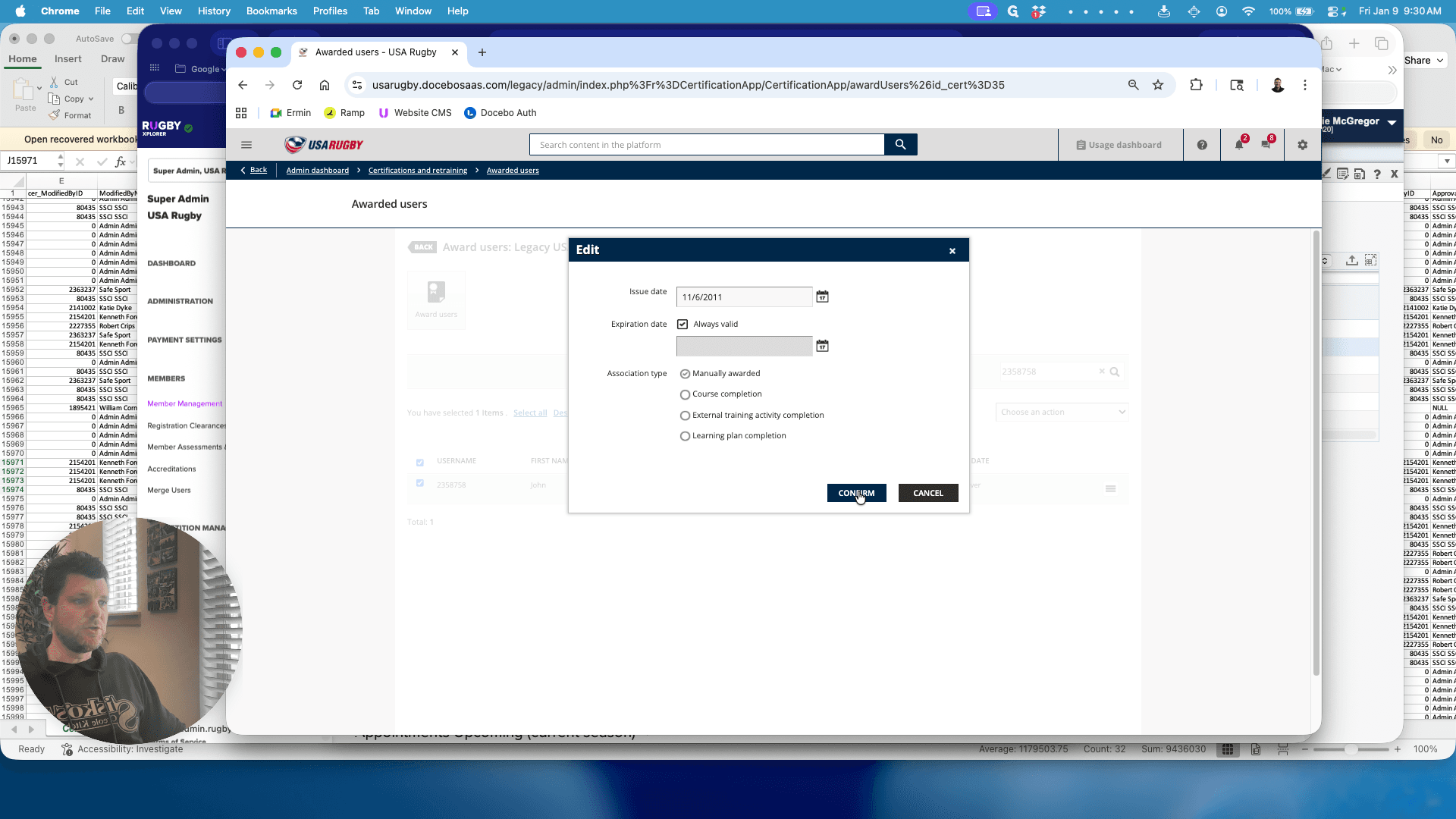
Okay.
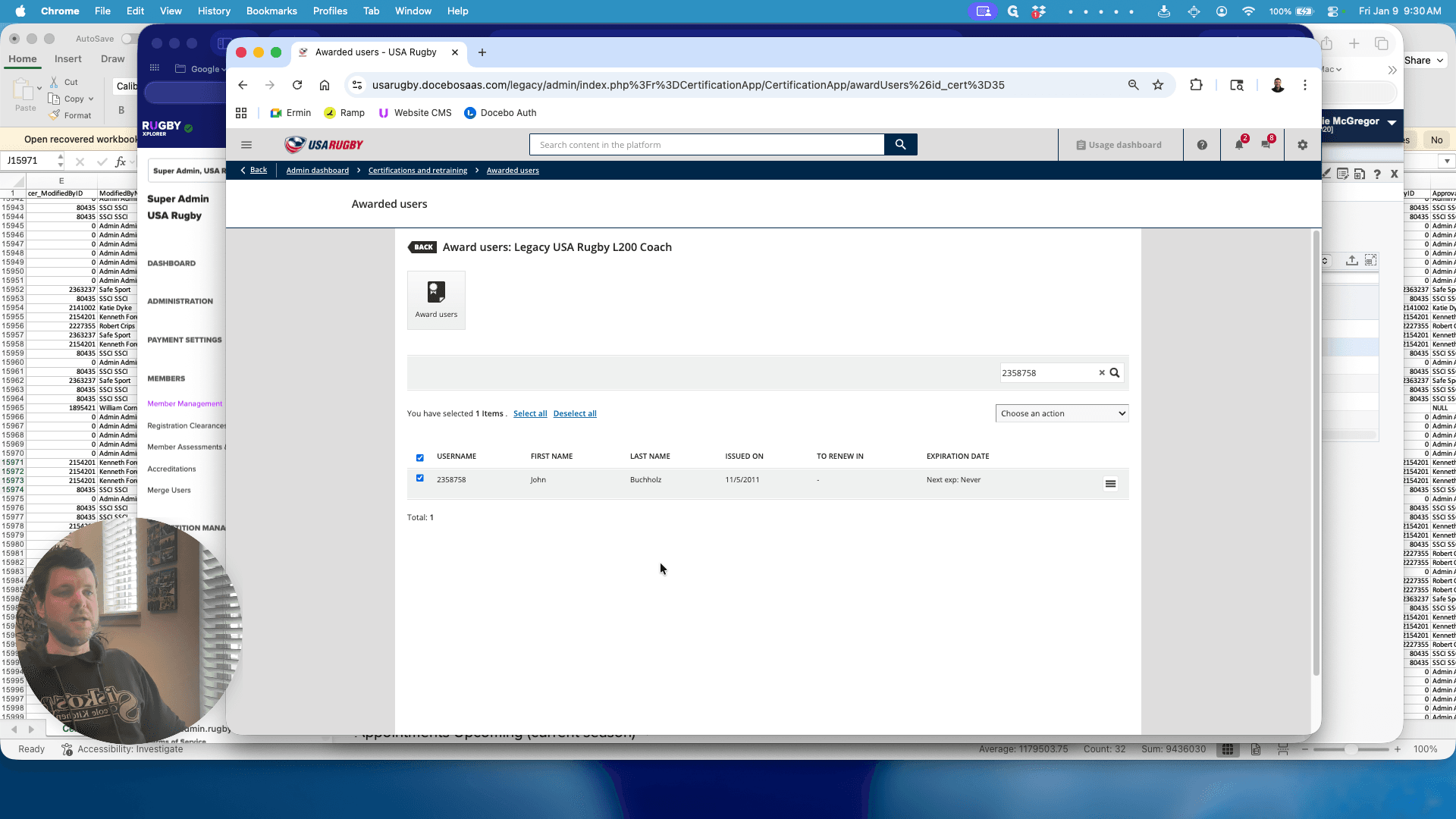
Now the individual has their accreditation in the learning center. It also exists in Daryl and has been sent to RX and updated there. The individual's qualification is now consistent and available in all locations.