How to Book a 360Restore Class on the Momence Platform: Step-by-Step Guide
Learn how to easily book a 360Restore class on Moments.com. Follow our step-by-step instructions to log in, select your class package, and complete your purchase using a saved card or GPay.
This process helps you manage your bookings and payments directly from your Momence account.
Let's get started
Hello. Here we will learn how to book a 360Restore class directly from the Momence platform. We'll start by visiting Momence.com.
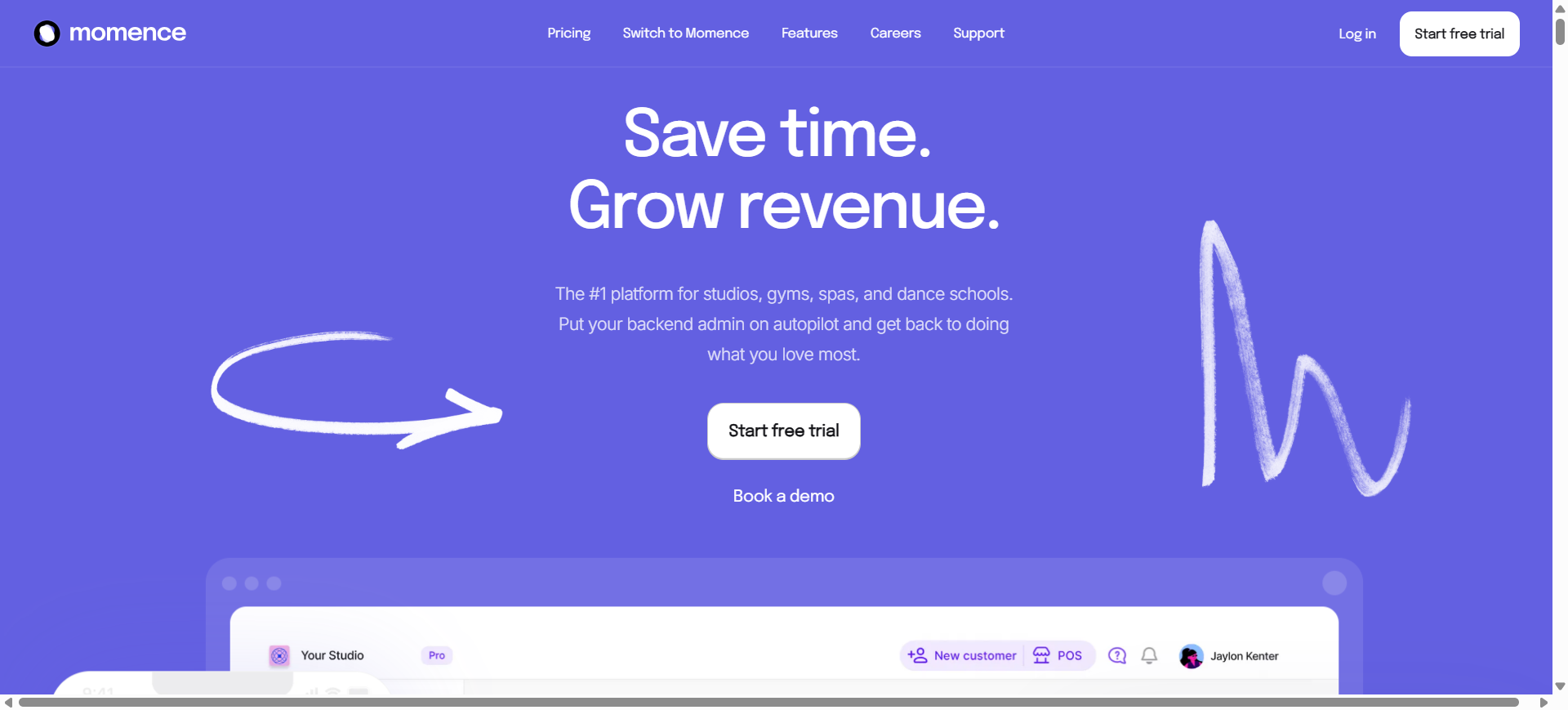
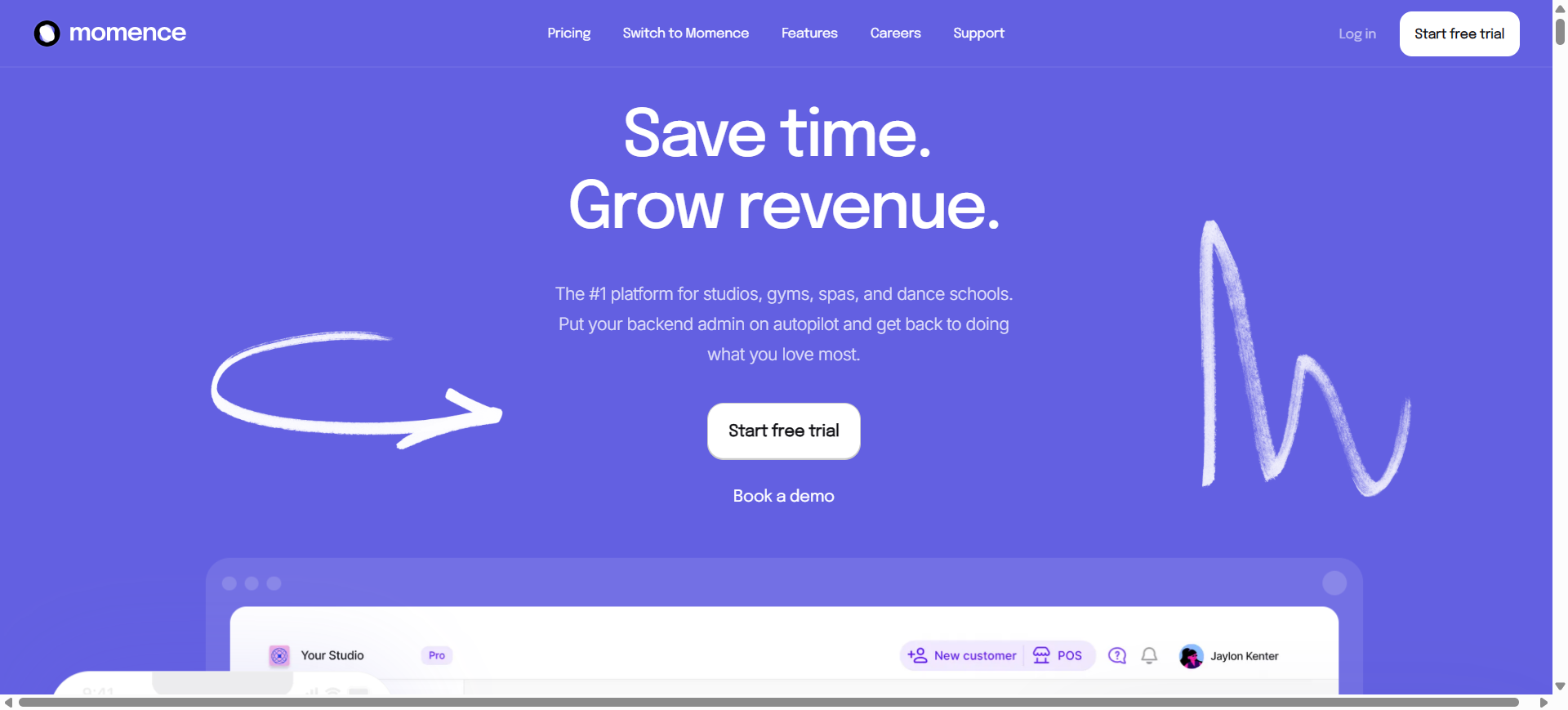
If you have visited the site before, you will likely see this screen first.
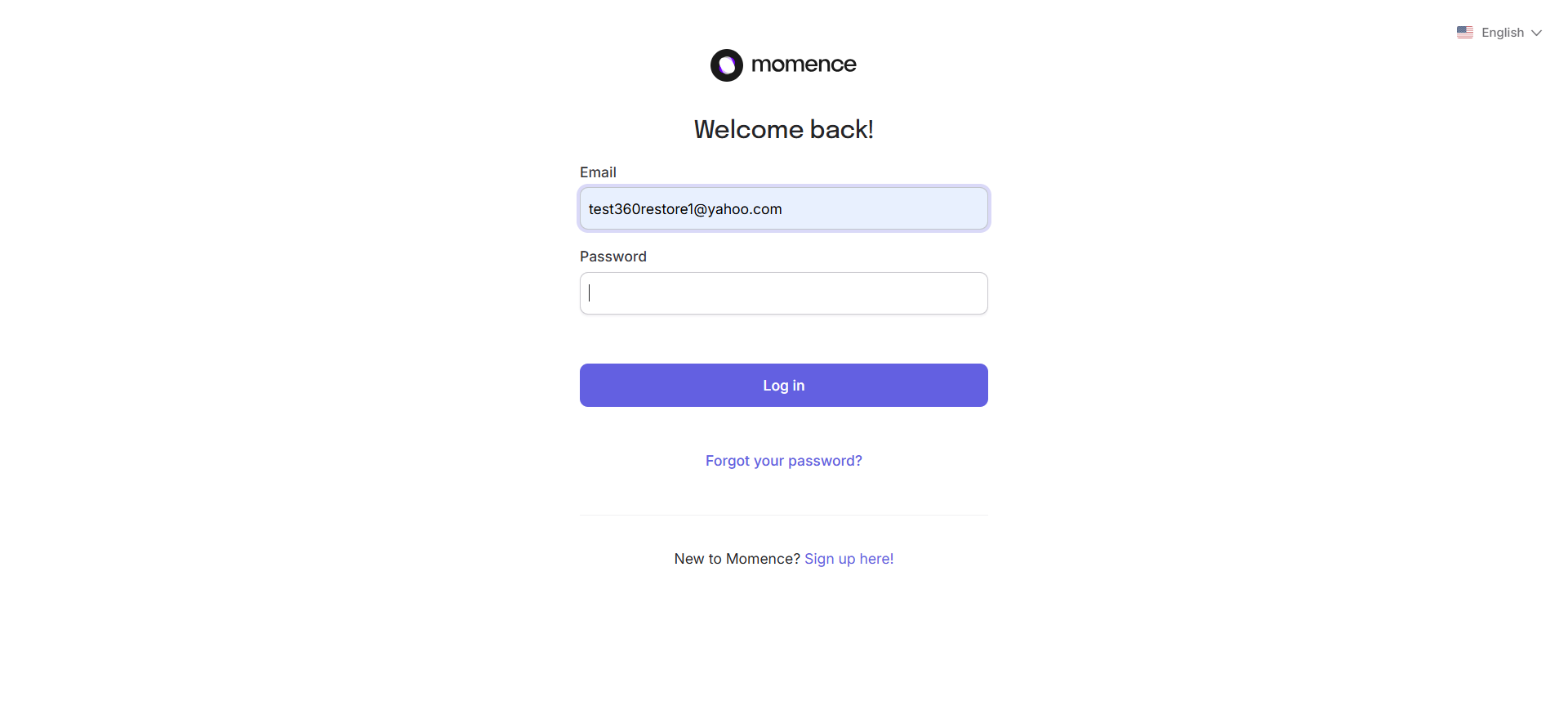
This will take you to your dashboard.
Check for your name in the top right corner to confirm you are signed in. To book a class, go to the Book Now section.
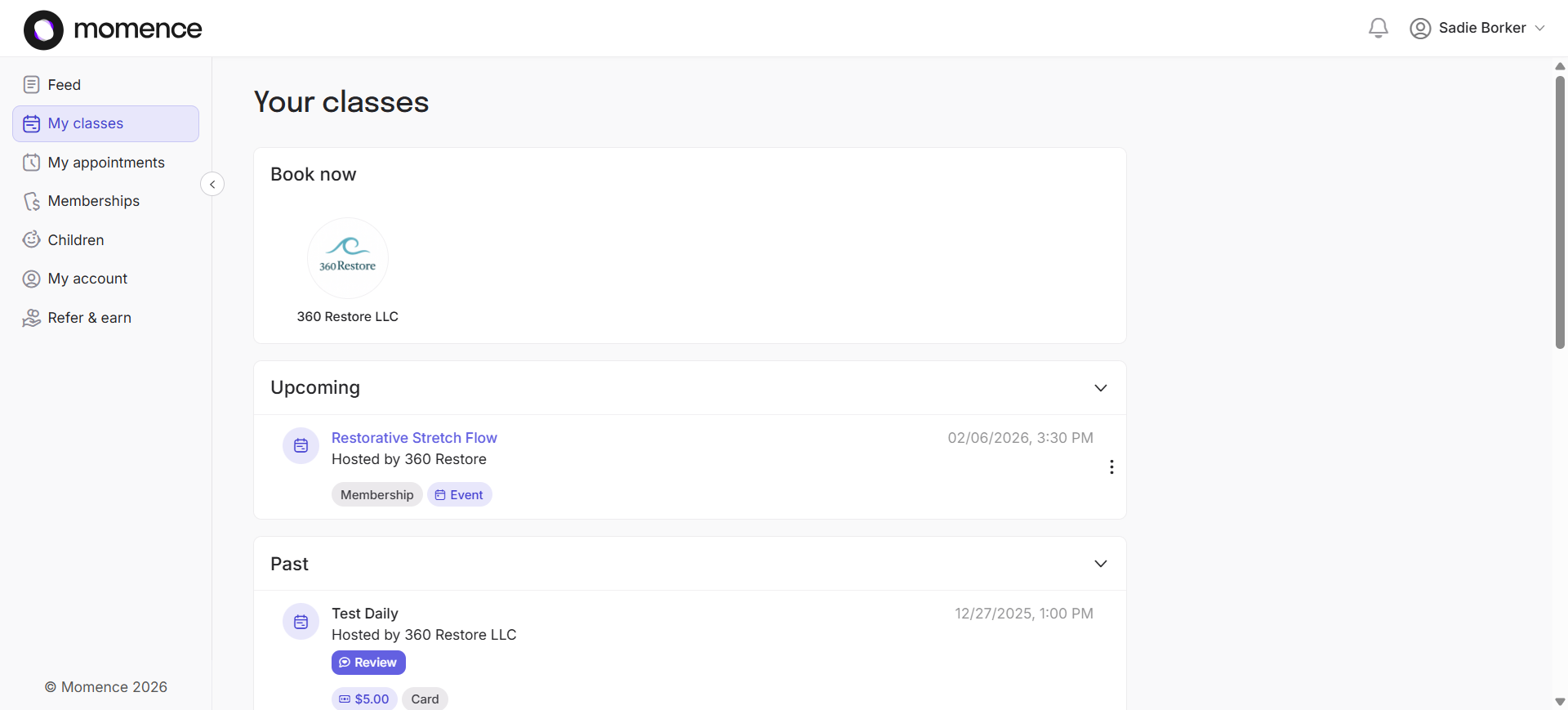
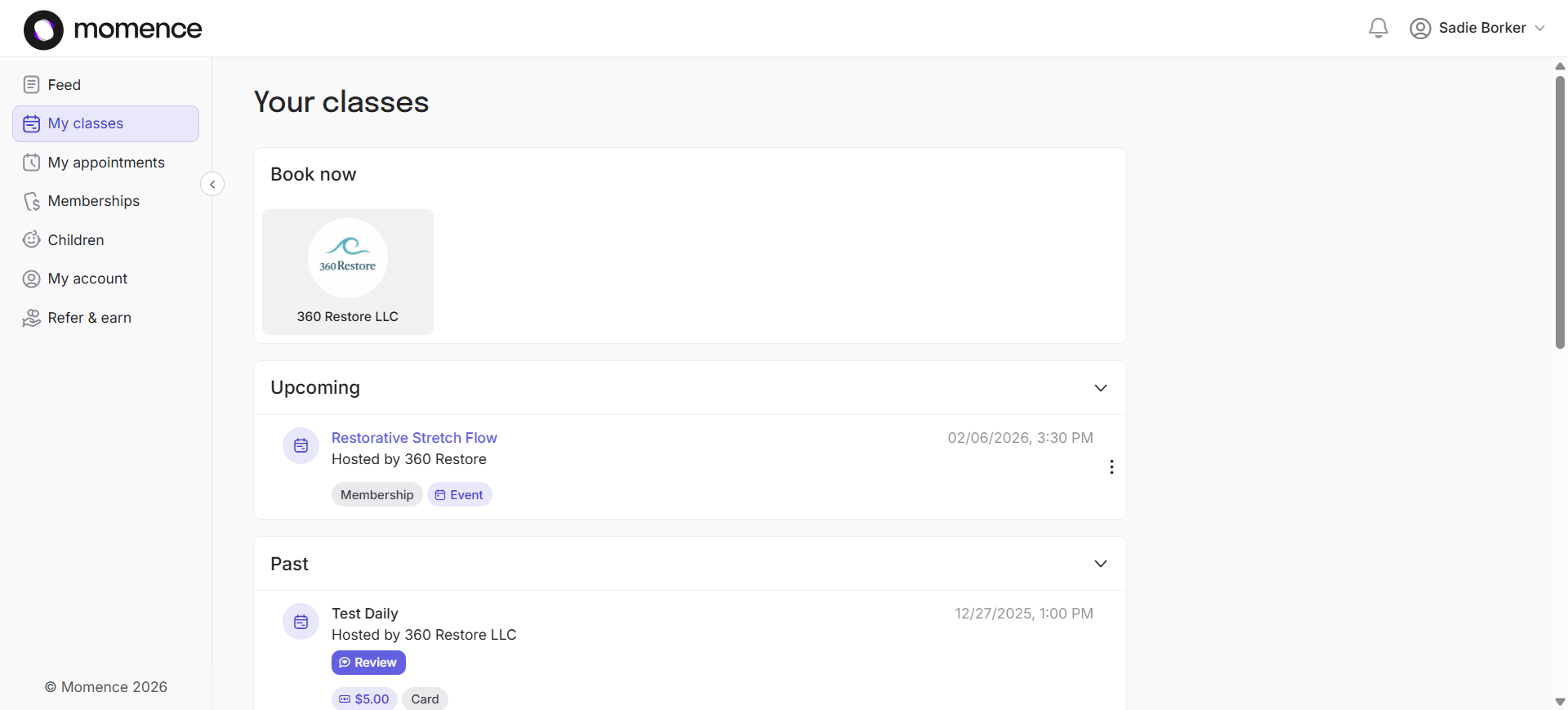
Click the 360Restore image. A new screen will appear, giving you the option to purchase packages.
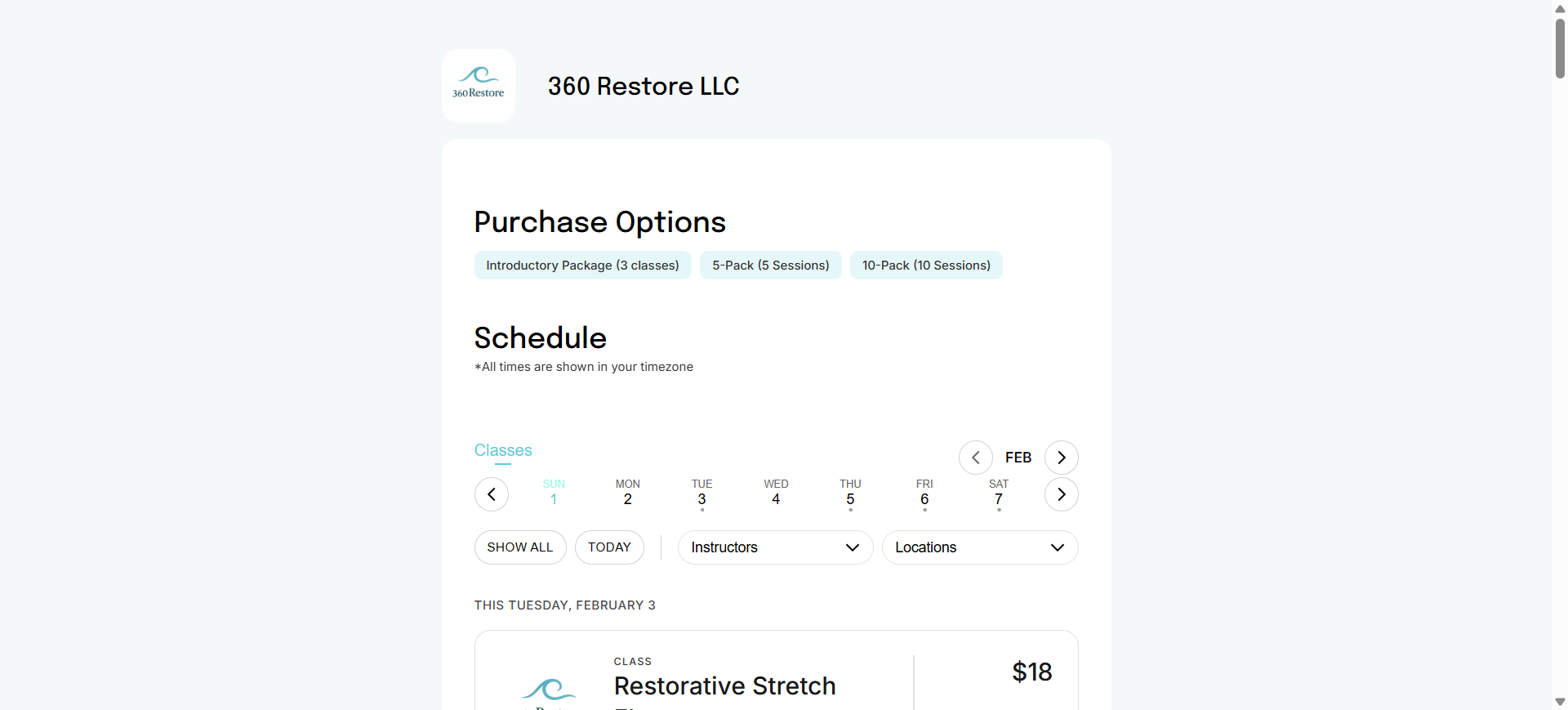
In this example, we will buy a five-pack.
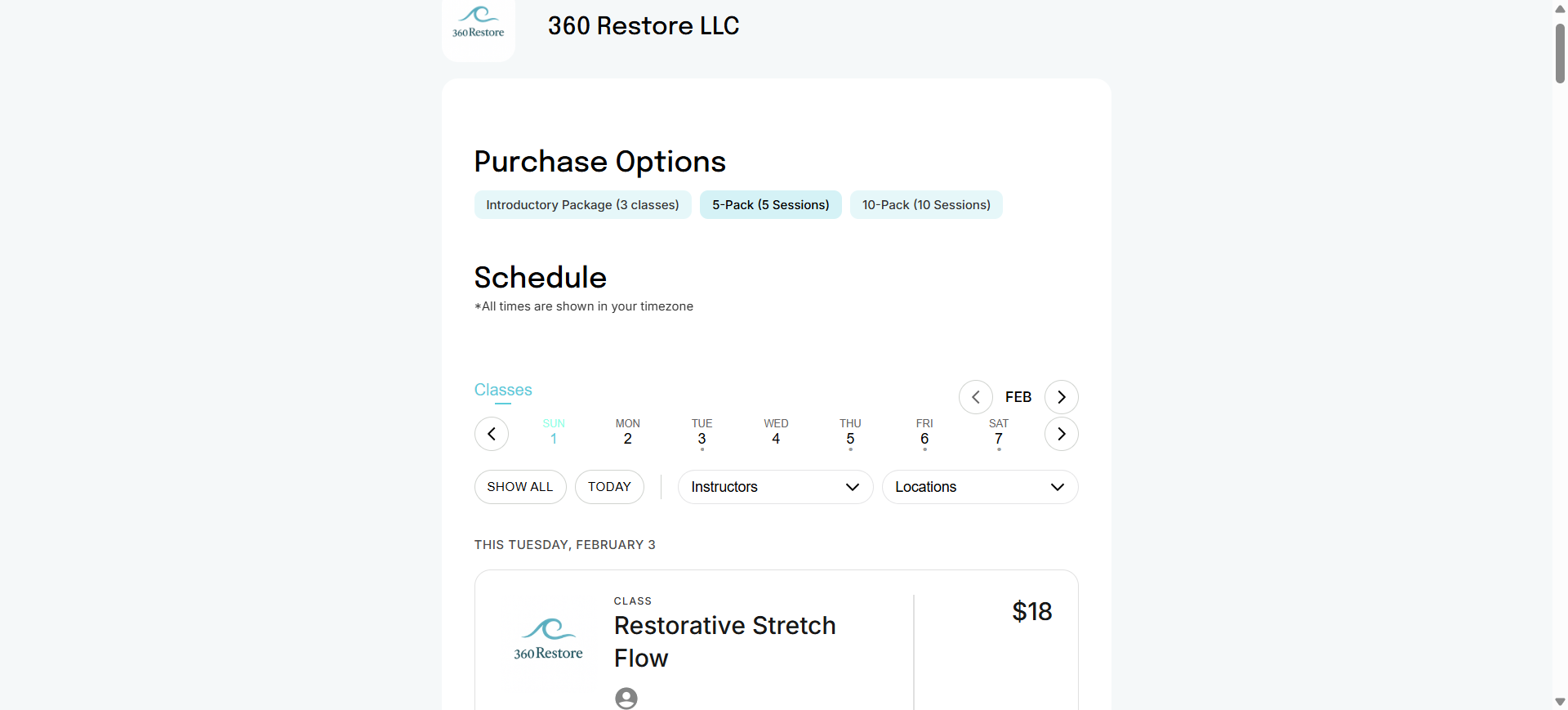
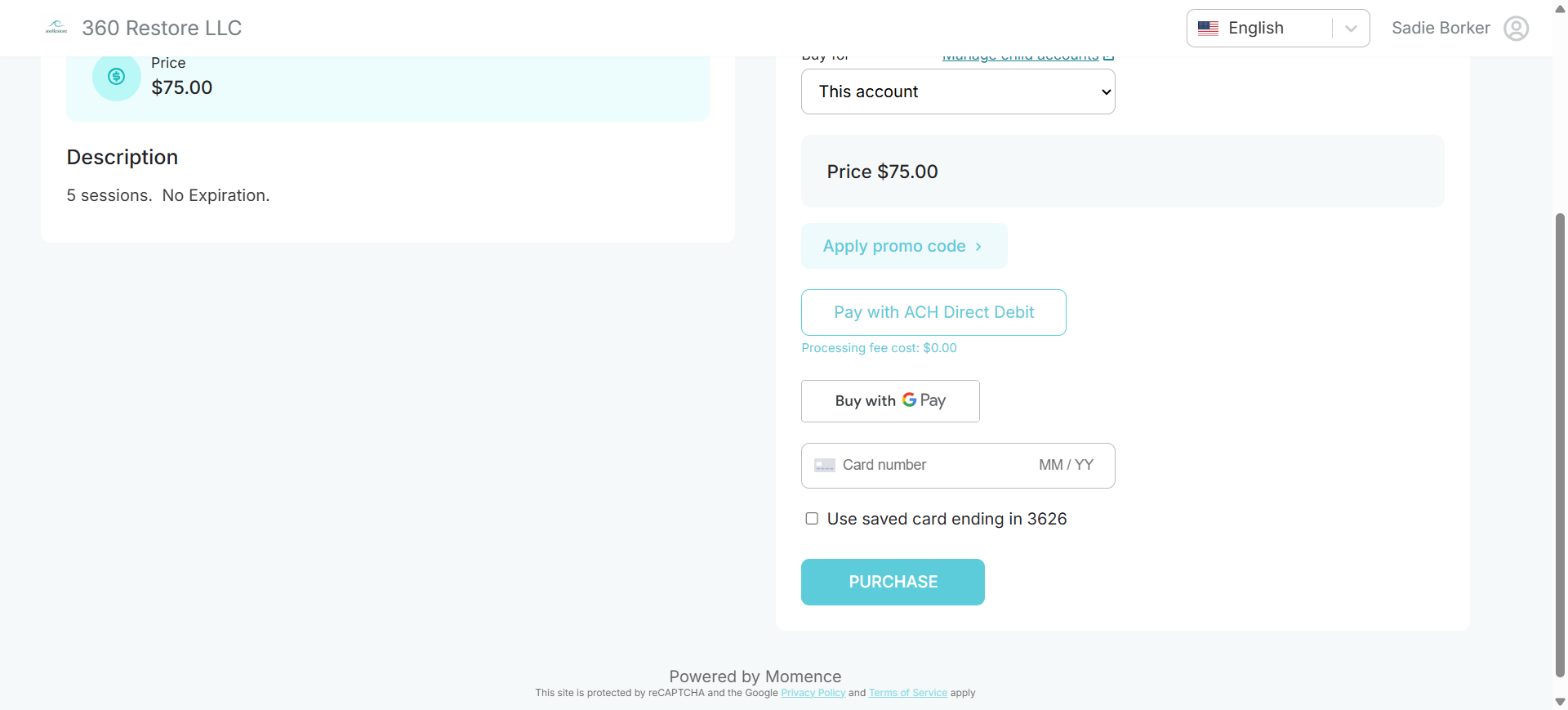
Notice that the five-pack has appeared. Since we're logged in, it shows that this package will be added to my existing account. At this point, you can enter a new card number or use a
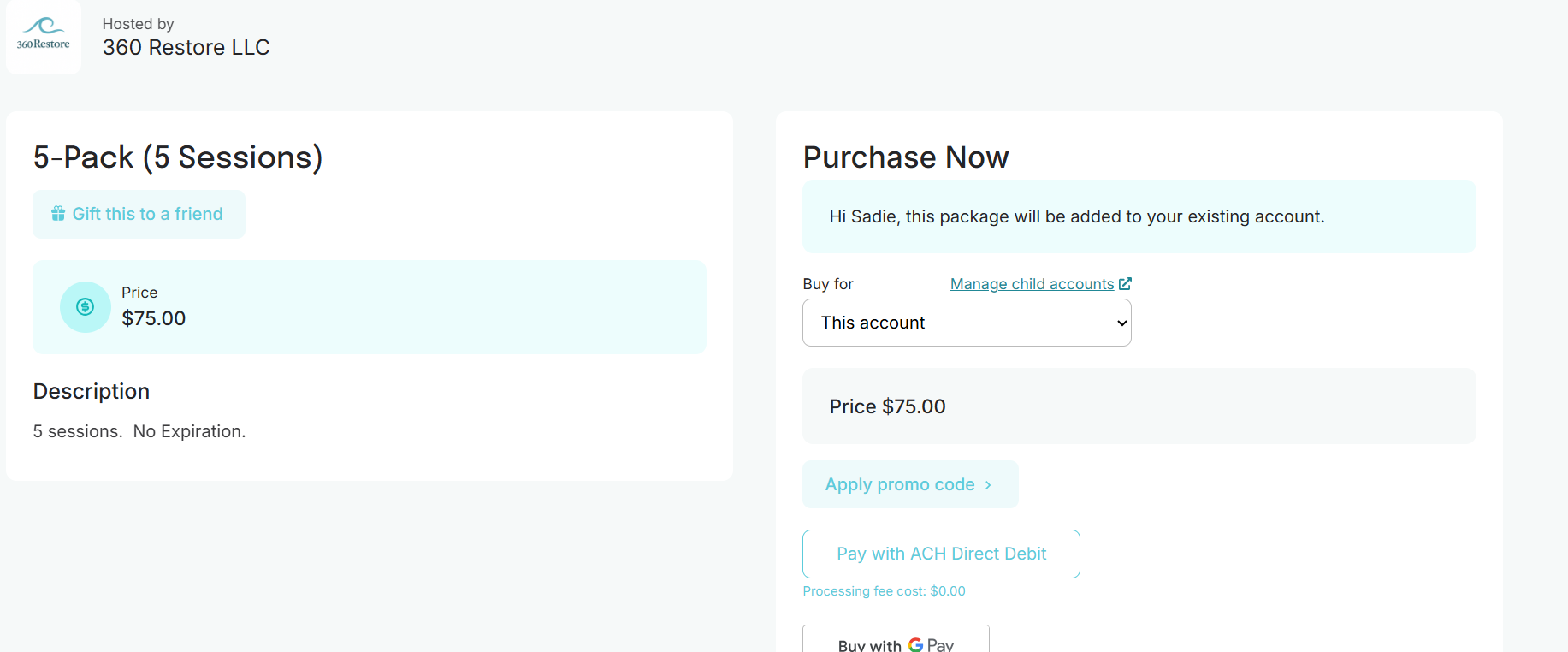
saved card. To use a saved card, click the check mark and then click Purchase. If you have set up GPay and want to use that option, click the button to pay with GPay.
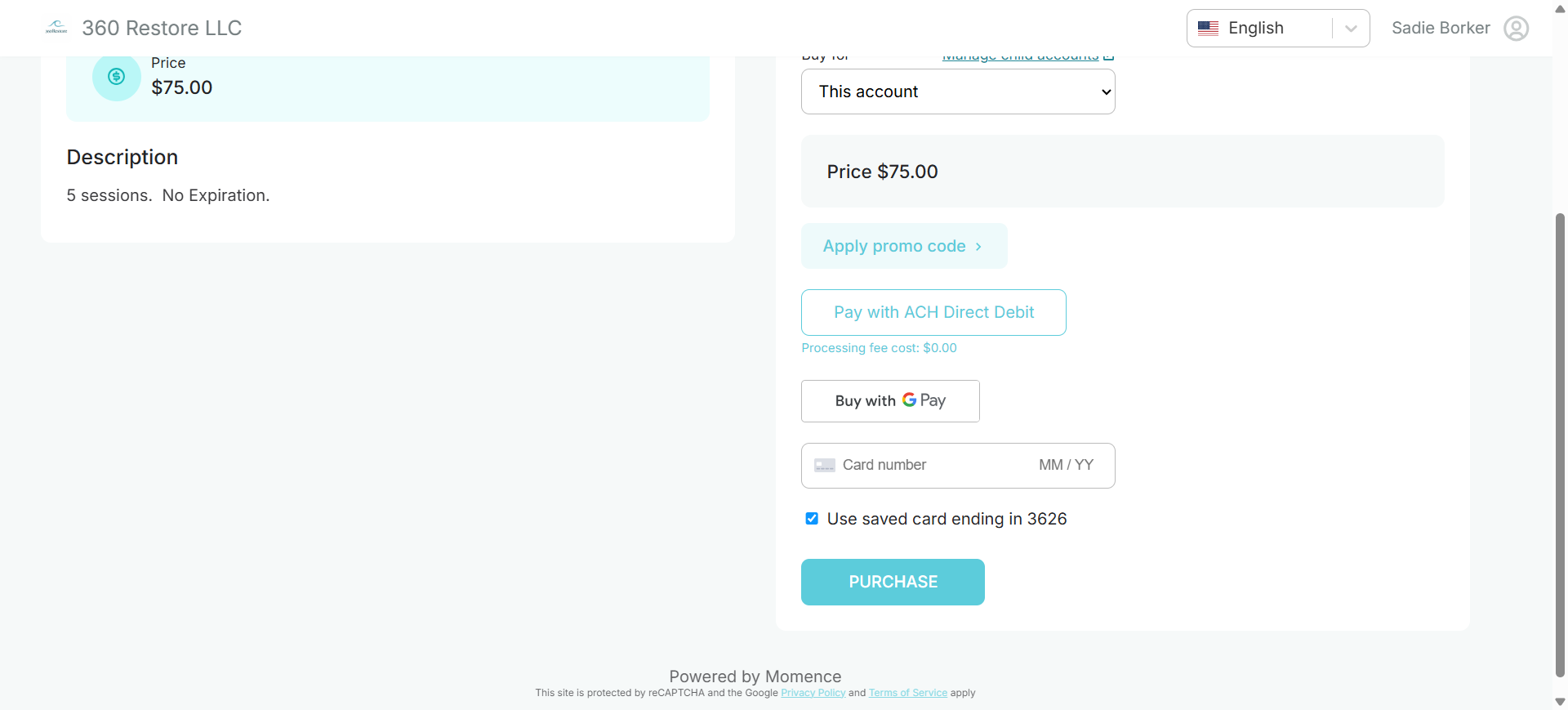
To conclude the purchase, click on the "Purchase" button to complete the transaction. A
receipt will be sent to your email.