How to Book a Cleaning Job Using Connecteam: Step-by-Step Guide
Learn how to efficiently book a cleaning job using Connecteam's Job Scheduler. This guide covers setting up a new job and entering job and client details.
By Juliette Toop
In this guide, we'll learn how to book a cleaning job using Connecteam. We will cover how to set up a new job from an email request, enter important details like the site address, main contractor, and contact information, and add a job description.
Let's get started
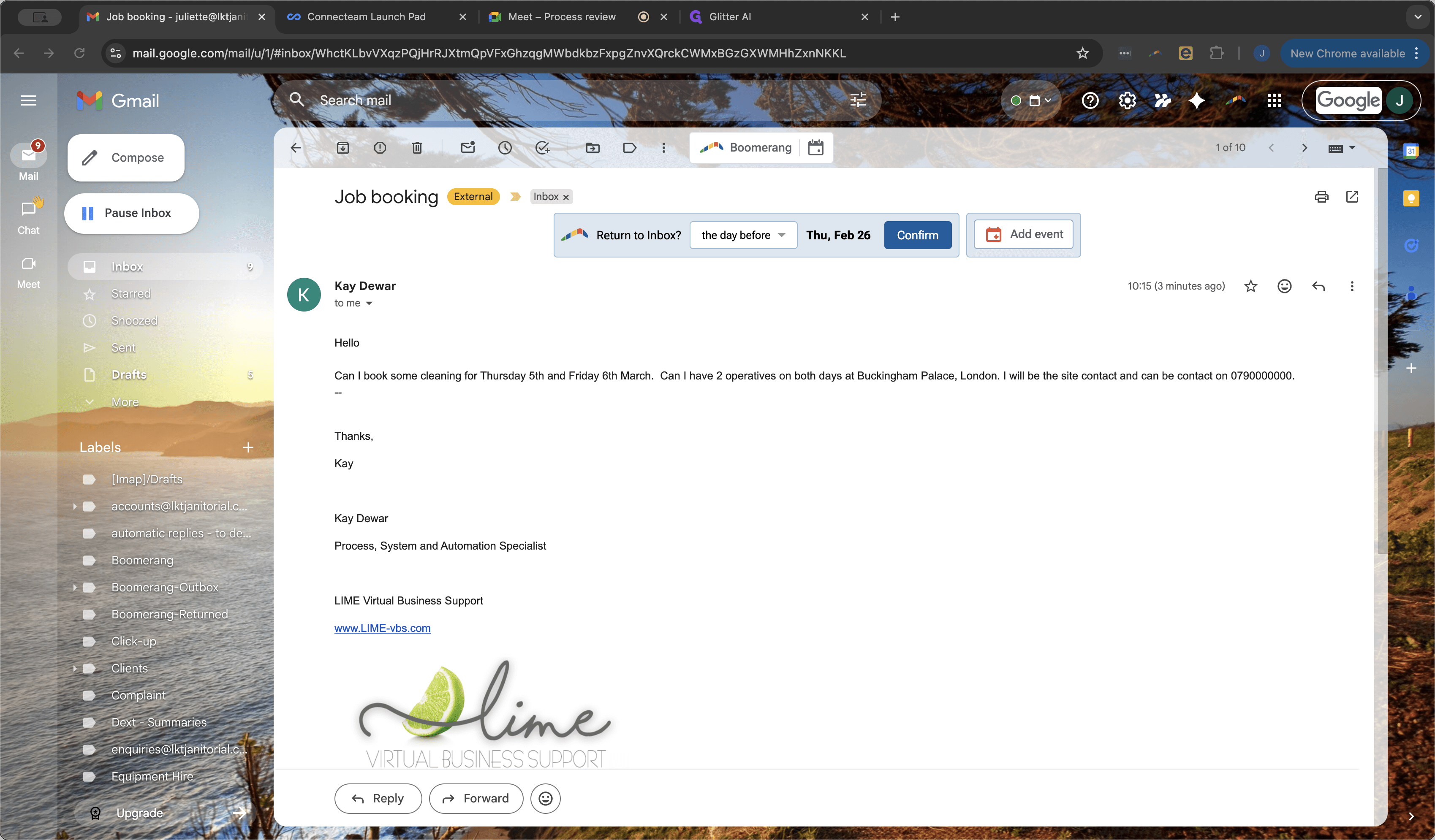
I will show you how to book a cleaning job.Here is an example of a client email requesting cleaning on Thursday March 5th, and Friday March 6th. They need two operatives on both days at Buckingham Palace.Kay will be the site contact and can be reached by the phone number in the email.
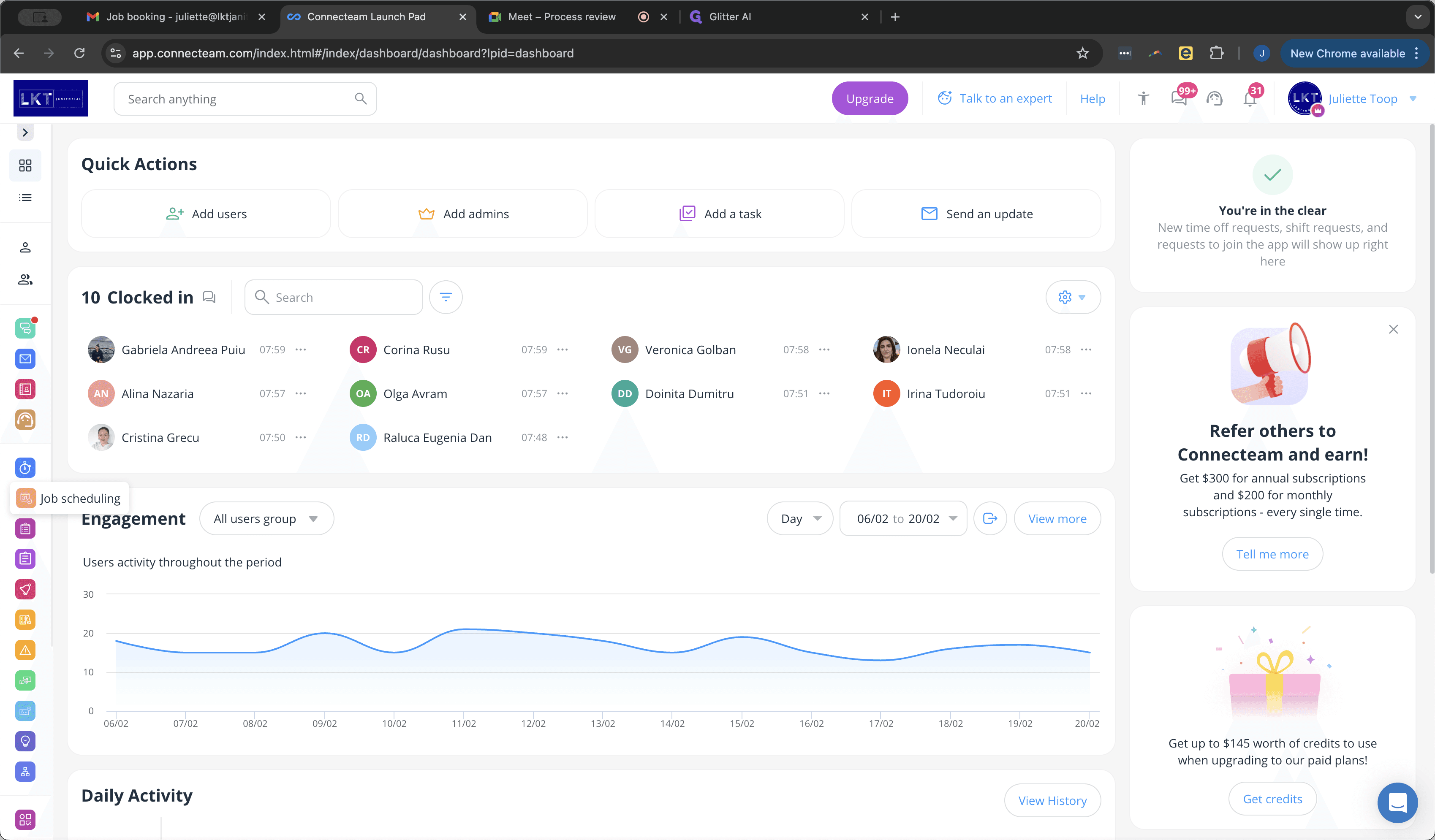
When you receive this type of email, open Connecteam.
First, go to the Job Scheduler.
1
Click on "Connecteam Launch Pad"
2
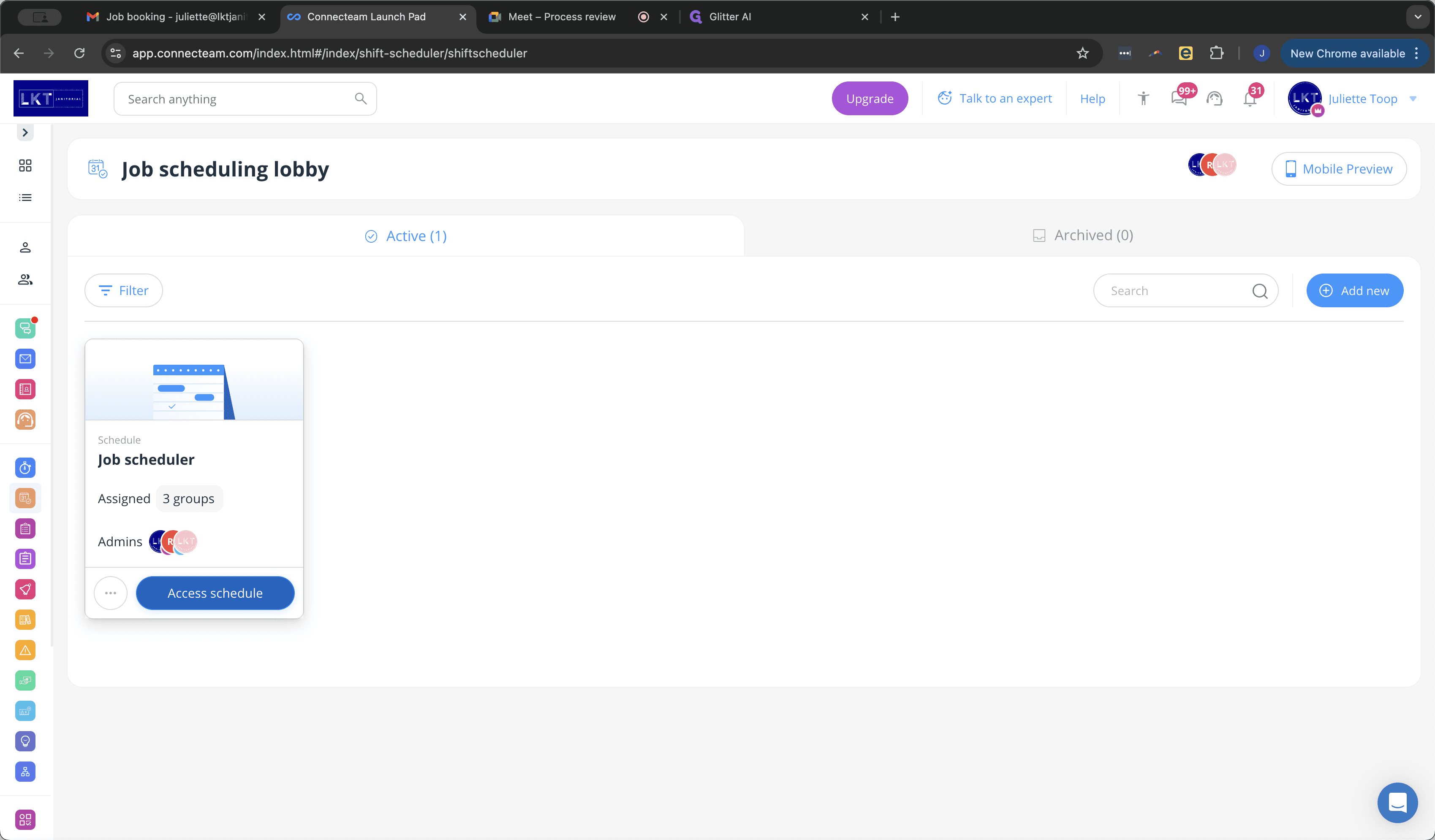
Click on 'job scheduling'
3
Click on "Access schedule"
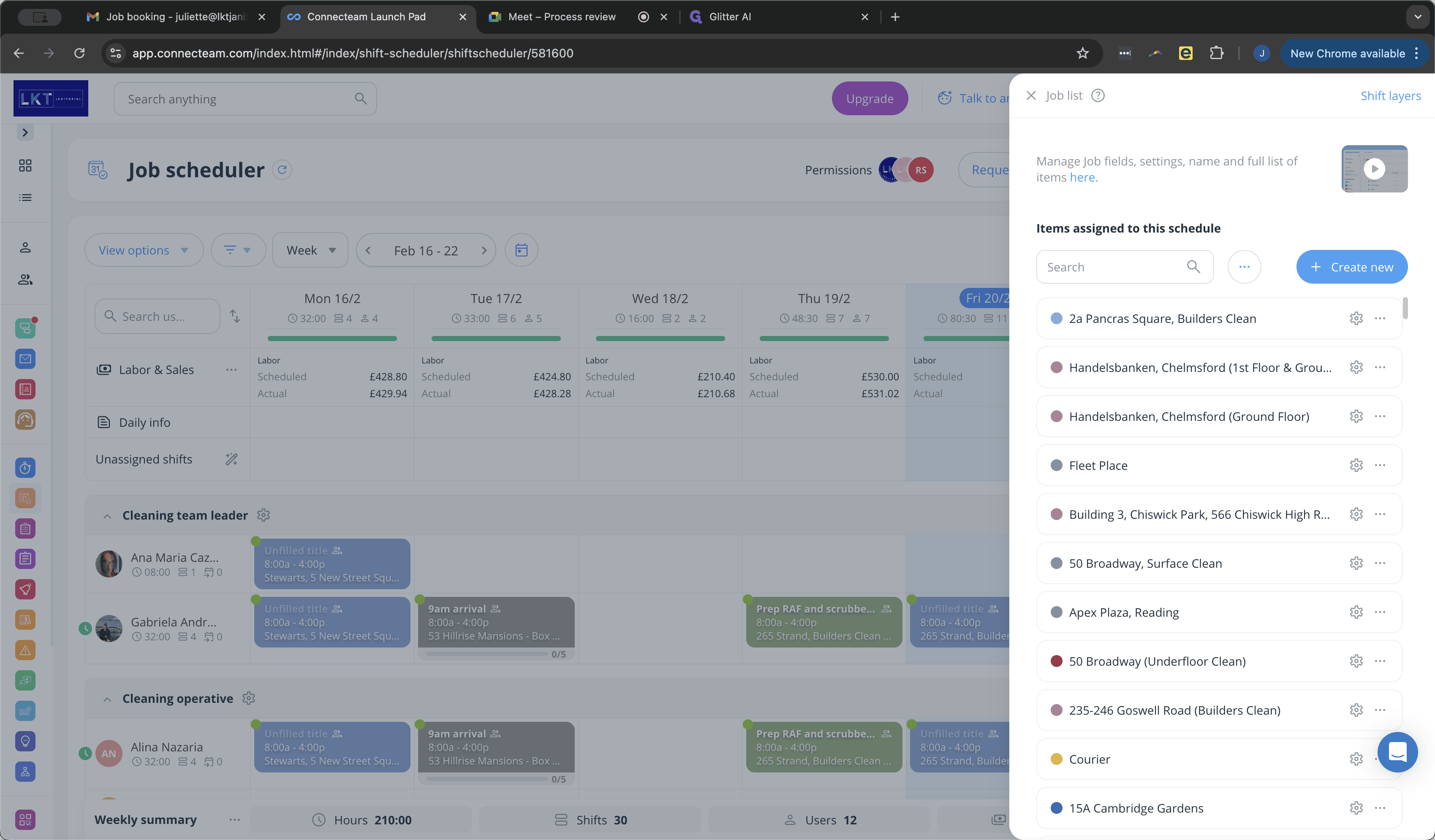
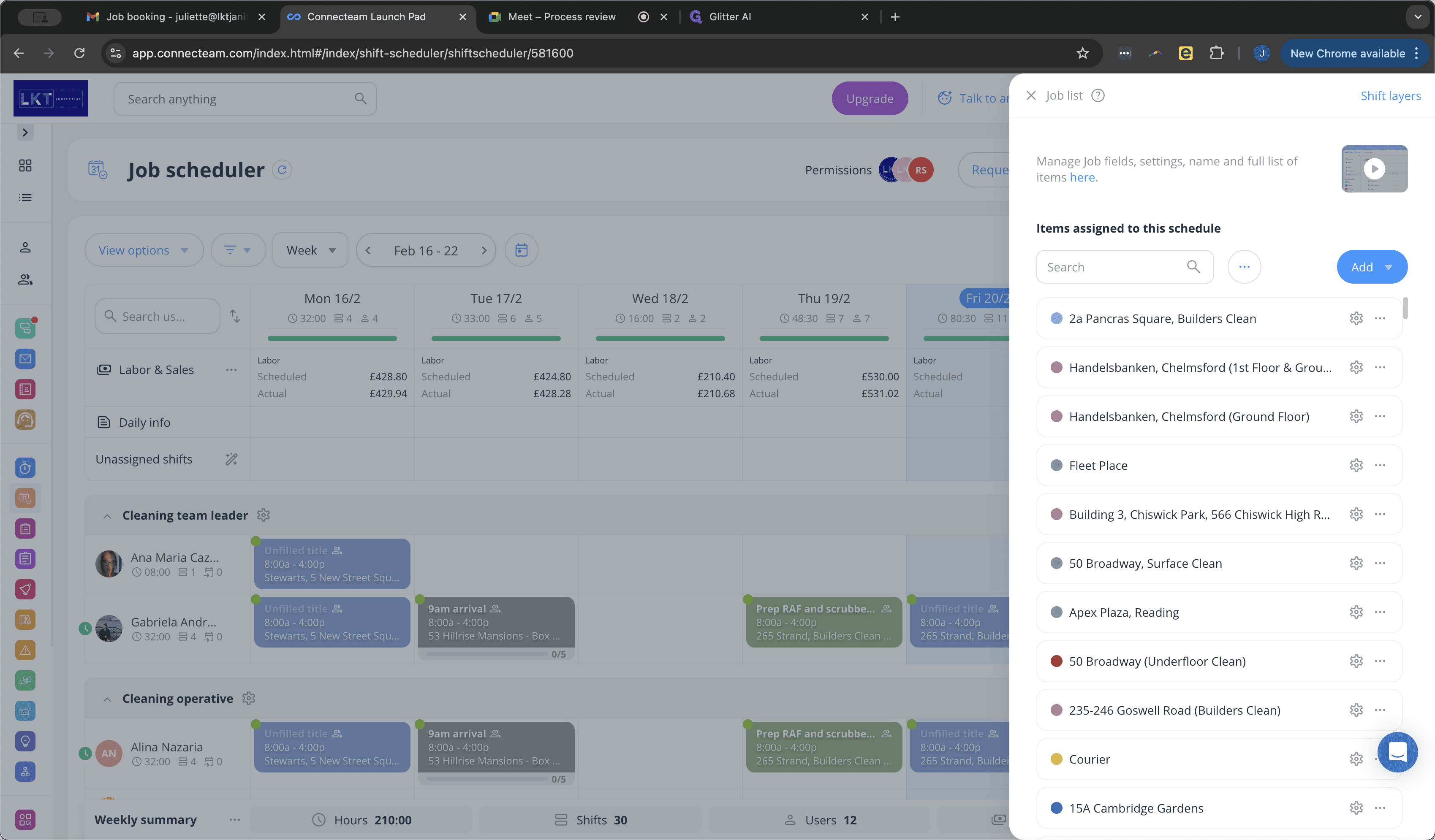
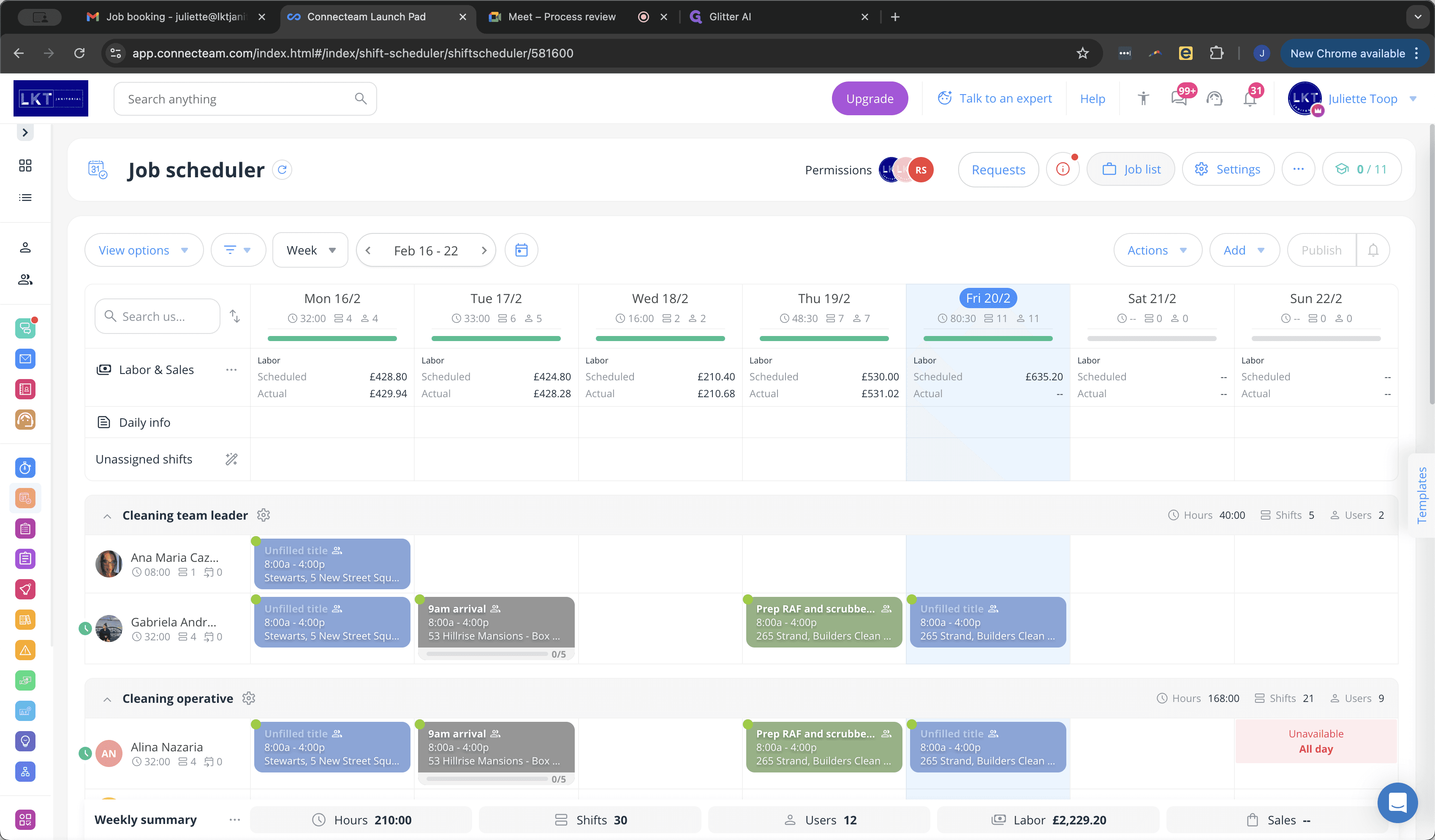
Before allocating shifts, we need to set up the job. Select Job List in the top right corner.
4
Click on "Job List"
5
Click on "+ Create new" to set up a new job
Here, we can enter the job name and job type in the format 'Job Name, Job Type' e.g. 'Buckingham Palace, Builders Clean' as it will be a standard builders clean.
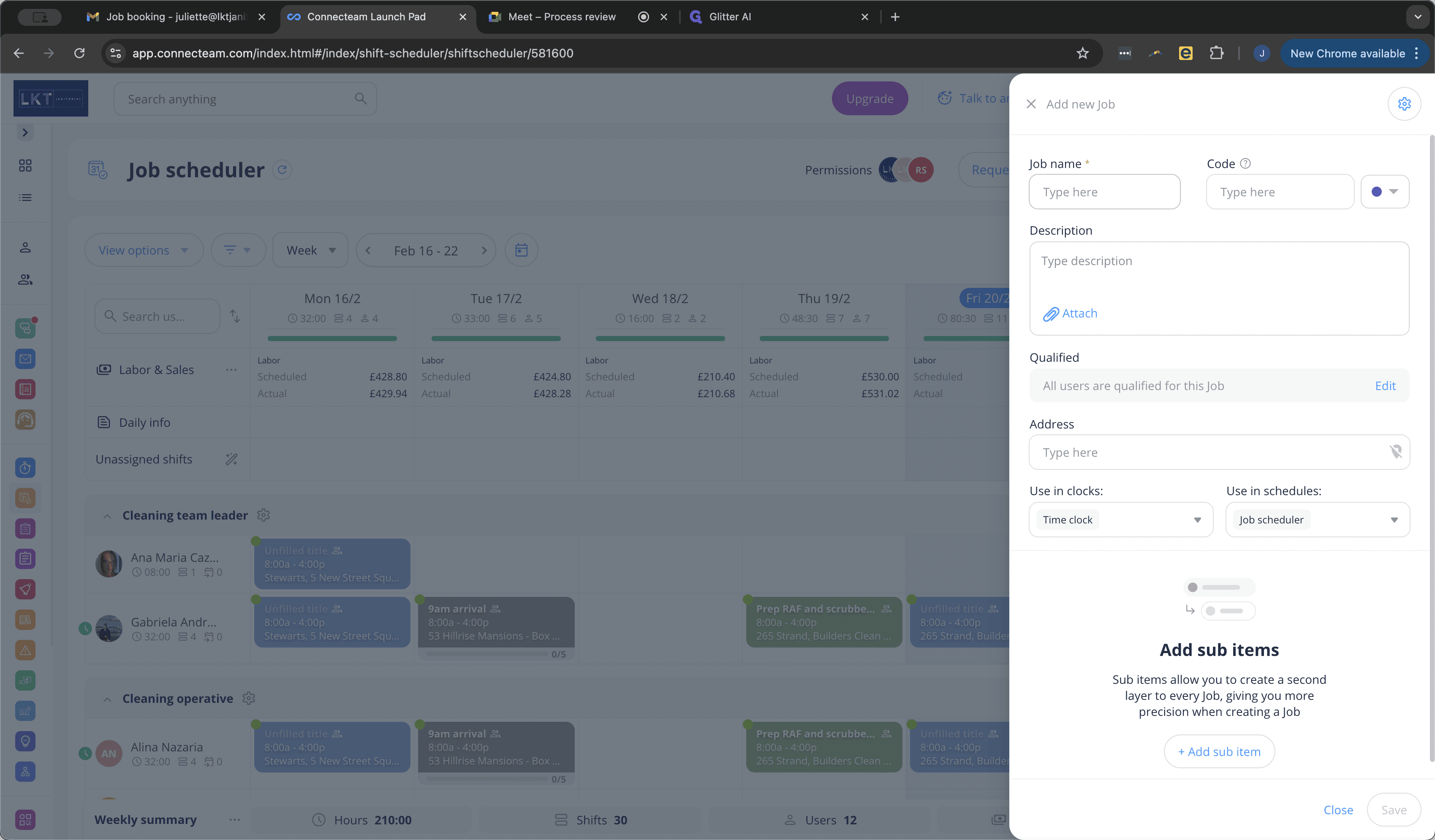
Use the following format for the 'job name' field:
'first line of job address, job type'
e.g.
Buckingham Palace, Builders Clean
6
Click on "Job Name" to insert this information
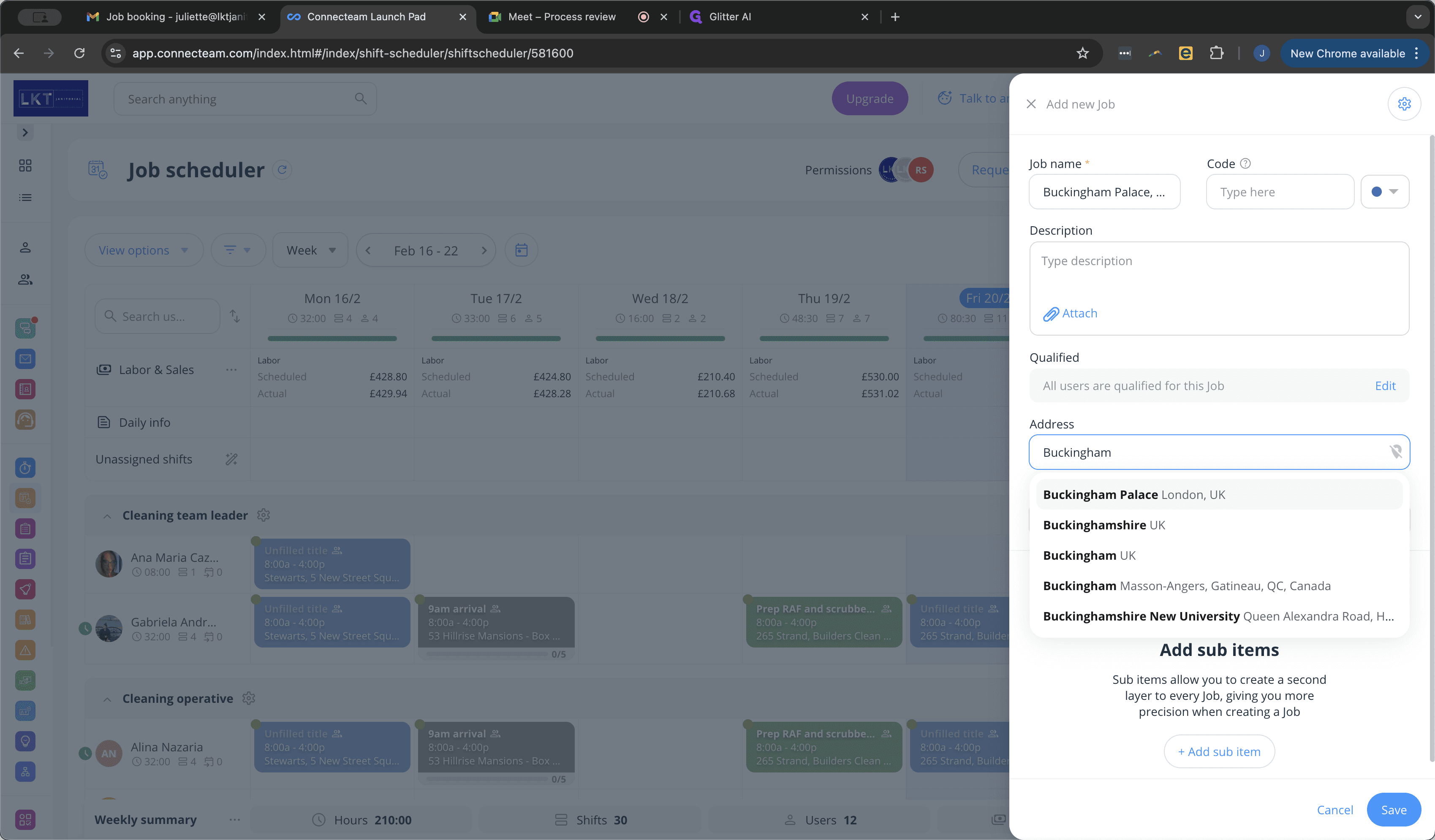
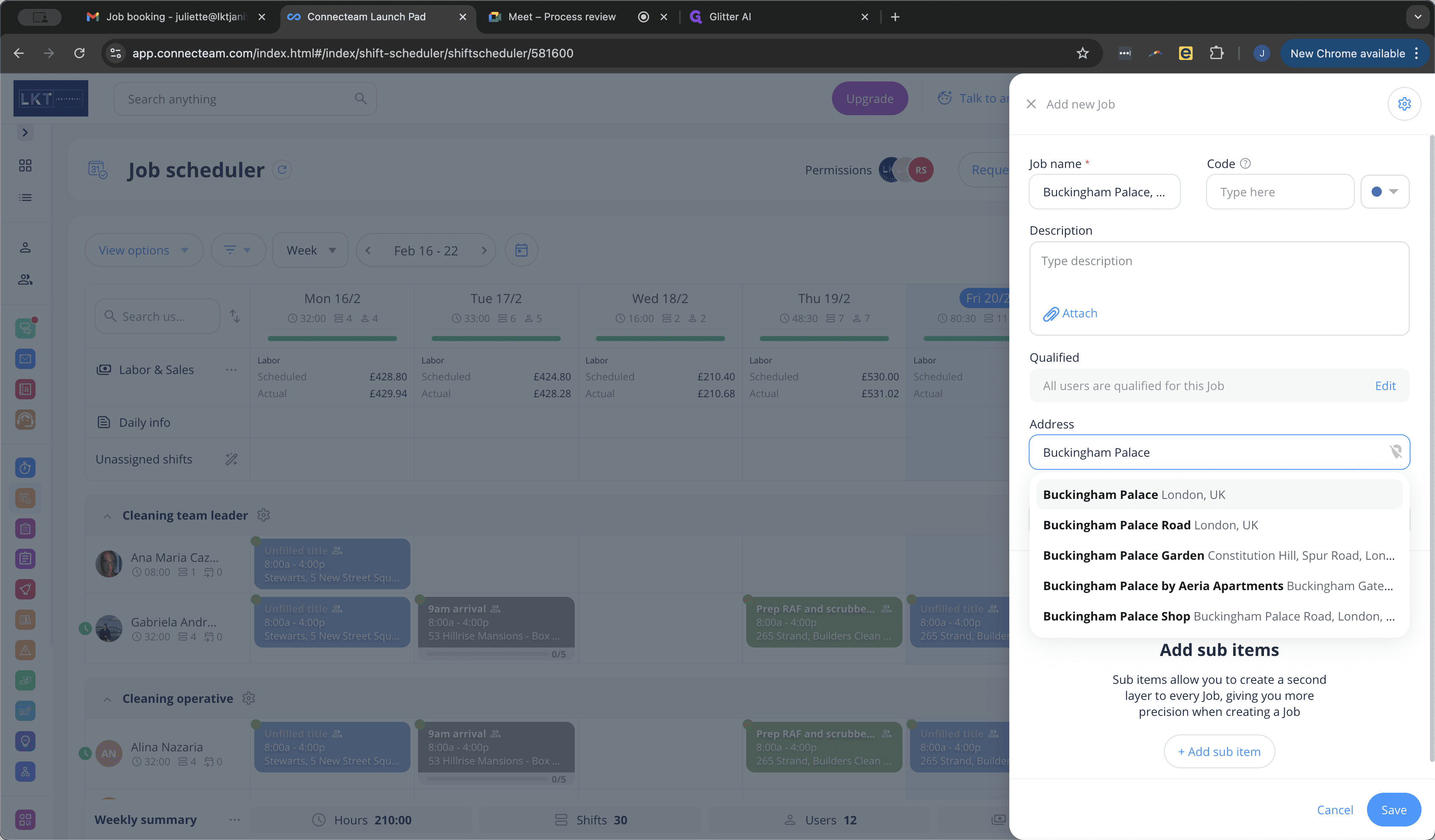
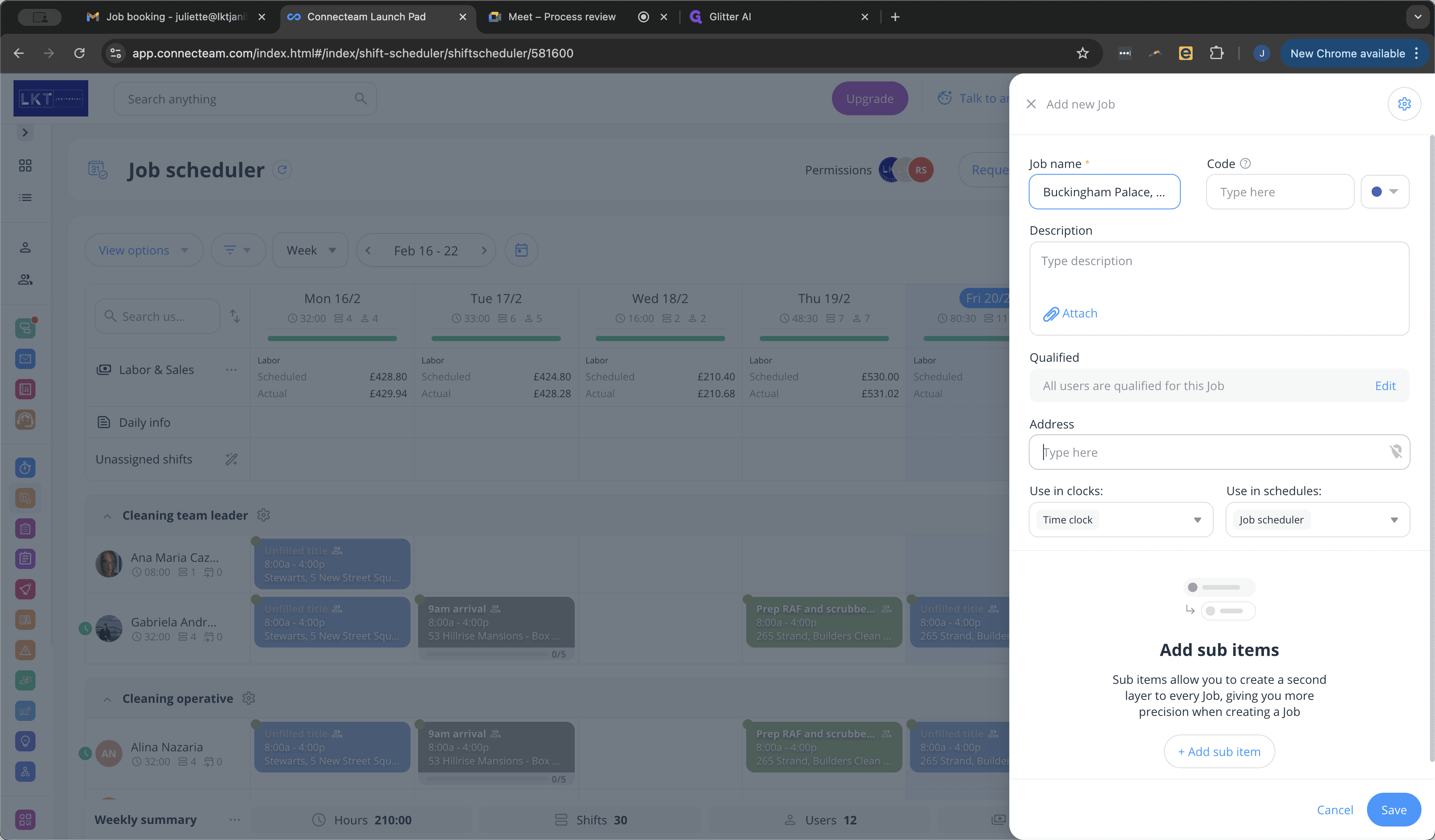
We then need to add the address to the job. Here, we can type in the address e.g. Buckingham Palace and the address should show automatically. Please re-check the job request details to ensure accuracy as sometimes the city and postcode populate inaccurately.
7
Click on "Type here"
8
Start typing the address and then click on the correct address when it shows up so that it becomes a live link e.g. 'Buckingham Palace London'
9
Click on the correct address
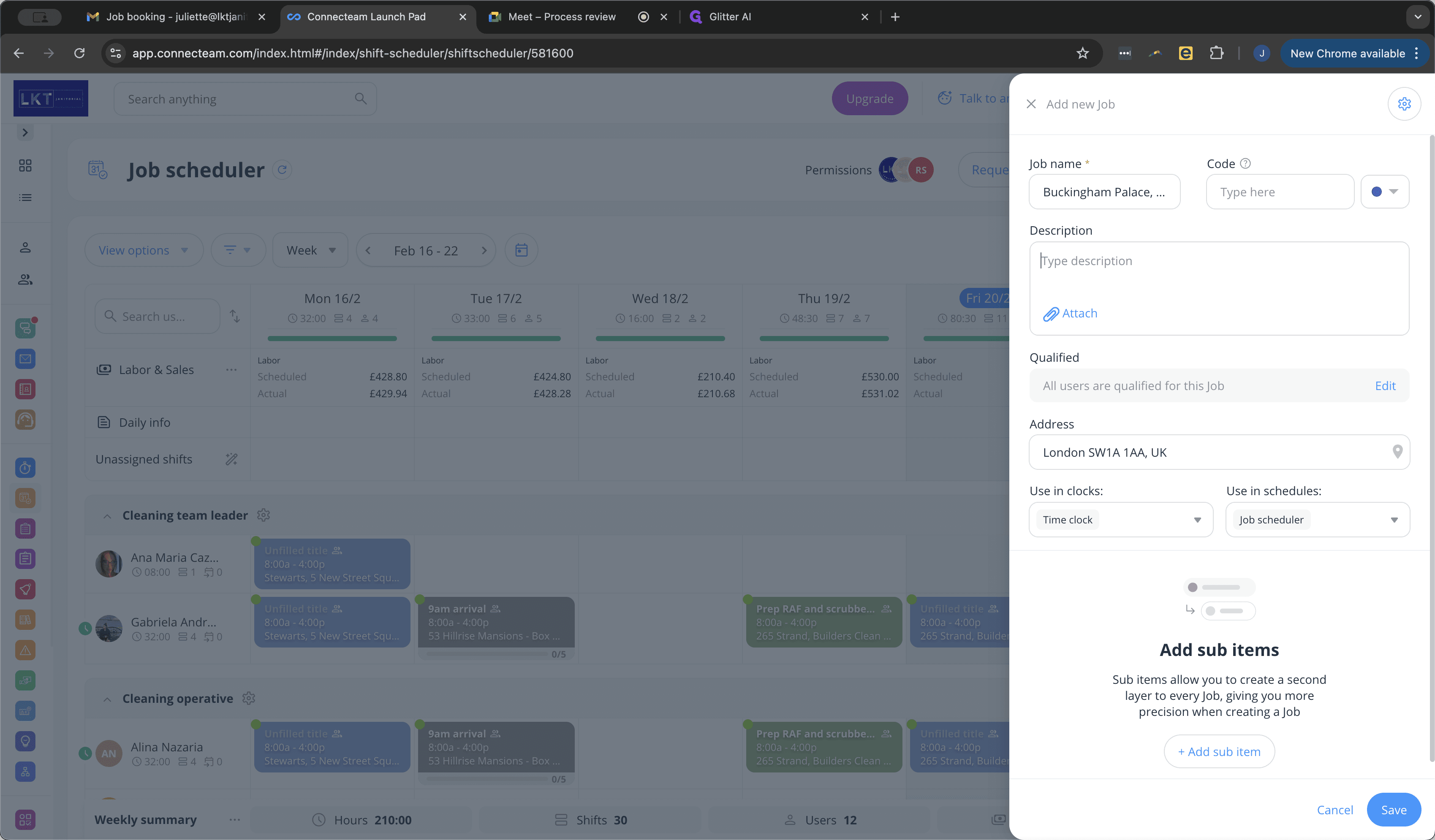
Next we will insert details about the job into the 'description' field.
The format is generally as follows (please include headings e.g. 'main contractor' for complete clarity for the cleaning team)
Here is the template:
Main contractor: Site contact: (ONLY ADD IF REQUIRED) Site address:
Job Details:
Don't forget your X-point PPE!
(If drawings/plans/GAs/general arrangements are available, please attach these as a file)
The below guidance should support you with filling in the template:
Main contractor: Company name Site contact: name - phone number (site manager and/or project manager is preferable, otherwise contracts manager or director and/or commercial manager) Site address: please add any additional descriptions here e.g.
- which level they are working on? - is access to site not straightforward? - is the loading bay or site entrance address on a different road to the main address? - does the address given not quite match the address automatically populated in the address field?
If this is a brand new client, please insert this information here with the following format: ✨ This is a new client, please impress them! ✨
If there are any important points to make the team aware of, e.g. a specific site rule, a difficult client, a site requirement etc, please insert this information here with the following format: 🚨 Insert important information here! 🚨
Job Details: please add in any known information/instructions here useful to ensure clarity for the cleaning team on site e.g.
- what will they be cleaning? - any specific requests from the main contractor? - is there anything that definitely should or should not be cleaned? - are there any specific materials/equipment that should or should not be used? - should anything be cleaned in a particular order? - does the site or project manager have a particular way of working? - does the site or project manager tend to particularly notice if something is or is not cleaned?
Insert PPE information - emojis should match required PPE on site:
Don't forget your X-point PPE! 👷🏻♀️🦺🥾🧤🥽😷
3-point PPE = 👷🏻♀️🦺🥾 4-point PPE = 👷🏻♀️🦺🥾🧤 OR 4-point PPE = 👷🏻♀️🦺🥾🥽 5-point PPE = 👷🏻♀️🦺🥾🧤🥽 6-point PPE = 👷🏻♀️🦺🥾🧤🥽😷
👷🏻♀️ = hard hat 🦺 = hi-vis vest 🥾 = safety boots 🧤 = construction gloves 🥽 = goggles 😷 = face mask
10
Click on "Type description" and insert the relevant details
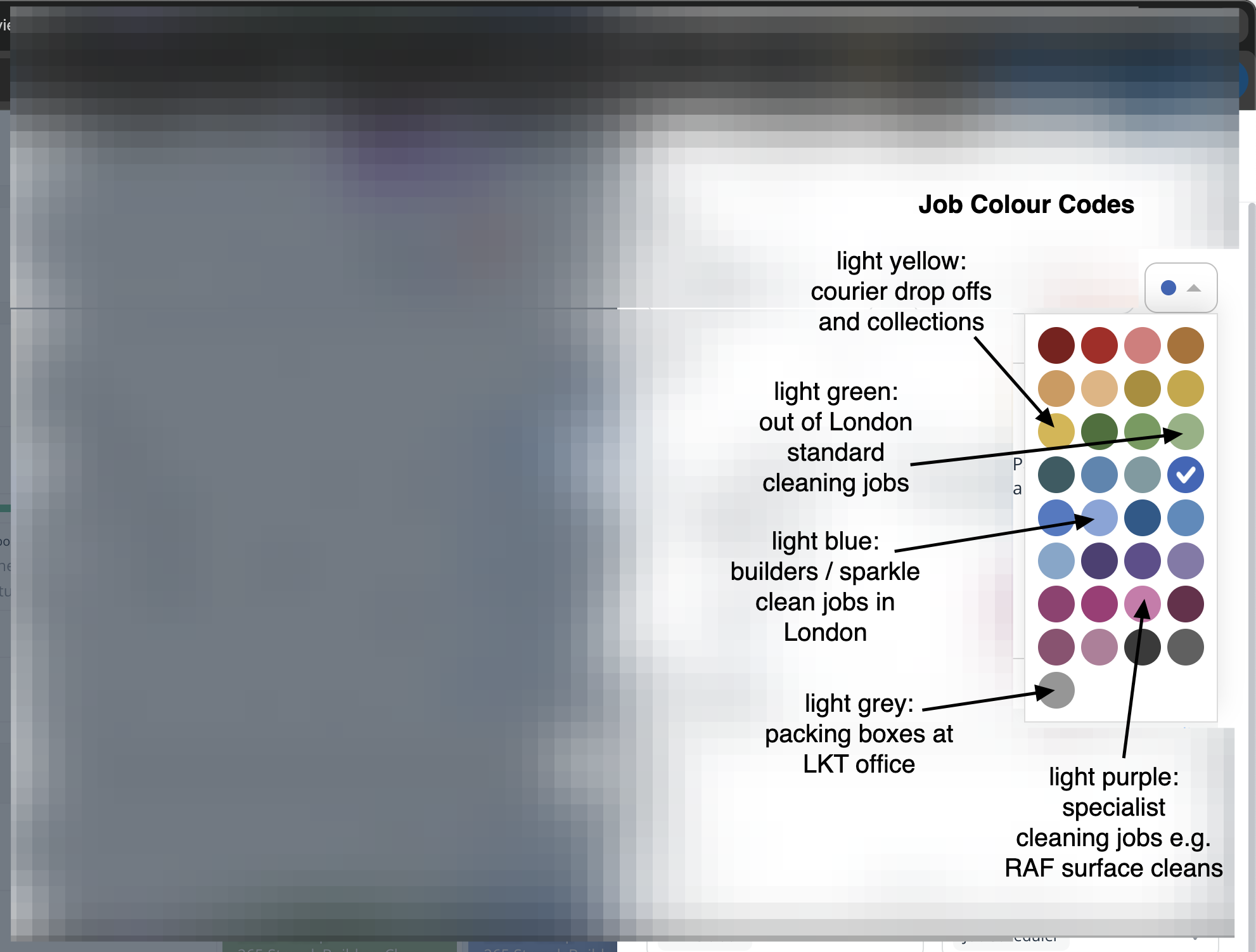
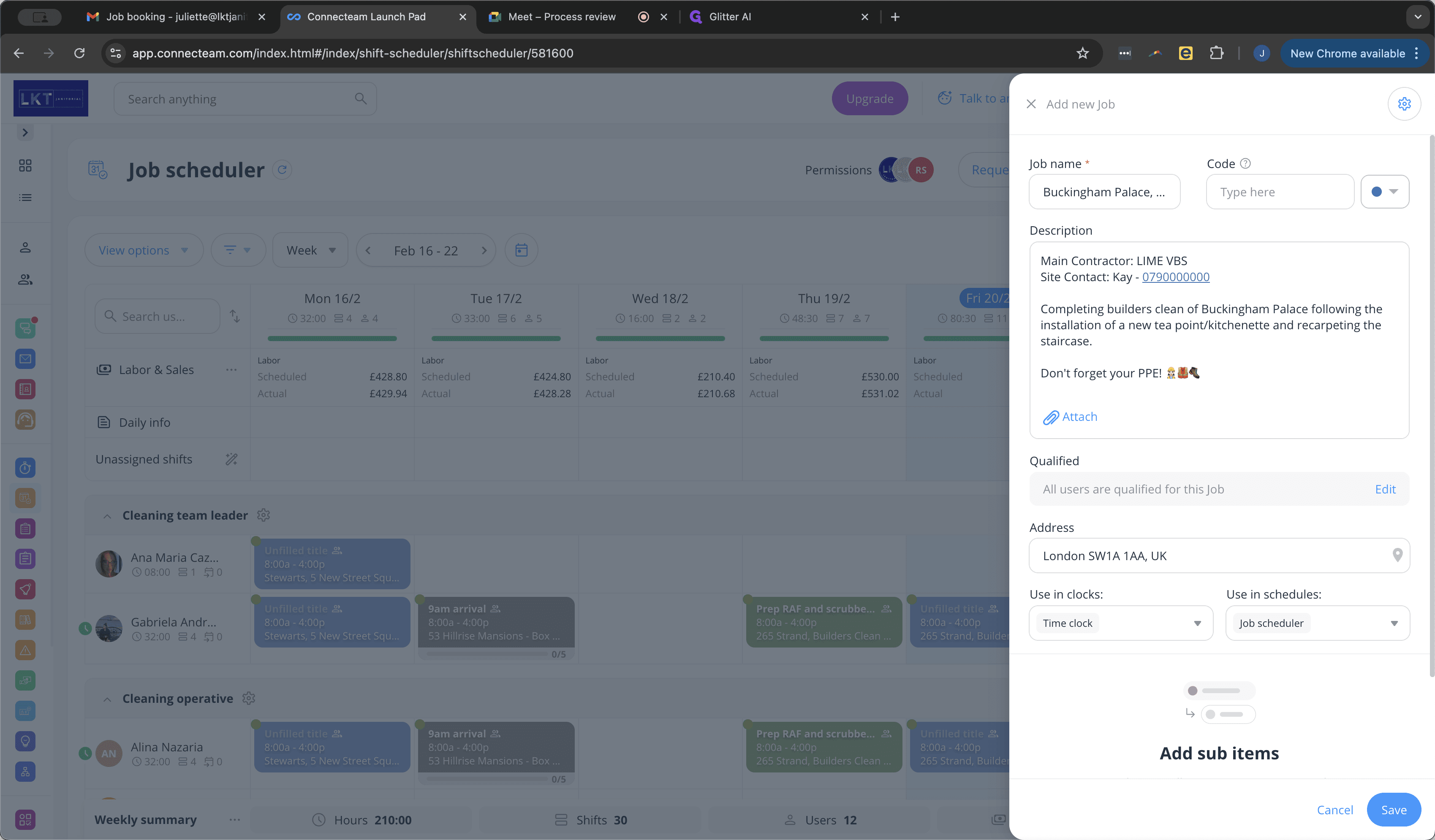
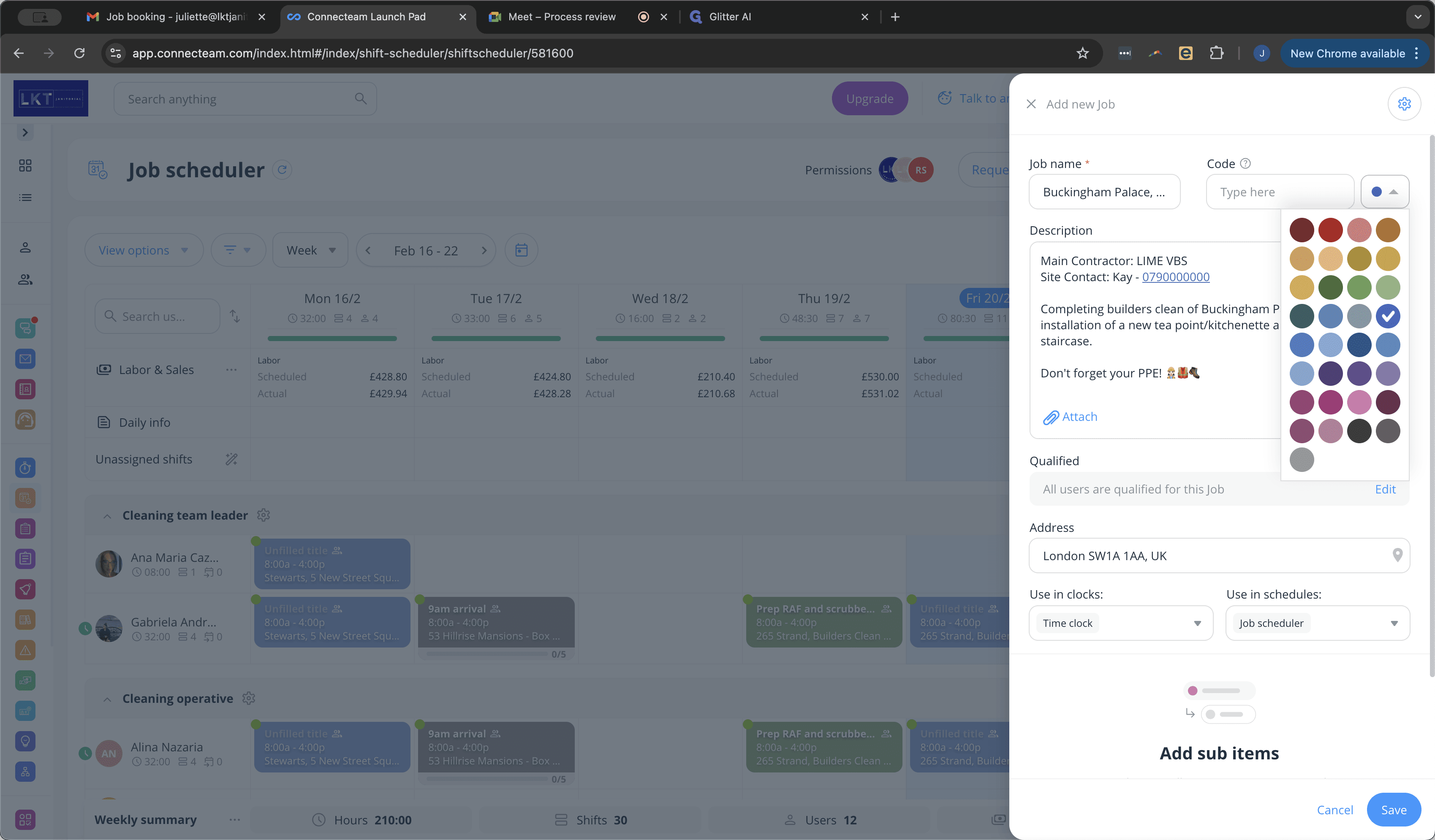
We then select a job colour to categorise the type of job.
11
Click on the coloured dot
A standard builders clean is represented by this blue colour.
12
Select blue
13
Job Colour Codes
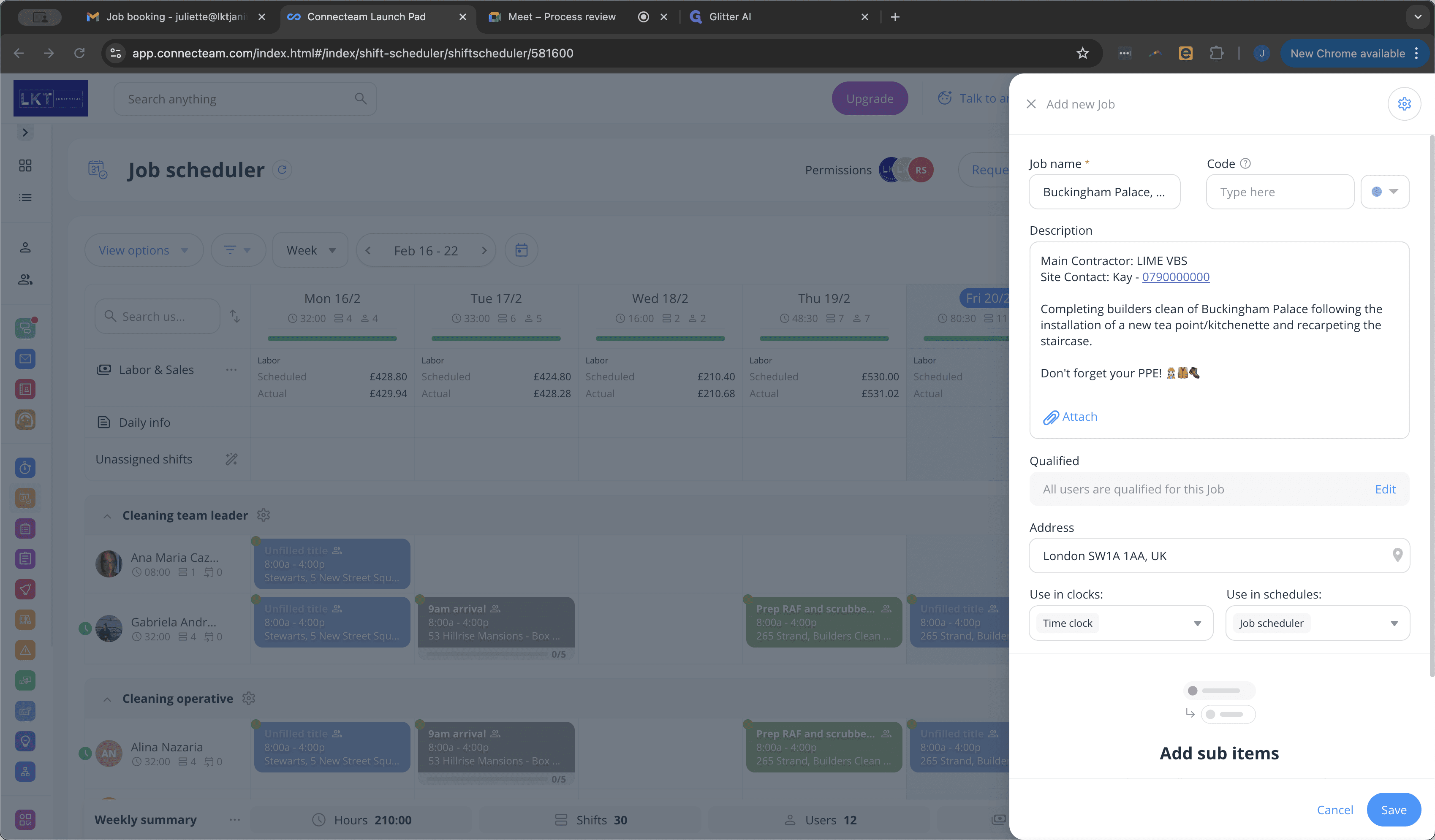
None of the other fields need to be changed, so then we would save the job.
14
Click on "Save" to save the job
We can then leave the job list.
15
Click on "X" to close the job list window.
Task complete.
How to Book a Cleaning Job Using Connecteam: Step-by-Step Guide