
How to Book a Plumbing Service Call in ServiceTitan
Step-by-step guide on creating a new service location and booking a plumbing service call in ServiceTitan for Liberty Tire Forest Park, including adding contacts, selecting job type, and managing job details.
In this guide, we'll learn how to create a new service location and book a plumbing service call in ServiceTitan. This process includes searching for a customer, adding a new location, entering contact details, and scheduling a job for a water heater leak diagnosis. We will also cover how to record the job number for project management.
Let's get started
Open ServiceTitan. Select the Calls screen. Then, search for the service location.
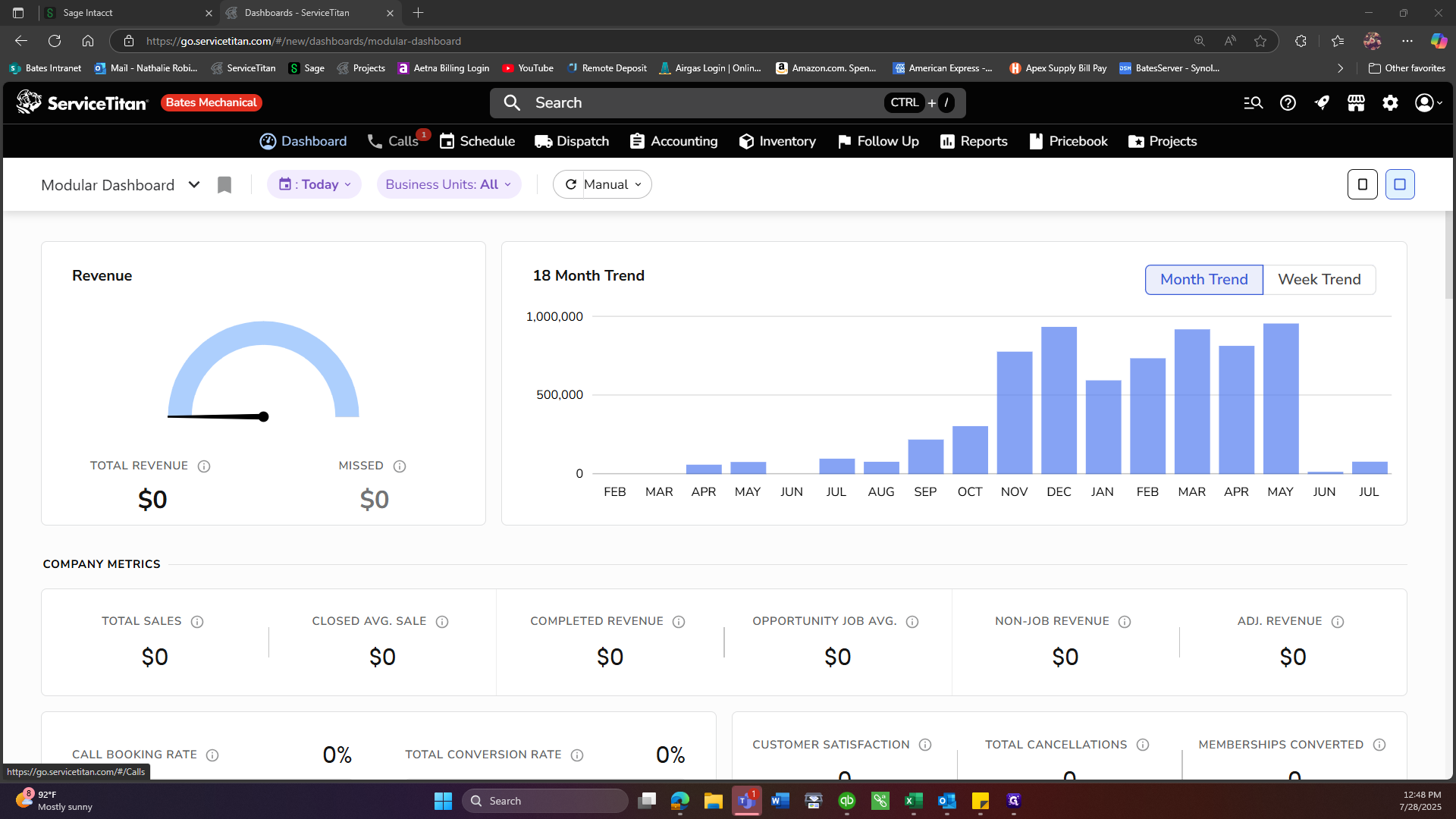
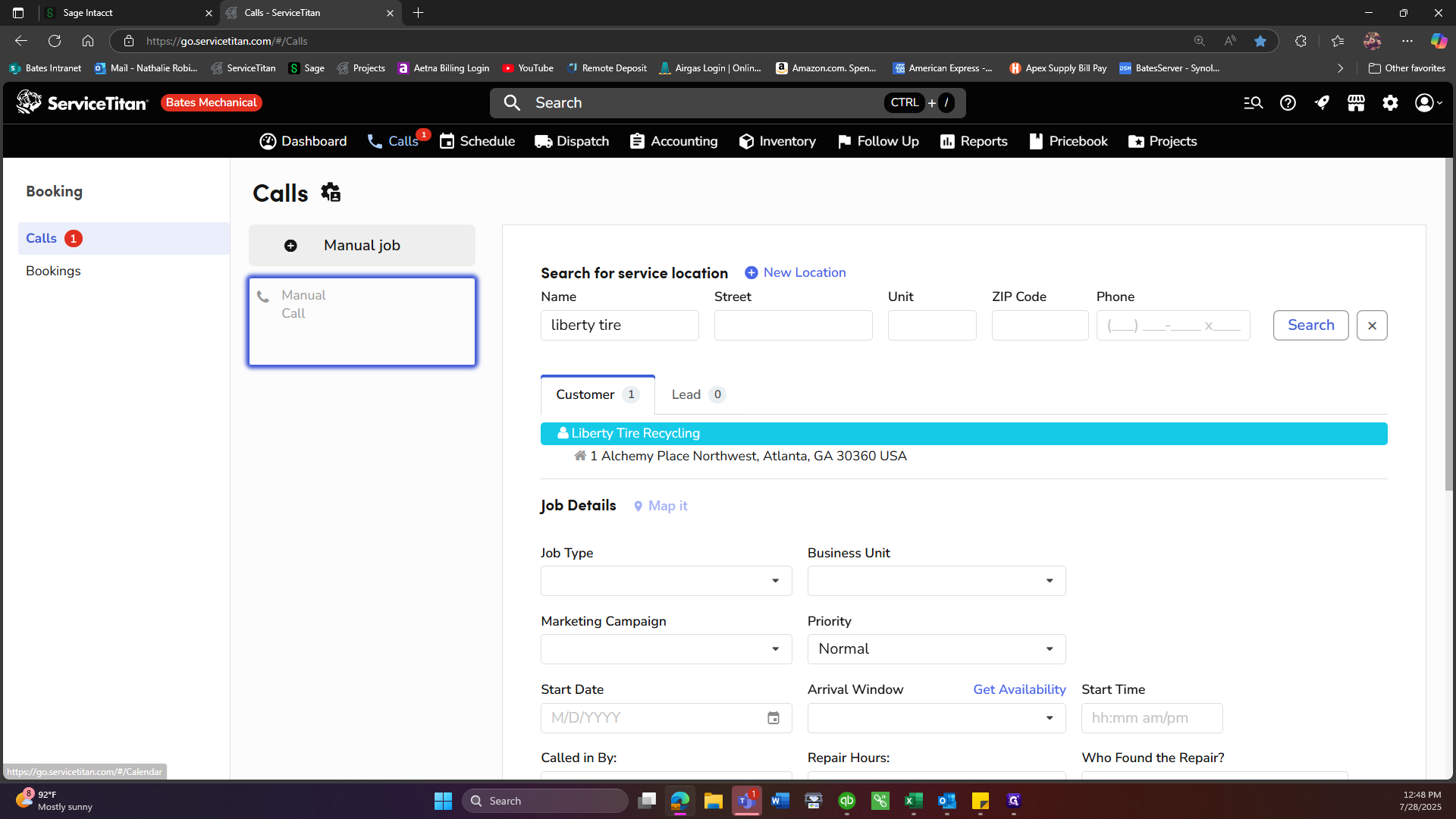
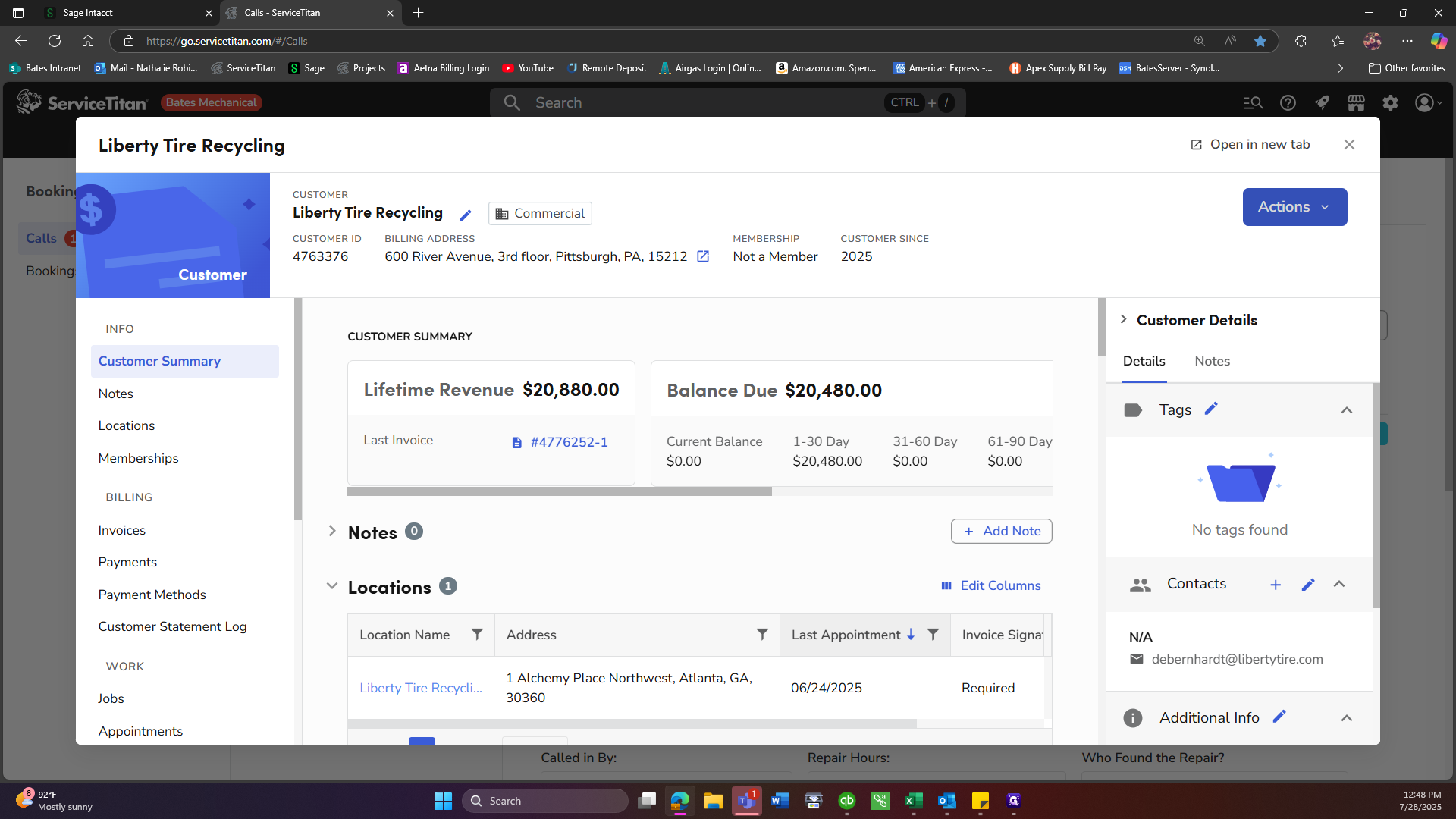
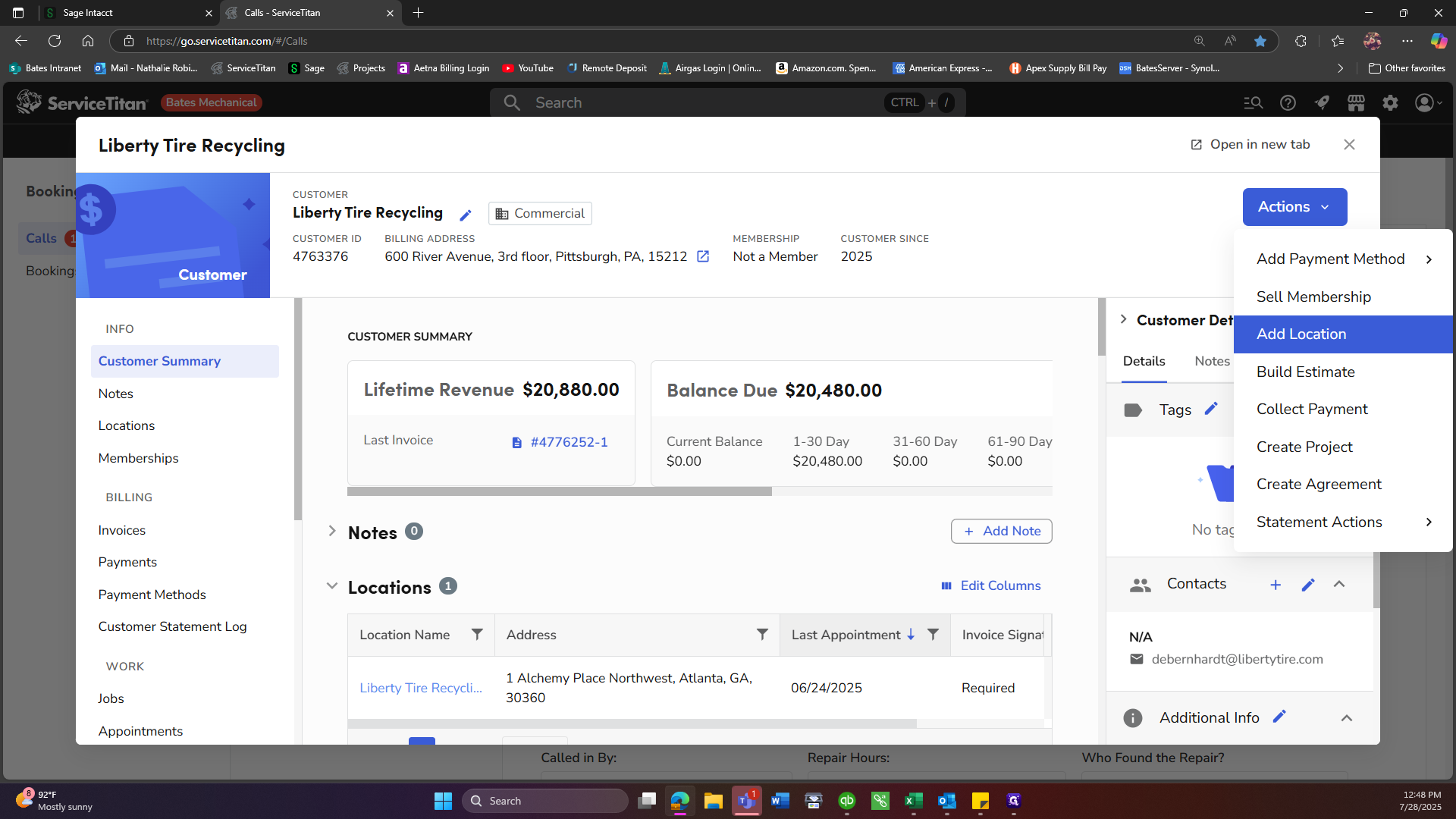
After searching, we see the location is not listed. Select the customer and create a new location.
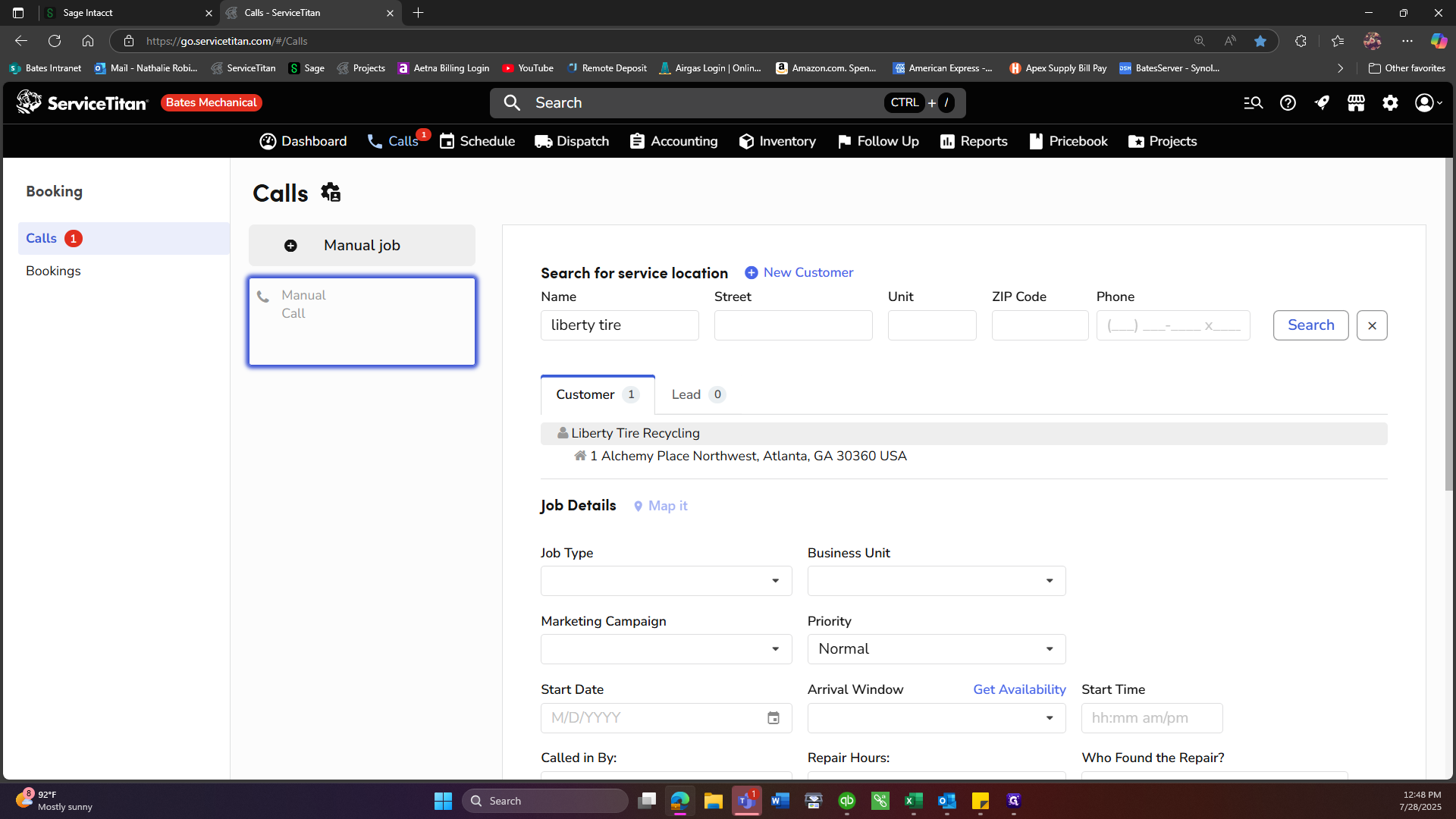
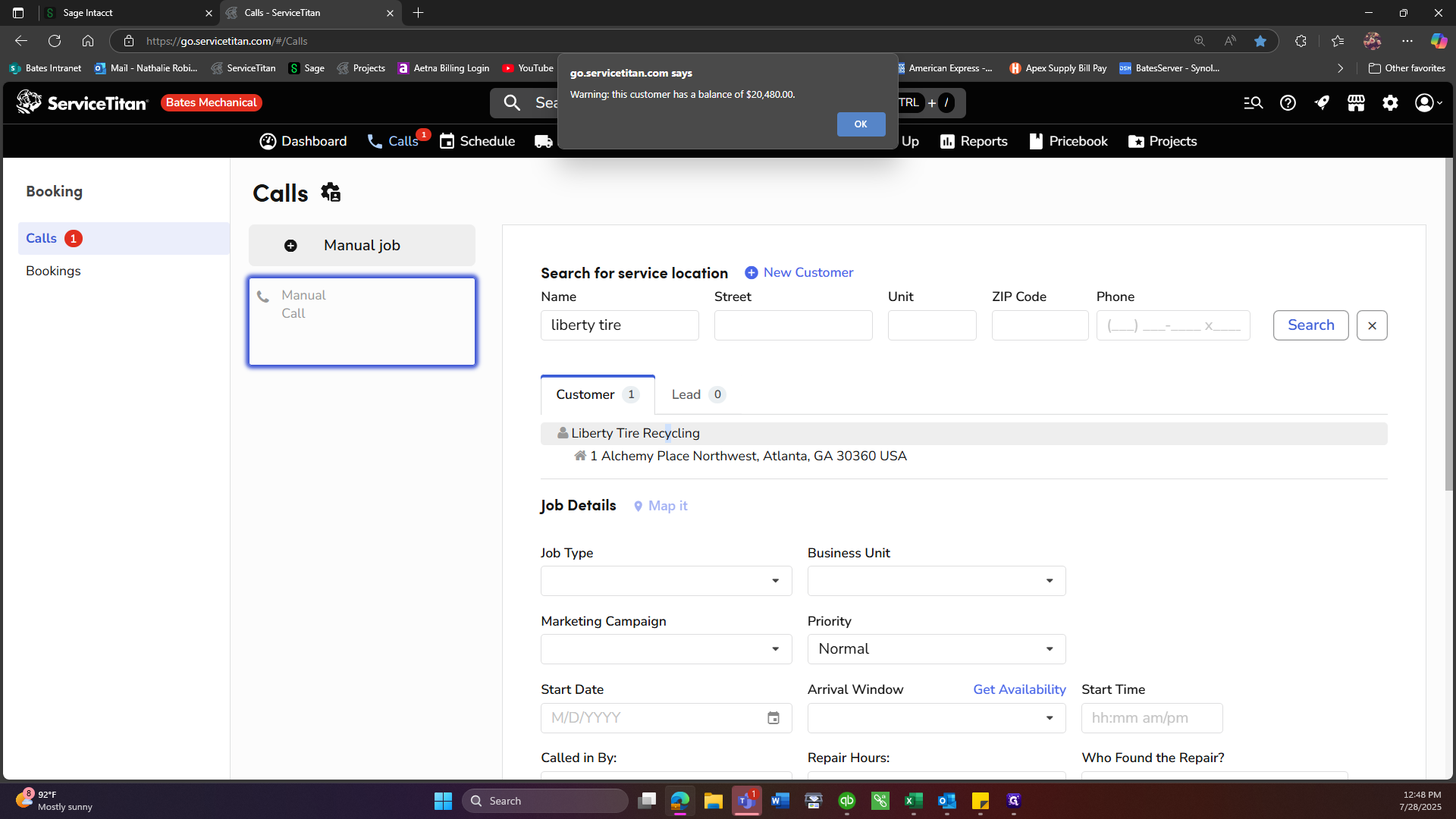
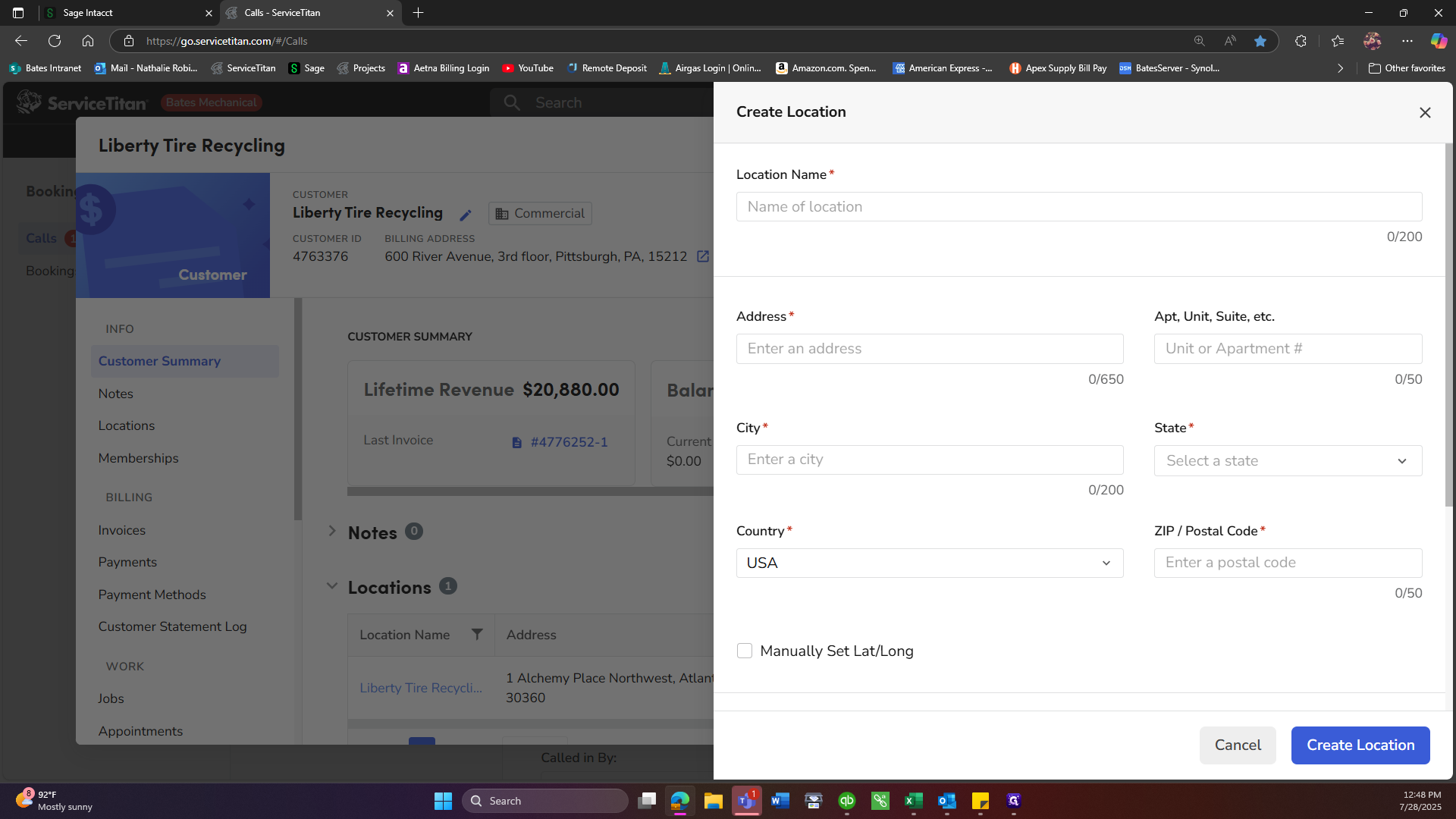
After entering the city, return to the address and select the GPS-verified coordinates.
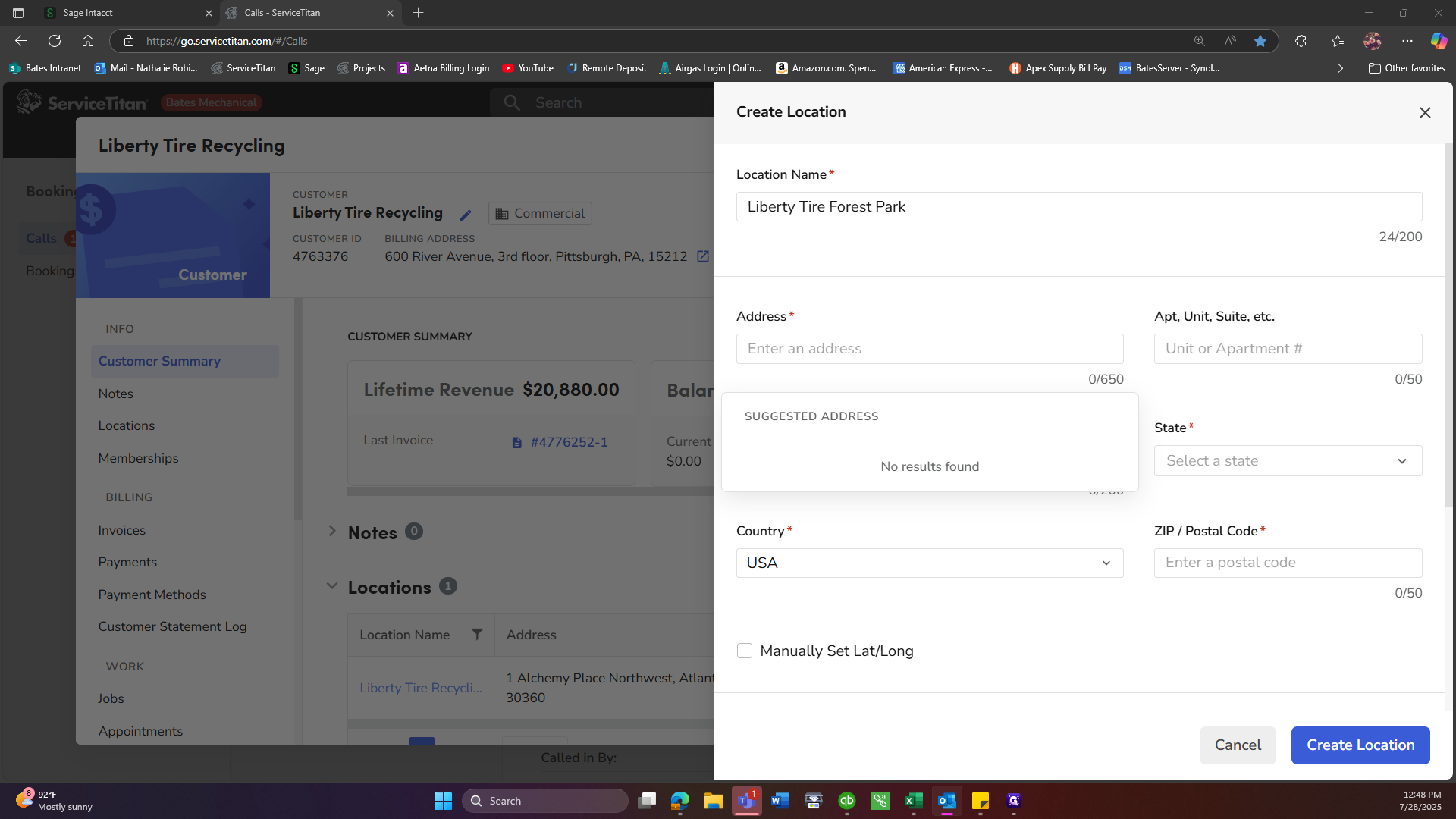
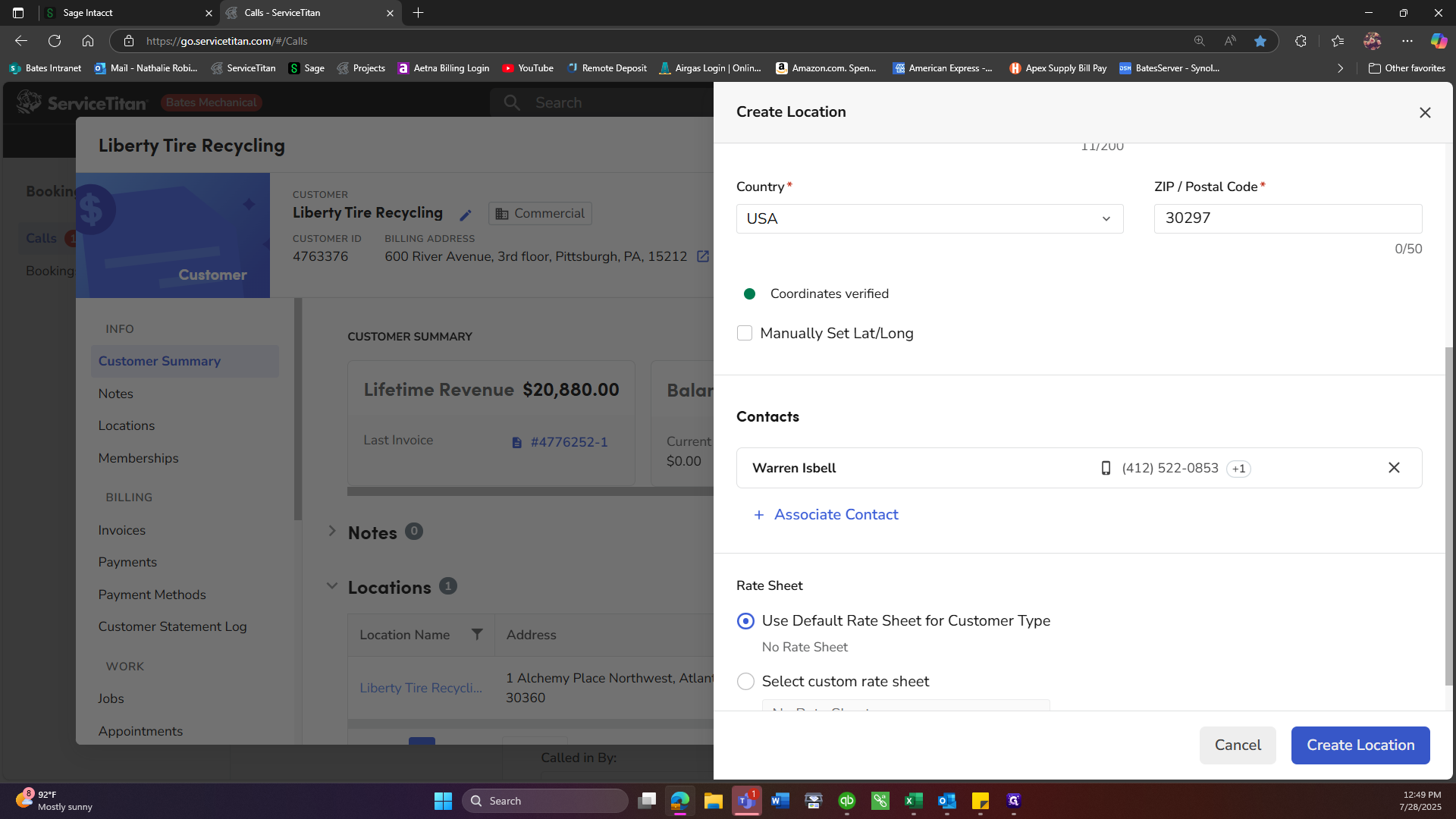
At this point, you can add any contacts specific to this location.
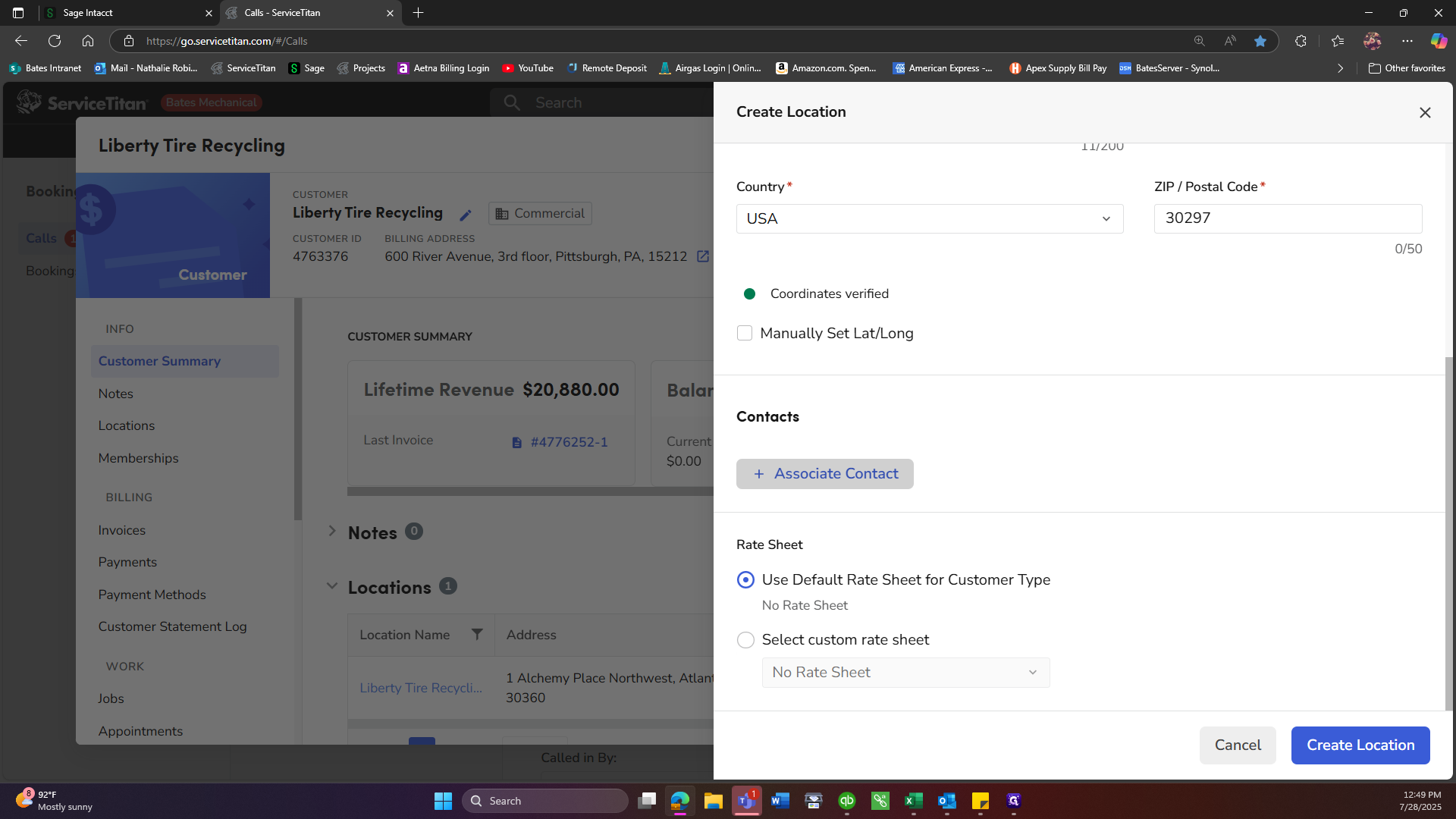
We will add the contact and create the location.
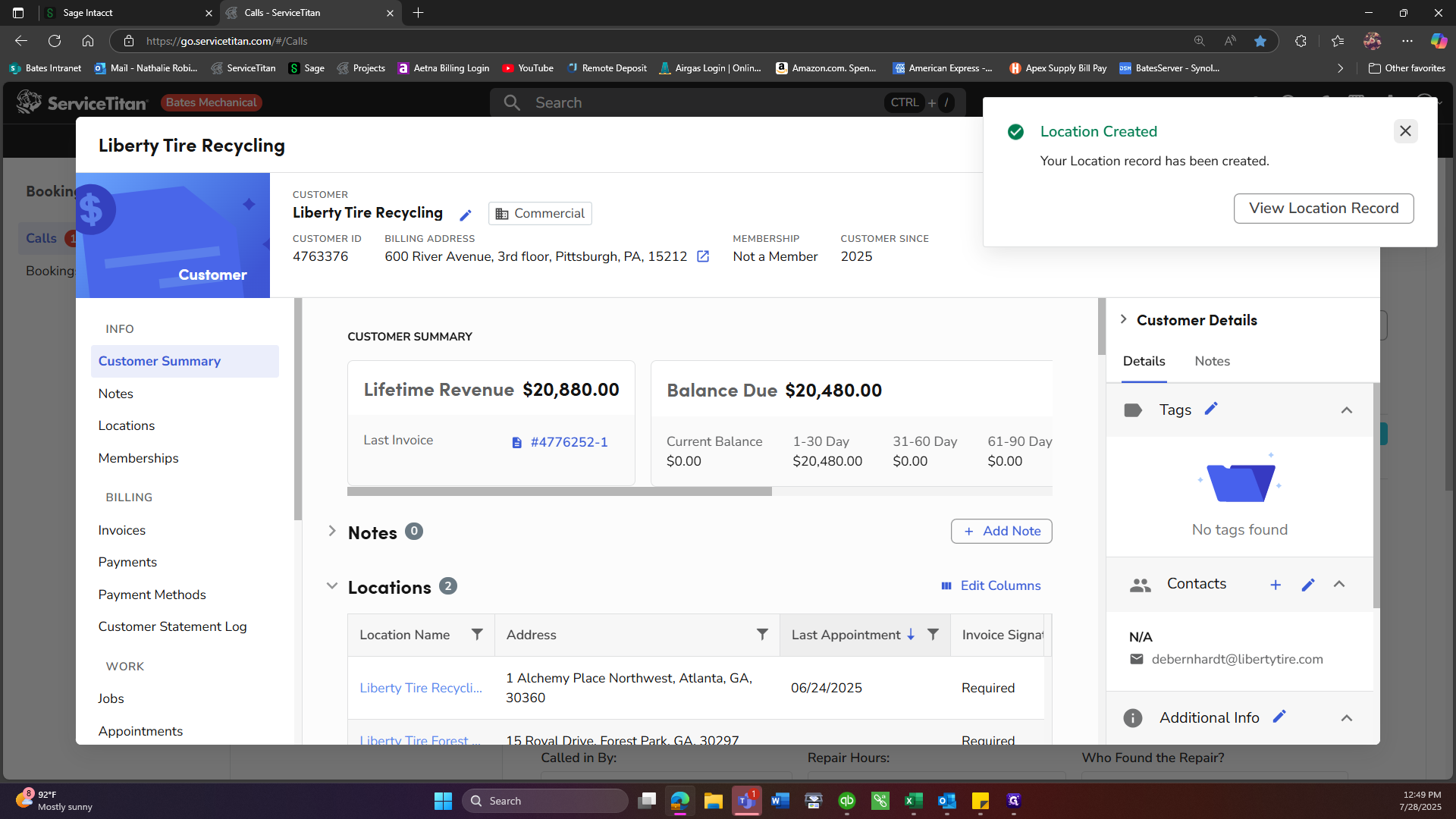
Once we have created the location, we will search again. The location should now appear.
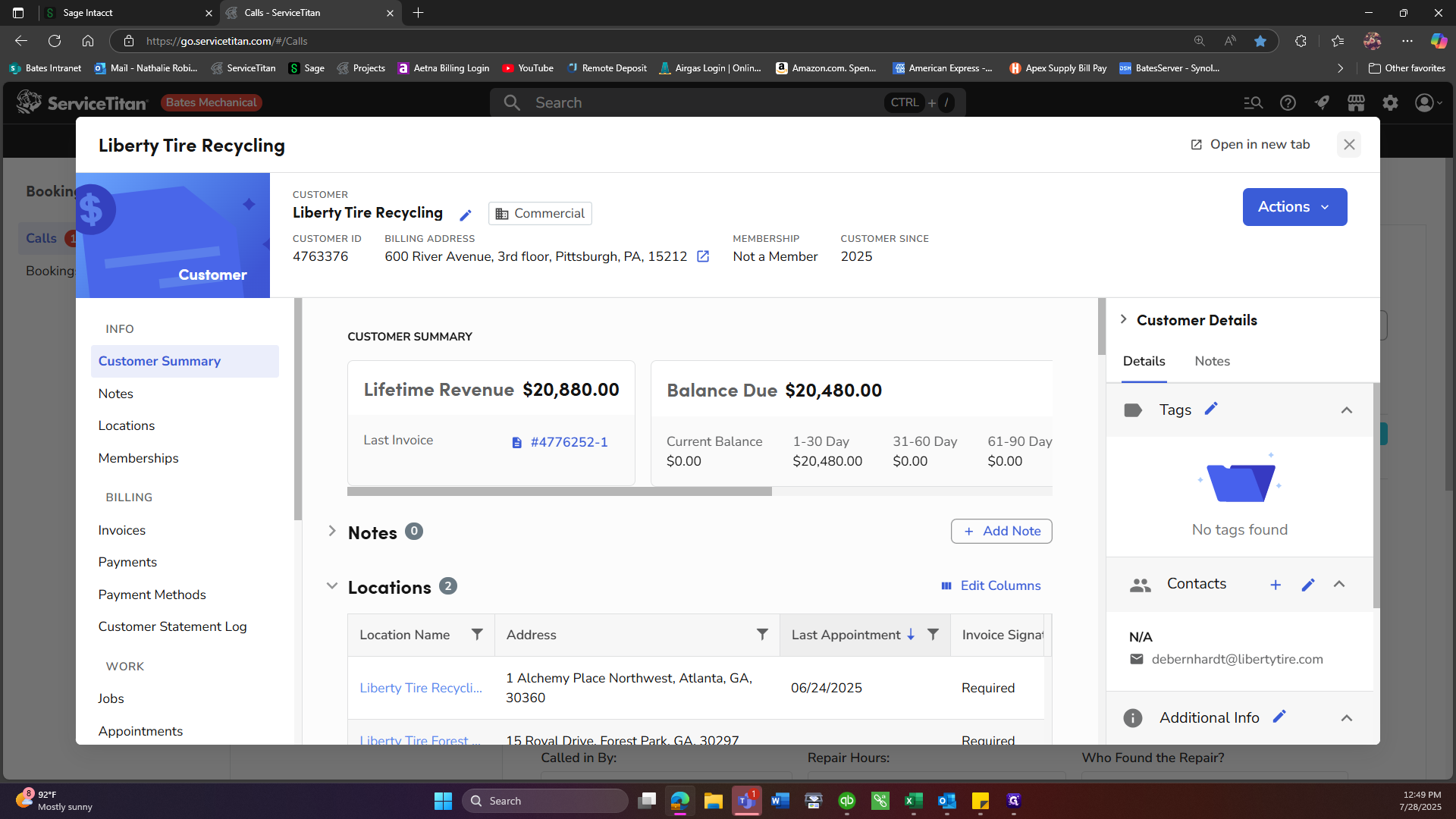
Select that option, then choose Book Job.
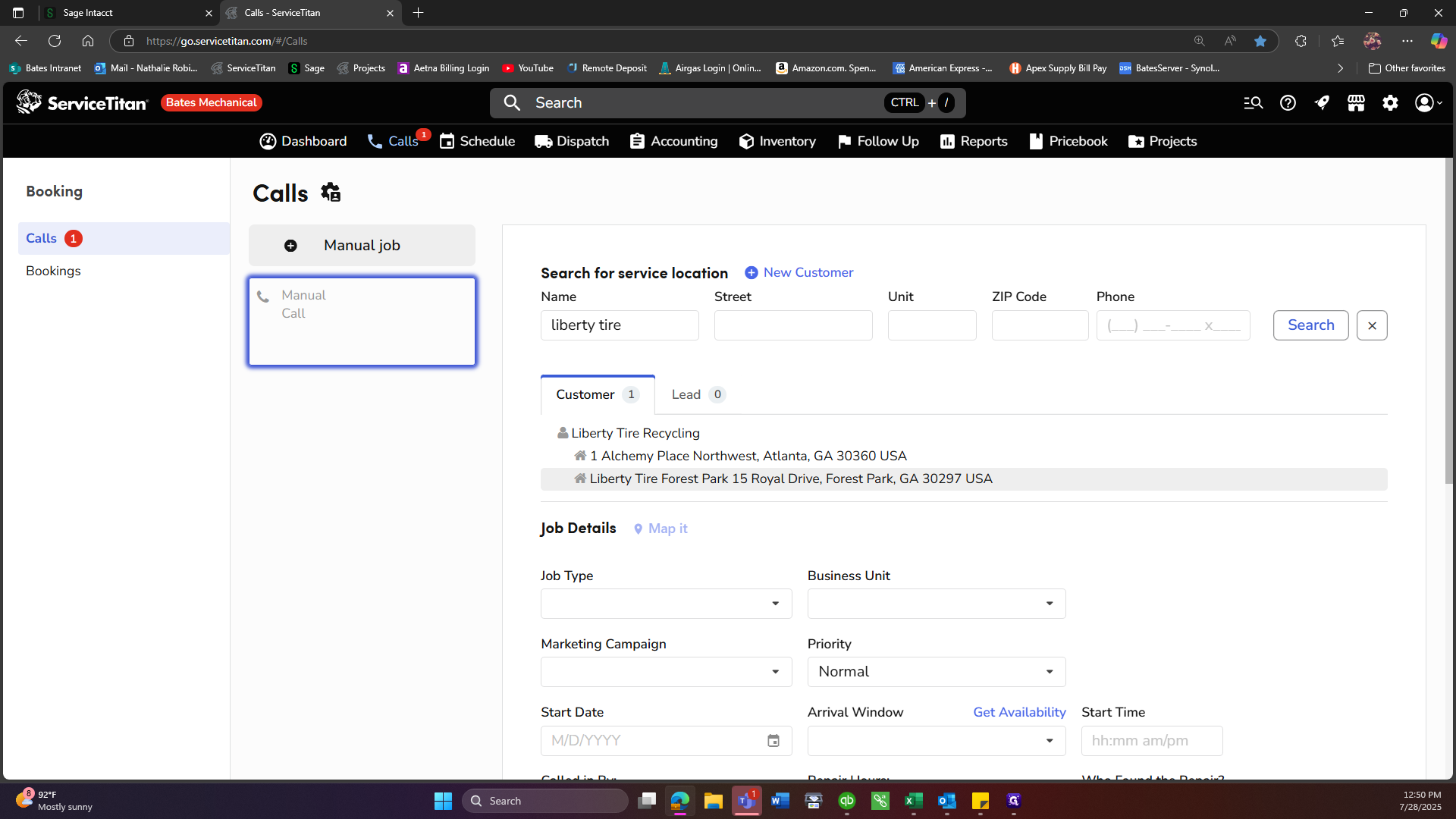
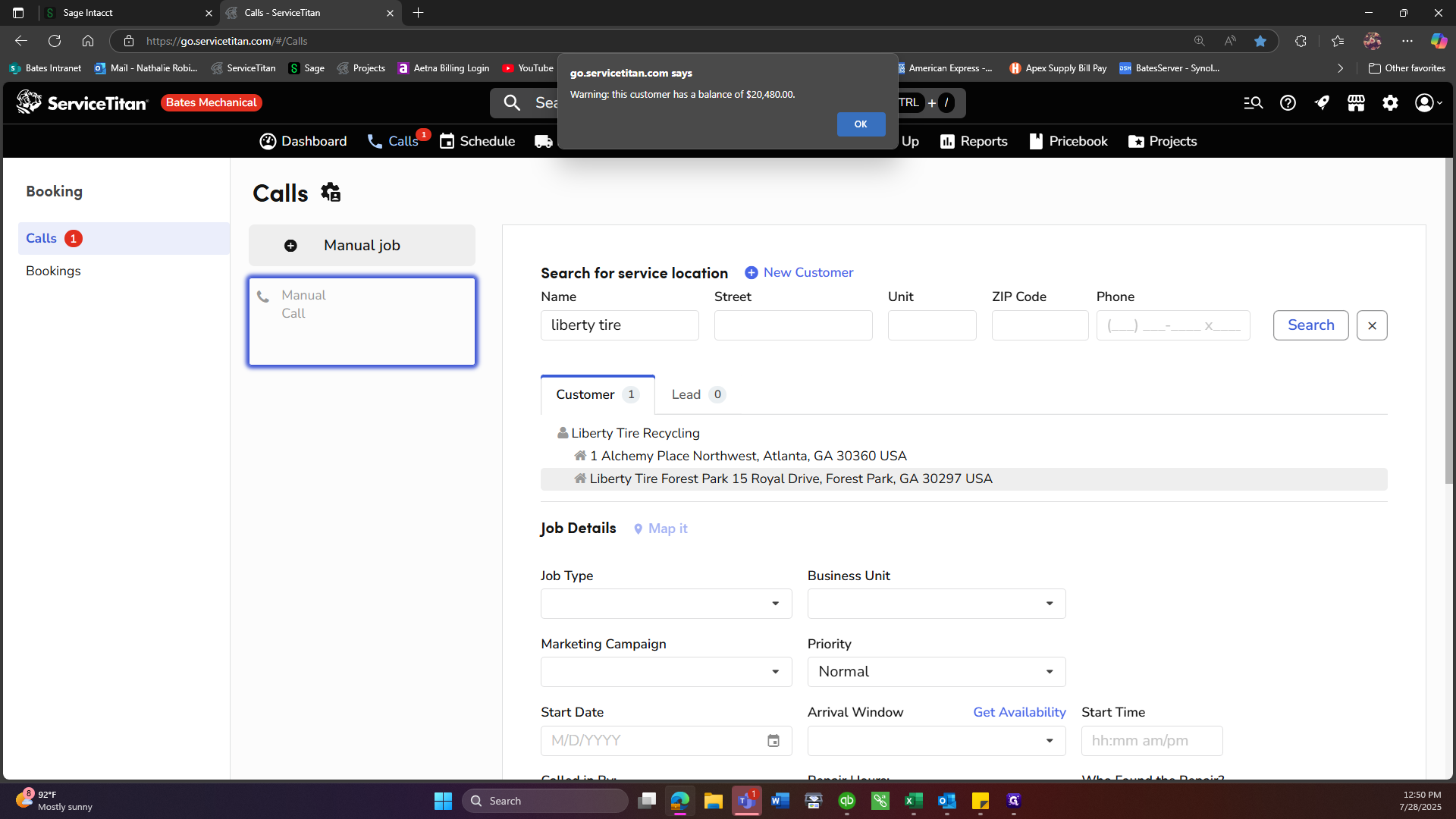
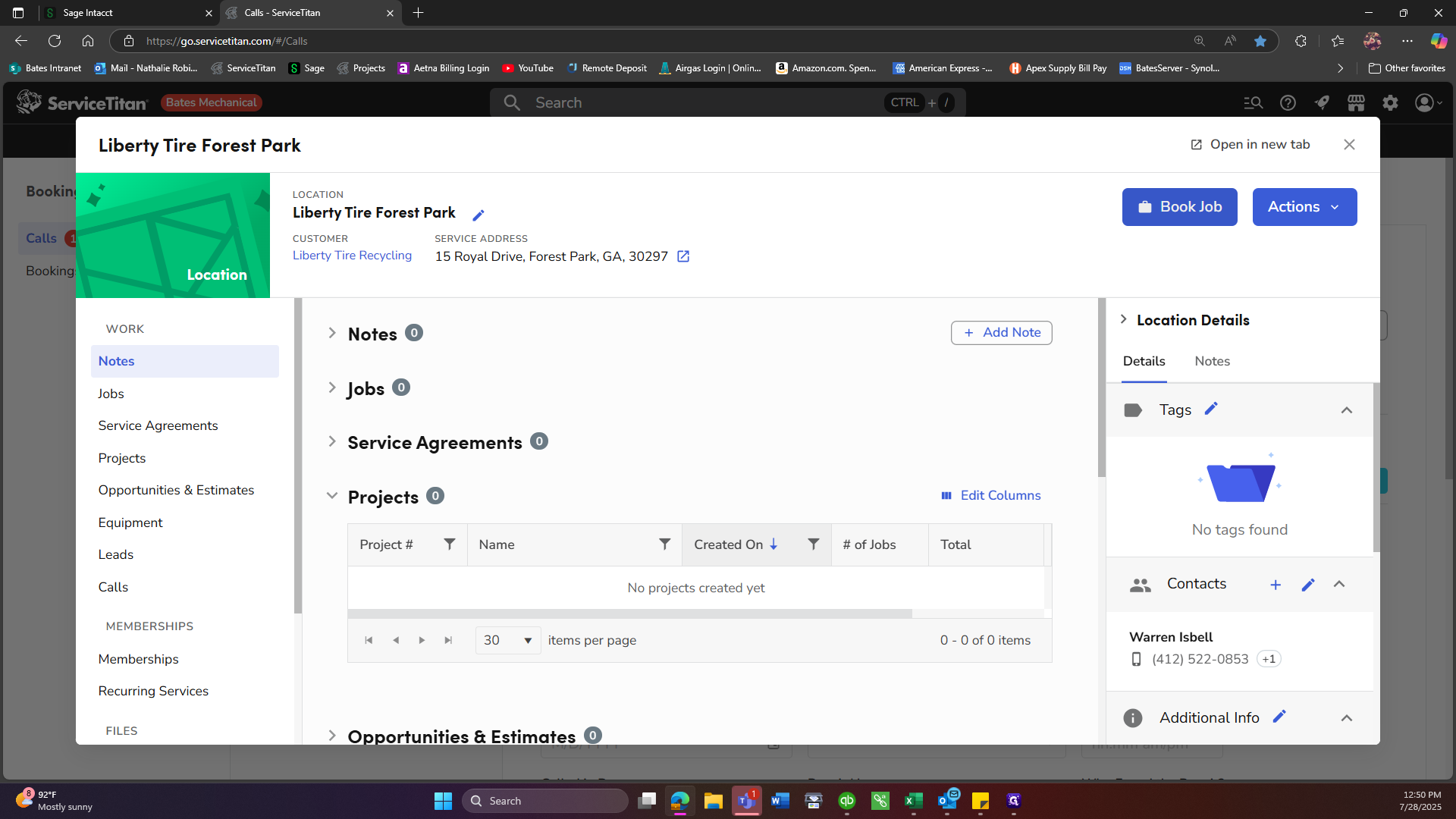
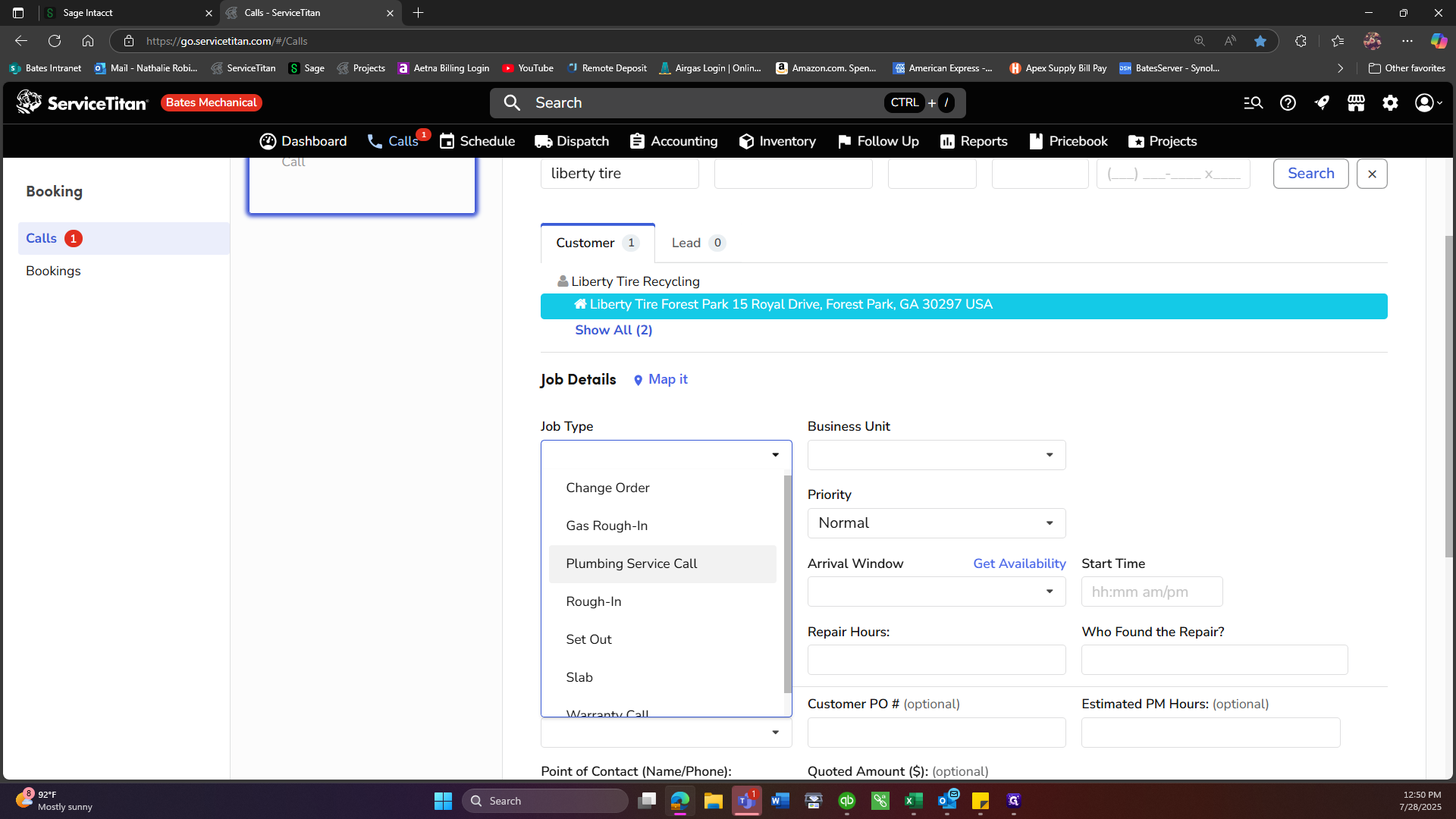
For the job type, always select Plumbing Service Call.
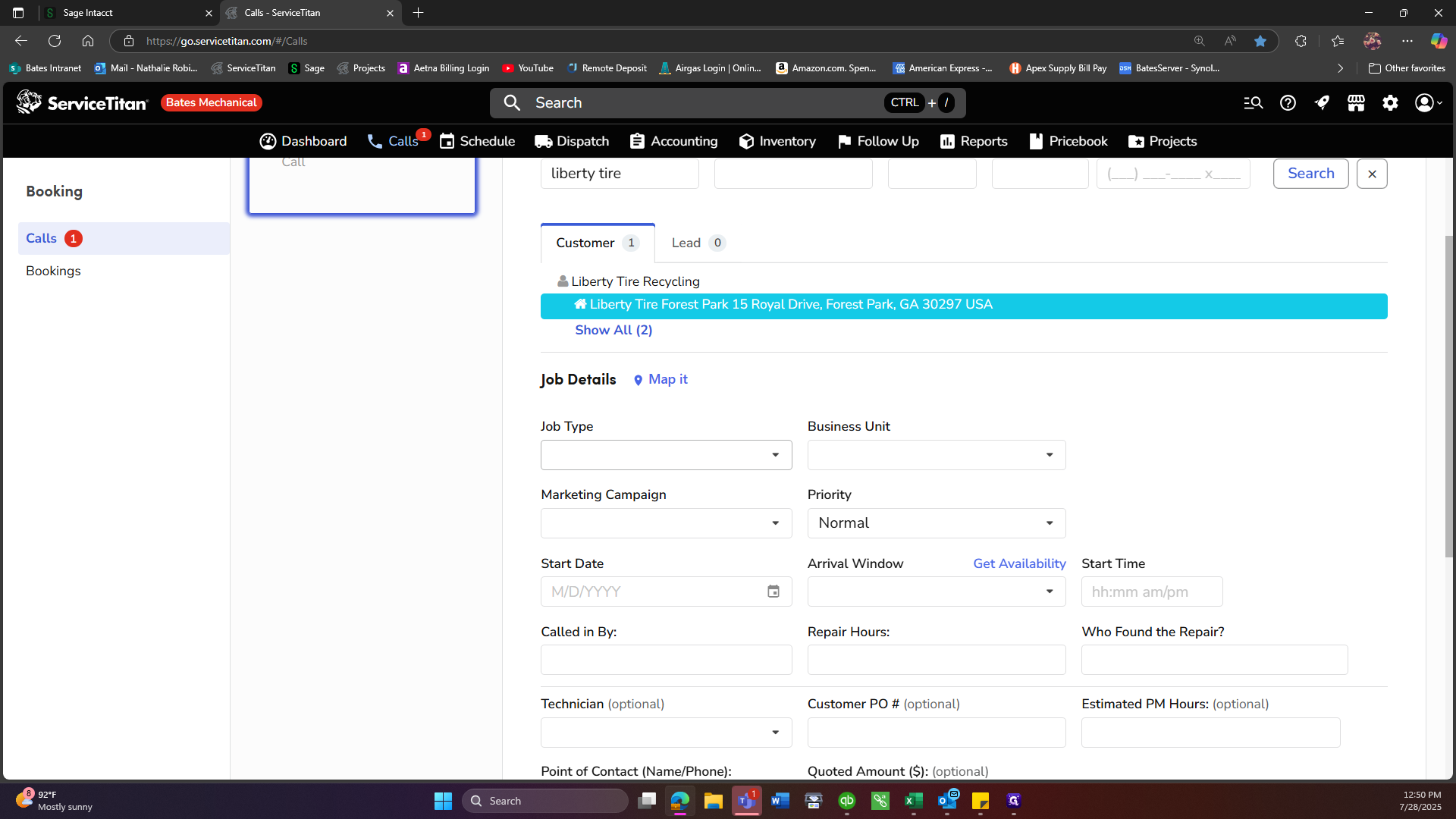
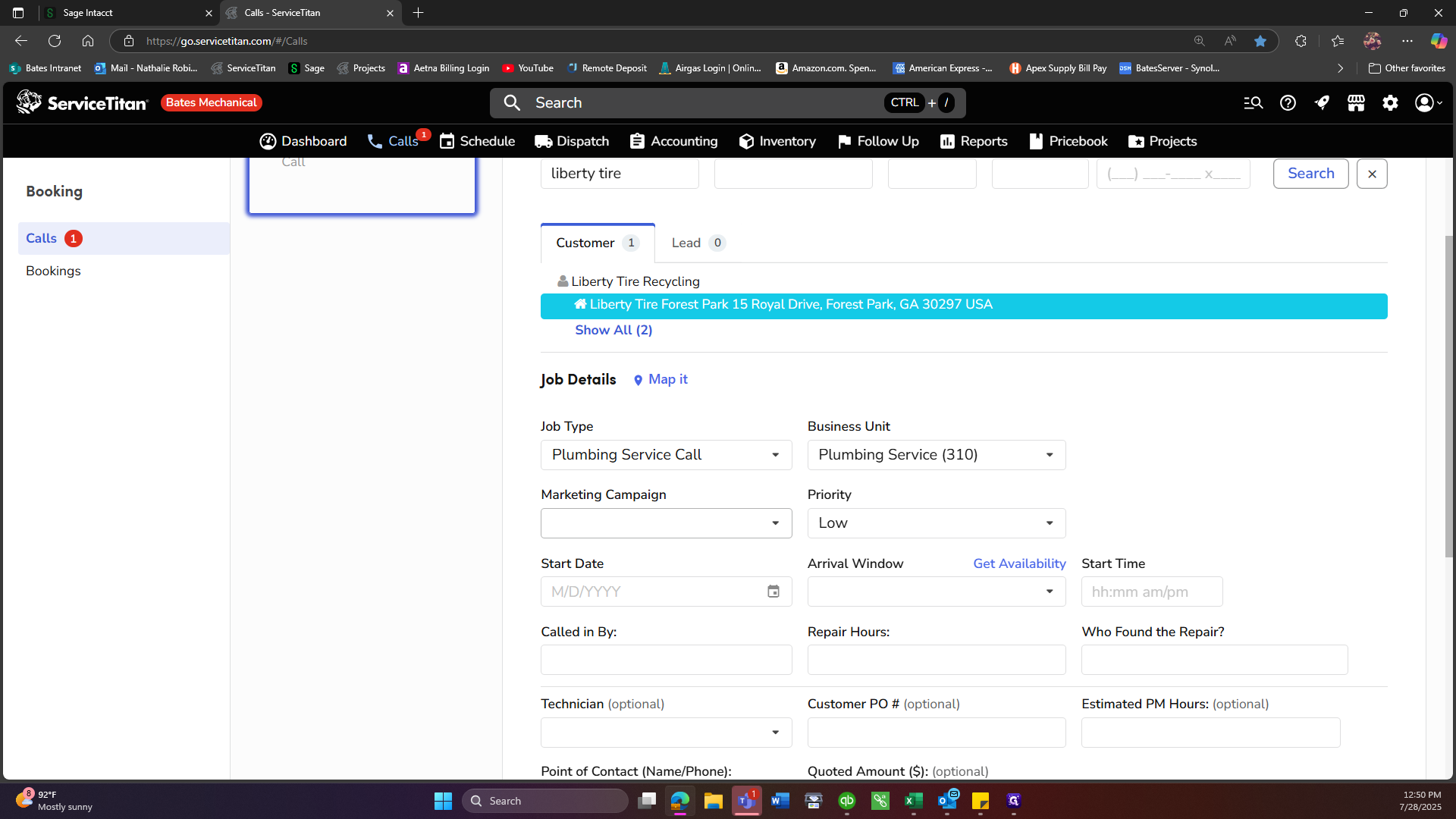
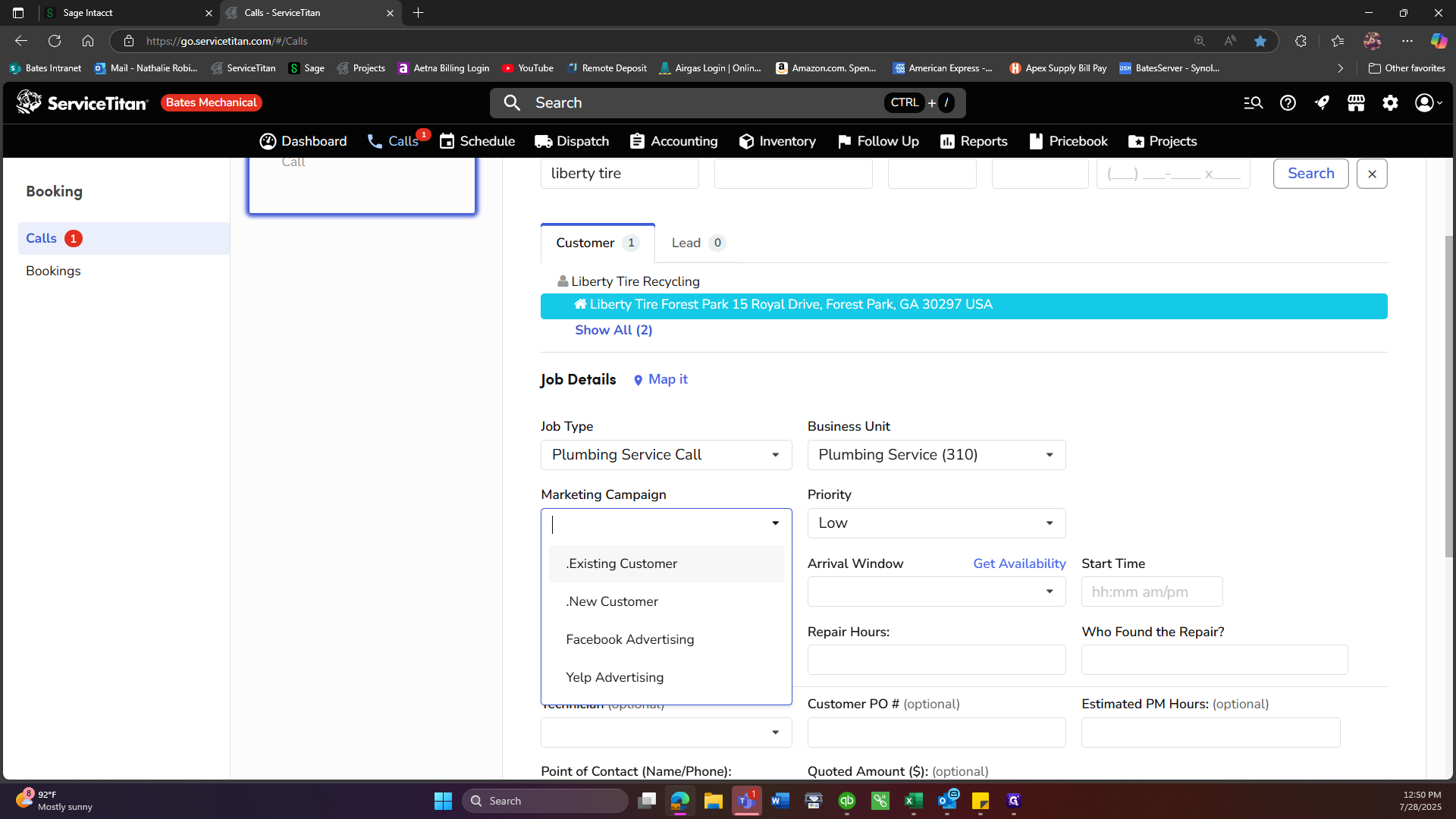
In this case, the marketing campaign targets an existing customer.
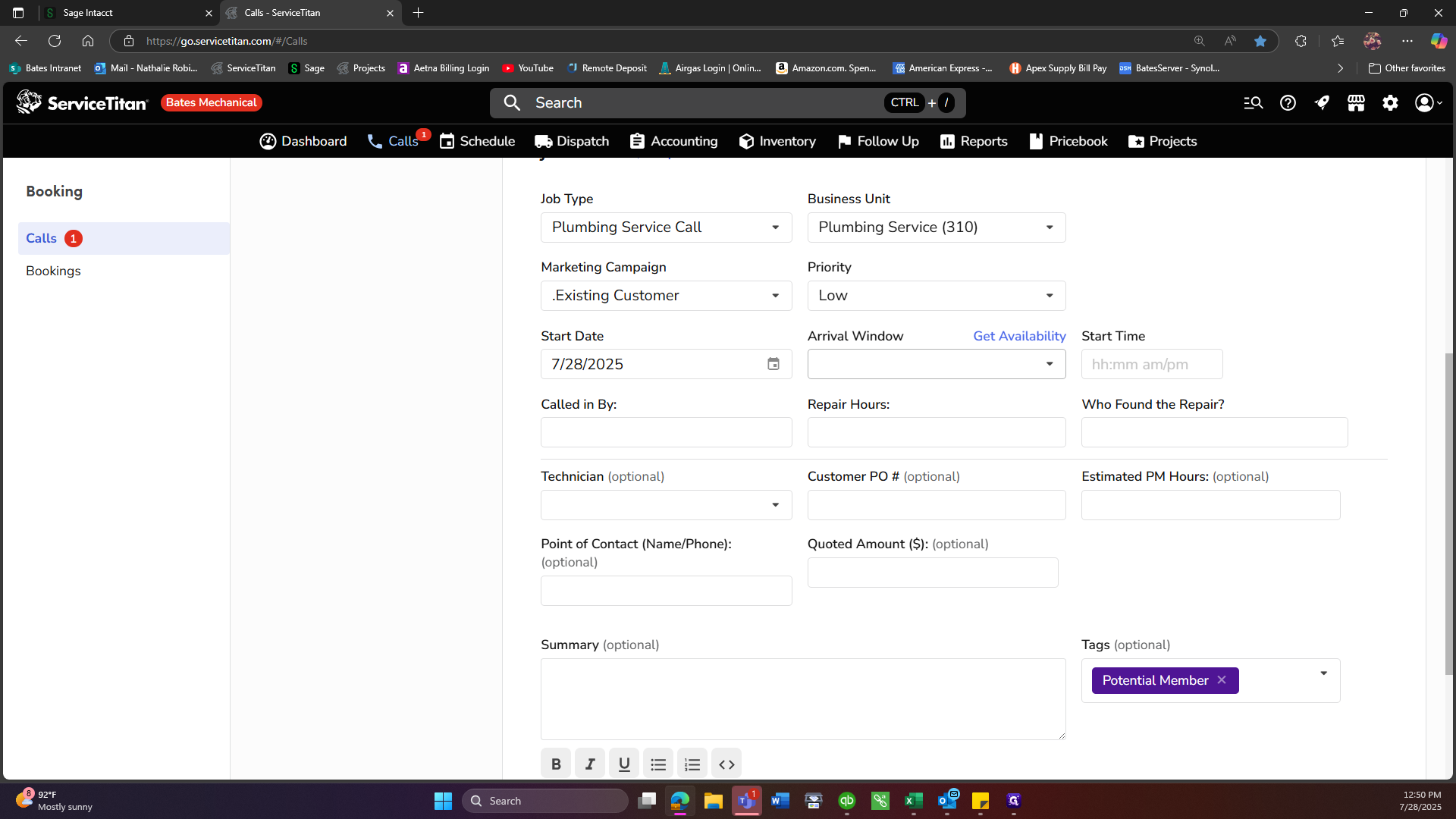
You can use today’s date as the start date.
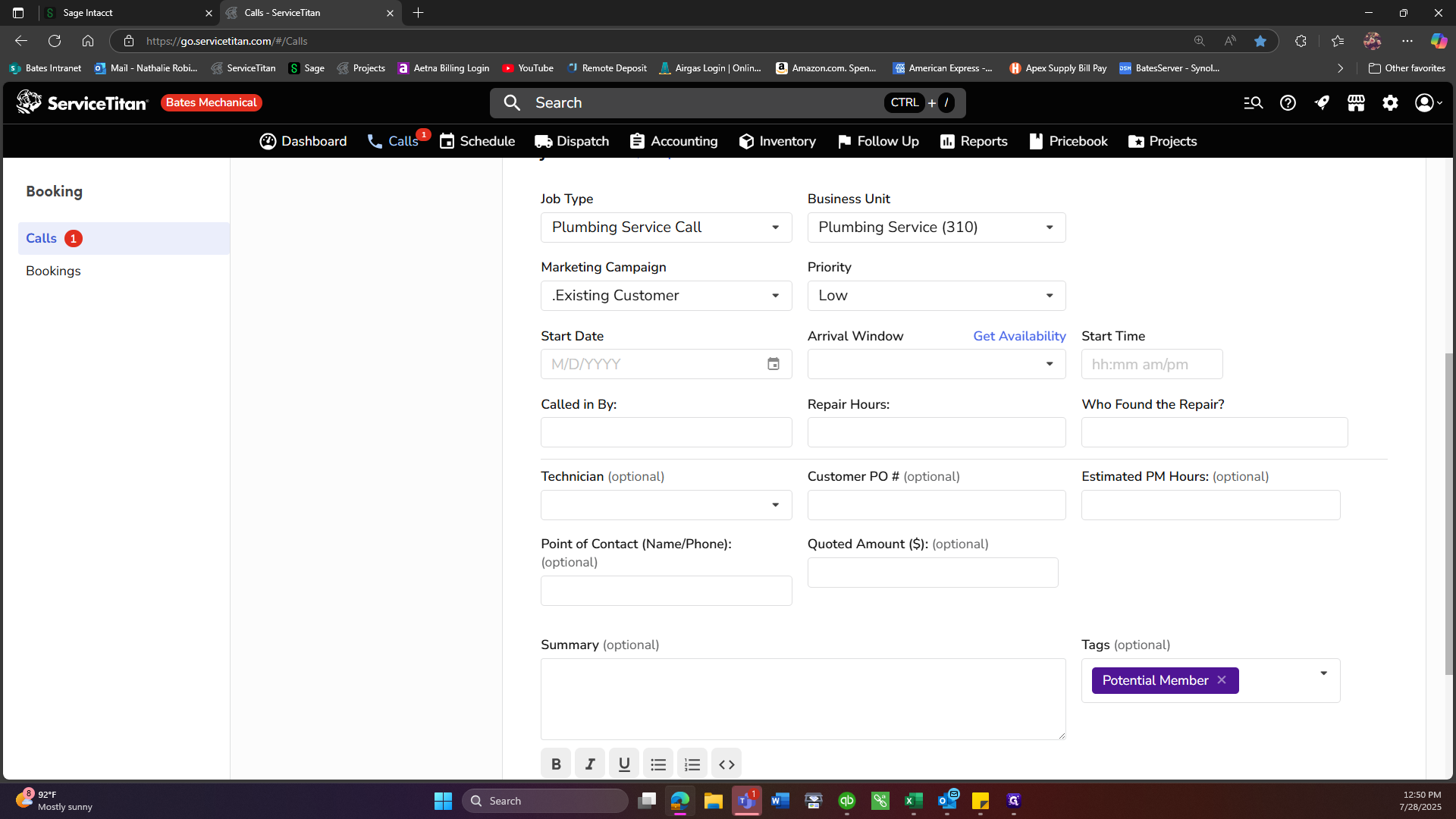
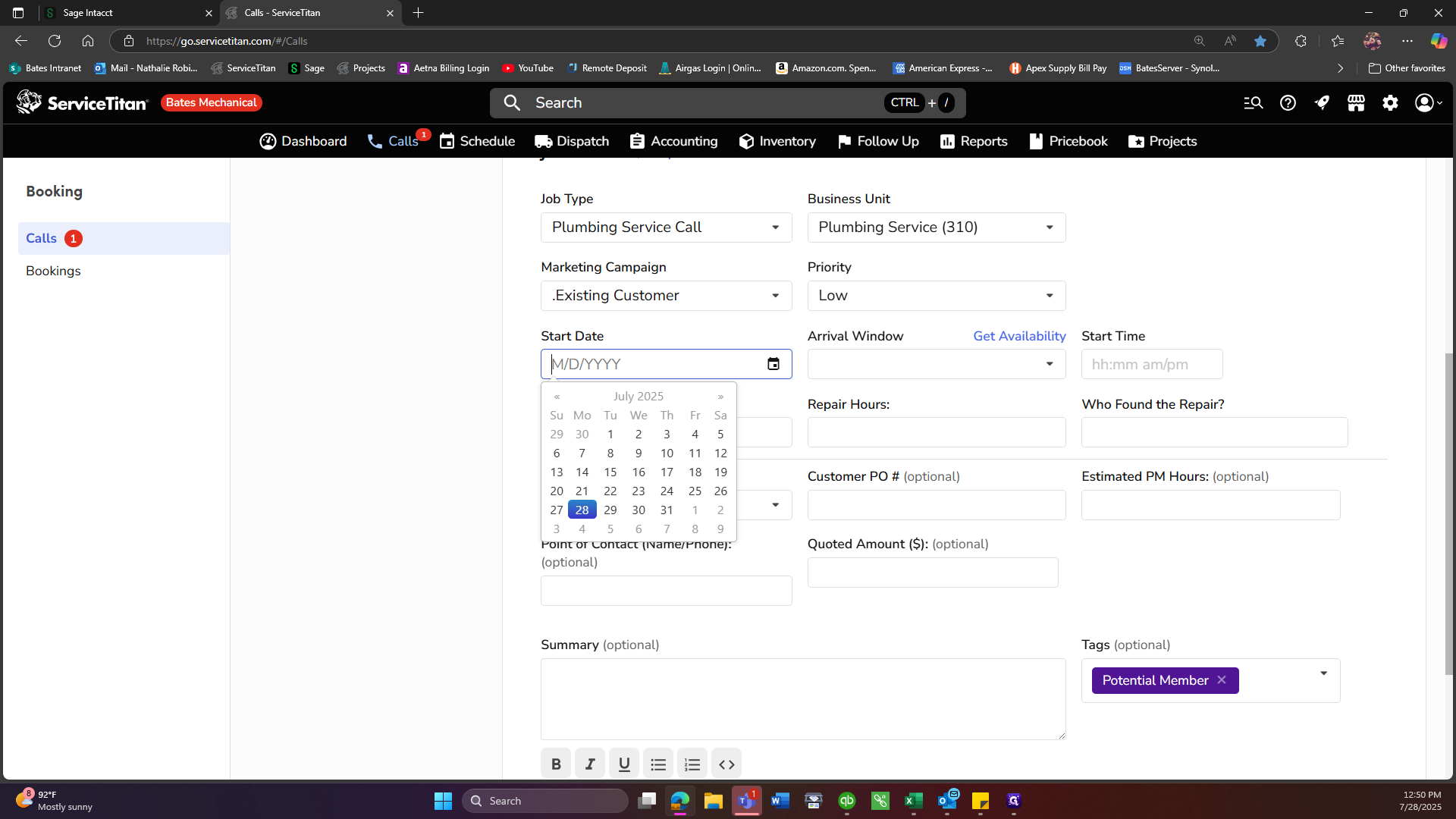
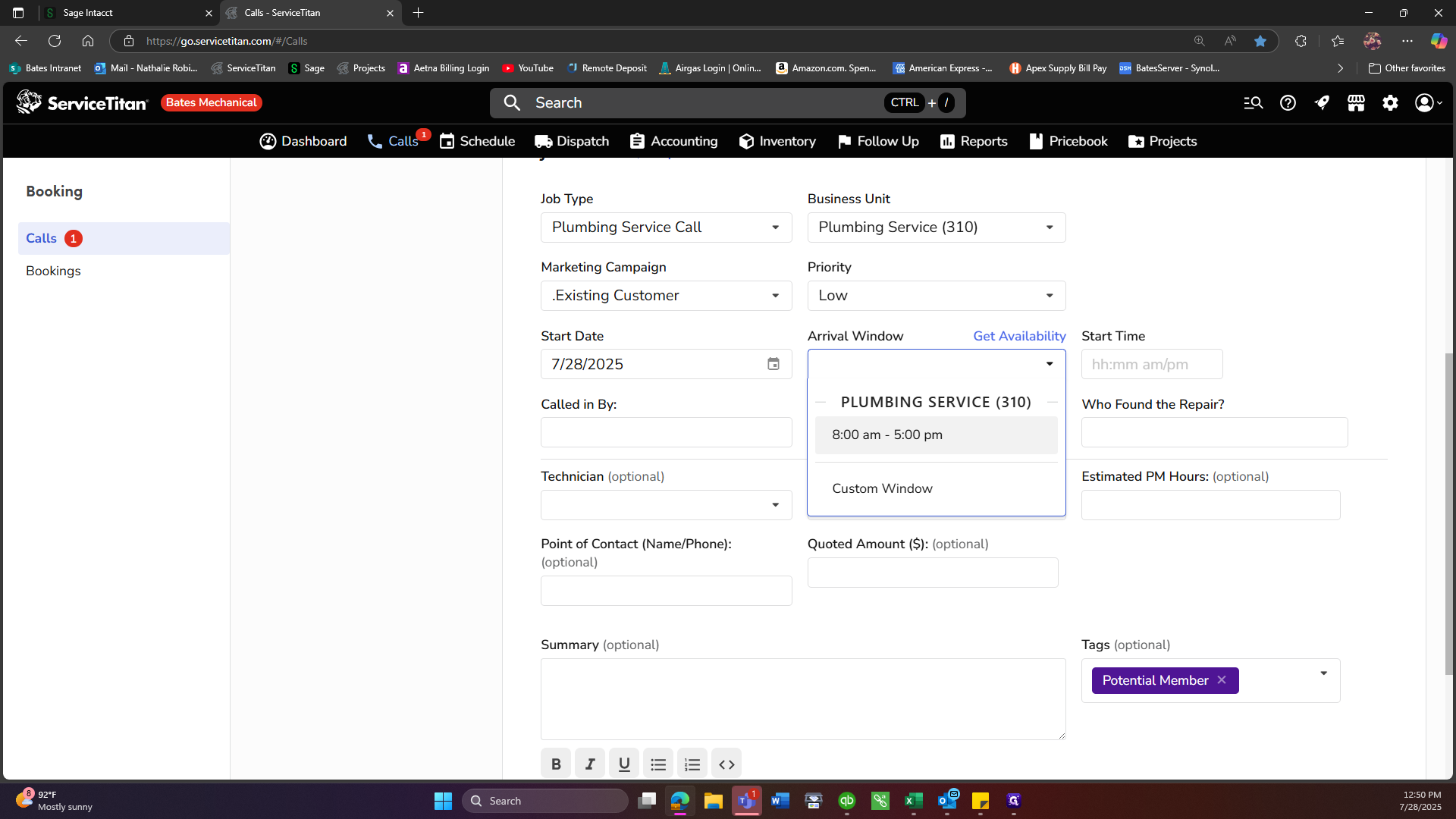
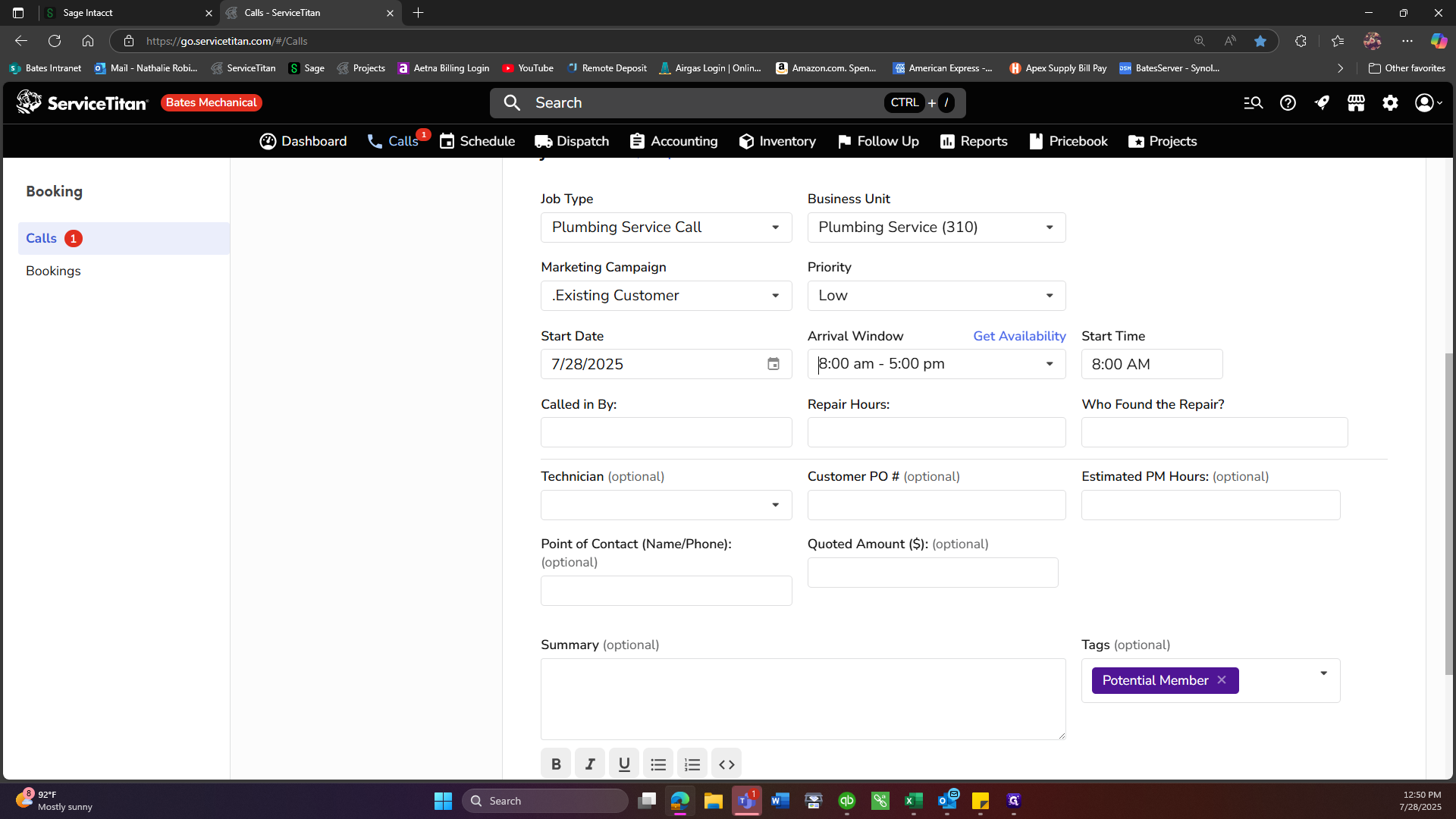
The arrival window is always from 8:00 AM to 5:00 PM.
For these fields, enter "not applicable." In the summary, provide a description of what we are doing.
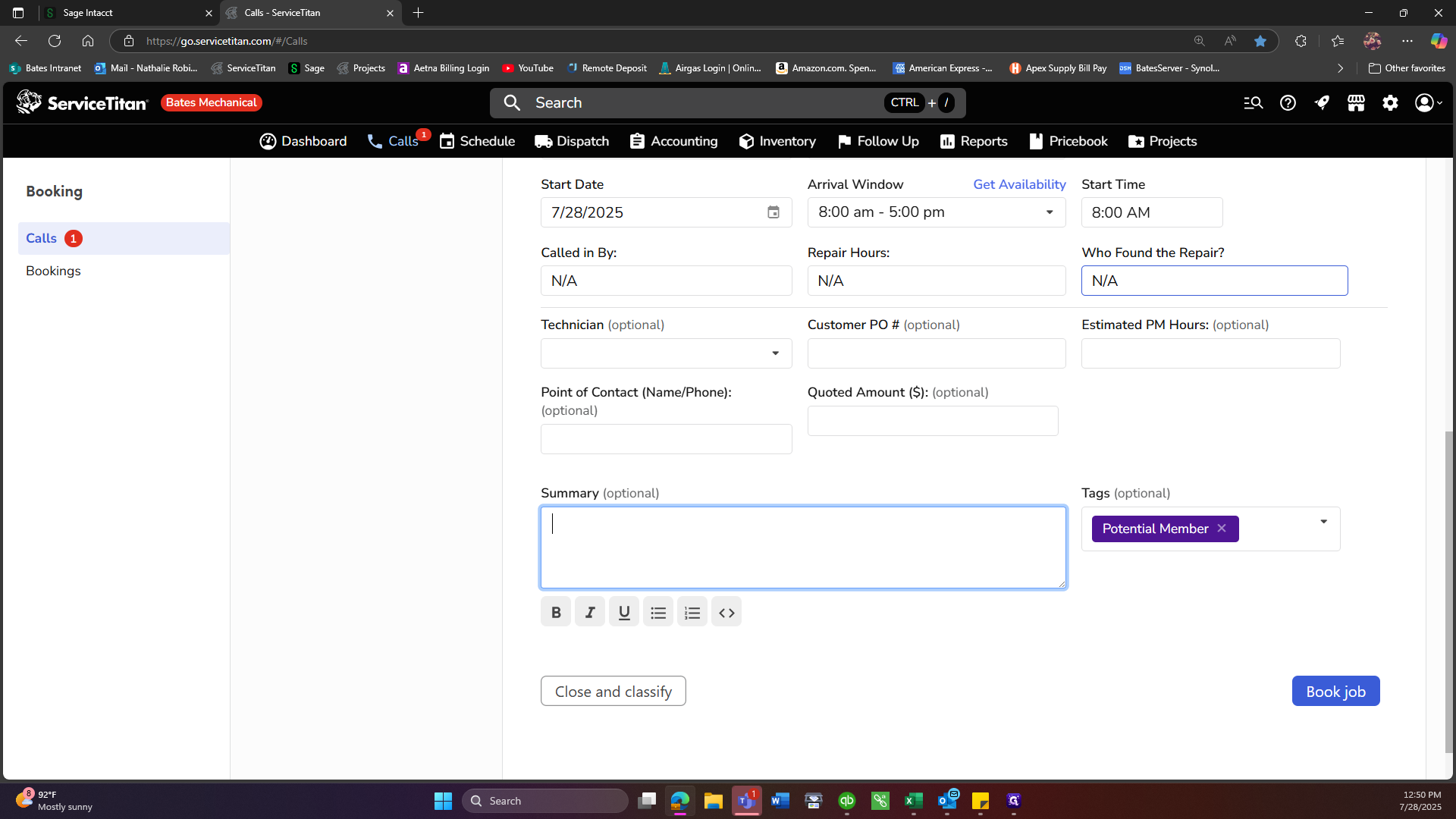
We are diagnosing a water heater leak. Next, we will book the job.
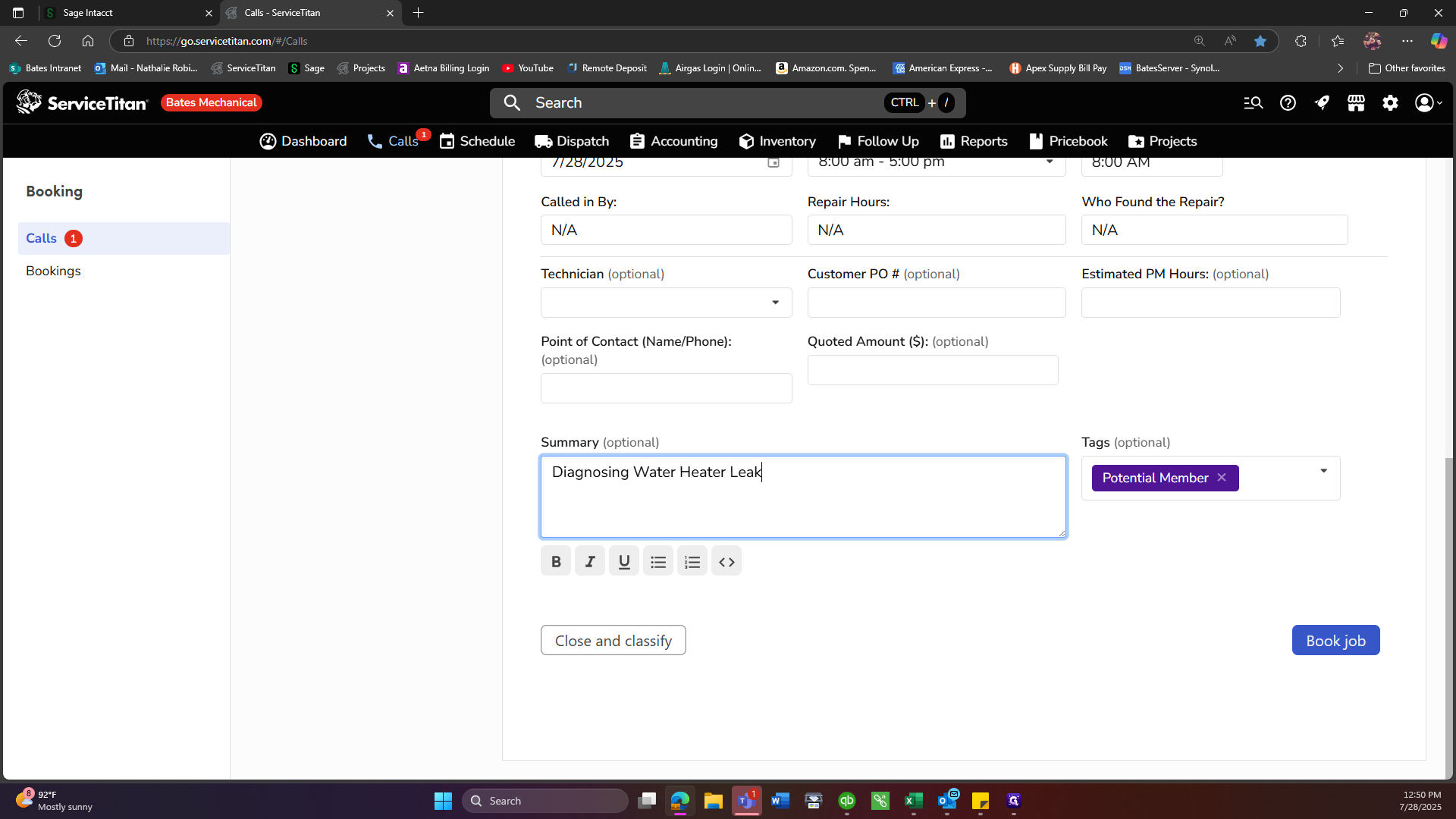
Next, take this job number and write it on the physical service call ticket for the project manager.
Add Service Call information to Billing Report. Create Label & Physical Folder.