How to Book and Pay for a Class from the 360 Restore website.
Learn step-by-step how to schedule, book, and pay for a class on the 360Restore website using the Momence platform. Discover how to use credits, buy class packs, and manage your account for a seamless booking experience.
Let's get started
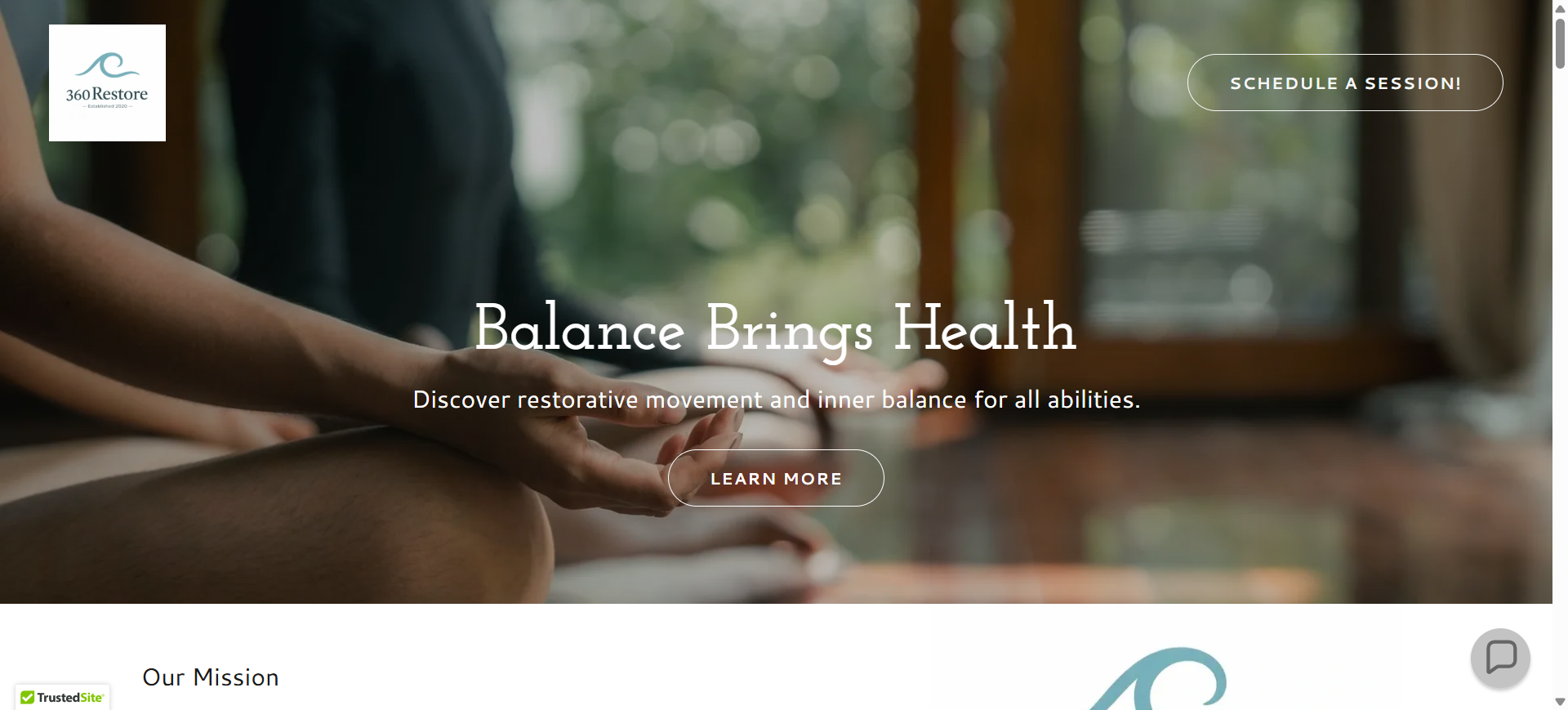
Hello. Here we will learn how to book and pay for a class using the 360Restore website and the Momence platform. First, go to 360restorellc.com. Next, click "Schedule A Session."
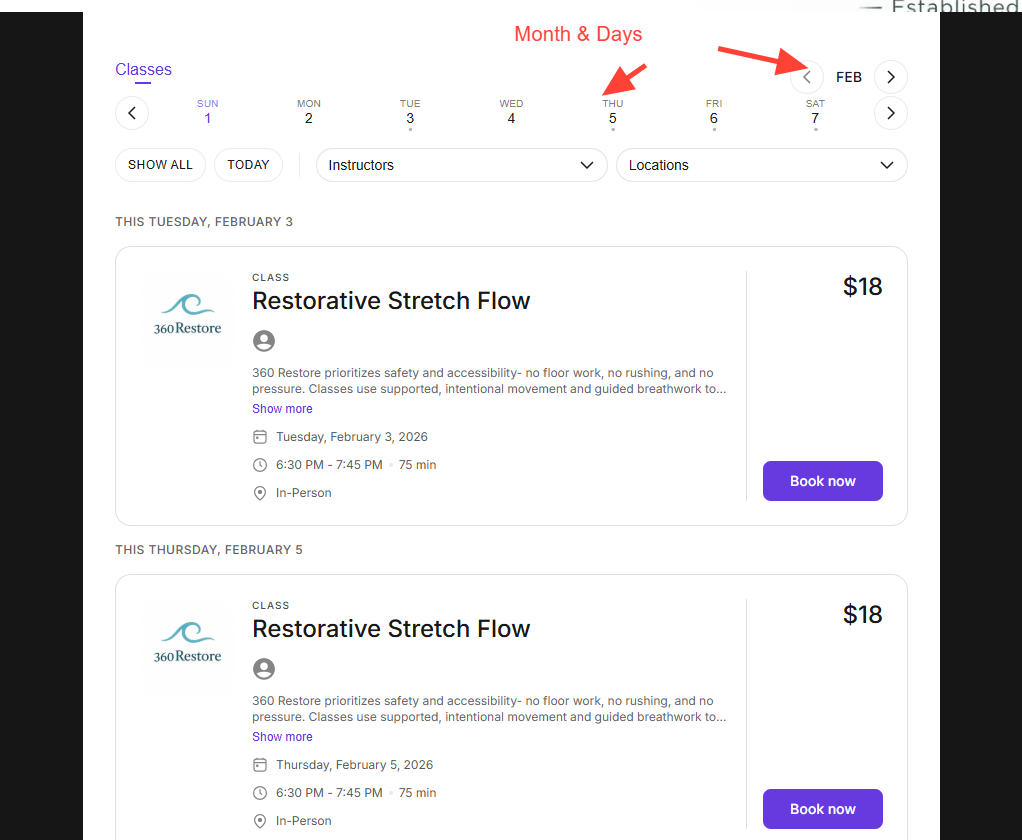
You can see the months here and scroll through them. The days for each month are also displayed. If you scroll up or down, you'll see a list of upcoming classes. In this example, we want to book the class on Friday, February 6th. I will click on "Book Now." A screen like this will appear. Now, let's discuss the various ways to cover the cost of a class.
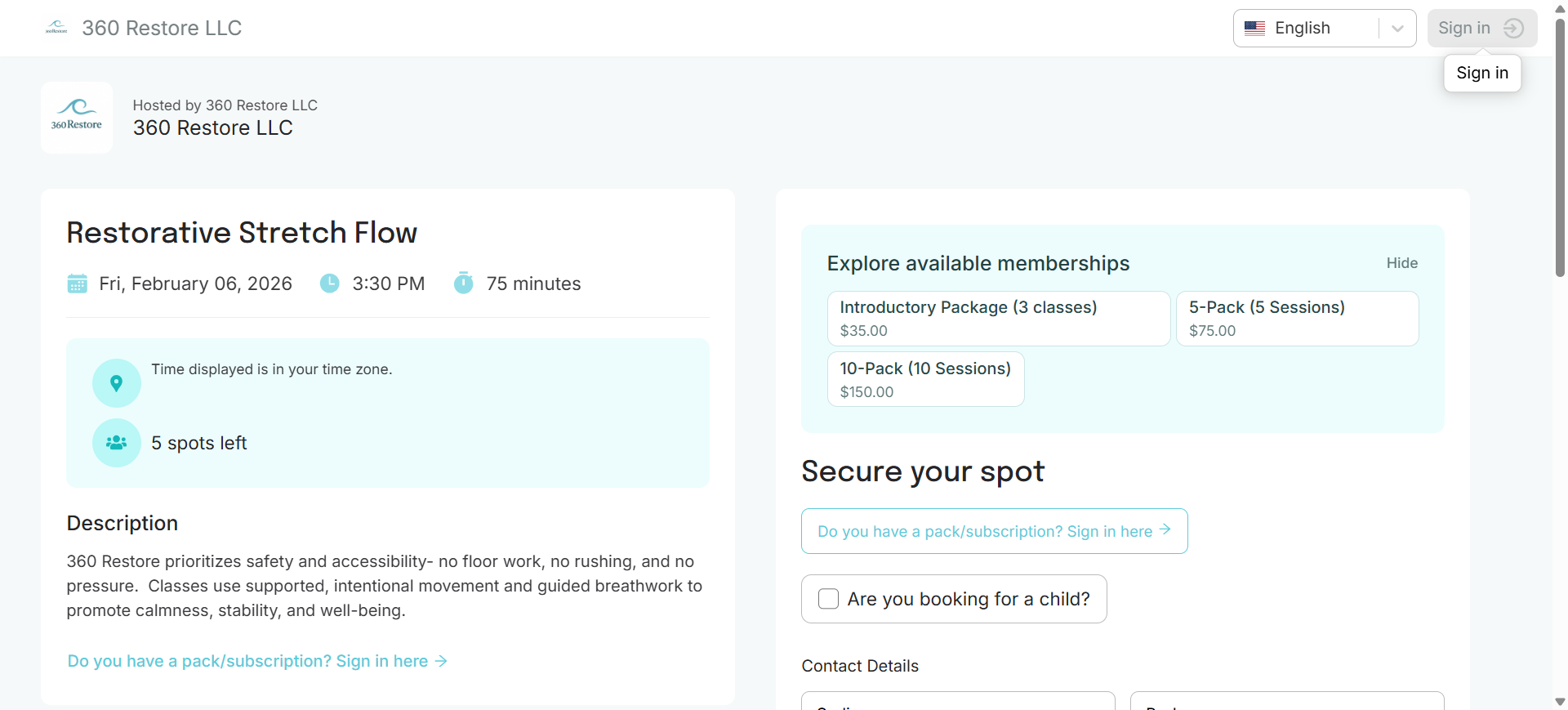
We'll begin by noting in the picture below, that this test account is not yet signed into Momence. The system has no way of knowing if you have existing credits if you are NOT signed in, so it offers the option to buy packs, which have a lower per-class cost, or to purchase this specific class at the drop-in rate. If we think we have credits to pay for this class and we are not signed in, we can tell because our name doesn't appear in the upper right corner.weI need to click "Sign In," which will take us to the sign-in screen.
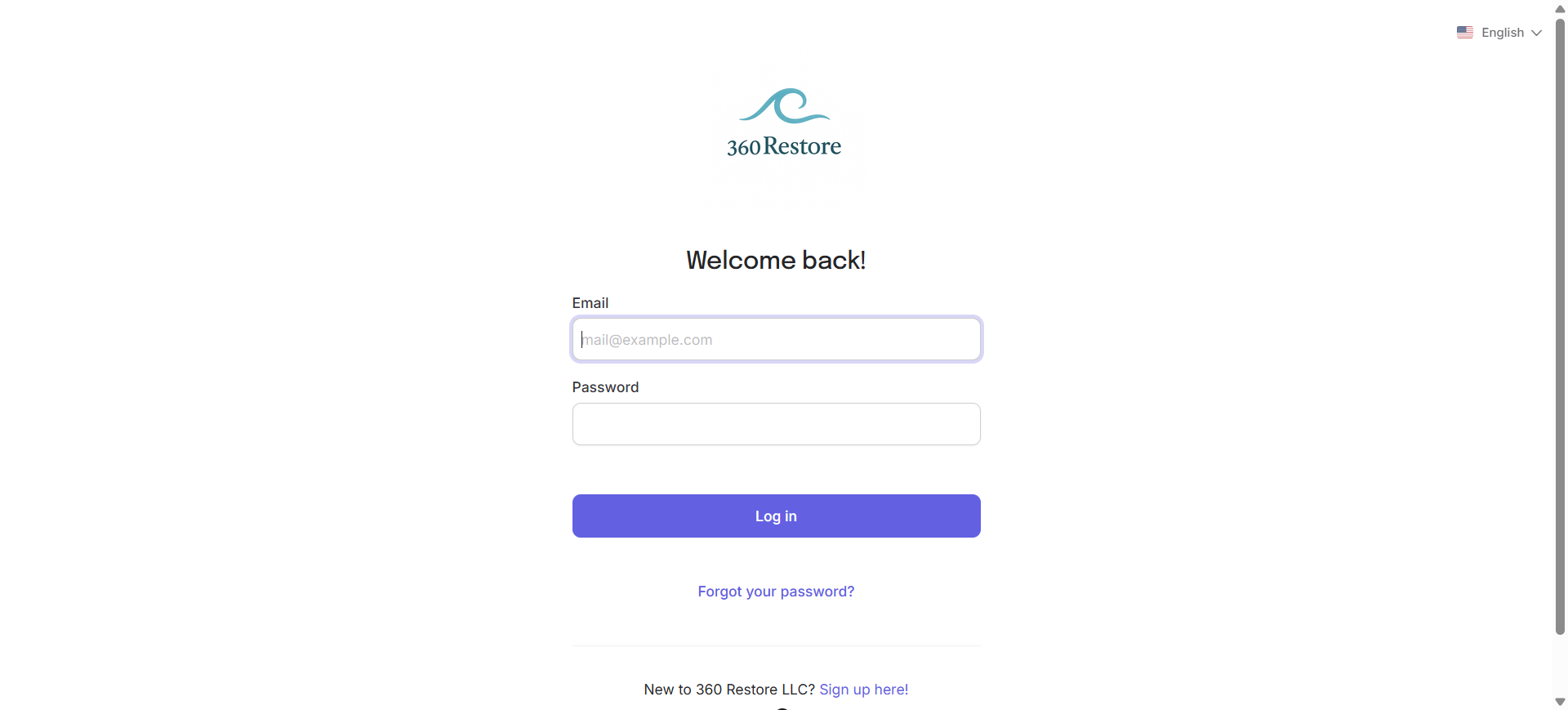
Enter the email and password you created when you first signed up for the Momence platform.
Now you will see that this is the same class we tried to book earlier. This time, we are logged in, and our names appear in the top right corner.
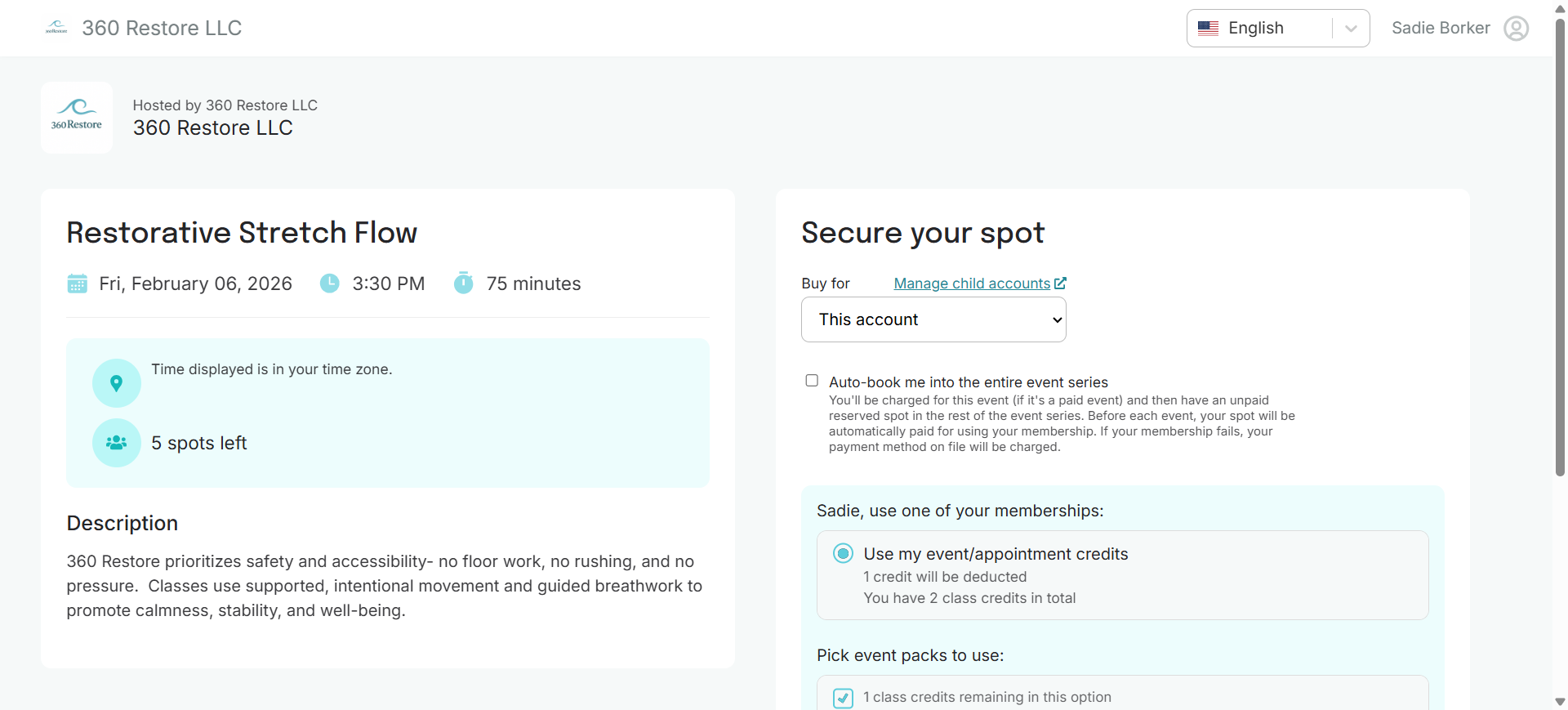
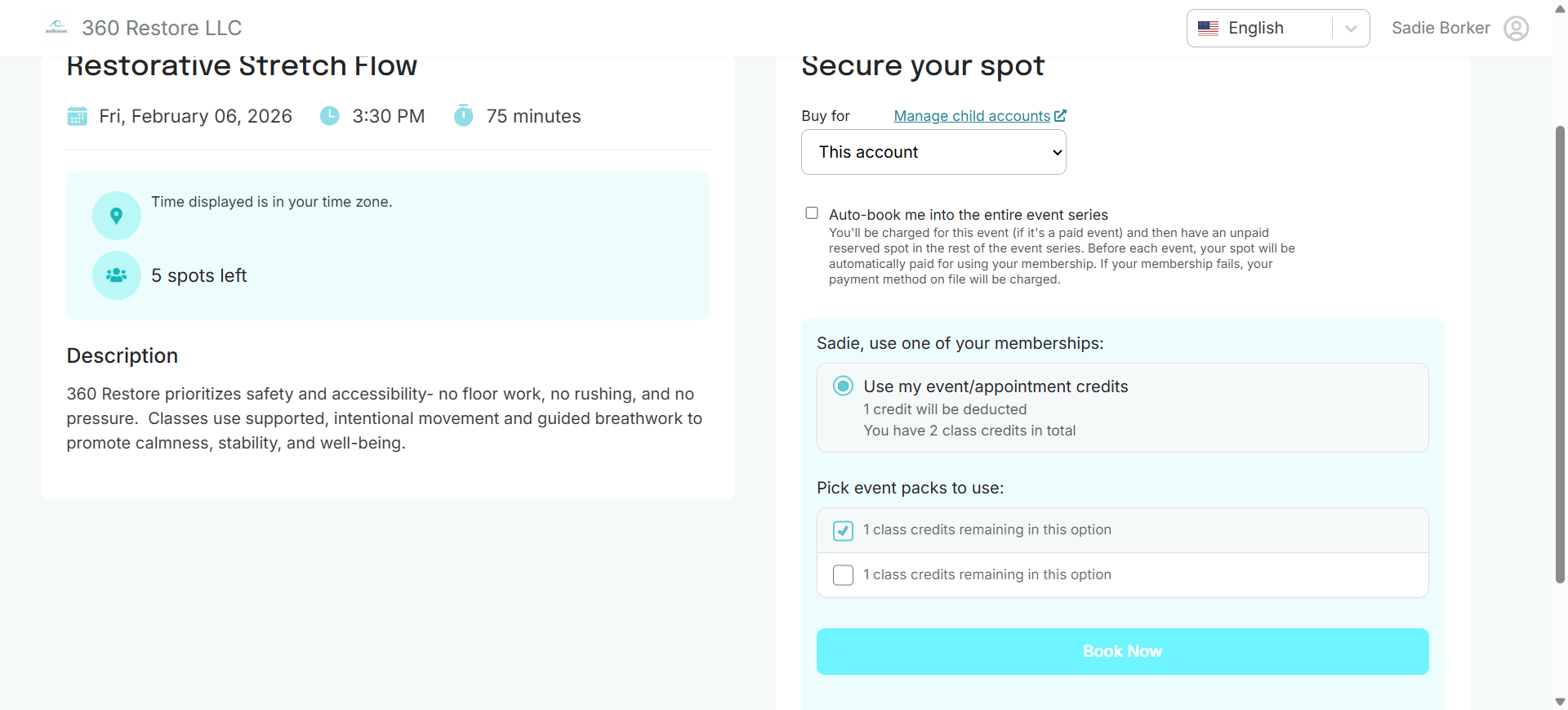
This account, and possibly yours, has credits available to book this class. You can now choose to book using credits or without a membership, if you prefer. Also note that the Momence platform tracks the credits you have left on packs. Your screen may look different depending on the packs you have purchased. However, make sure you are logged into Momence to use credits for booking classes. In this example, we want to pay for this class using one of the available credits, so we check the box and click Book Now.
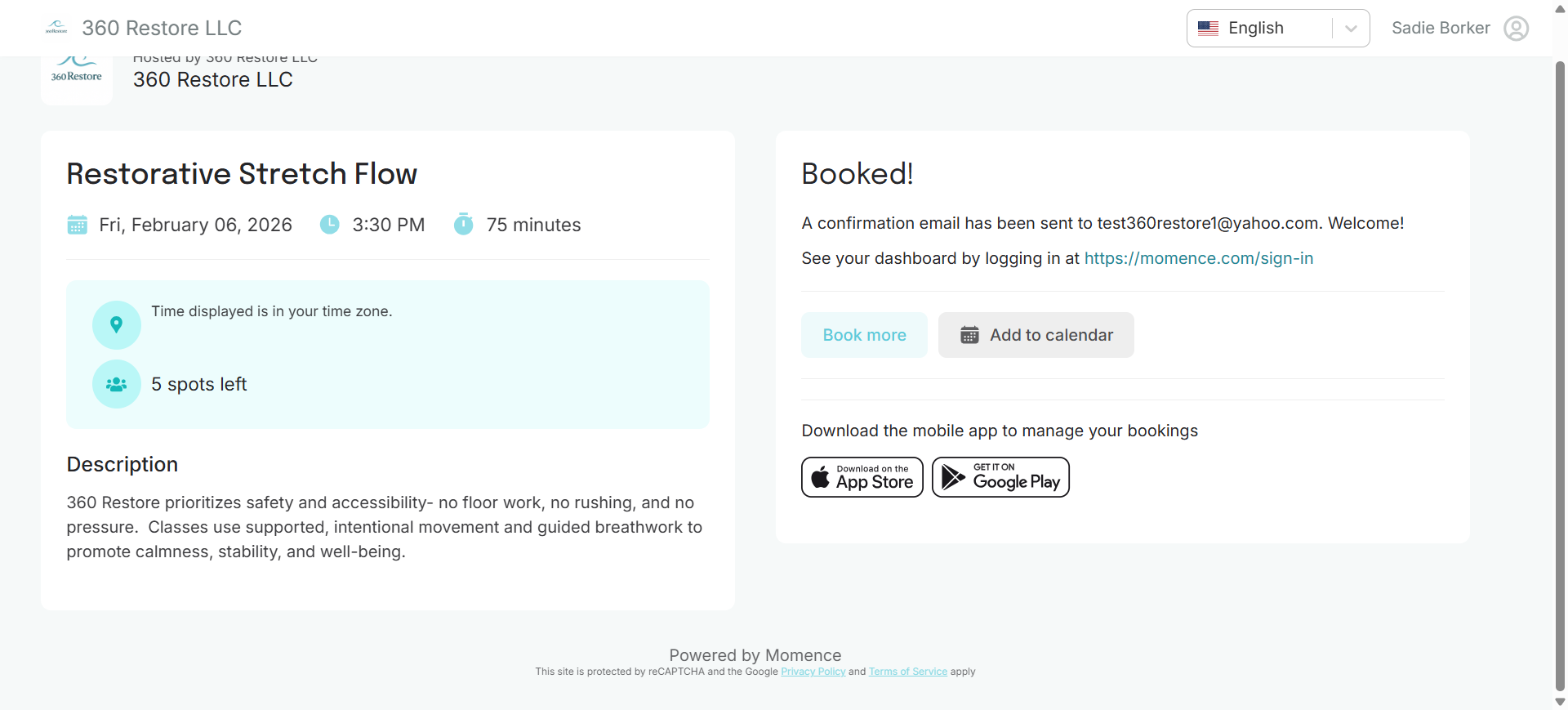
You will notice we receive a booking message, indicating that an email has been sent to the same email address we logged into Momence with.
This concludes the tutorial. Please click on our other How-to guides for more tips on managing your 360Restore account on Momence.com.