
How to Book a Real Estate Media Shoot Online
Learn how to schedule real estate photography, drone, and floor plan services, from selecting packages to submitting your final order.
This guide demonstrates how to schedule an appointment for real estate media services. Completing these steps ensures your property is booked for photos, floor plans, and other marketing services with all necessary details provided.
This process applies to real estate agents and property managers who need to order marketing media for a new listing. You will use this workflow when a property is ready (or soon to be ready) for its marketing shoot.
Go to portal.perspectivmedia.com/book to start your booking.
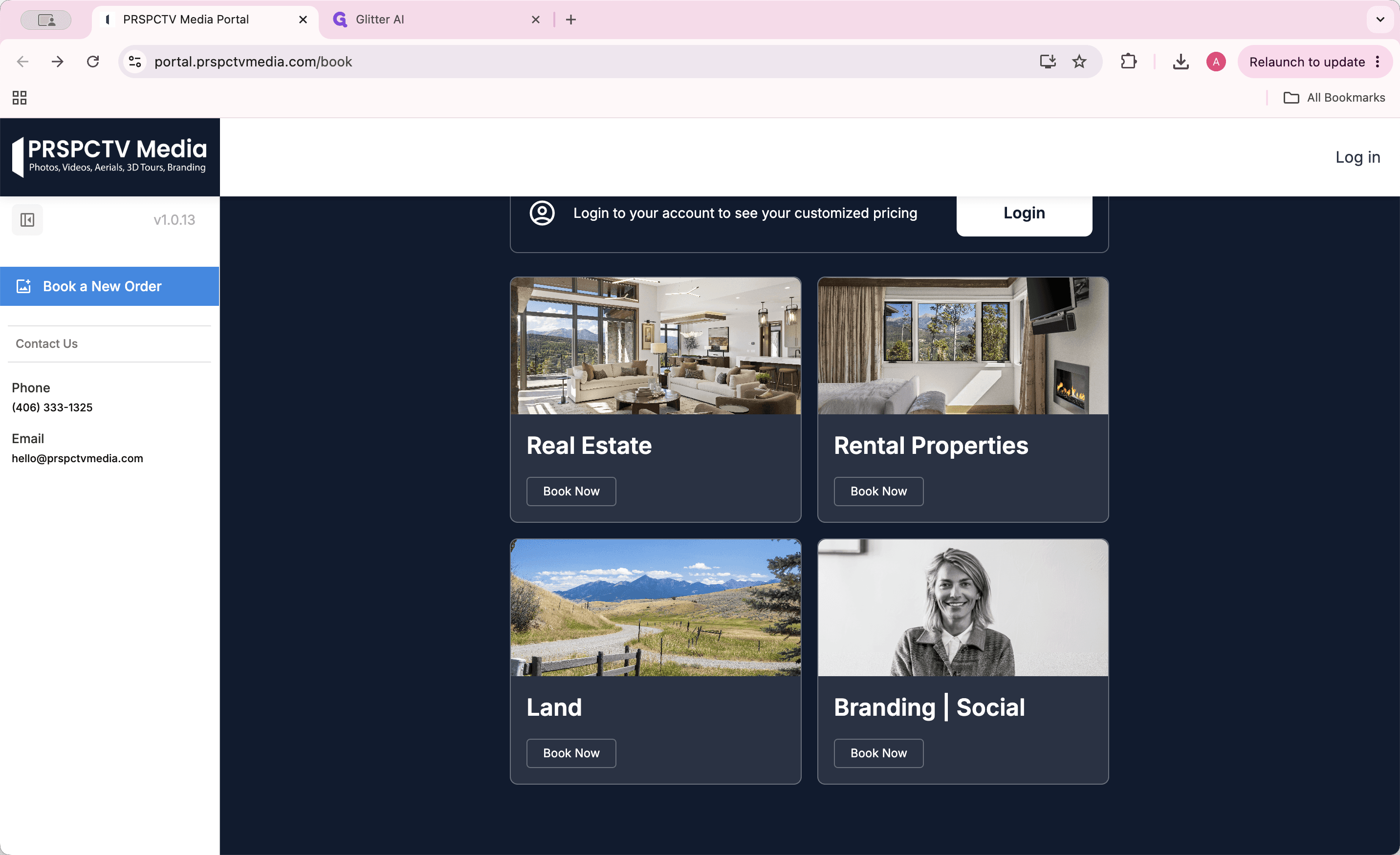
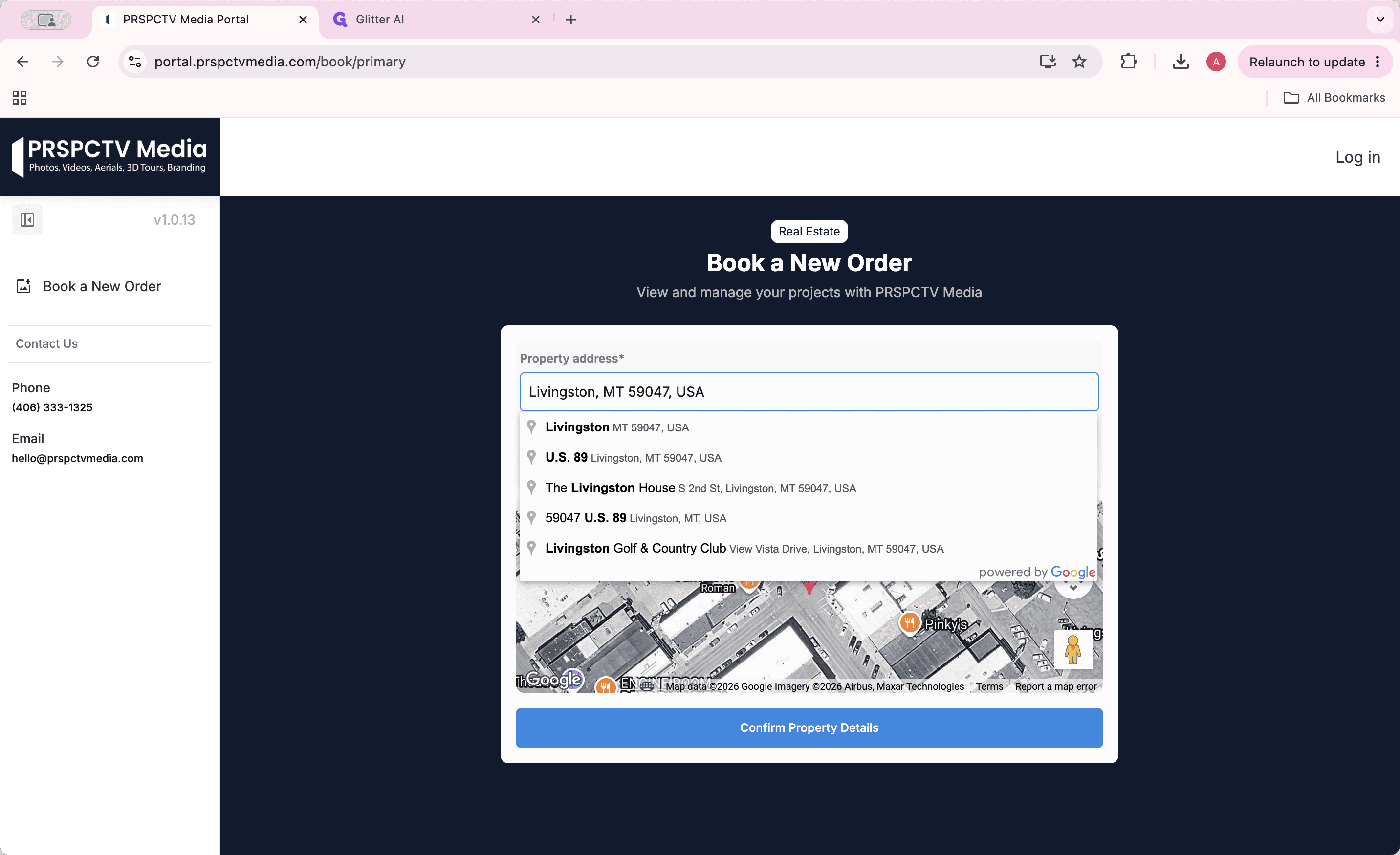
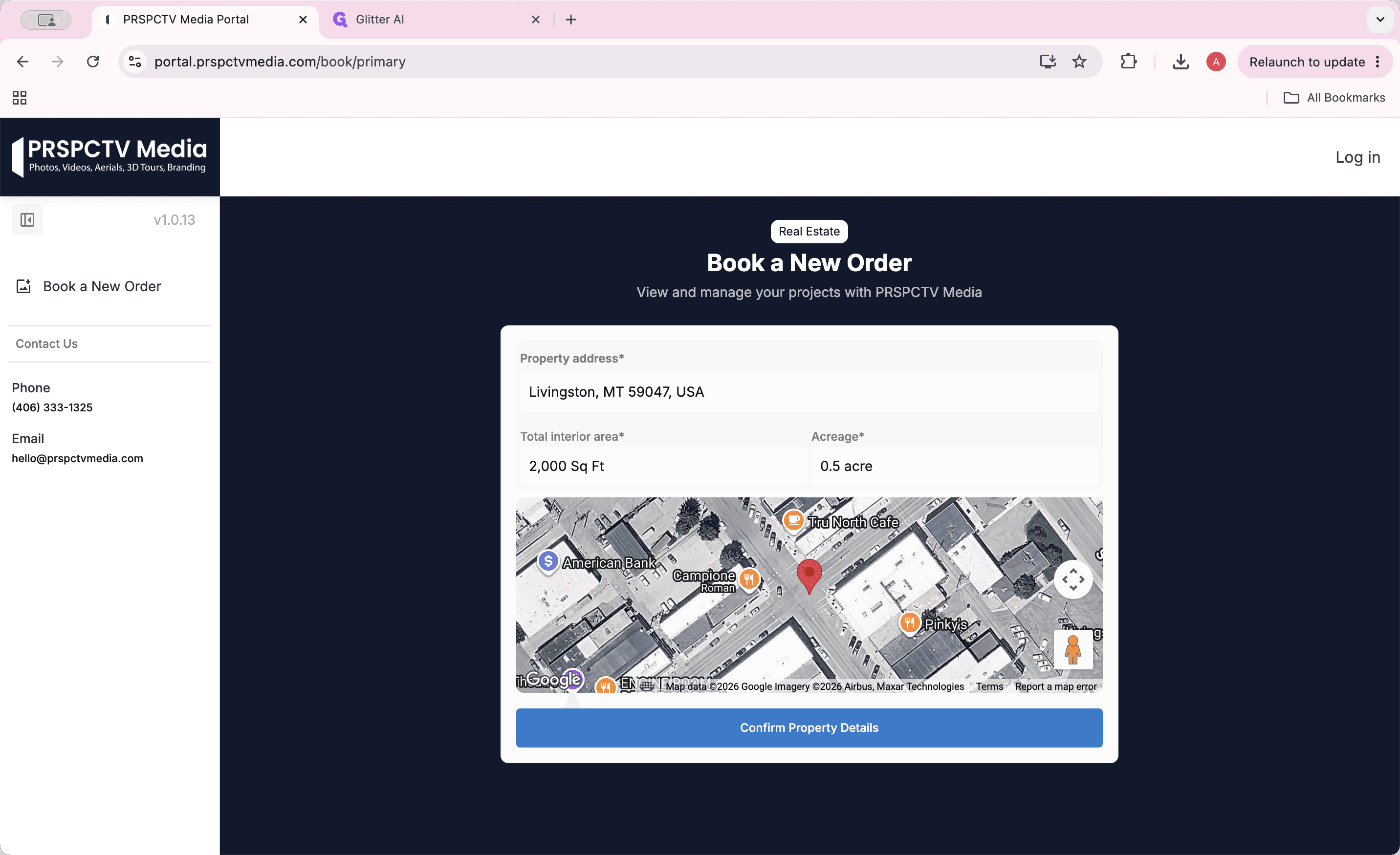
Choose Your Services
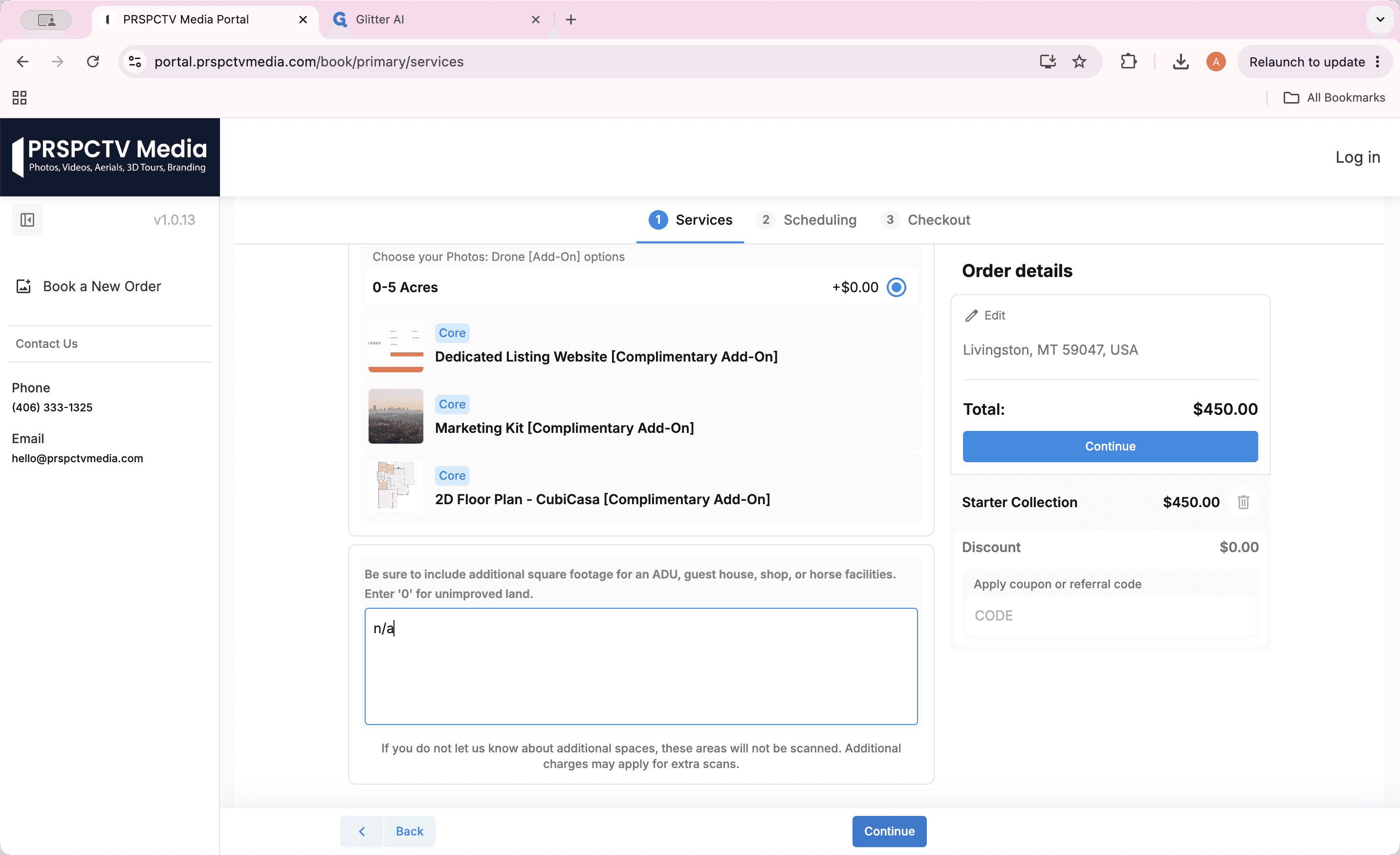
You can select services through bundled packages or individually. All packages include a 2D floor plan, a marketing kit, and a dedicated website.
Booking Method | Description | Cost Benefit |
|---|---|---|
Standard Packages | Bundled services including photos, floor plans, and sites (e.g., Starter, 3D, Highlight). | Most cost-effective. |
Land Packages | Bundles specifically tailored for land properties. | Built-in package savings. |
A La Carte | Individual services selected independently without a bundle. | Higher individual cost. |
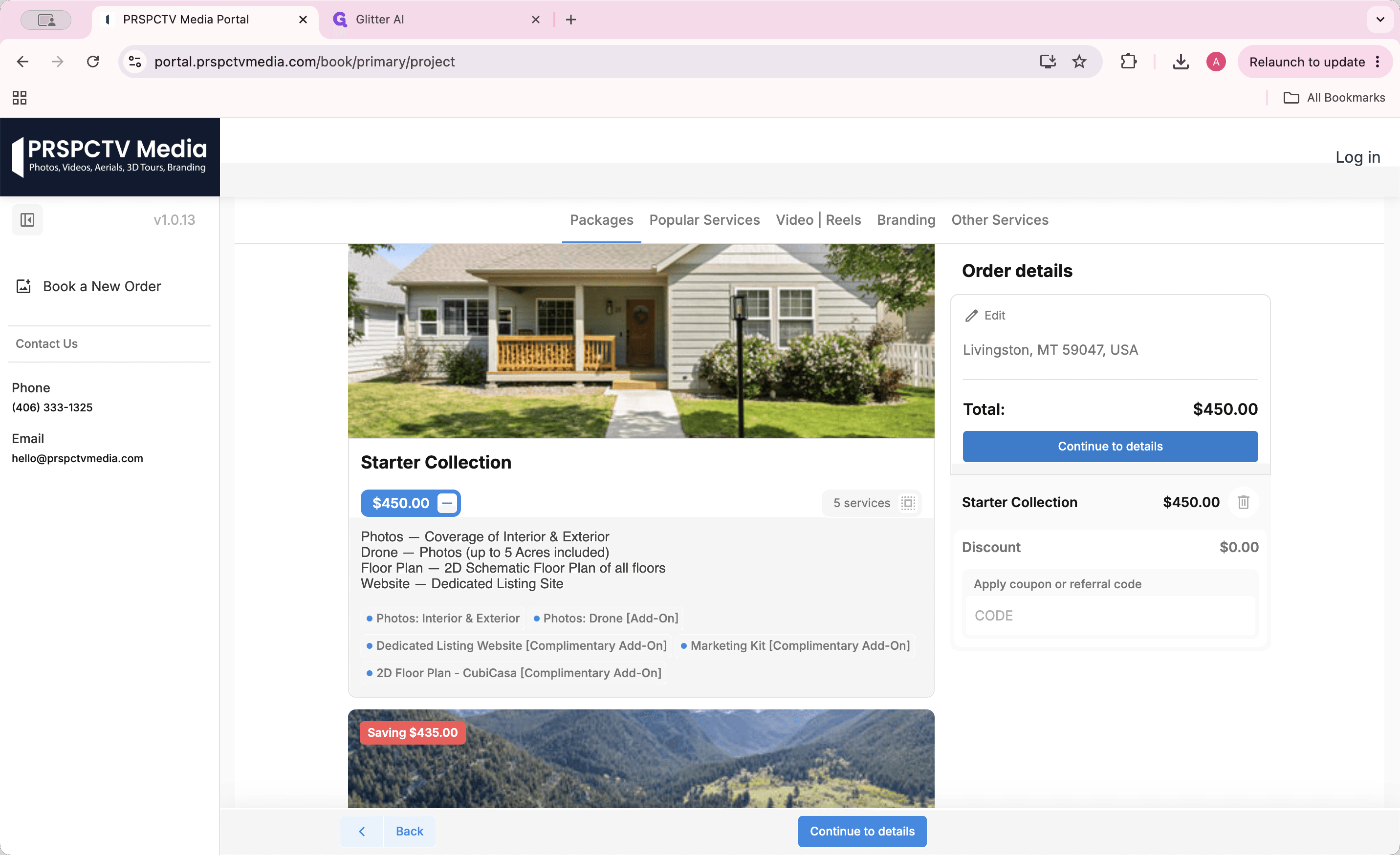
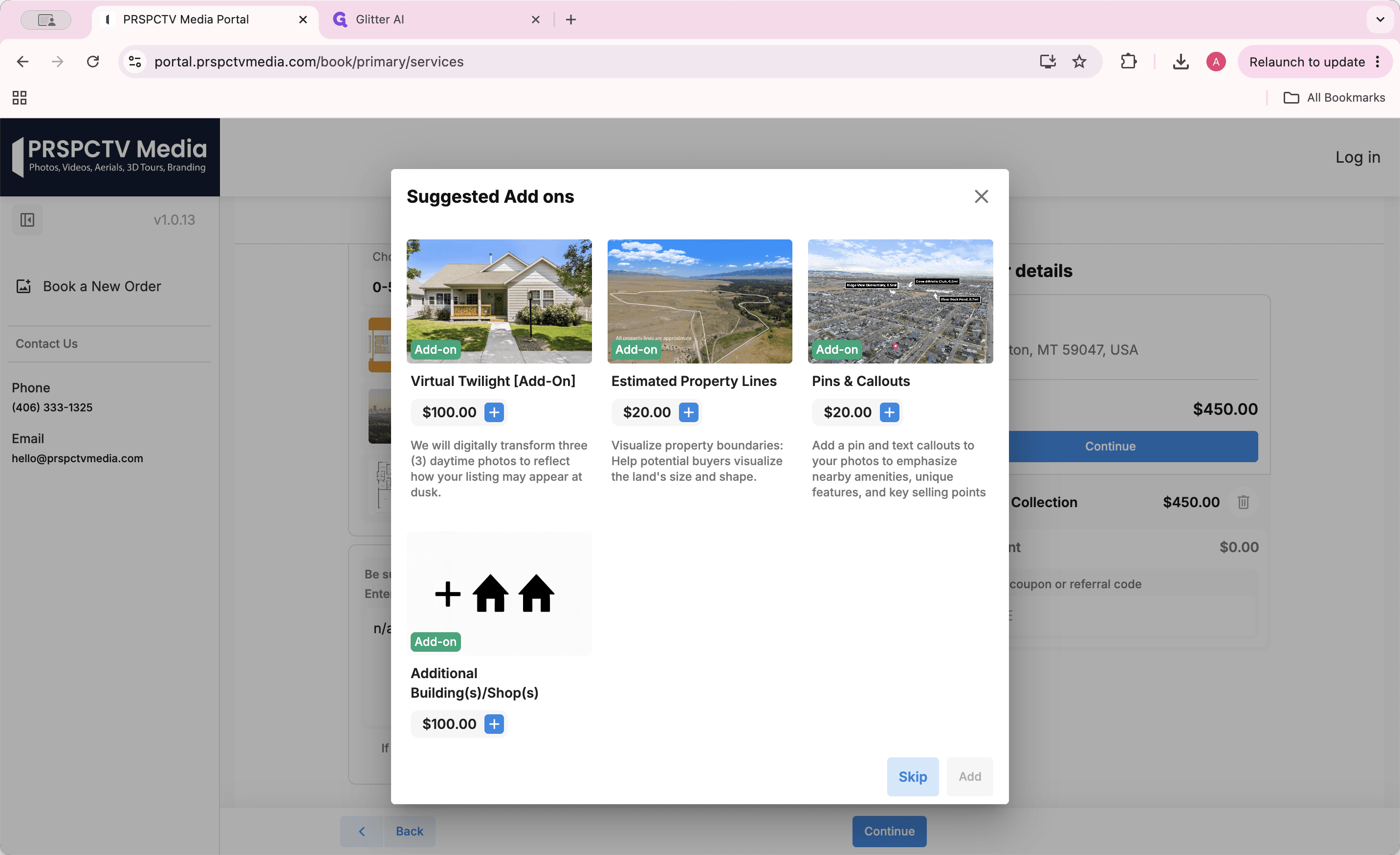
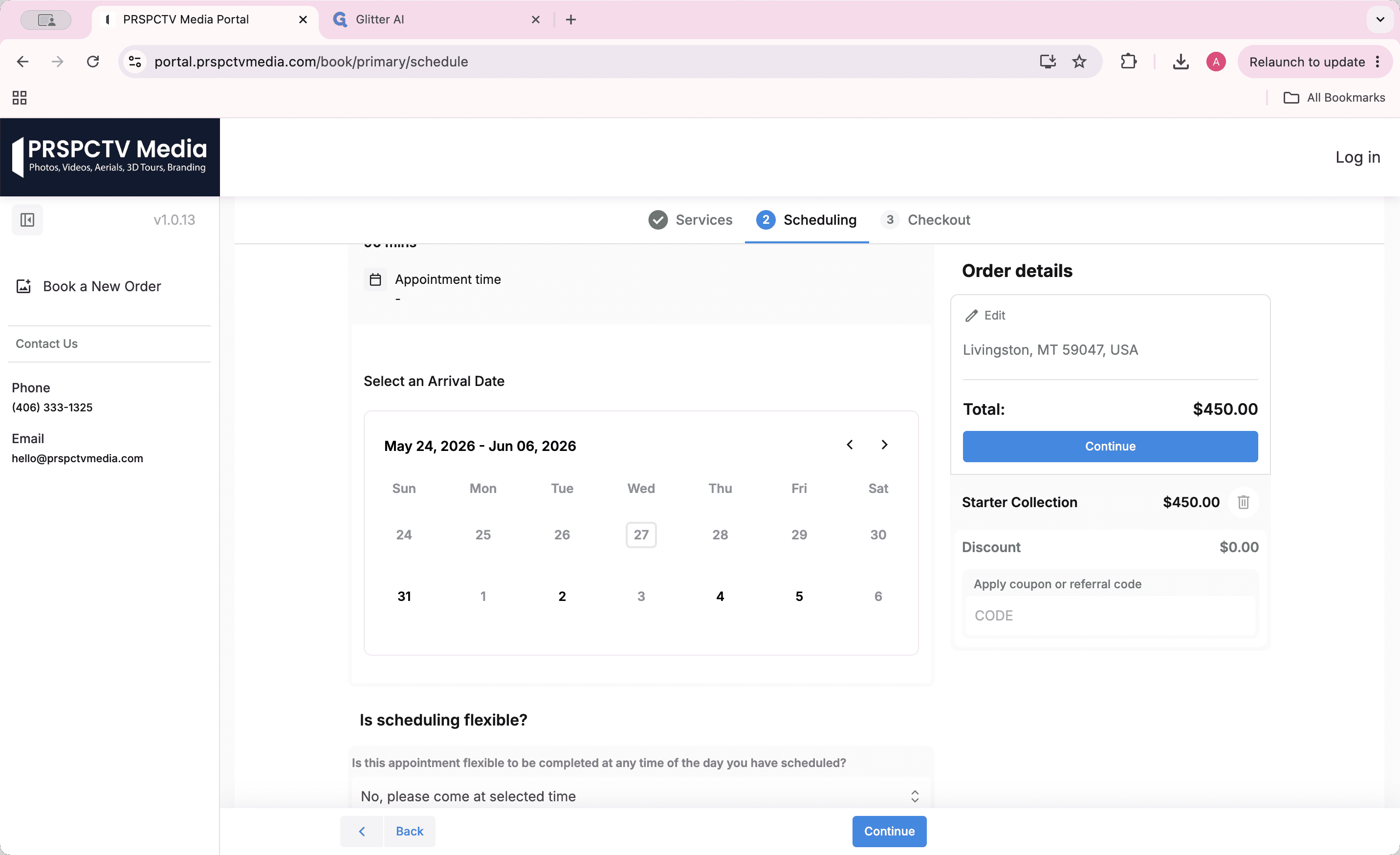
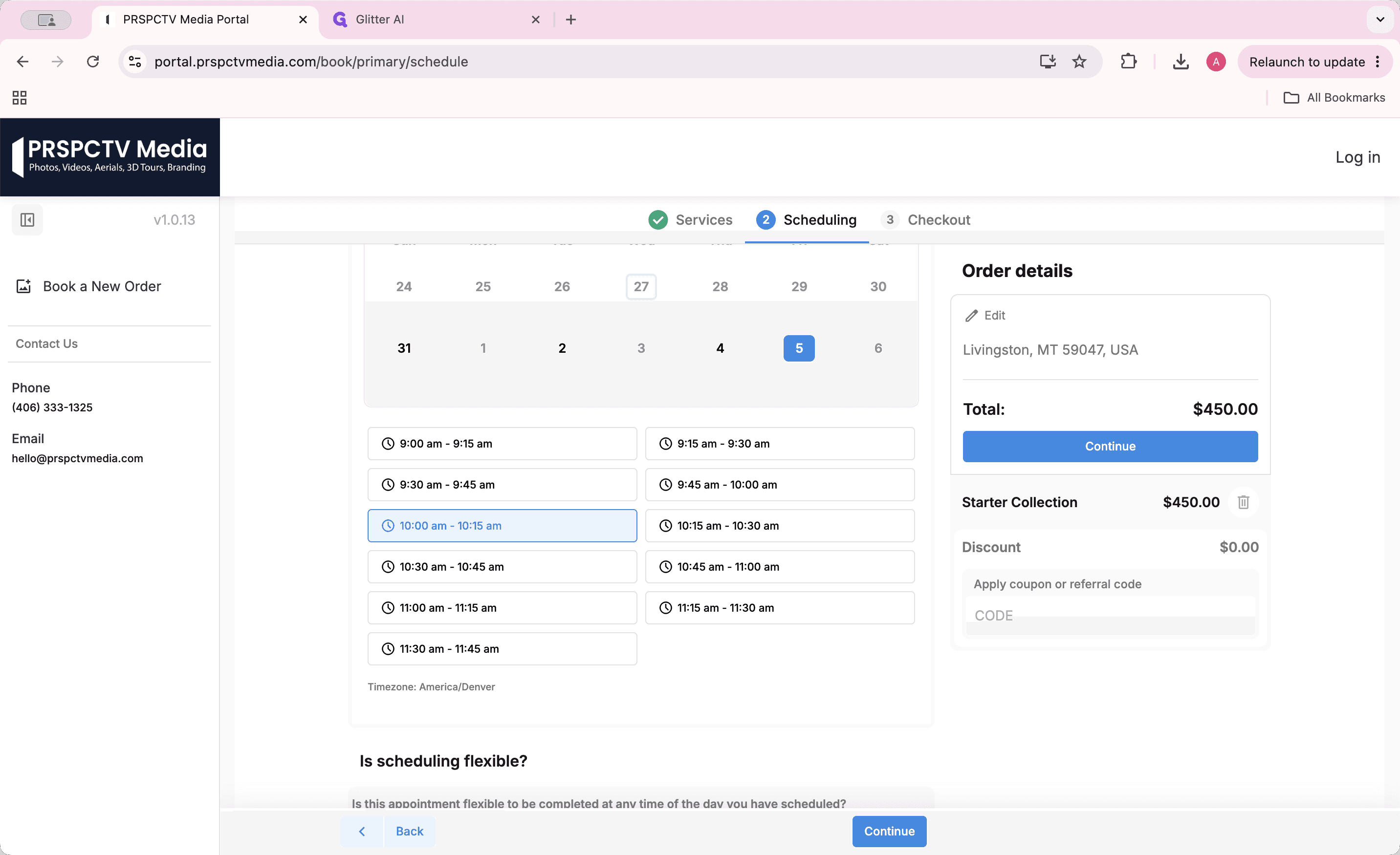
Schedule the Appointment
Provide Property Details
Answering the questionnaire thoroughly ensures the shoot goes smoothly and prevents unnecessary interruptions during the appointment.
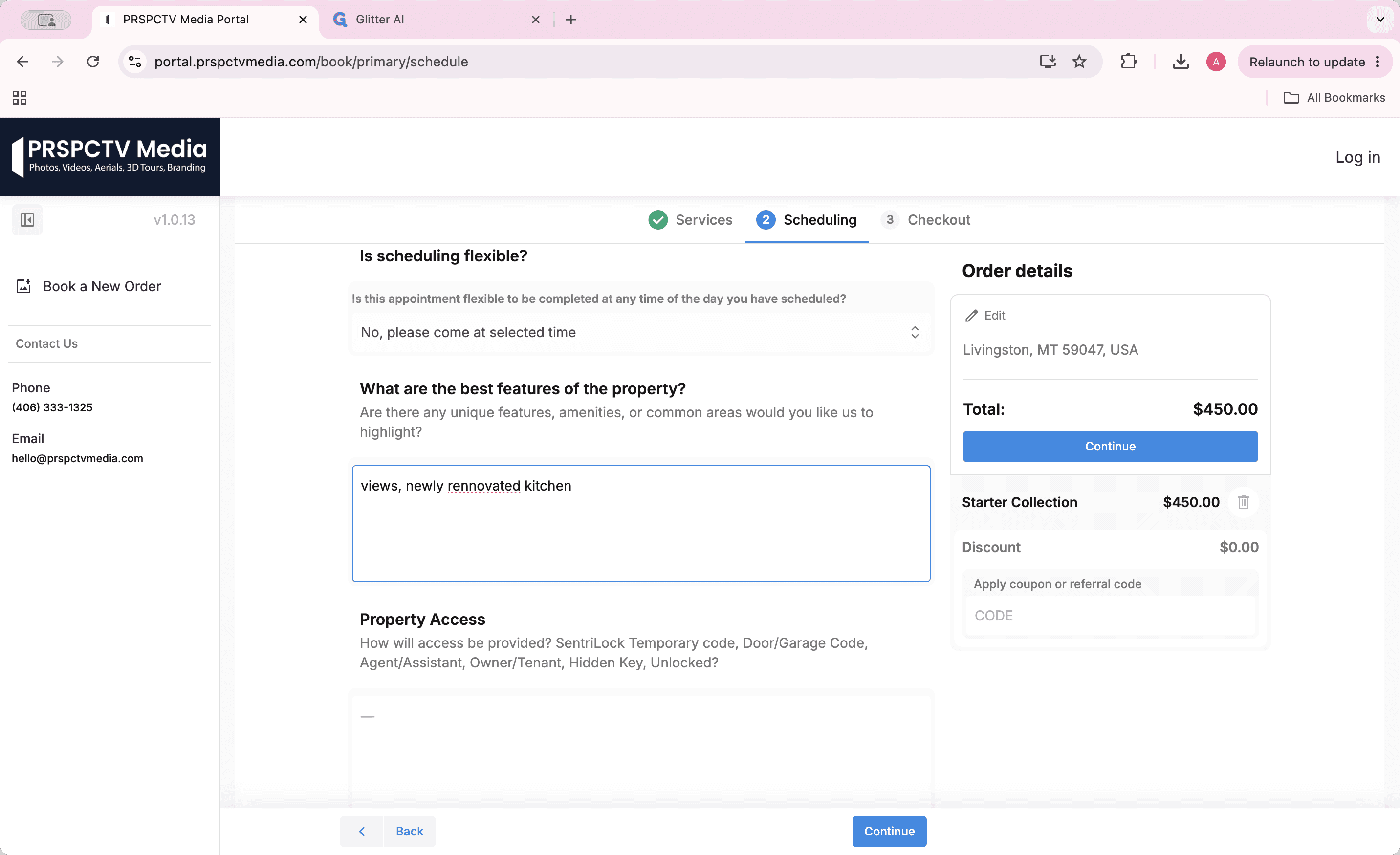
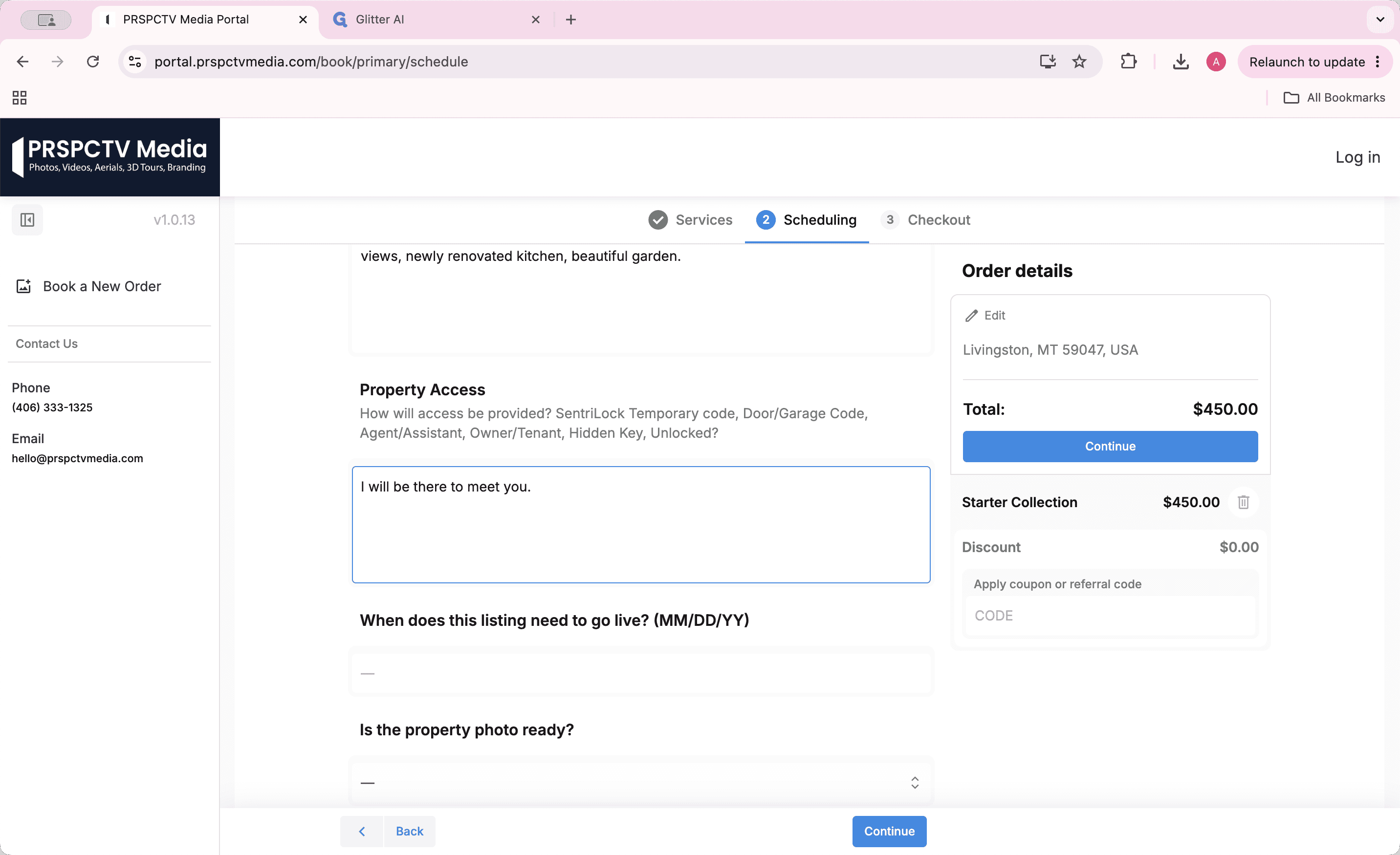
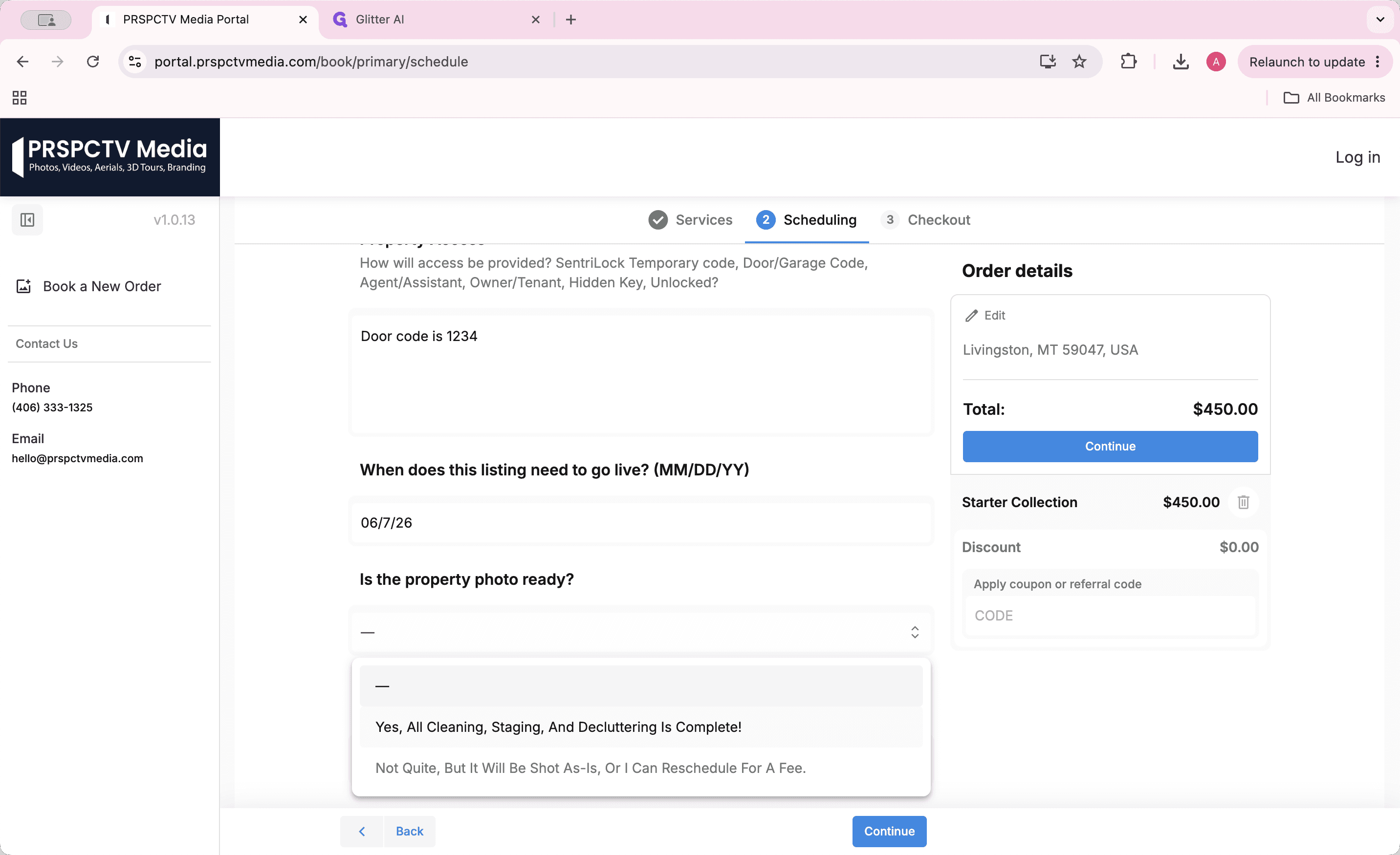
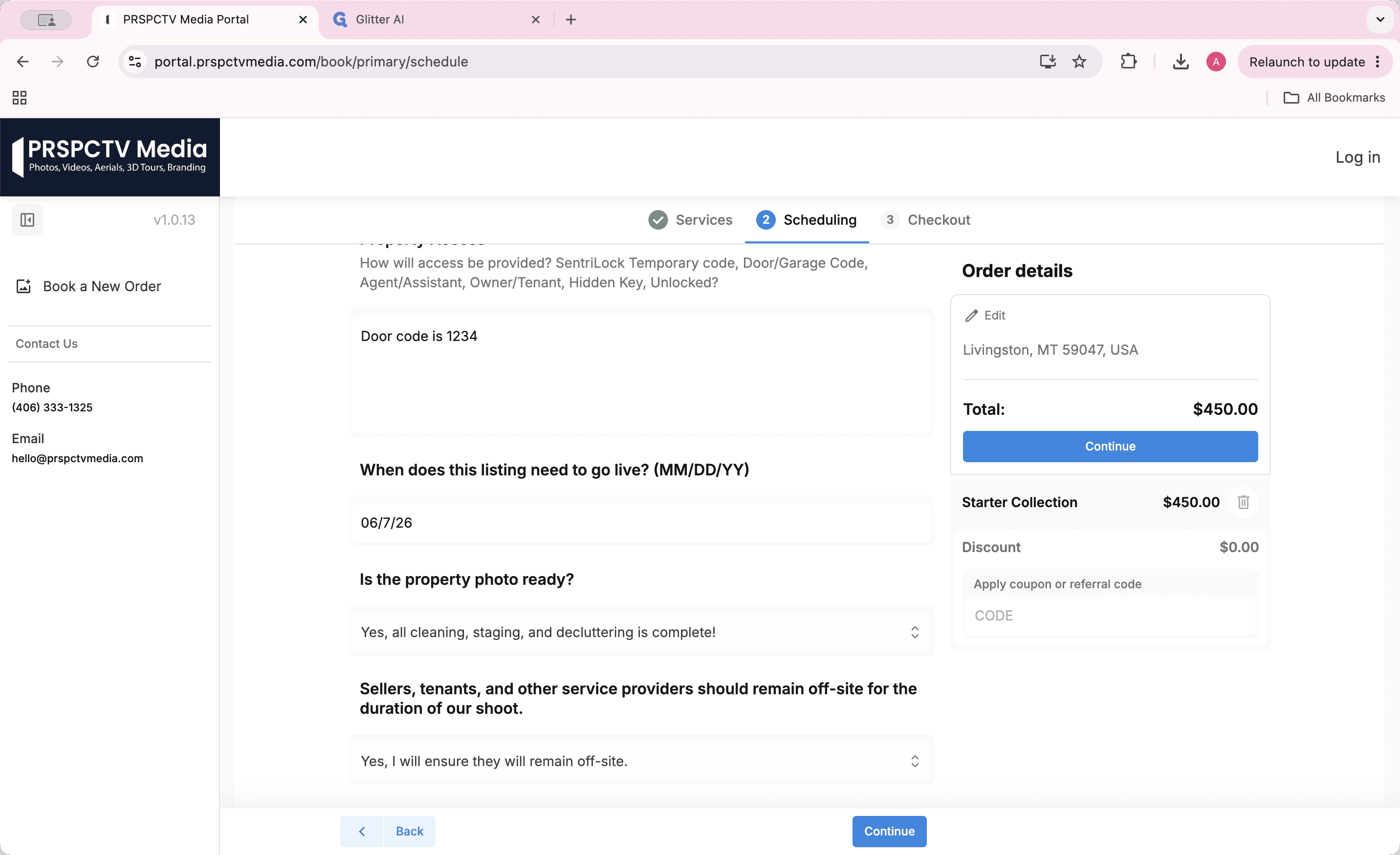
Finalize the Order
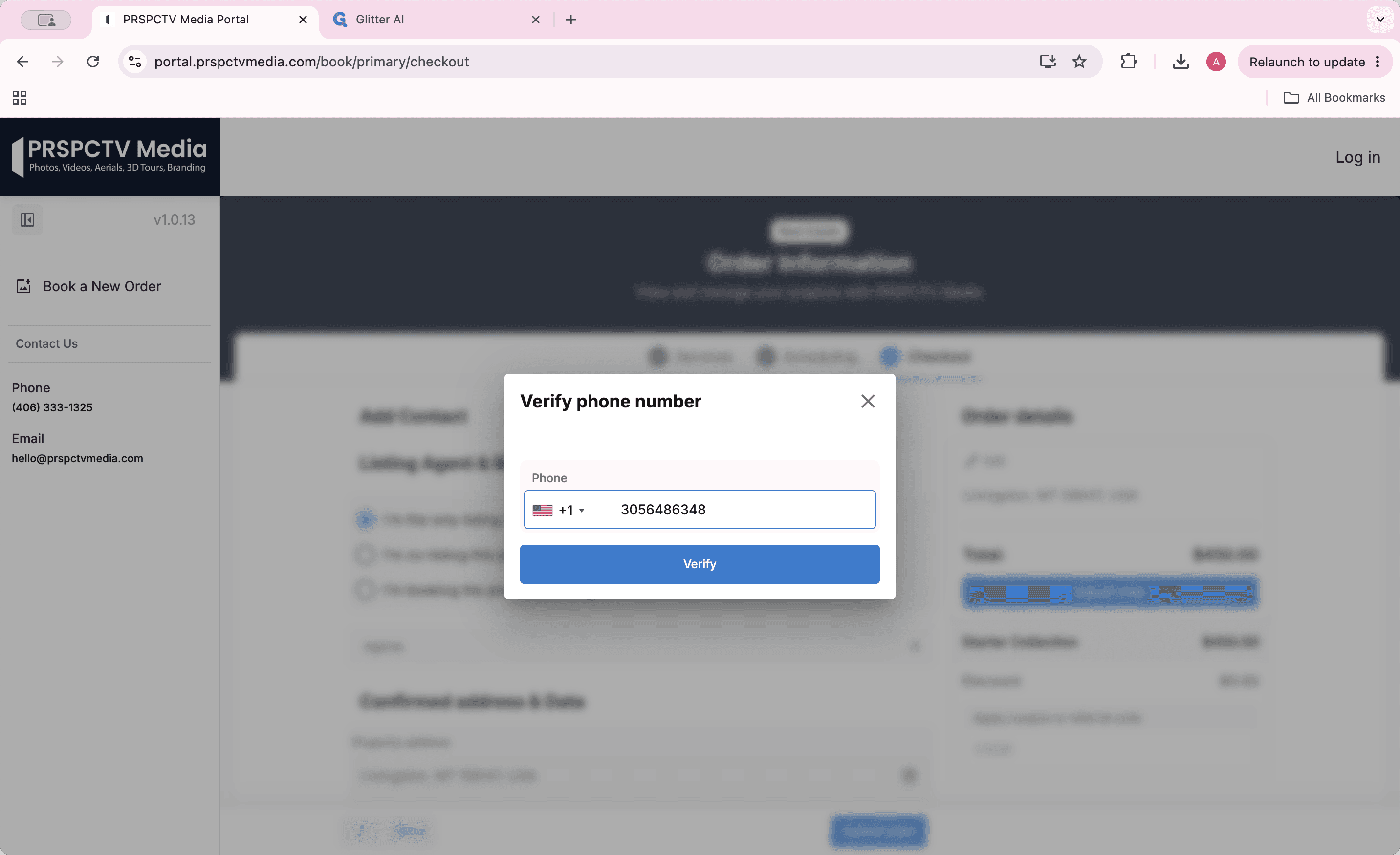
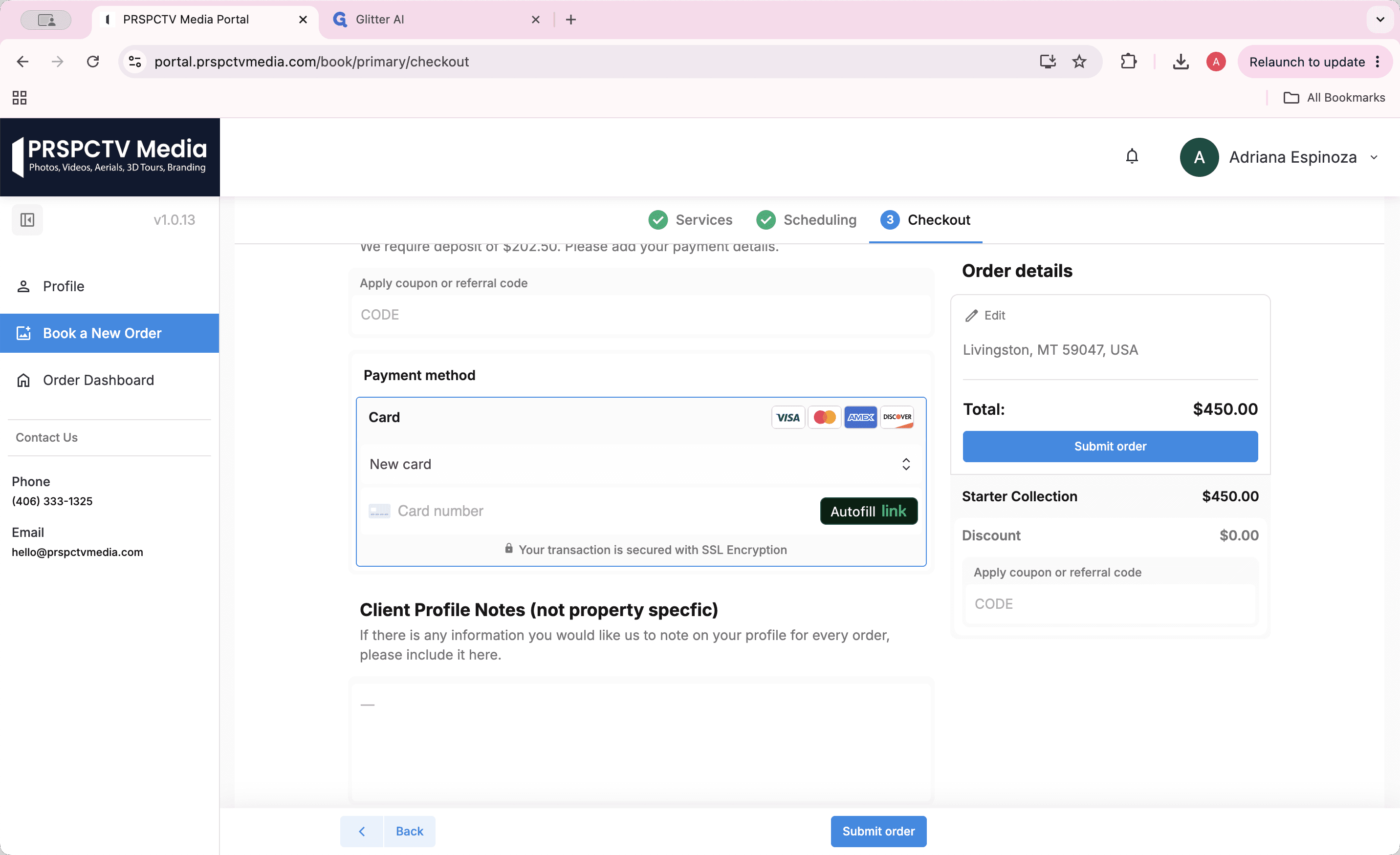
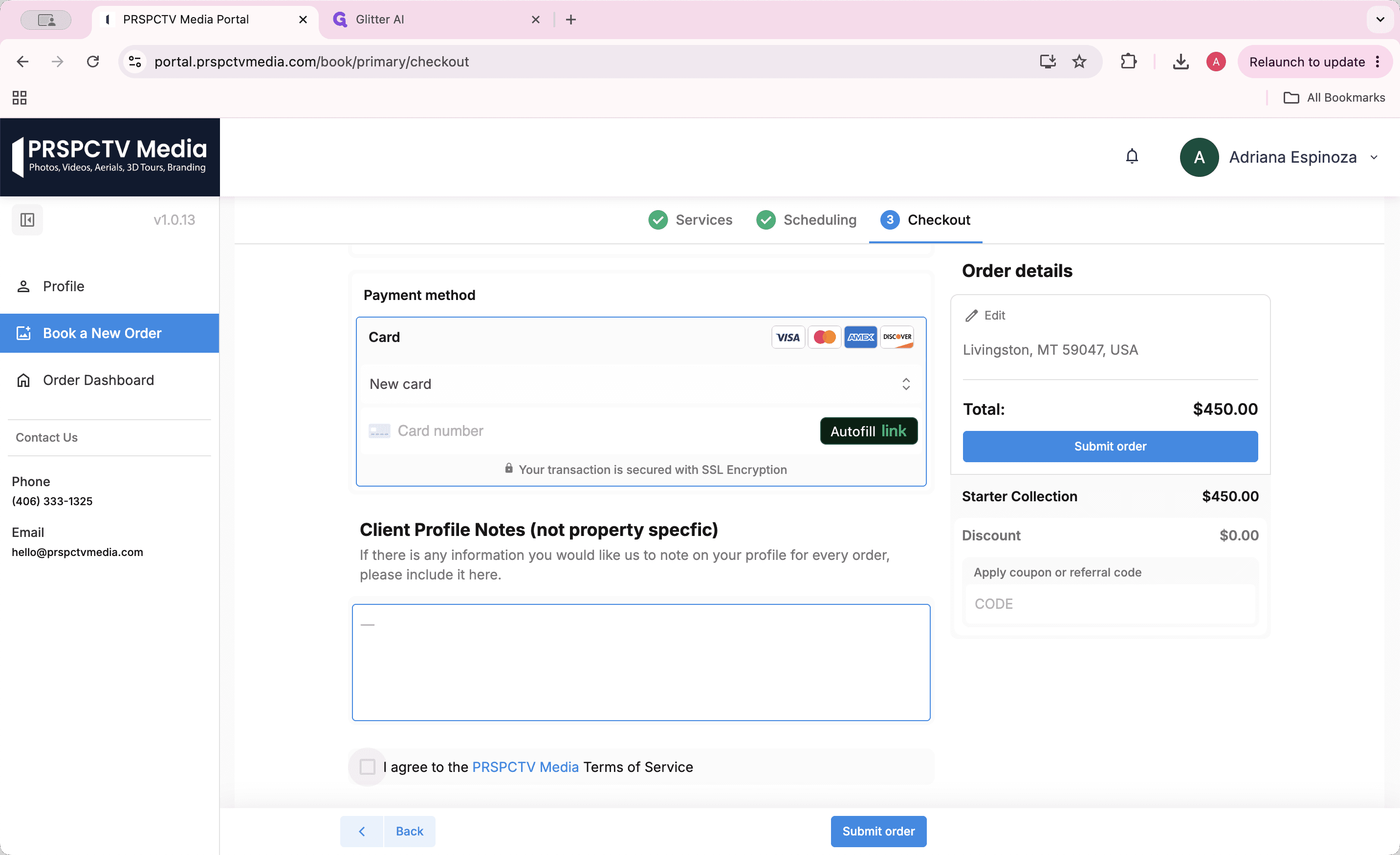
Once submitted, you will receive a confirmation text and email securing your appointment.
Q: Do standard packages include a floor plan?
A: Yes, all standard packages automatically include a 2D floor plan, a marketing kit, and a dedicated website.
Q: Can I book services individually instead of choosing a package?
A: Yes. You can use the a la carte section of the menu to choose services individually, though booking a packaged bundle generally saves you money.
Q: What happens if I have additional square footage but don't add it to the booking?
A: If you do not declare additional spaces during the booking process, the photographer will not scan or photograph those extra areas.
Q: Do I need to be present at the property during the shoot?
A: No. You can provide access instructions, such as a door code, in the booking questionnaire so the photographer can access the property independently.
Q: What happens after I submit my order?
A: Once the order is submitted and the deposit is processed, you will receive a confirmation text and email verifying your scheduled appointment.
Term | Definition |
|---|---|
Virtual Twilight | A photo editing add-on service that alters daytime photos to look like they were taken during dusk. |
Real Twilight Time | A scheduled shoot that physically takes place during dusk to capture authentic evening lighting. |
3D Home Interactive Floor Plan | A digital, navigable model of the property layout provided by Zillow. |
A La Carte | A menu option allowing clients to select and pay for individual services rather than pre-bundled packages. |
Marketing Kit | A collection of digital marketing assets provided alongside packages to help promote the listing. |