Learn how to process a client purchase order for bailing twine, create a consumables job in Simpro, generate the invoice, and notify your fulfillment team.
By Reem Saba
This guide walks you through the process of booking a twine order within the Consumables cost center. Completing this ensures the client's purchase order is accurately converted into a job, invoiced, and dispatched to the team for fulfillment.
This workflow is intended for service allocators and administrative staff who handle consumable part orders. Use this process whenever a client submits a purchase order specifically for bailing twine.
Review the Purchase Order
1
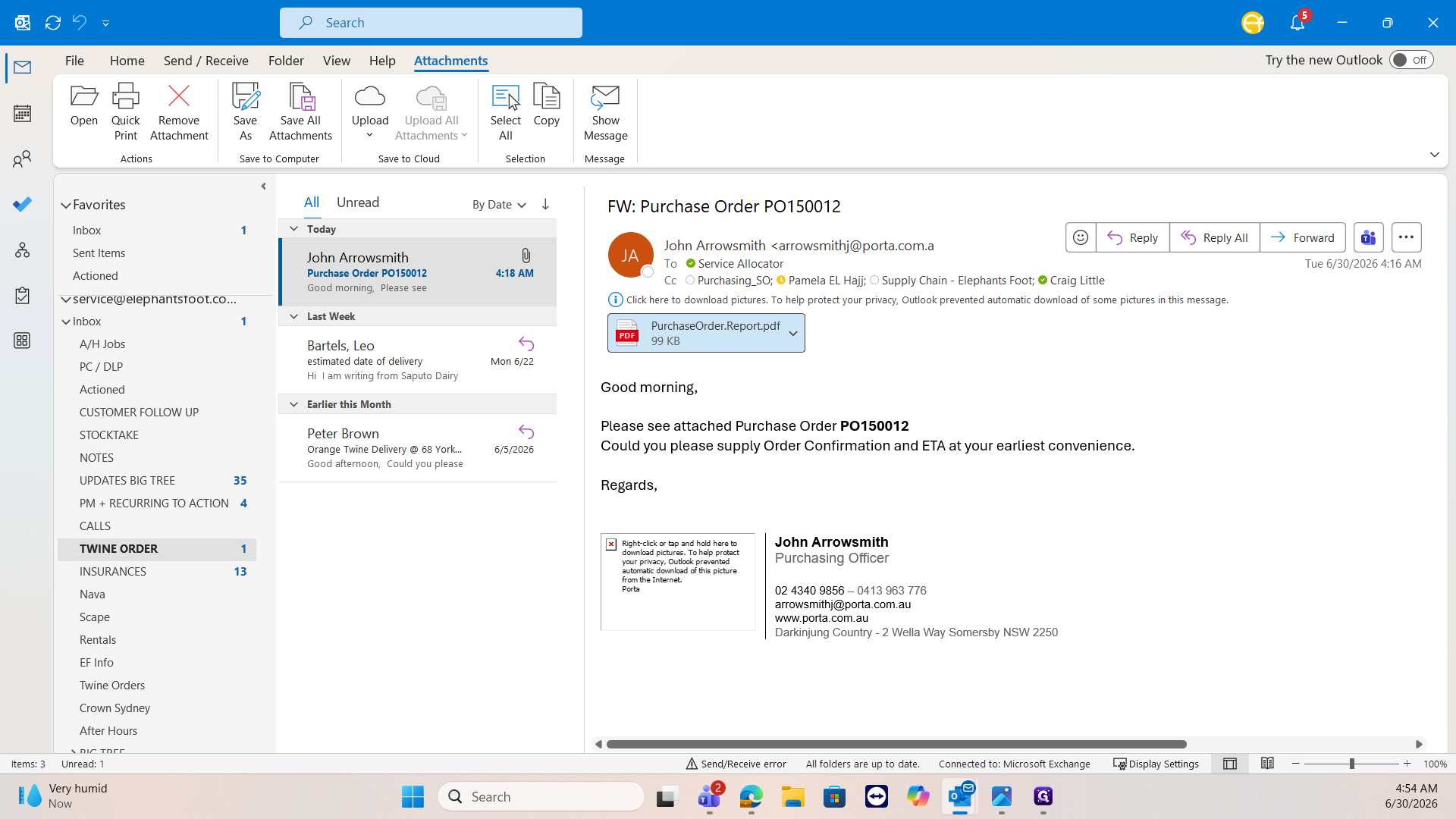
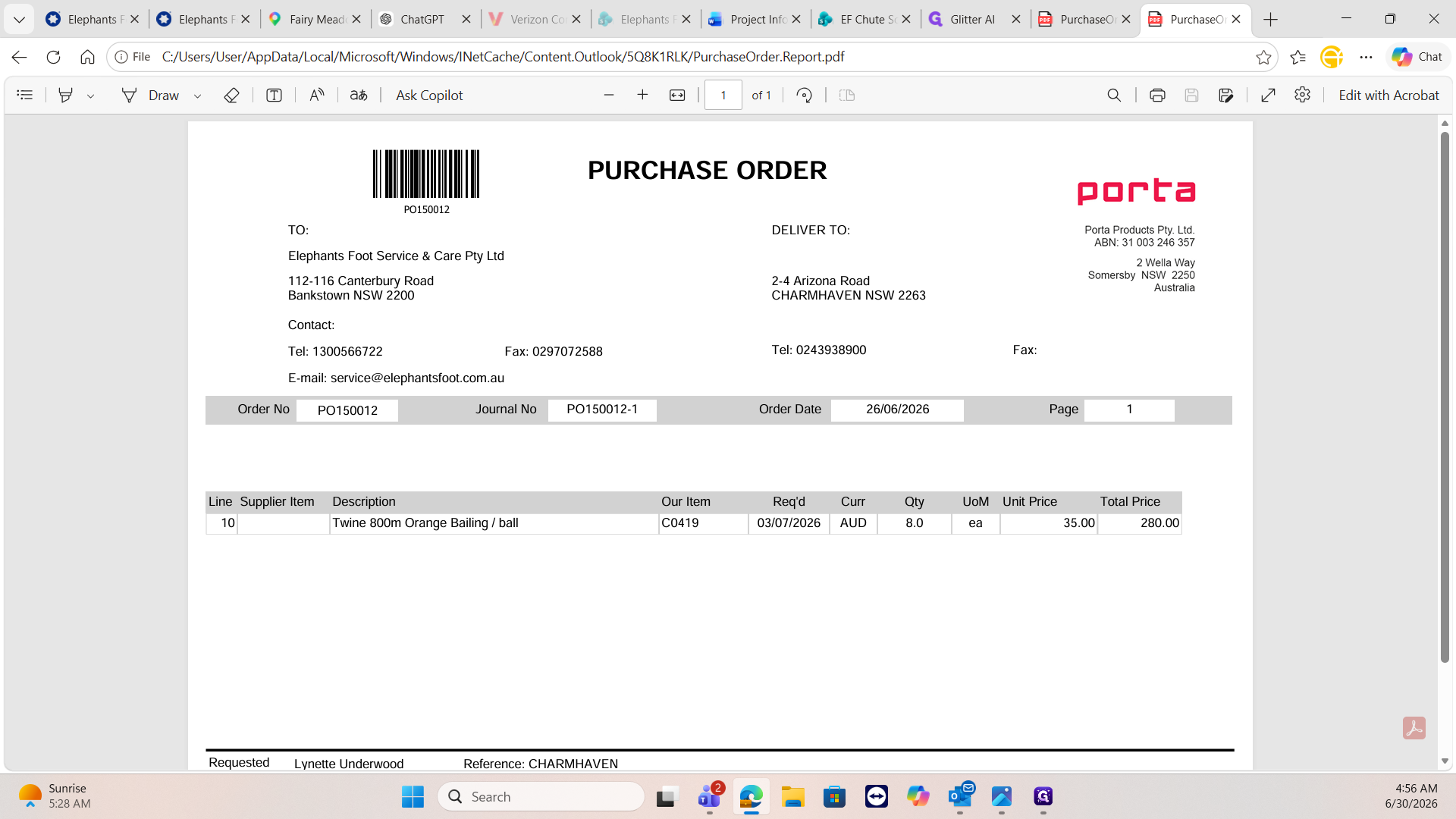
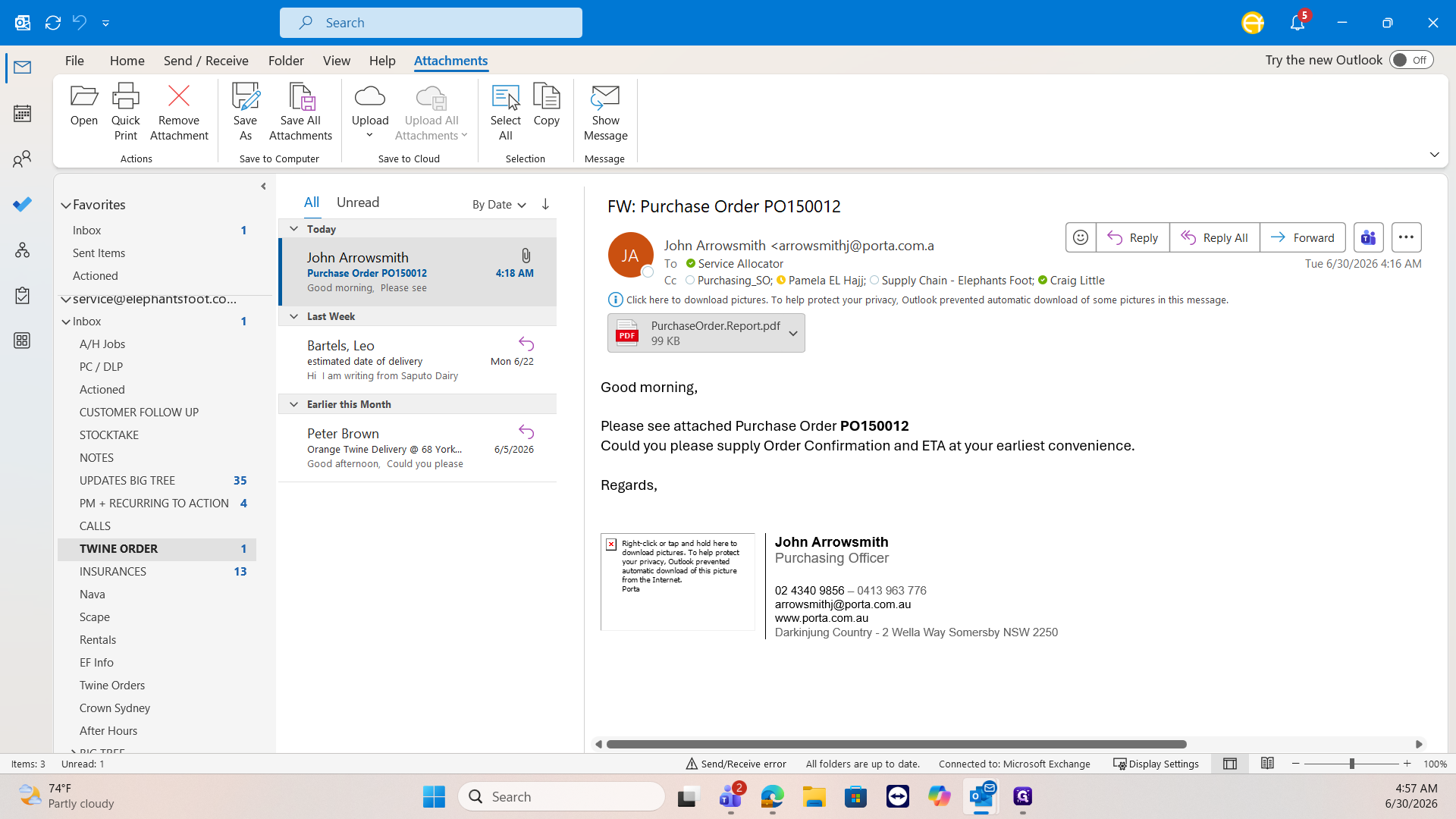
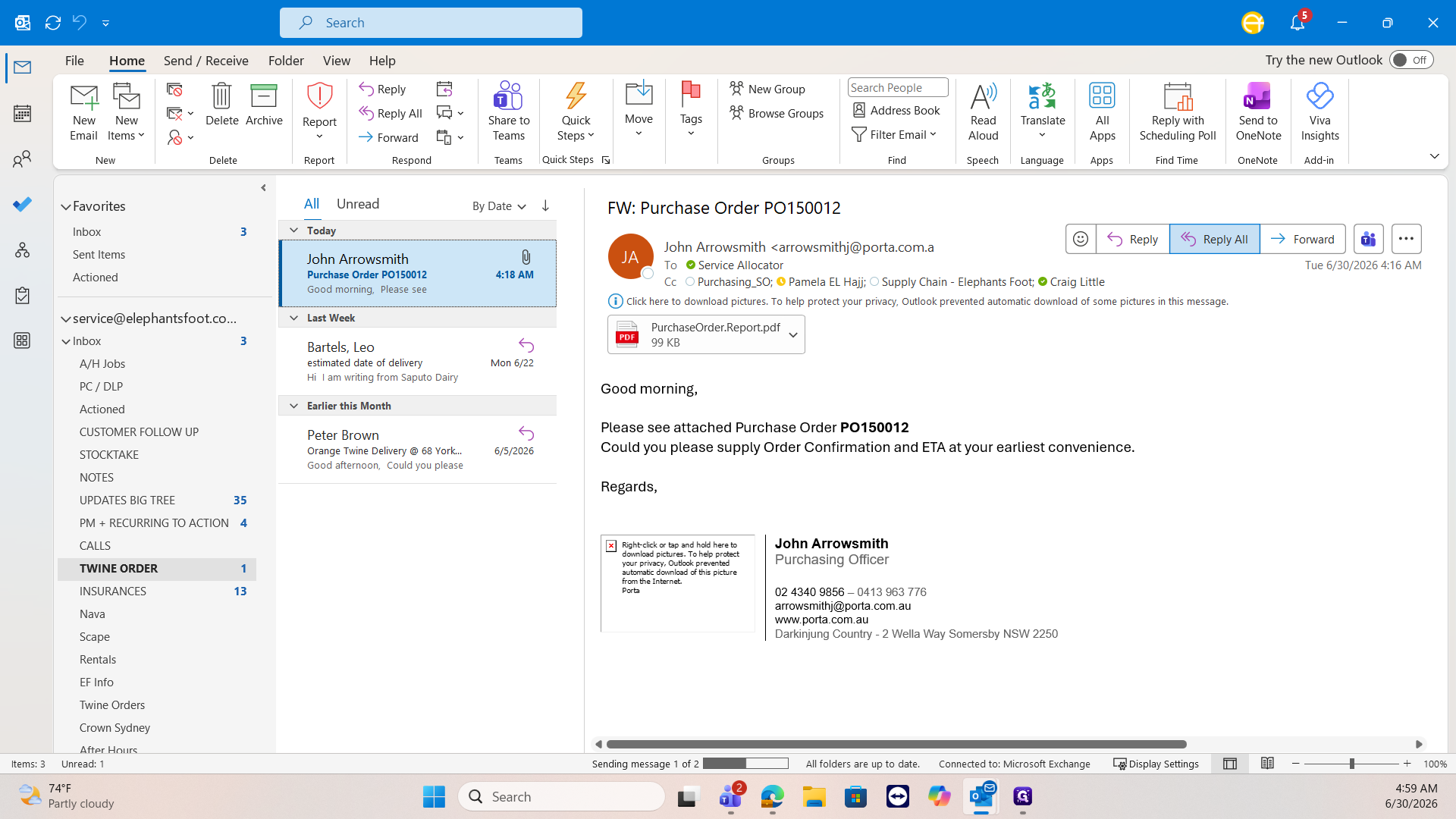
Open the client's email in Outlook and double-click the purchase order PDF attachment to view the details.
2
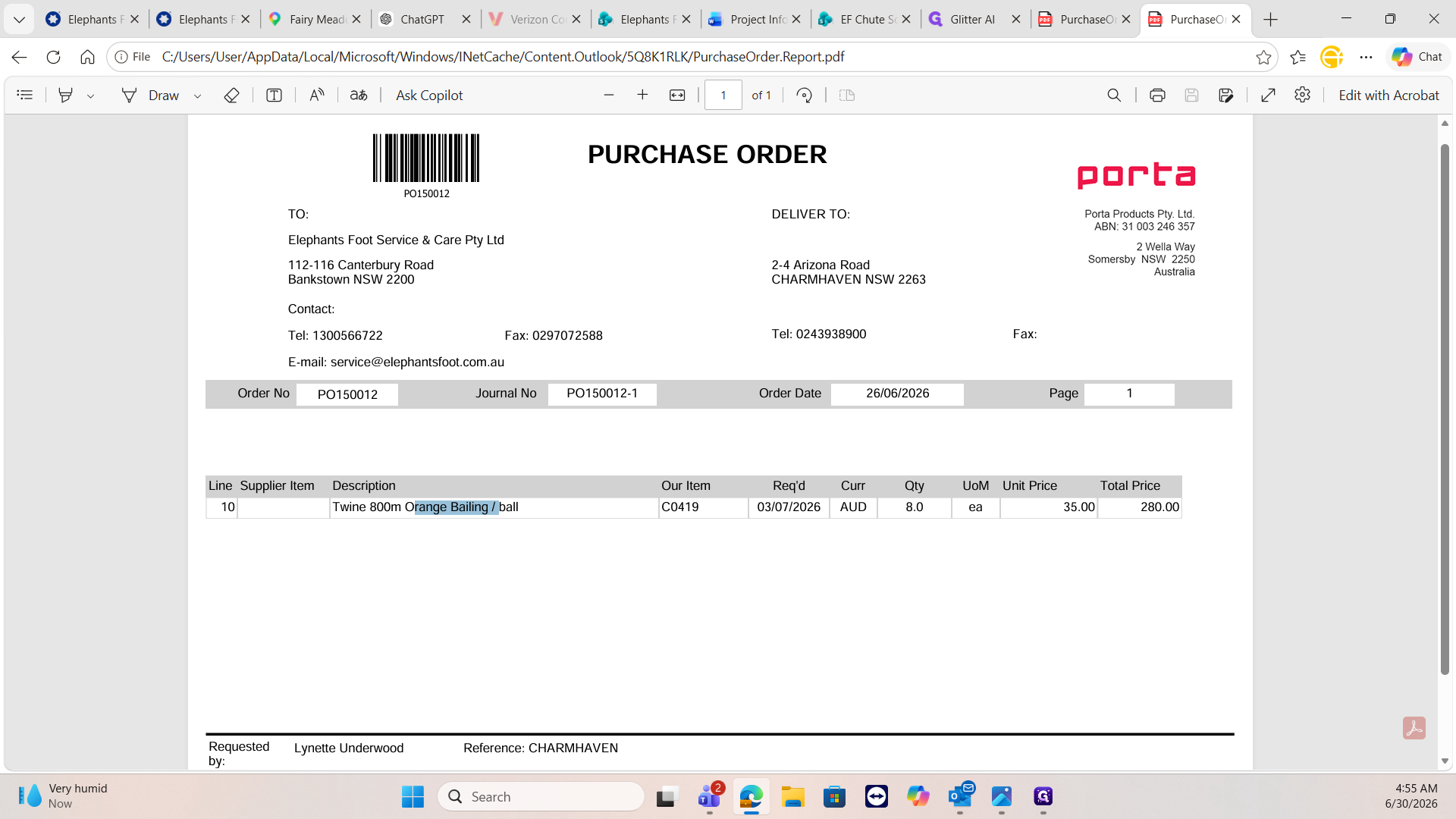
Review the purchase order to confirm the requested item (orange bailing twine) and the quantity.
Twine is strictly sold in packs of four (e.g., 4, 8, 12, 16) because it is packaged in boxes. If a client requests a non-multiple quantity like 6, you must contact them to adjust the order before proceeding.
3
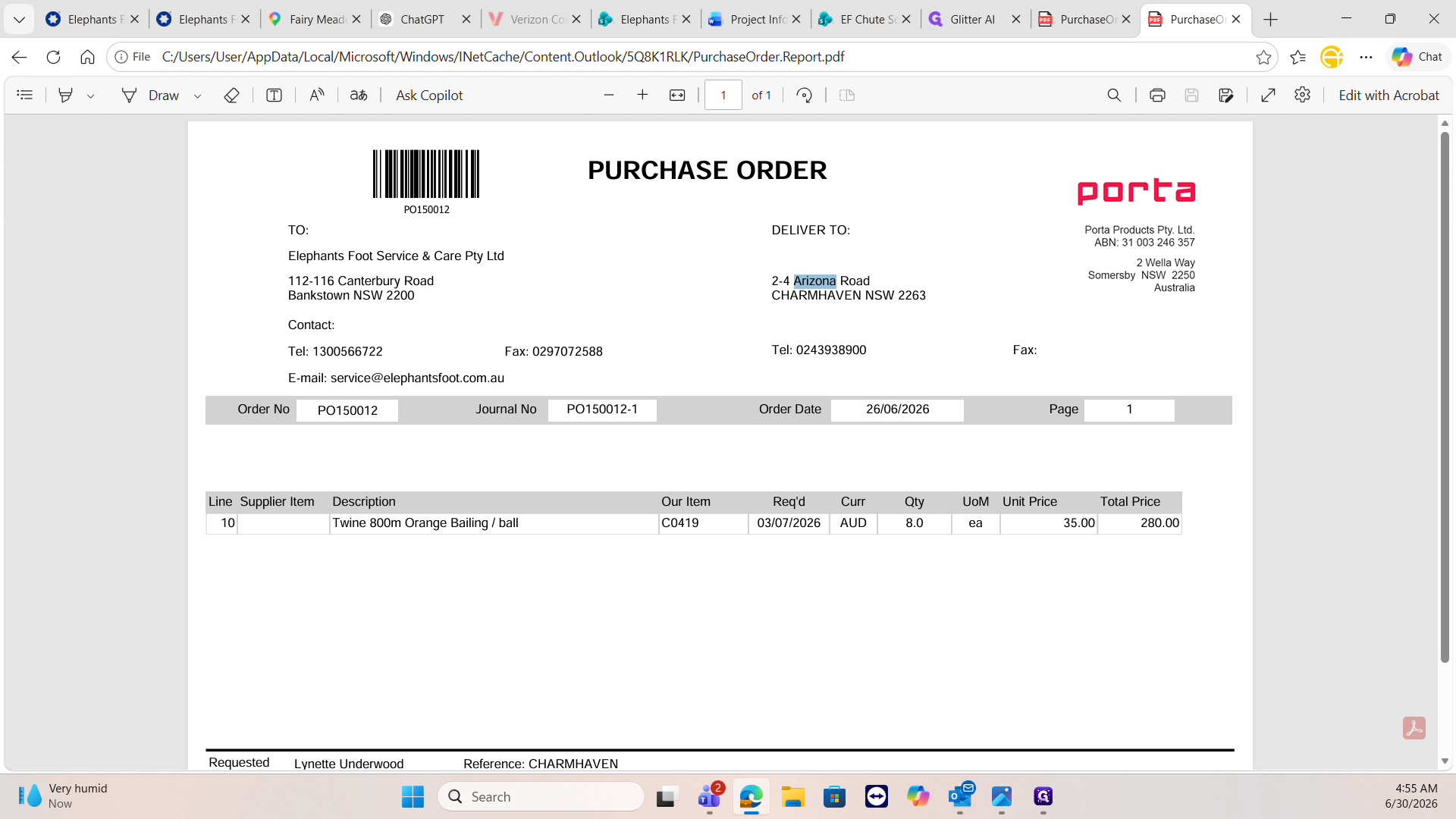
Copy the delivery address from the purchase order document.
Create the Job in Simpro
4
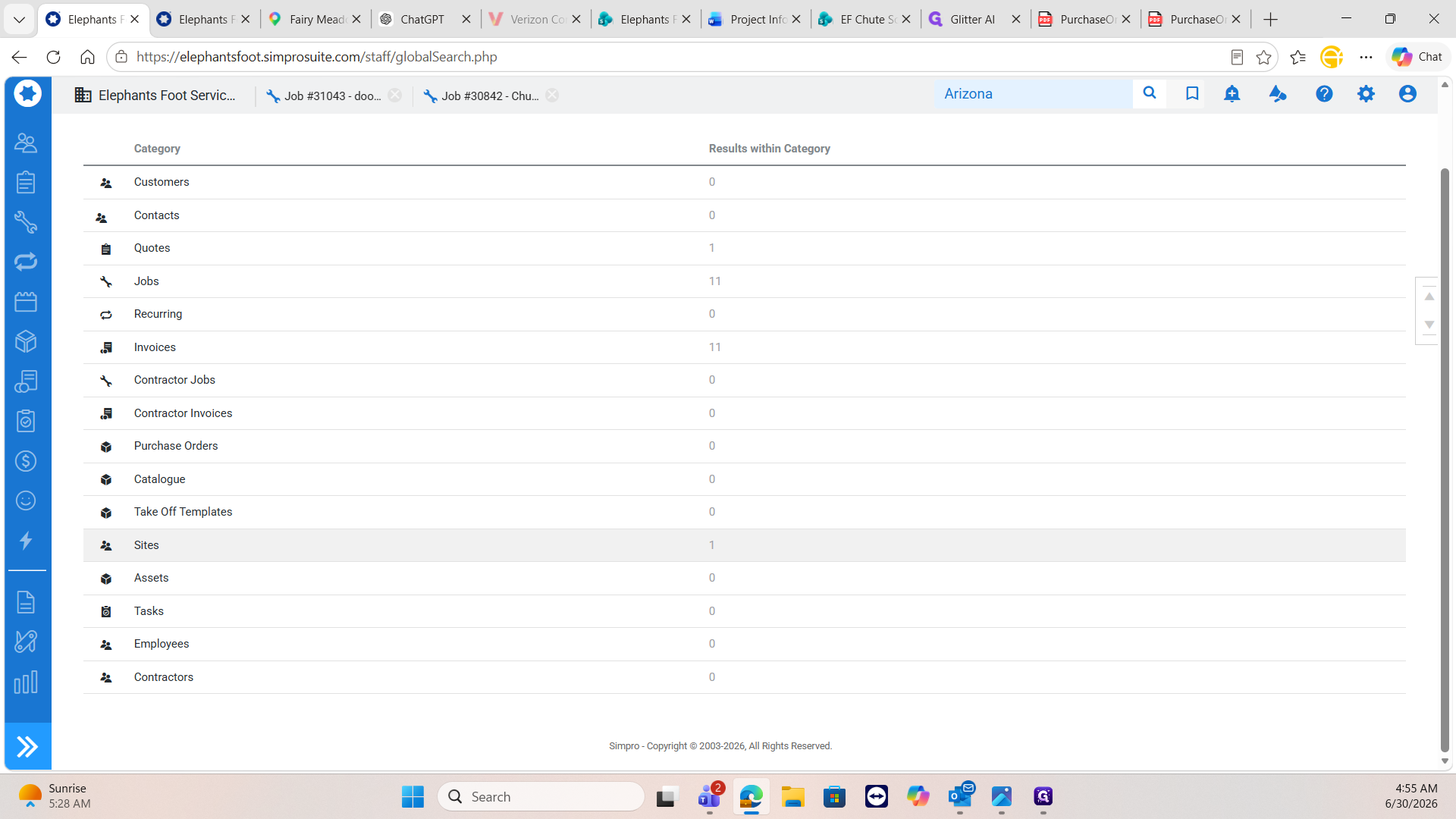
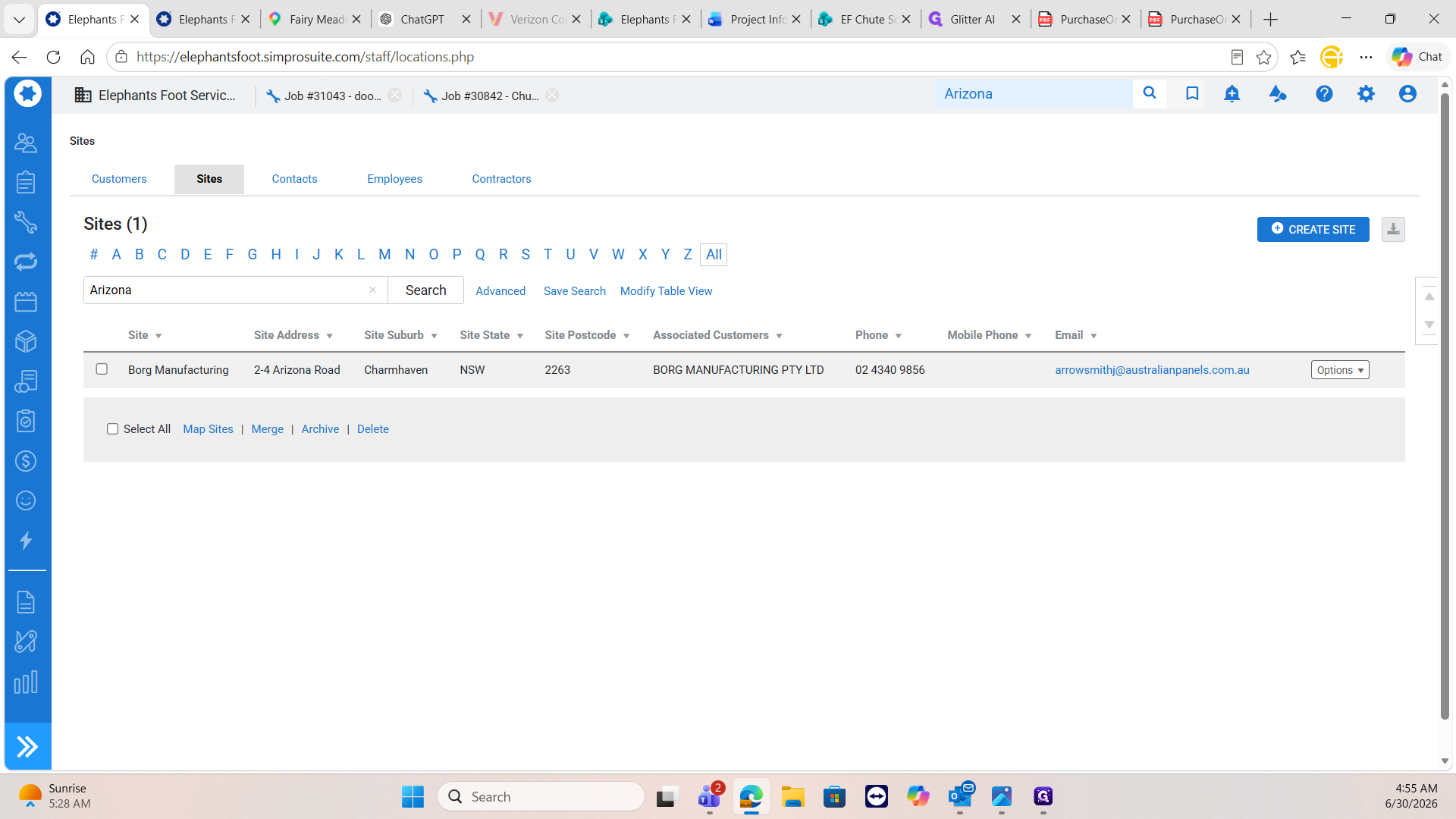
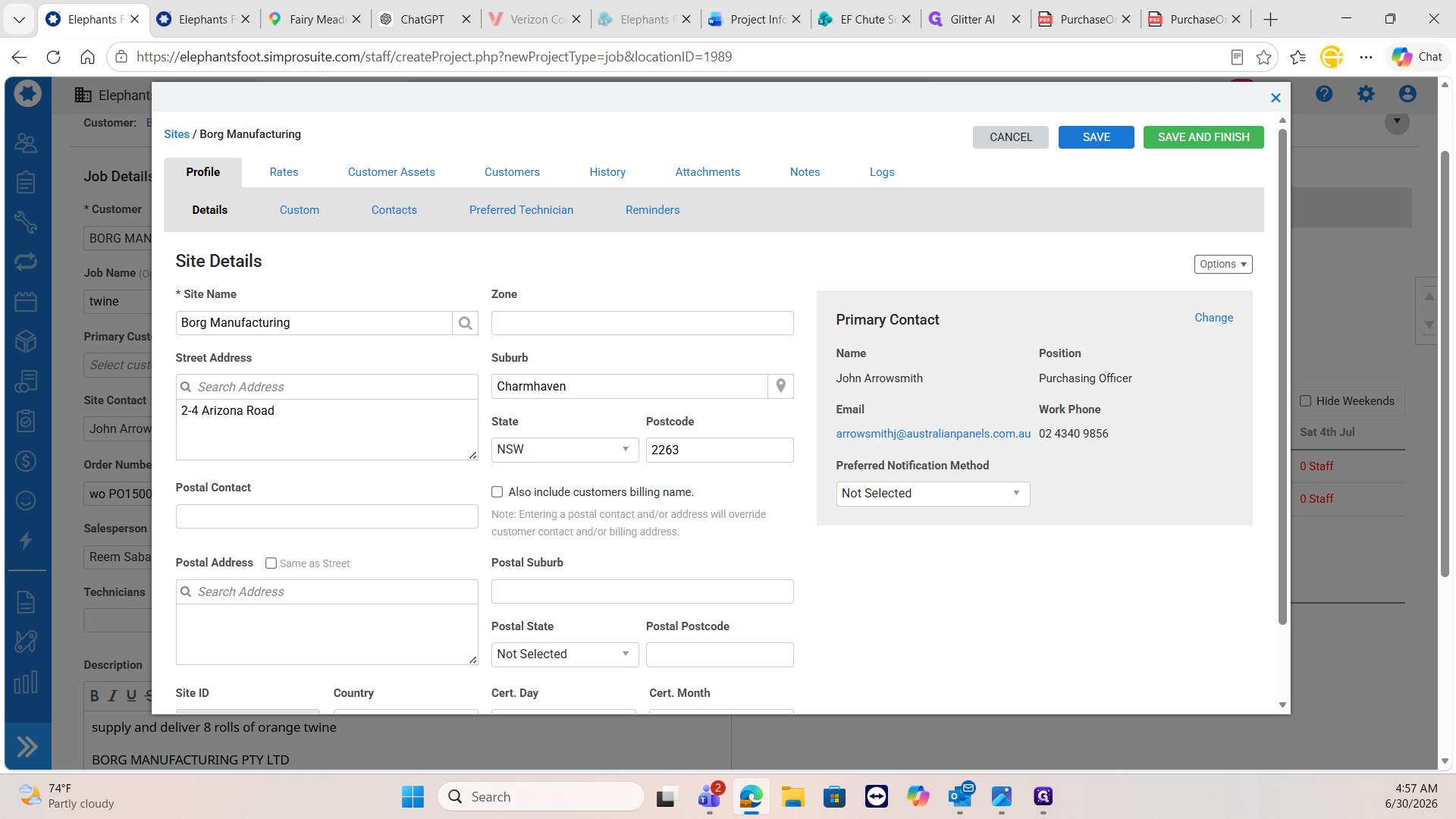
Navigate to the search dashboard in Simpro and search for the copied address or site name.
5
Select the correct site (e.g., BORG MANUFACTURING PTY LTD) from the search results.
6
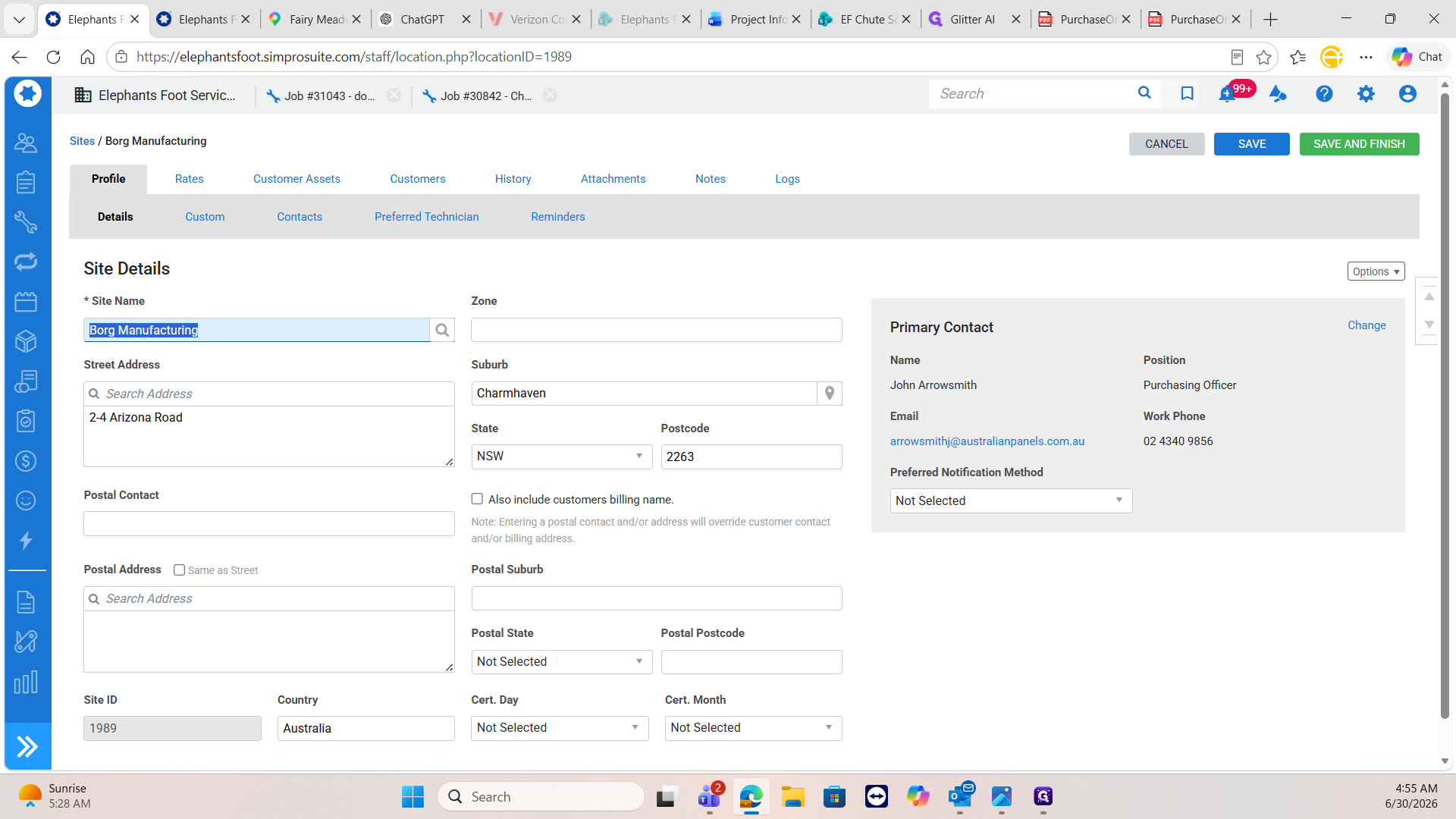
Click Options on the site details form.
7
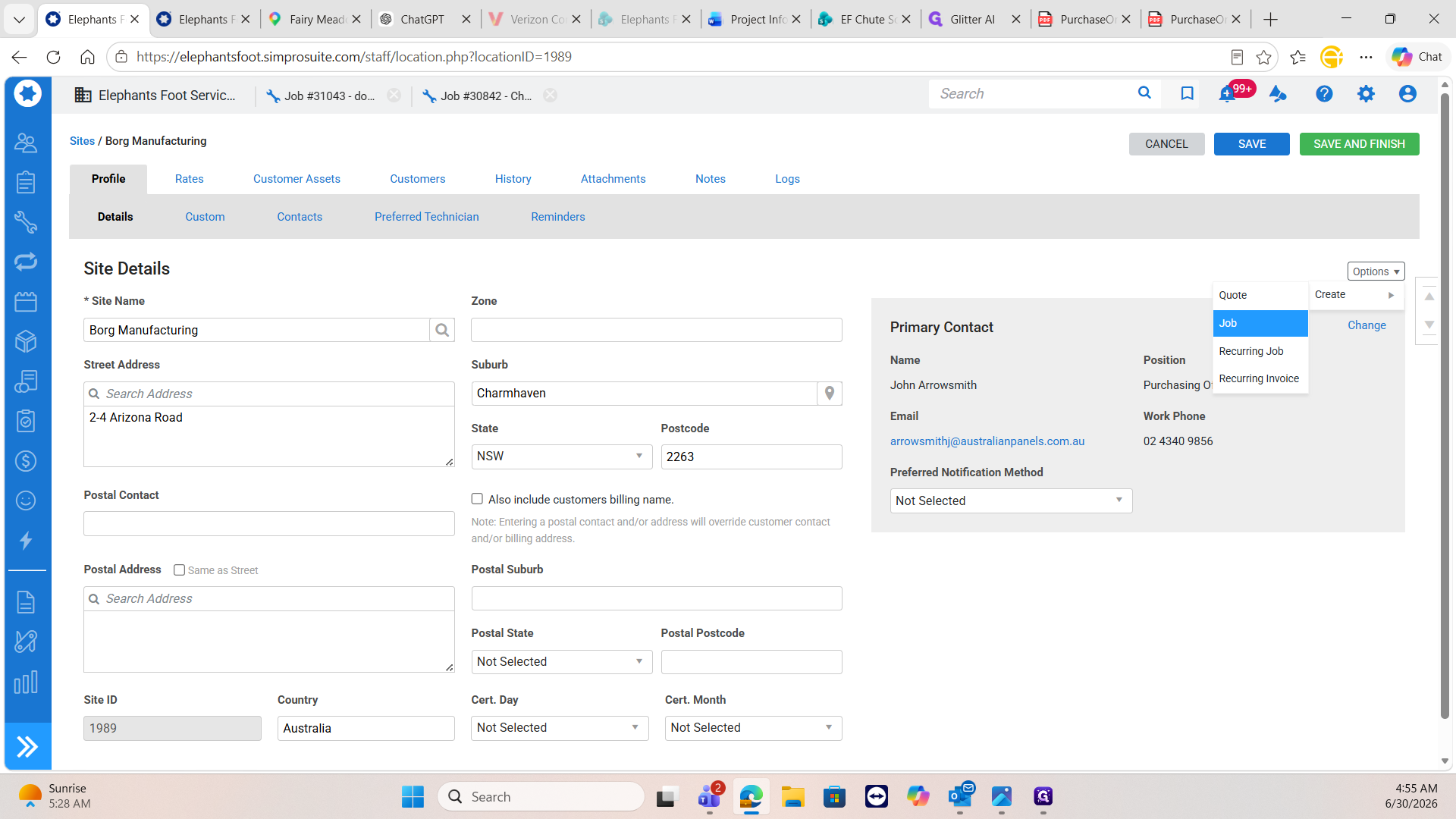
Select Create Job from the dropdown menu.
8
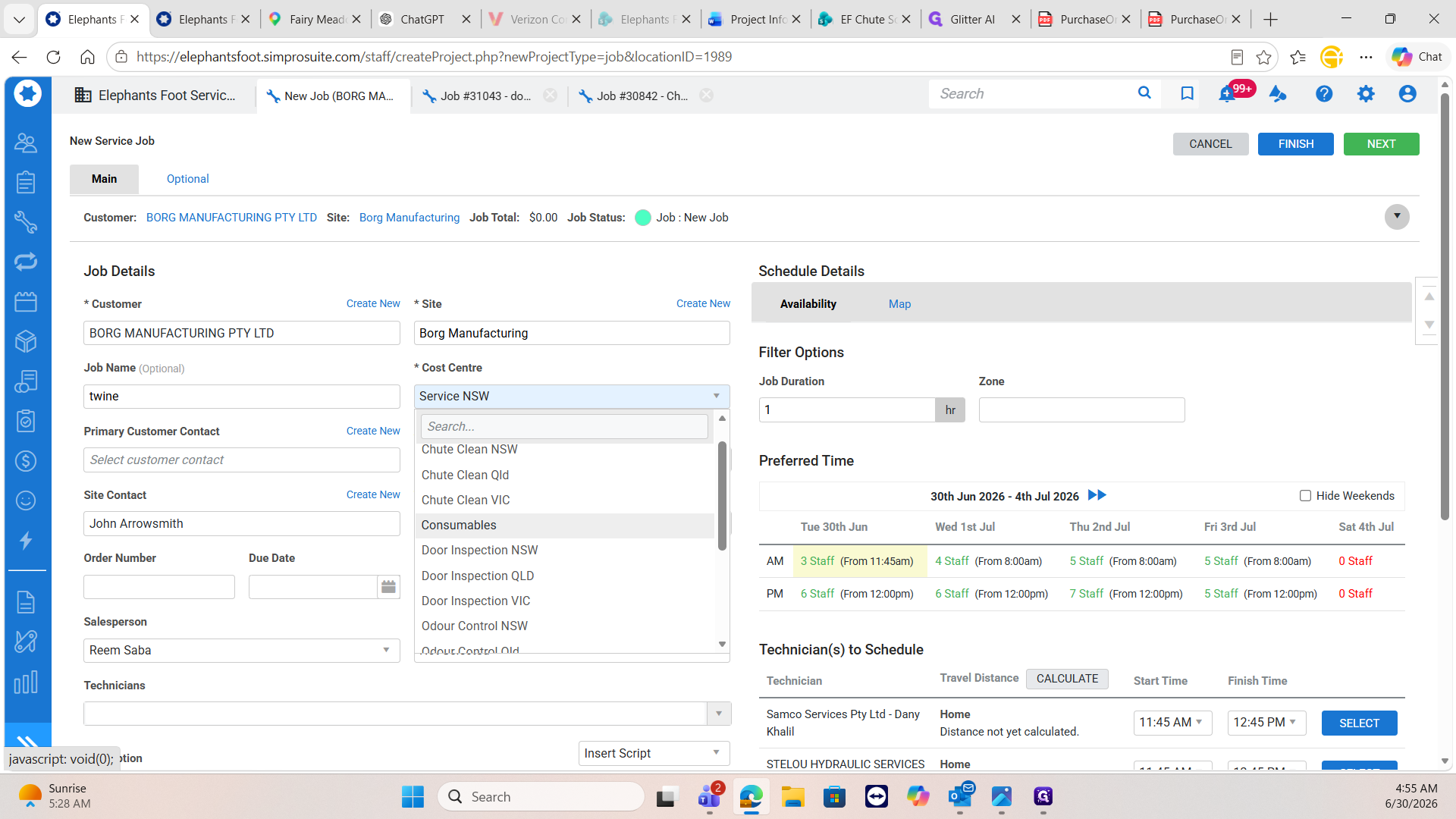
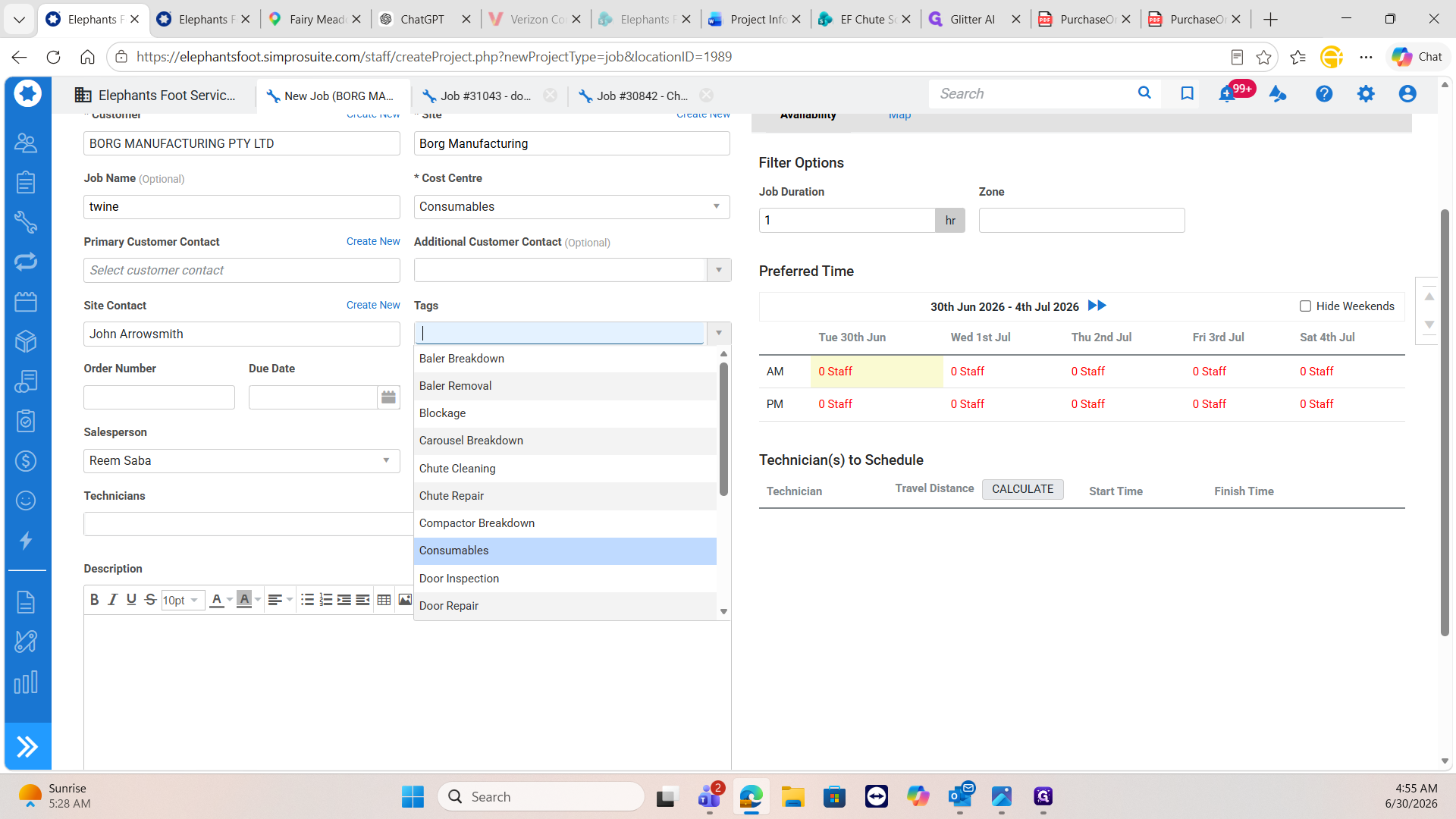
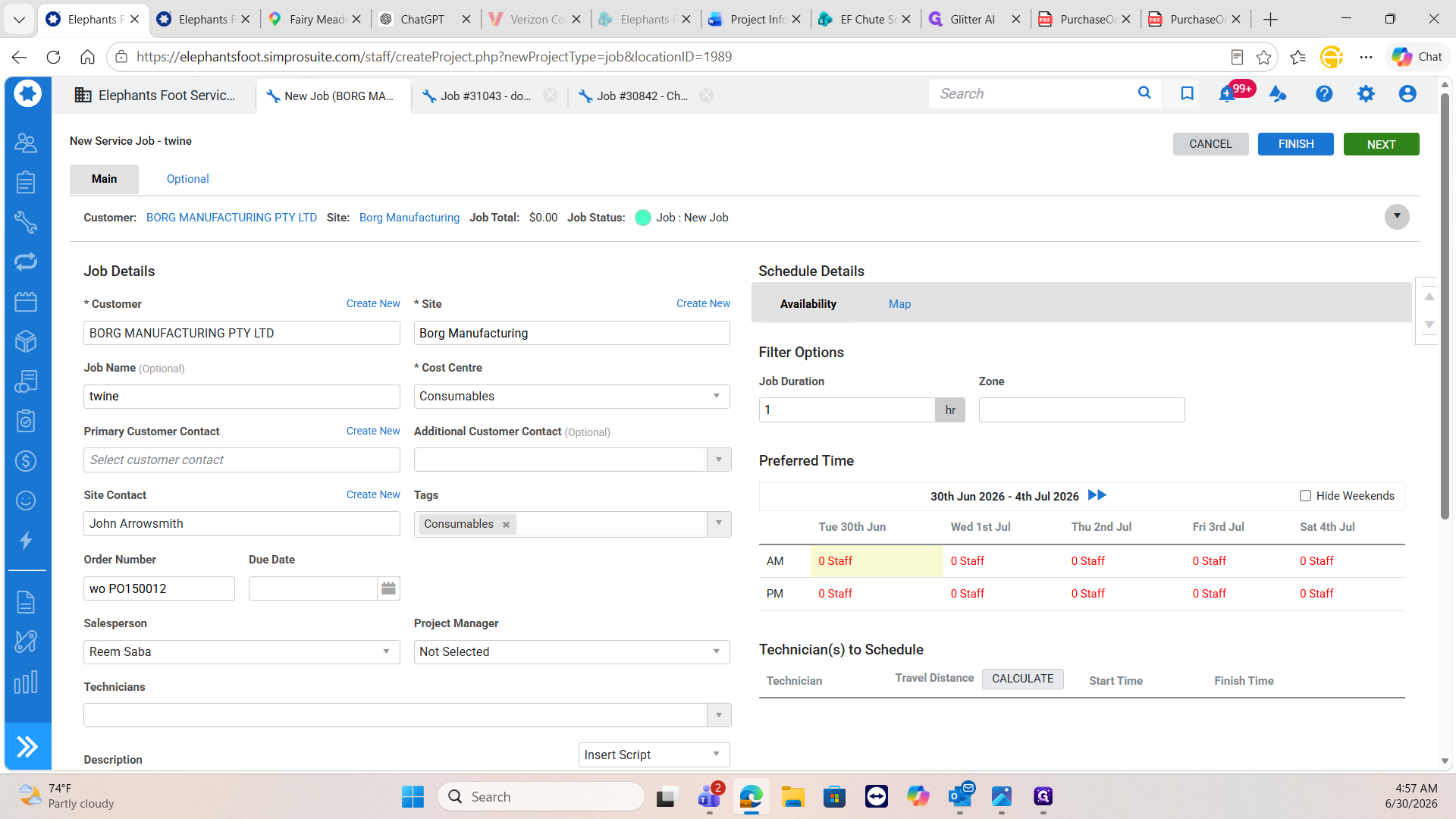
Type twine into the Job Name field.
9
Select Consumables from the Cost Centre dropdown menu.
10
Set the Tags field to Consumables.
11
Copy the PO number from the client's purchase order document.
12
Paste the PO number into the Order No. field in Simpro.
13
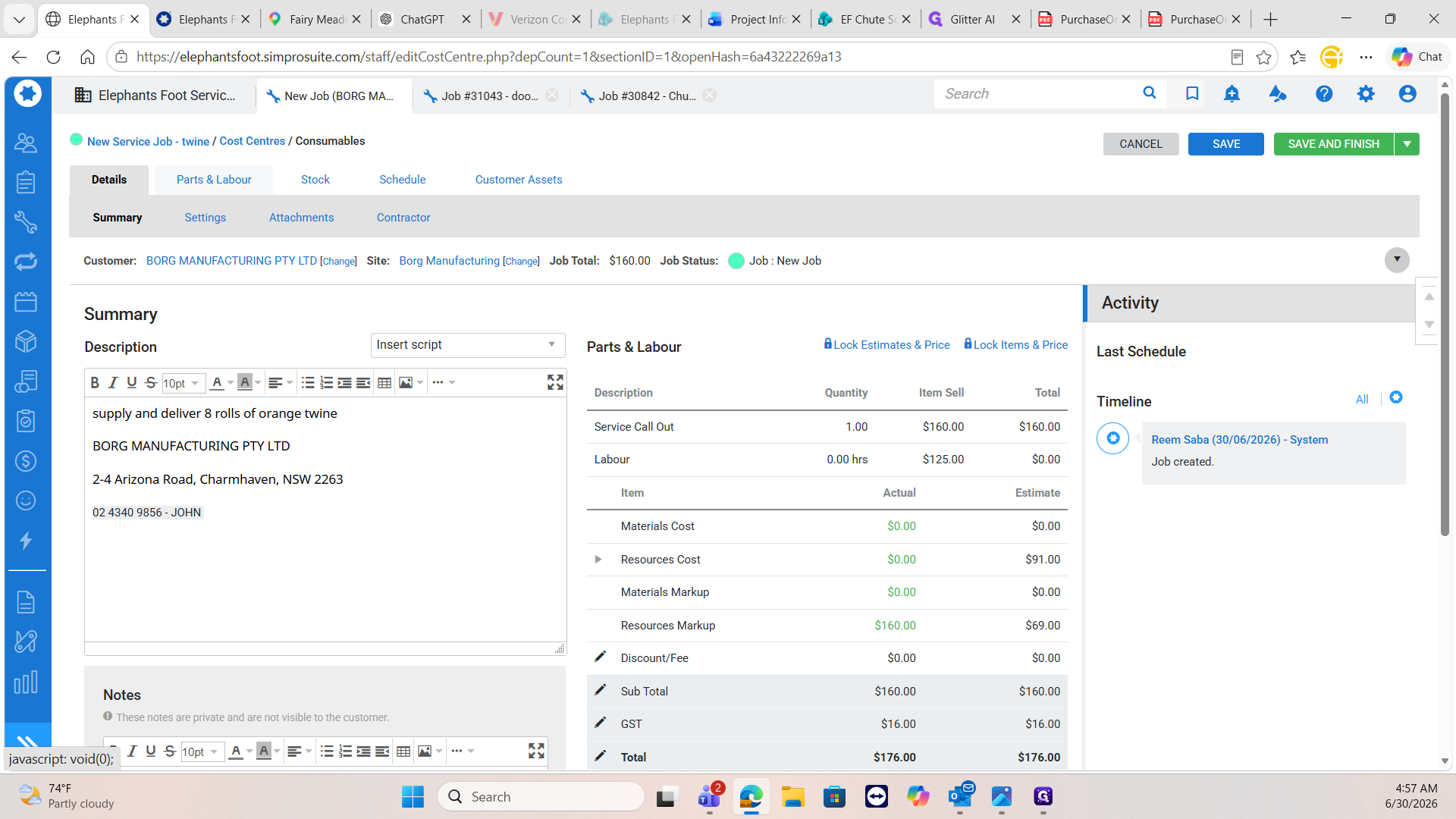
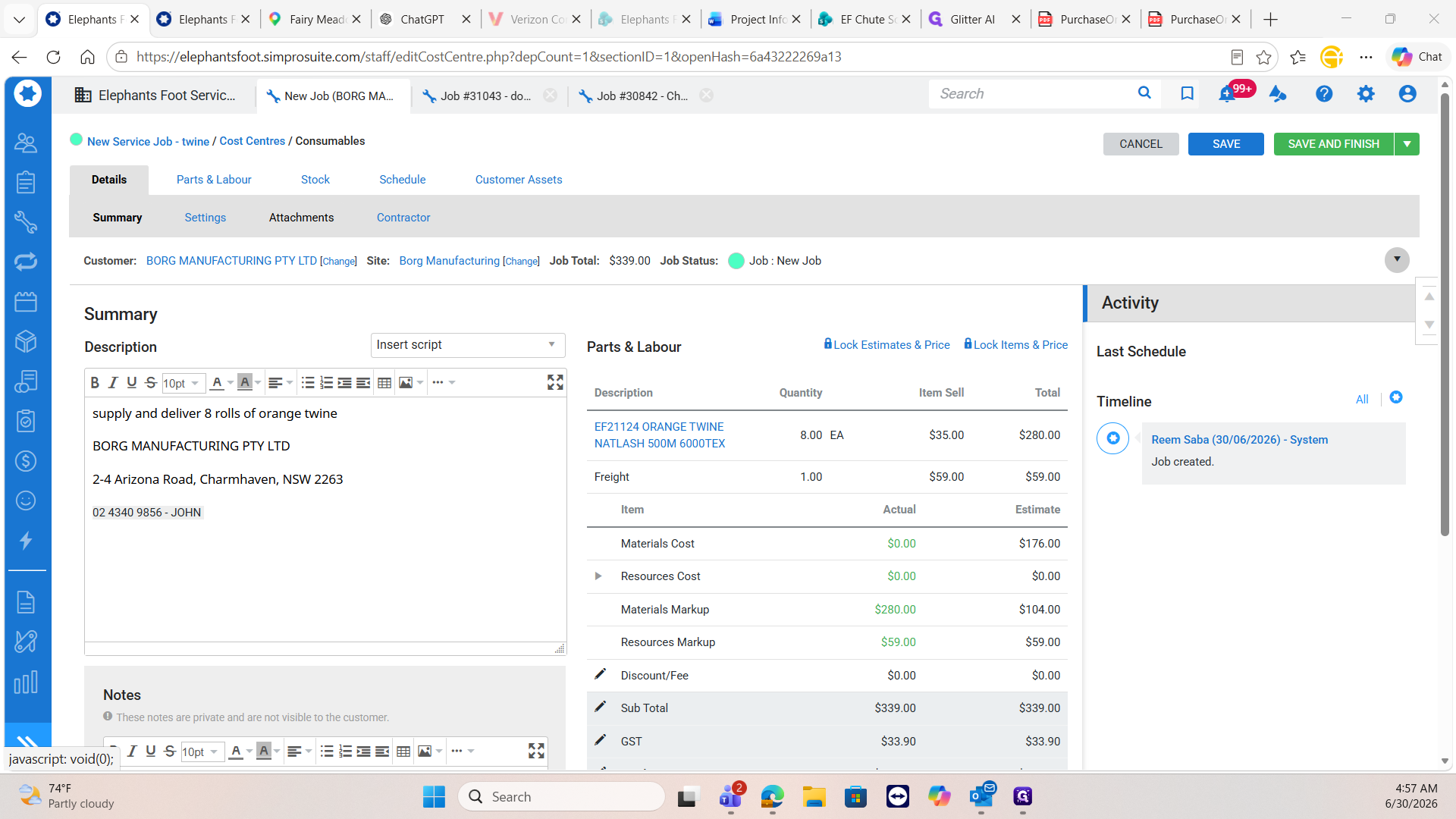
In the job description, type "Supply and deliver [quantity] rolls of orange twine".
14
Enter the primary contact's name and phone number in the contact details section.
15
Click Next to proceed to the cost center details.
Update Parts & Labour
16
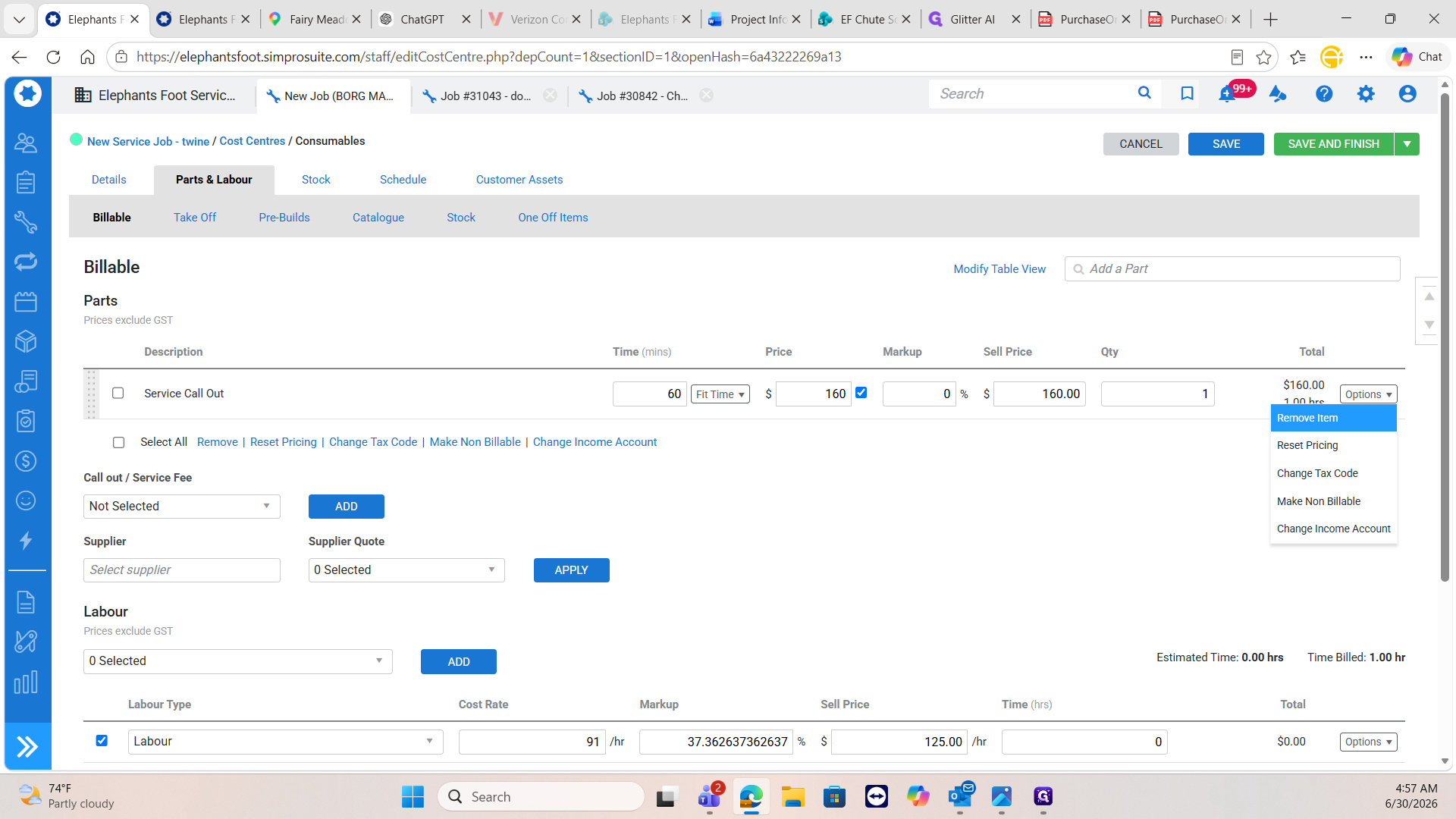
Navigate to the Parts & Labour tab.
17
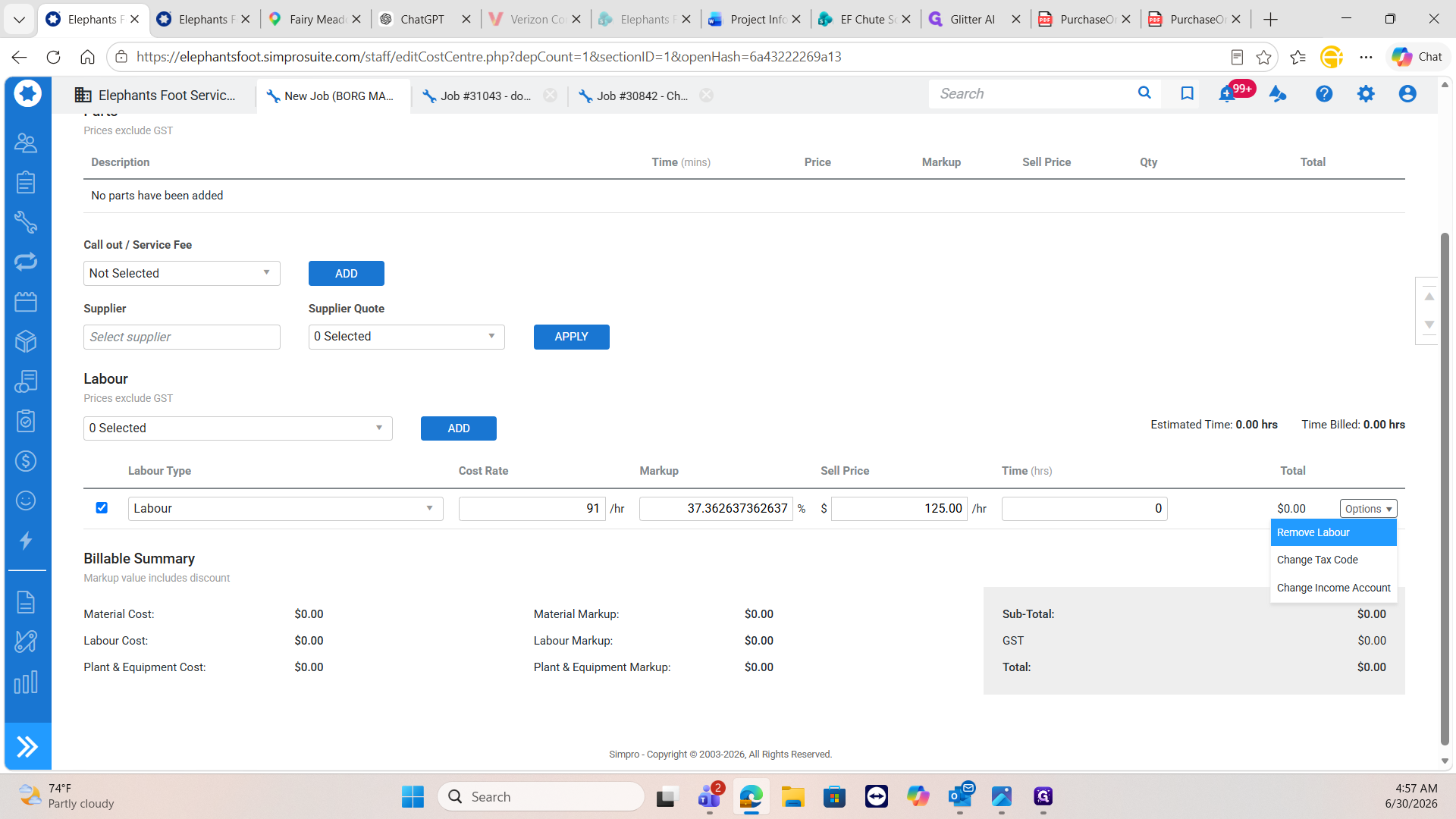
Click Options next to the default labour or service call-out item.
18
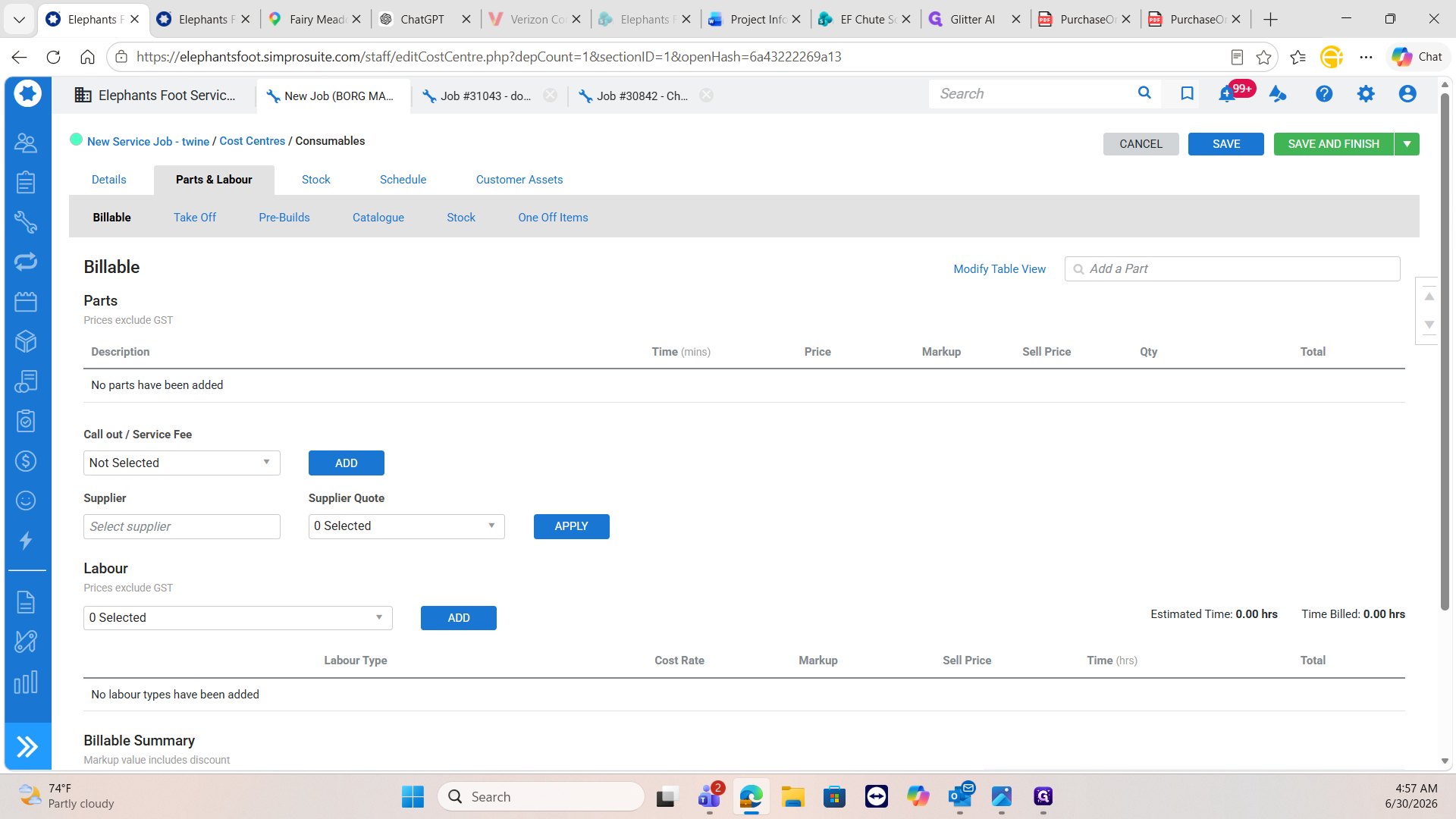
Select Remove Labour, as consumable deliveries do not require an on-site service call.
19
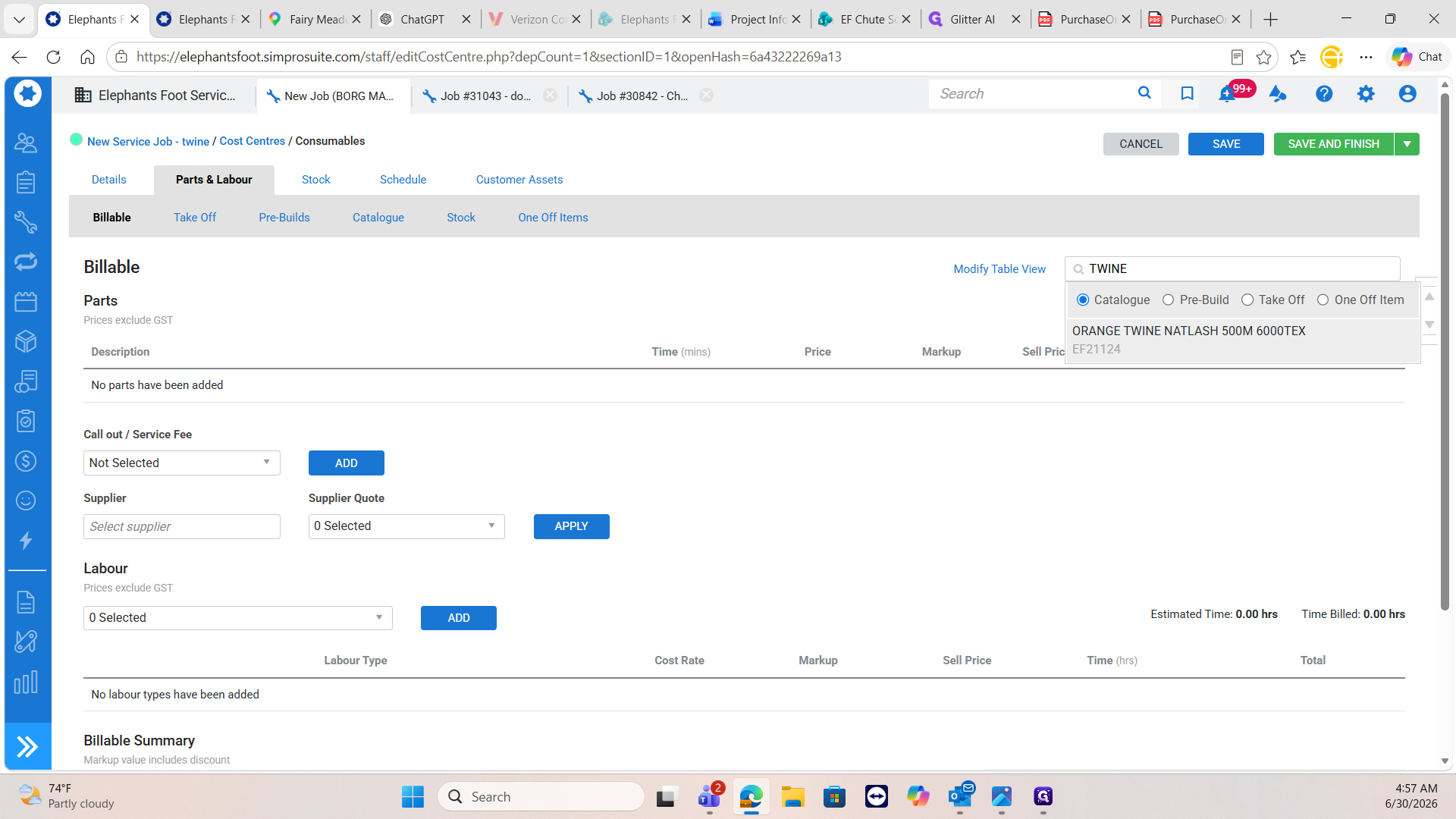
Click Add a Part.
20
Search for and select the ORANGE TWINE NATLASH 500M 6000TEX item from the catalogue.
21
Adjust the quantity to match the purchase order.
22
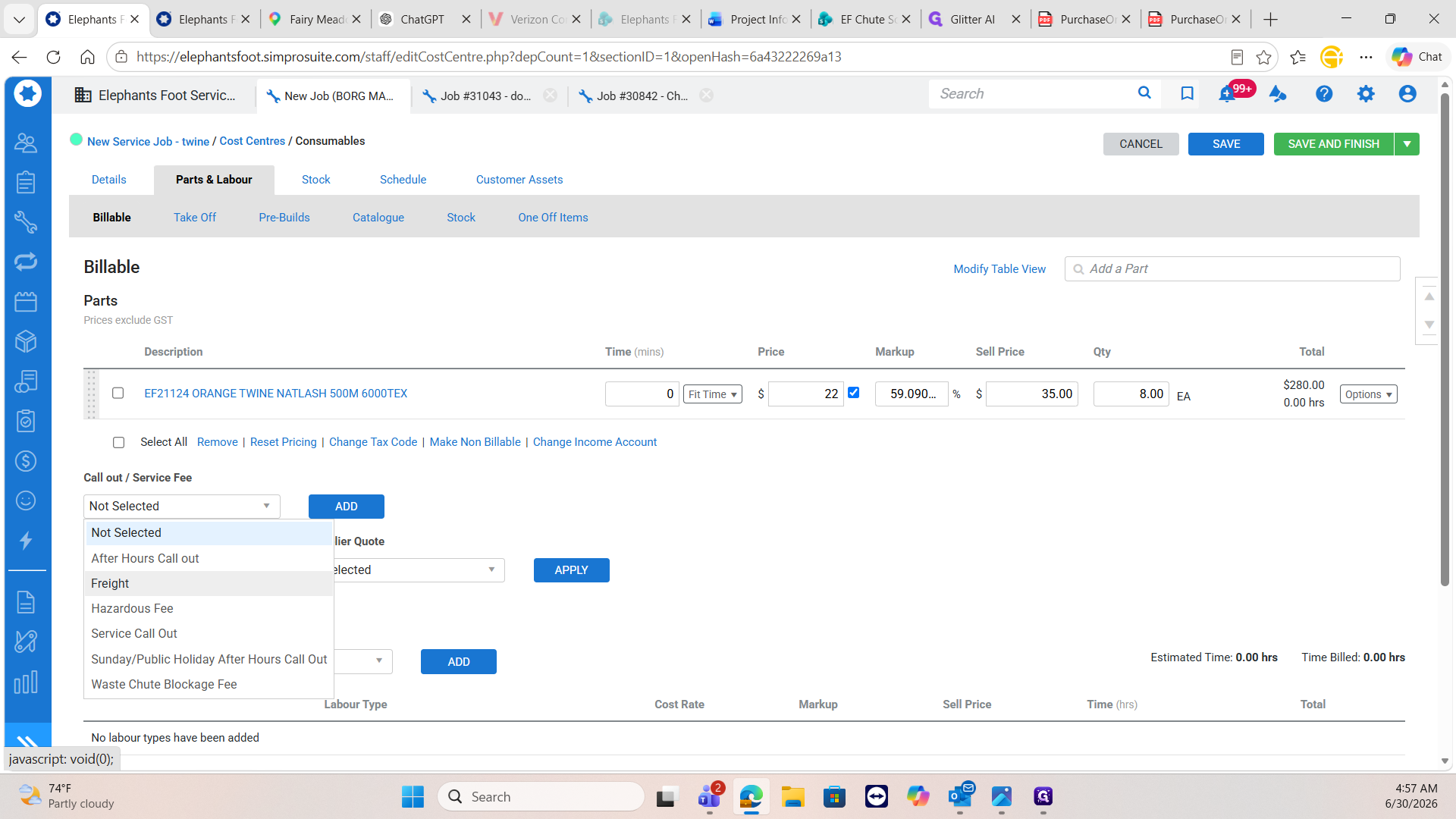
Add Freight to the job from the Call out / Service Fee dropdown menu.
23
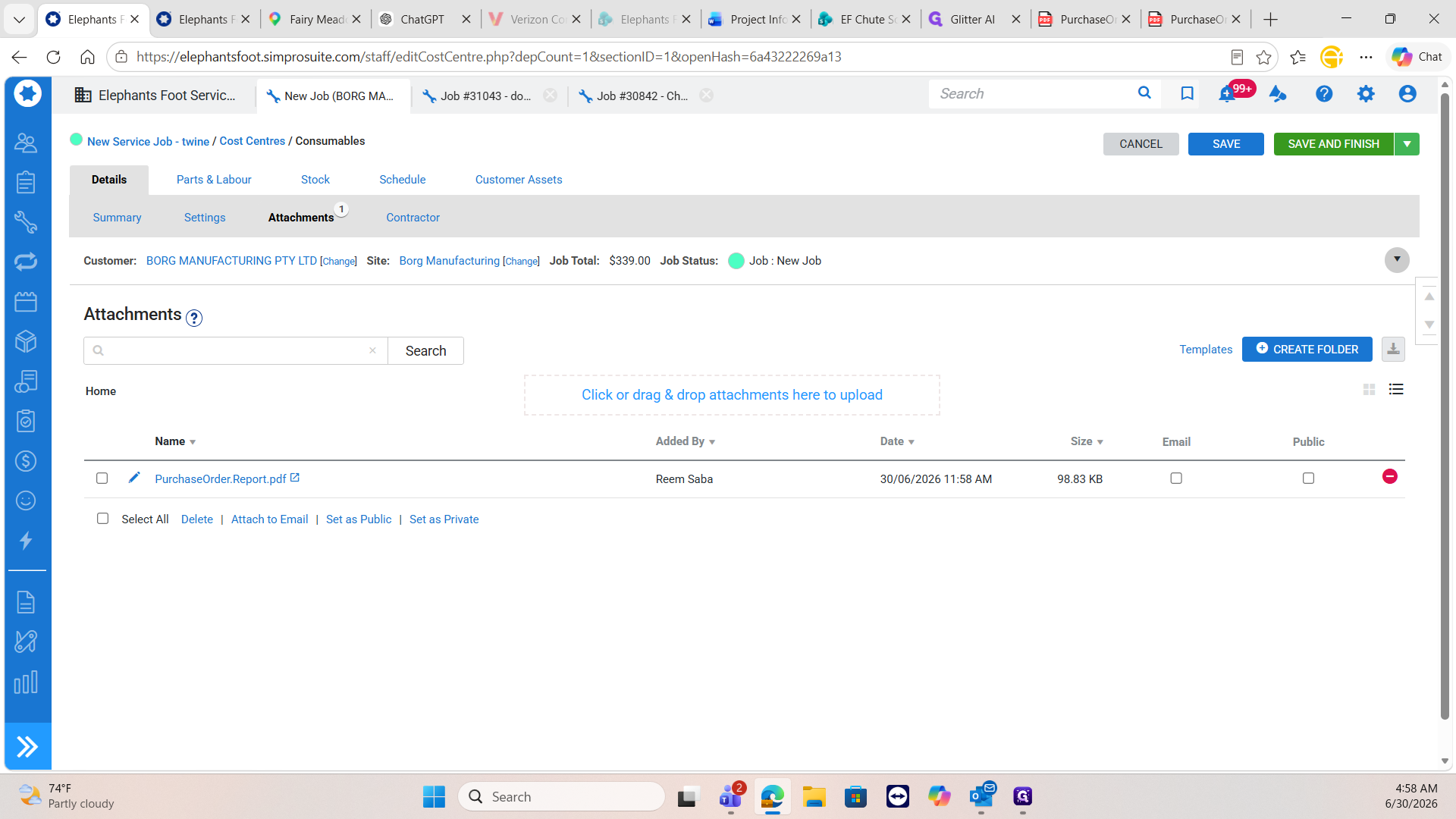
Navigate to the Attachments tab.
24
Upload the original purchase order PDF received from the client.
25
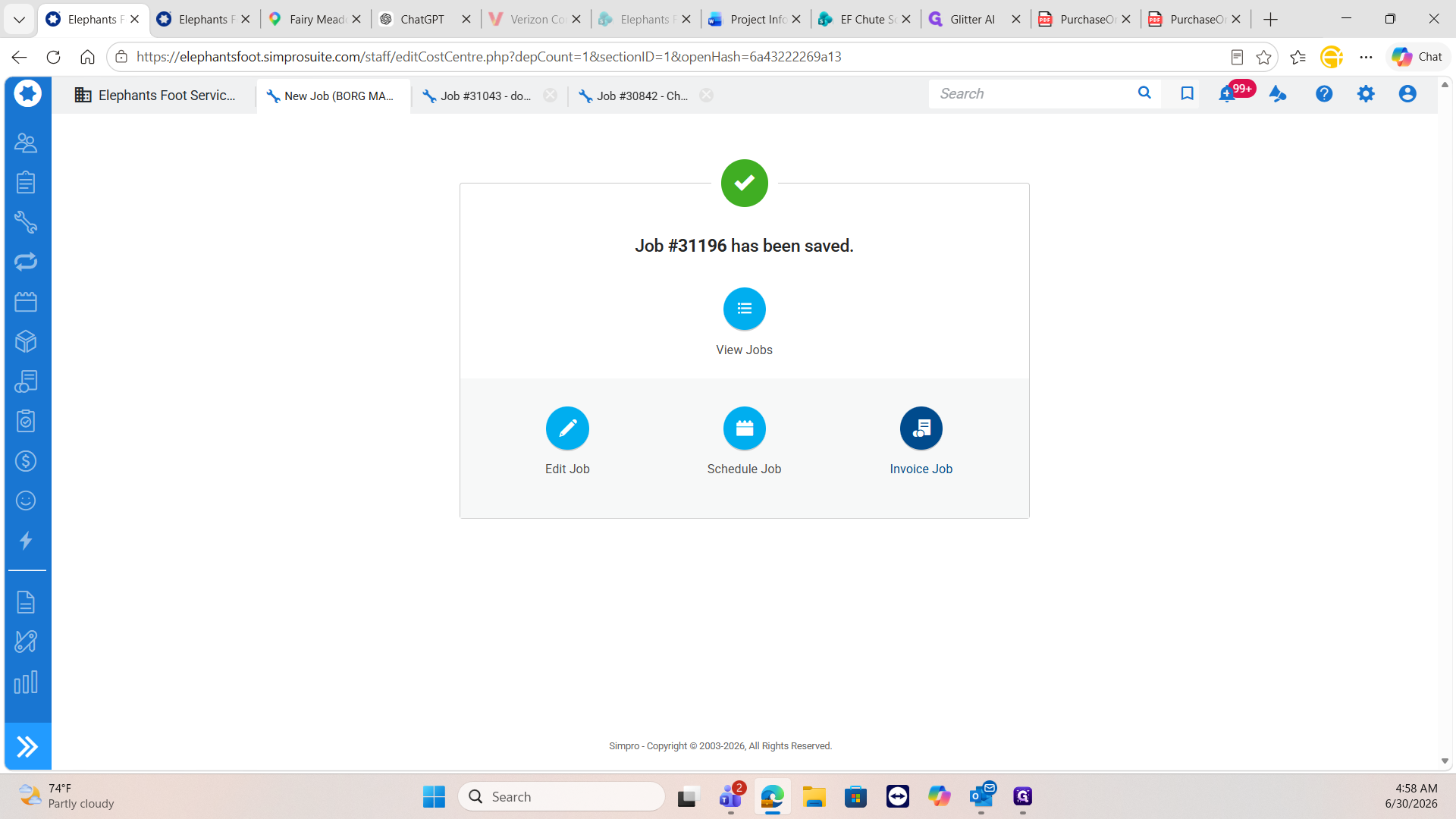
Click Save and Finish to finalize the job setup.
Invoice and Notify
26
Click Invoice Job on the confirmation screen.
27
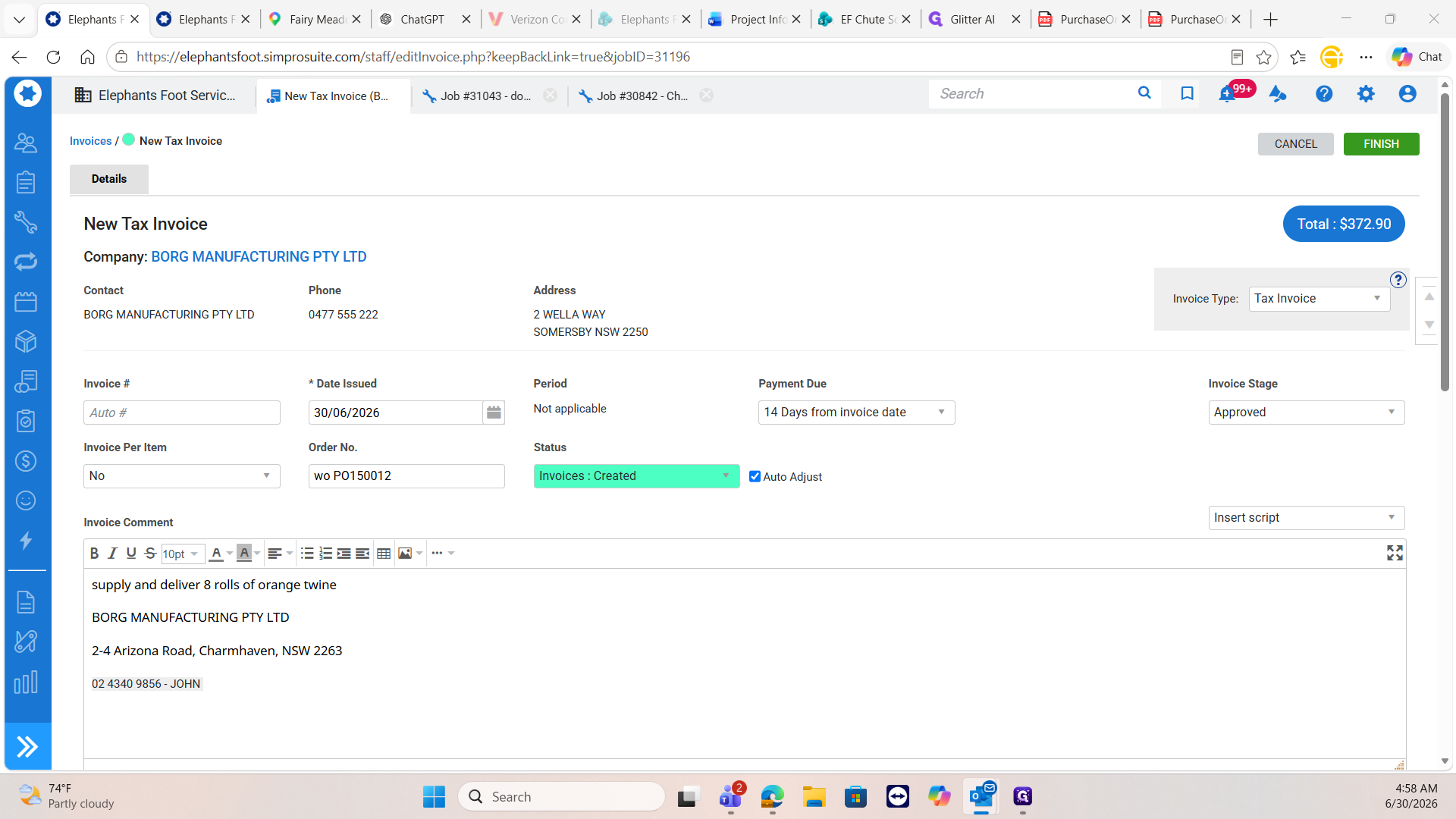
Click Finish to generate the invoice.
28
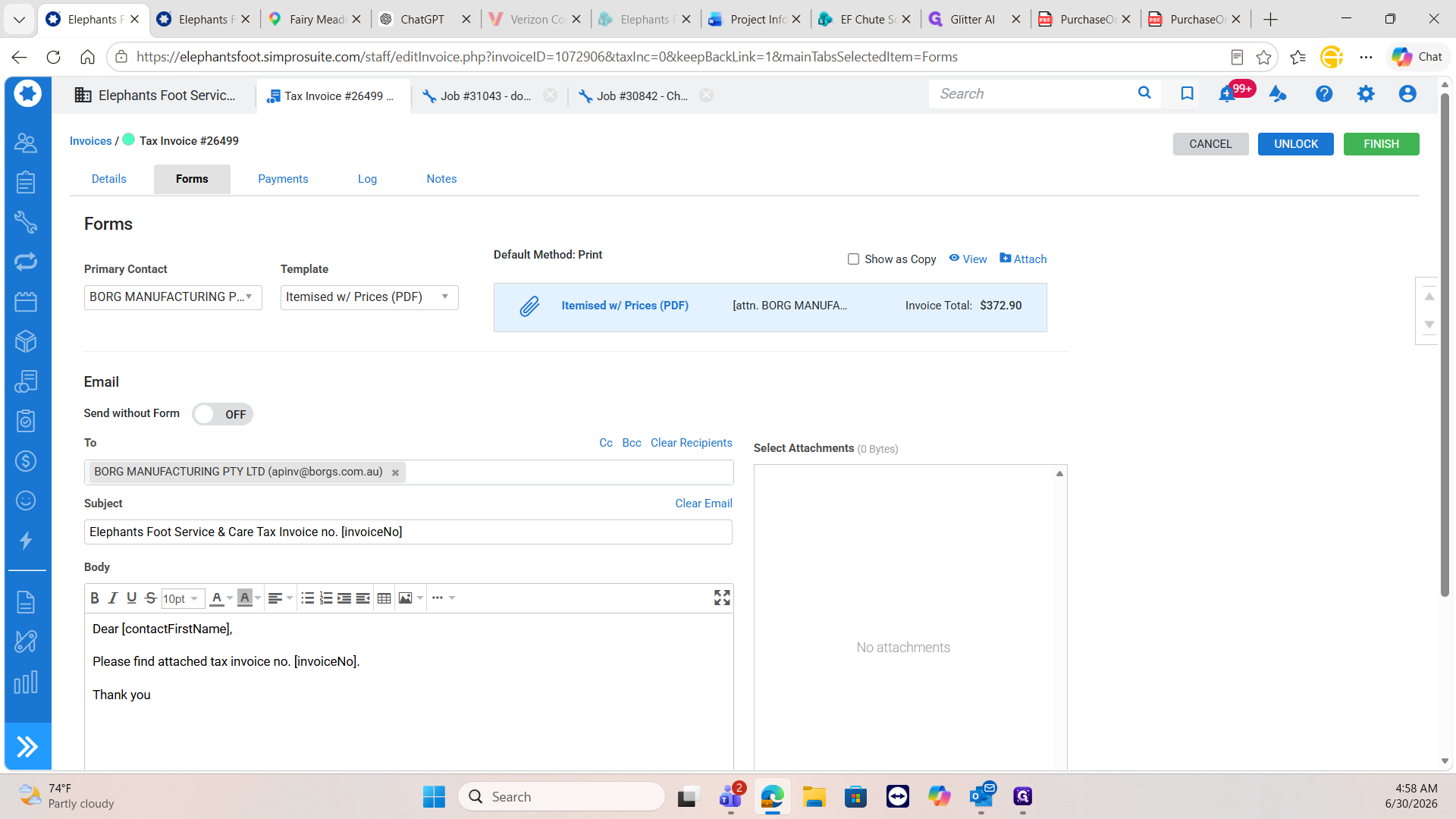
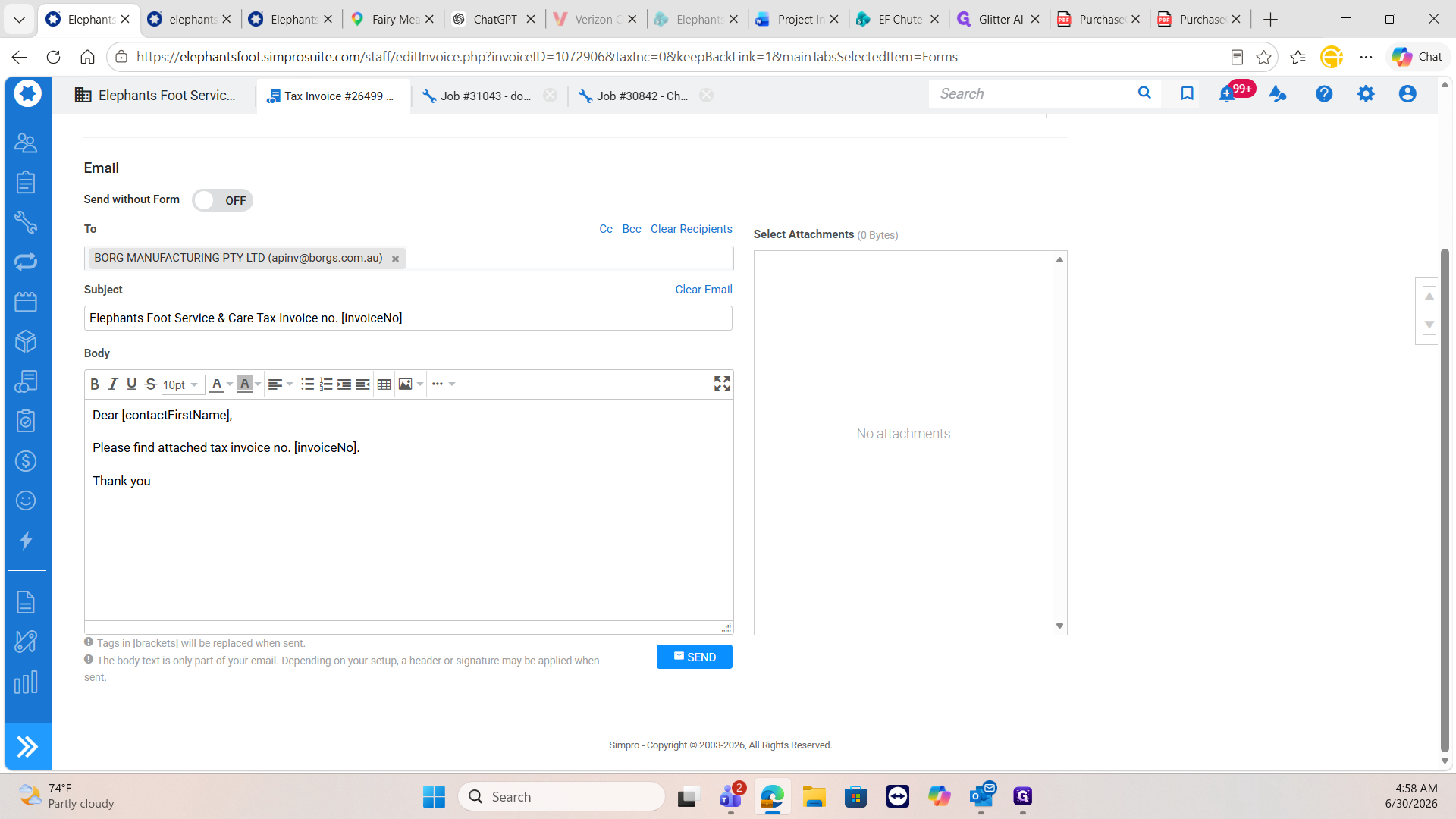
Click the Itemised w/ Prices (PDF) link to generate and send the invoice to the client from Simpro.
29
Click Send to dispatch the email to the client, then click OK to confirm.
Download a copy of the PDF invoice and email it directly to the fulfillment coordinator (e.g., Craig) so the physical order can be prepared and dispatched.
30
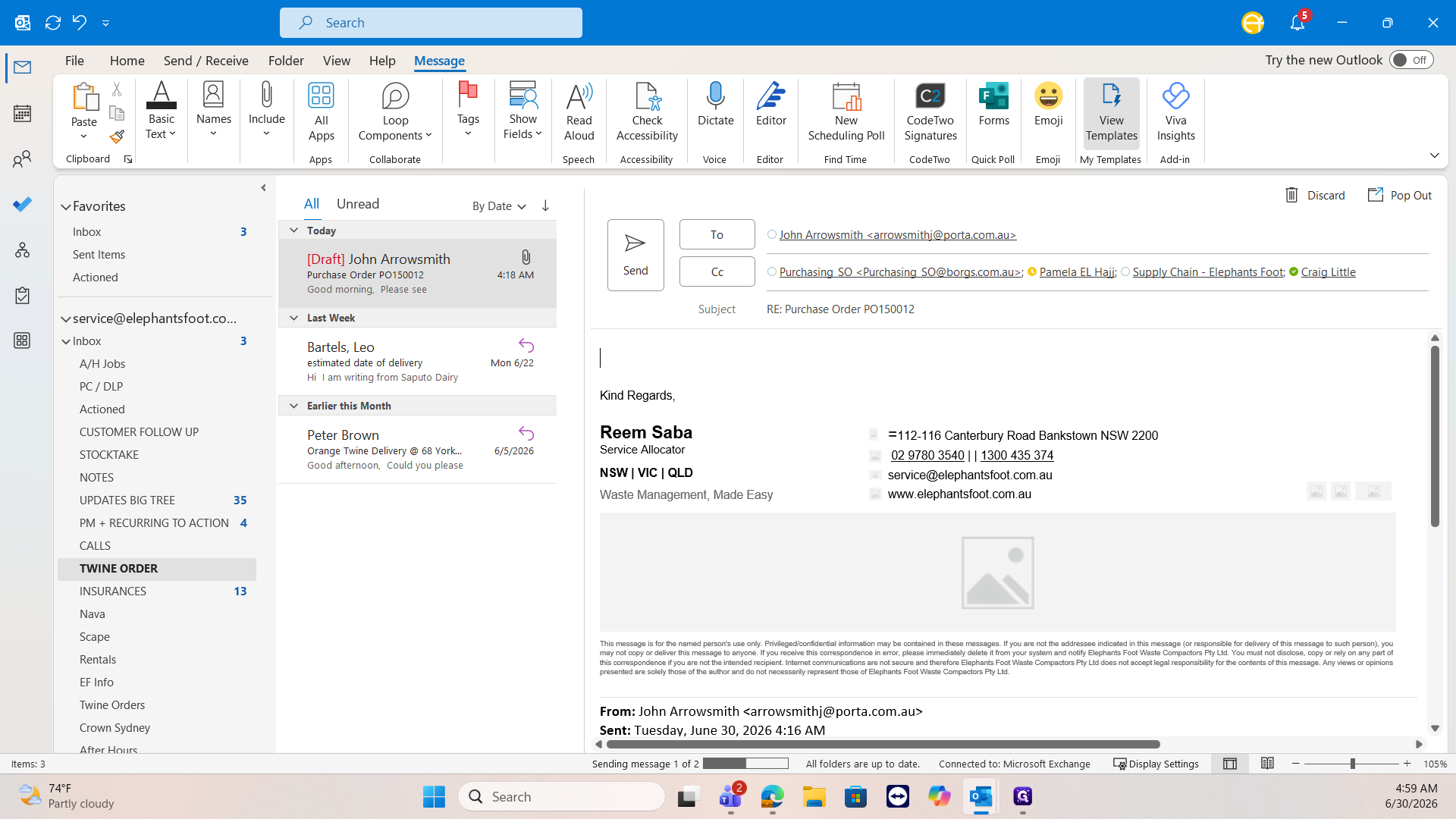
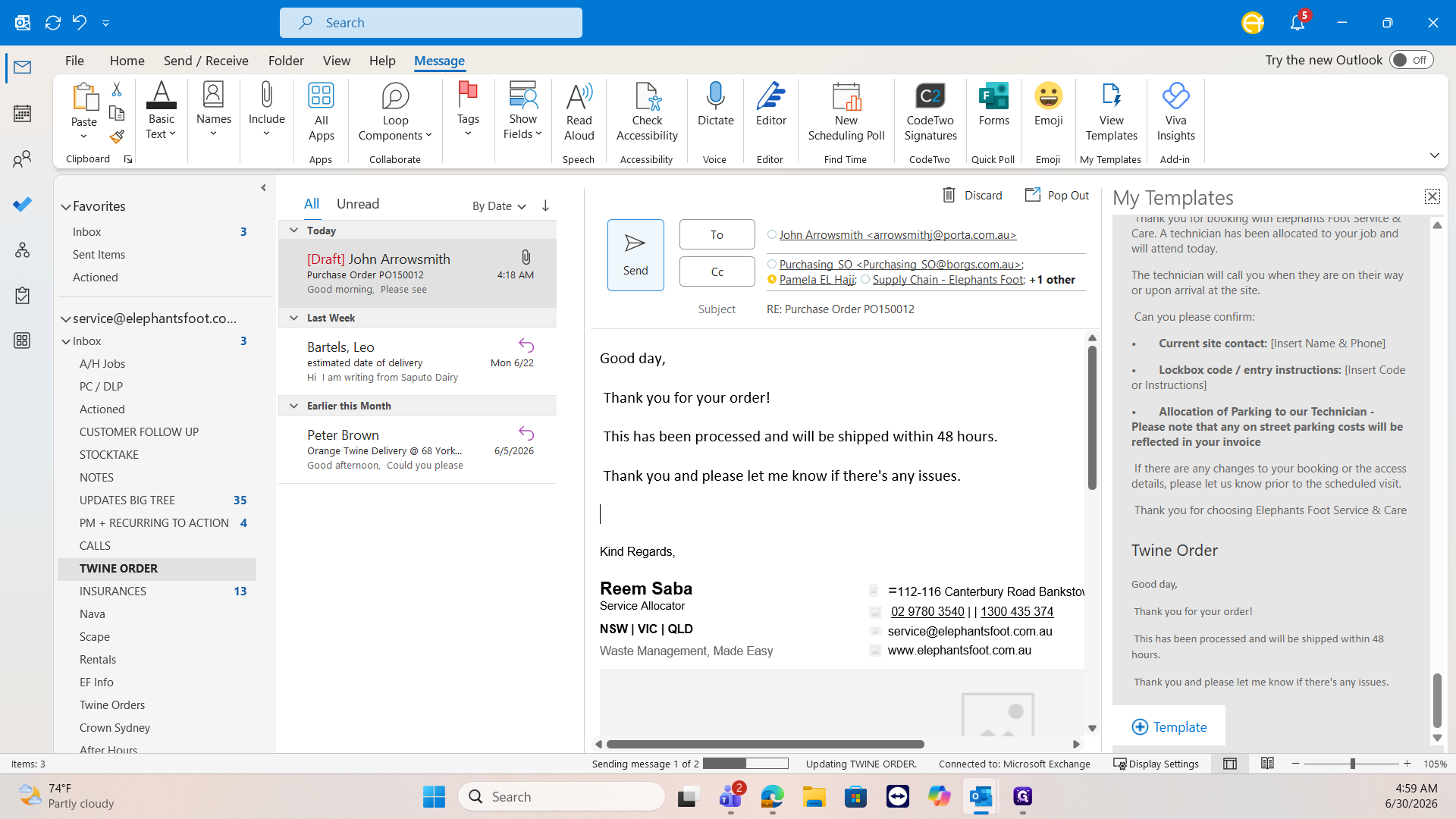
Return to the original email thread from the client in Outlook and click Reply All.
31
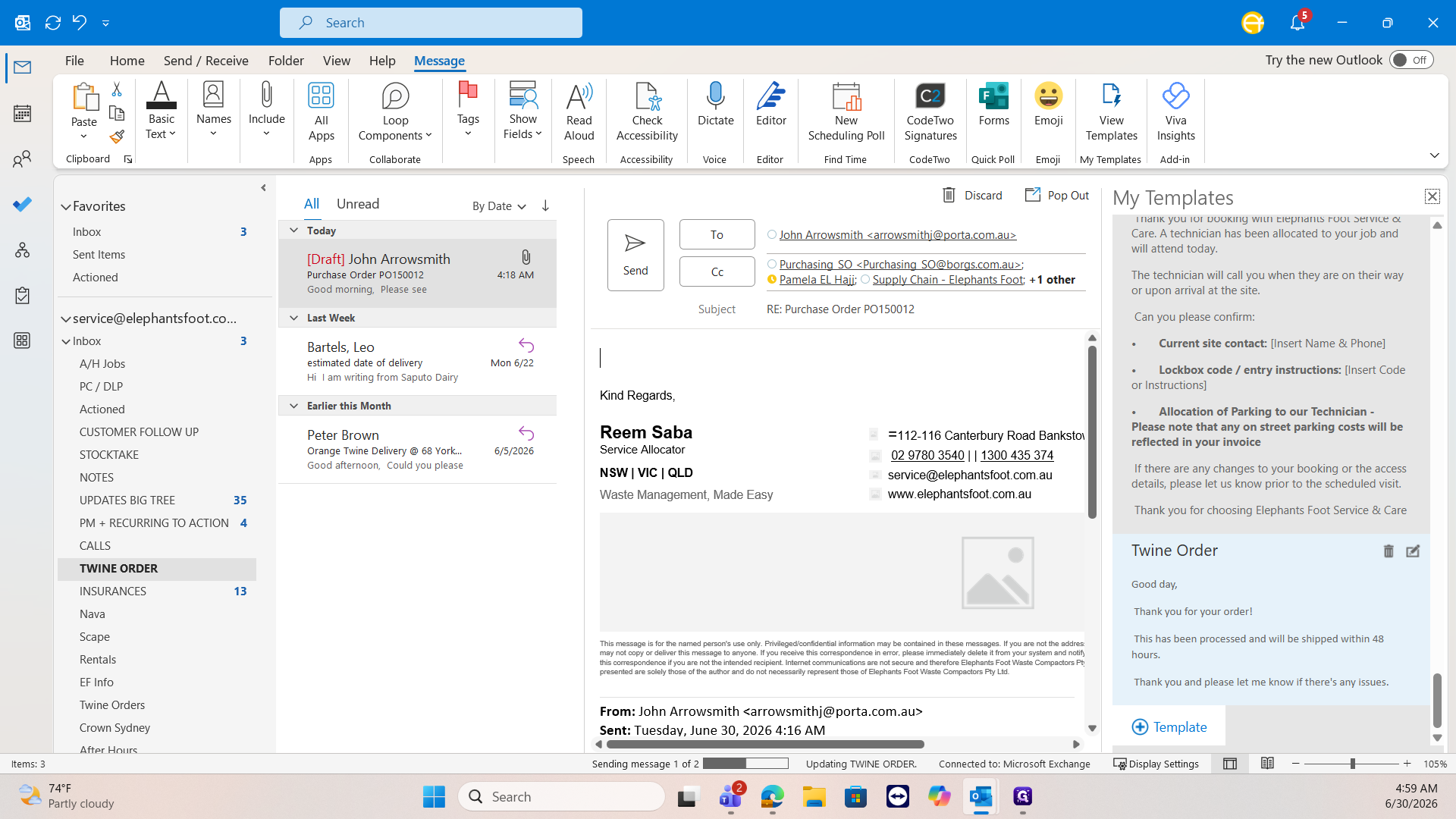
Click Templates in the Outlook ribbon to open your saved responses.
32
Select the template starting with "This has been processed and will be shipped within 48 hours" to populate the email body.
33
Click Send to notify the client that their order is booked and ready for processing.
Q: Can I sell a quantity of 6 rolls of twine?
A: No. Twine is strictly sold in boxes of four (e.g., 4, 8, 12, 16). If a client requests an uneven number, you must contact them to adjust their order.
Q: Do I need to include a service call-out fee for a twine order?
A: No. Since this is a consumable delivery and does not require a technician to perform on-site labor, you must remove the default service call-out fee.
Q: Does freight need to be added to the job?
A: Yes, freight should always be added to the cost center for Consumables orders.
Term
Definition
Simpro
A job management software used to track jobs, sites, quotes, and invoicing.
Cost Center
A distinct business unit or category (like Consumables) used to group specific types of jobs and expenses.
PO (Purchase Order)
A commercial document issued by a buyer to a seller, indicating types, quantities, and agreed prices for products or services.