AppLovin | How to Build a Campaign
Learn how to create a successful marketing campaign in AppLovin, including uploading media, setting up interactives, targeting audiences, and optimizing for ROAS. Follow this detailed walkthrough using Nona's Olive Oil as an example.
In this guide, we'll learn how to build a campaign in AppLovin from start to finish. We'll cover how to prepare and upload media, create interactive ads, set campaign goals, and organize creative assets. This process helps ensure your campaign is ready to reach your target audience and track important events.
Let's get started
Alright. In this video, I will show you how to build a campaign in AppLovin.
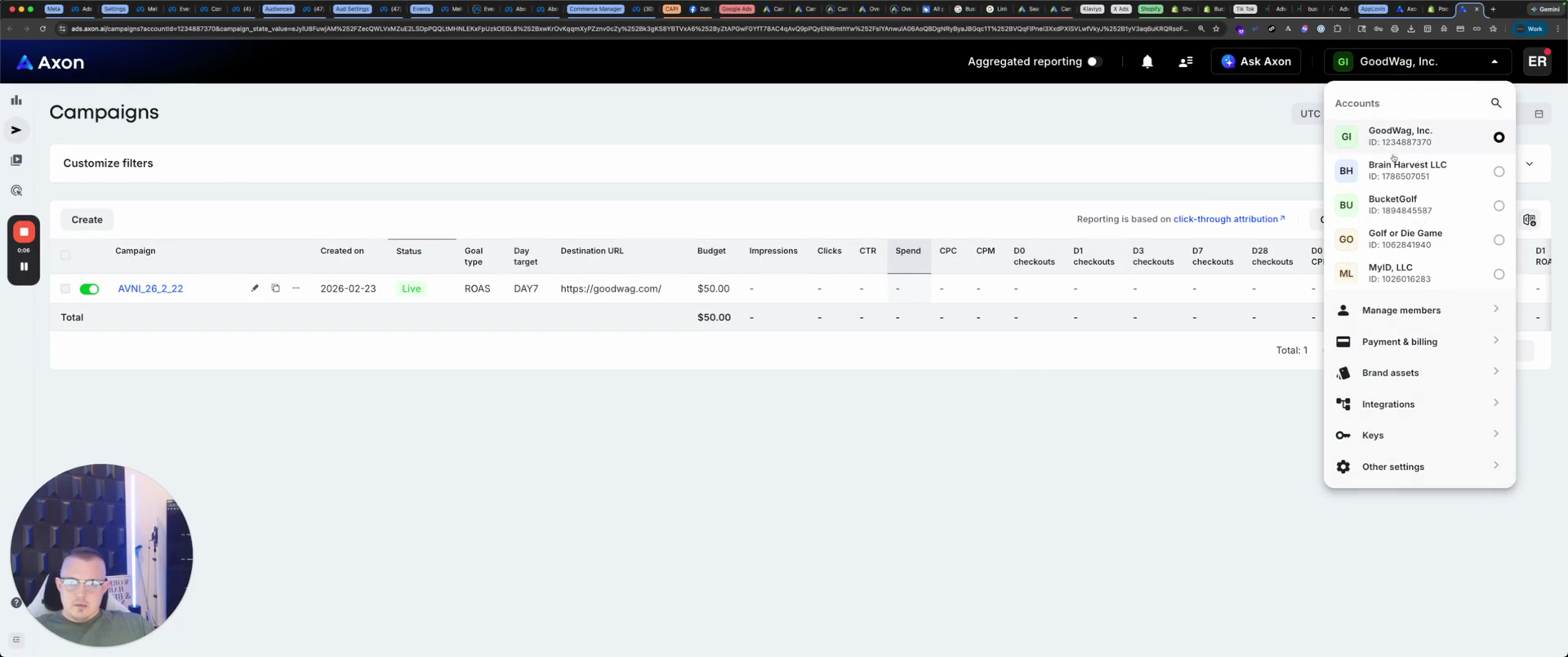
Today, we will build Nona's.
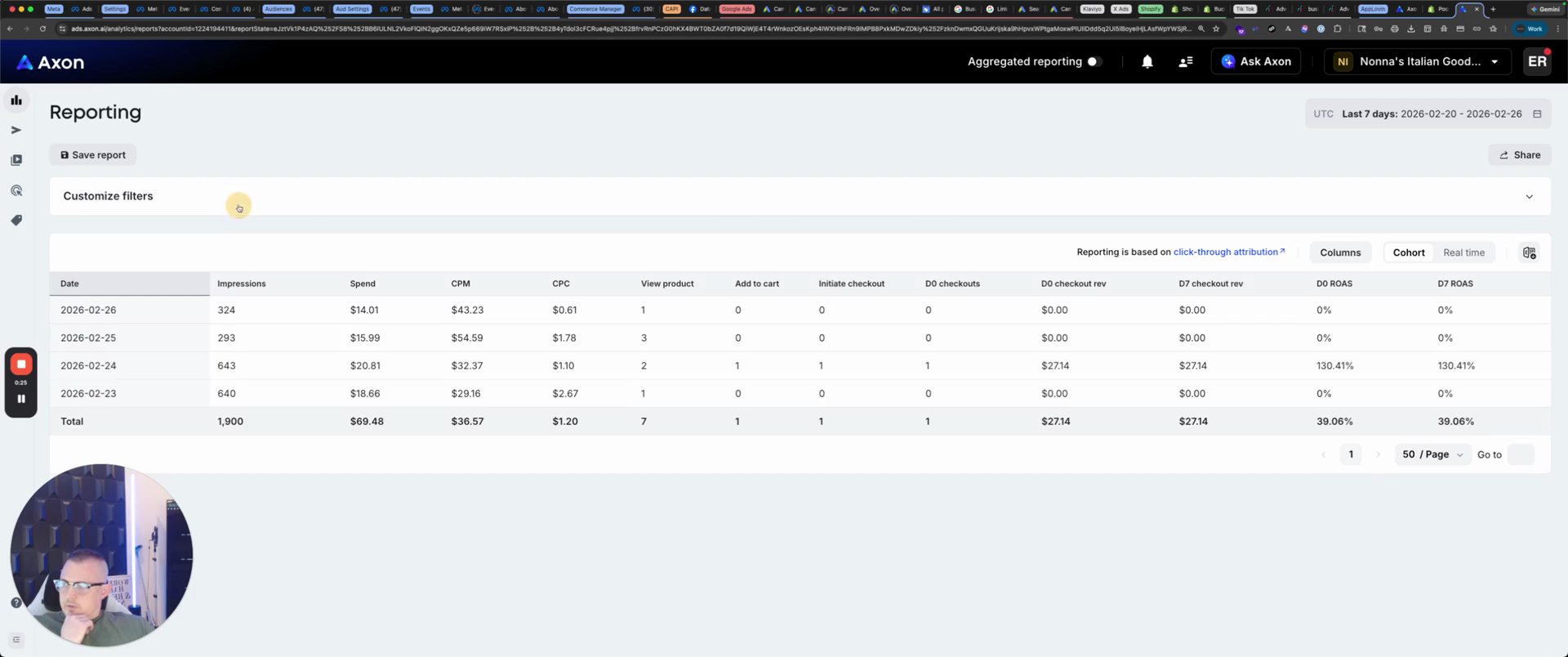
Your main areas to use are analytics, which you can filter at the top, your campaigns, and the media you add to those campaigns.
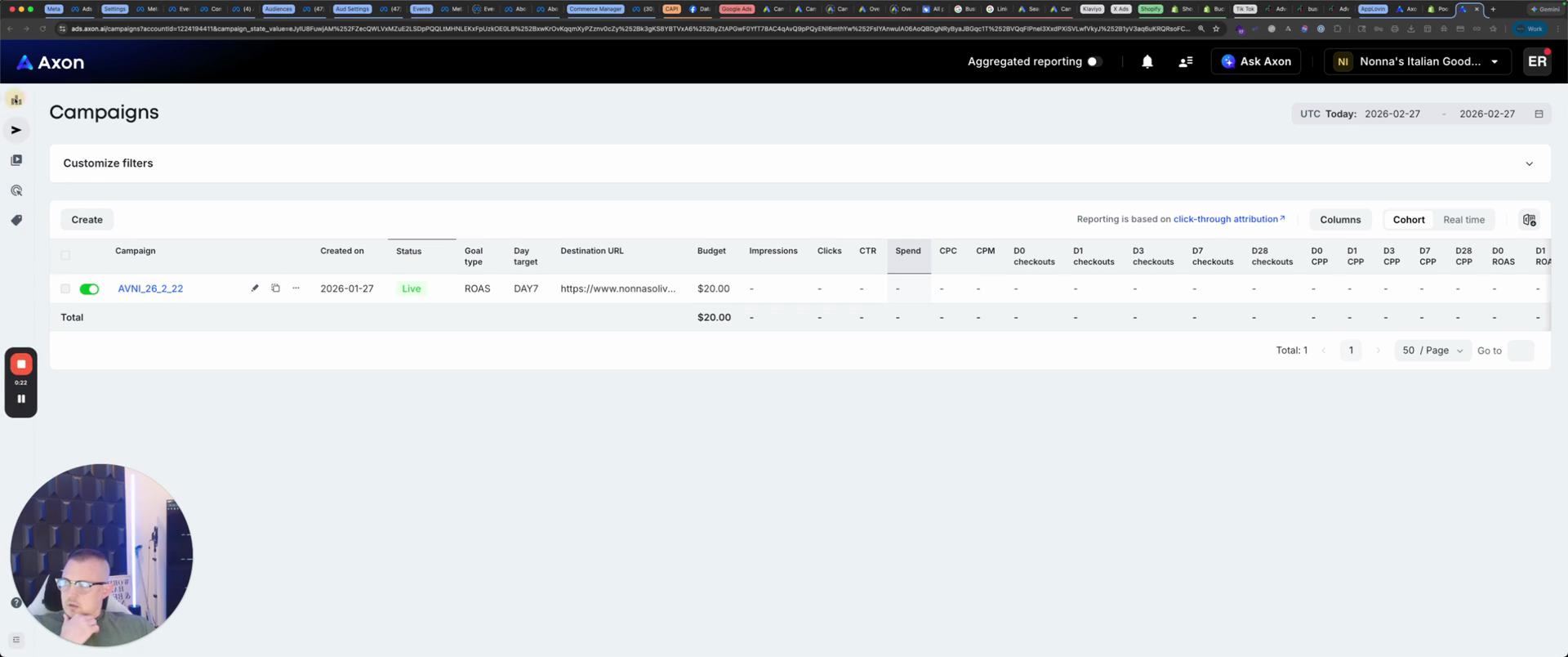
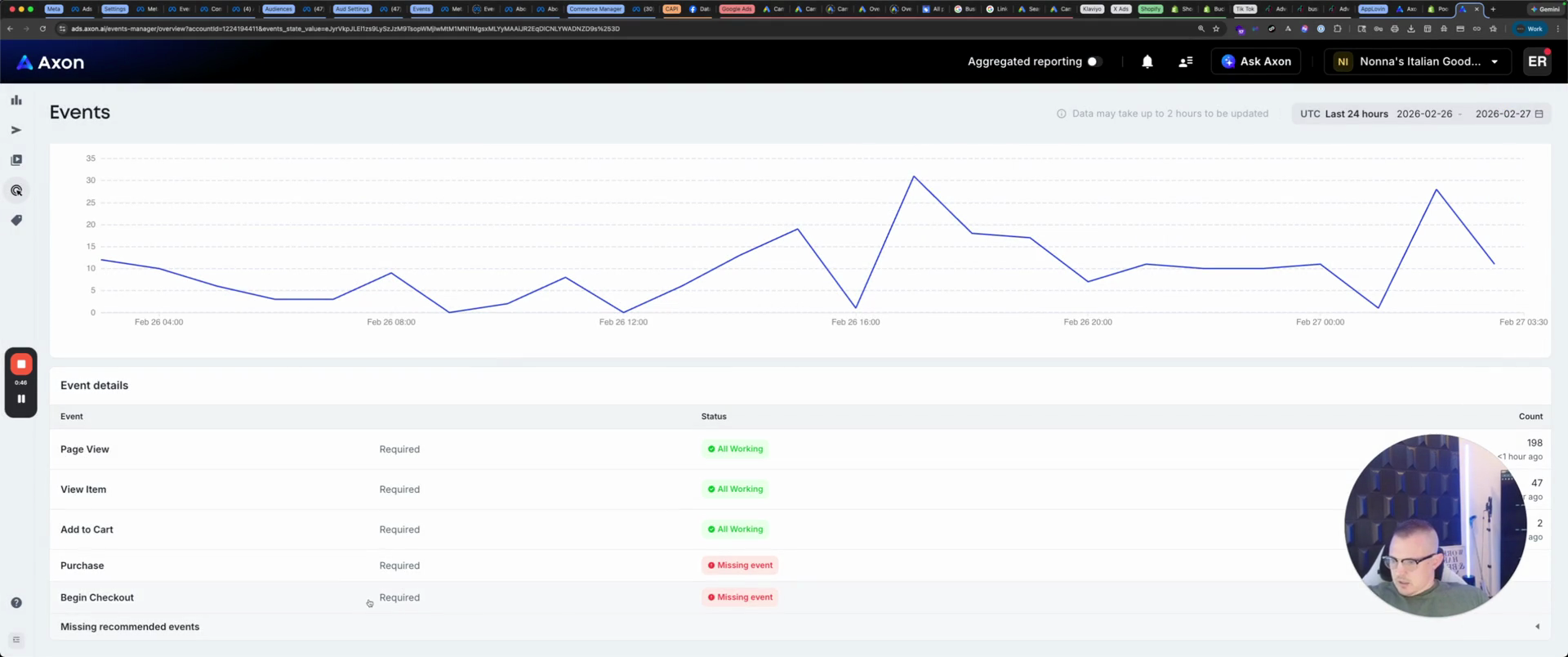
We have events. We're missing events here. We’re missing a purchase, so we need to make sure we’re not.
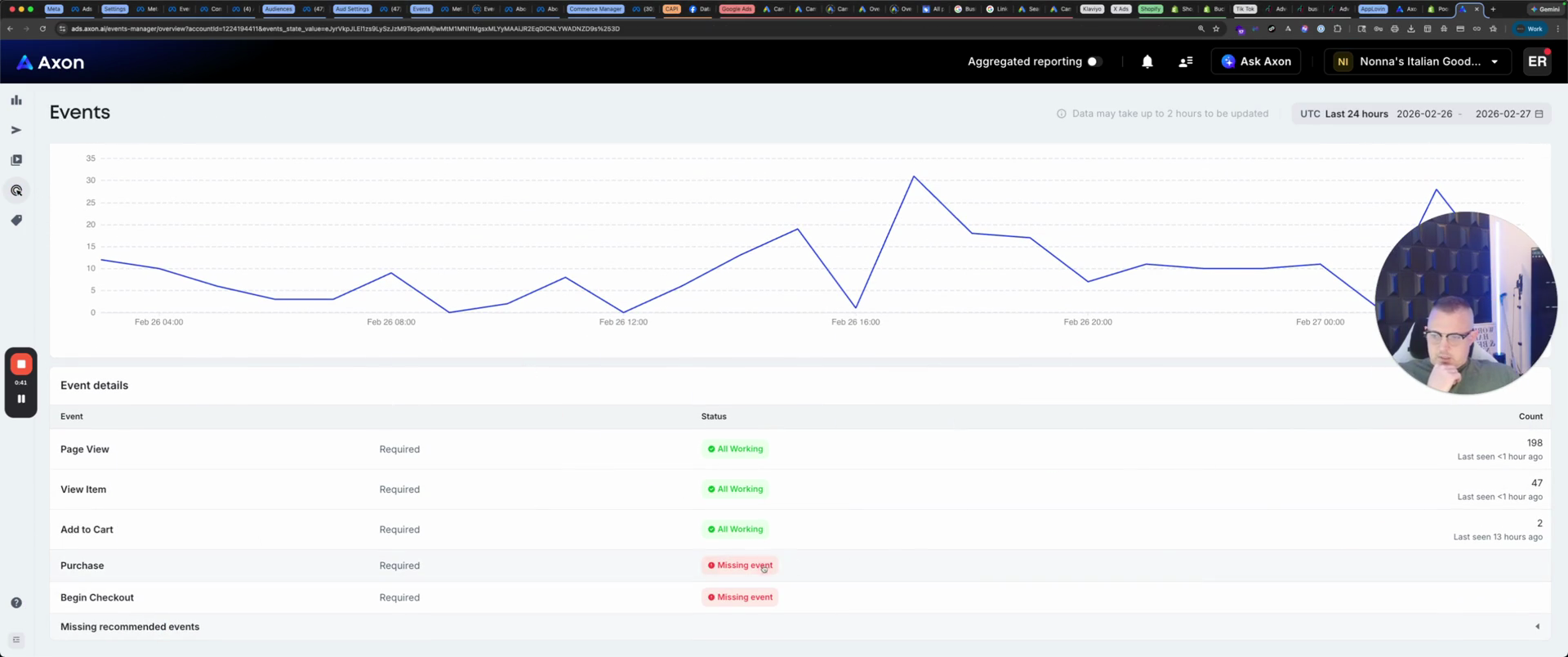
That's because there have been no purchases. Begin checkout when we launch the campaign.
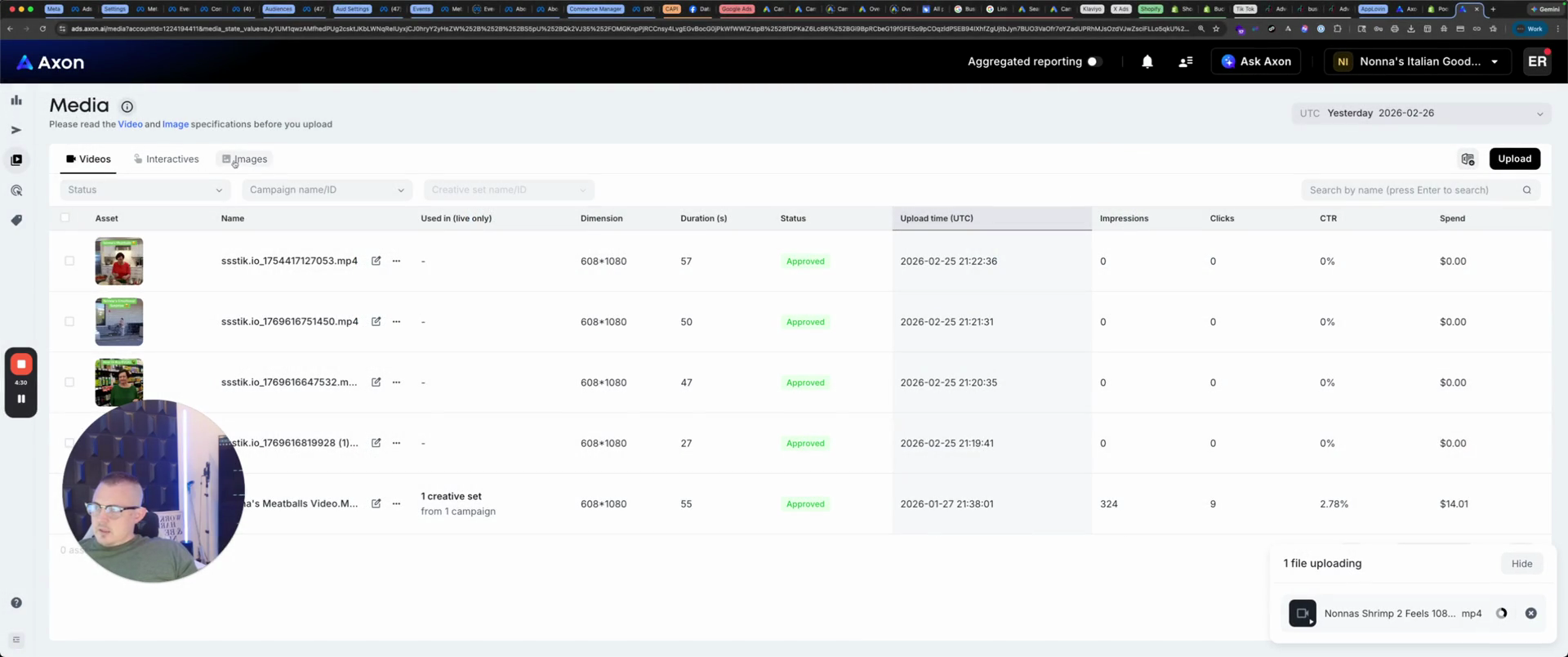
First, we start with media. For images, click upload. They must be reels.
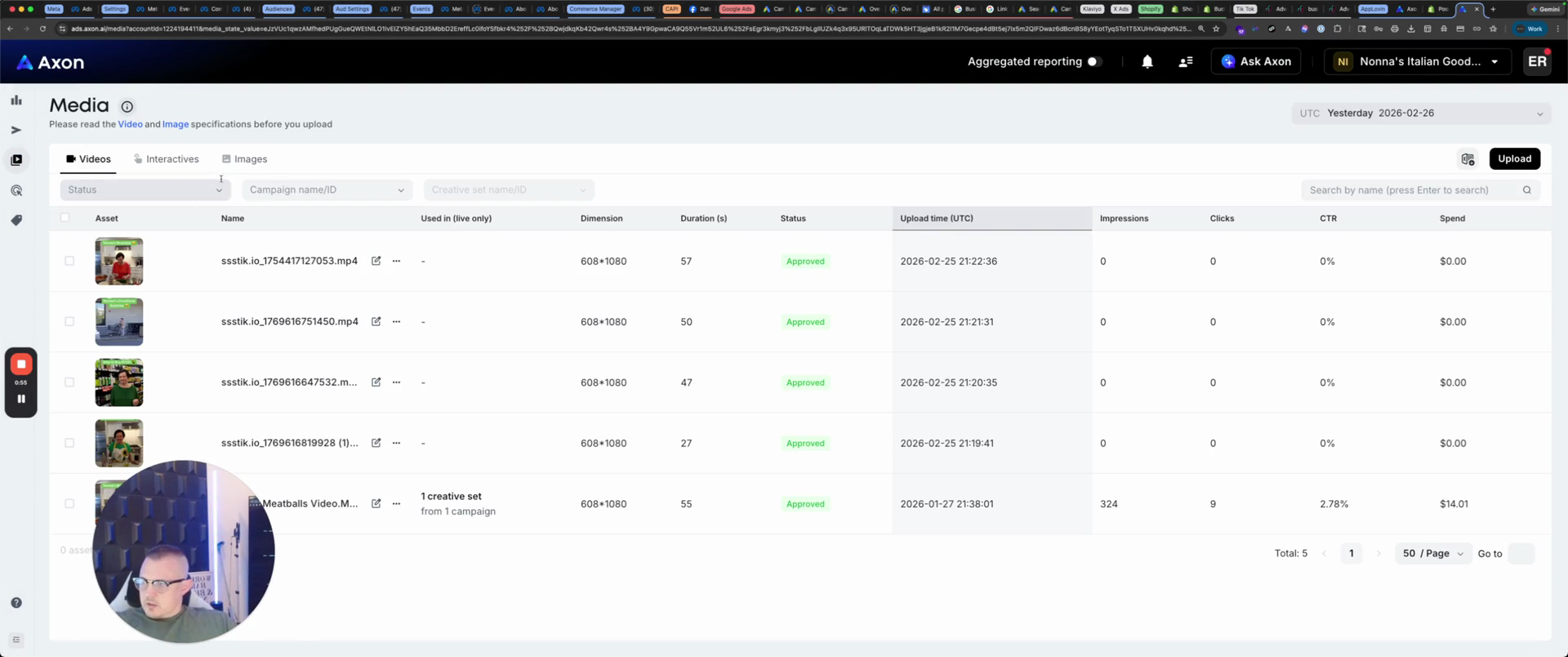
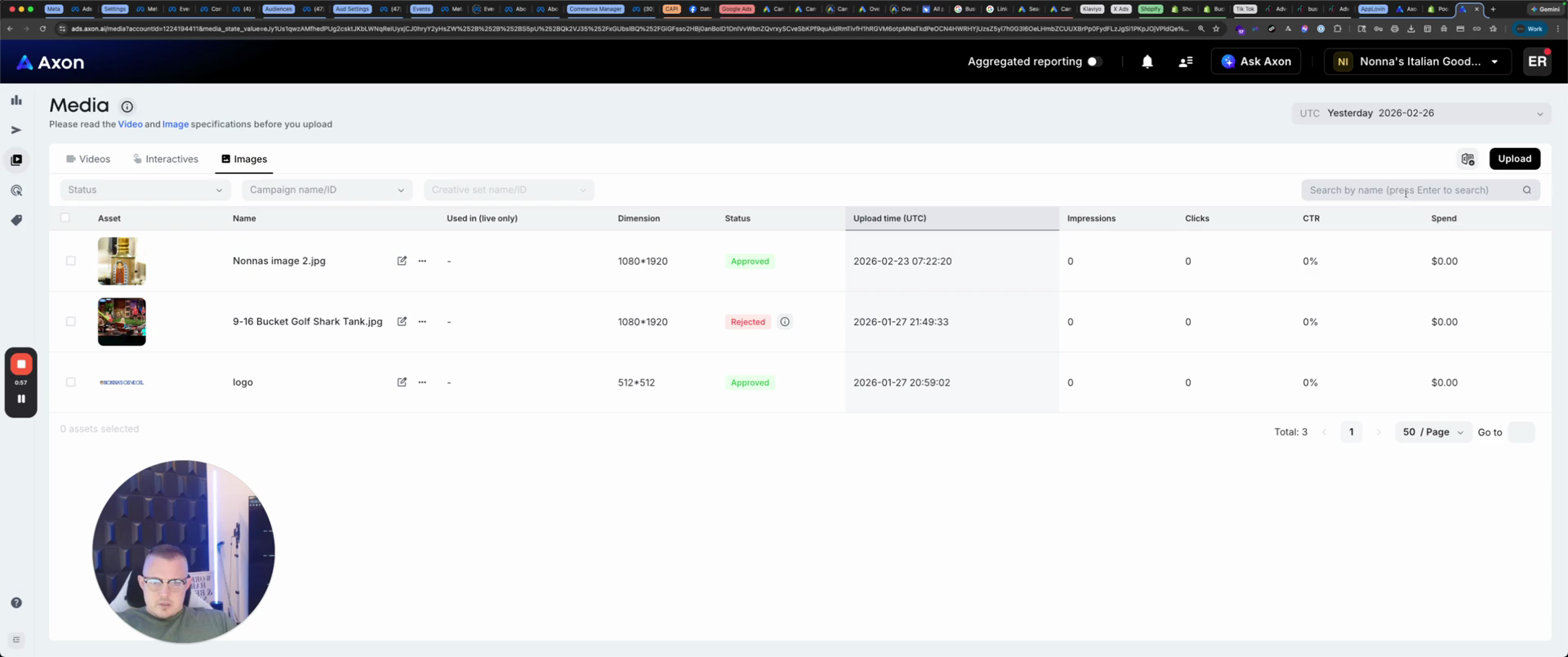
That's 720 wide by 1280 tall, or 1080 wide by 1920 tall. We are going to create a sequence. Sometimes, you receive a video that looks like a reel but isn't. Here, we will make this sequence. You can't actually see. Delete that. This is an old one.
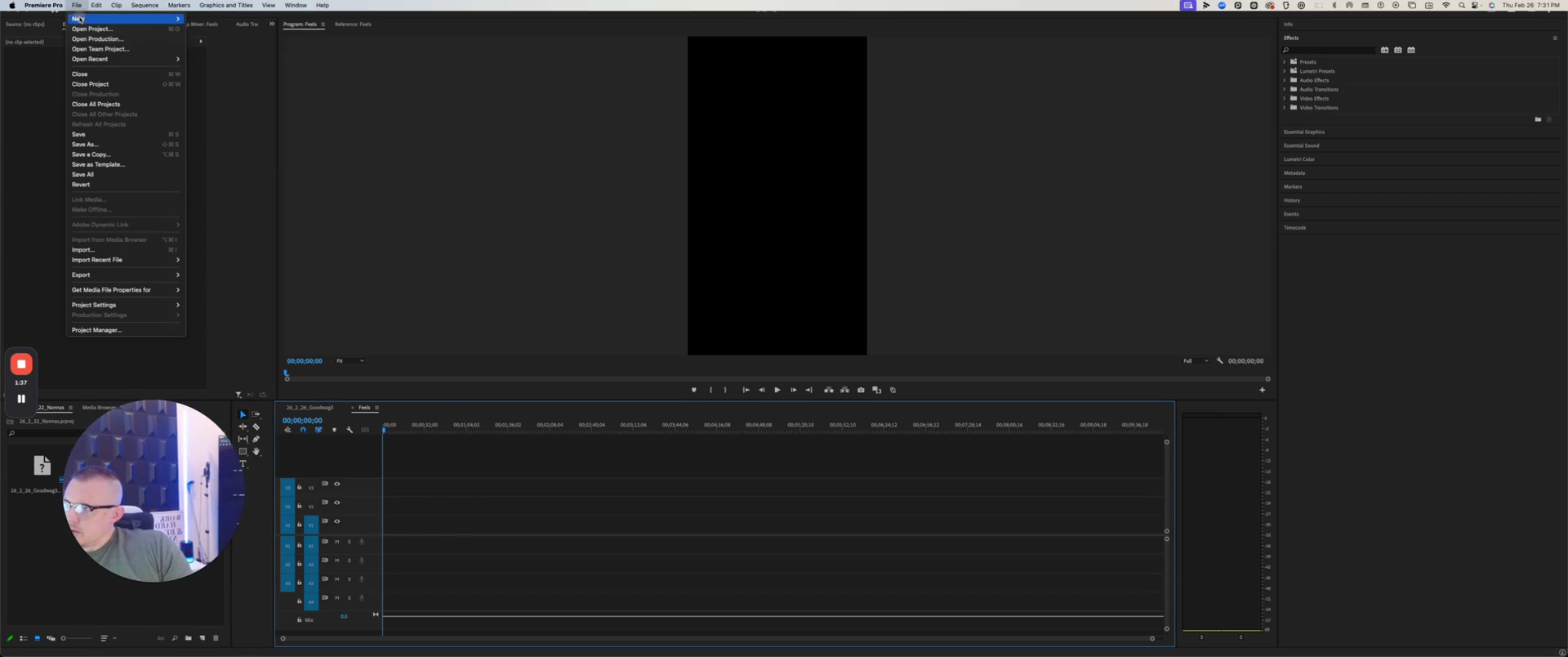
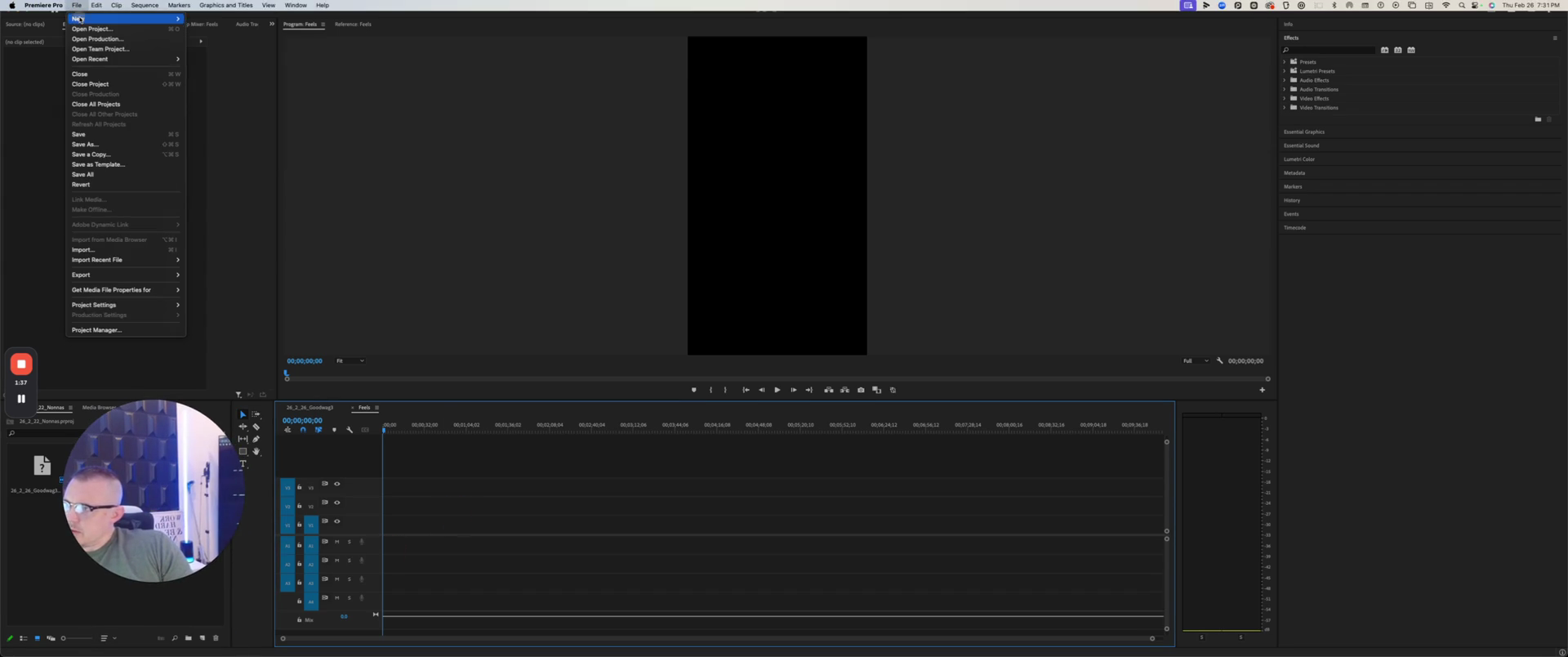
We're going to select File, then New, and choose Sequence.
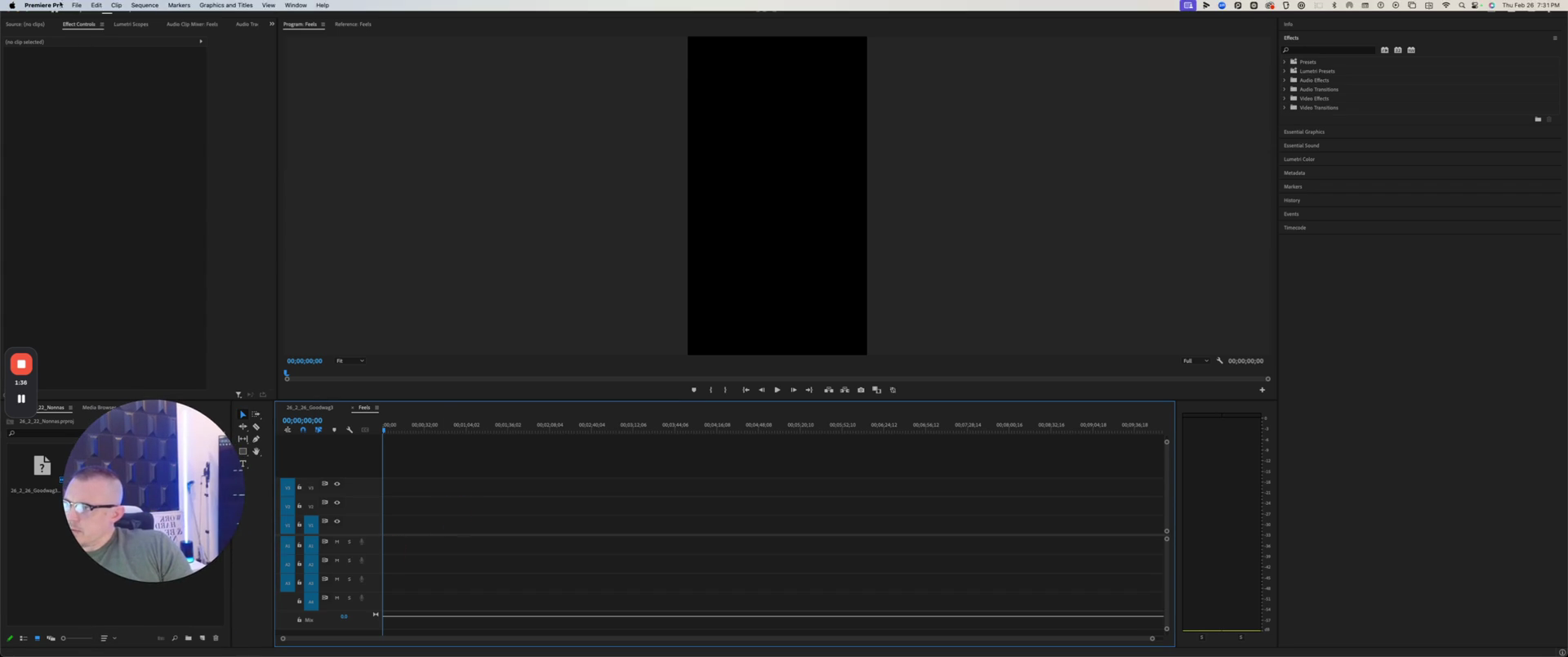
We will go to Social. I have one preset, and as you can see, it says 1080 by 1920.
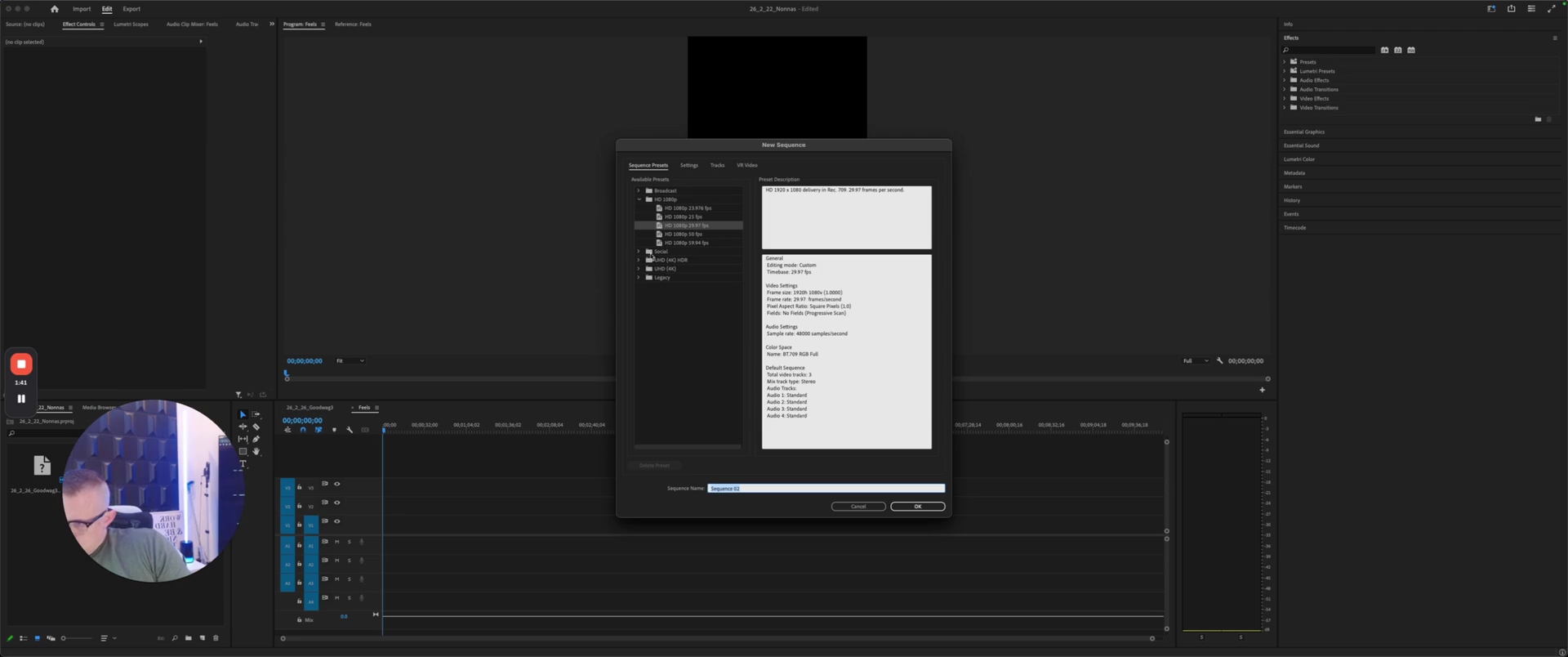
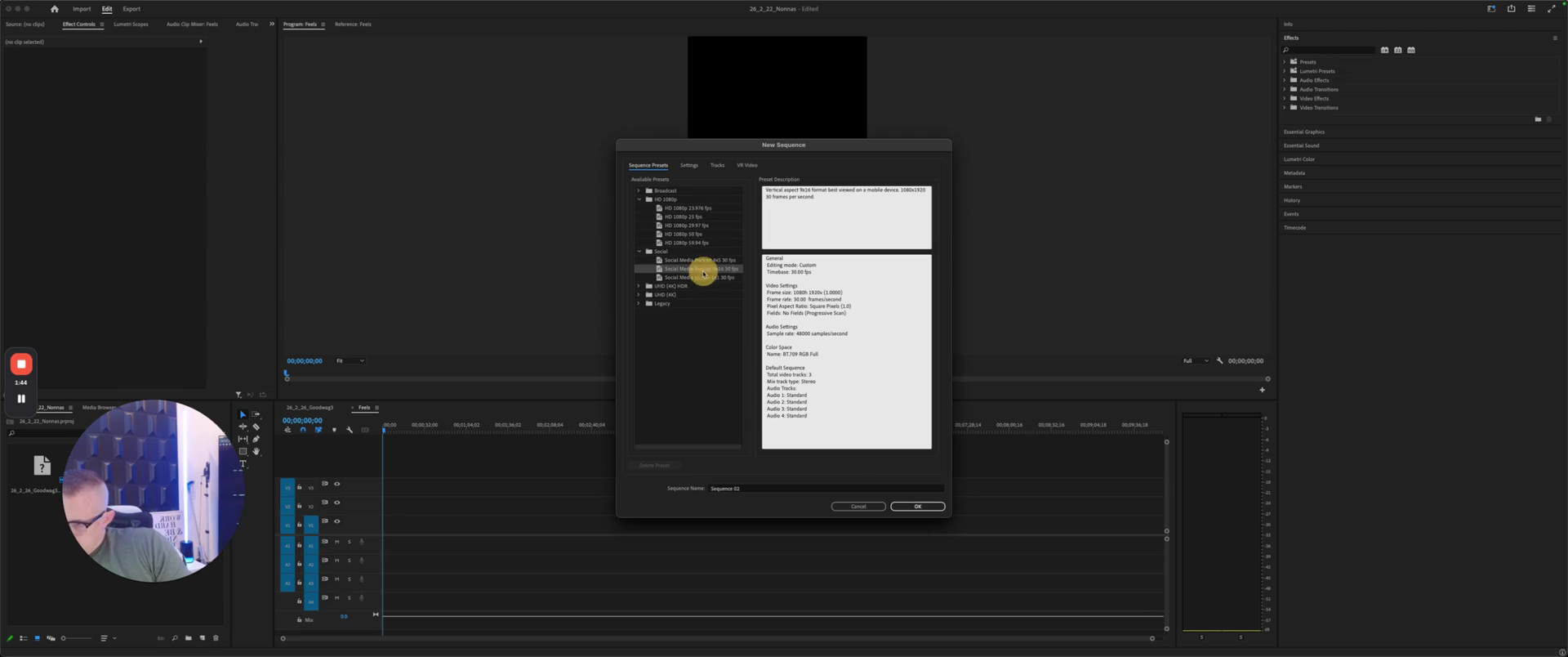
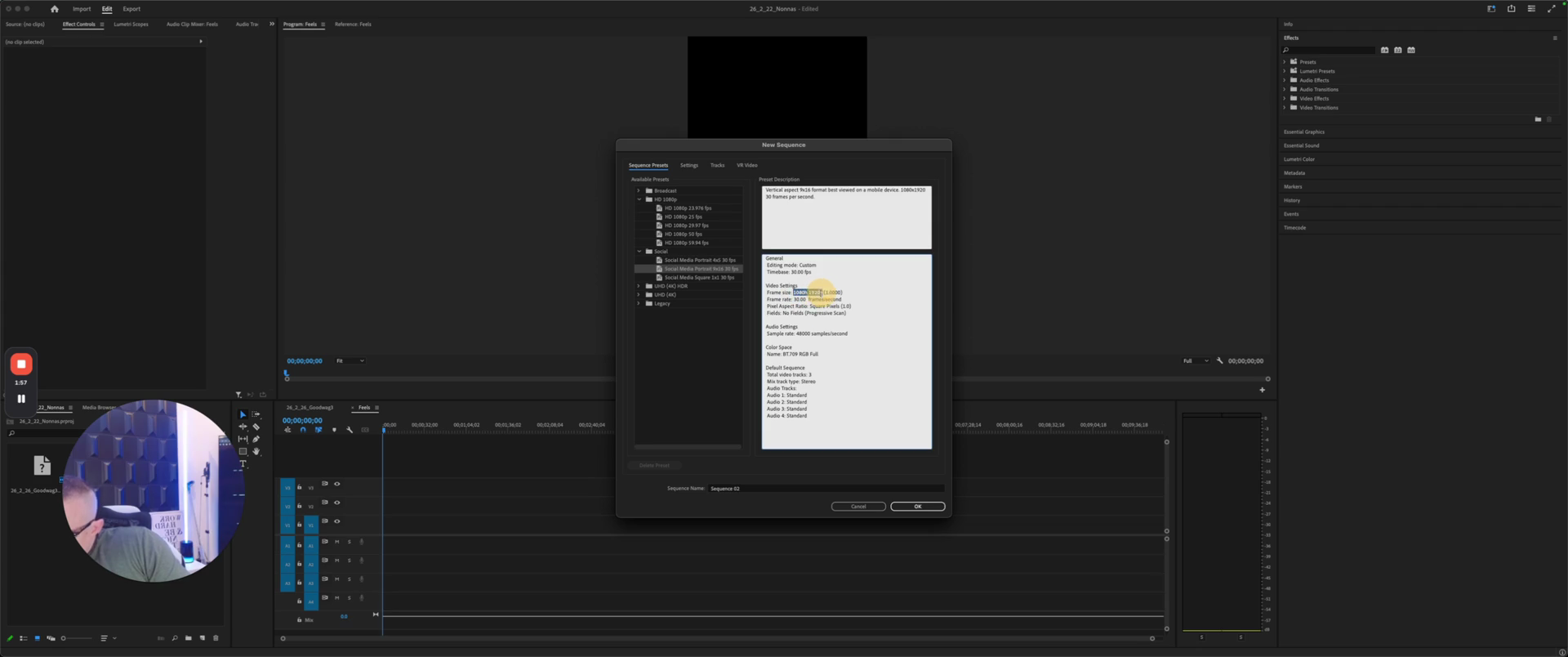
I will set the reels to 1080 by 1920.
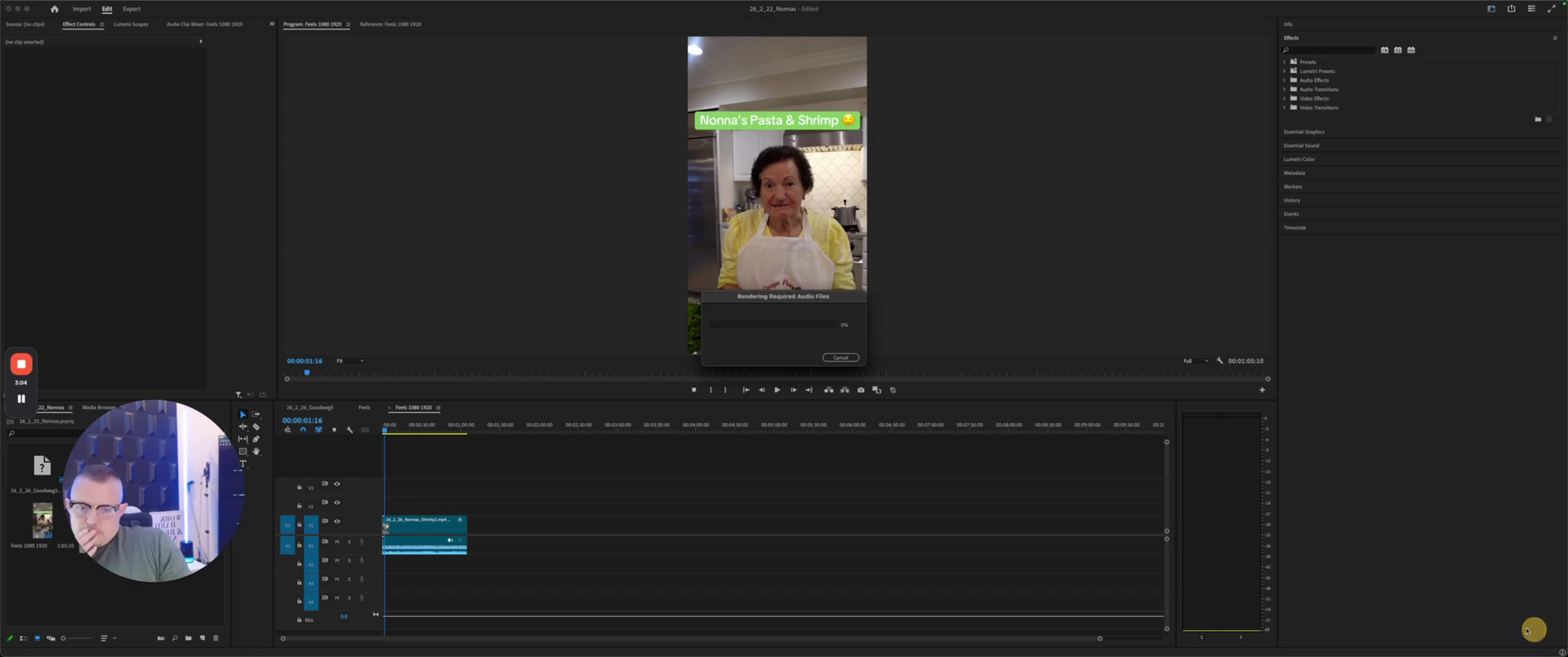
I will take the video I want to use for Nona's, make sure it is properly organized in the correct files, and then drop it in here.
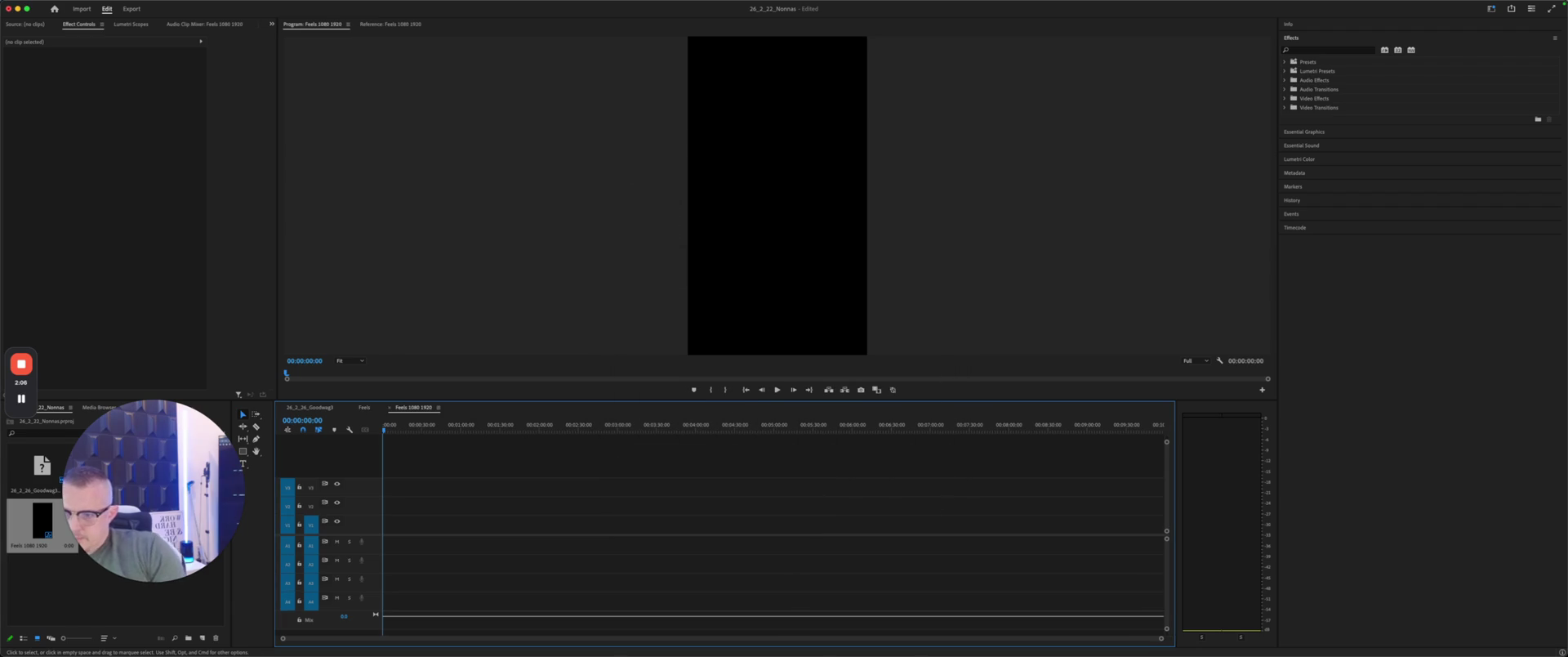
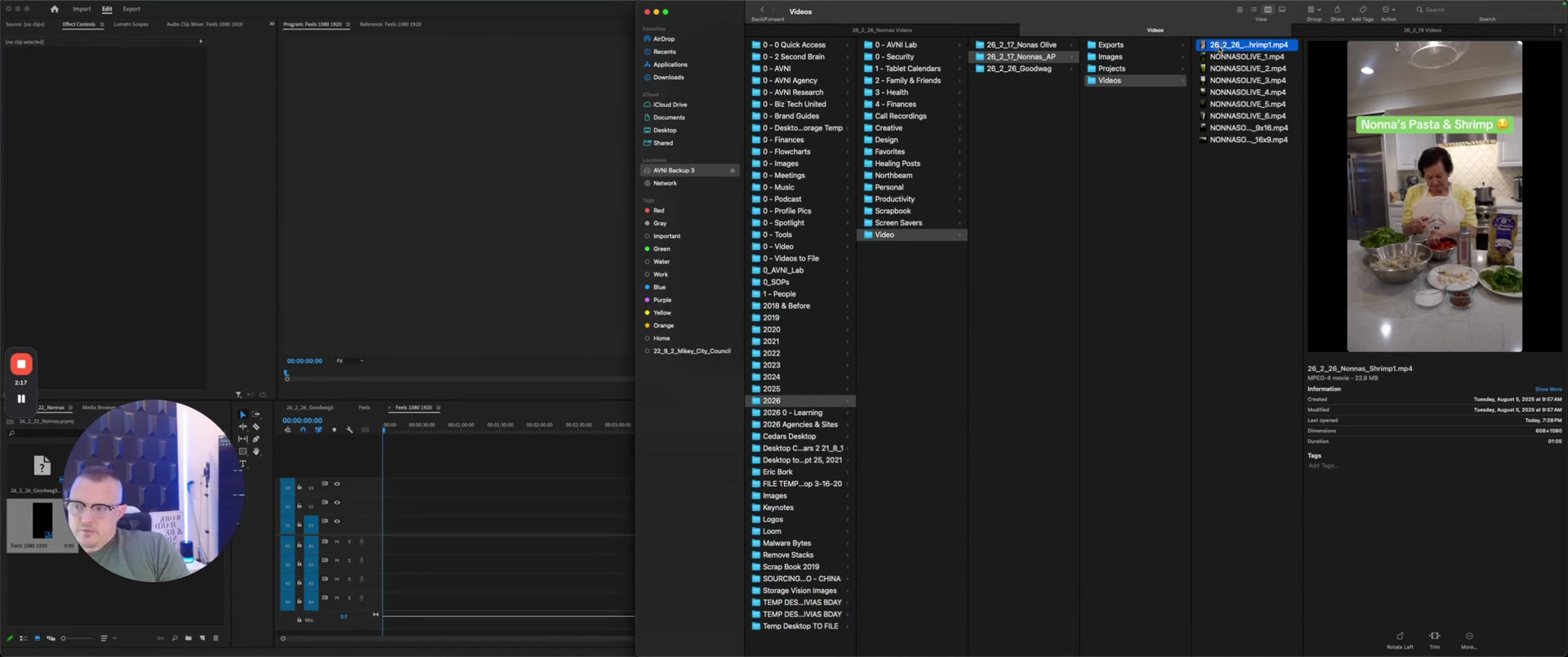
That will ask us to choose between changing or keeping it. We will keep it to ensure it fits within the correct dimensions.
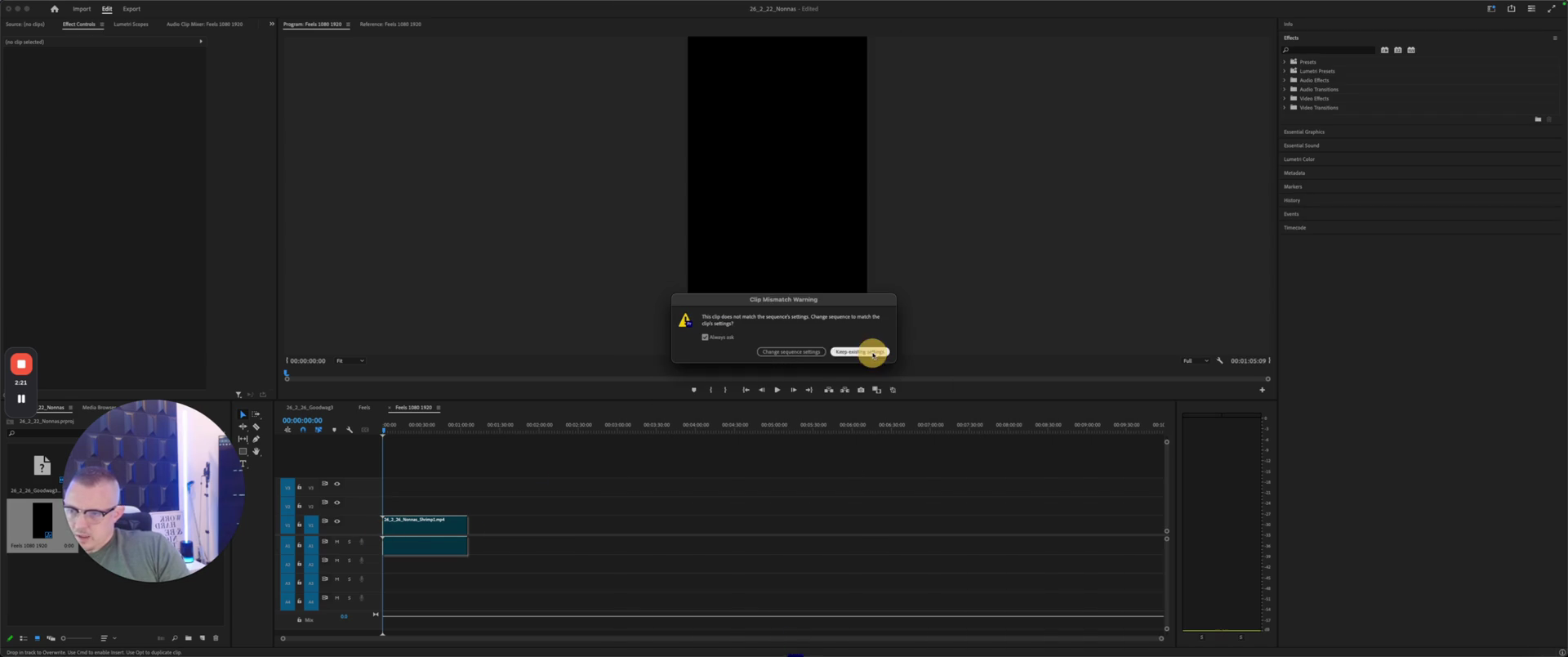
There we go. Nona, what are you doing? Now we will go to File and select Export.
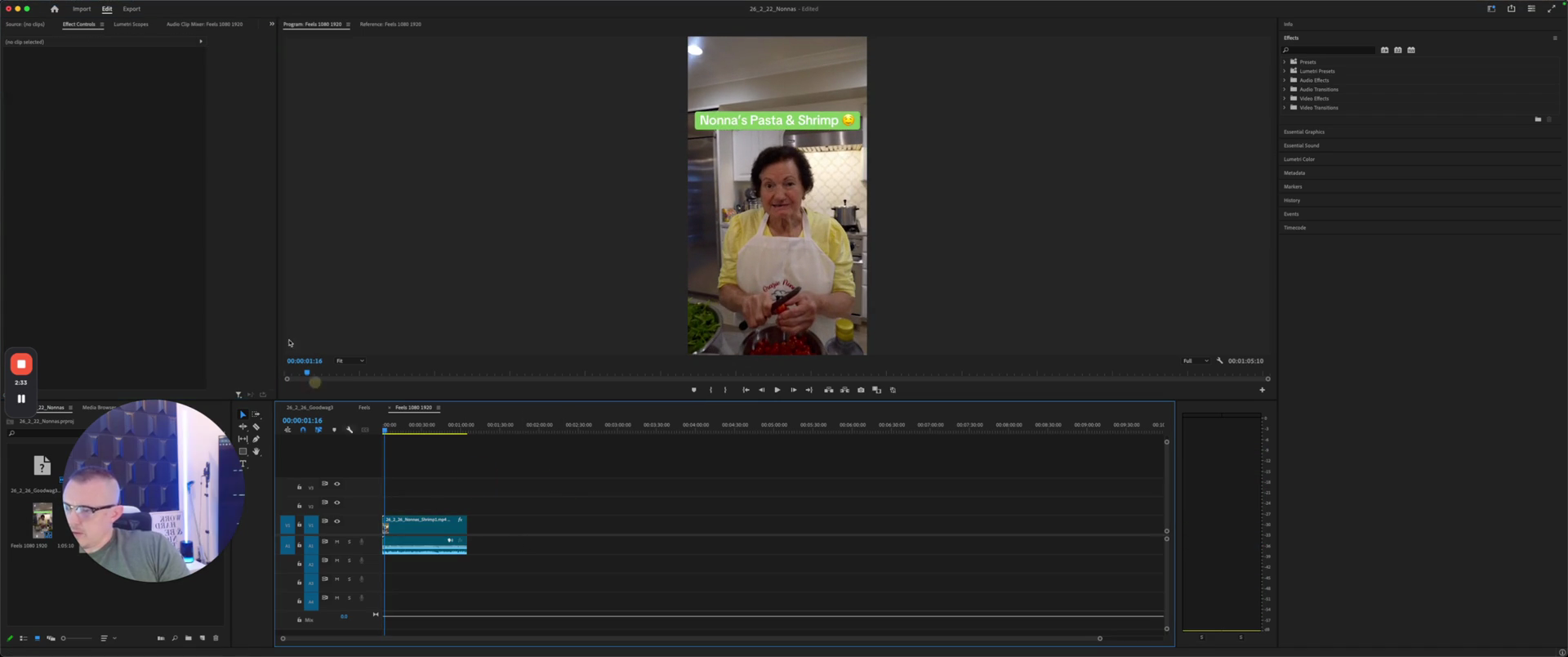
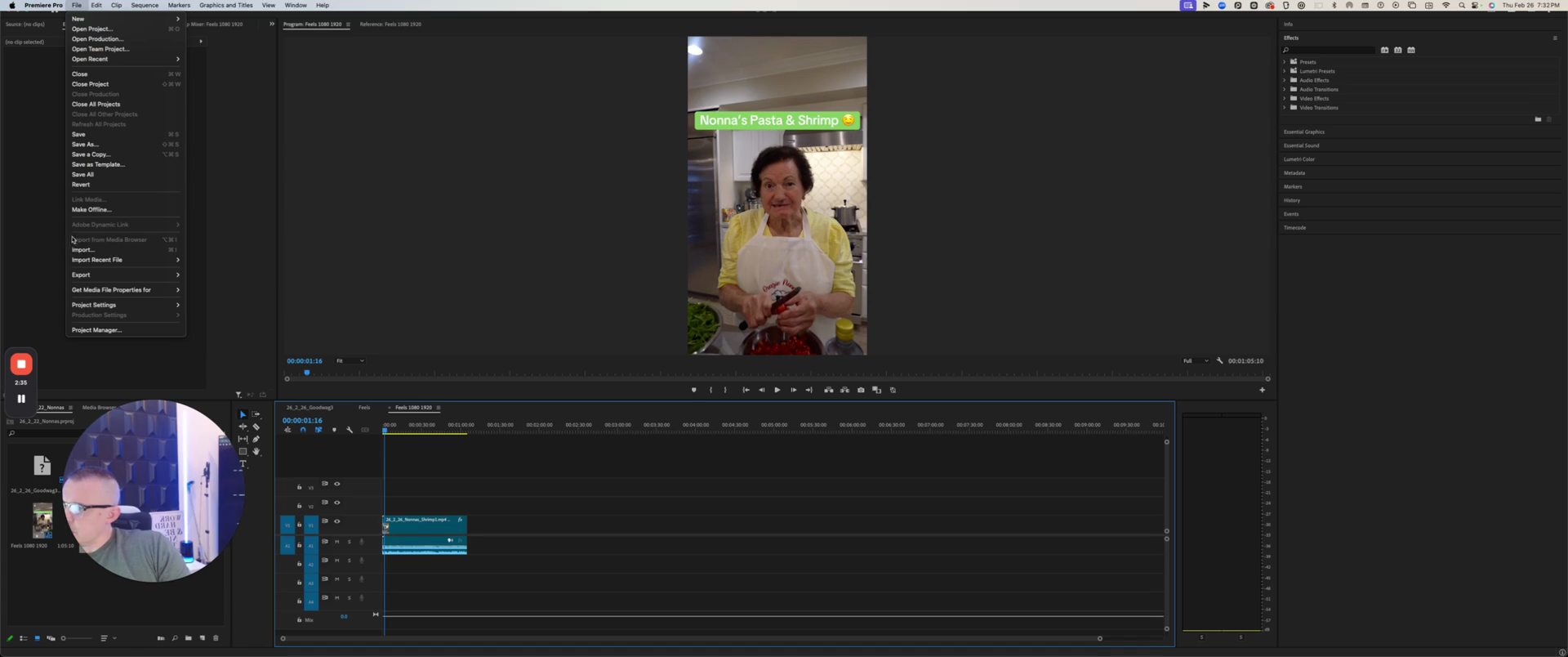
We will save it in the file called Nona's exports.
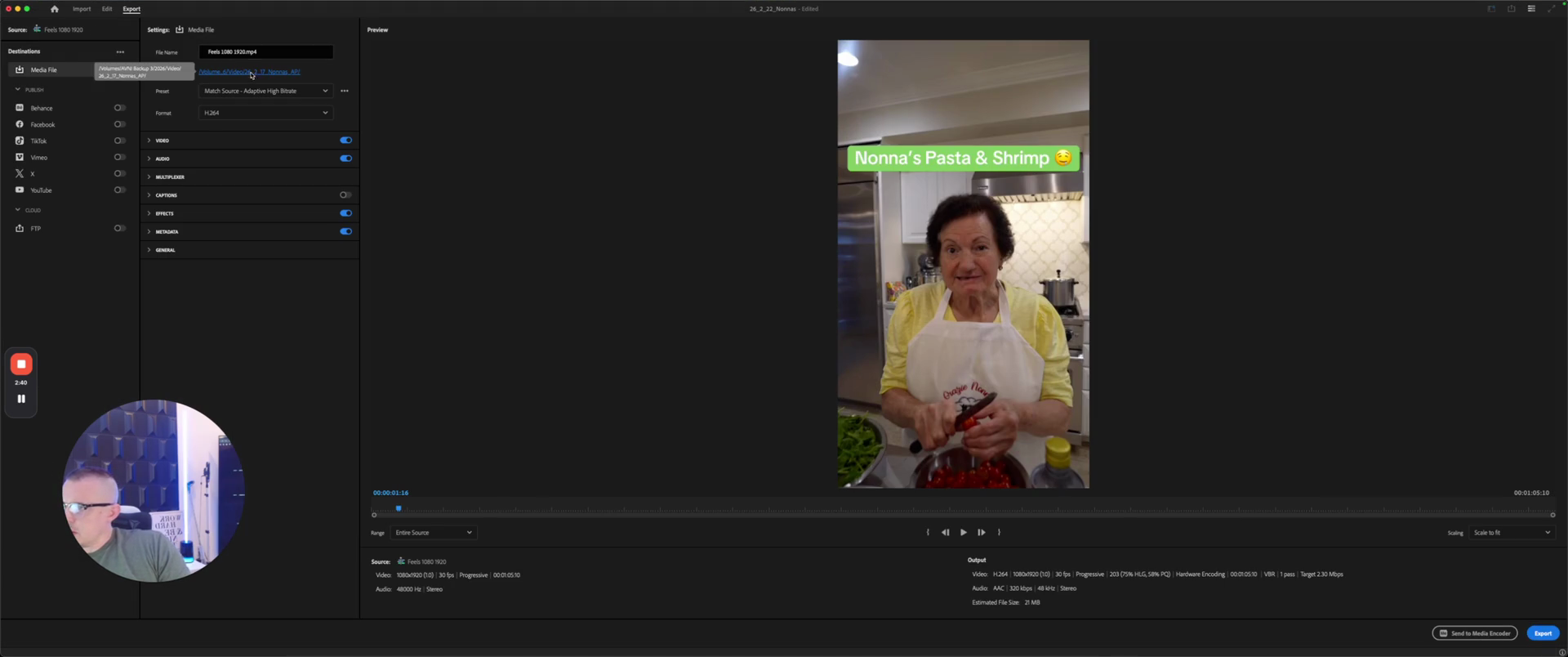
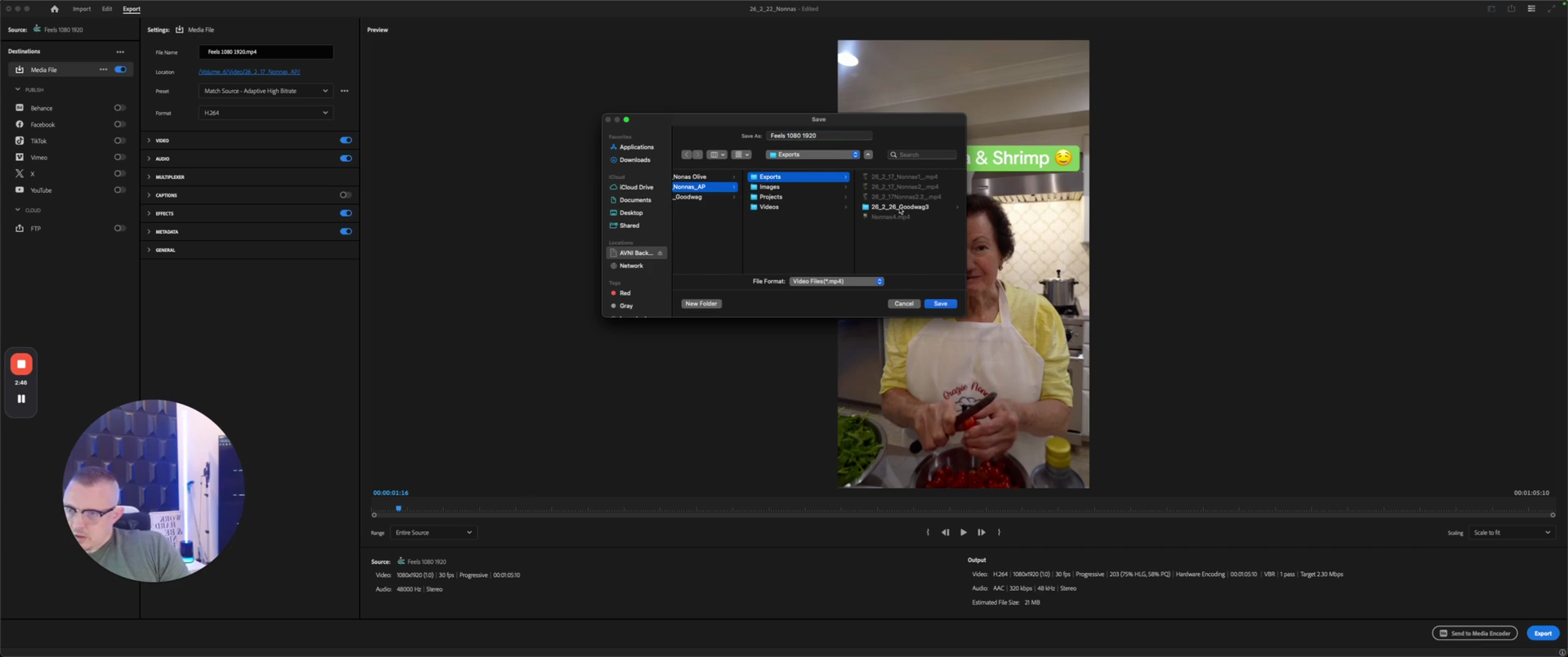
This is Nona's shrimp to save.
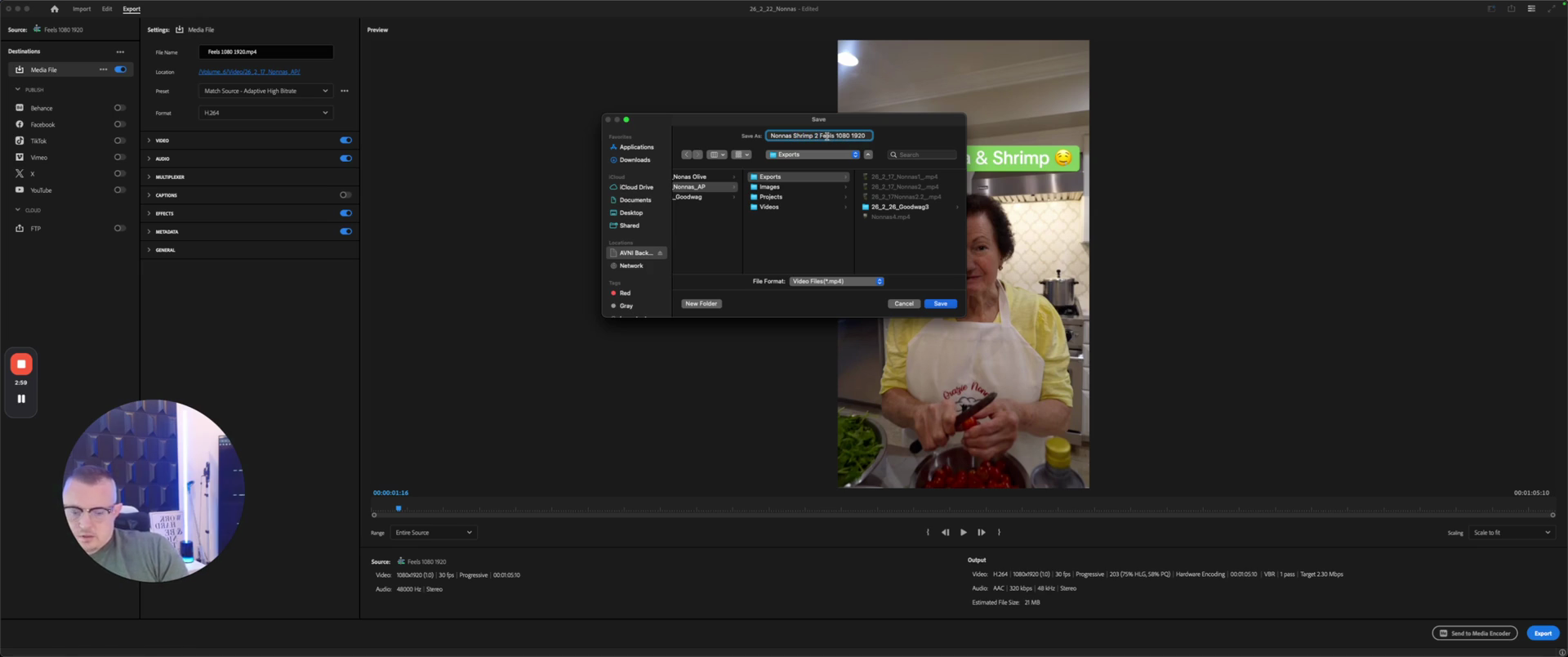
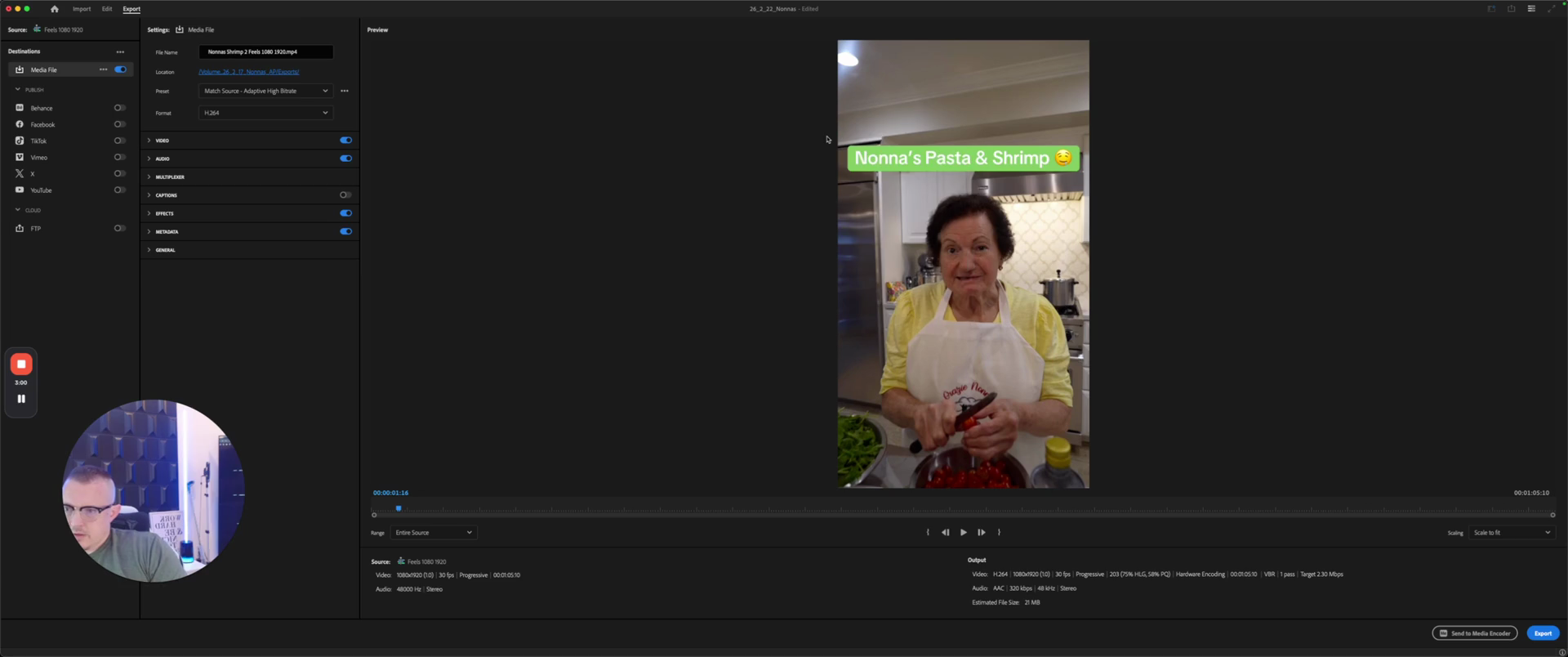
Export.
Now, we will grab the video export: 2026, videos, Nona's AP export.
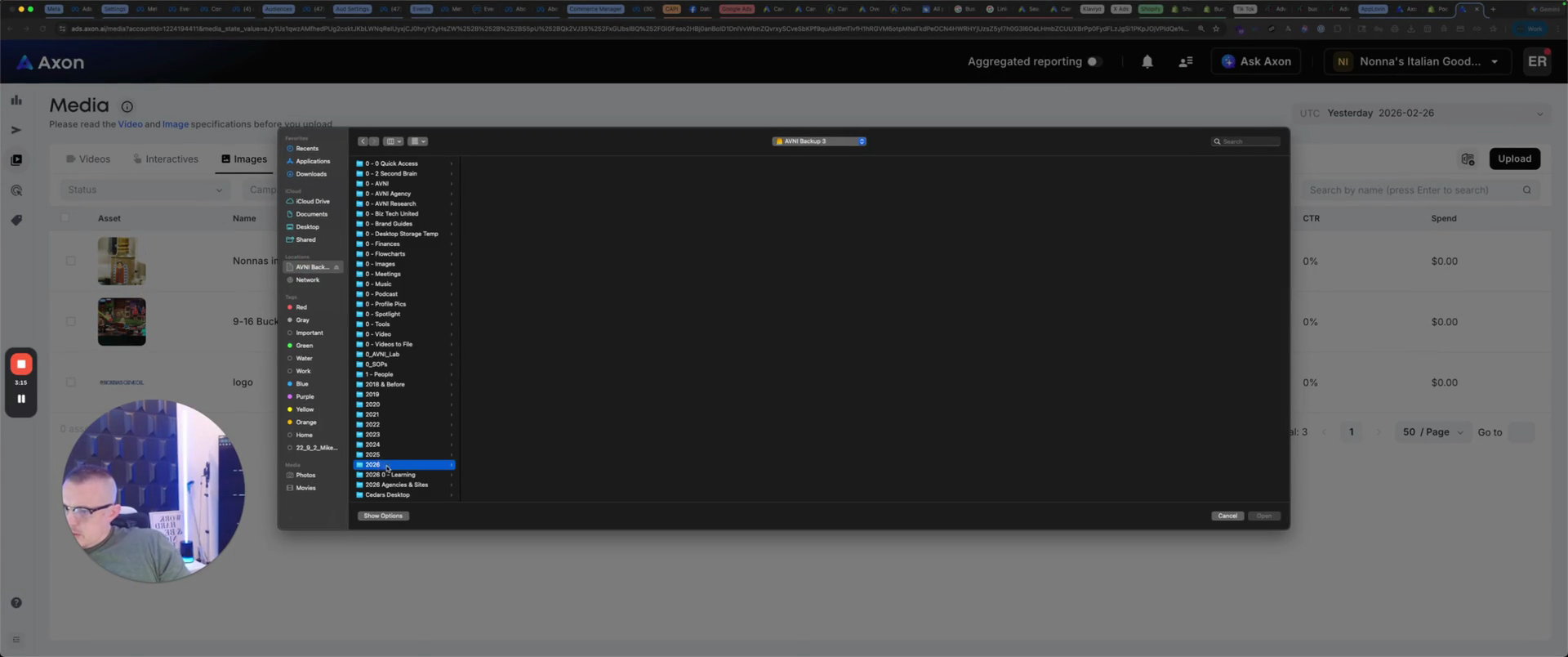
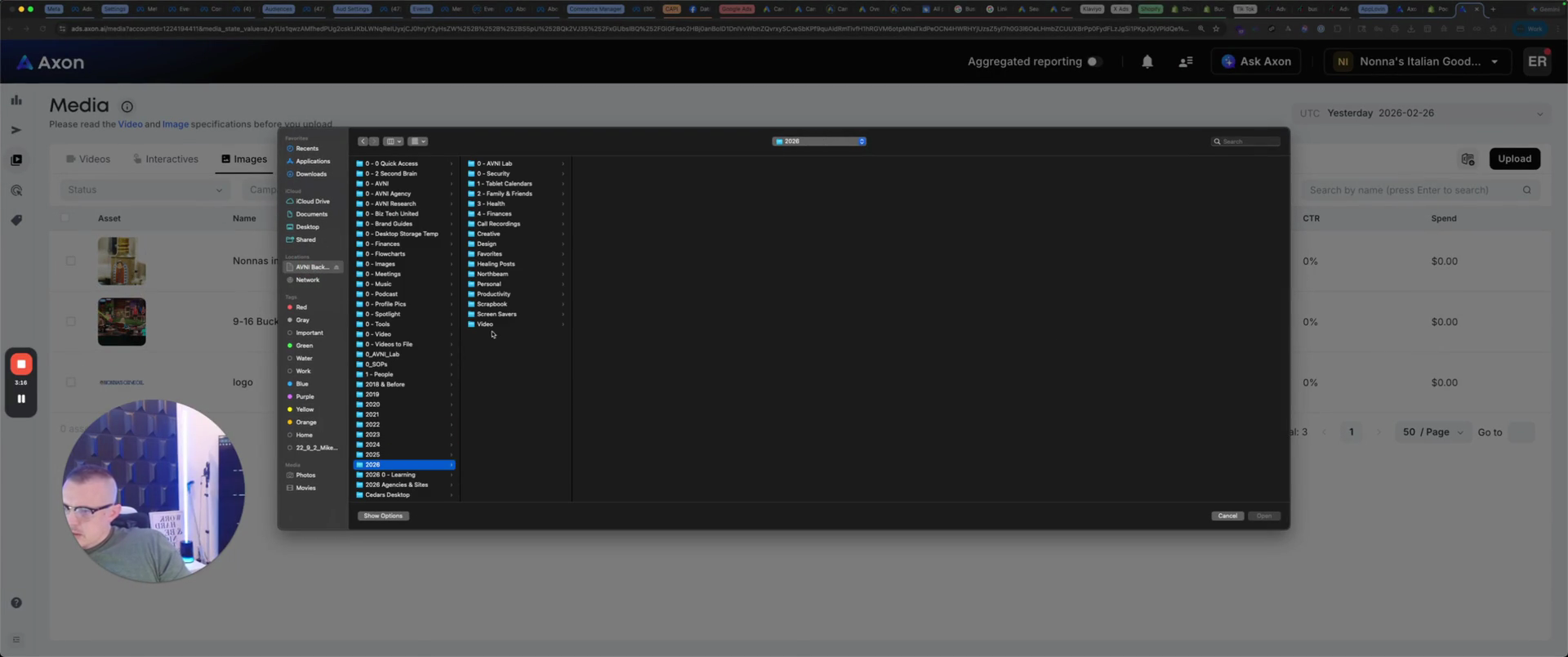
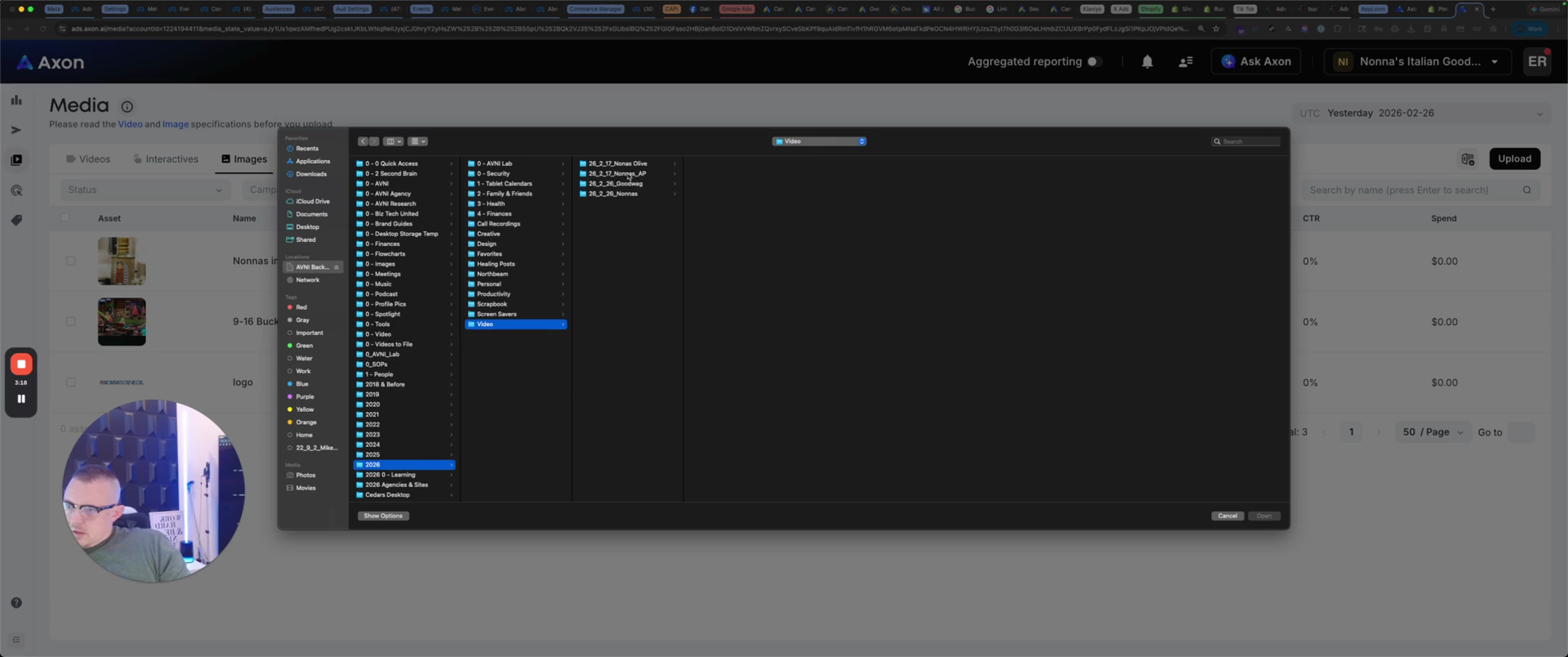
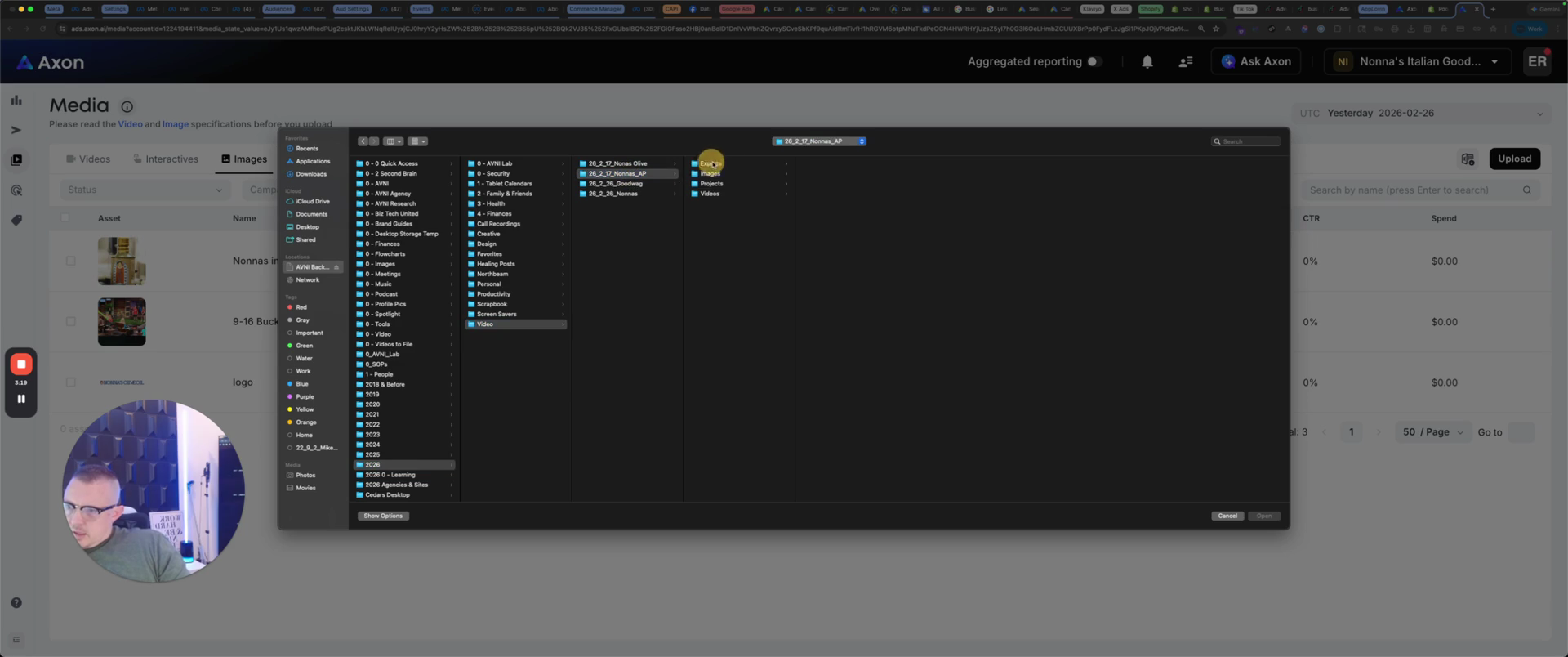
That was this one right here.
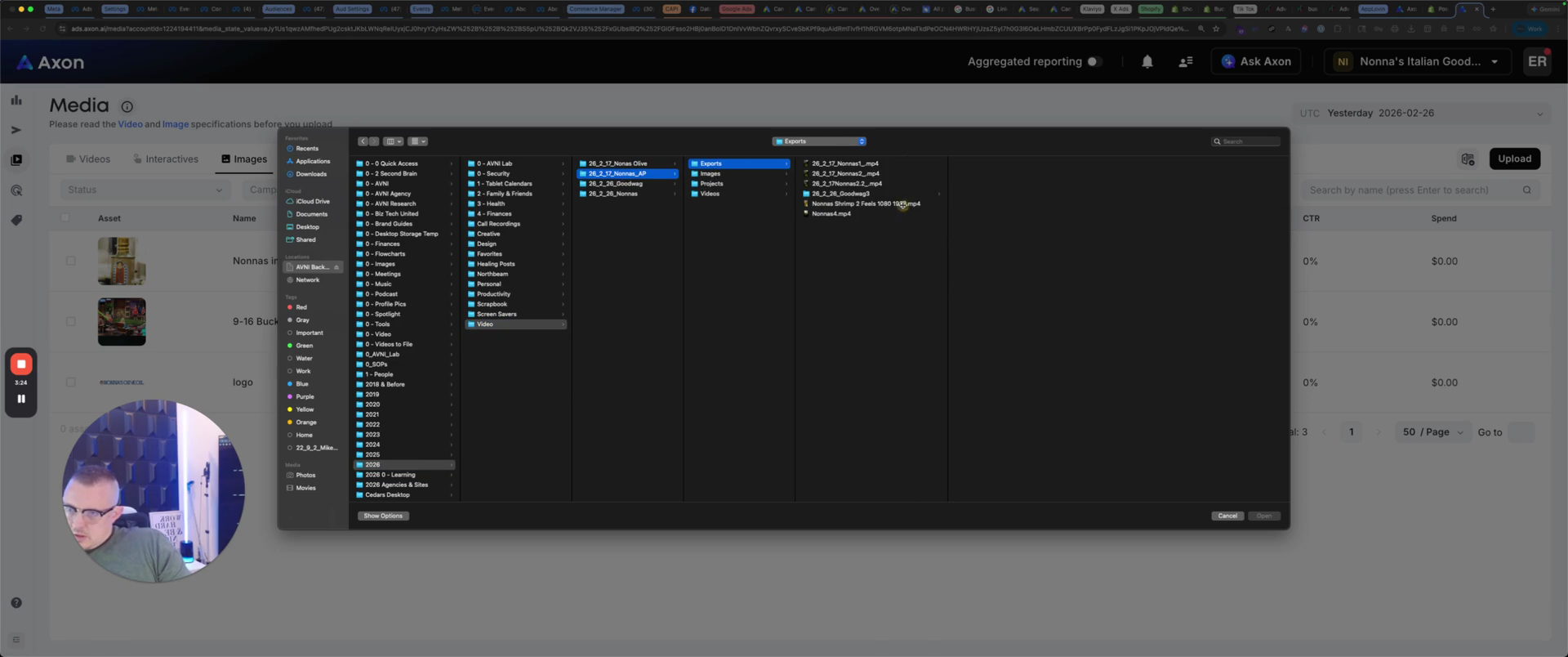
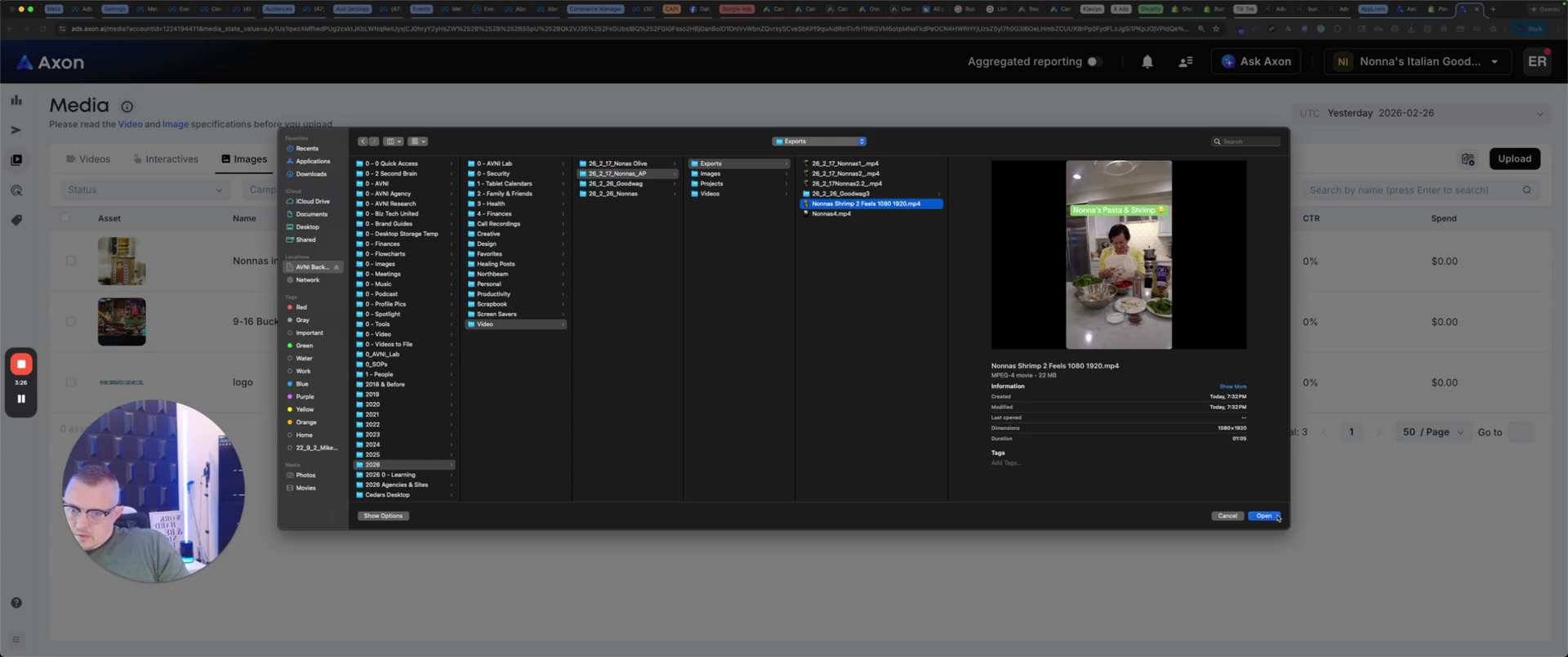
Open. If the size is incorrect, it will show red here.
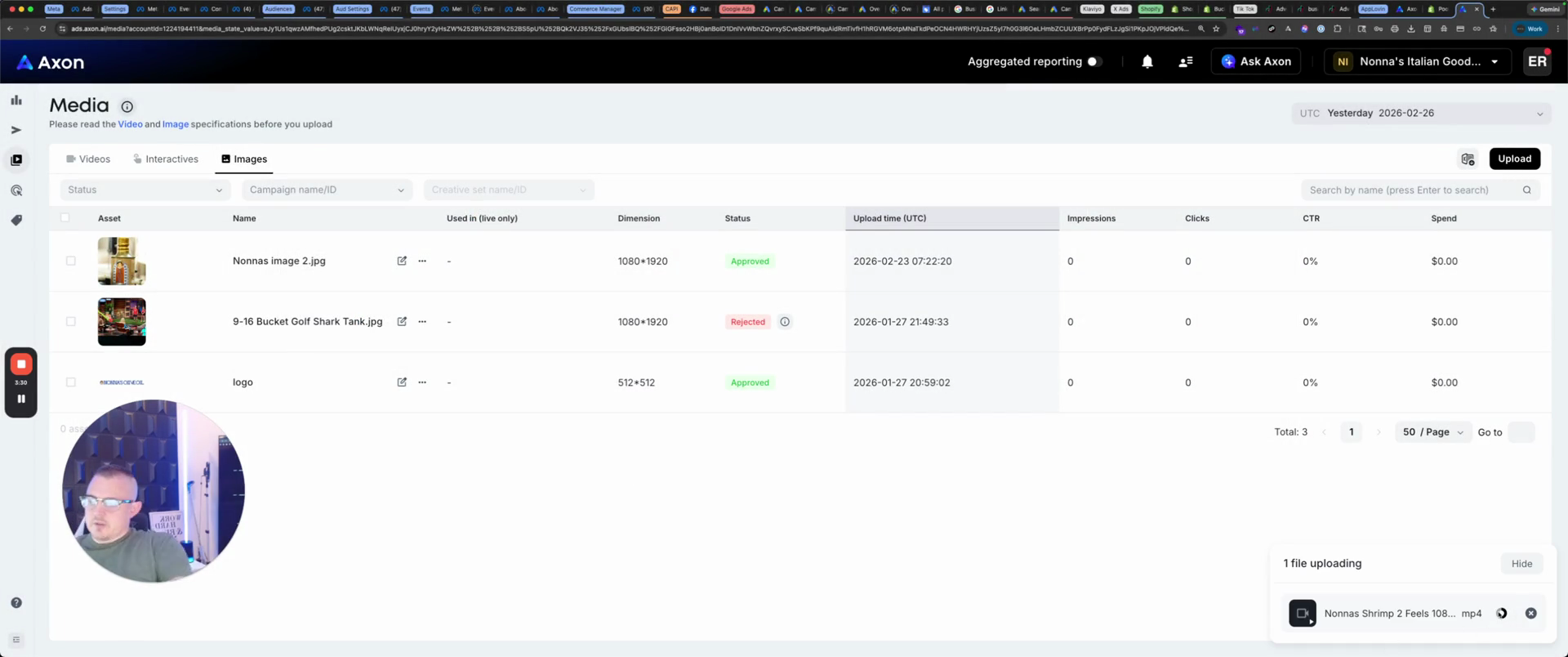
That's why we had to resize it. It should turn green because we made it the correct size.
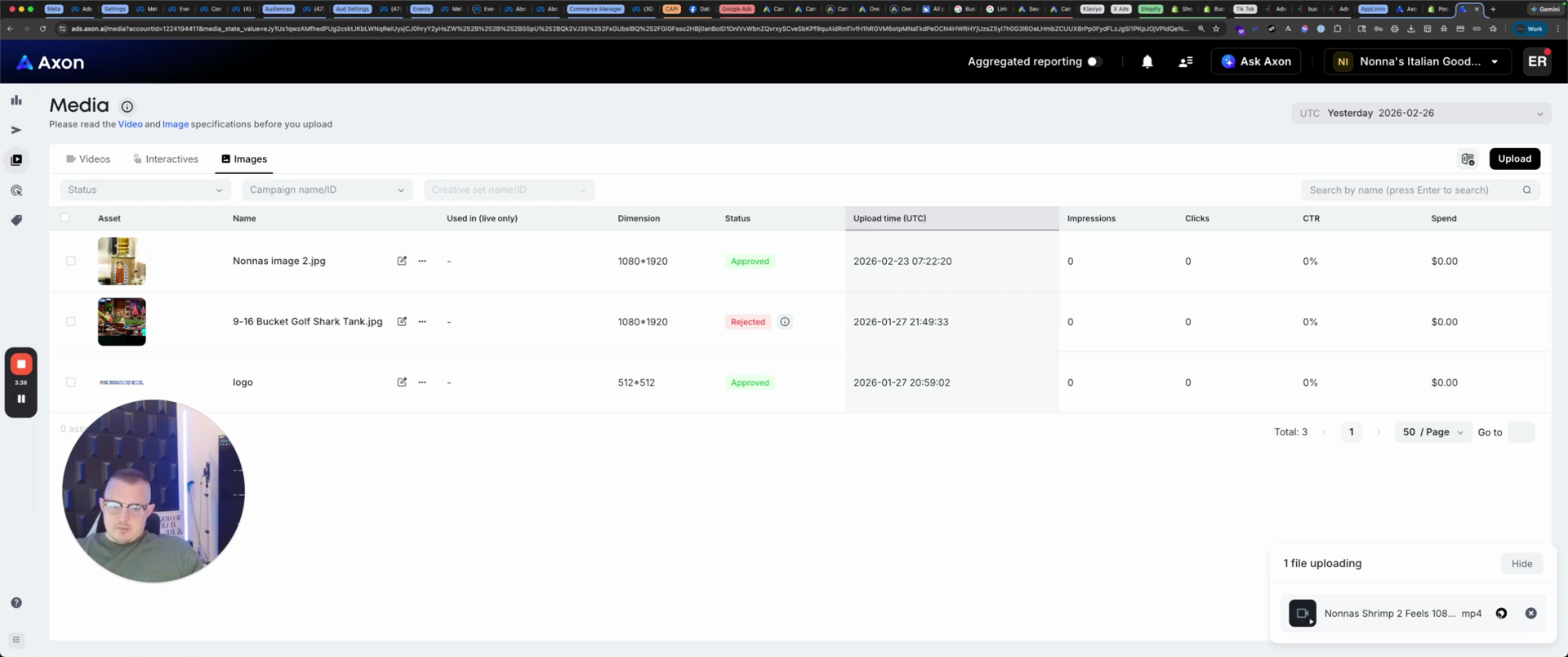
Hopefully it does. And then once it does, it will go into review.
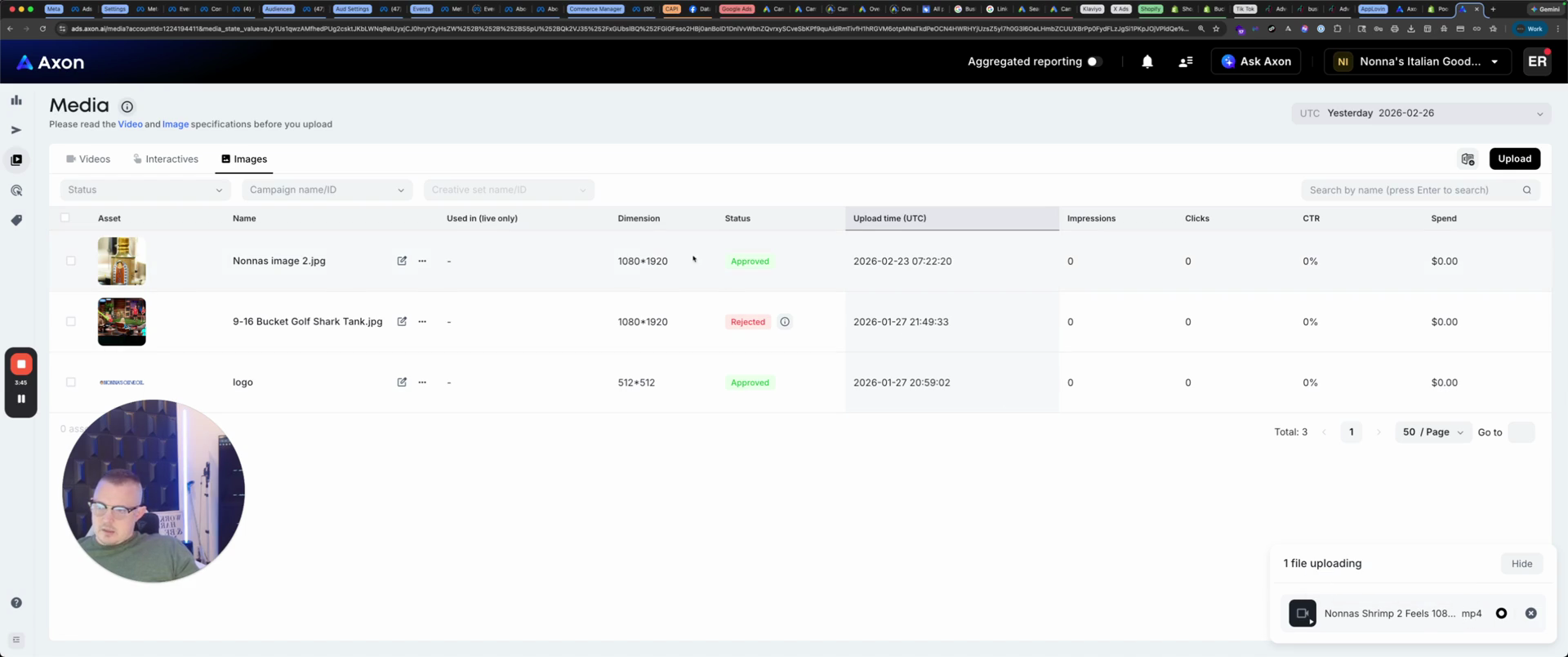
It will go into review. Let's wait for that to happen.
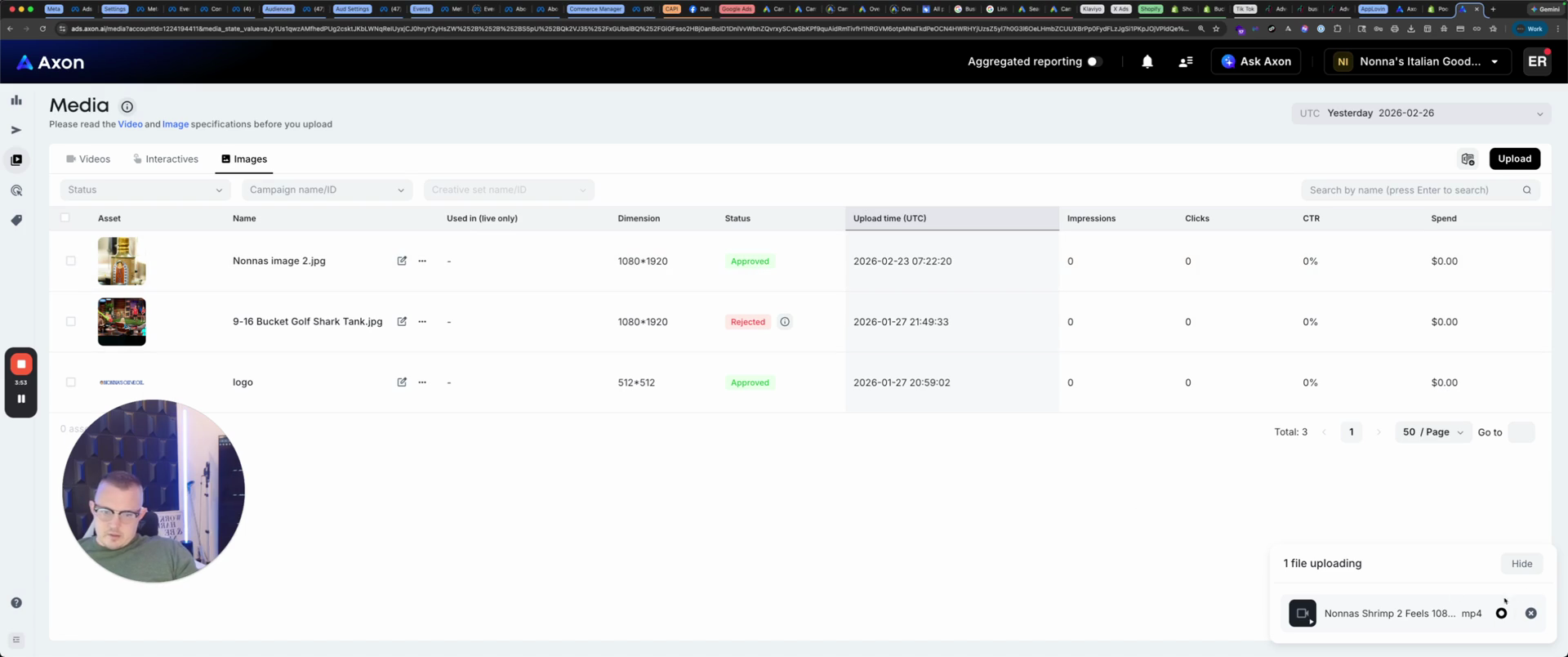
Make sure it finishes this loop because it will tell you if it denies it. If it does, you have to redo it. So ... Oh, you know what? That was a mistake. X, close.
We intended to go to videos.
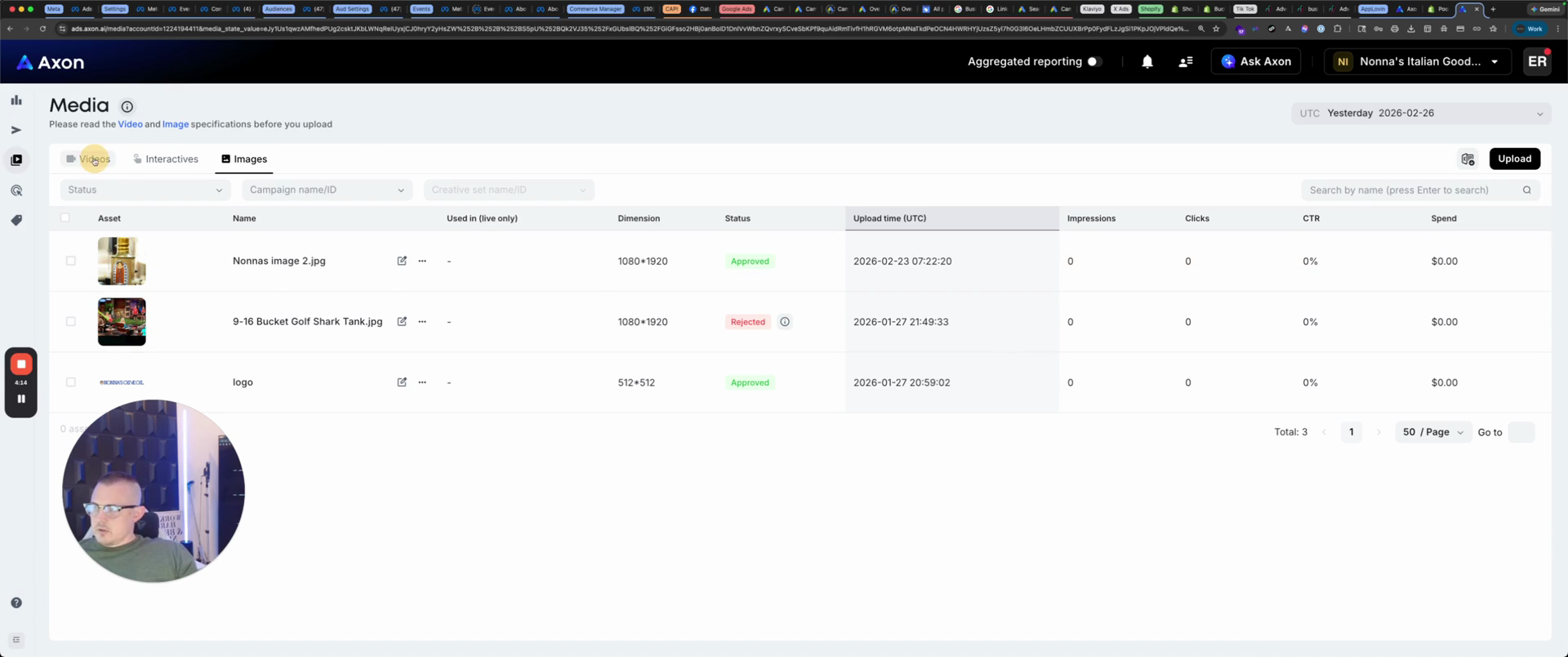
That was my mistake. Upload videos.
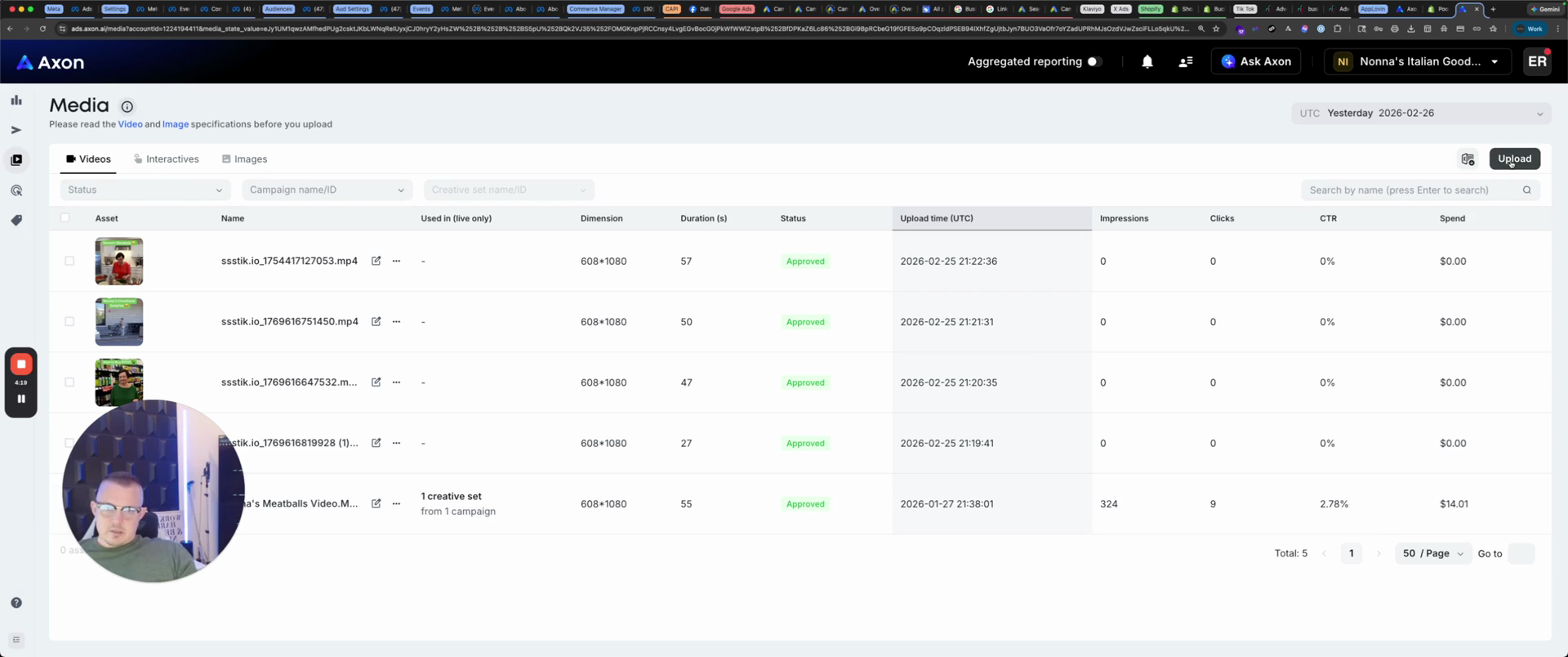
Now we will choose that video.
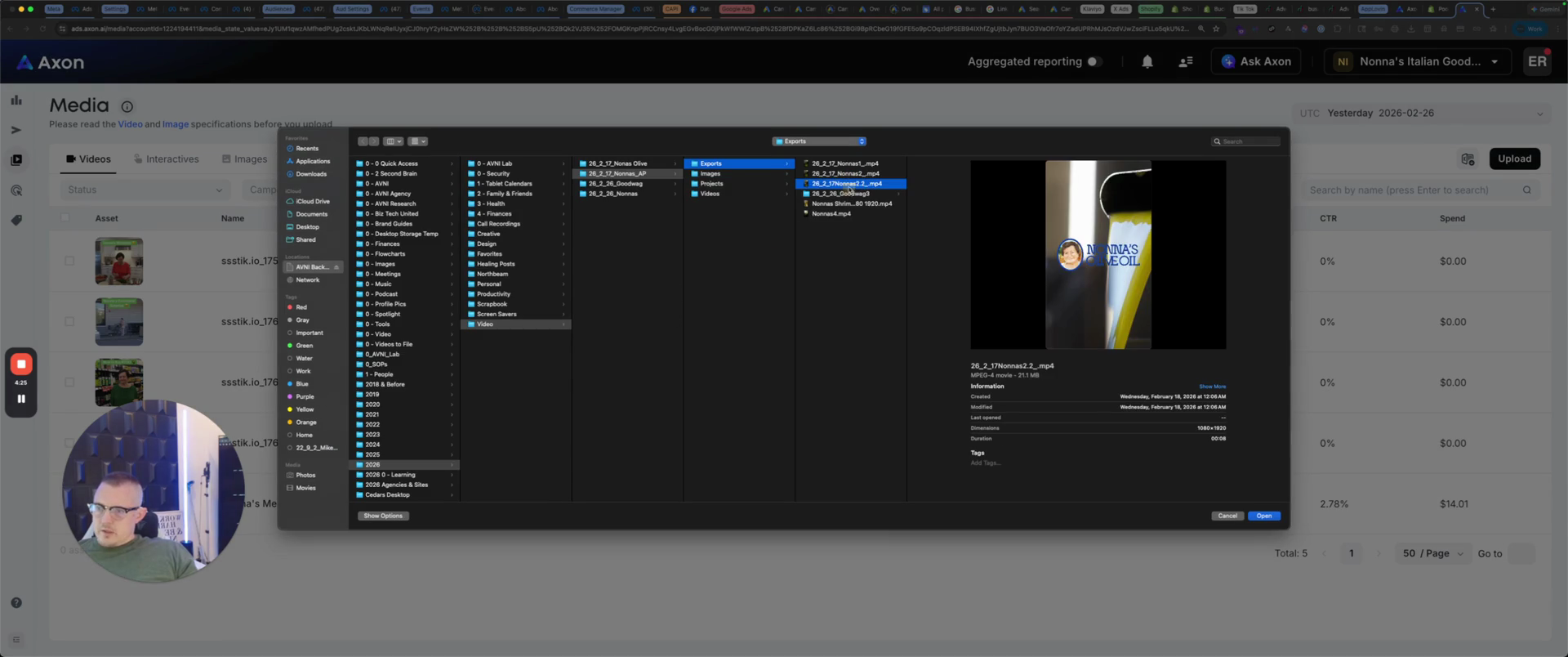
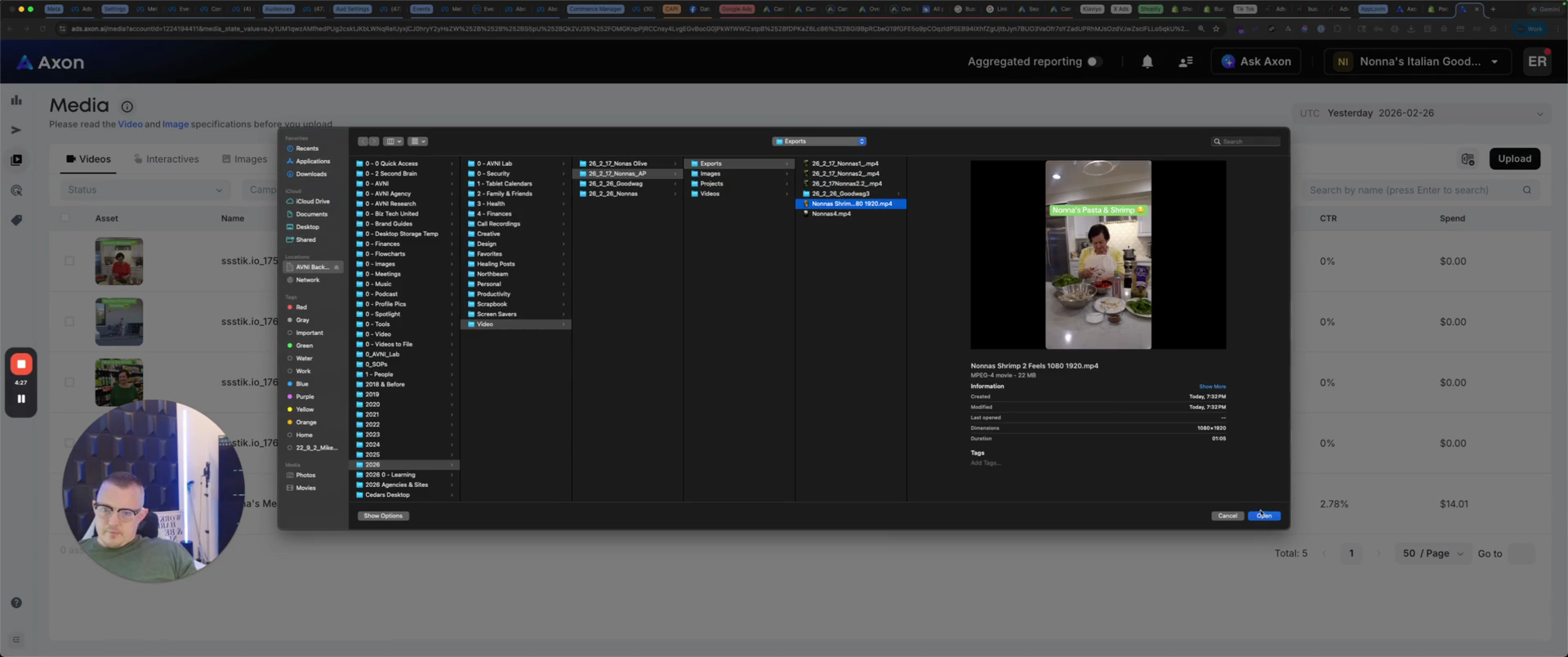
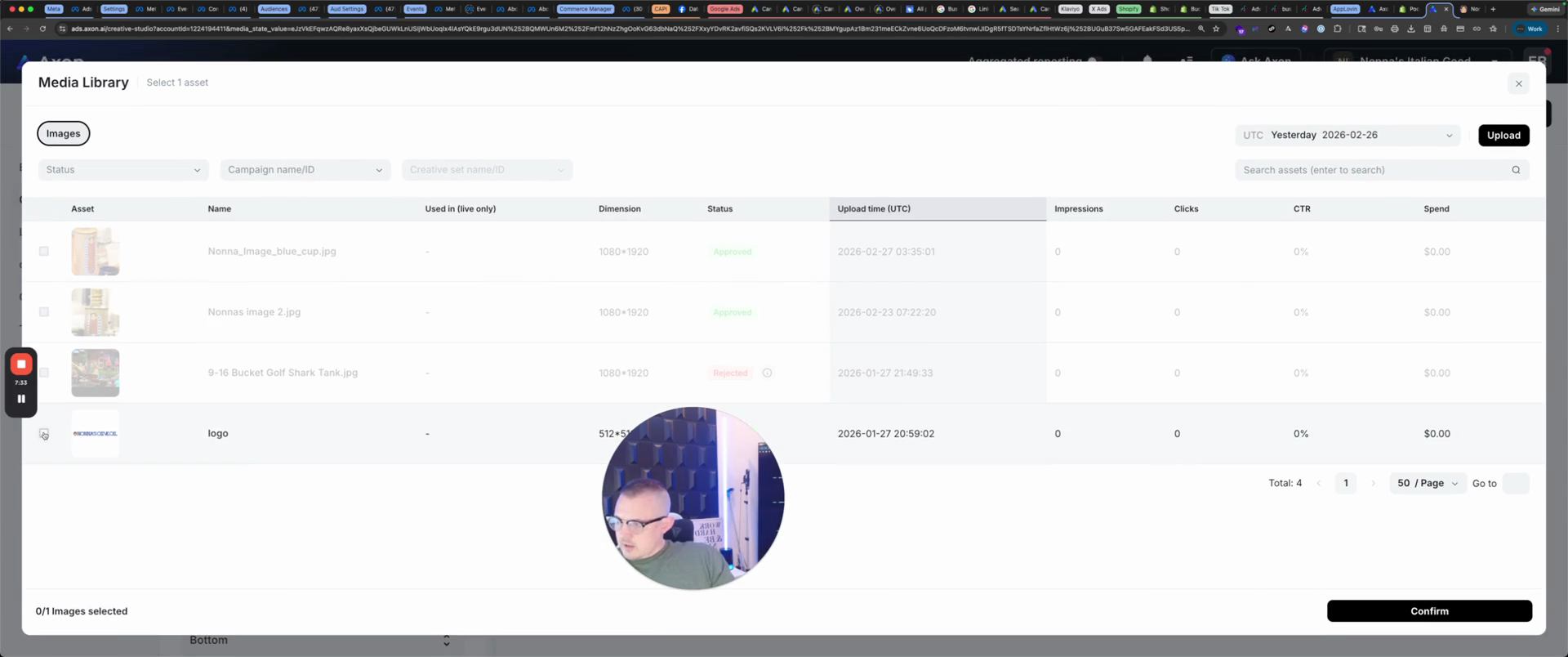
There we go. In the meantime, we will upload an image to use for the interactive.
I'll show you how to create interactives in a moment. I've already made a couple here. Nona's image two is on the desktop, so we'll take that. Nona's image two, open.
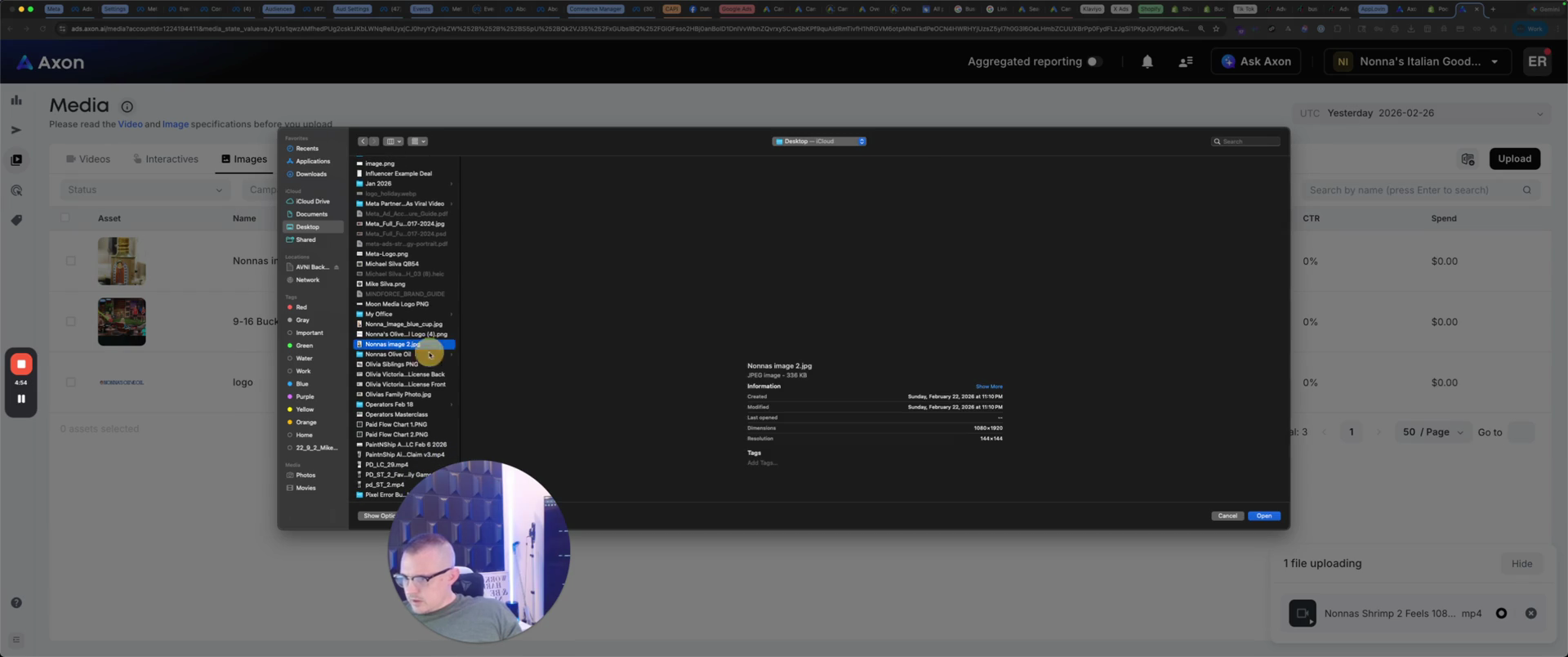
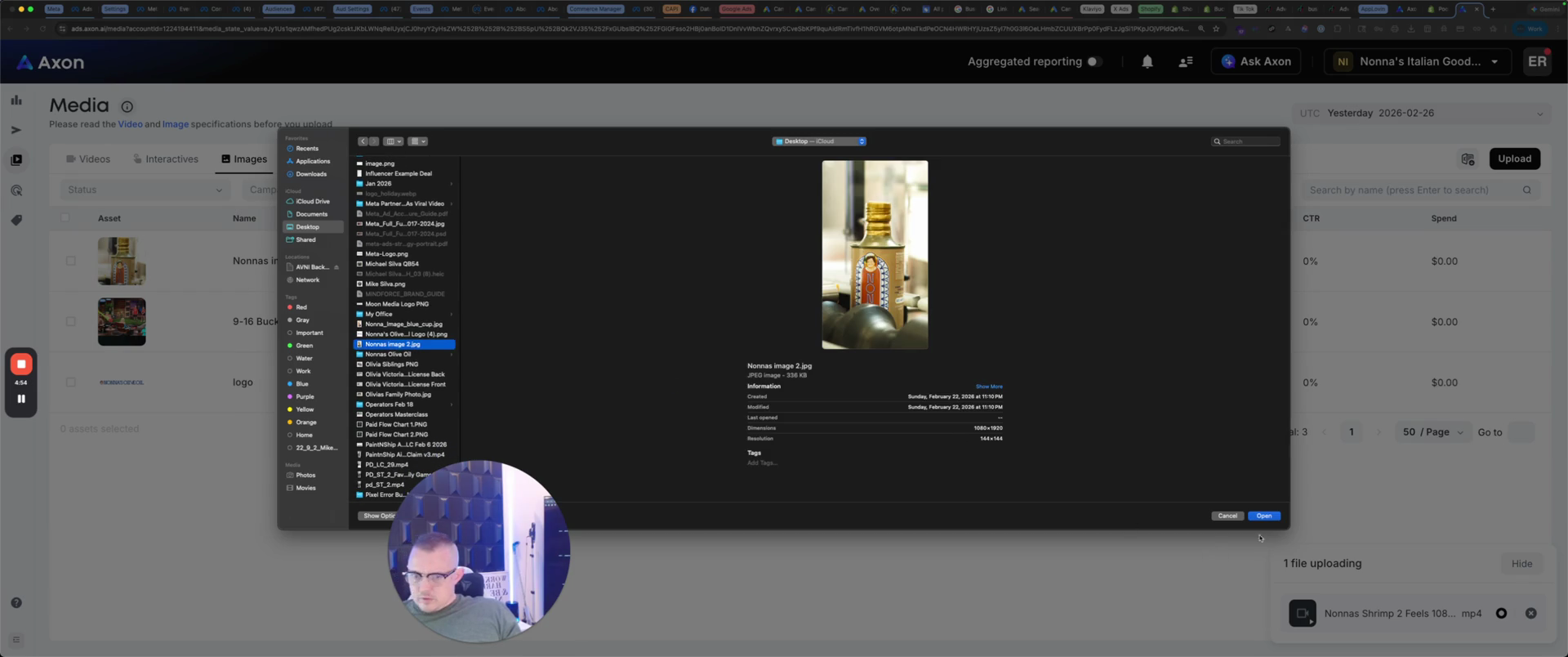
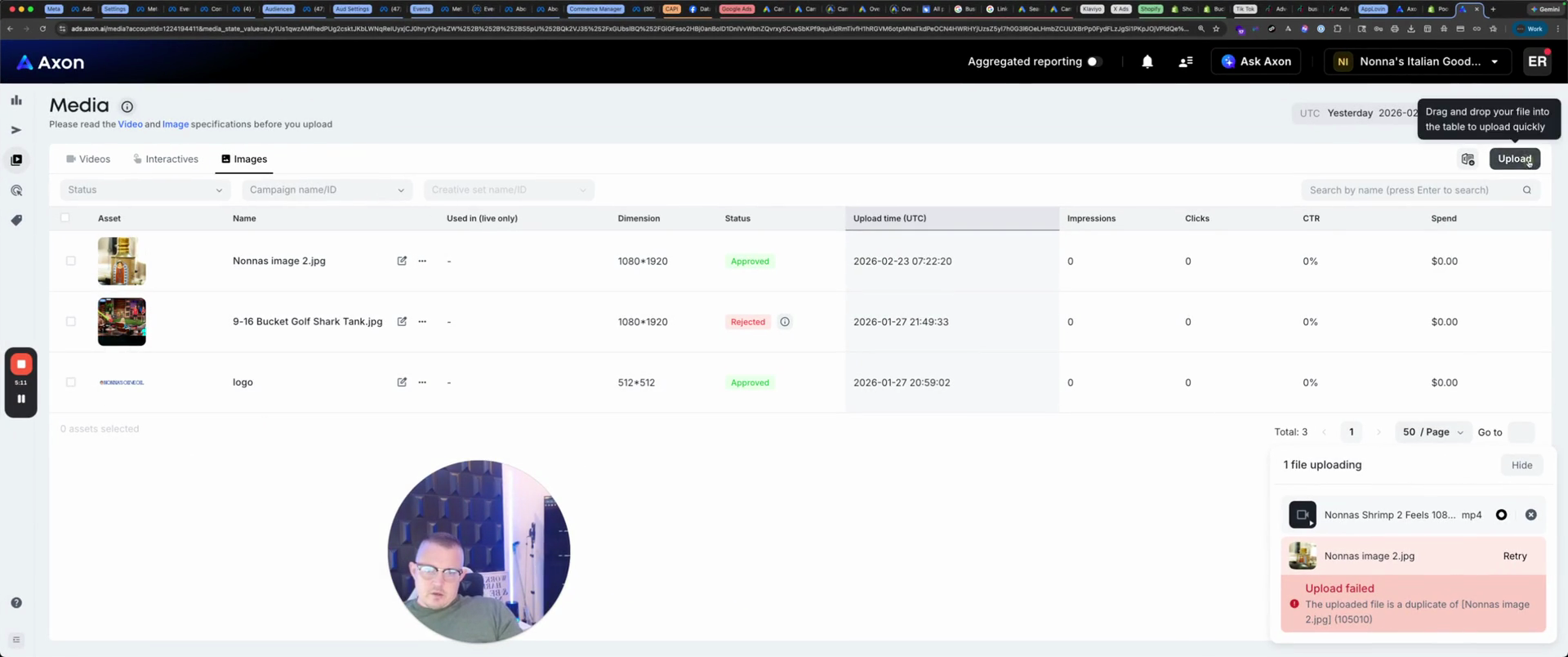
You'll see that the upload fails. It's a duplicate because I've already done it. That one is already here. Let's see if I have another one. Nona image blue cup. Let's check if I uploaded that.
I haven't, so we'll do that one. We'll upload Nona's image of the two blue cups.
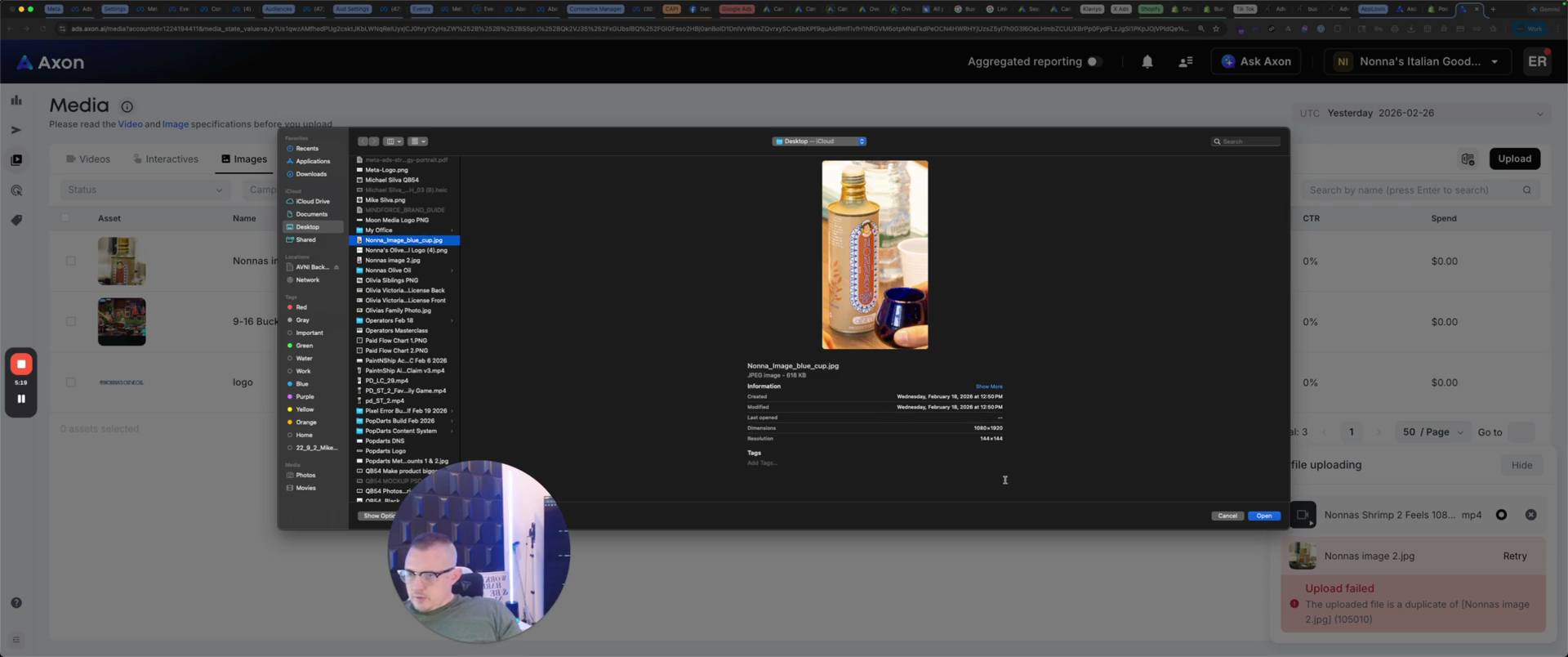
We will open that file. It will load and then move into review.
To make an interactive video, let's return to the topic of videos.
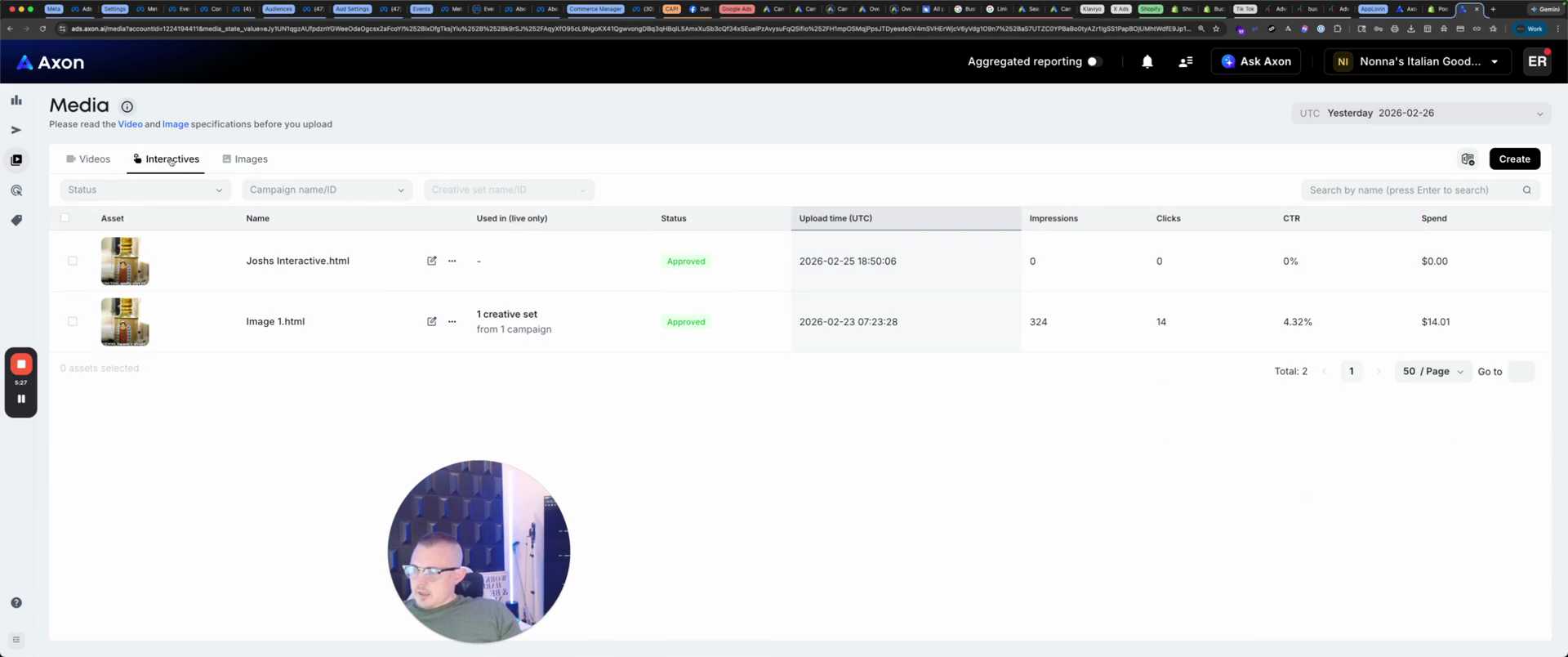
It's been approved. What are you doing, Nona? ... Thank you for letting me bowl for my grandchildren on TikTok. ...
It says it has been approved. Please stop by Neiman's. "" We are going to create an interactive. To create an interactive, there are four templates. I will show you how to use the first one.
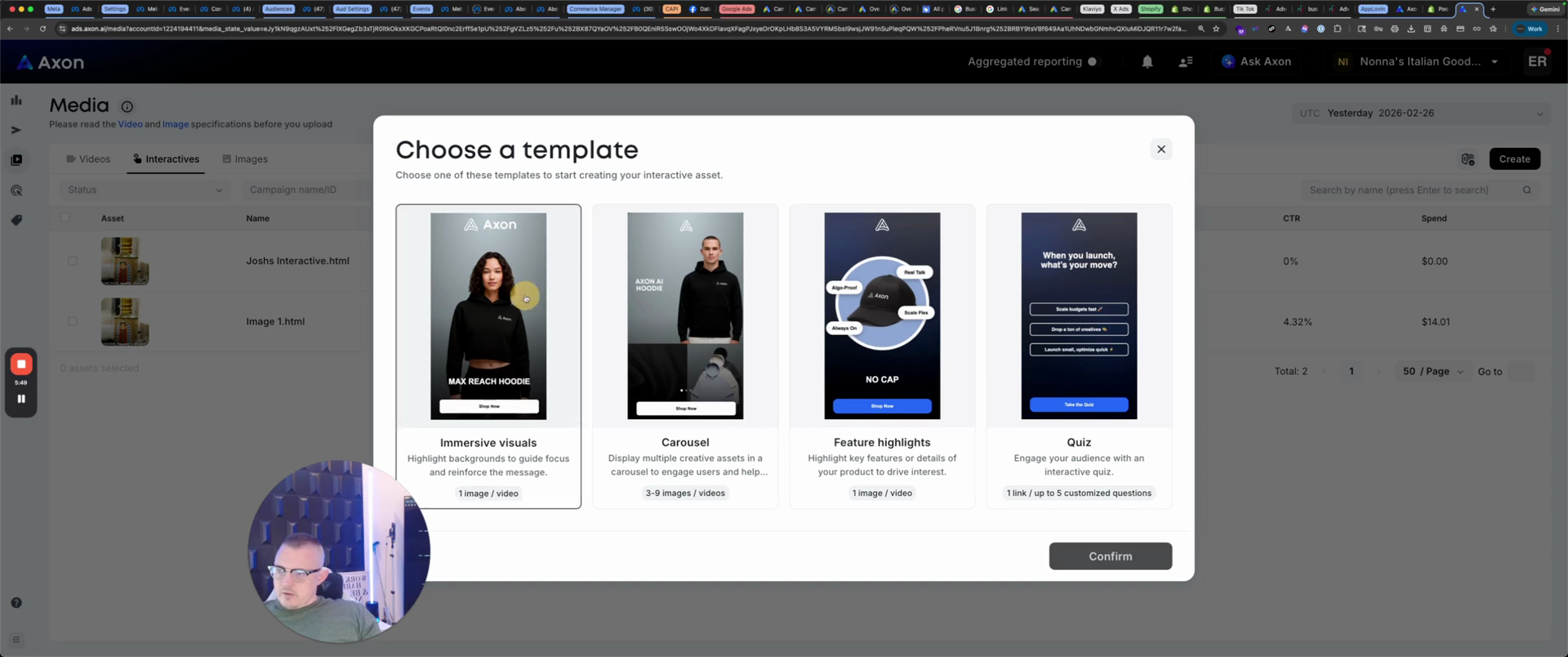
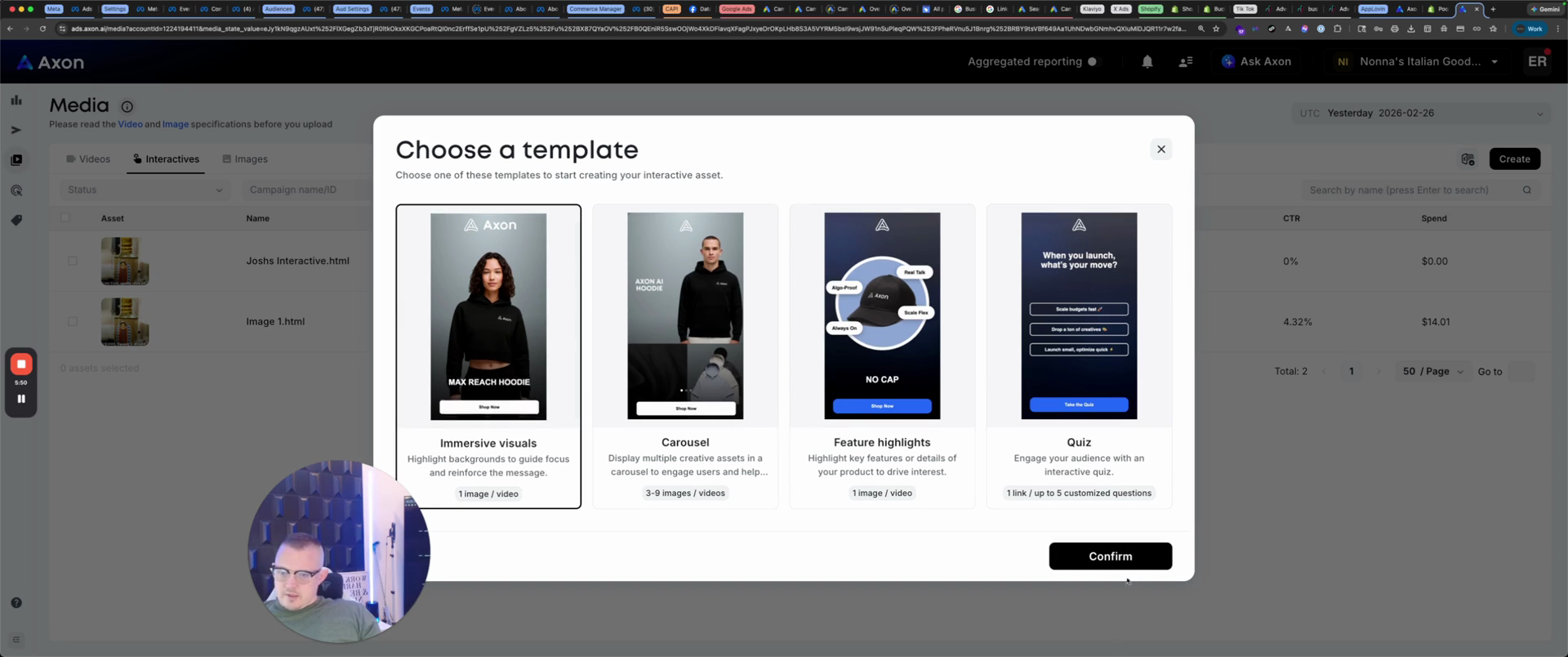
You confirm and name it.
We're going to put Nona's two. We will select an image for the background.
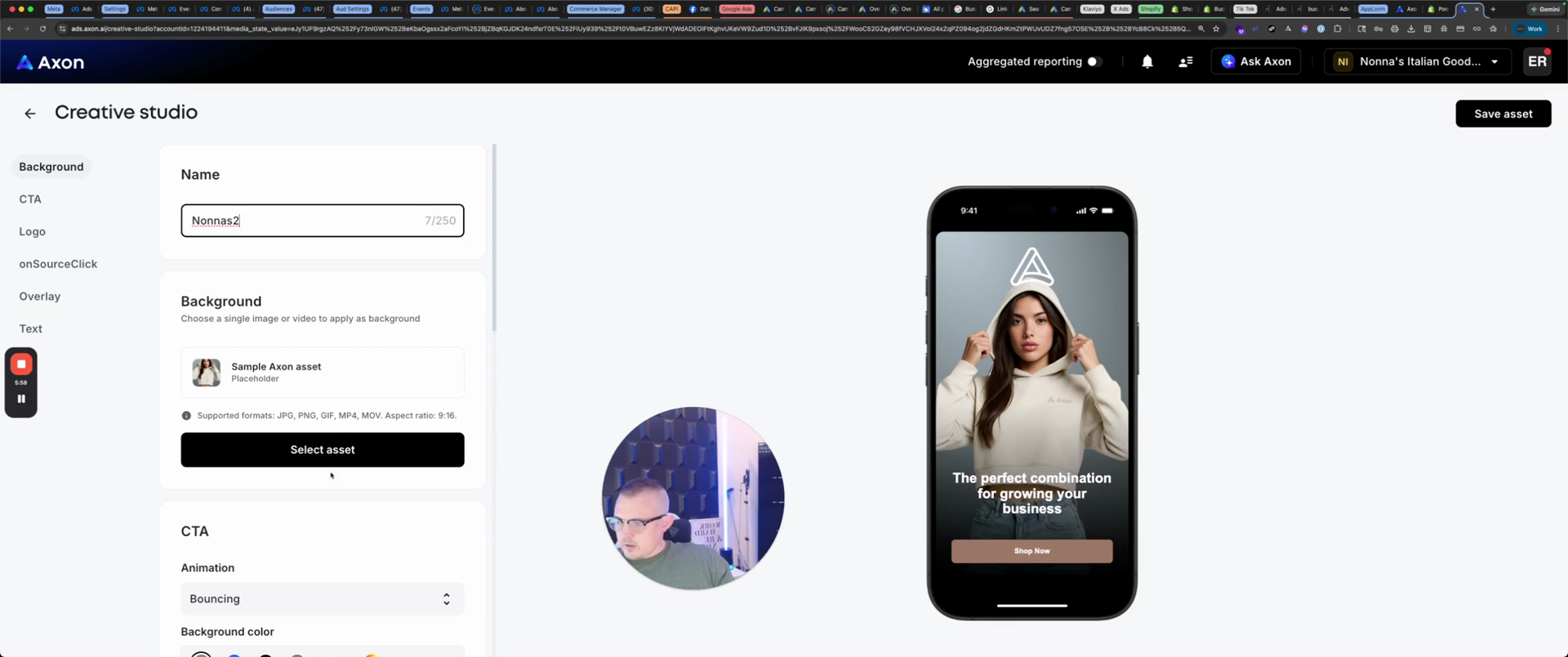
You can make a video. It’s already approved, so we’ll select that.
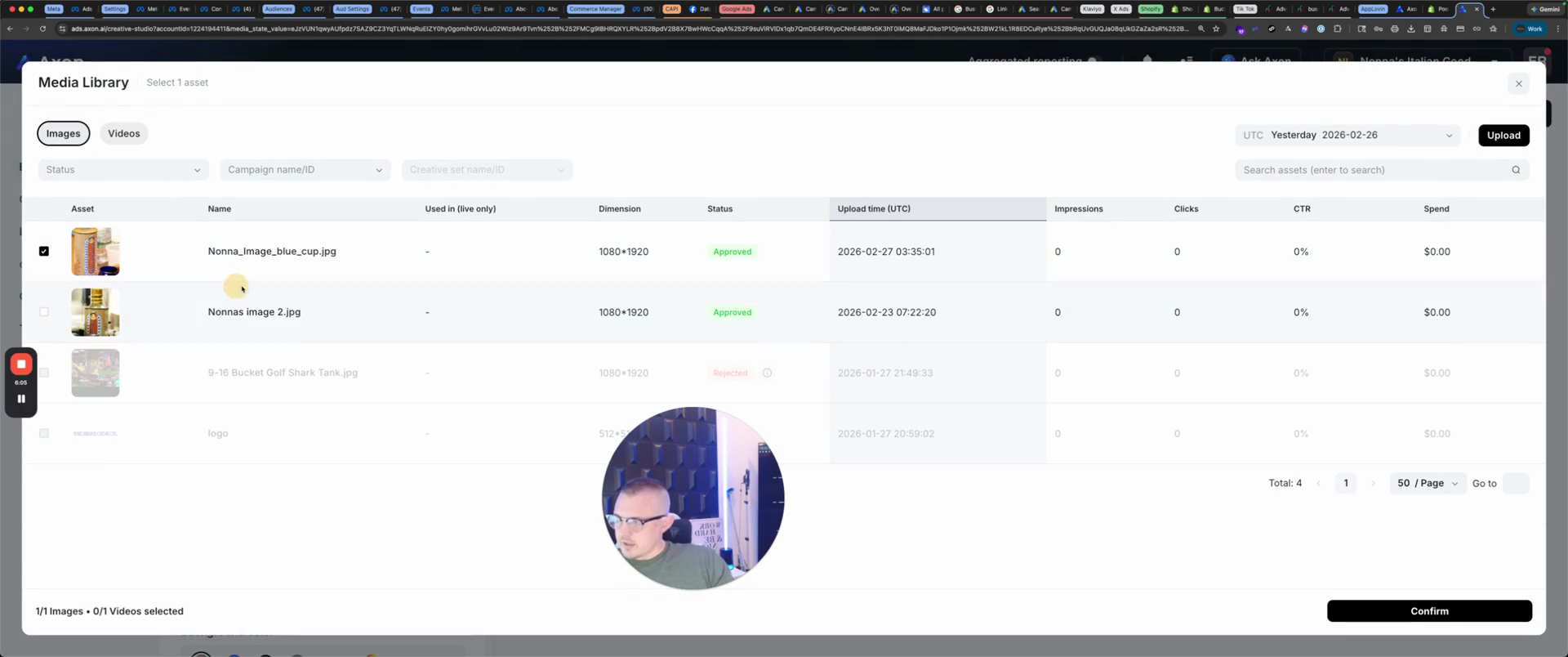
Confirm.
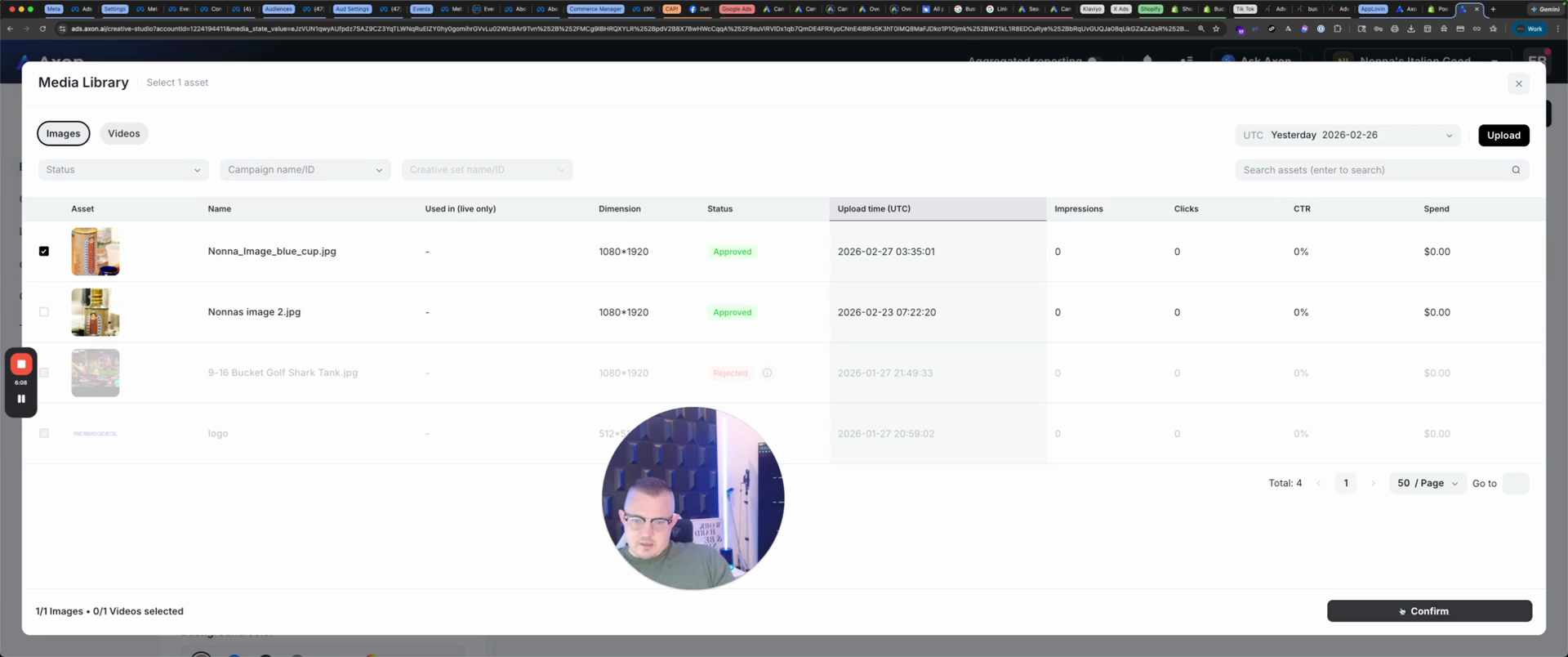
That will be the background. For the logo, we'll say...
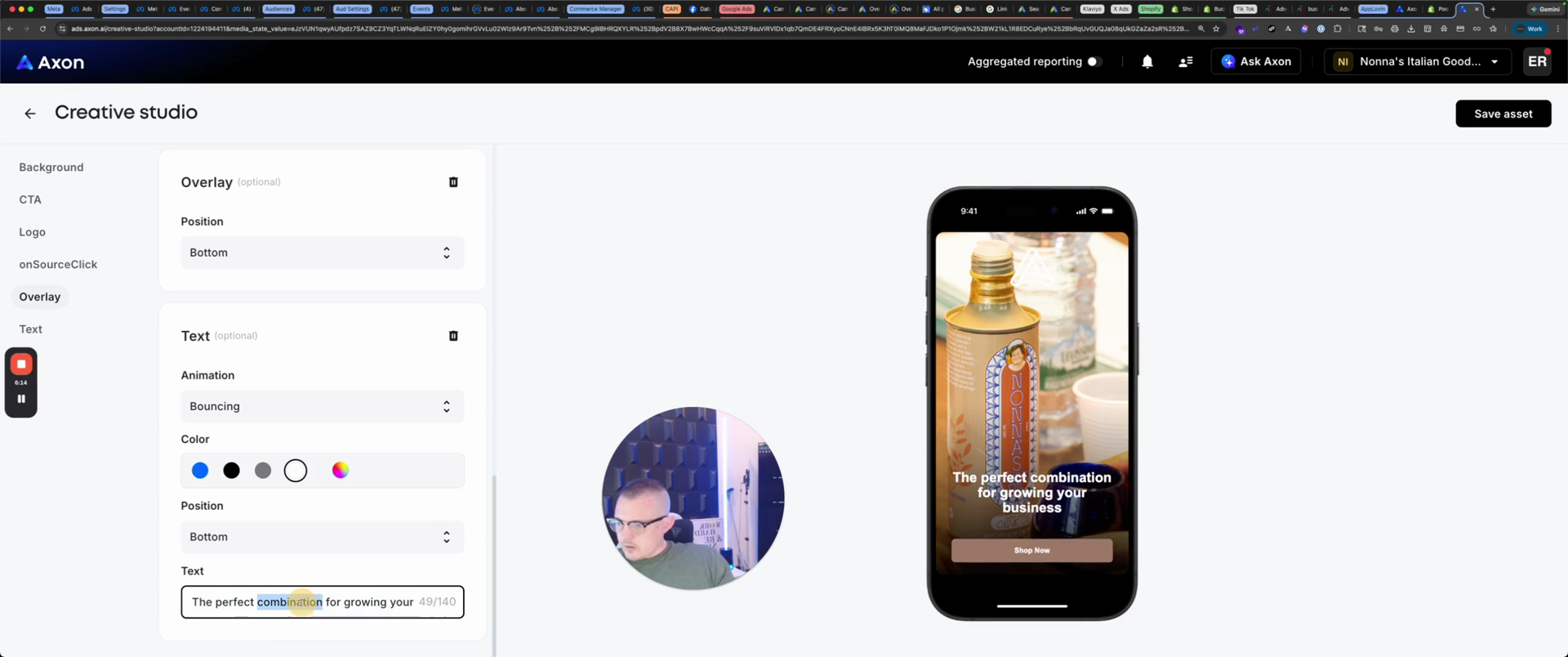
For the tagline, use "Nonna's Olive Oil" instead of "The perfect combination".
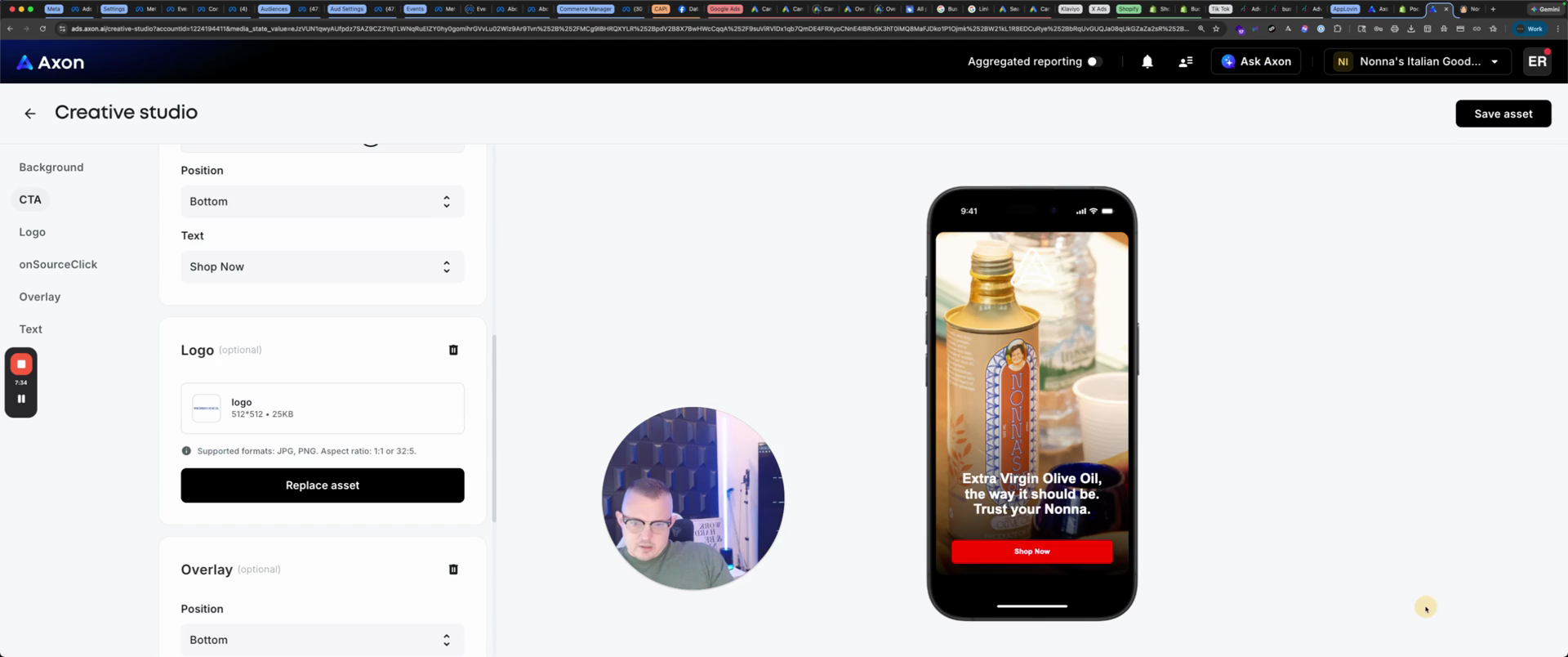
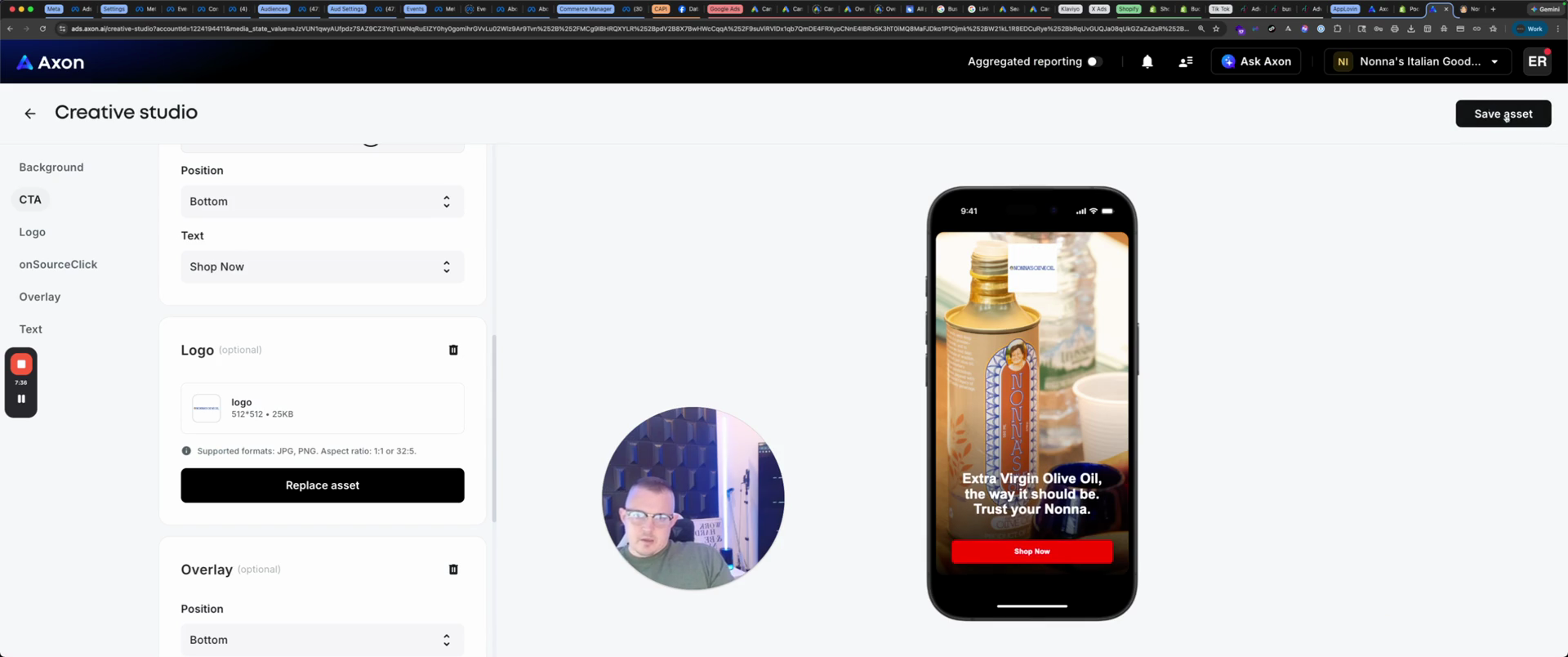
It says, "Extra virgin olive oil, the way it should be."
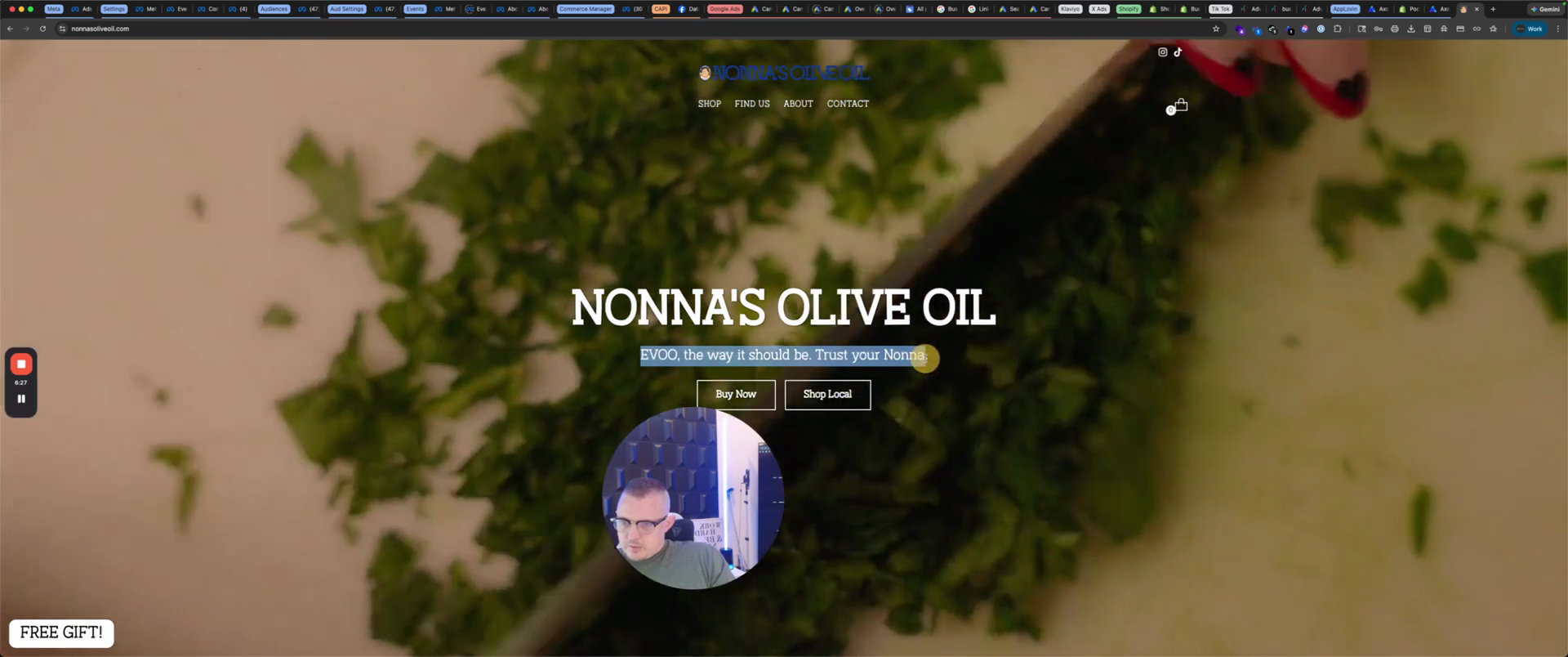
Trust your Nonna.
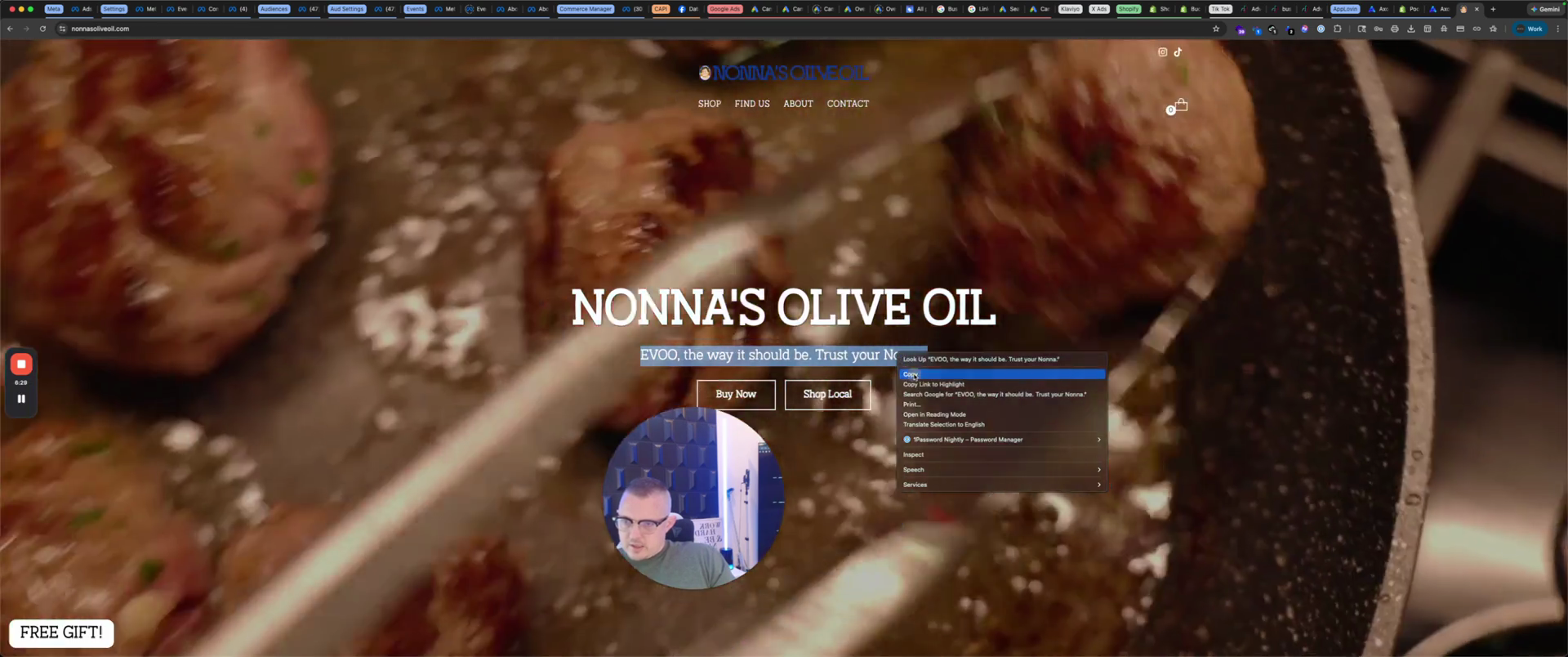
That is what we will put in this one. Go back the other way. It should be.
Trust Your Nonna. Just because some people may not know, we will type it out. Extra virgin olive oil, the way it should be.
Trust your Nonna. And then we're going... You can change... If it's bouncing, you can change the color. I prefer a brighter color so it stands out more.
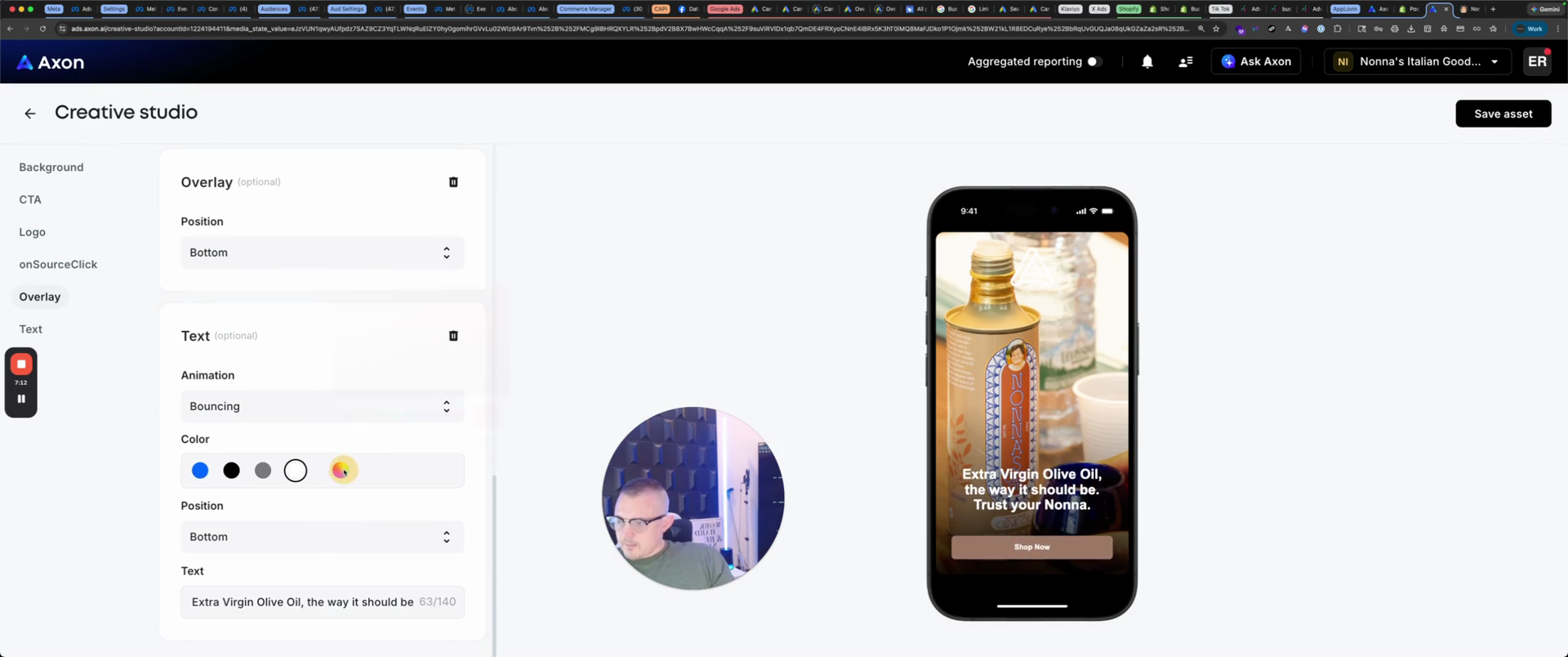
Sorry, not on the text. I like the text in white.
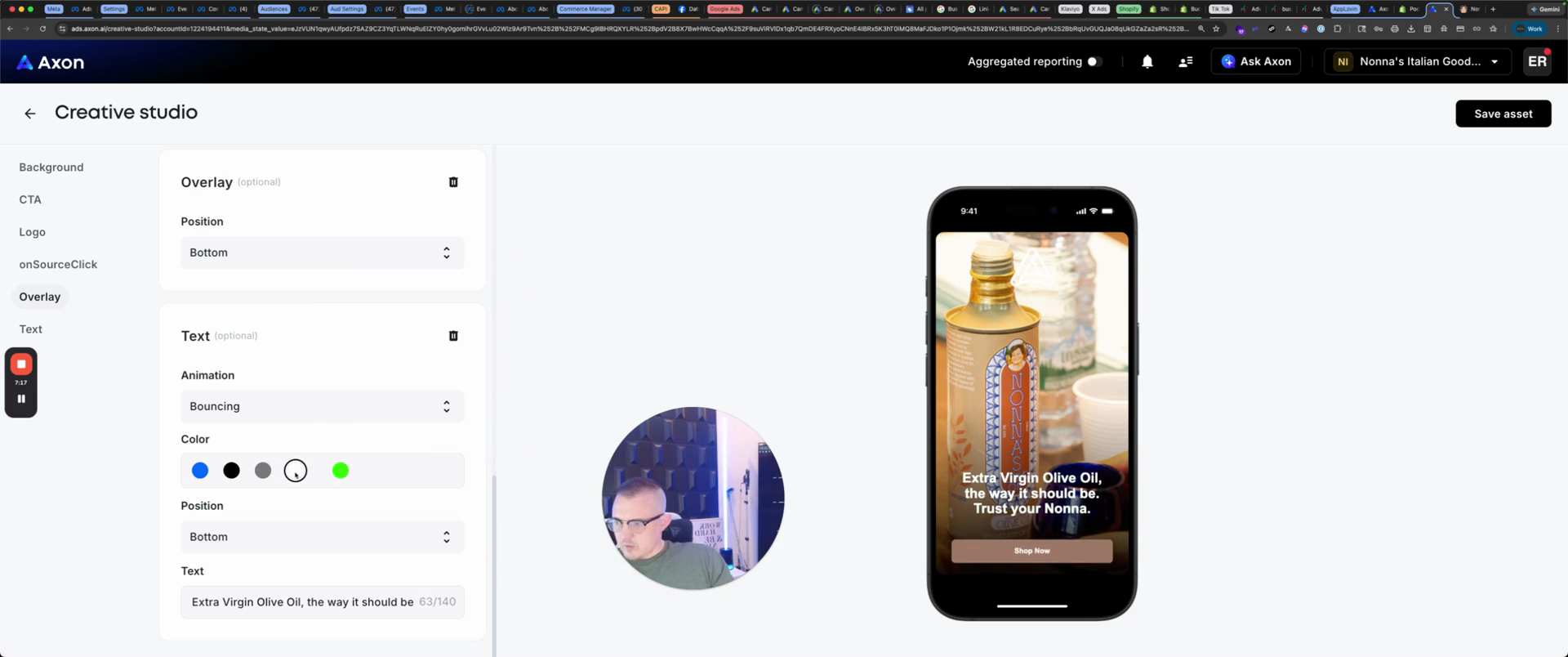
The button matched the color, but I would prefer a red button because it stands out more.
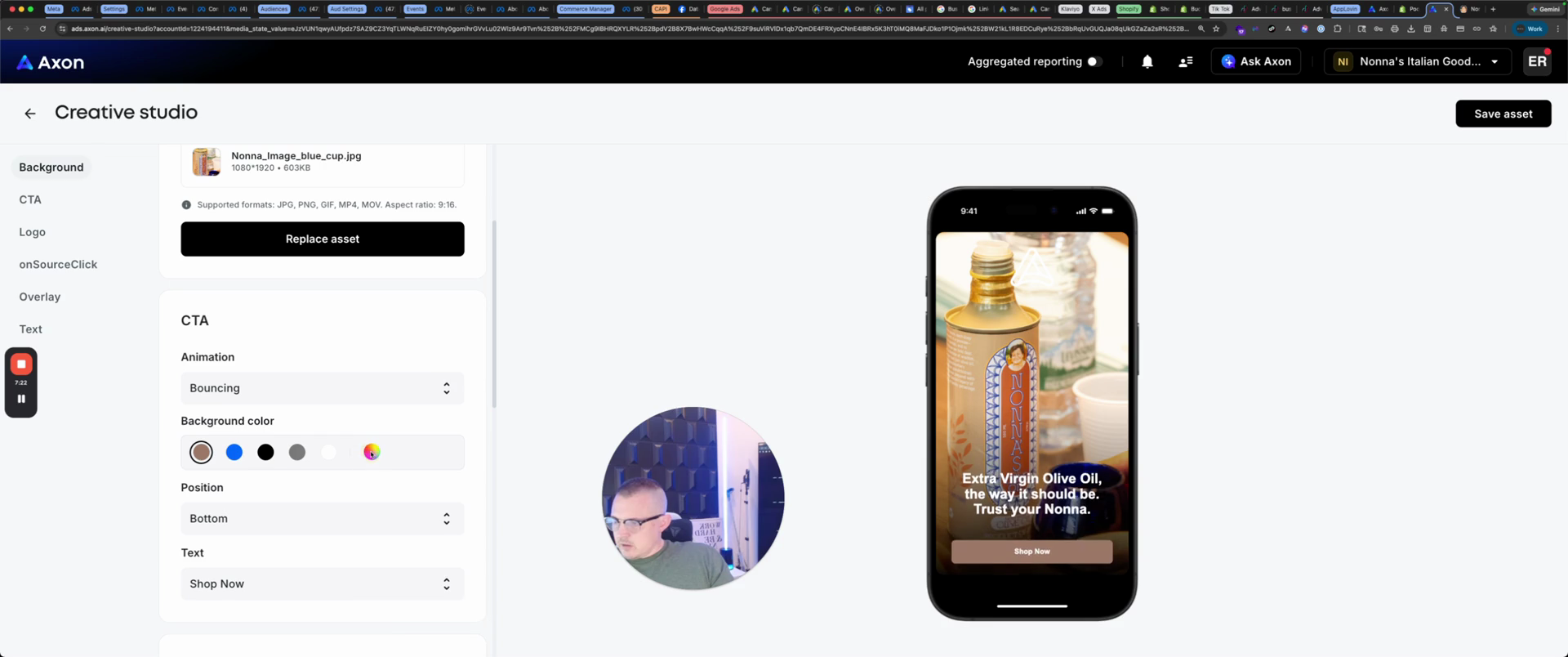
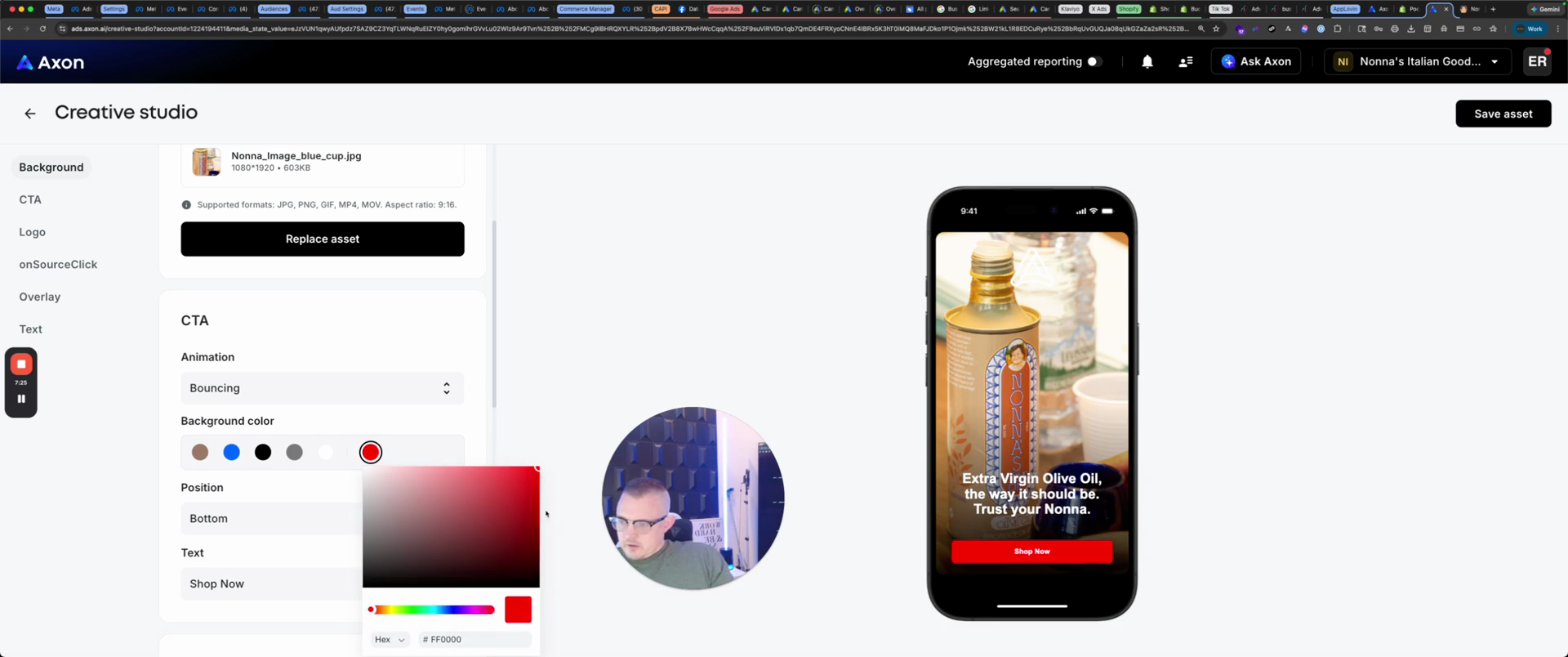
You can change the text that says "Shop now." Lastly, the logo.
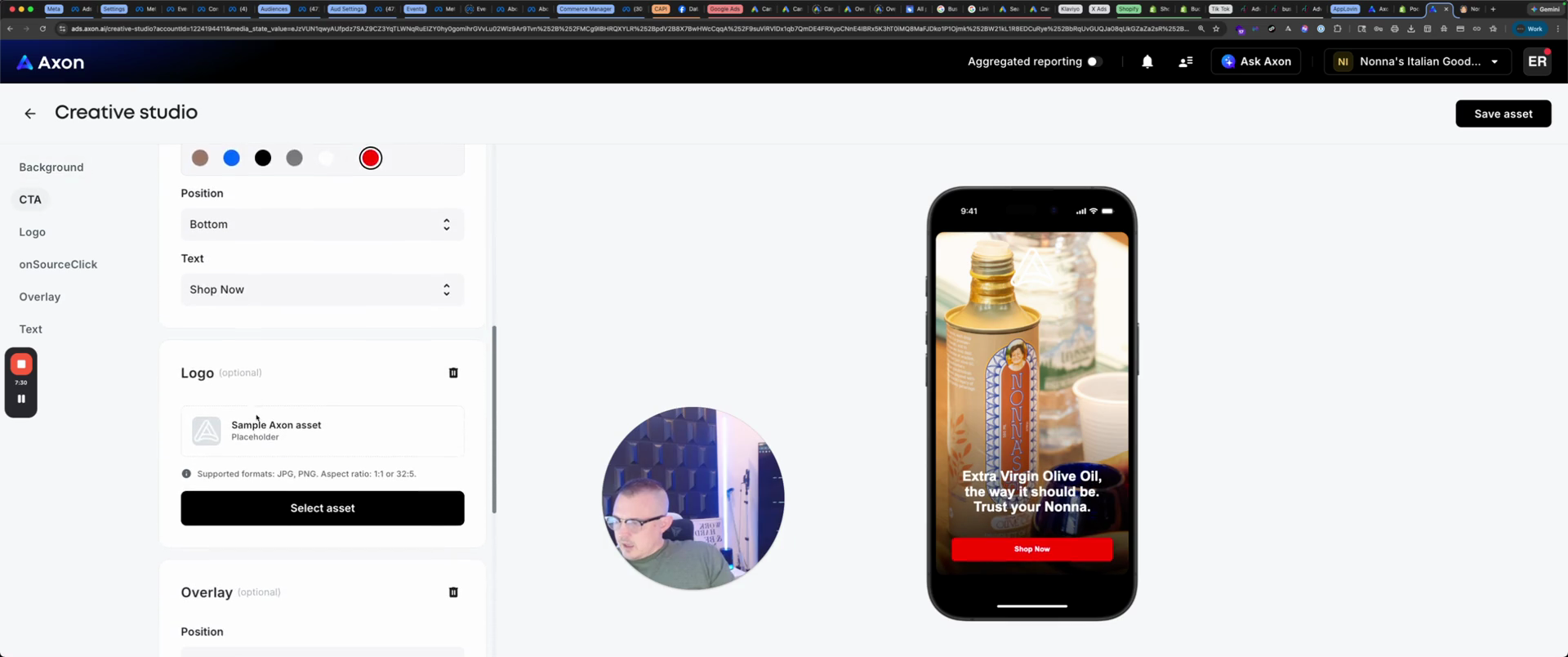
Insert the logo, confirm, and save the asset.
That's how you make an interactive. So, now that you've made...
Each campaign must include at least one video and one interactive element. We're going to create.
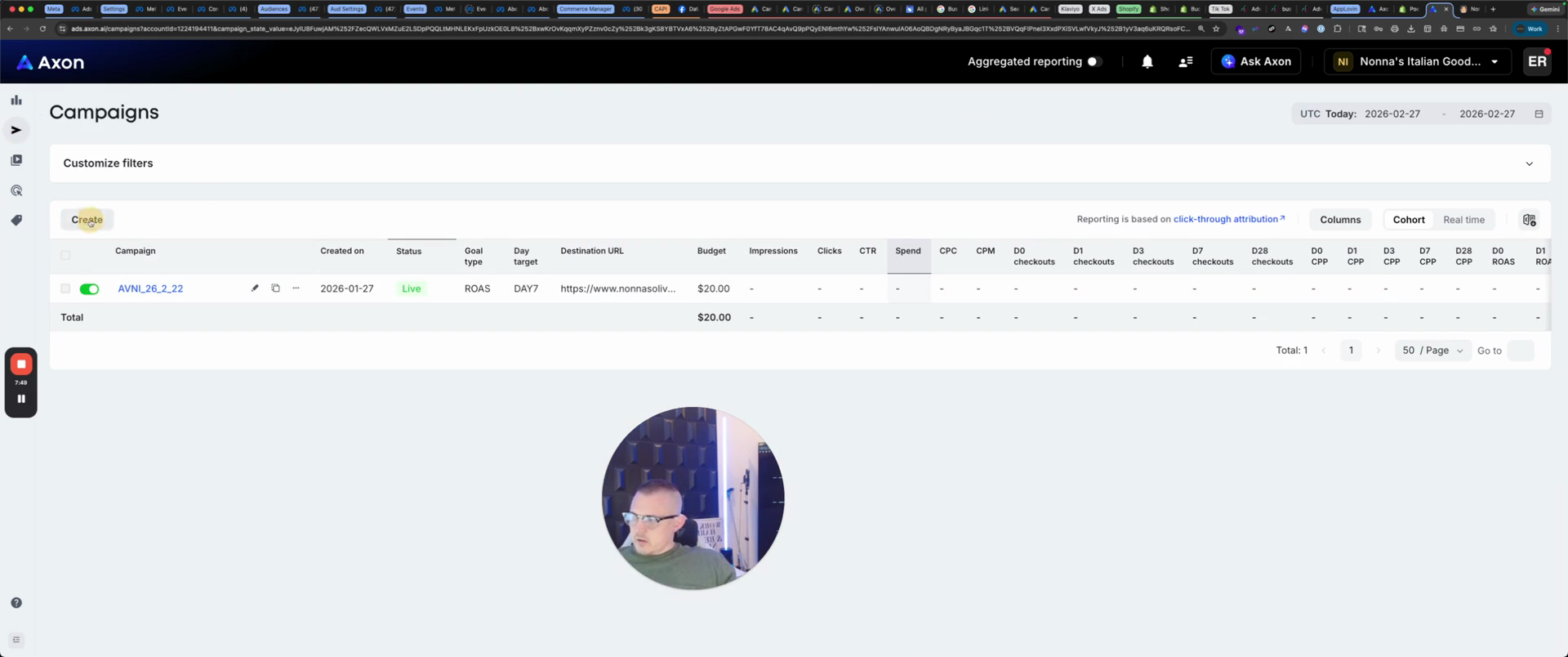
R nomenclature is OVNI_26/02/26, Nonna 2.
We will use the Shopify catalog.
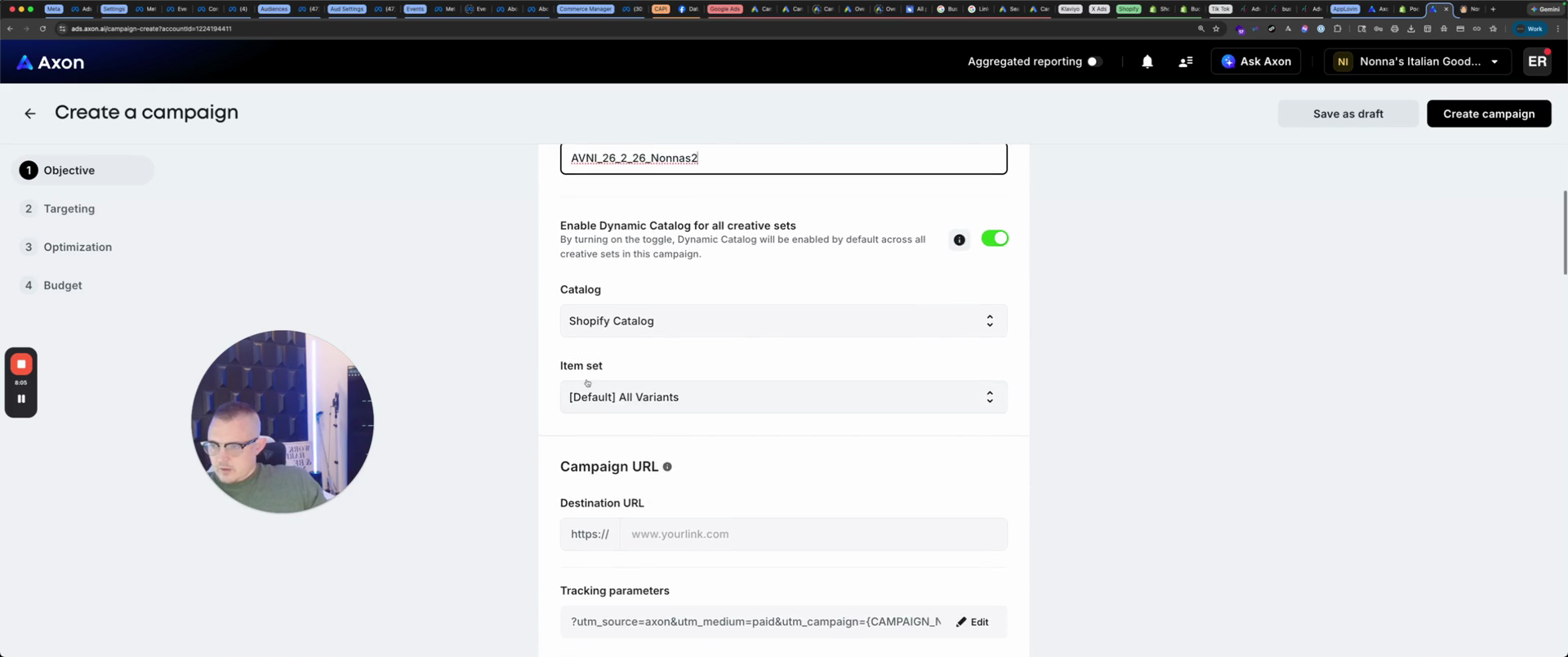
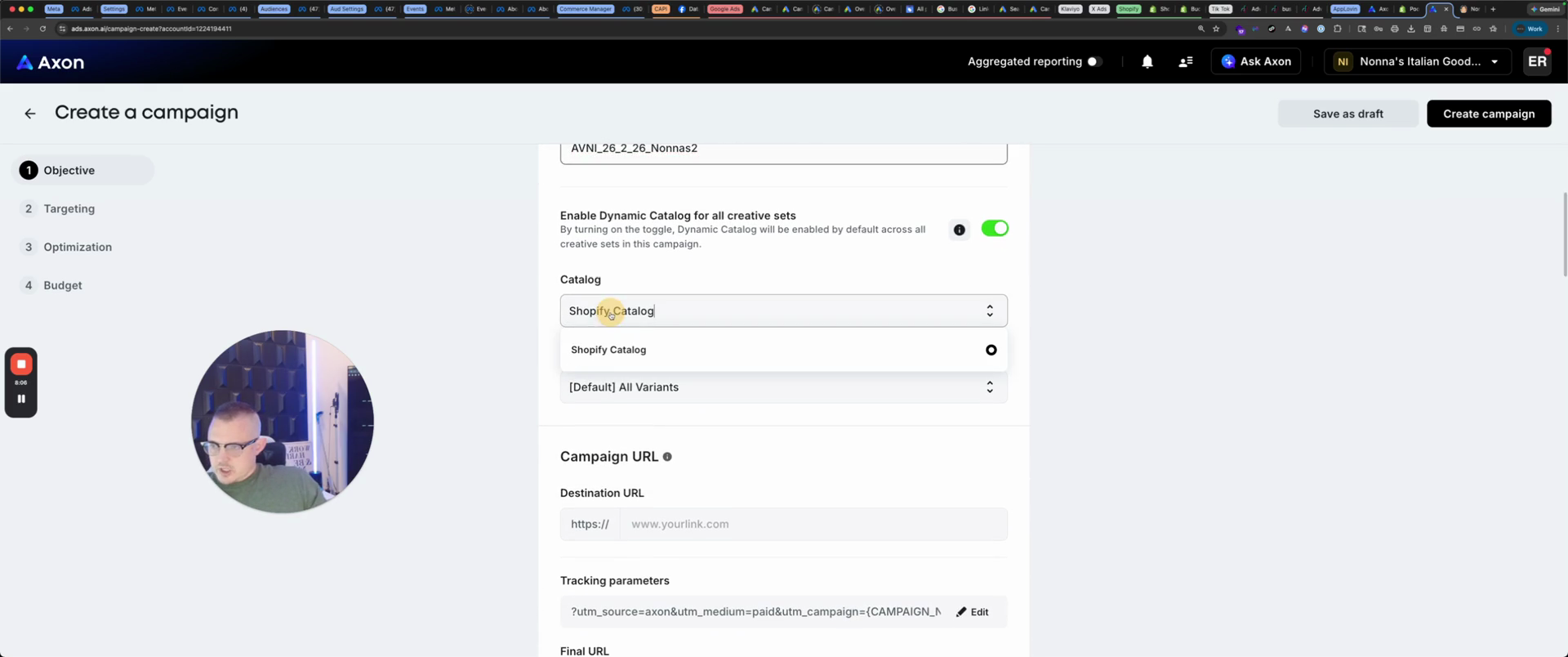
You can create a specific product set if you wish.
We will take the website. I'm gonna paste it. Now here... Oh, sorry, I meant to paste it there.
You don't need HTTPS.
Here, since we're using Northbeam, it automatically connects with Northbeam, which is great.
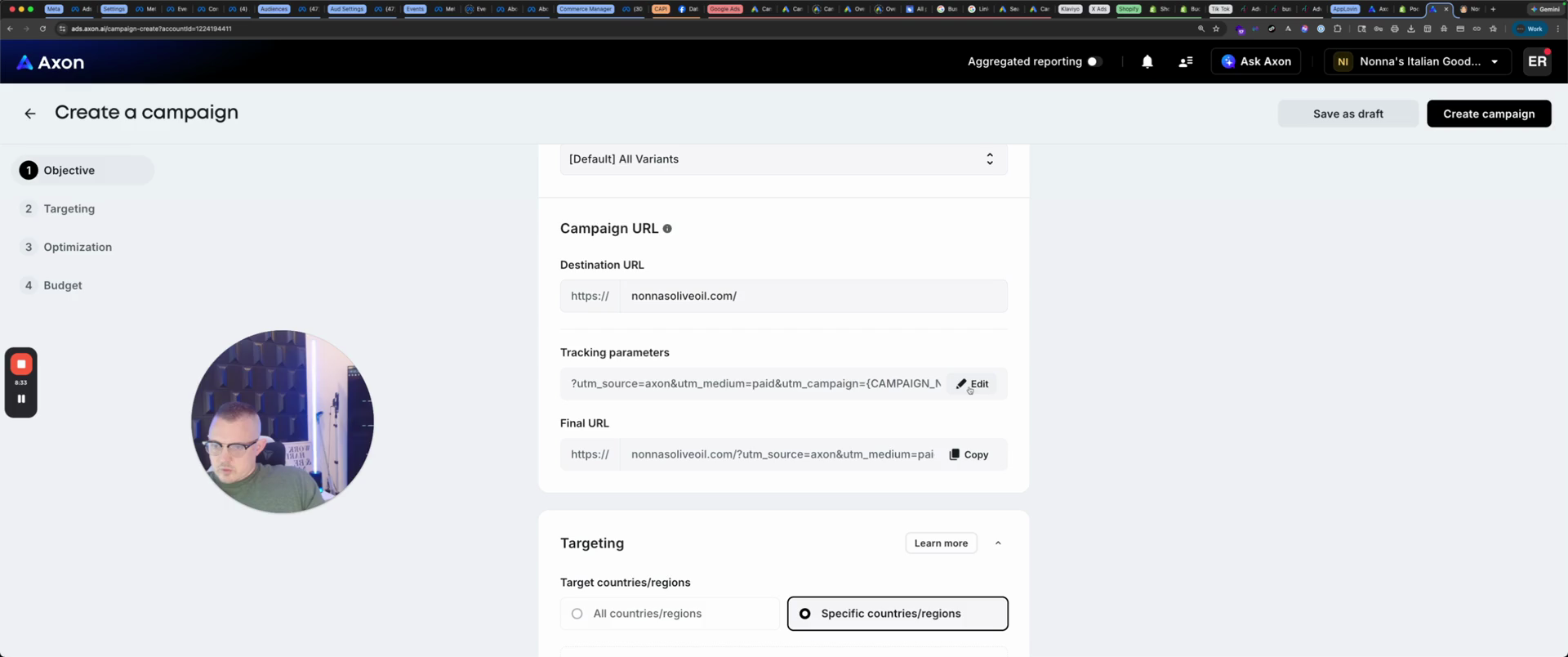
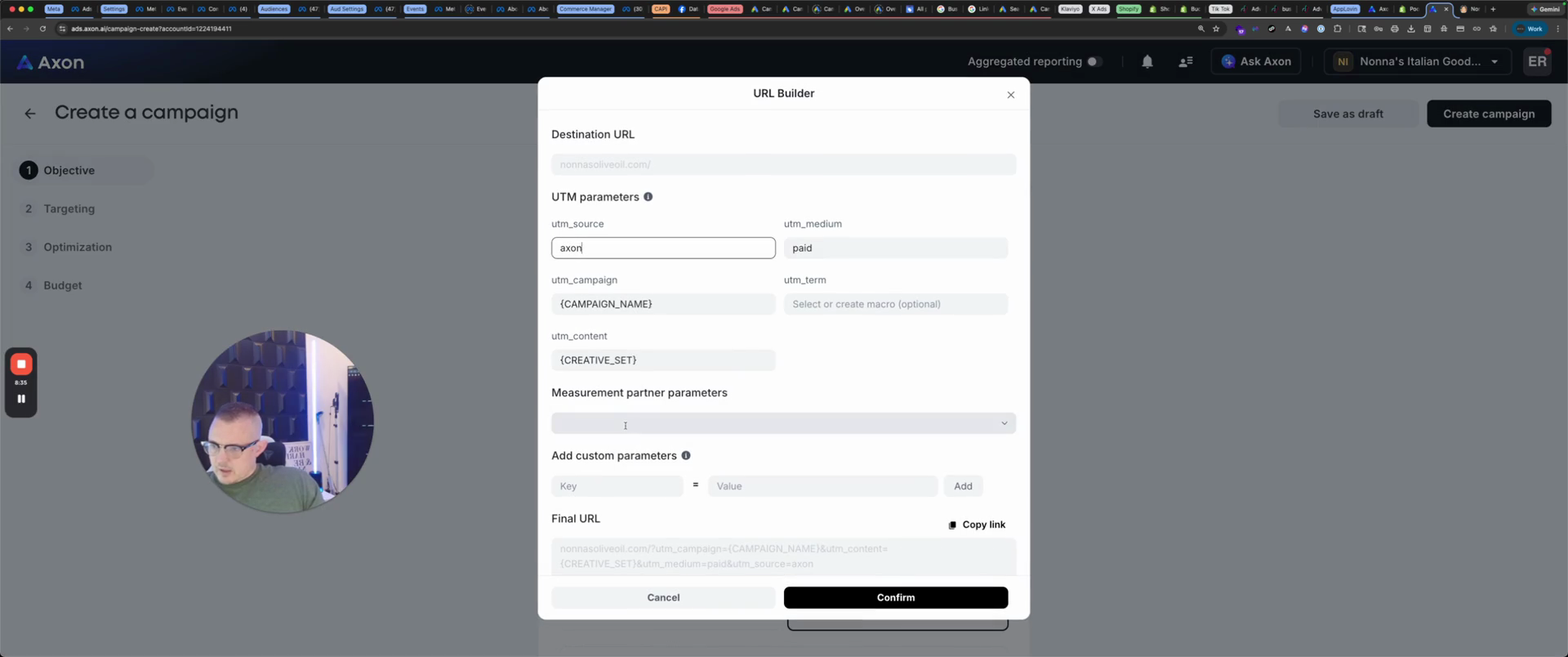
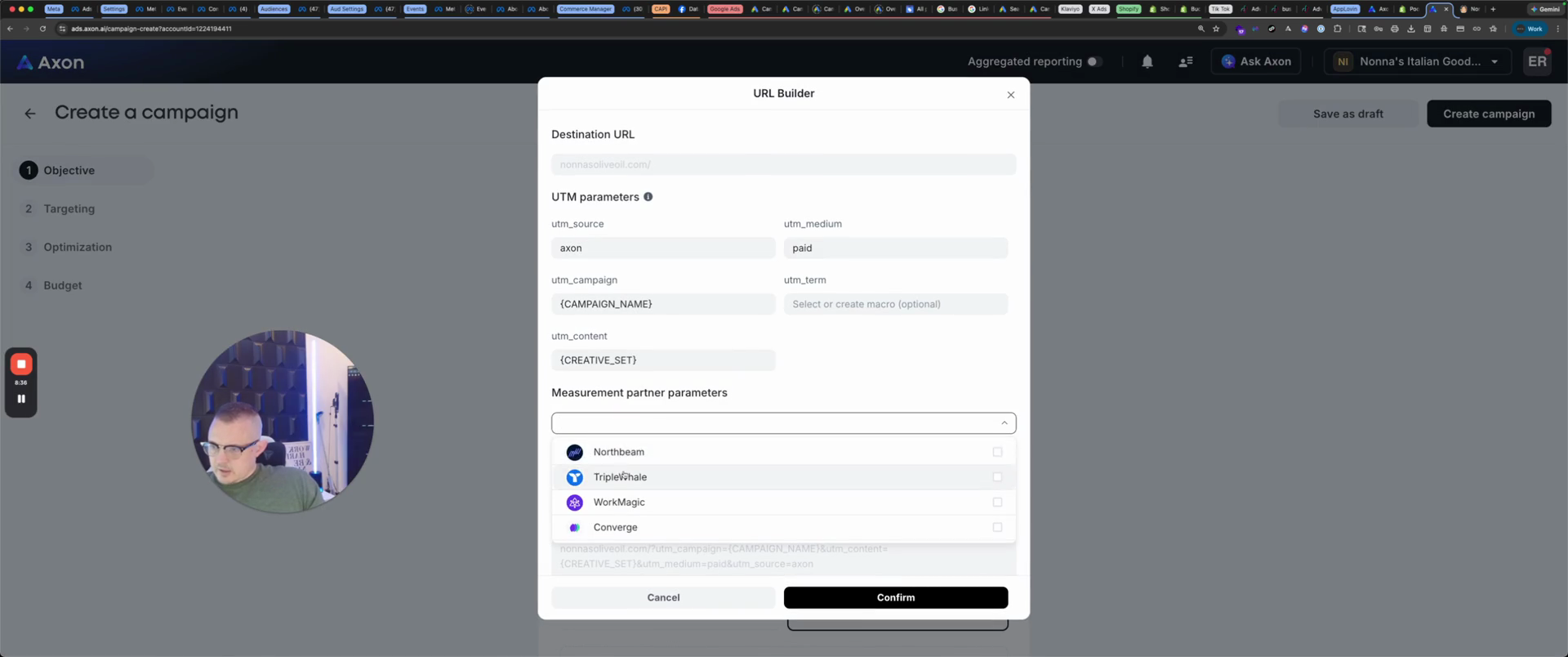
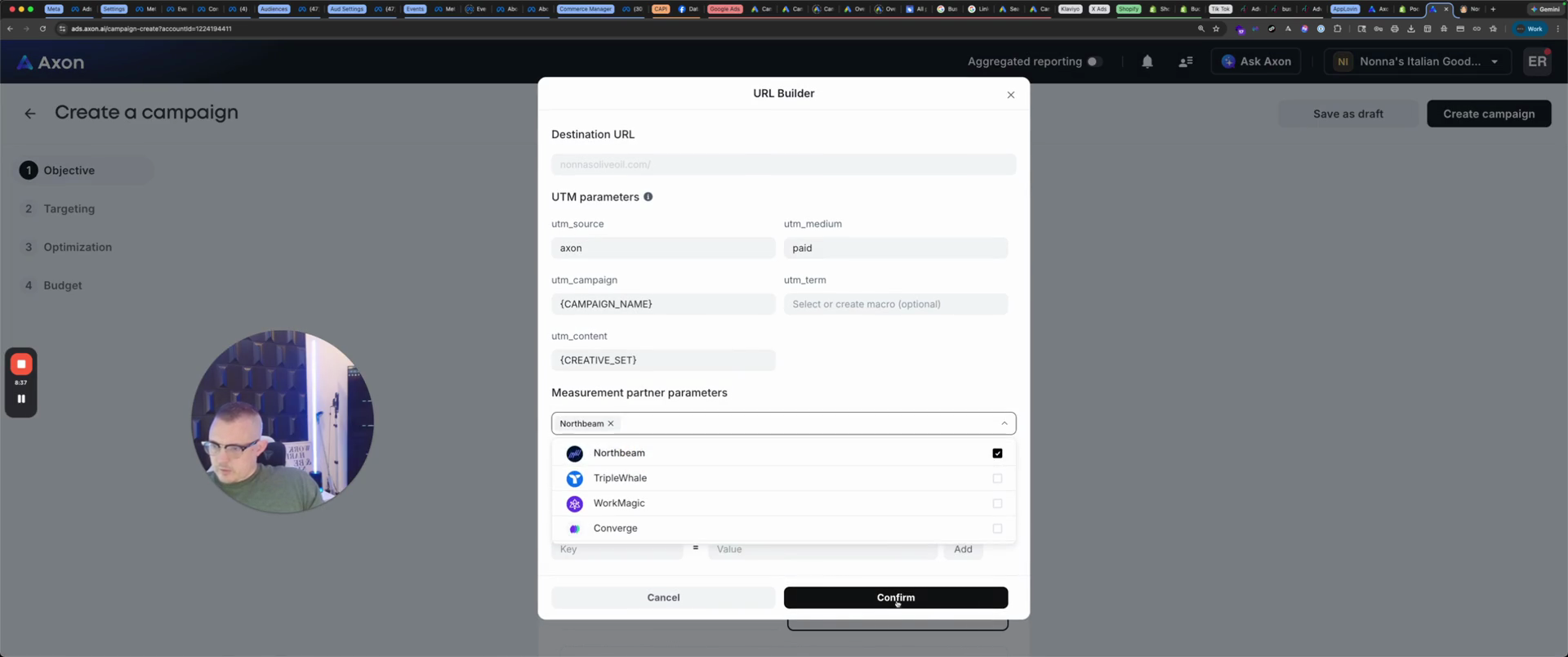
That's the final URL. You can specify countries.
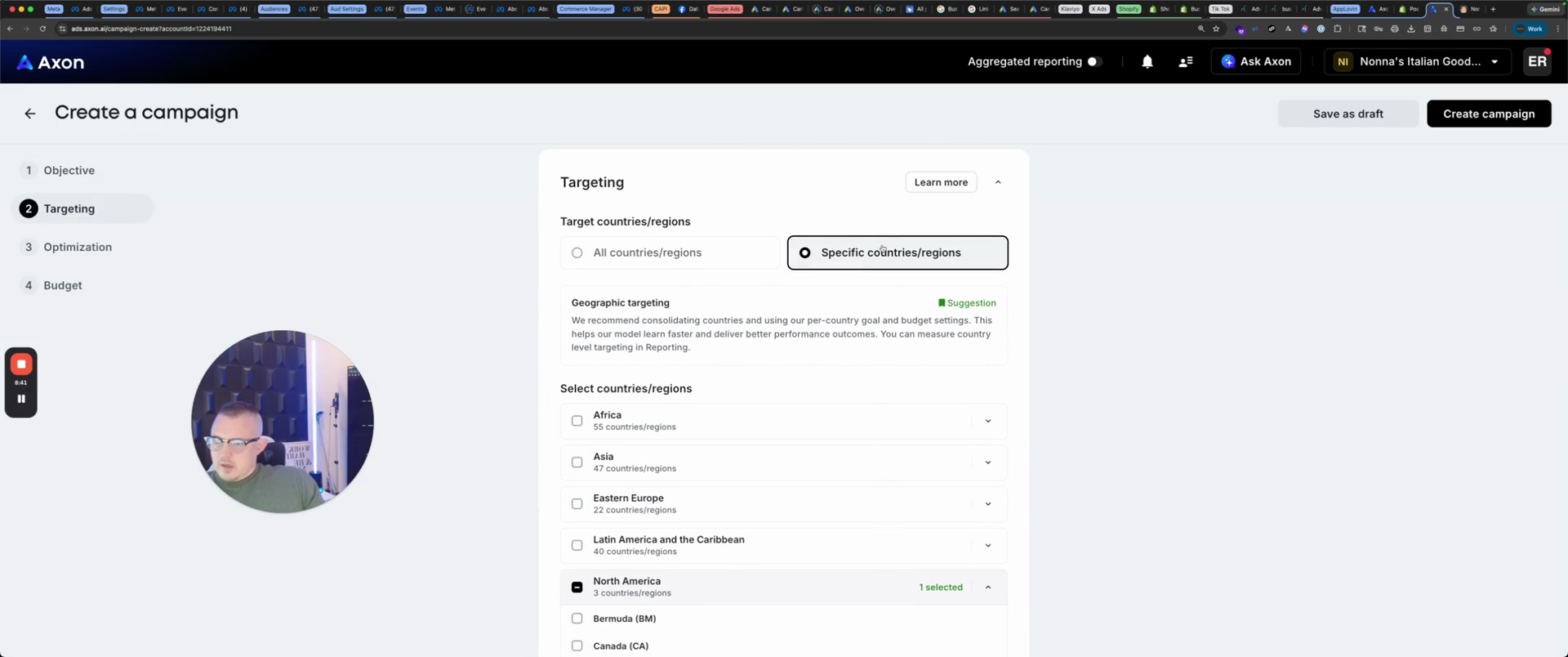
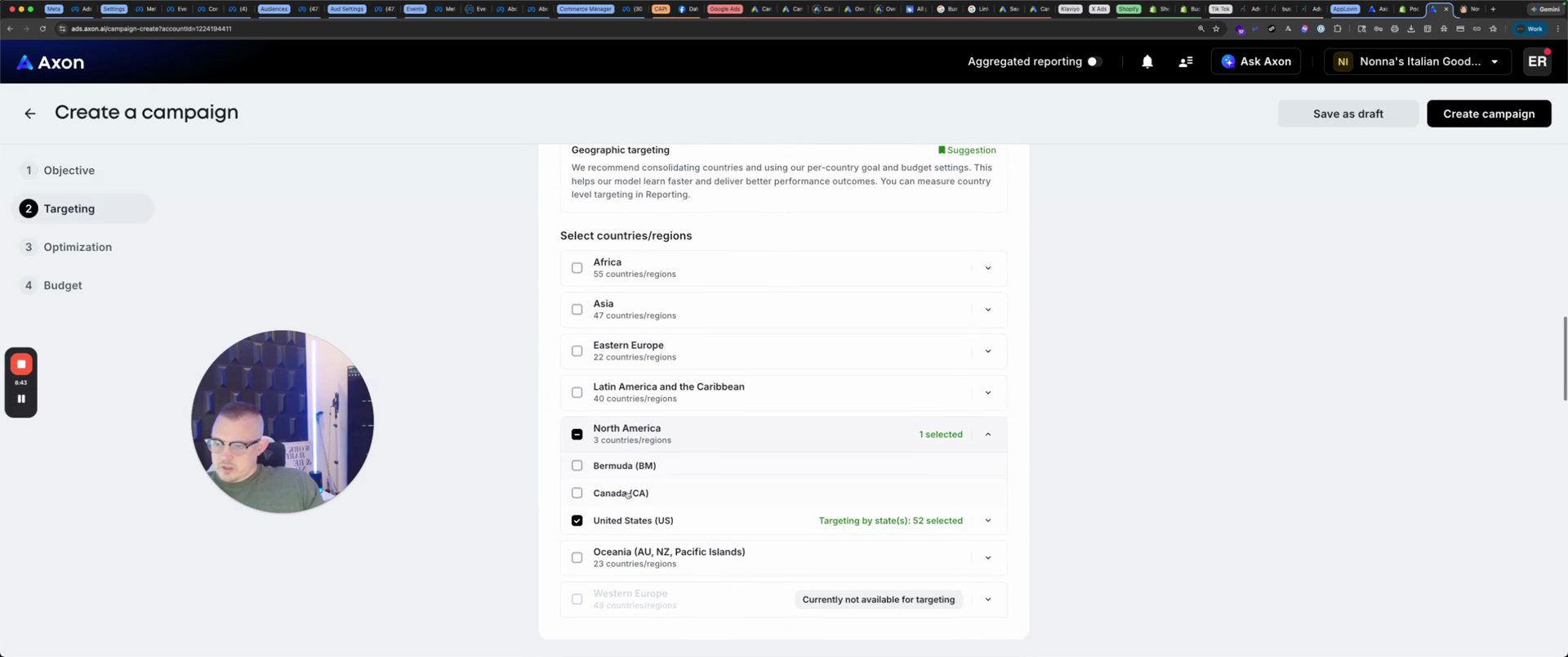
We are selecting the United States, but you can choose a different country.
Two types of goals.
I like ROAS, and you target your ROAS.
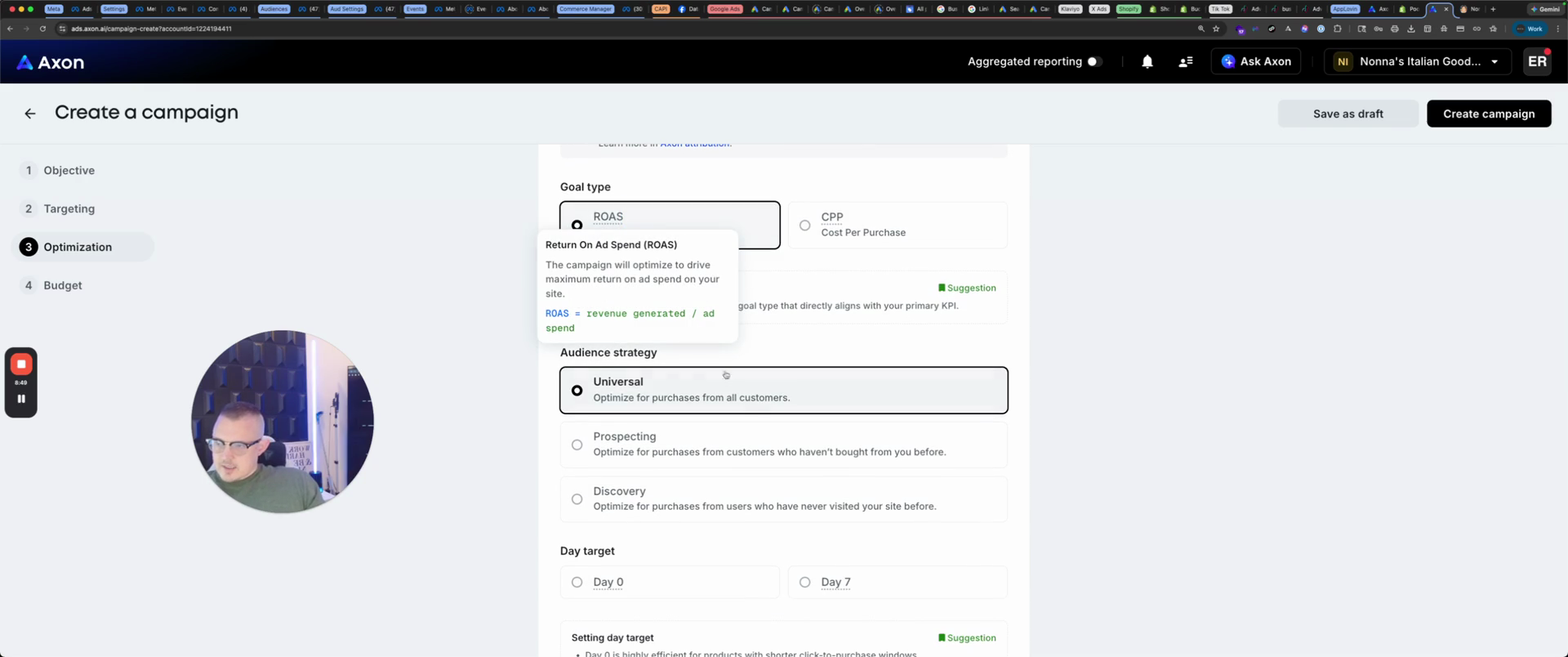
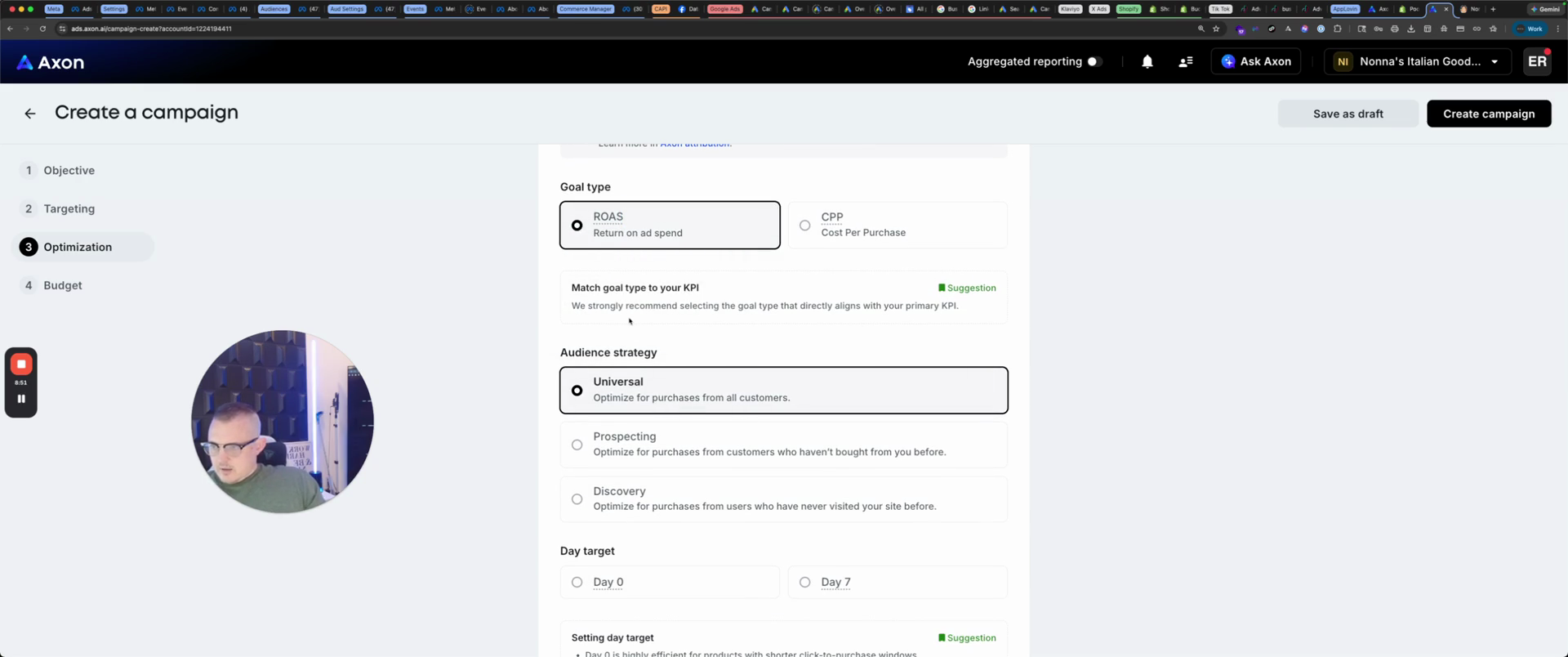
ROAS or cost per purchase. Next, for audience strategy, we will focus on prospecting to reach new people on day seven.
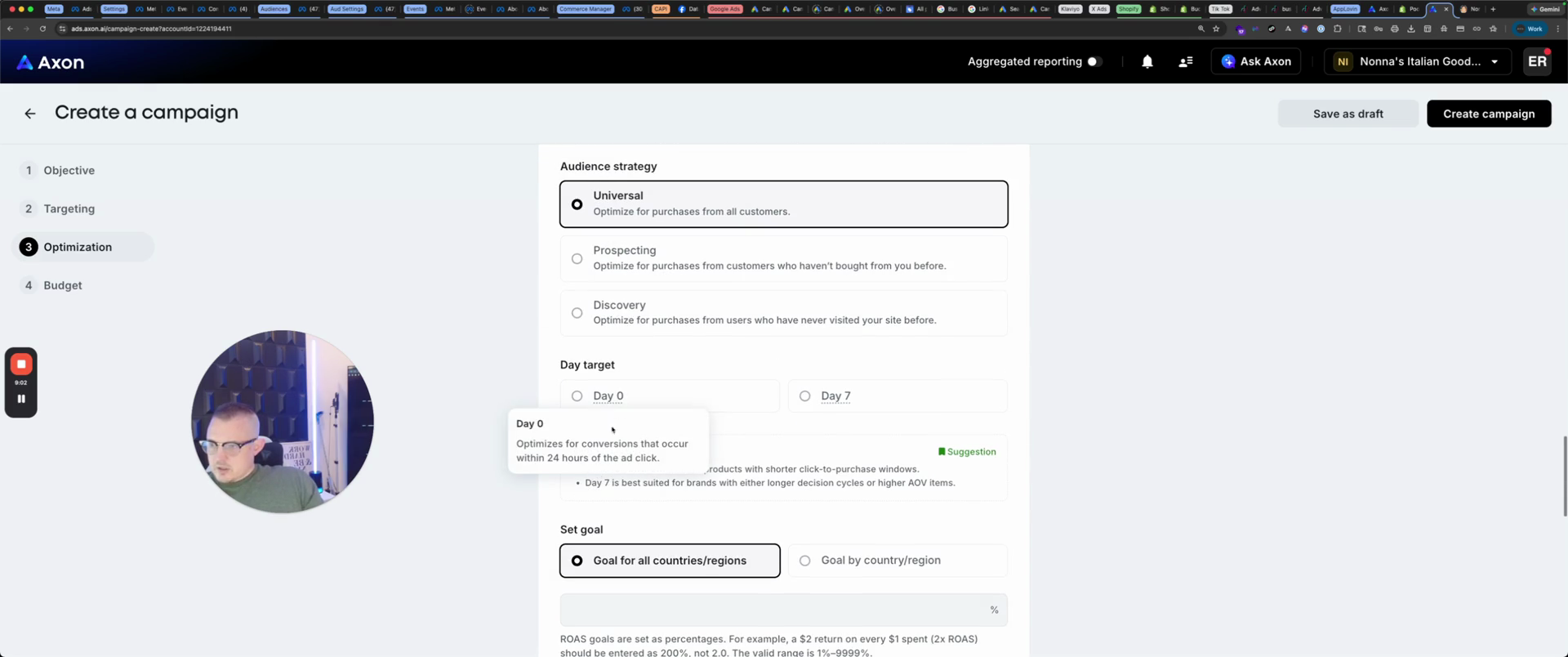
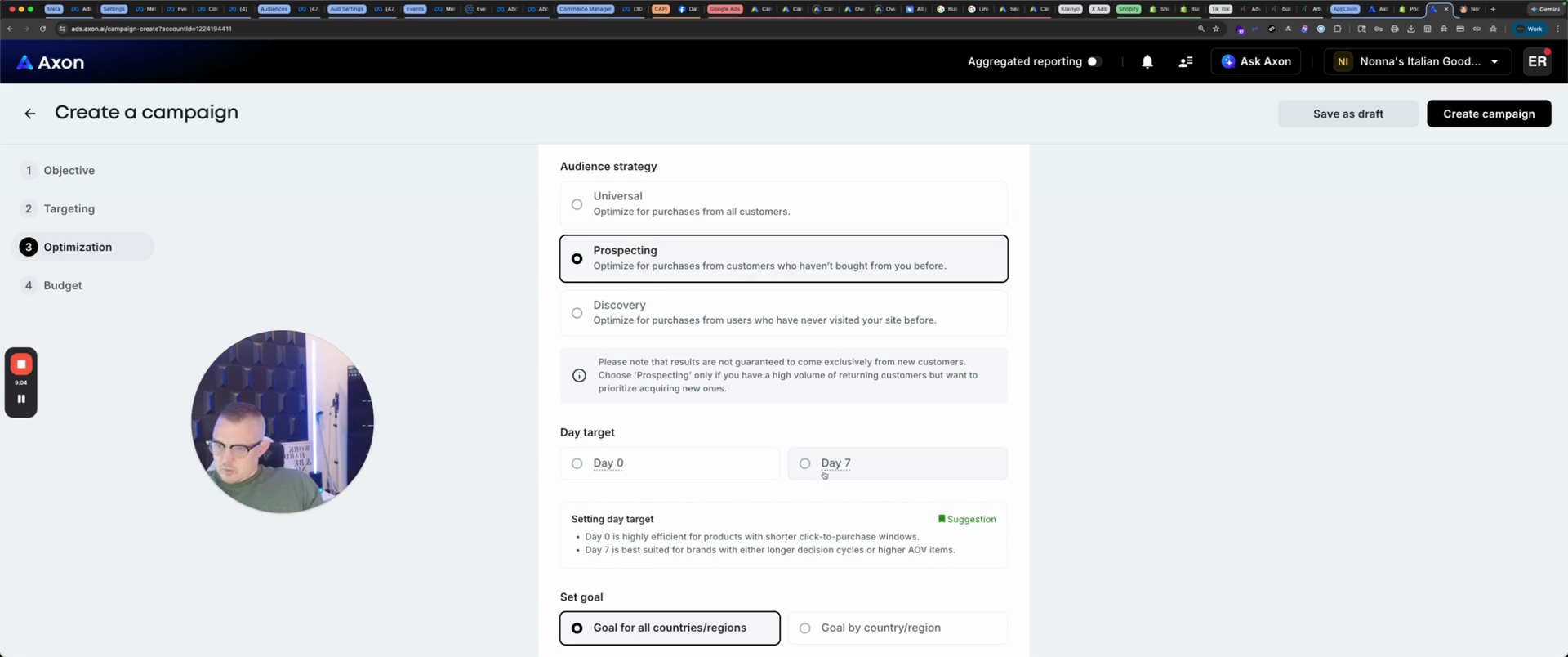
Next, set the goal. We will set it to 200%, which equals a 2 ROAS.
That's reasonable. Budget $50 a day to start on this one.
Schedule the date for today and create the campaign.
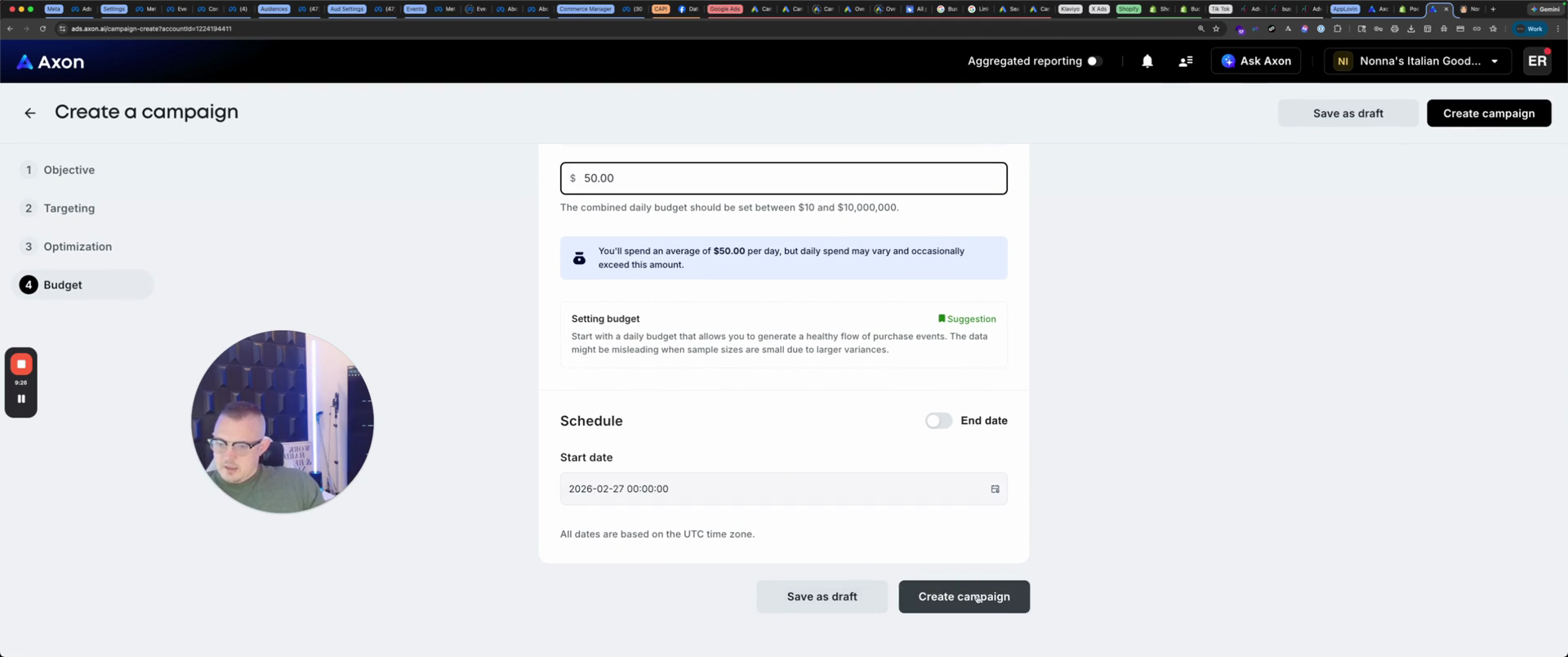
We have just created the campaign.
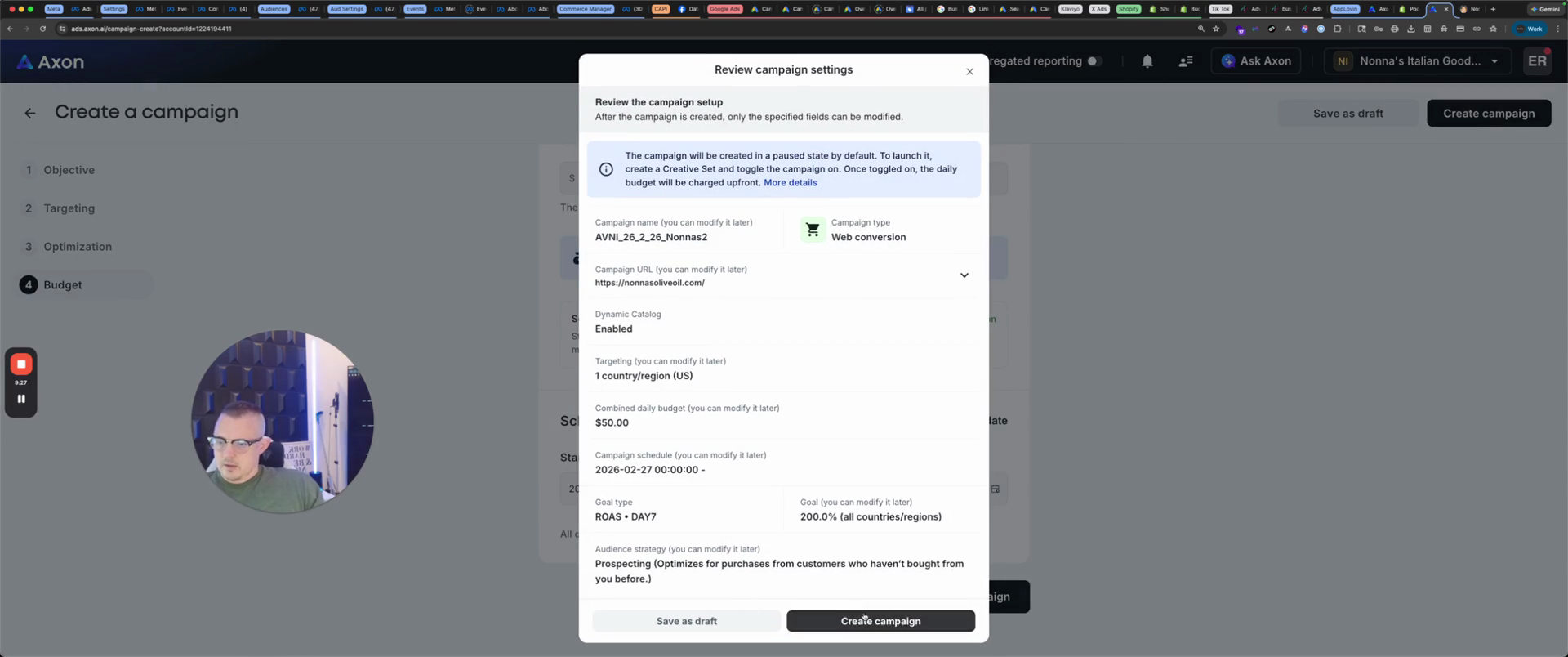
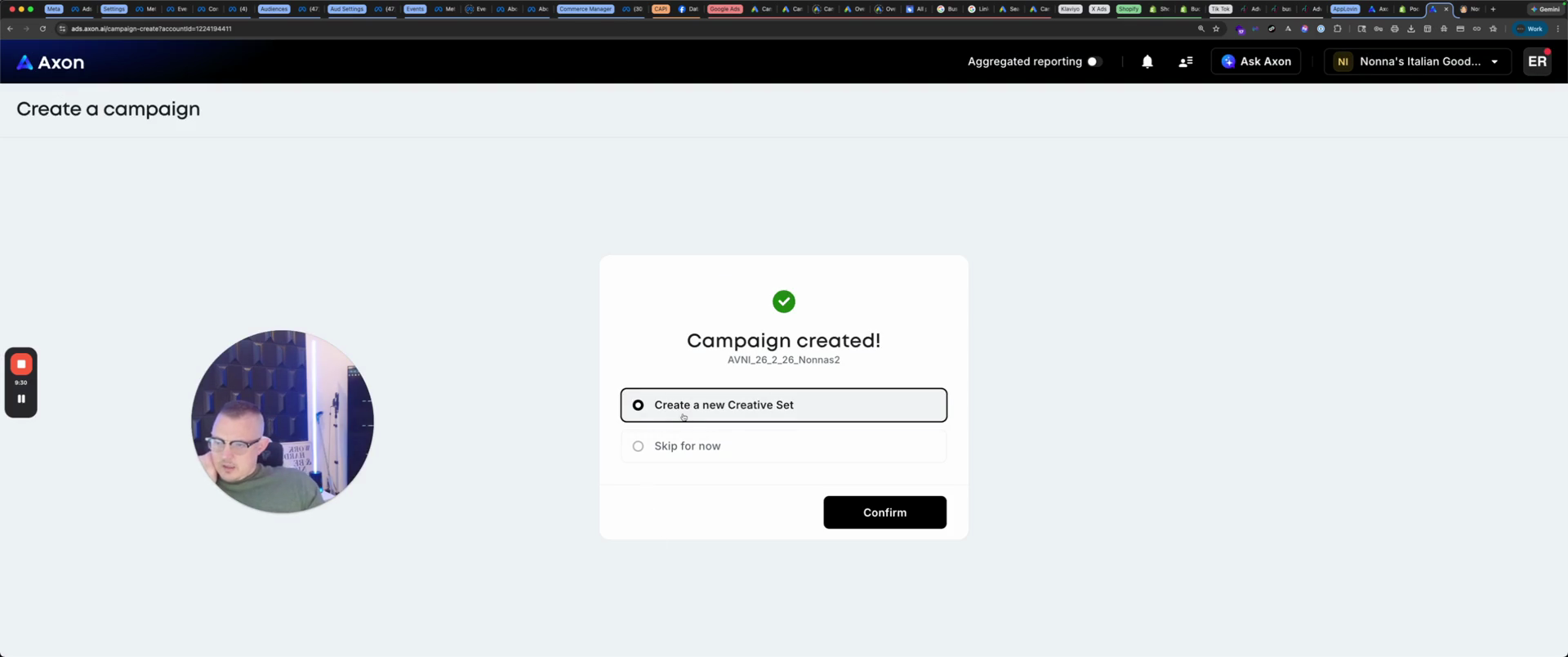
Create a new creative set.
Here, you can have up to 30 in this section. We’re going to Nonna’s and naming it Olive Oil 2.
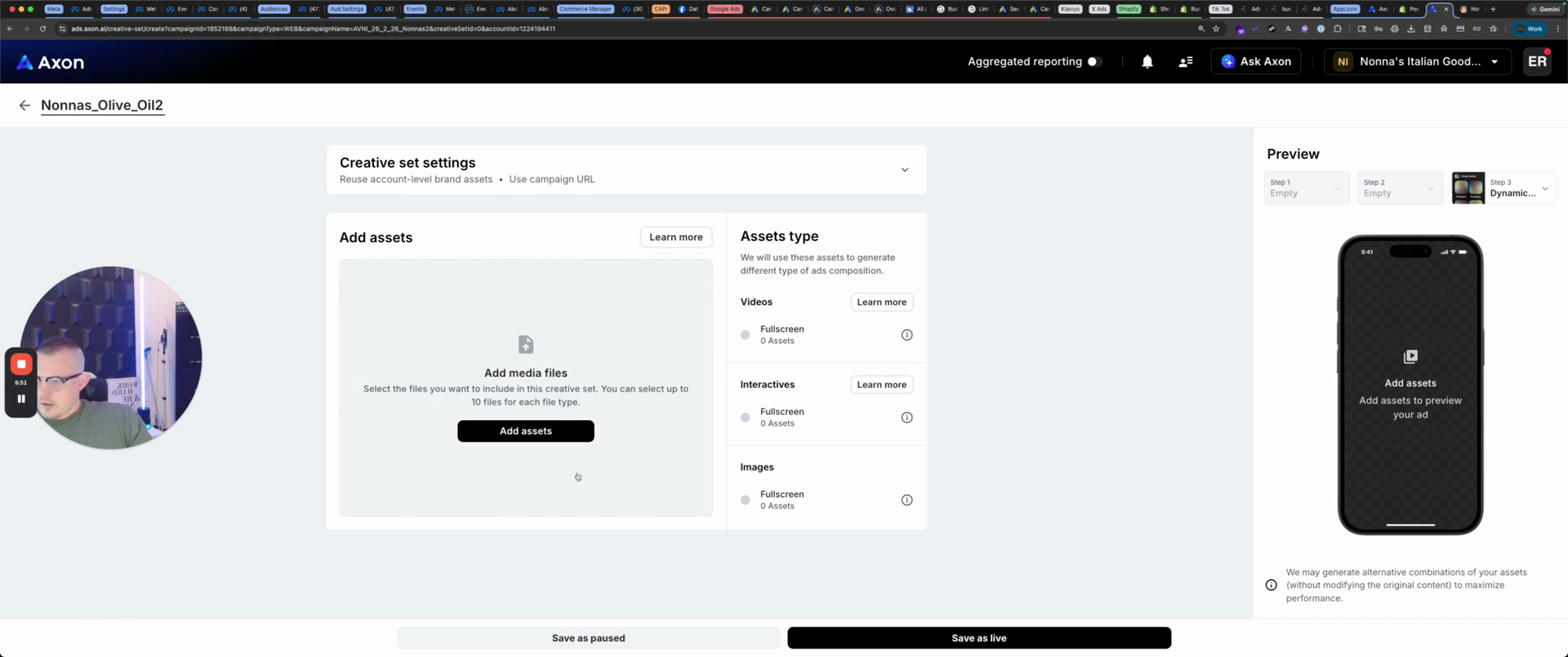
Add assets. We need one video, so we will use this new video.
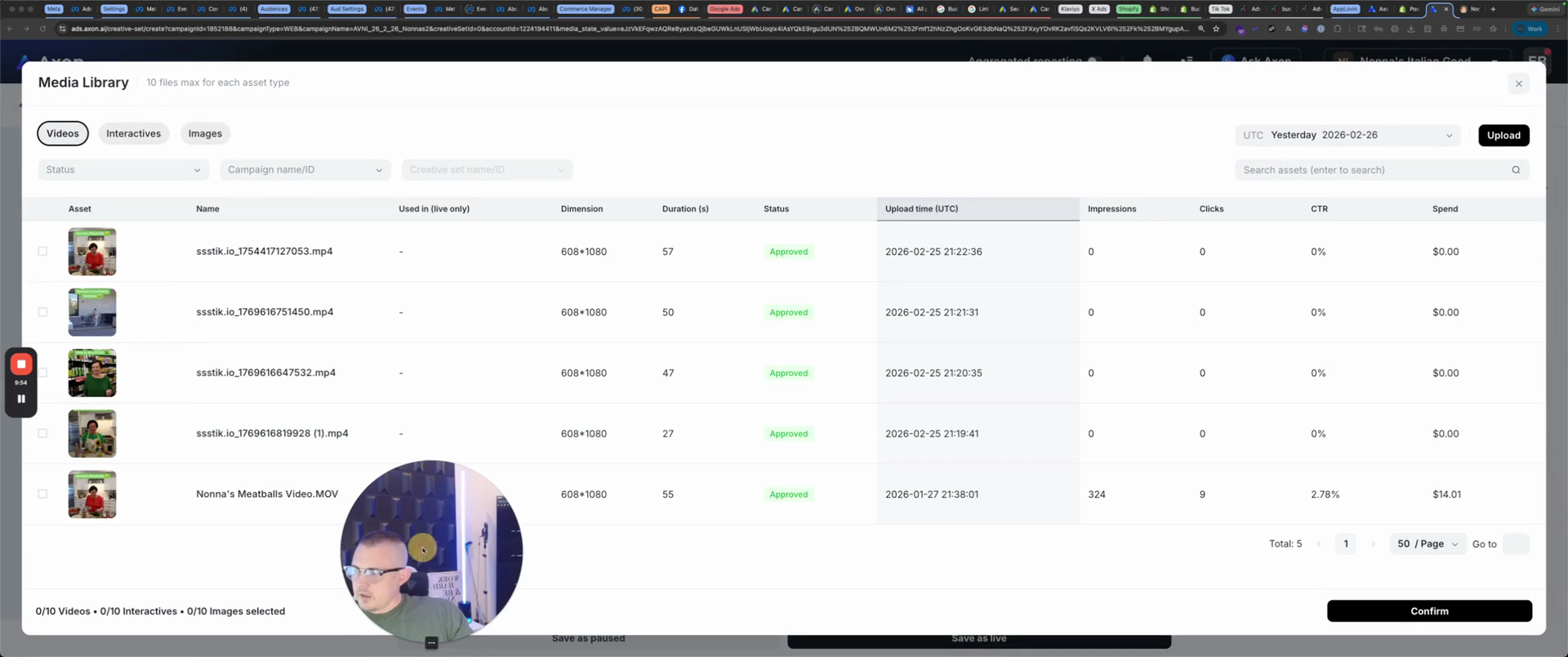
Technically, you want to put 10. The only problem is that when you do that, it doesn't tell you which combination worked. It will tell you if one worked and one did not. Next, we will use the interactive we created. The one we made is still under review.
I made the same one yesterday. It looks like Josh made one today.
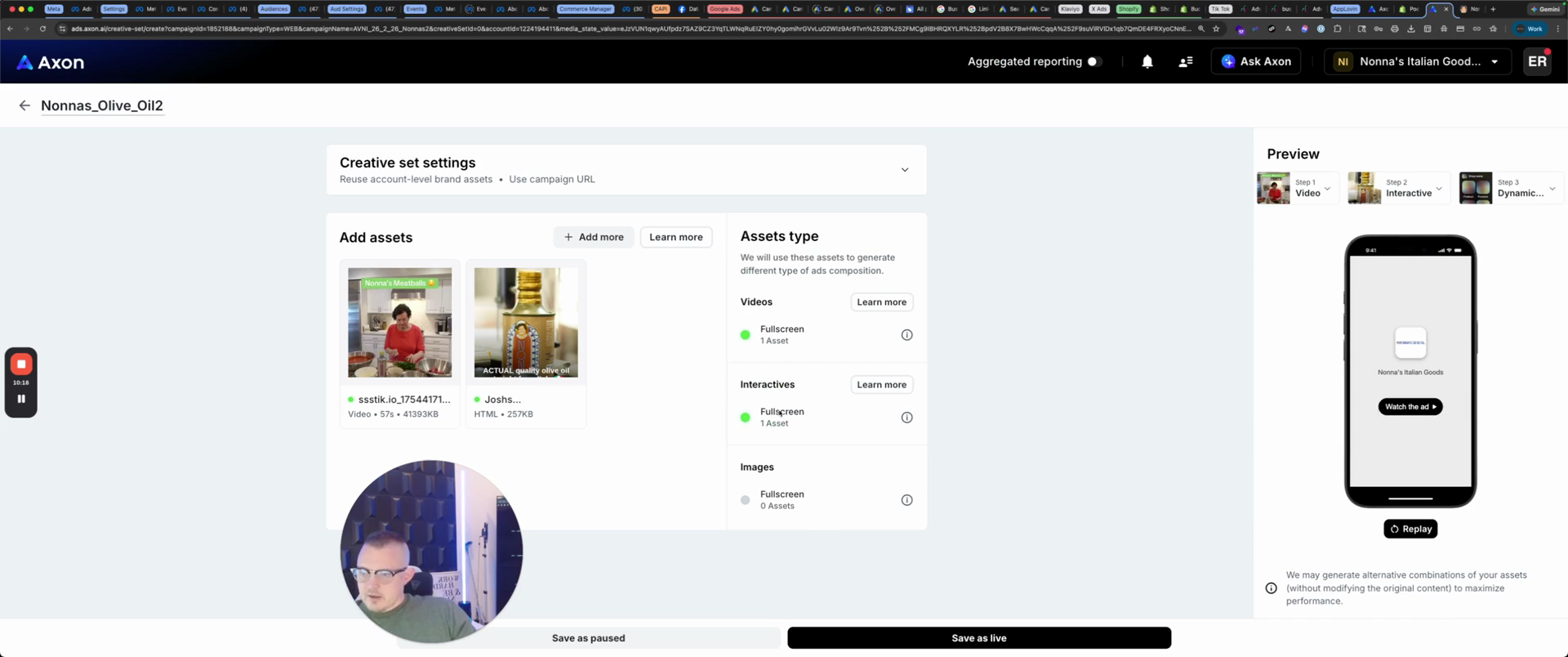
That's the minimum we can have.
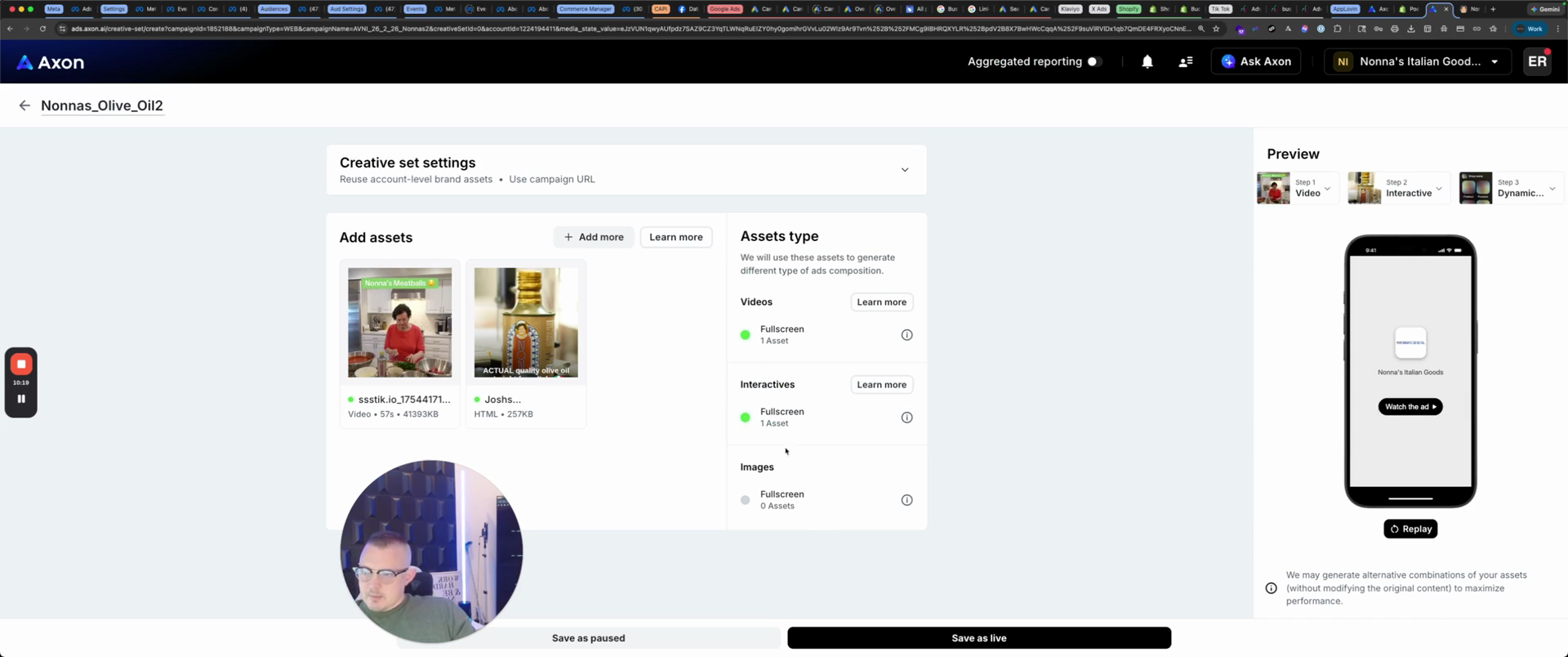
You can watch the ad.
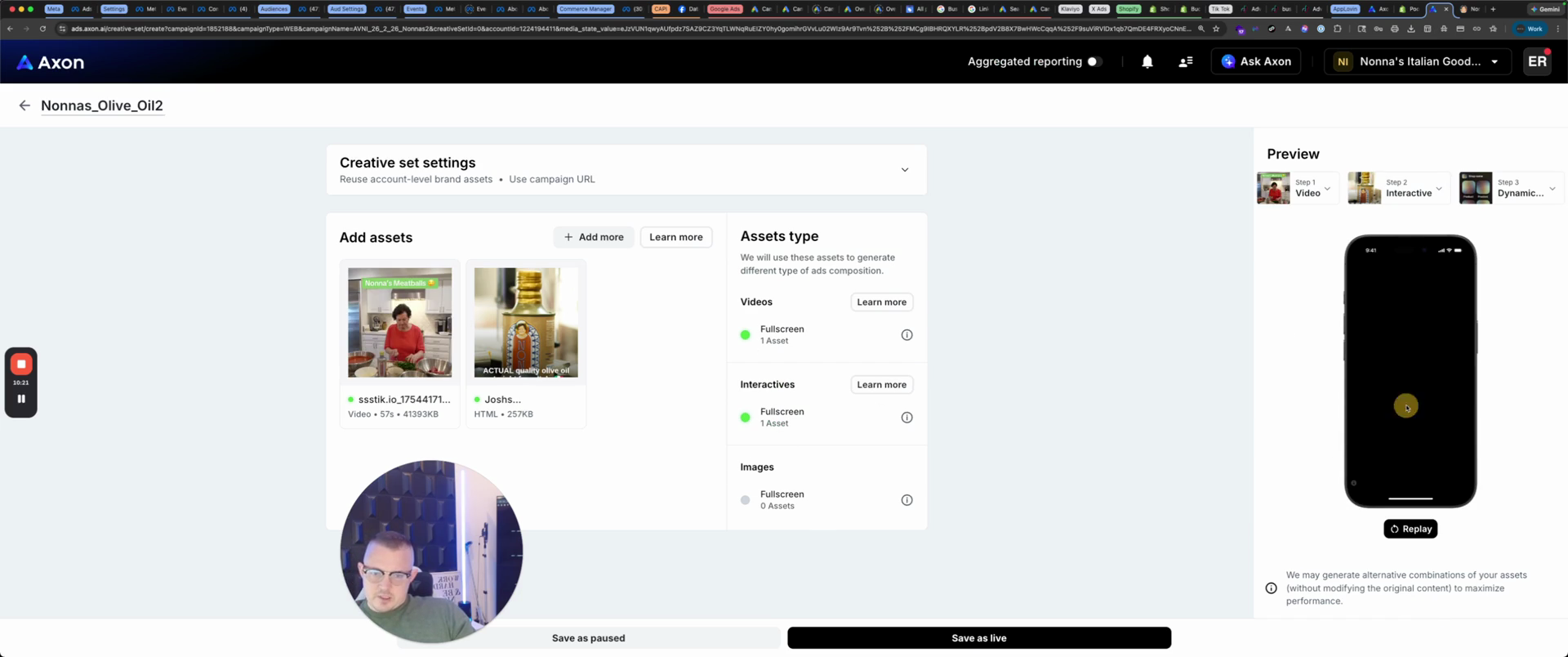
Nonna, what are you doing? Today, I am going to make a meatloaf for my grandchildren. Once the video is finished, it will display, "Actual quality olive oil straight from Italy," and we will save it as Live.
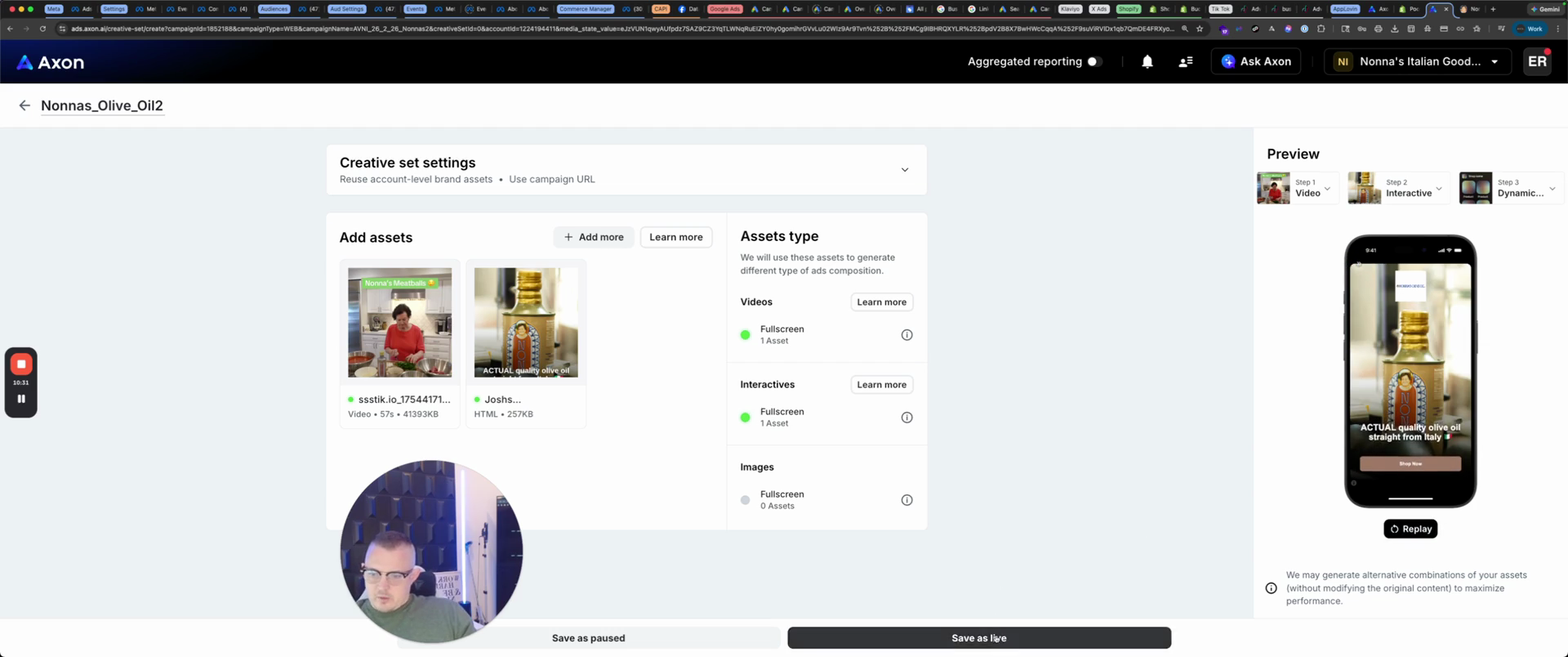
And there's Olive Oil 2. Then we'll go back.
That's our campaign.
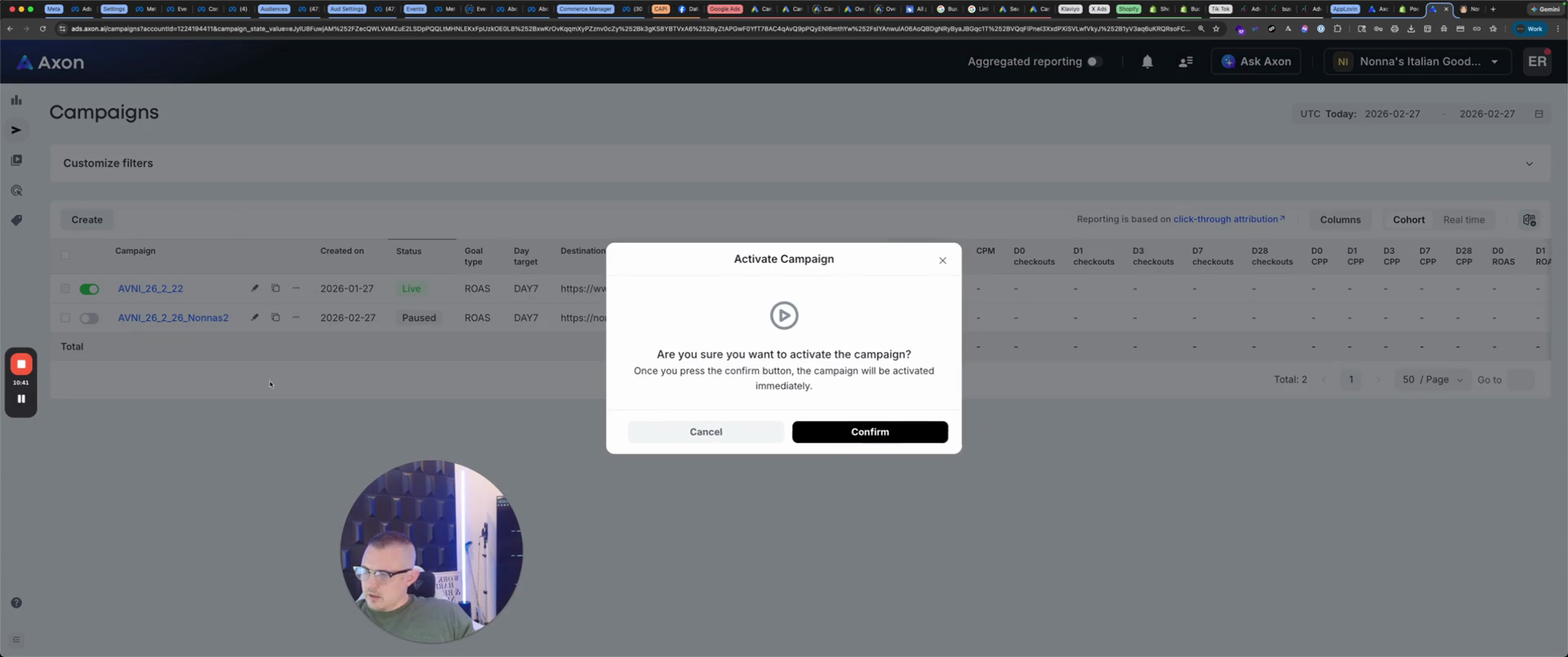
Just turn it on.
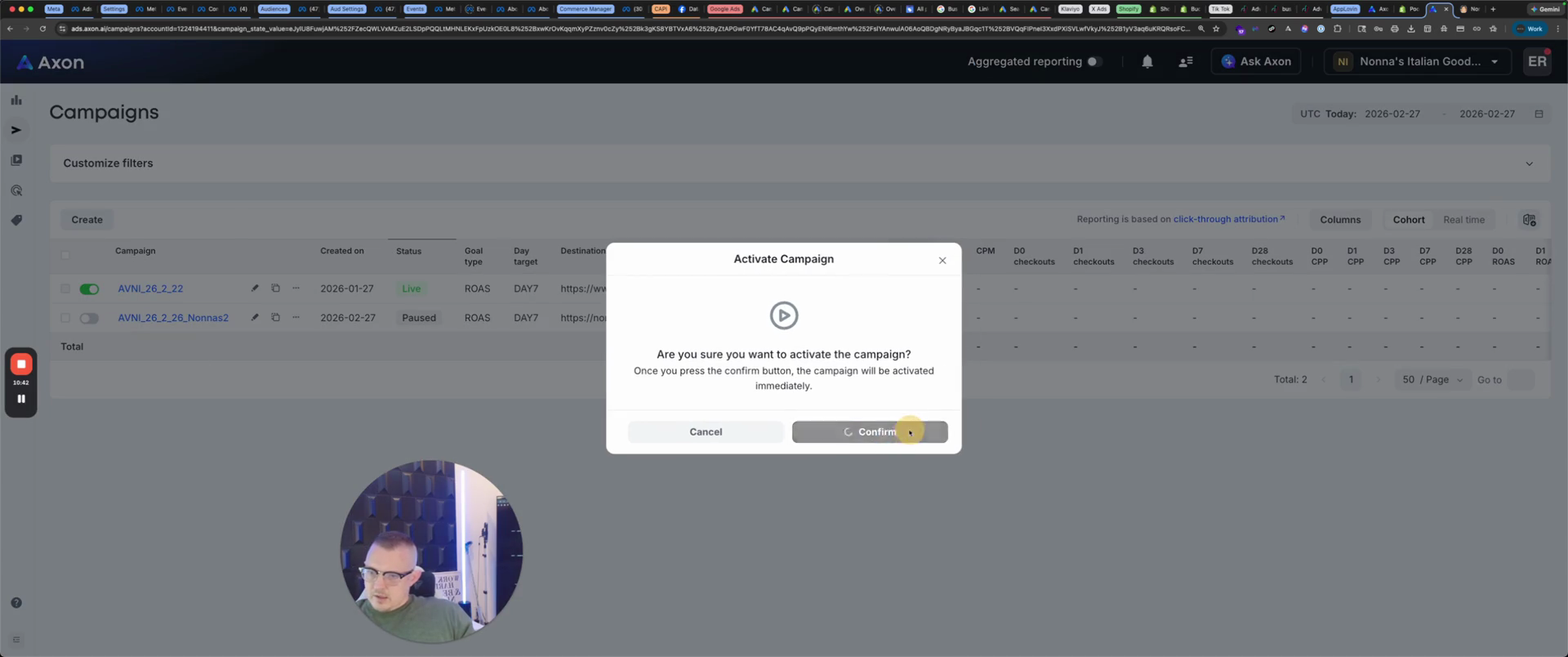
That's how you build a campaign in AppLovin.