
How Batch Processing Works: A Guide to Bulk Match Transactions
Learn how to efficiently bulk match transactions with this easy step-by-step guide. Discover how to apply filters, select transactions, and complete the matching process quickly.
By Aasma Technology Solutions
In this guide, you will learn how to utilize bulk matching for transactions using advanced filters and selection tools. This functionality enables you to match multiple transactions simultaneously, significantly reducing manual effort and accelerating your reconciliation workflow.
Let's get started
1
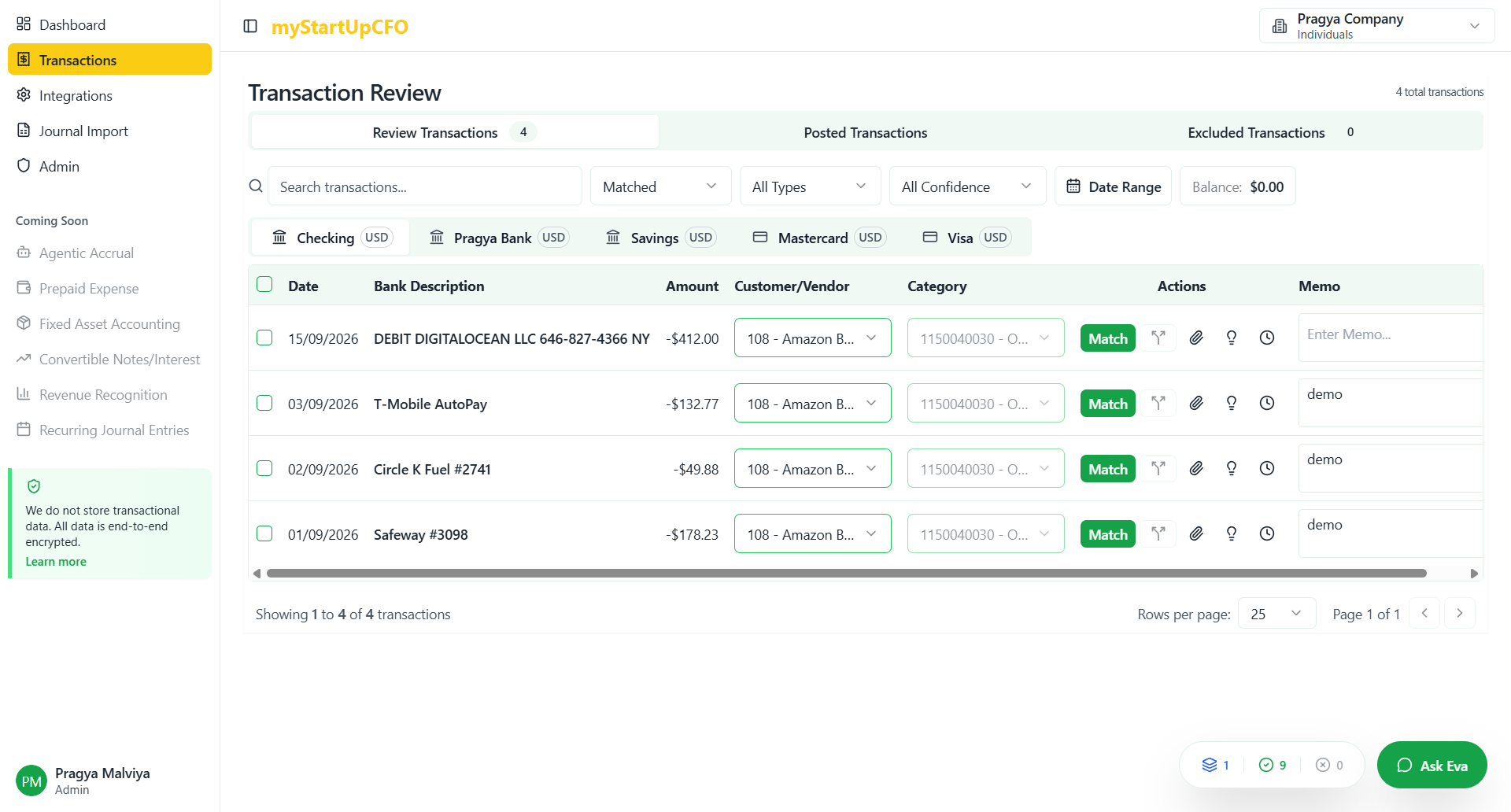
Select transactions
2
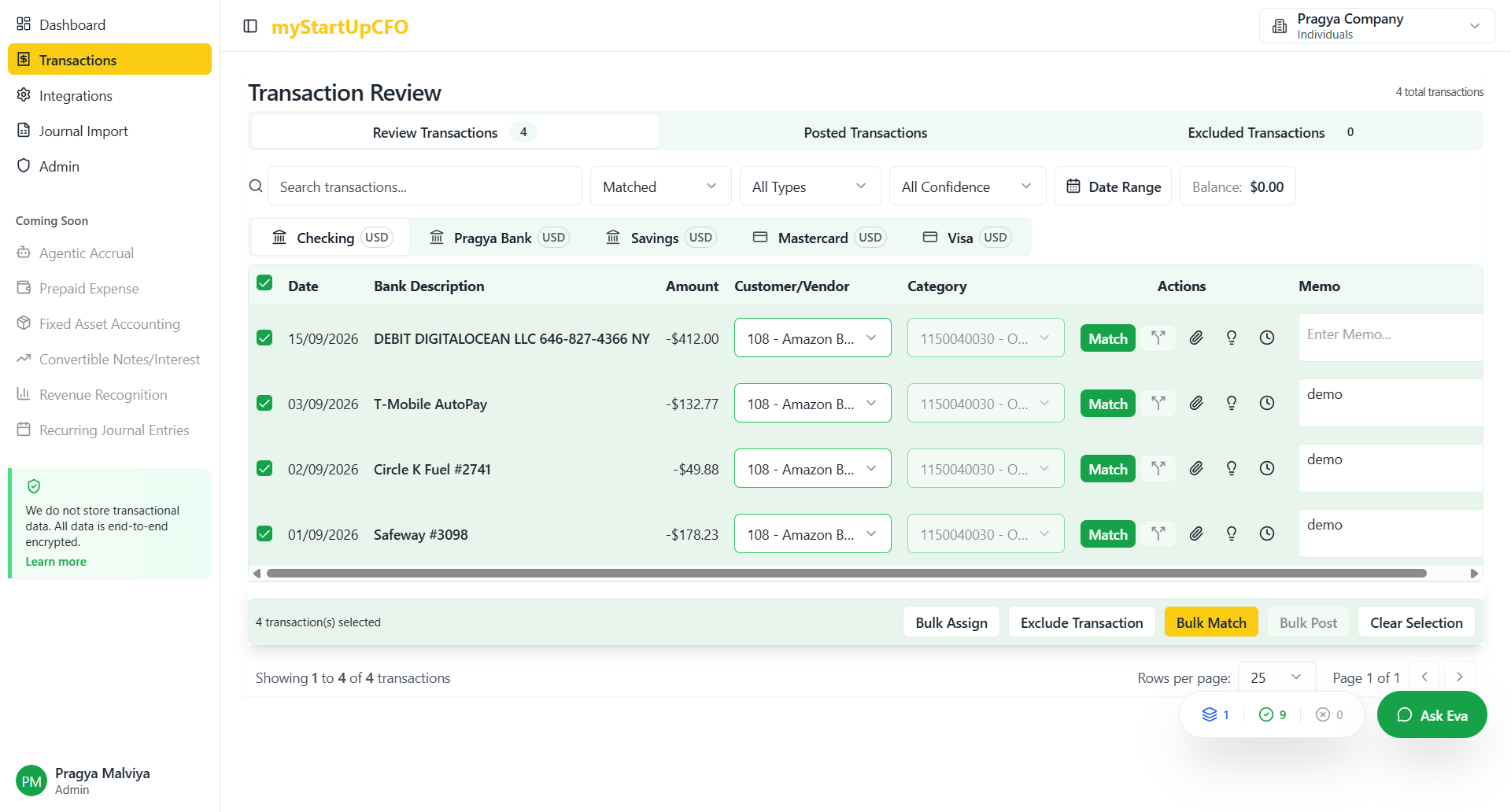
Click on Bulk Match
3
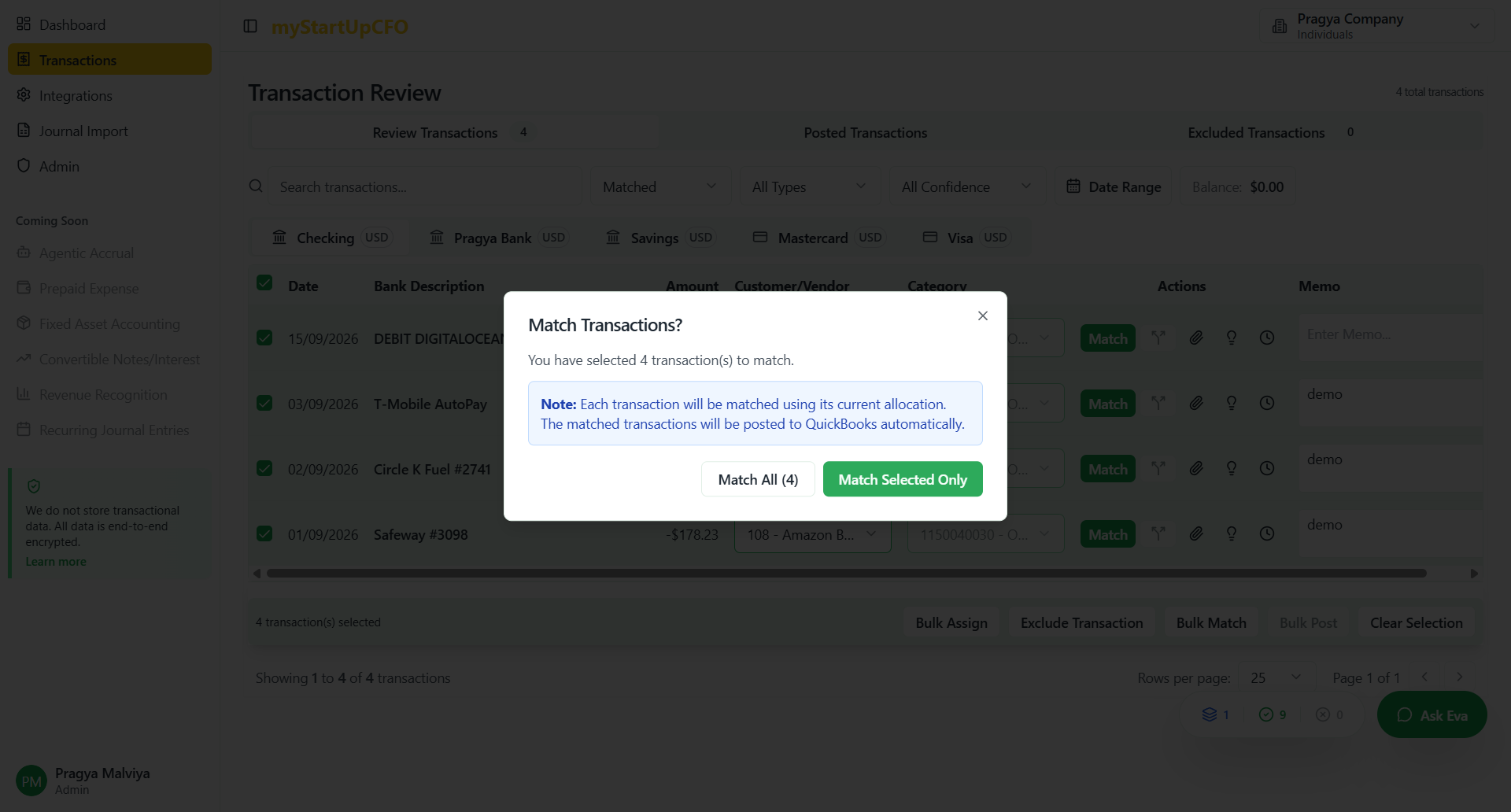
The system displays an important notice: "Each transaction will be matched using its current allocation. The matched transactions will be posted to QuickBooks automatically." This indicates that the bulk matching process will respect existing transaction allocations and automatically sync the matched records to your QuickBooks account without requiring additional manual posting.
4
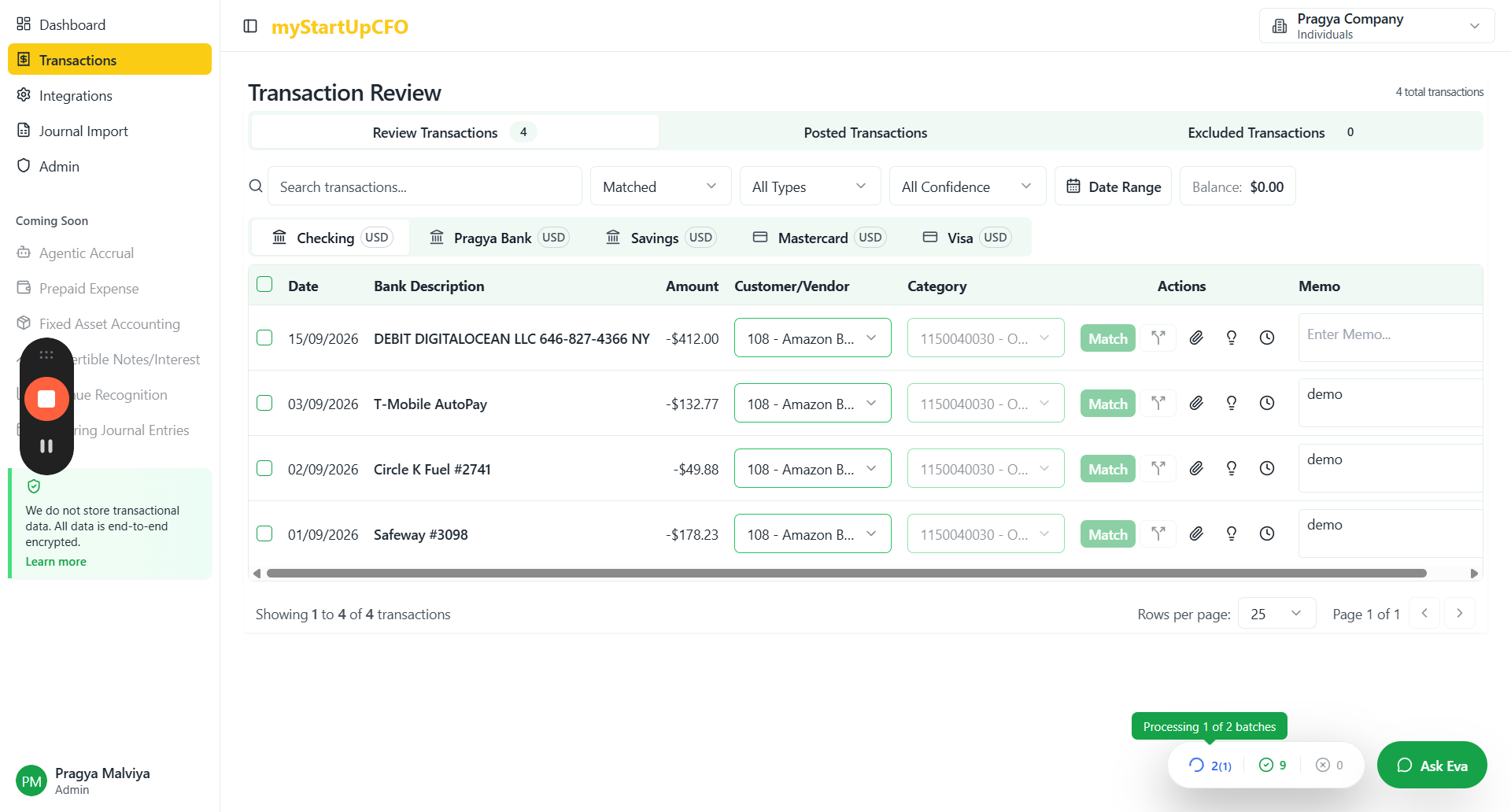
Click on Batch processing Floating button
5
Once the batch processing completes, the system displays a summary of all successfully matched transactions. You can review the results to confirm which transactions were processed and verify their posted status.
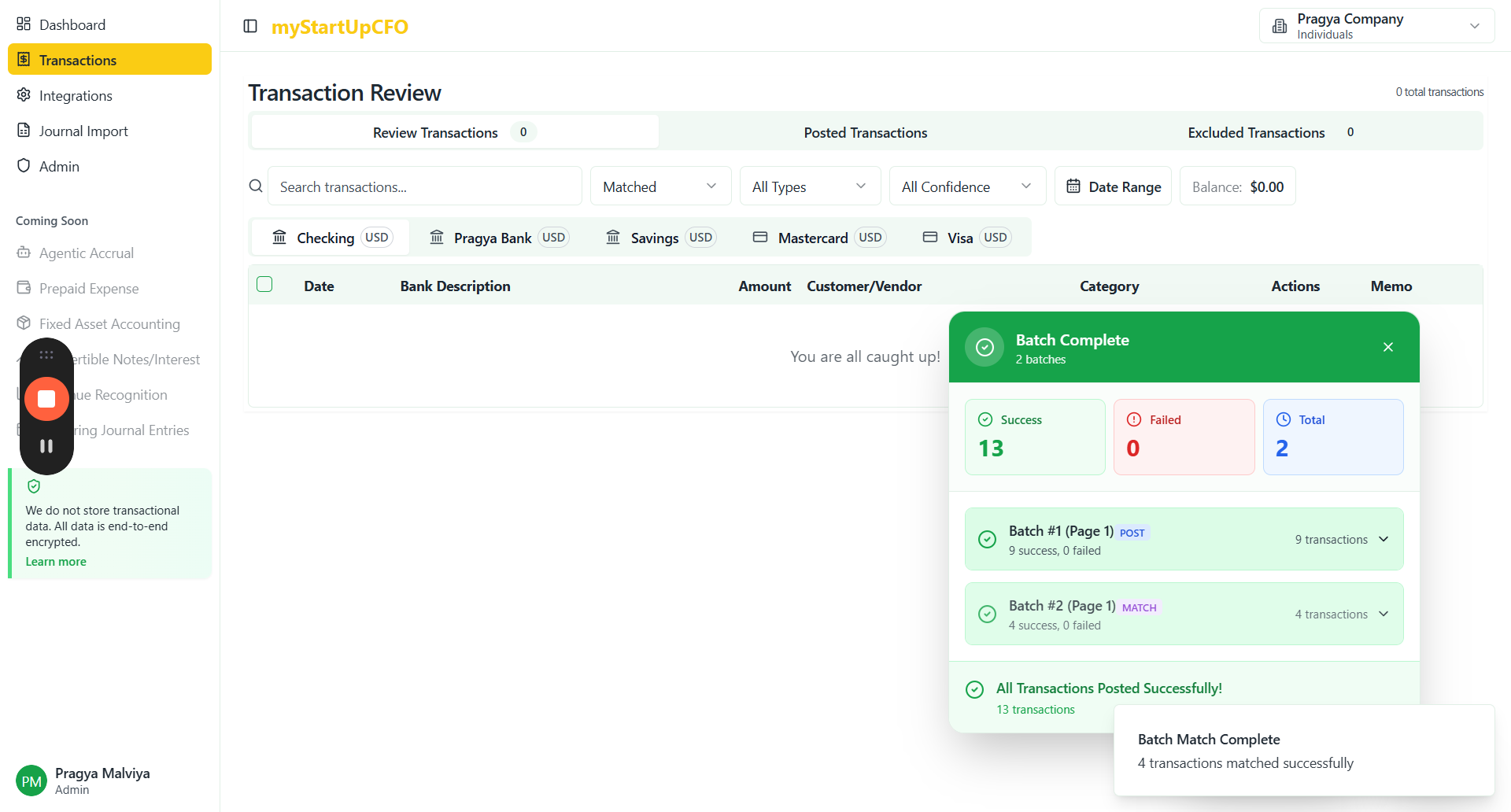
All transactions have been successfully matched and posted. You can now review the posted records in QuickBooks and continue with your reconciliation workflow.