
How to Buy a Whole Loan on Capstack
This guide is for buyers who want to acquire a whole loan on Capstack. It covers every step from searching the Marketplace to requesting access, reviewing files, and preparing for negotiation.
Overview
Capstack makes it simple for institutions to find and evaluate whole loan opportunities. This guide shows you how to browse the Marketplace, request access to full loan packages, and prepare yourself to negotiate directly with sellers.
Before you start
Confirm your Capstack account is active and linked to your institution
Ensure you have the authority to request access on behalf of your bank
Be ready to review loan packages promptly once access is granted
Getting started
To buy a whole loan, you'll start by navigating to the Marketplace and selecting the Whole Loans section. From there, you'll browse available opportunities, request access to detailed loan information, and submit your interest to the selling bank.
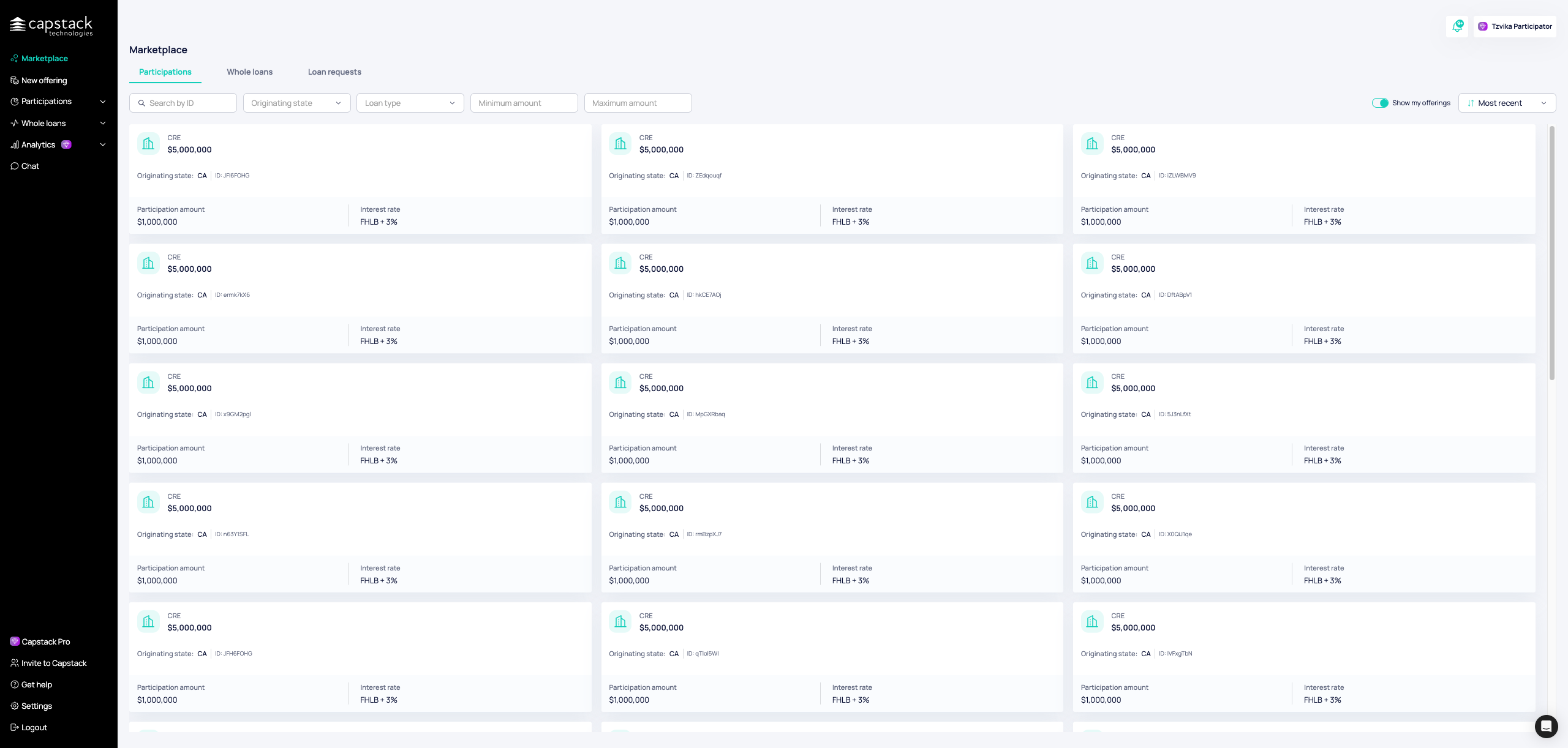
From your Capstack dashboard, click "Marketplace" in the left sidebar to access the loan marketplace.
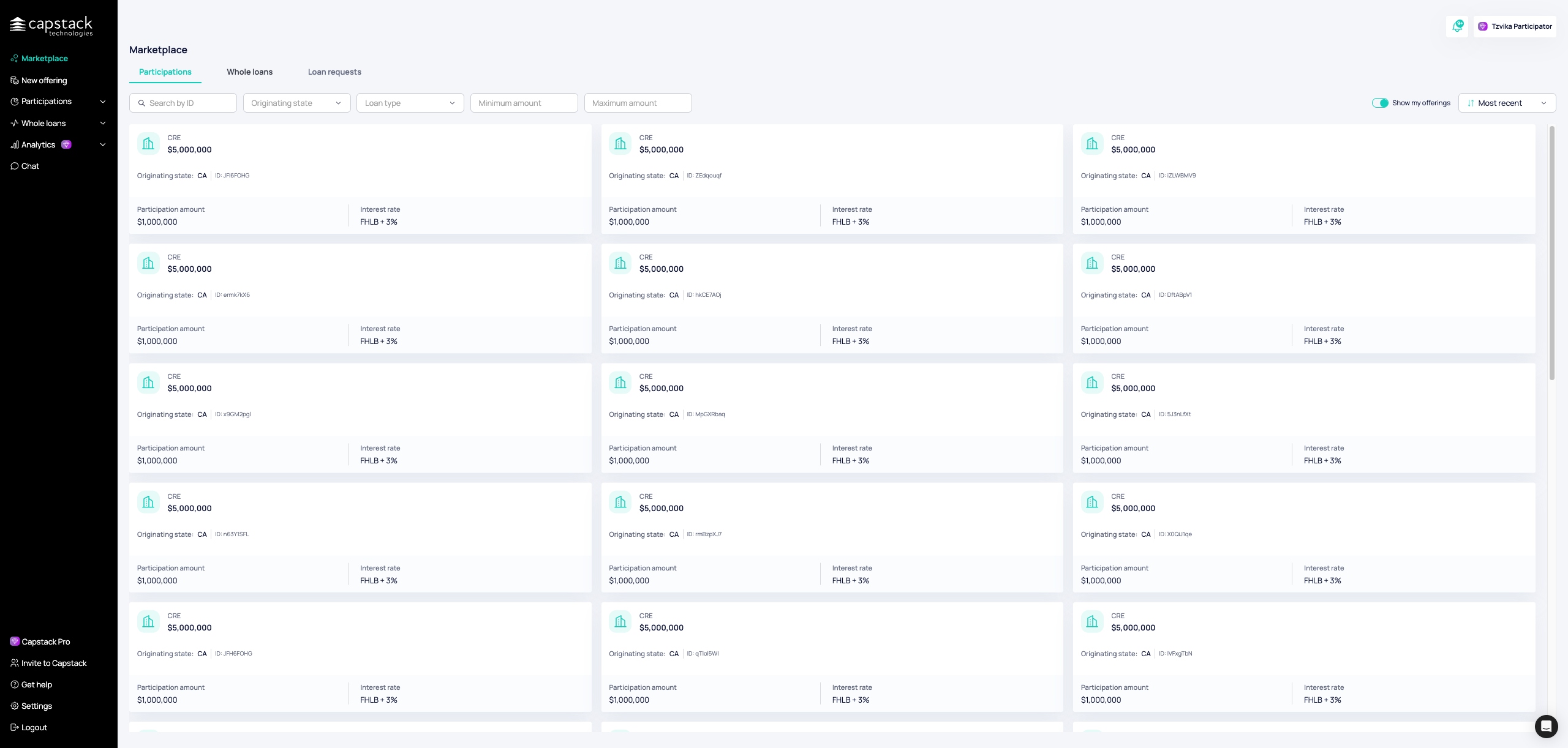
Once in the marketplace, select the "Whole Loans" tab from the top navigation menu. This will display all available whole loan opportunities listed separately. Browse through the listings and select a loan you'd like to participate in.
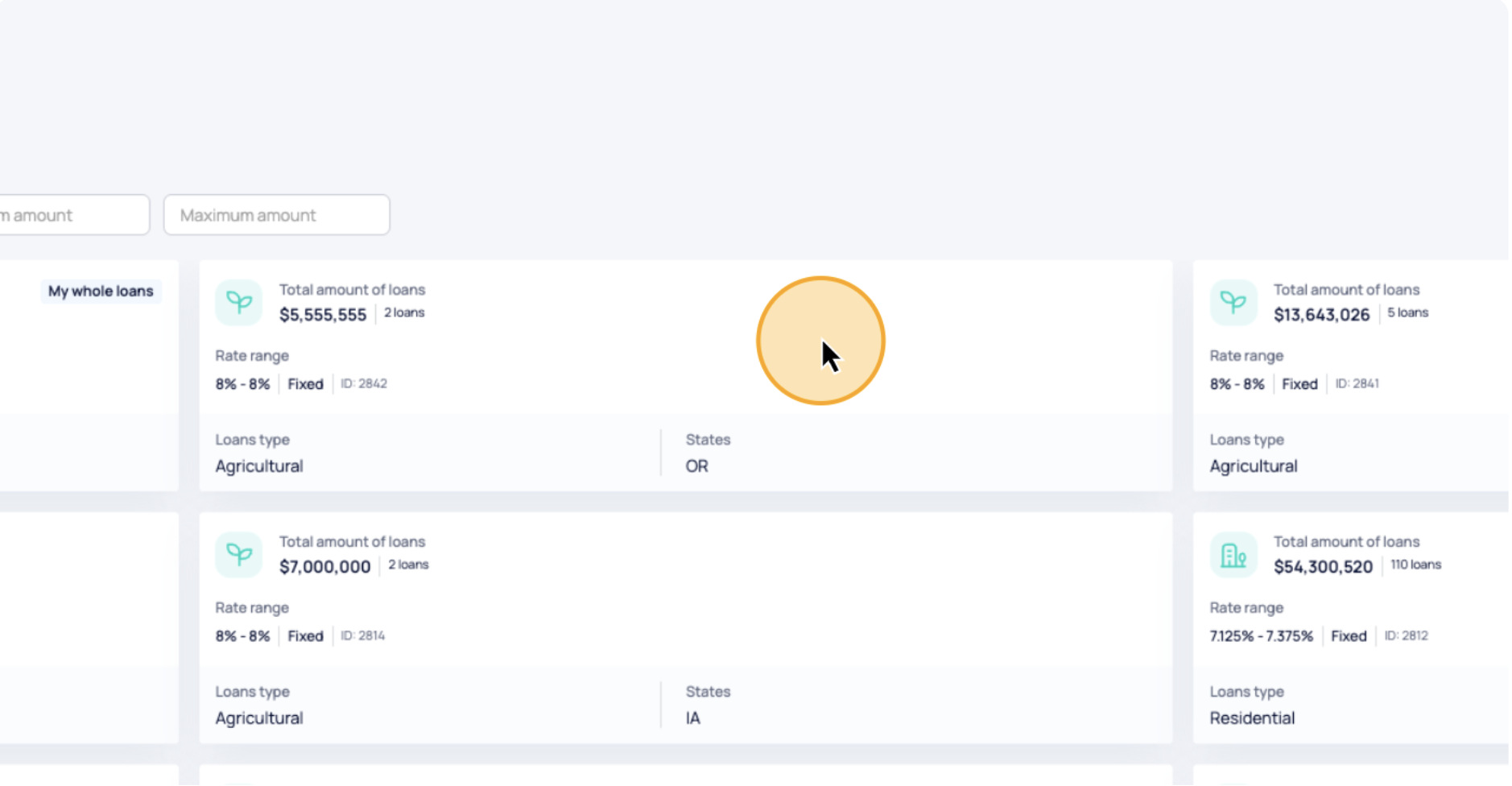
Click on one of the available loan baskets to view detailed information. You'll see comprehensive details about the basket including loan metrics and performance data.
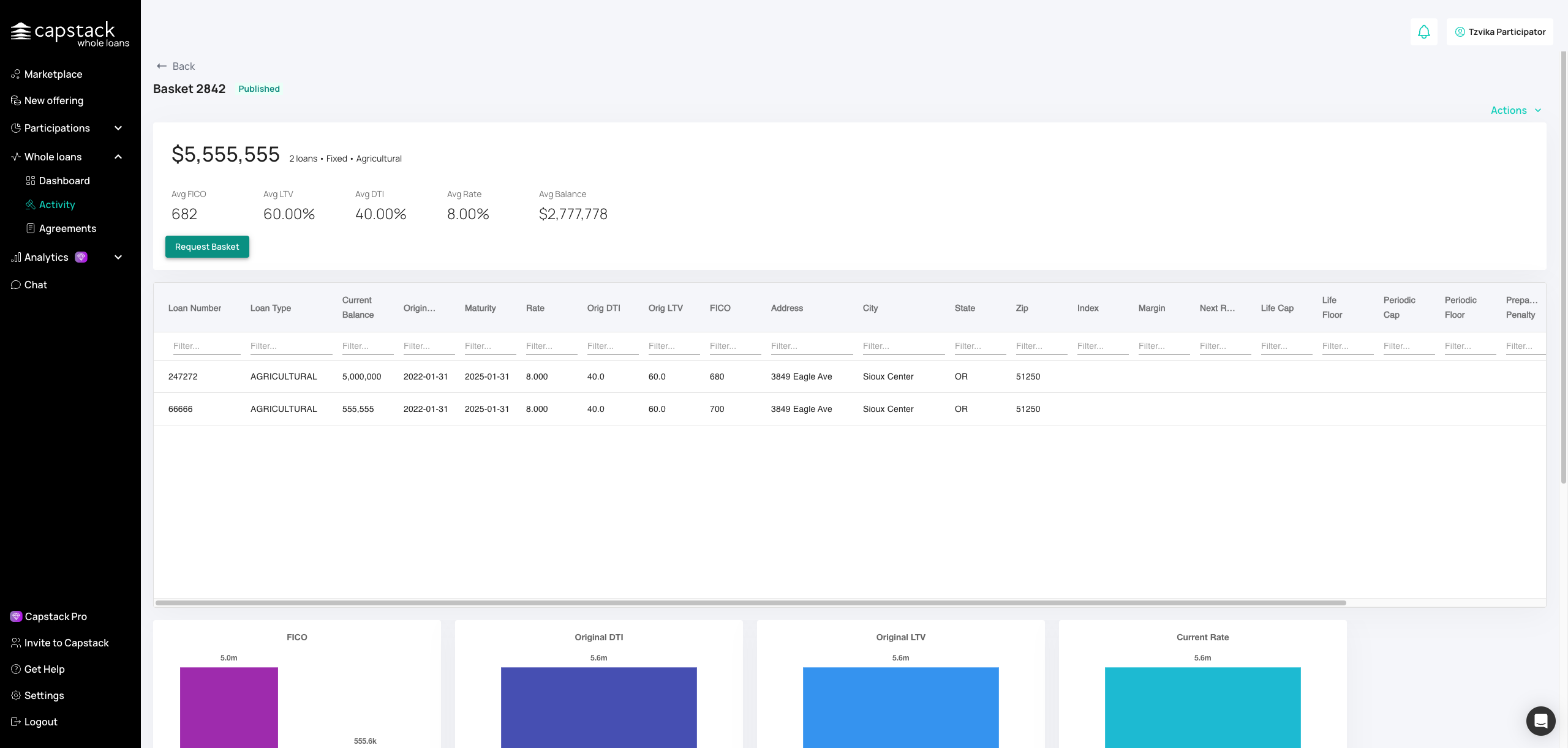
After reviewing the basket information, click "Request Basket" to begin the access process. This page displays detailed loan-level information including individual loan numbers, types, current balances, origination dates, maturity dates, rates, and other key terms. Review all details carefully before proceeding.
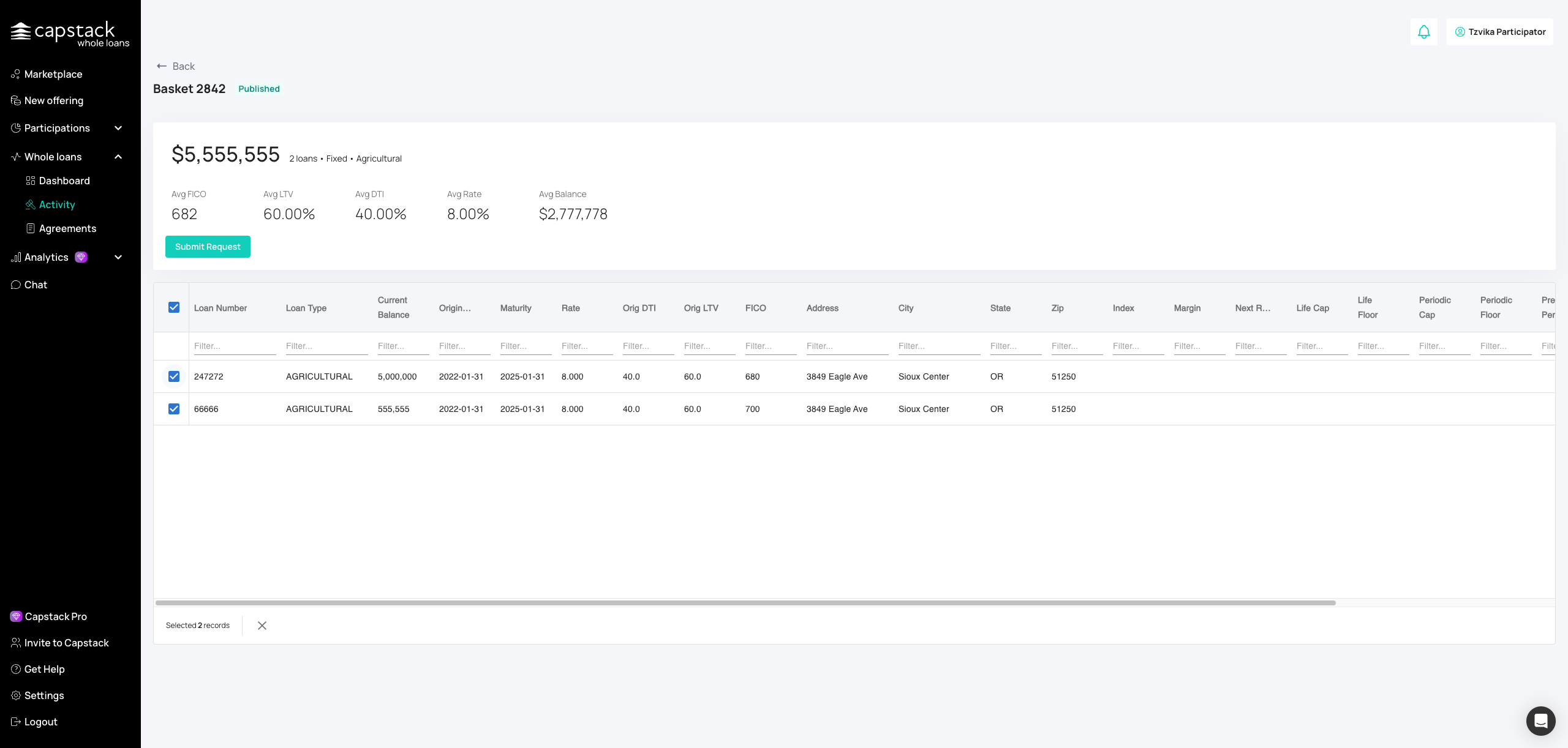
Choose which specific loans within the basket you want to purchase. You can select individual loans from the list.
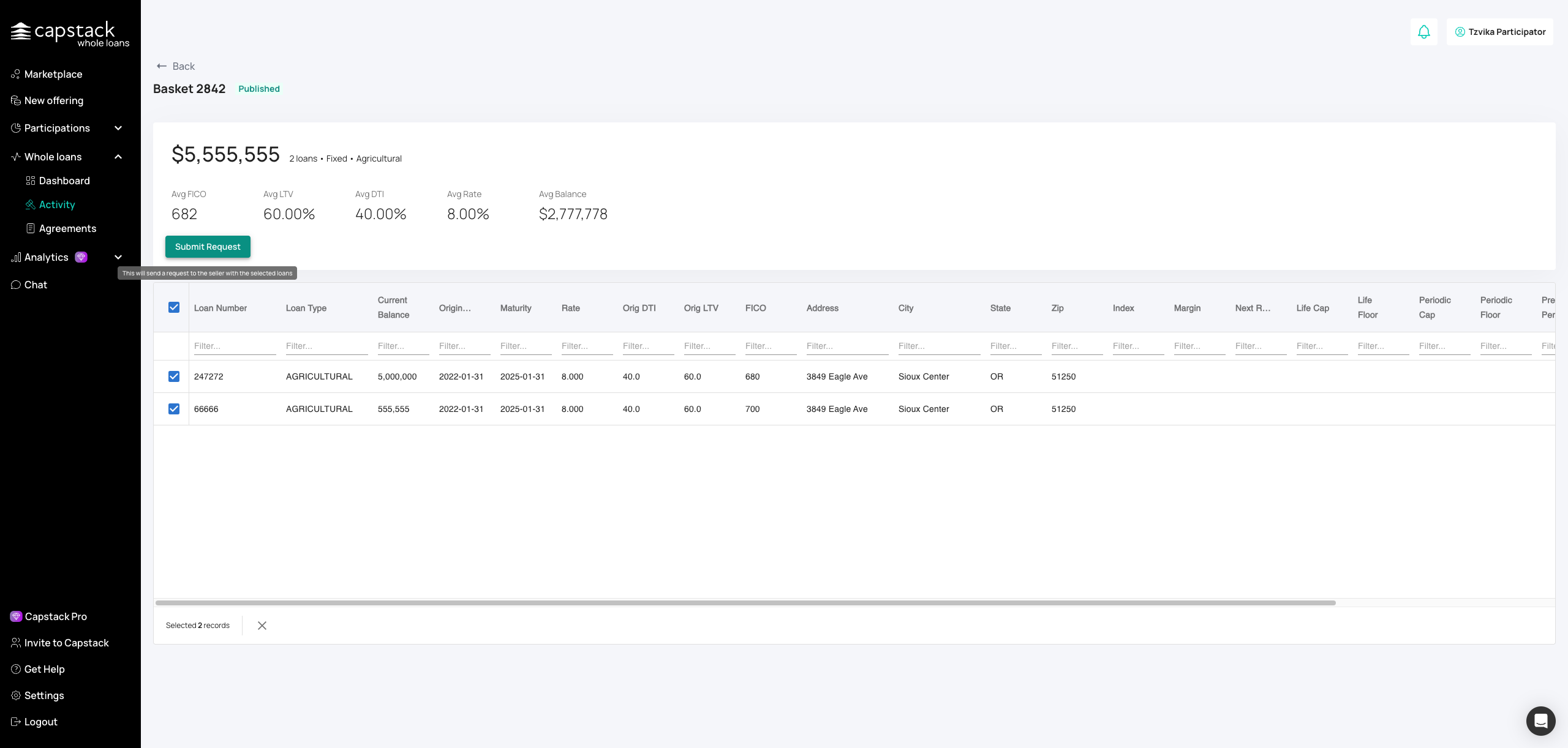
Review the summary of all selected loans, including total amounts and key details. When you're satisfied with your selection, click "Submit Request" to send your access request to the selling bank.
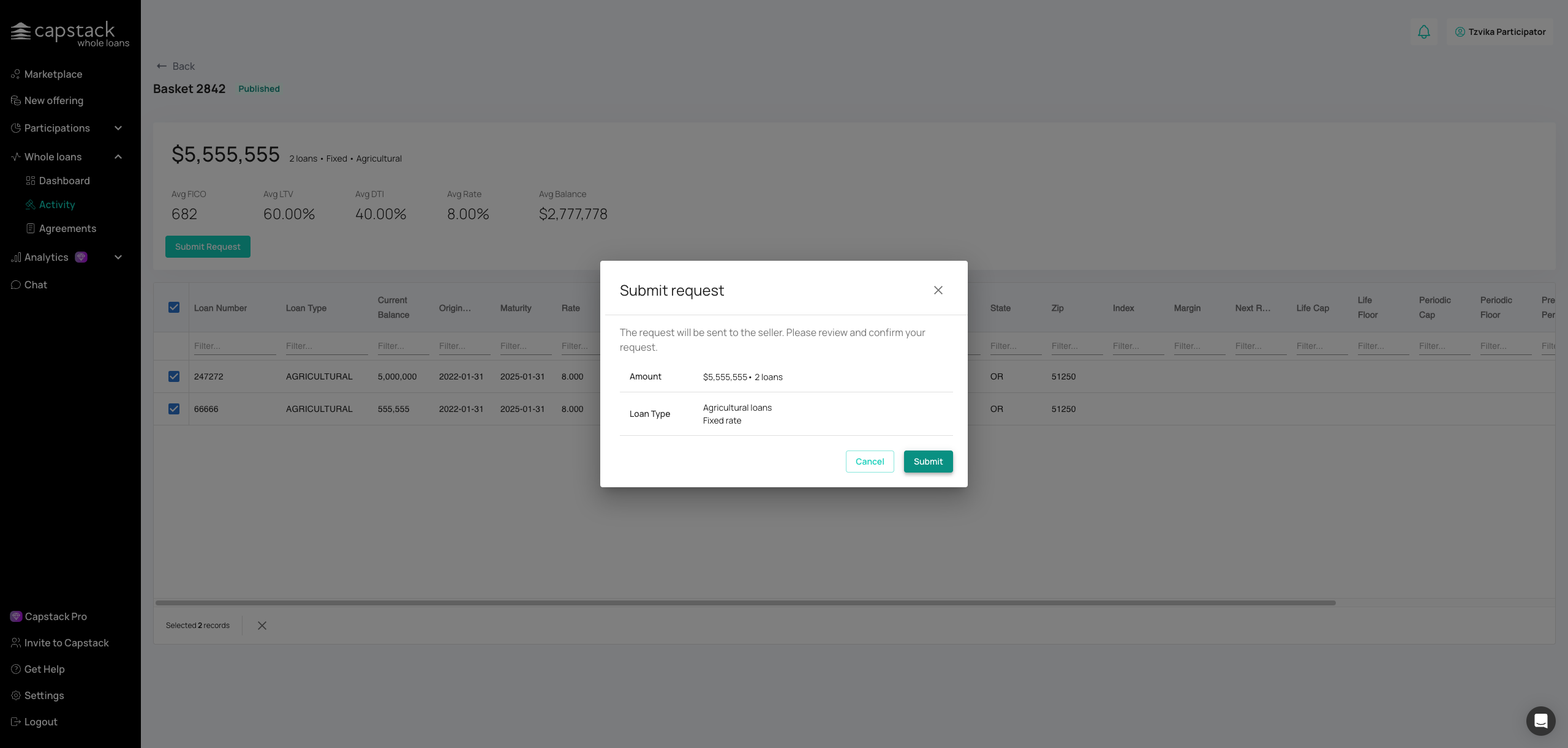
Click "Submit" in the confirmation dialog to finalize your request.
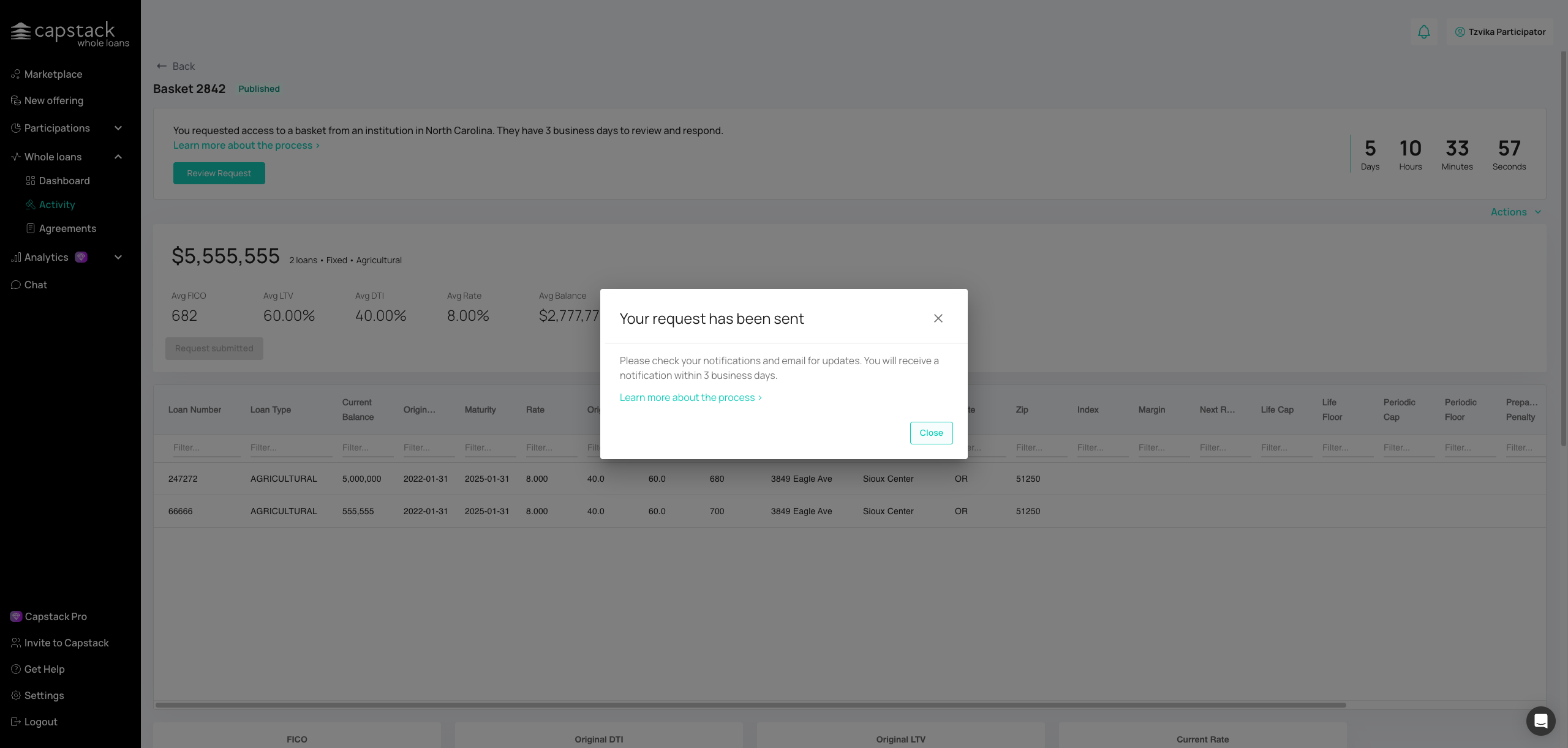
Click "Close" to return to the marketplace after your request has been successfully submitted.
After you finish
Your request will show as Pending until the seller approves
You'll get an email and in-app notification when approved (typically within five business days)
Once approved, you can view all loan documents and submit competitive bids
Track your requests under Activity in the left sidebar
Troubleshooting
Request not approved: Some approvals take a few days — check back or contact the seller through the platform
No notification received: Check your account settings and email filters
Loan no longer visible: The seller may have withdrawn the listing; check the Marketplace for similar assets
Best practices
Request access only to loans you genuinely intend to review
Act quickly once approved to show seriousness
Keep all communication and file review in-platform for a complete audit trail