
How to Cancel an Appointment
Learn how to quickly cancel an upcoming service appointment or project booking directly from your calendar invite or confirmation text.
By Kyle Lux
This guide walks through the process of canceling a scheduled service appointment or project booking via the web portal.
This applies to clients needing to independently manage their upcoming projects and cancel an order directly from their confirmation communications without contacting support.
Cancel Your Booking
Locate your initial booking confirmation. You can access your order details using the link provided in your calendar invite, confirmation email, or the text message you received for the property.
1
Click the Order Overview : CLICK HERE link inside your calendar invite or email thread.
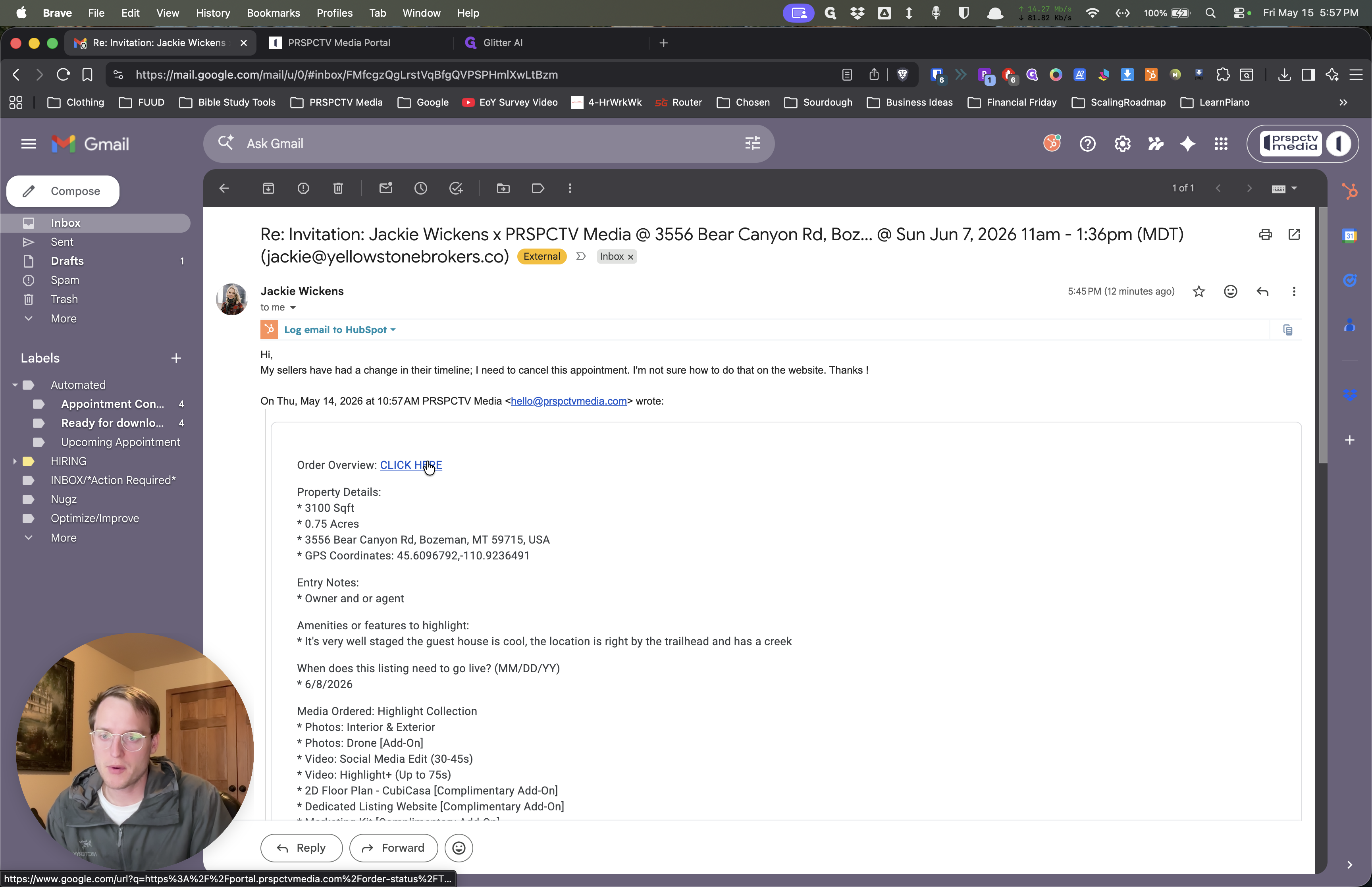
This will open your order summary in the web portal.
2
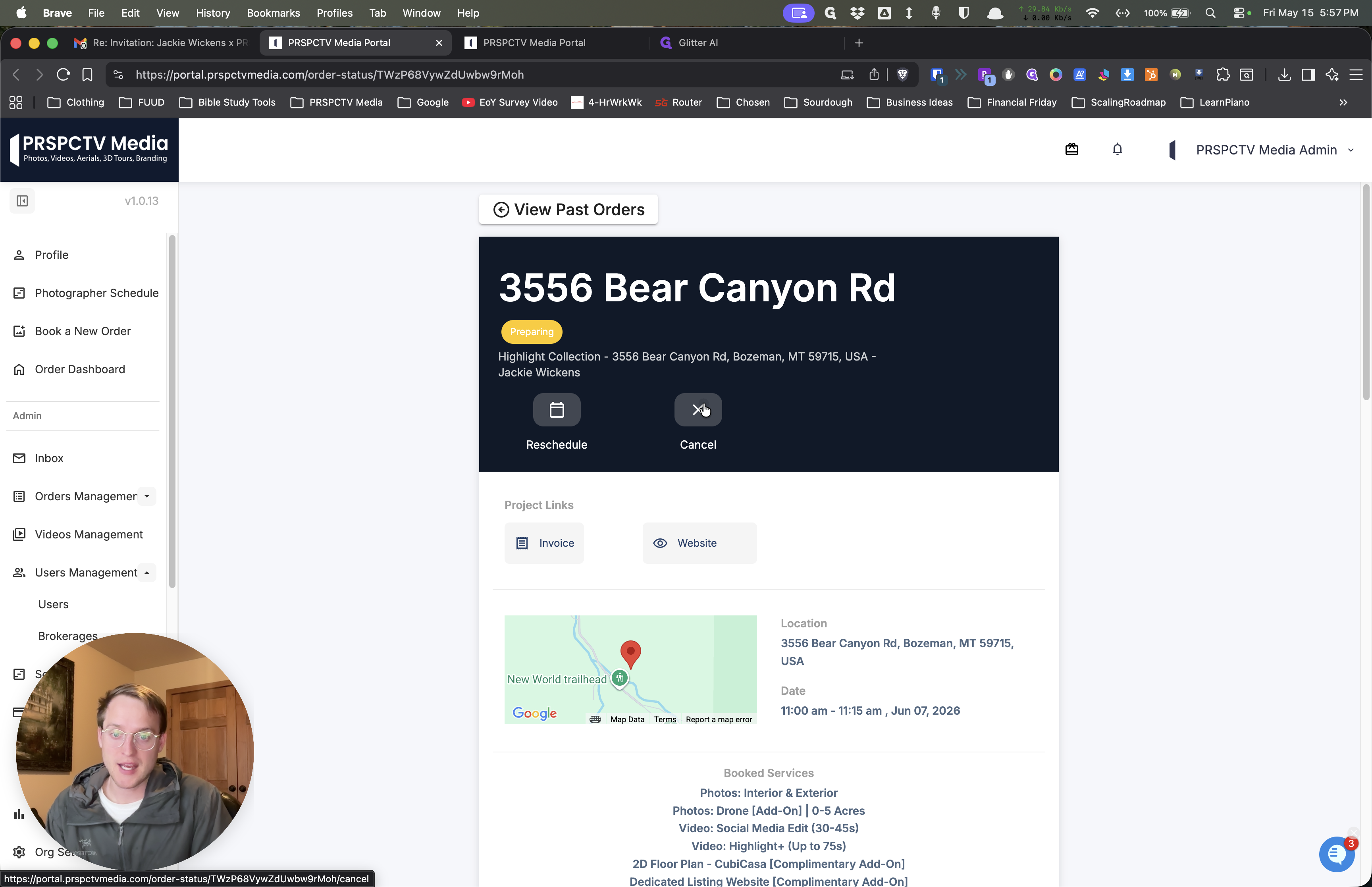
Click the Cancel button located in the order summary section for your project.
3
Click the red Cancel Booking button to confirm and finalize the cancellation.
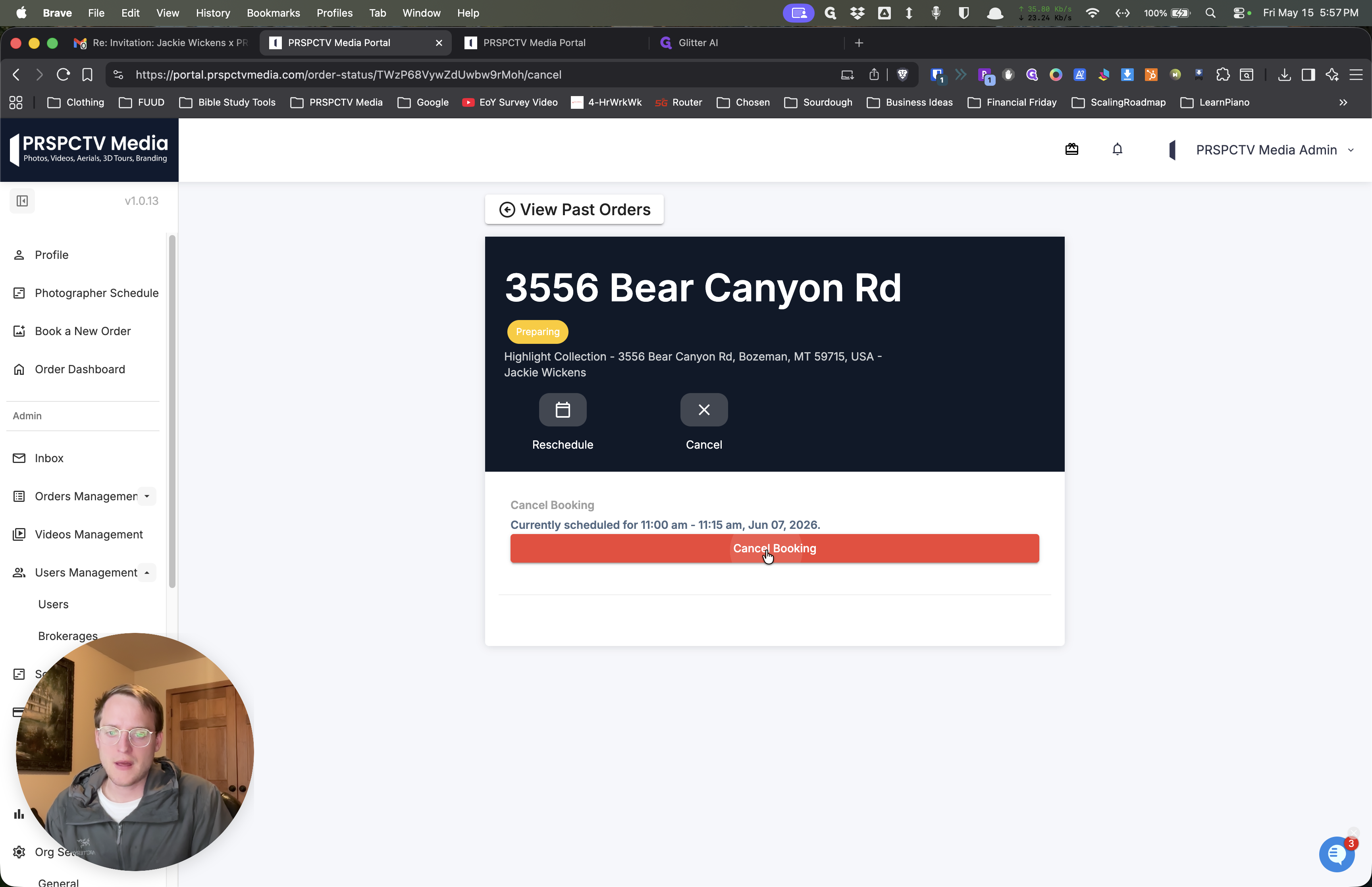
Once you confirm, the system will process the cancellation and send any relevant updates indicating that your appointment has been successfully canceled.