
How to Cancel an Order After It Has Been Picked and Packed
Learn the step-by-step process to cancel an order that has already been picked and packed but is still awaiting courier collection. Follow our guide to reverse delivery and manage your shipping orders efficiently.
In this guide, we'll learn how to cancel an order that has already been picked and packed, but is still waiting to be collected by a courier. This process involves reversing the delivery in your dispatch system and moving the order back to the shipping stage.
Understanding this workflow helps you manage order cancellations efficiently, even after the order has progressed through several stages.
Let's get started
Let's see how to cancel an order that has already been picked and packed, and is now waiting to be collected by one of our couriers. First, go to Dispatch.
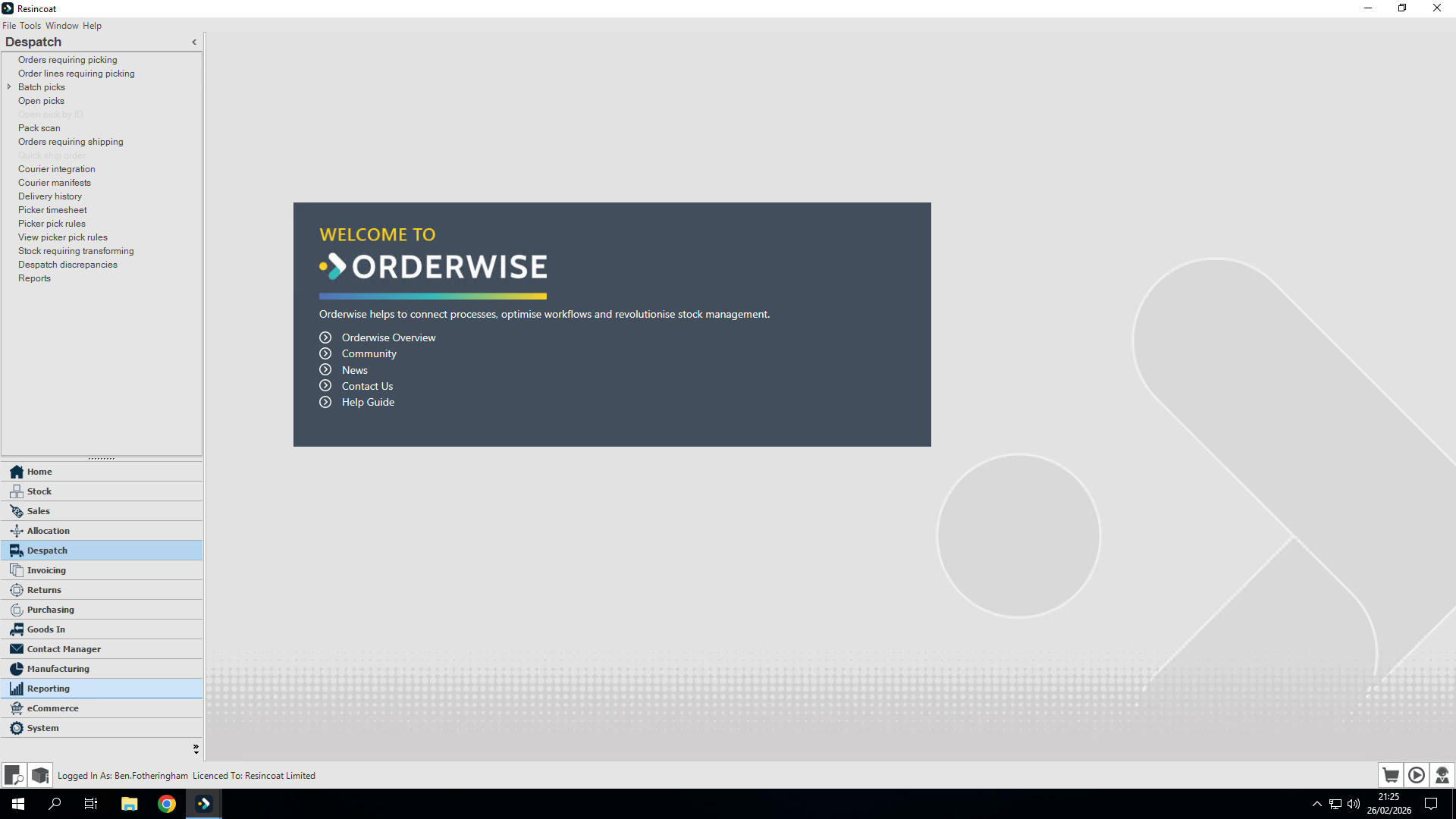
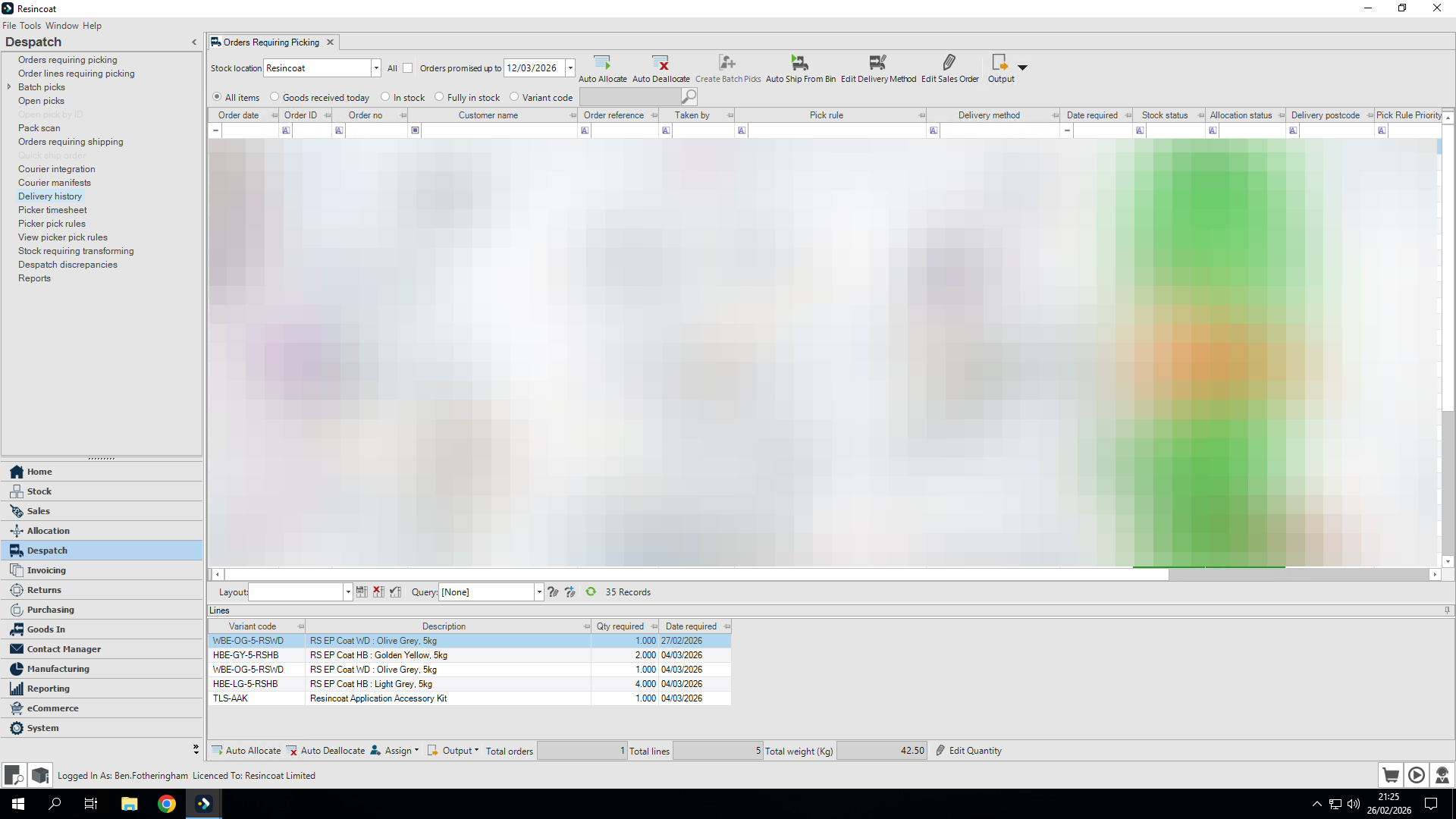
We need to go into our delivery history.
We should be able to find our order here.
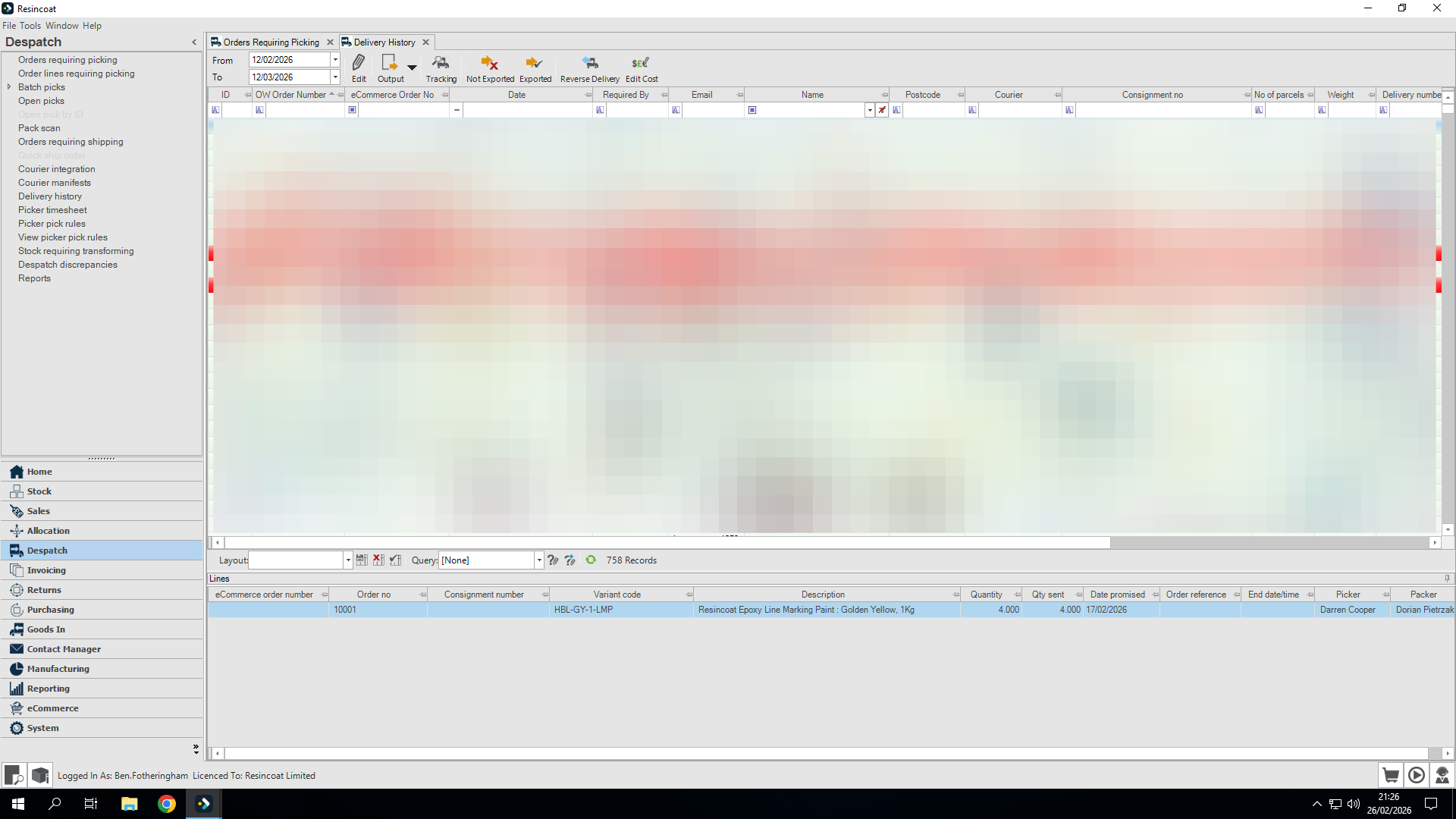
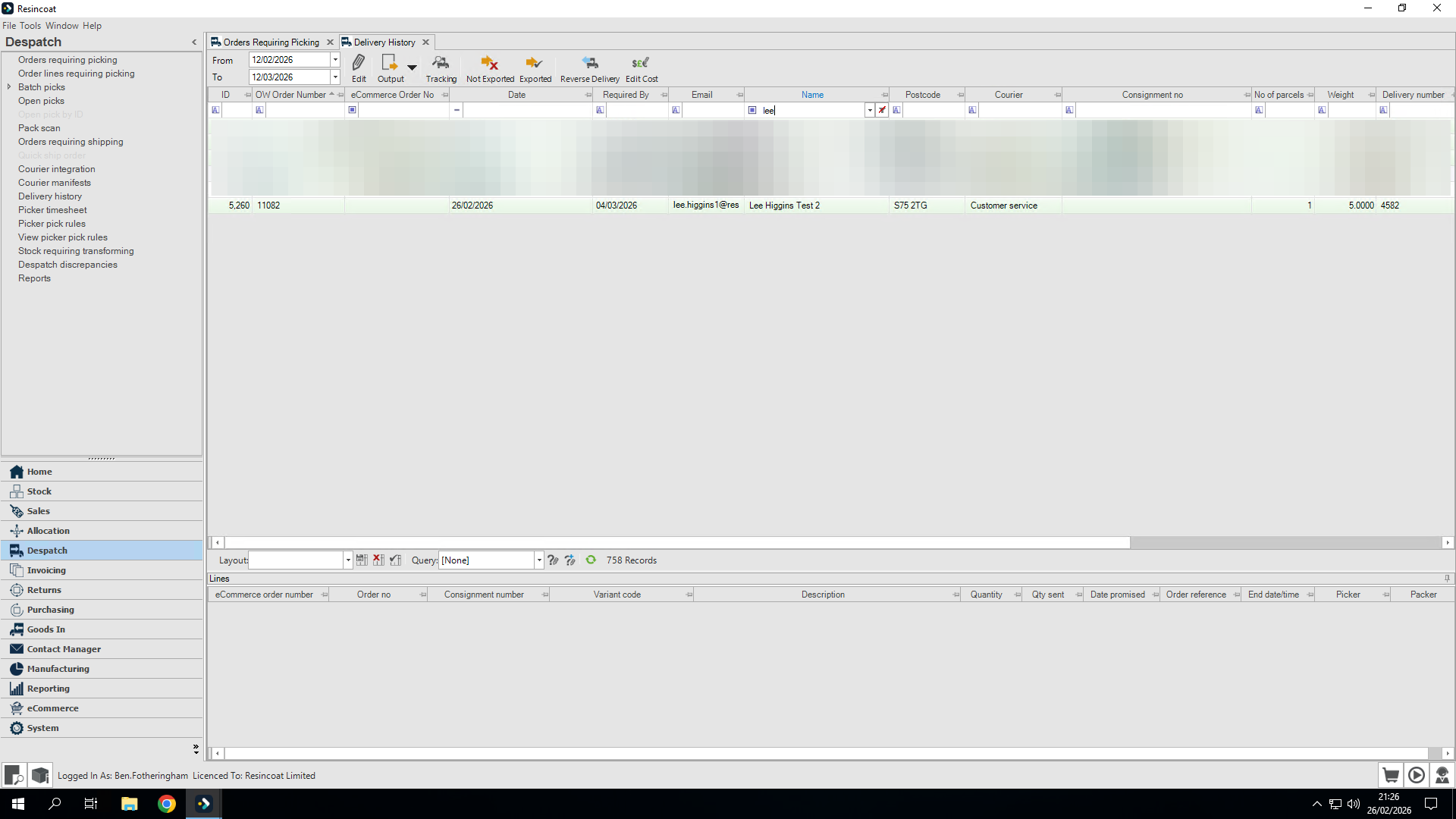
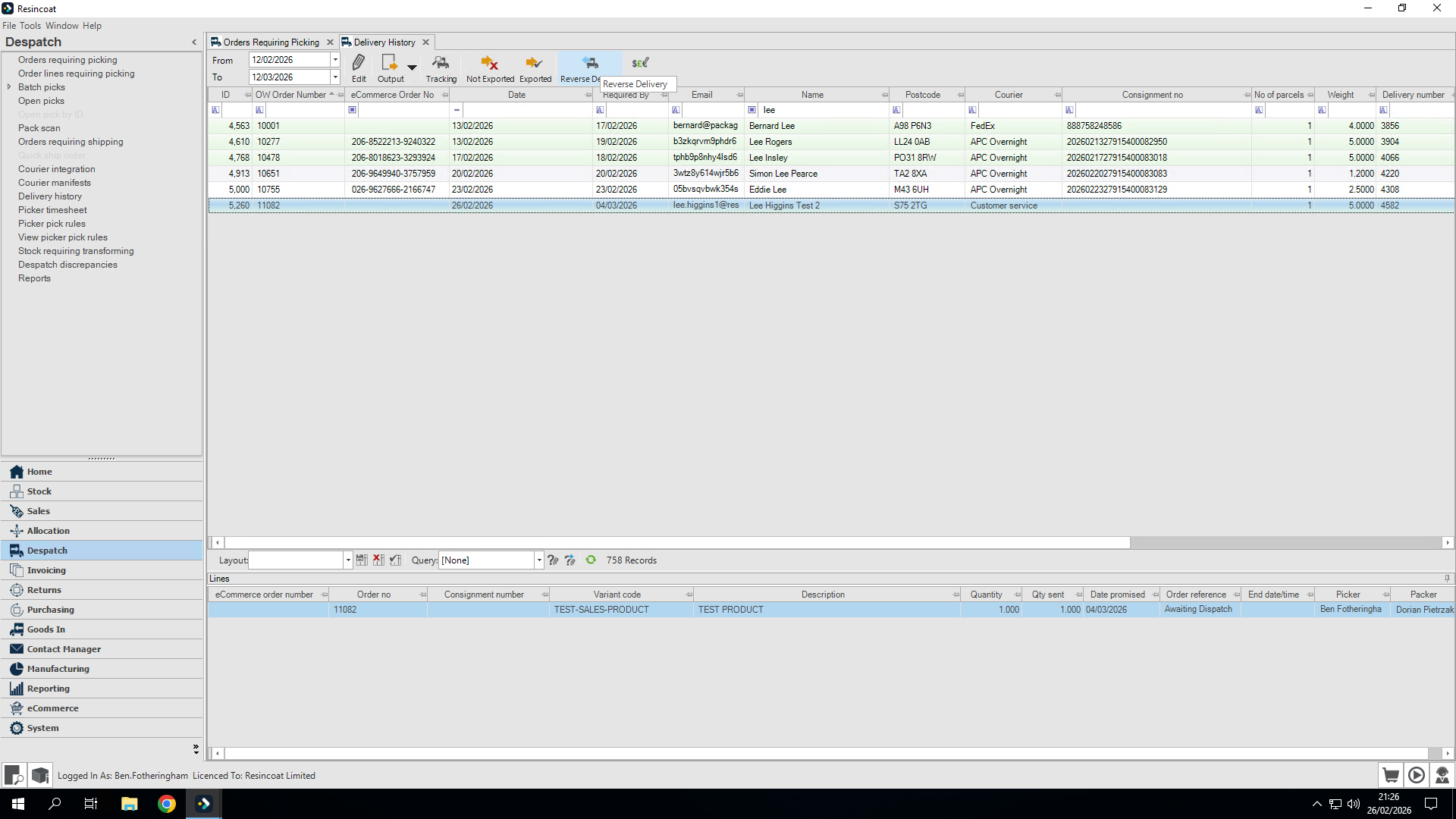
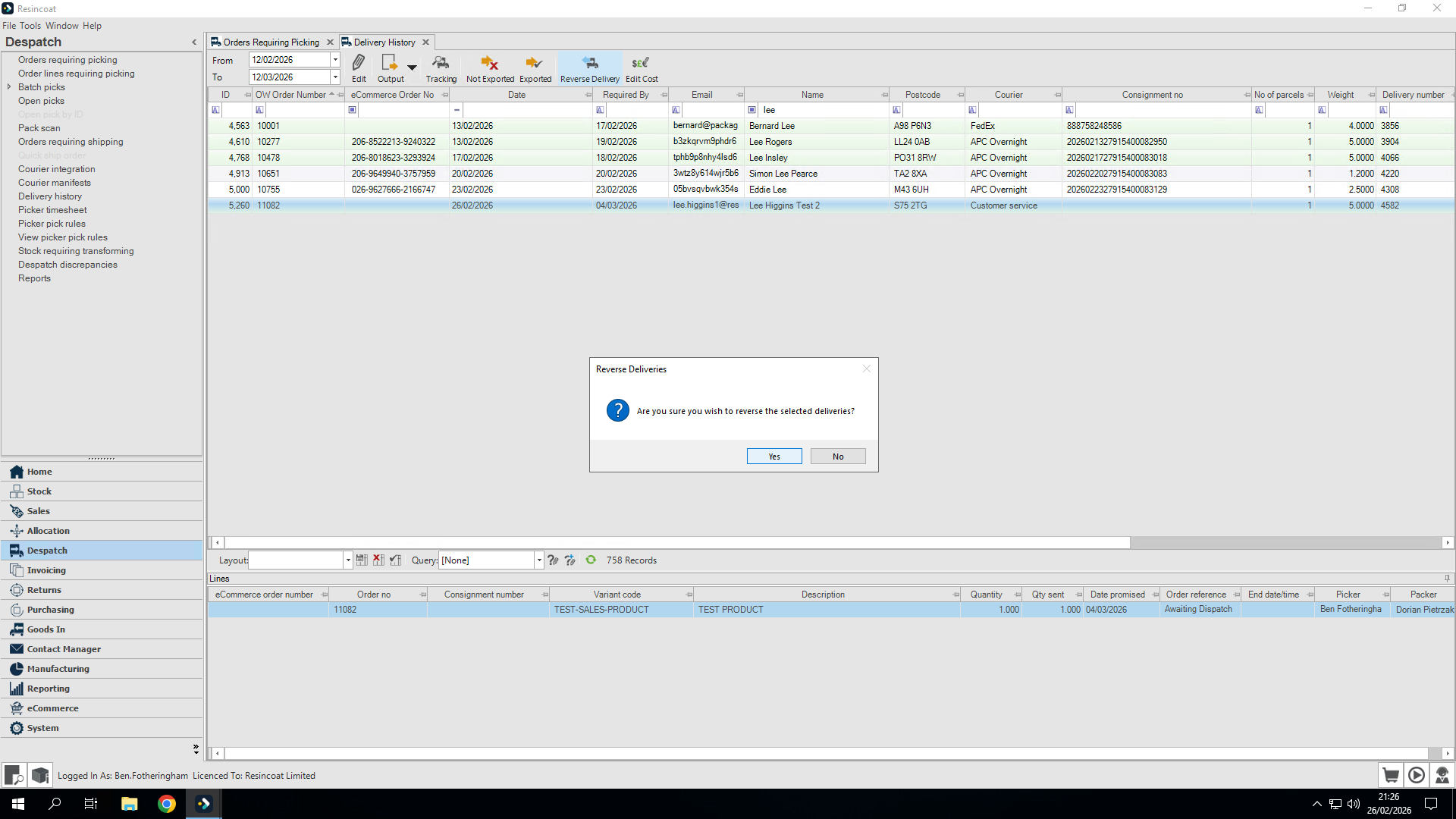
We should then see this order move back into the list of orders requiring shipping.
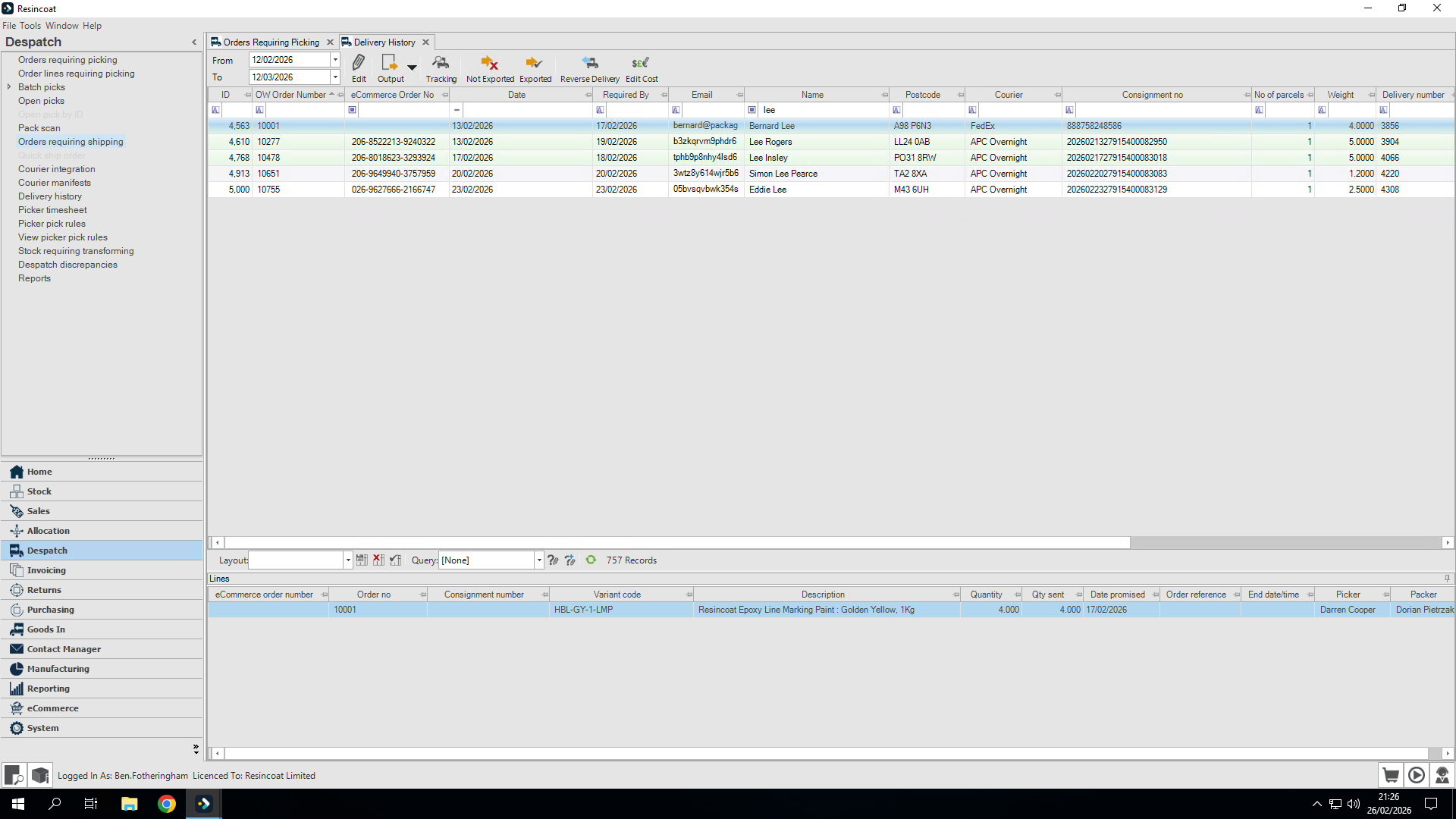
Let's take a look. Here is our order at the top of the list.
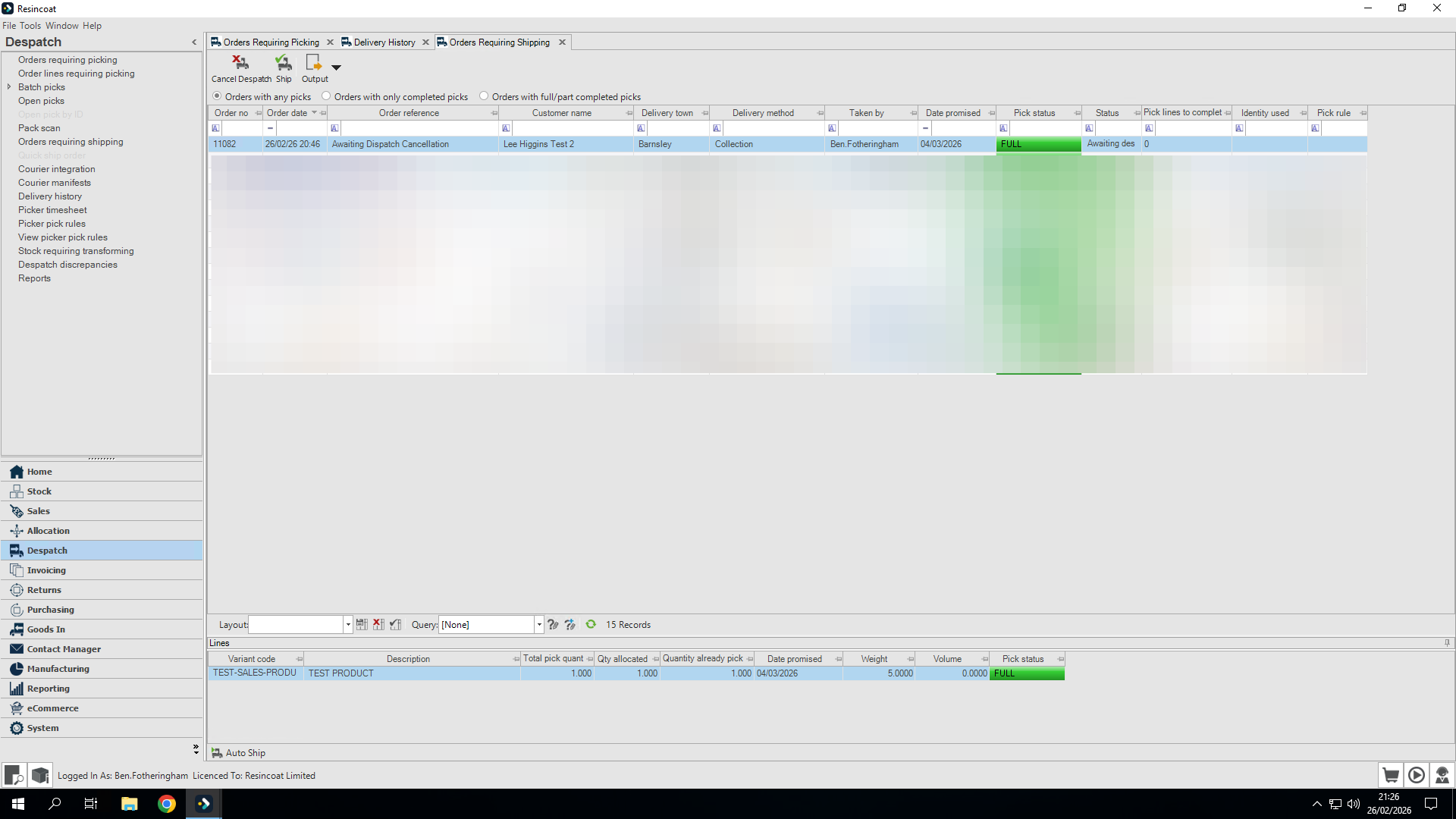
Alert someone in Customer Services team that any booking with a courier will need to be cancelled manually.
We will now follow the procedure to cancel an order that has been picked but not packed