
How to Cancel an Order Currently Being Picked in the Warehouse
Learn the step-by-step process to cancel an order that is currently being picked by a warehouse team member, including how to stop the pick, cancel the order, and inform the picker to re-sync their device.
In this guide, we'll learn how to cancel an order that is currently being picked in a warehouse. We will cover the steps to stop the picking process, cancel the pick, and return the order to the appropriate screen. We will also explain how to notify the team member to re-sync their device after cancellation.
Let's get started
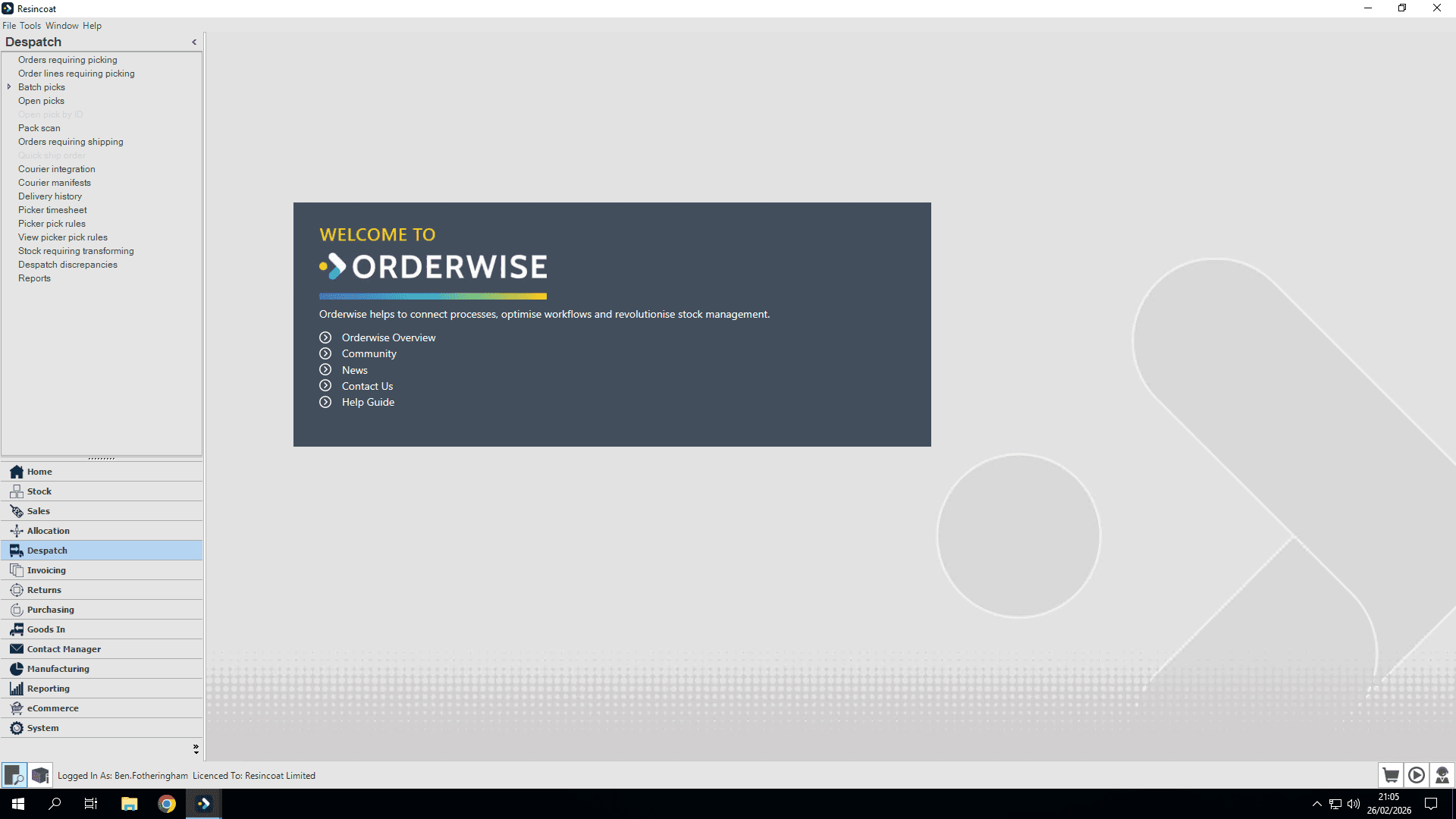
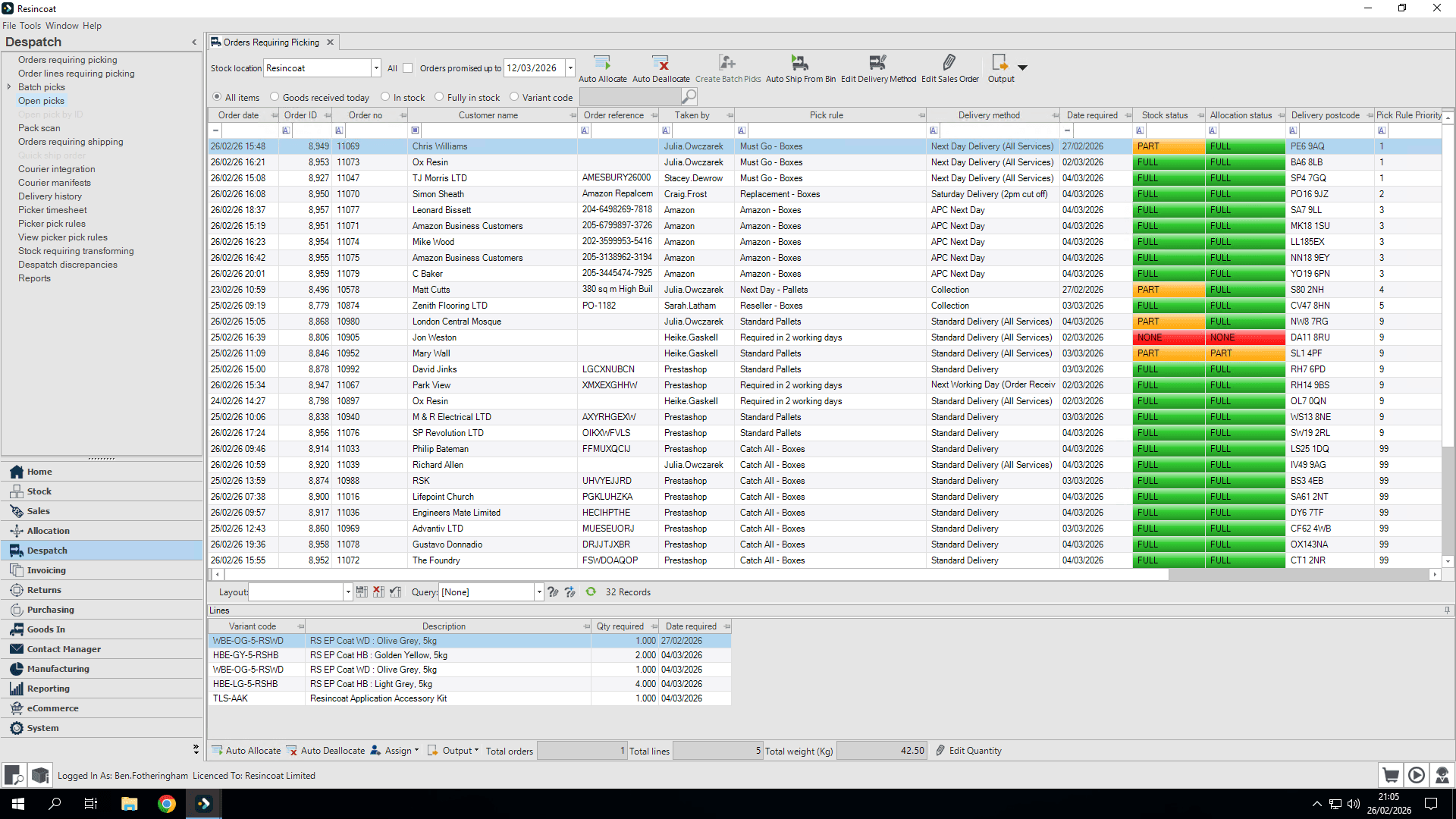
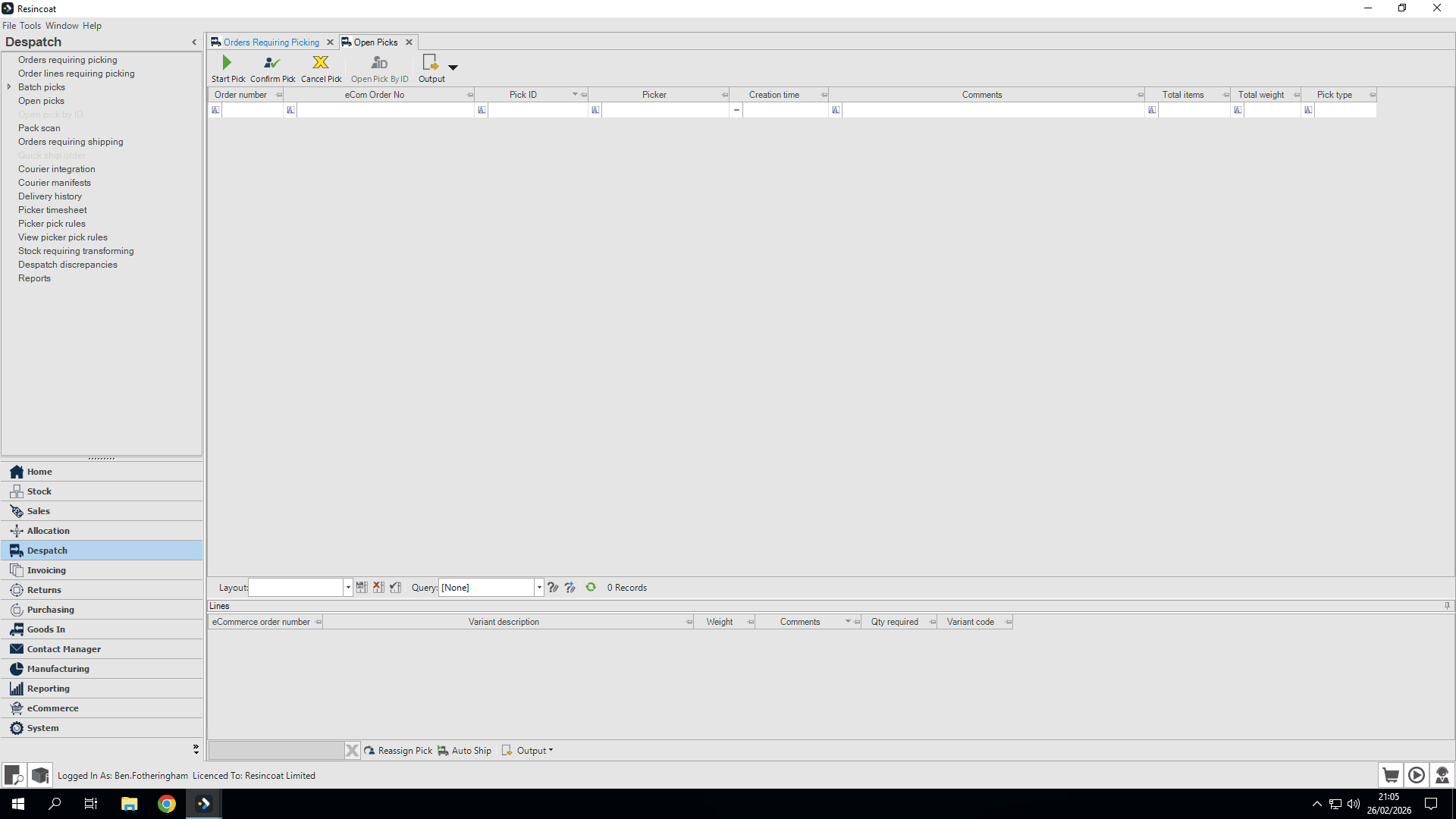
Let's look at how to cancel an order that is currently being picked by a warehouse team member. First, go to the dispatch and open the picks section.
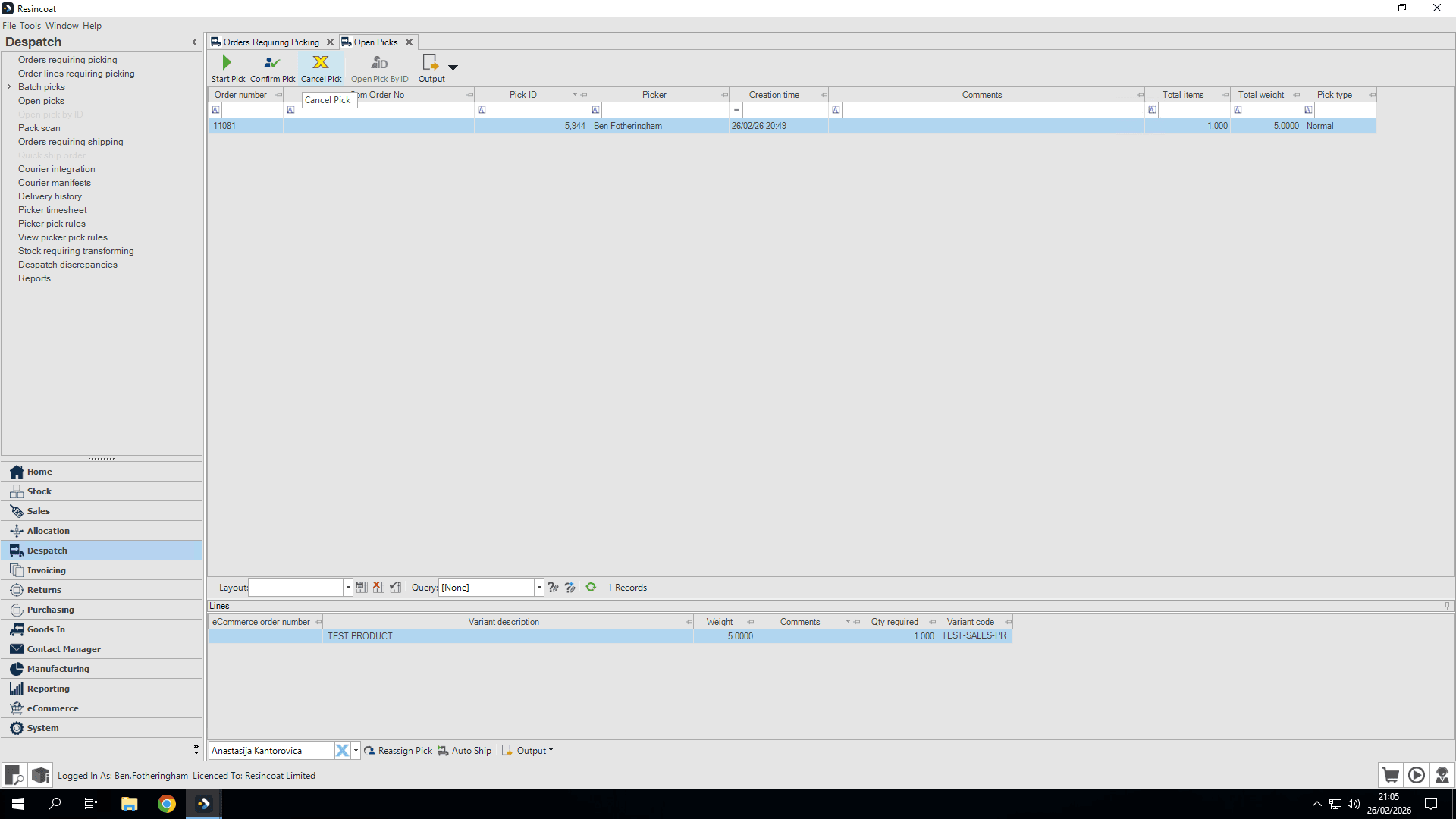
You can see here that we have an order currently being picked.
At this stage, once they have stopped the pick, we can cancel the pick.
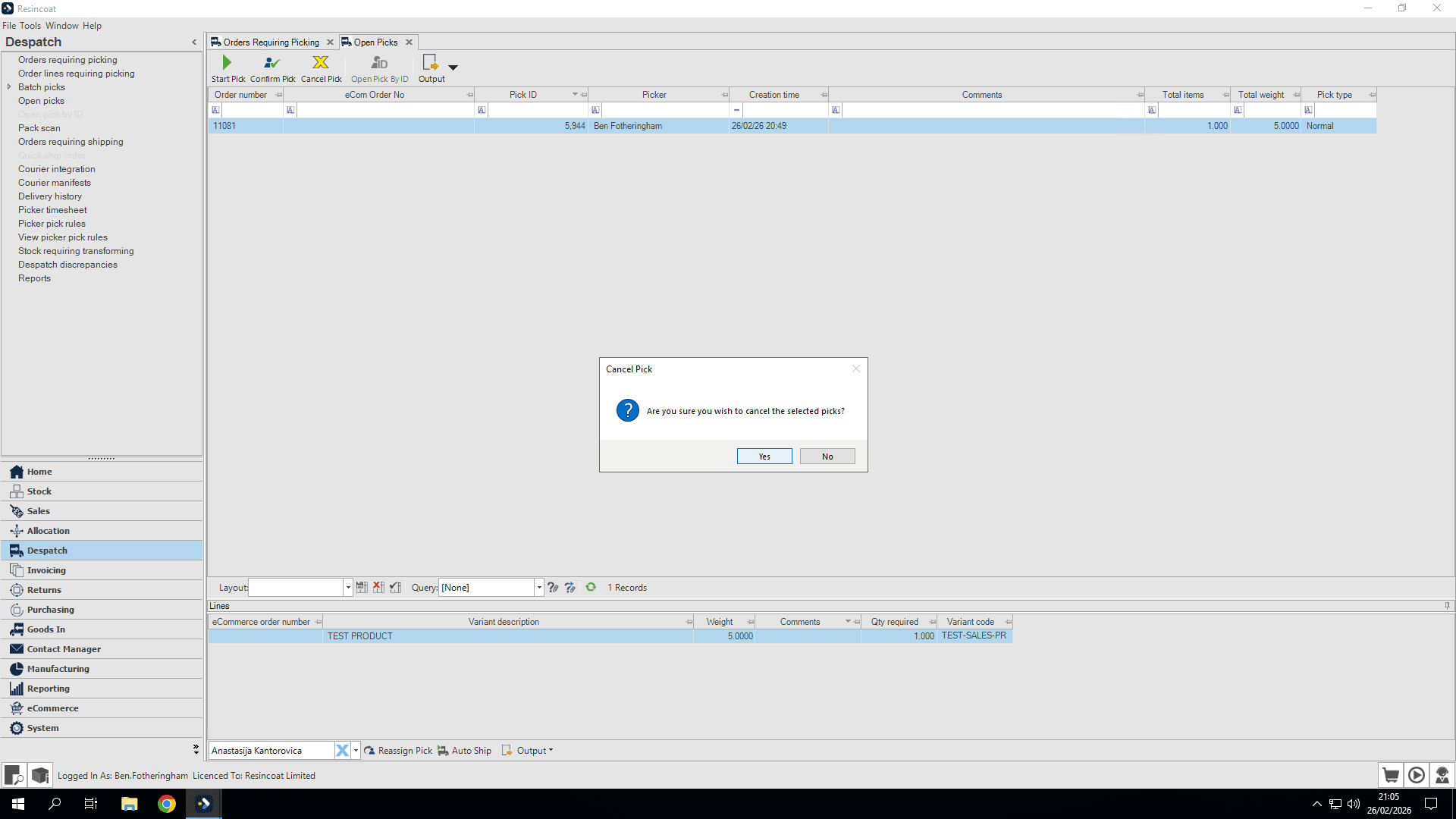
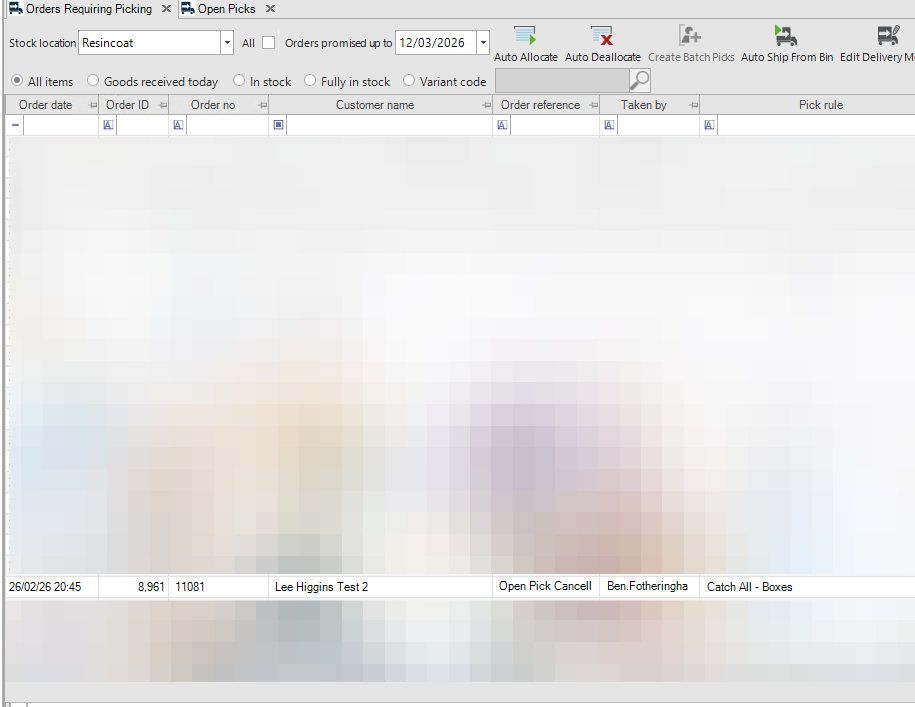
Click Yes to cancel. This will return the order to the "Orders Require Picking" screen.
If we look here, it shows we have been sent back. We can cancel the order as shown in the guide for cancelling an order that has not been picked up yet.
At this stage, we need to inform the person picking the order to re-sync their gun.