
How to Cancel an Order That Has Been Picked but Not Packed
Learn the step-by-step process to cancel an order that has been picked but not yet packed in your dispatch system. Follow our guide to efficiently manage order cancellations and streamline your shipping workflow.
By Ben Fotheringham
In this guide, we'll learn how to cancel an order that has already been picked but not yet packed. This process is useful if you need to stop an order before it moves further in the shipping workflow.
We'll cover how to locate the order, cancel the dispatch, and confirm that the order returns to the correct stage for further action.
Let's get started
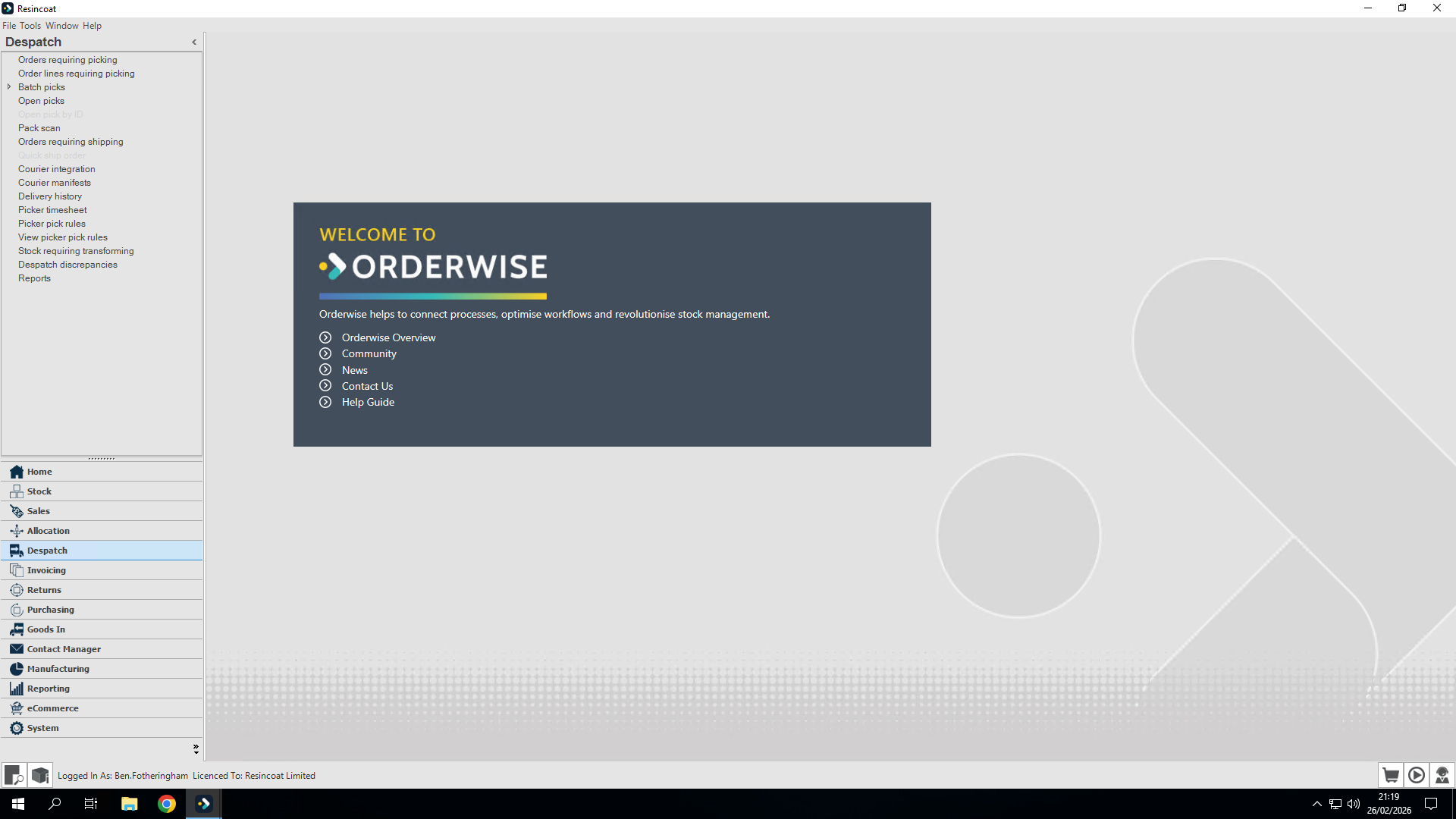
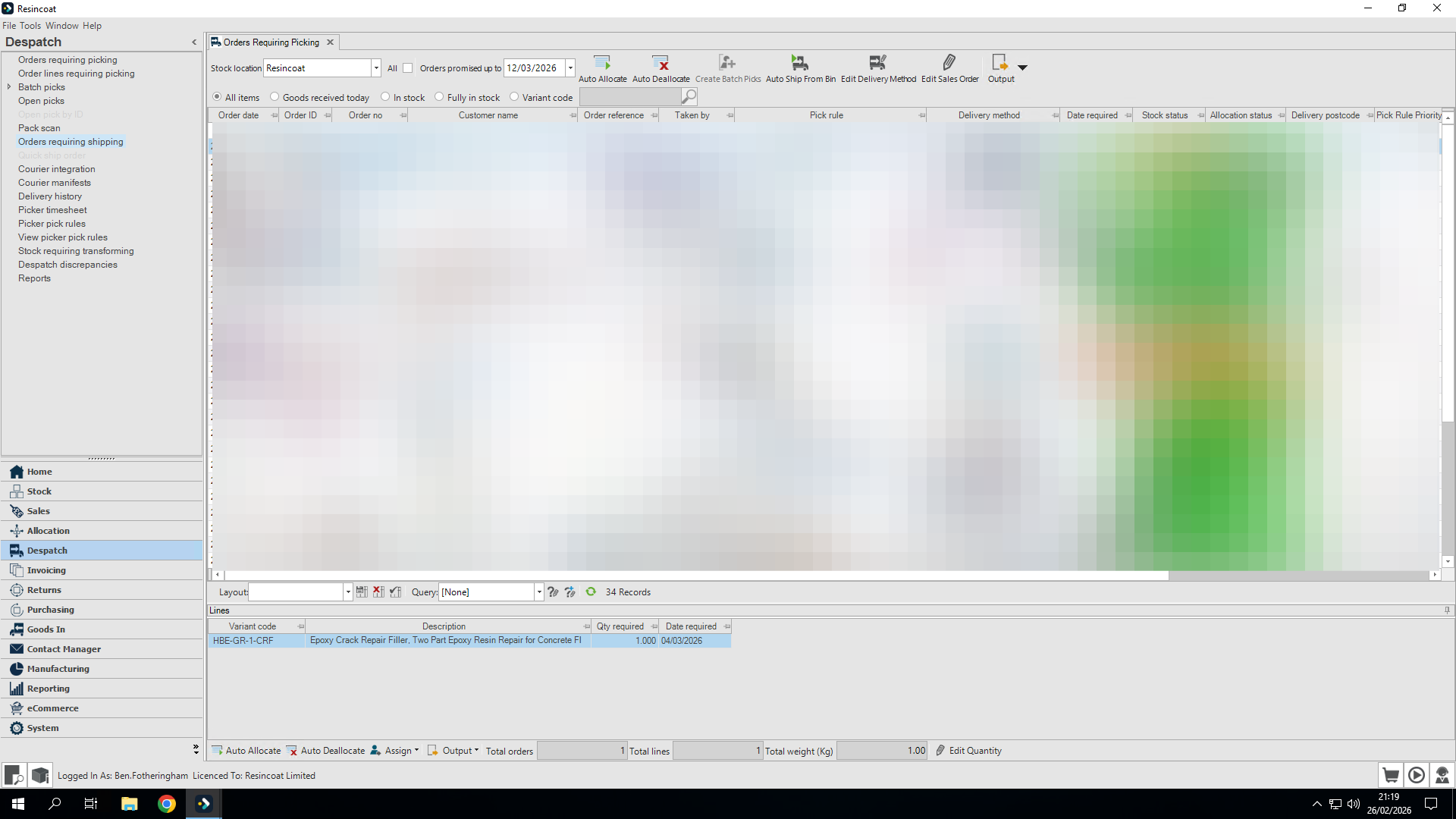
Let's see how to cancel an order that has been picked but not yet packed. Let's go to Dispatch and open the Orders Requiring Shipping screen.
1
Click on "Despatch"
2
Click on "Orders requiring shipping"
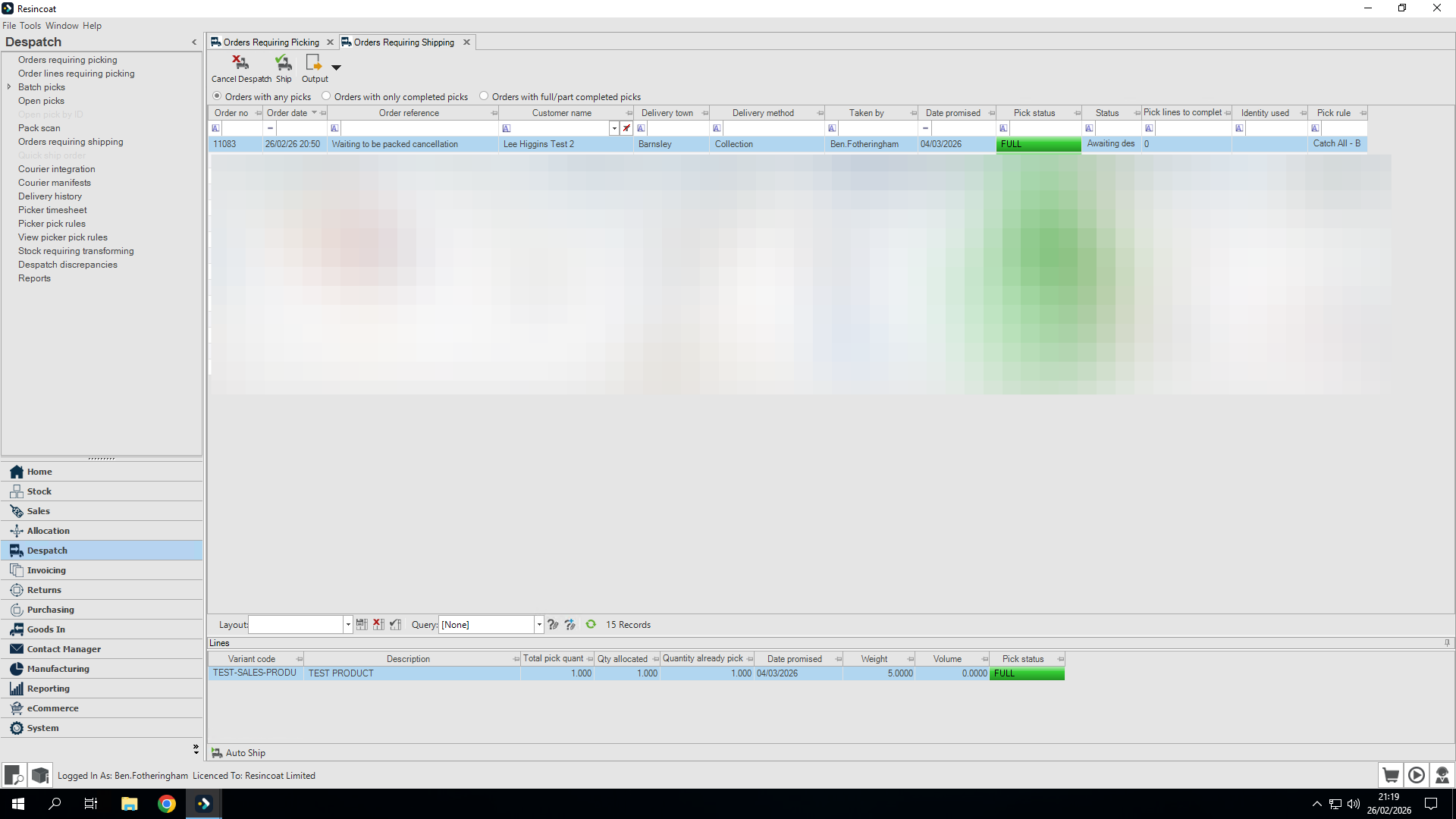
Find and select the order to be cancelled
3
Click on the order to select
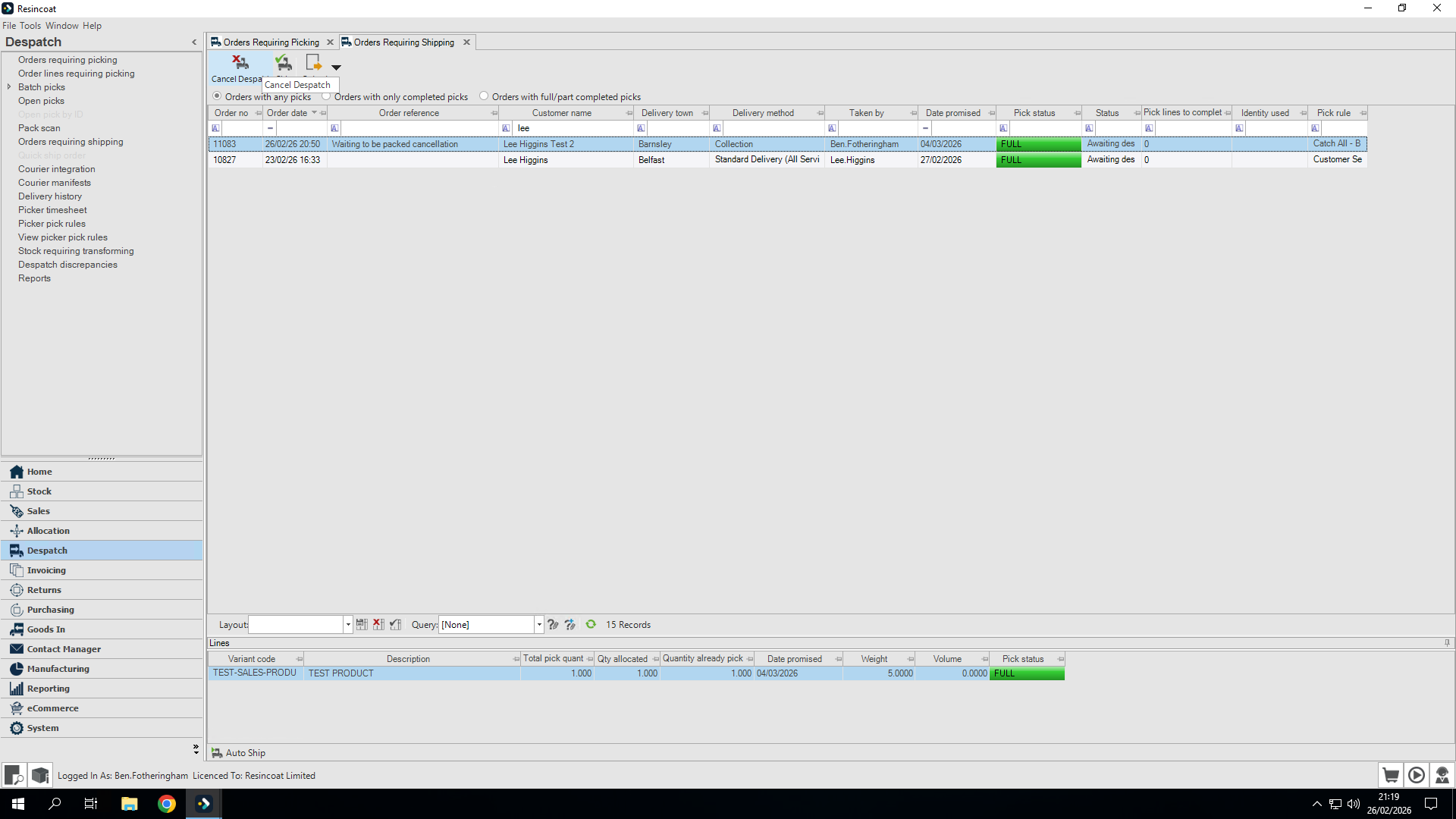
Once highlighted we cancel the despatch
4
Click on "Cancel Despatch"
5
Click on "Yes"
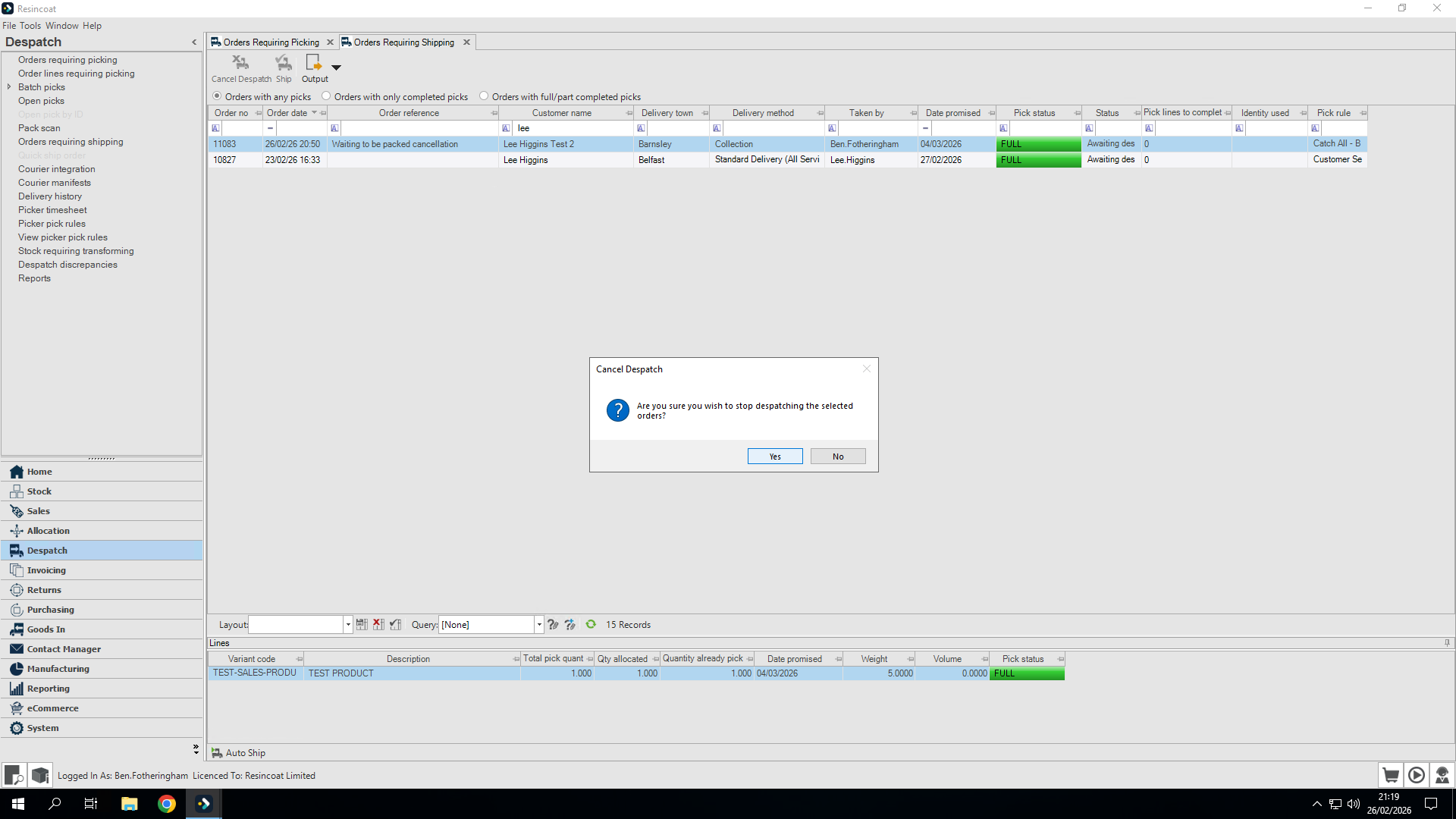
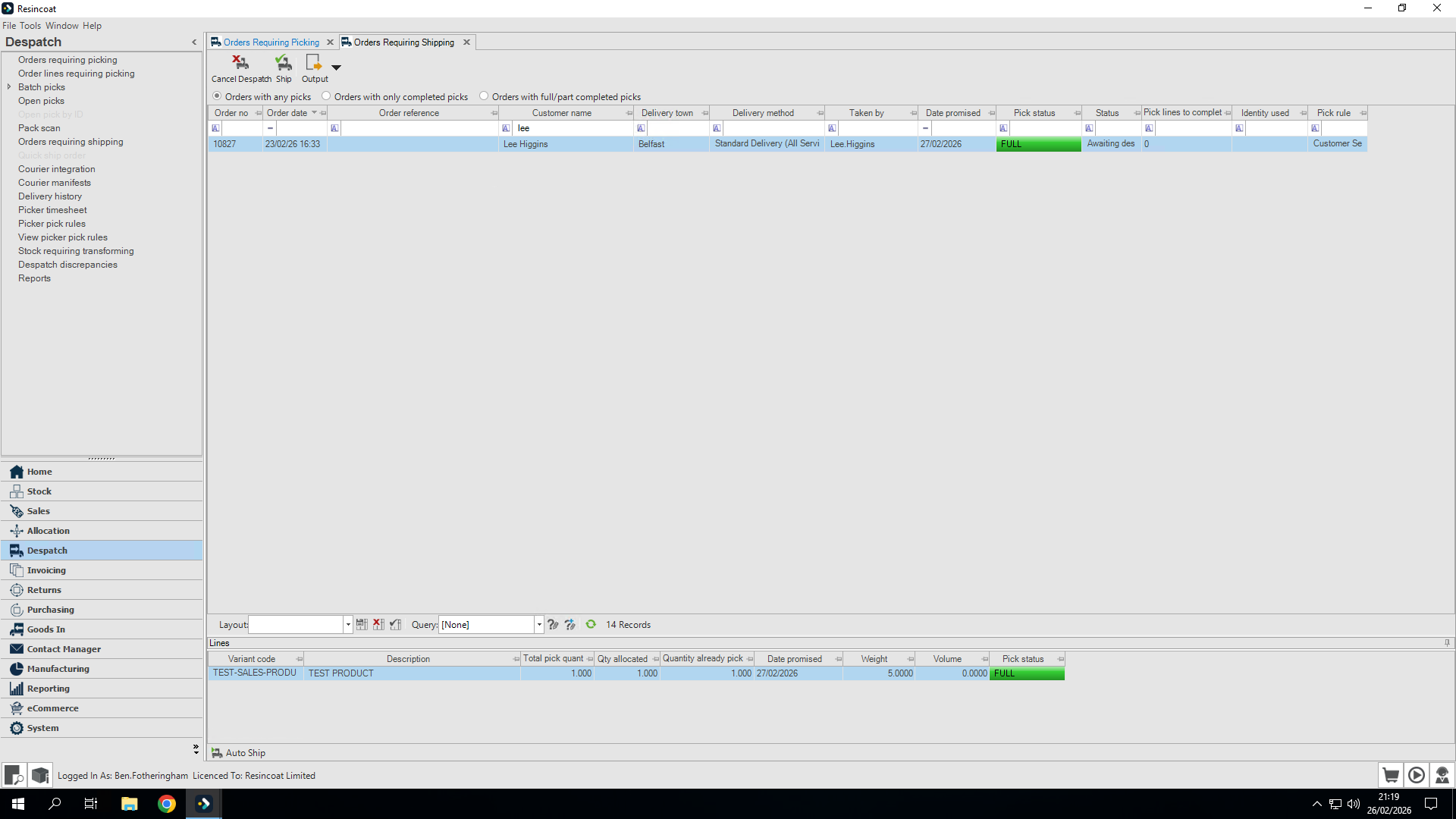
This sends it back to the orders requiring picking screen. Let's double-check to make sure we can find it.
6
Click on "Orders Requiring Picking"
7
Here is our order
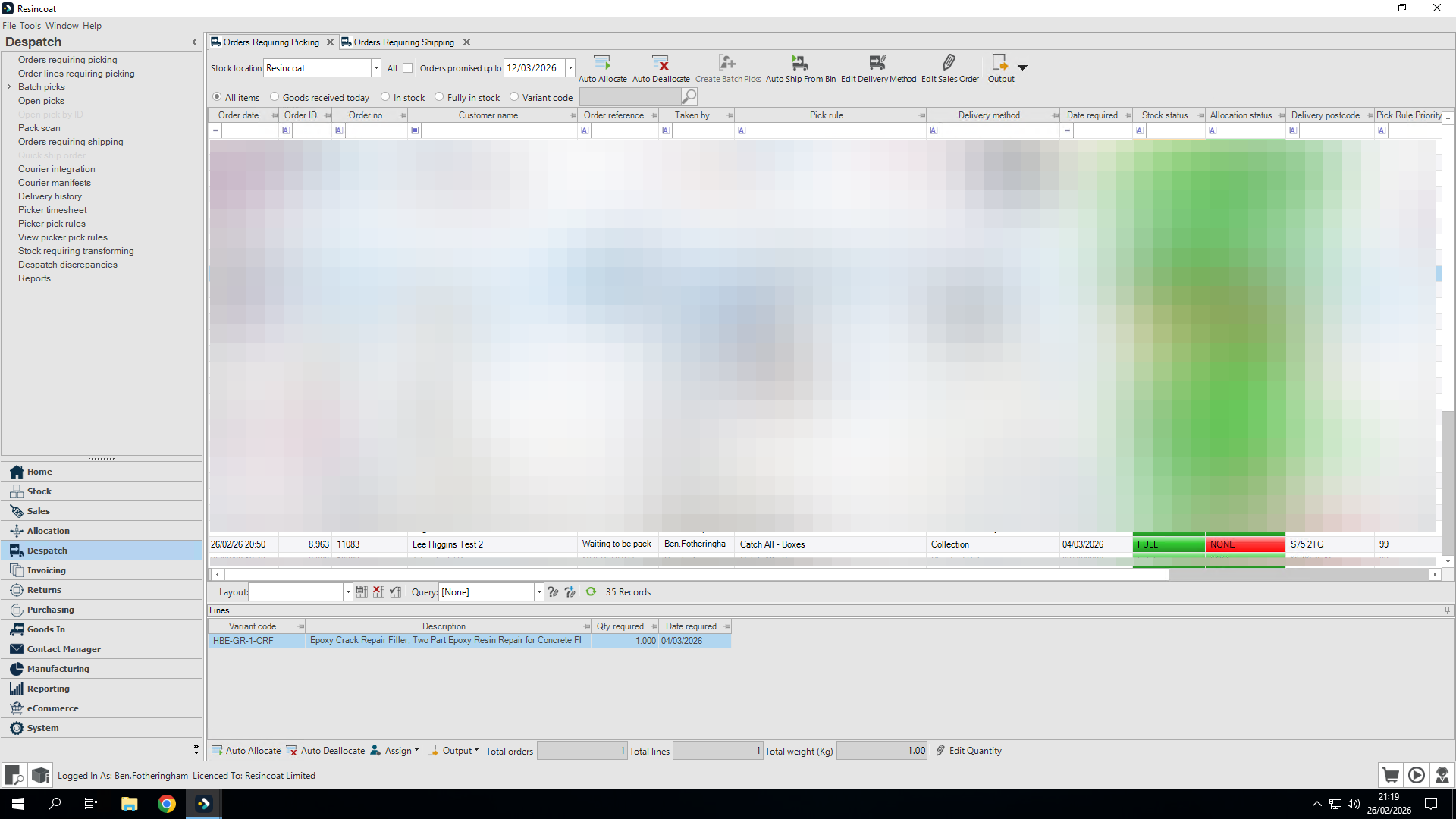
From this point, follow the How to Cancel an Order That Has Not Been Picked Yet guide.