
How to Cancel an Order That Has Not Been Picked Yet
Learn step-by-step how to cancel an order that hasn't been picked yet, including editing allocations and processing manual refunds.
In this guide, we'll learn how to cancel an order that has not yet been picked. We will go through the steps needed to remove allocations and enable the option to mark the order as canceled. This process helps ensure that orders are properly managed before any picking or shipping occurs.
Let's get started
Let's see how to cancel an order that has not been picked yet. First, I will go to dispatch.
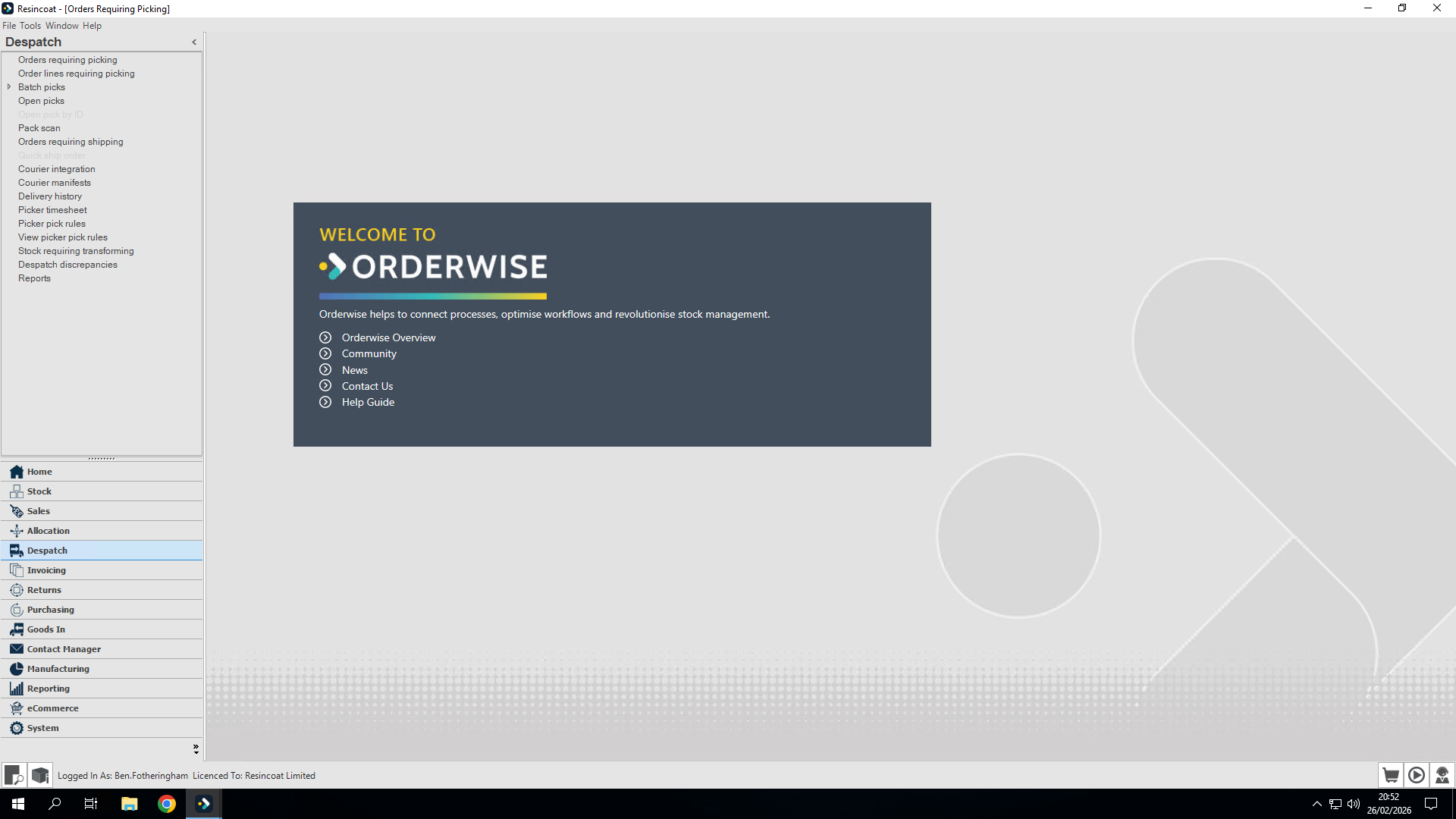
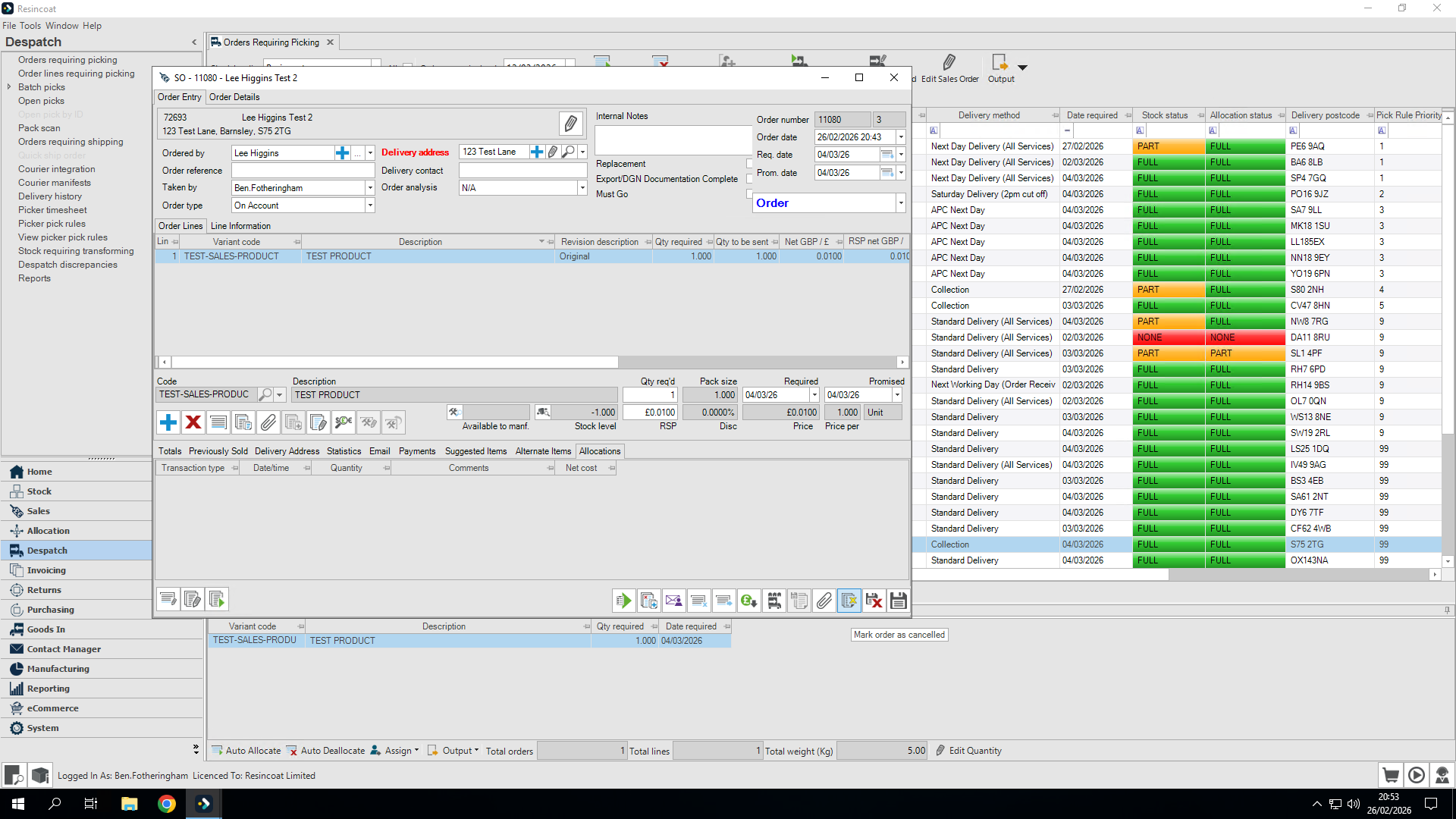
We automatically enter the orders that require picking. I will find the order I want to cancel, select it, and click the Edit Sales Order button at the top.
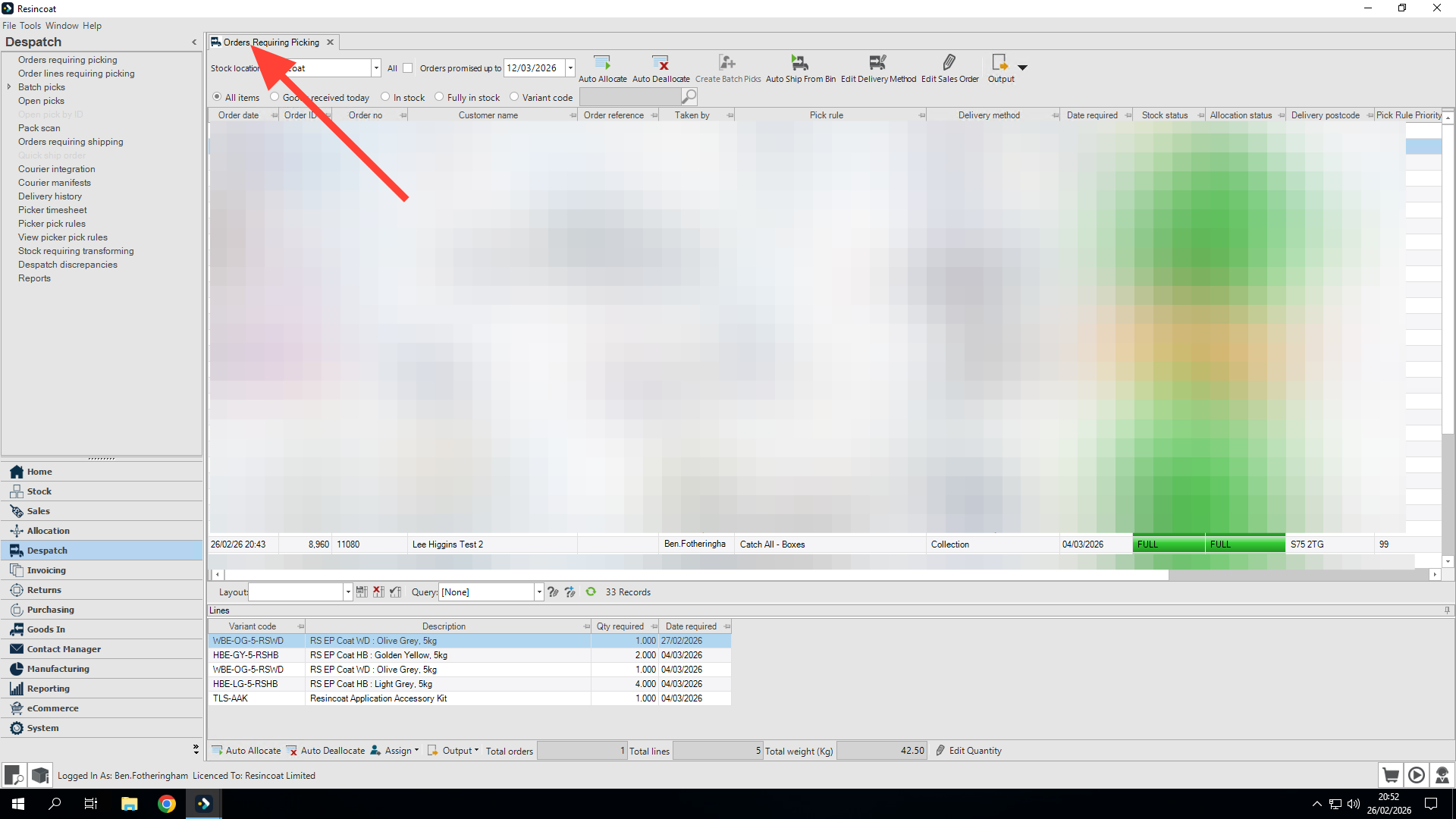
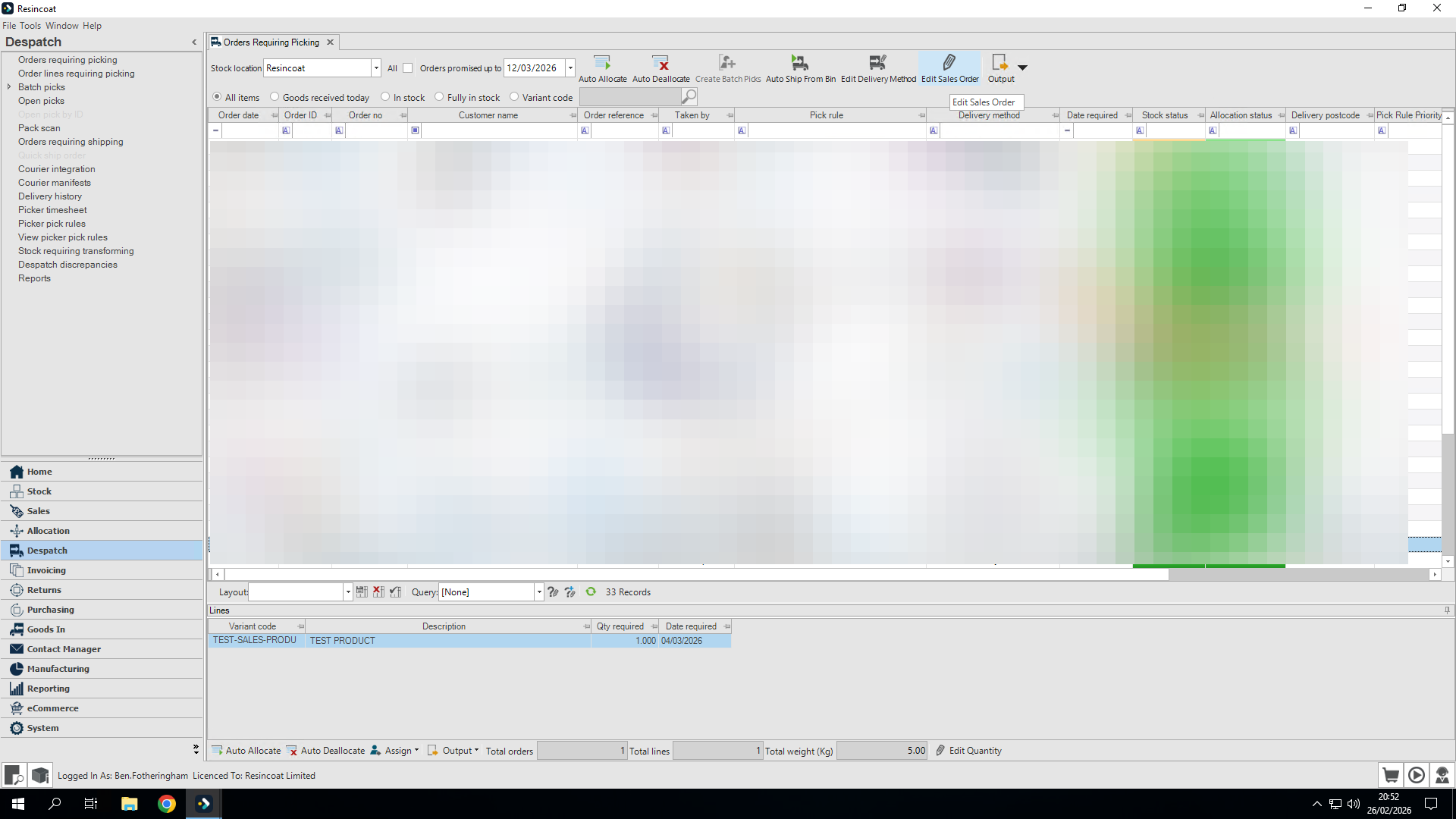
We cannot click the cancel order button because the order has already been accepted.
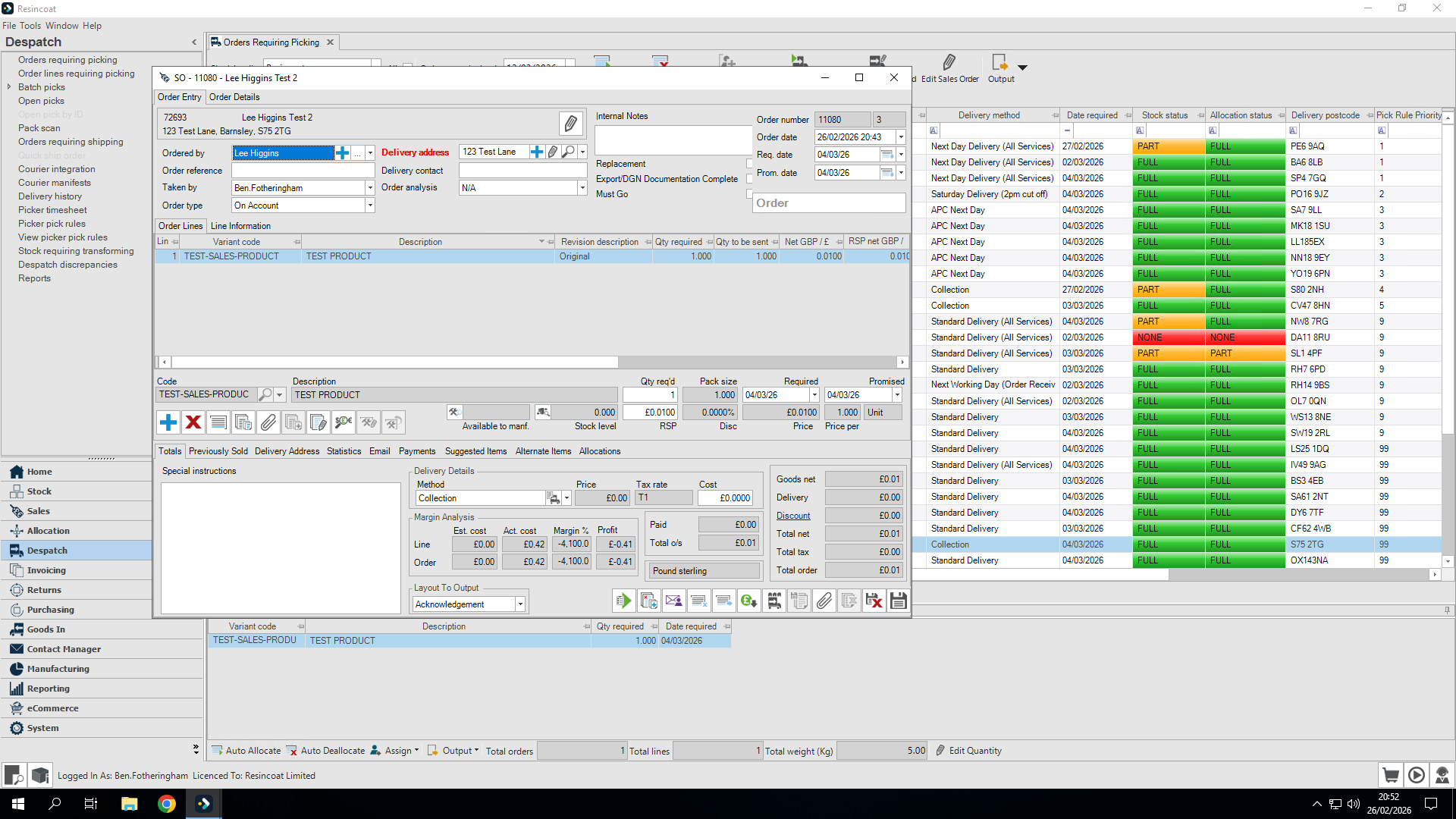
I will change this by going to allocations. Stock has already been allocated to the order and is causing the issue.
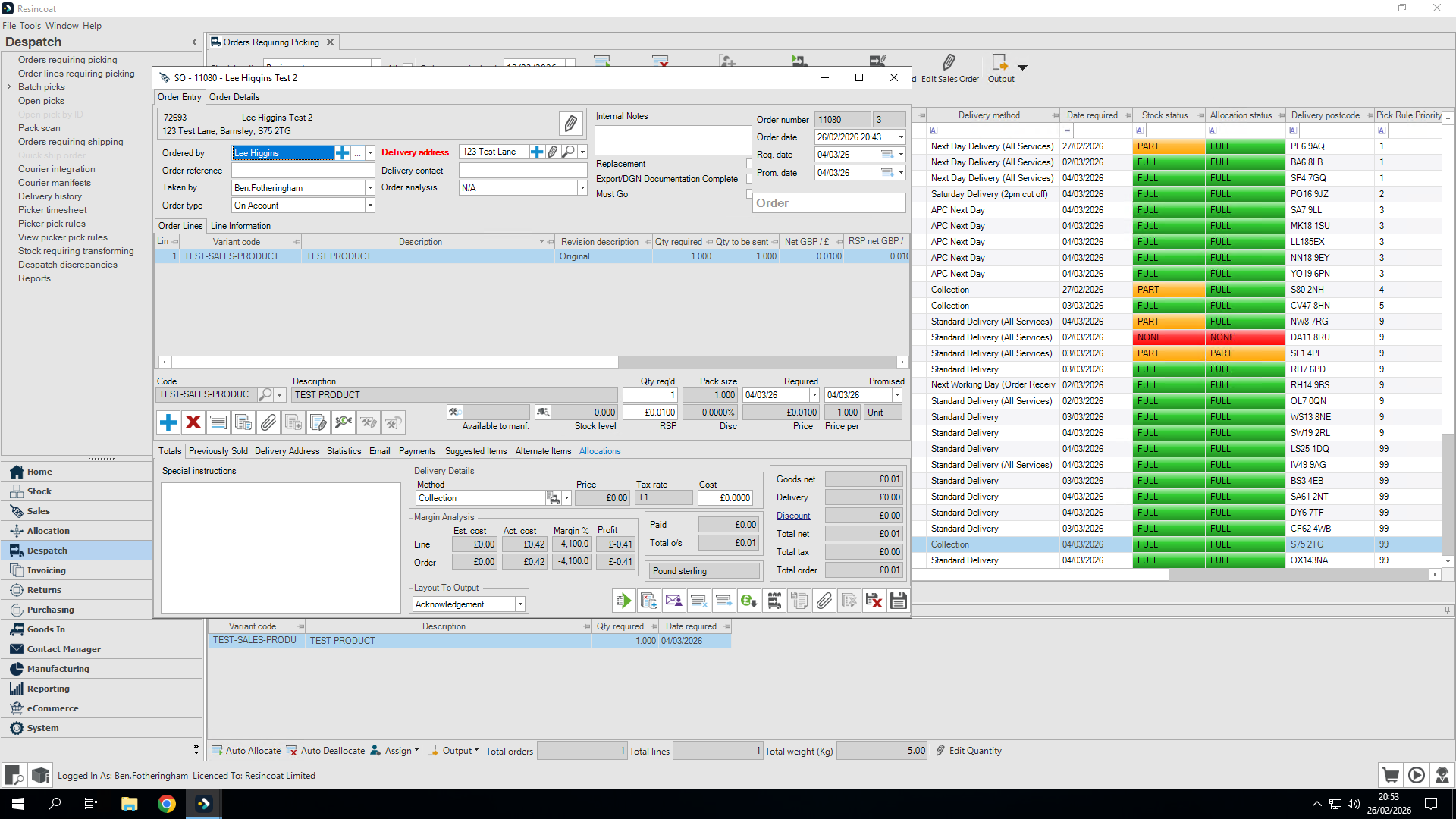
I am going to edit these allocations.
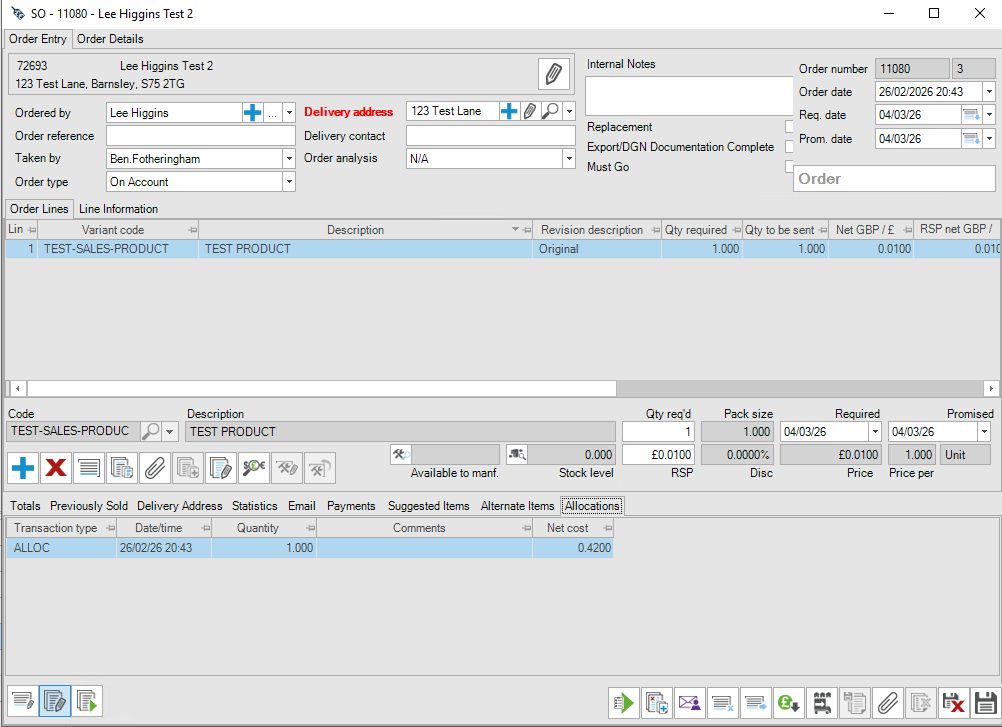
I will select anything in the lower 'Allocations' section and click delete.
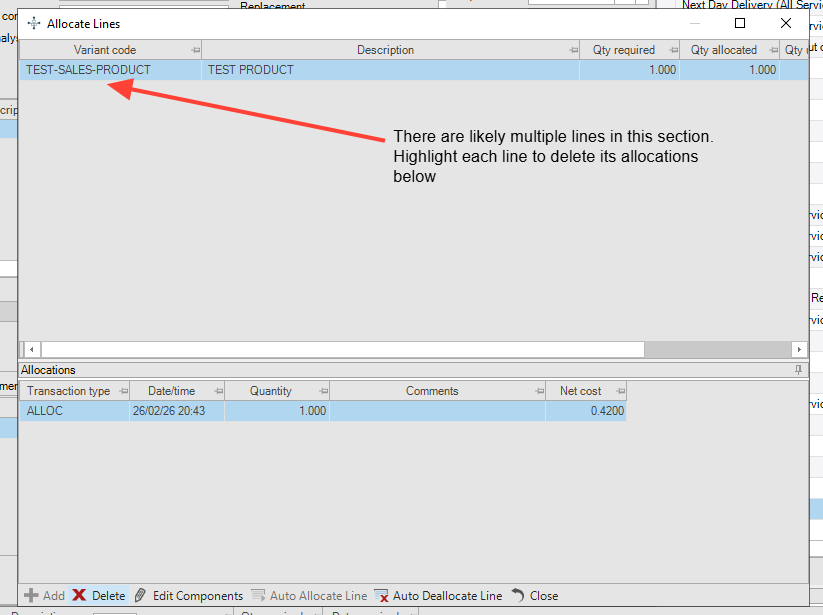
Once everything is cleared, close this box.
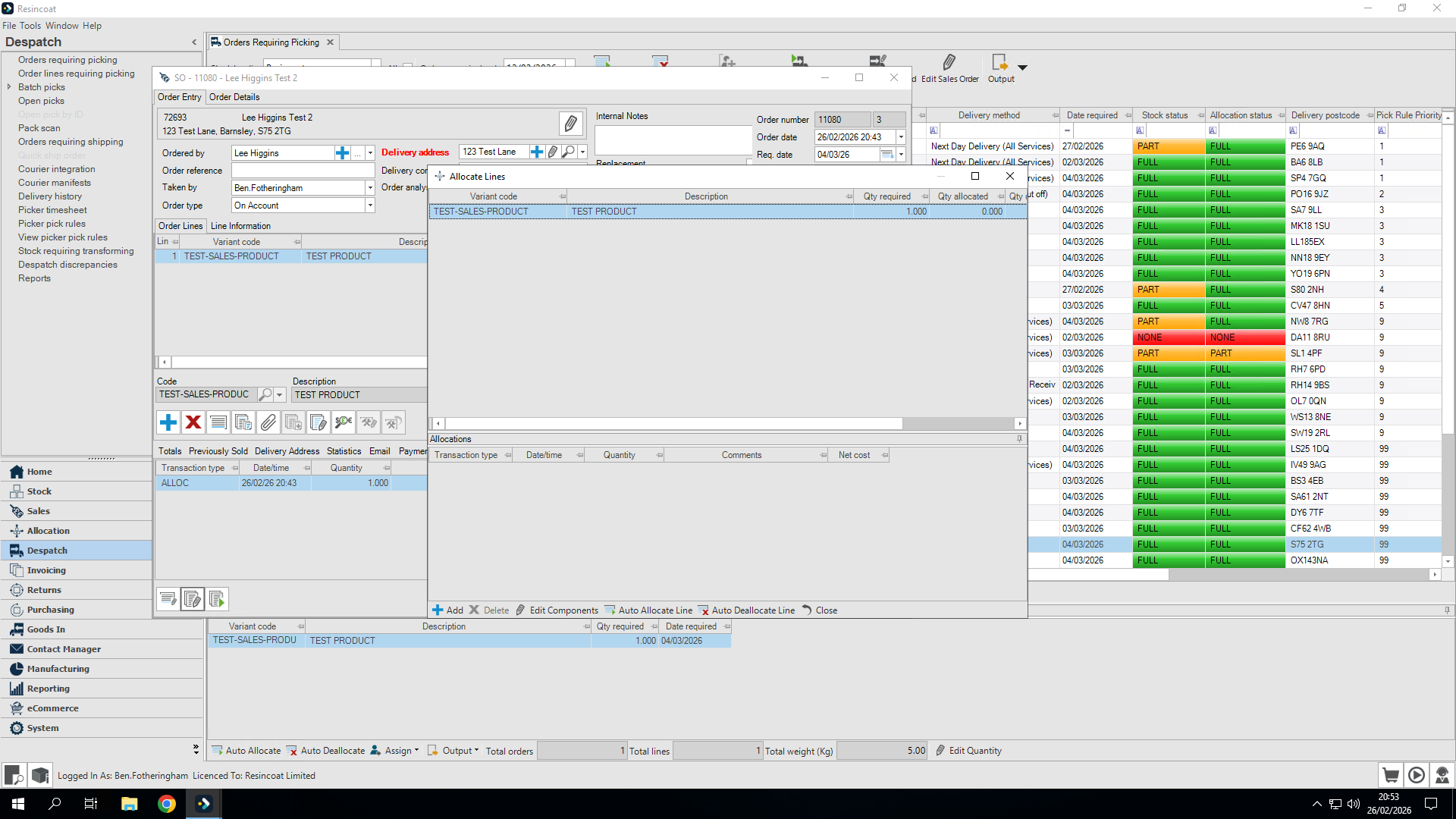
You can see the "Cancel" or "Mark Order as Cancelled" button has appeared
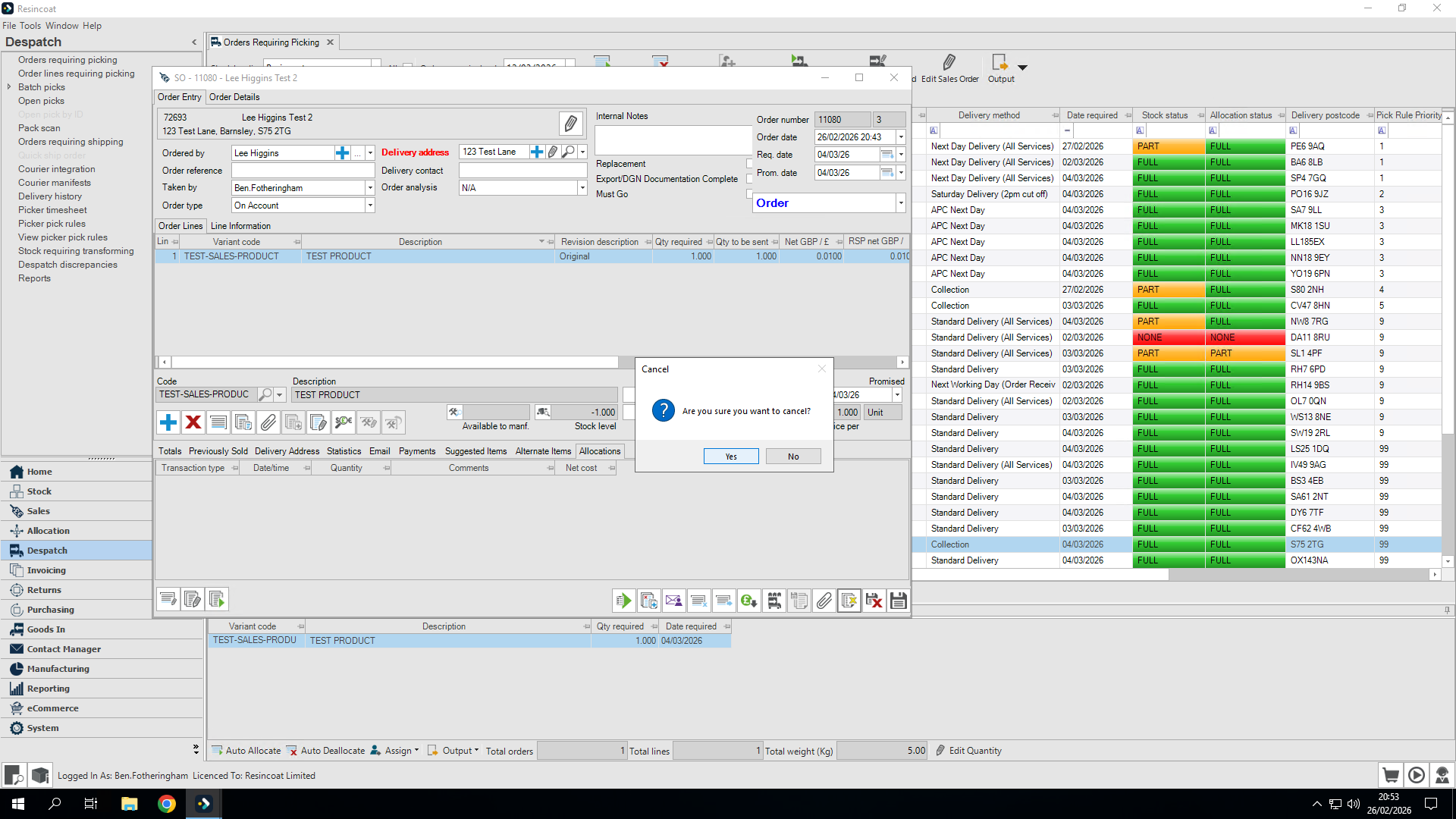
The order has been cancelled. If any refunds need to be processed, they are handled manually.