How to cancel an order that is currently being picked by the Warehouse Team
Learn how to cancel an order that is actively being picked by the Warehouse Team.
By Lee Higgins
In this Guide you will learn on how to cancel an order that is actively being pickedby our Warehouse Team.
After this guide you should be able to:
Confidently cancel the pick from the "Open Picks" screen
Confidently edit the sales order allocation to ensure the stock gets returned to it's correct bin location.
Confidently cancel an order.
Step 1: Canceling the active pick
Before cancelling an order that is actively being picked you must ensure that you communicate the cancelation to the Warehouse Team, before proceeding with any of the steps, this is so that the order doesn't get accidently processed and shipped.
1
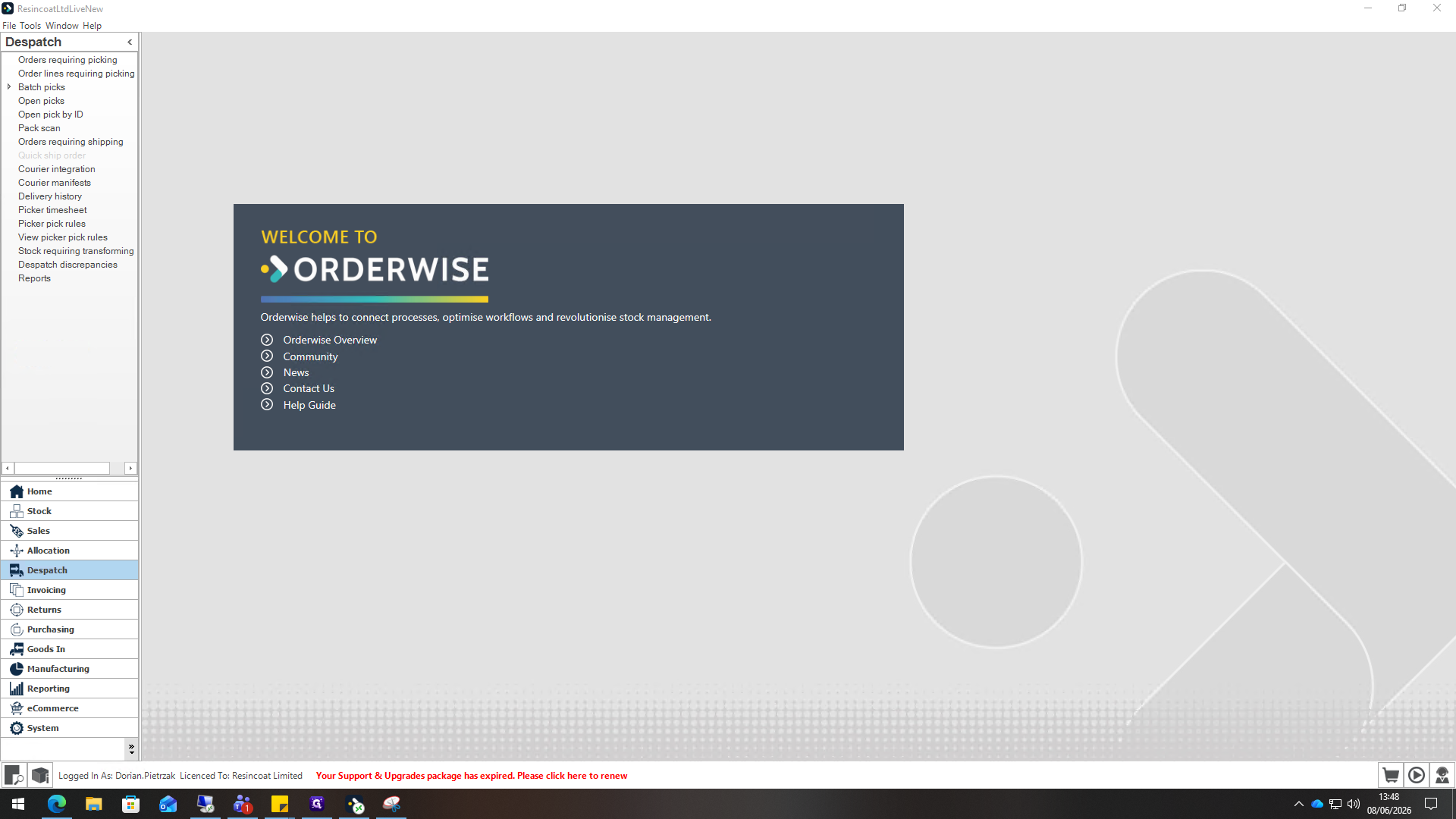
Click onto the "Despatch" module in the main navigation sidebar, this should bring you to the "Orders Requiring Picking".
2
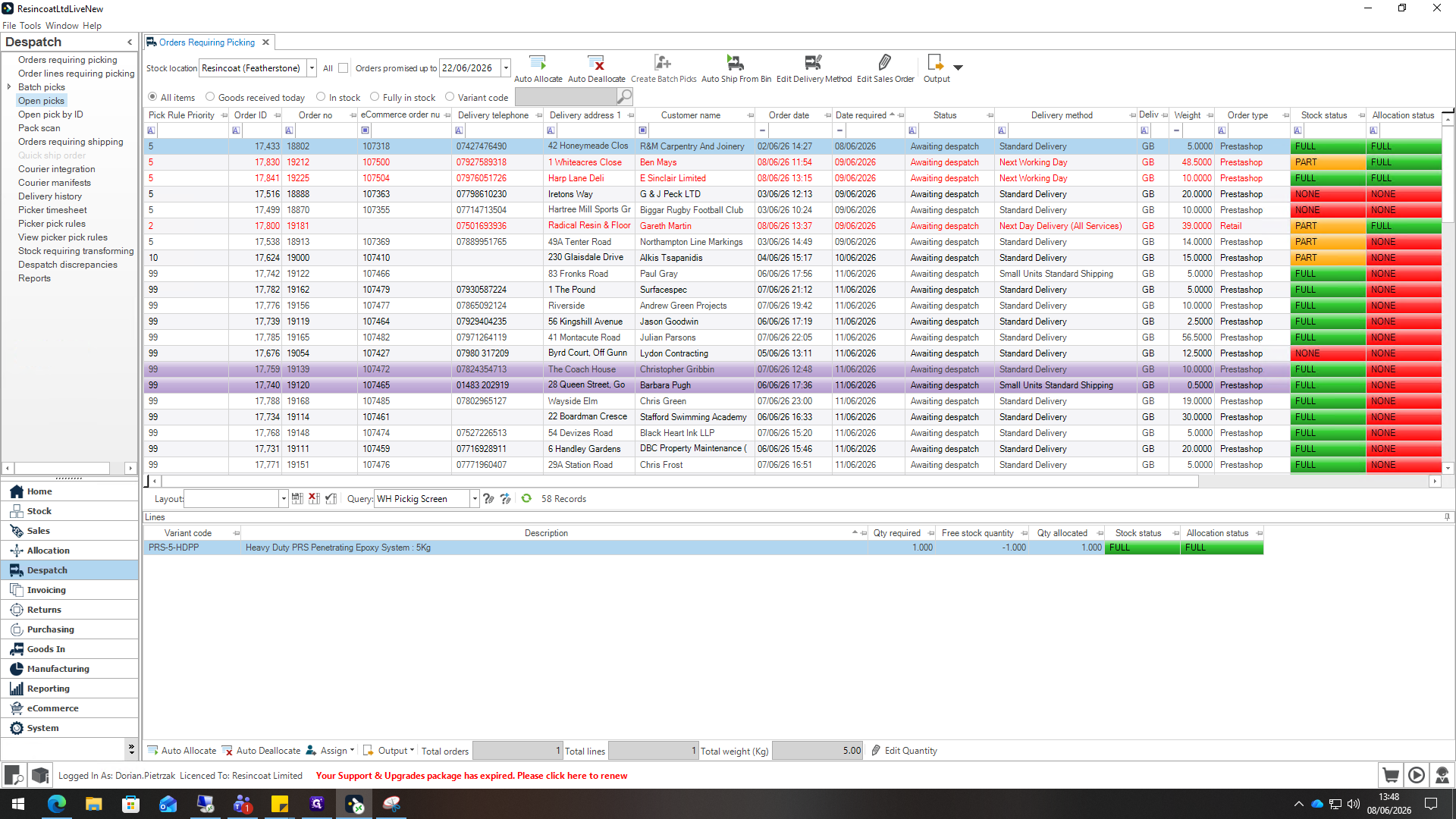
Select "Open picks" to view all the orders that are currently being picked by the Warehouse Team.
3
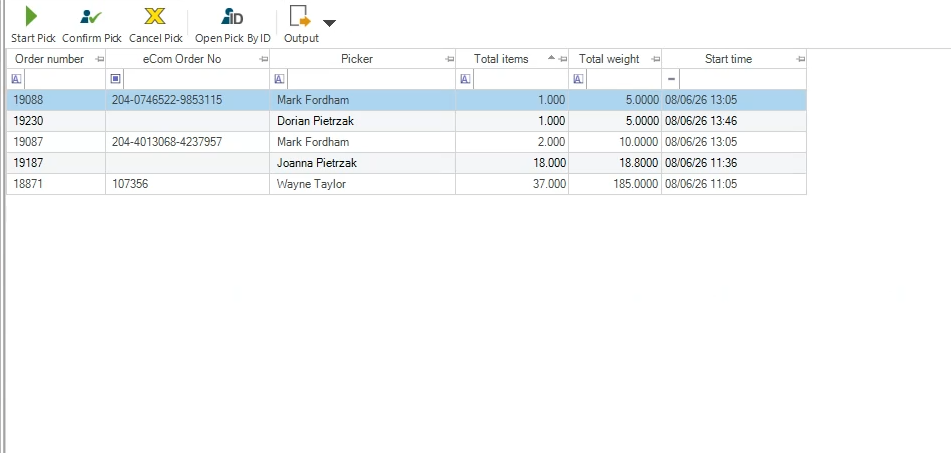
Search for the Order number you are trying to cancel
4
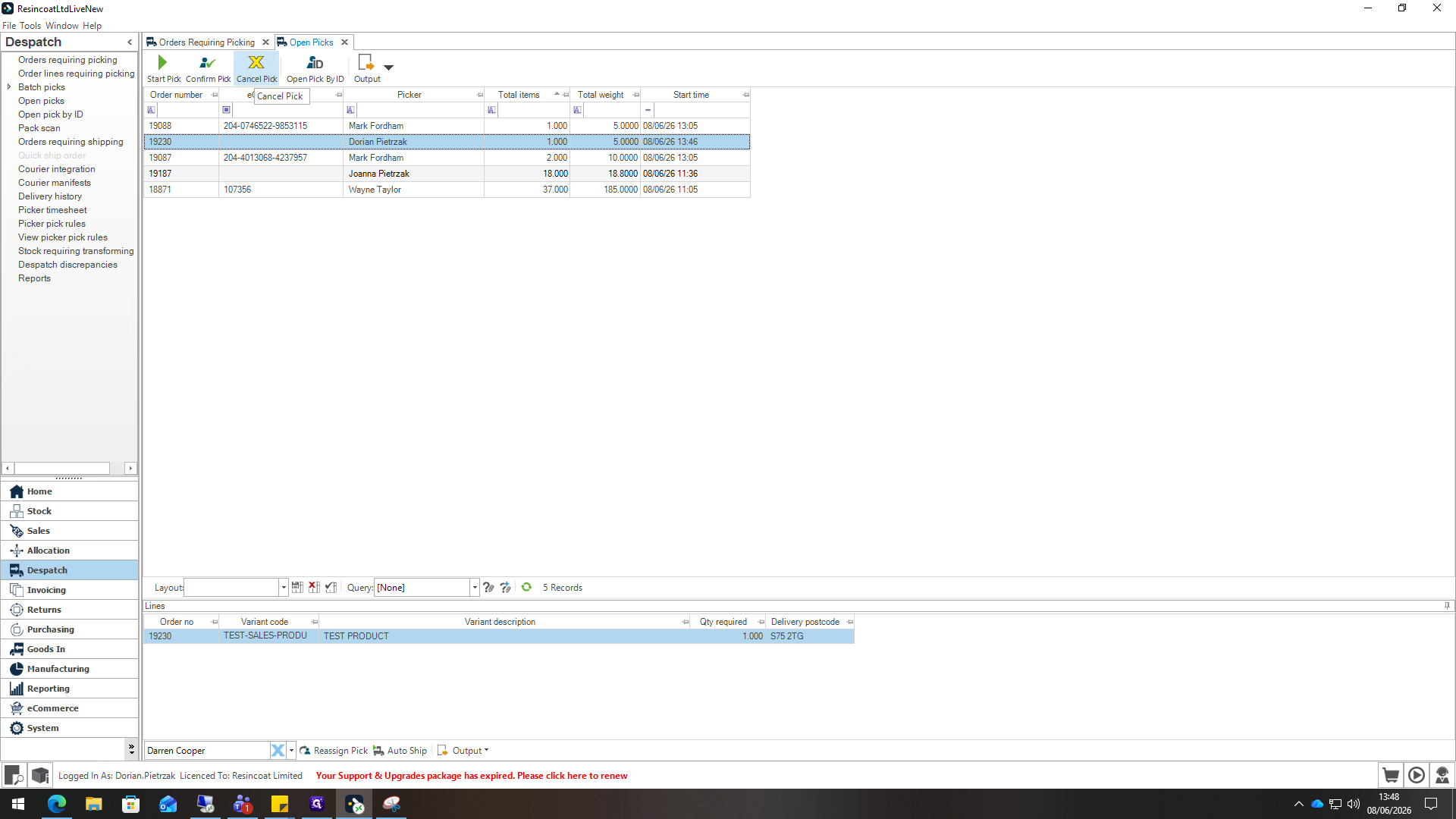
Click the "Cancel Pick" button located in the top of the screen
5
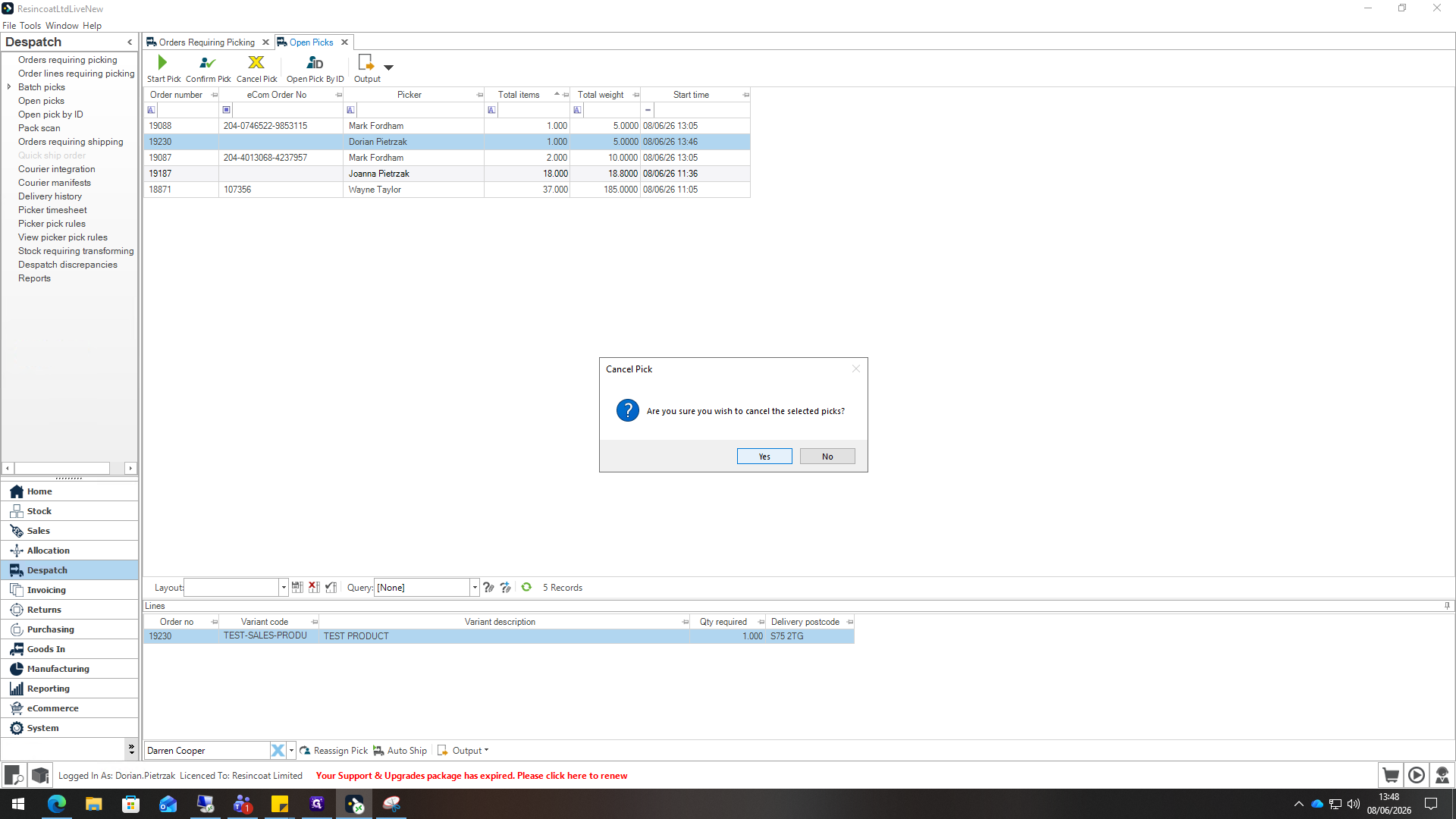
Once the "Cancel Pick" button has been pressed a pop up will appear, press "Yes".
Step 2: Cancelling the order.
6
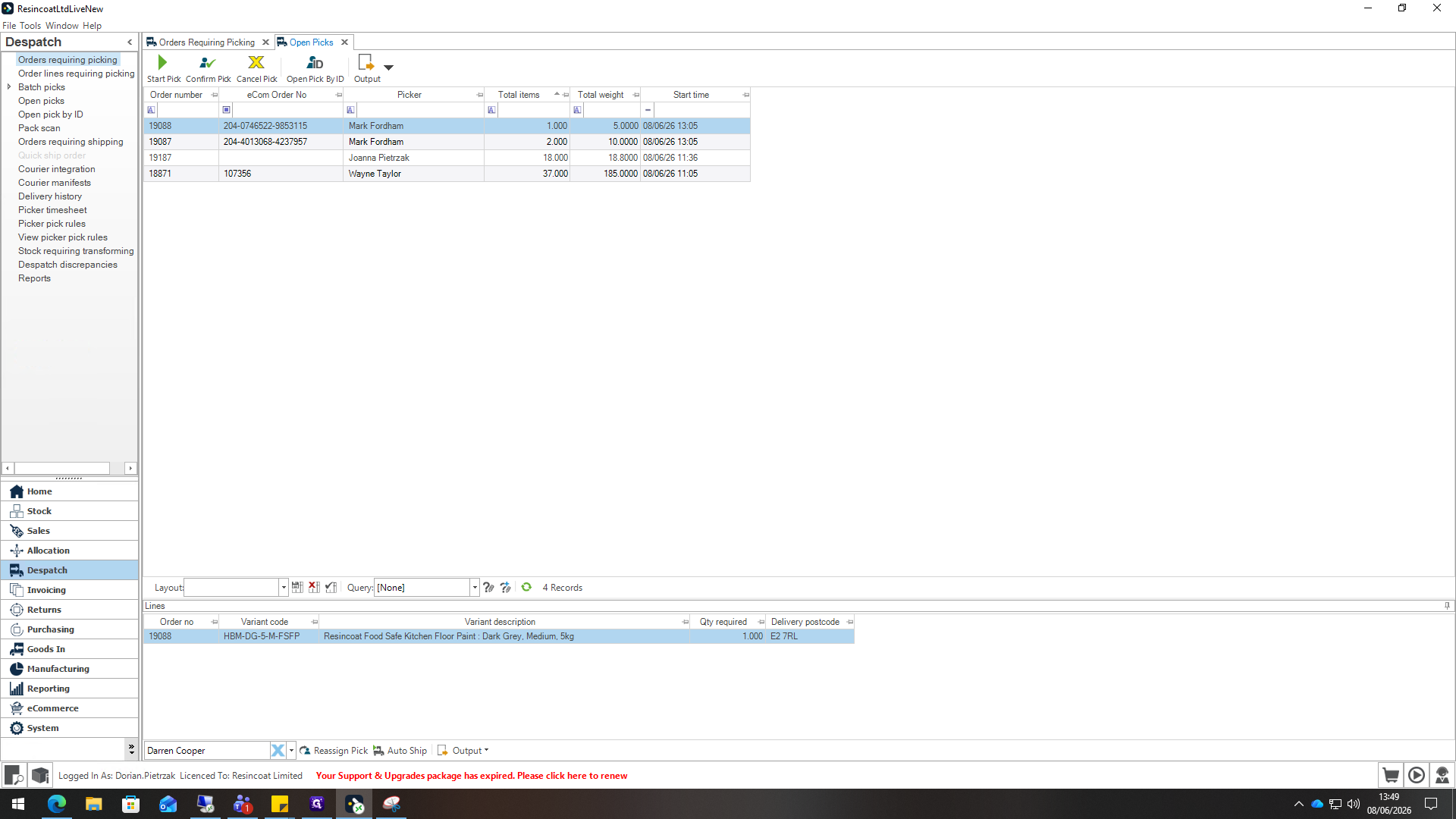
After the pick has been canceled, the order will end up in the "Orders Requiring Shipping" tab. this tab can be found on the Despatches module's side bar
7
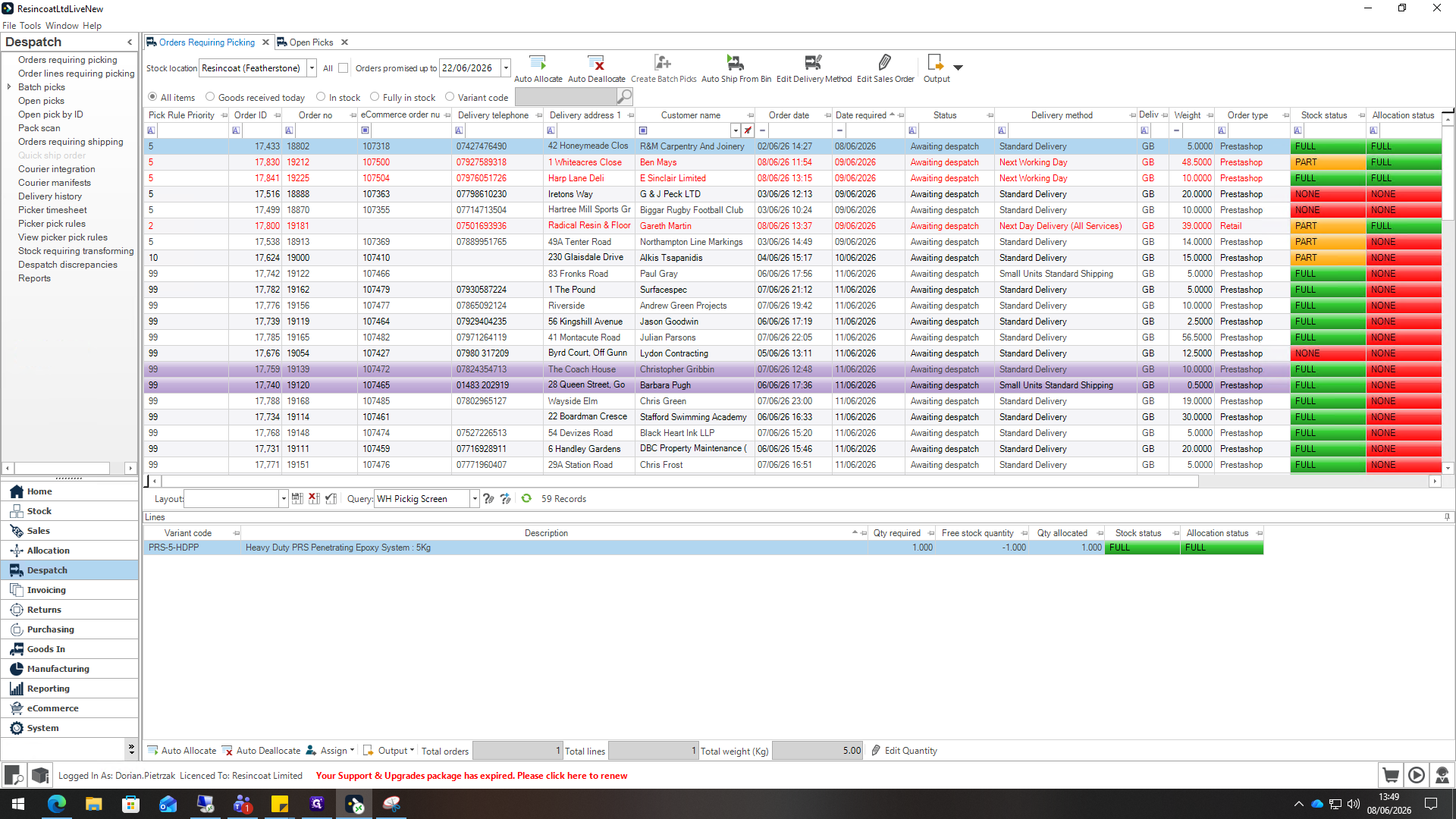
Search for the order you are trying to cancel.
8
Click and select your order.
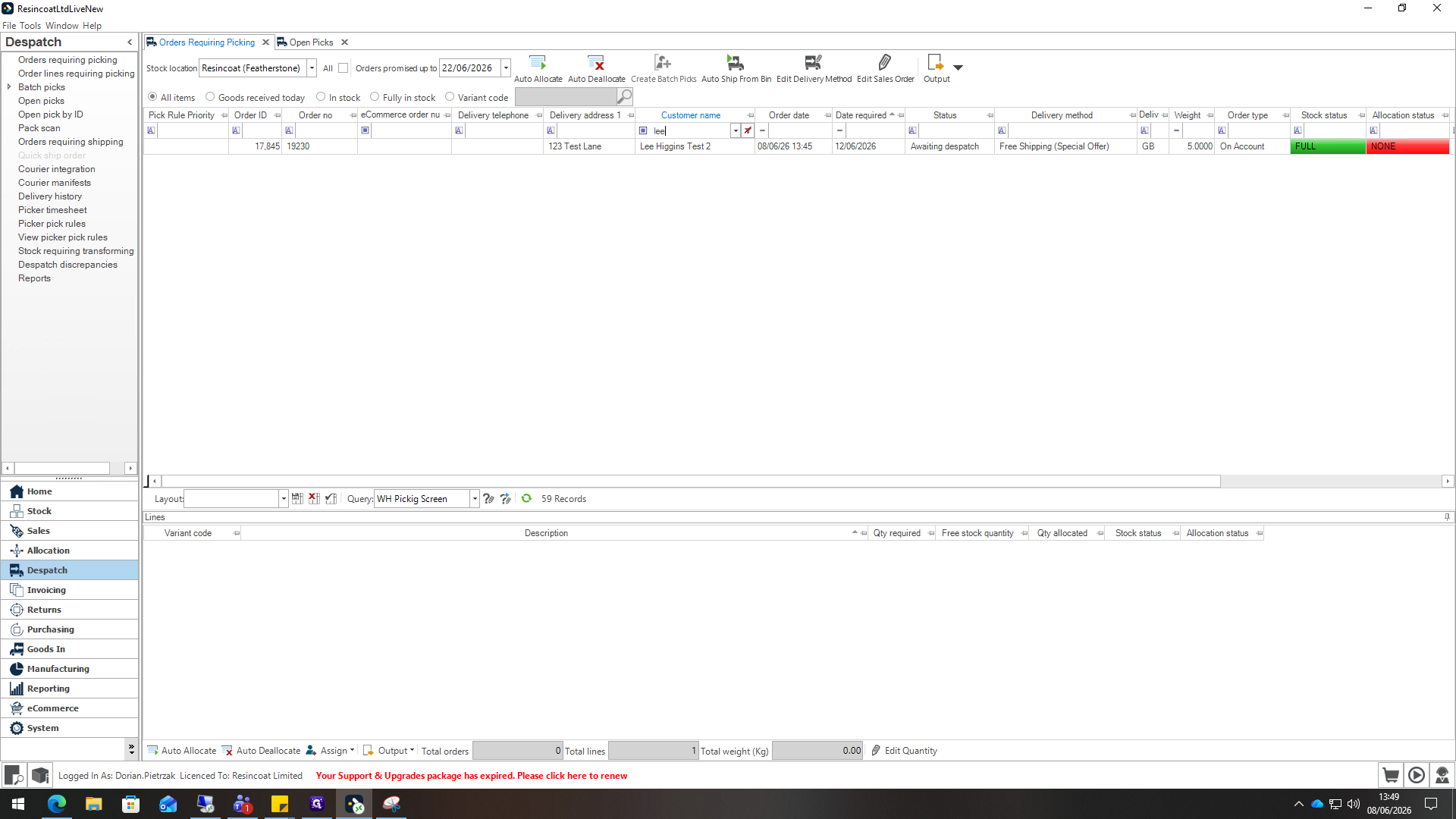
9
Once the order has been selected, you can now edit the sales order by pressing the "Edit Sales Order" button
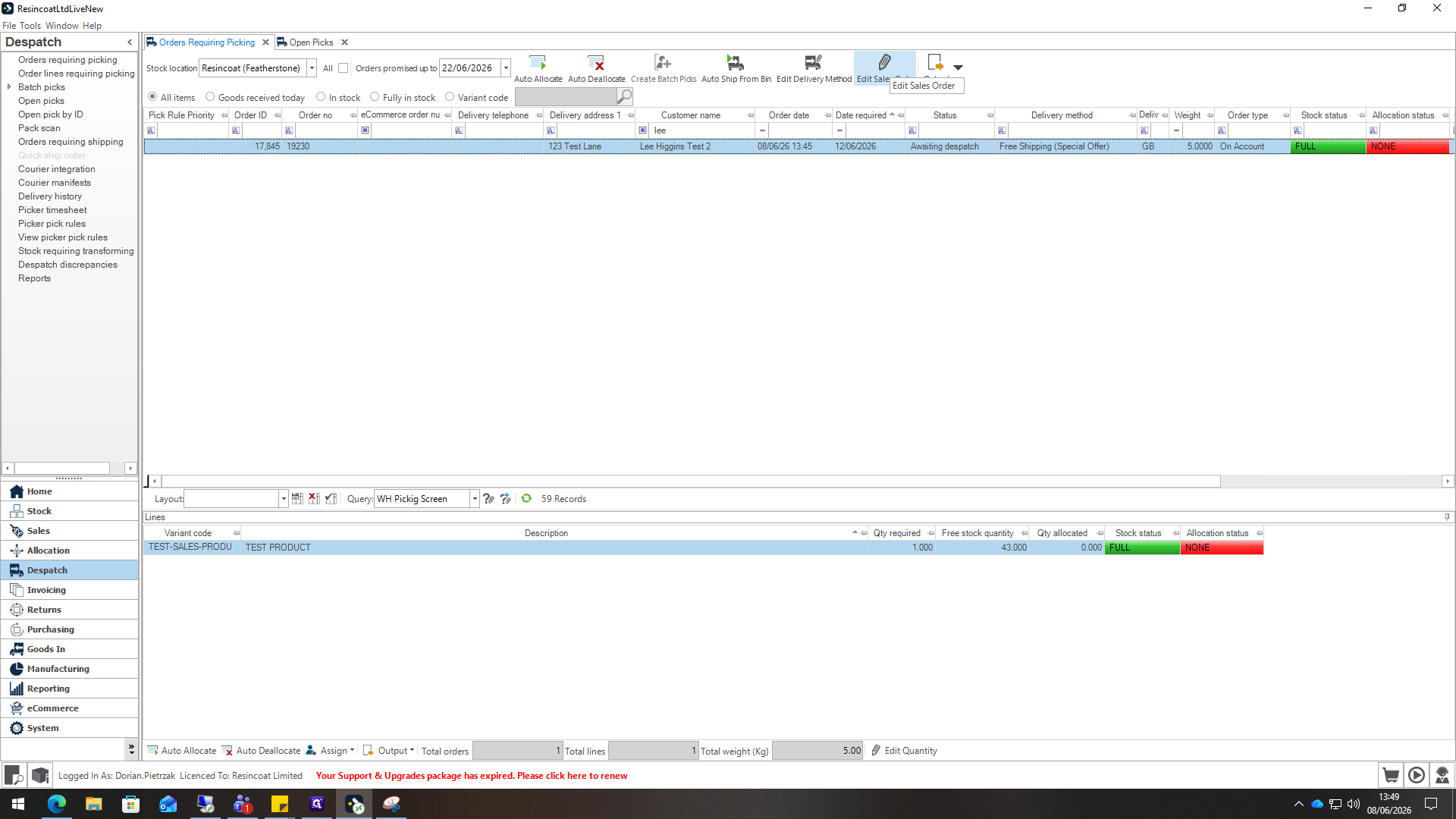
10
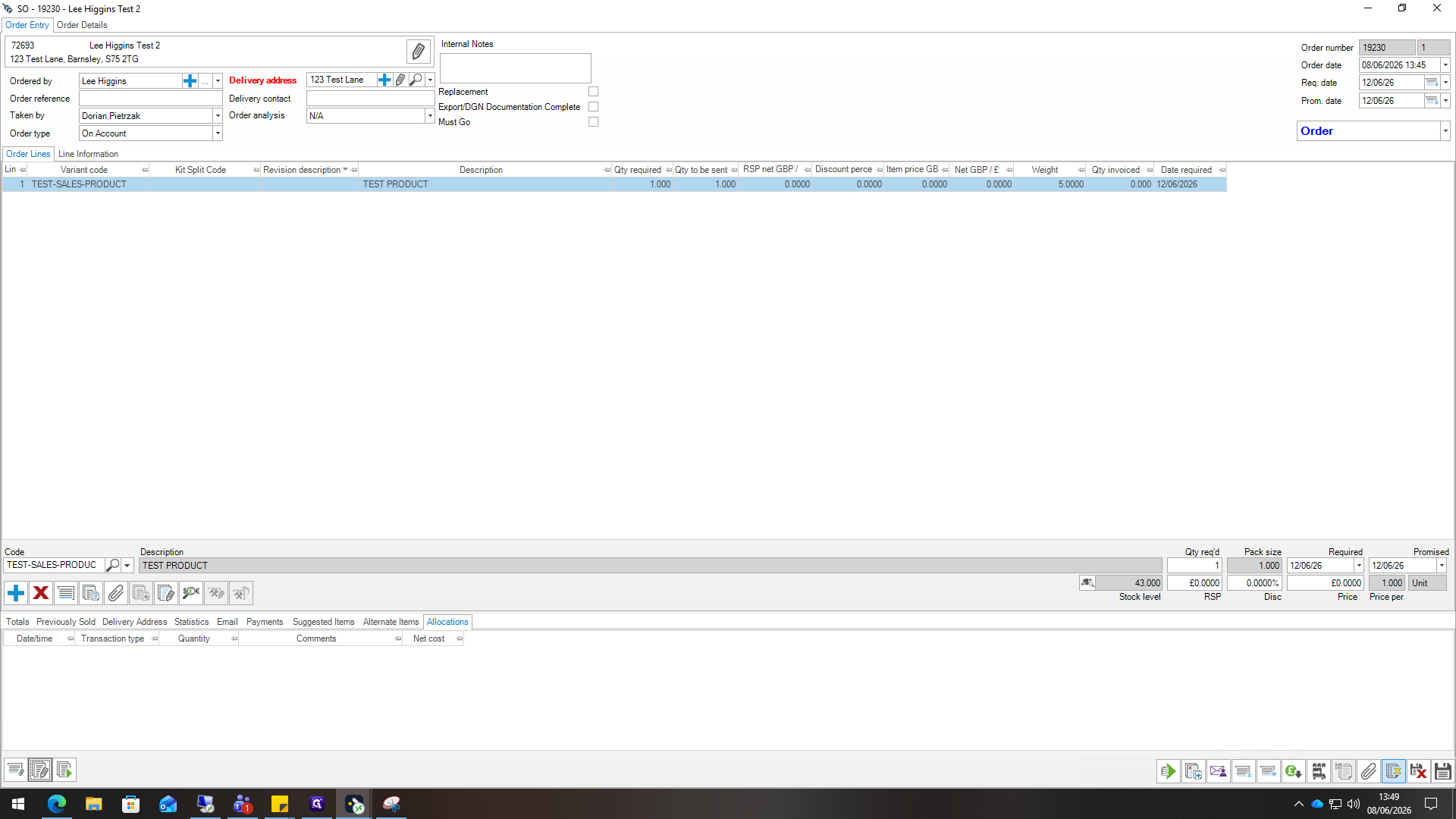
A new screen like this should appear, as you can see the cancel order button is greyed out, this is due to stock still being allocated to the order.
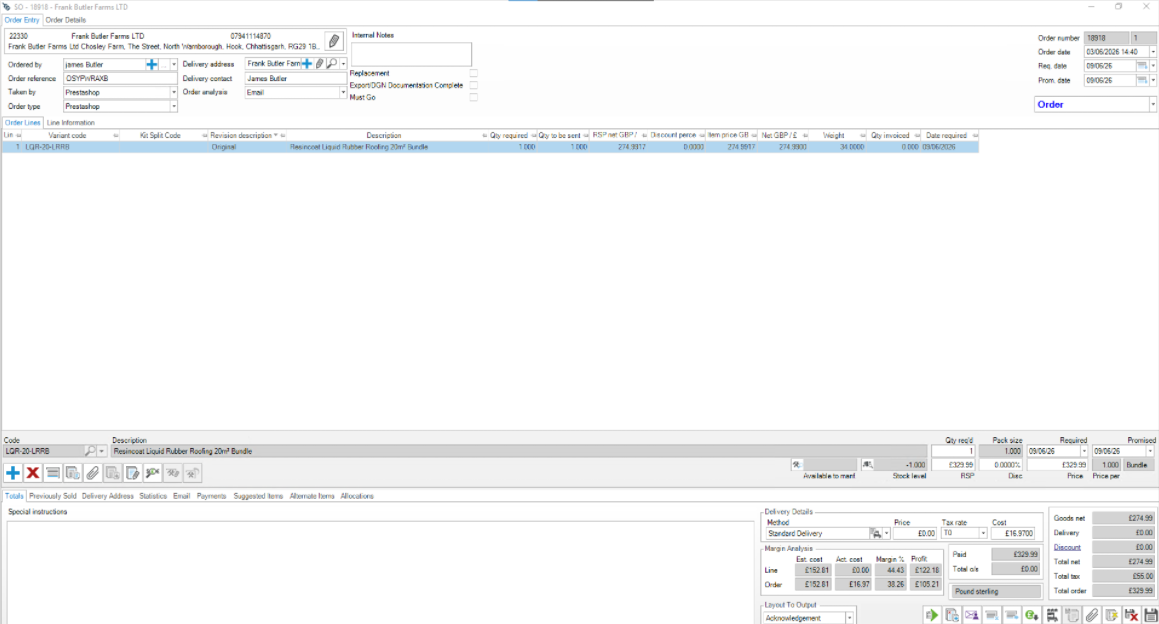
11
To deallocate stock from a sales order press "Allocation"
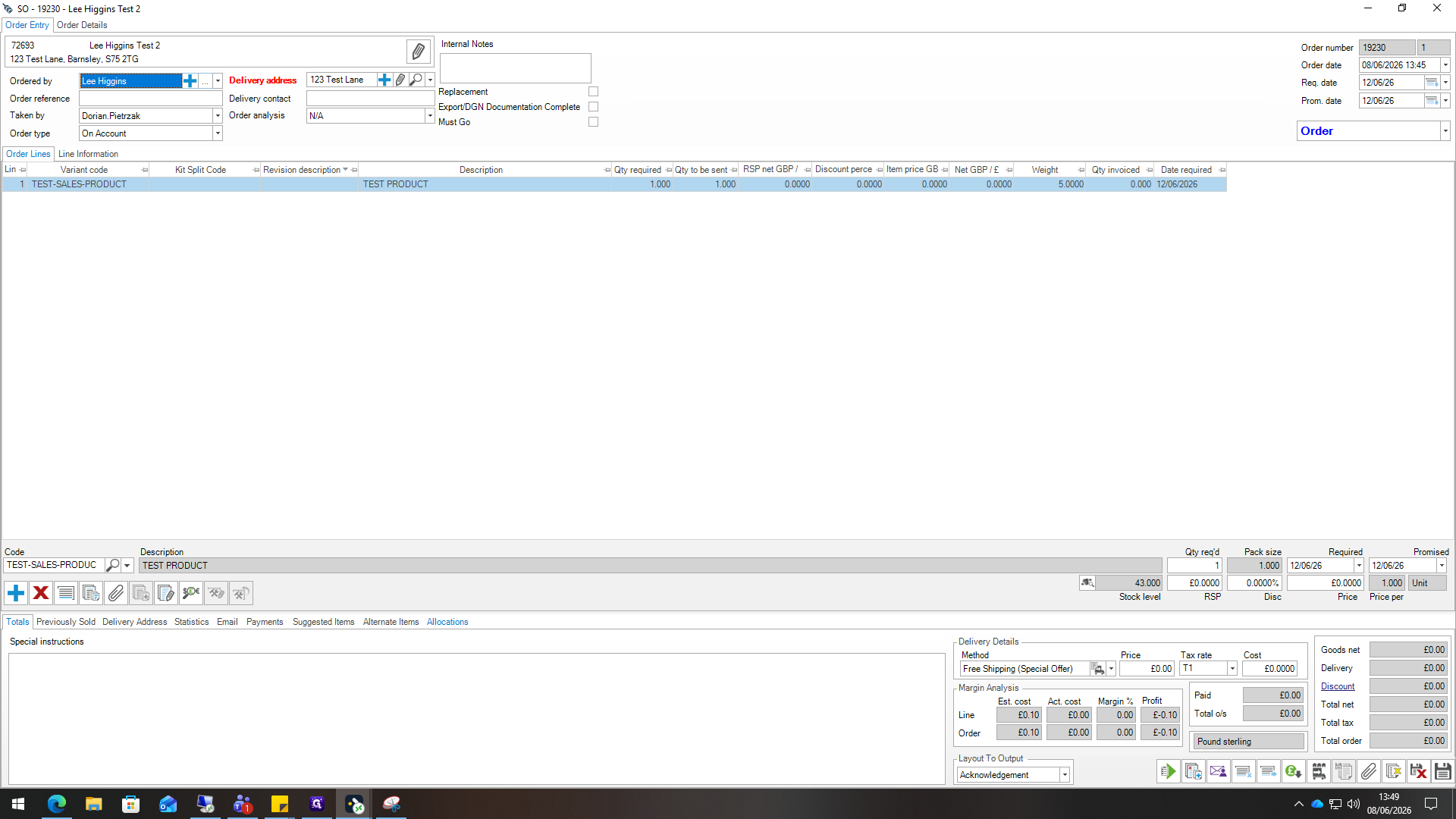
12
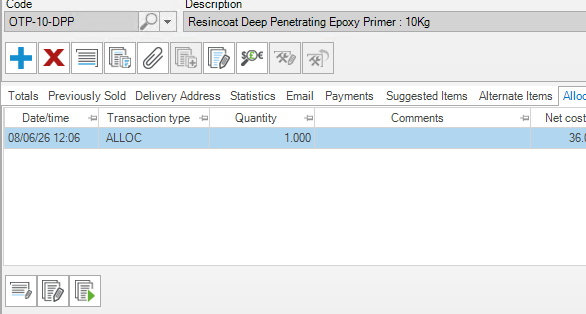
These 3 buttons should now appear on the bottom left of the screen, press the middle one.
13
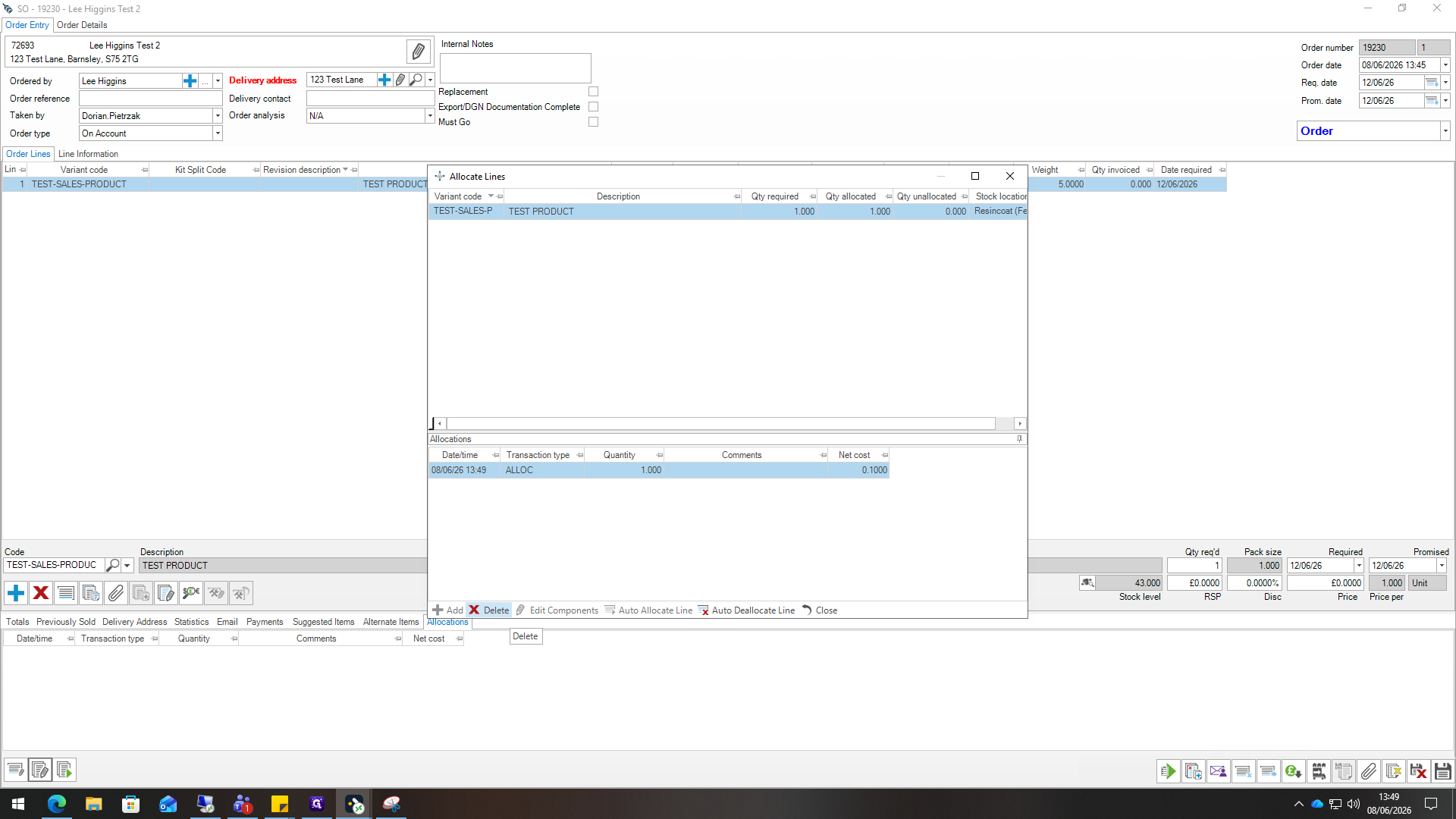
A new screen should now appear, to delete the allocation from a product line you want to press the "Delete" button located at the bottom left of the screen. make sure that you do this for every line otherwise you will not be able to cancel the order.
14
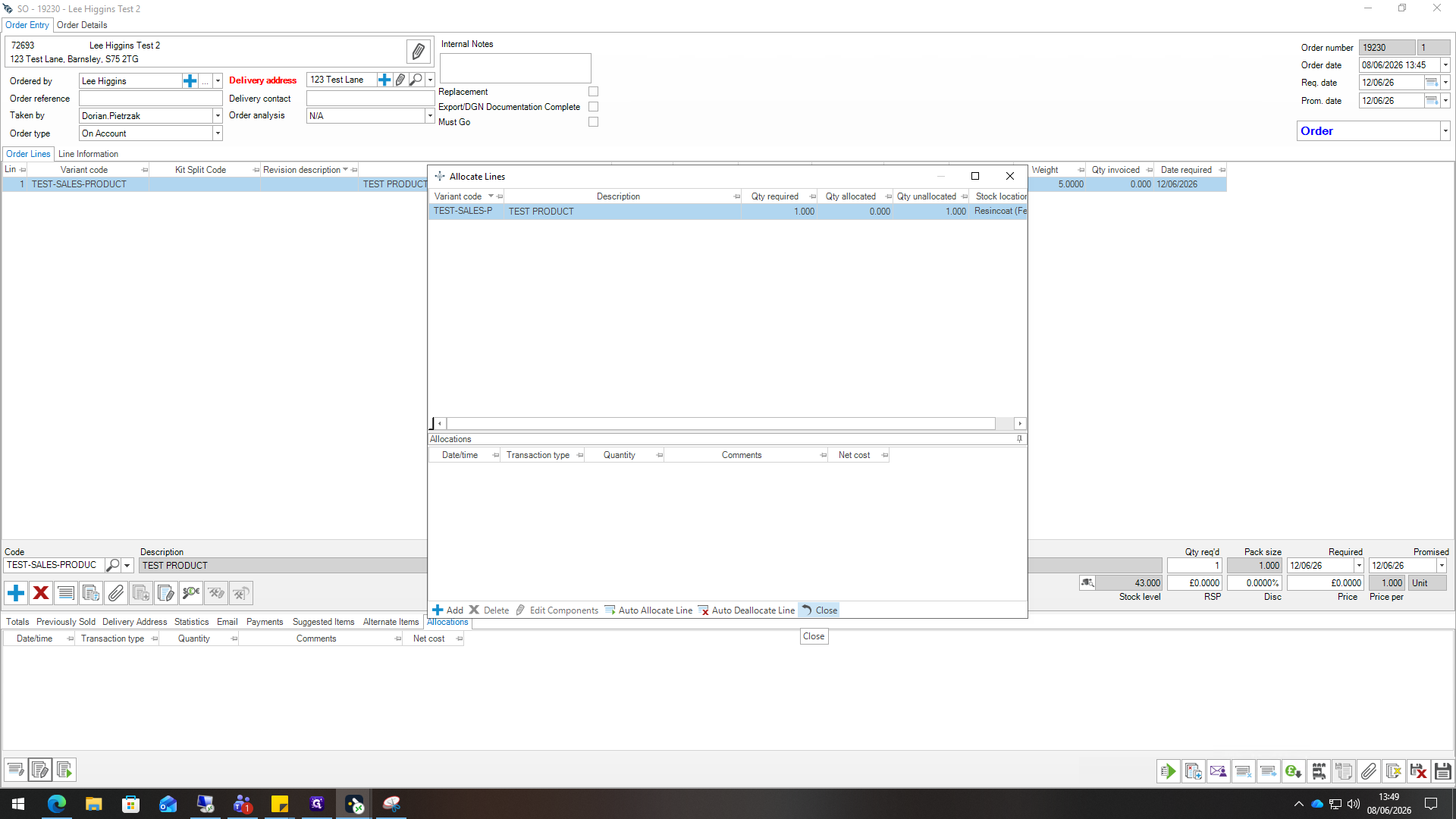
Click Close when you are finished managing allocations for this line.
15
After closing out of the the "Allocation lines" tab the"Mark order as cancelled" will now be available, press the button to cancel the order.