Icon

How to Change Phone Lines if Customer Service Team is Unavailable in Aircall

Learn how to configure special dates in Aircall to automatically adjust call routing for CST holidays, training days, and out-of-office periods.

By HCA Support

This guide explains how to configure "Special dates" in Aircall to temporarily adjust call routing for Customer Service Team holidays, team training, or other out-of-office periods.

This workflow is designed for Aircall administrators who manage phone lines. Use this process ahead of planned CST closures or unavailability to easily switch to local team phone lines.

Navigating to Special Dates
1
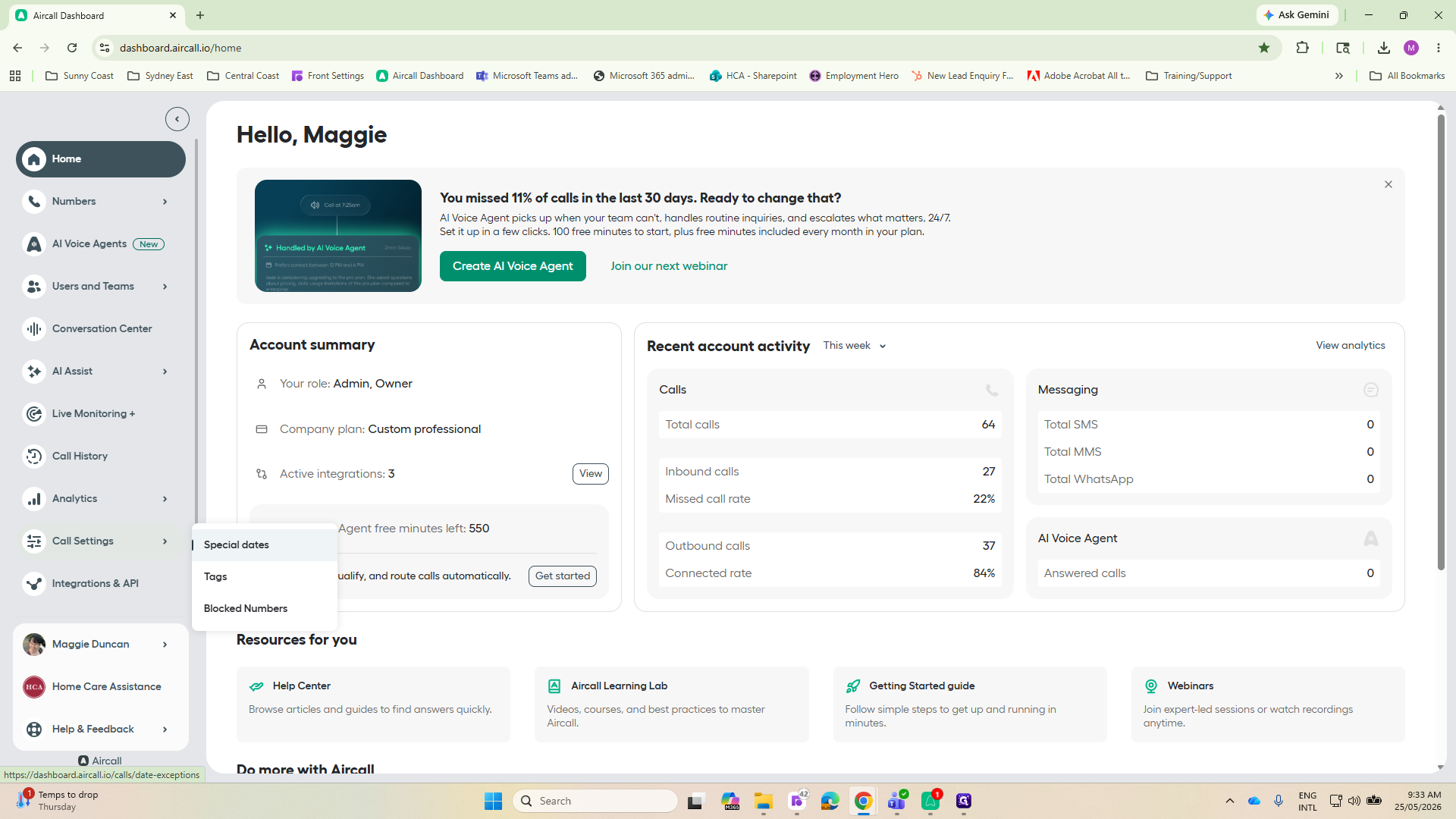
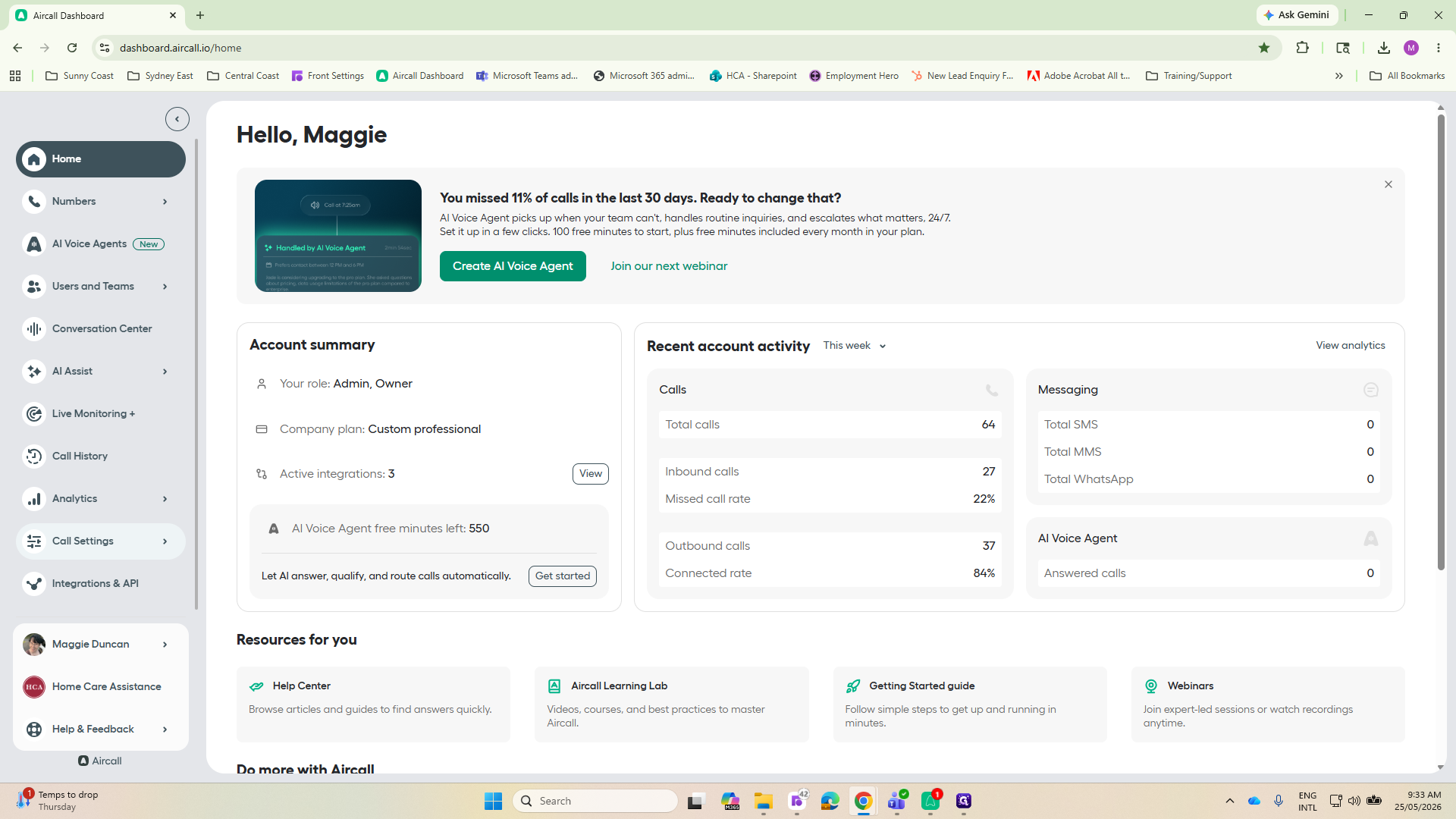
Go to dashboard.aircall.io and click Call Settings in the main navigation sidebar.
Step #1: Go to dashboard.aircall.io and click Call Settings in the main navigation sidebar.
2
Select Special dates from the pop-up sub-menu.
Step #2: Select Special dates from the pop-up sub-menu.
3
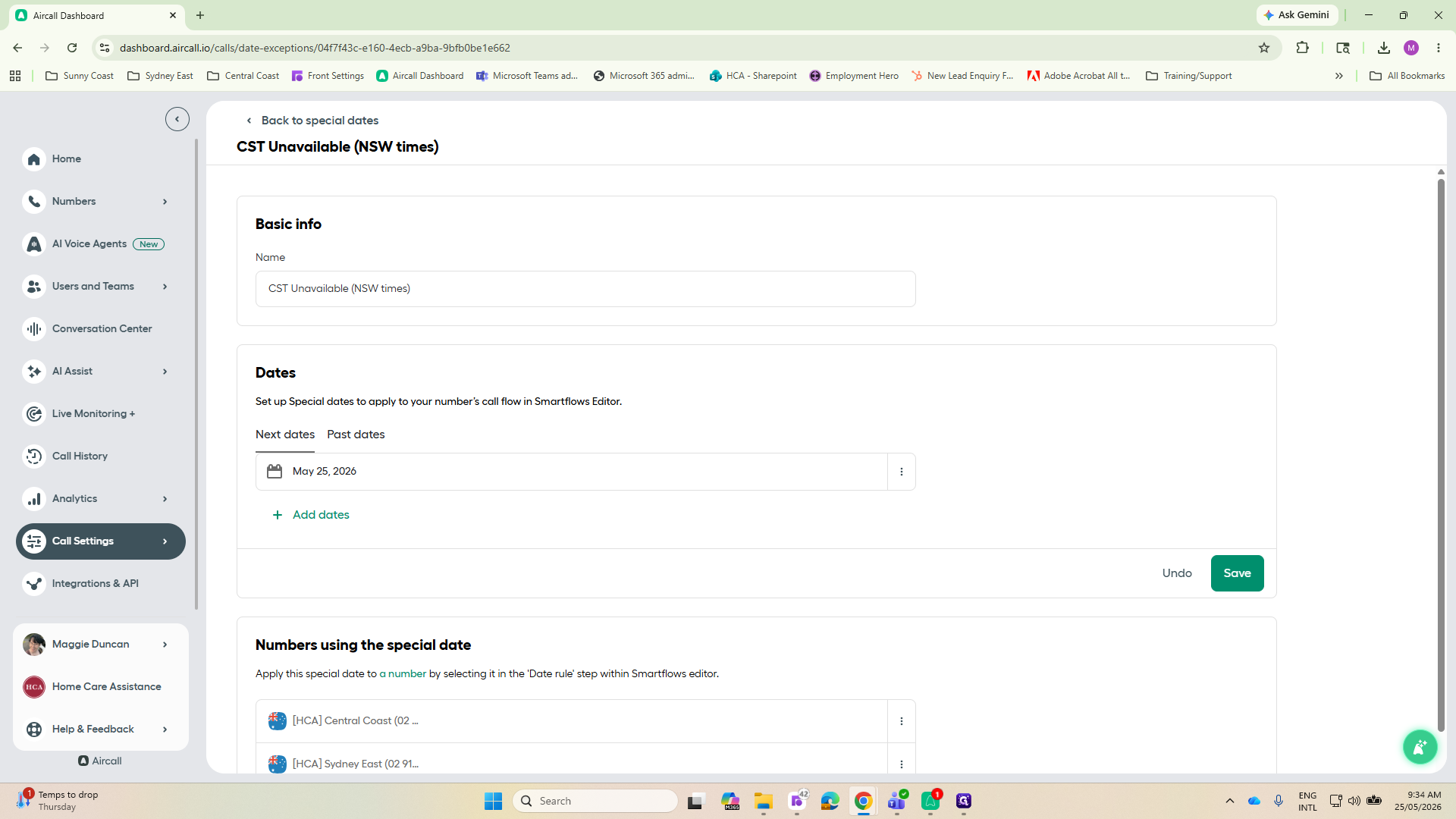
There are two special dates for when the Customer Service Team is unavailable - NSW & QLD to account for time zone differences. Both need to be set up.

Click one of the "CST Unavailable" rules to edit it.
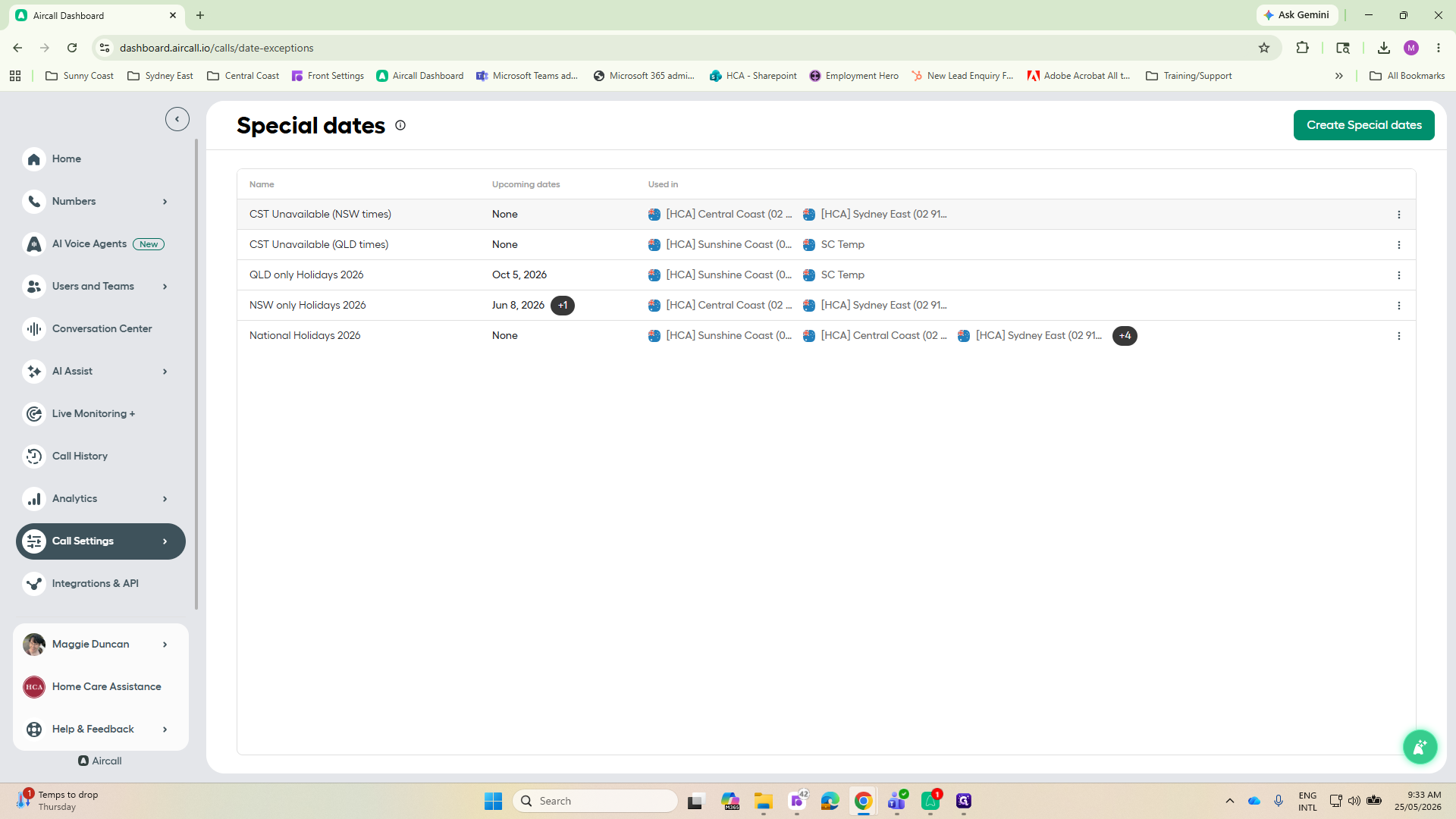
Step #3: There are two special dates for when the Customer Service Team is unavailable - NSW & QLD to account for time zone differences. Both need to be set up.Click one of the "CST Unavailable" rules to edit it.

Configuring Date and Time Exceptions
4
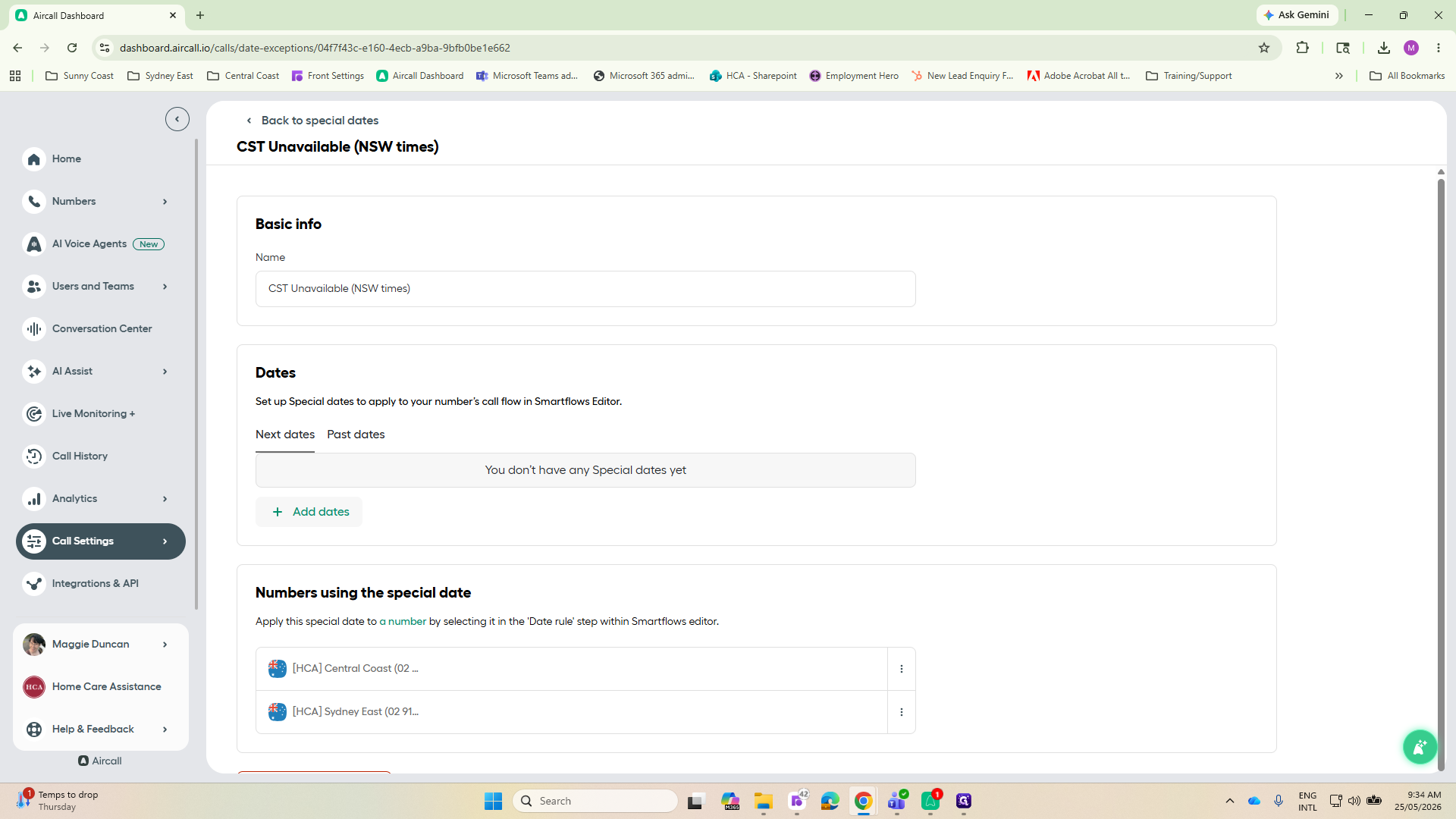
Click + Add dates to define a new exception period.
Step #4: Click + Add dates to define a new exception period.
5
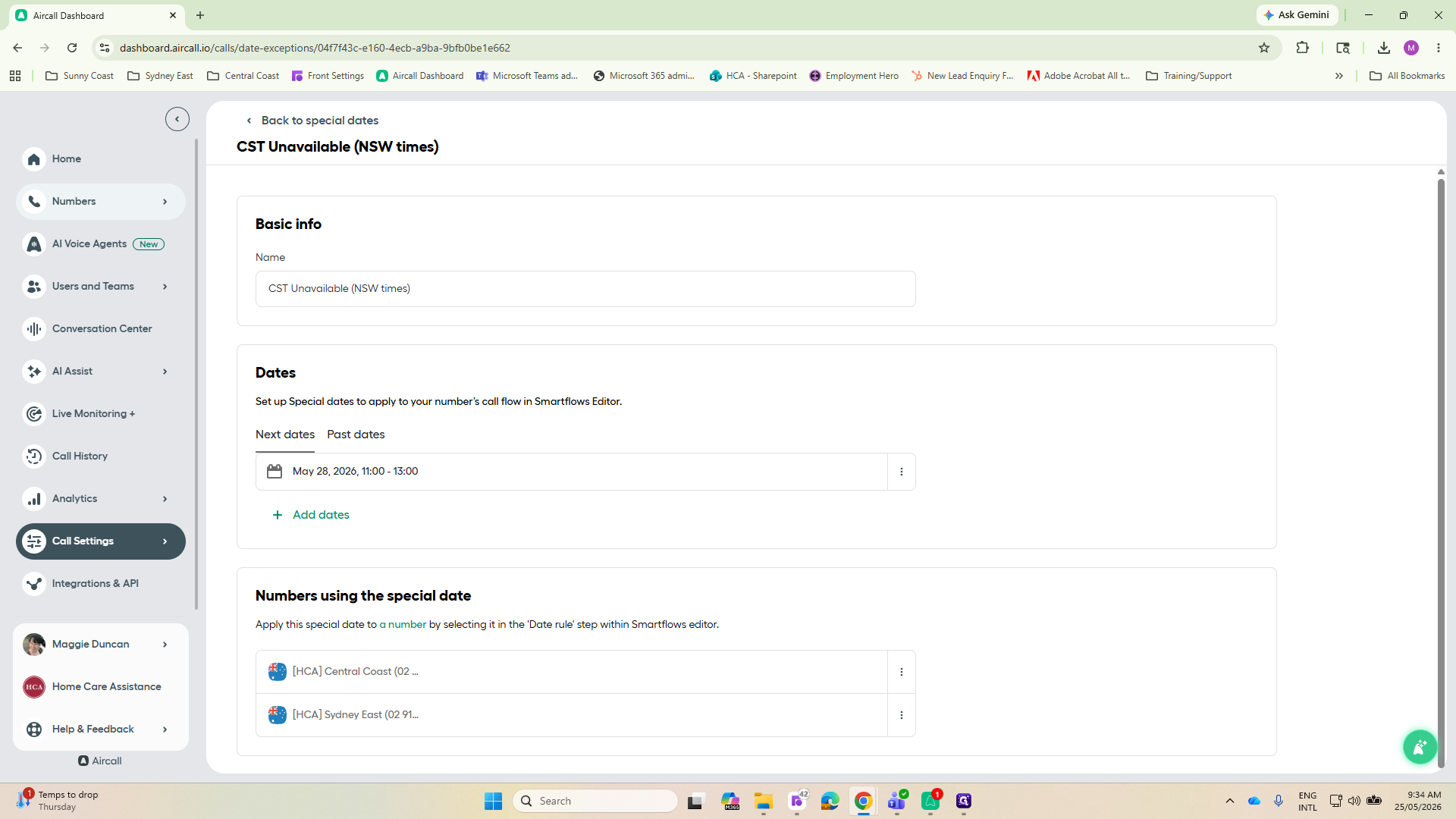
Select your desired start and end dates from the calendar picker overlay.
Step #5: Select your desired start and end dates from the calendar picker overlay.
6
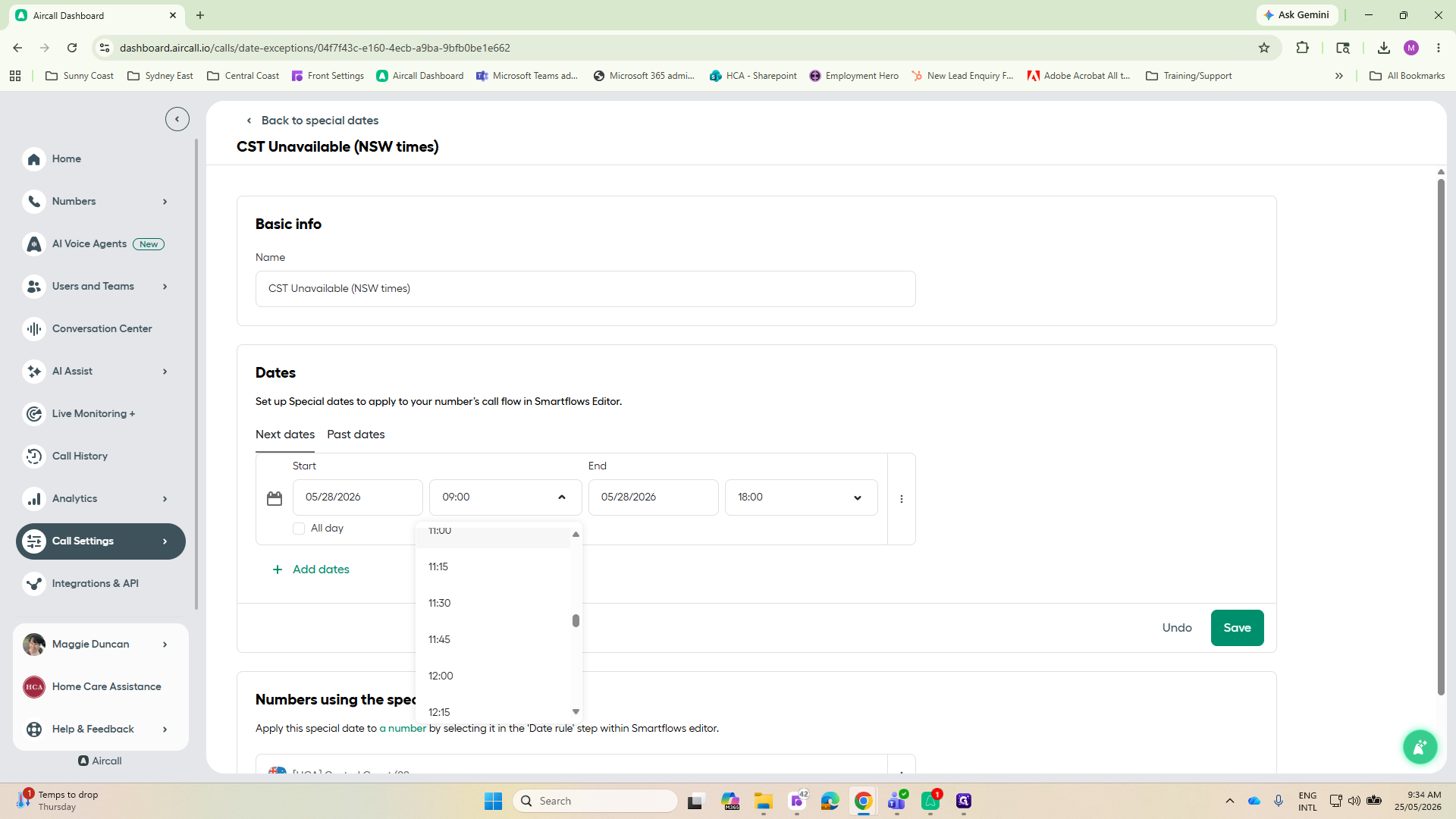
If you need specific hours during the chosen date, untick the All day box and choose the specific start and end times for the unavailability window from the time selection dropdown.
Step #6: If you need specific hours during the chosen date, untick the All day box and choose the specific start and end times for the unavailability window from the time selection dropdown.
7
Click Save to apply the new constraints to the special date rule.

REMEMBER: Repeat steps 3 to 7 for the other CST Unavailable rule to ensure all phone lines are properly routed.
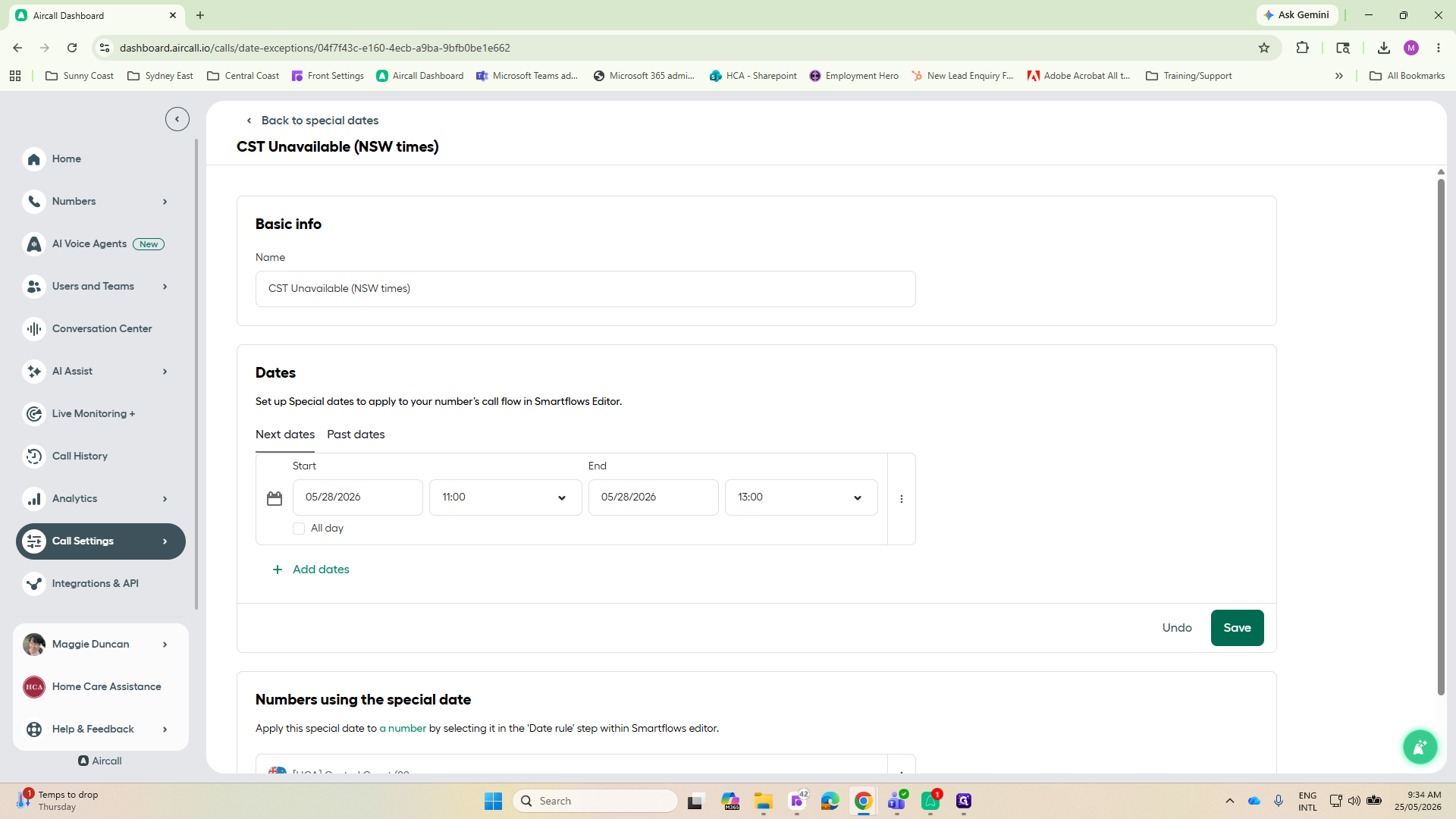
Step #7: Click Save to apply the new constraints to the special date rule.REMEMBER: Repeat steps 3 to 7 for the other CST Unavailable rule to ensure all phone lines are properly routed.

Verifying Routing on Your Numbers

After creating your special dates, you should verify that the affected phone numbers have the correct routing set up for those exceptions.
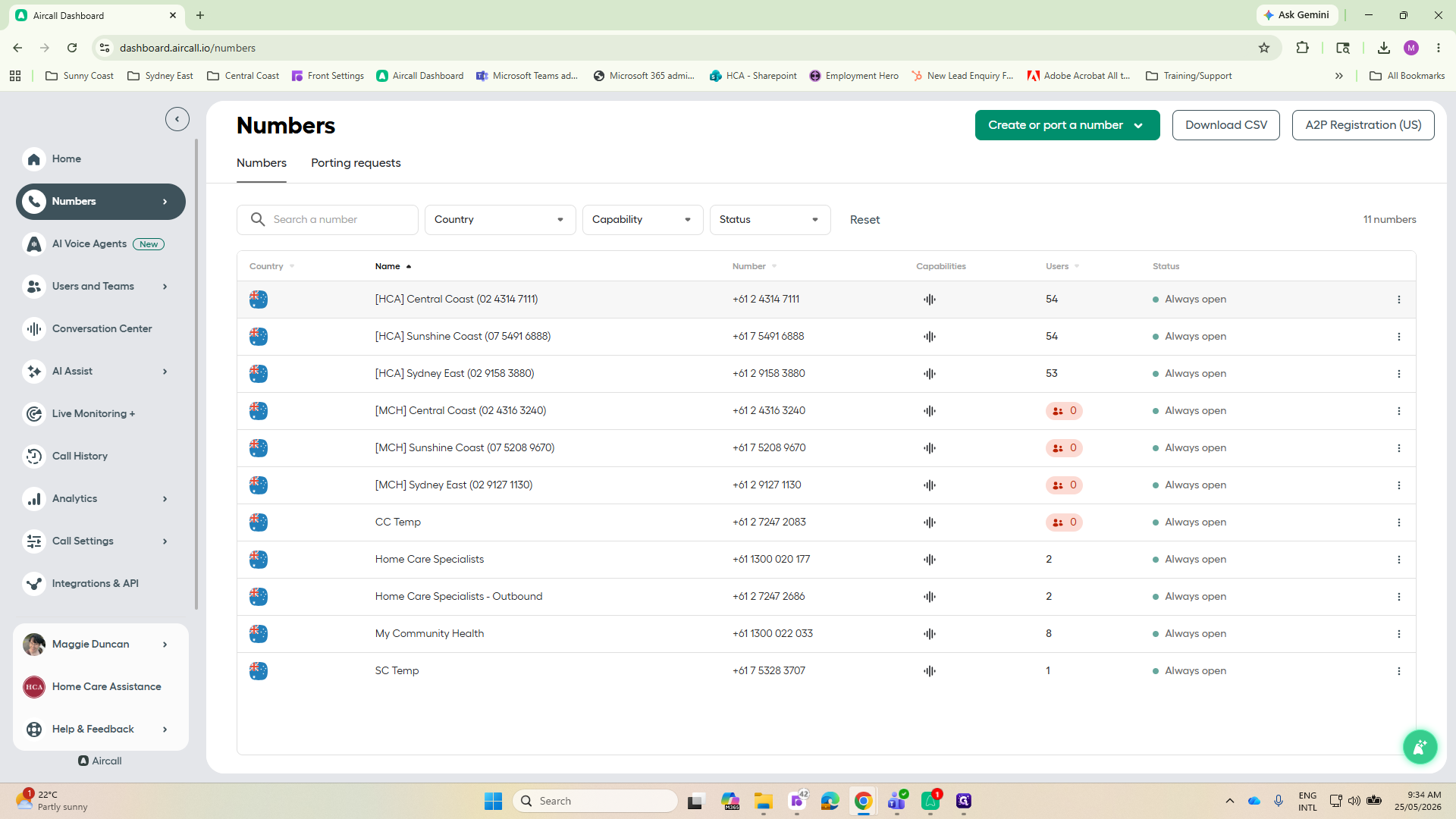
8
Navigate back to the main menu and click Numbers.
Step #8: Navigate back to the main menu and click Numbers.
9
Select the specific phone number you want to verify.
Step #9: Select the specific phone number you want to verify.
10
Check the upcoming special dates by hovering over the CST Unavailable label in the flow - the date you set should show up if it's the next upcoming date. It won't show any times even if you set them, only the date.

Calls will resume normal flows automatically after the special date timeframe is over.
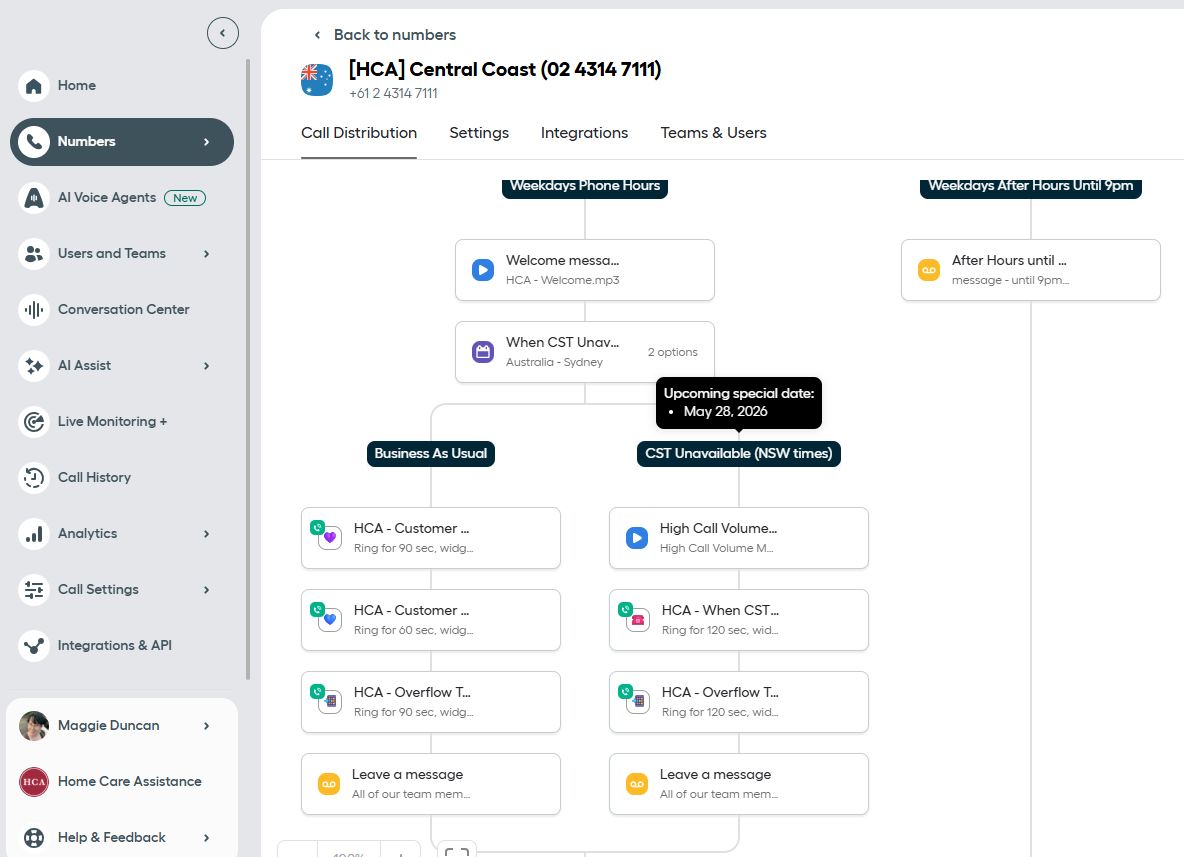
Step #10: Check the upcoming special dates by hovering over the CST Unavailable label in the flow - the date you set should show up if it's the next upcoming date. It won't show any times even if you set them, only the date.Calls will resume normal flows automatically after the special date timeframe is over.

FAQ

Q: What happens during this override?

A: The special date rule acts as an override. Any call coming in during the specified special date timeframe will bypass normal routing rules and follow the exception flow instead. For CST Unavailable, callers are automatically informed that we are experiencing higher call volumes than normal and to please be patient and leave a voice message if there is no answer.

Q: Do I need to apply the special date to every number individually?

A: Technically yes, but this happens automatically when you set the Special Date on the CST Unavailable rules. You need to make sure both CST Unavailable Special Dates (QLD and NSW) are set up.

How to Change Phone Lines if Customer Service Team is Unavailable in Aircall