
How to Change Screen Sleep and Hibernate Timeouts in Windows
Learn how to adjust screen sleep and hibernate timeouts in Windows. Follow these simple steps to customize your device's power settings for optimal performance and convenience.
By Thomas Proudfoot
In this guide, we'll learn how to adjust your computer's screen sleep and hibernate settings. Setting these options helps you control when your device goes to sleep or stays awake, which can affect power use and convenience.
You'll see how to choose the right timeouts for your needs, whether you want your screen to stay on or save energy by sleeping after a set period.
Let's get started
First, open the Start menu. Then go to Power, Sleep, and Battery Settings.
1
Type "power sleep"
2
Click on "Power, sleep, and battery settings"

Here, select 'Screen, sleep, and hibernate timeouts.'
3
Click here

When you're plugged in, you'll probably want to set this to Never.
4
Click here

5
Click on "| Never"
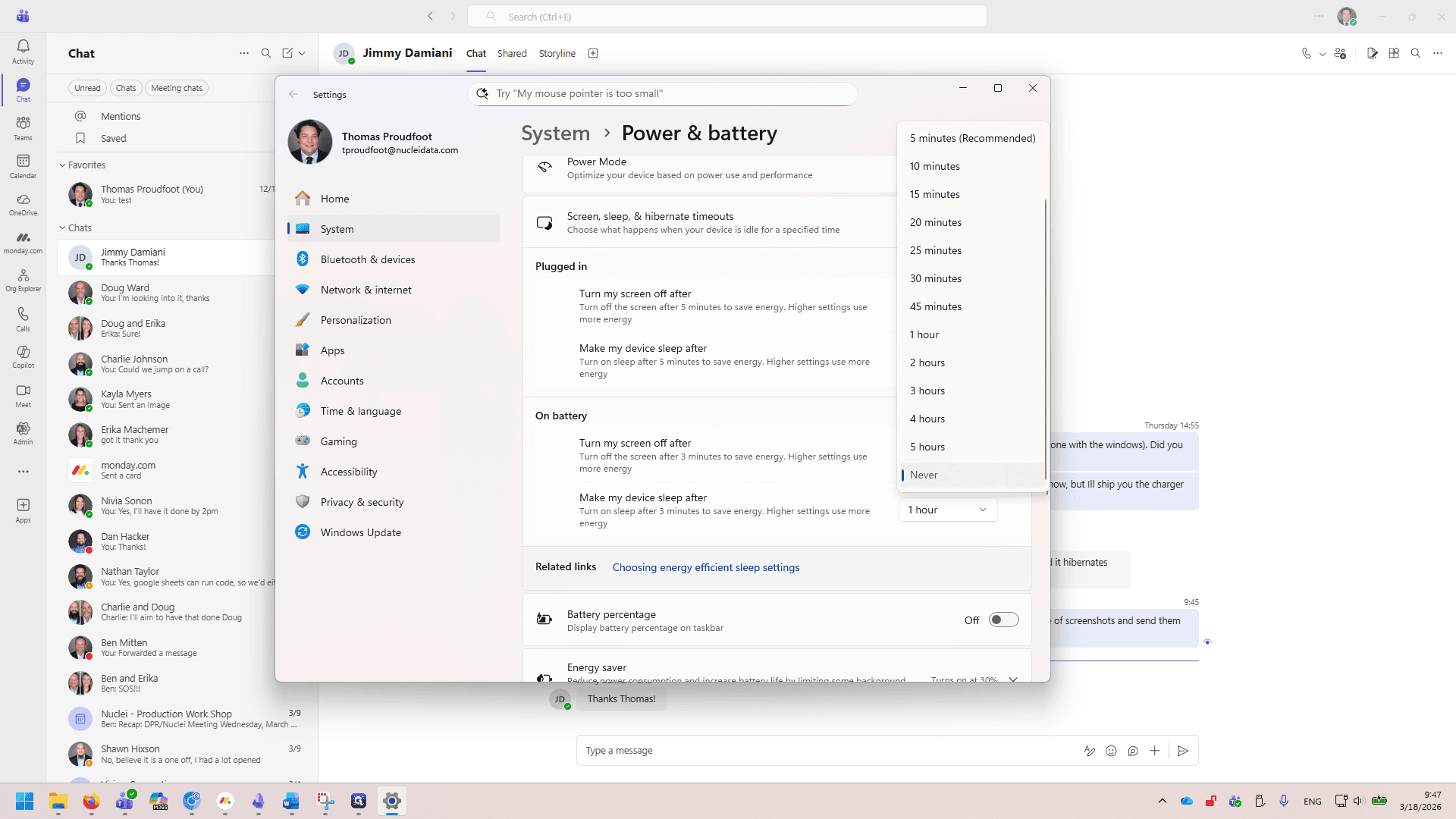
I'm setting my device to sleep after one hour.
This depends on your preference.