How to Change Staffed Hours for an Individual
Learn step-by-step how to adjust the number of staffed hours for a teammate in your staffing plan, including editing daily hours, distributing assignments, and publishing changes.
In this guide, we'll learn how to change the number of staffed hours for a teammate who is already included in a staffing plan. This process involves navigating to the Labor tab in your project, selecting the correct phase, and adjusting the hours or percentage of time assigned to the staff member. We will also cover how to publish these changes so they are visible to everyone involved in the project.
Let's get started
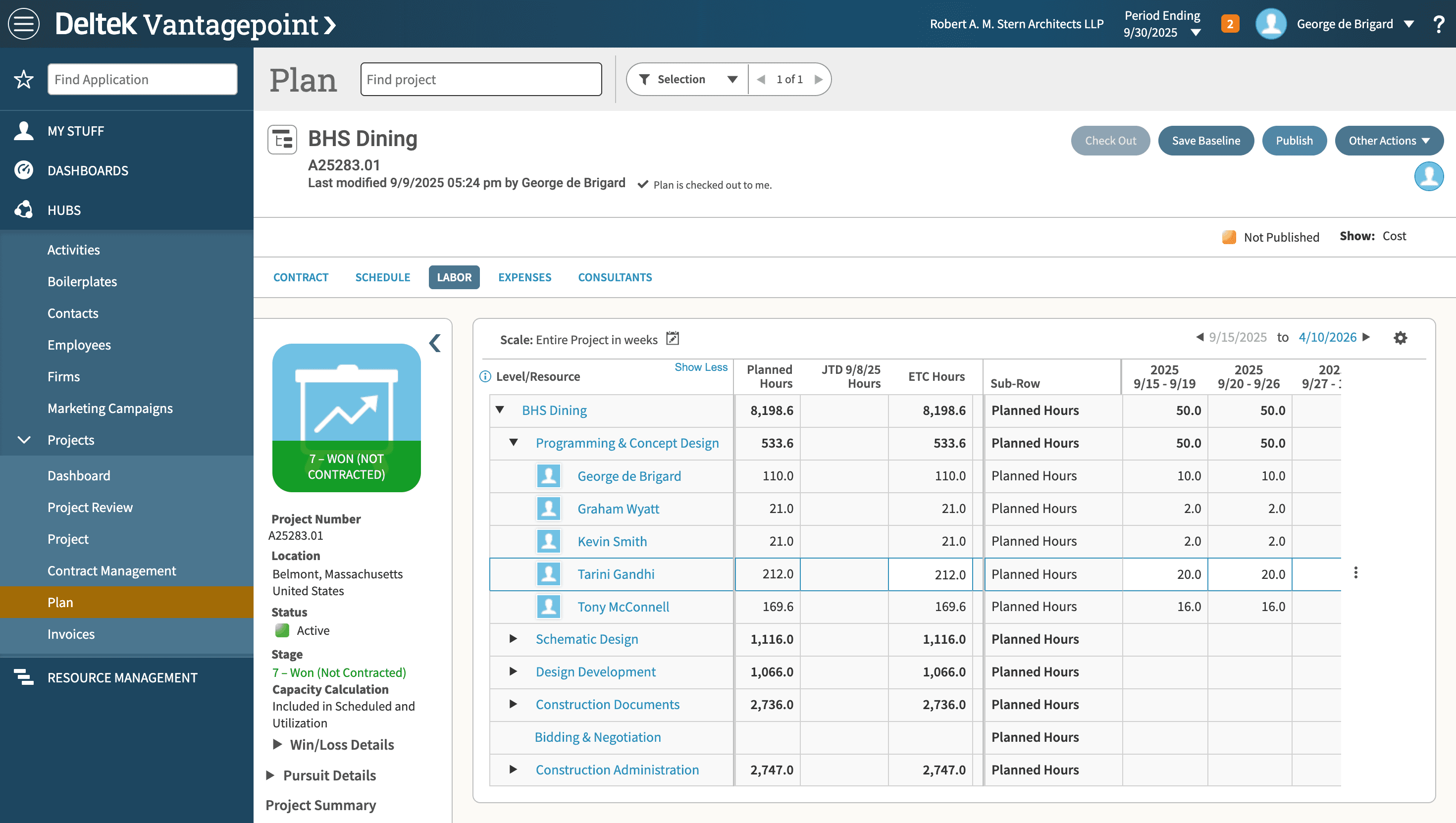
To change the number of staffed hours for a teammate already in the staffing plan, follow these steps: 1. Open the staffing plan. 2. Locate the teammate whose hours you want to adjust. 3. Edit the number of staffed hours as needed. 4. Save your changes. In my project, I make sure I'm in the Labor tab. Then, I go to the phase and check out the project to make adjustments.
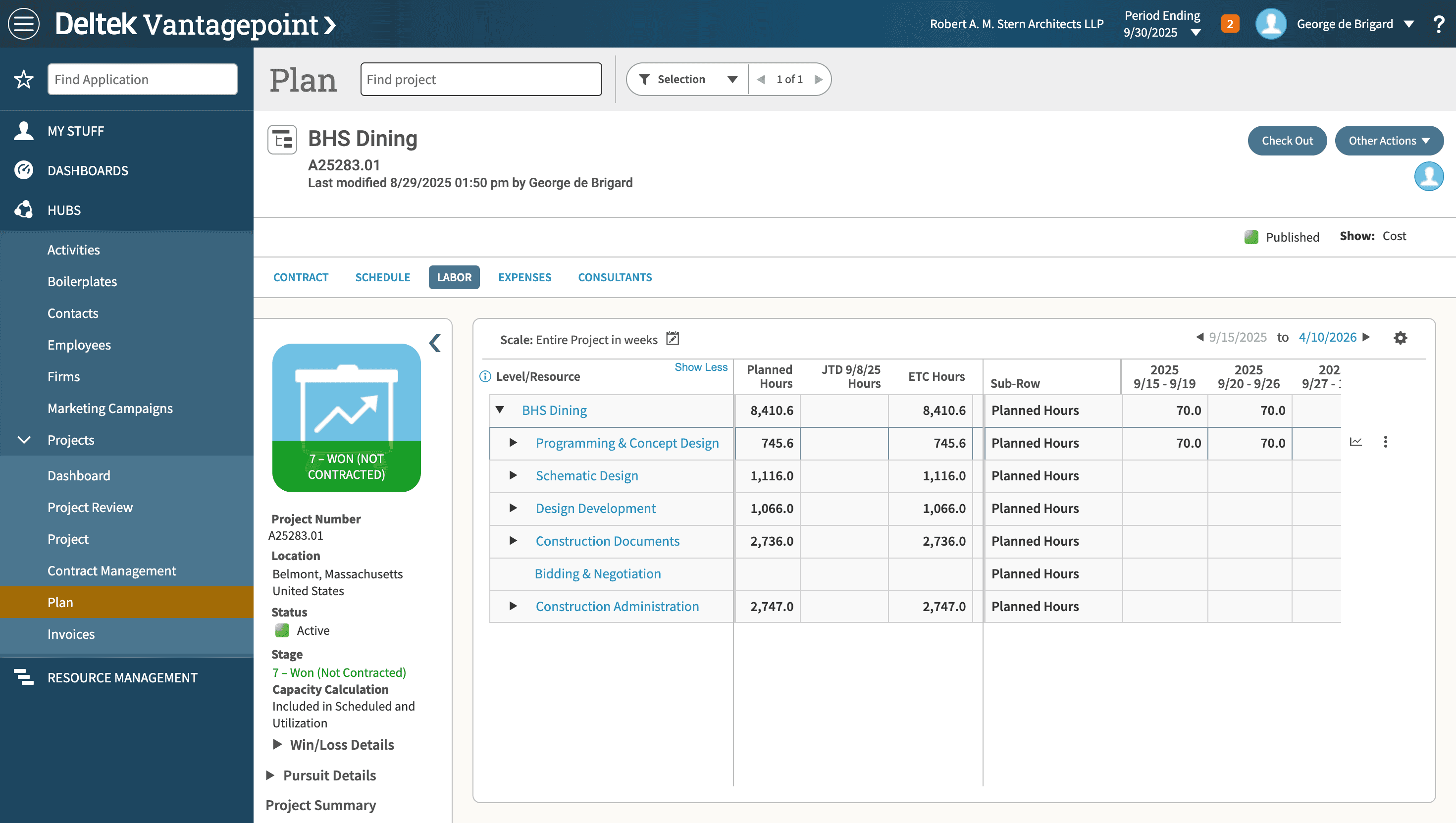
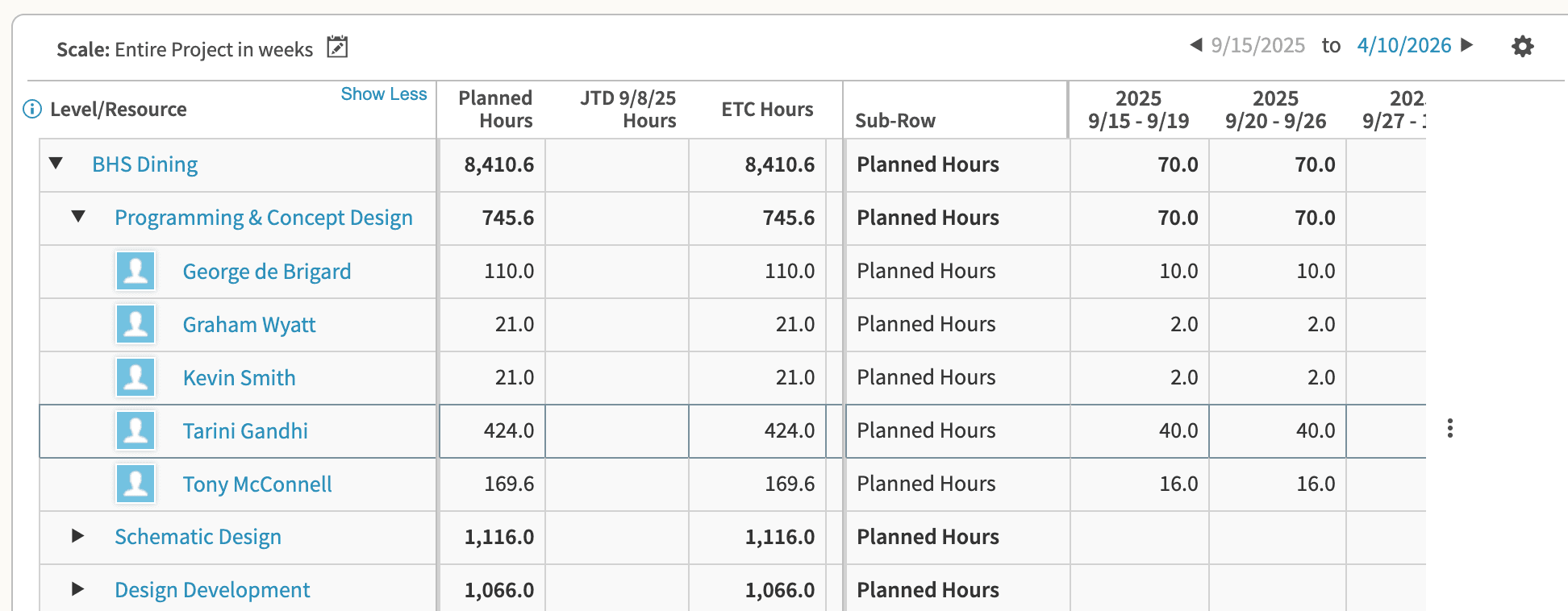
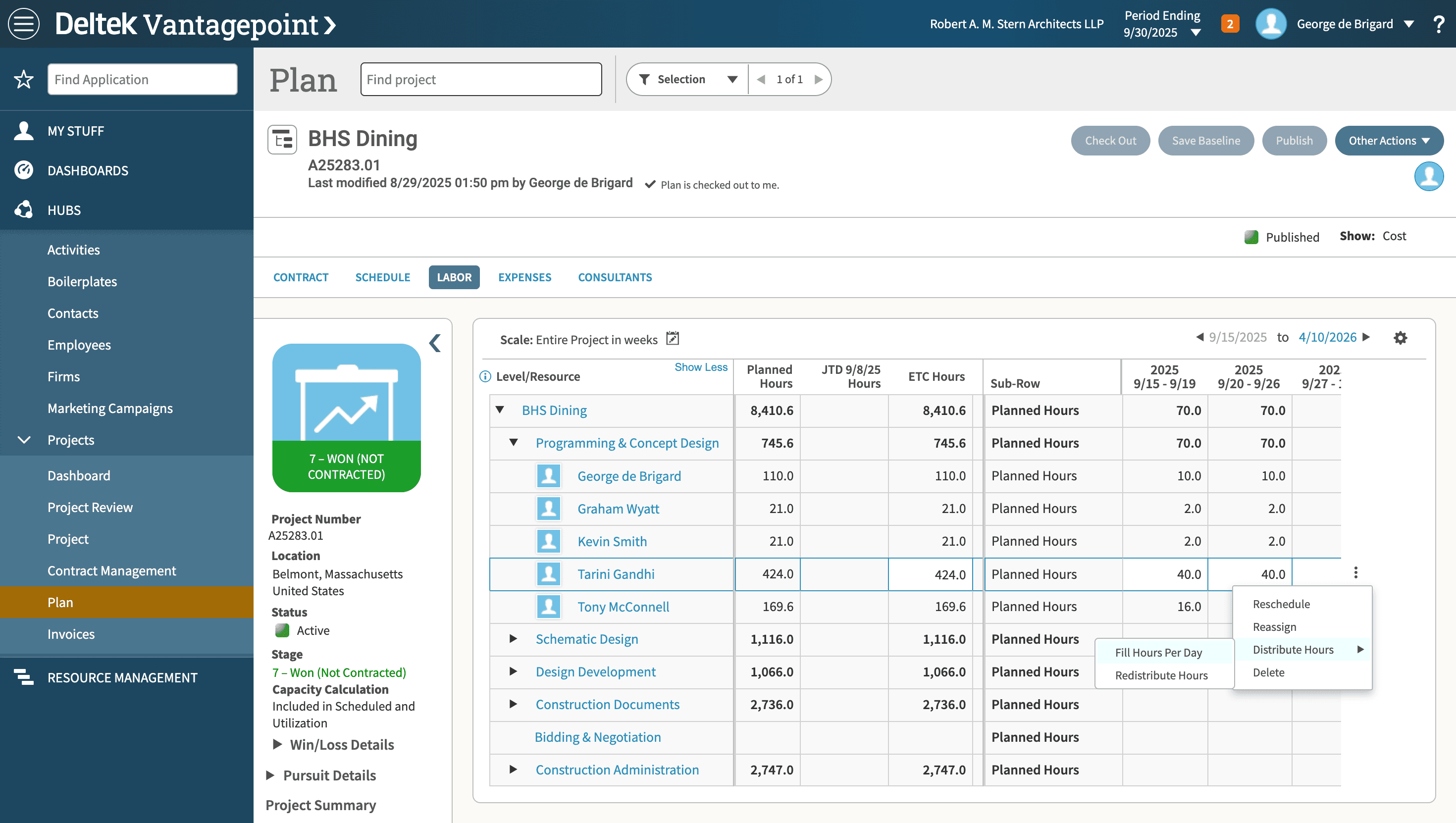
Go to the phase, find the staff member, and click on the extension menu.
In the context menu, chose "Distribute Hours" followed by "Fill Hours Per Day" to enter the new staffing level.
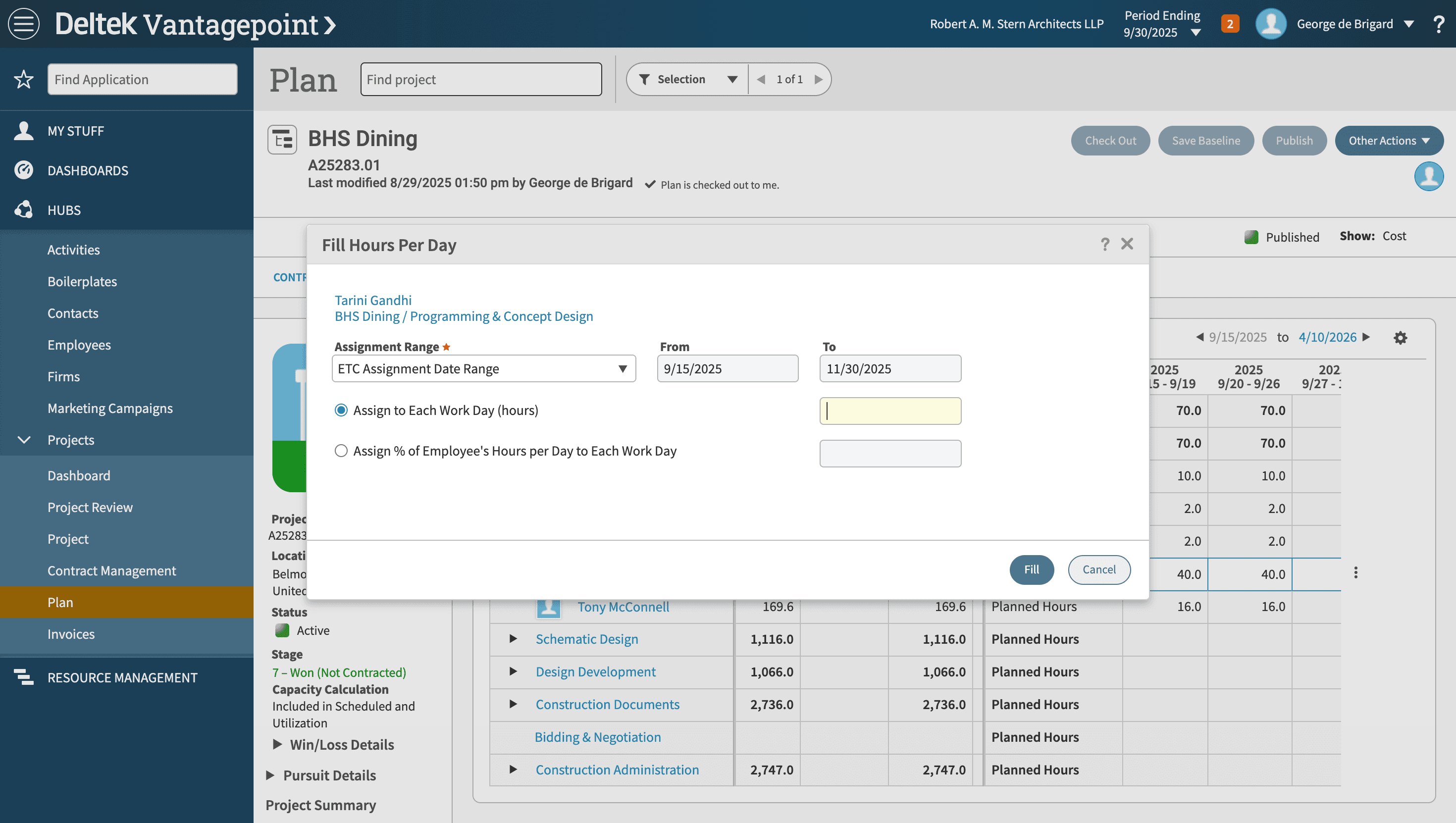
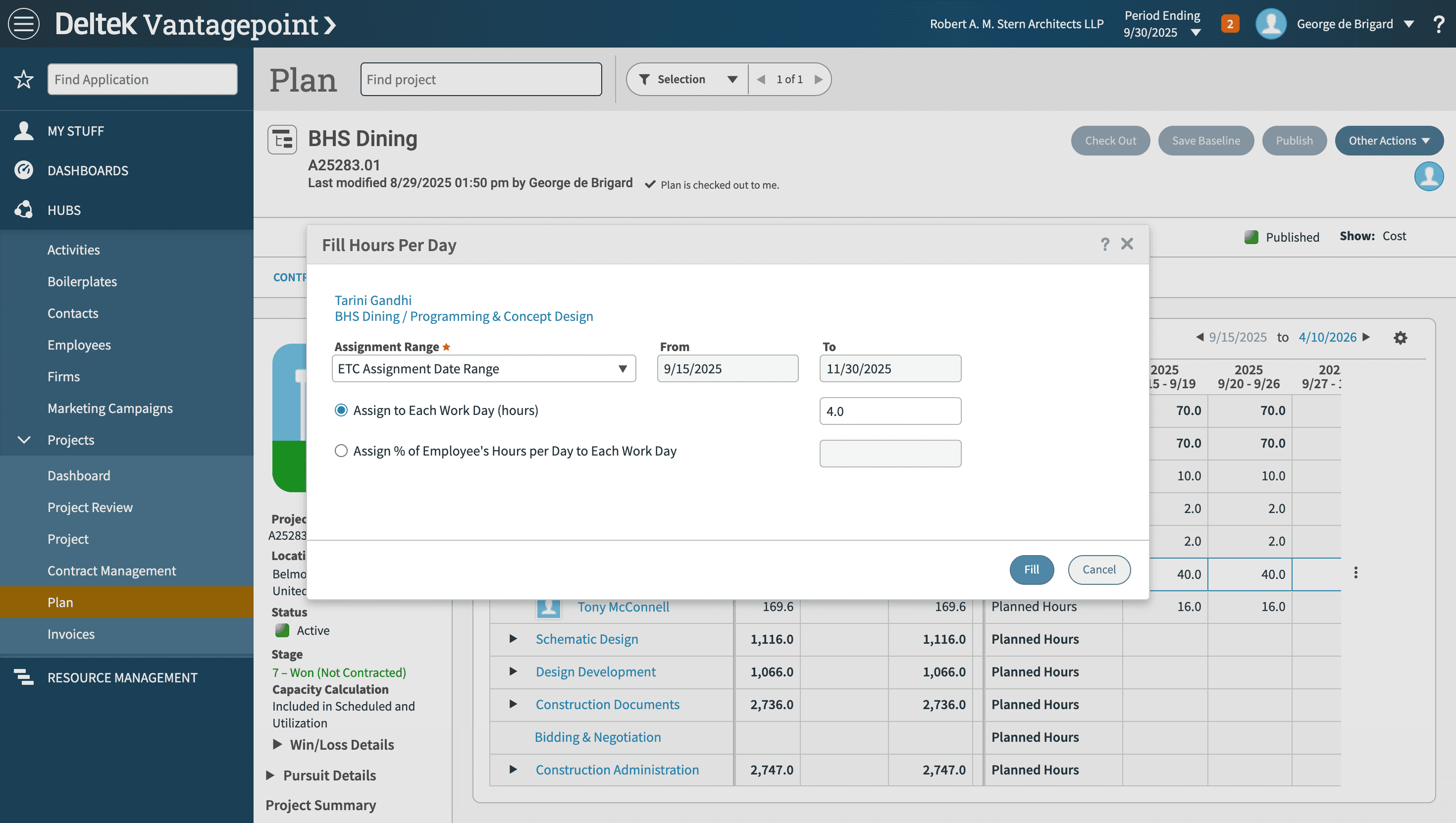
Change the assignment to the number of hours per day or the percentage of time.
Click Fill.
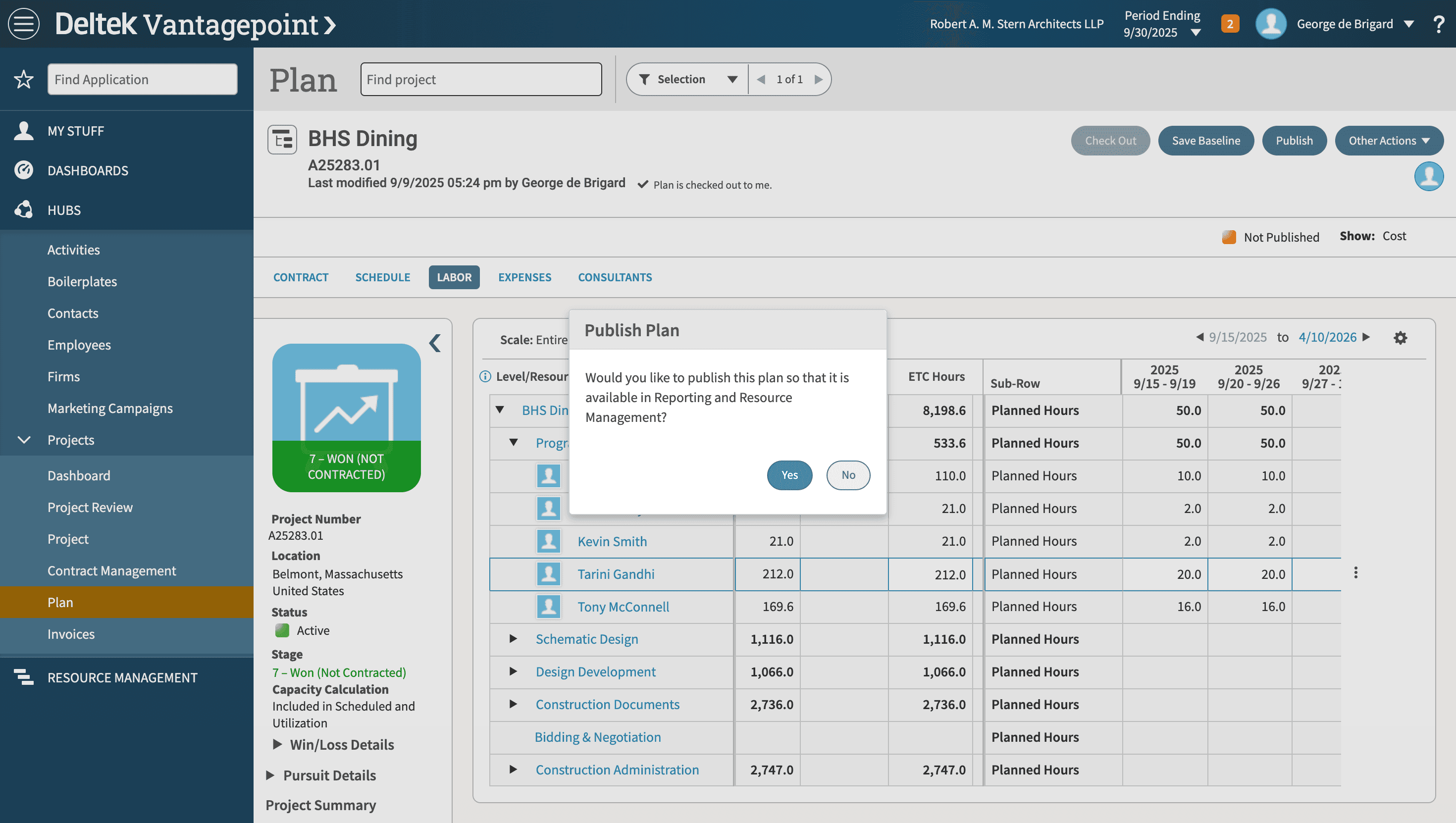
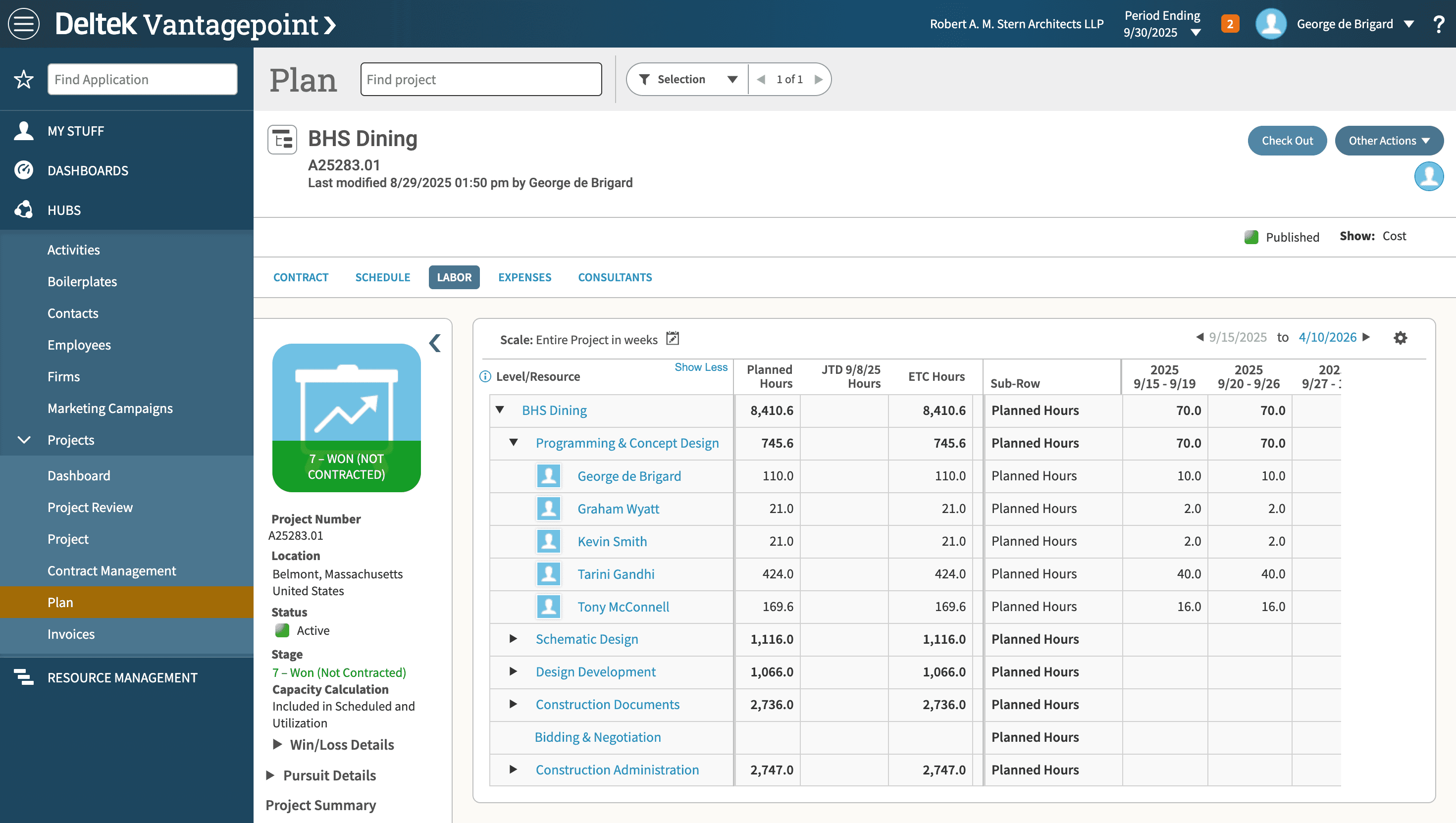
This has changed the daily hours for the entire phase. When finished, publish the change so it's available to everyone. This will also "Check In" the plan.