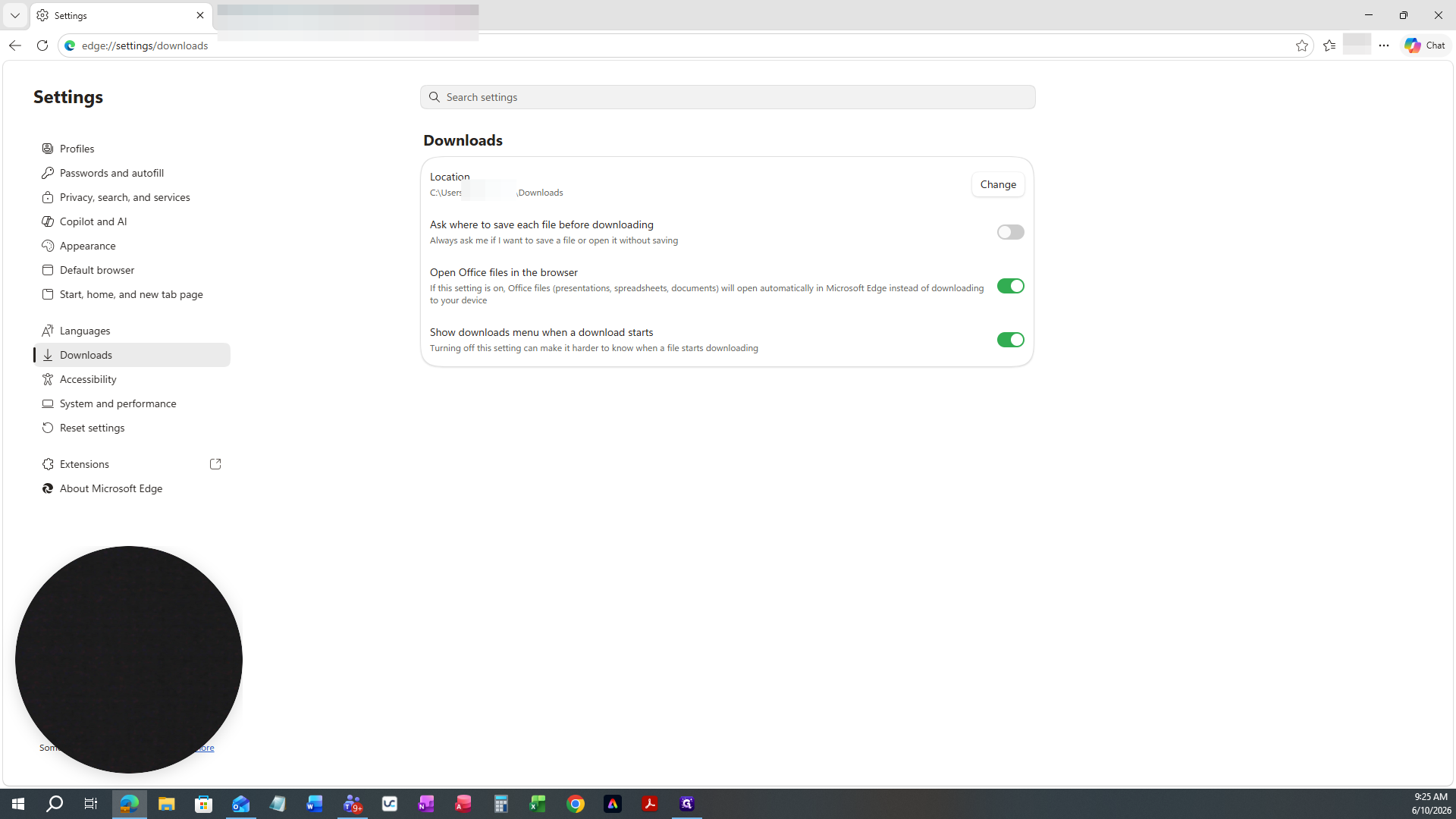
How to Change the Default Download Location in Microsoft Edge - Onedrive
Learn how to update your default download folder in Microsoft Edge to automatically save files to a new location, like OneDrive or a specific desktop folder.
By Meri Brewer
This guide explains how to change the default directory where files are saved in Microsoft Edge. By updating this setting, you can ensure all downloaded files are automatically routed to your preferred folder, such as a synced cloud directory or a specific project workspace.
This process applies to any Microsoft Edge user wanting to better organize their downloaded files or automatically back them up to a cloud storage location like OneDrive.
To update where Microsoft Edge saves your files, follow these steps:
1
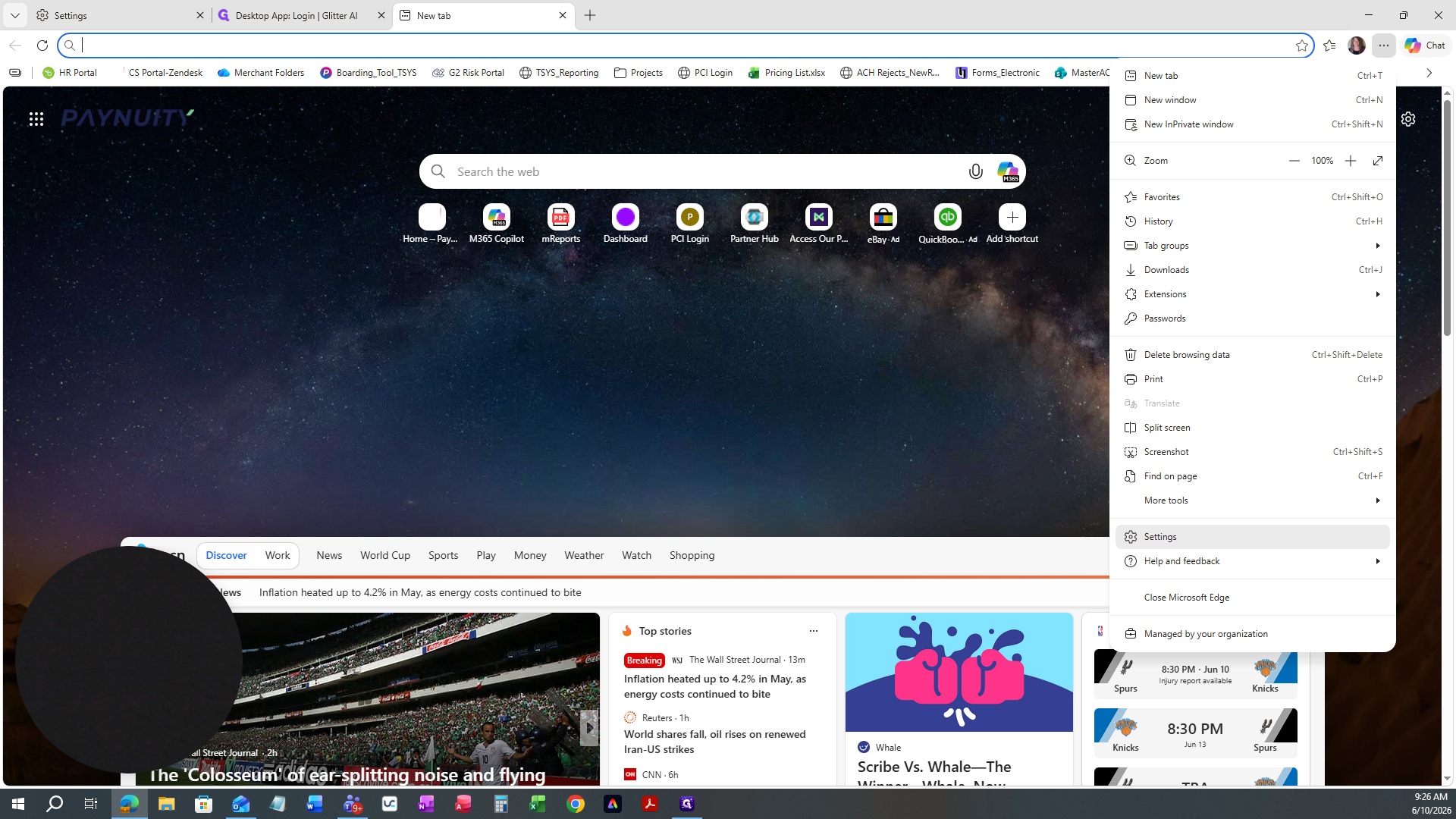
Open the main overflow menu in the top right corner of the browser and click Settings.
2
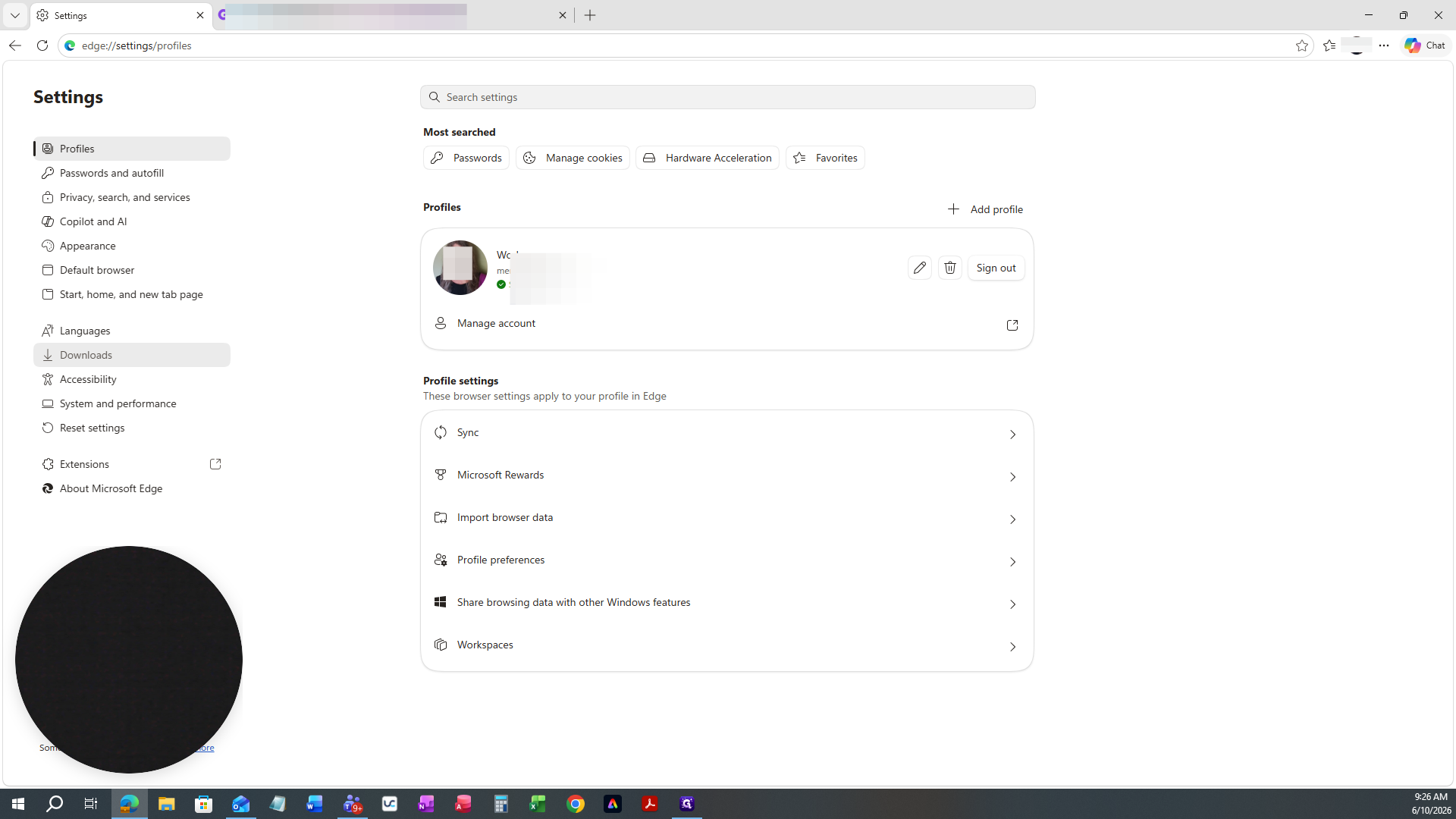
In the left sidebar, click Downloads.
3
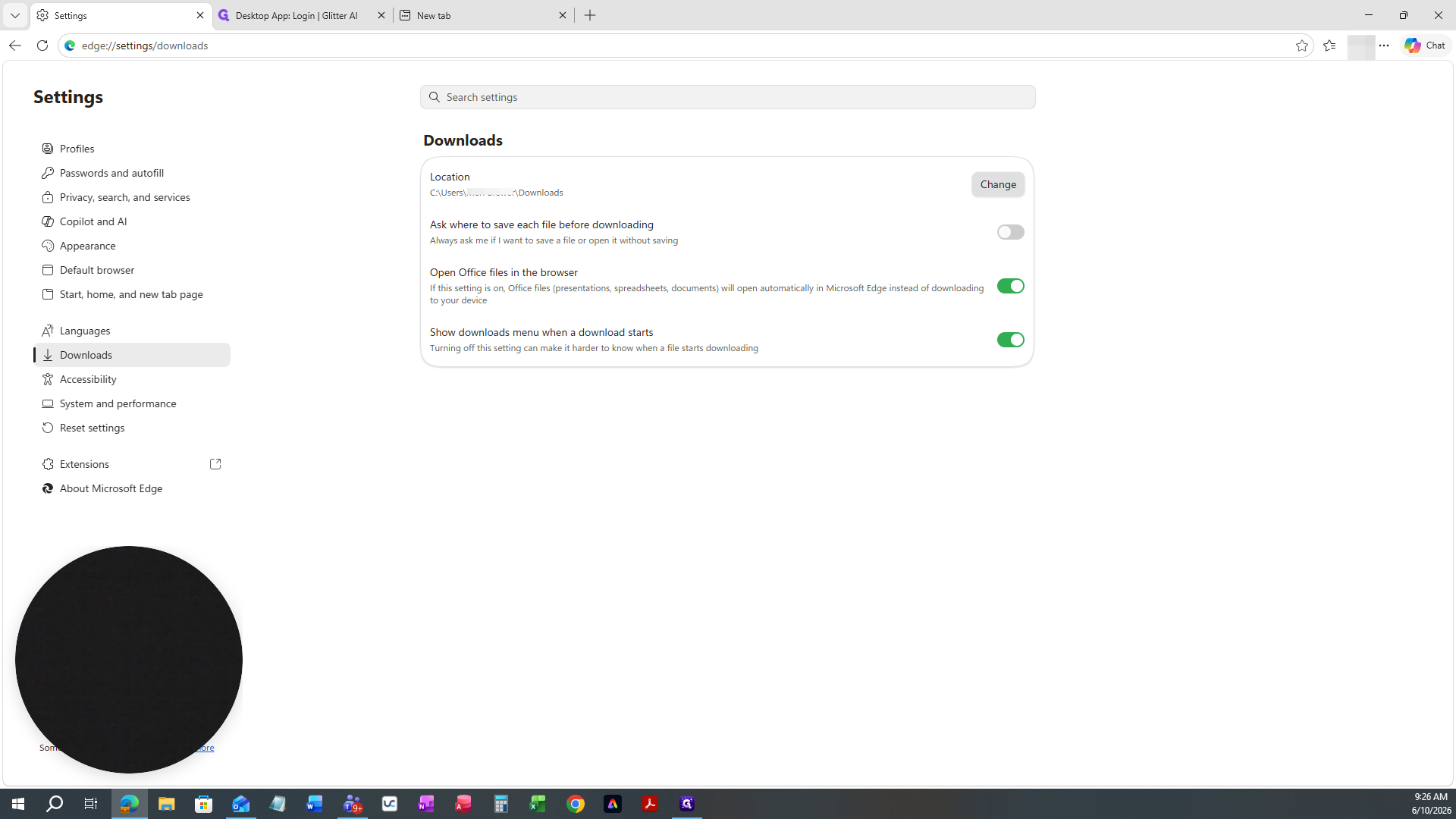
Next to your current download location path, click the Change button.
4
In the File Explorer window, browse to and select your desired destination folder OneDrive - Downloads.
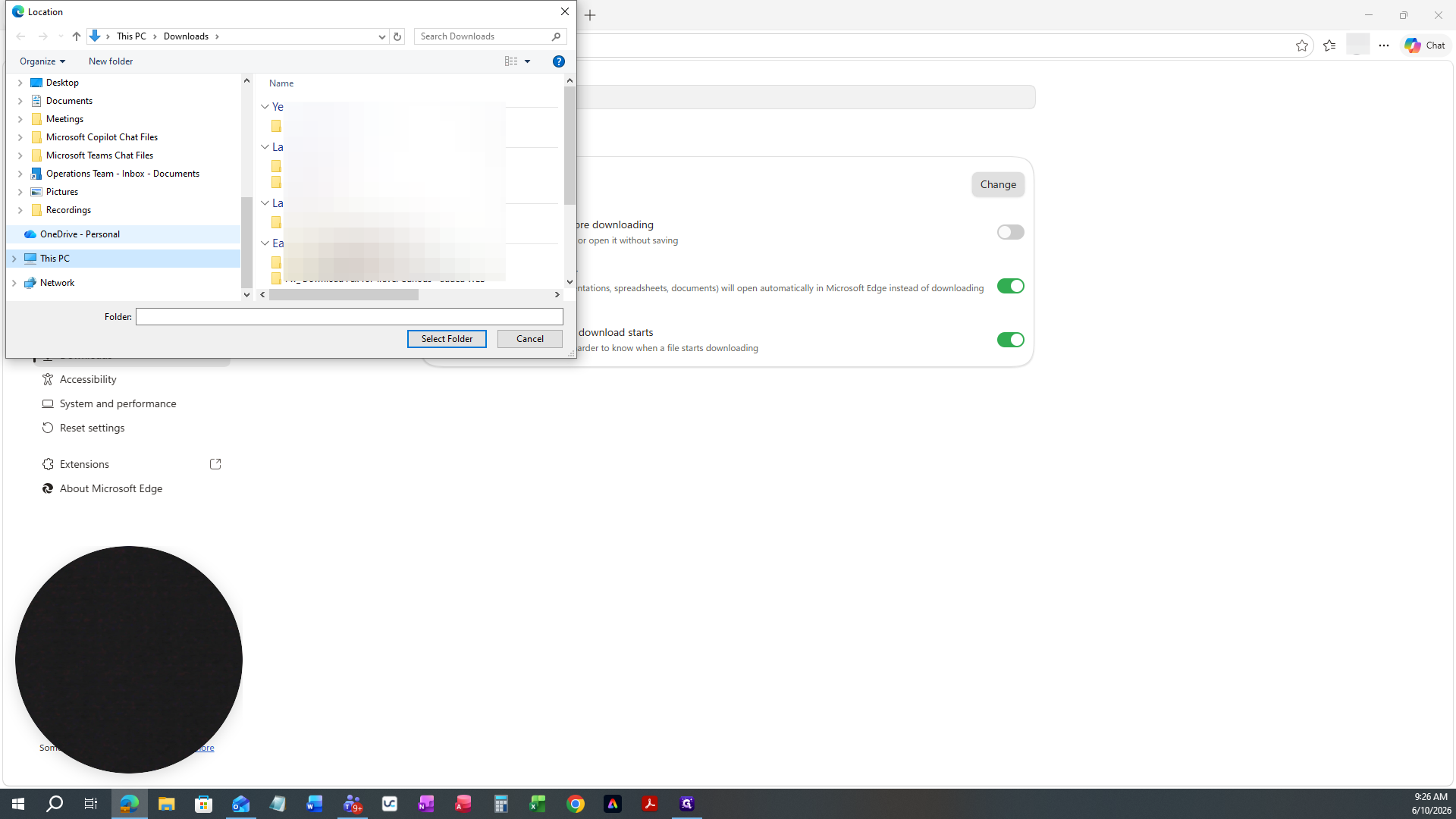
5
Click Select Folder to confirm the new path to your OneDrive - Downloads.
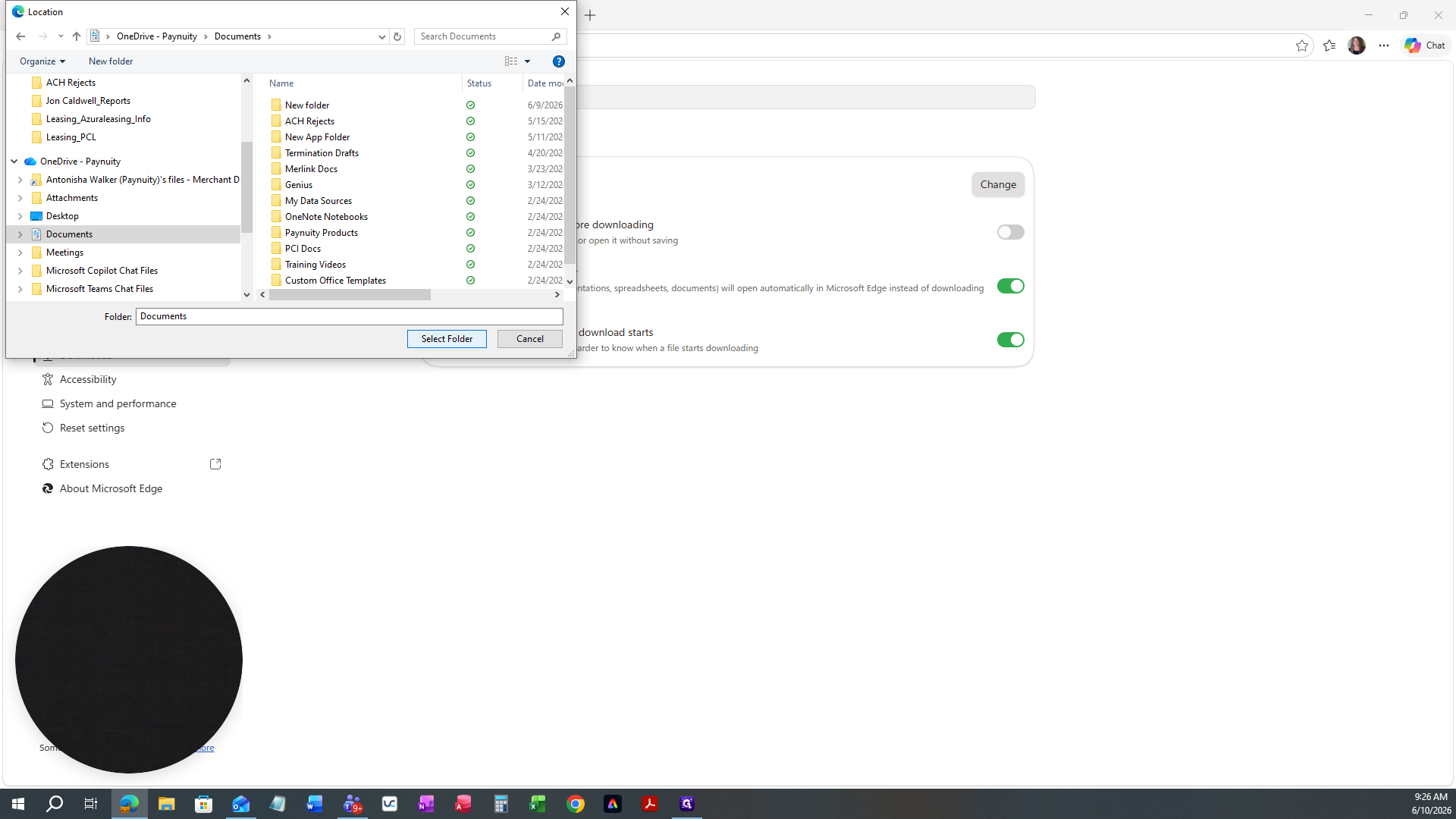
6
Toggle the Show downloads menu when a download starts switch to choose whether the download menu automatically appears during active file transfers.