How to Change Your Card Status: 3 Easy Methods Explained
Learn three simple ways to change your card status in your customer profile, sales tab, or directly on the card. Step-by-step instructions included.
By Dominik Black
In this guide, we'll learn how to change the status of a card in your system. You will see how to do this from different areas, including the customer's profile, the Sales tab, and directly from the card's detail page.
We will also cover how to select a reason for each status change.
Let's get started
This article explains how to change your card status. There are three ways and three areas where you can perform this action.
1
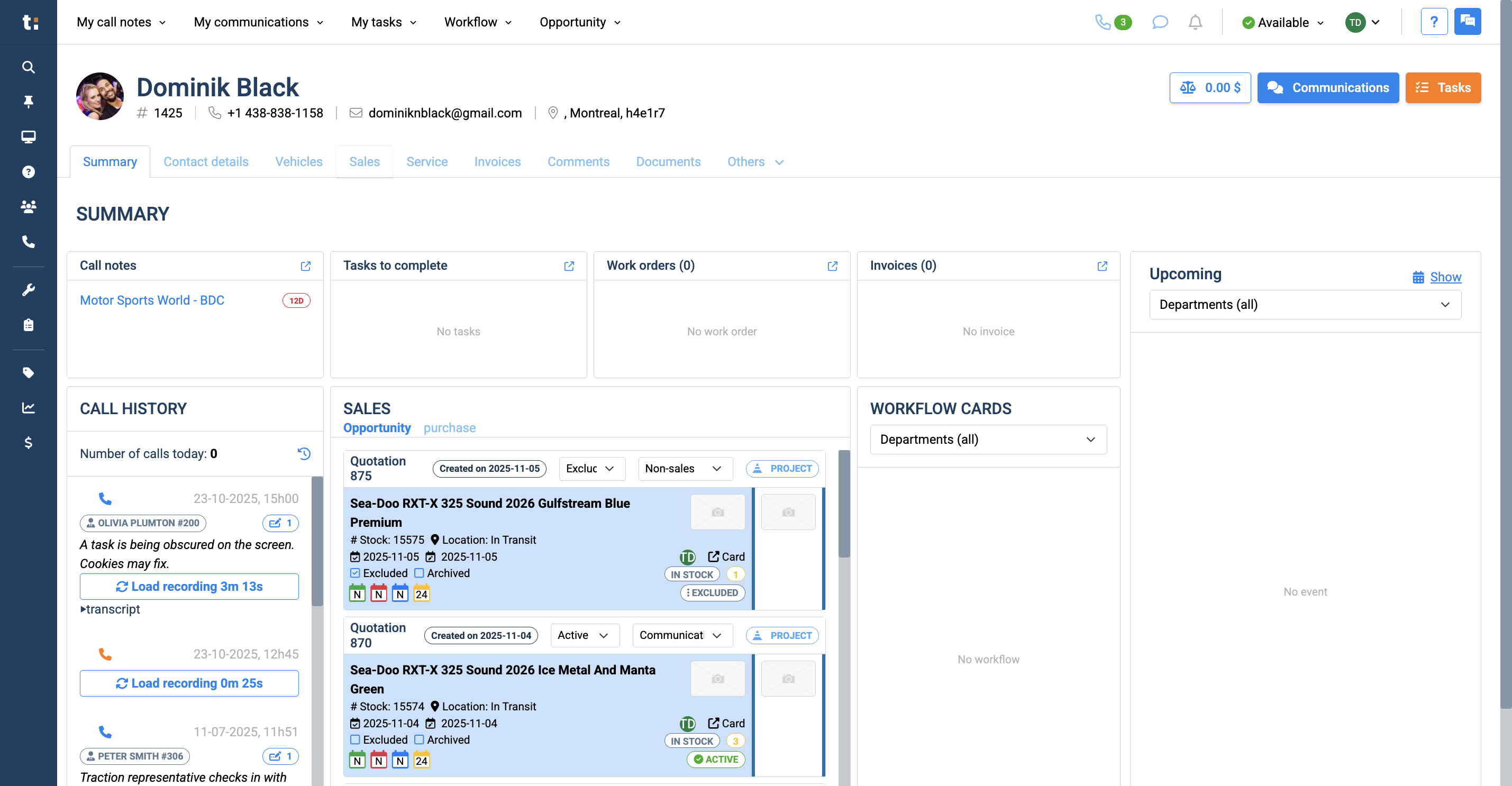
Start in the customer's profile. By default, you land on the Summary tab.
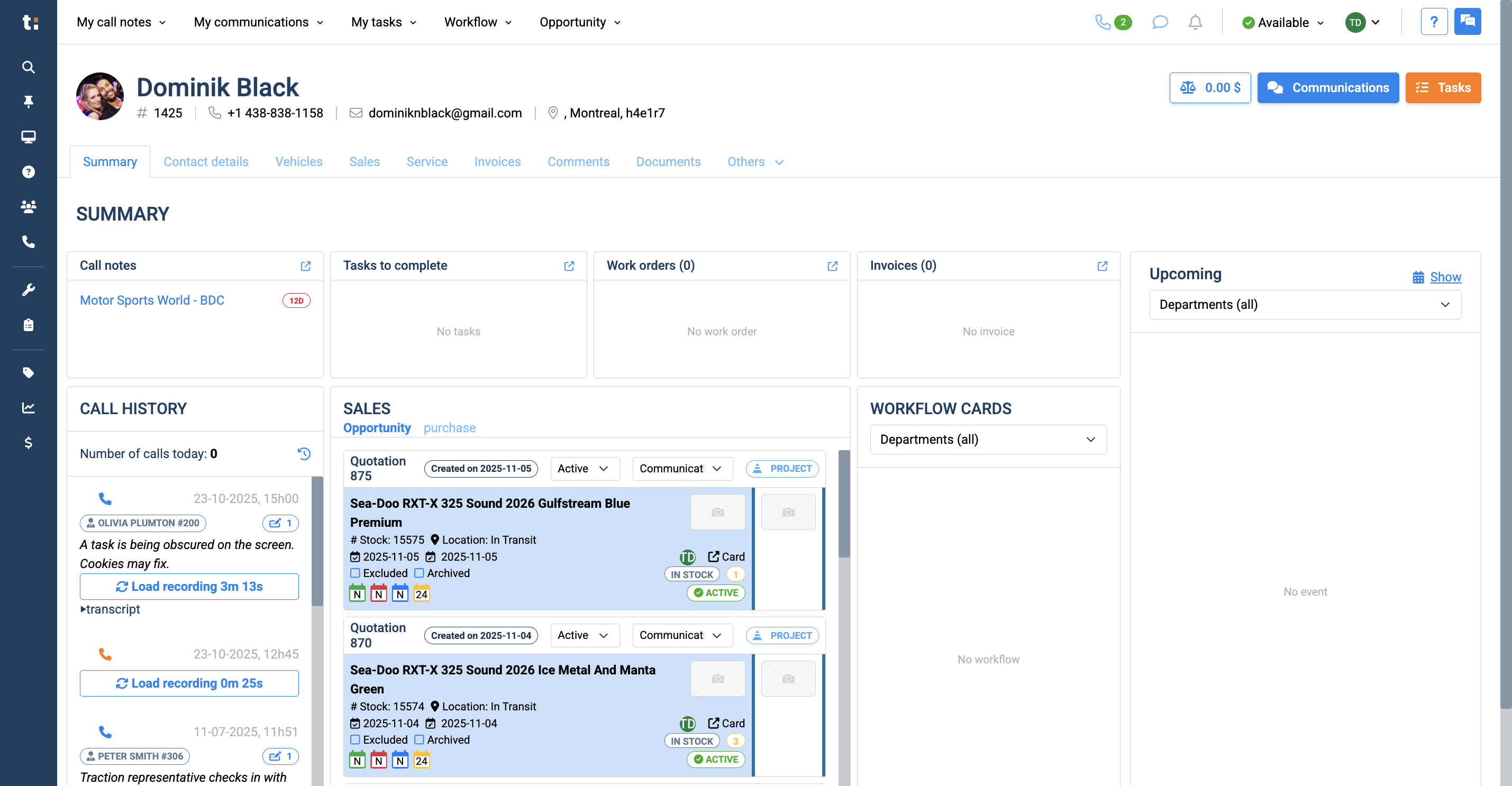
2
From here, you have a small sales section where you can view your cards.
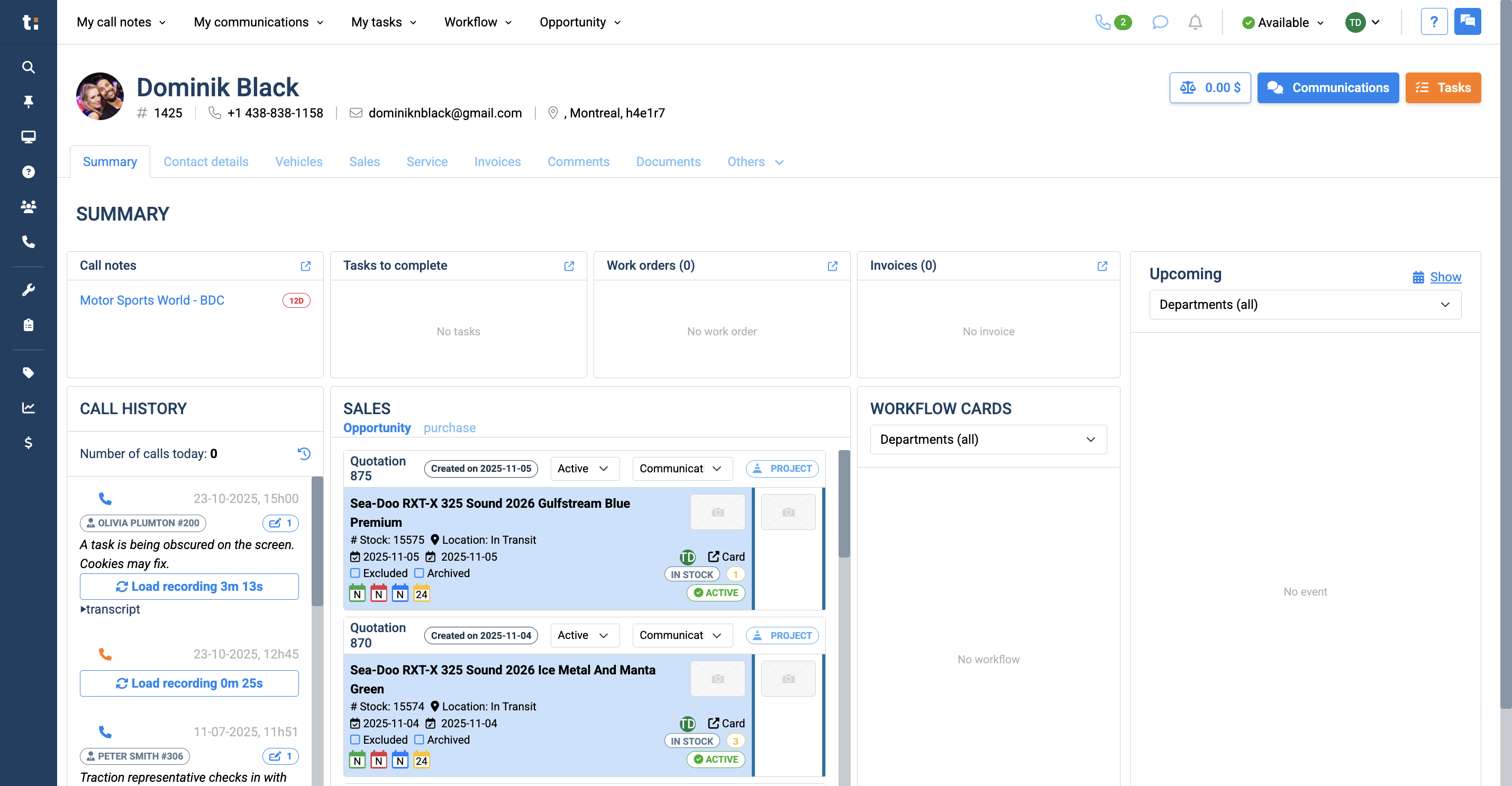
3
You can change the status of any card here by clicking on the status, selecting a new one,
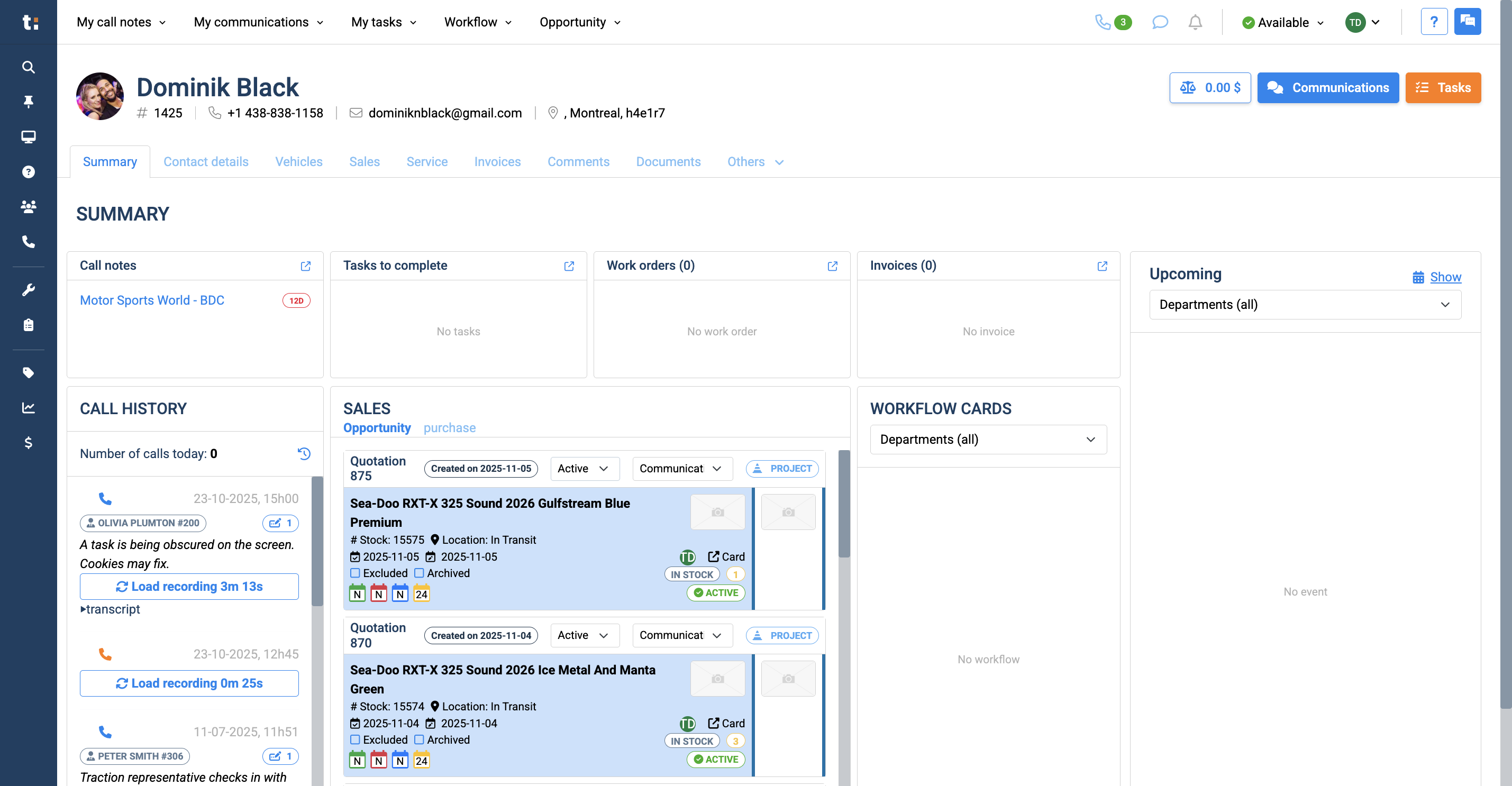
4
and choosing the reason.
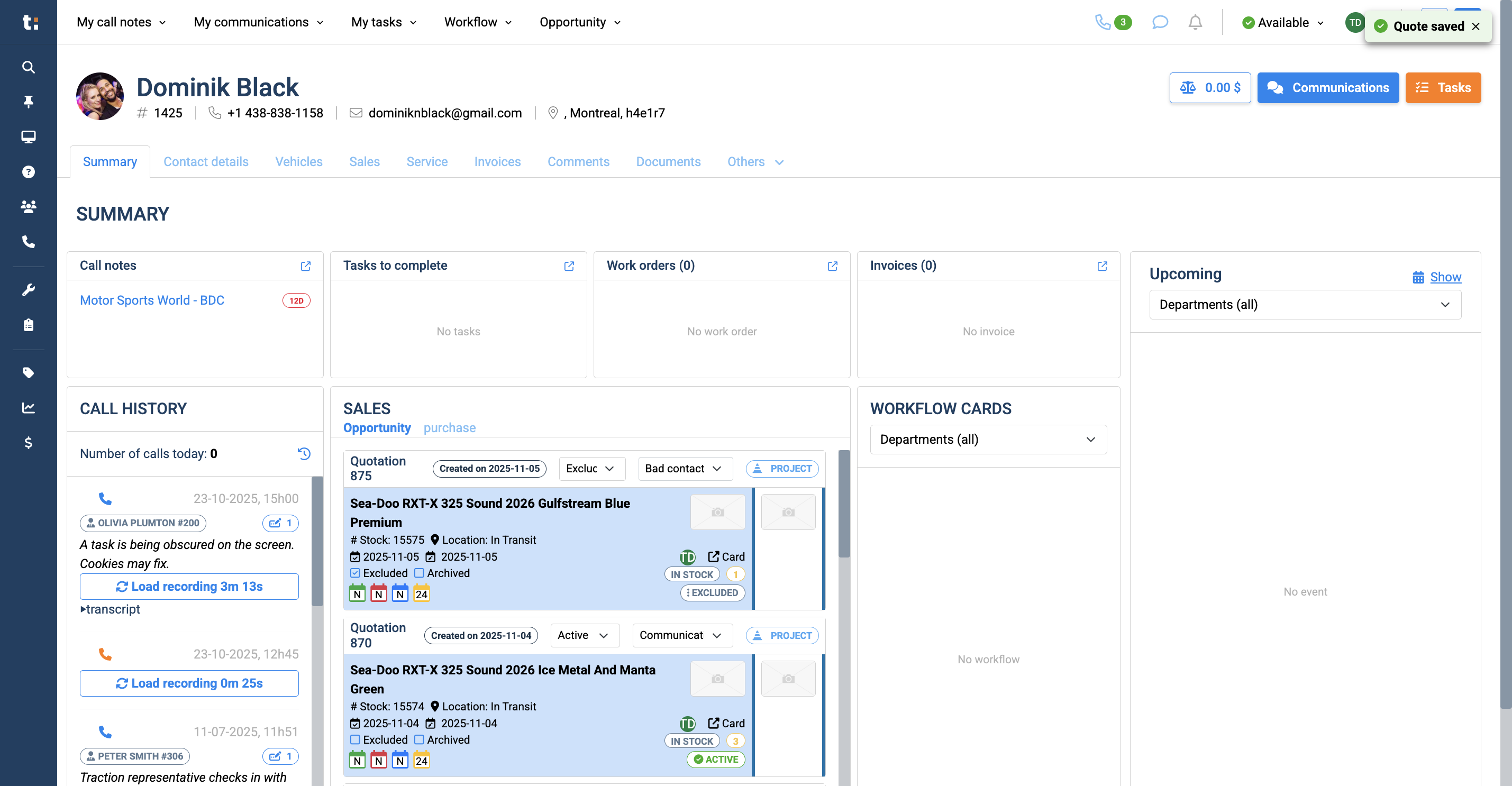
5
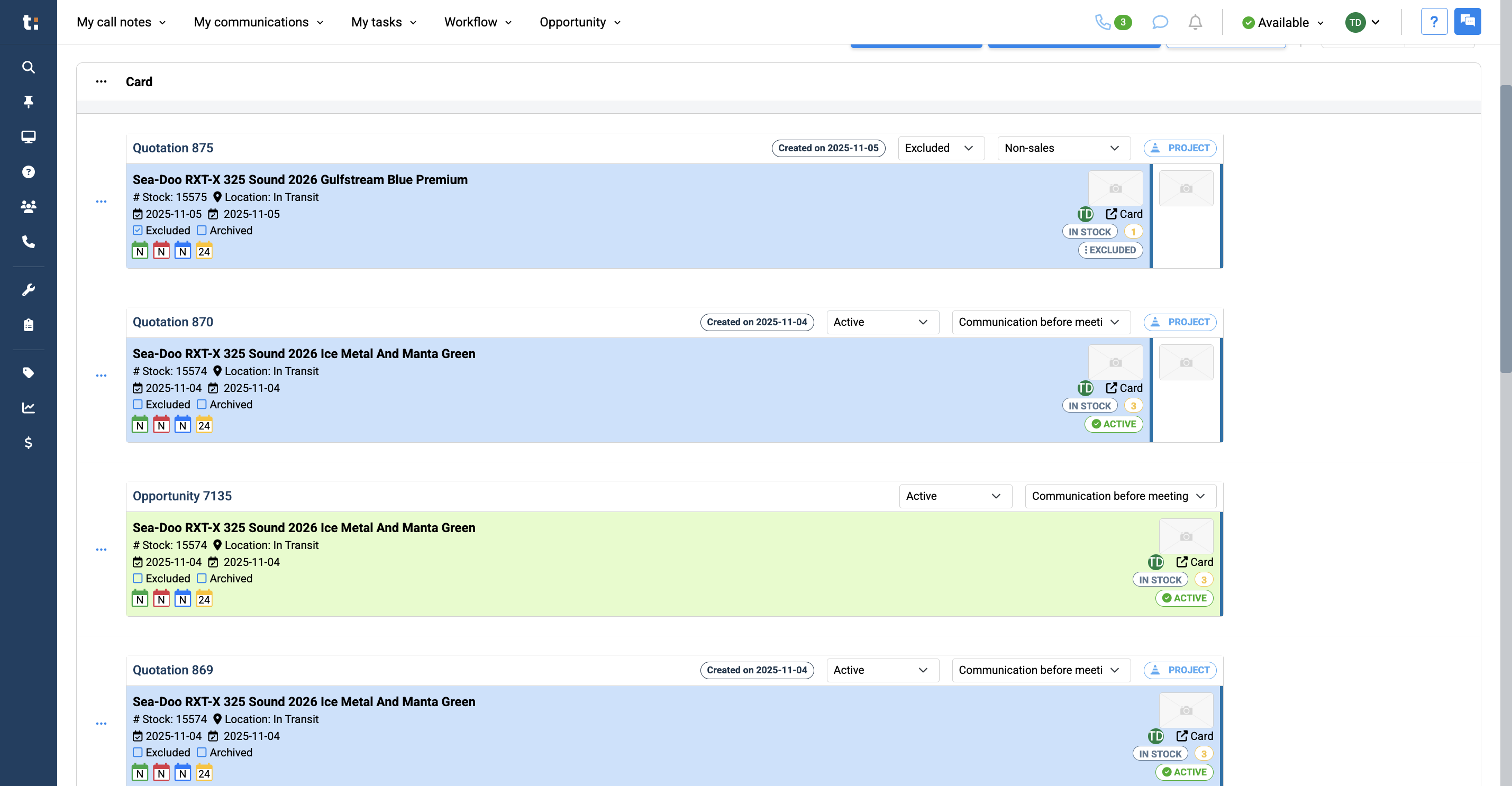
The second way to change a card's status is to go to your Sales tab.
6
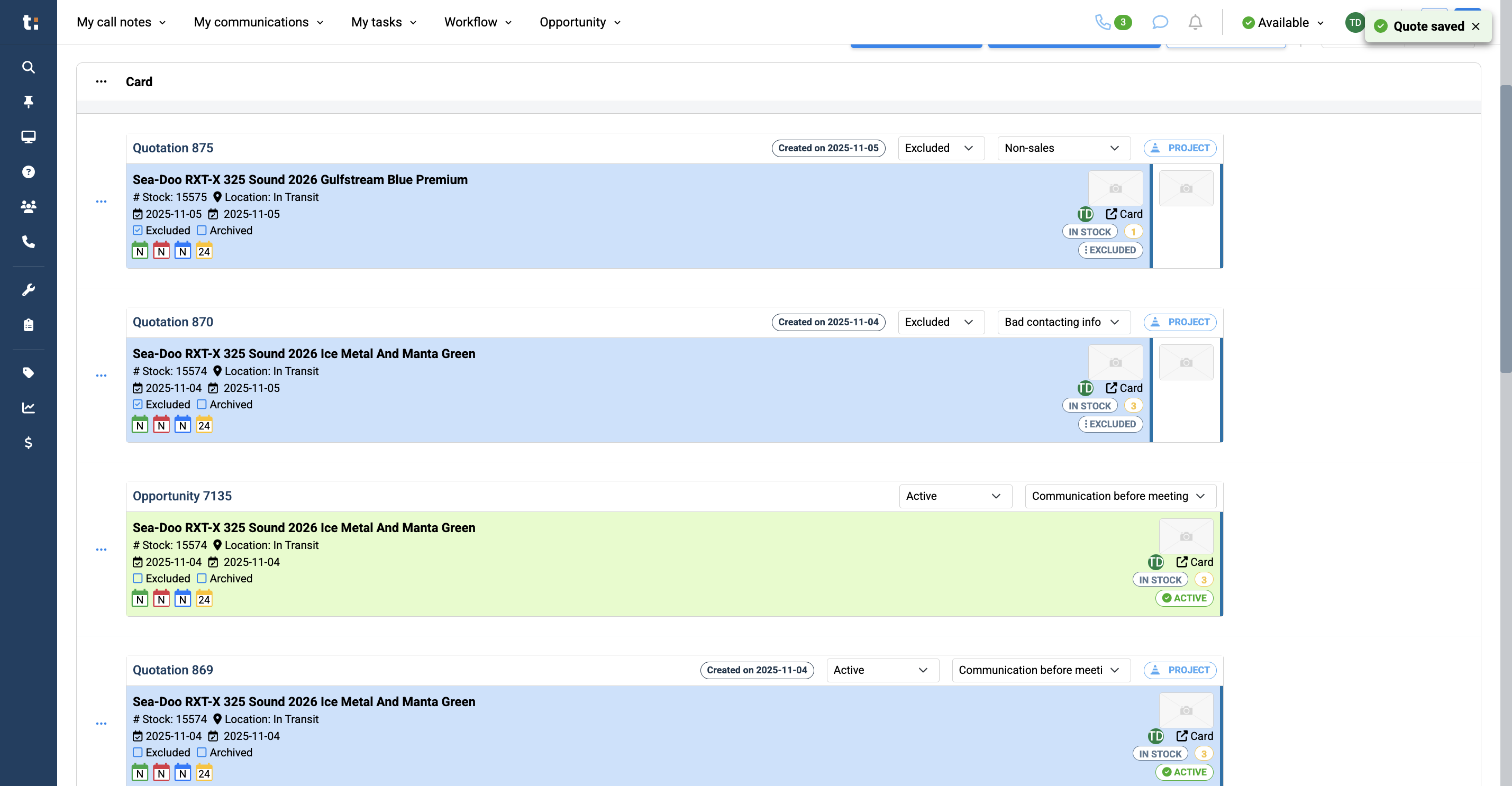
In your list of sales opportunities, you can change the card's status
7
and select the reason.
8
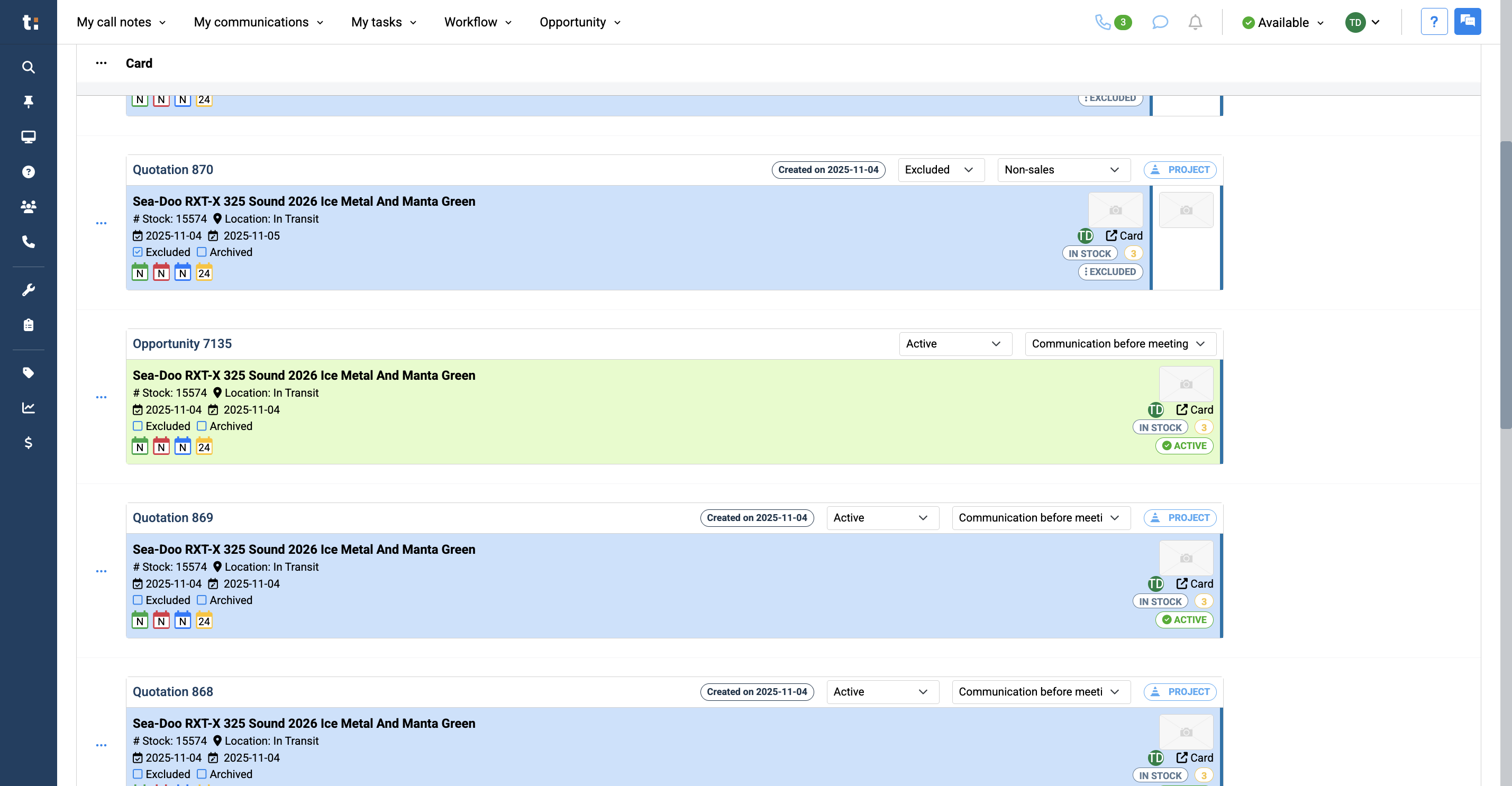
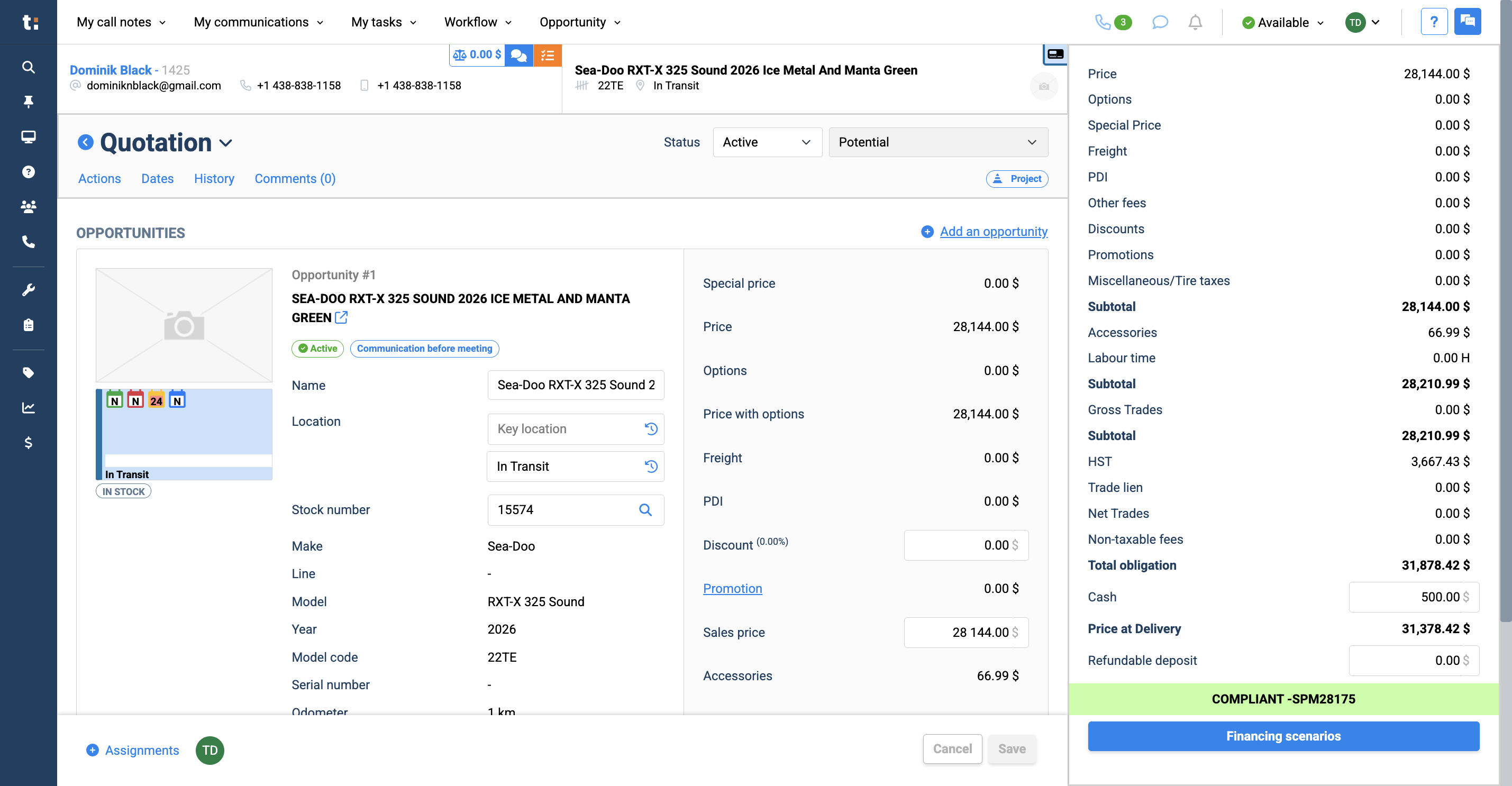
The last way to change a card's status is by clicking directly on the card.
9
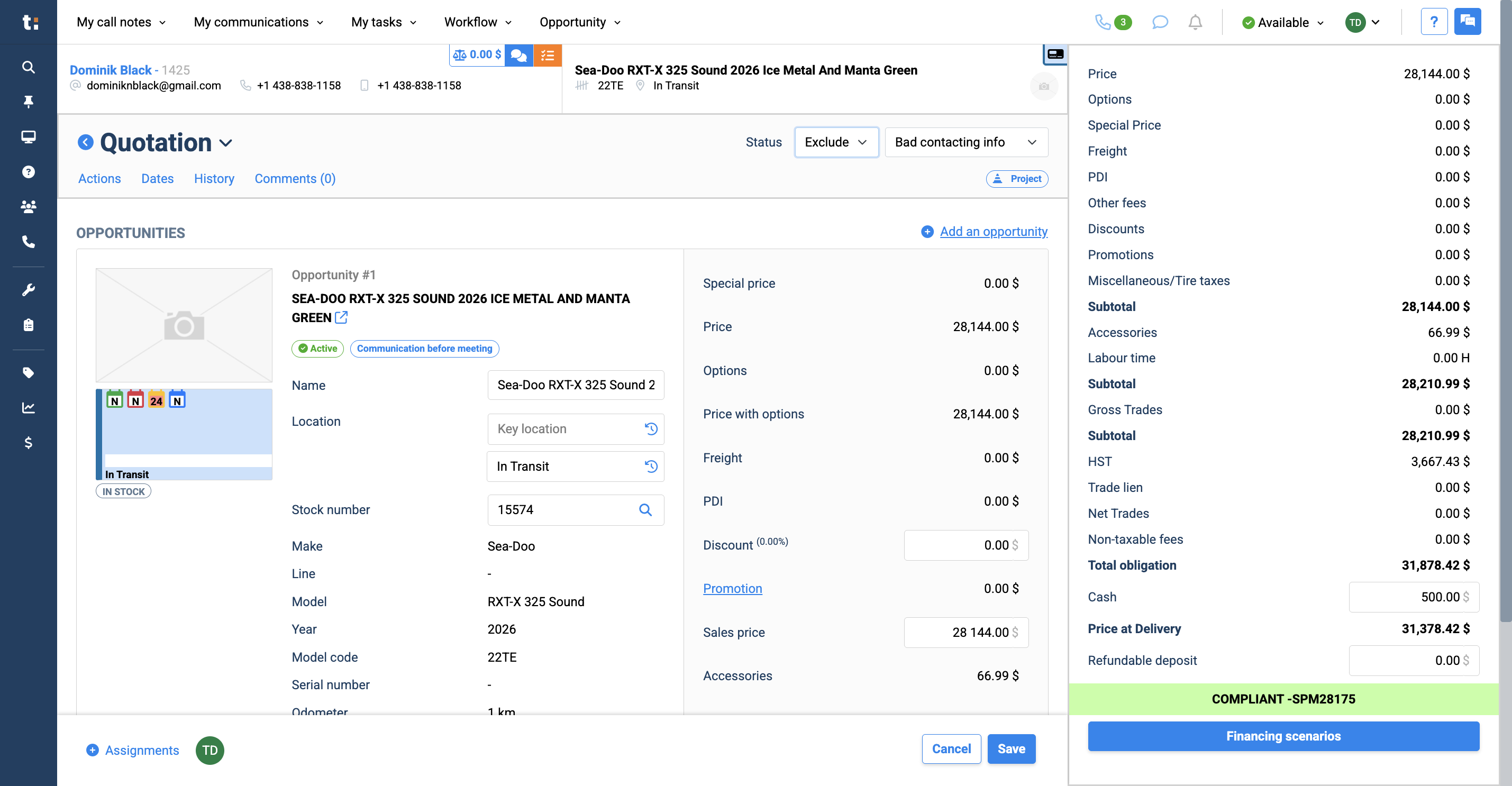
This takes you to the opportunity or quotation page, where you can see the status at the top. You can change....
10
and select the reason why.
If you still have questions after consulting this article, please feel free to contact our support team at: support@tractiondk.zohodesk.com