
How to Change Your Output Settings for Automated Emails and More
Learn how to easily change your output settings to manage automated emails, print, preview, or save options. Follow simple steps to customize your output preferences efficiently.
In this guide, we'll learn how to change your output settings to control how automated emails, print jobs, previews, or saved files are managed. Adjusting this setting helps you choose the best way to handle your documents, whether you want them sent by email, printed, previewed, or saved.
We'll look at how to use the output button to quickly switch between these options.
Let's get started
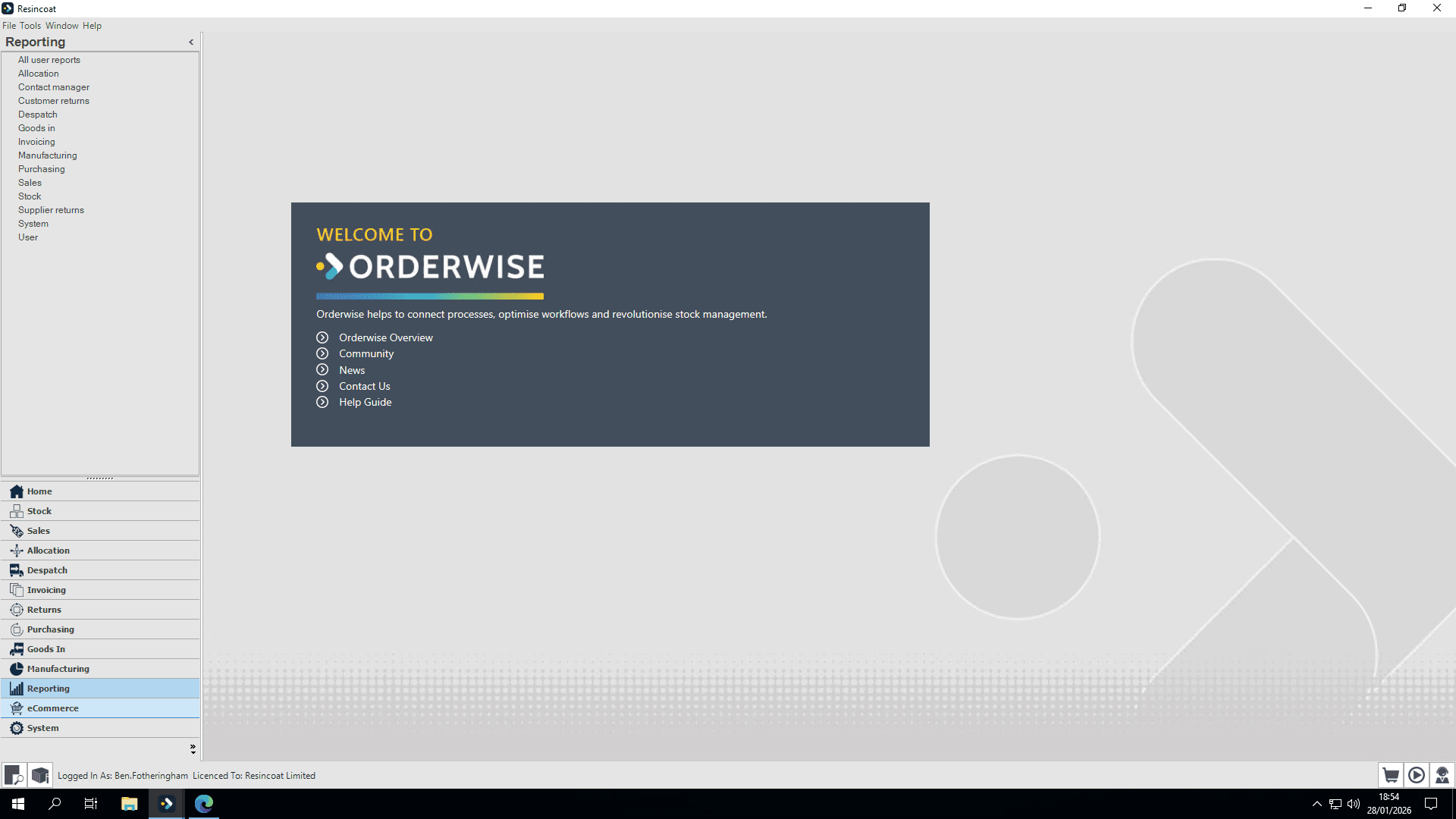
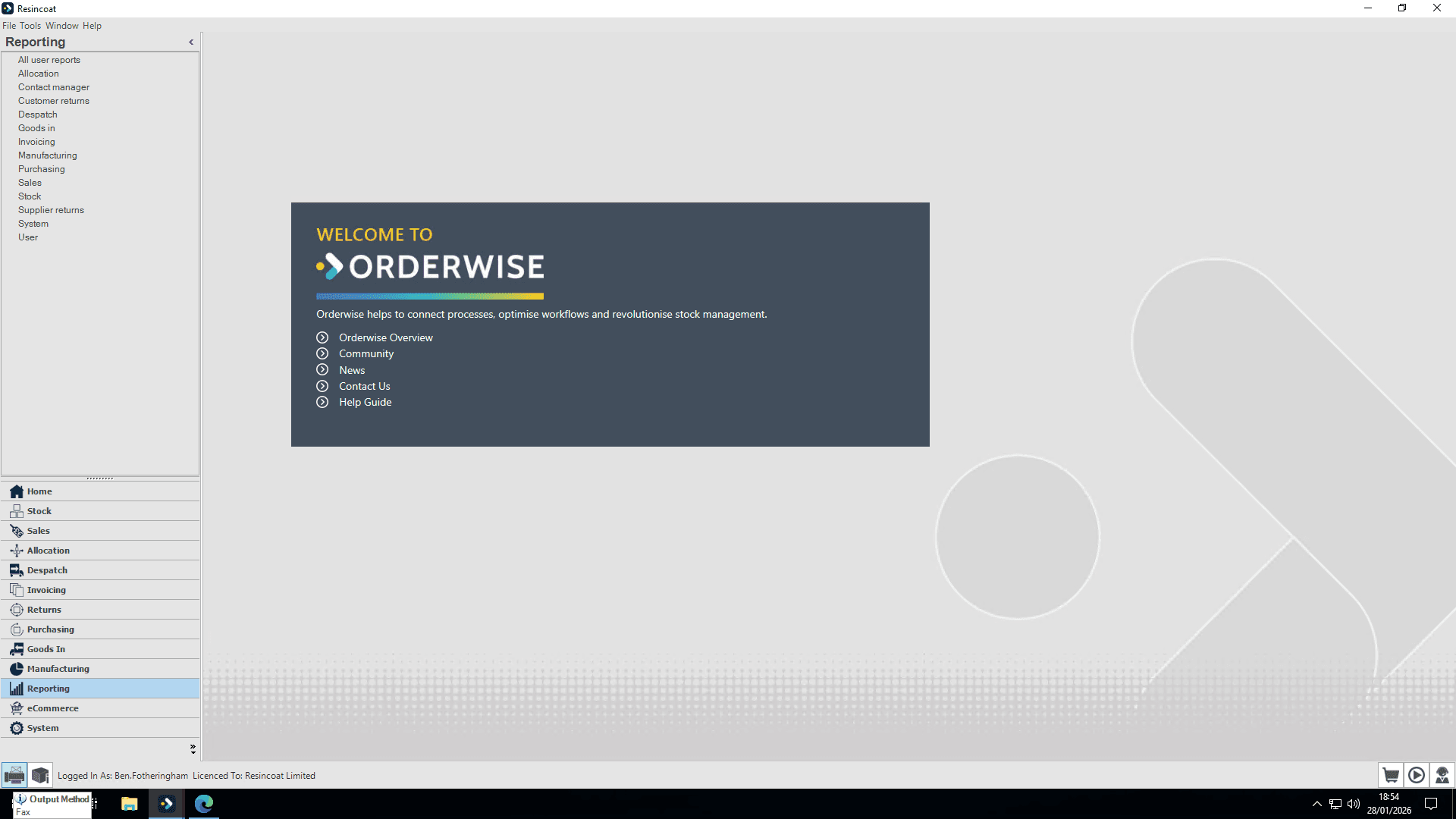
I'll quickly show you how to change your output settings. This is easy to manage and controls most automated emails, as well as options to print, preview, or save. Click the button in the bottom left corner to cycle through options. Alternatively, right-click it to go directly to your desired output form.
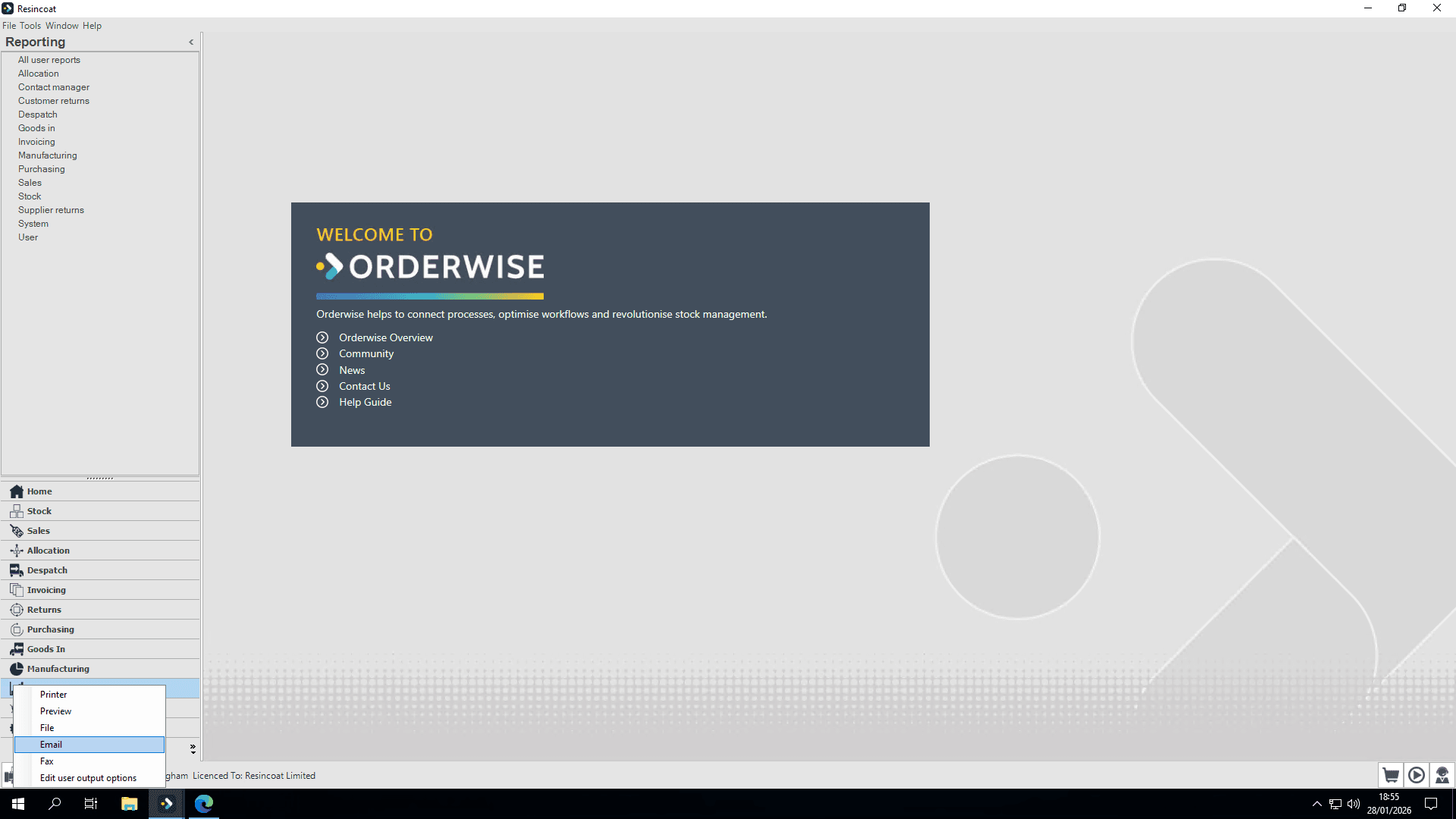
Once I set that to email all my layouts will be sent by email. Some of these may appear before I send them. Others may simply send automatically in the background.
A record of emails sent is kept in the Contact Manager function of OW and so can be recovered if needed.