How to Change Your Sales Date
Learn how to change your sales date easily by following our step-by-step instructions. Update your sold date on the Quotation page quickly and accurately.
By Dominik Black
In this guide, we'll learn how to change your sales date in a quotation system. This process helps you keep your records accurate by updating the date when a sale is marked as completed.
You'll follow a few steps on the Quotation page and in the Dates tab to make this change.
Let's get started
In this article, we'll explain how to change your sales date.
1
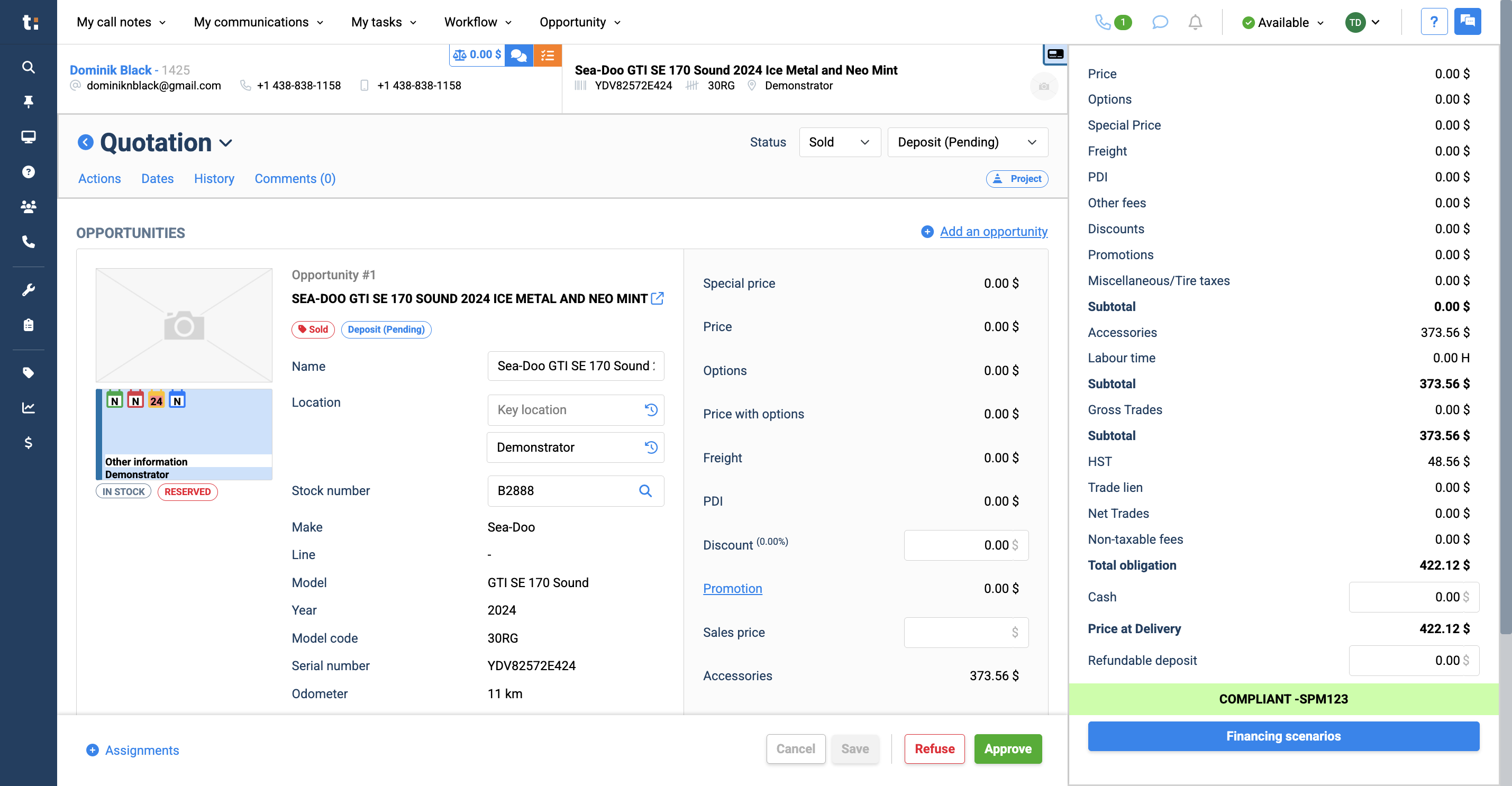
To begin, go to the Quotation page.
2
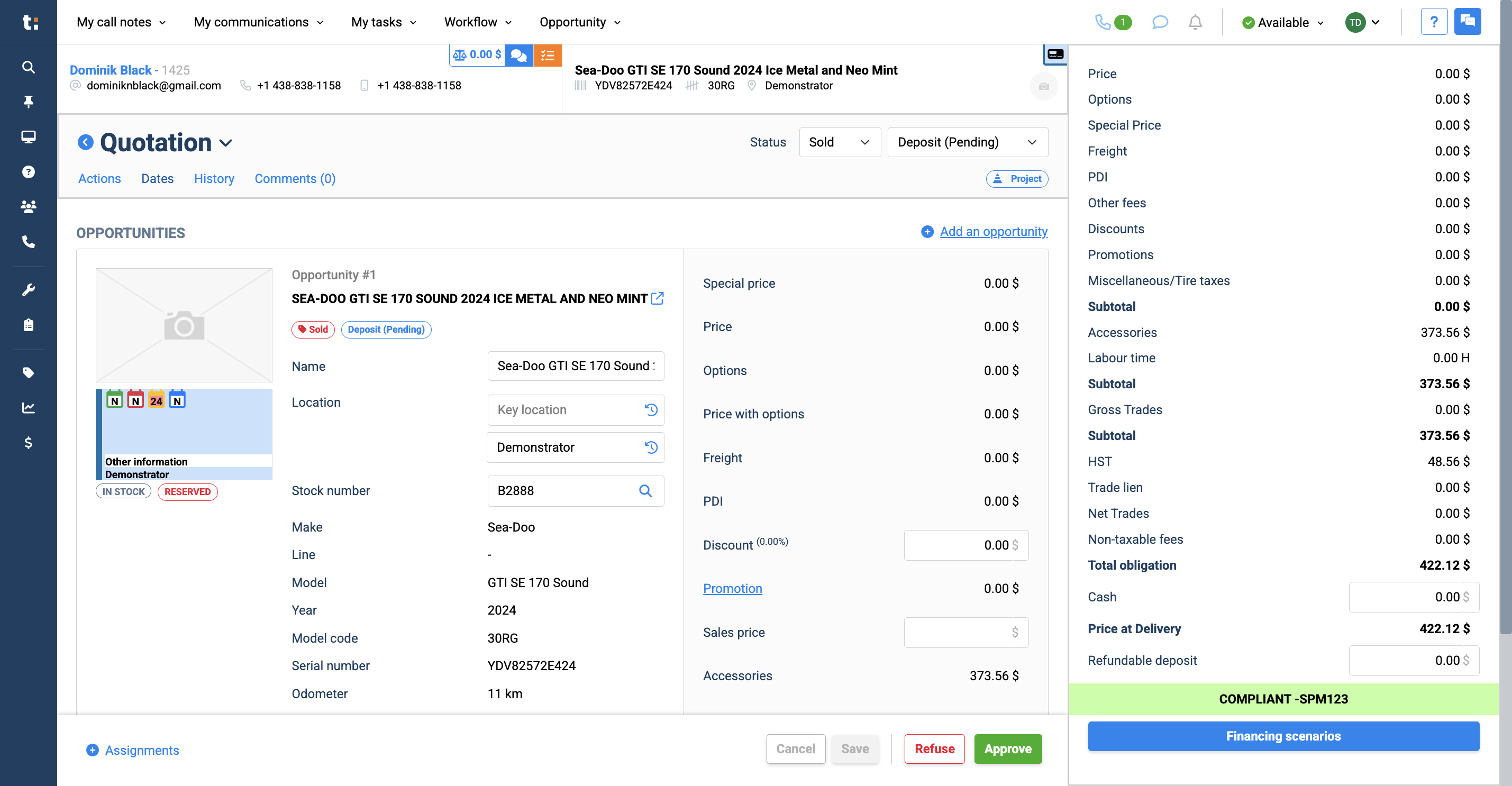
Next, go to the Dates tab.
3
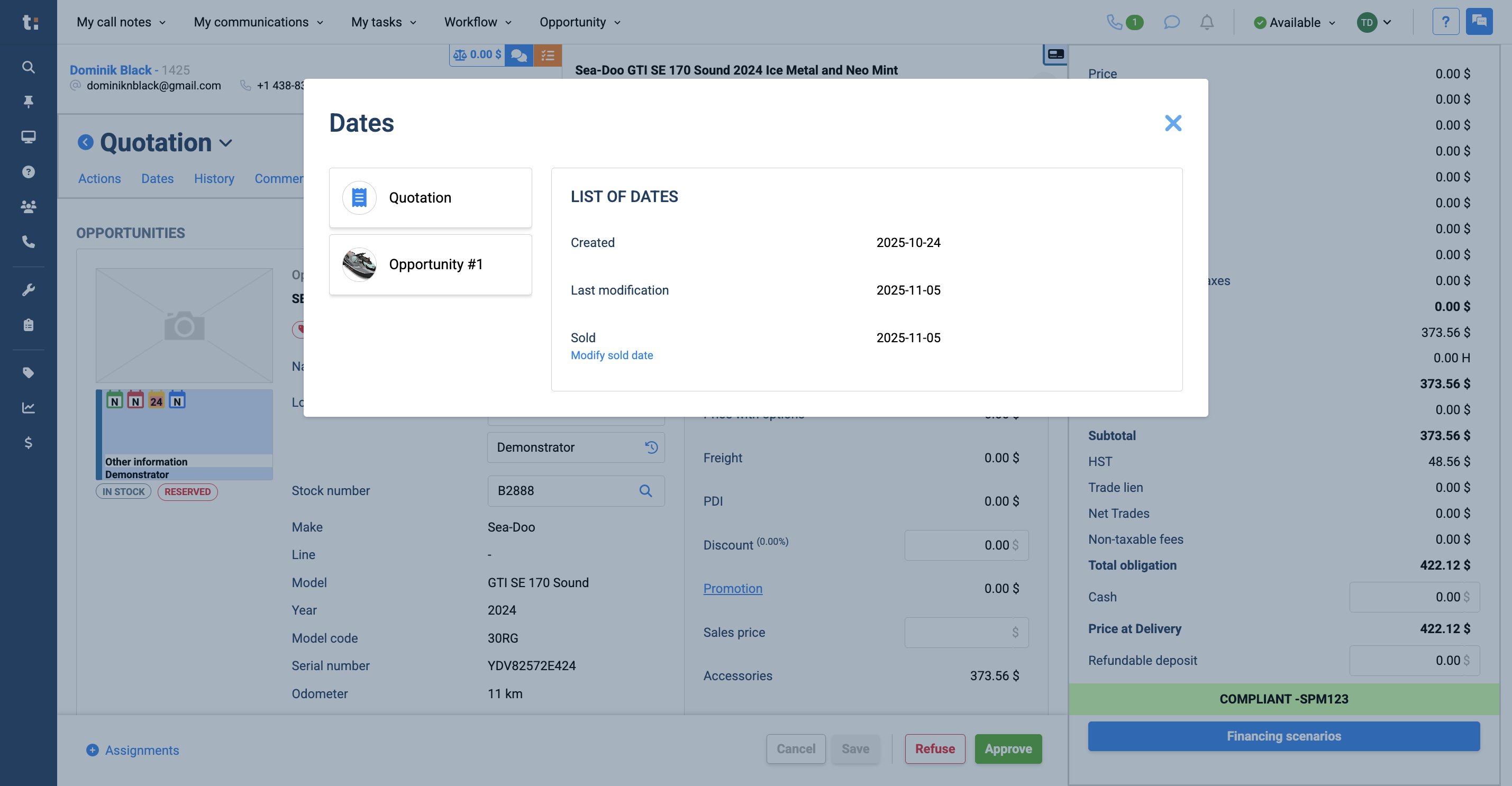
Here you will see the list of dates: created, last modified, and sold.
4
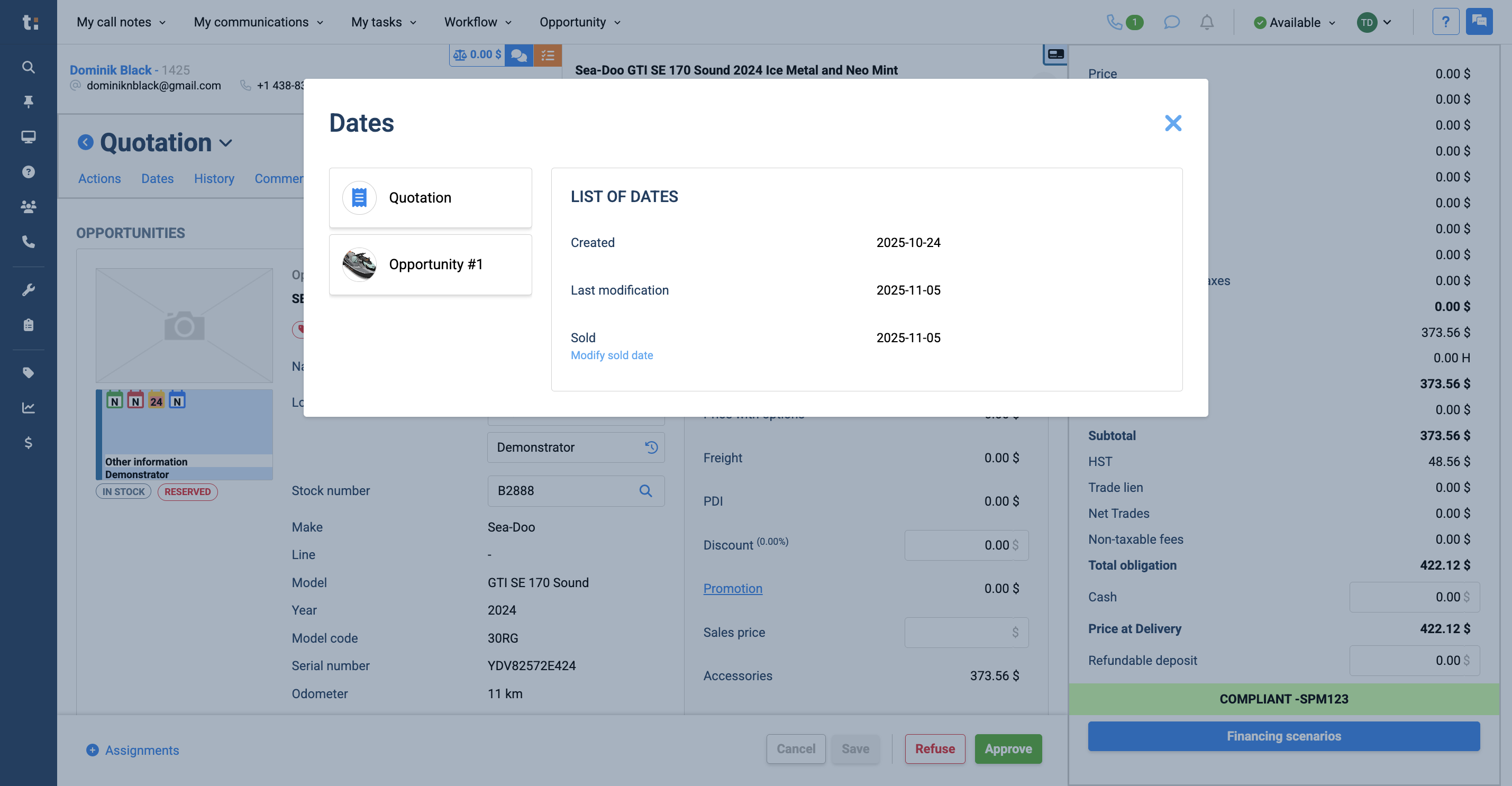
Under Sold, click Modify Sold Date.
5
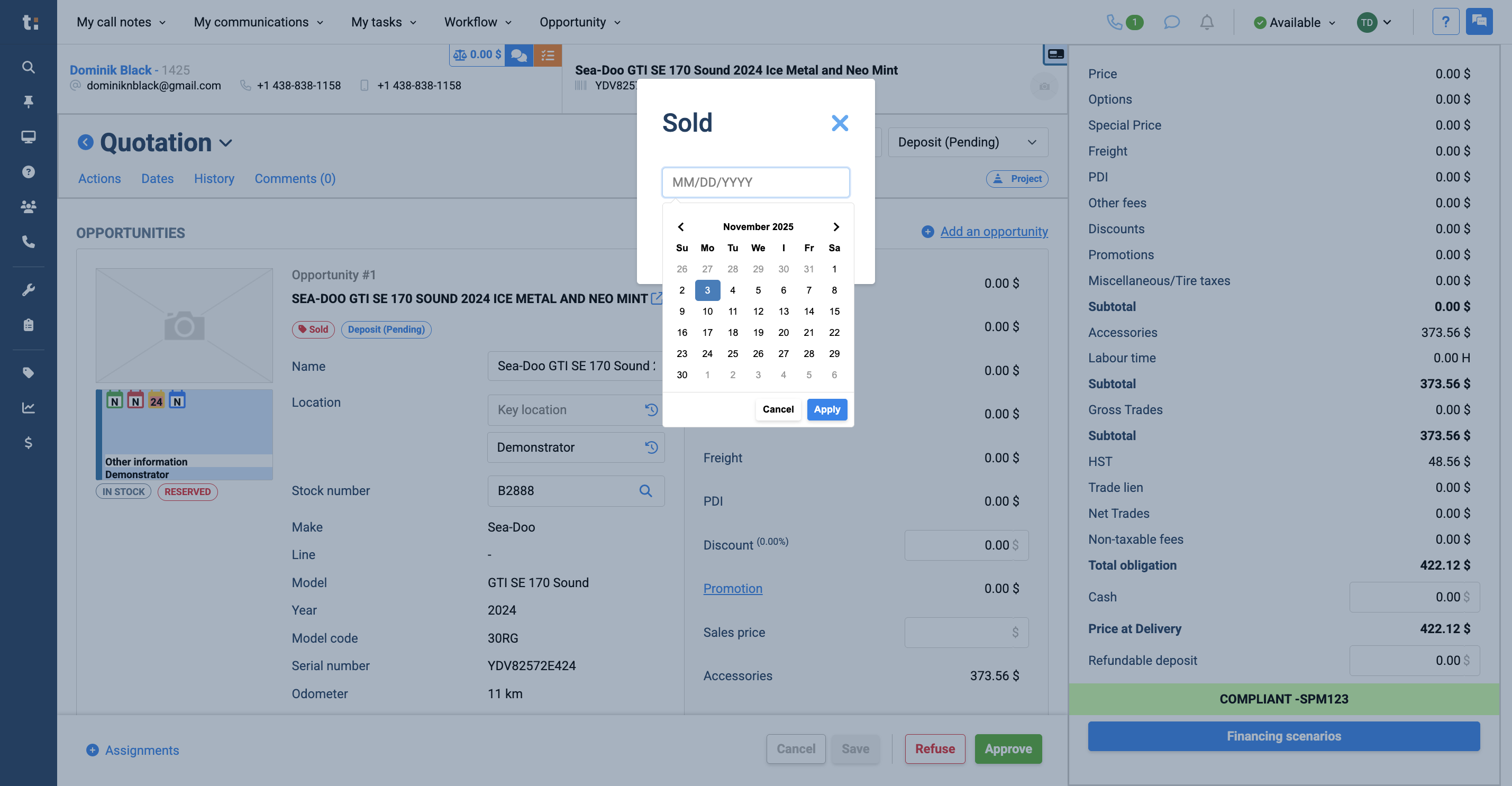
Modify your sales date by selecting a new date
6
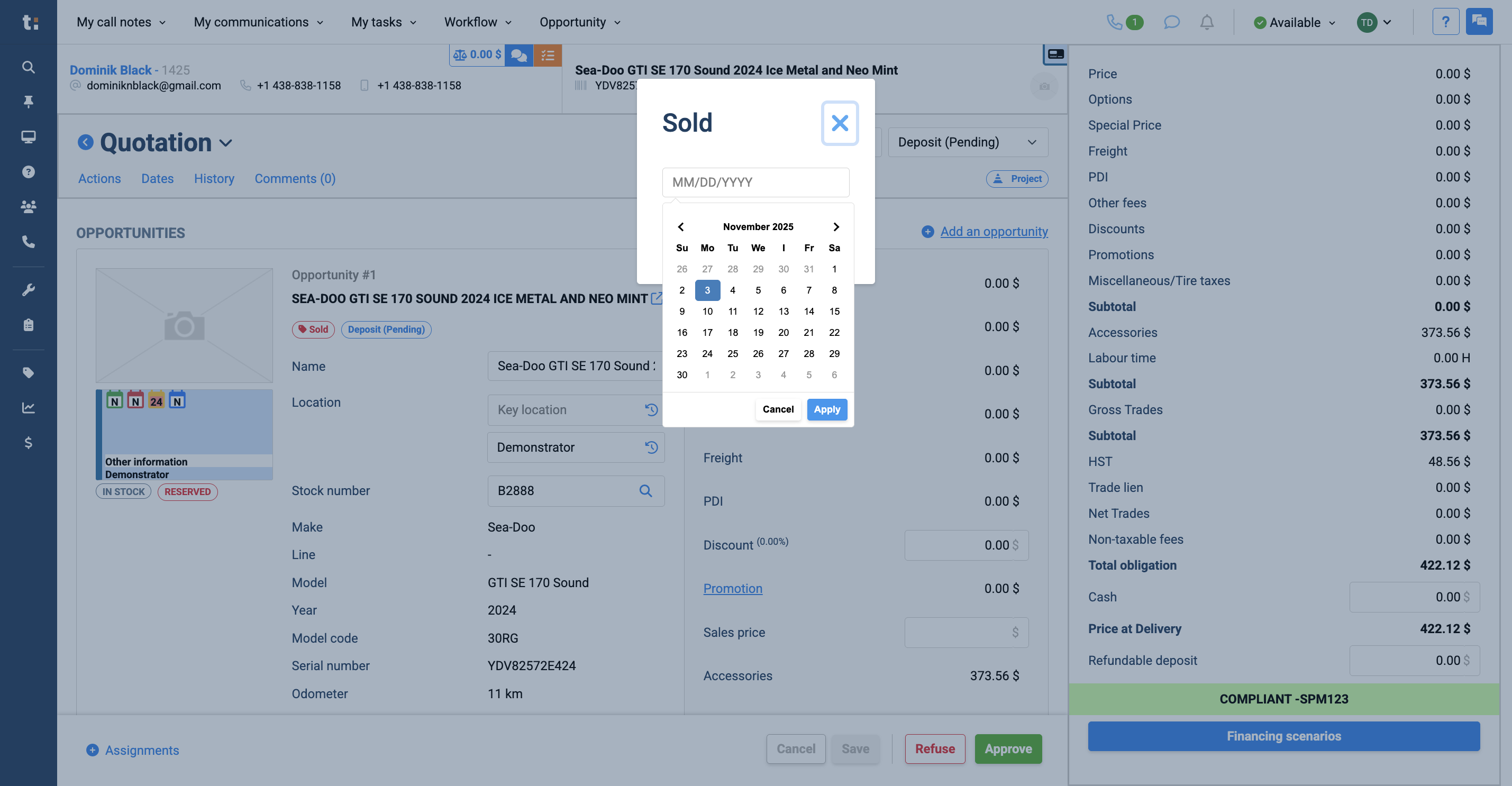
and applying the changes.
7
Then click Save.
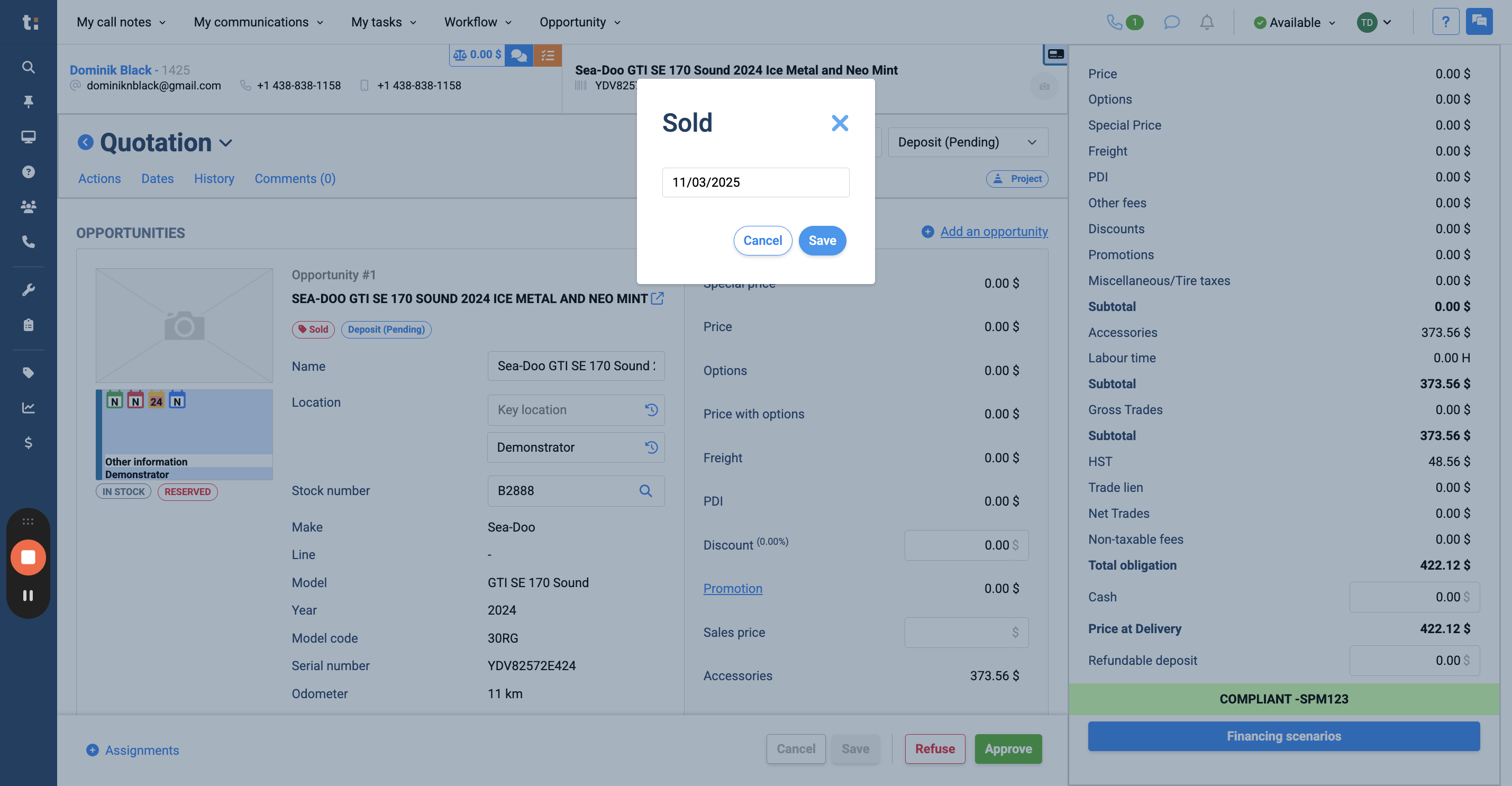
Your sold date has now been changed.
If you still have questions after consulting this article, please feel free to contact our support team at: support@tractiondk.zohodesk.com