
How to Check Unread Messages and Access Your Inbox
Learn step-by-step how to check your unread messages, access your inbox, view client conversations, listen to call recordings, and reply via SMS or email.
By Emilie Peloquin
In this guide, we'll learn how to check your unread communications and access your inbox. You can preview your unread communications and then access your full inbox to see all recent conversations.
You will also learn how to review the history of your communications, listen to audio calls, and reply to clients by SMS or email.
Let's get started
1
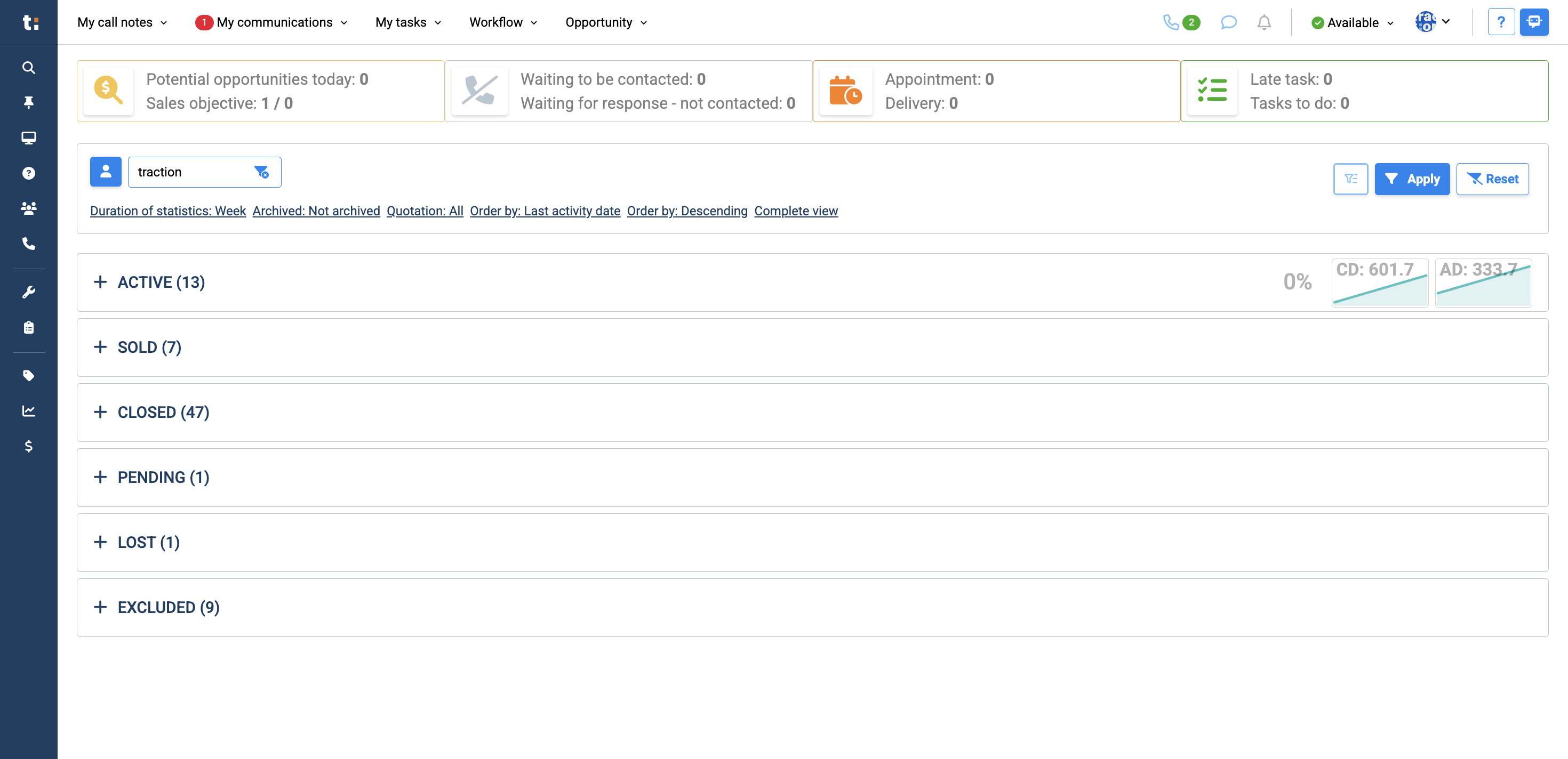
You will see a notification badge next to "My communications" when you have an unread message
2
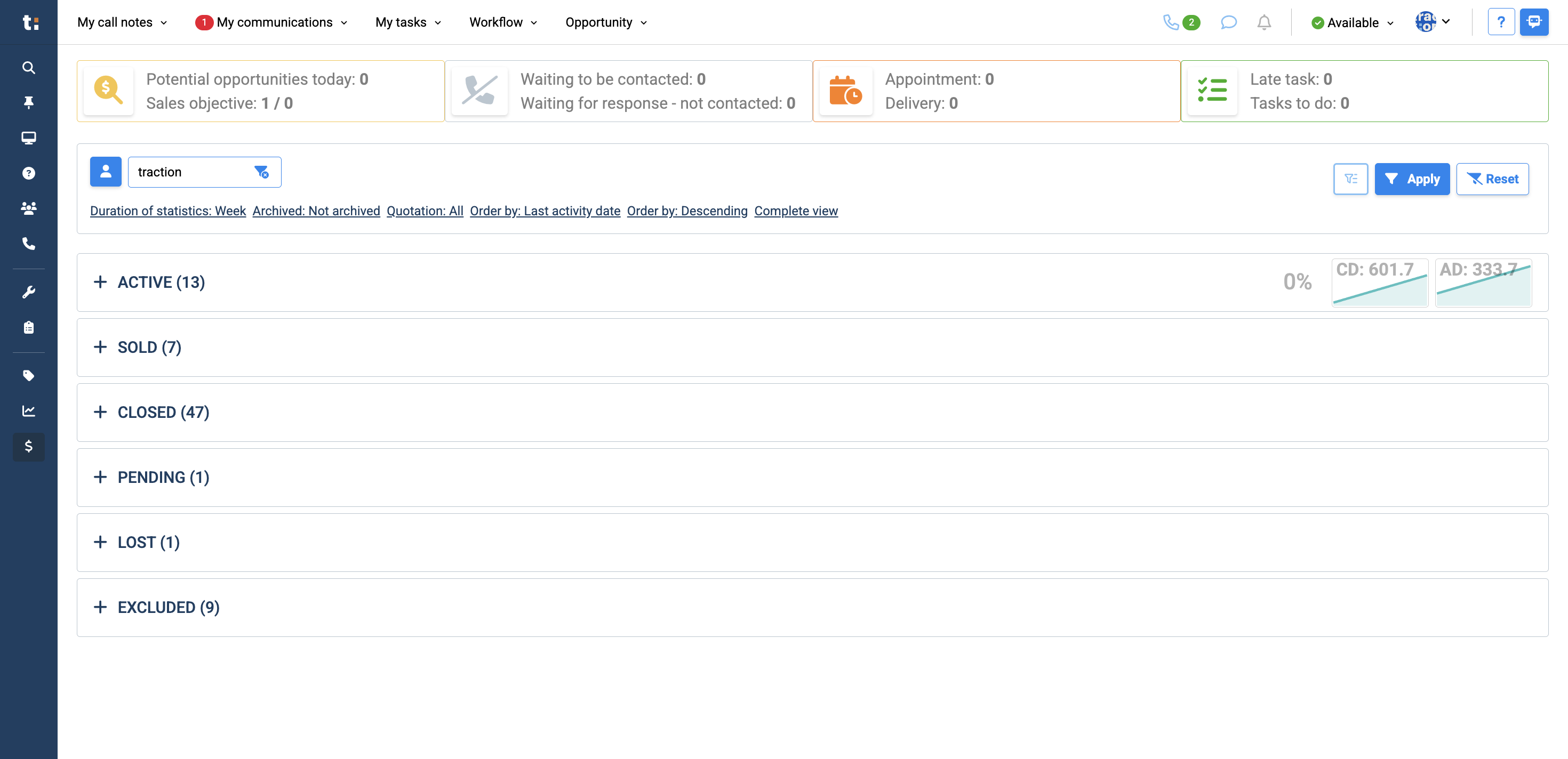
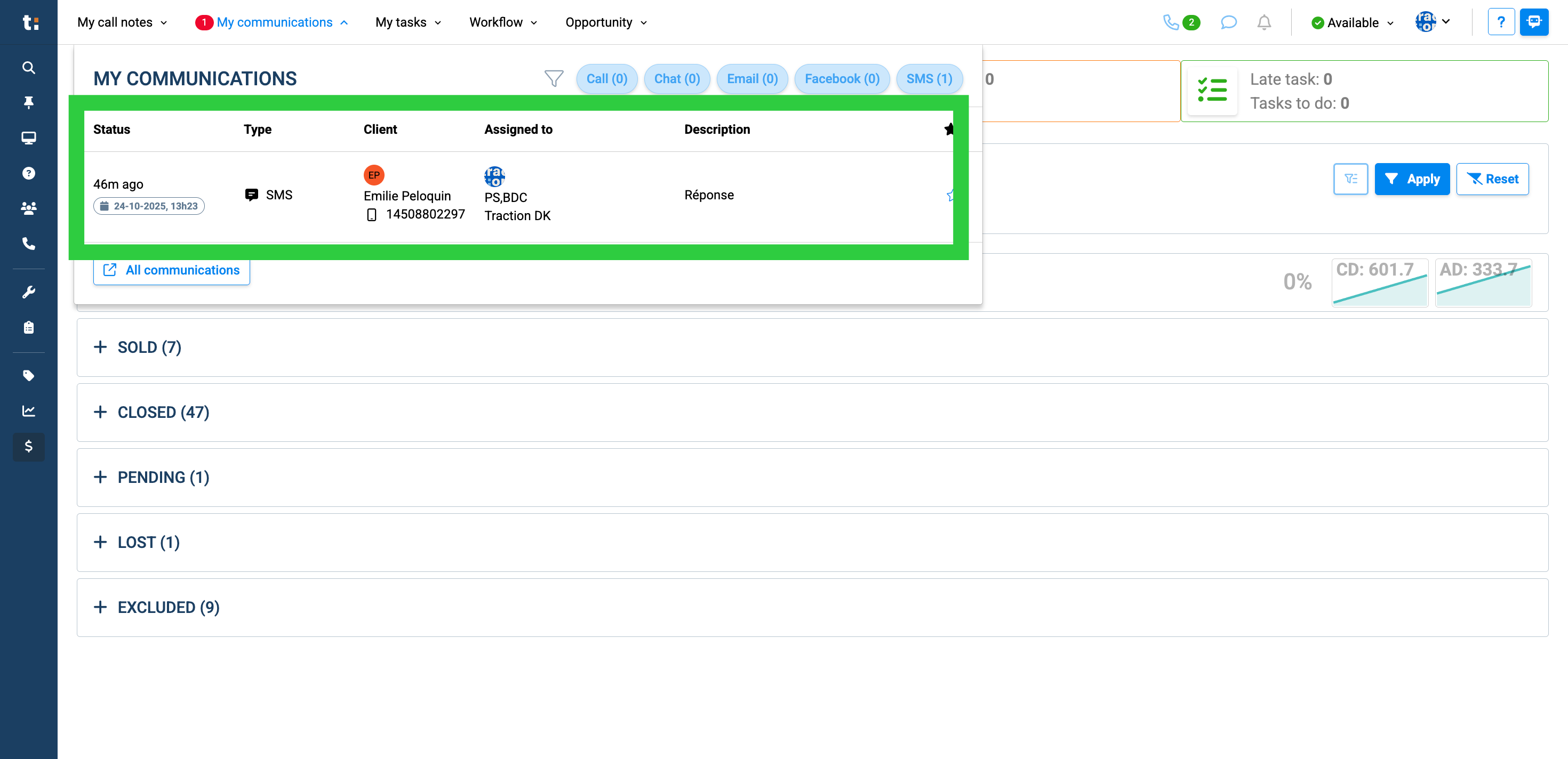
You can click on "My communications" to preview your unread messages.
3
4
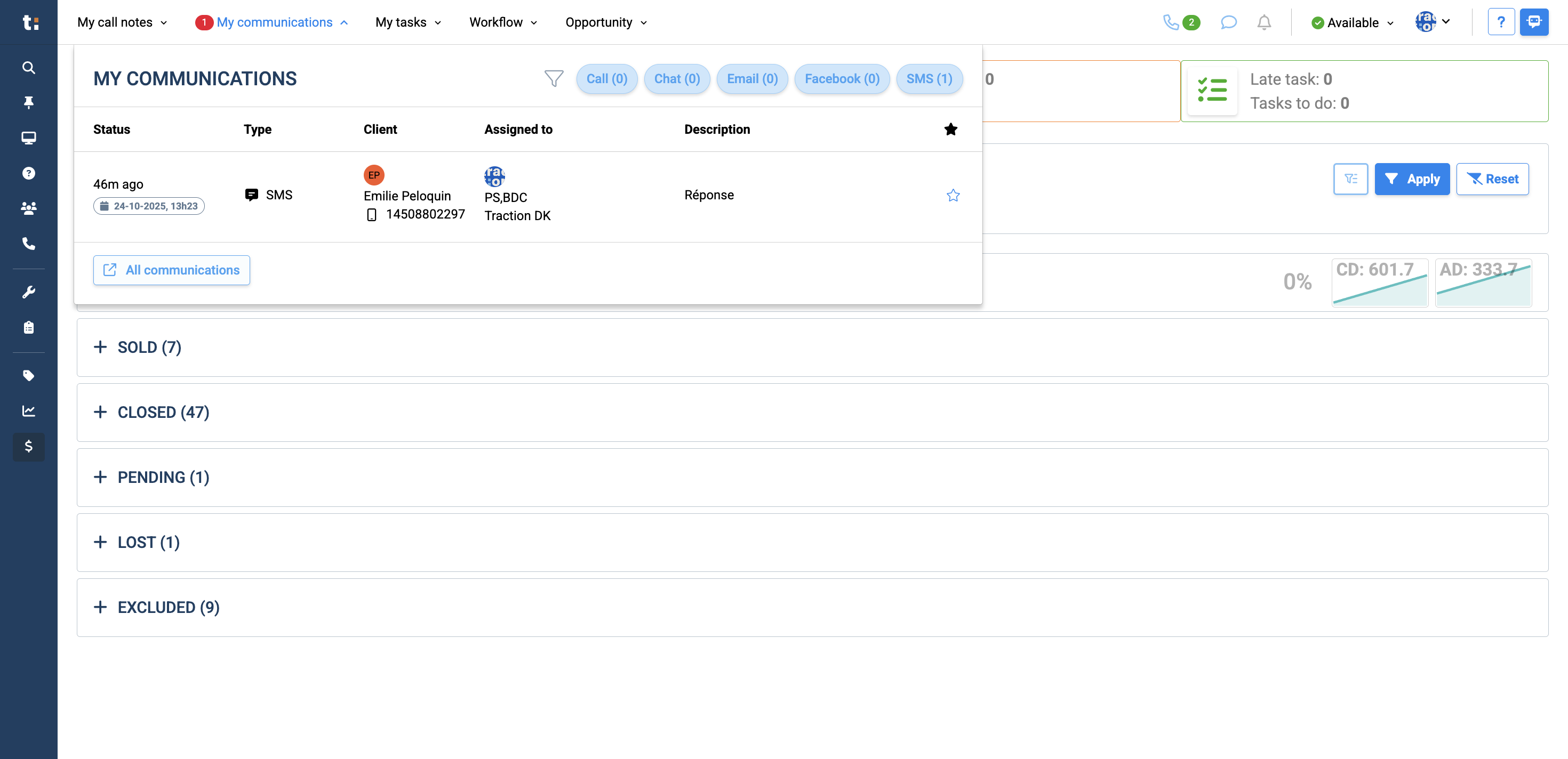
You can then click on "All communications" to access your inbox.
5
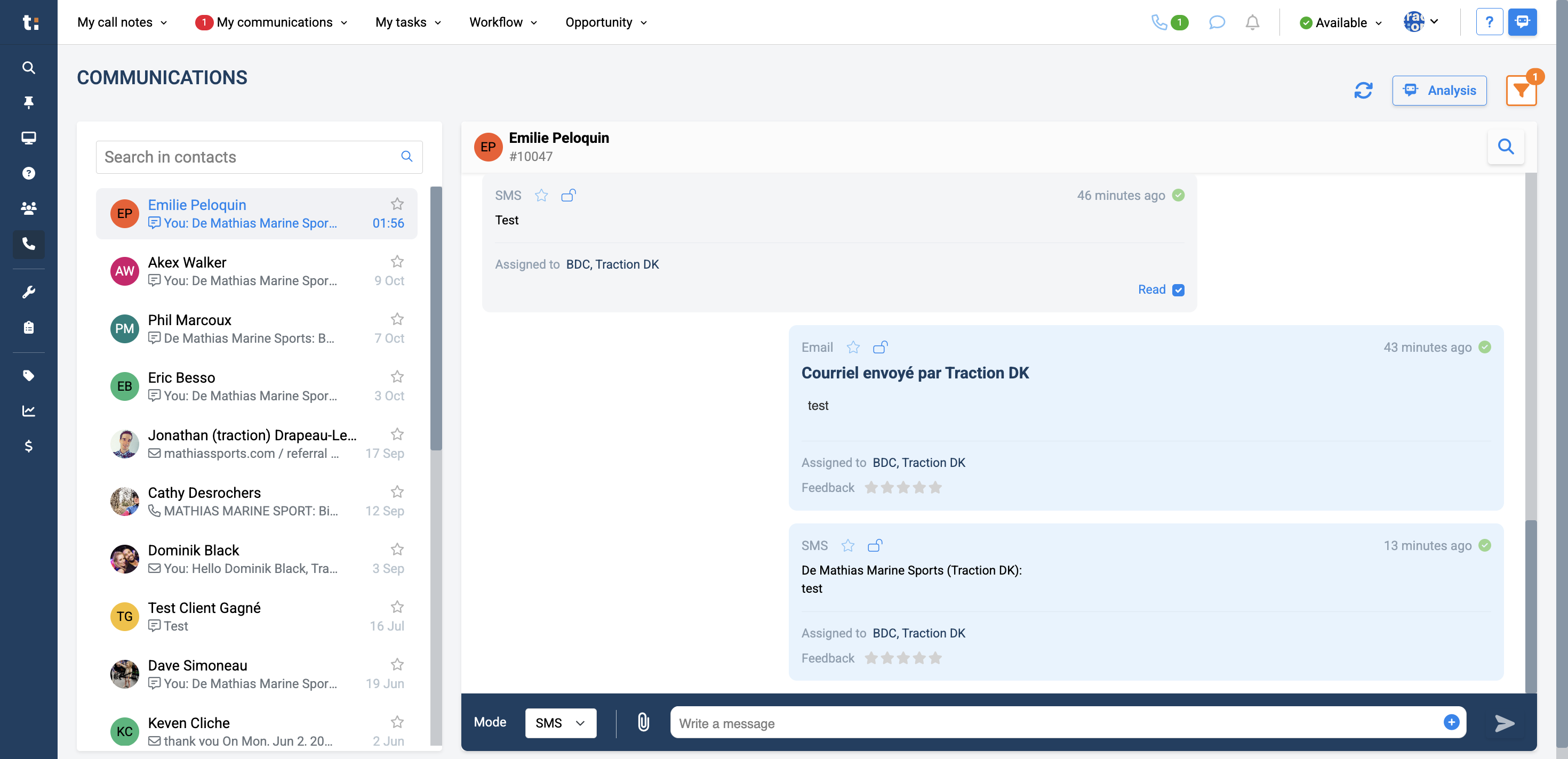
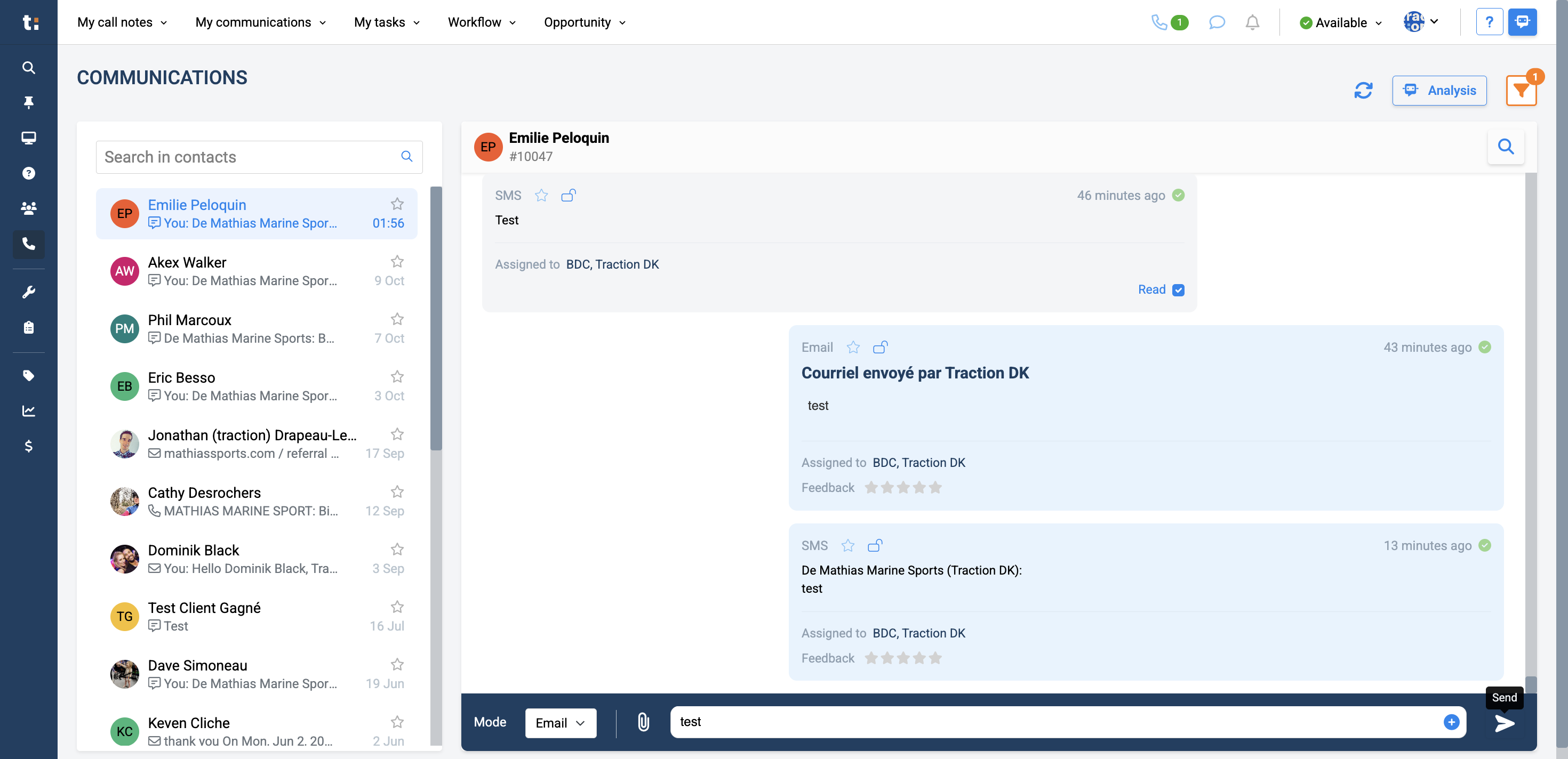
On the left, you will see all the clients you have spoken with recently, listed in chronological order. You can then click on the conversation of the client you want to access.
6
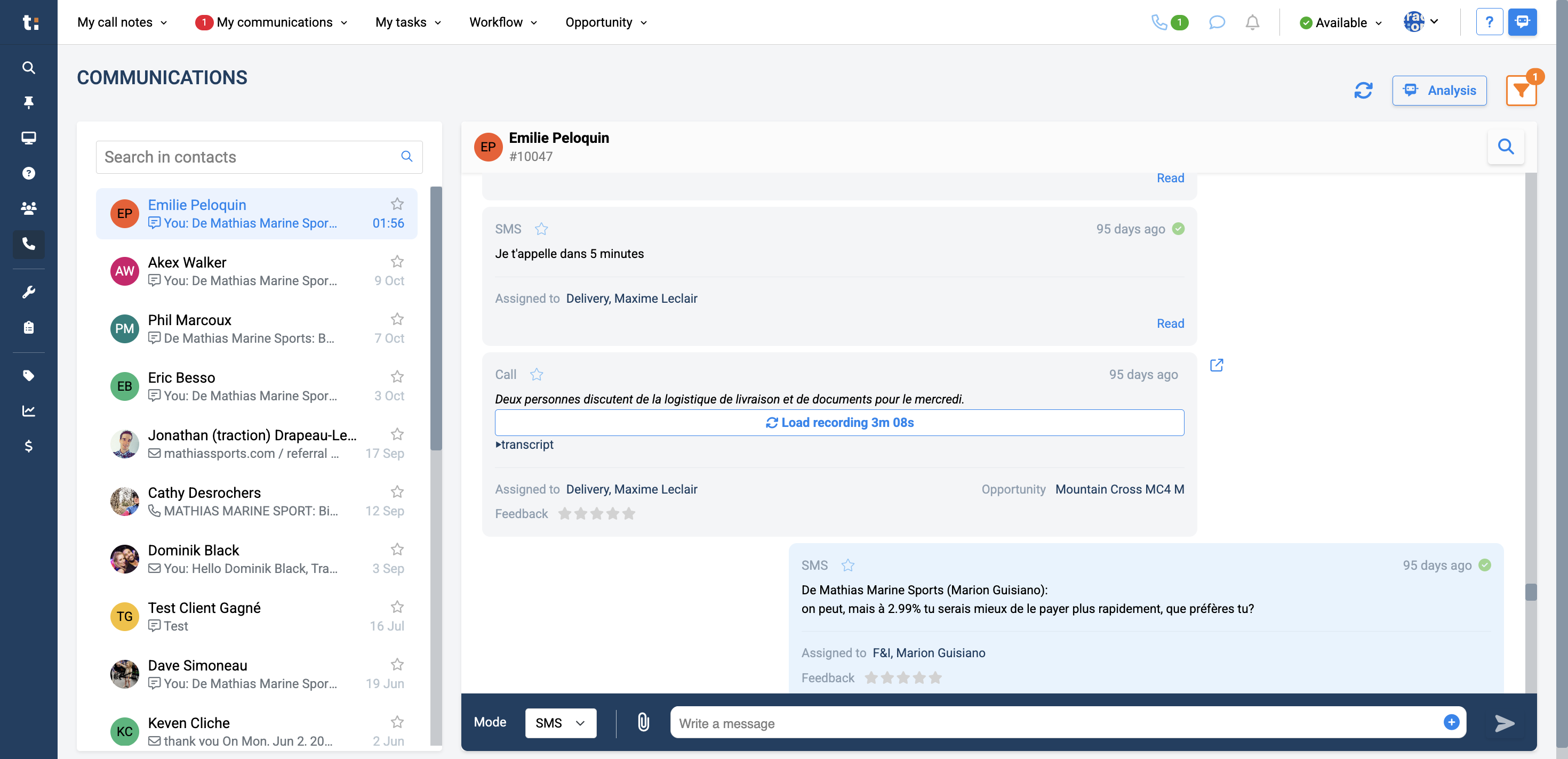
Here you will see the history of all communication with this client. You can listen to audio calls by clicking "Load recording" on any call.
7
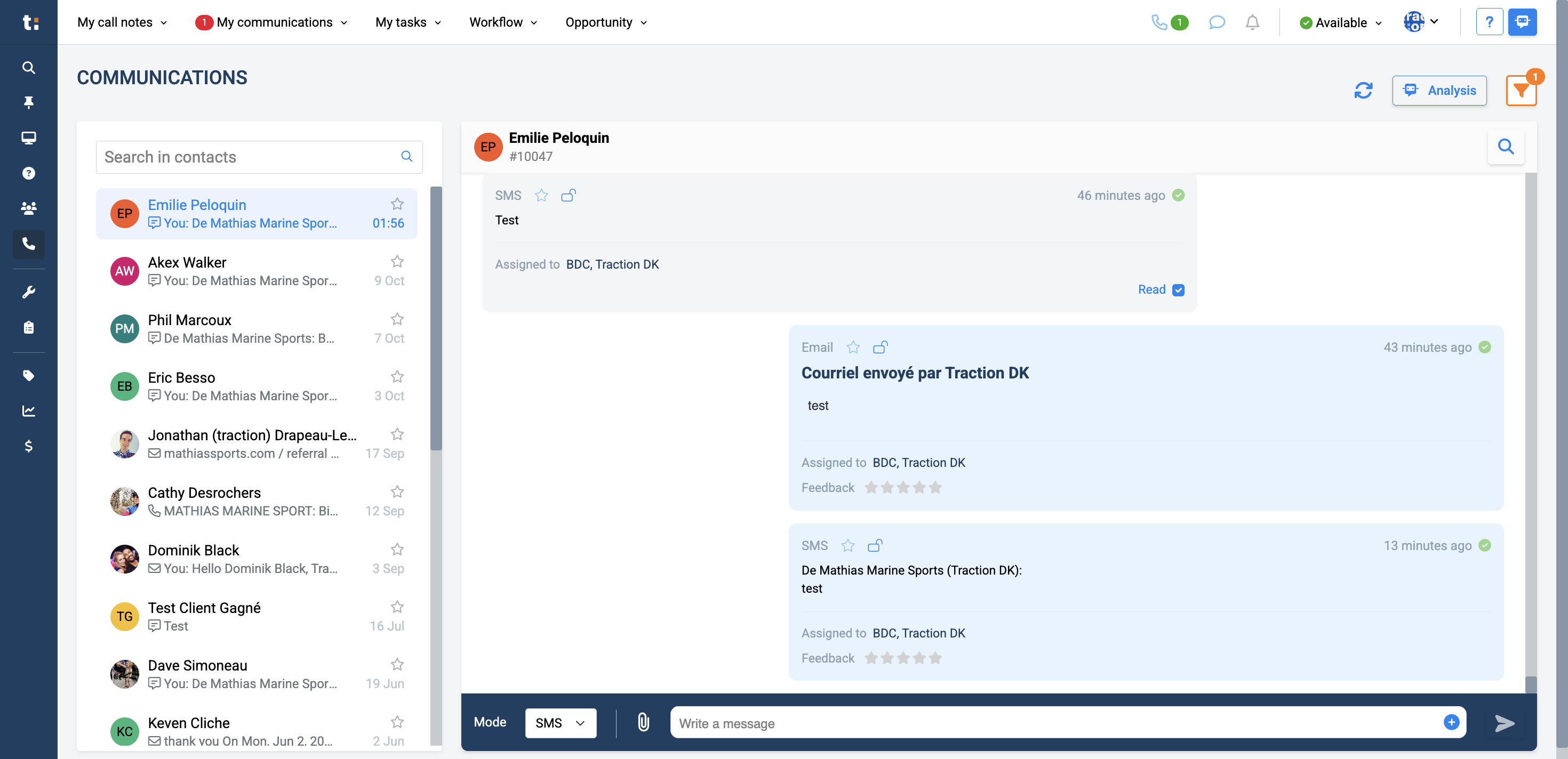
From here, you can also reply to the client by SMS or email. Simply select from the dropdown the menu the contact method.
8
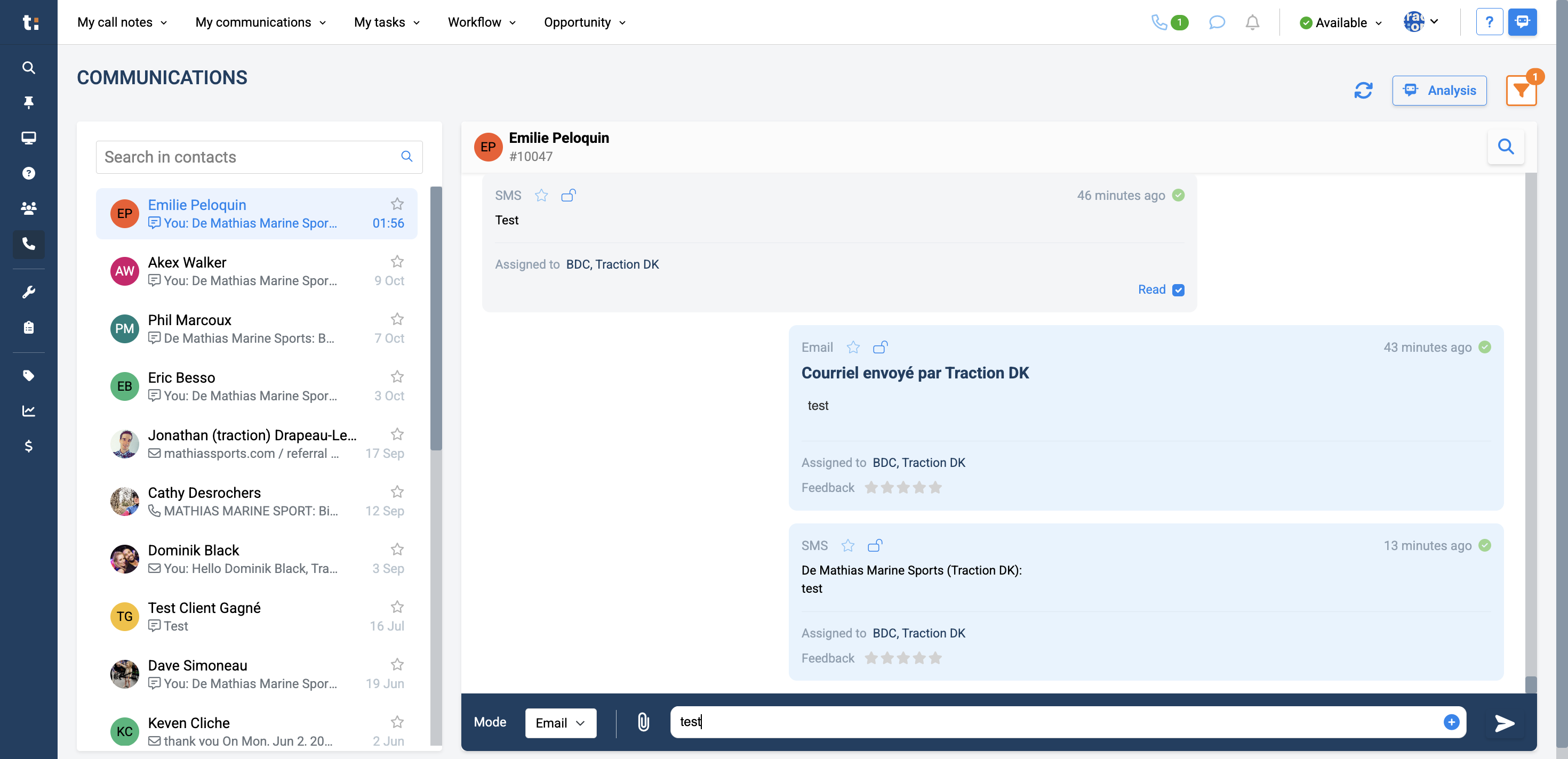
Type you message in the text box
9
Click the arrow to send your message
If you still have questions after consulting this article, please feel free to contact our support team at: support@tractiondk.zohodesk.com