How to Clock In and Out on the Internal Management System
Learn how to track your attendance by clocking in, granting location permissions, and clocking out using the DEXT dashboard.
By Asad Adams
Made with Glitter AI
Tracking your attendance in DEXT is a quick and straightforward process. Follow these steps to log in, record your arrival, and log your departure at the end of your shift.
Clock In
1
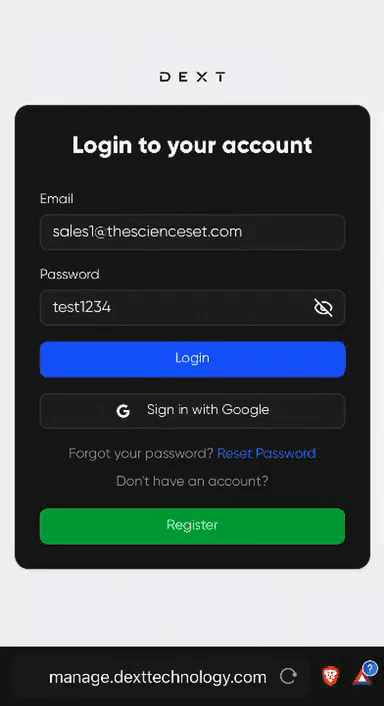
If you are not logged into the system, enter your email and password, then click Login to access your DEXT dashboard.
2
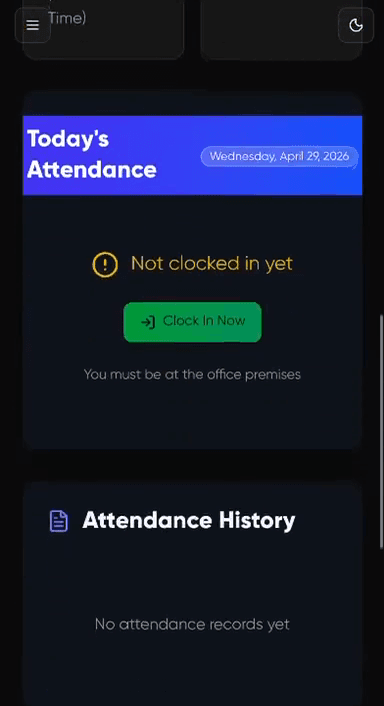
On your dashboard, scroll down to the Attendance Section ,click the green Clock In Now button.
3
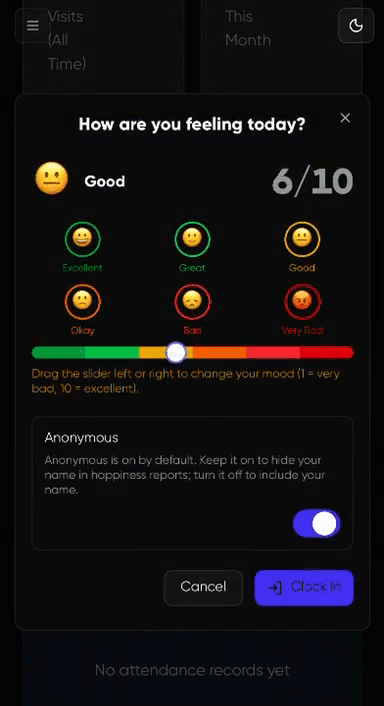
In the "How are you feeling today?" modal, optionally adjust your mood and click Clock In.
4
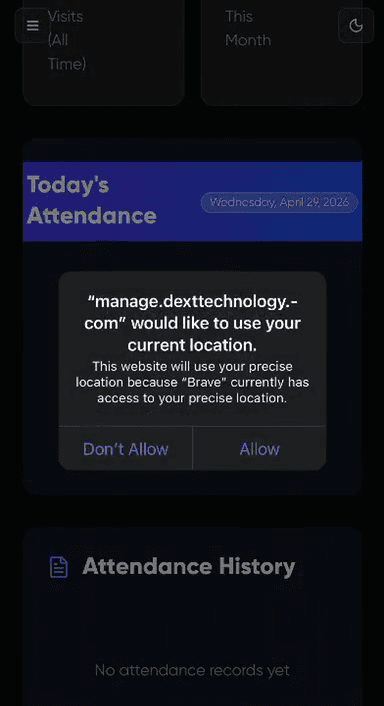
Click Allow on the browser prompt to grant the required location permissions.
Clock Out
5
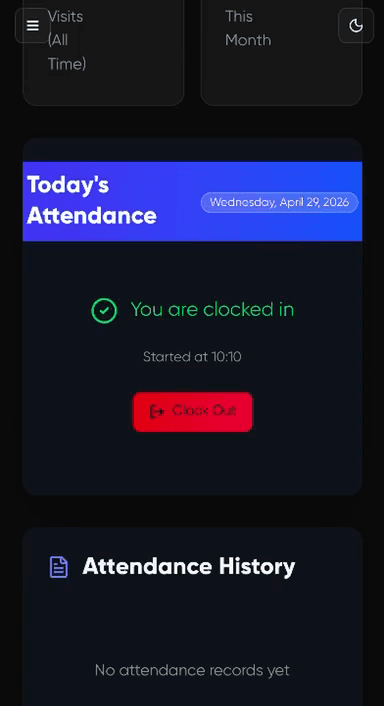
When you are ready to end your shift, navigate back to your dashboard and click the red Clock Out button.
6
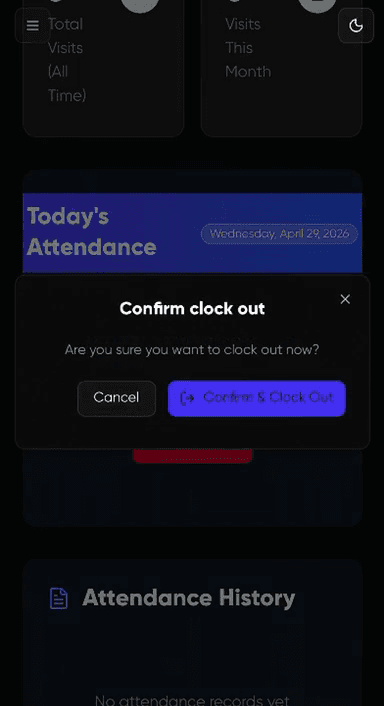
Click Confirm & Clock Out in the pop-up dialog to finalize your departure.