How to Clock In and Track Time in the Mobile App
Learn how to clock in, use the active timer for projects, and manually log past time entries in the mobile attendance dashboard.
This guide explains how to log your daily attendance, track active work time against specific projects(Activities), and manually record past time entries.
This process applies to all field and on-site employees responsible for tracking their hours during their shifts.
Time Tracking Options
Depending on your workflow, you can track time live or enter it after the fact.
Method | When to use | How it works | Where to find it |
|---|---|---|---|
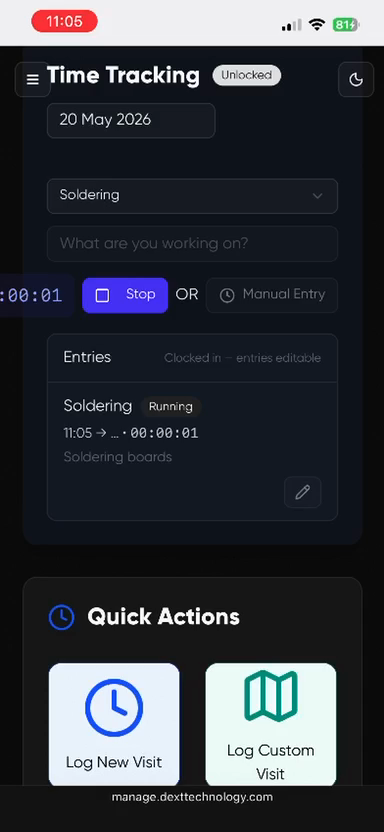
Active Timer | During your shift | Clocks you in and runs a live timer for your task. | "Clock In Now" dashboard |
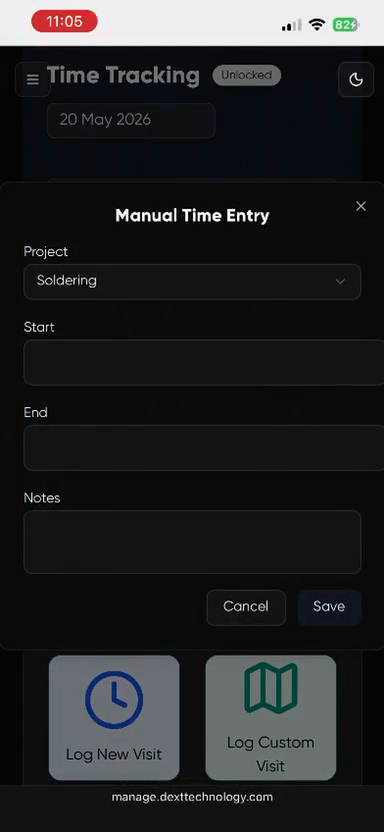
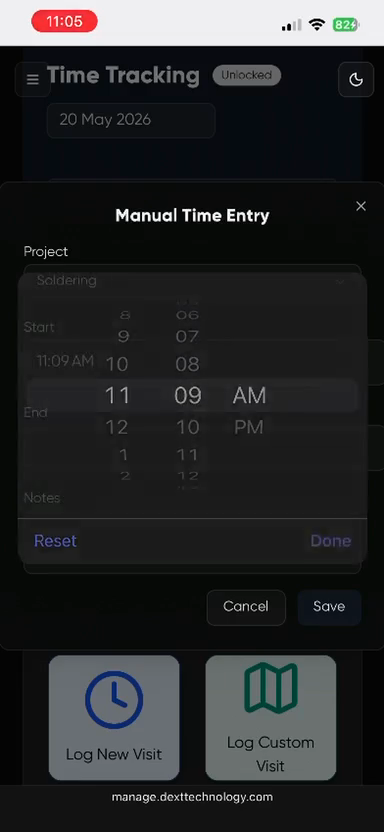
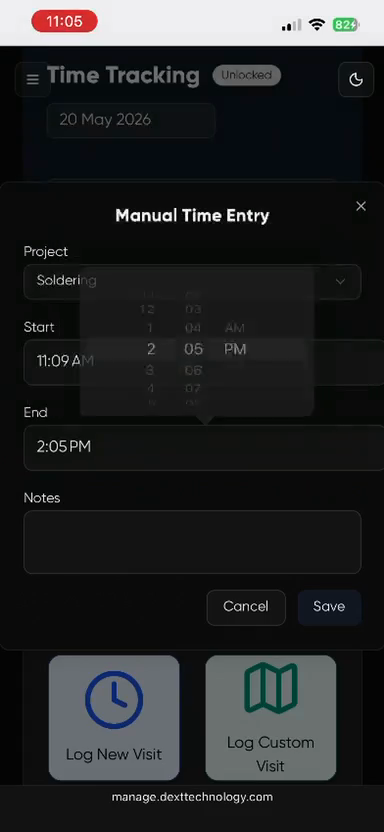
Manual Entry | After a shift | Allows you to backdate and log past hours. | Next to "Start" in the Time Tracking view |
Clocking In and Using the Active Timer
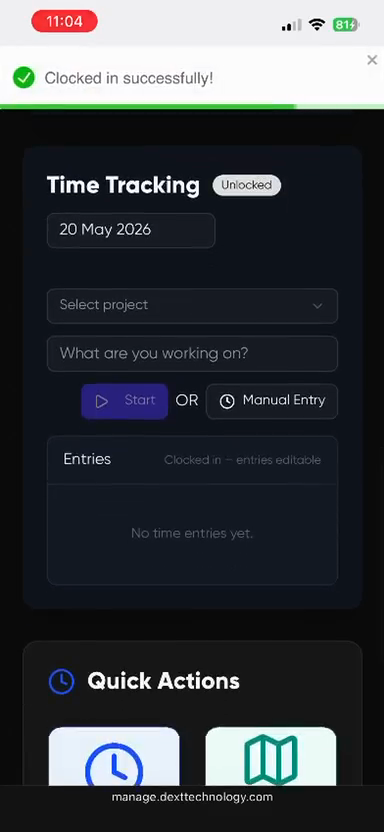
NOTE: Time management is active in between clock in & clock out Times
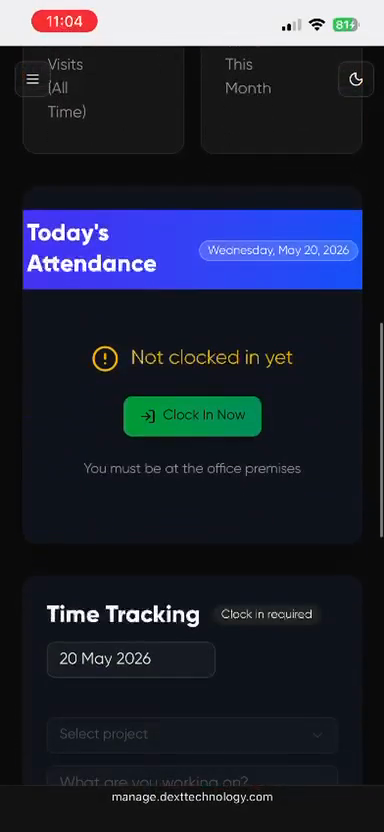
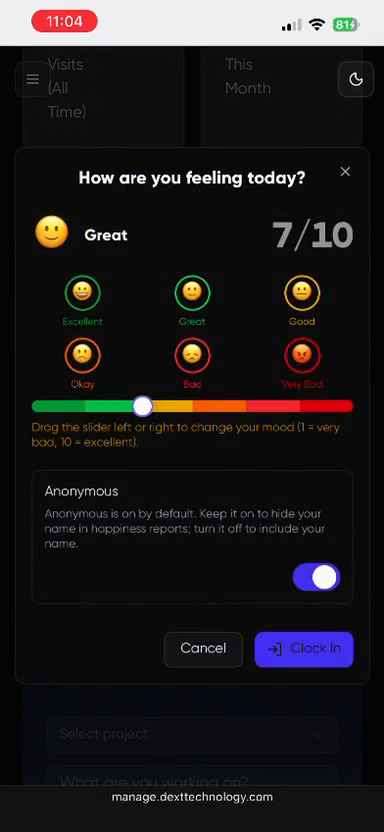
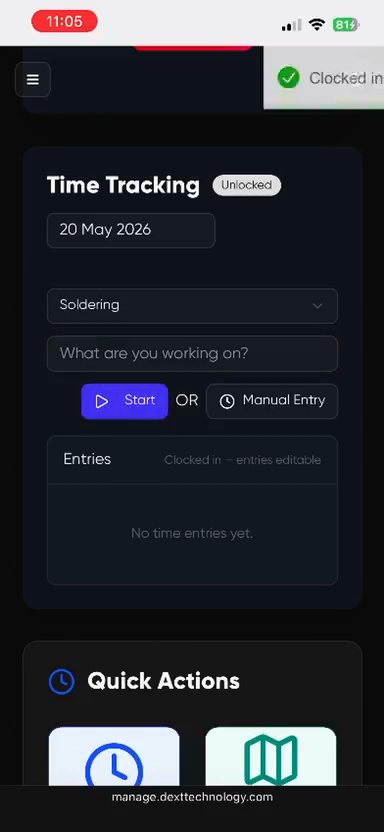
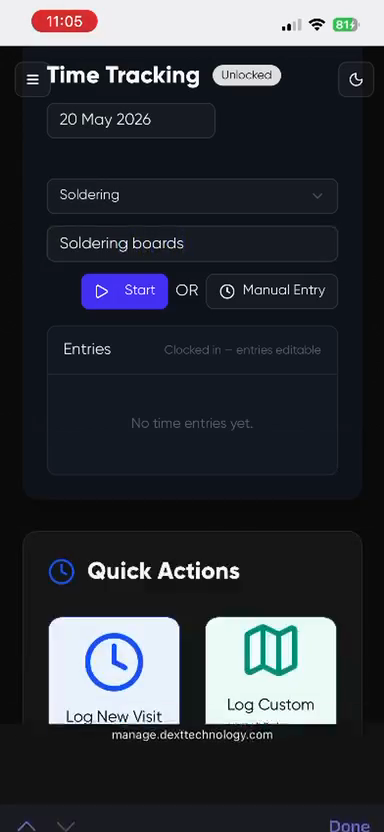
To start your day, use the main dashboard to clock in and begin tracking your first task.
Adding a Manual Time Entry
If you forgot to start your timer or need to log hours retroactively, use the manual entry option instead.
FAQ
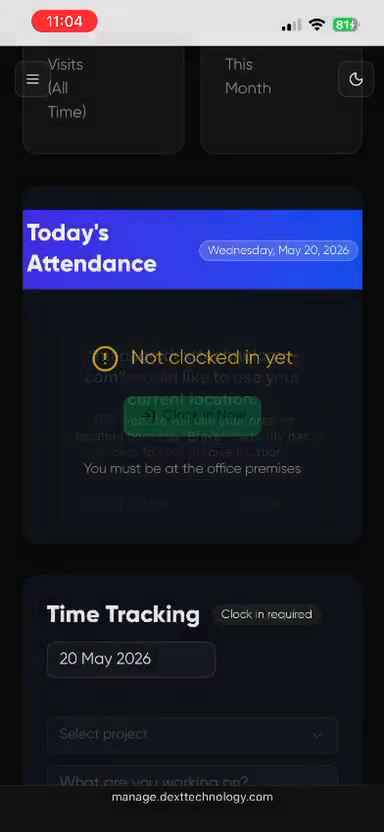
Q: Why am I prompted to allow location access?
A: The app uses geofencing to ensure employees are physically on-site when clocking in. Your location is only pinged at the moment of clock-in and is not continuously tracked.
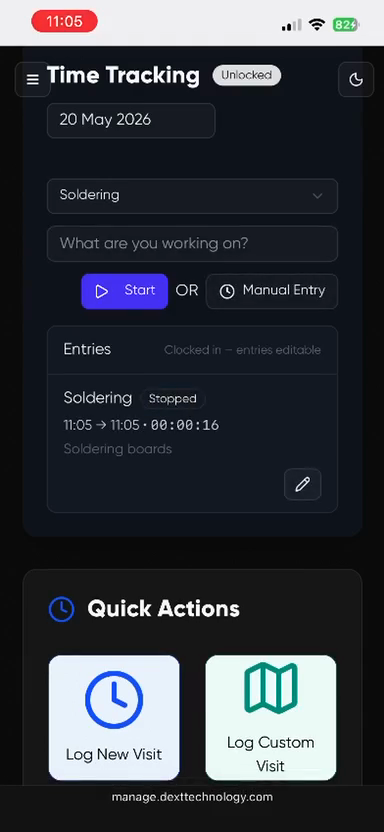
Q: What if I forget to stop my timer?
A: You can manually edit the time entry after the fact. Stop the timer, then edit the logged block or use the Manual Entry feature to log the actual time you stopped working.