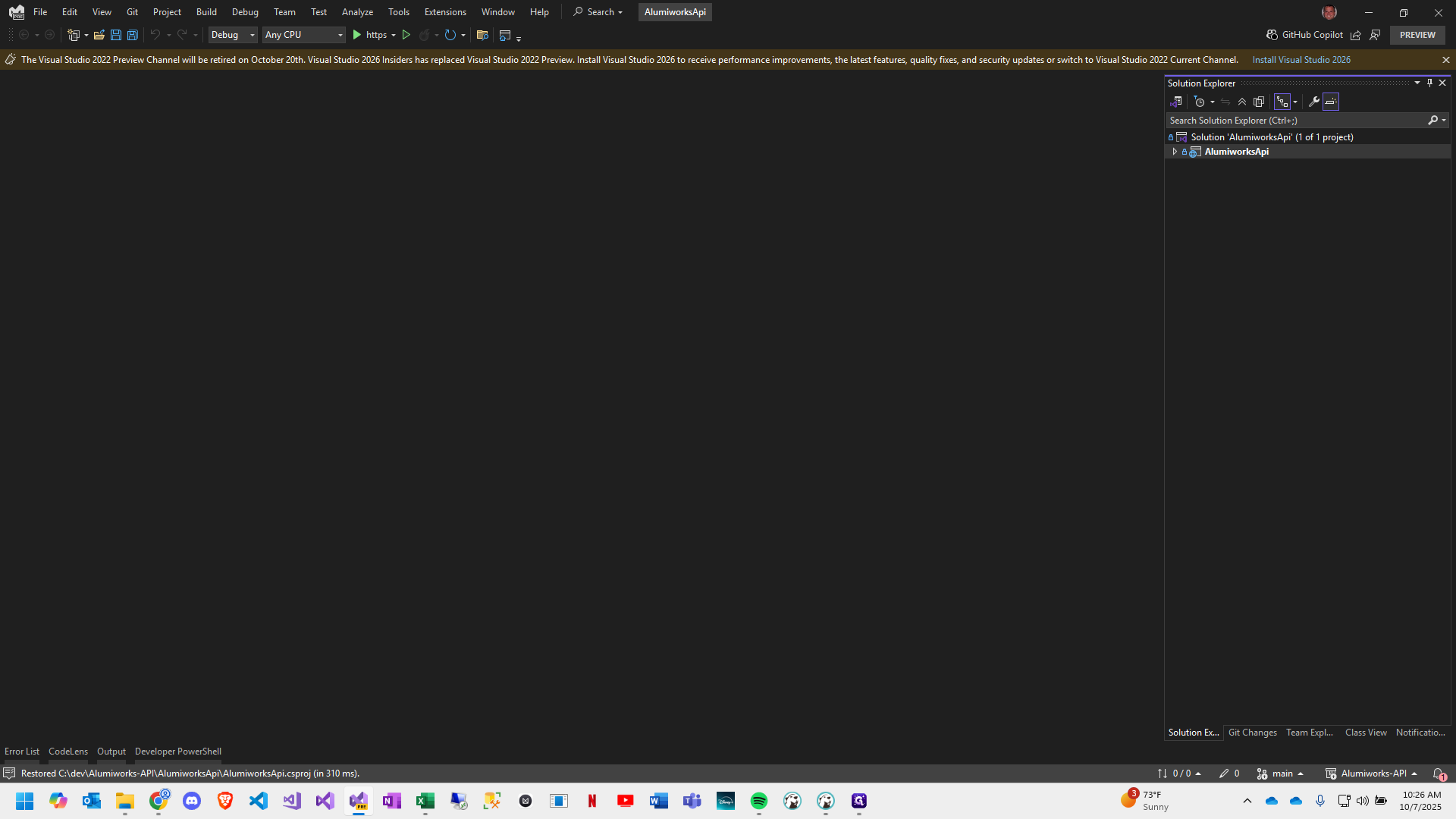
How to Clone a project from Azure DevOps (for use within Visual Studio 2022)
Learn step-by-step how to clone a project from Azure DevOps into Visual Studio 2022. This guide covers accessing your repository, copying the clone URL, and setting up your project directory for a smooth development workflow.
By William Carinci
In this guide, we'll learn how to clone an API project from Azure DevOps and set it up in Visual Studio 2022. This process helps you get a local copy of the project so you can work on it in your development environment.
You will use Google Chrome to access the repository and Visual Studio 2022 to clone and manage the project files. Following these steps ensures the project is organized in the correct directory.
Let's get started
This guide will show you how to clone an API project for use in Visual Studio 2022. Open Google Chrome.
1
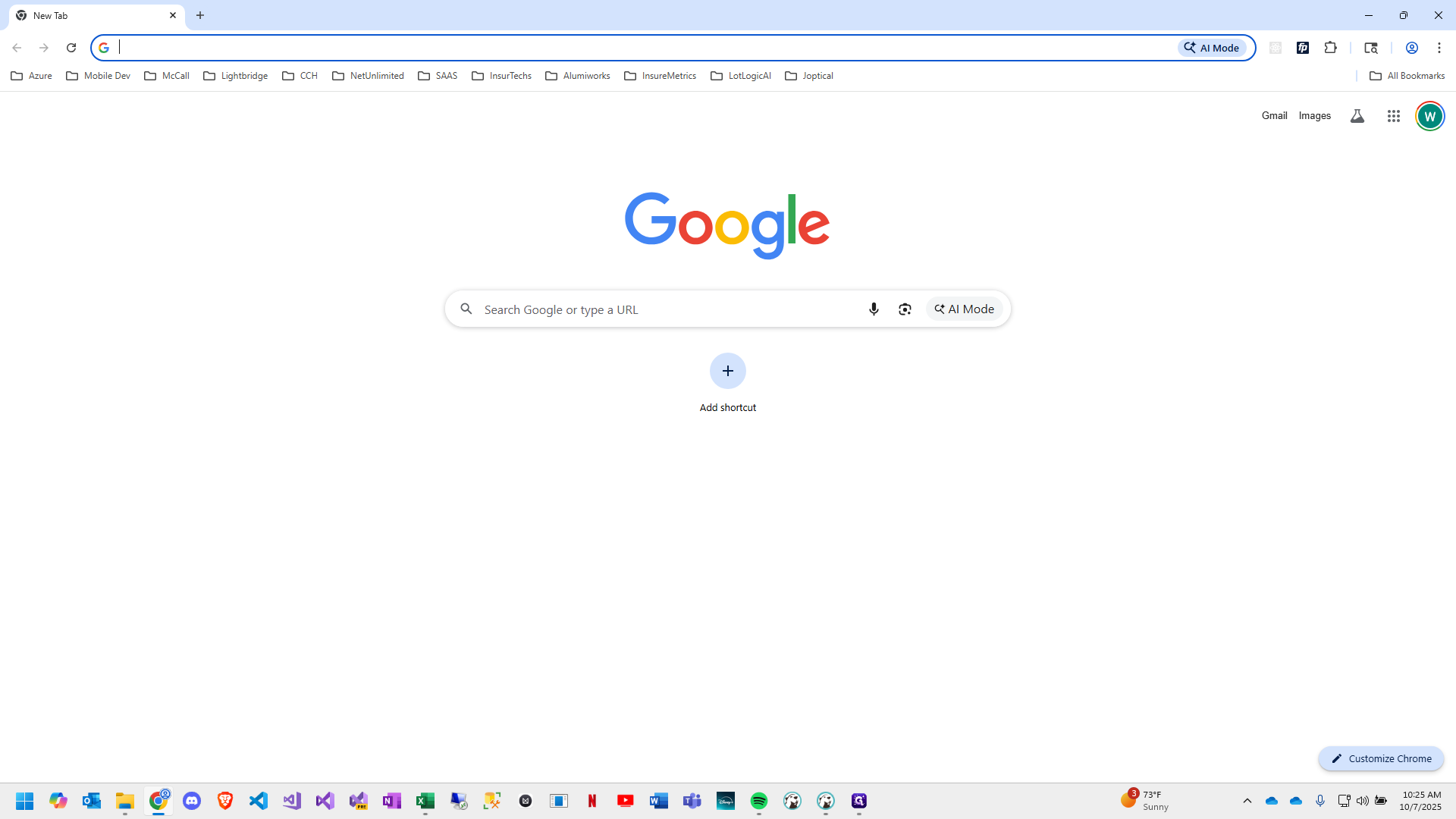
Open Google Chrome

2
Navigate to "https://dev.azure.com/actssolutions"
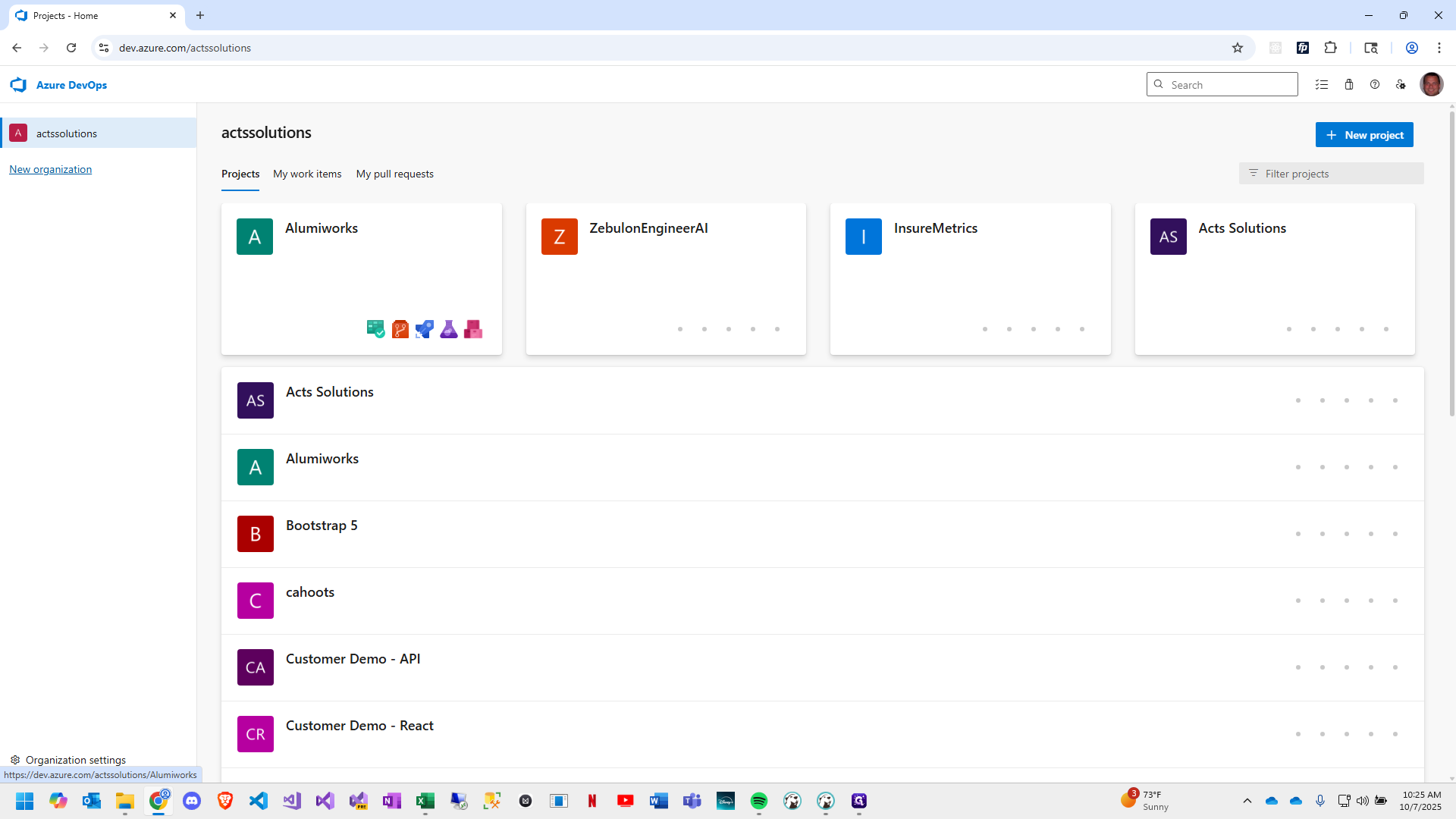
3
Select the top-level project you want to clone
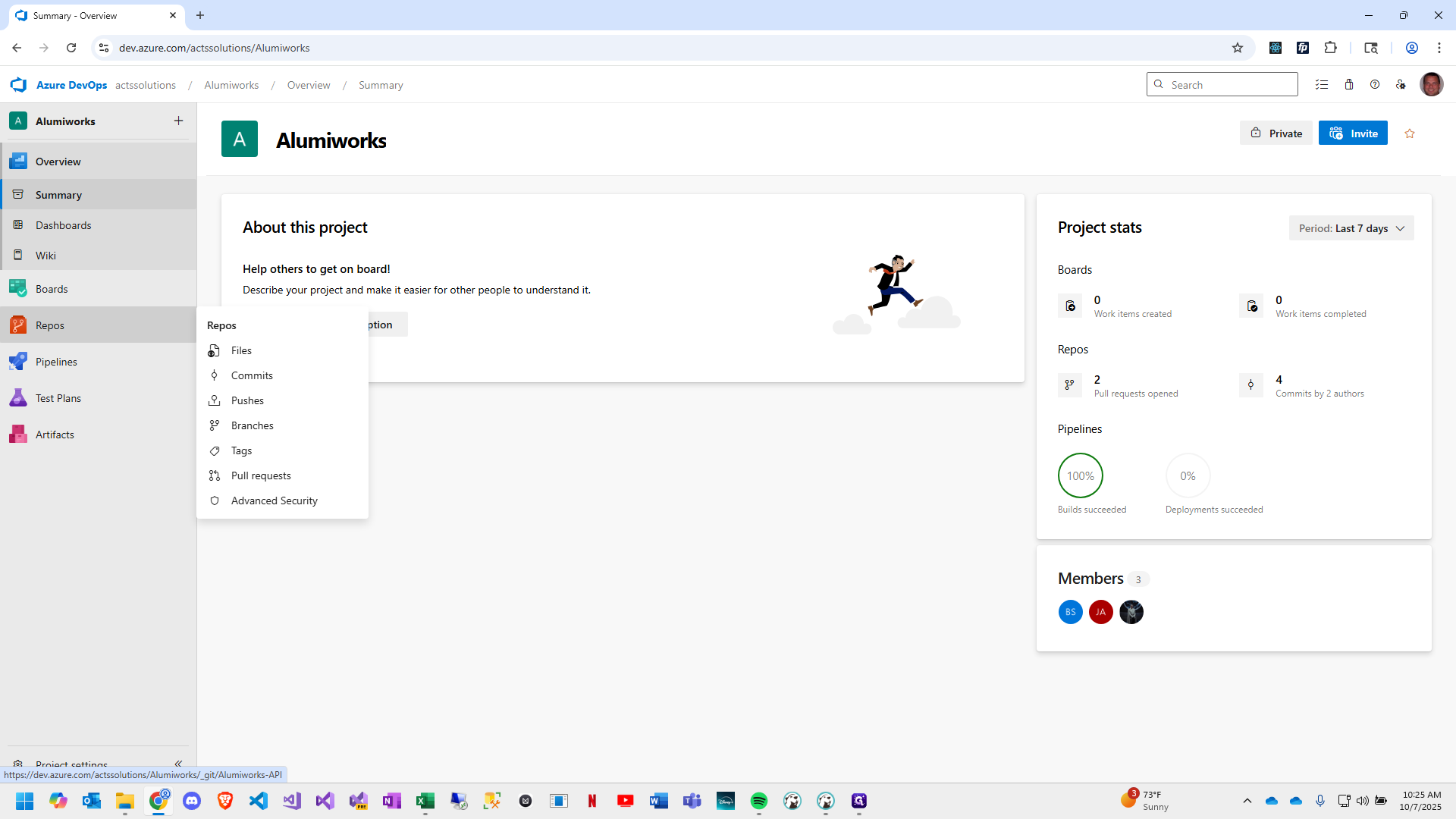
4
Choose Repos
5
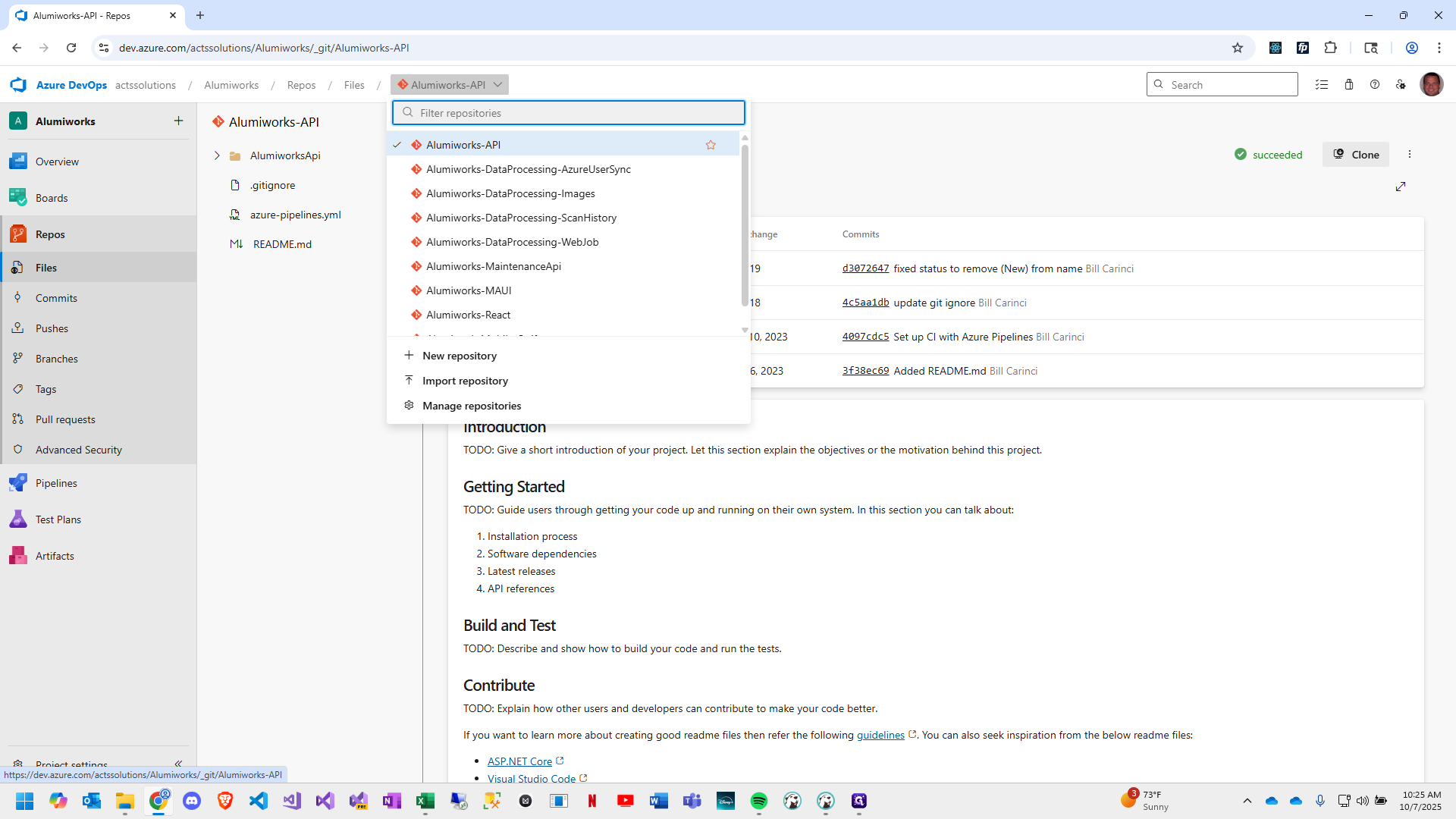
Click on "Alumiworks - API"
6
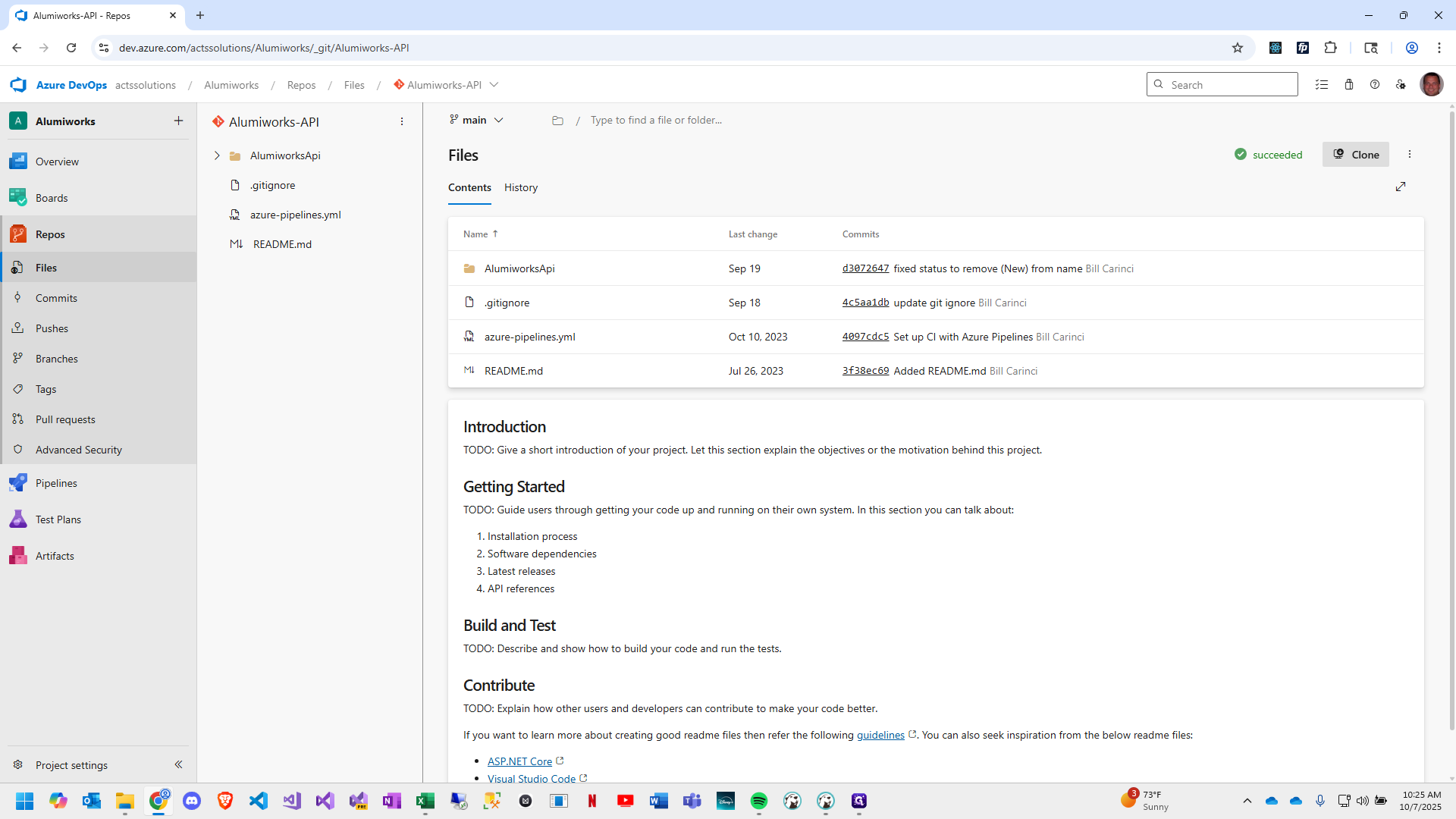
Click on "Clone"
7
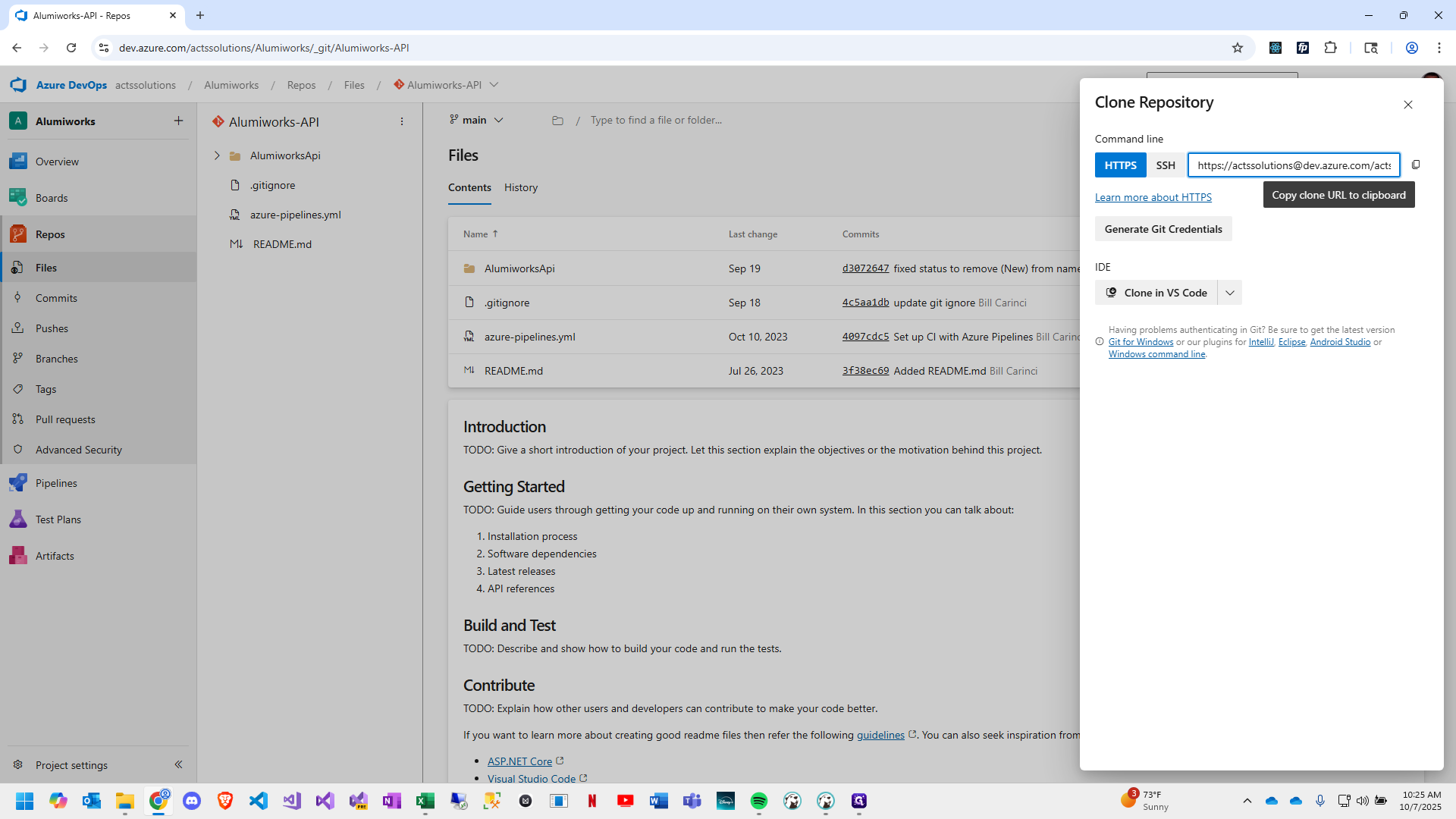
Click the Clipboard icon to copy the URL to your clipboard, then minimize Chrome.
8
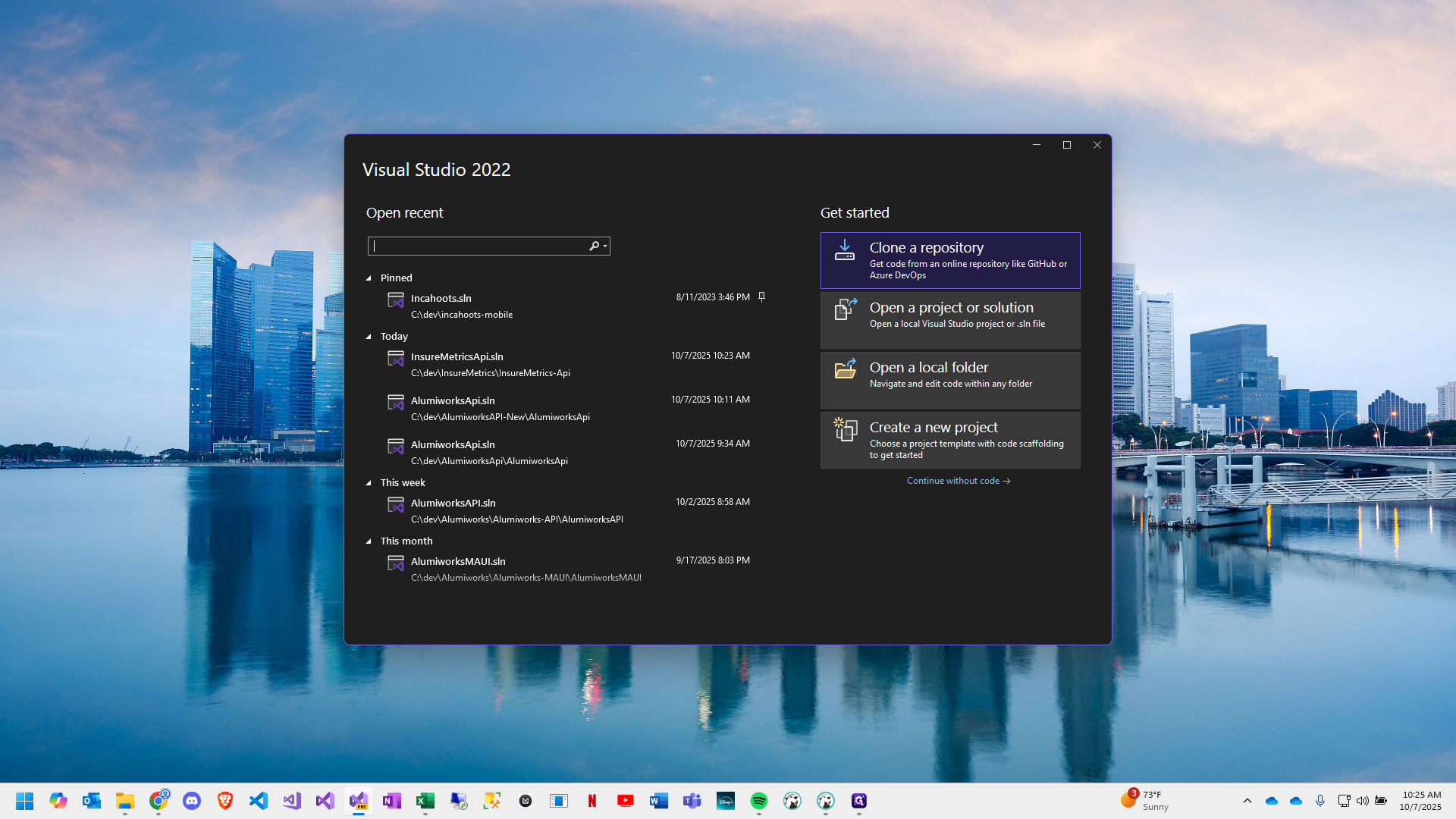
Open Visual Studio 2022.

9
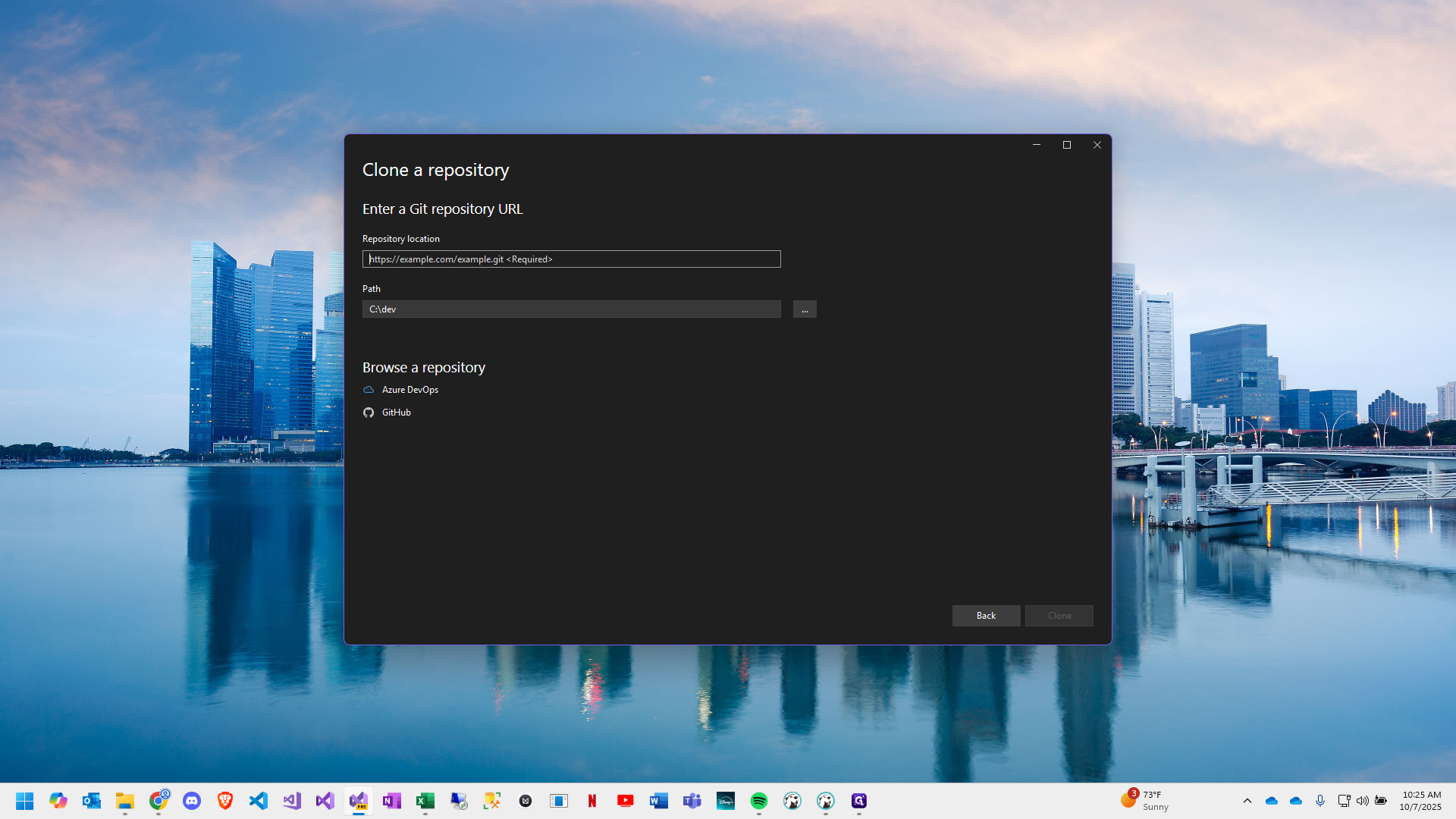
Select "Clone a repository"
10
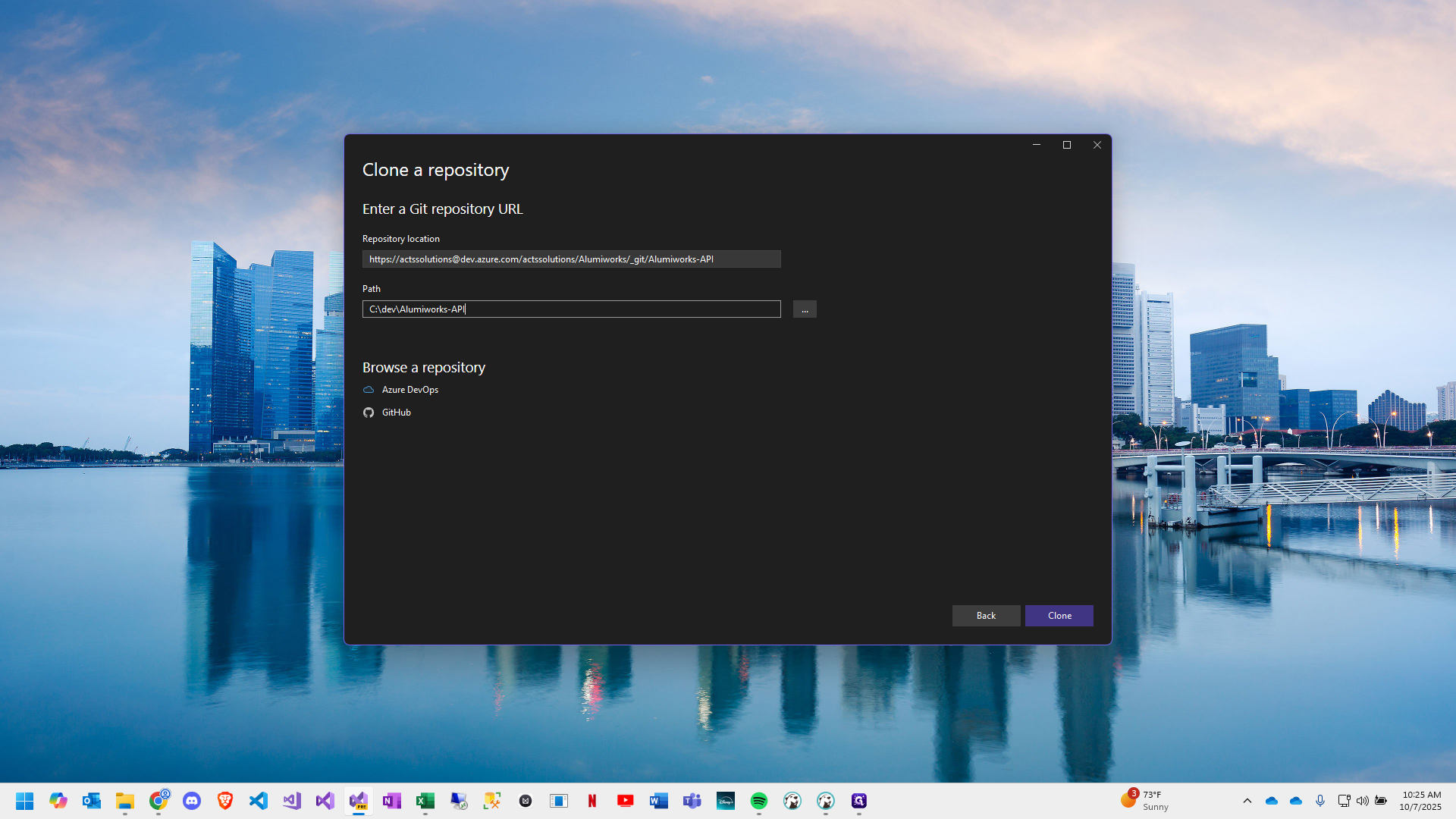
Paste the repository link you had copied
11
Enter the path for the project to be created. Unlike when cloning to VS Code, make sure to specify a subdirectory.
12
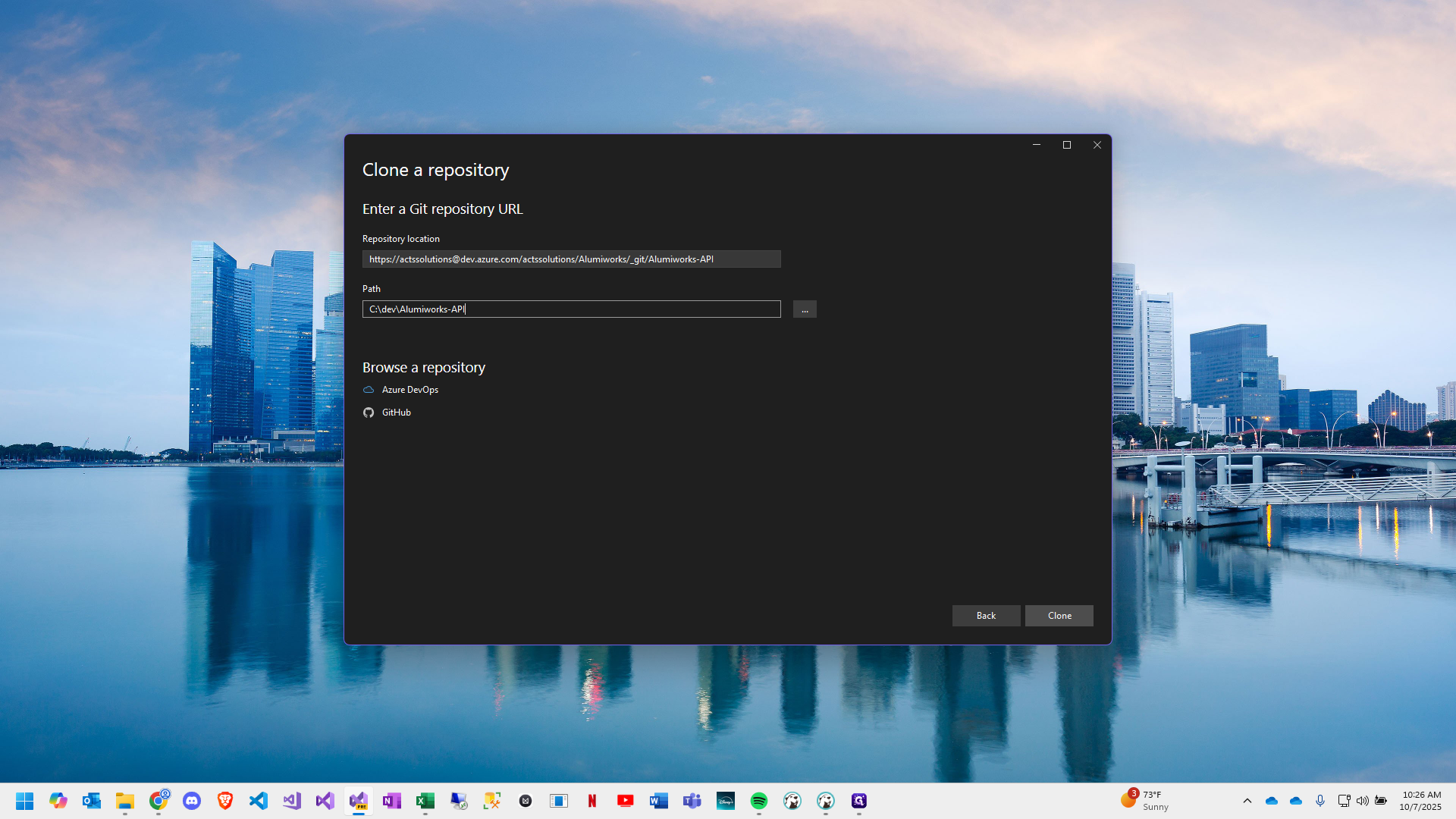
Click on "Clone"
13
After the cloning has finished, expand your project to verify it was successful