
How to Close Out a News Day: Step-by-Step Rundown and Archiving Process
Learn the complete process for closing out a news day, including cleaning up rundowns, managing stories in Asana, printing scripts, and archiving for quarterly reports. Perfect for newsrooms using Rundown Creator and Asana.
In this guide, we'll learn how to close out a news day using Rundown Creator and Asana. This process helps you organize, clean up, and archive your daily newscast, making it easier to prepare for future broadcasts and maintain records for compliance and reporting.
You'll see how to update rundowns, manage story statuses, print and file scripts, and ensure all information is ready for quarterly reports.
Let's get started
Good morning. I will show you my process for closing out a news day. After I finish the news for the day, this is what I do to wrap up. Alright. I have a rundown for today in Rundown Creator.
It's already open. You will also need an Asana project called KASU News Revamp. These steps are also included in the KASU News Editorial Planner, which is available in Asana. Okay. First, I received a few new stories.
I had to rearrange a few stories for the newscast. This process involves cleaning up the rundown, printing it, filing it, and preparing for the next day's rundown. Alright. First, before I continue, in Rundown Creator, I have this story: Byron Black x., Rap. I didn't use it this morning.
I put it above the bullpen to remind myself that I haven't used that story yet. All right. Since the expiration is set for today, 08/04/84, I can simply delete it.
I will need to pay attention to this. Alright. First, let me delete it. You can right-click and select Delete Row to remove a row, or press Control+Shift+D on your keyboard to do the same.
Move and delete skipped stories in today's rundown.
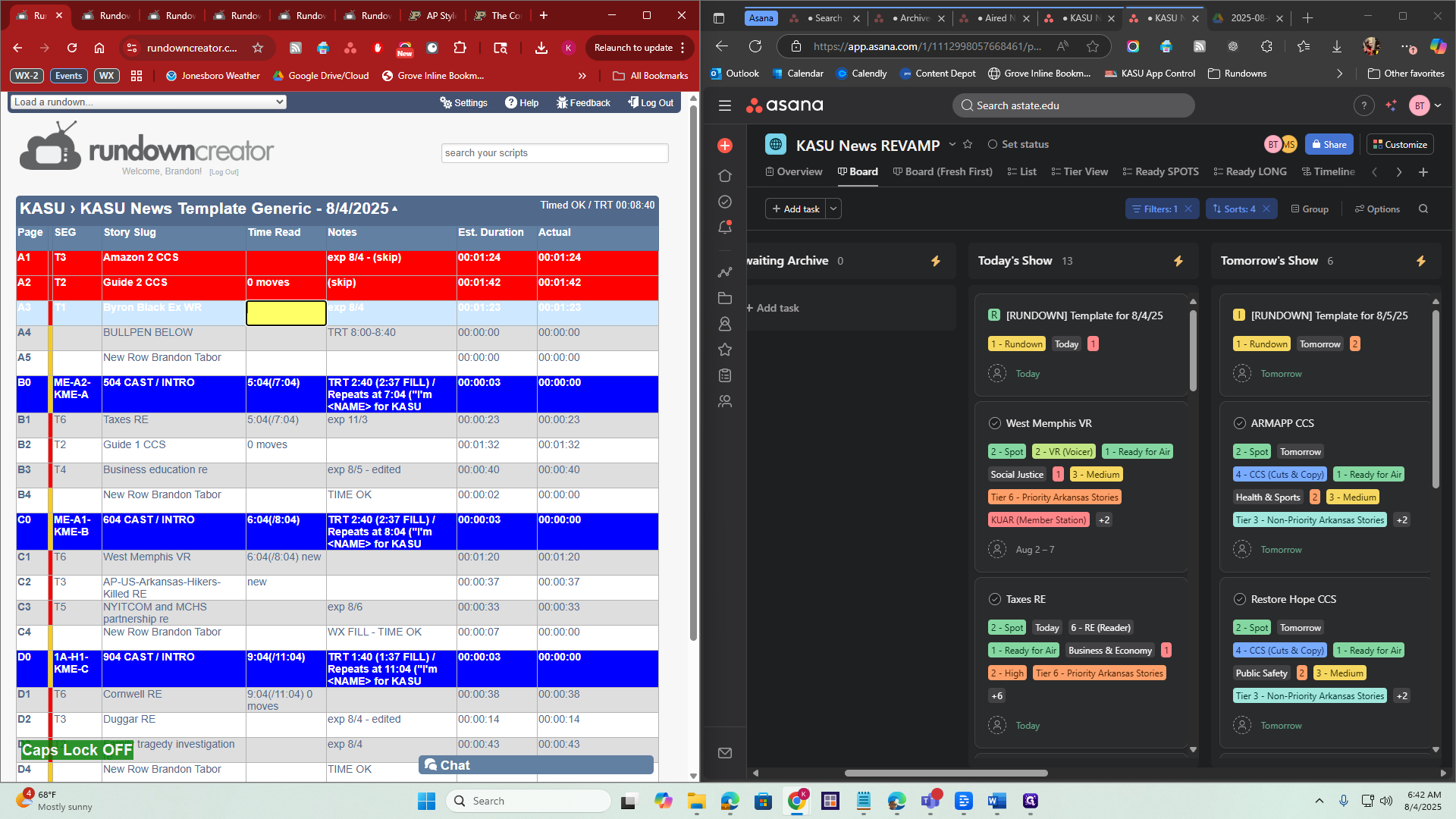
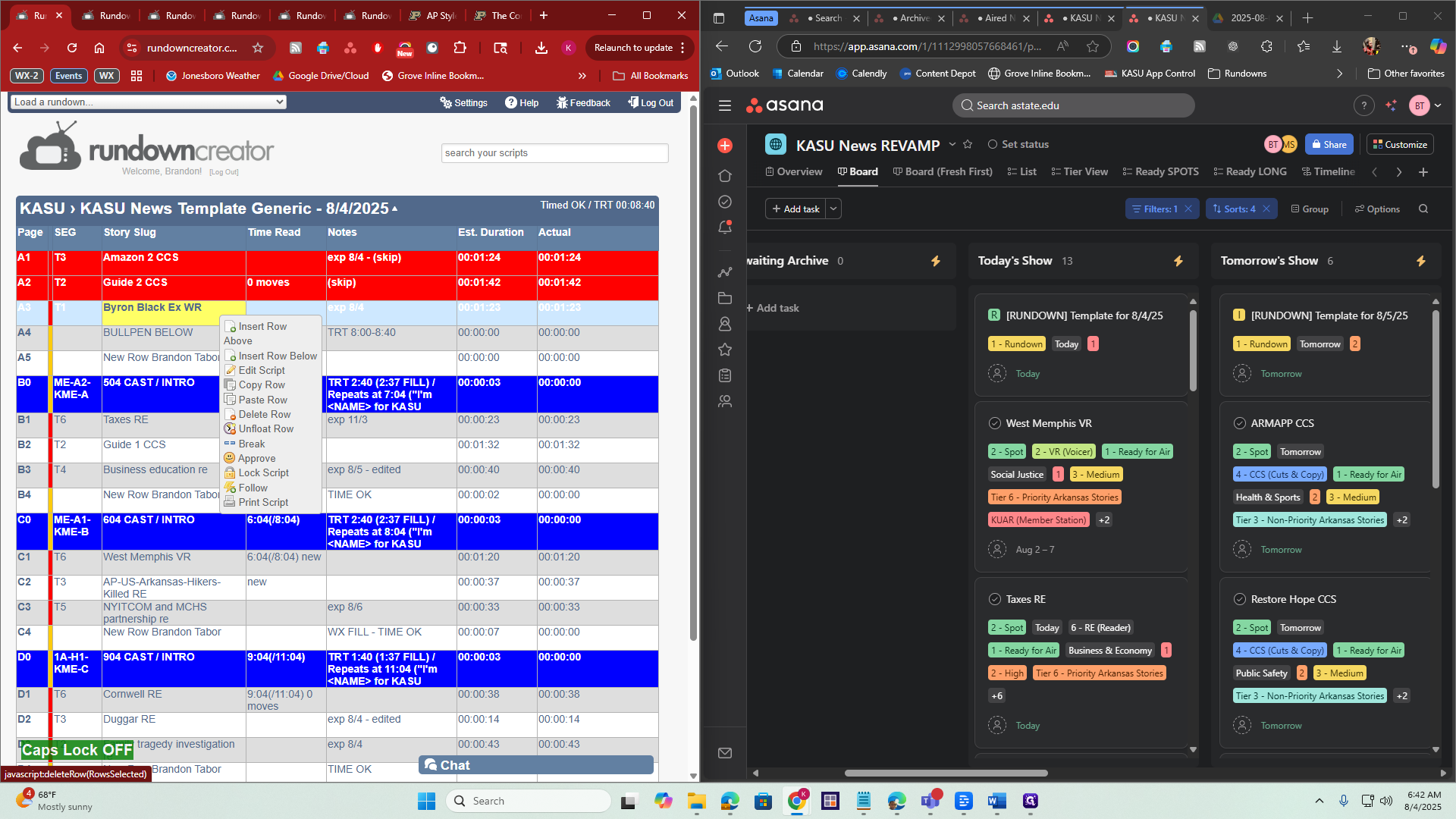
Alright. I just deleted that story. Now, I need to go to KASU News Revamp. It's easy to do this simultaneously to help keep track. I will find the story I deleted, Byron Black. I can go to the section labeled "status," select "ready for air," click on it, and then choose "Skip."
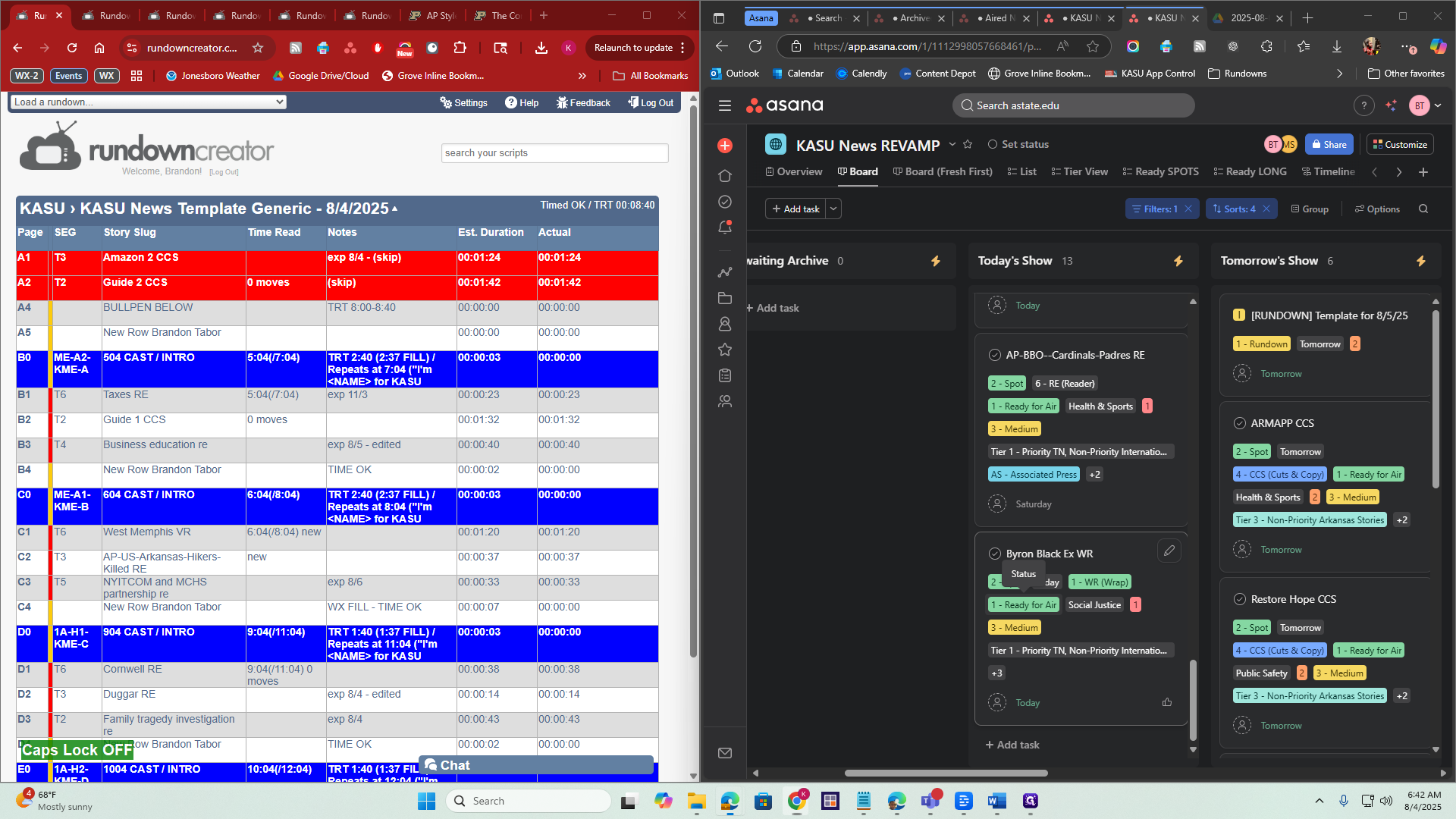
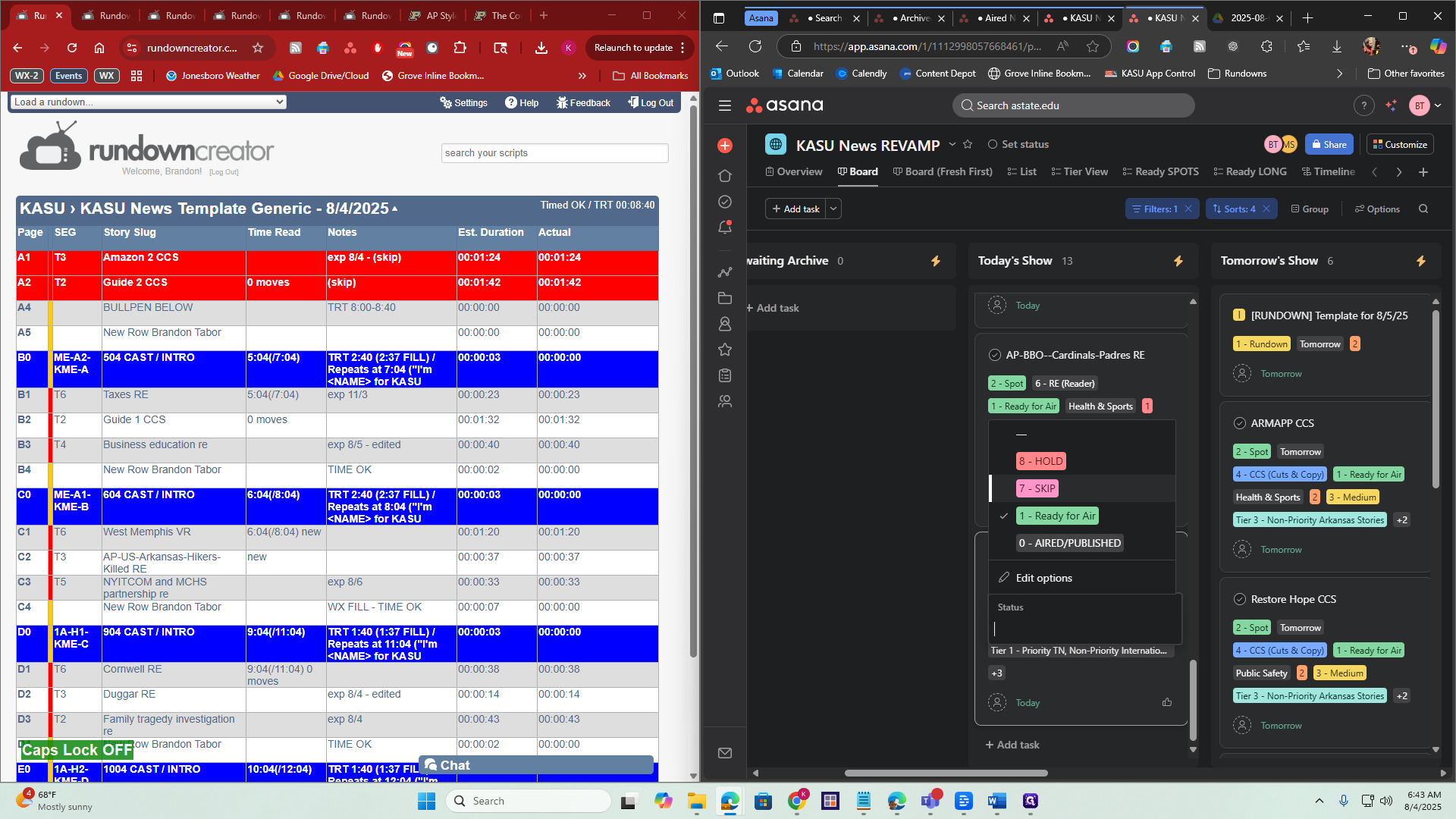
All right. It hides it from the board. It's still on the board, but it's hidden to prevent confusion and keep things organized. Alright. Back in Rundown Creator, I didn't use these two stories in the rundown. Instead, I could skip them.
I'll highlight both rows and delete them.
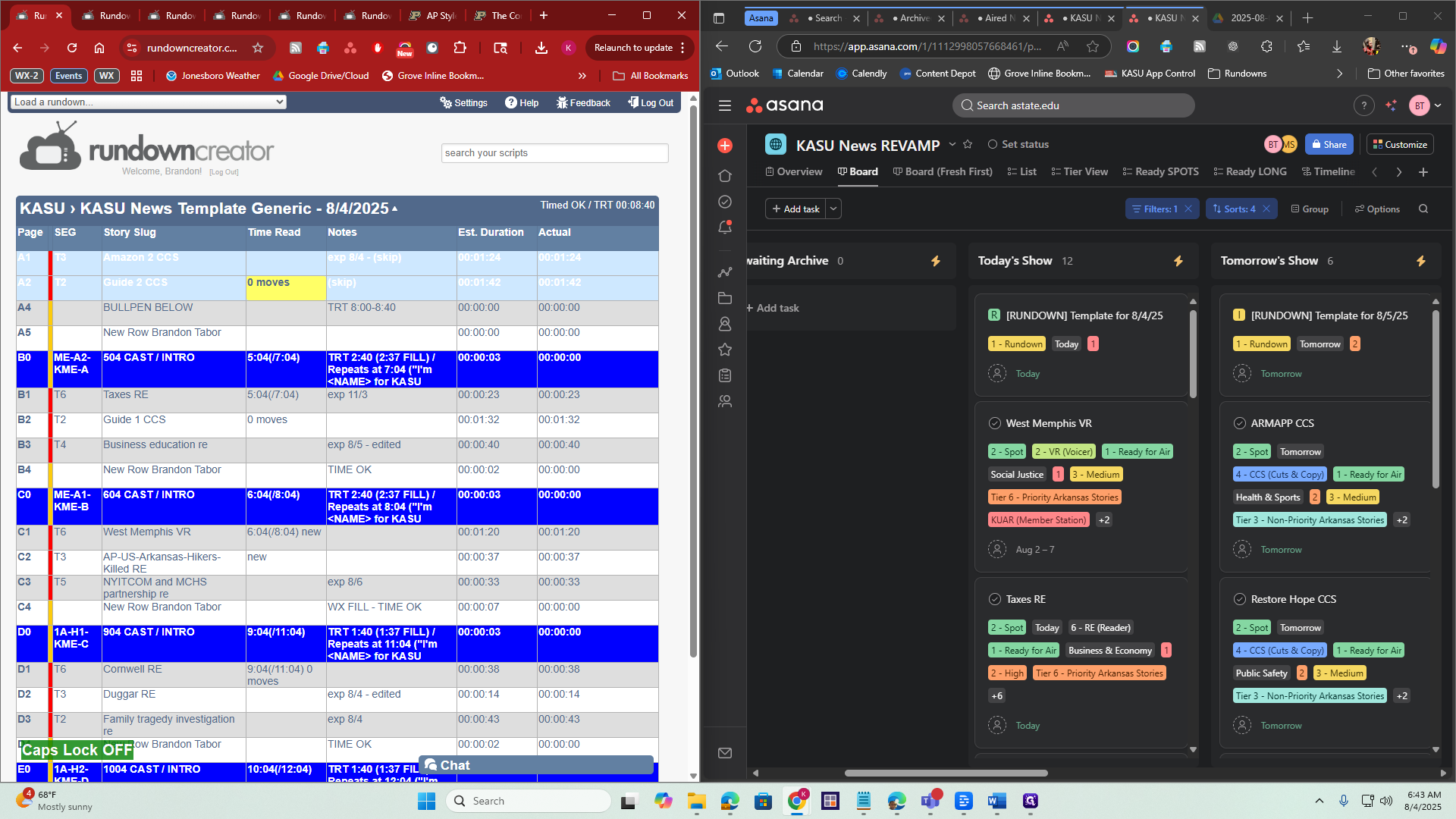
To delete multiple rows, highlight them using Shift. Then press Control+Shift+D to delete all selected rows.
All right. I also don't need the bullpen or this blank row anymore.
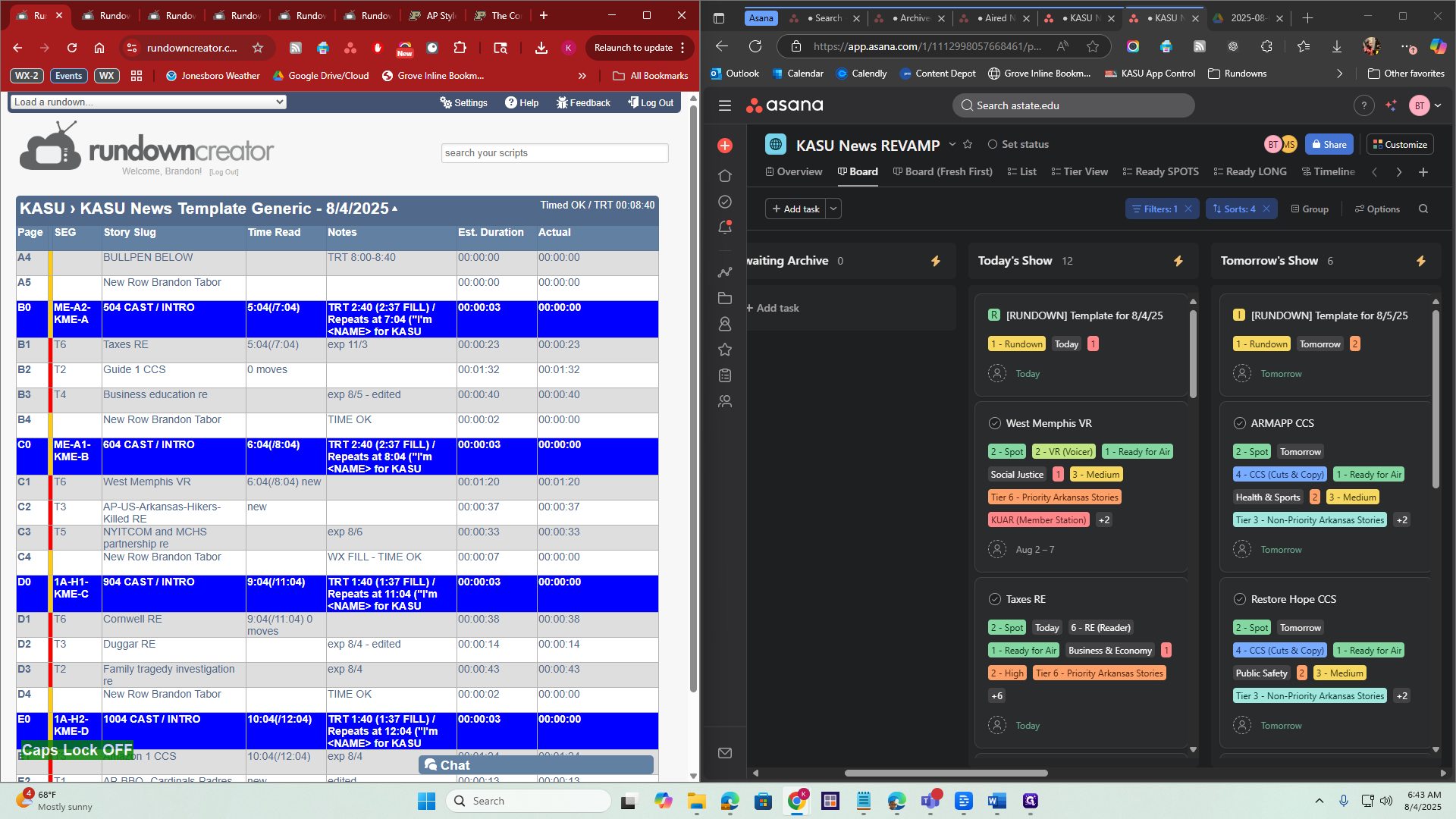
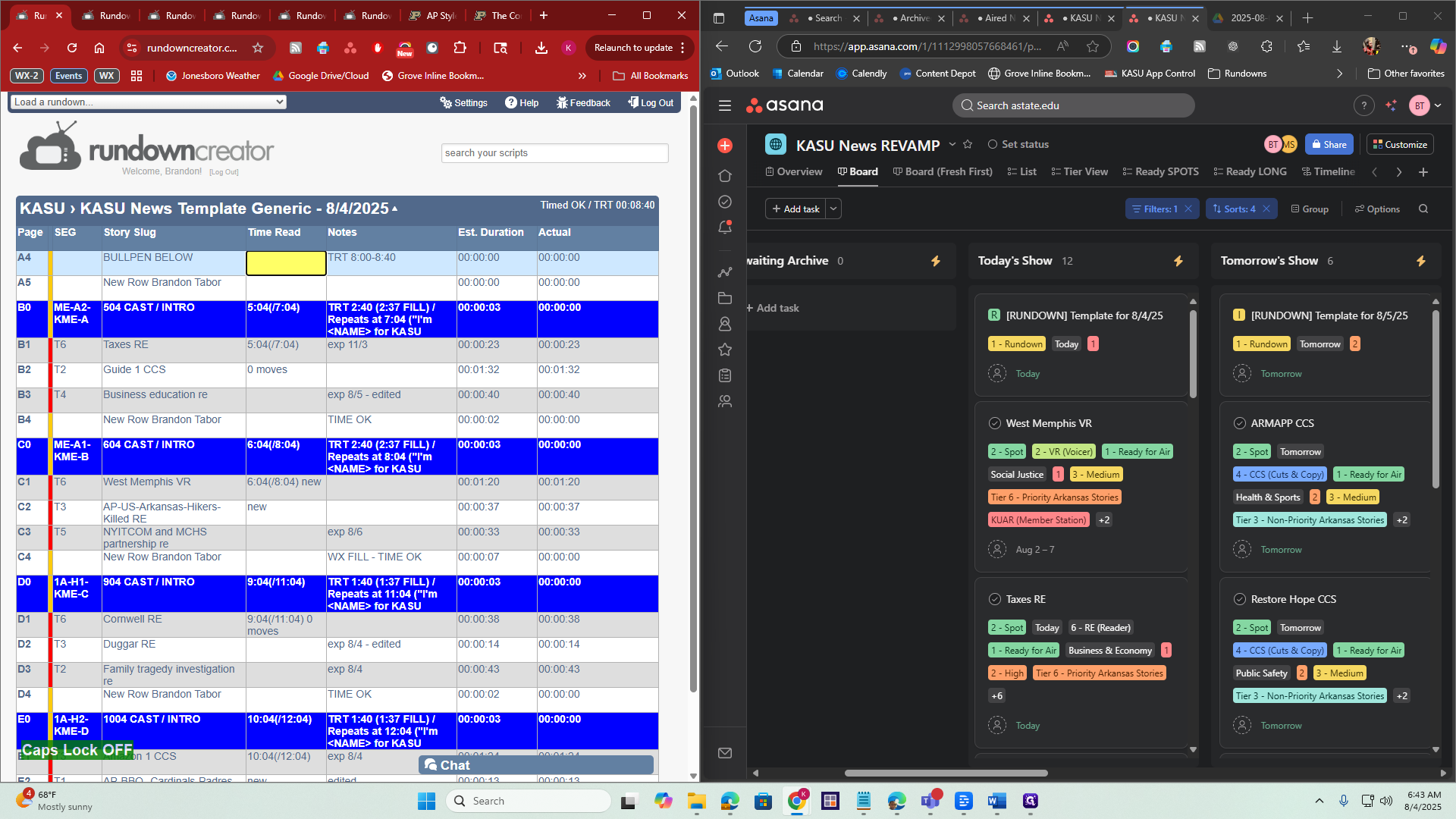
Press Control+Shift+D on the keyboard to remove it.
Print rundown & scripts and file away
All right. Now I have only these four newscasts left. Now, I will clean up these rows by removing unnecessary notes. I'm going to remove this here, then here, clean this up, and get rid of this.
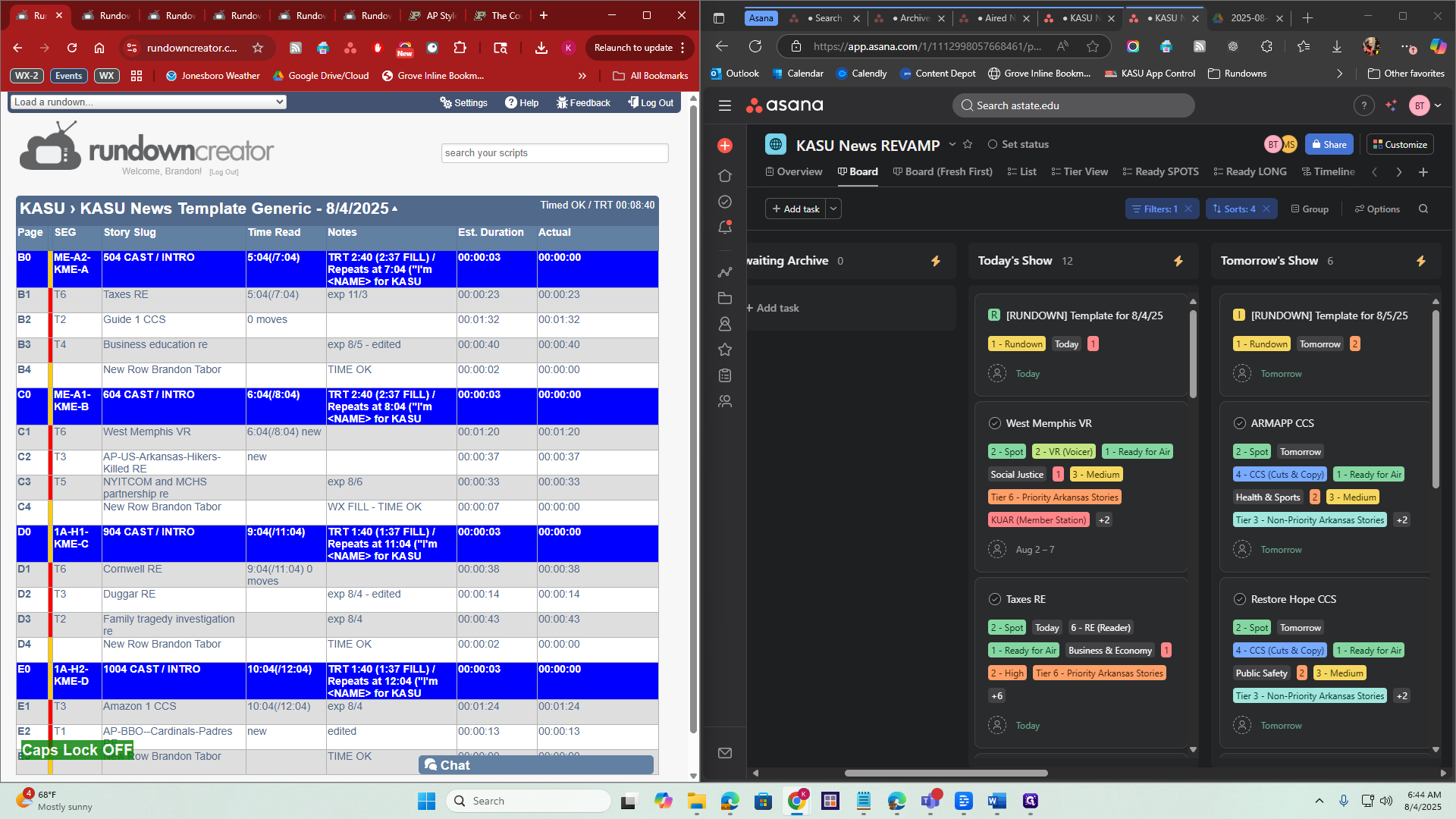
I only leave time notes and mark where it says "edited" to keep a record of which stories were edited for time.
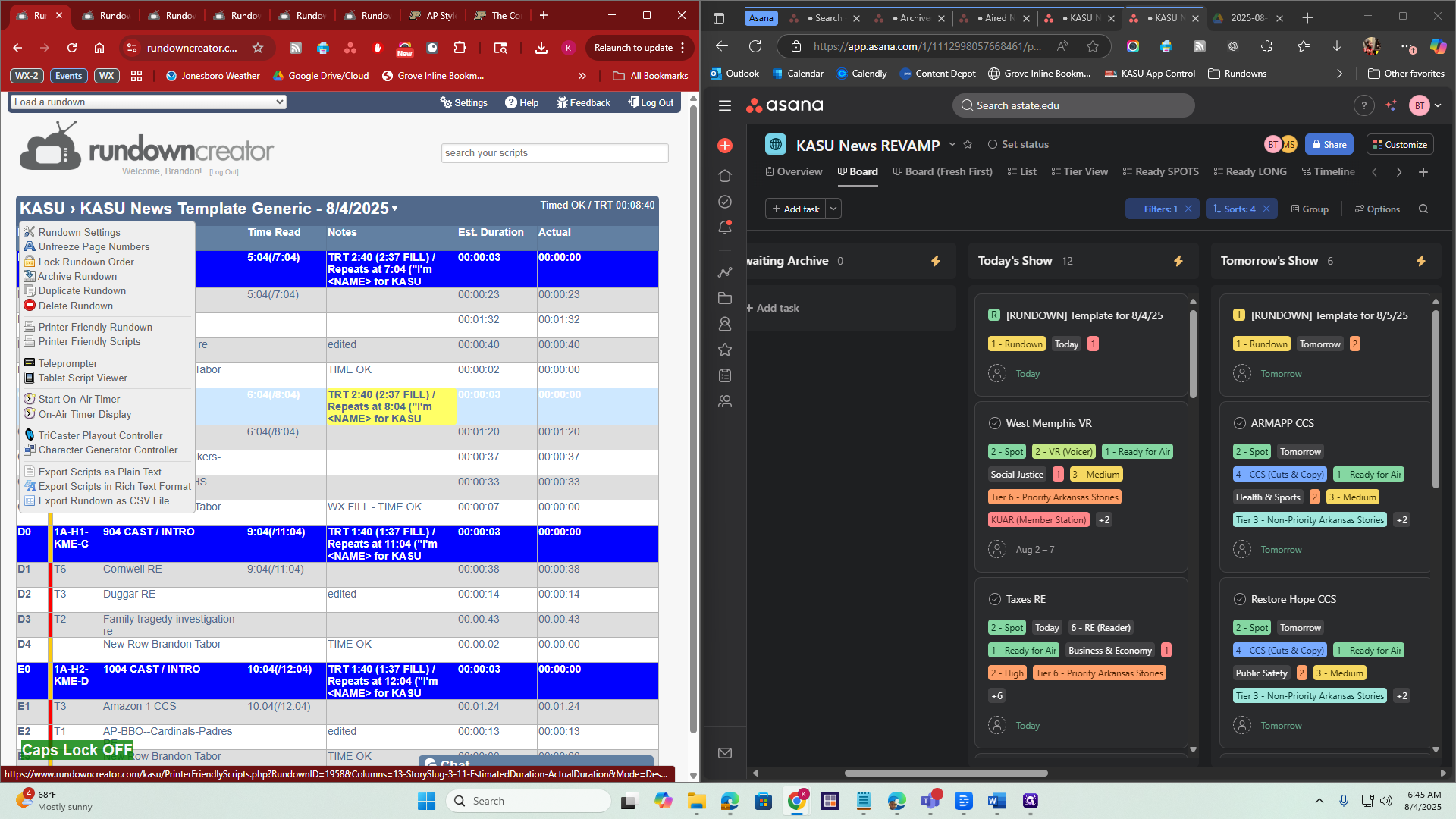
Now that everything is cleaned up, the next step is to print it. I will click on the name of the rundown at the top. In the dropdown menu, select Print Friendly Rundown.
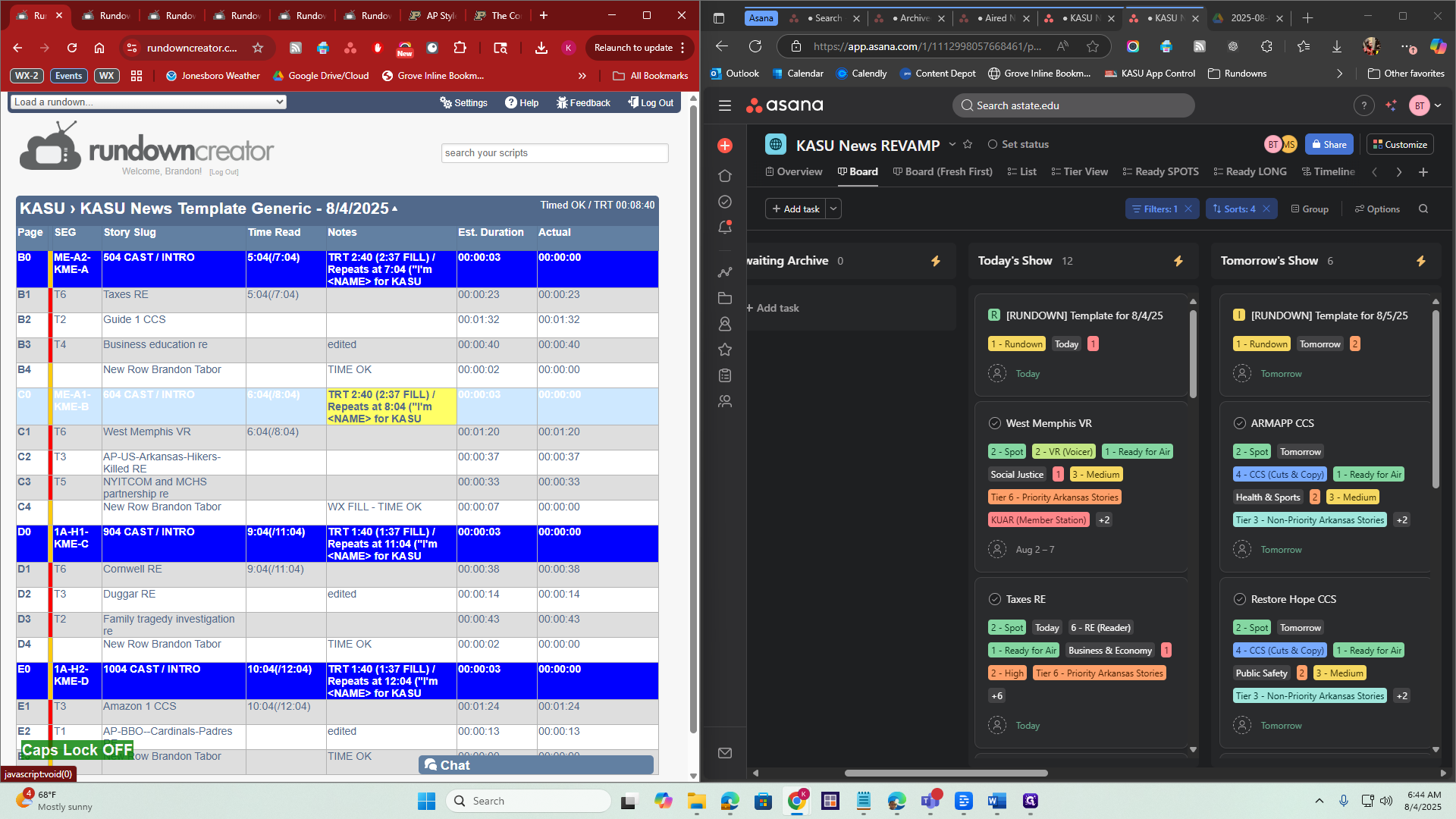
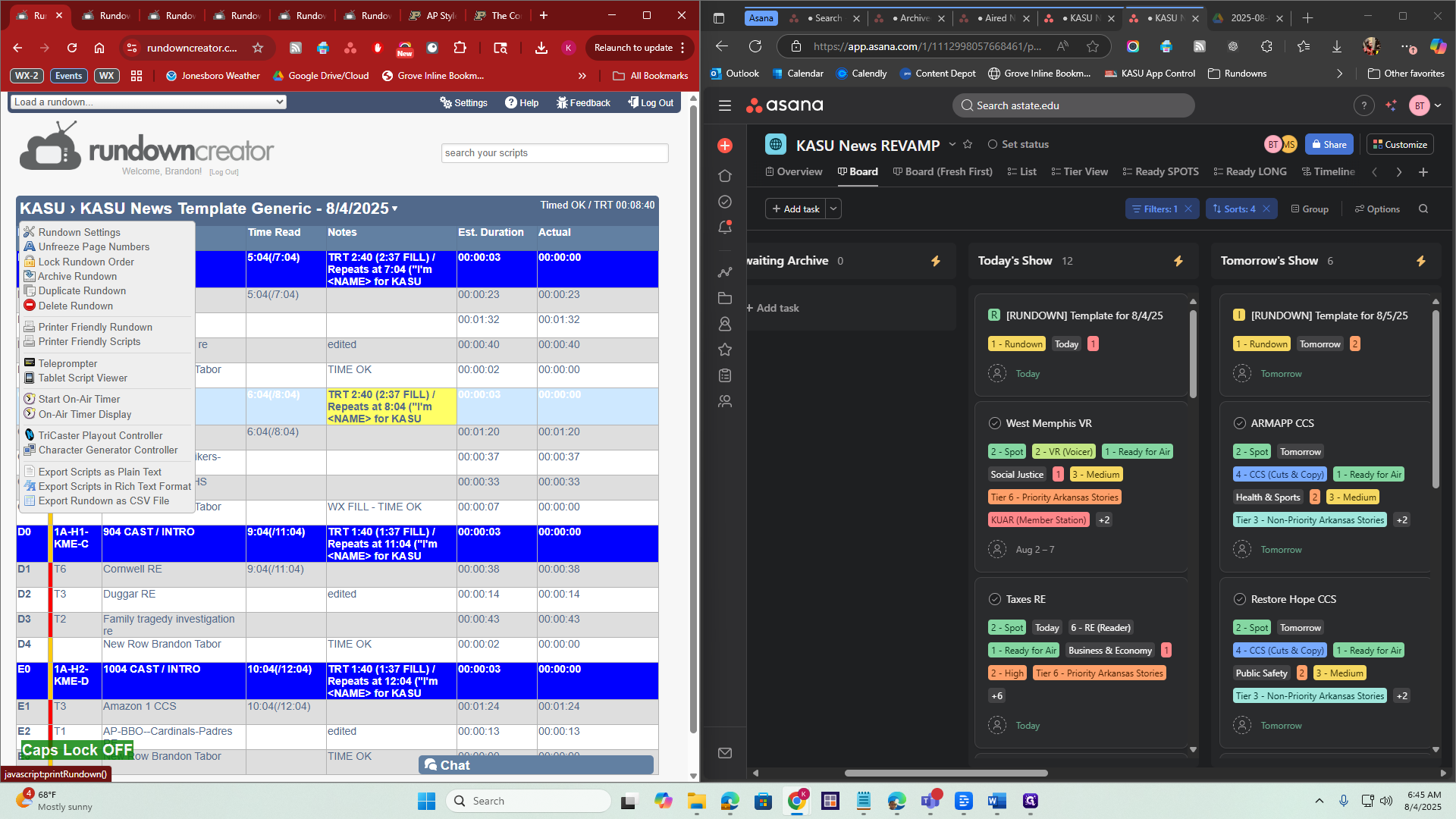
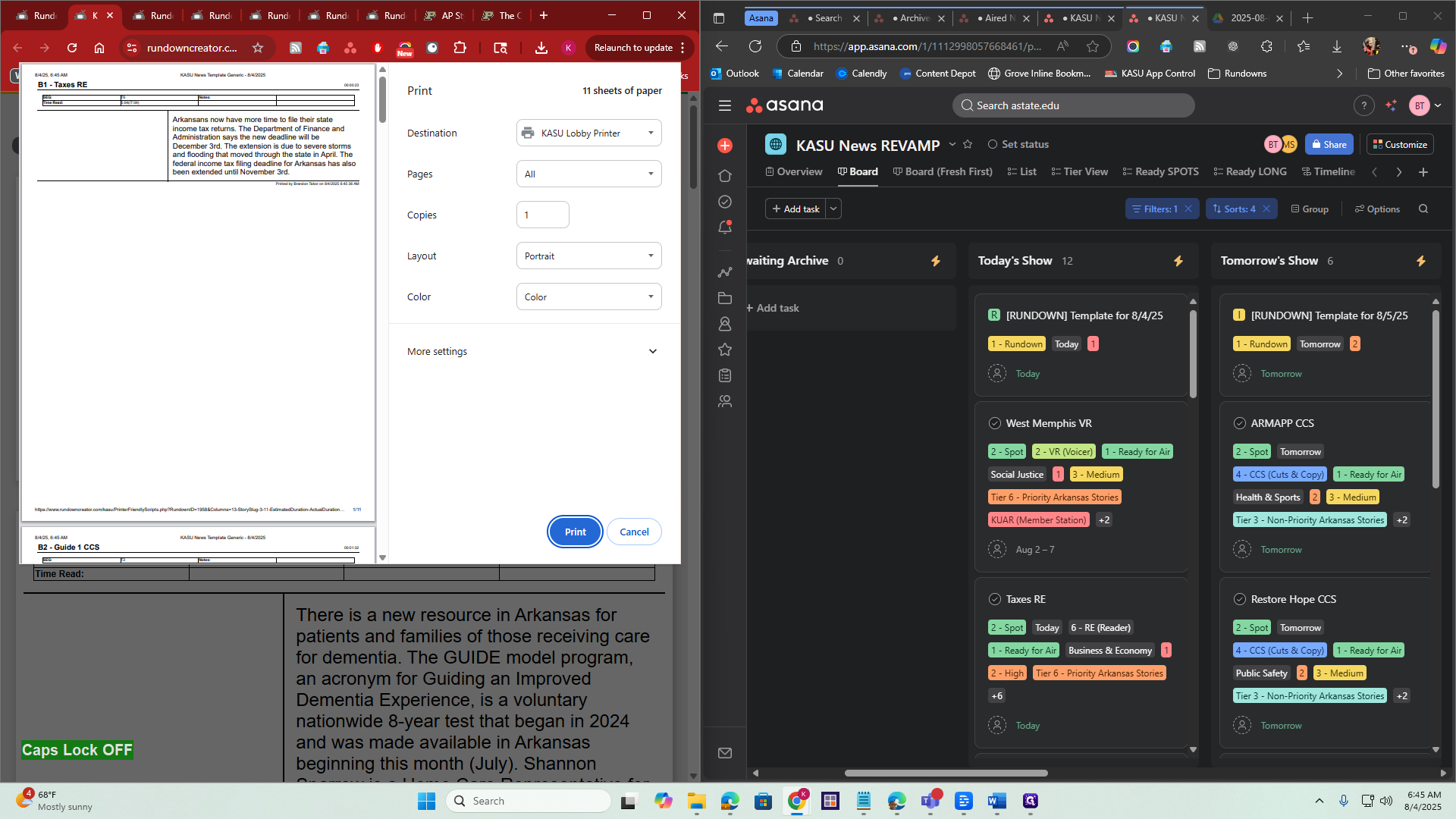
It will open a new window. Right-click and select Print. Ensure the lobby printer is selected, then click Print.
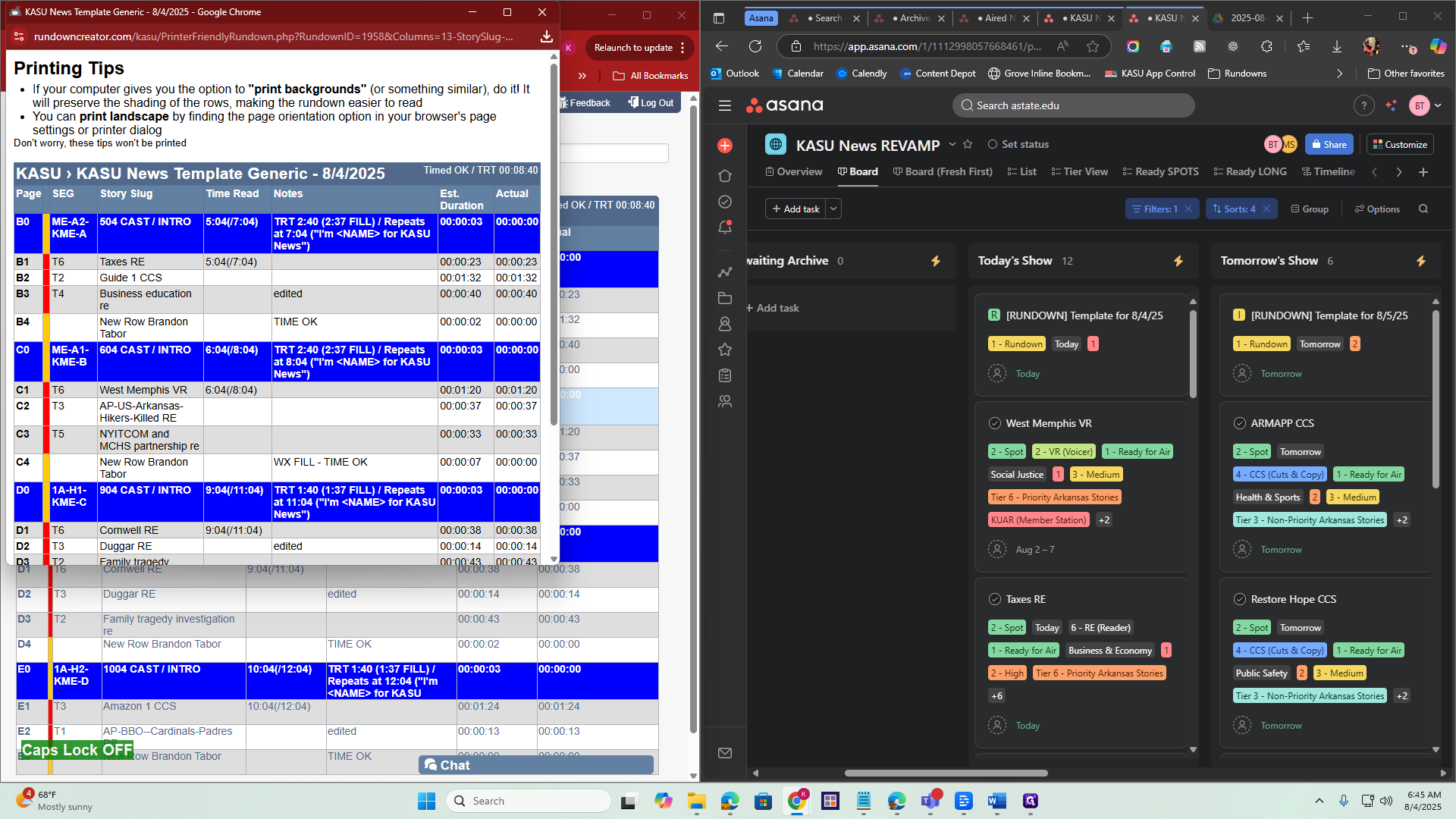
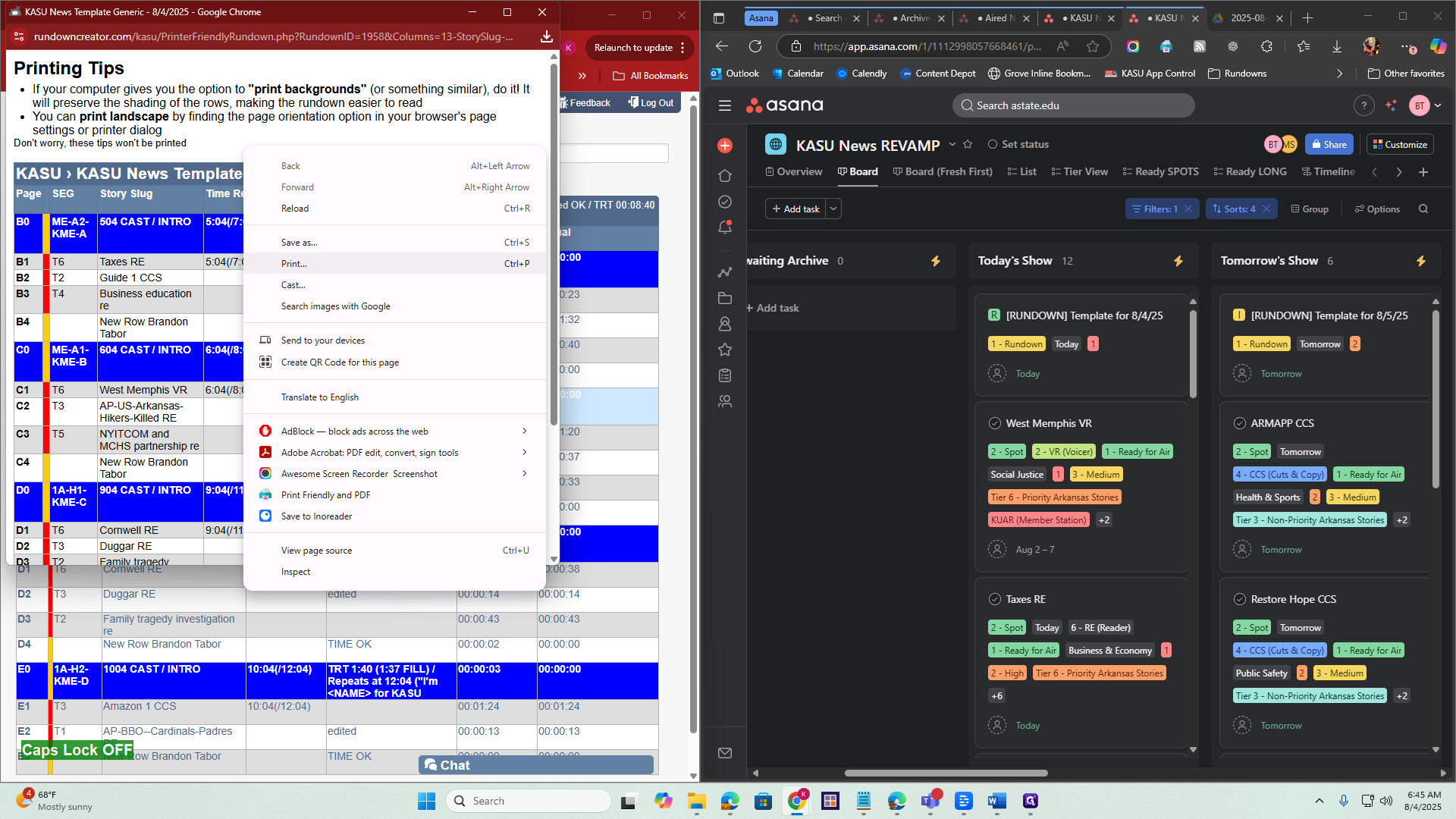
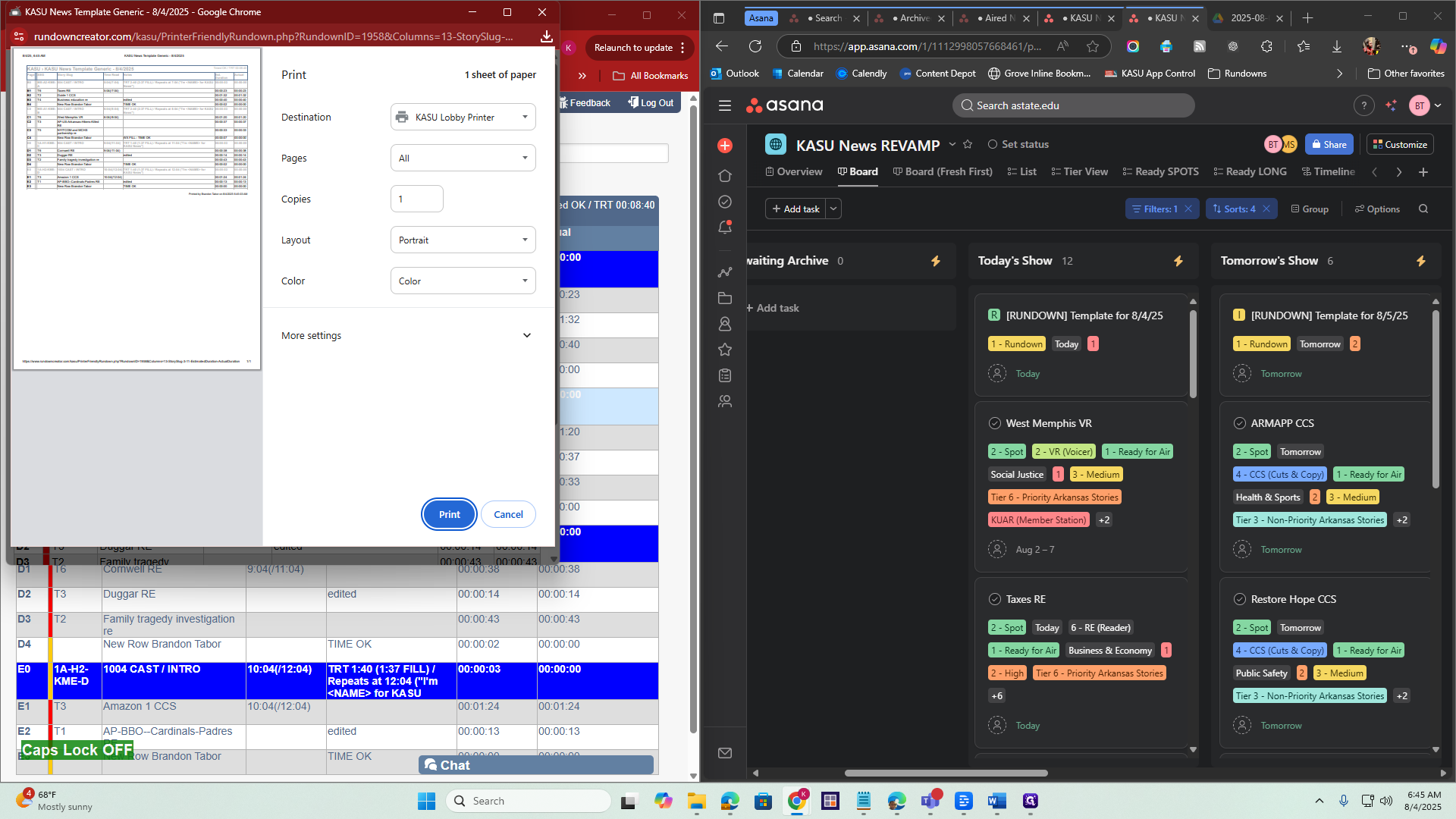
It is now being sent to the printer. I can close this window. Now I need to print the scripts.
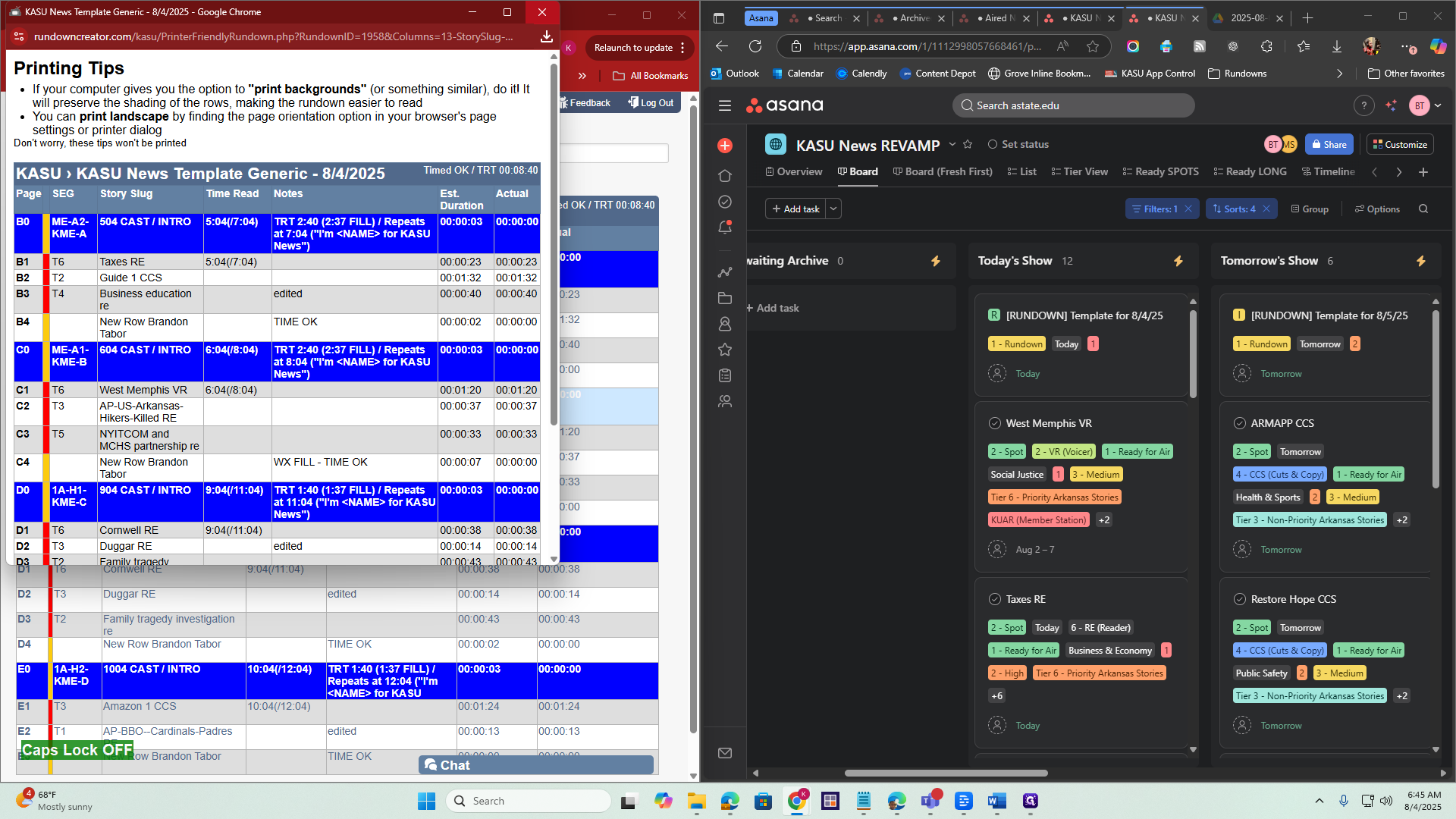
I'll go back to the top, click there, and select Print, then Printer Friendly Scripts.
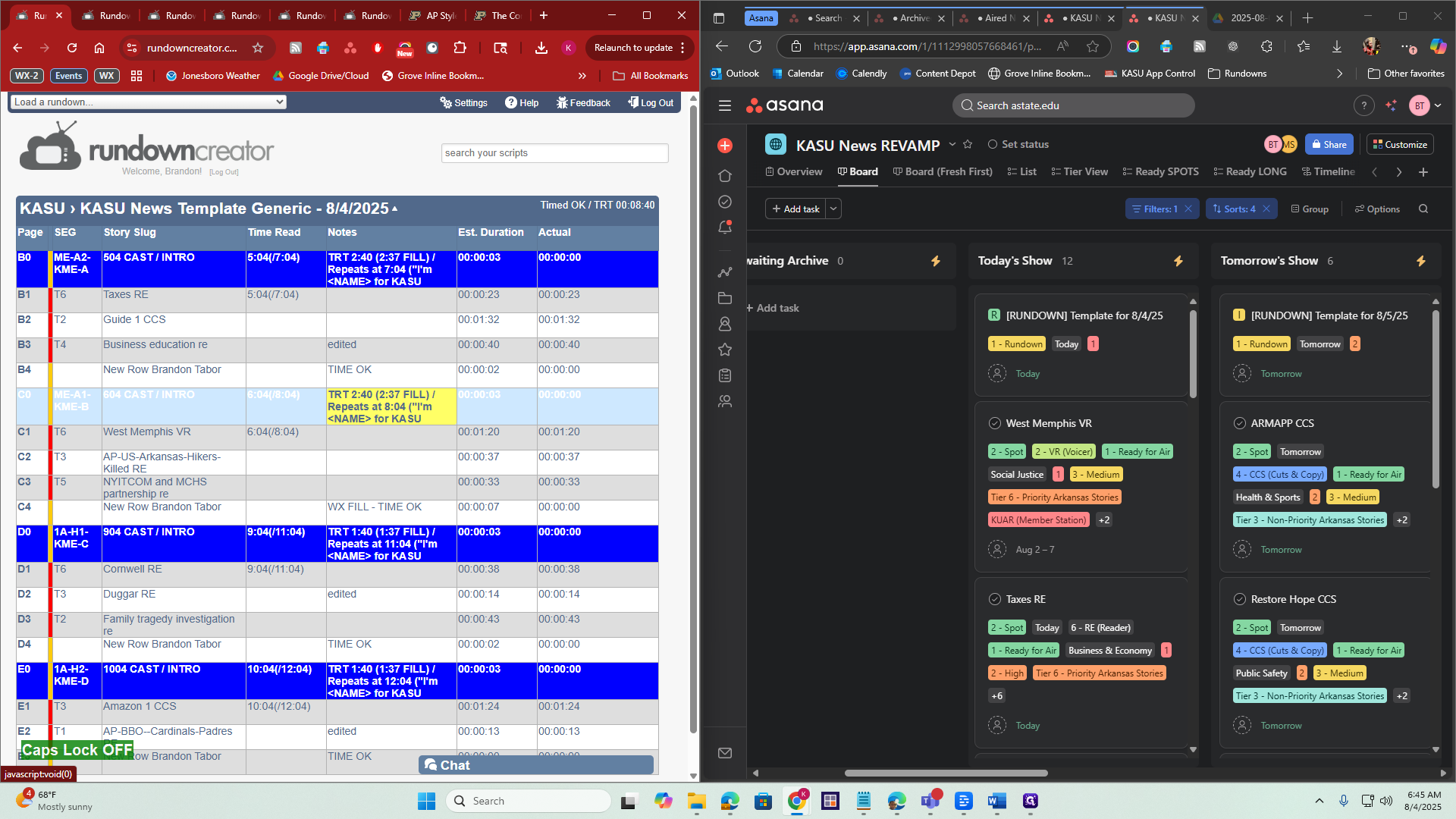
Now I have the scripts here. I'll right-click, select Print, and then click Print.
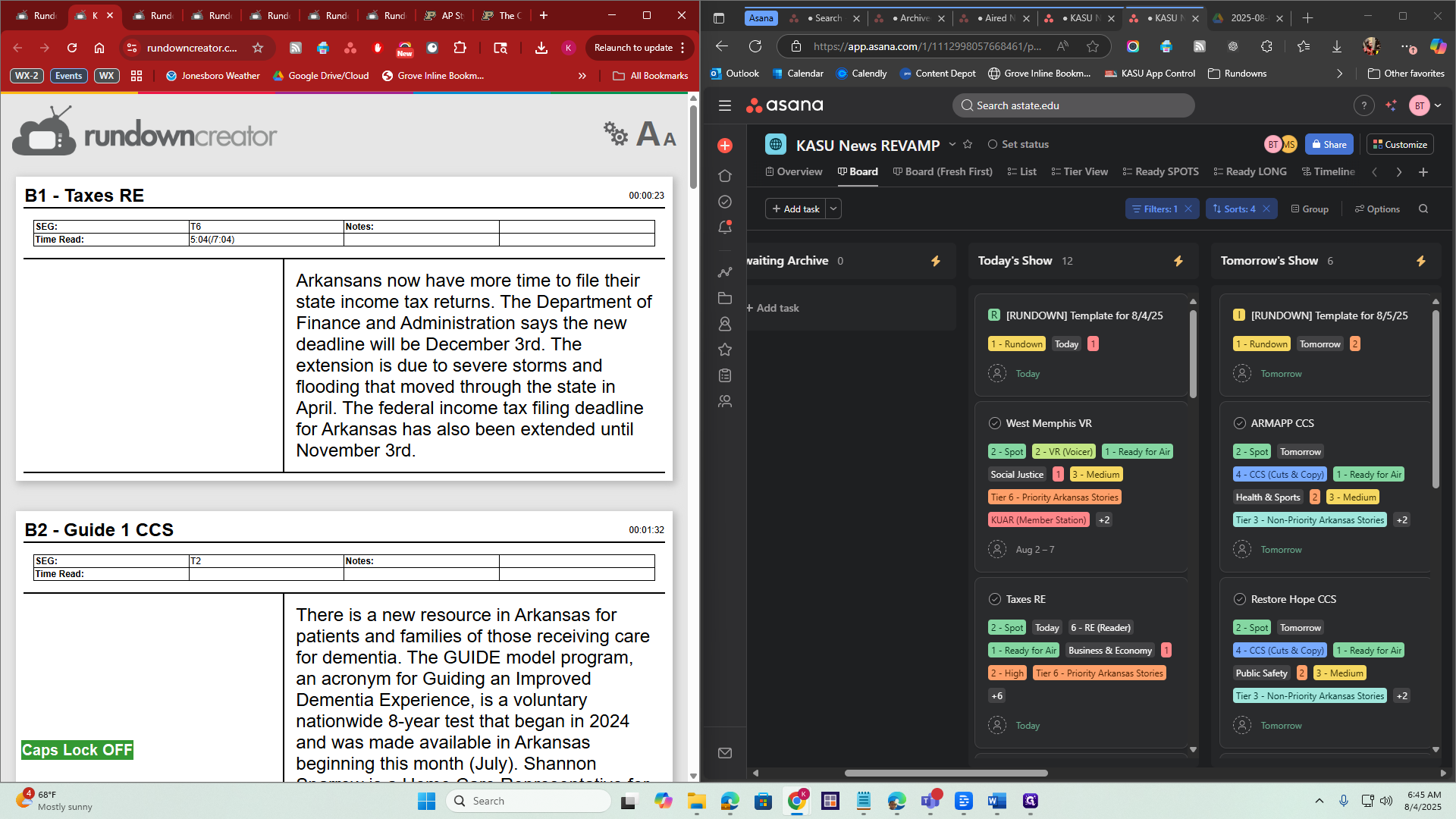
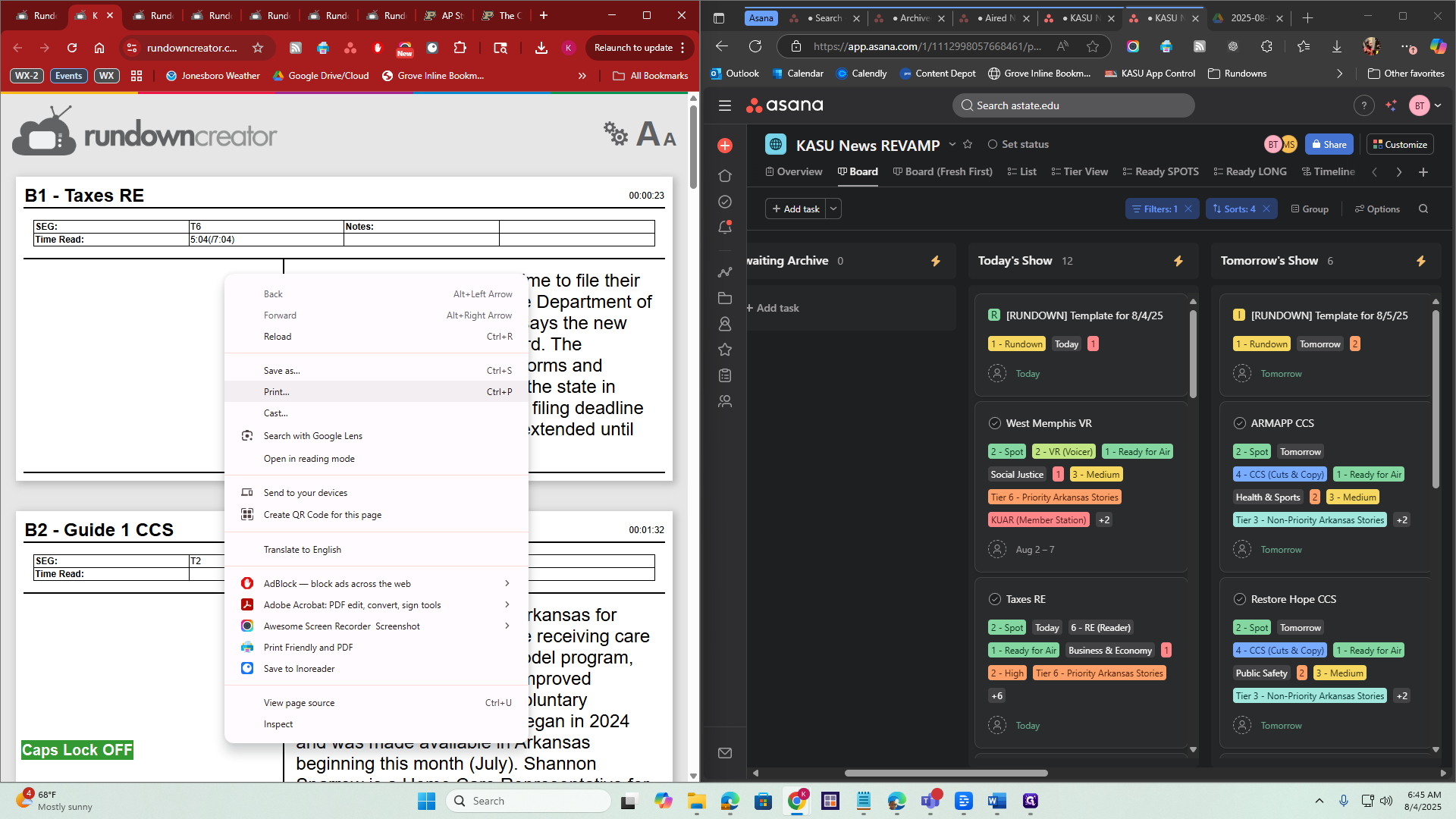
Make sure everything is sent to the lobby printer.
Next, I will get up, go to the printer, grab the papers, and put them together. I place the rundown on top and the scripts underneath, staple them together, and then file them. We keep these files for about three years. After that, we can discard them according to FCC rules. Alright. Once you have printed the scripts, you can close that tab.
Close out the show in KASU News REVAMP Project
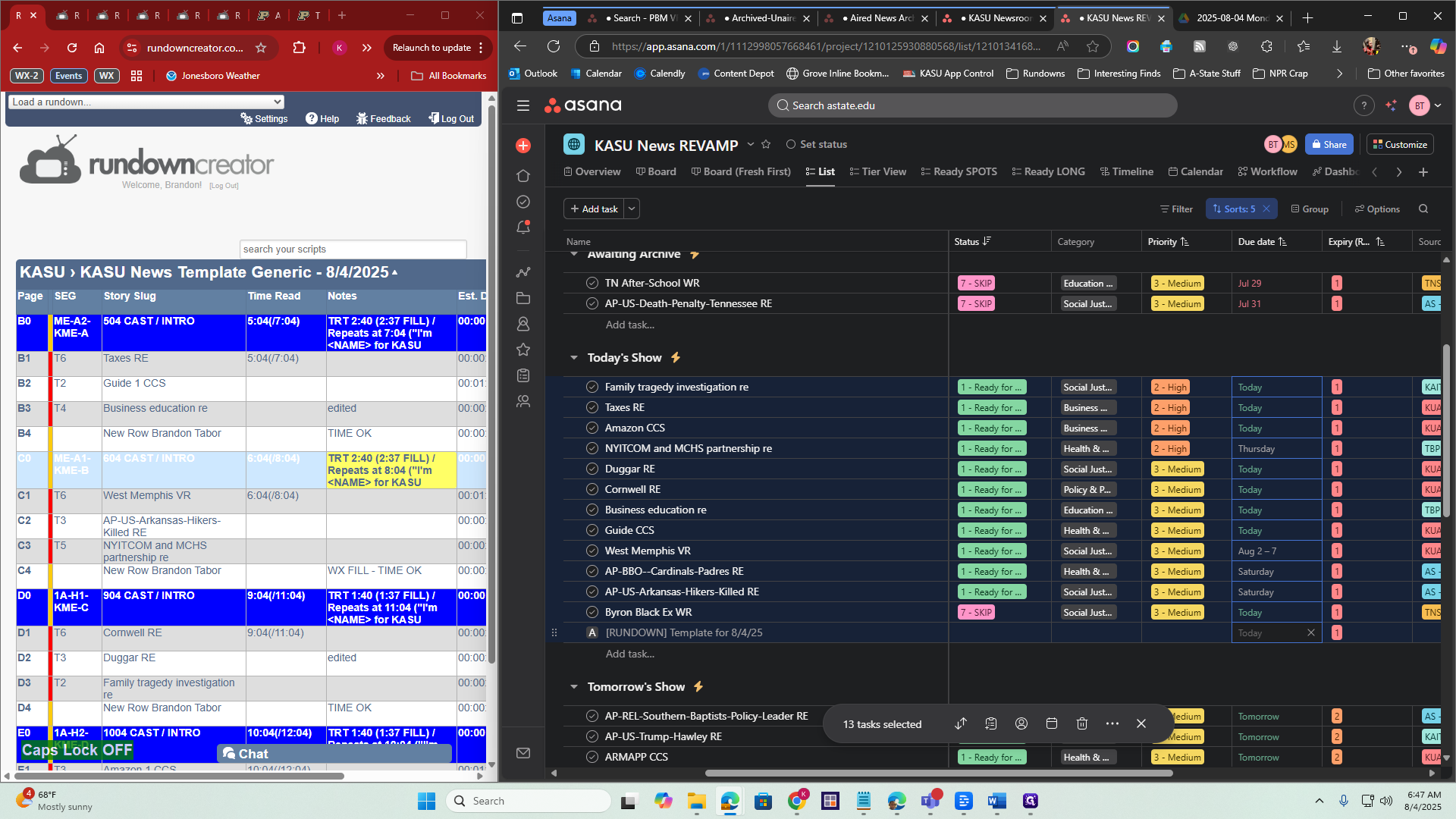
Alright. We have finished this part. Now we need to update it in the KASU News Revamp project in Asana. Alright. Now, for the top task labeled Rundown, click the R for Ready and change it to A for Aired for today's show.
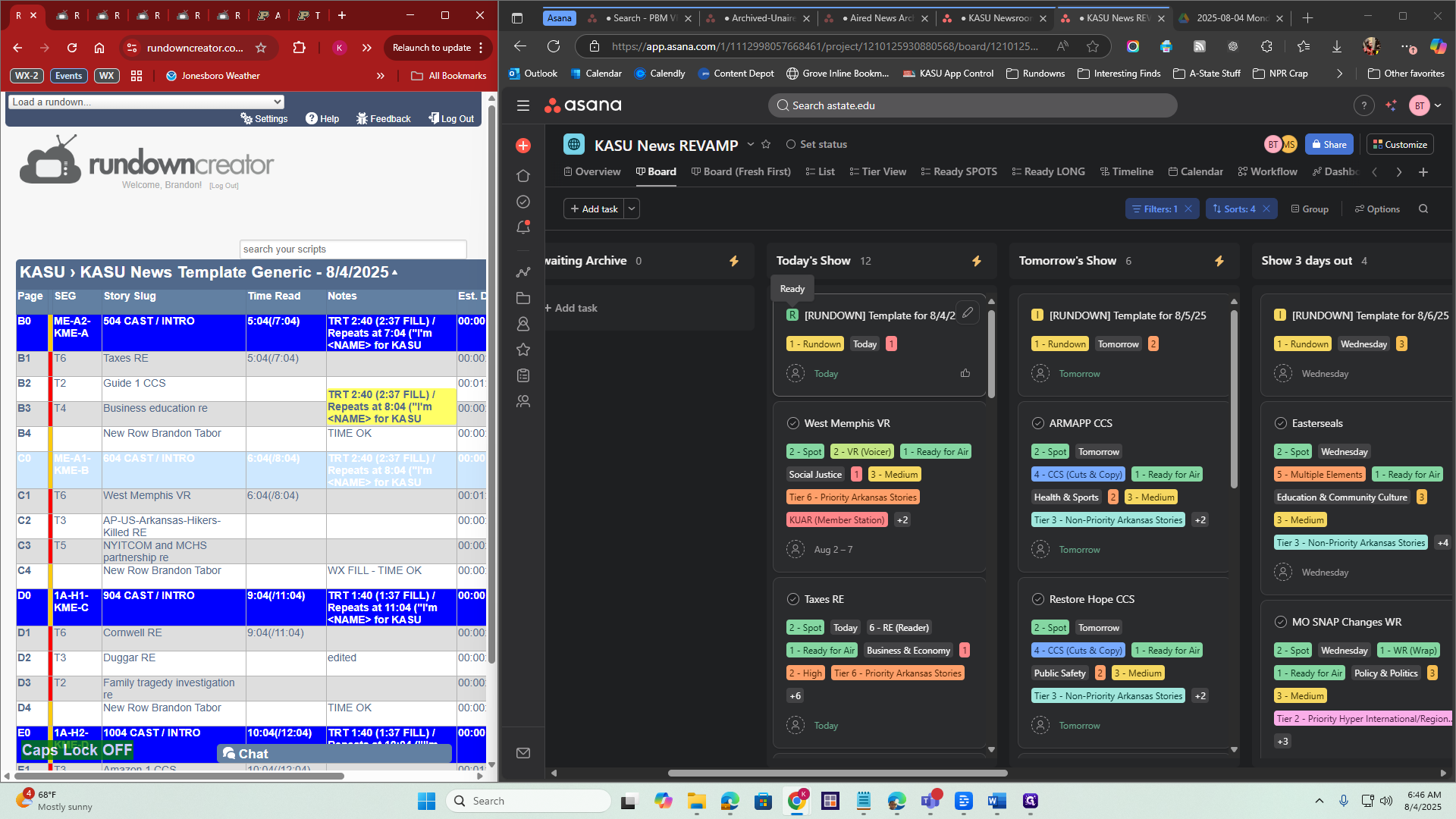
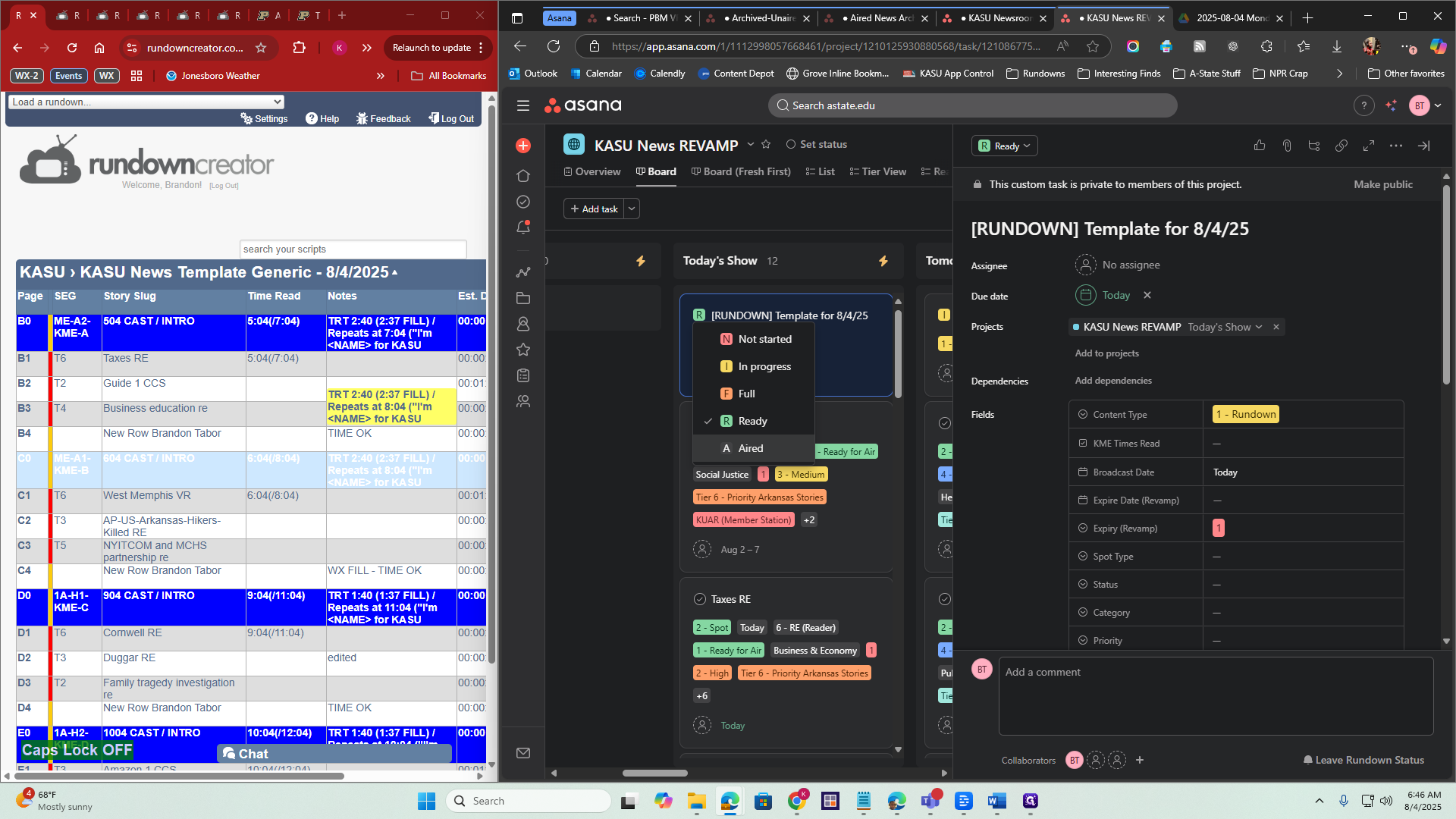
This will gray out slightly, which is what we want. Next, I need to make sure all the times and air dates match. Also, every story should have a headline or something similar.
To do this, click on "List" at the top, then select "Today's Show."
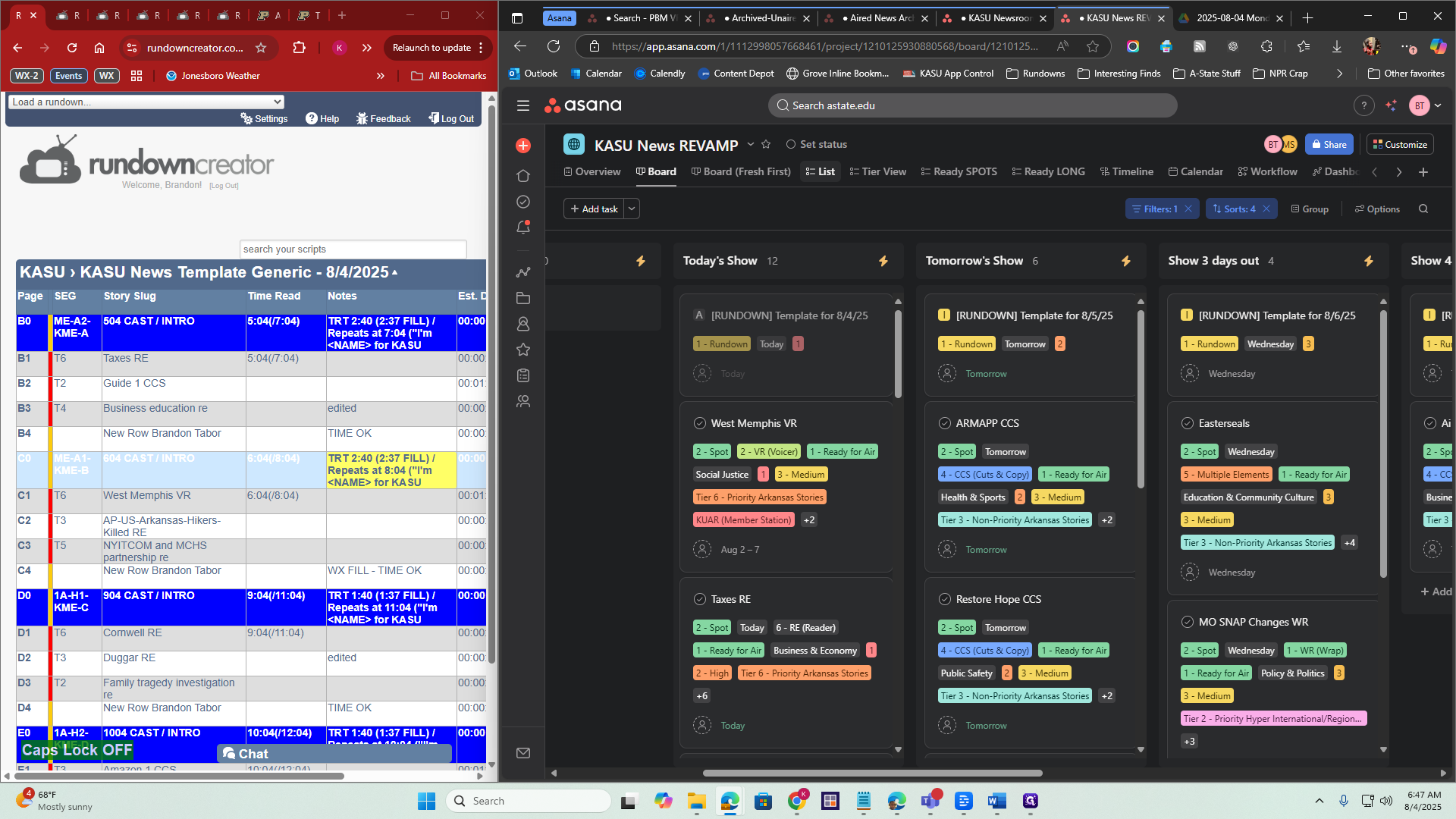
I press Shift on my keyboard and click at the very end of the list. I'm going to hit Rundown.
Excuse me, I'm sorry.
First, click Rundown. Press Shift on your keyboard. Go to the top of the list. All tasks will be highlighted.
Alright. Next, scroll to the Due Date column. Click on "Today" for the Rundown, select today's date, then click outside.
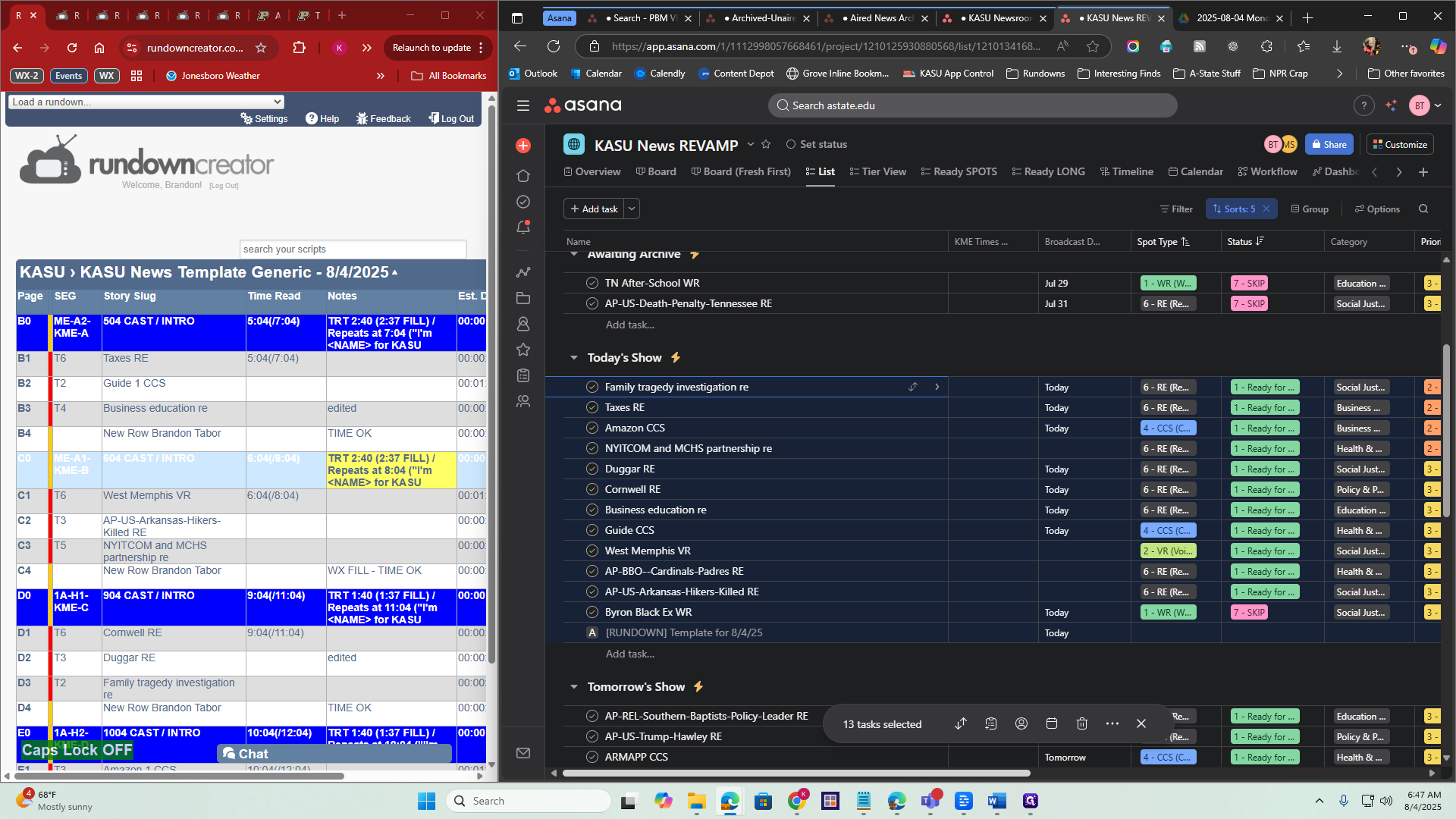
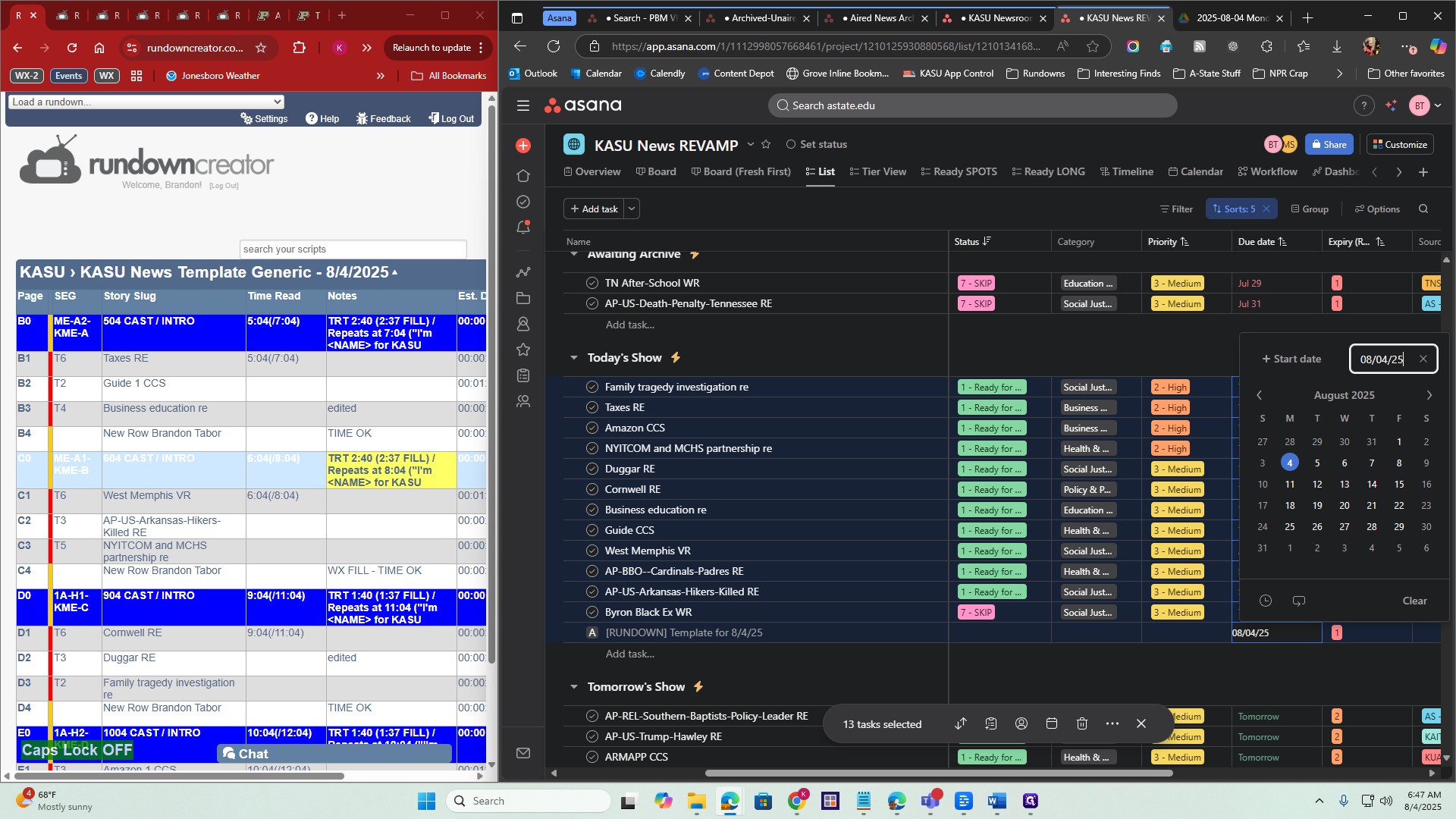
Asana will automatically assign today's date to everything in the Broadcast Date column.
This is important for the quarterly reports. This is all important for the quarterly reports. We're not finished yet. Now I'll click the X to deselect the task.
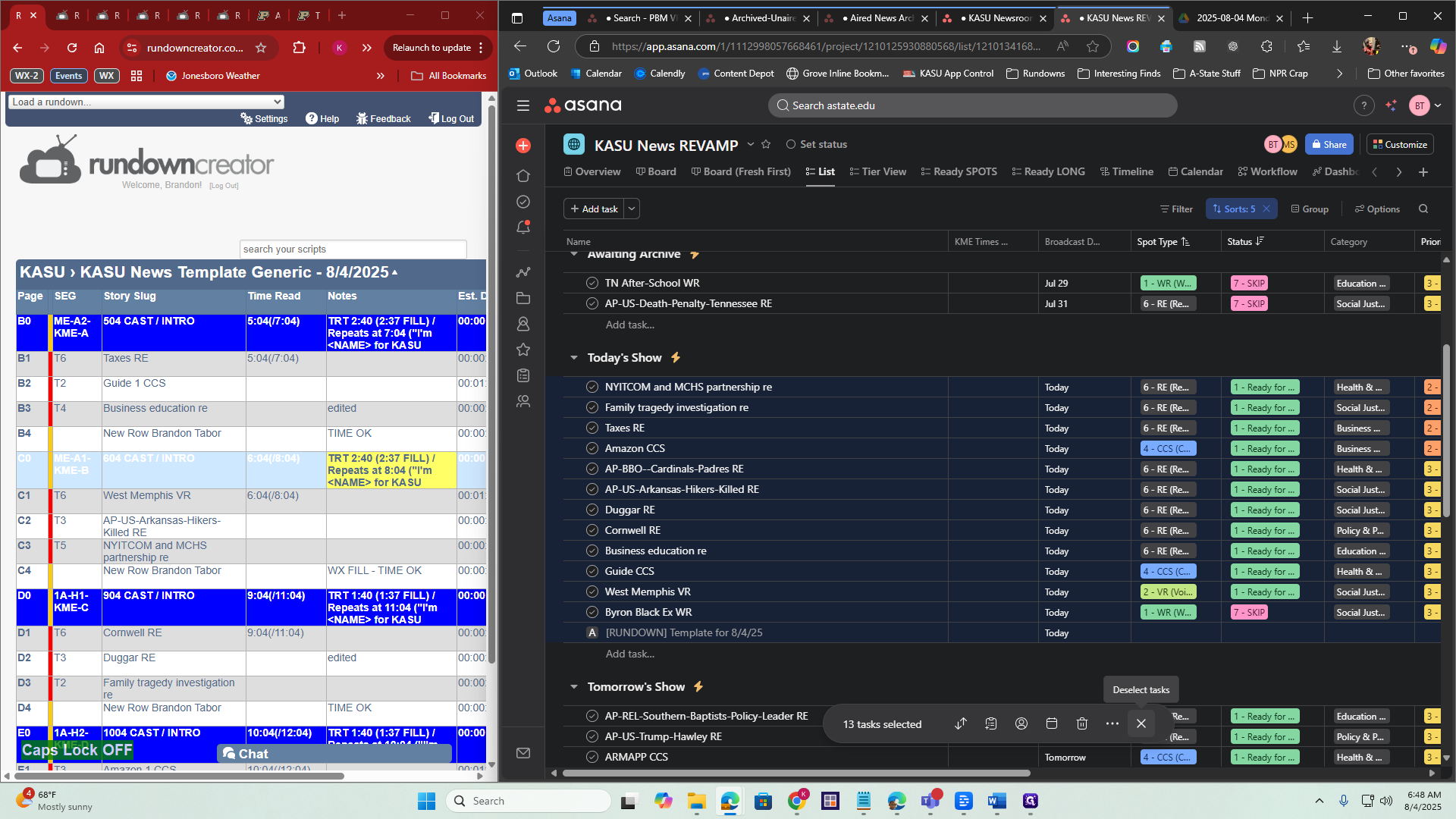
Now I need to read the KME times. These are the times when these stories aired during the newscast. It's helpful to keep Rundown Creator open.
We still need Rundown Creator open, so please make sure it stays open. Or, if you have a printed copy, you can use that information. You go into Rundown Creator, check the times they aired, and match them up here.
Here’s what I do: We have Taxes, Guide 1, Cuts Copy, and Business Education. I will find those stories. Let's see, we have Guide. I’m clicking outside so I can select multiple options, such as Business and Education.
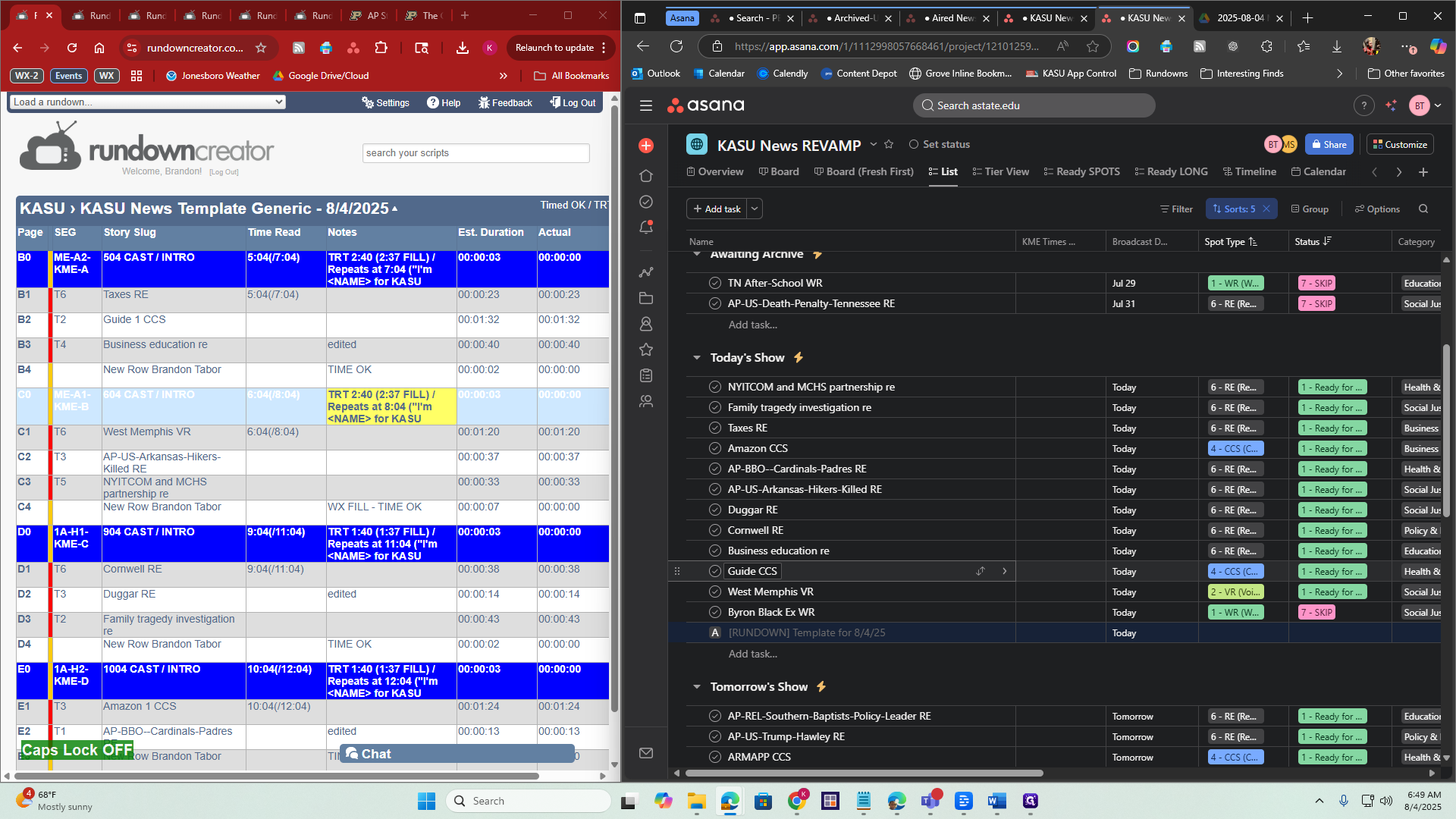
Hold down Control on your keyboard, then click on Business Education and Taxes, and then click on Taxes.
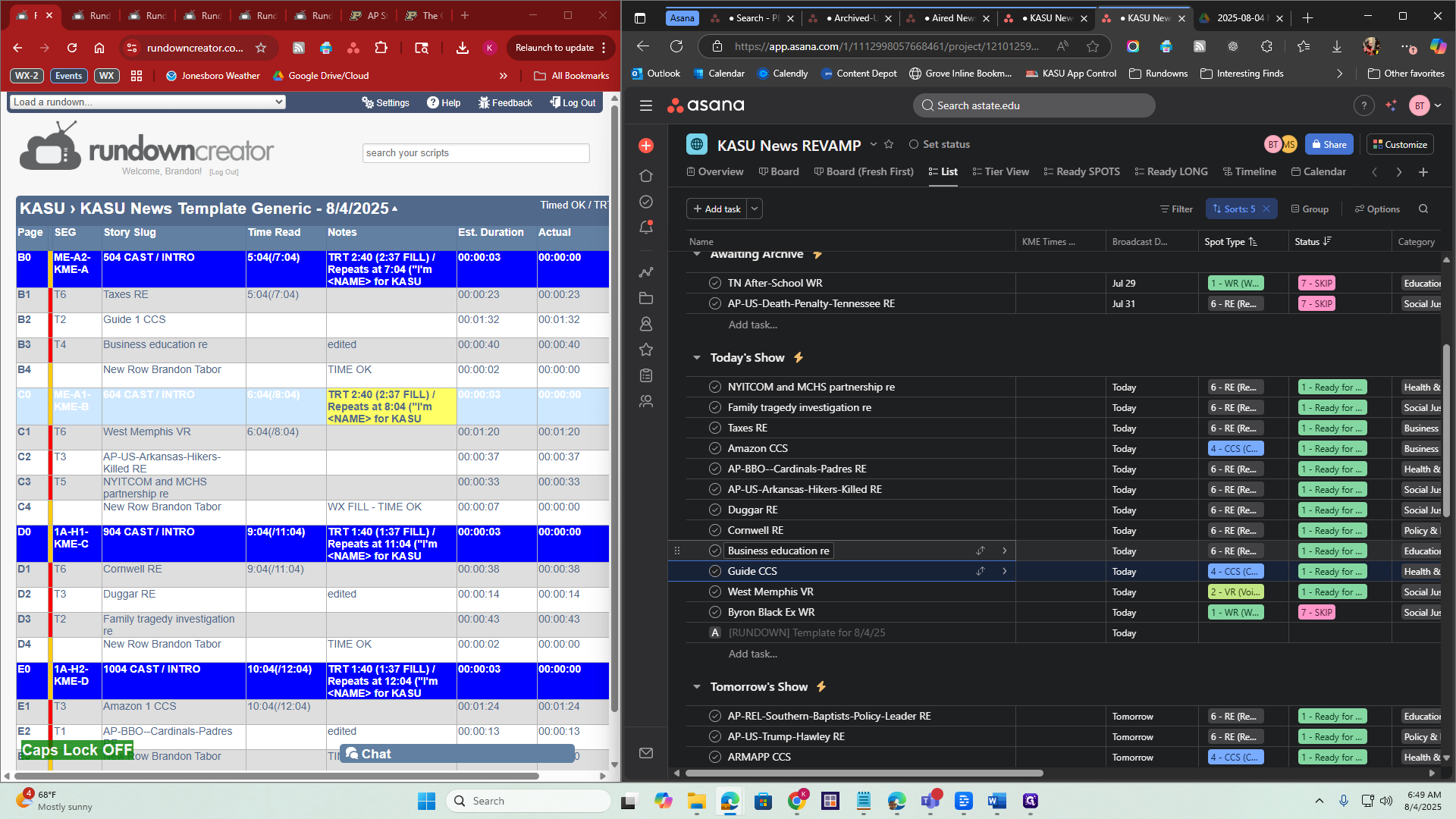
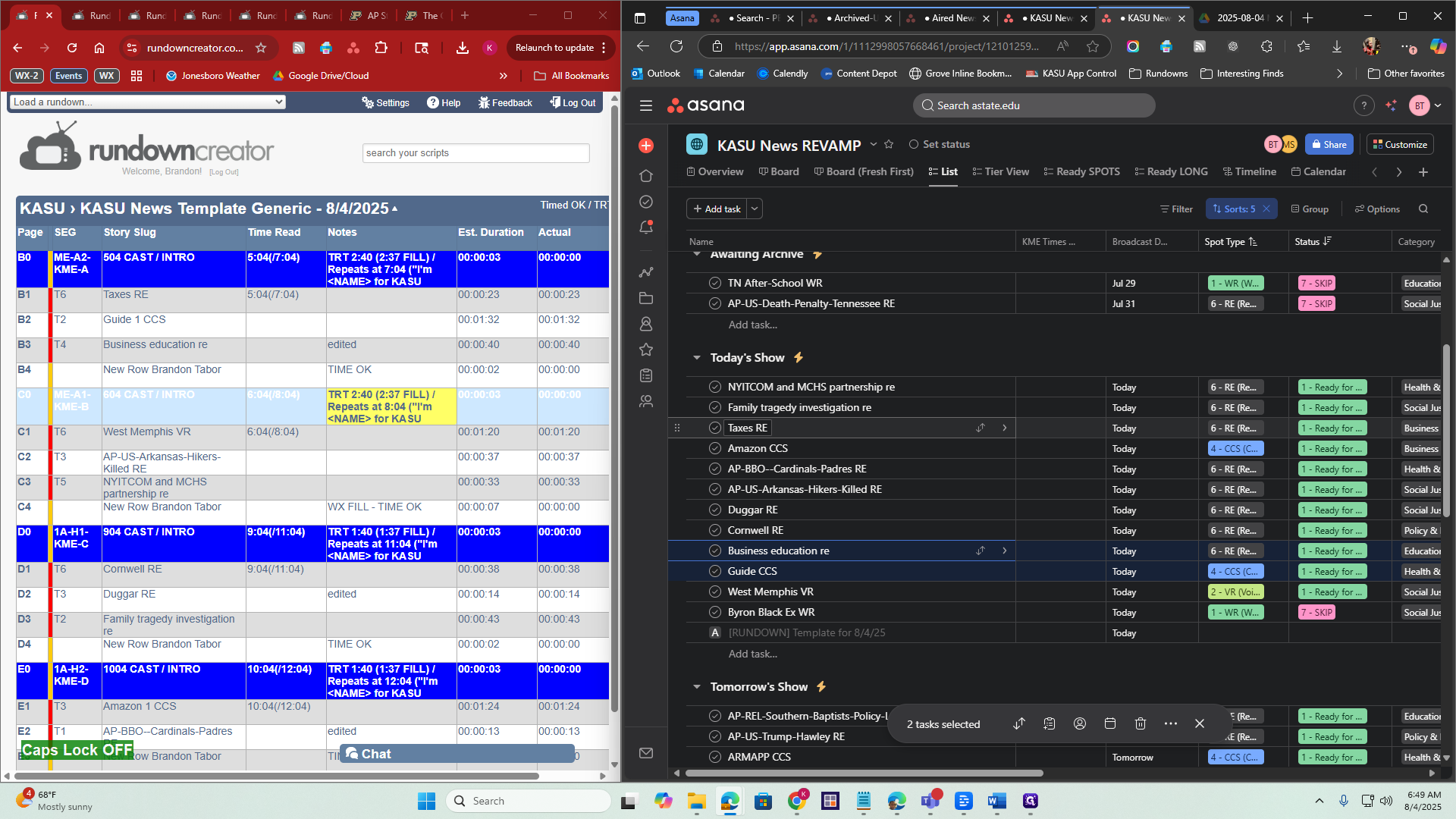
That was another one. All three are selected. Now, go to KME Time and click on it. You can select 5:04, since that's when they aired, and then 7:04.
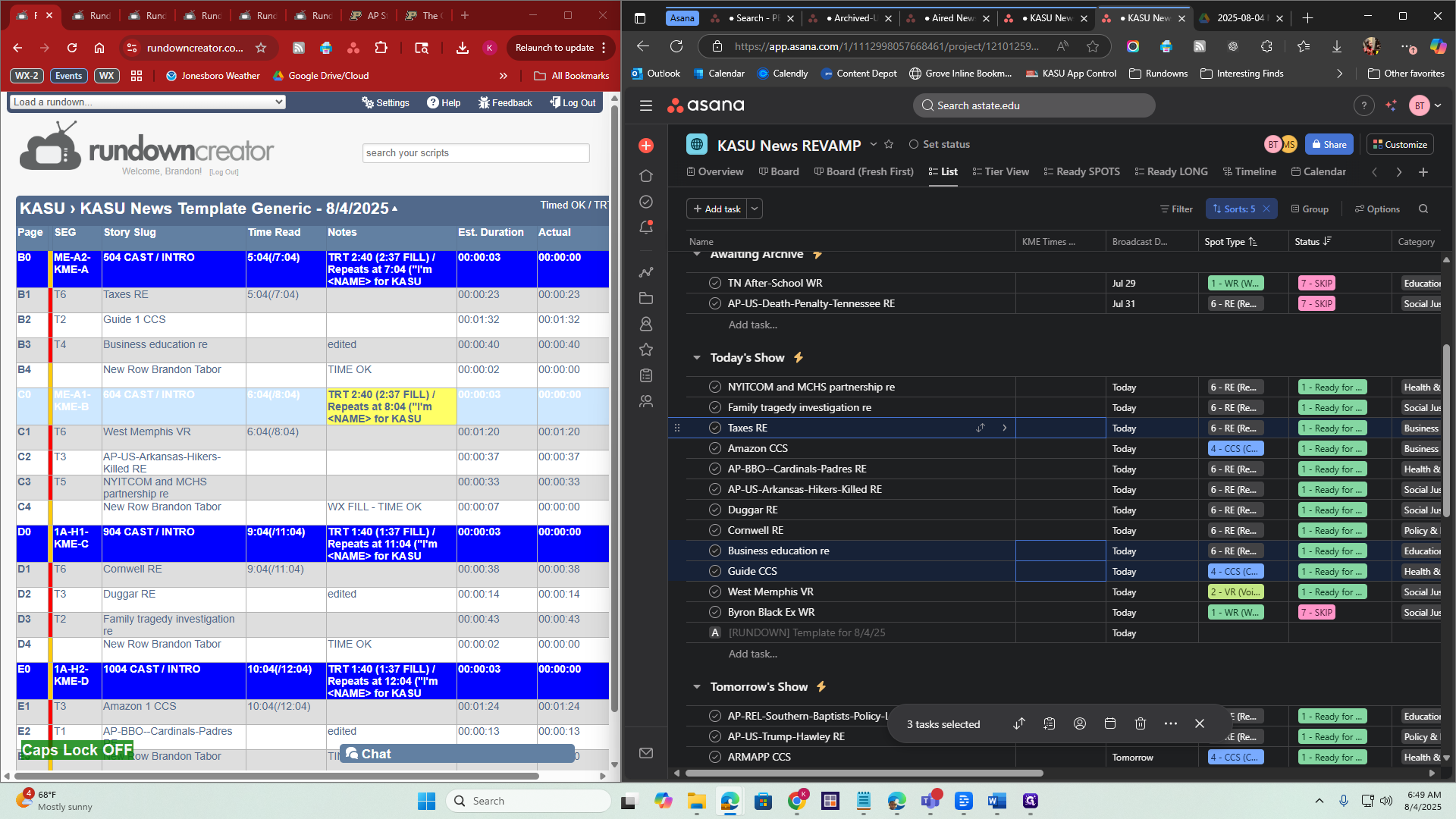
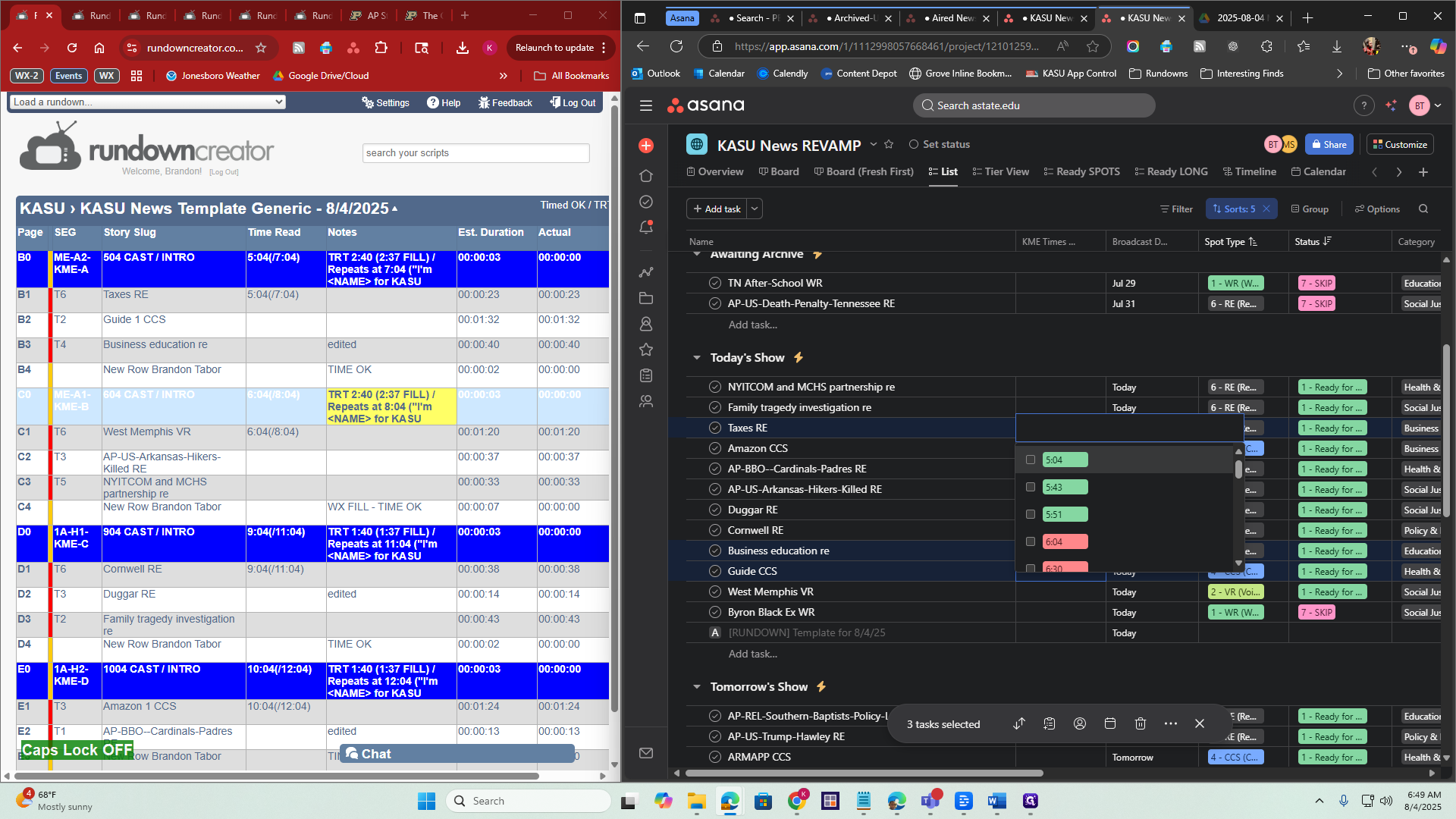
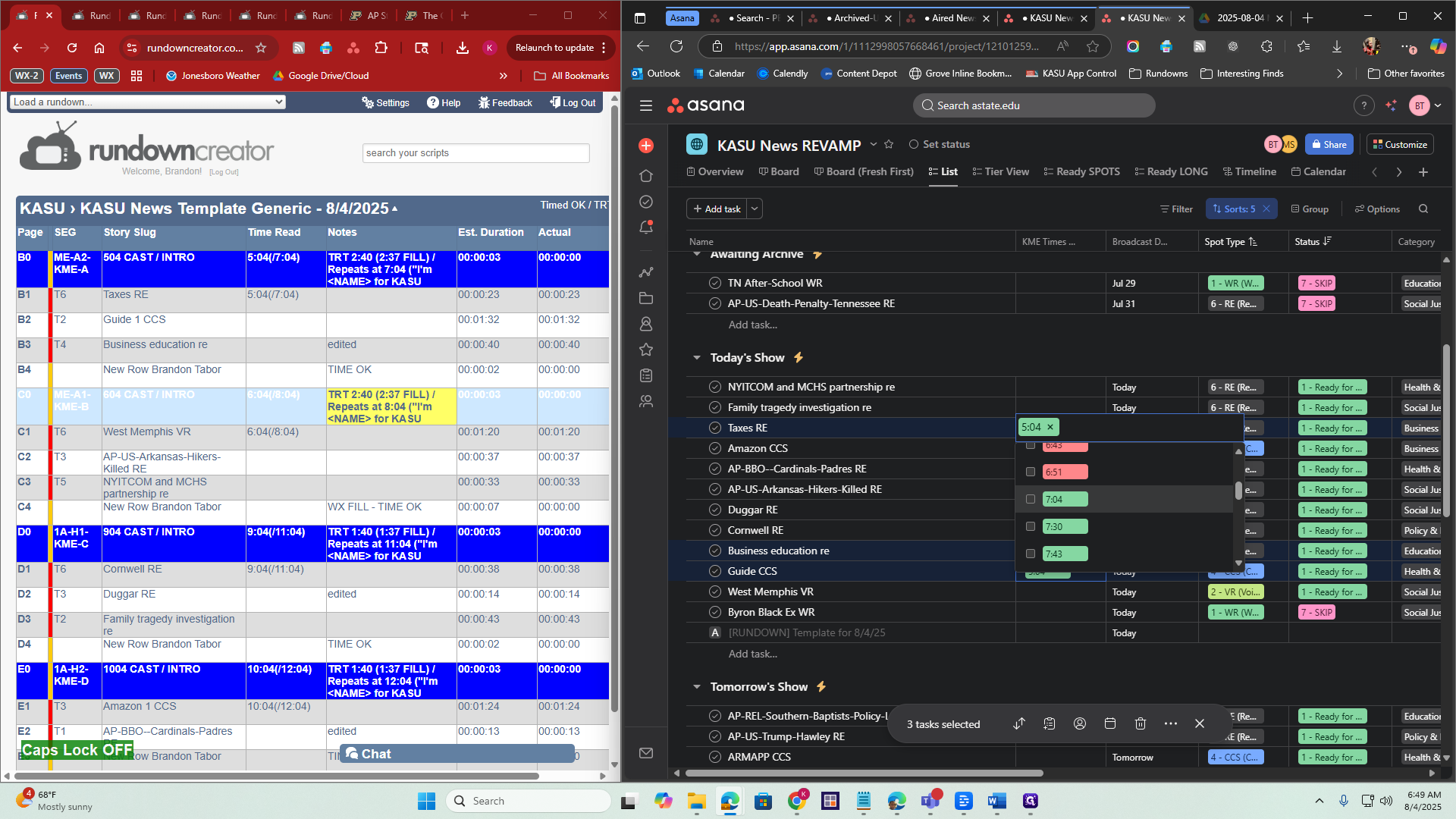
Then I can deselect the task.
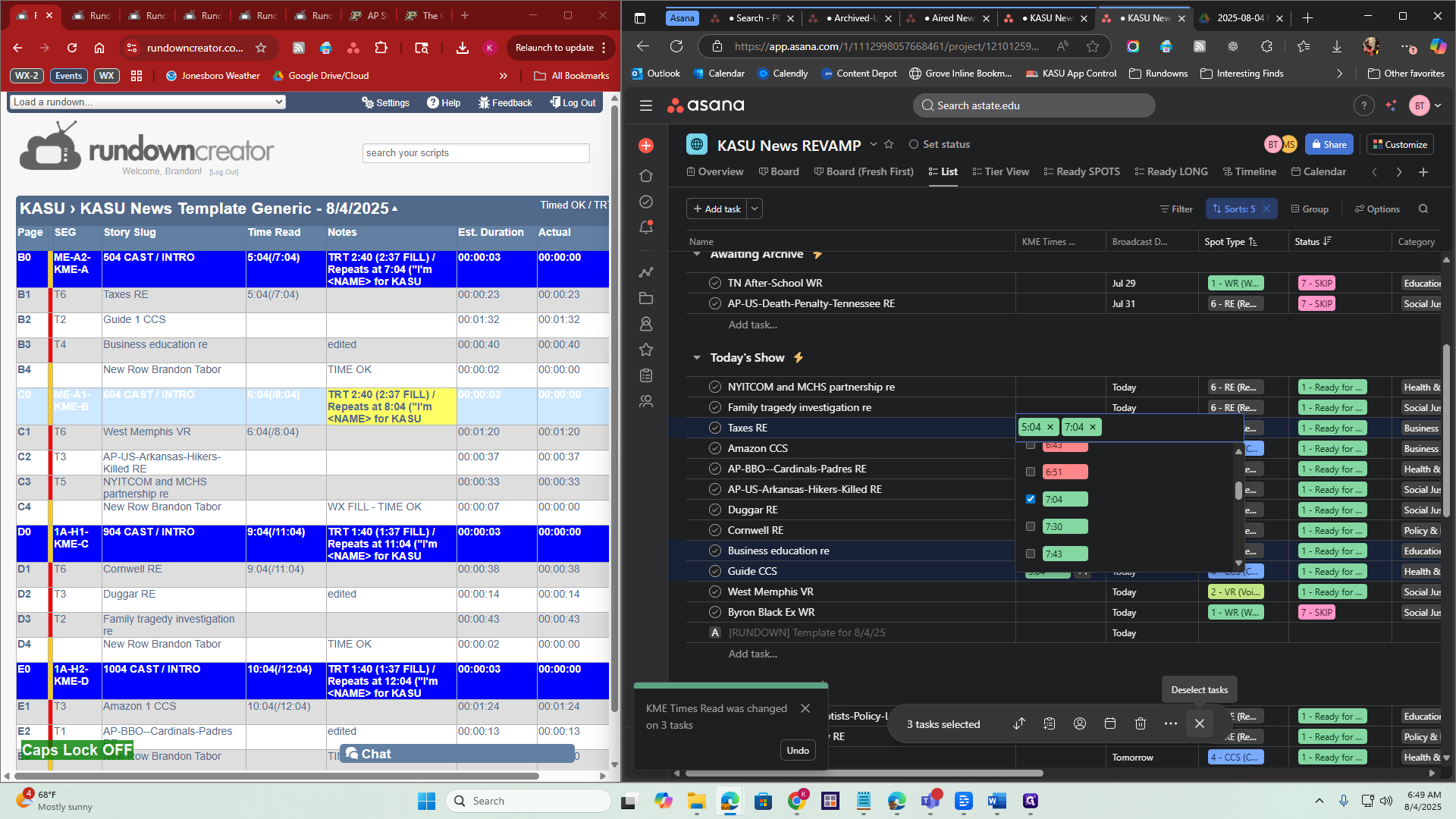
Another quick way to do this, if you don't want to click, is that whenever... I'll show you in just a moment. Let's go to 6:04. We have West Memphis, specifically West Memphis, Arkansas, where hikers were killed, and NYITCOM.
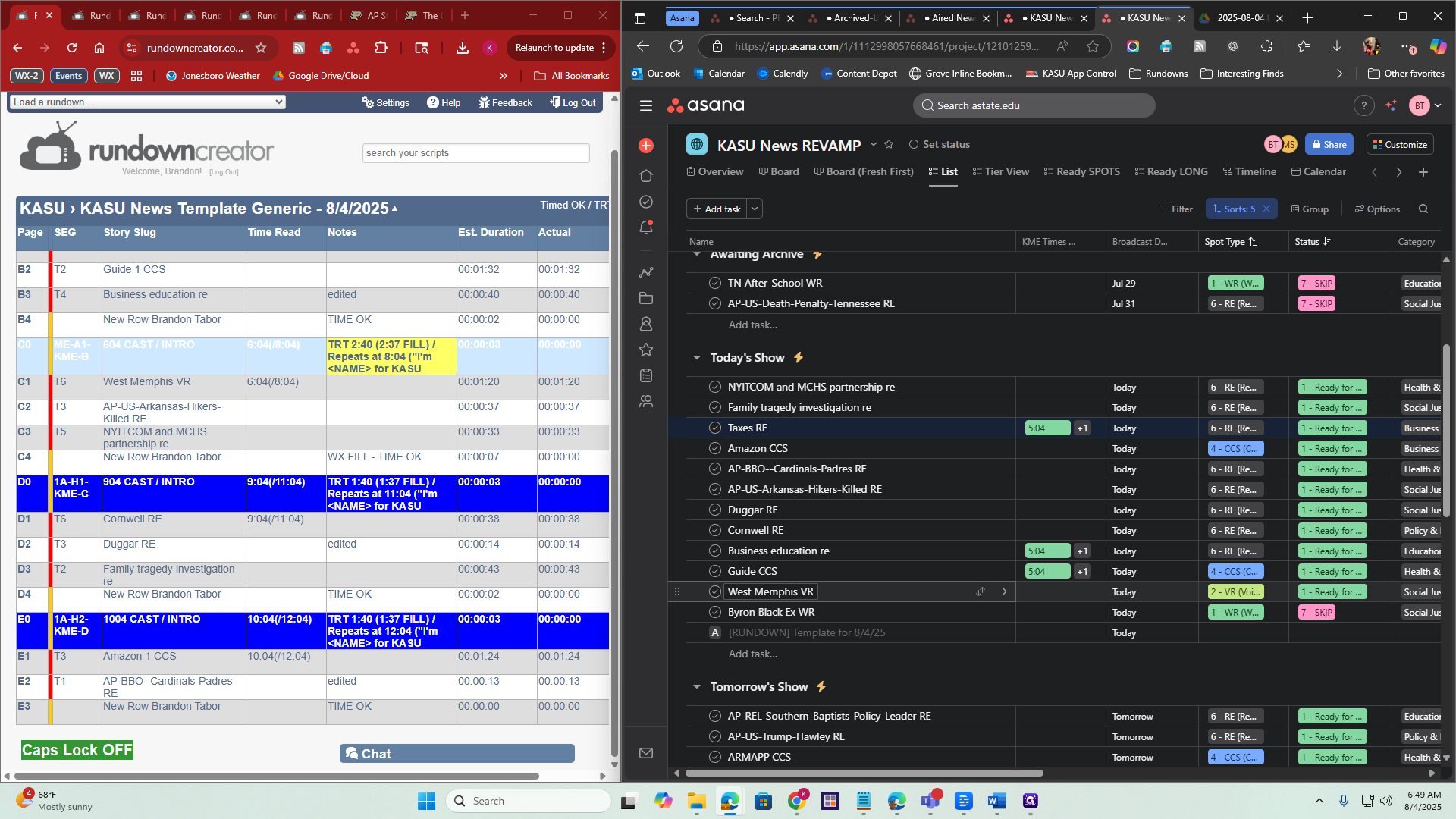
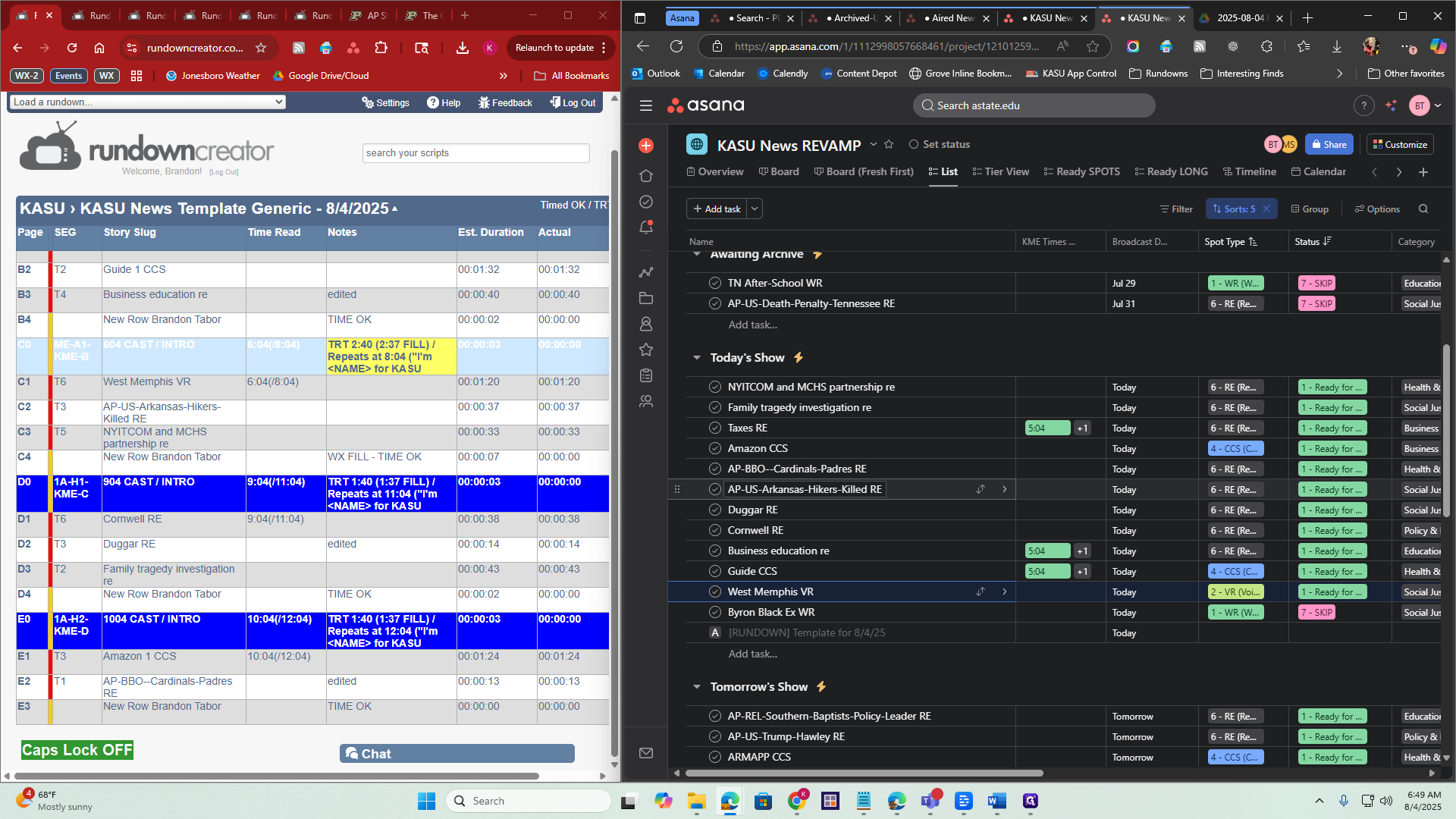
To do this quickly, click in KME Times. Then, on your keyboard, type 6 and press the spacebar to select it. Type 8 and press the spacebar to select it.
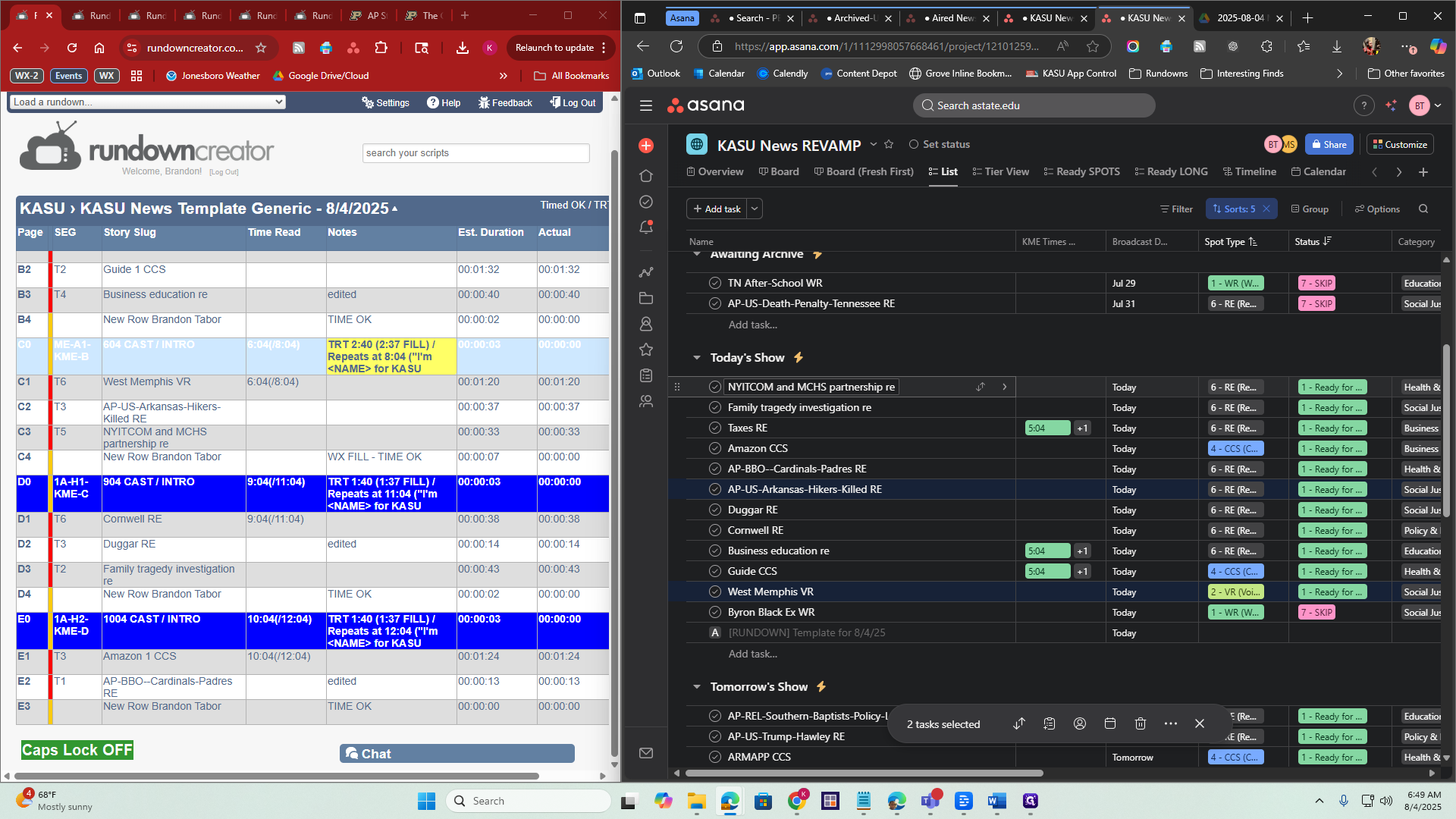
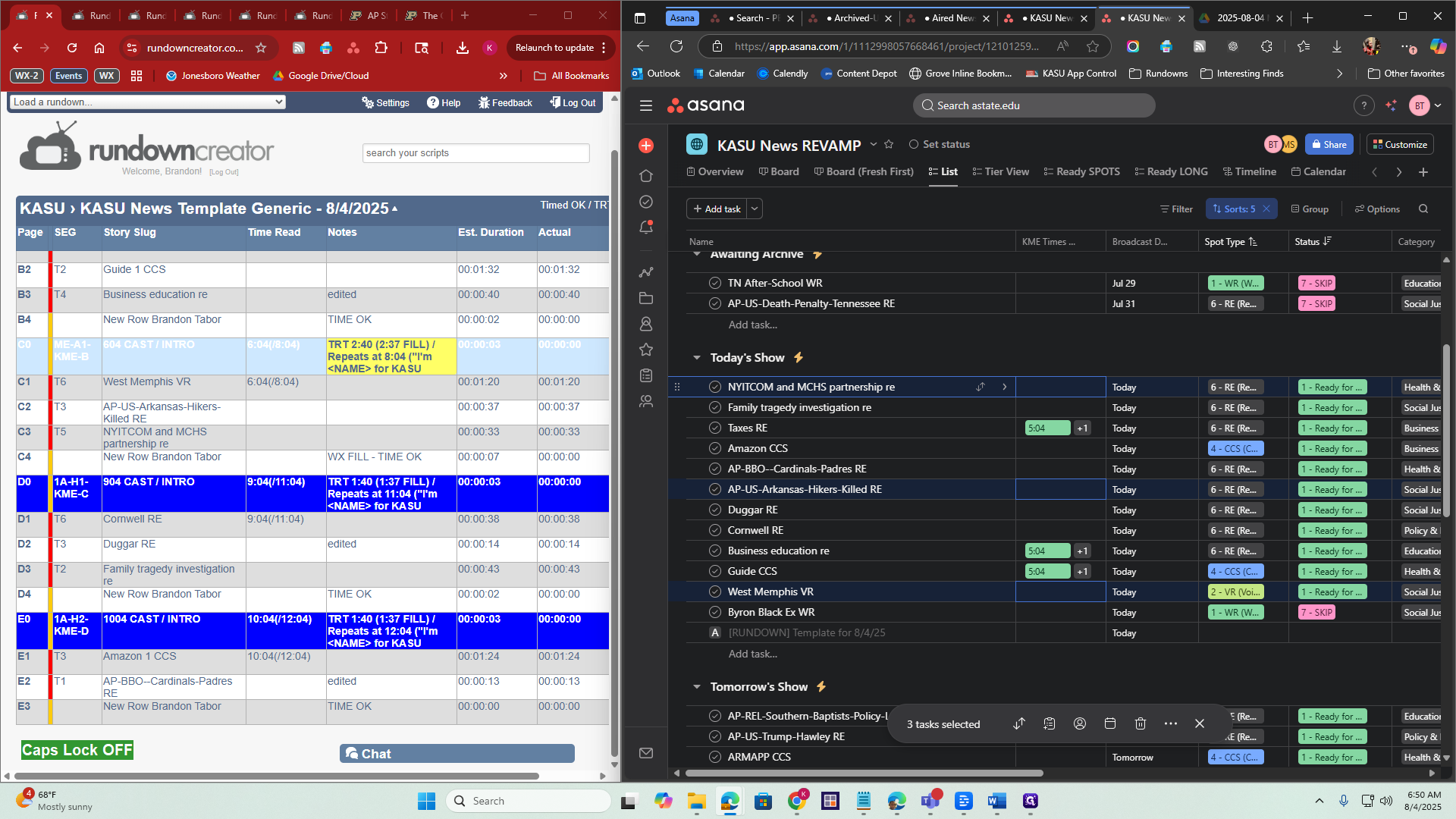
That covers all three.
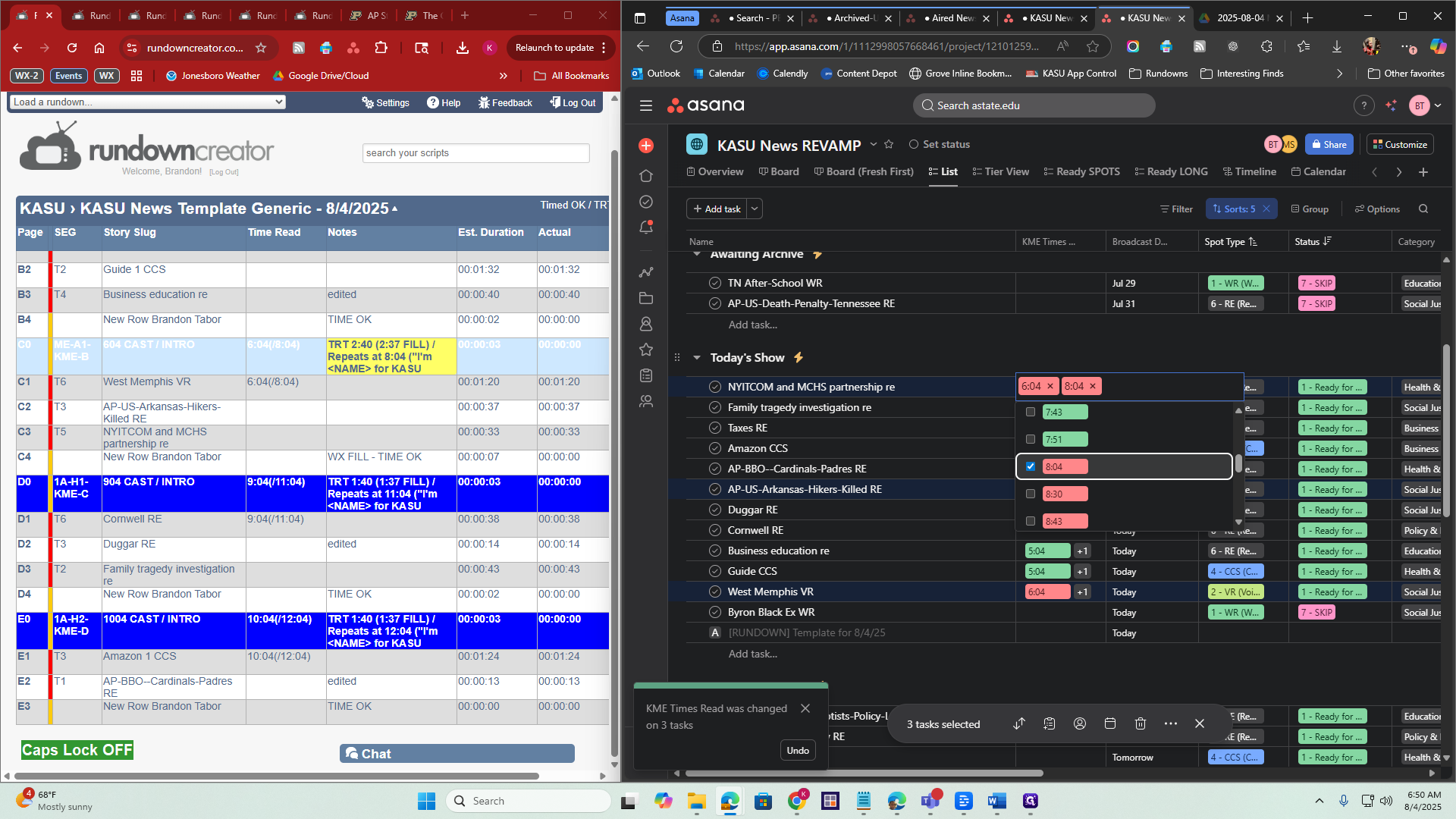
Repeat the steps for 9:04 and 10:04.
All right, we've done that. This next step is optional.
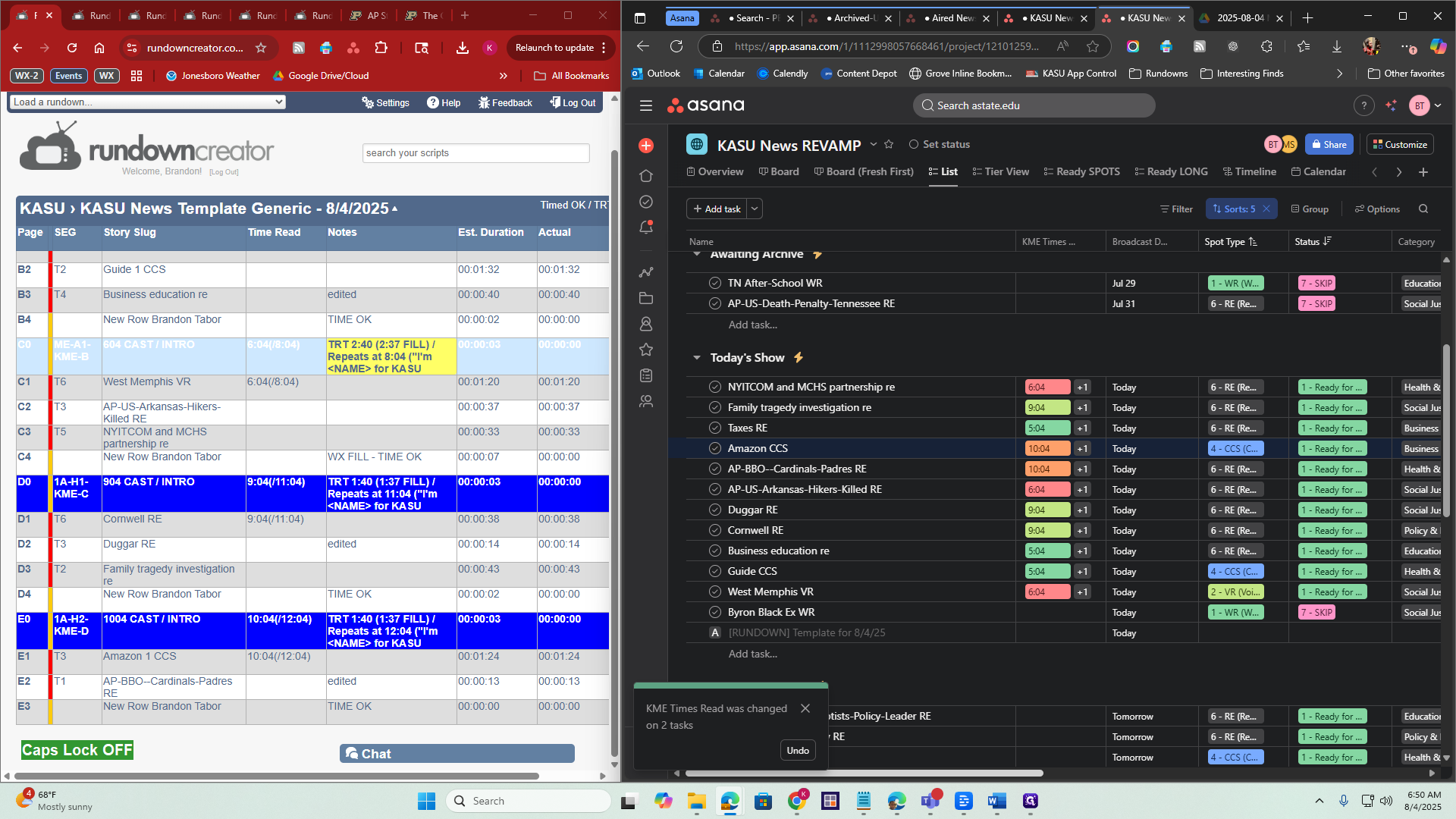
You can if you want to. You don't have to, but in the Headline column, you can simply type a brief headline description. This is for the quarterly reports. It briefly identifies what the story was about, so anyone can see the main idea at a glance. It also helps internally to recognize the story's content. You don't have to fill it out, but if you choose to, go to Headline for the story and type your text.
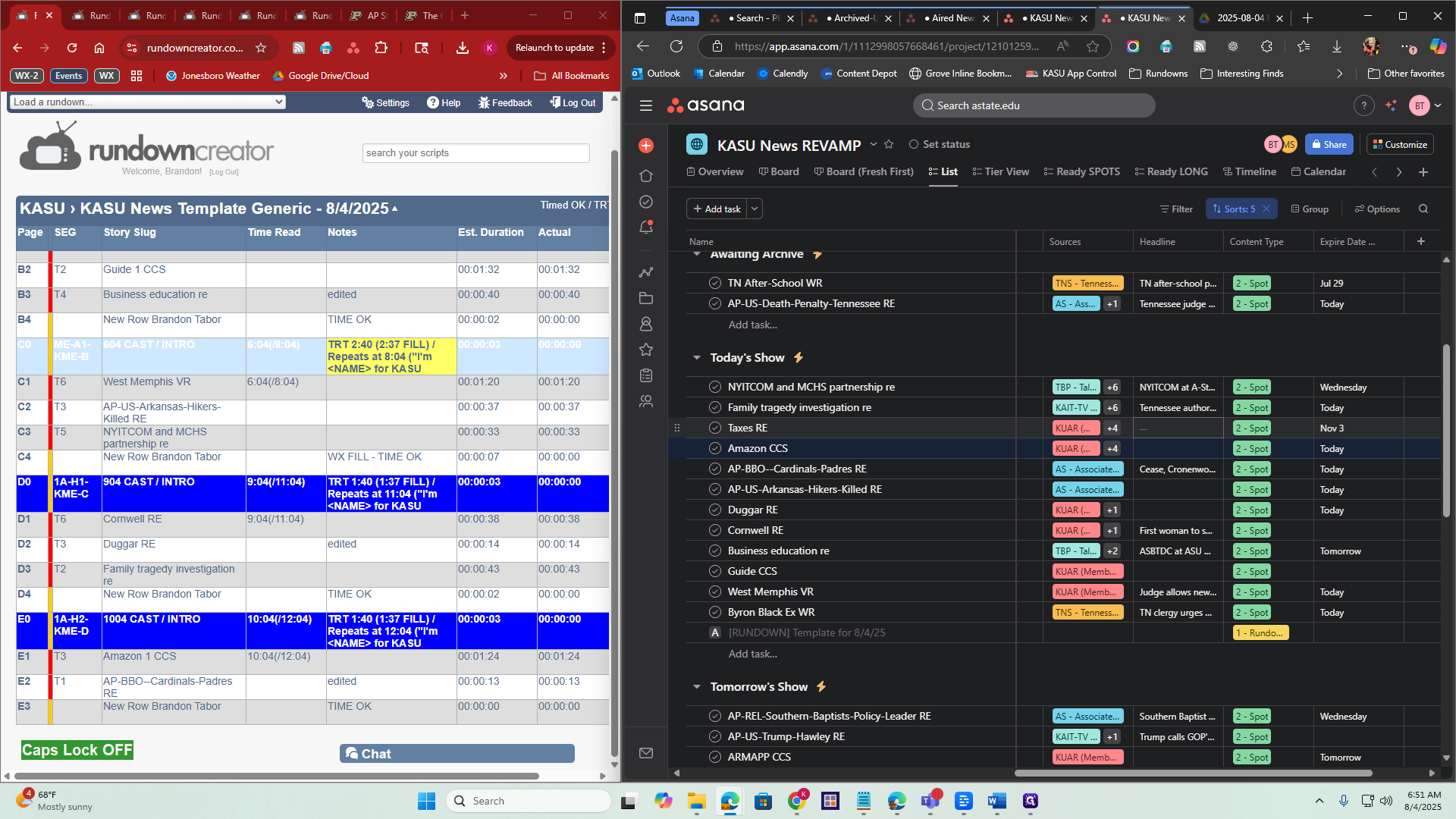
You can simply type a headline, and that's all you need to do.
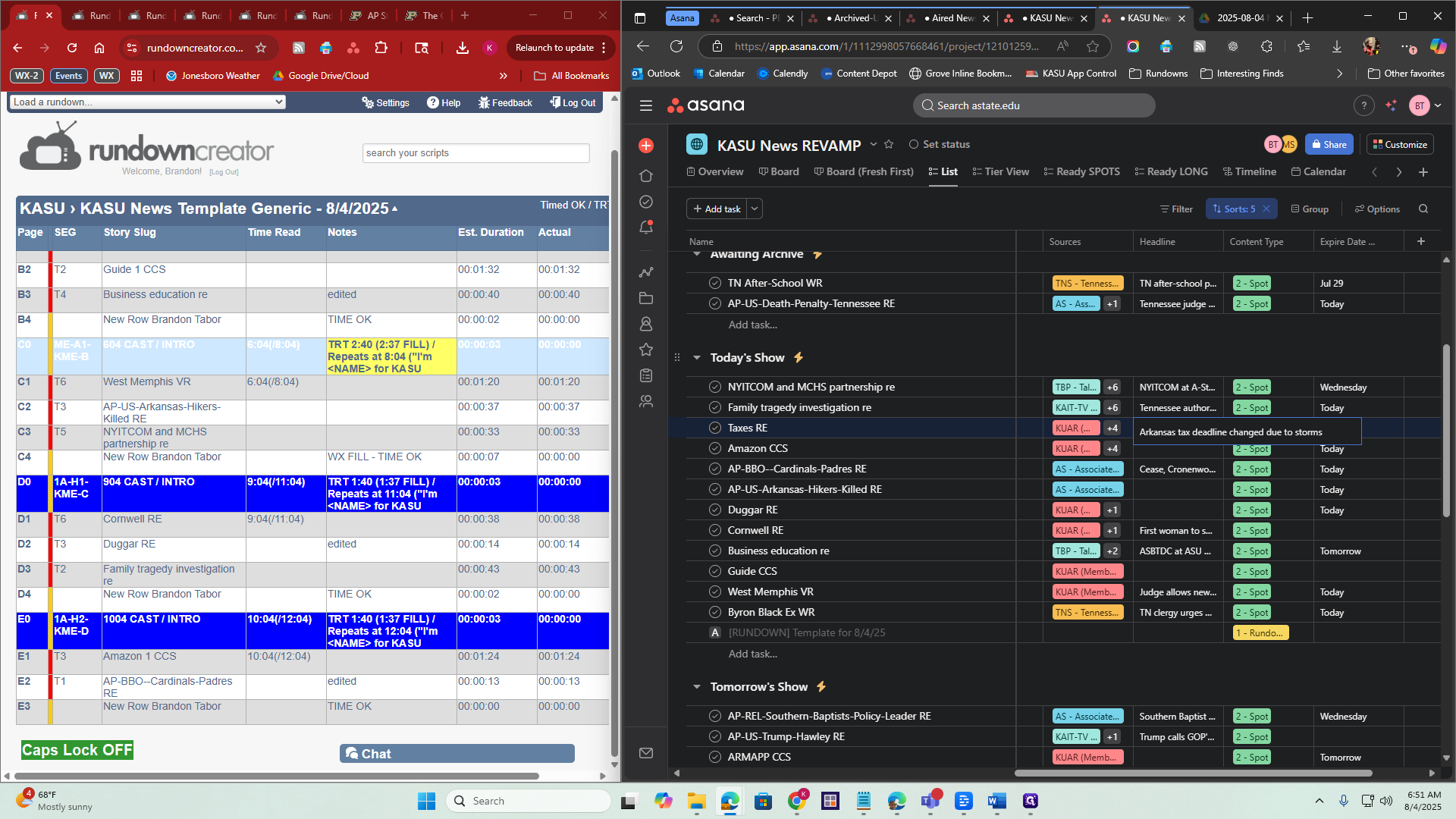
We have everything filled out. The last step is to start at the bottom with "Today's Show." Click on it, then hold Shift on your keyboard. Go to the very top story, and you'll see that all other tasks are selected.
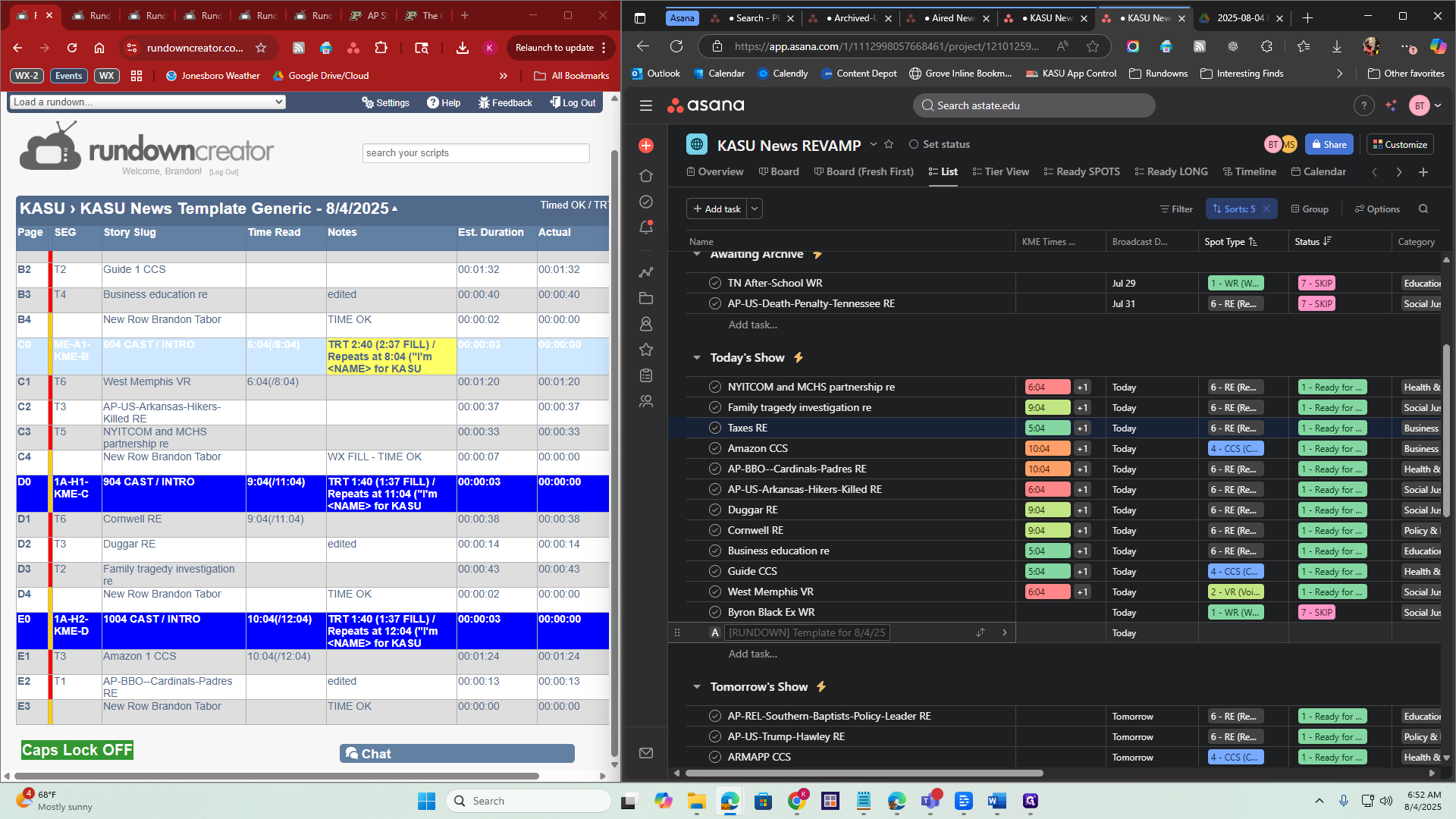
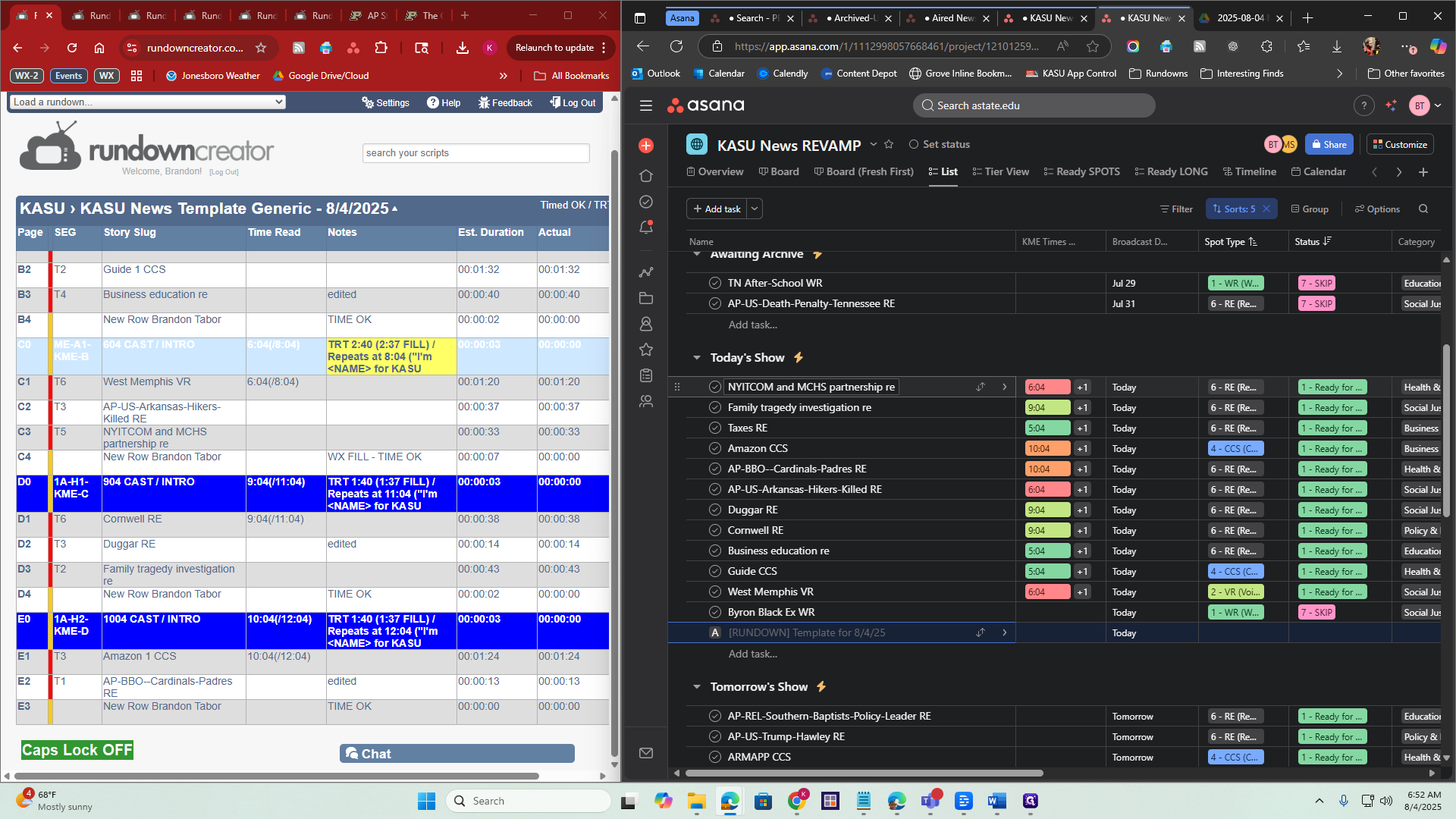
What you need to do is look for the six small dots here. When your cursor changes to a hand, Click and drag it up to Awaiting Archive, okay?
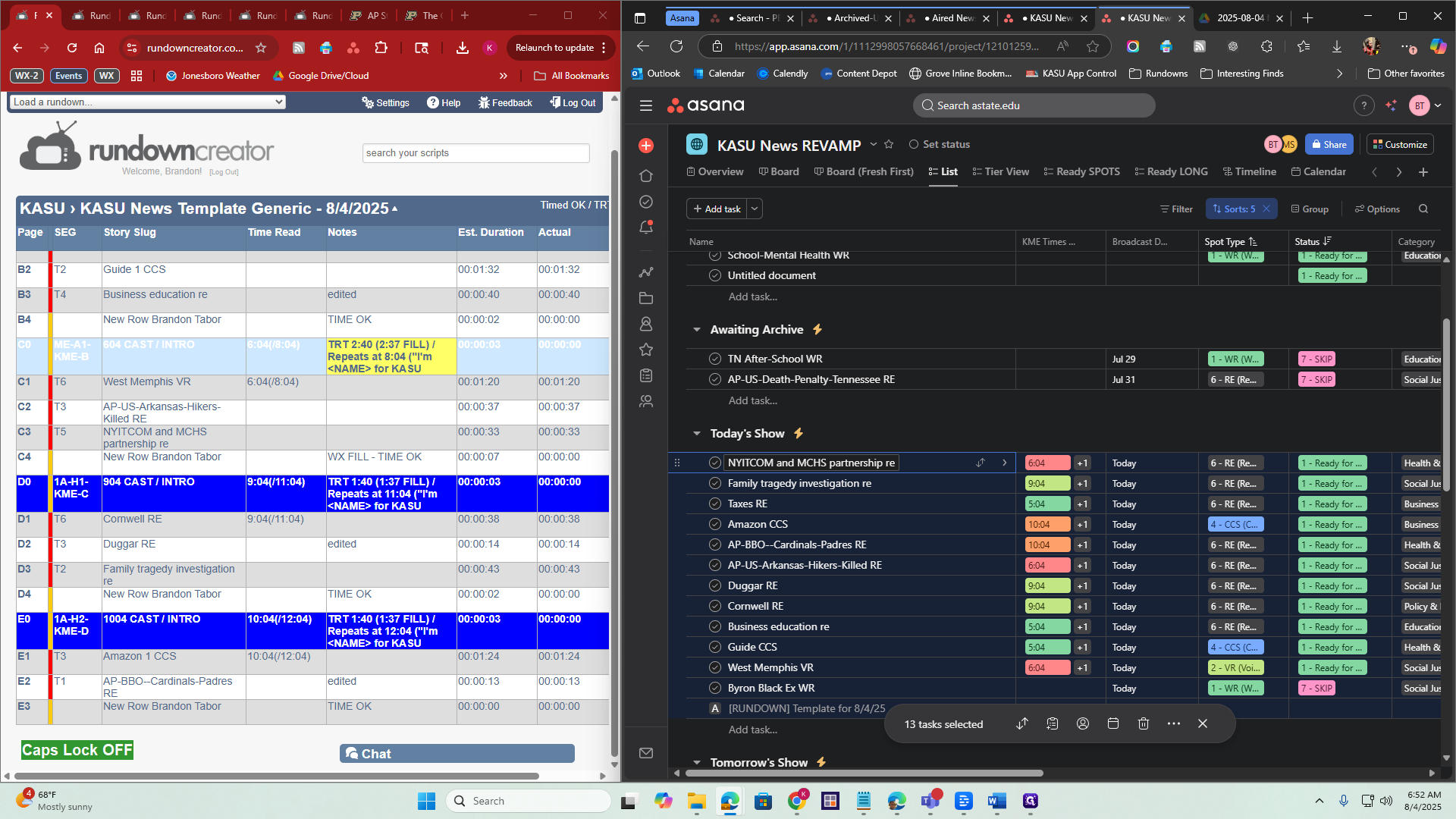
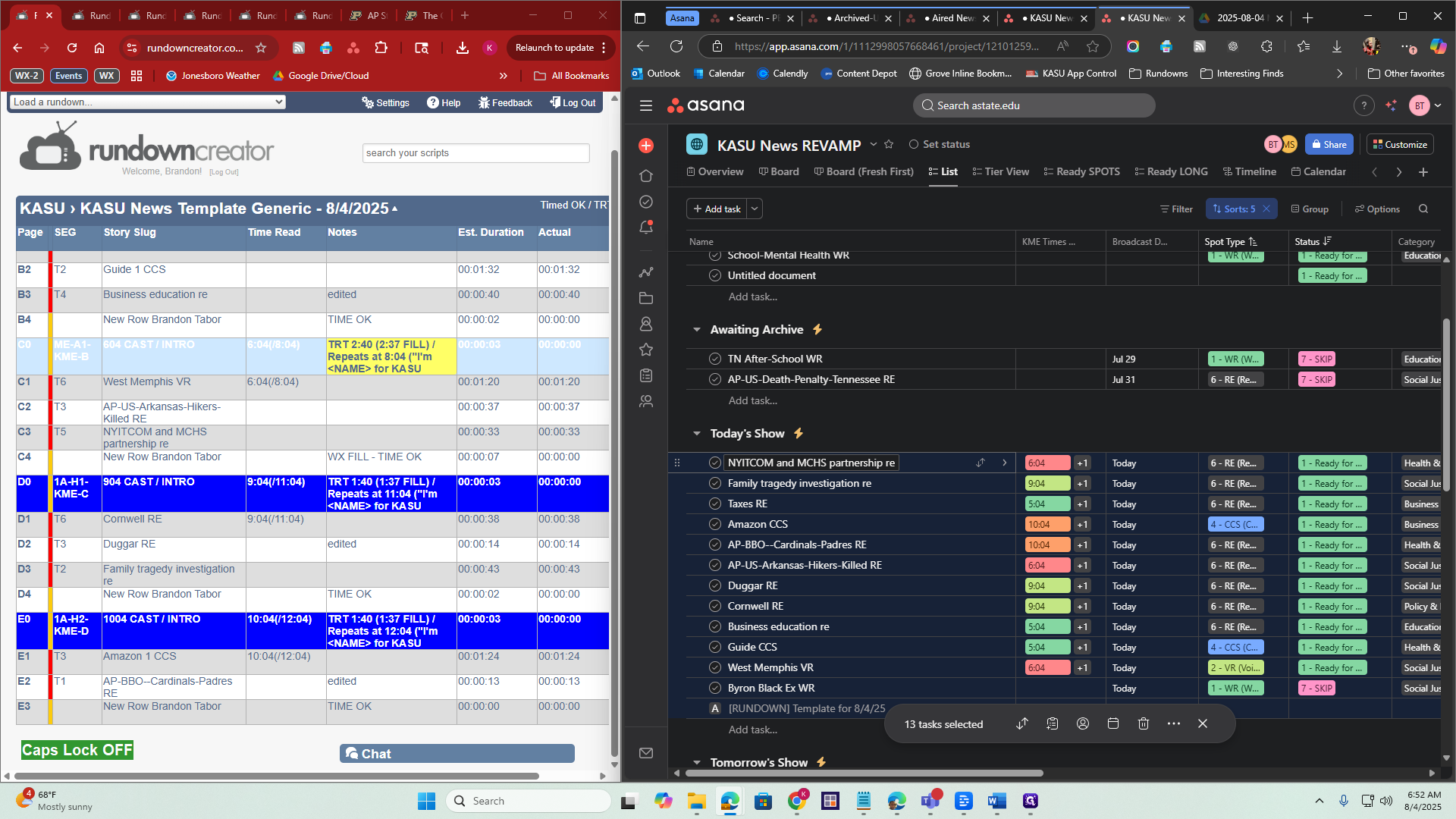
Then Asana will process the task. It will change everything to "Aired Published." Then, at midnight, Asana should move all these stories into the Aired News Archive project.
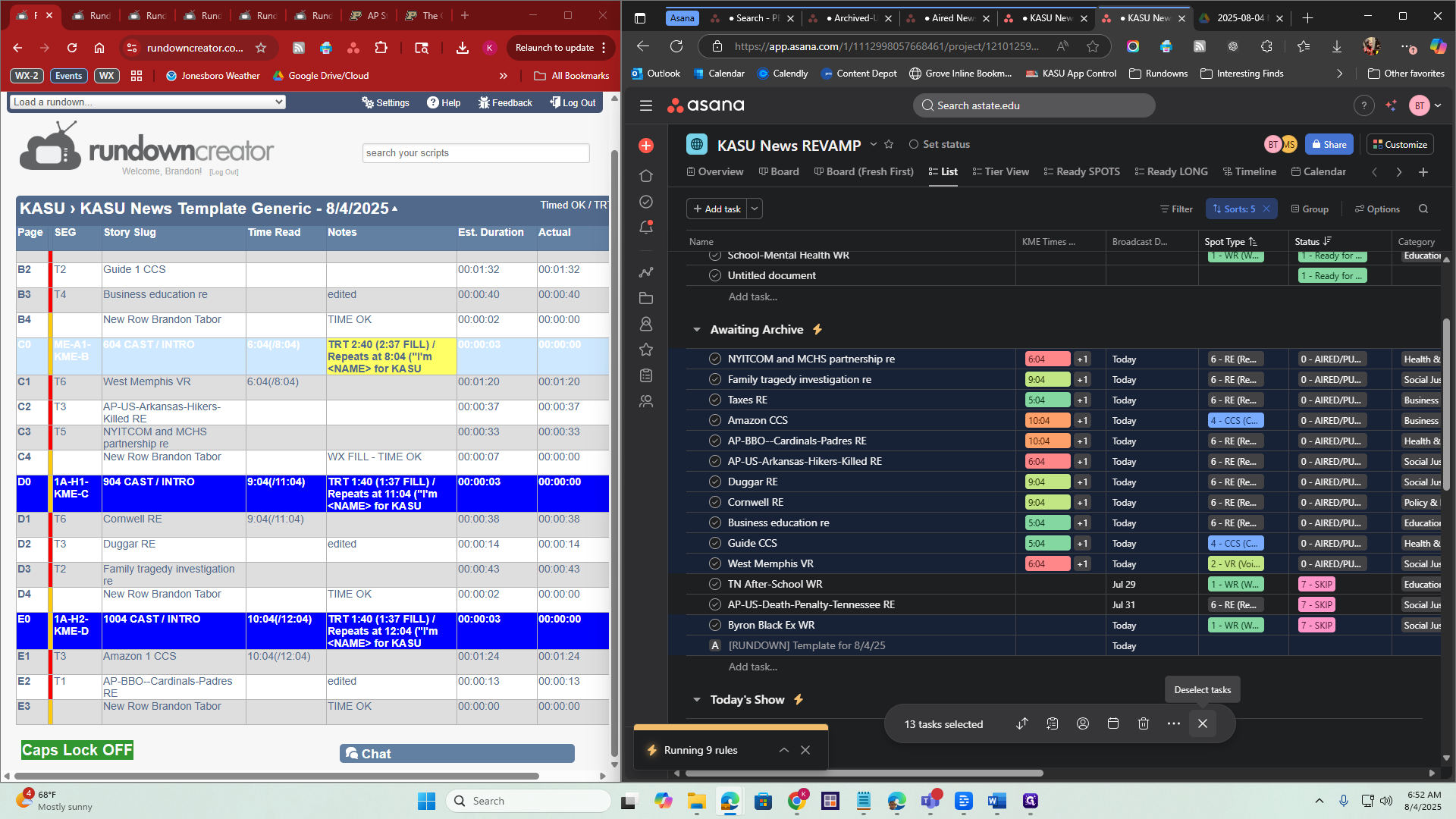
The archive provides the stories needed for quarterly reports. It is also a useful resource for researching and finding past stories to assist with planning. That is how you close out the newscast for the day.