
How to Communicate with Clients by Text Message or Email: Step-by-Step Guide
Learn how to efficiently communicate with clients using text messages or email. This guide covers accessing conversations, searching for clients, sending attachments, using templates, and sharing vehicle forms.
By Emilie Peloquin
In this guide, we'll learn how to communicate with clients using text messages or email. We will see how to find recent conversations, search for clients, and choose the best way to send your message. You will also learn how to attach files, use message templates, and share vehicle information with your clients.
Let's get started
We will learn how to communicate with clients by text message or email.
1
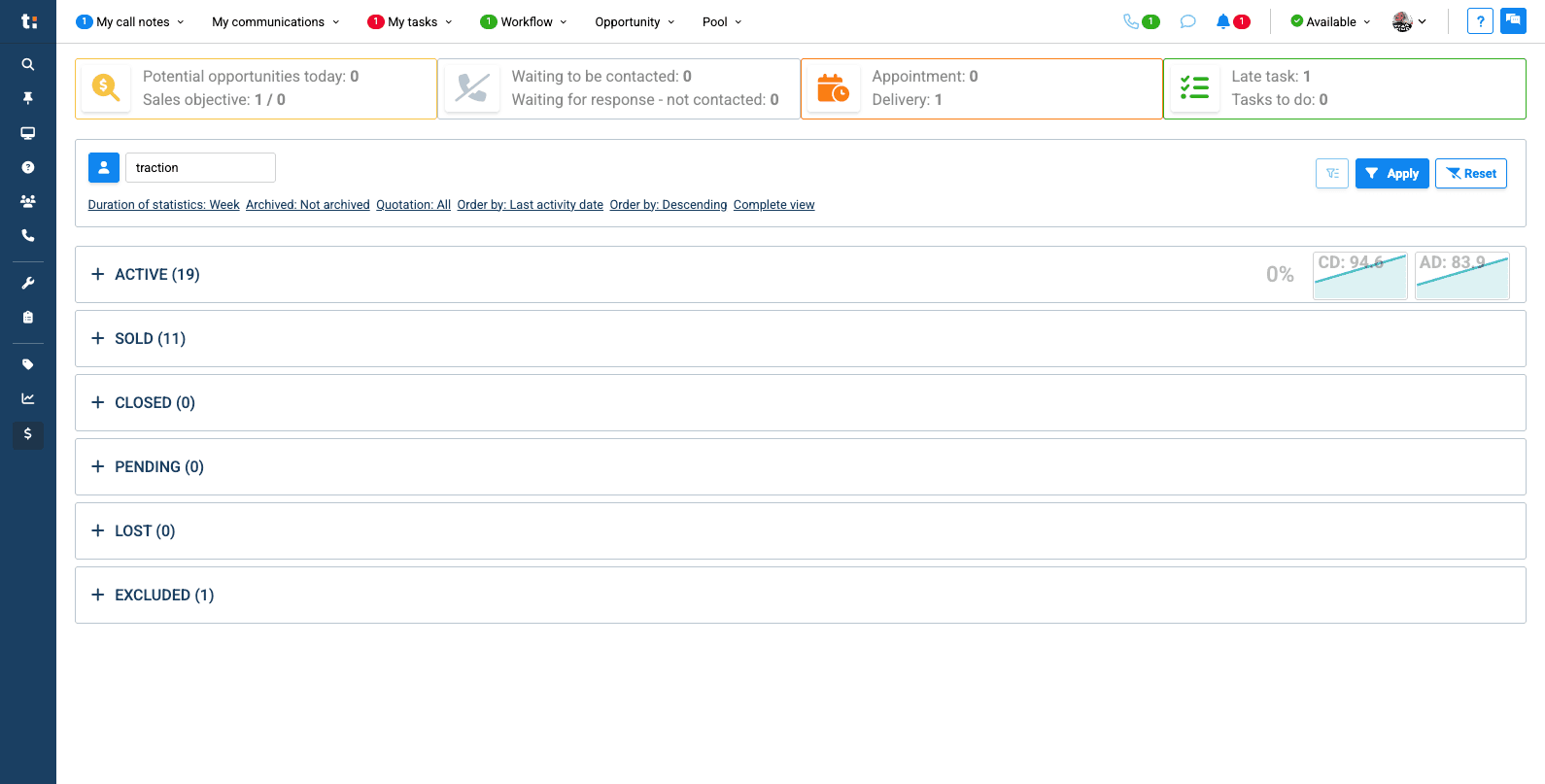
If you recently had a conversation with your client, you will find it in "My Communications."
2
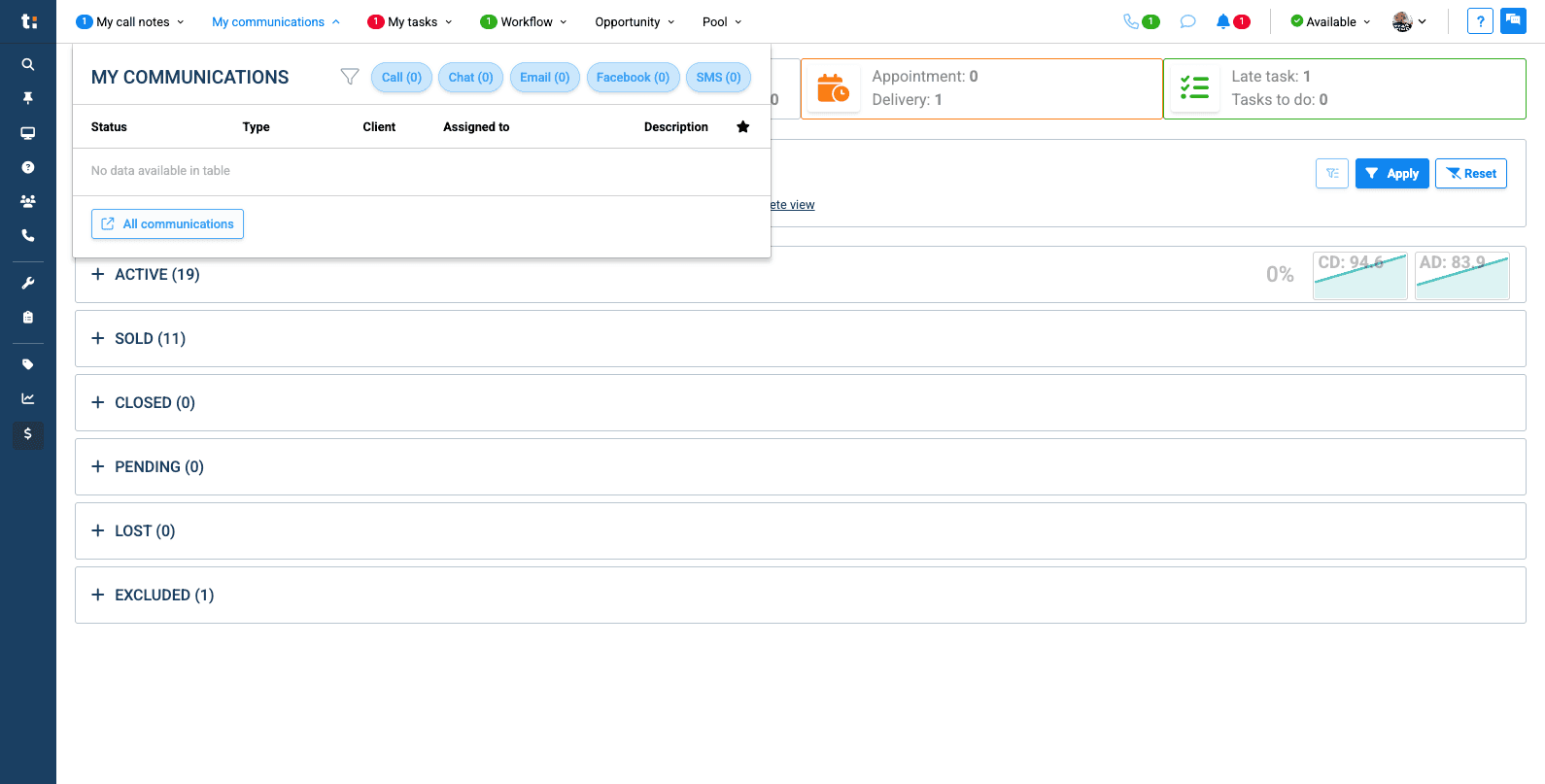
Then, go to "All Communications" to access your inbox.
3
All clients you have recently spoken with are listed here. You can click on the client to go directly to the conversation.

4
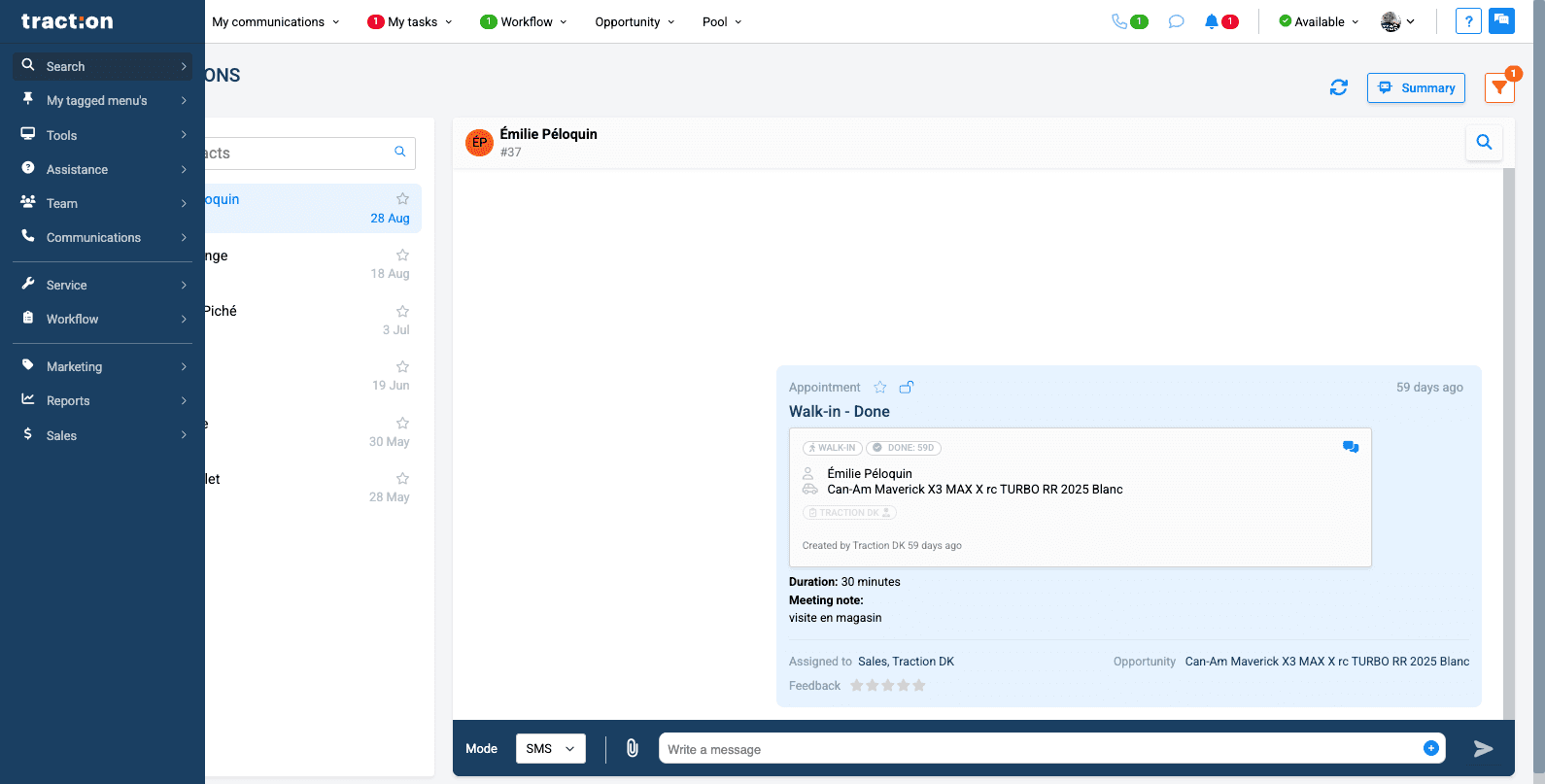
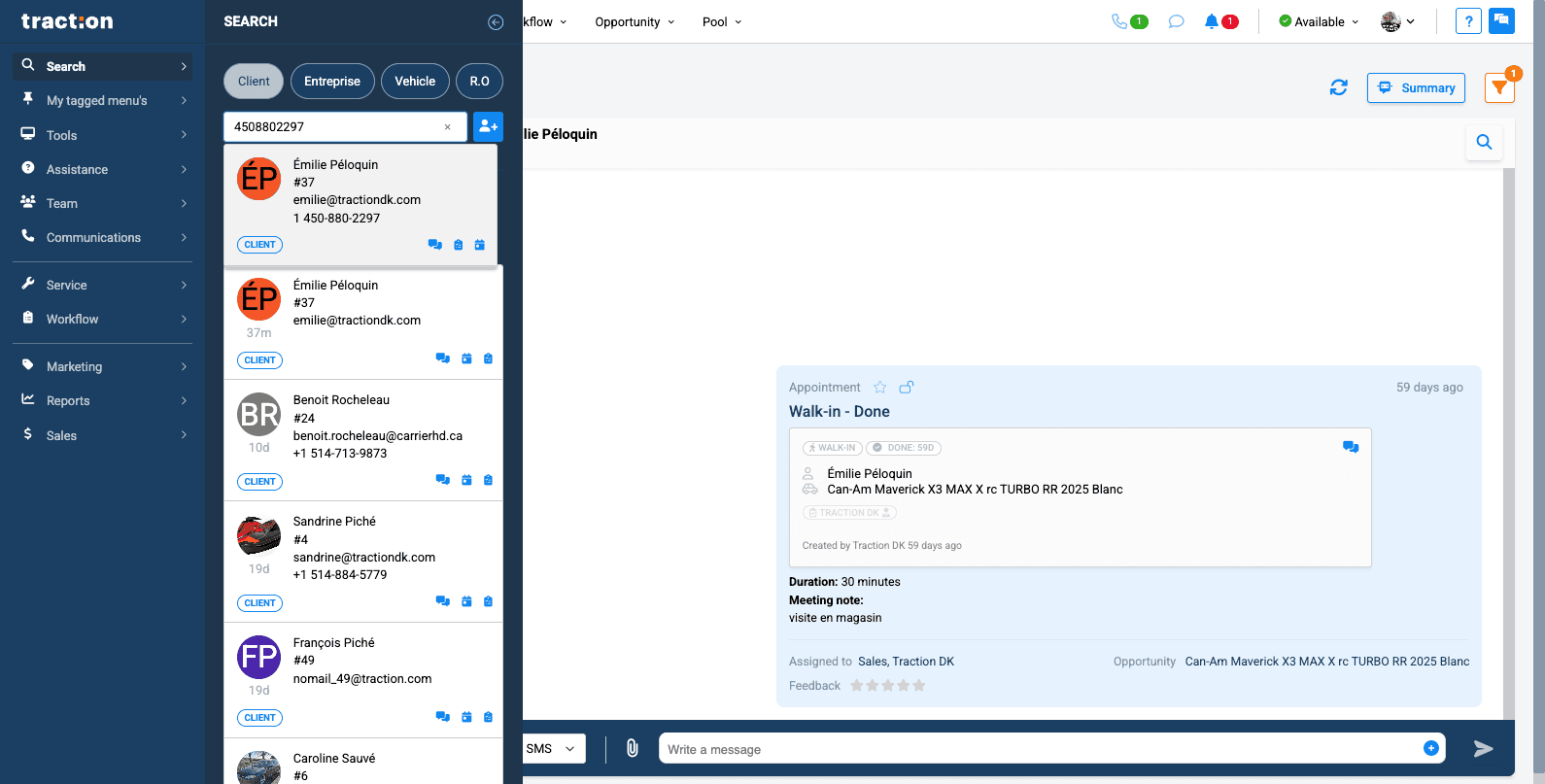
If you haven't had recent contact with the client, you will need to use the "Search" tab.
5
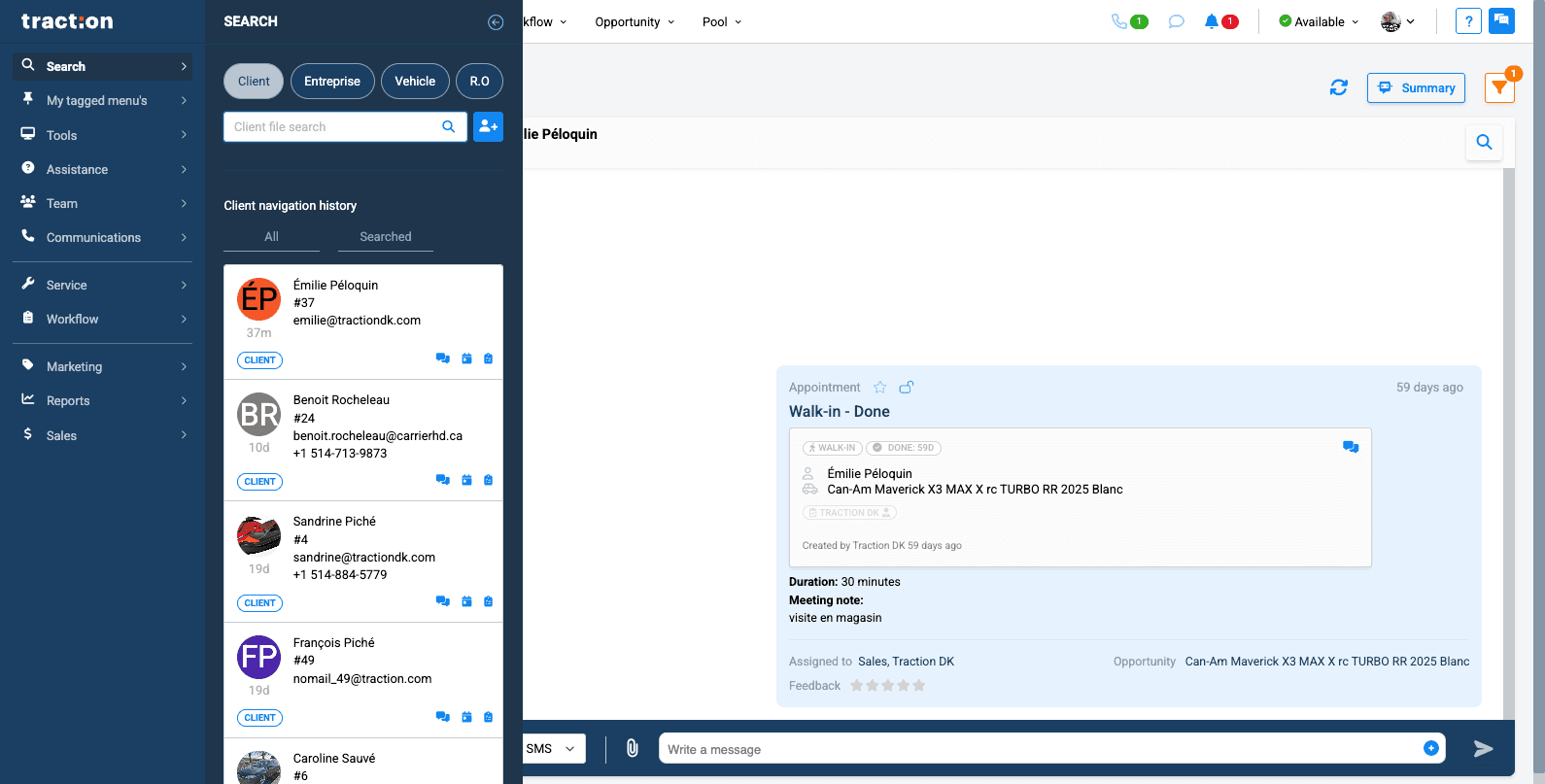
You can search your client by name or phone number
6
Click on the client's name to access his file
7
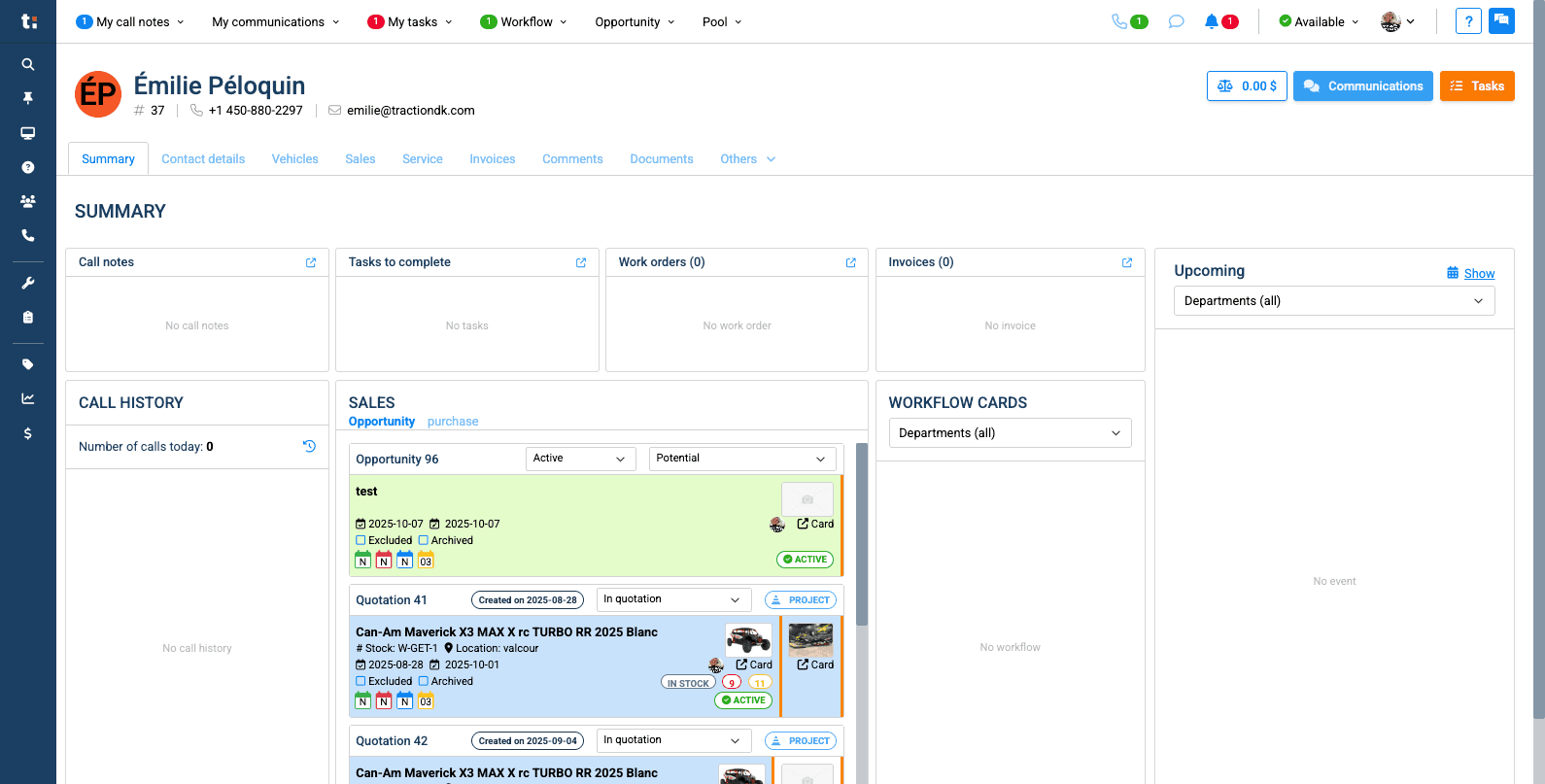
Once in the client file, click on "My communications" at the top right to access communication with the client directly.
8
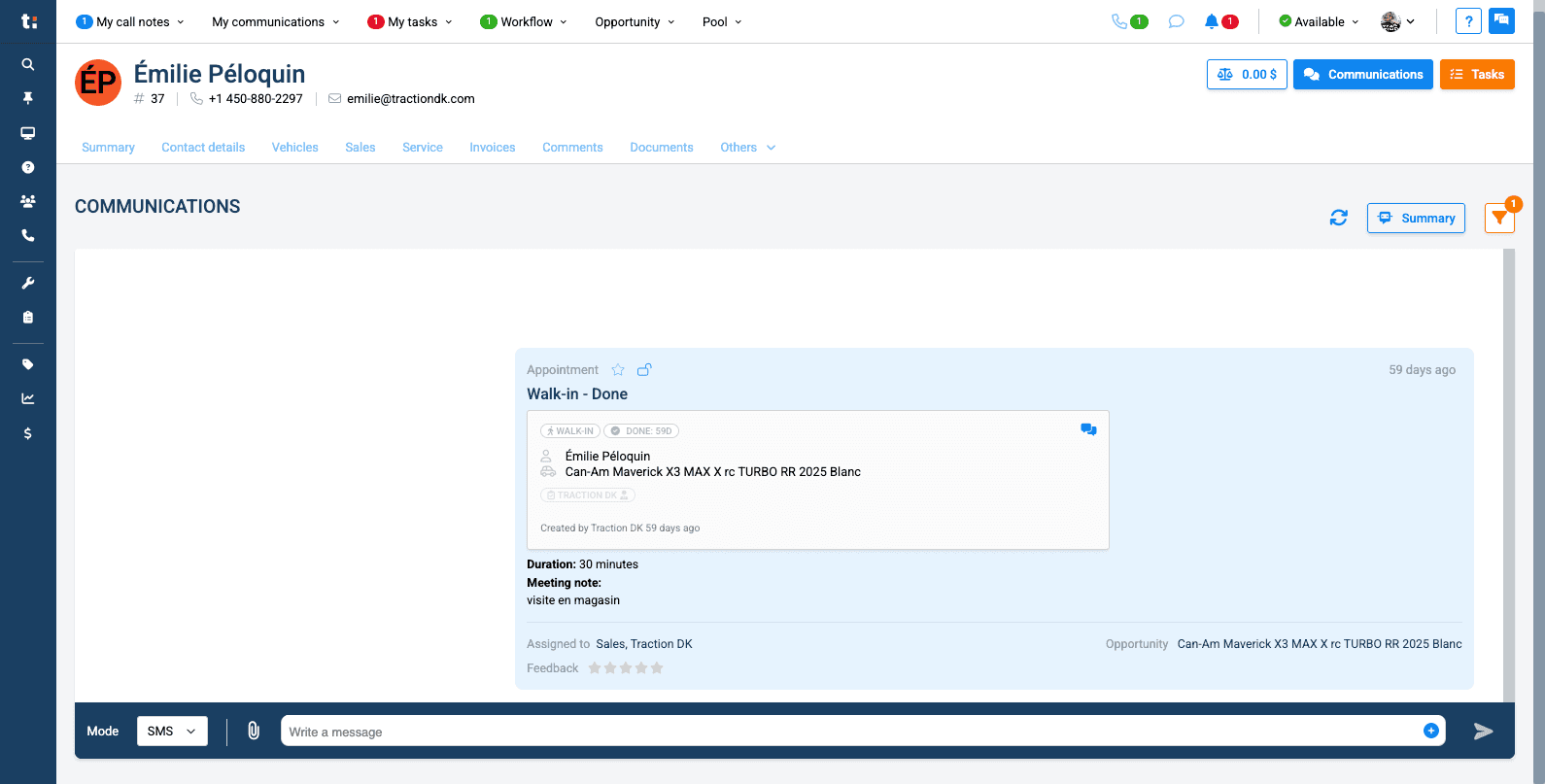
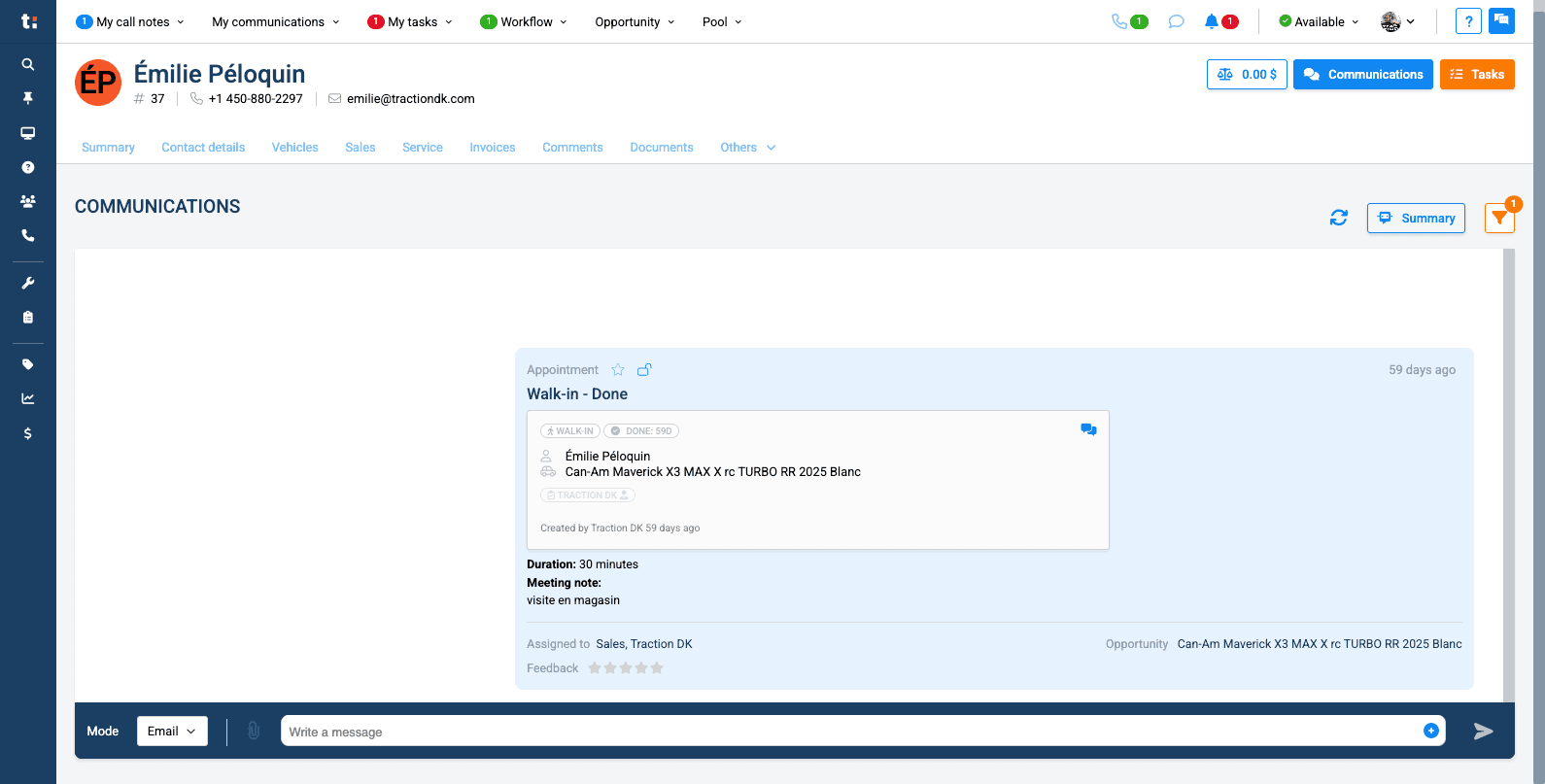
First, on the left, you can select either email or SMS as the sending method.
9
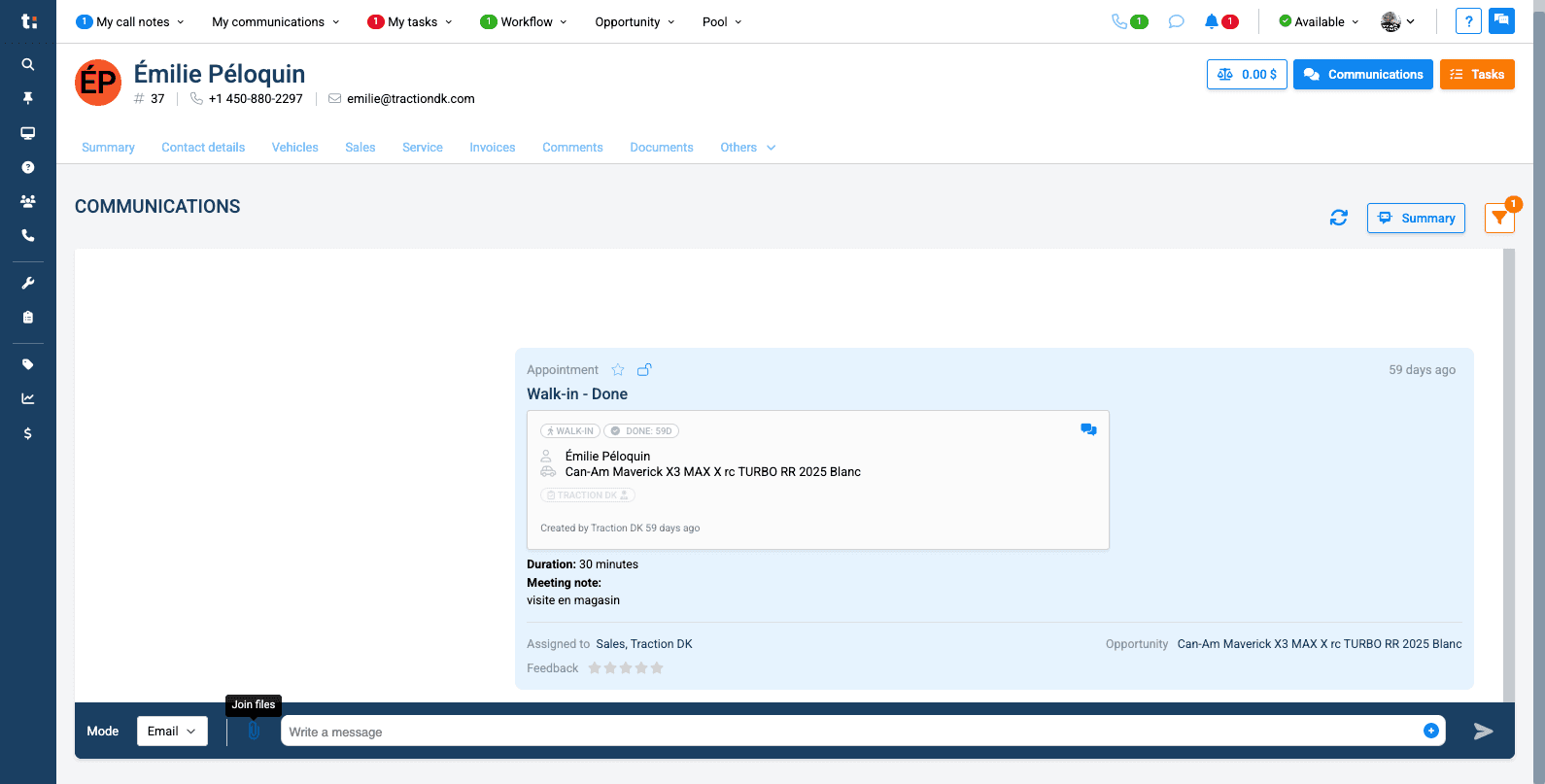
You can then send an attachment by clicking on the paperclip icon.
10
You can write your message here.
11
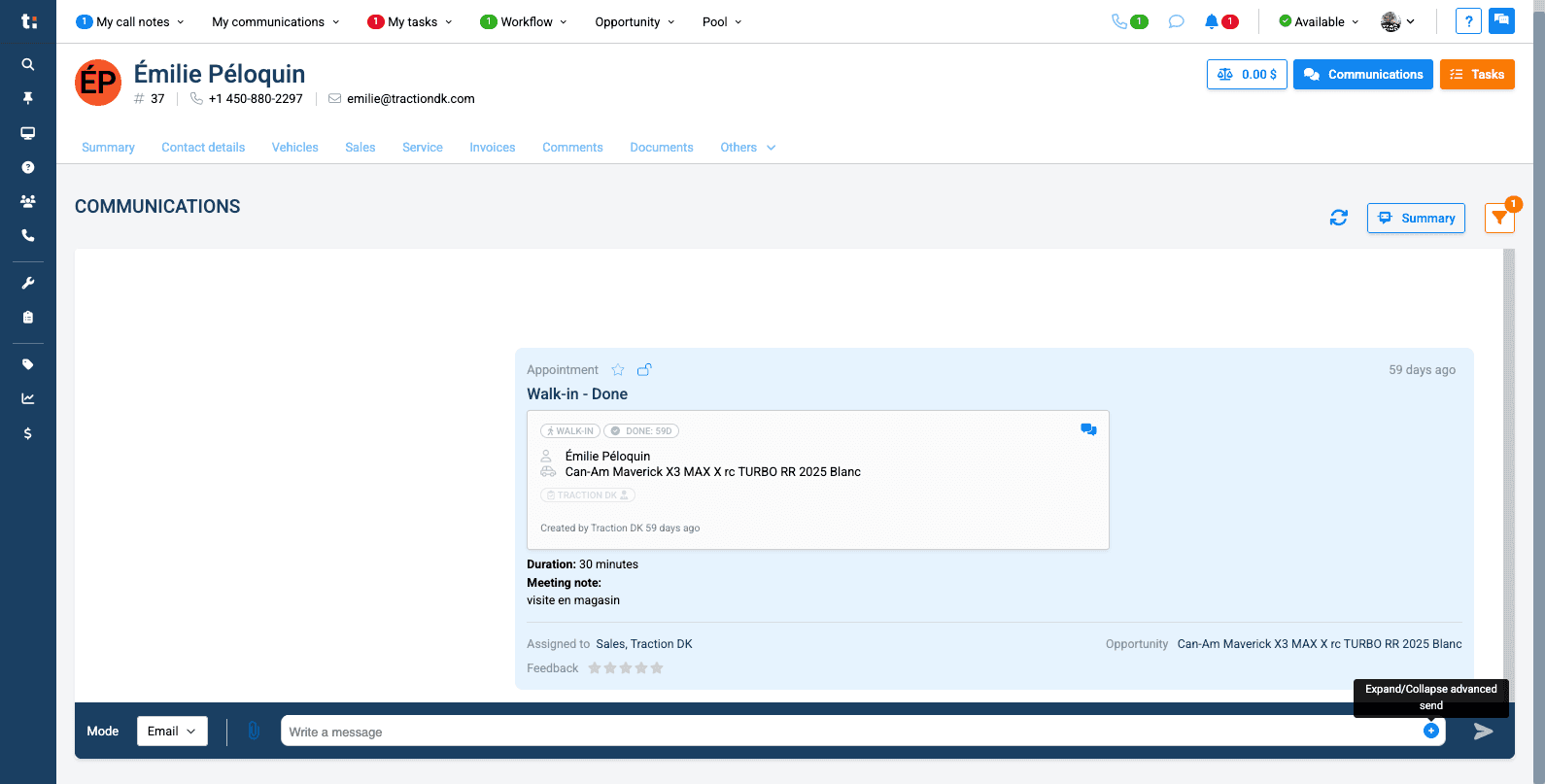
In addition, if you press the plus button on the right, you can select a template you created earlier. For this, you can refer to the article on how to create a template
12
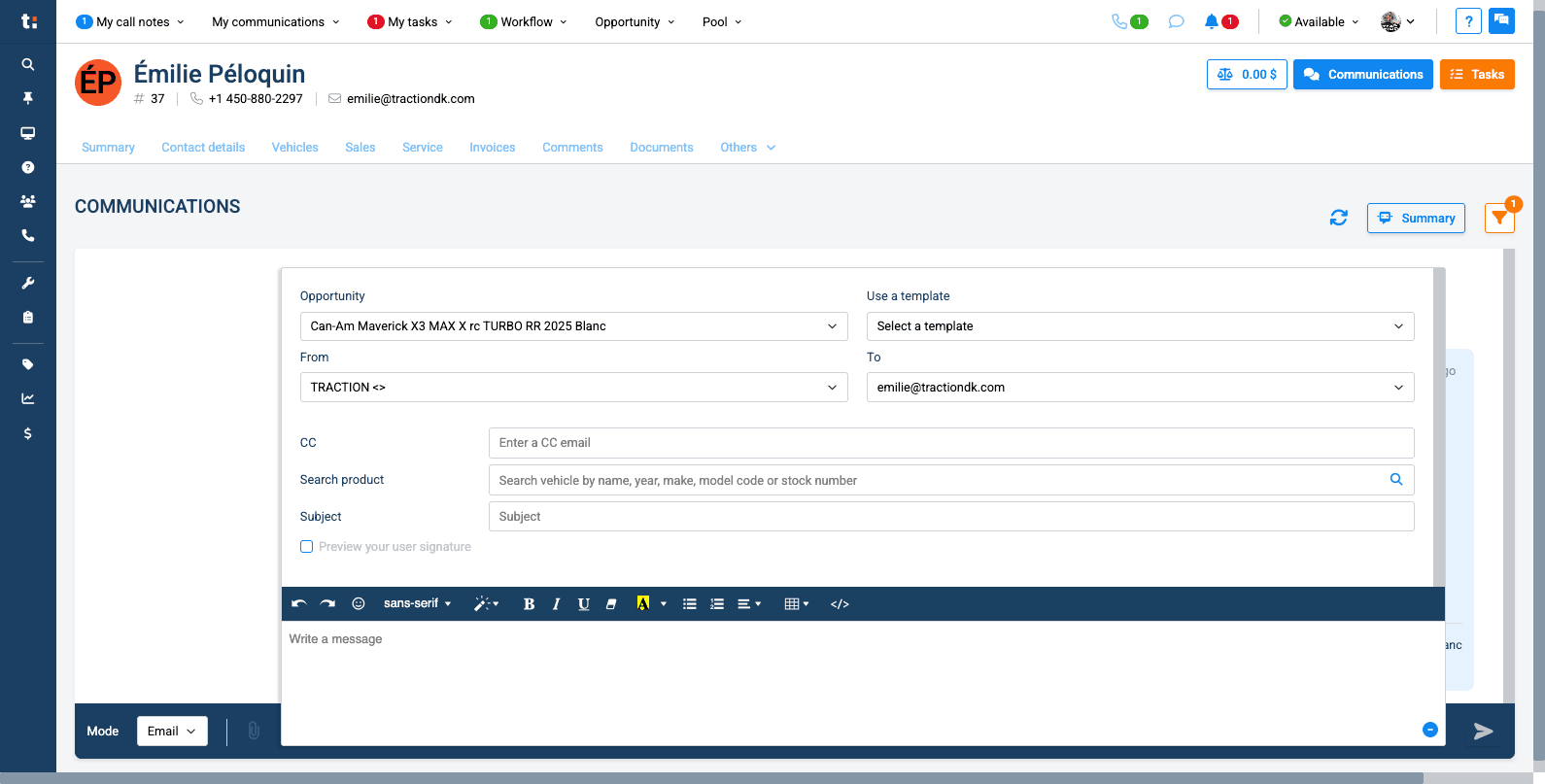
Select the template you want to use in the dropdown menu
13
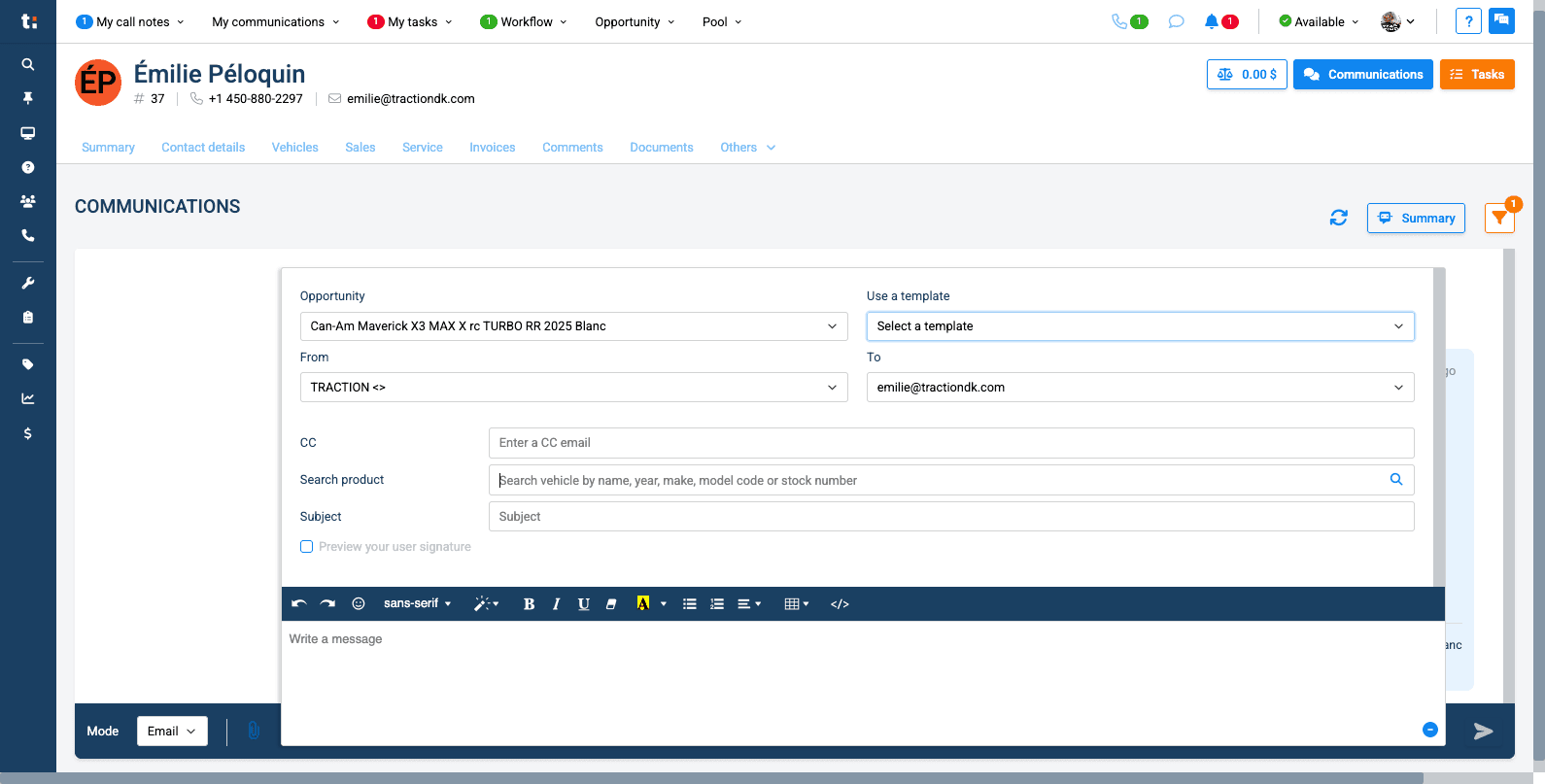
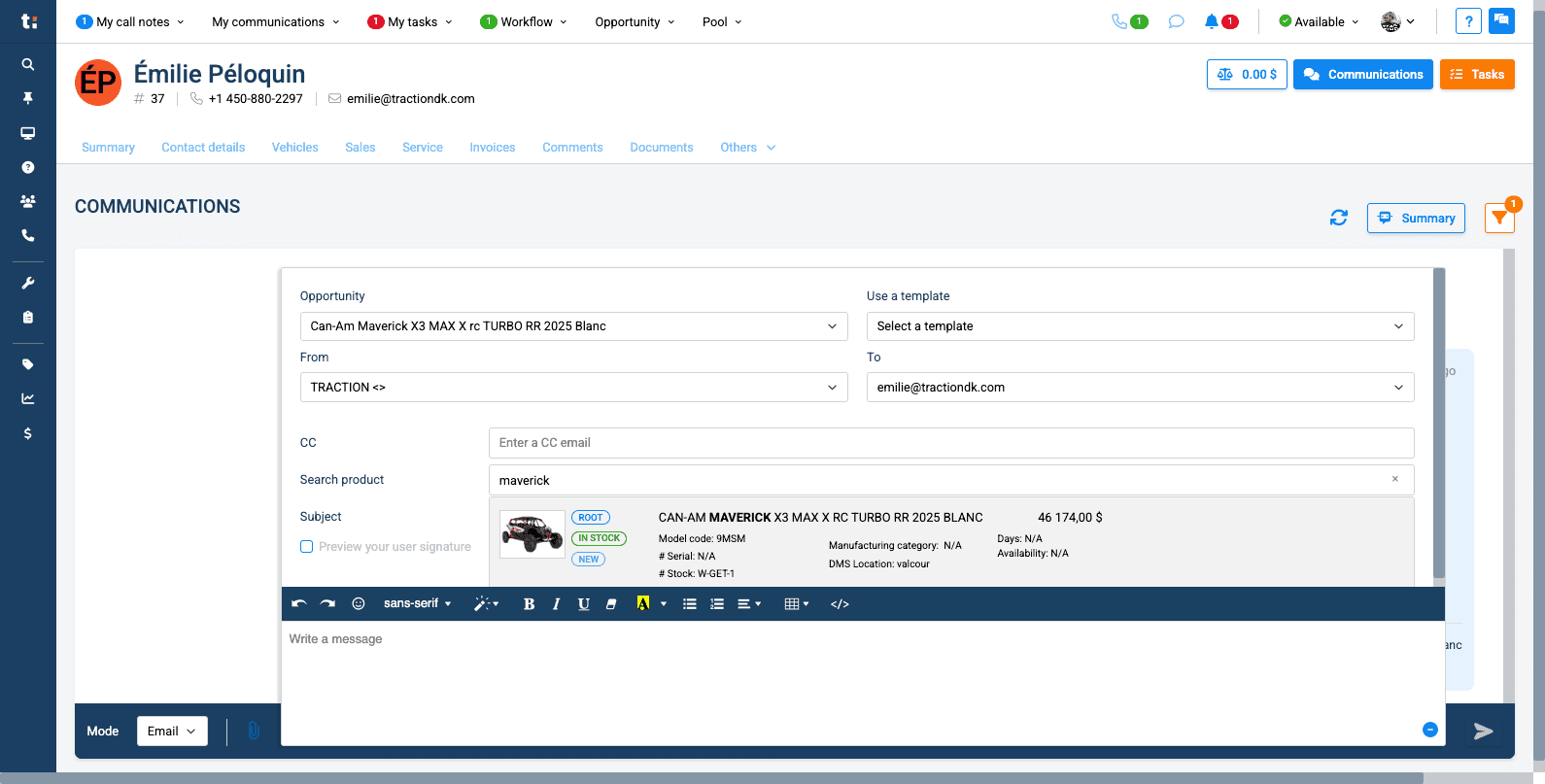
You can also send a vehicle form by searching for the vehicle by name, model number, stock number, or serial number.
14
Click on the vehicle record, and the link will appear here.
15
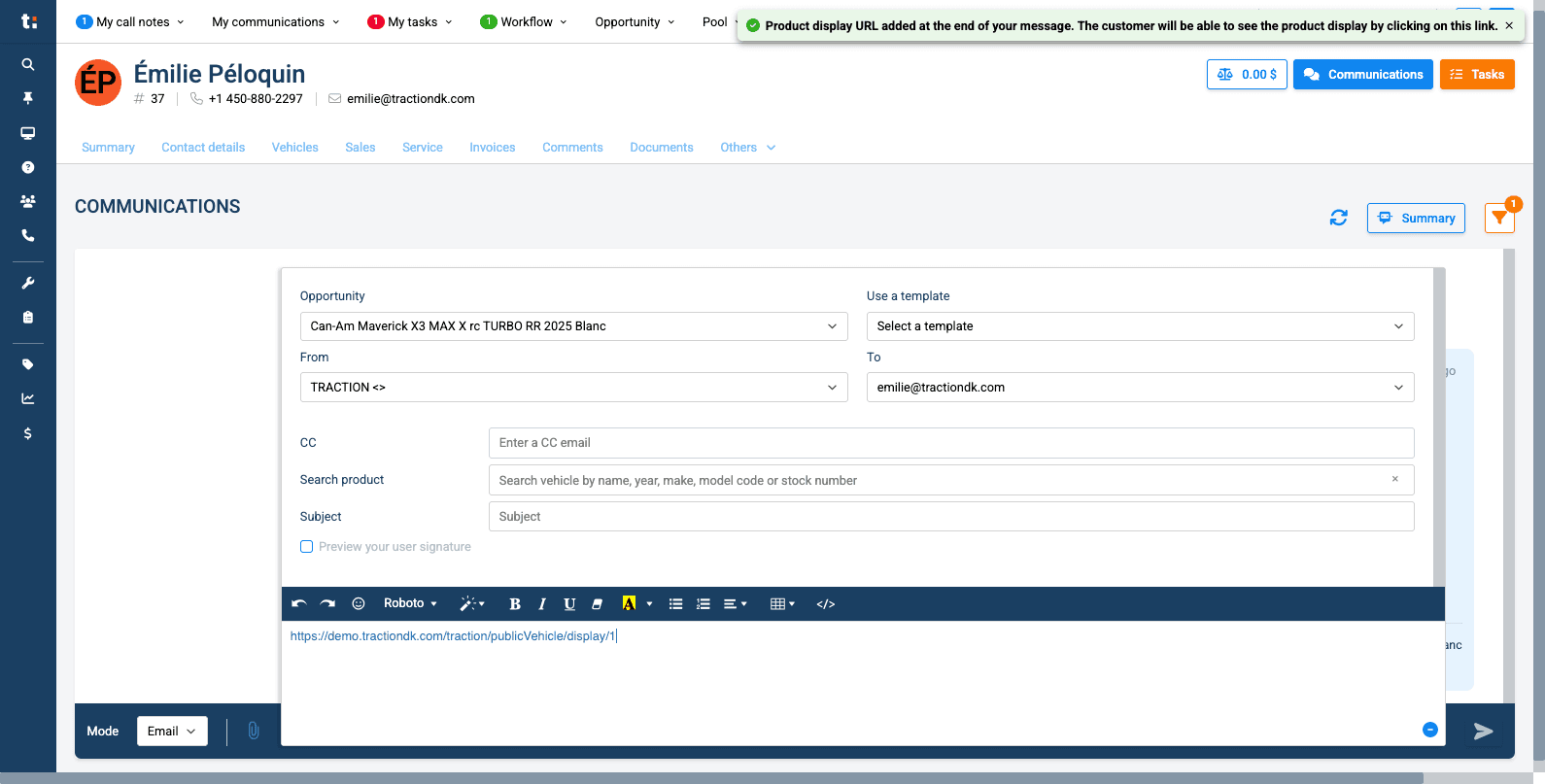
16
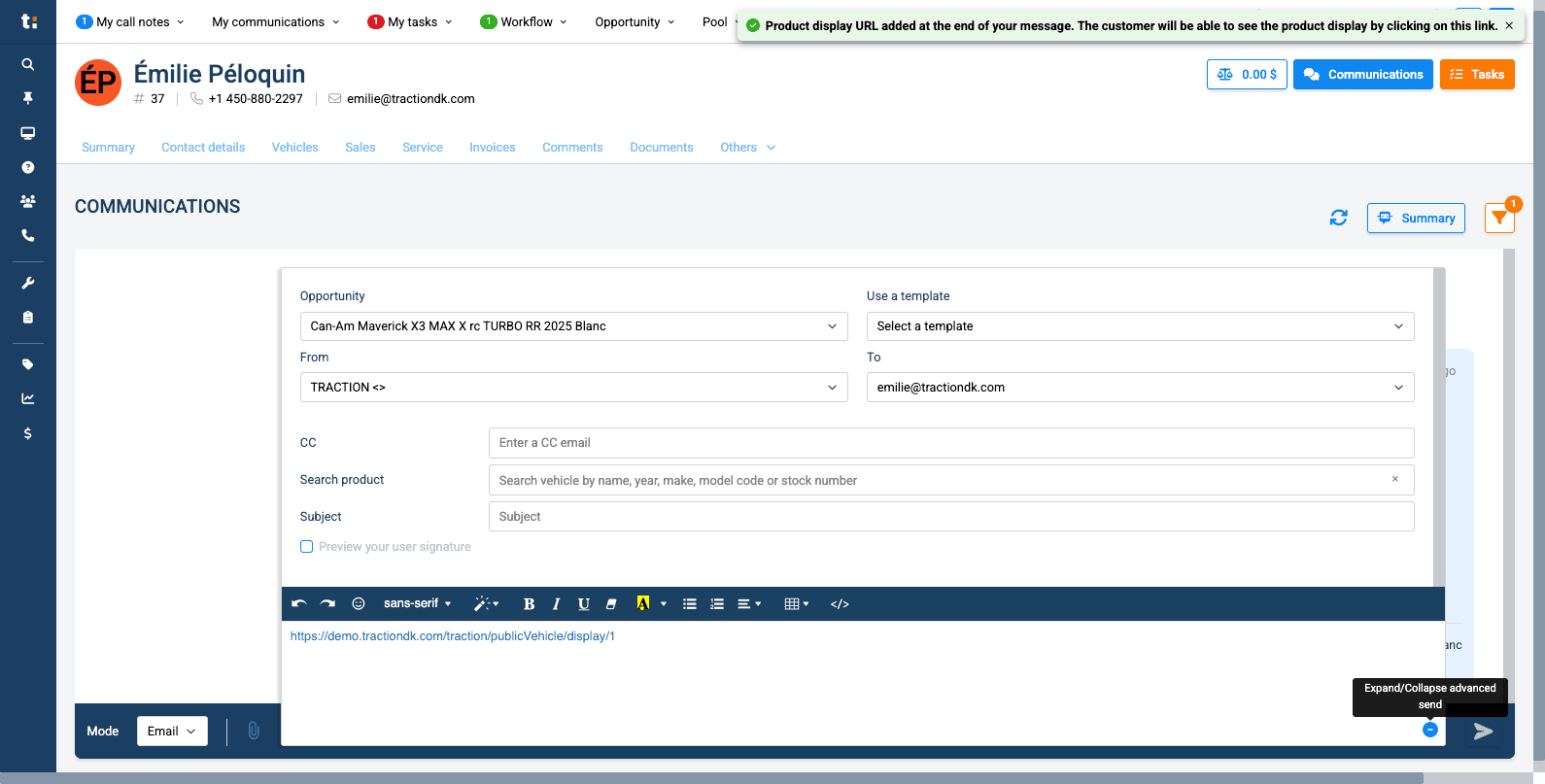
Once finished, click the minus sign.
17
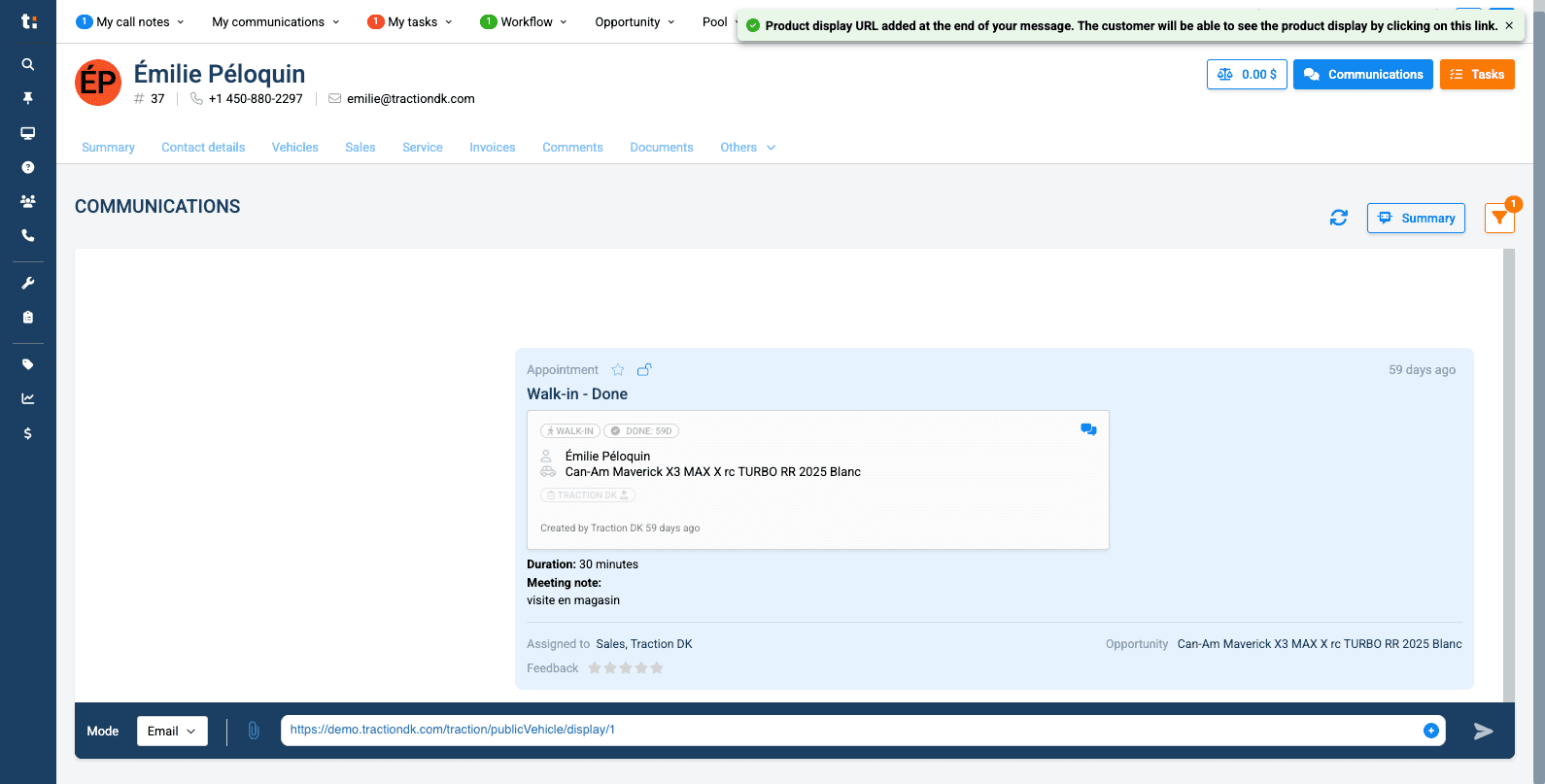
Then click the arrow to send the message.
If you still have questions after consulting this article, please feel free to contact our support team at: support@tractiondk.zohodesk.com