How to Complete a Currency Trade: Step-by-Step Guide
Learn how to complete a currency trade with this easy step-by-step guide. From selecting your currency and amount to confirming your trade and adding a beneficiary, follow these instructions for a smooth transaction.
By Michael Usmar
In this guide, we'll learn how to complete a currency exchange transaction using an online platform. We will cover how to select your desired currency, enter the amount, choose a value date, and get a quote. You will also see how to confirm the trade, select or add a beneficiary, and add an invoice number before finishing the process.
Let's get started
Currency Selection
1
Click here
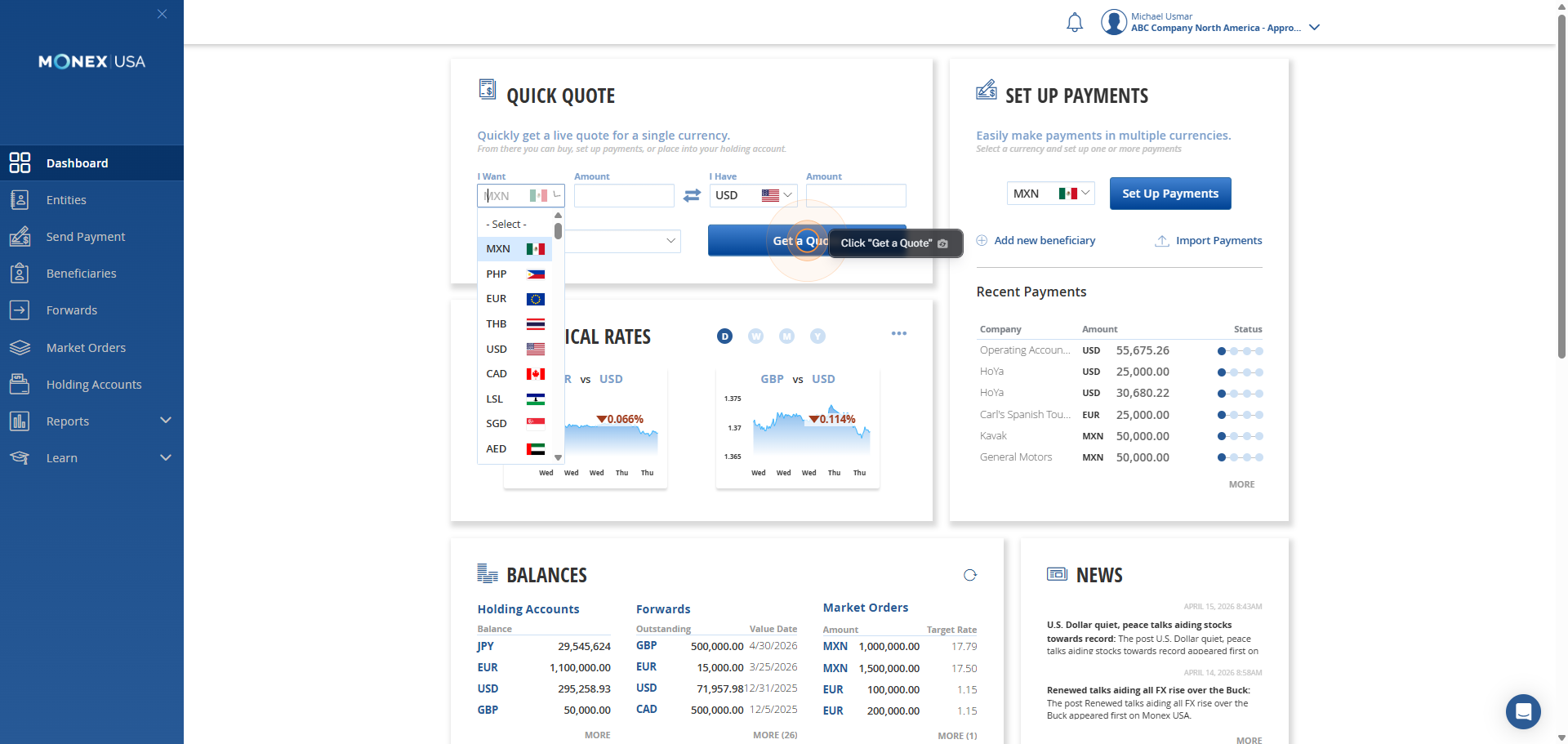
Dropdown. Enter your amount.
2
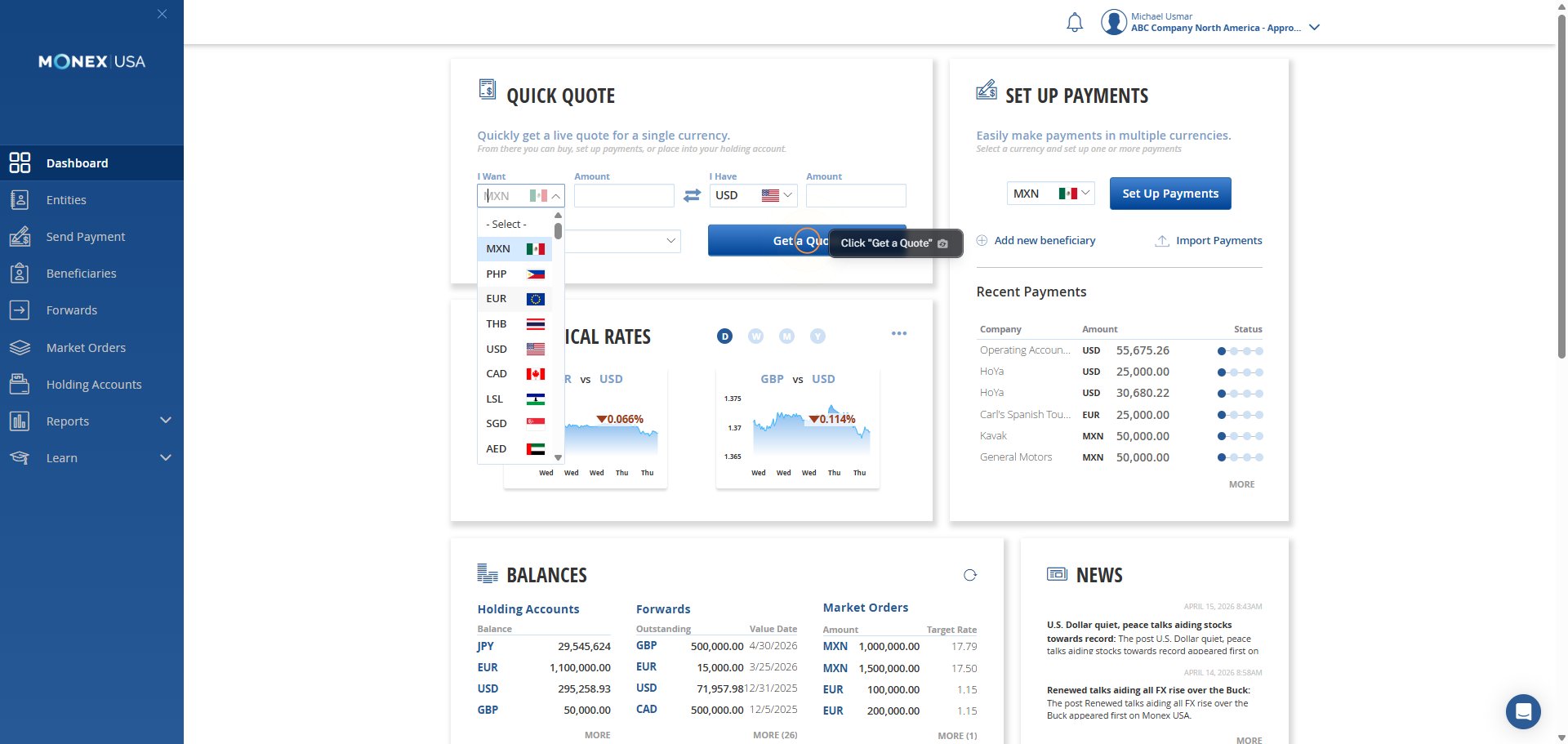
3
Enter Amount
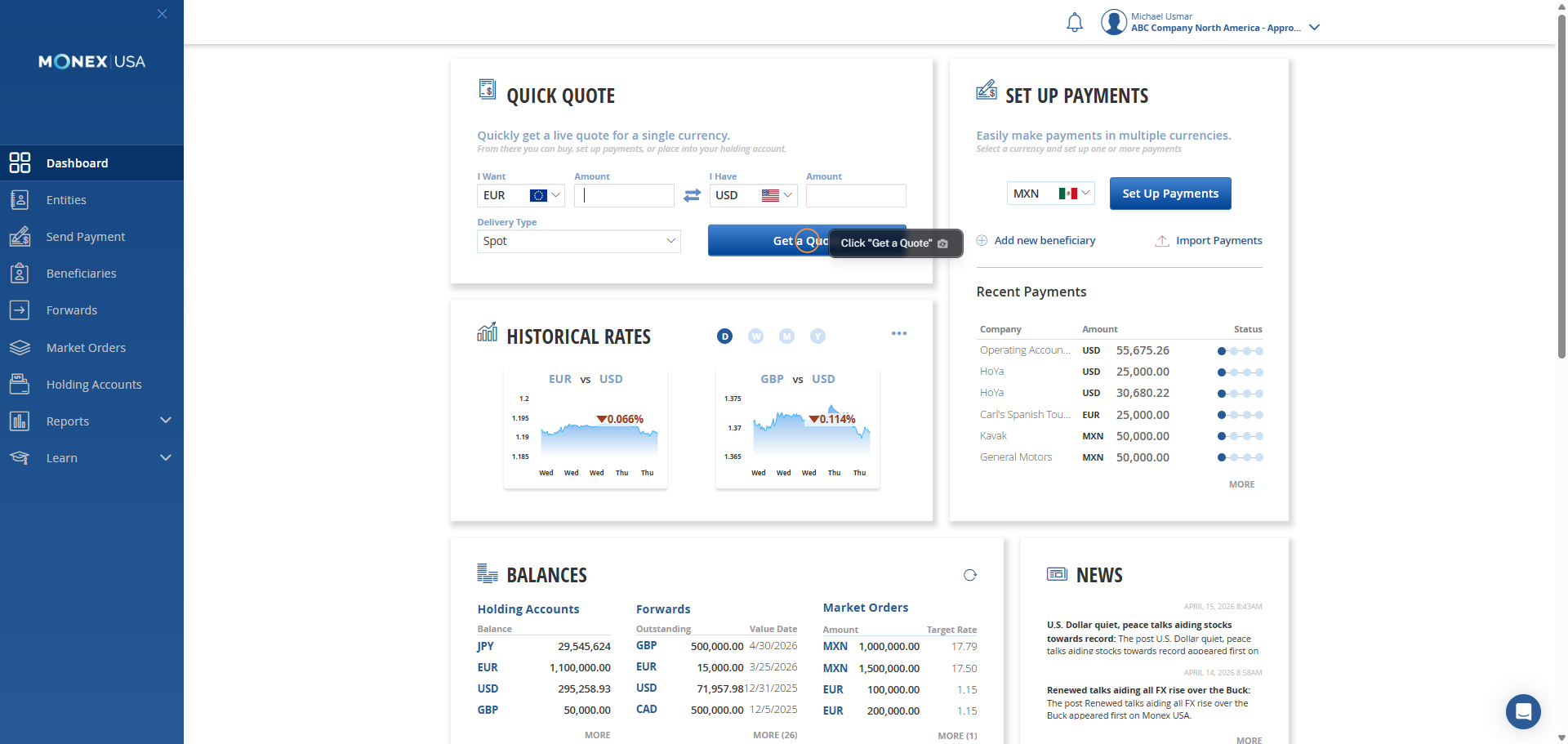
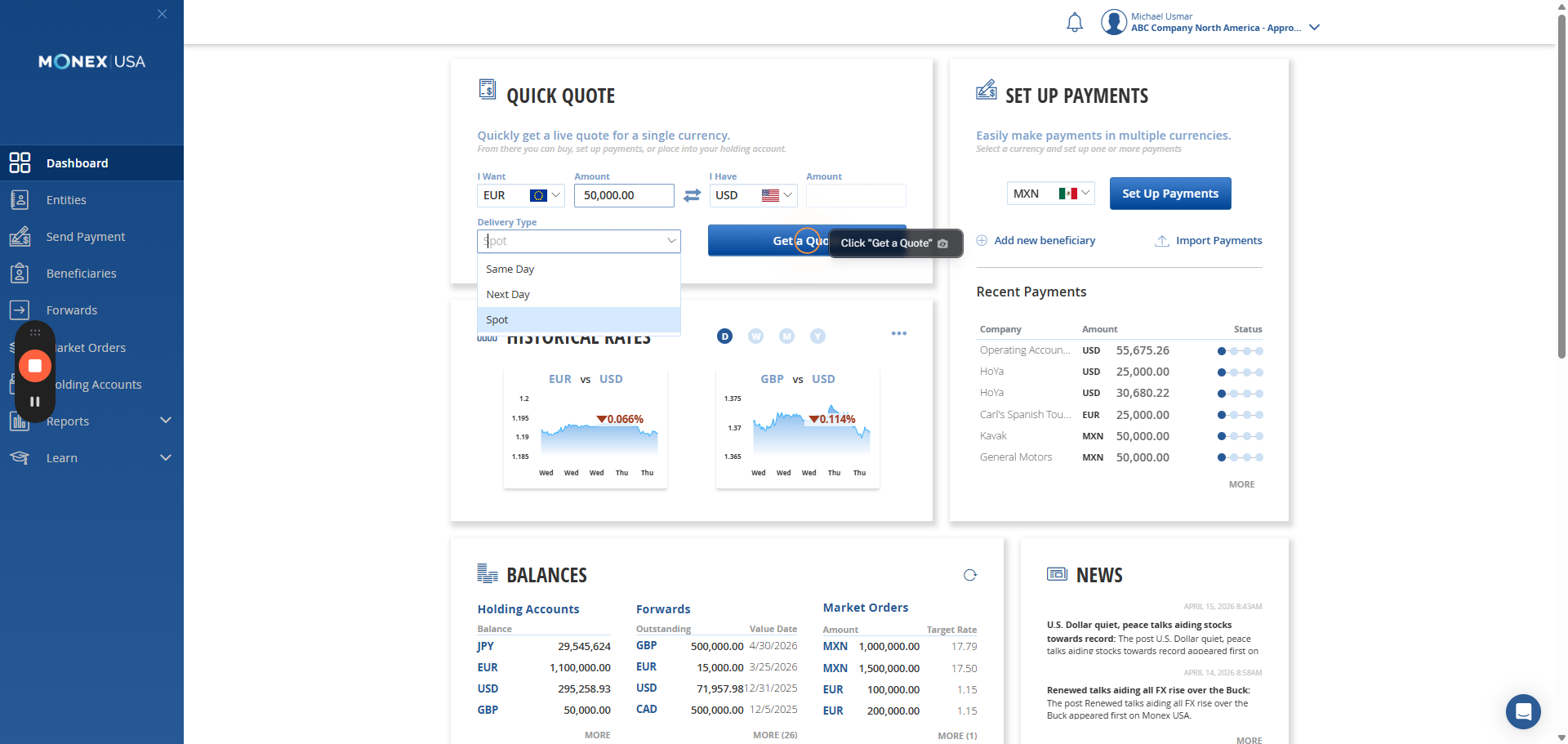
Here, you can select a value date.
4
Click here
5
Enter Amount
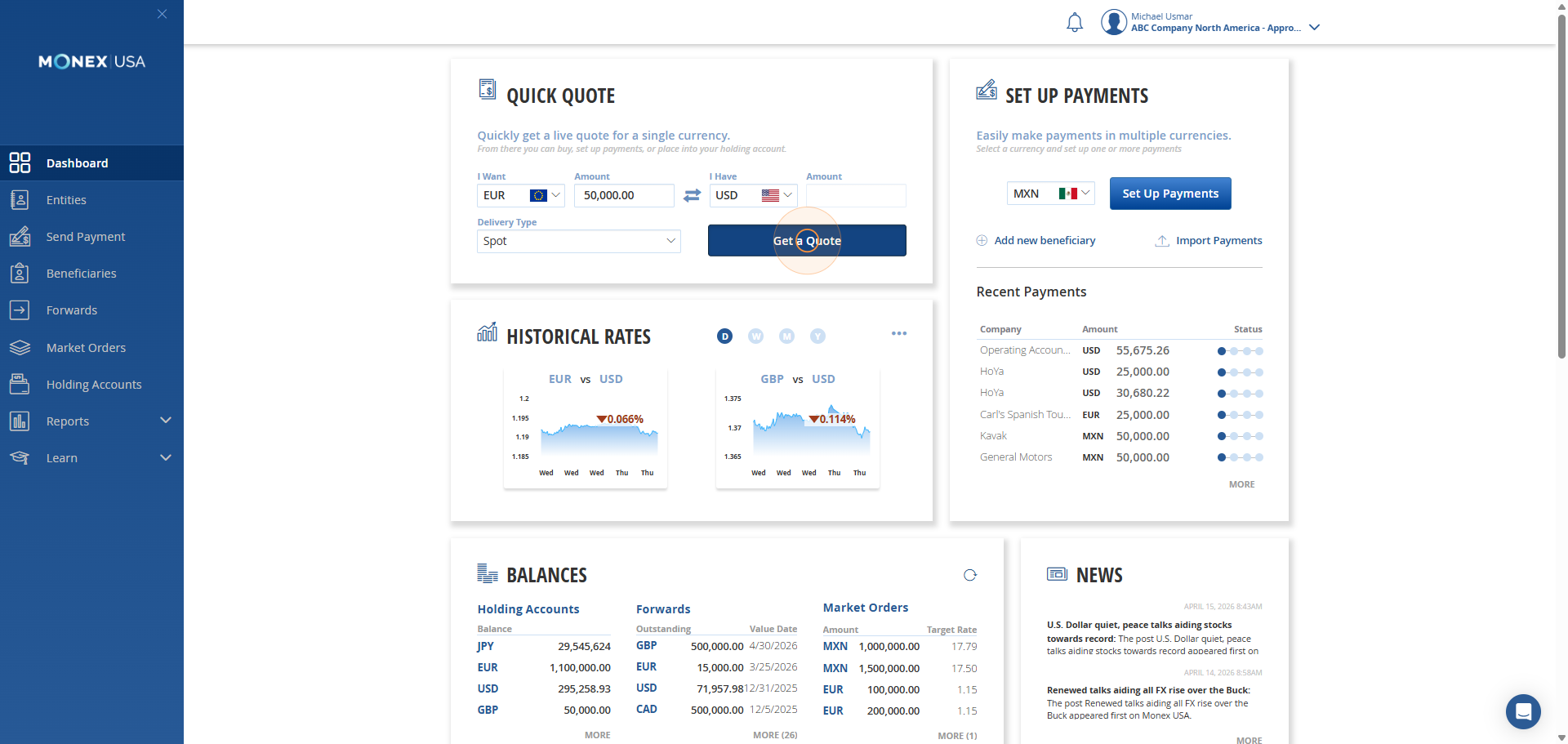
Spot is the default selection. Select Get a Quote.
6
Click here
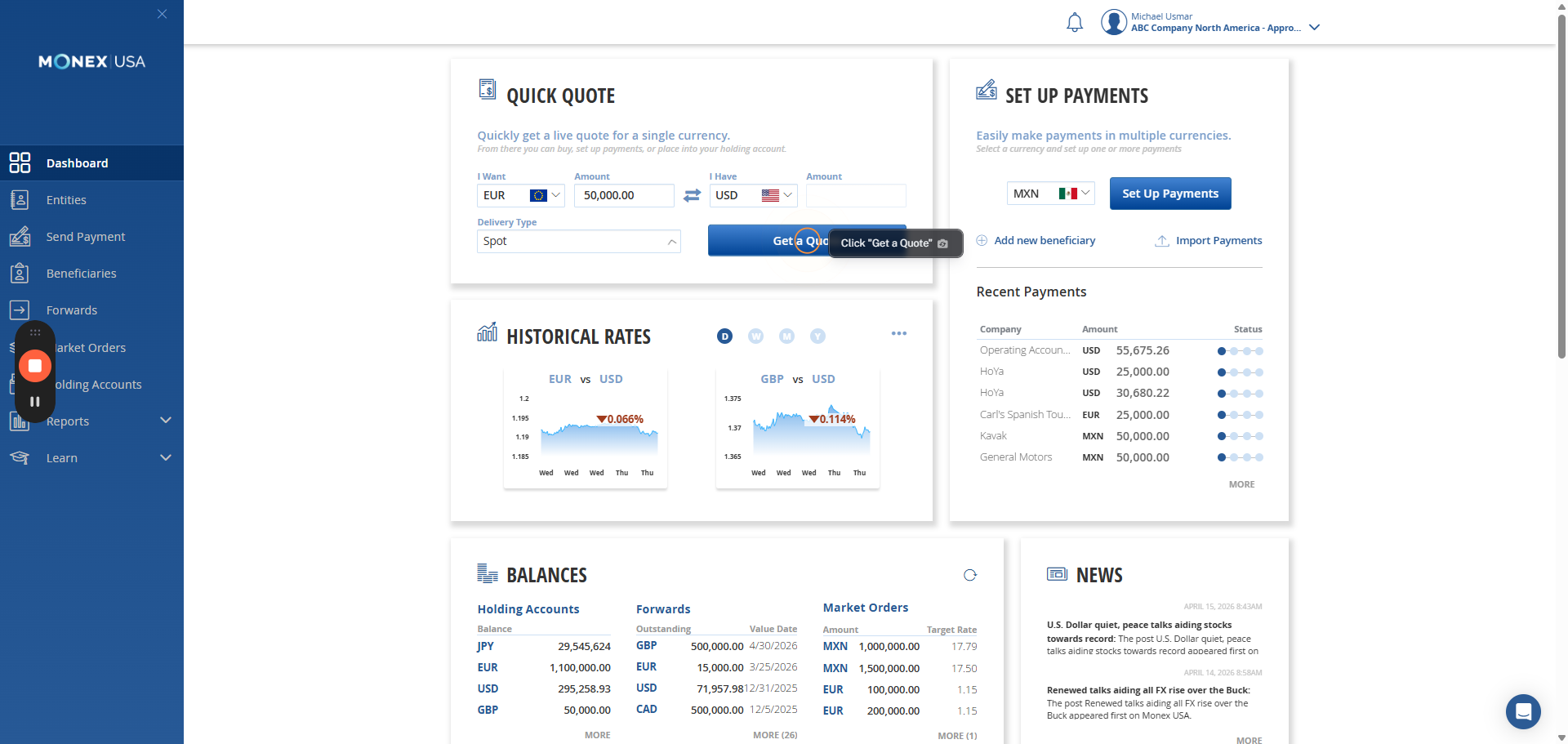
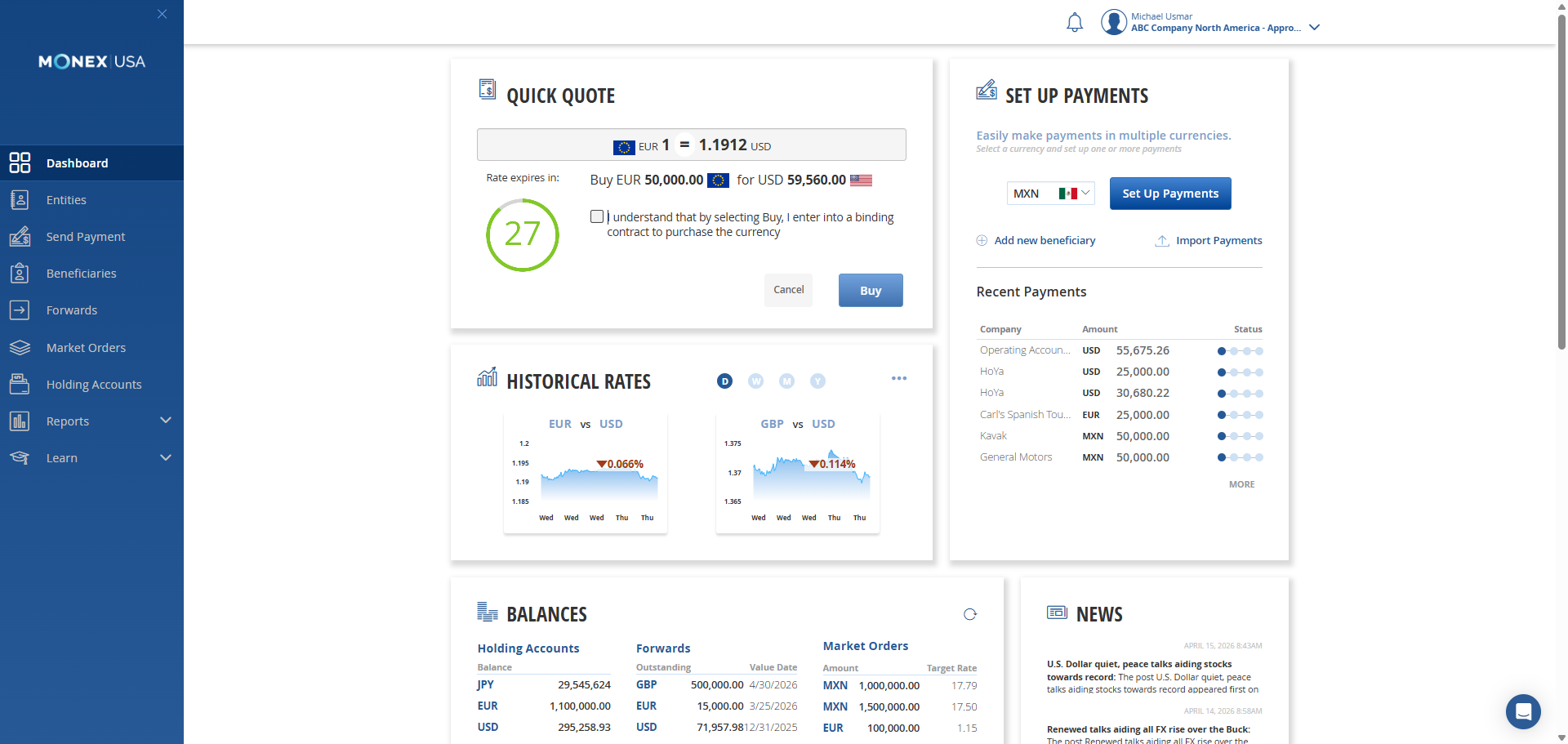
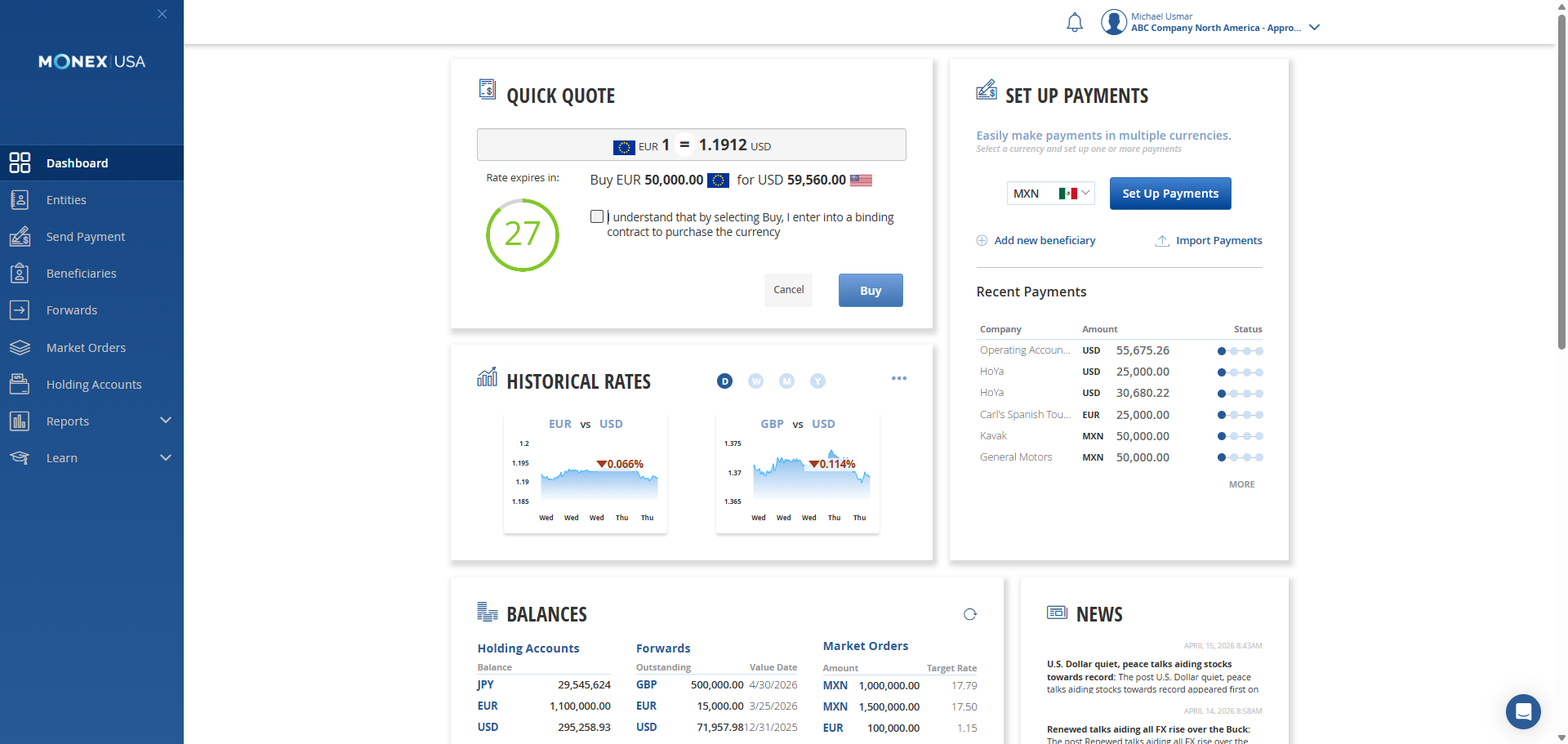
You have 30 seconds to confirm by checking the box.
7
Click here
8
Right-click on "contract to purchase the currency"
9
Click on "contract to purchase the currency"
10
Click on "enter into a binding"
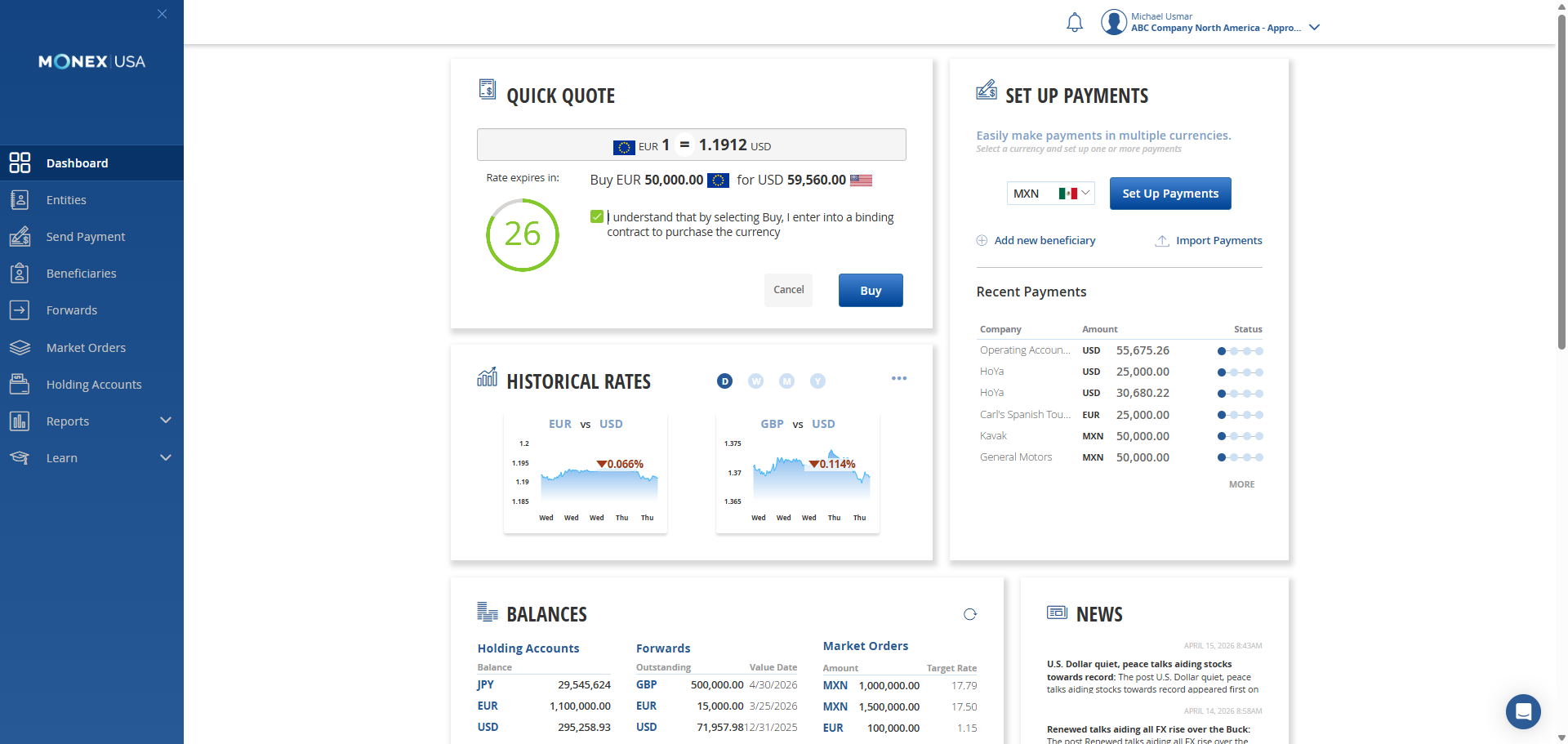
This trade is confirmed.
11
Click here
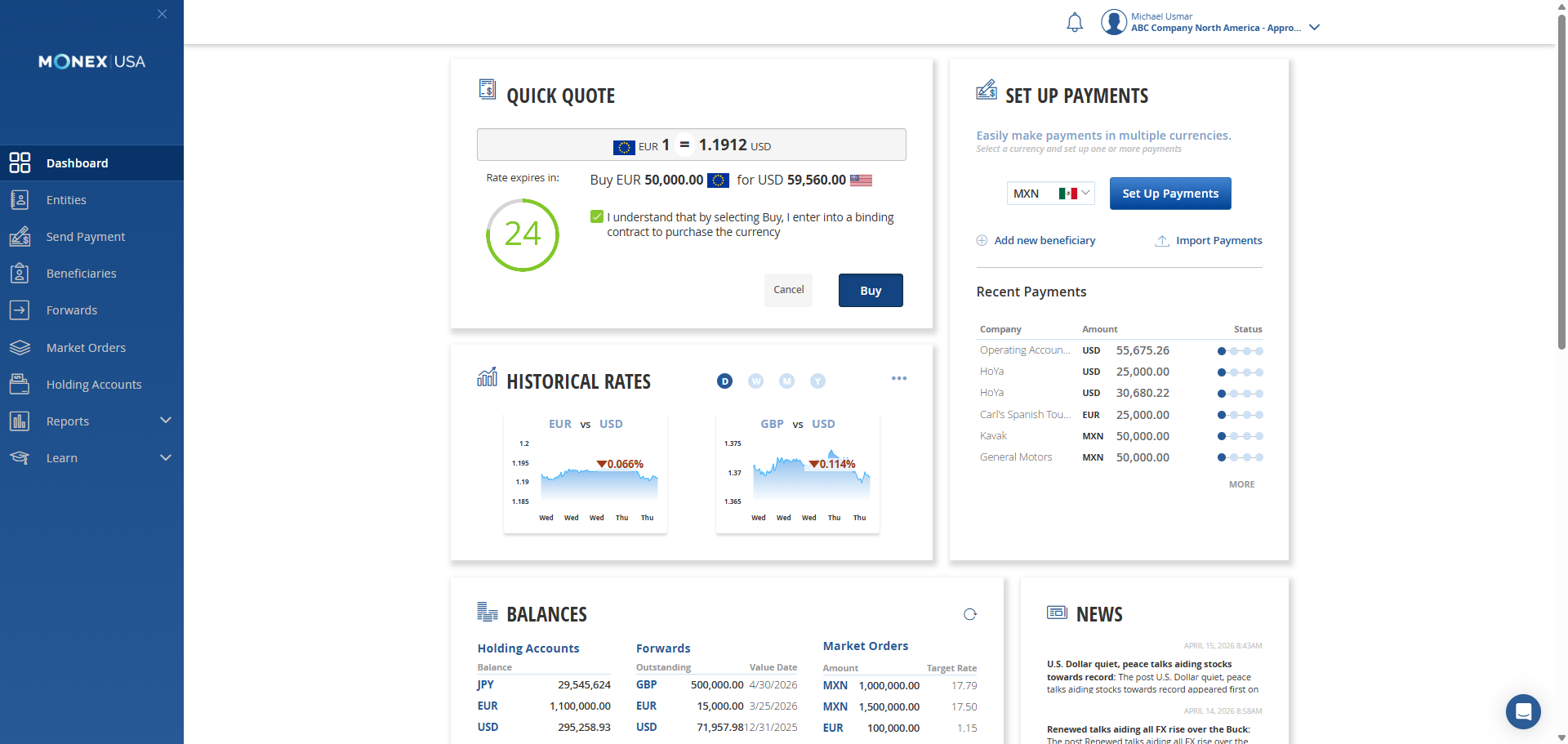
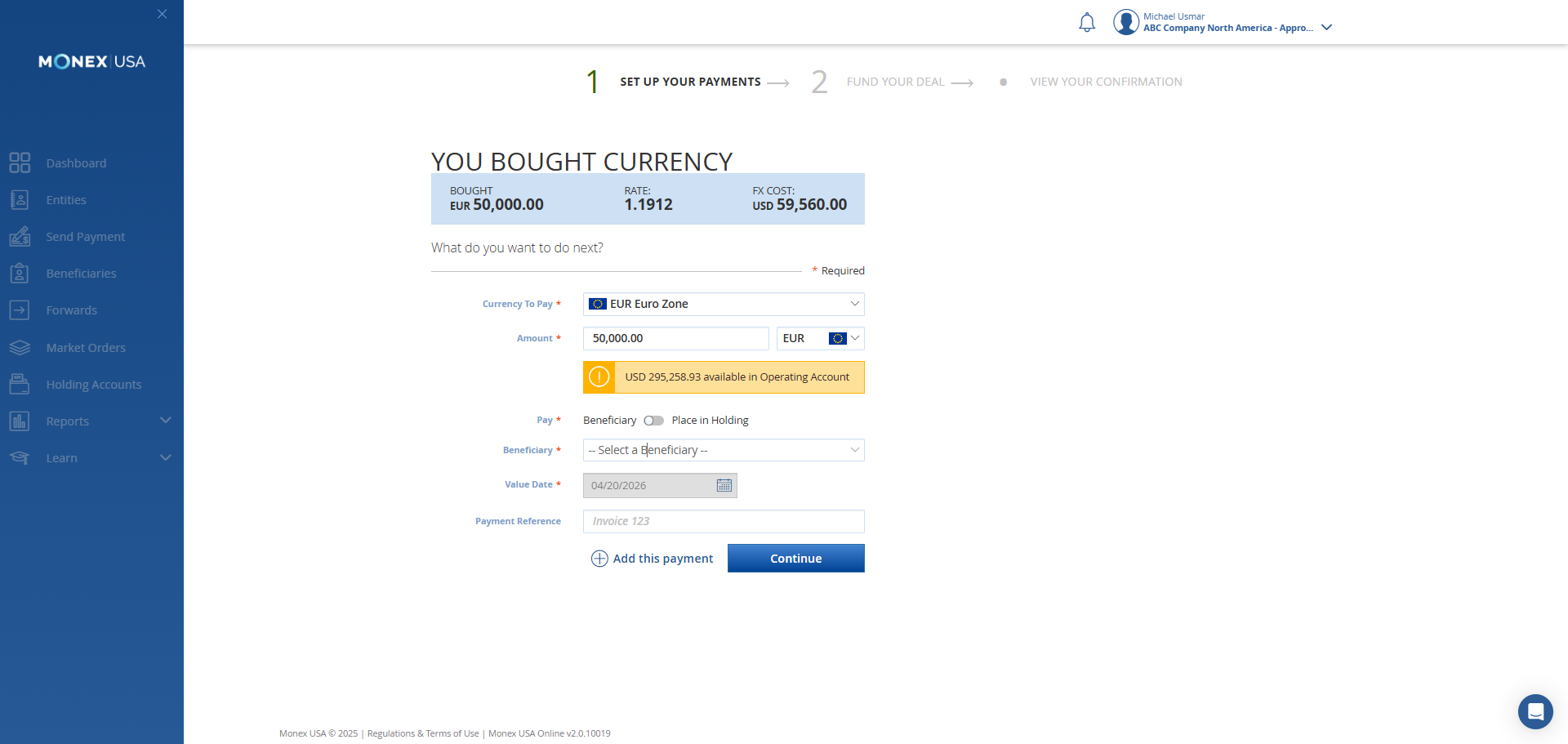
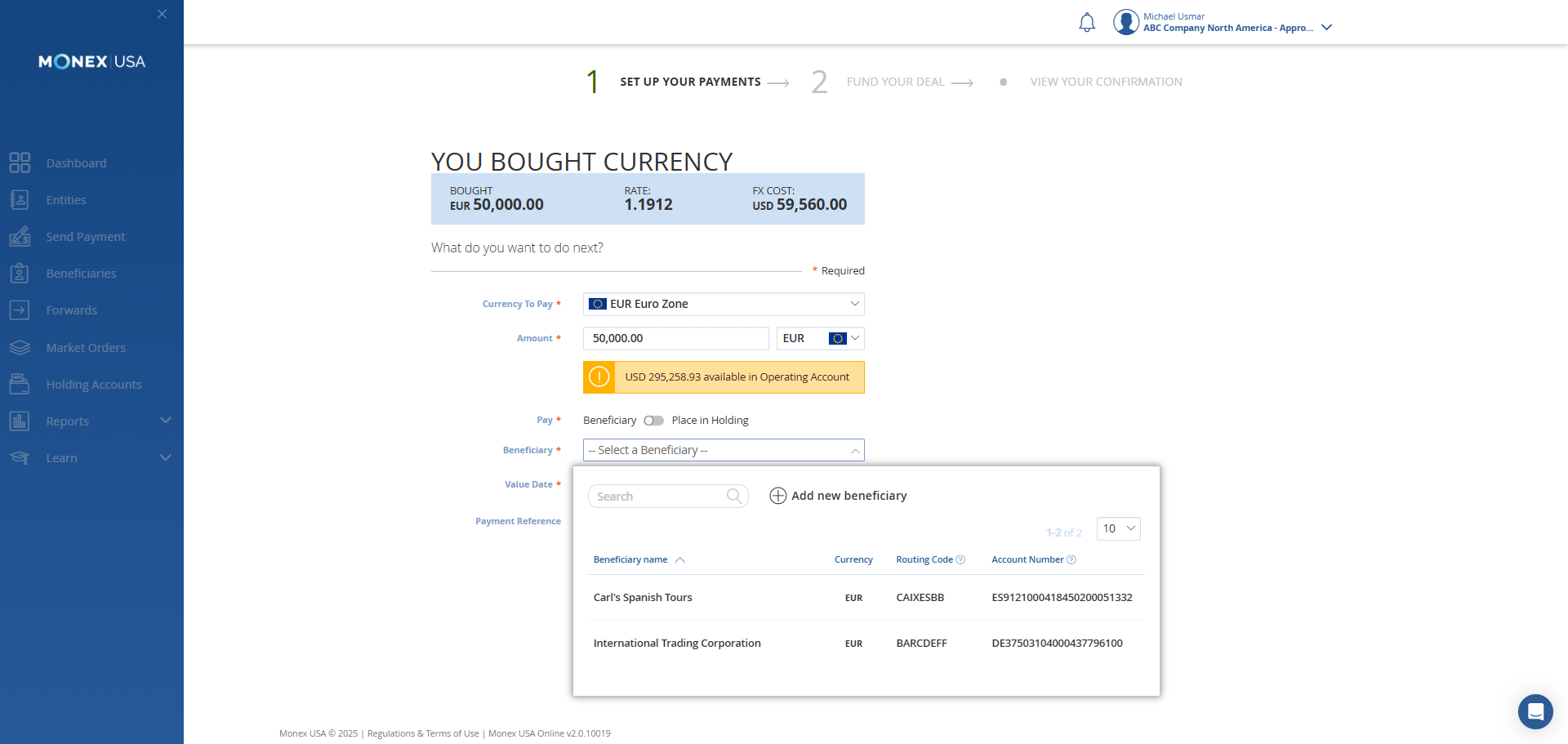
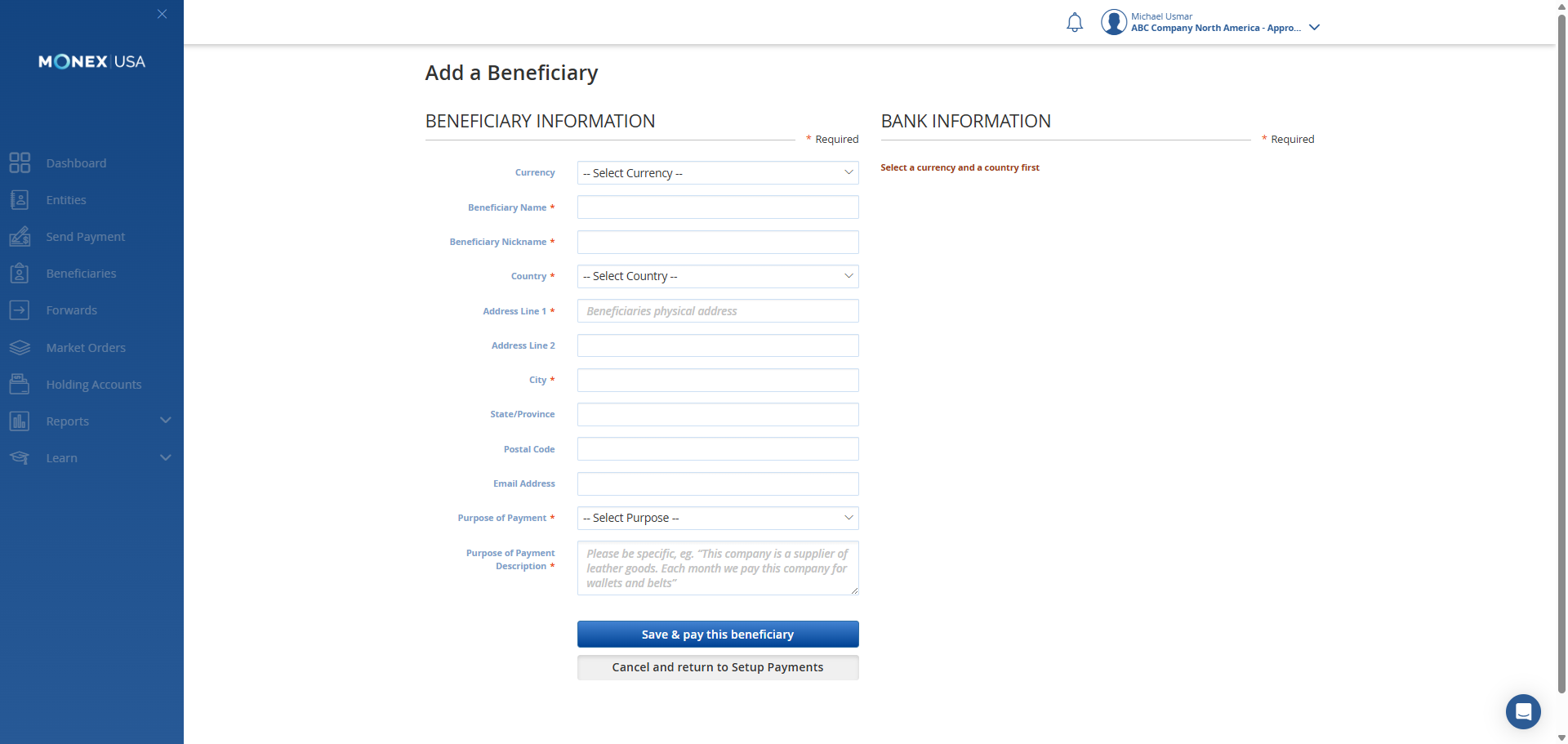
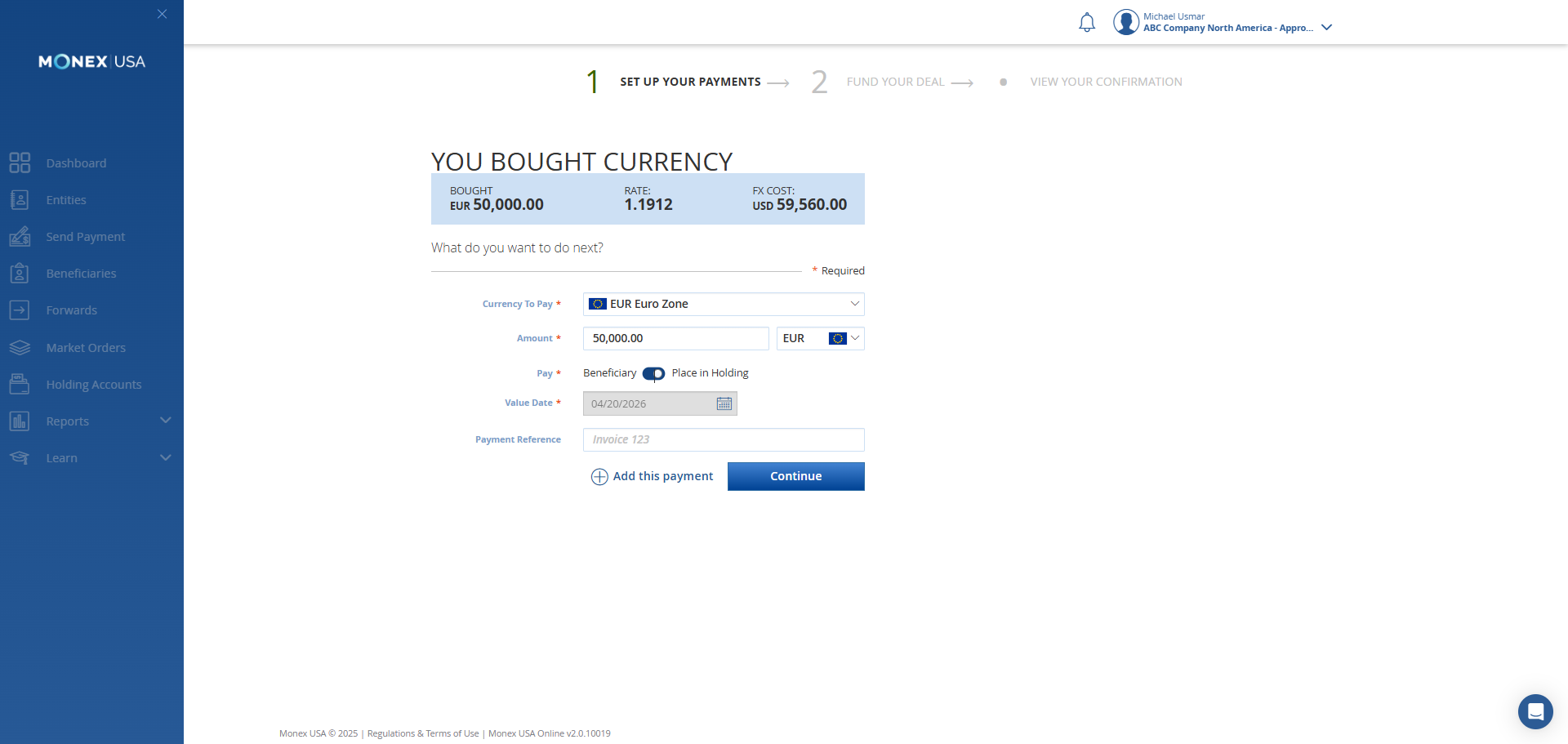
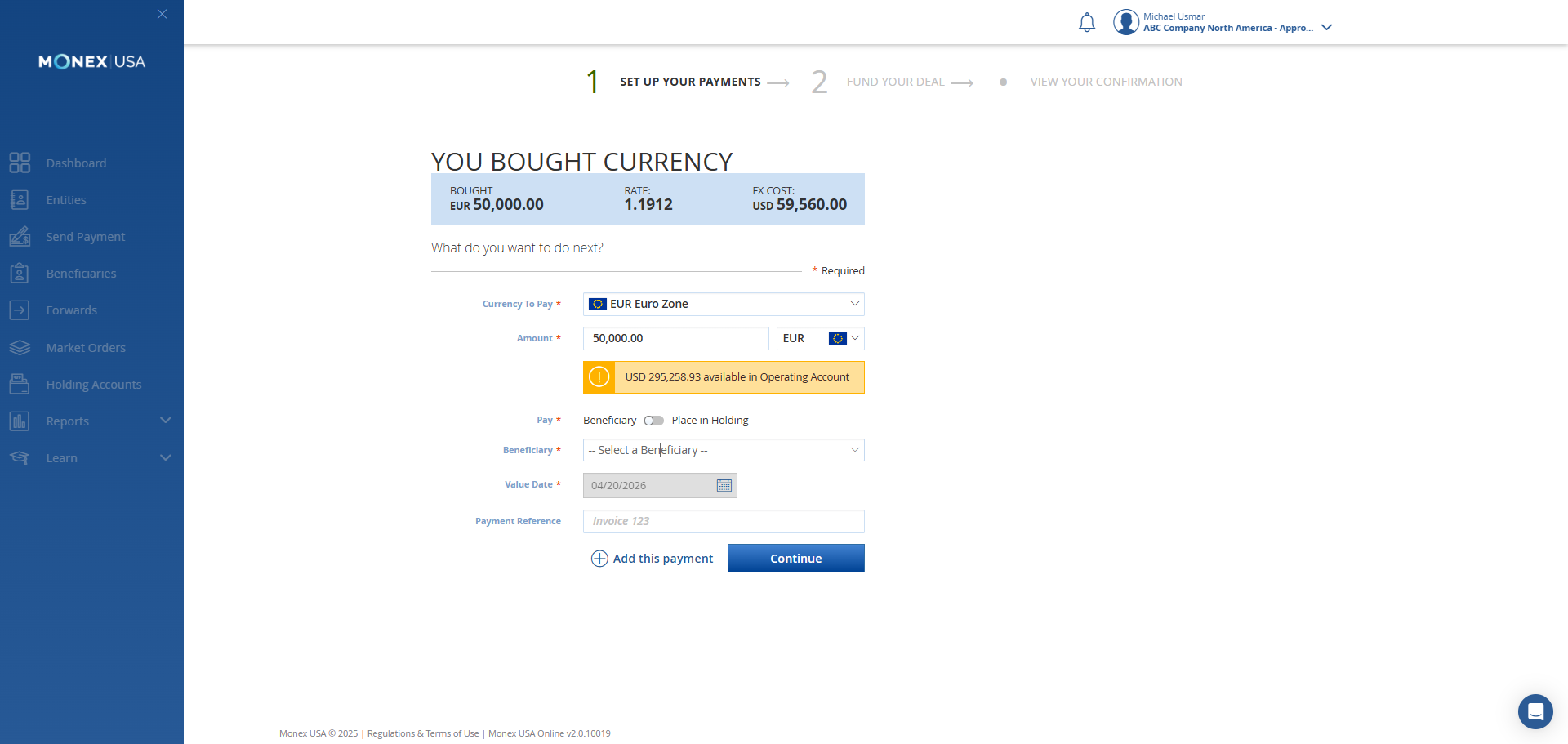
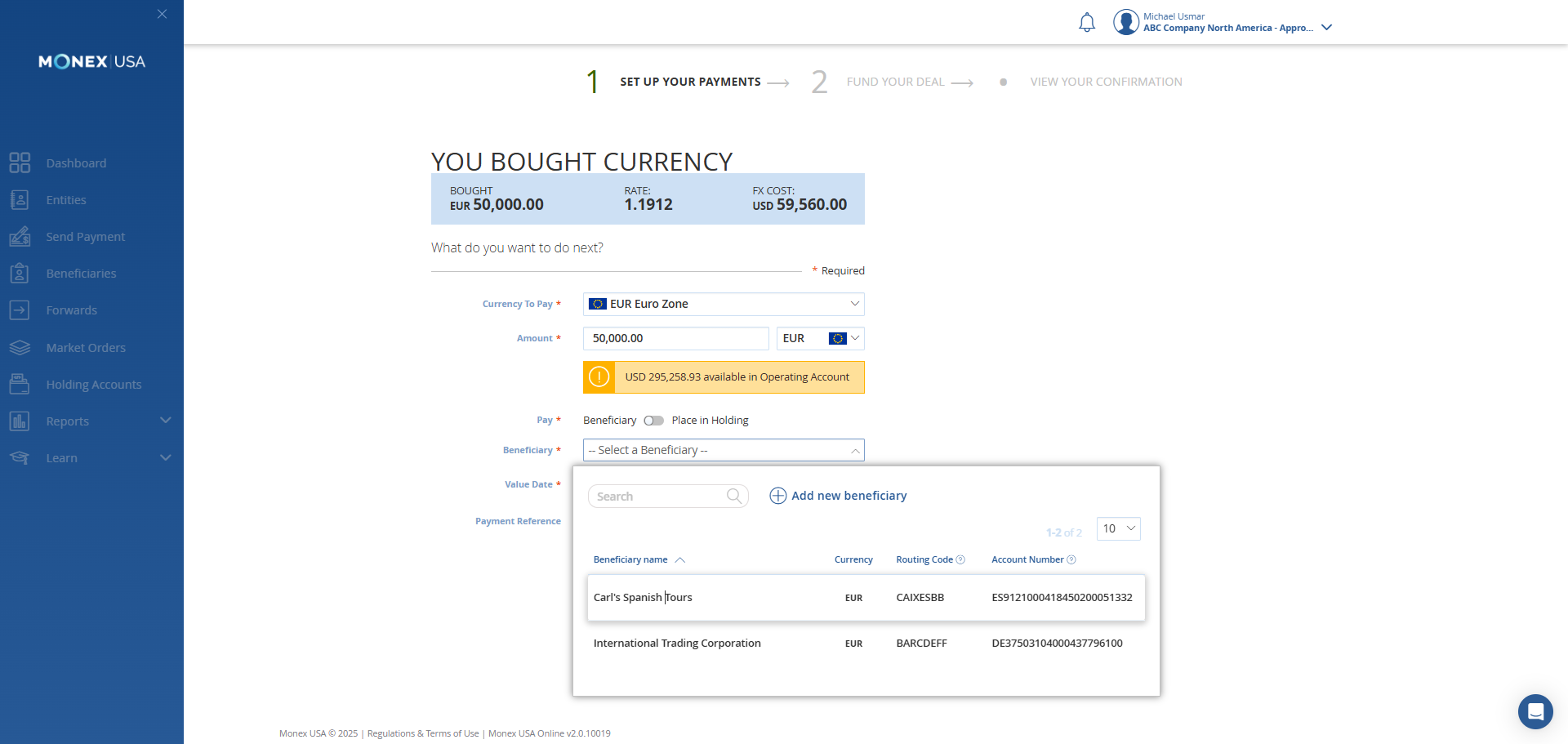
You can now pay an existing beneficiary or add a new beneficiary.
12
Click here
13
Click on "Routing Code"
Or you can place the funds you purchased into holding.
14
Click here
15
Click here
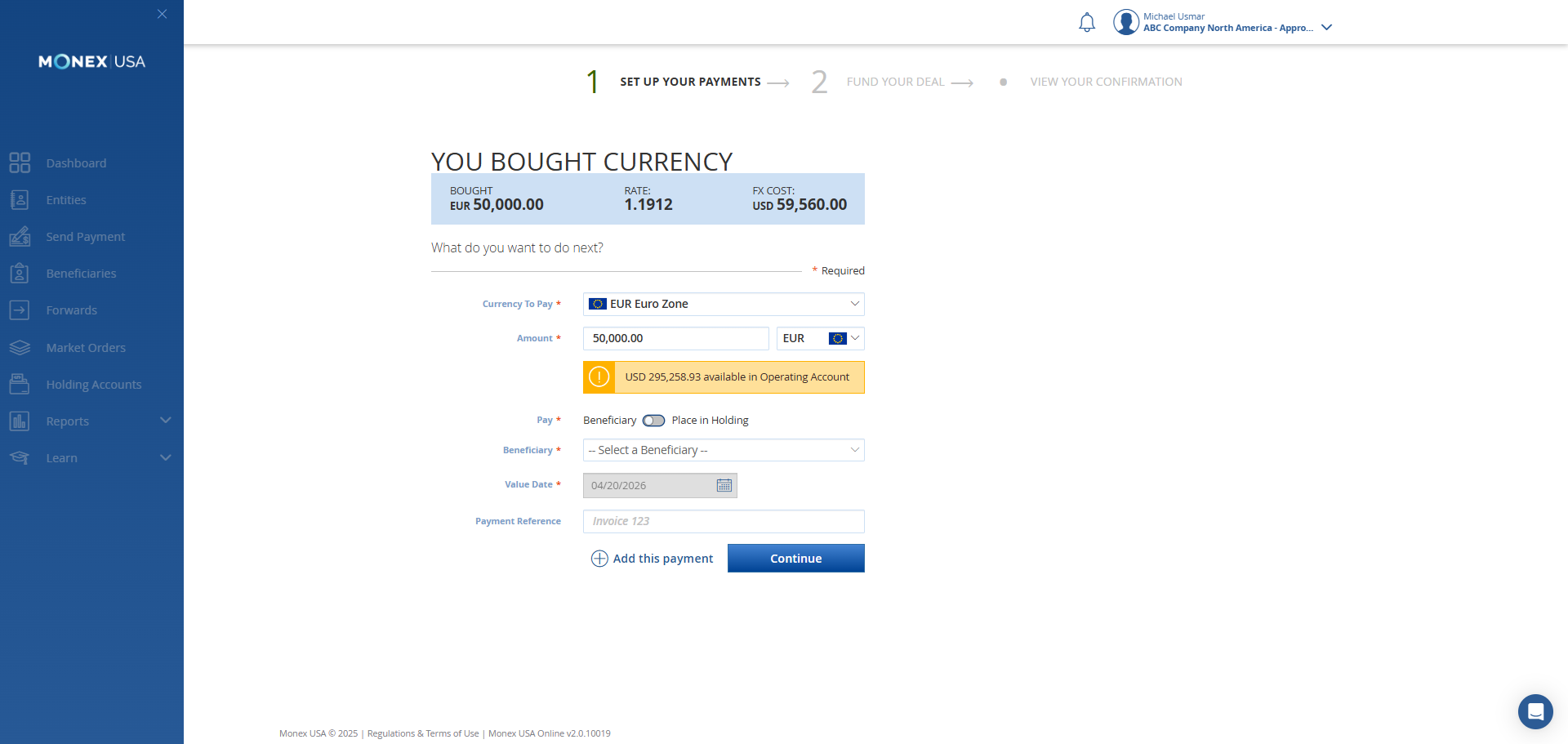
I will select a test beneficiary here.
16
Click here
17
Click here
18
Click on "Trading Corporation"
19
Click on "Add this payment"
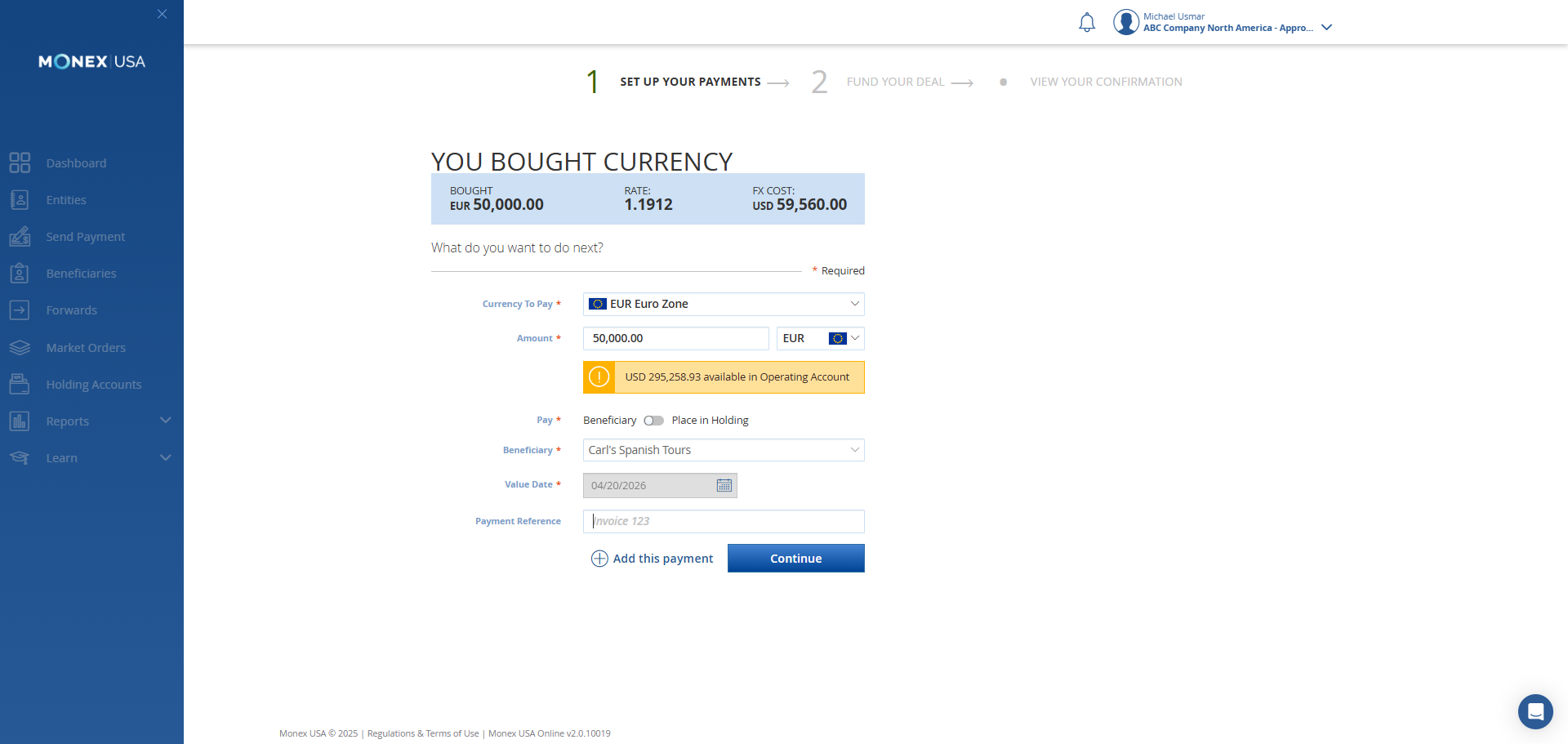
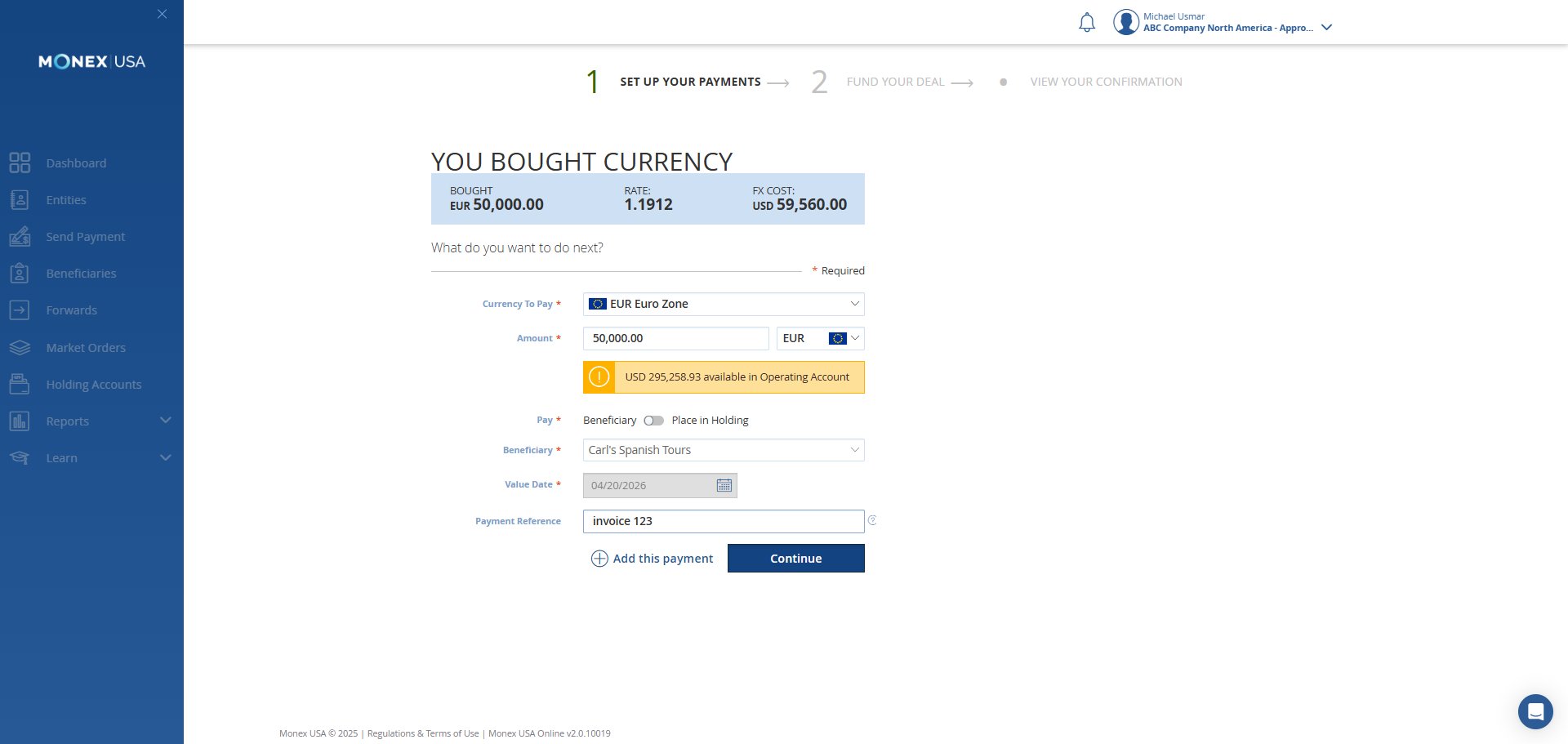
Add an invoice number. Click Continue.
20
Click here
21
Type "invoice 123"