How to Complete and Modify a Cell Mechanical Report: Step-by-Step Guide
Learn how to efficiently complete and modify a cell mechanical report using QR codes, drop-down menus, and automated task selection. Follow this step-by-step guide for accurate and streamlined reporting.
In this guide, we'll learn how to fill out and adapt a cell mechanical report using a printed sheet with a QR code. This process helps you document completed tasks in a specific work cell, such as mechanical and conveyance activities. You will see how to enter details, select the correct cell, choose the type of report, and submit your completed form.
Let's get started
In this video, I will show you how to complete and modify a cell mechanical report. Each site will have a printed sheet with a QR code. You can scan it to fill out any required report. Once scanned, you will arrive at this page to complete the Adapt to Cell Mechanical Report.
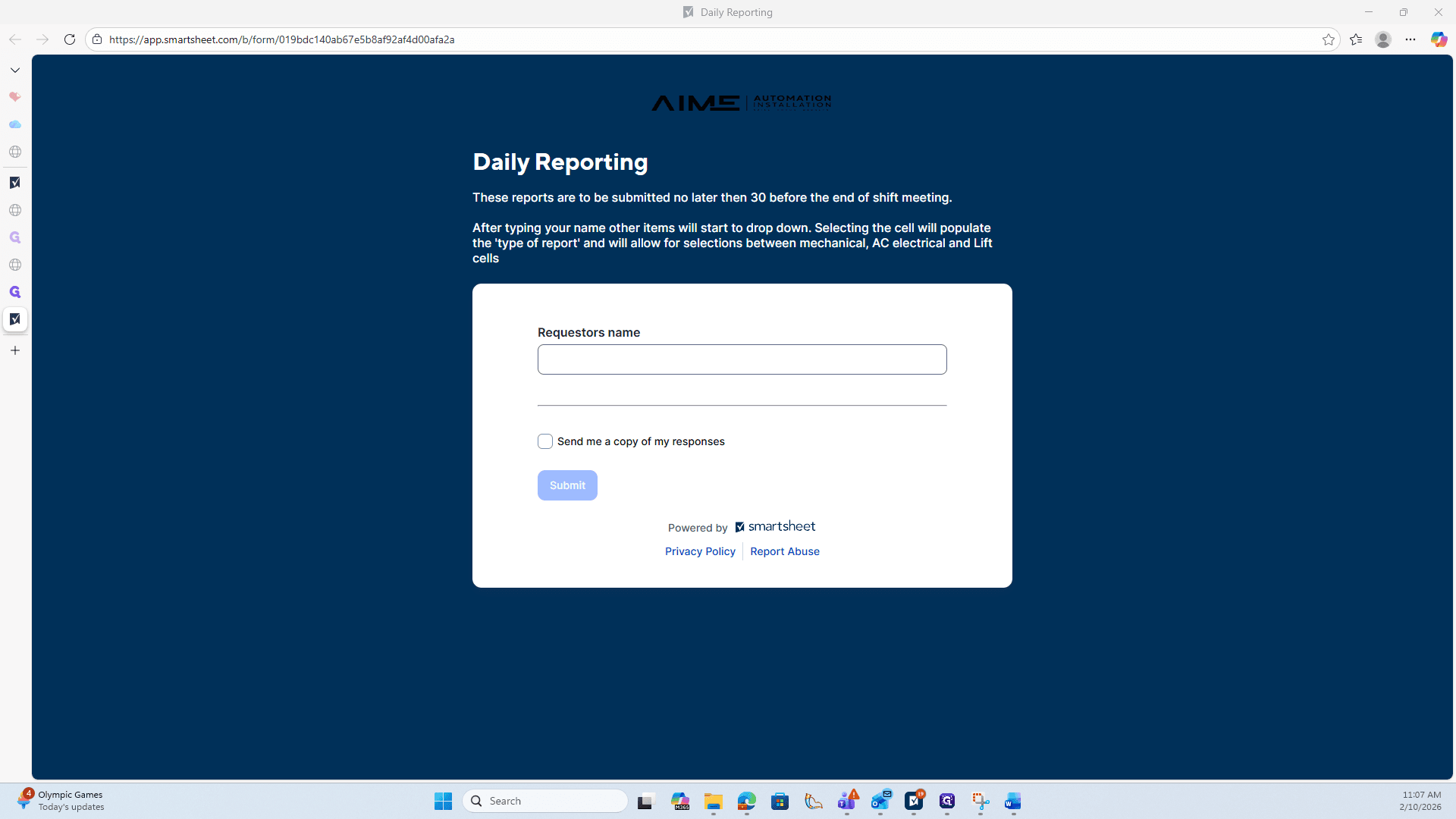
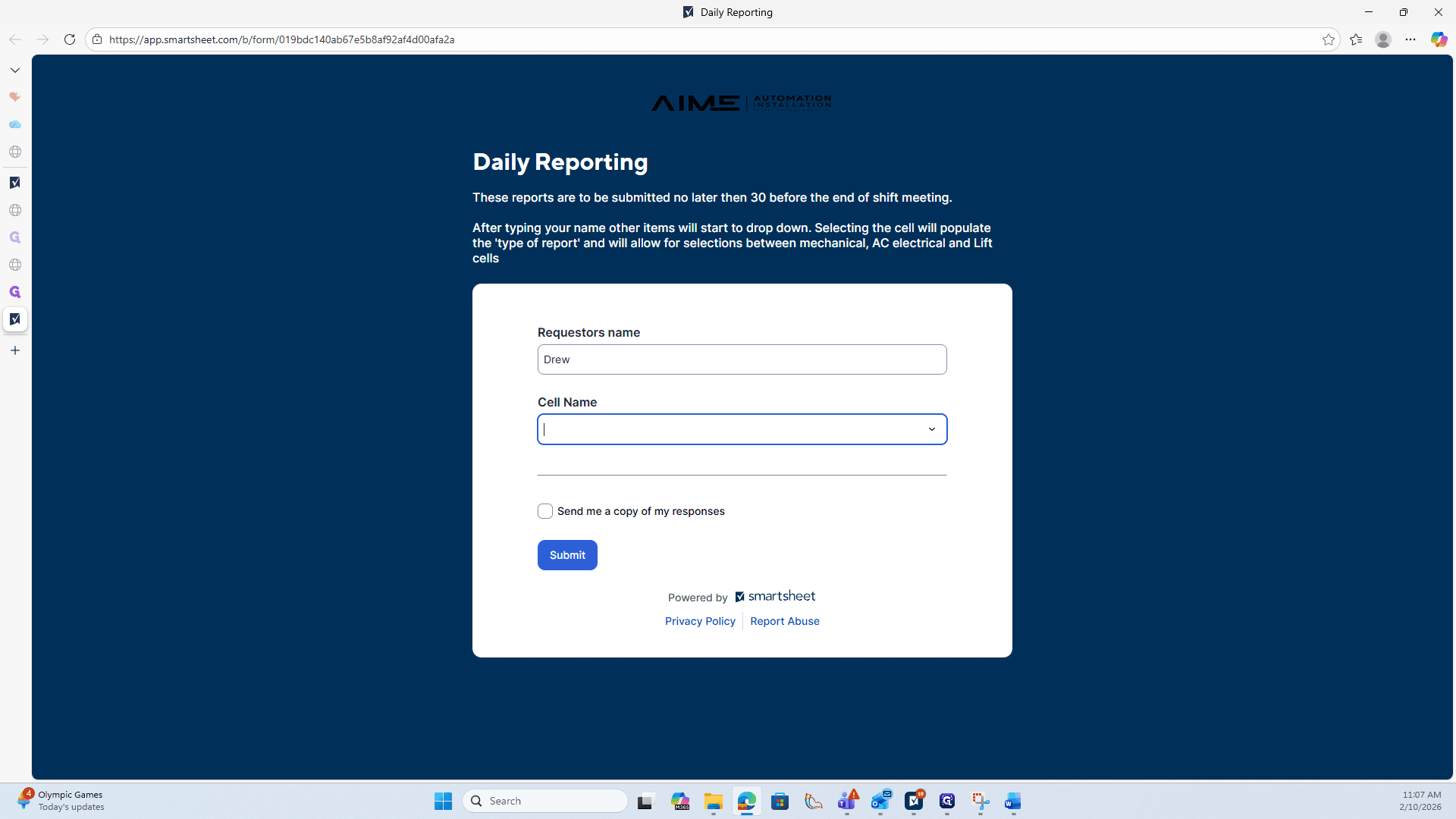
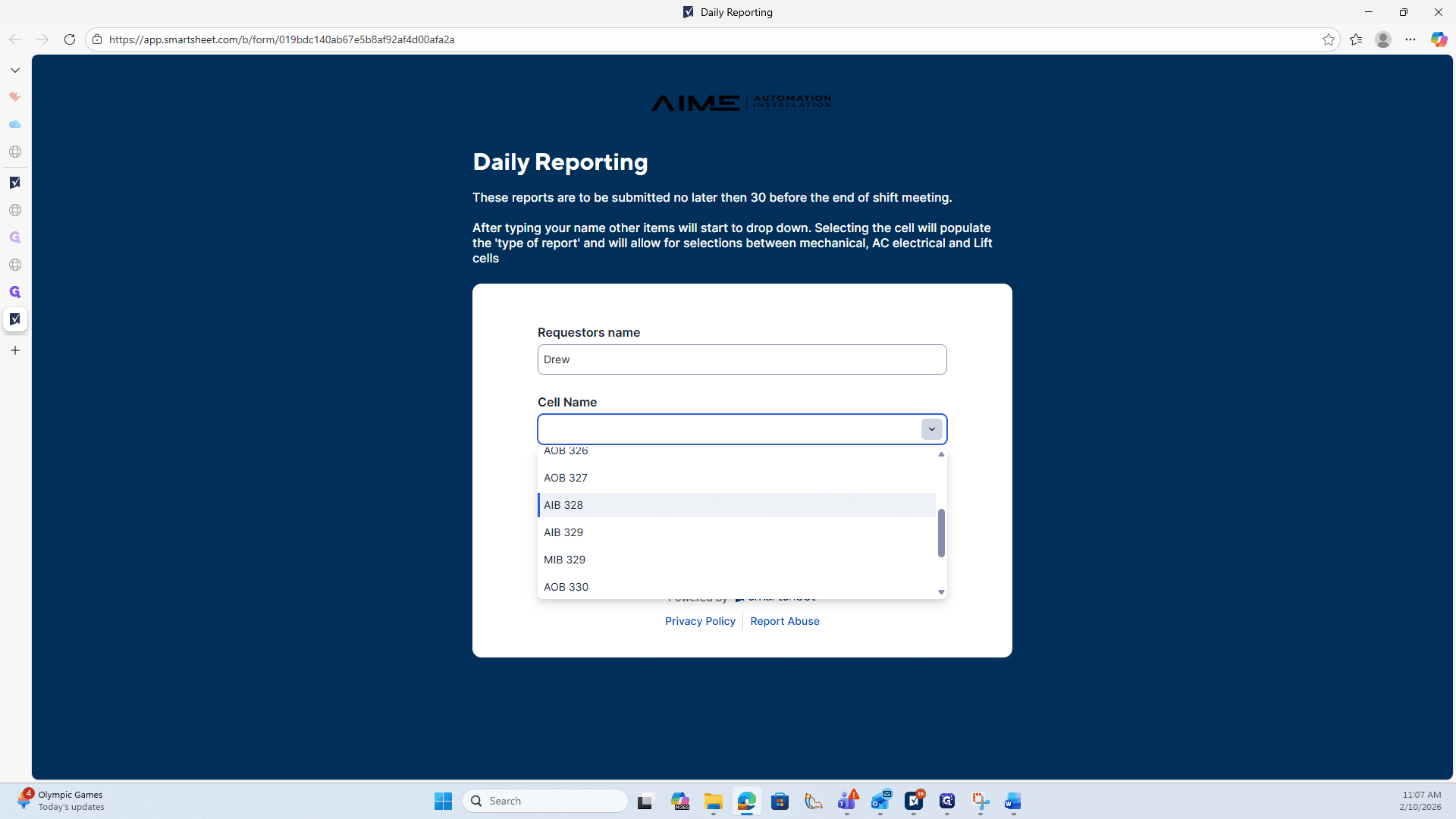
First, type in the name. We should use Drew as an example. Next, open the drop-down menu and choose the cell you are working with as the example.
Let's use AIB328.
Now we know this is an inbound cell. It opens the next tab, where we select the type of report.
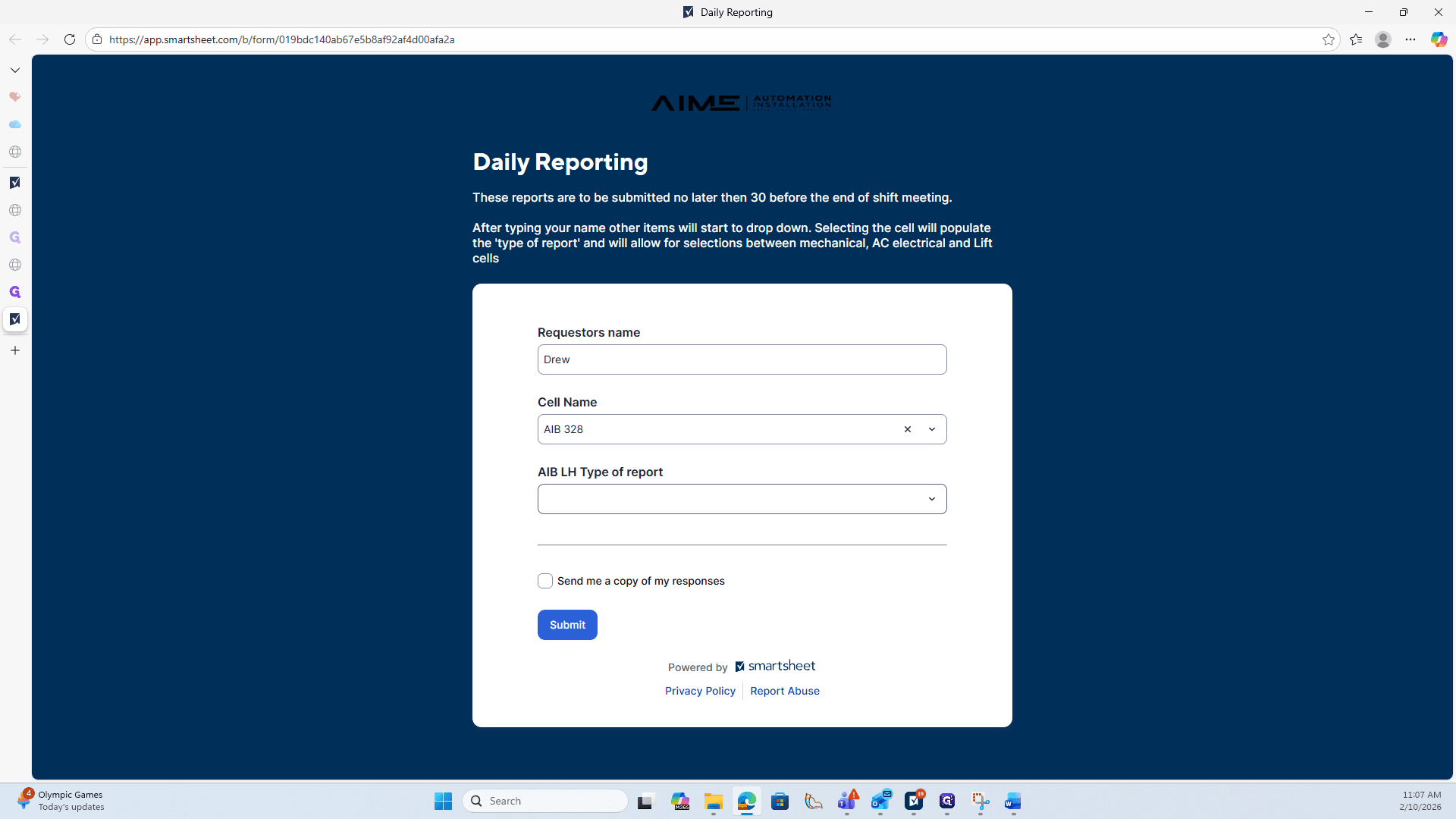
The type of report depends on the area in which they are working. In this sense, it will be mechanical and related to conveyance.
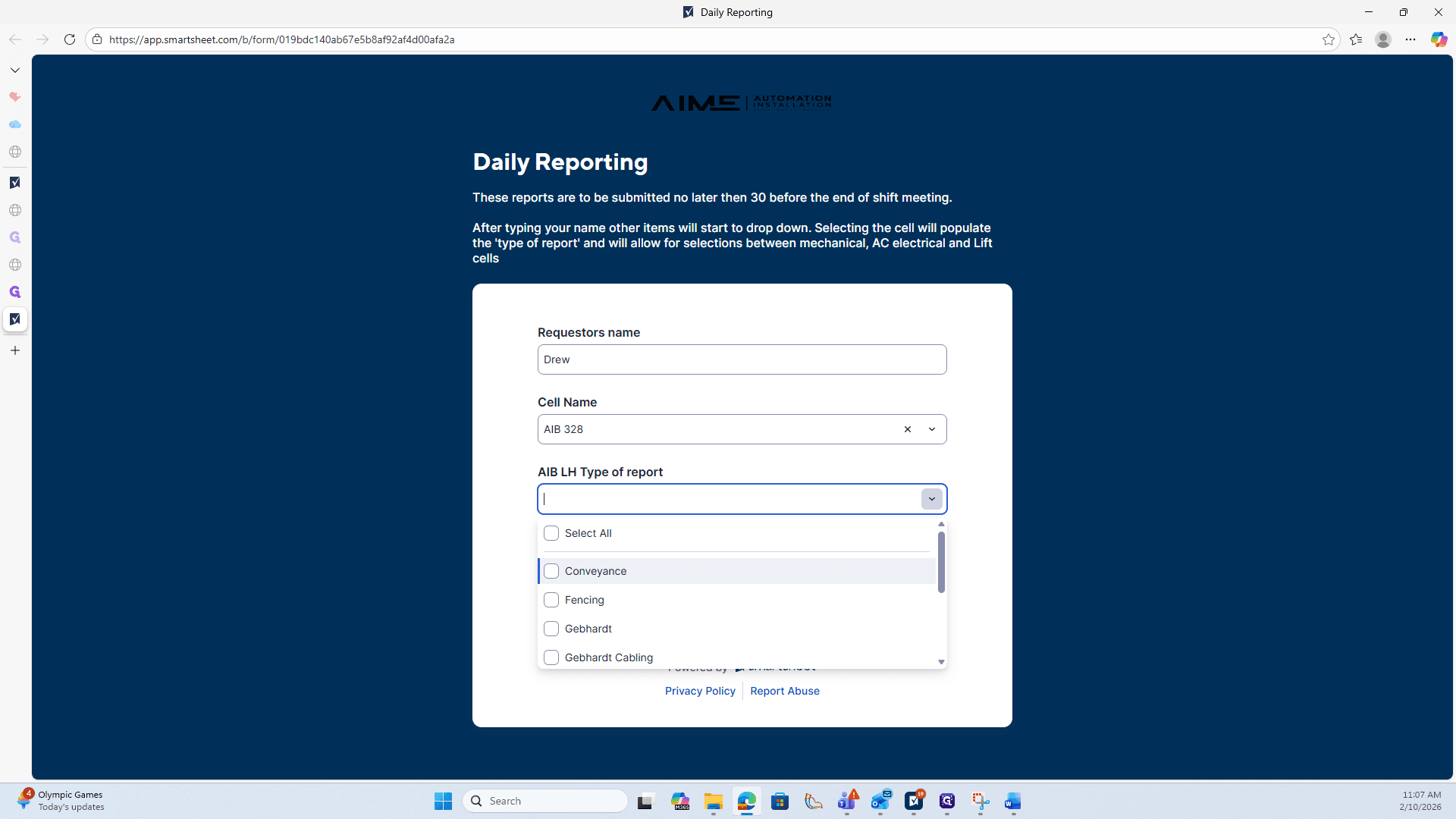
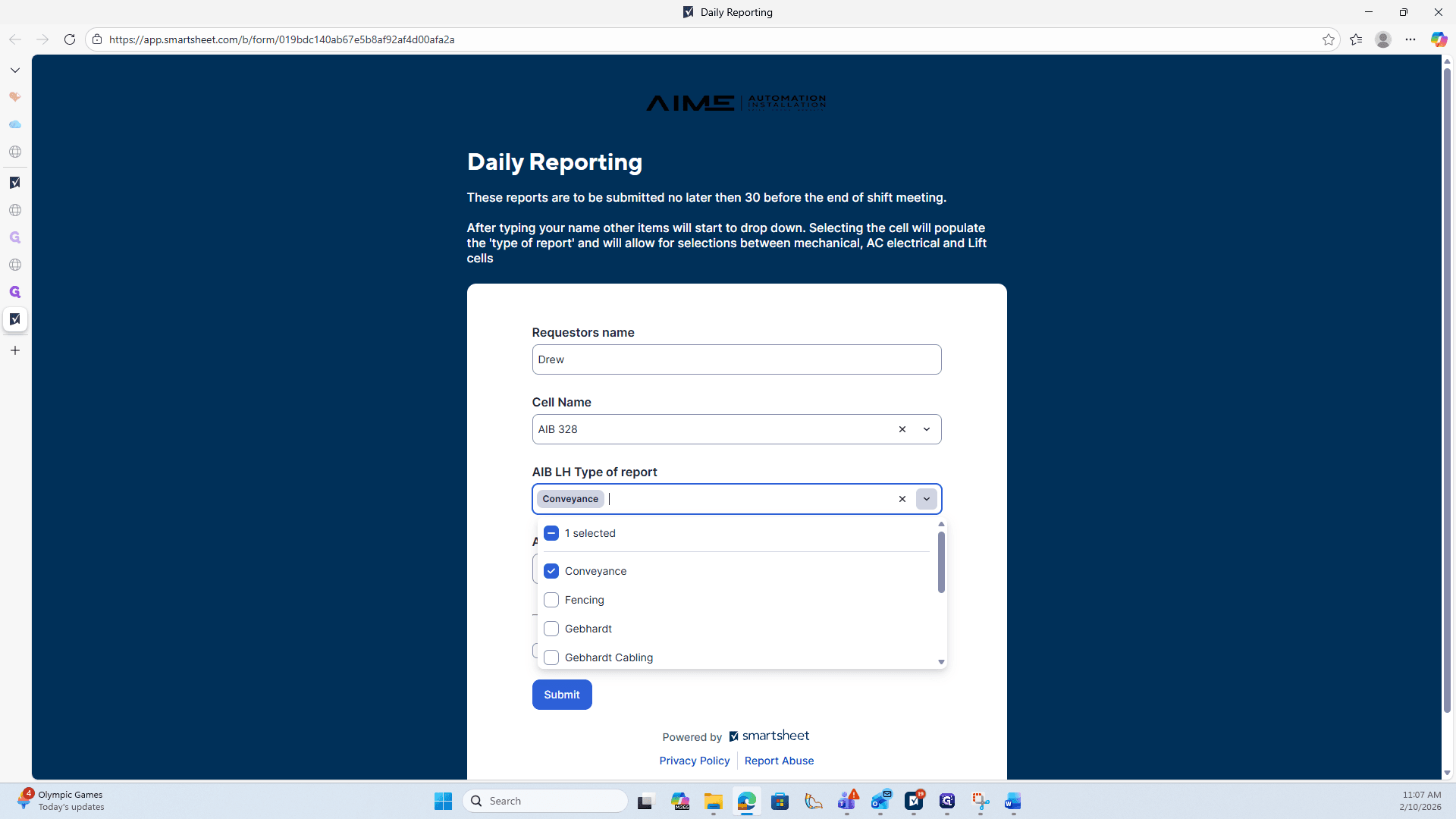
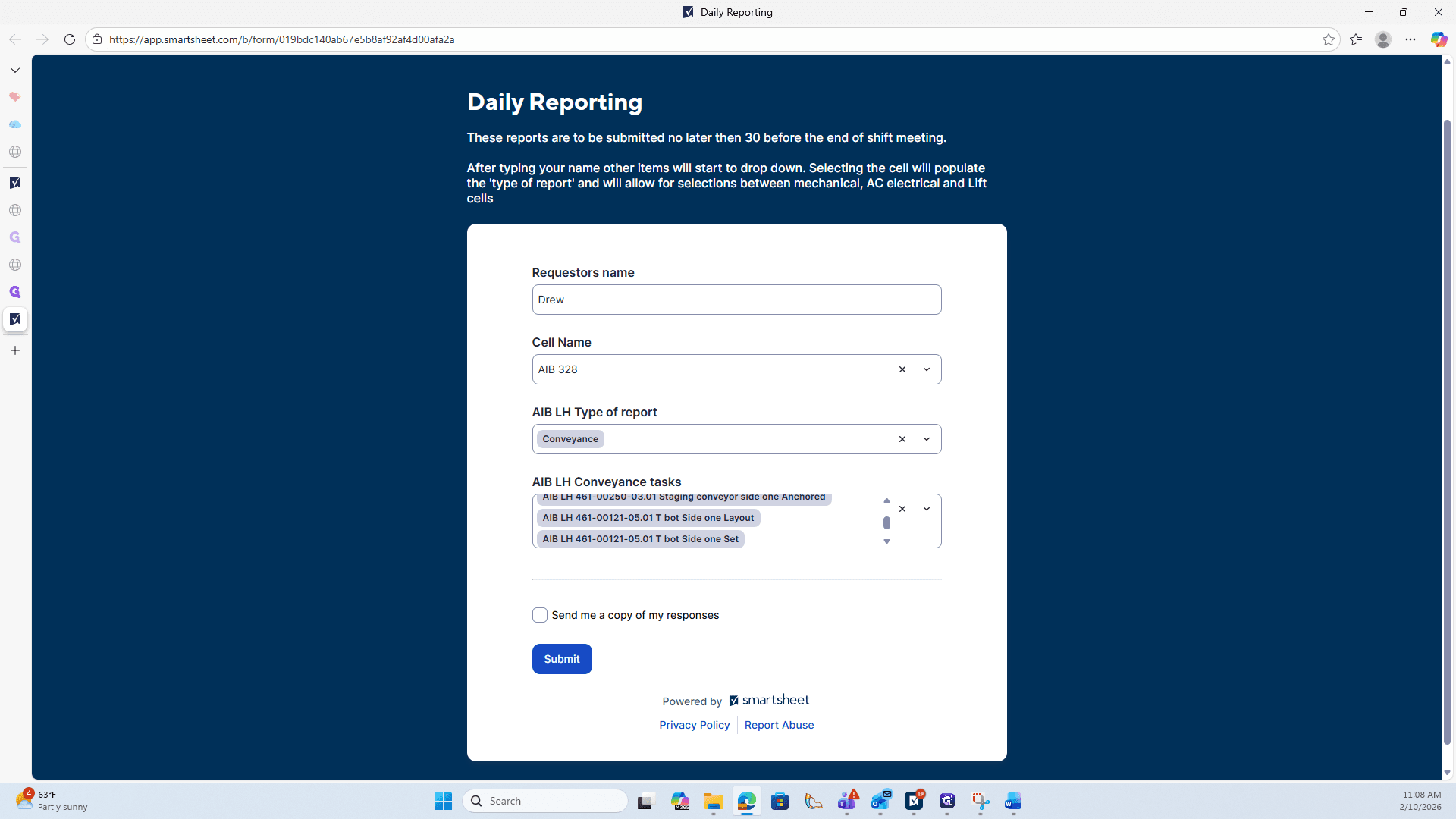
Next, open the Conveyance Tasks drop-down tab and enter the tasks completed that day.
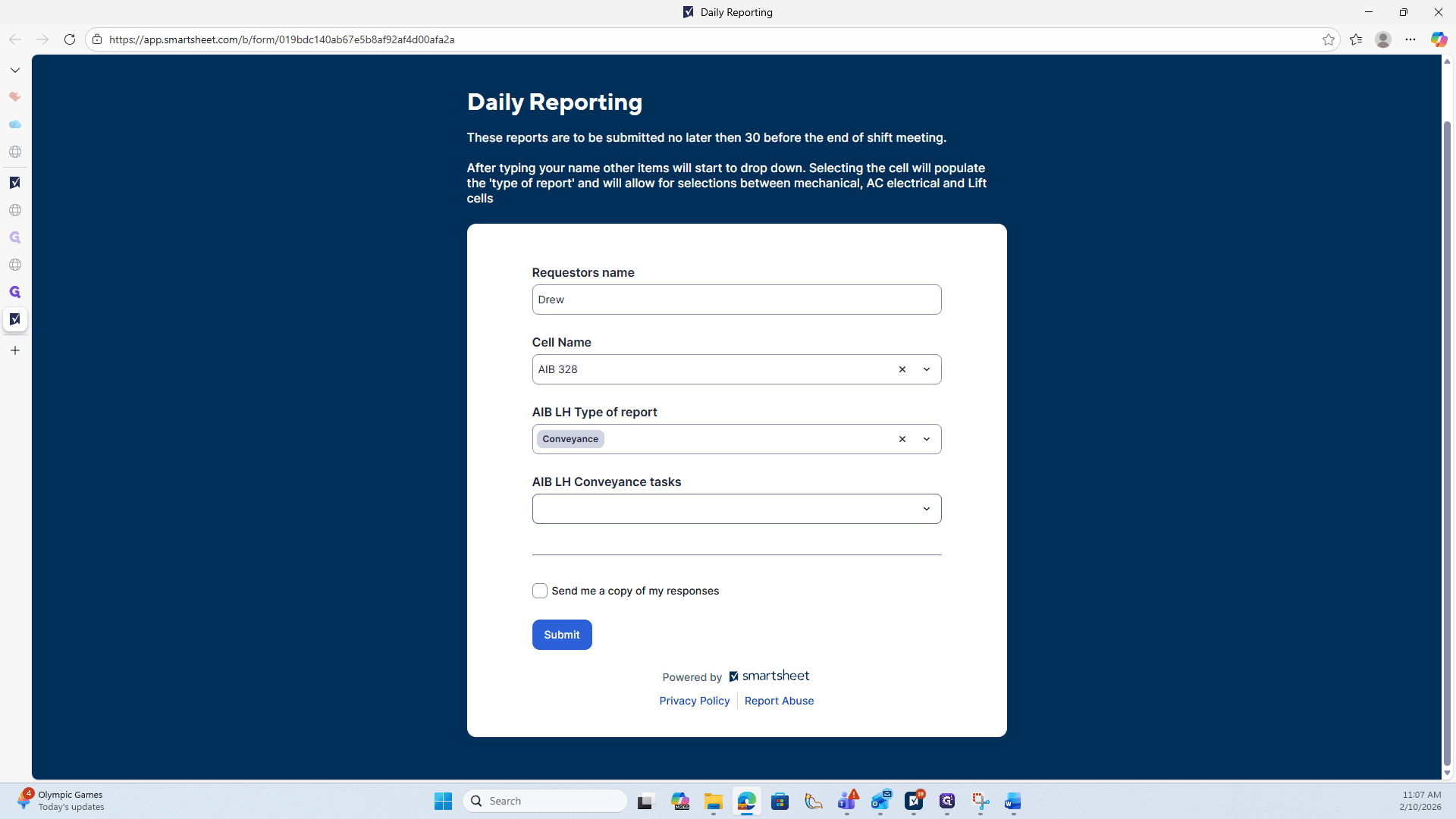
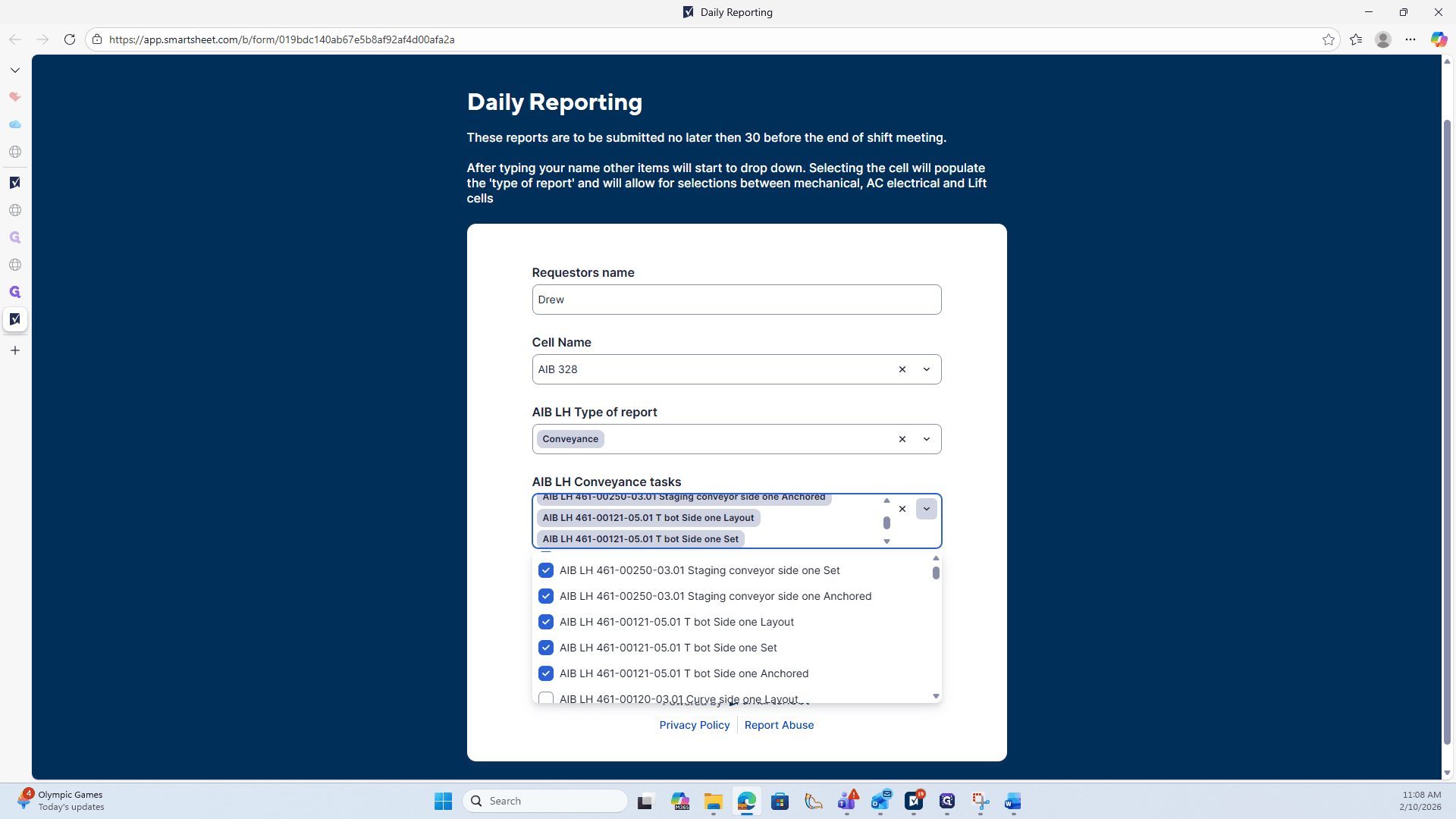
As you can see, the drop-down menu displays all the options you need for this cell. Let's select a few items, and you'll see how the report fills in automatically.
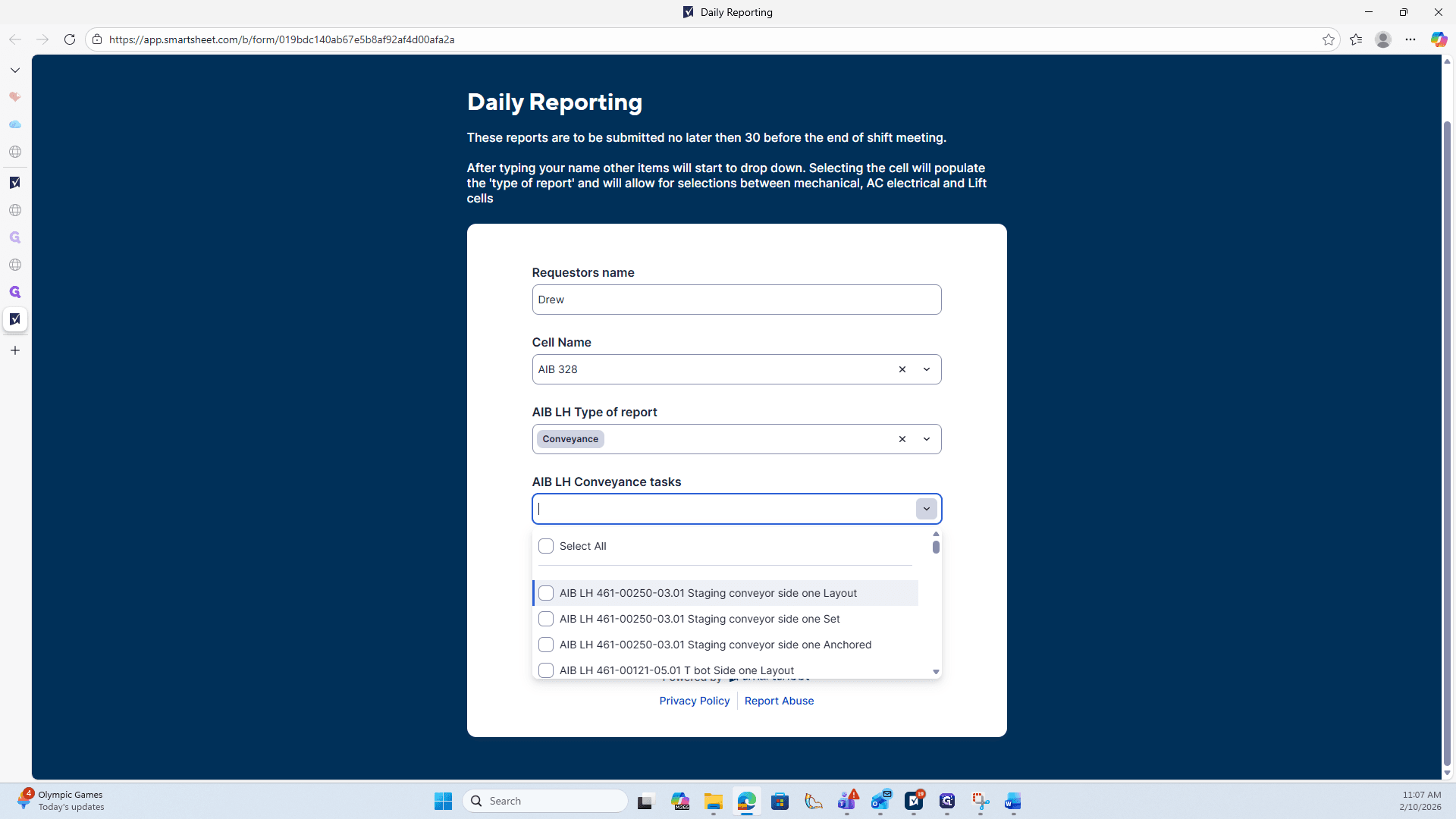
They said they set out, anchored, and laid out a piece of conveyor.
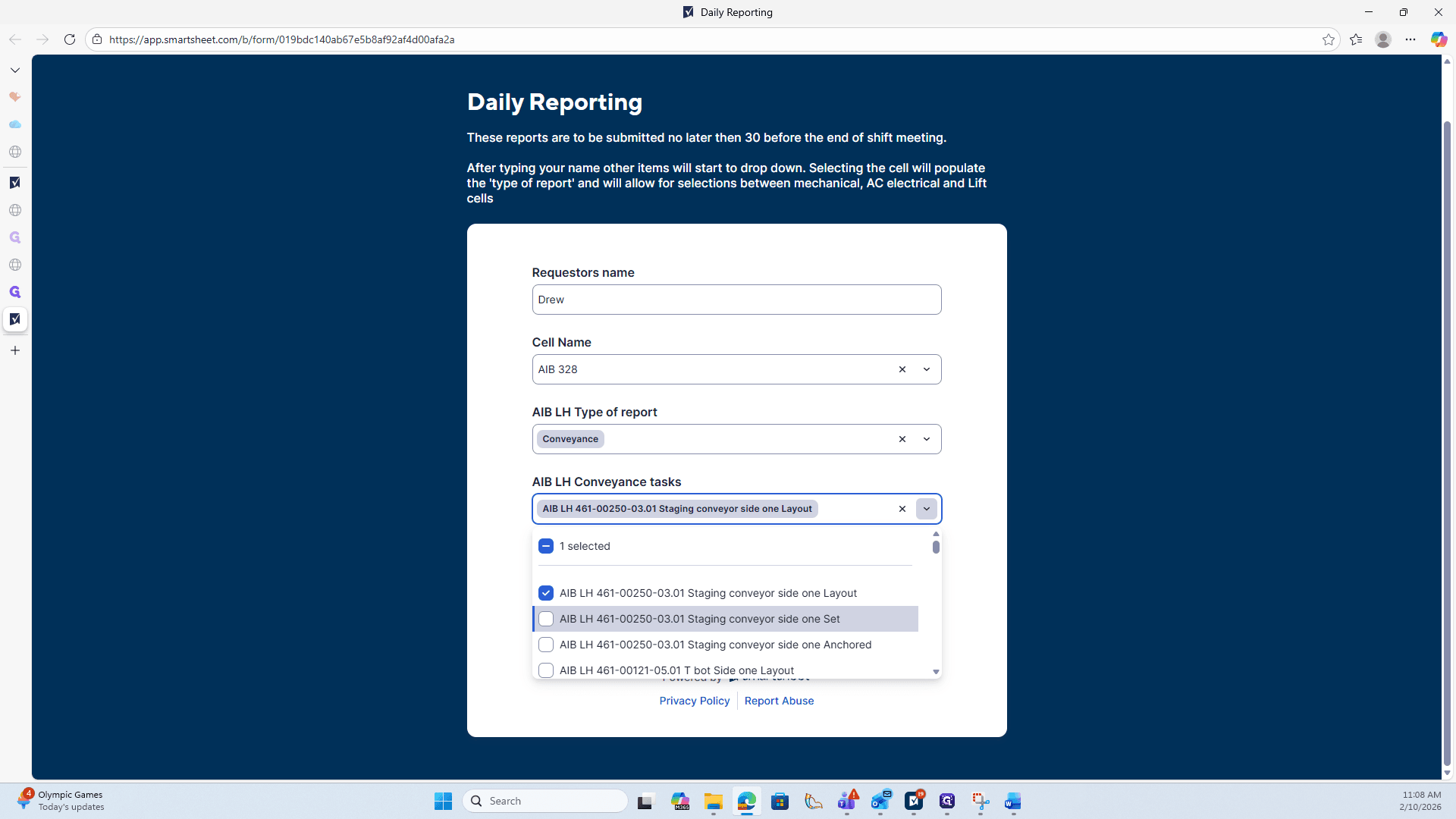
Select all three pieces. Do the same for the next conveyor by pre-selecting all of them.
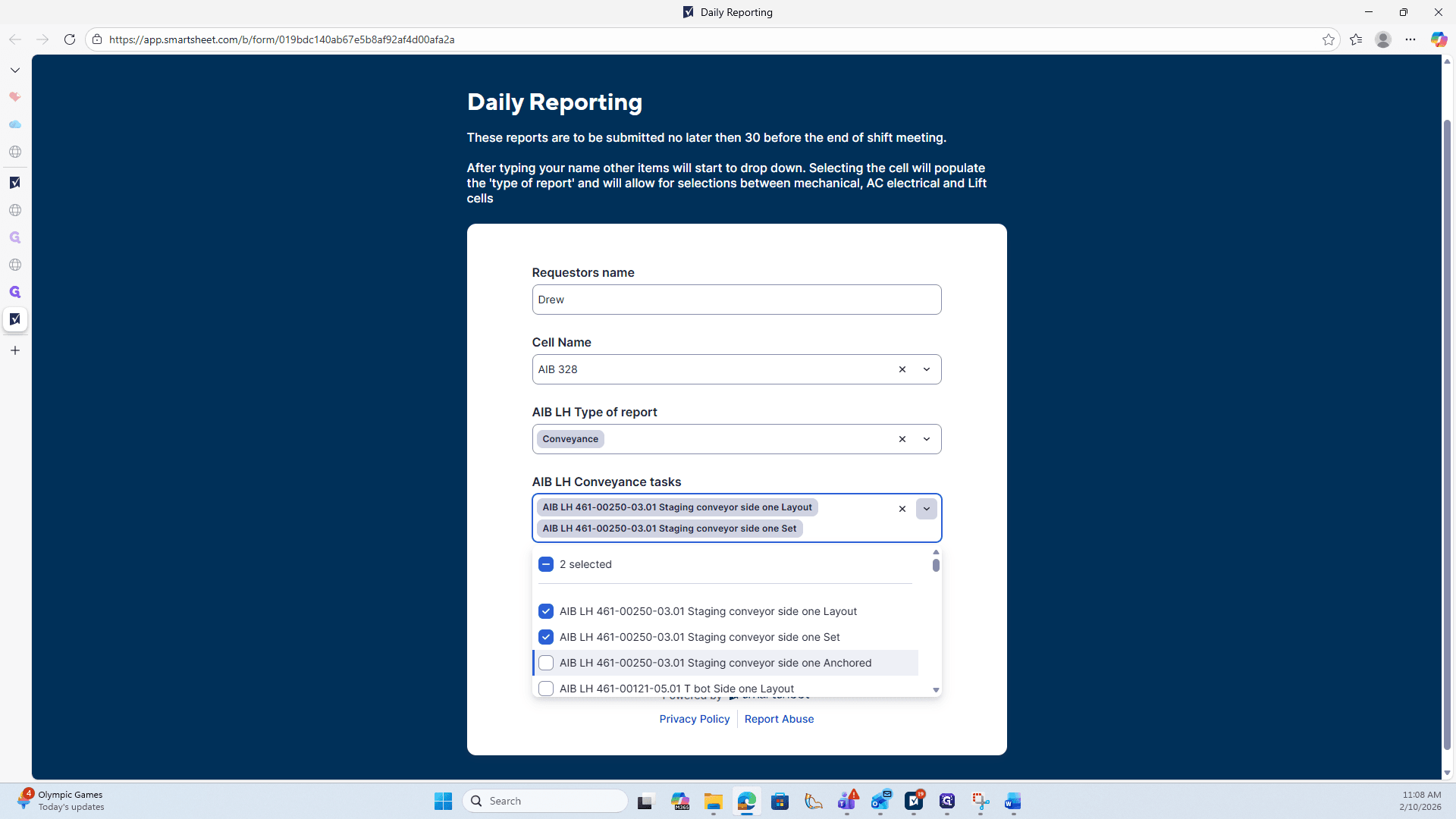
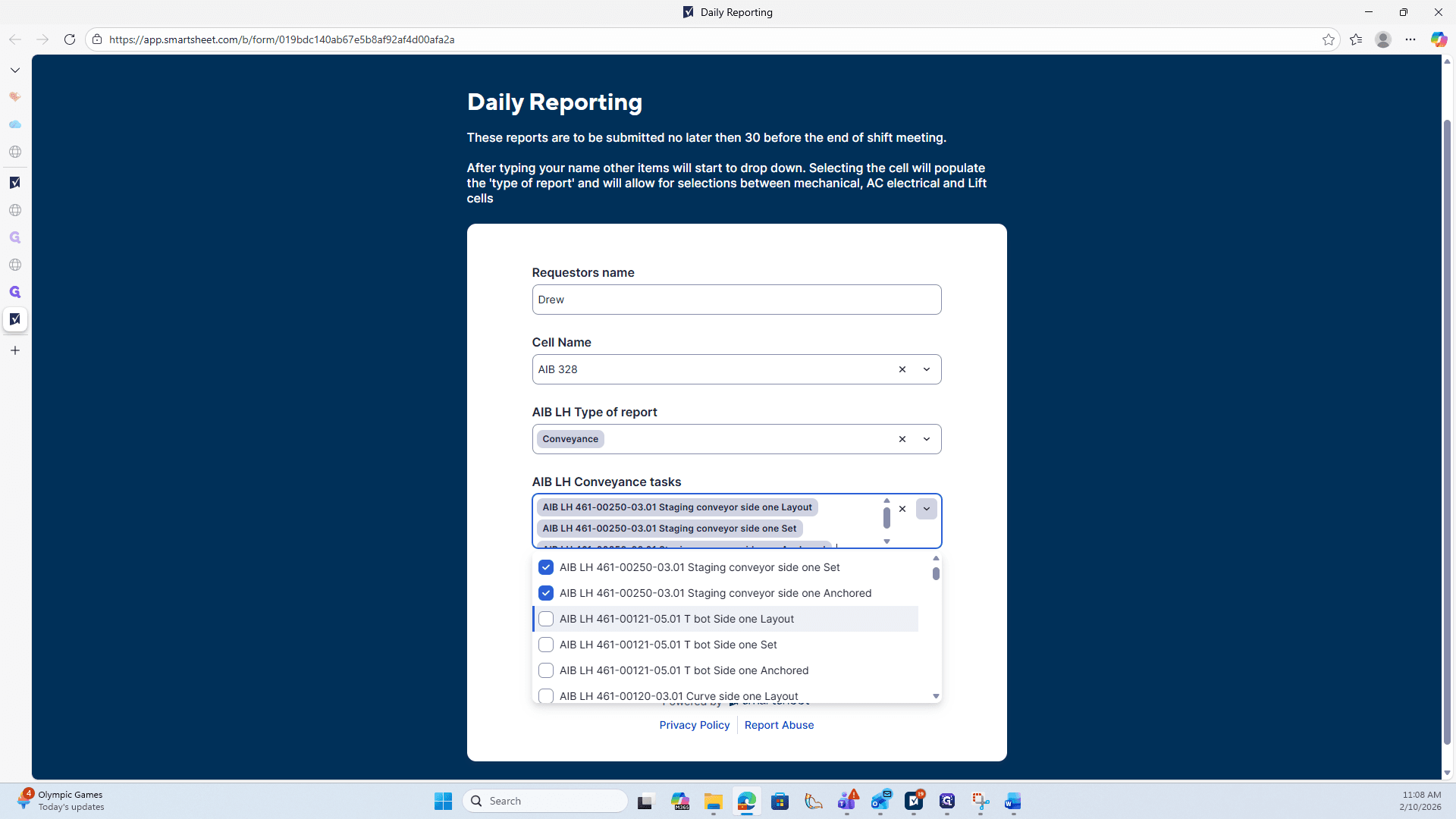
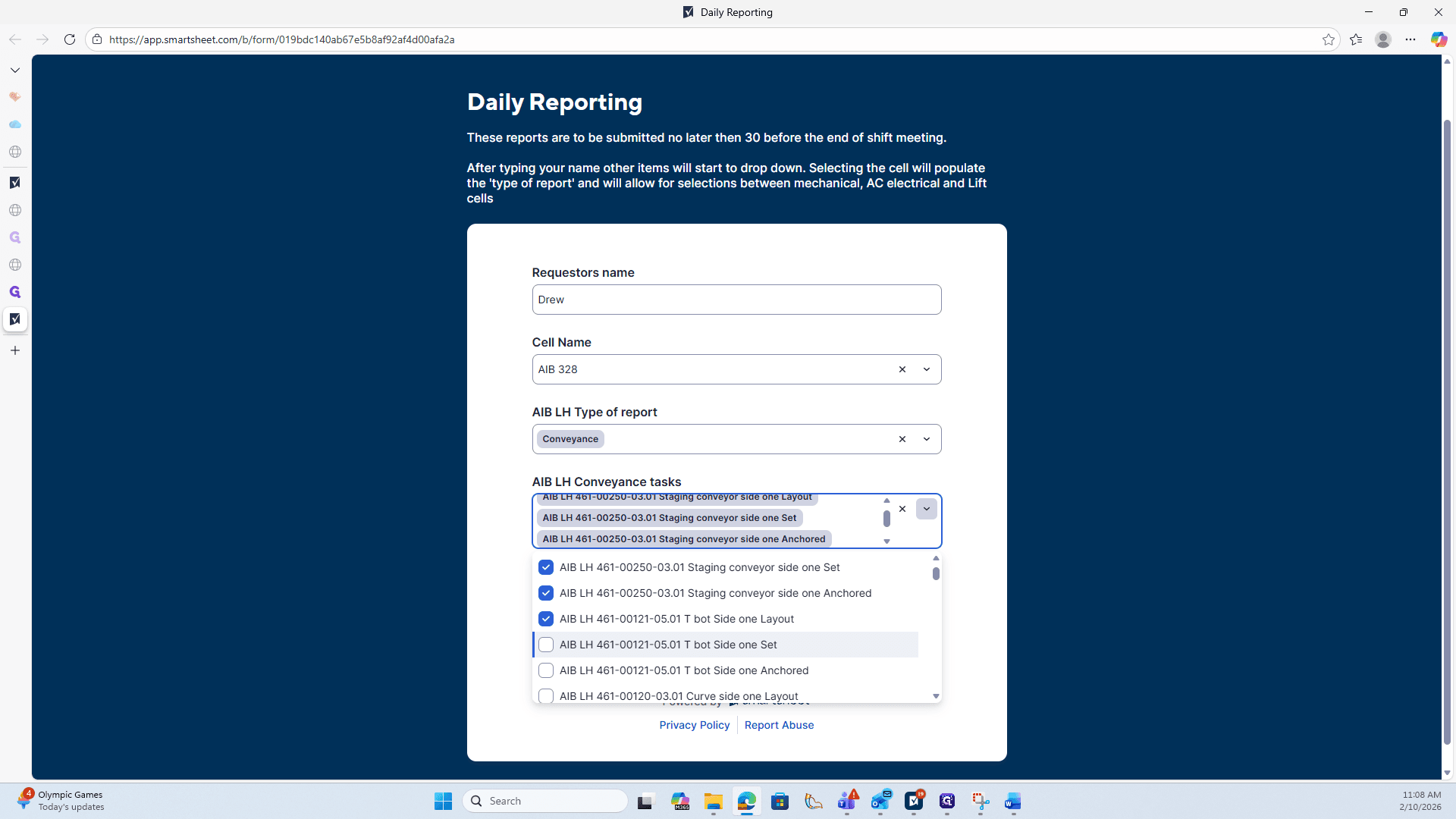
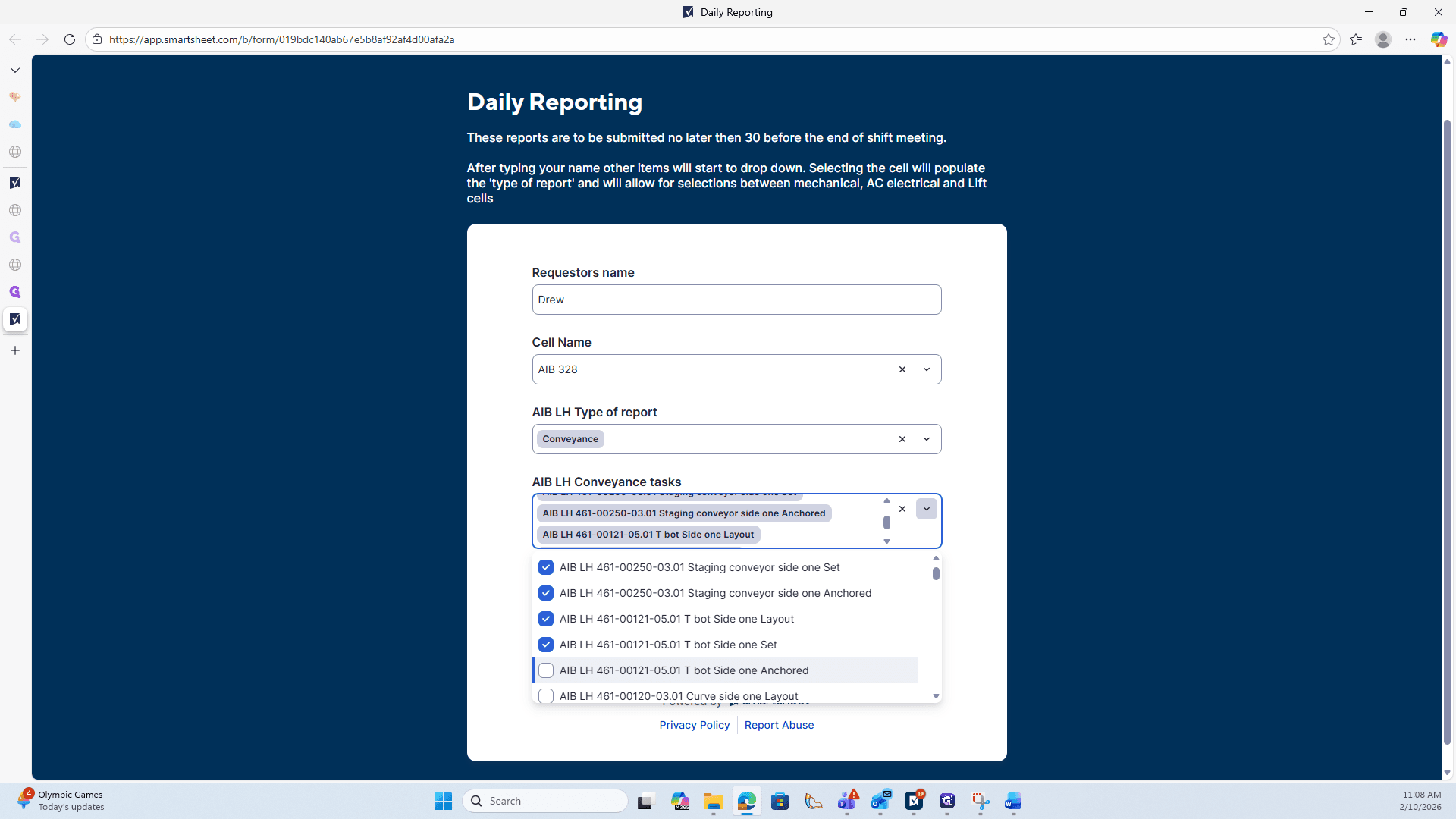
Once all completed tasks have been selected, go to the Submit area below.
You can send yourself a copy of the response by clicking this and entering your email address.
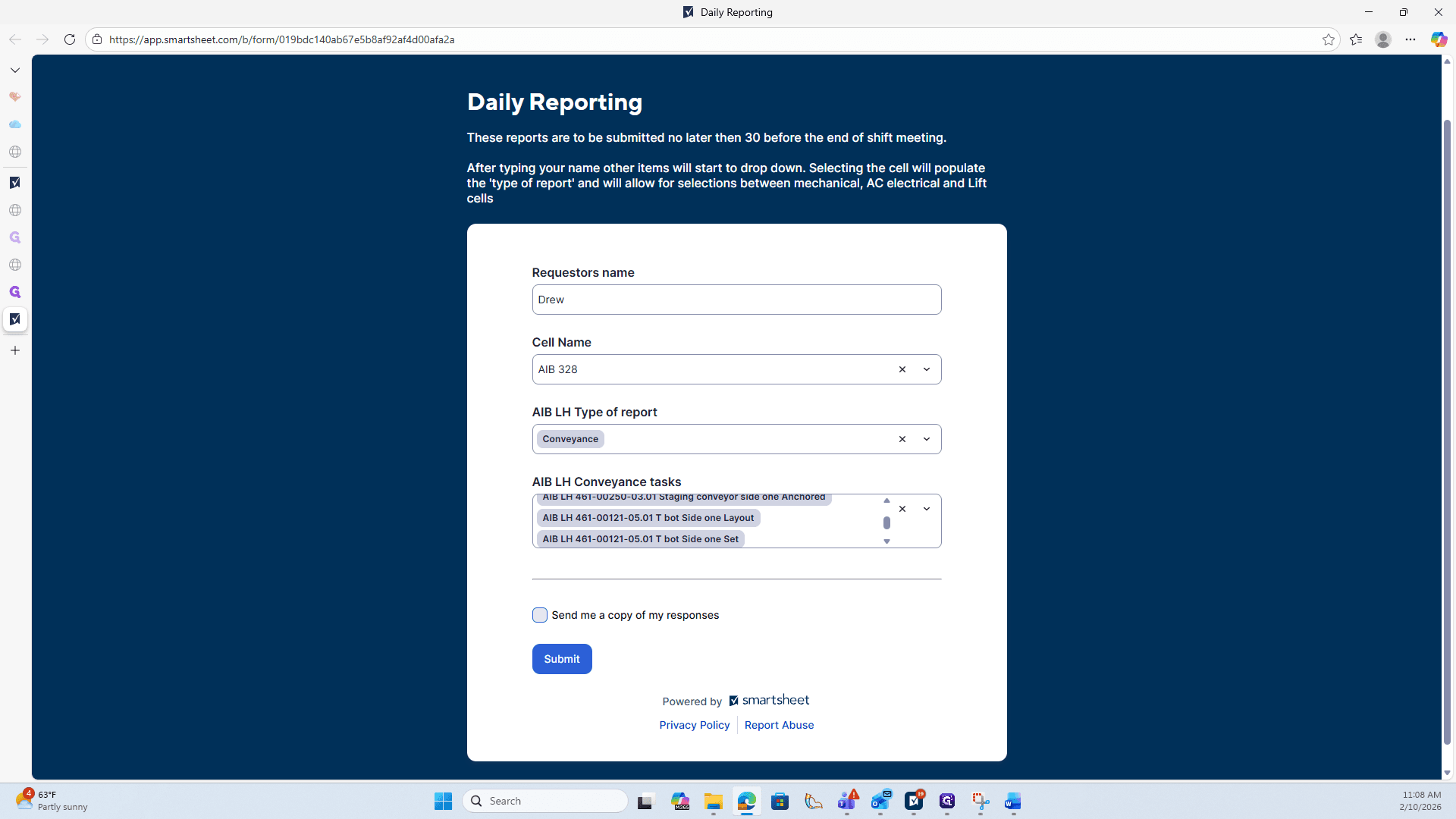
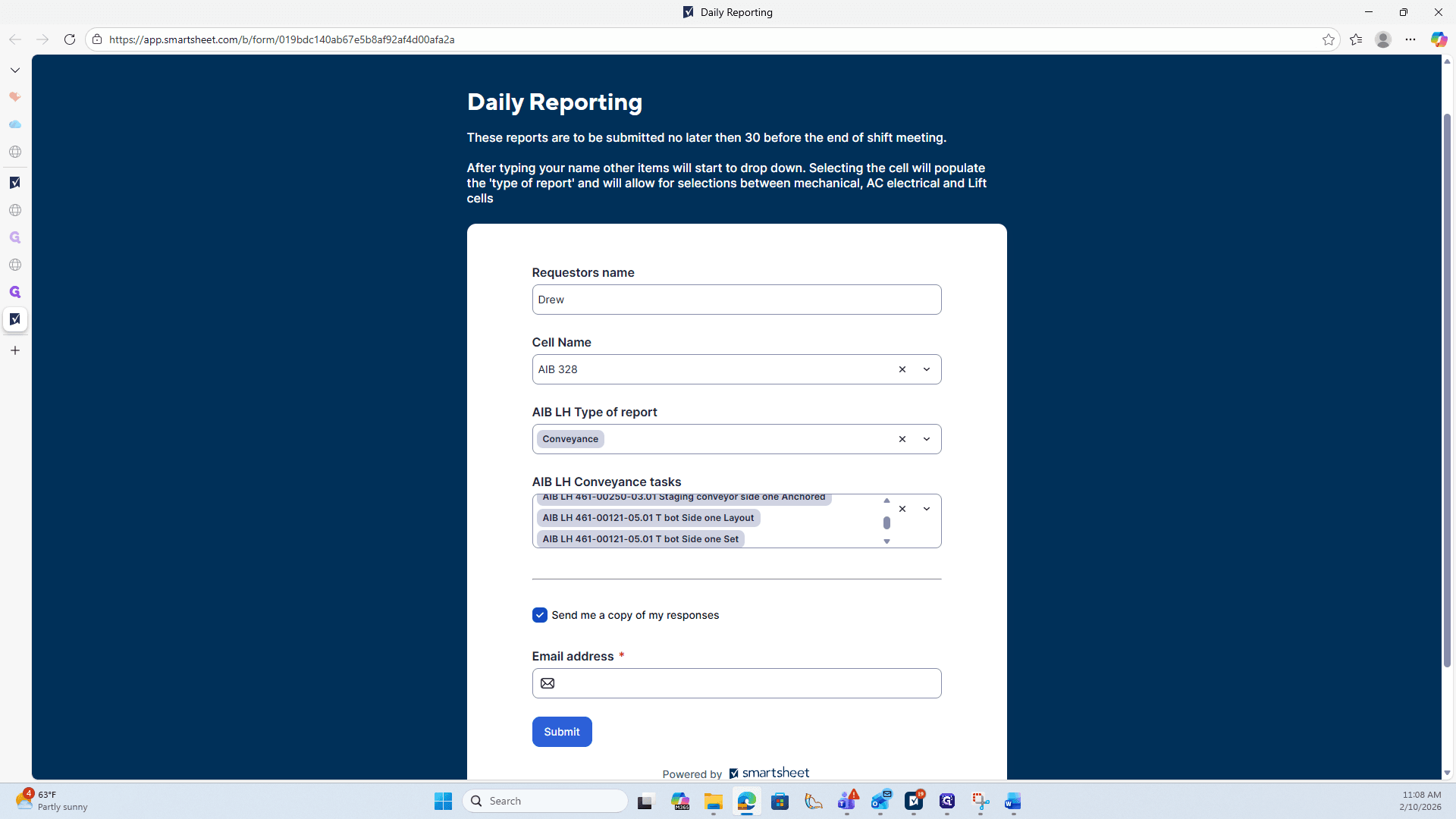
Otherwise, simply click Submit to complete the report.