How to Configure Opportunity Views and Send Bulk Communications in Traction
Learn step-by-step how to configure a view for sales opportunities and send bulk communications in Traction. This guide covers selecting opportunities, creating custom views, and sending messages efficiently.
In this guide, we'll learn how to configure a view for sales opportunities and send bulk communications to selected contacts. This process helps you organize opportunities and reach out to multiple users efficiently.
You'll see how to create a custom view, add users, and use templates to send messages to your chosen recipients.
Let's get started
All right. Welcome to the Traction Knowledge Center. Today, we will learn how to configure a view for opportunities and send bulk communications for sales opportunities.
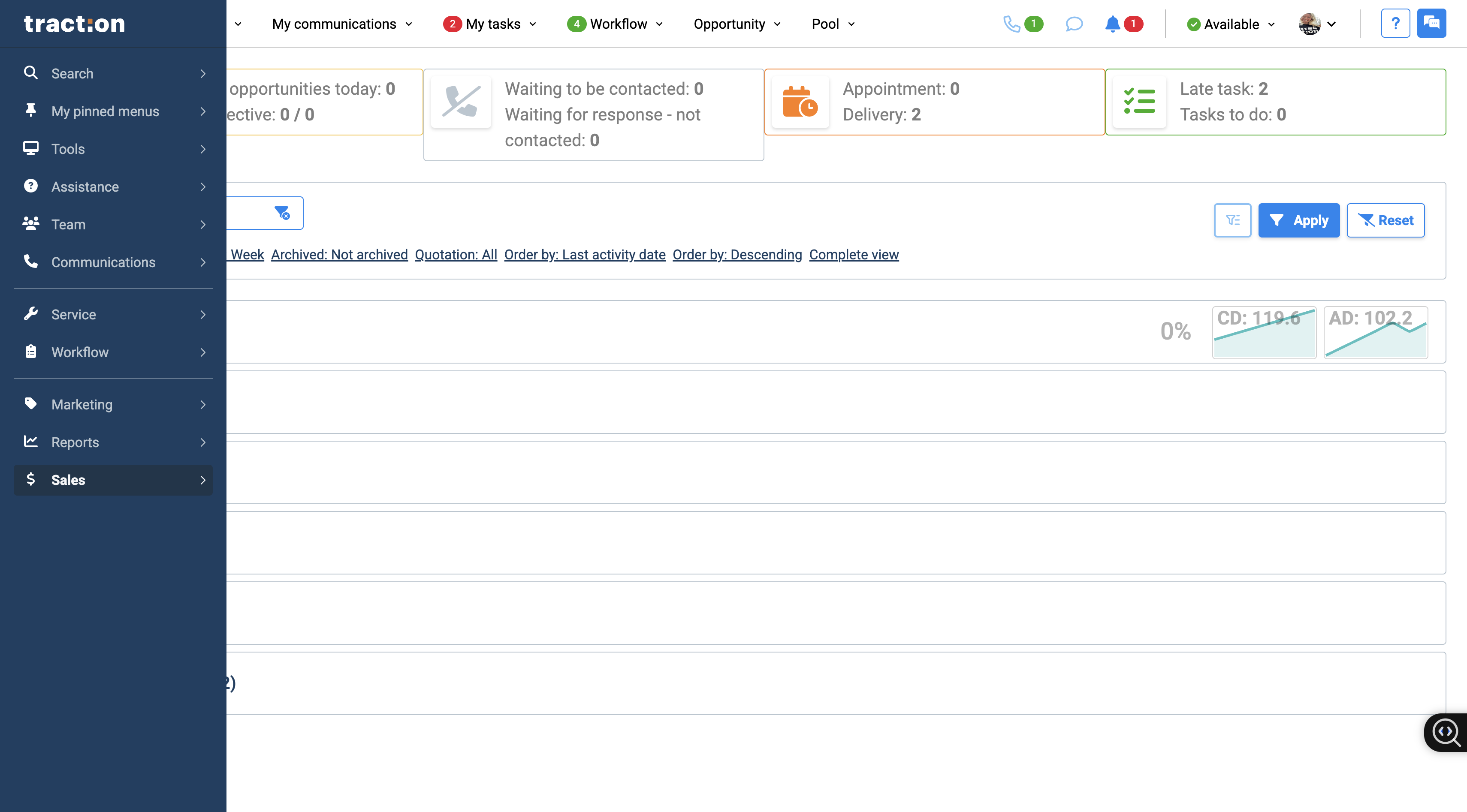
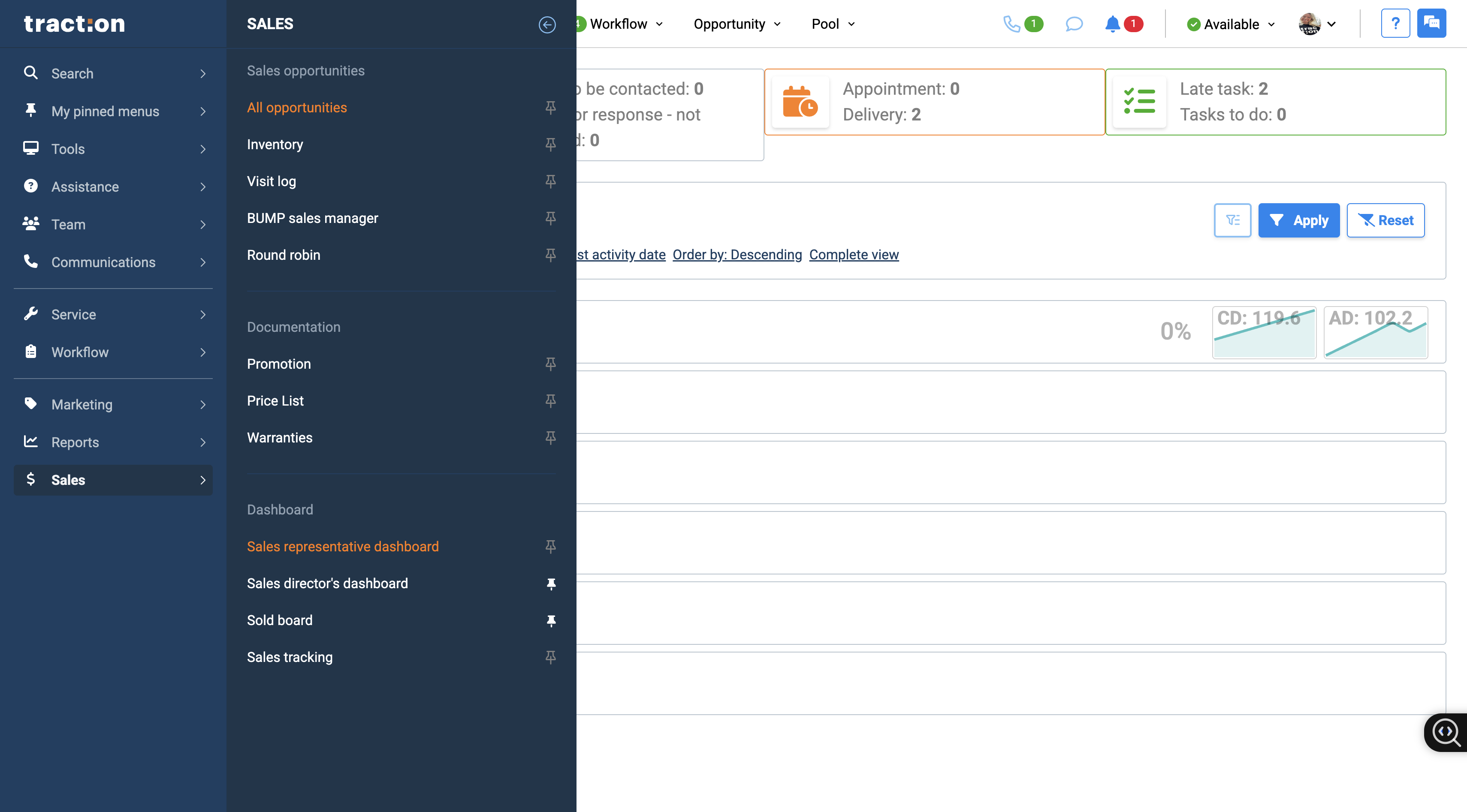
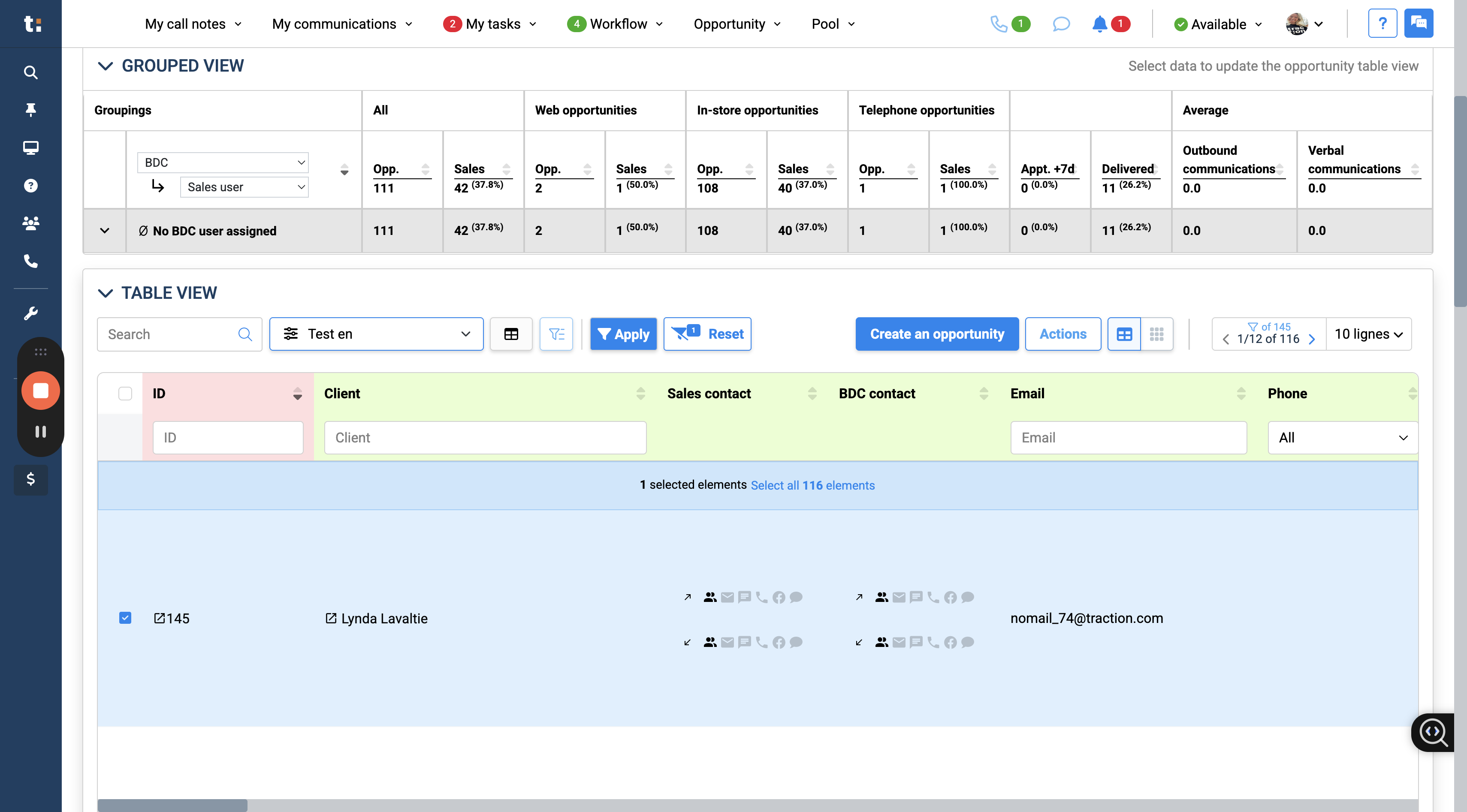
You have many options but they will all result to the same ending : web, telephone, in-store, with a salesperson, or with a director, It depends on which option you select. Go down and select "Create a View."
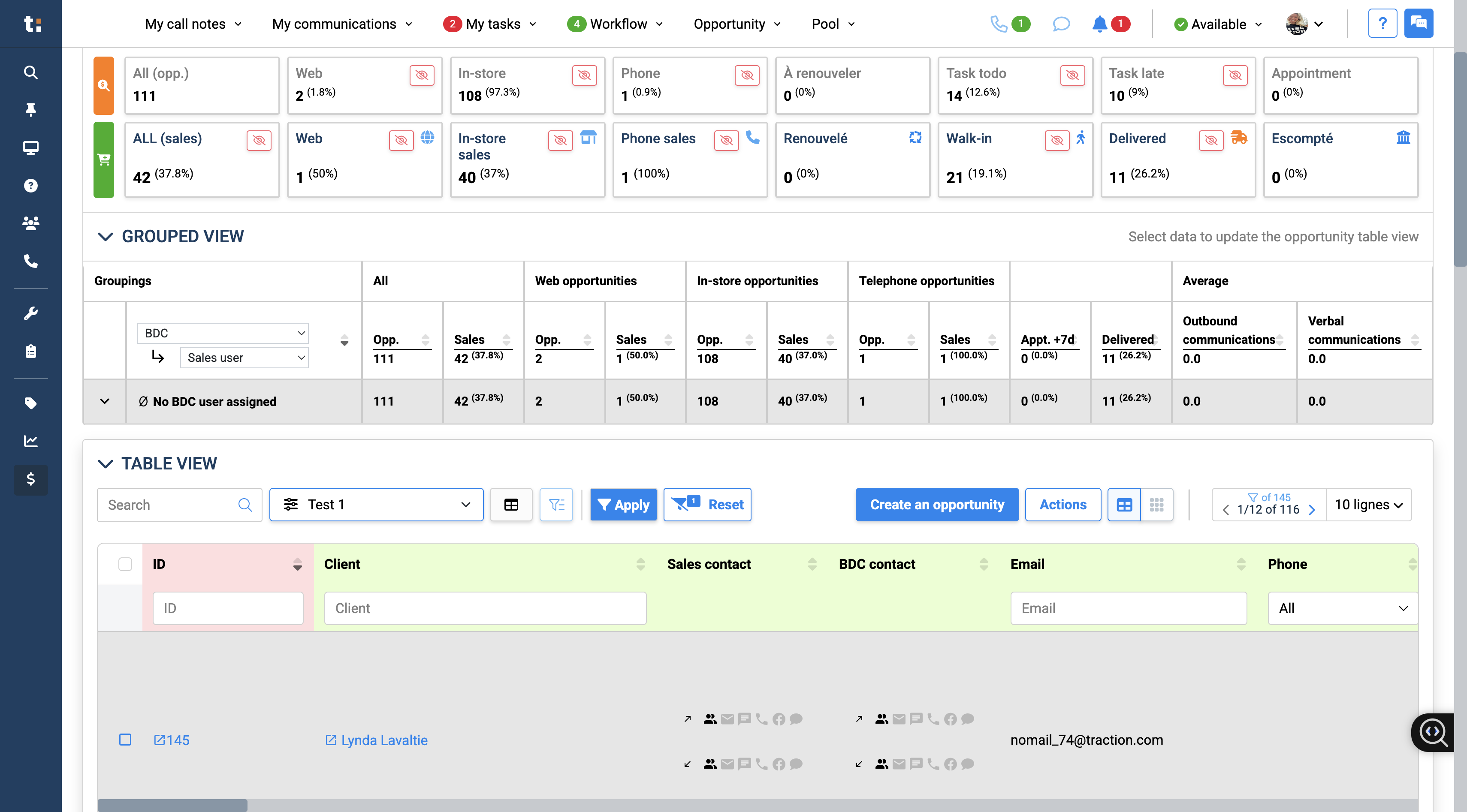
Click on "Create a View." Enter a name, then add a user.
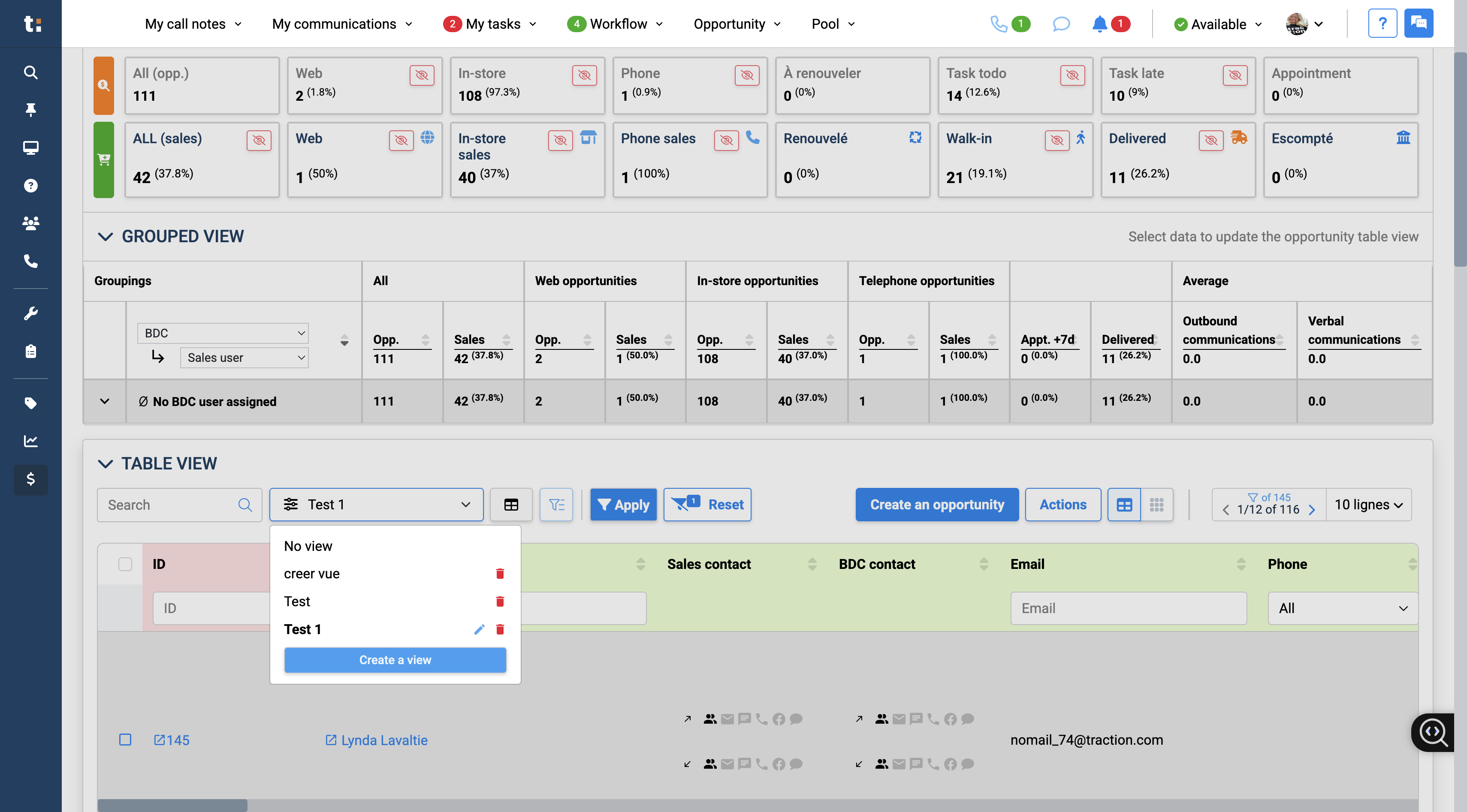
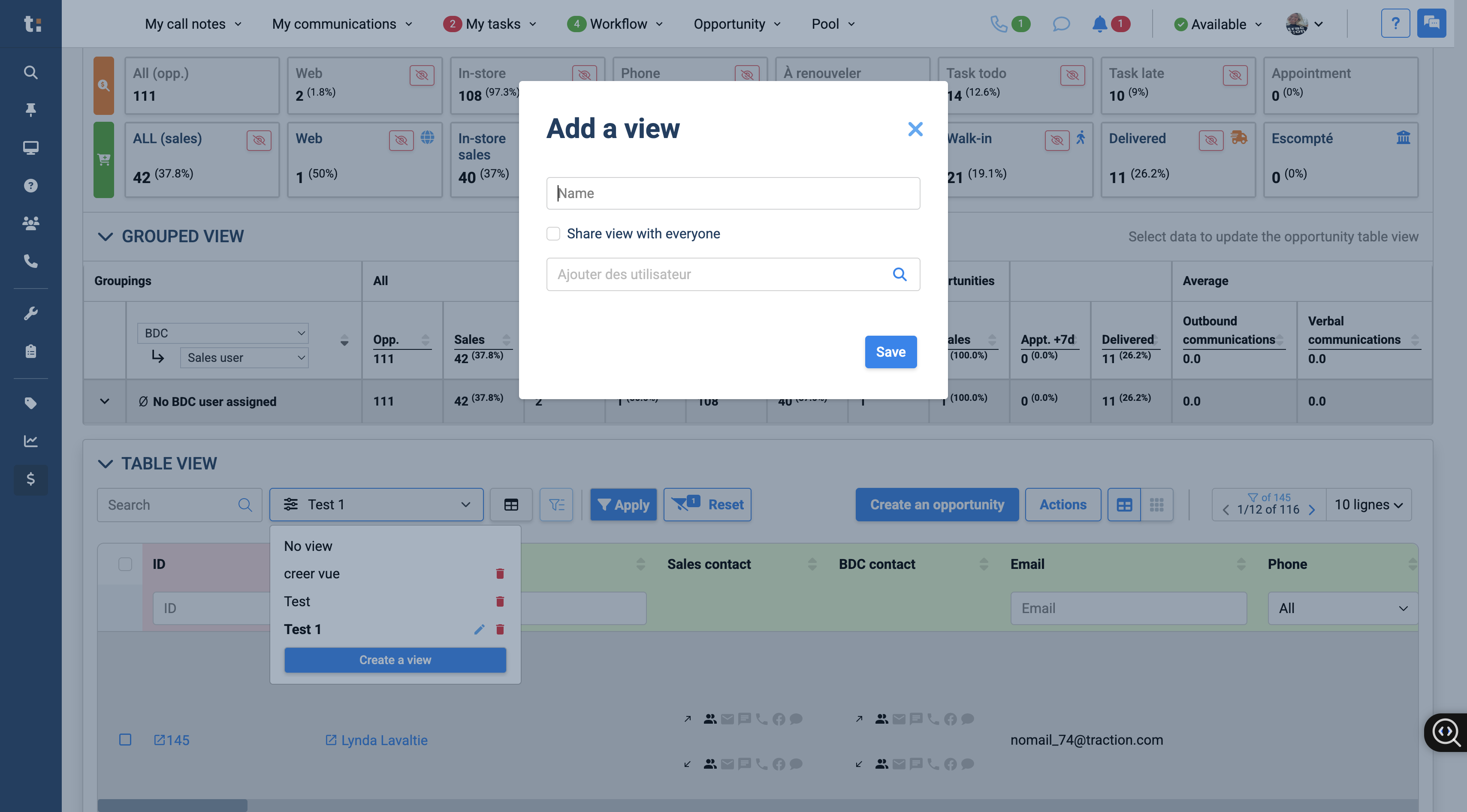
Enter a name
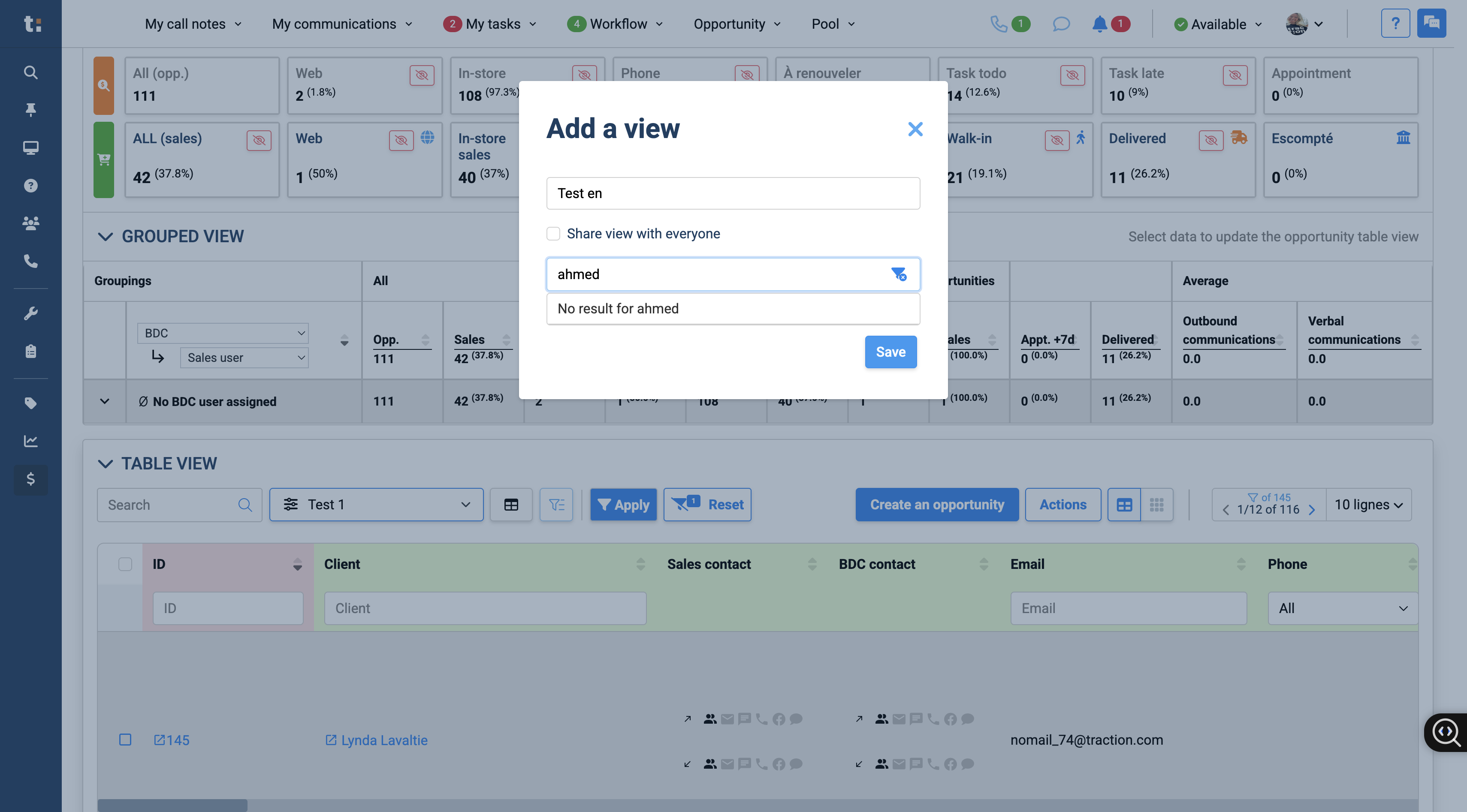
It will redirect you to this tab. Then you need to send a bulk communication with... Regarding the specific opportunity you want. For example, you want to select Linda.
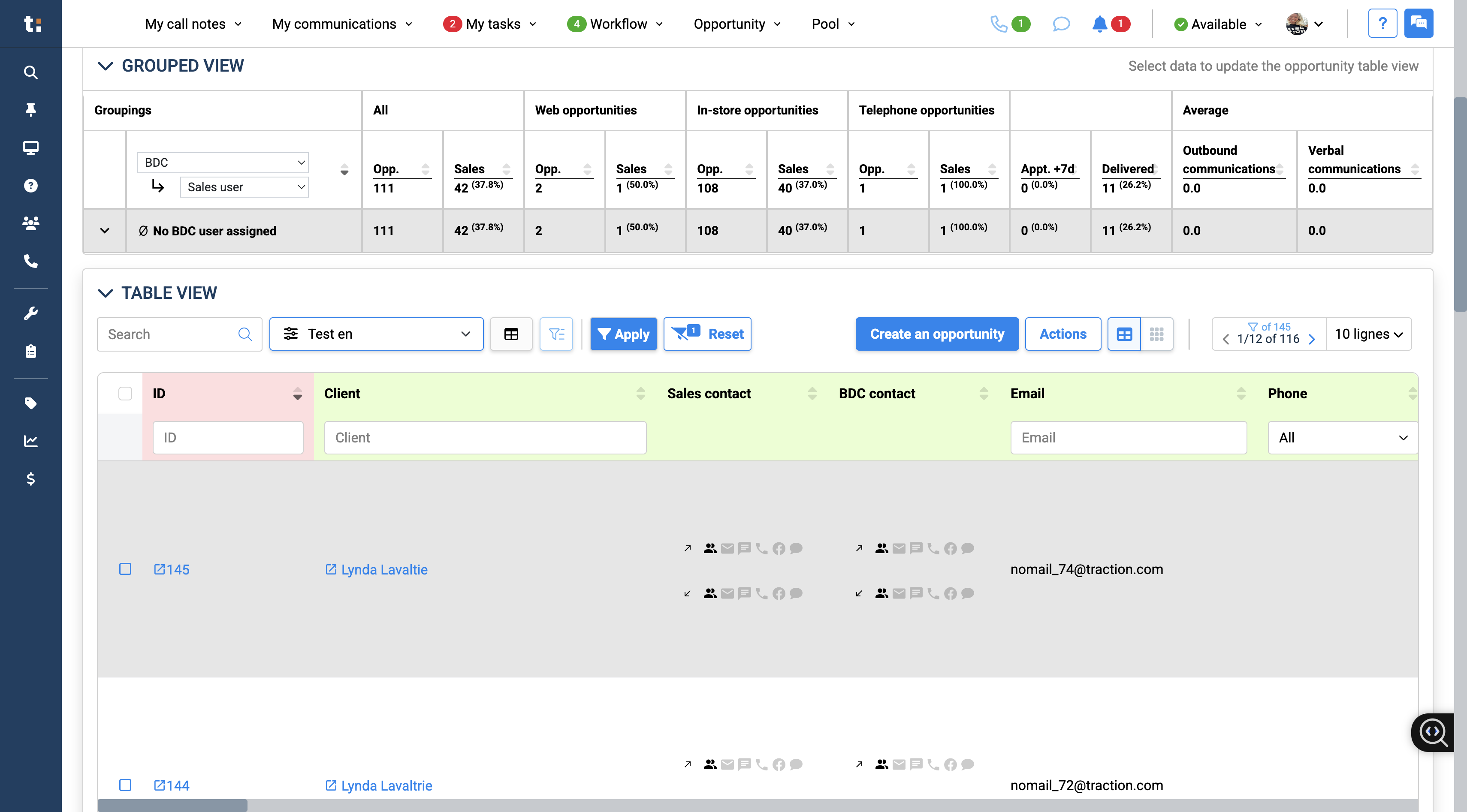
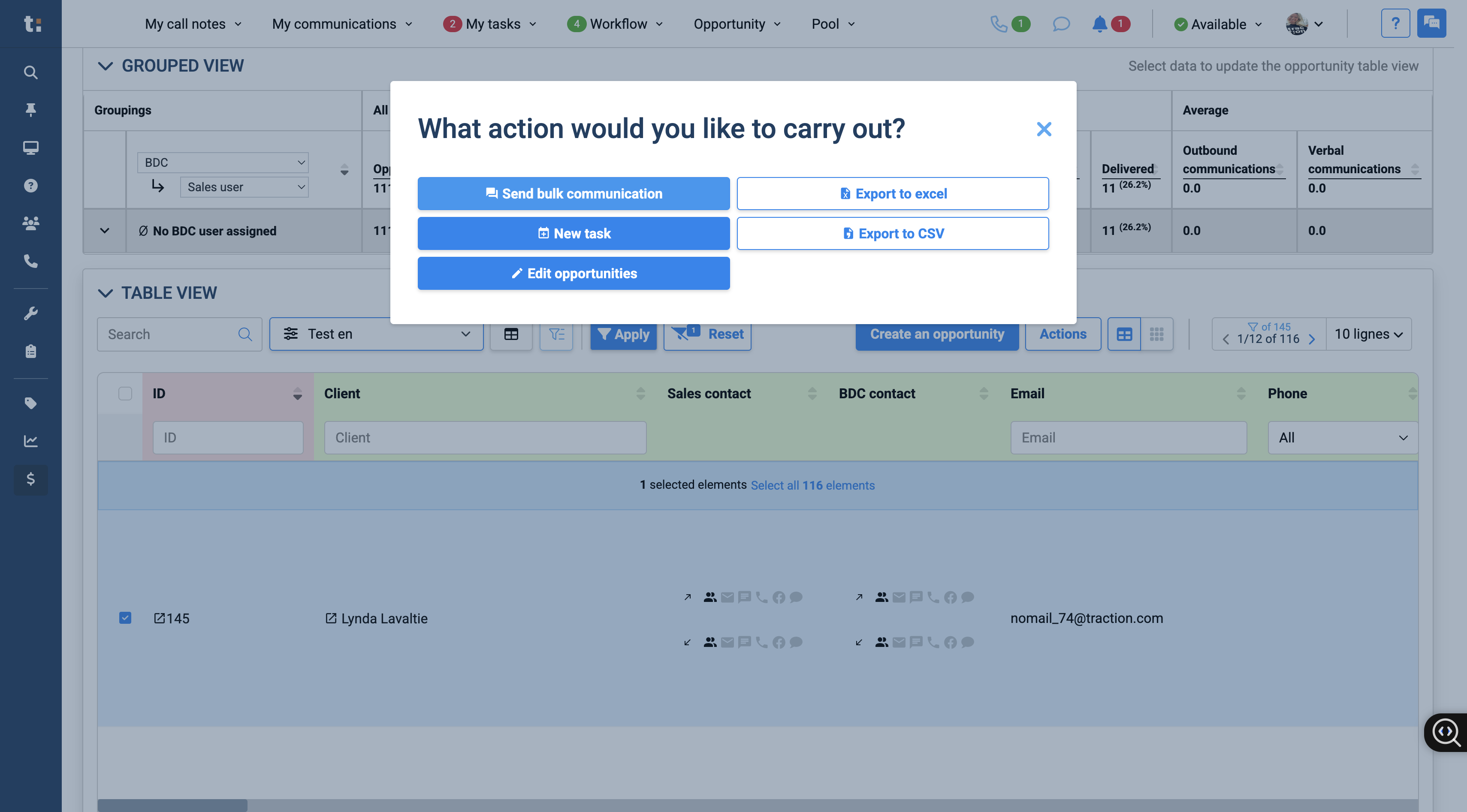
Click on Action
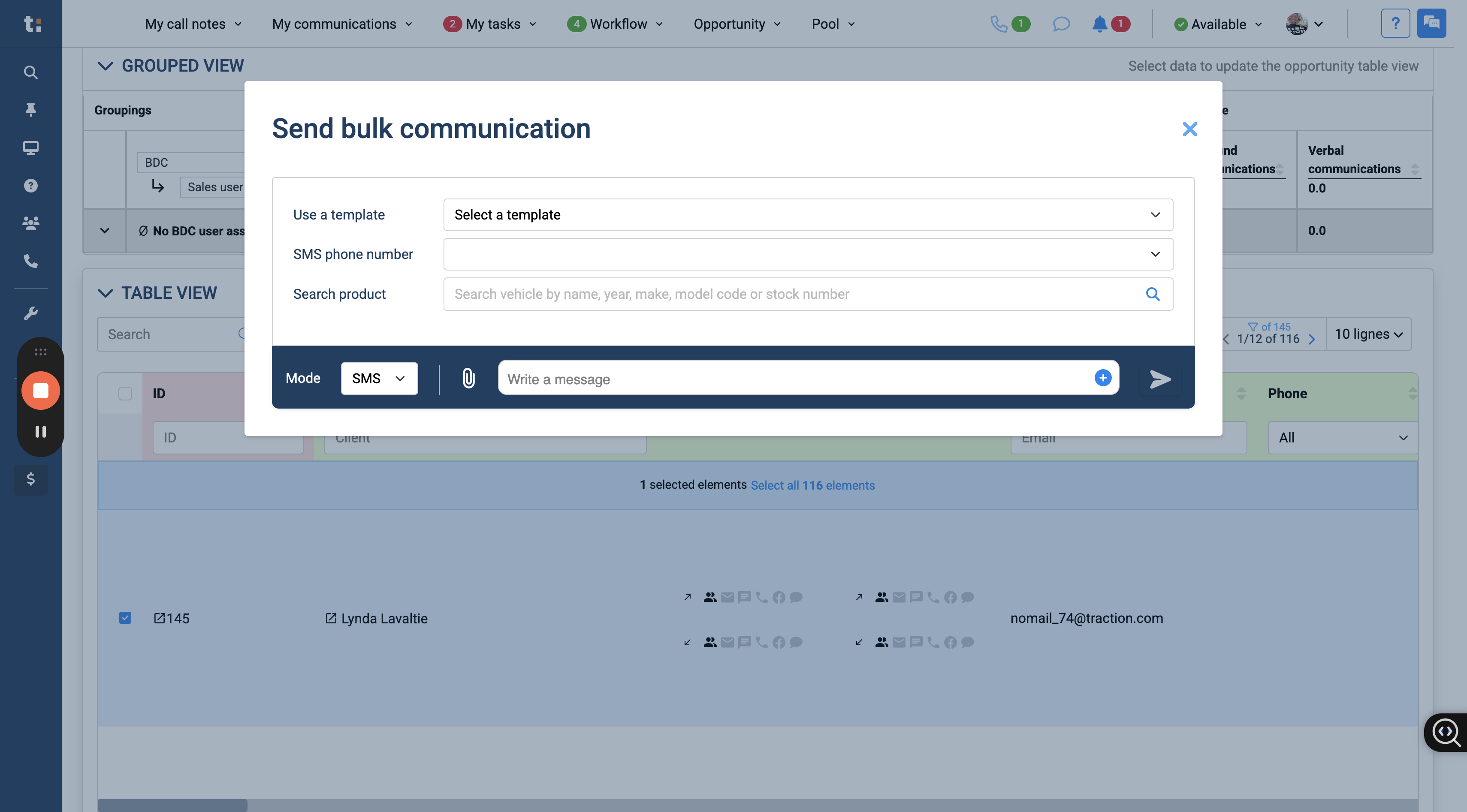
Click Send, choose a template, select the appropriate user, and send the message by clicking here.