How to Correct Employee Time Logs and Cost Centres
Learn how to manually edit employee clocking times, allocate hours to specific cost centres, and update shift records in the Time-Minder daily report.
By dONNA
Made with Glitter AI
Managing employee attendance exceptions often requires manual adjustments. You can easily edit clocking times and reallocate shift hours to proper cost centres directly from the Daily Report interface in Time-Minder.
Editing Clocking Times and Cost Centres
1
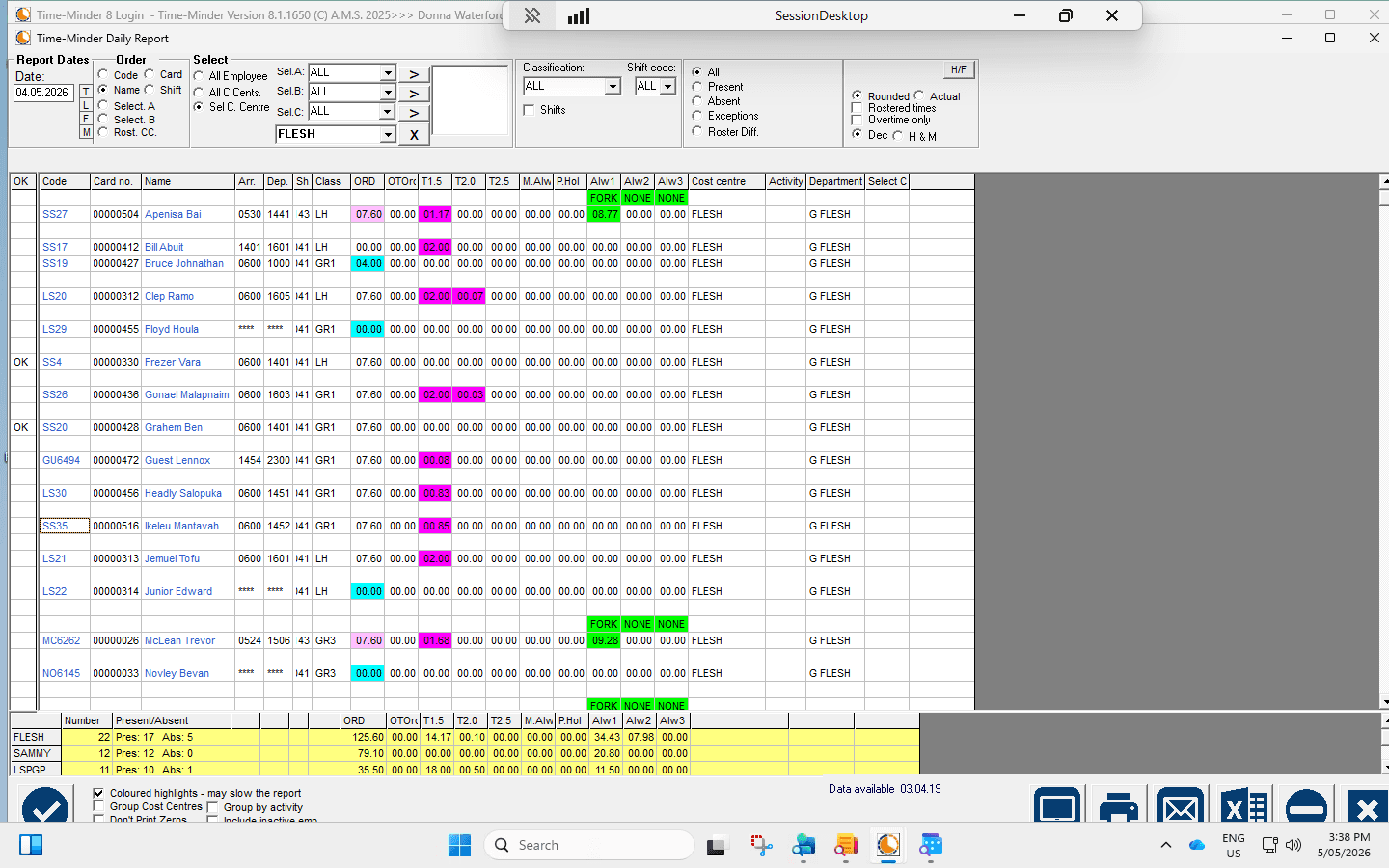
Select employee 00000516 from the daily report grid to open the Corrections window.
2
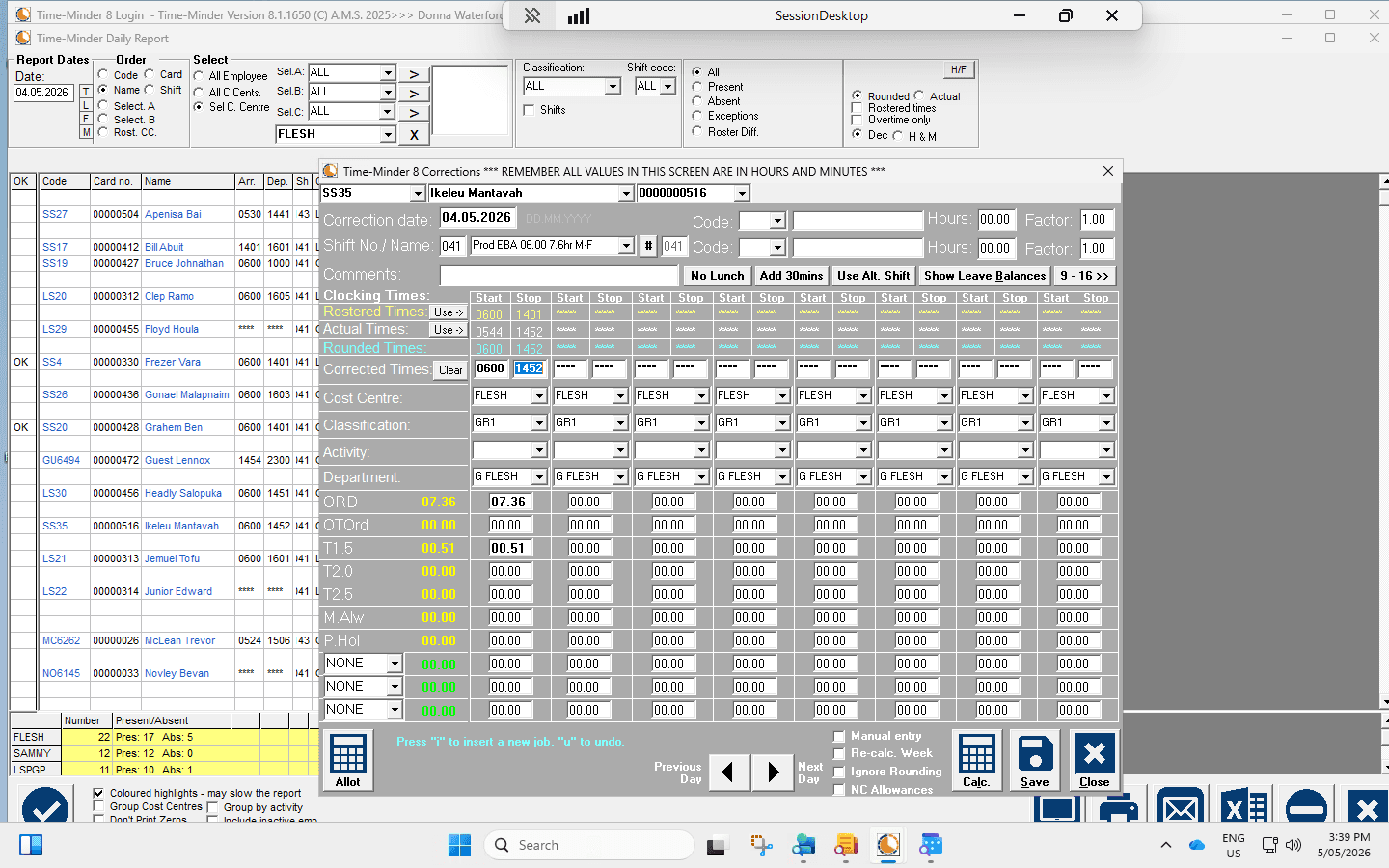
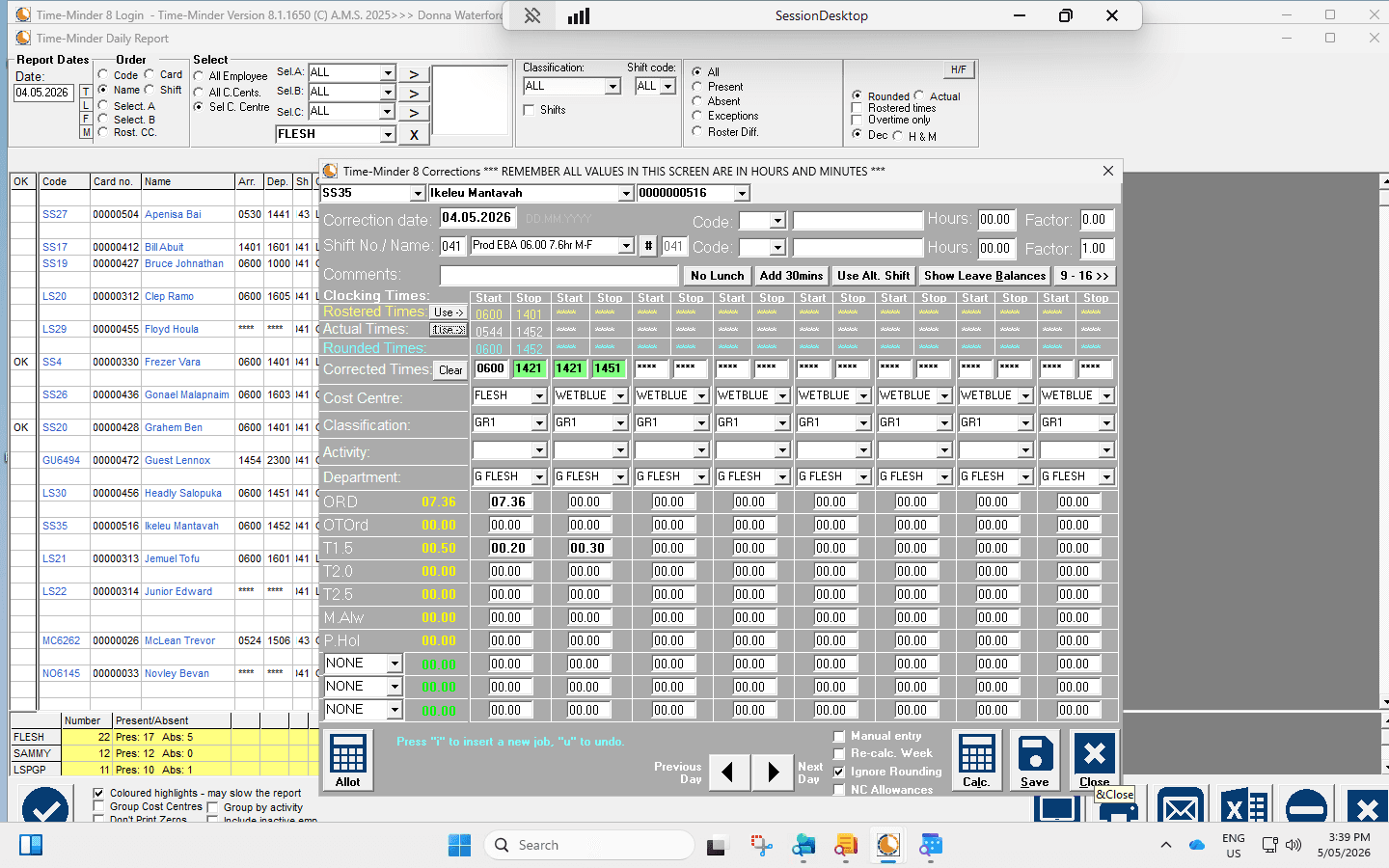
Click on the clocking time 1452 and modify it to 1451.
3
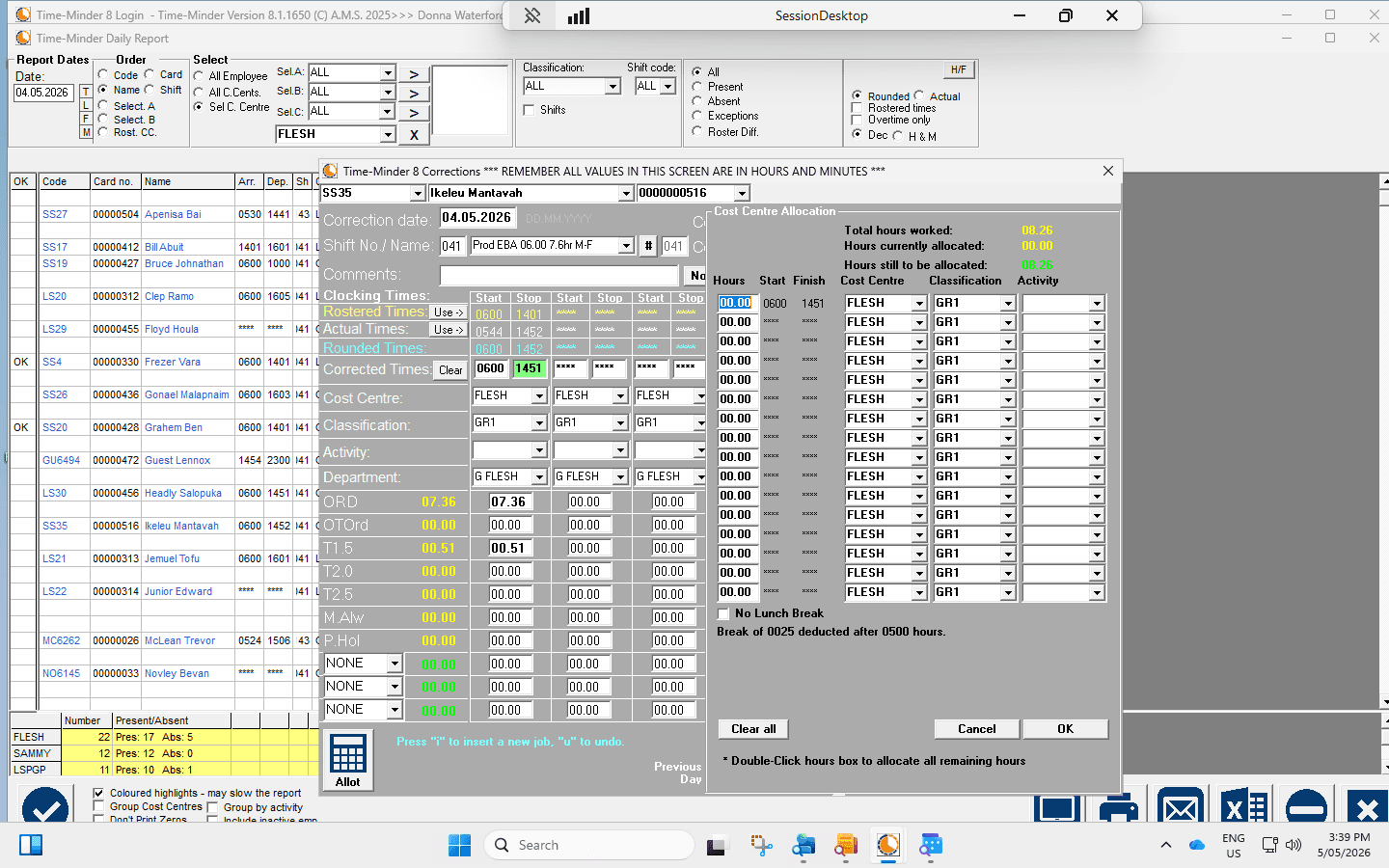
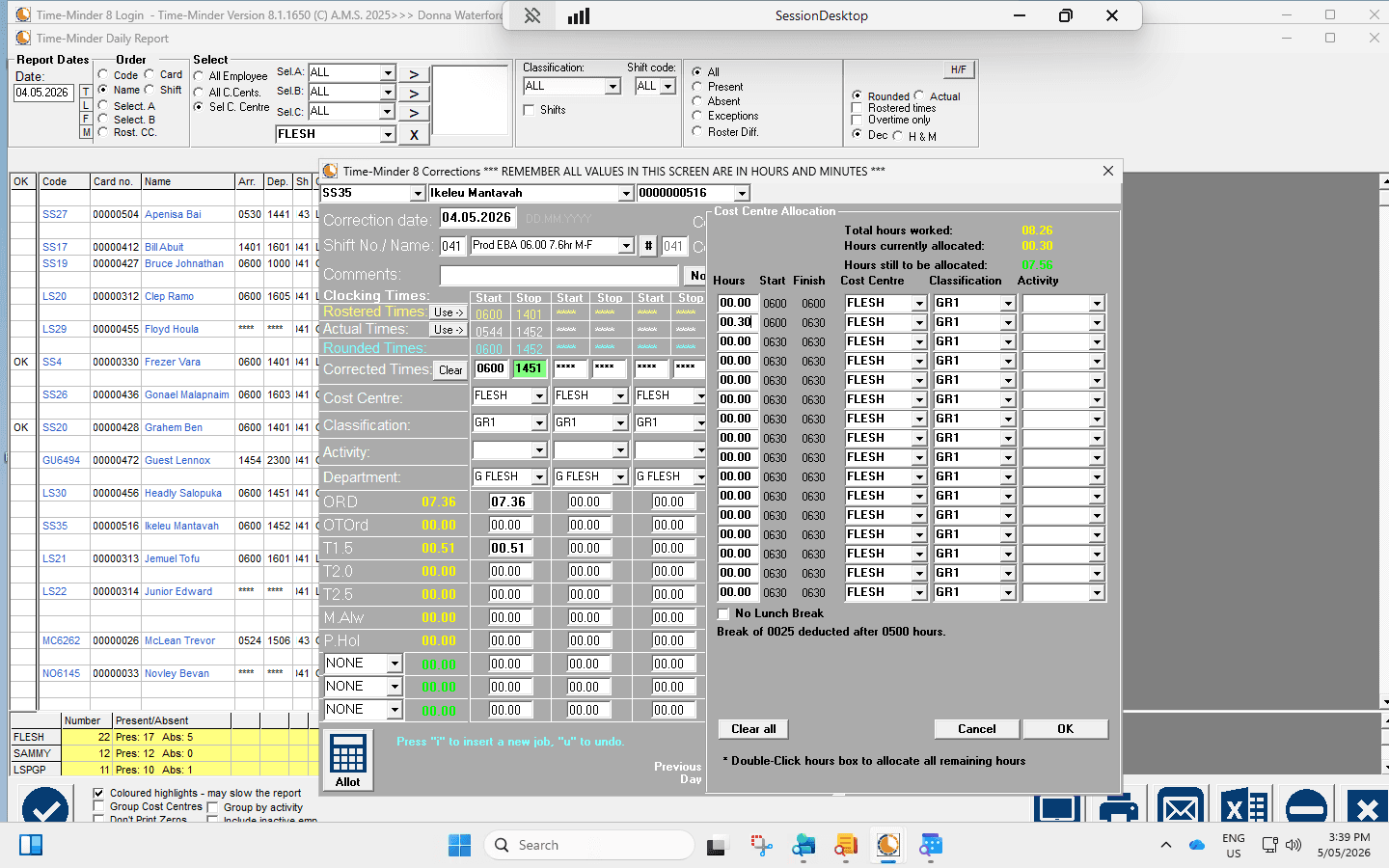
Click on the hours allocation field and enter 00.30 to assign the time.
4
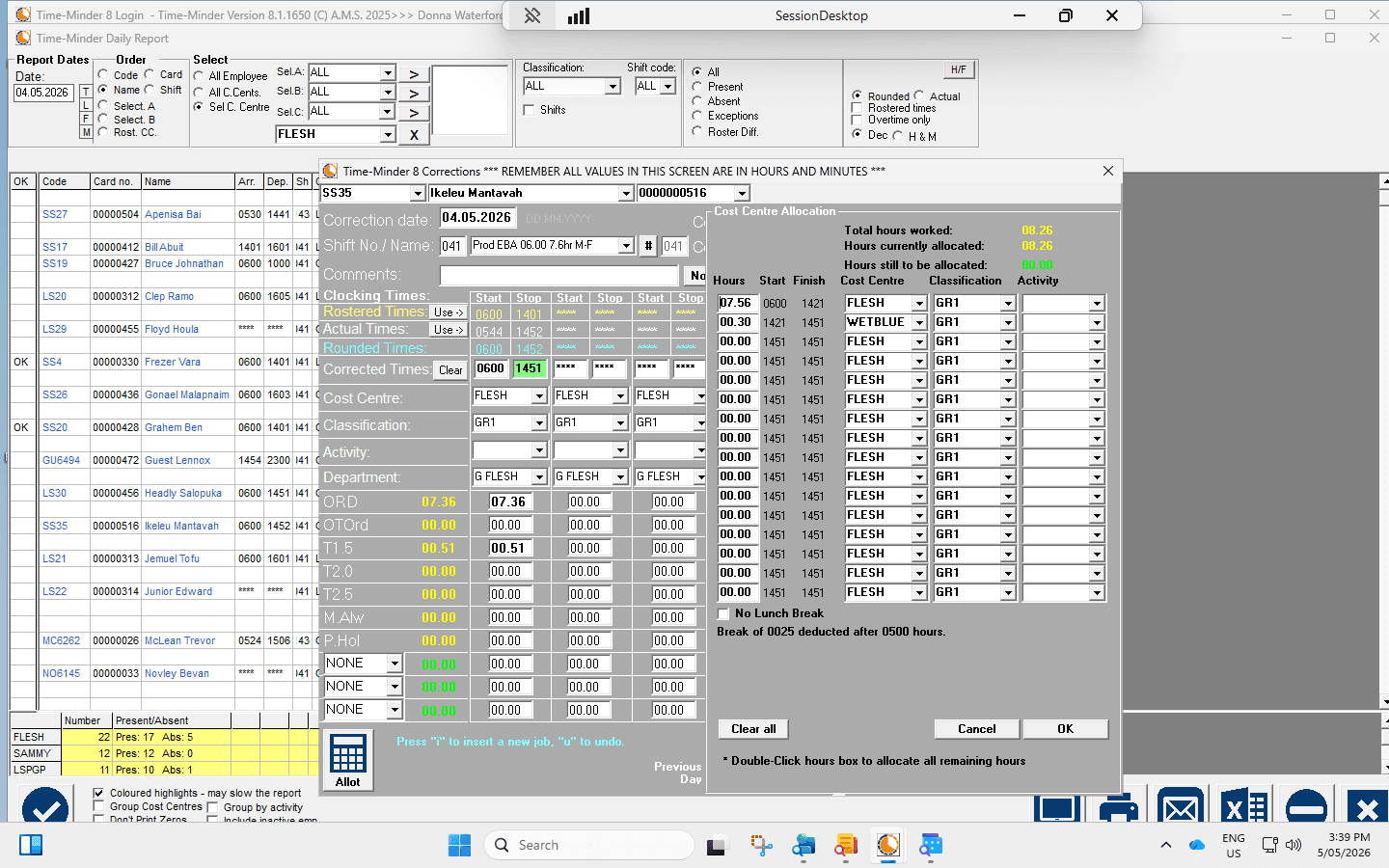
Open the cost centre dropdown menu and select the appropriate code, such as WETBLUE.
5
Click OK to save the allocation.
6
Click Close (×) to exit the Corrections window and return to the main report.
Adjusting Additional Employee Records
If multiple employees require adjustments, you can repeat the process from the Daily Report view.
7
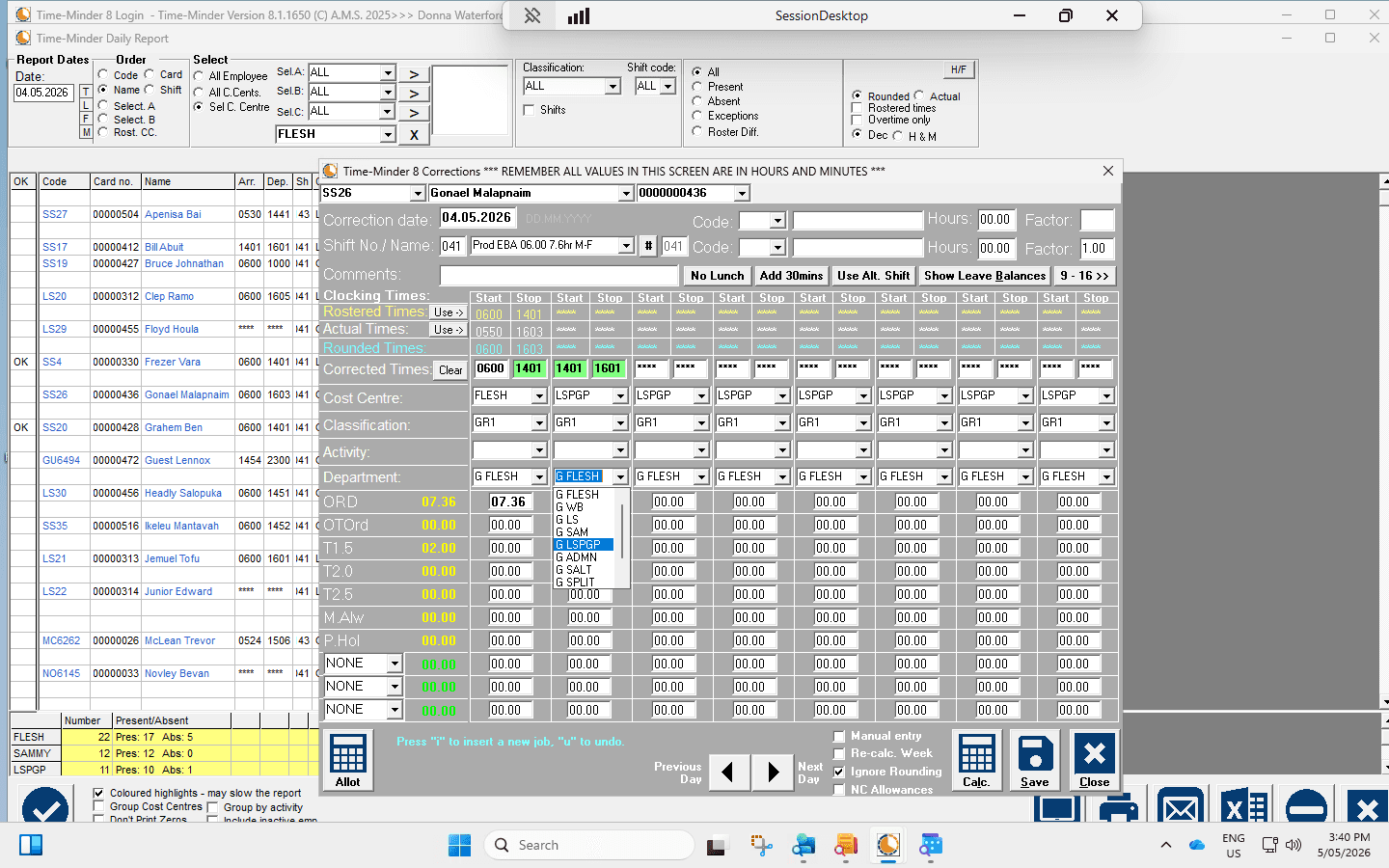
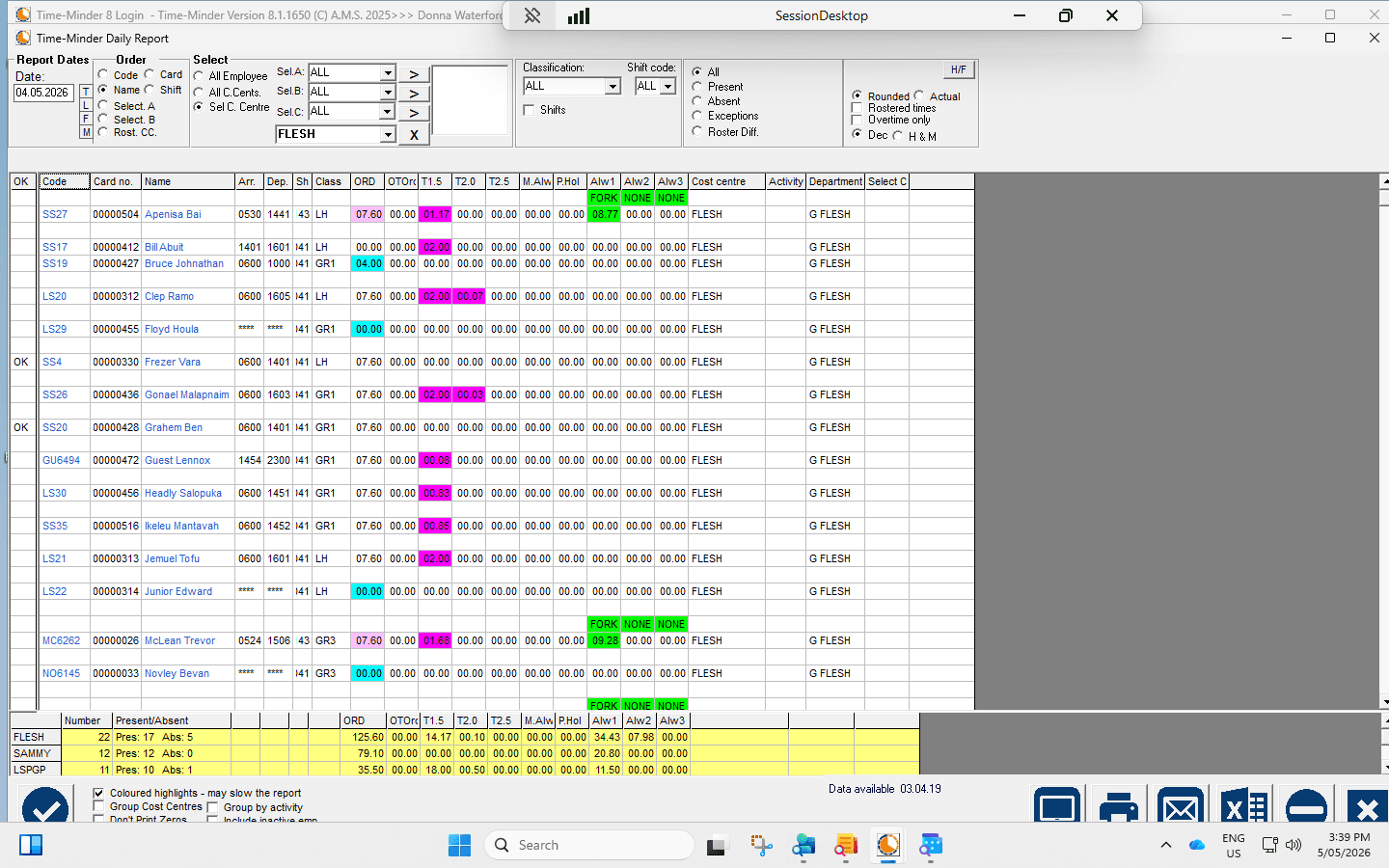
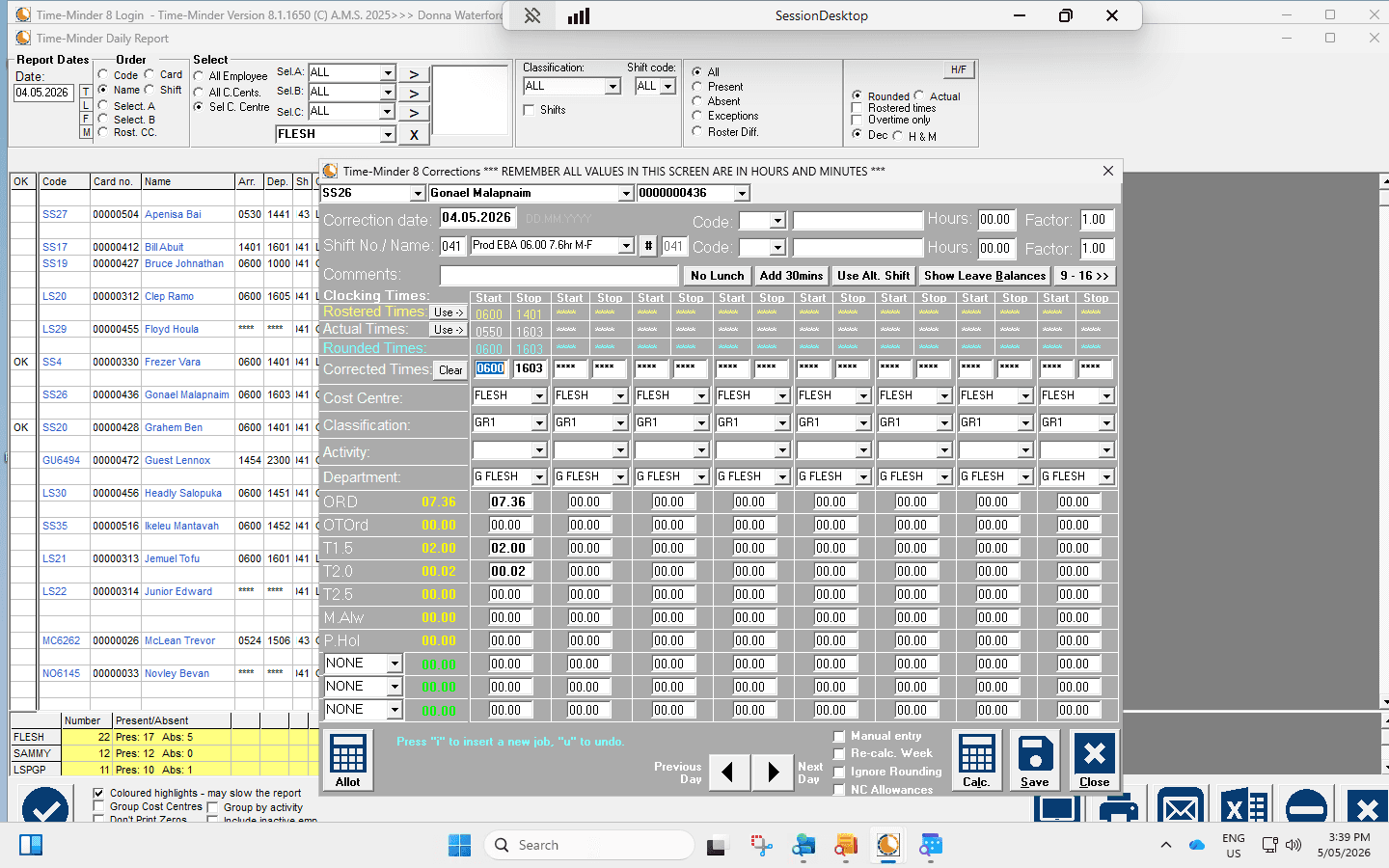
Select employee 00000436 from the daily report grid.
8
Click the clocking time 1603 and change it to 1601.
9
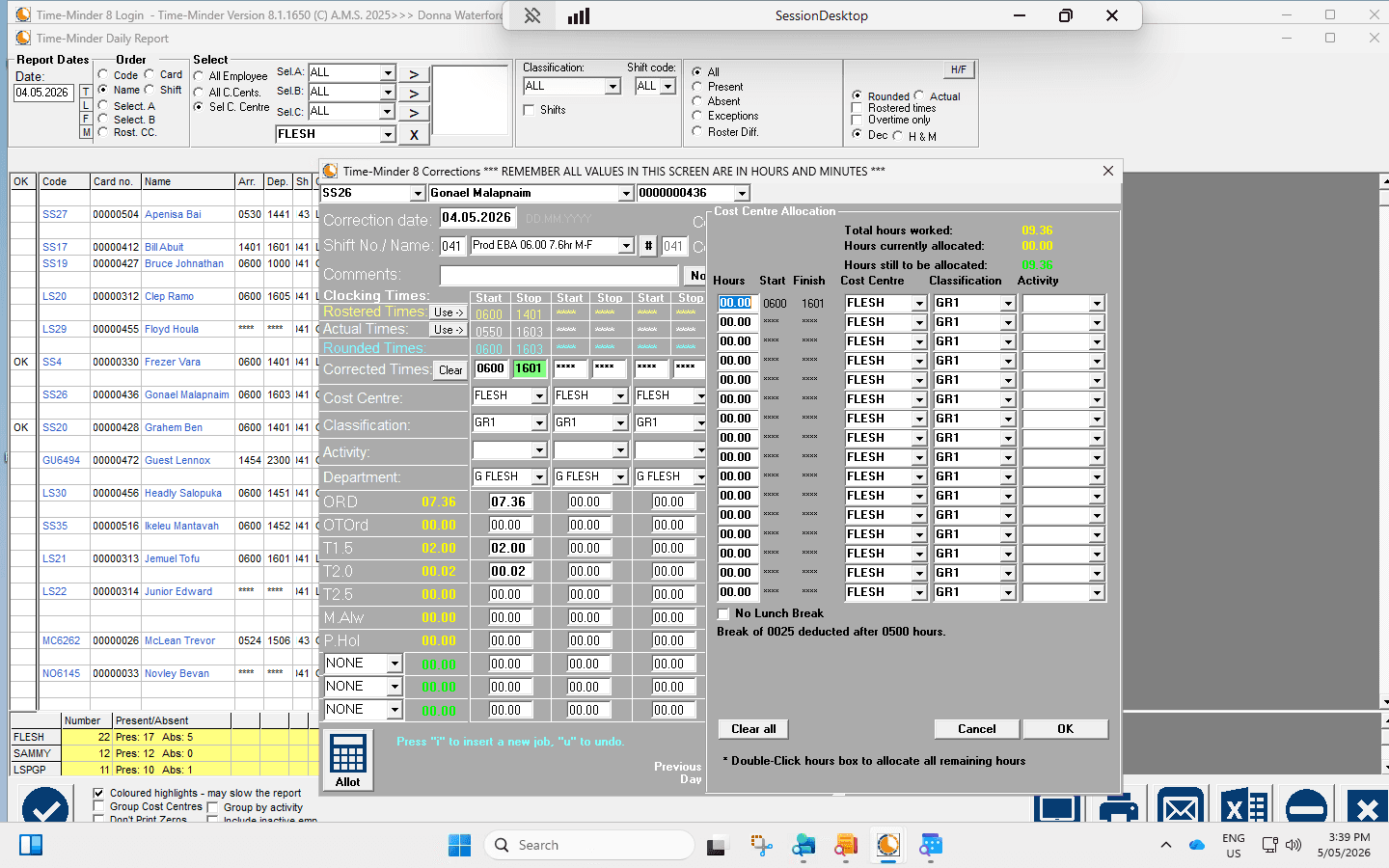
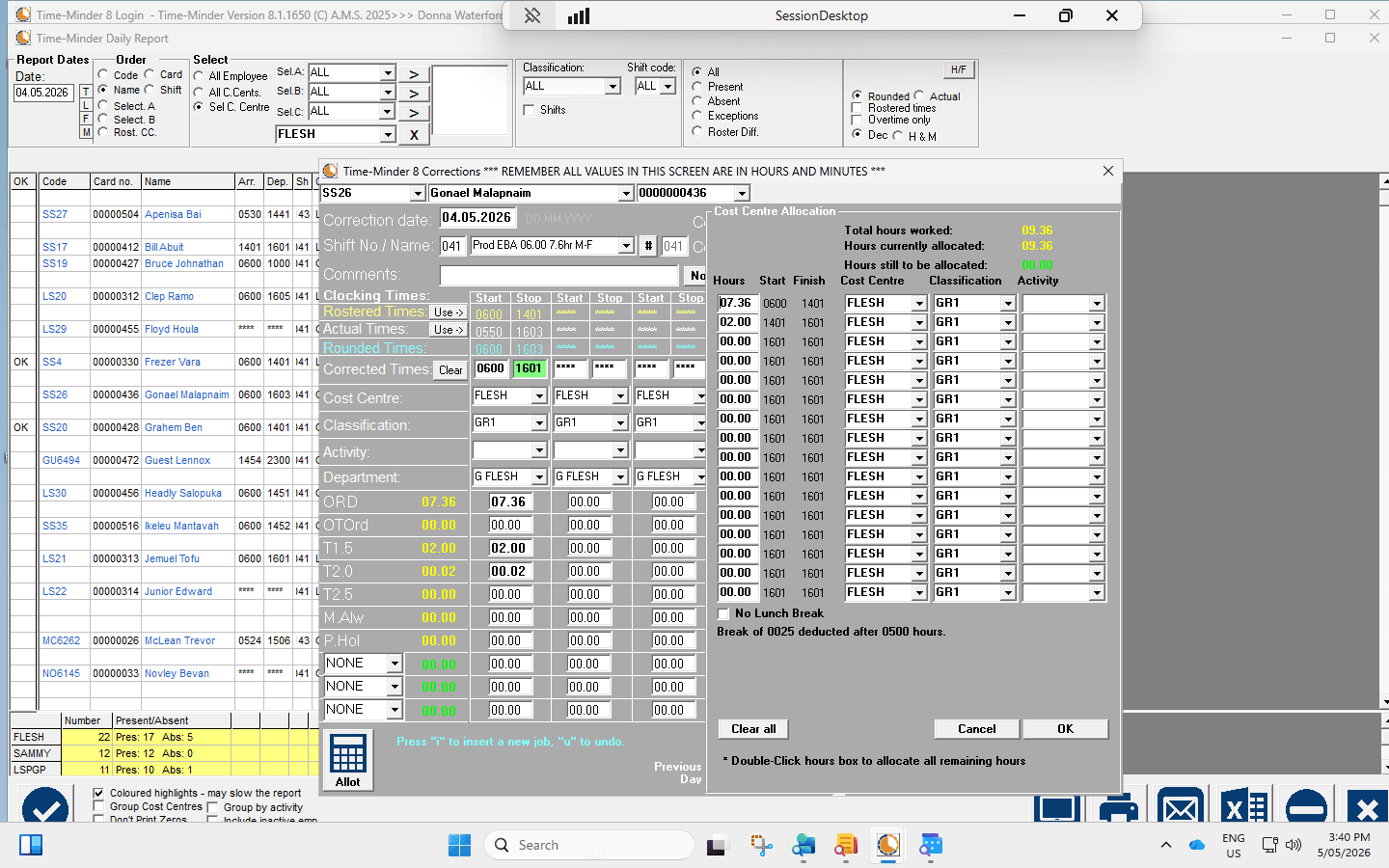
Click the hours allocation field and enter 02.00.
10
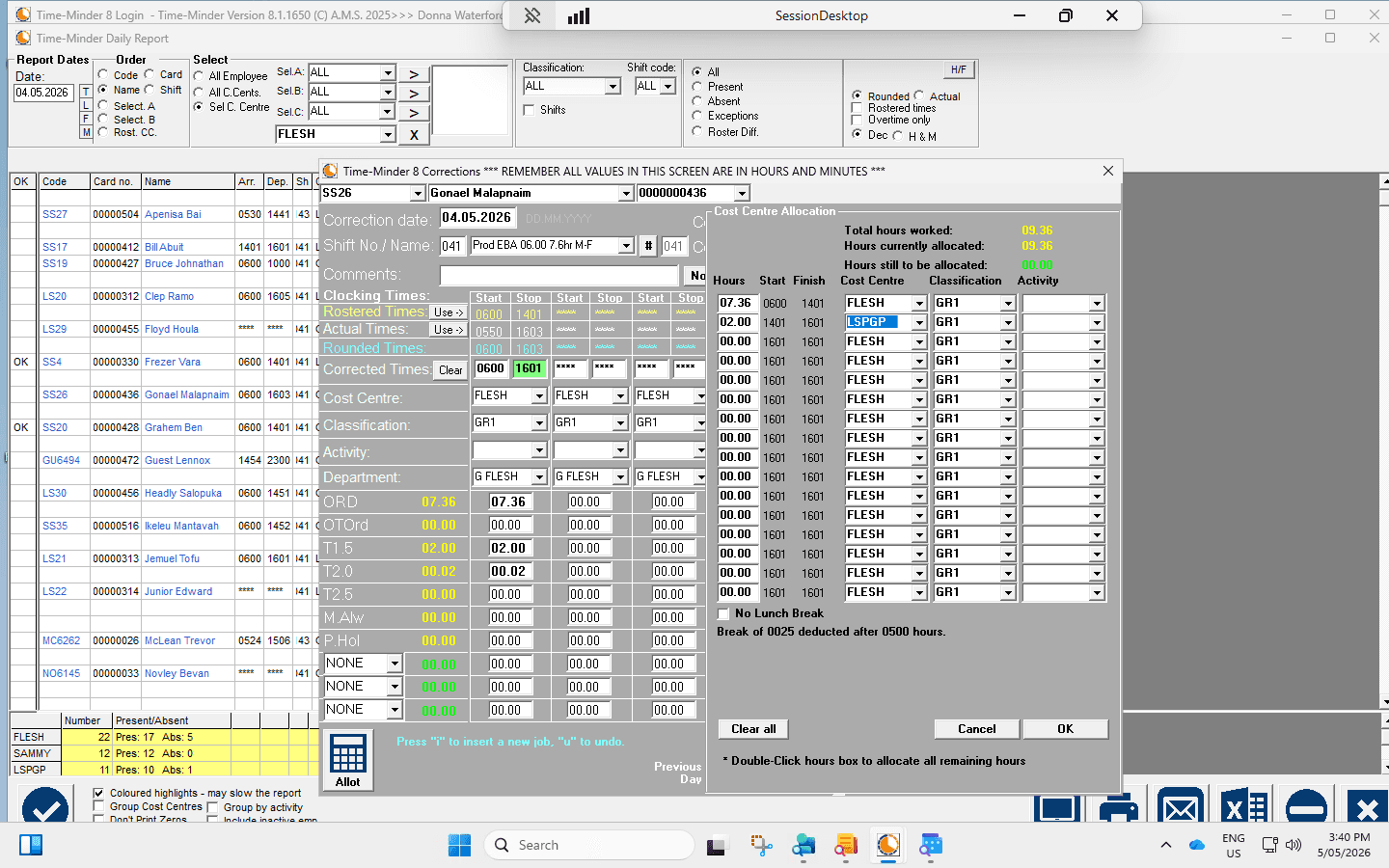
Open the cost centre dropdown and select LIMESPLT.
11
Click OK to save your changes.
12
If necessary, update the department code to G LSPGP and close the corrections window.