How to Create a Call Note: Step-by-Step Guide
Learn how to create call notes using the Call Manager or directly from a customer's profile. Step-by-step instructions for assigning, sending, and managing call notes efficiently.
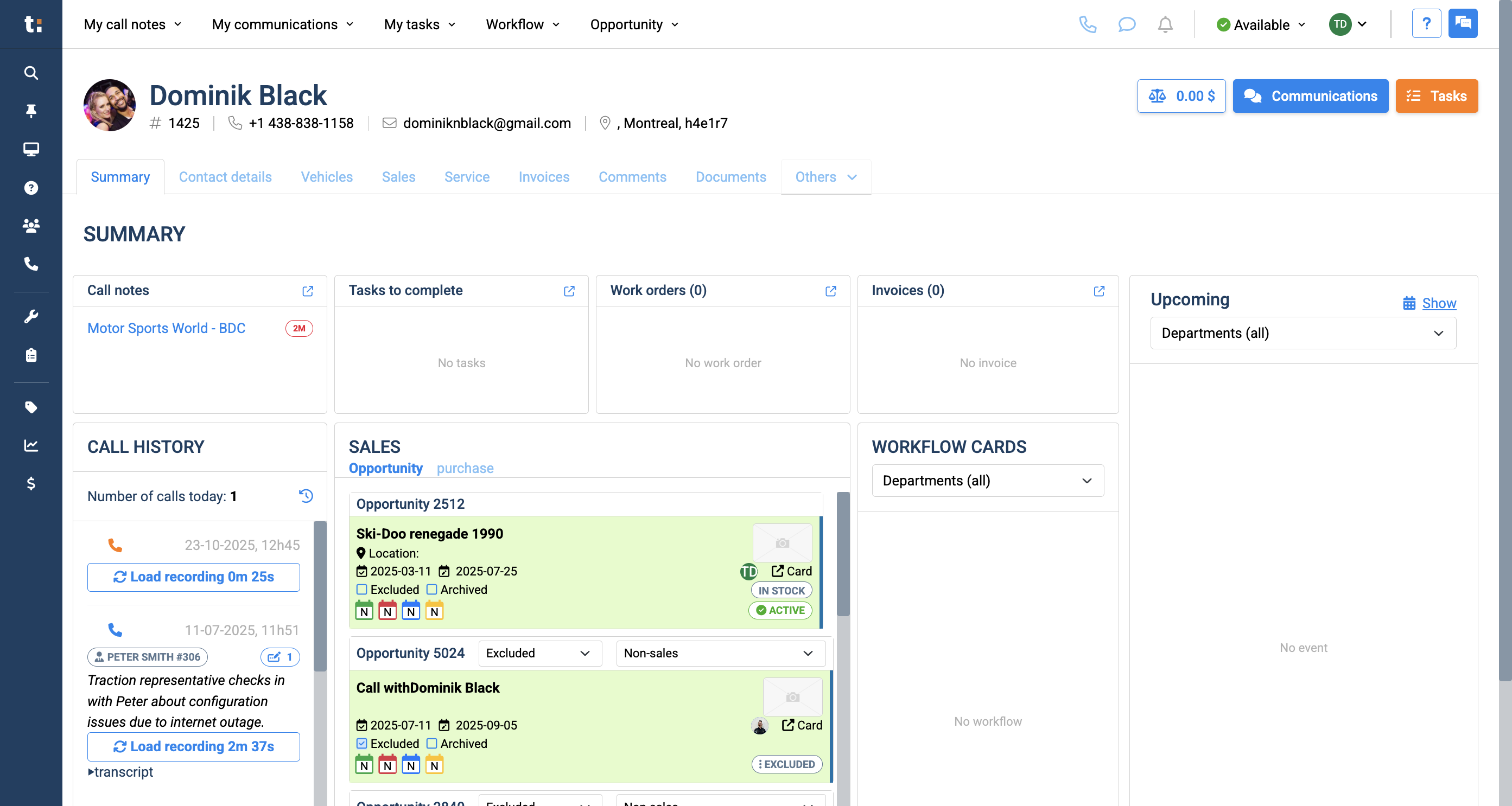
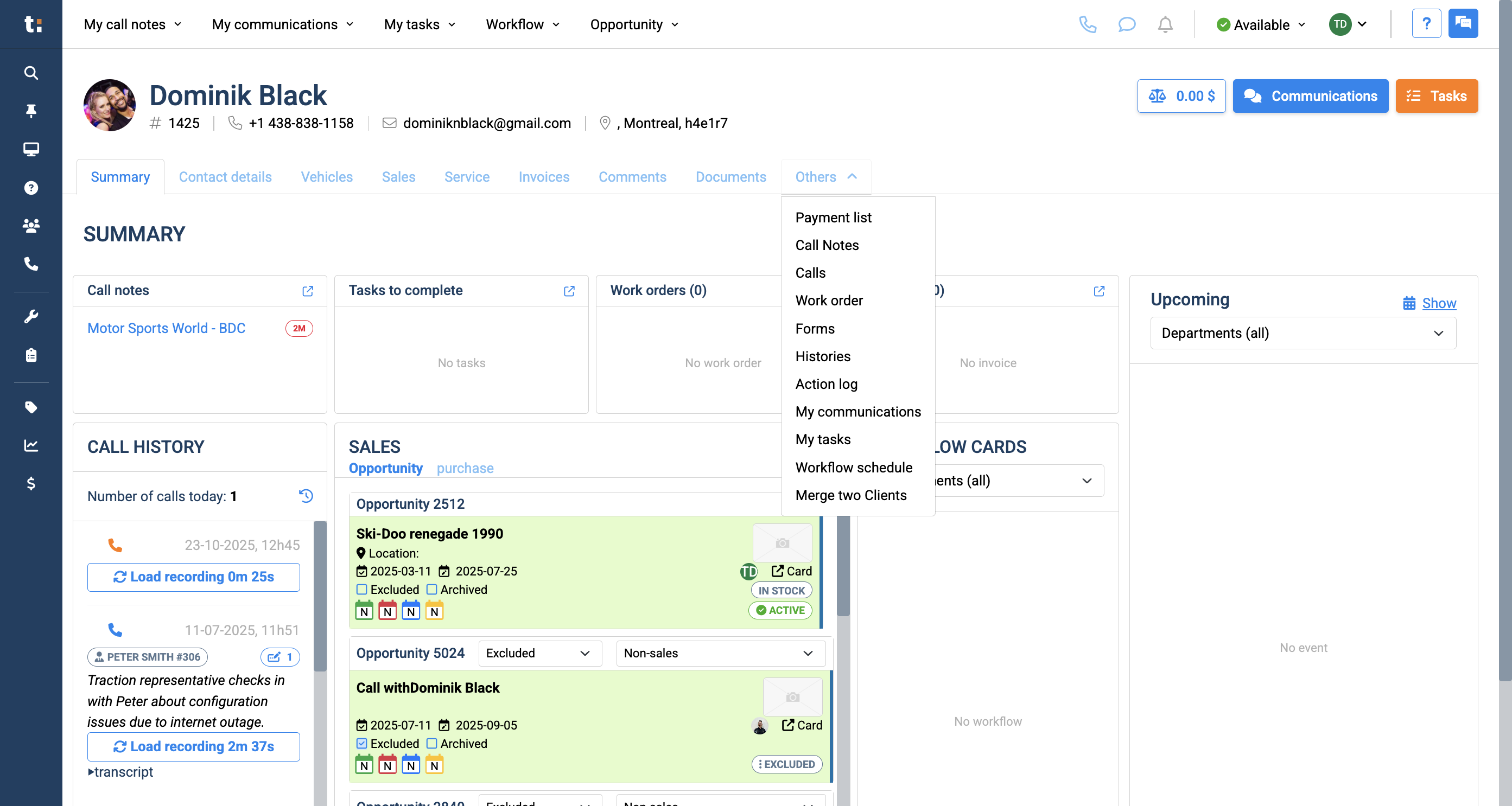
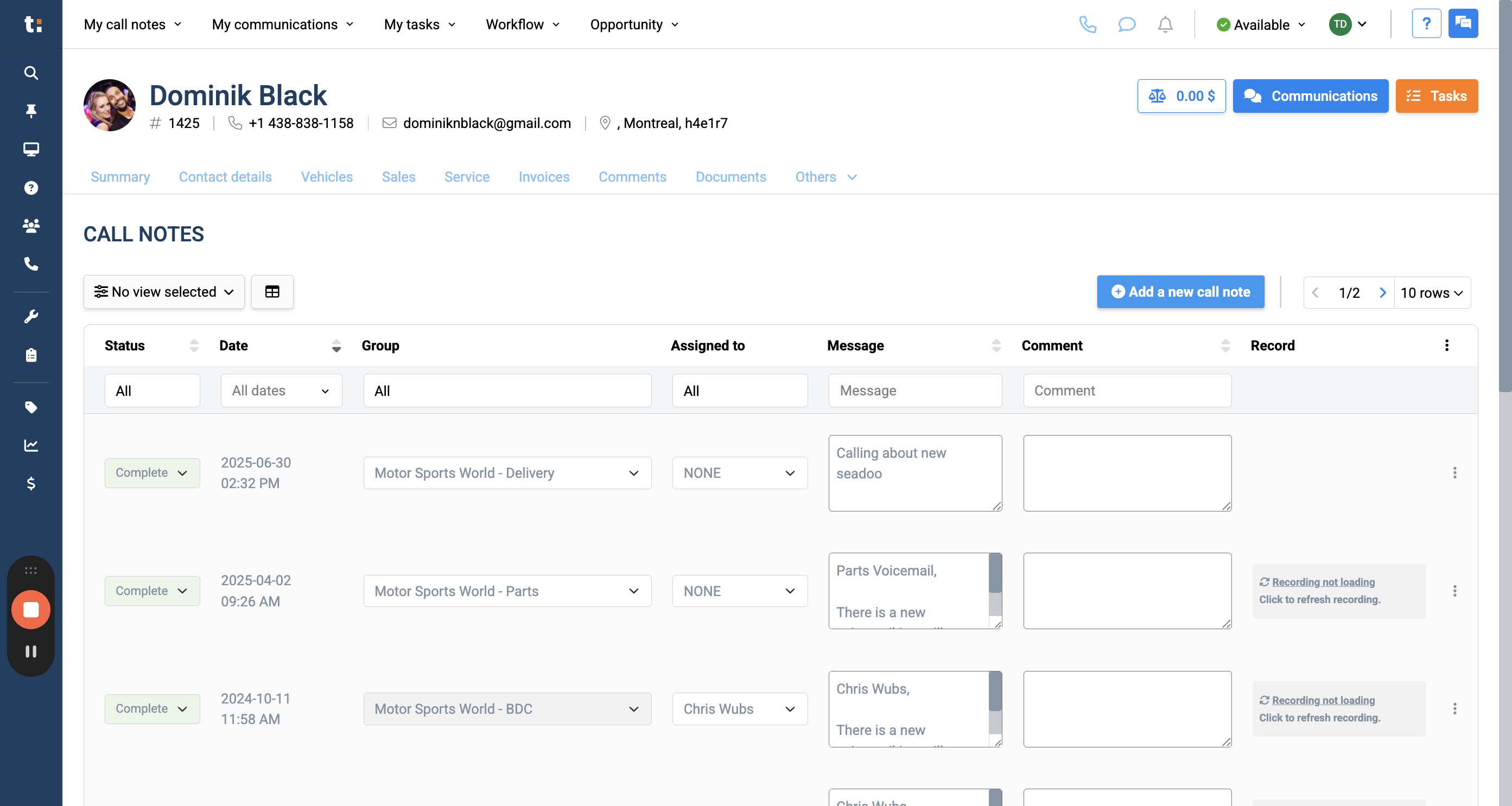
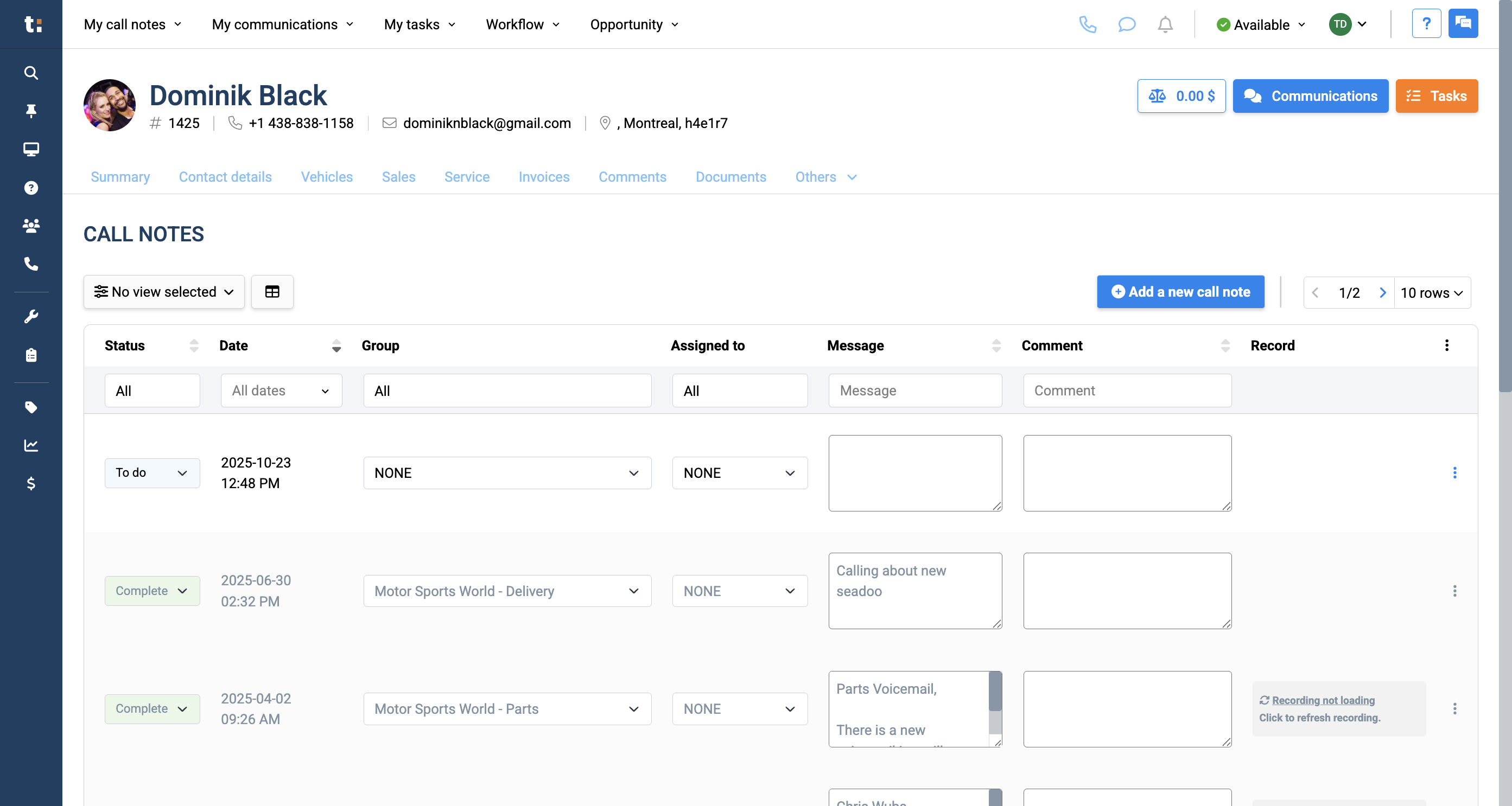
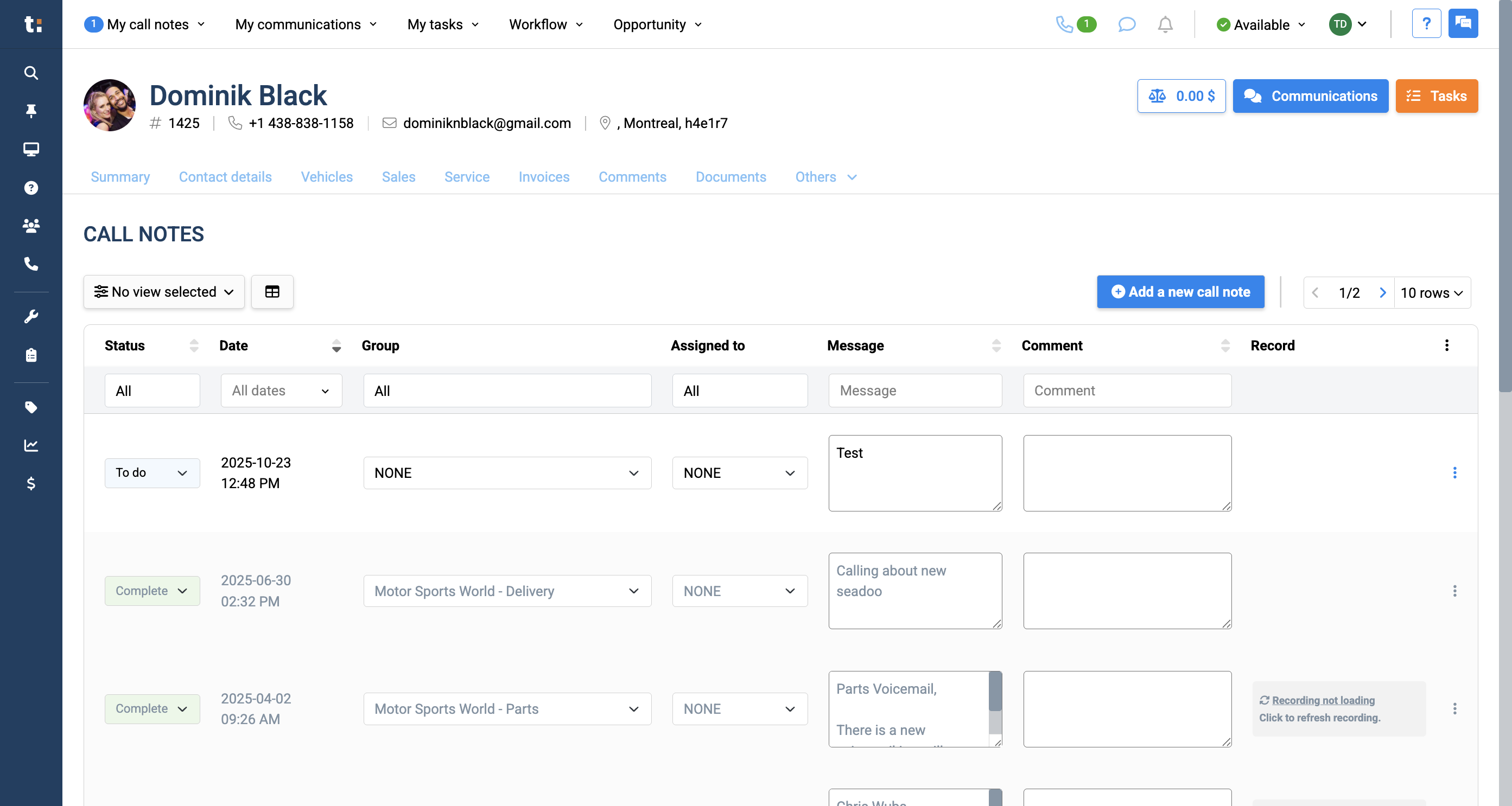
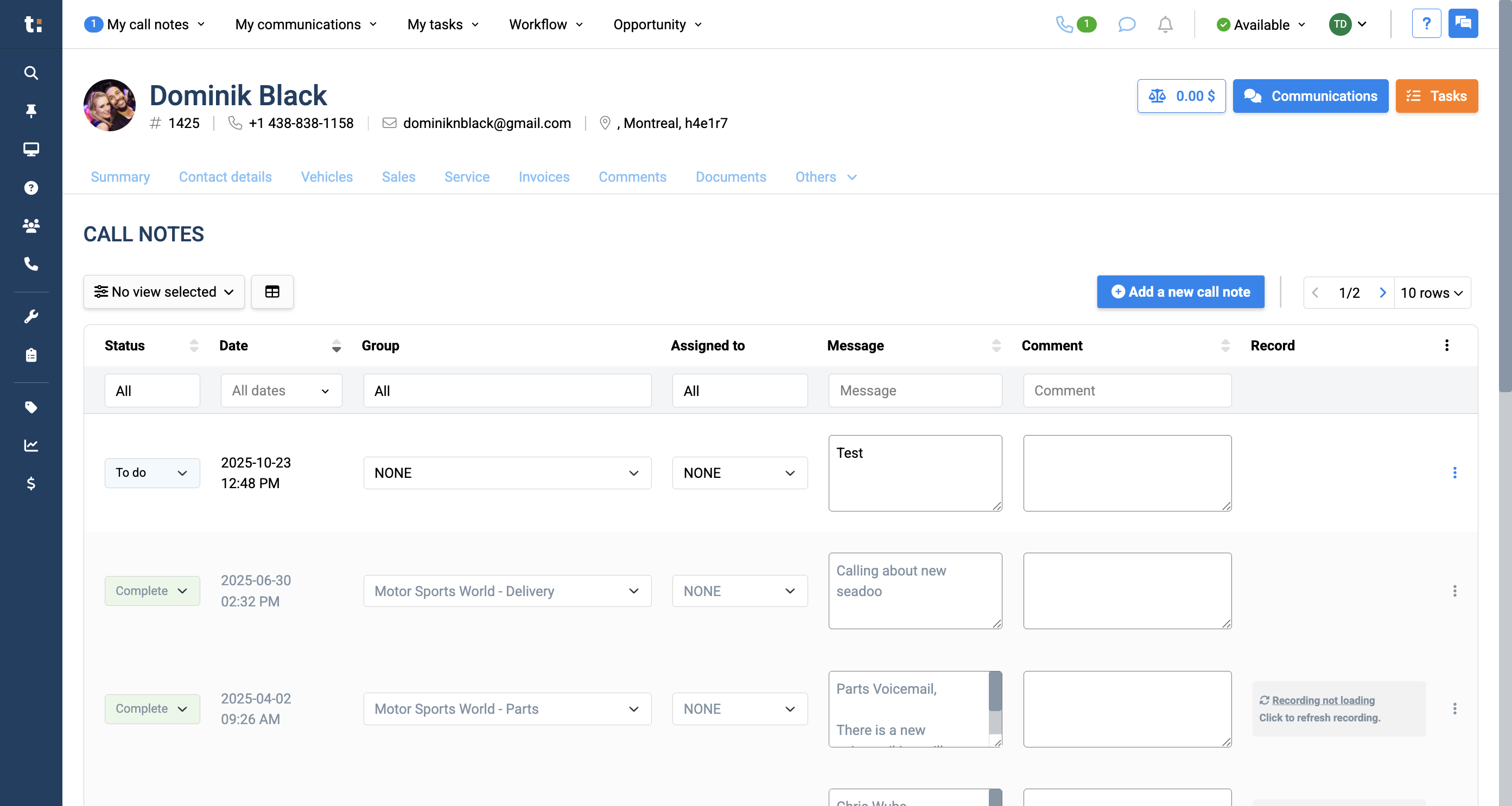
In this guide, we'll learn how to create a call note from scratch in Traction. Call notes help you keep track of important details from customer calls and can be created either through the Call Manager or directly from a customer's profile.
We will cover how to add, assign, and manage call notes, as well as the differences between the two methods. This process helps ensure that all team members have access to call information and follow up as needed.
Let's get started
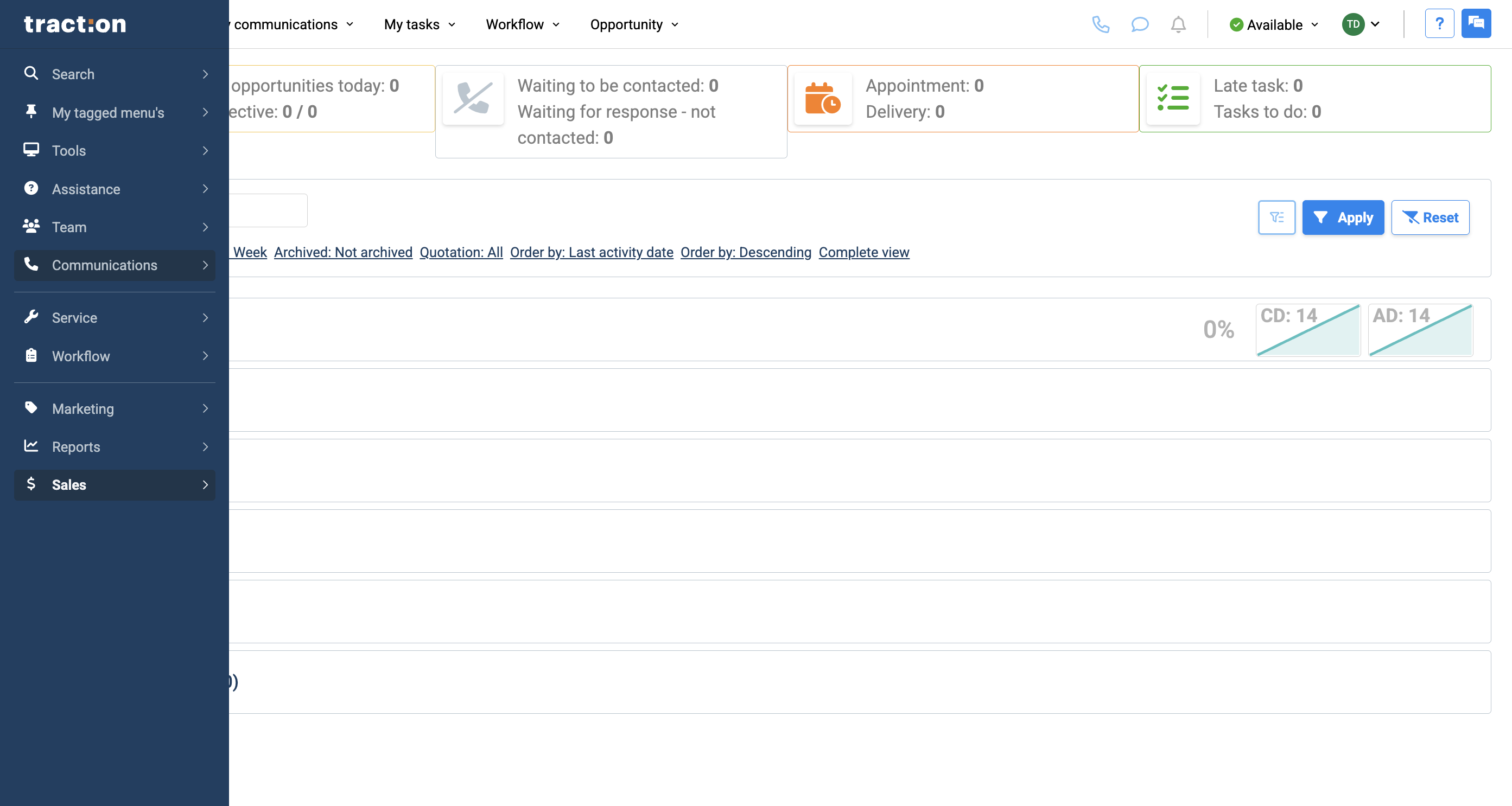
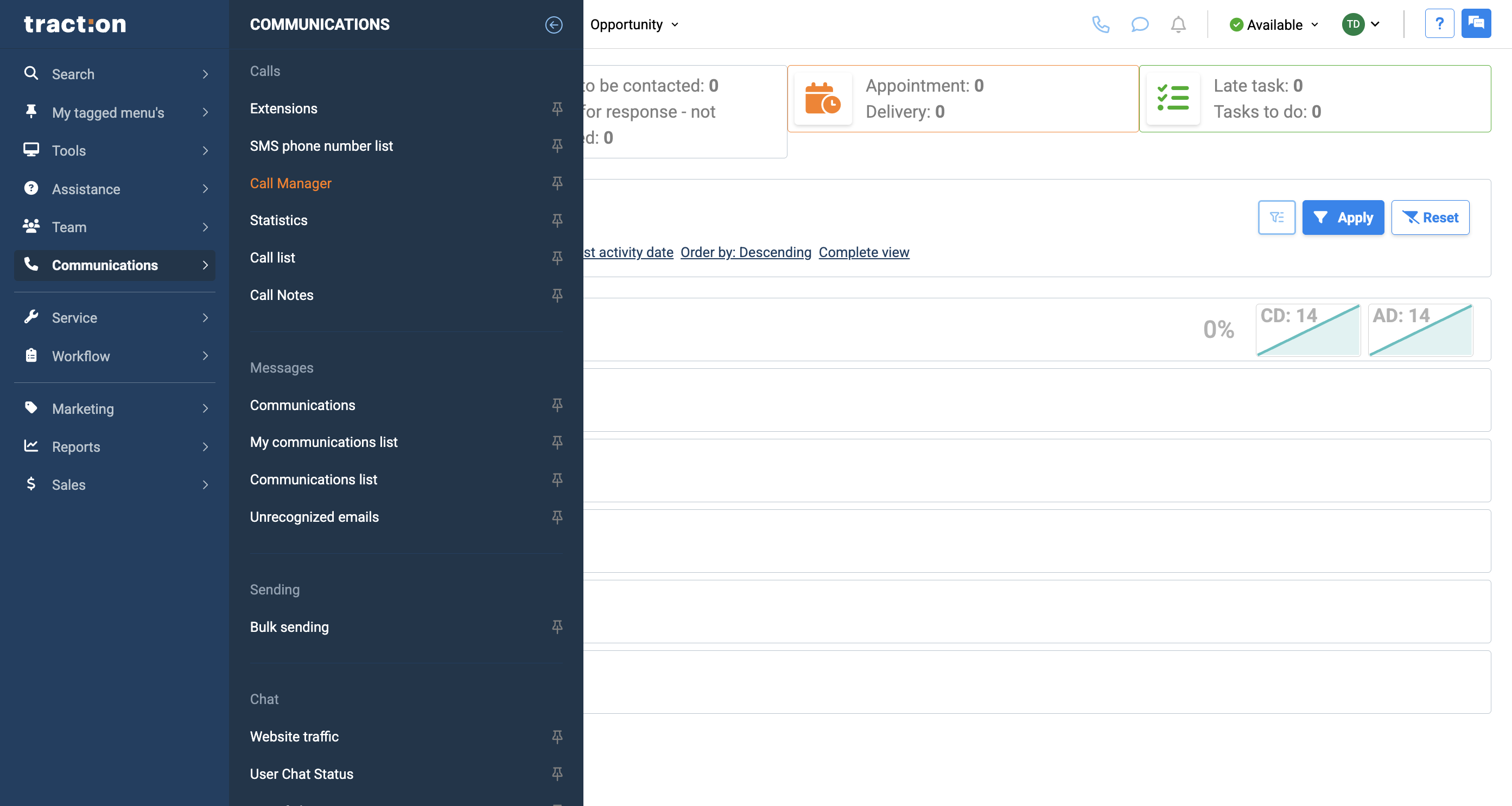
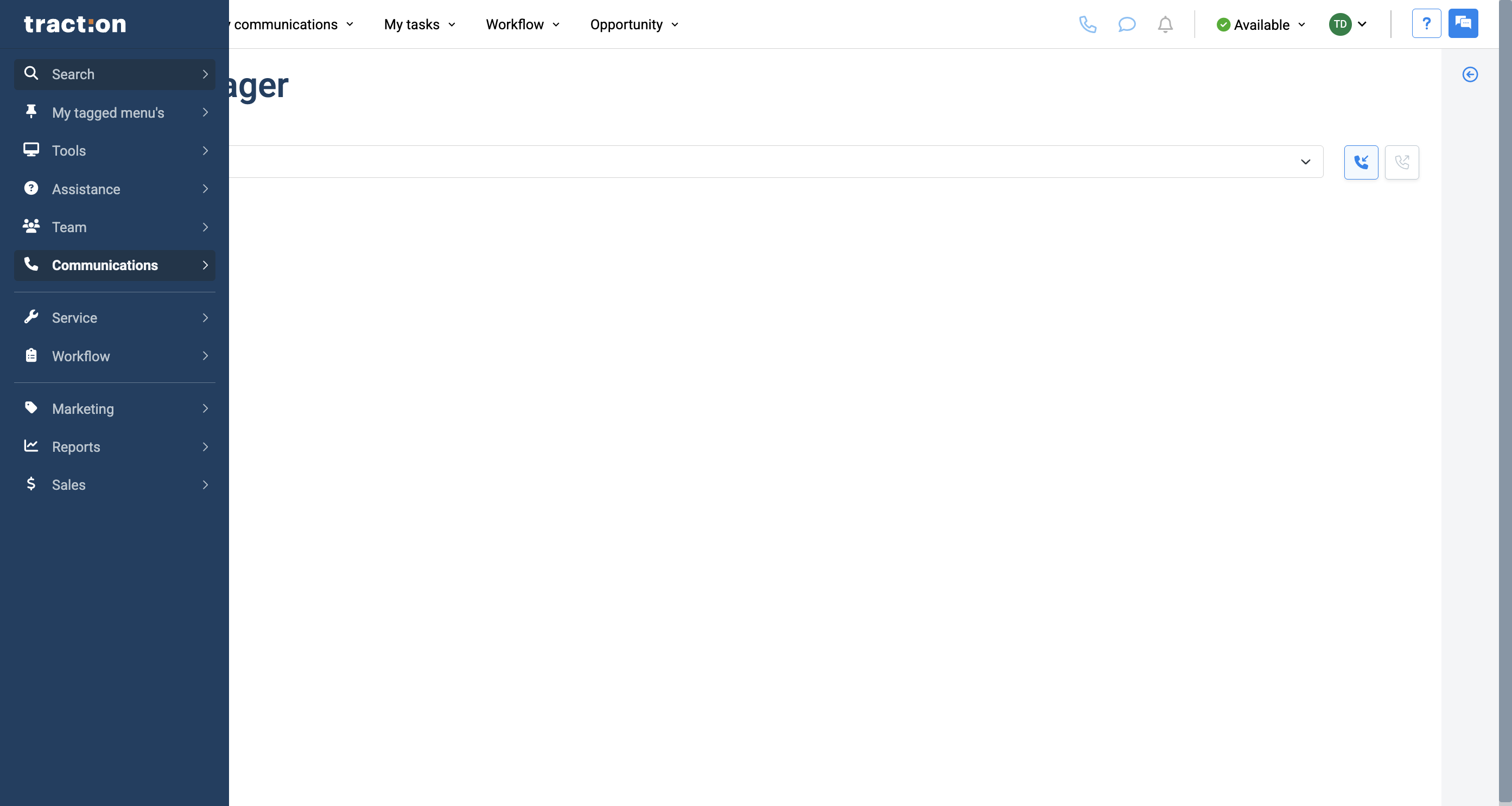
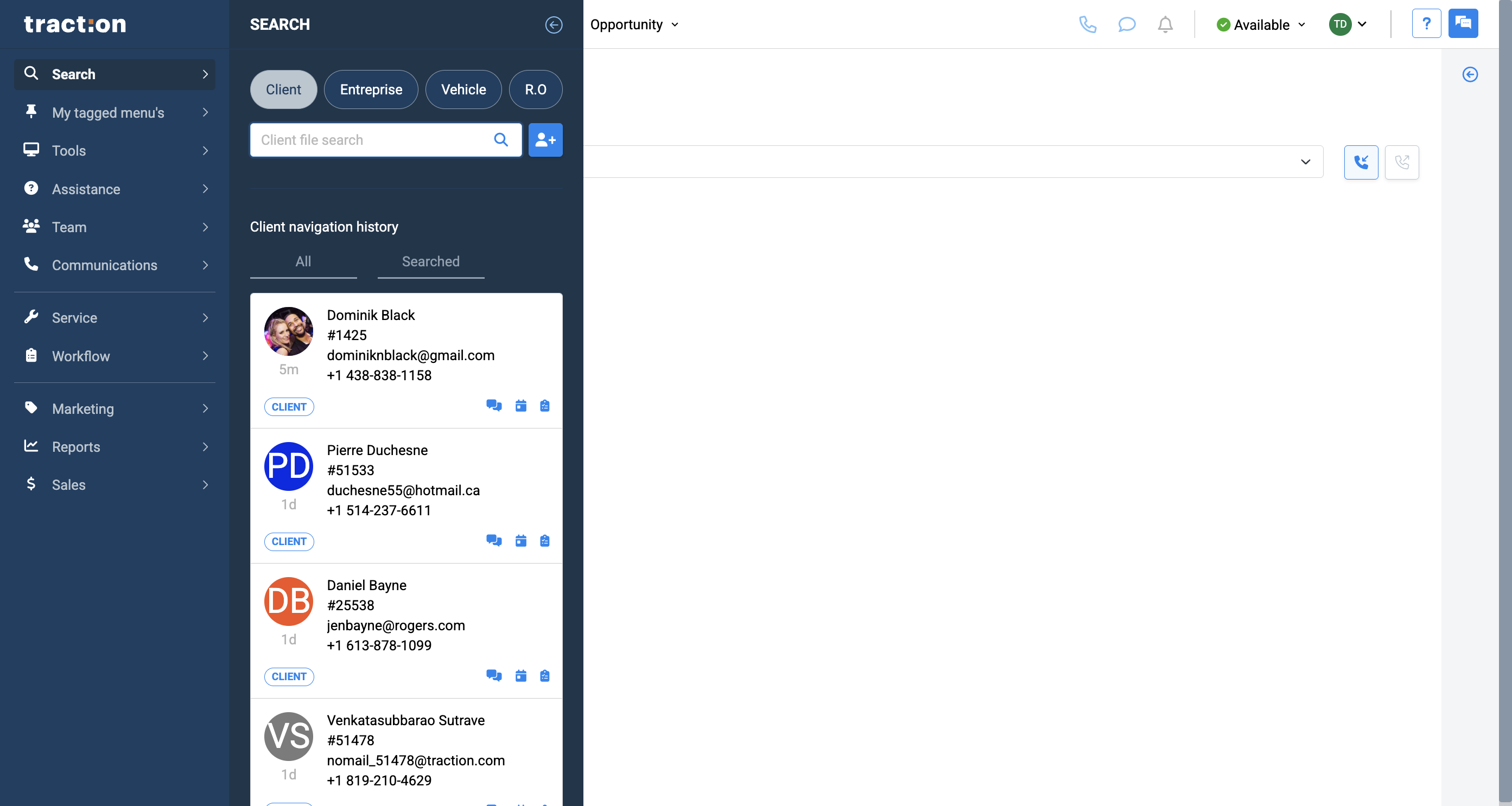
This article explains how to create a call note from scratch. Anyone at your dealership can create call notes. There are two areas where you can create them. The first is within your Communications. Go to your menu, select Communications, then click on Call Manager.
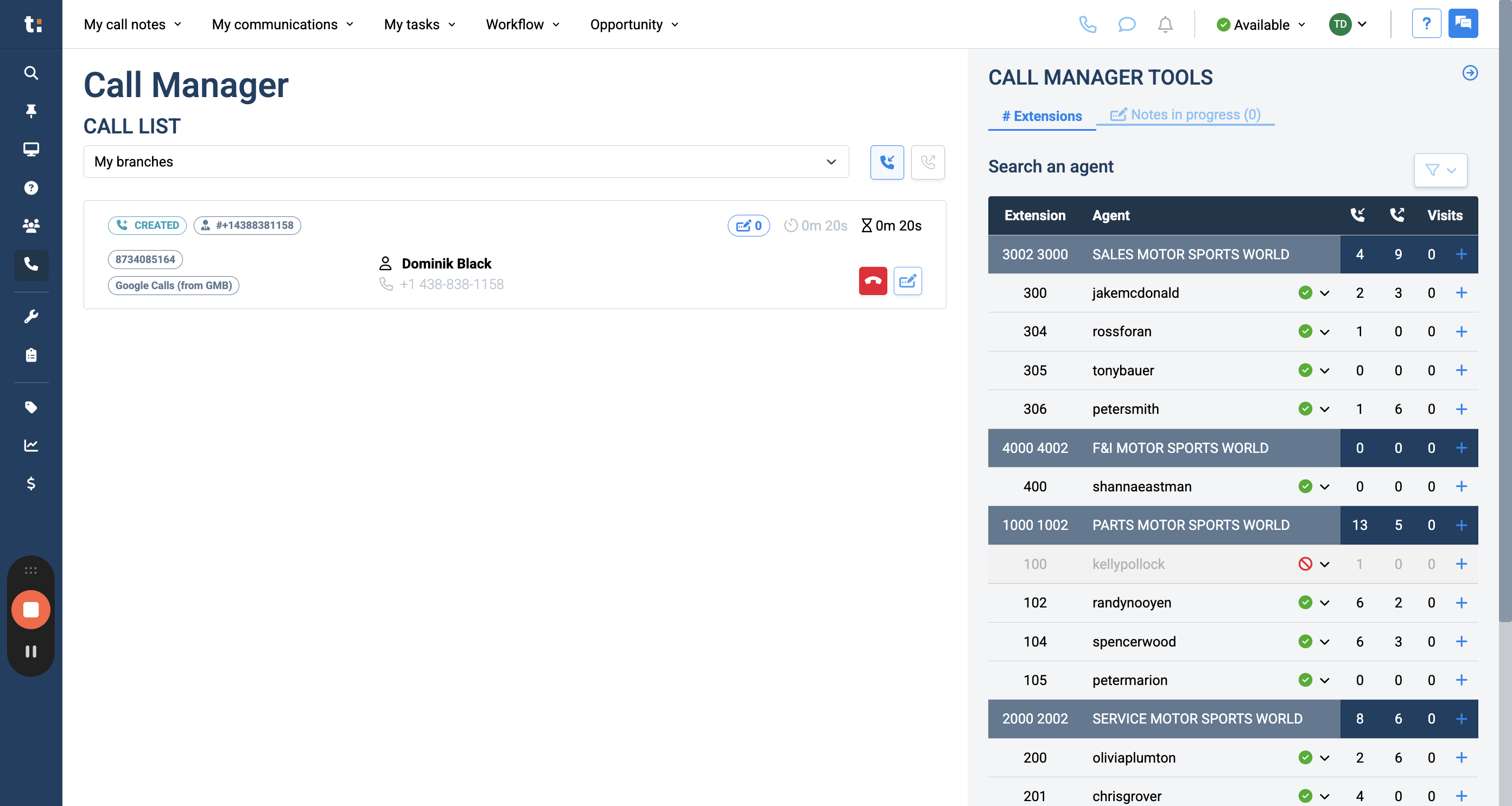
Your Call Manager will display live incoming calls to your store. To create a call note, click the blue button with the crayon labeled "Add a Call Note."
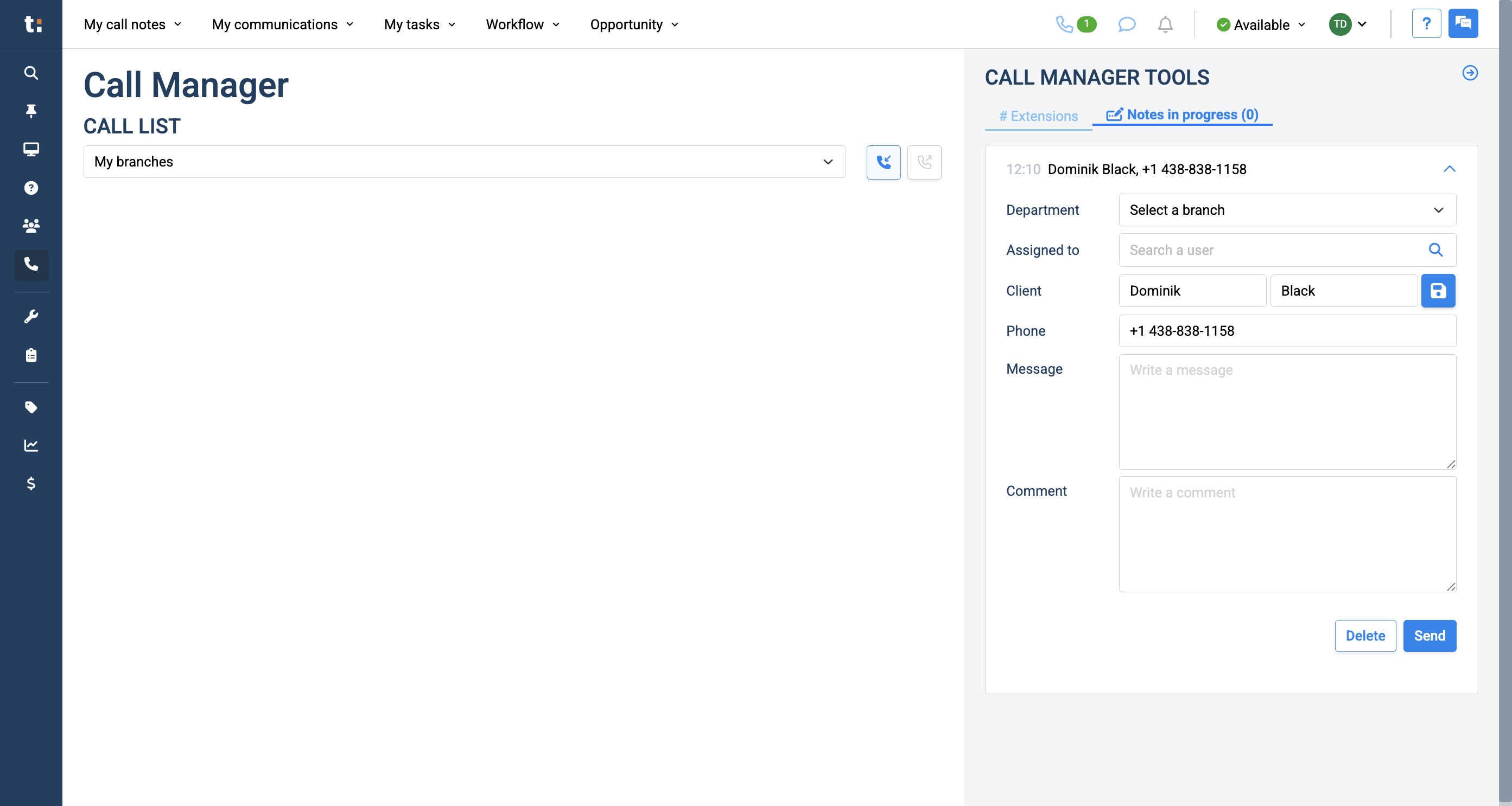
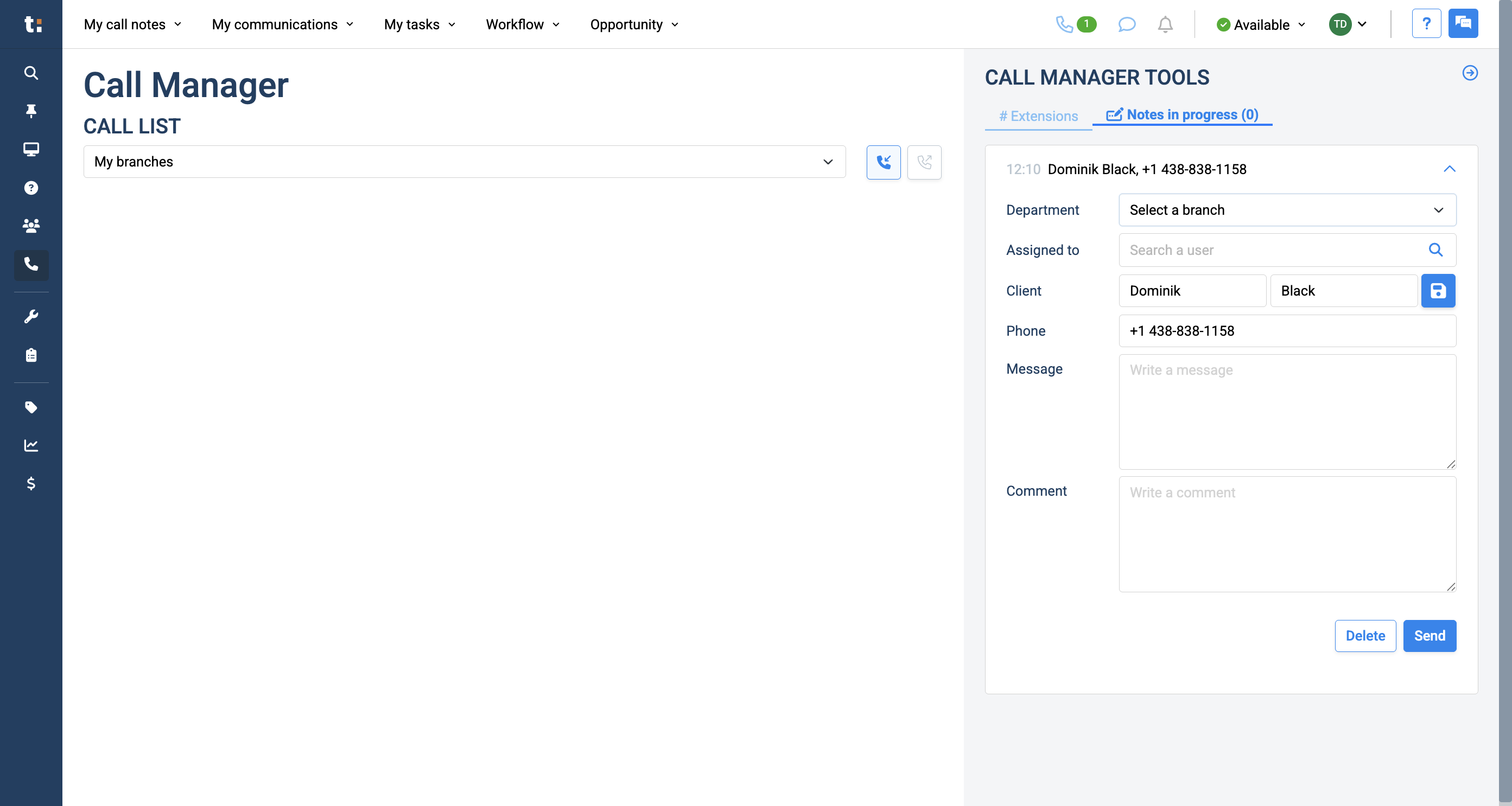
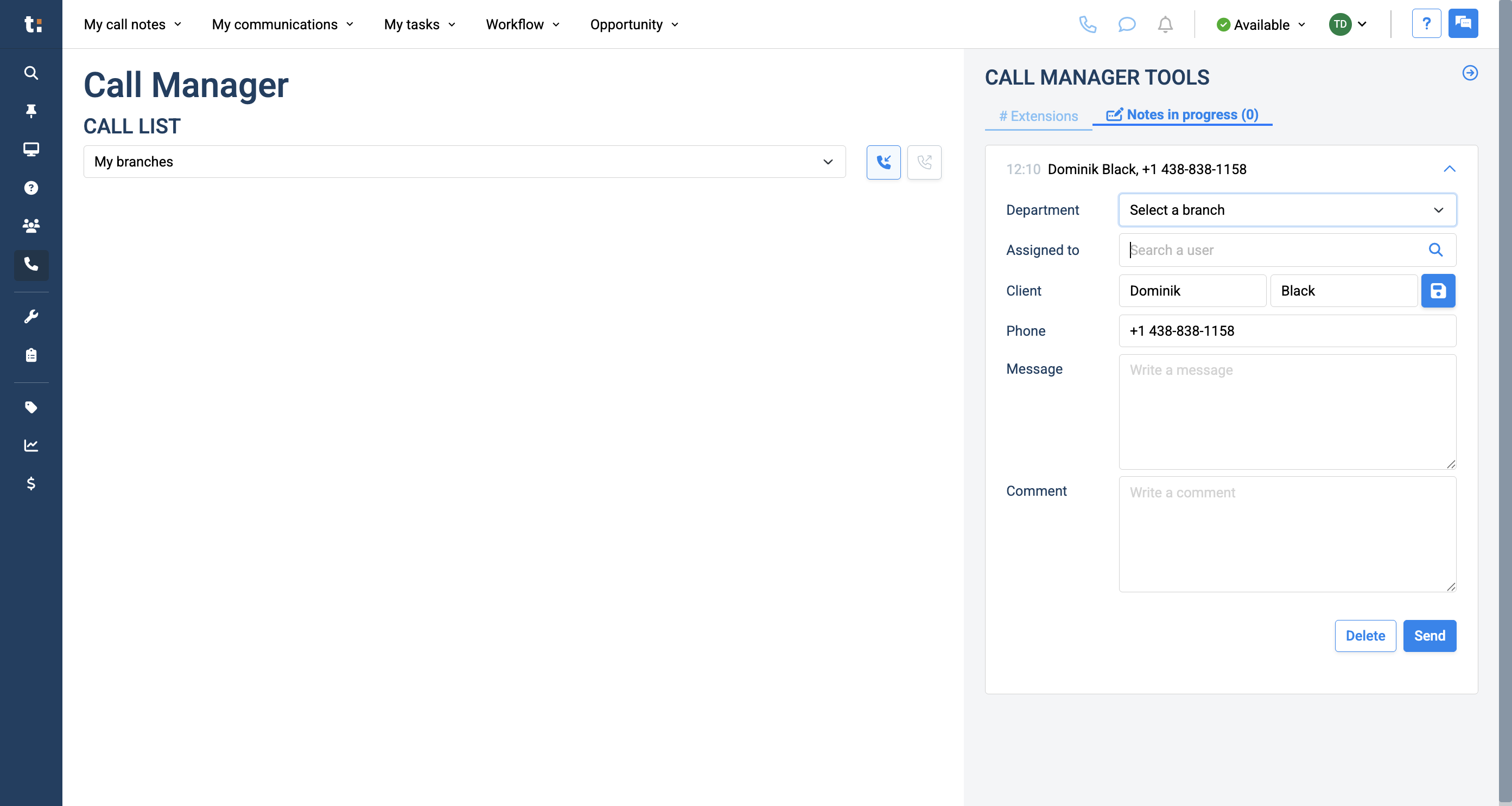
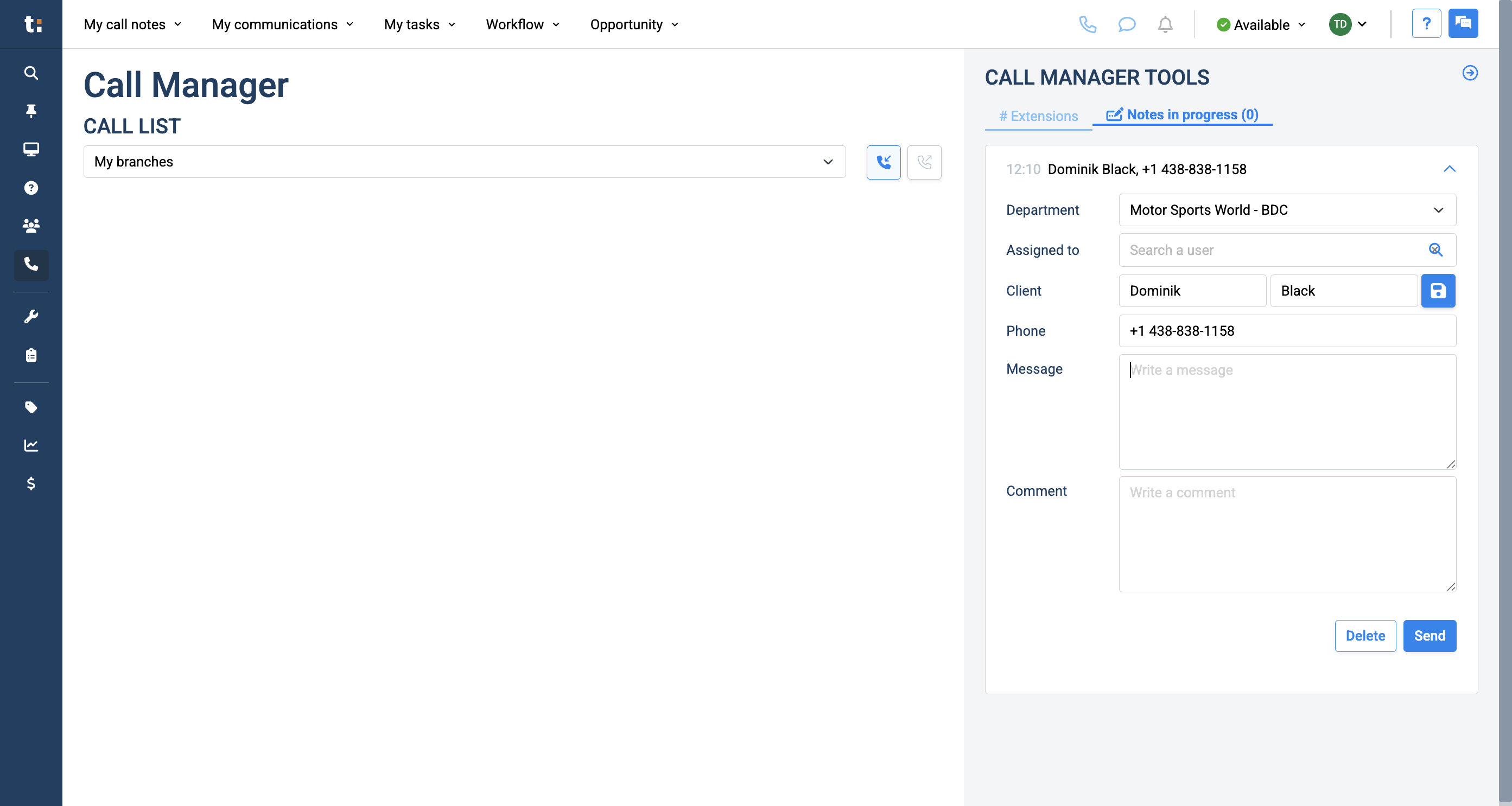
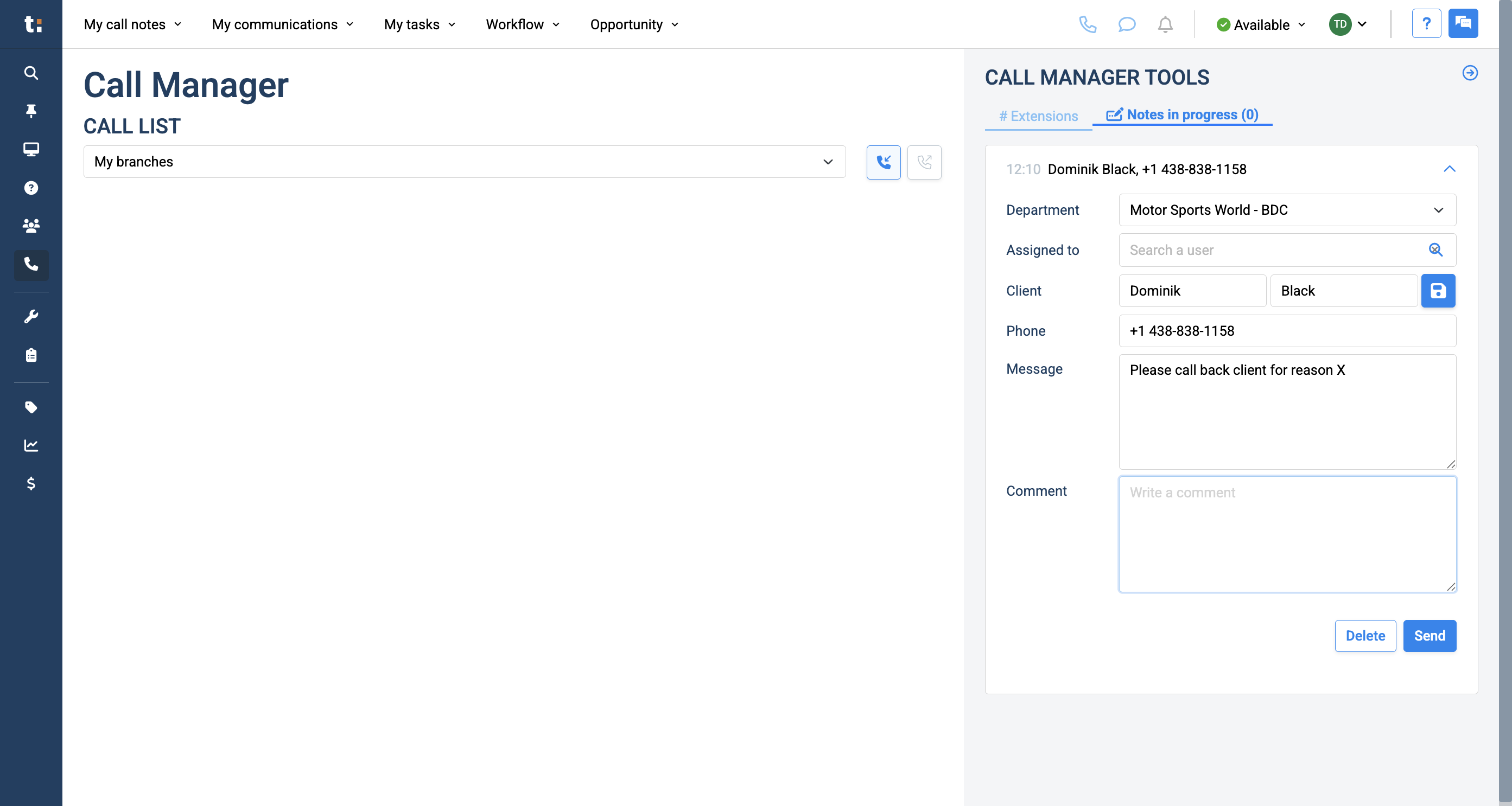
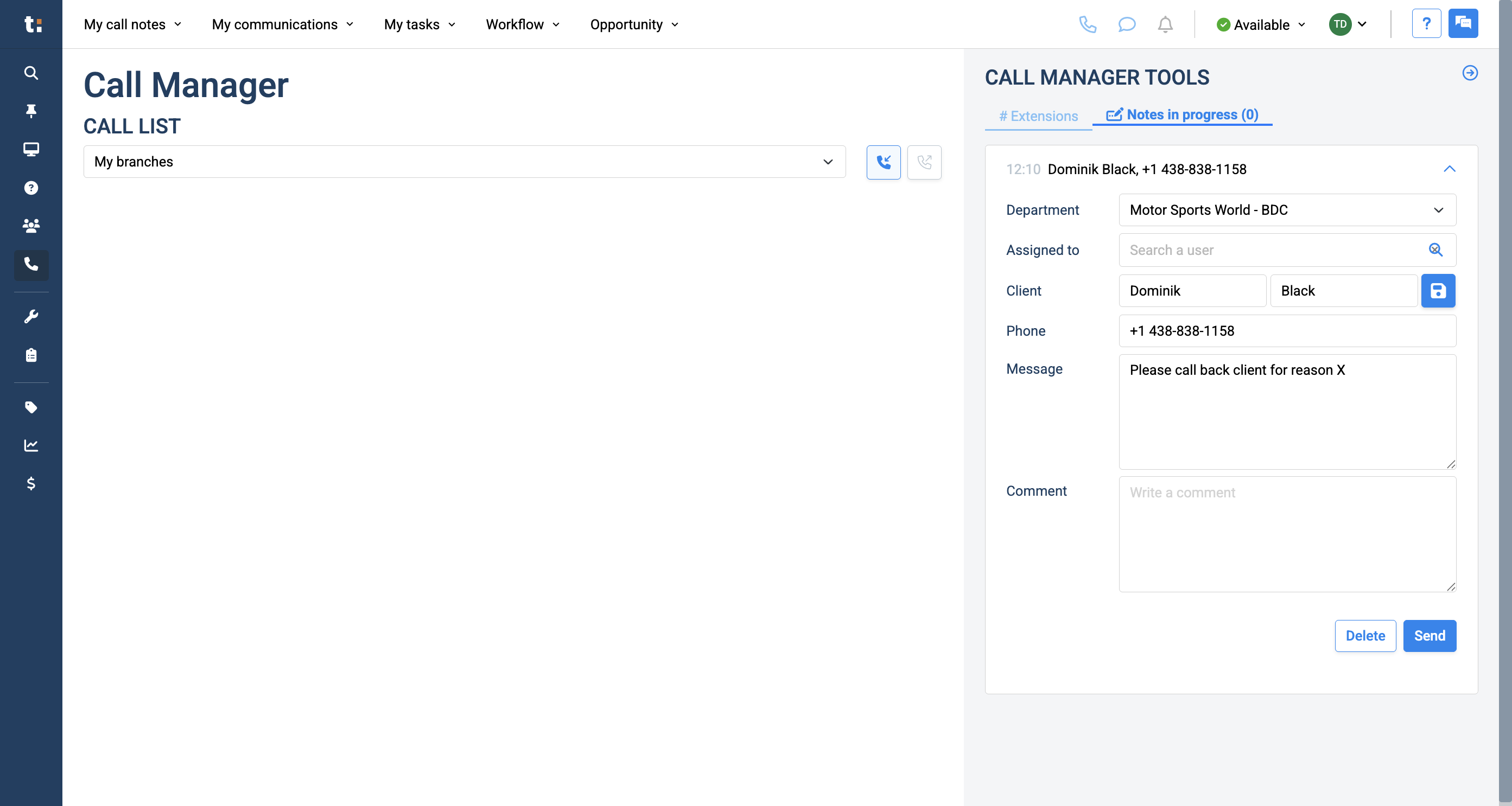
After you click on the button, your call note is saved in the Notes In Progress tab on the right side of your screen, even if the customer hangs up.
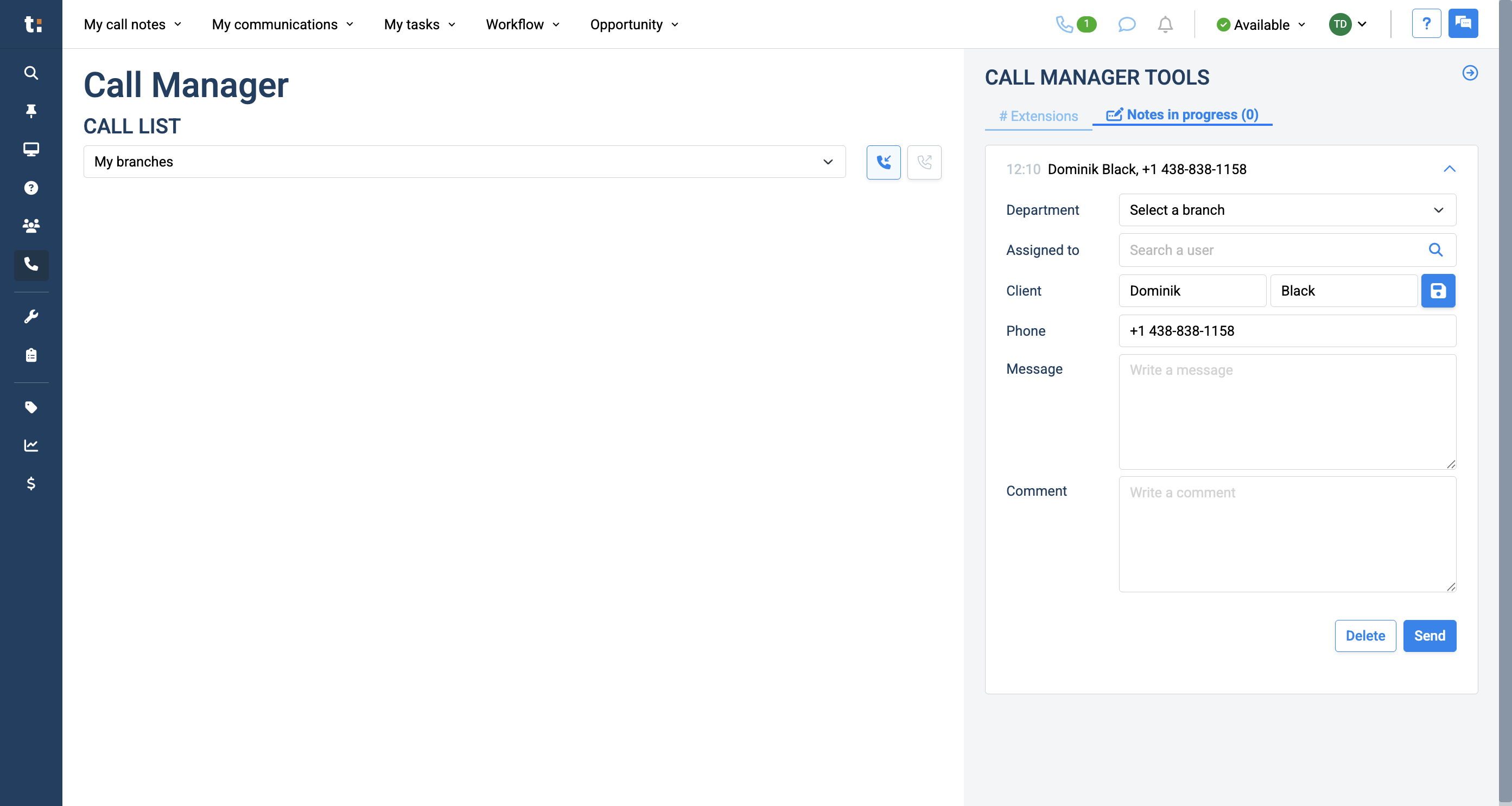
If you want to return to your Extension page, you can. Your call note will remain saved in the Notes in progress tab.
If you still have questions after consulting this article, please feel free to contact our support team at: support@tractiondk.zohodesk.com