How to Create a Commissions Report in Agency Manifest
Learn step-by-step how to generate a commissions report in Agency Manifest, including selecting date ranges, customizing fields, and exporting your report to Excel.
In this guide, we'll learn how to create a commission report by selecting the right options in the Reports section. We will cover how to choose your date range, filter by agency or shipper, customize the report fields, and export the results to Excel.
This process helps you organize and analyze commission data for order fulfillment.
Let's get started
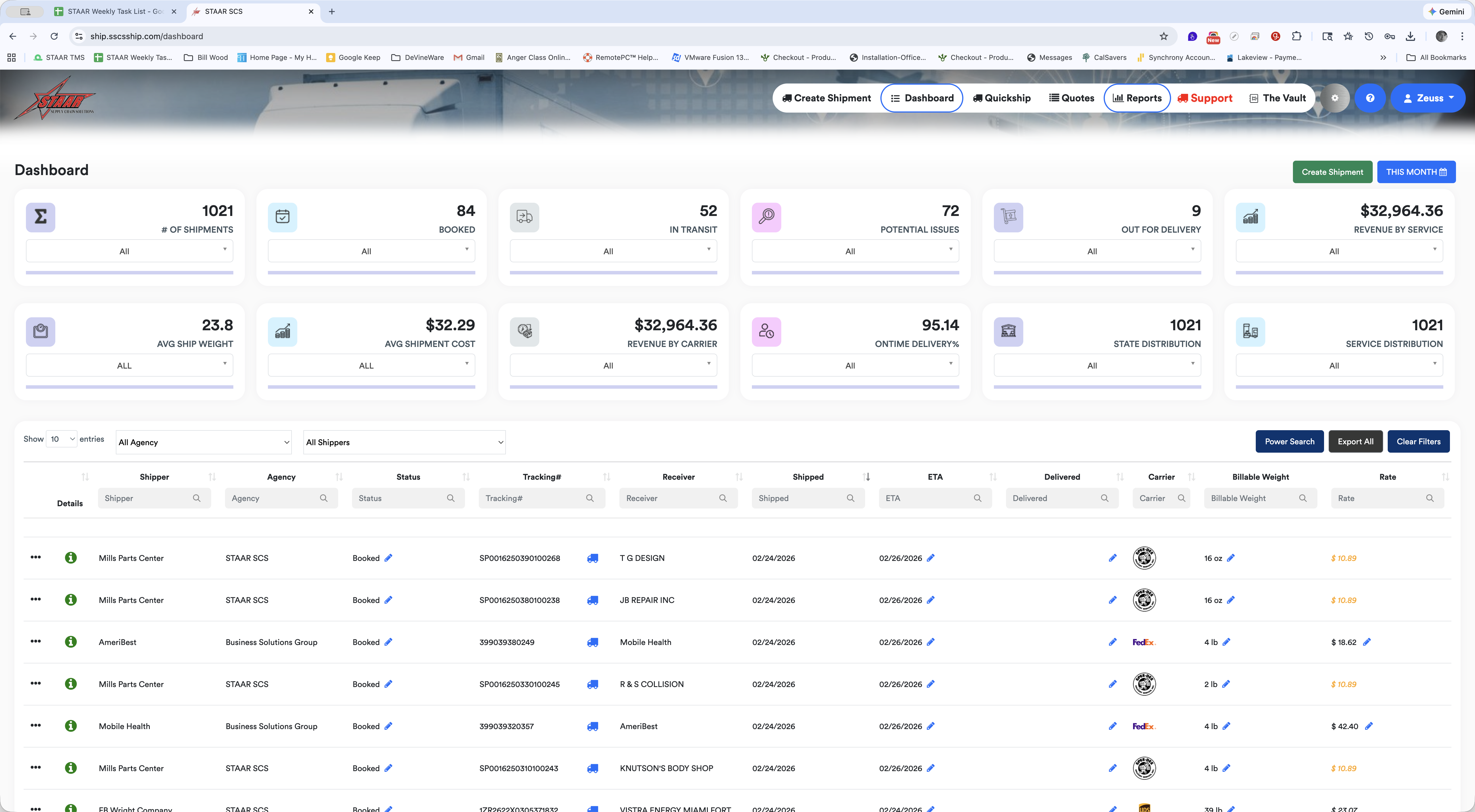
"" To create a report for commissions information, start by going to Reports and clicking on the Reports icon.
Select Agency Manifest.
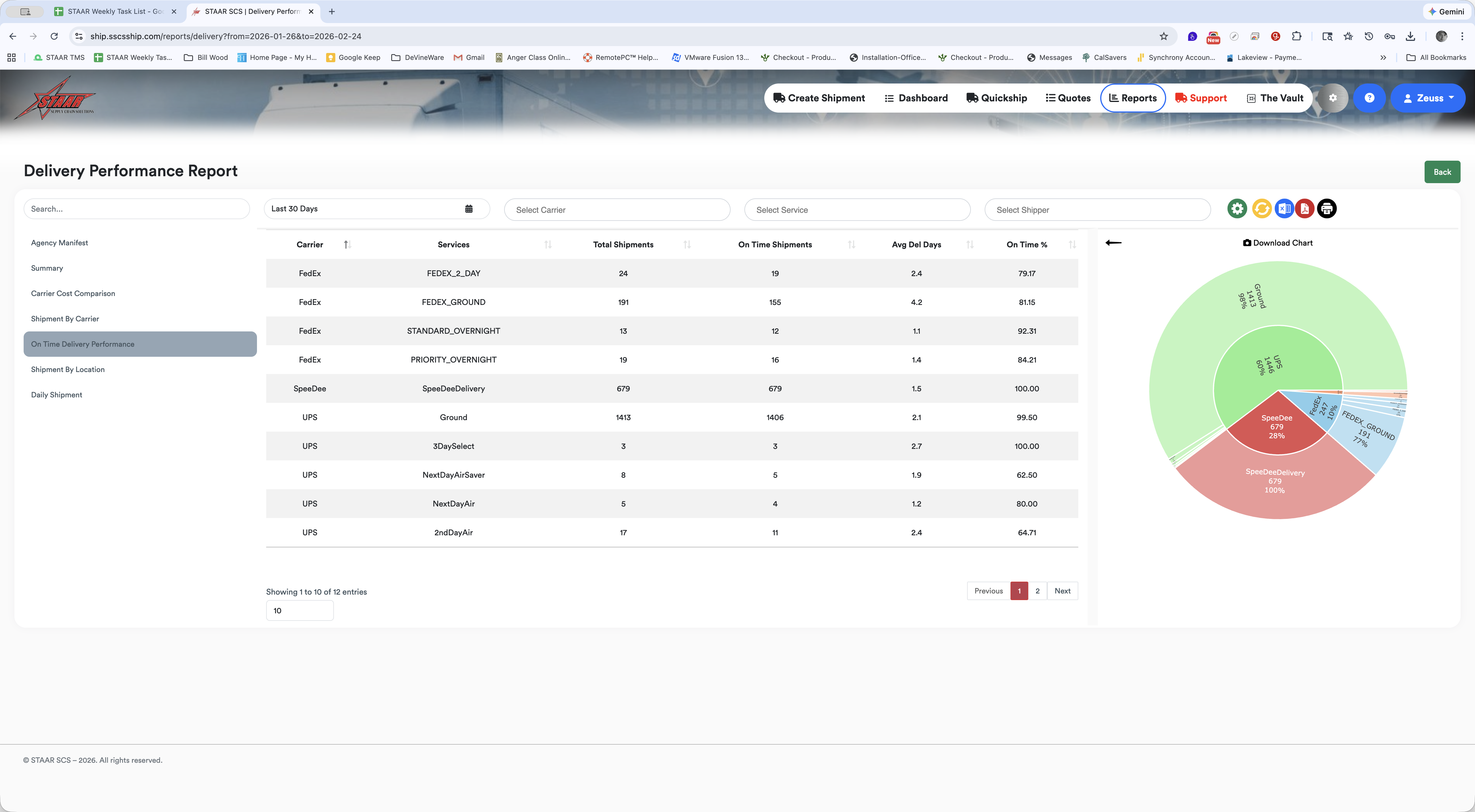
Select your date range.
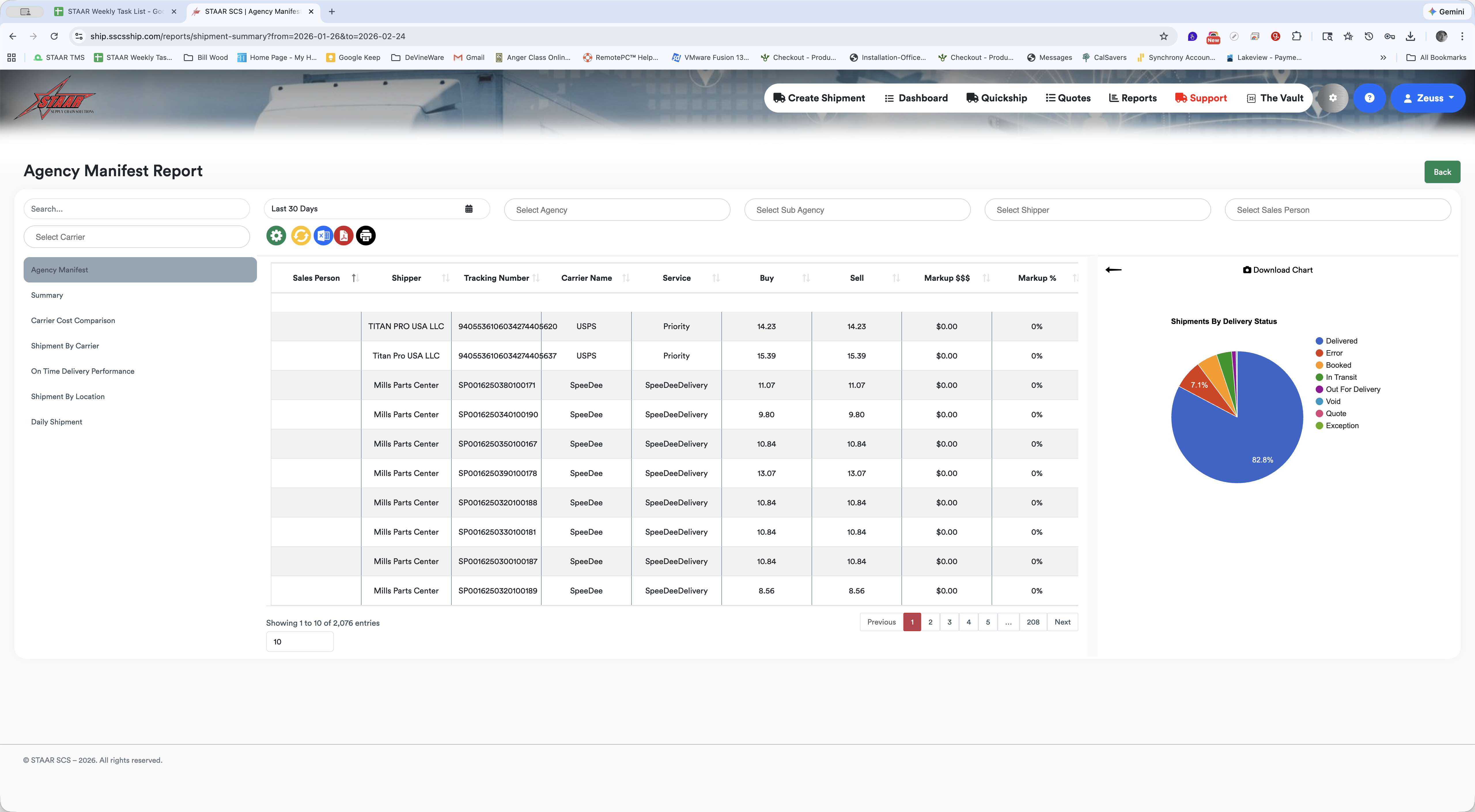
You can select an agency, sub-agency, or shipper.
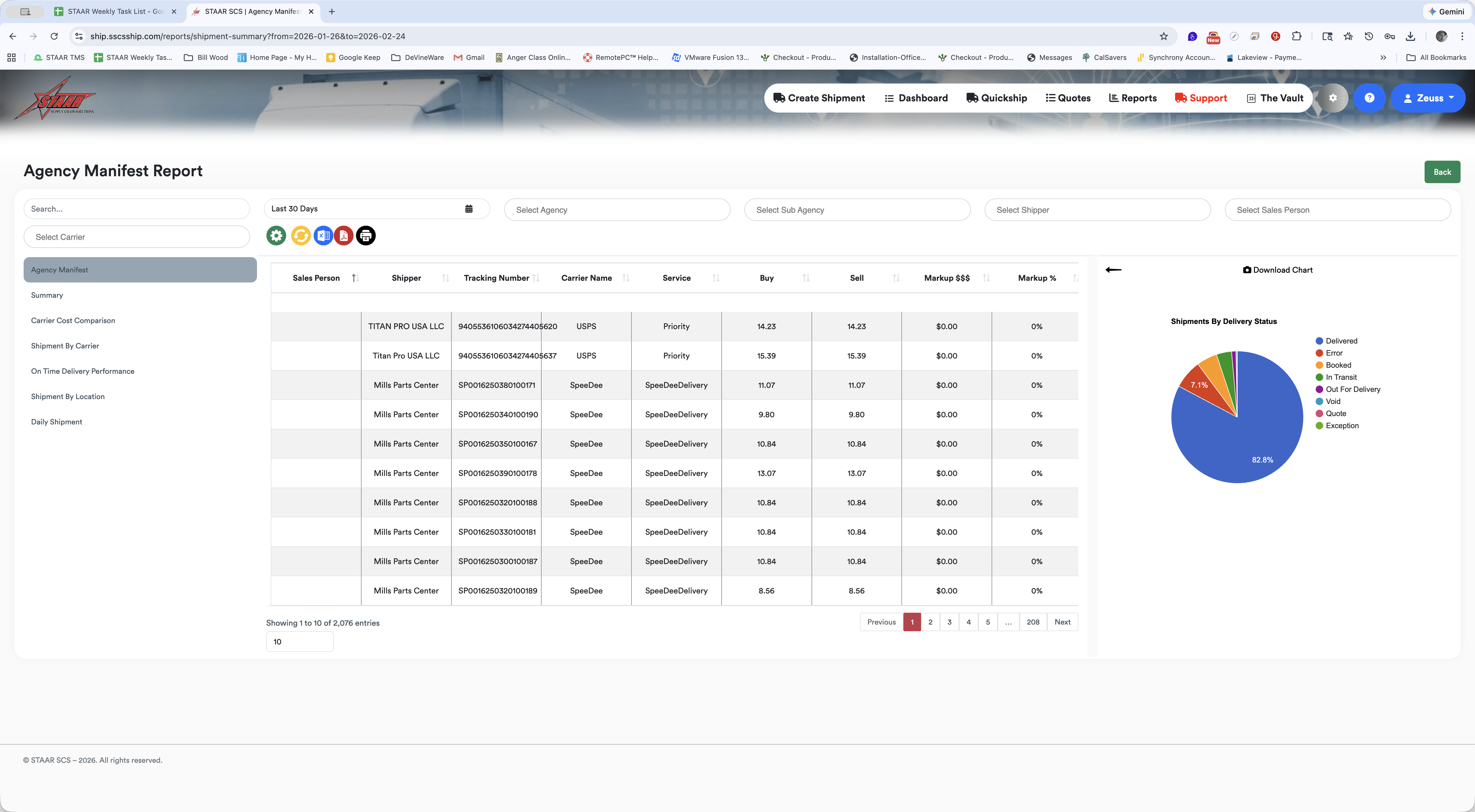
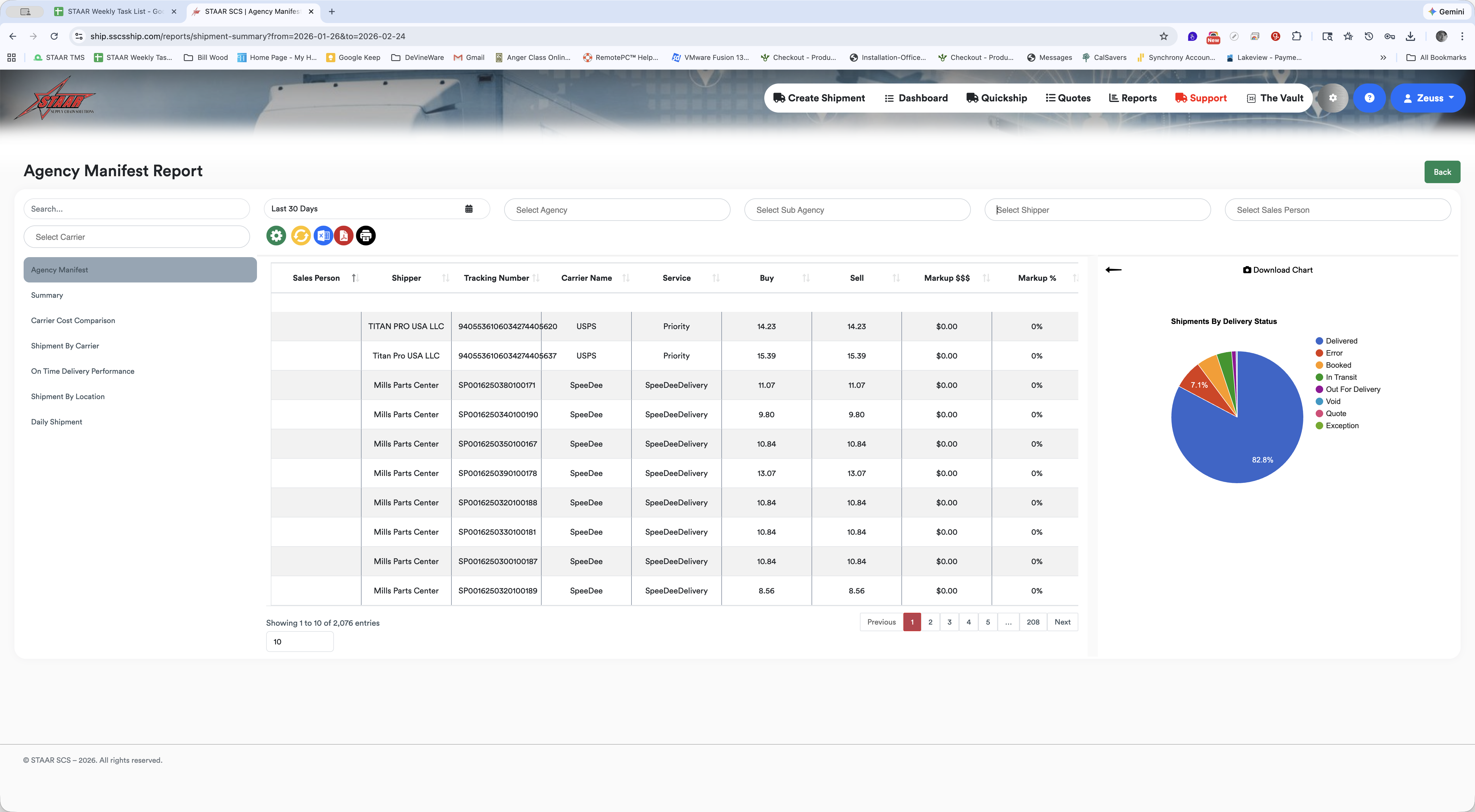
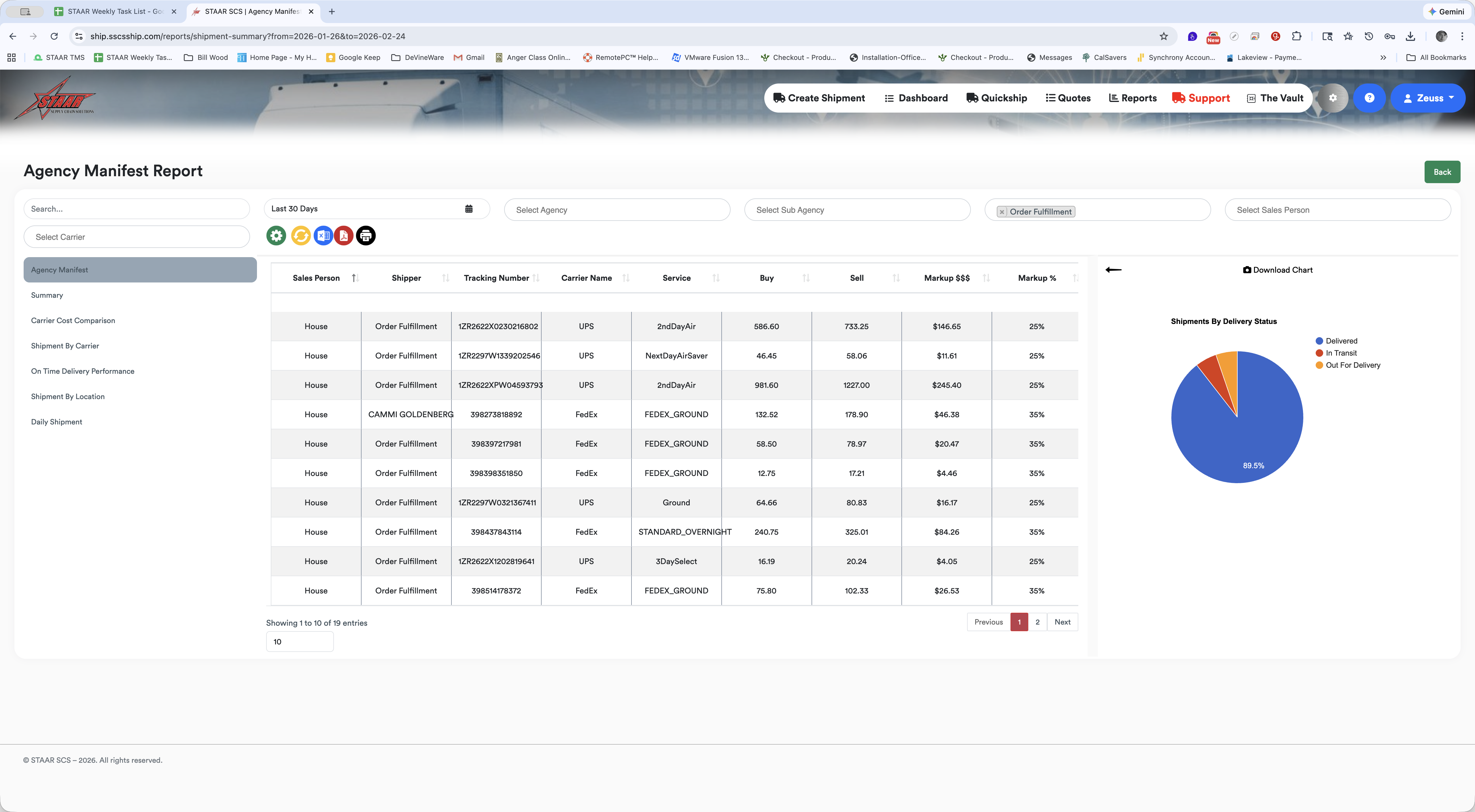
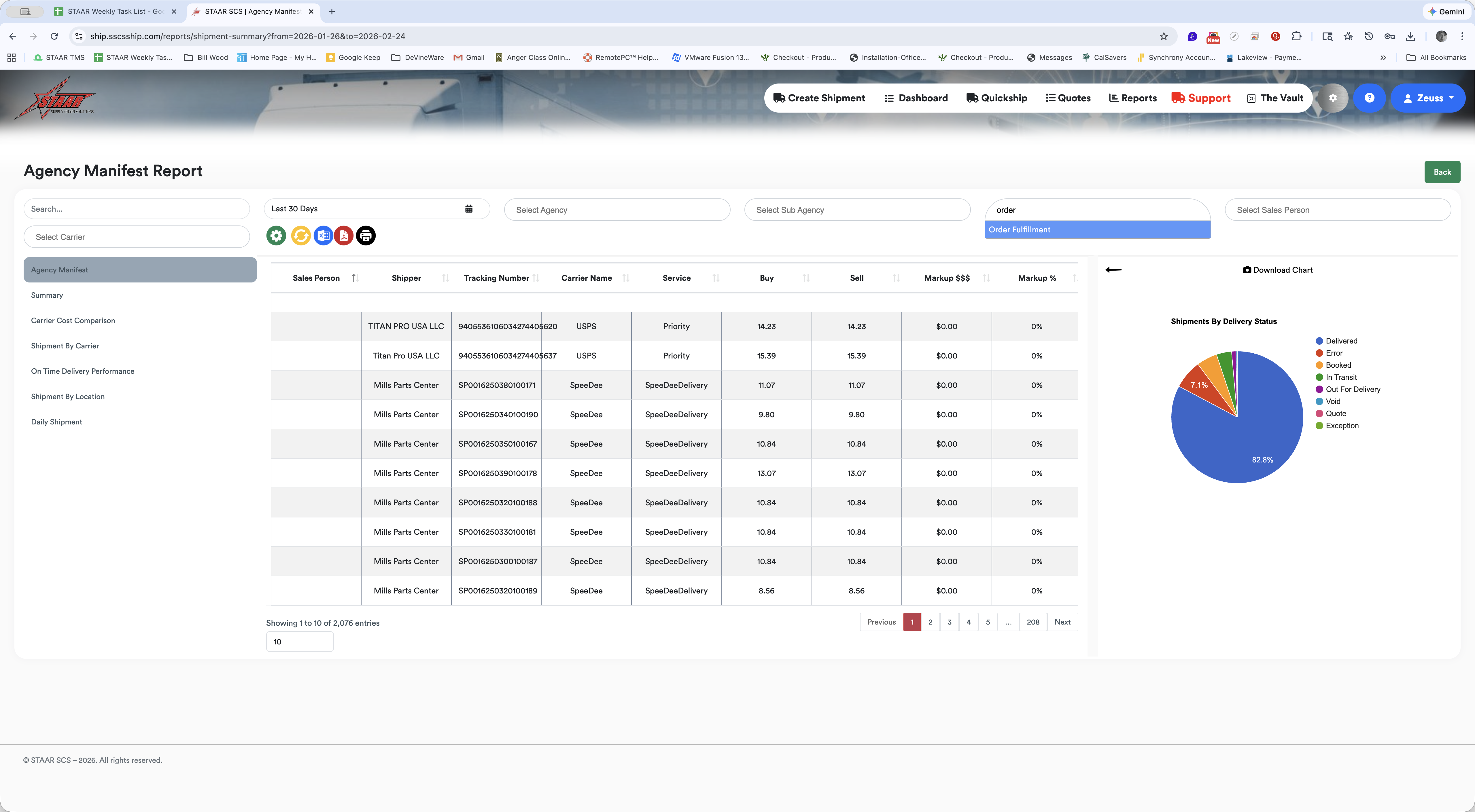
I will type my search and create this report for order fulfillment.
I can customize the fields included in the report by using the gear icon.
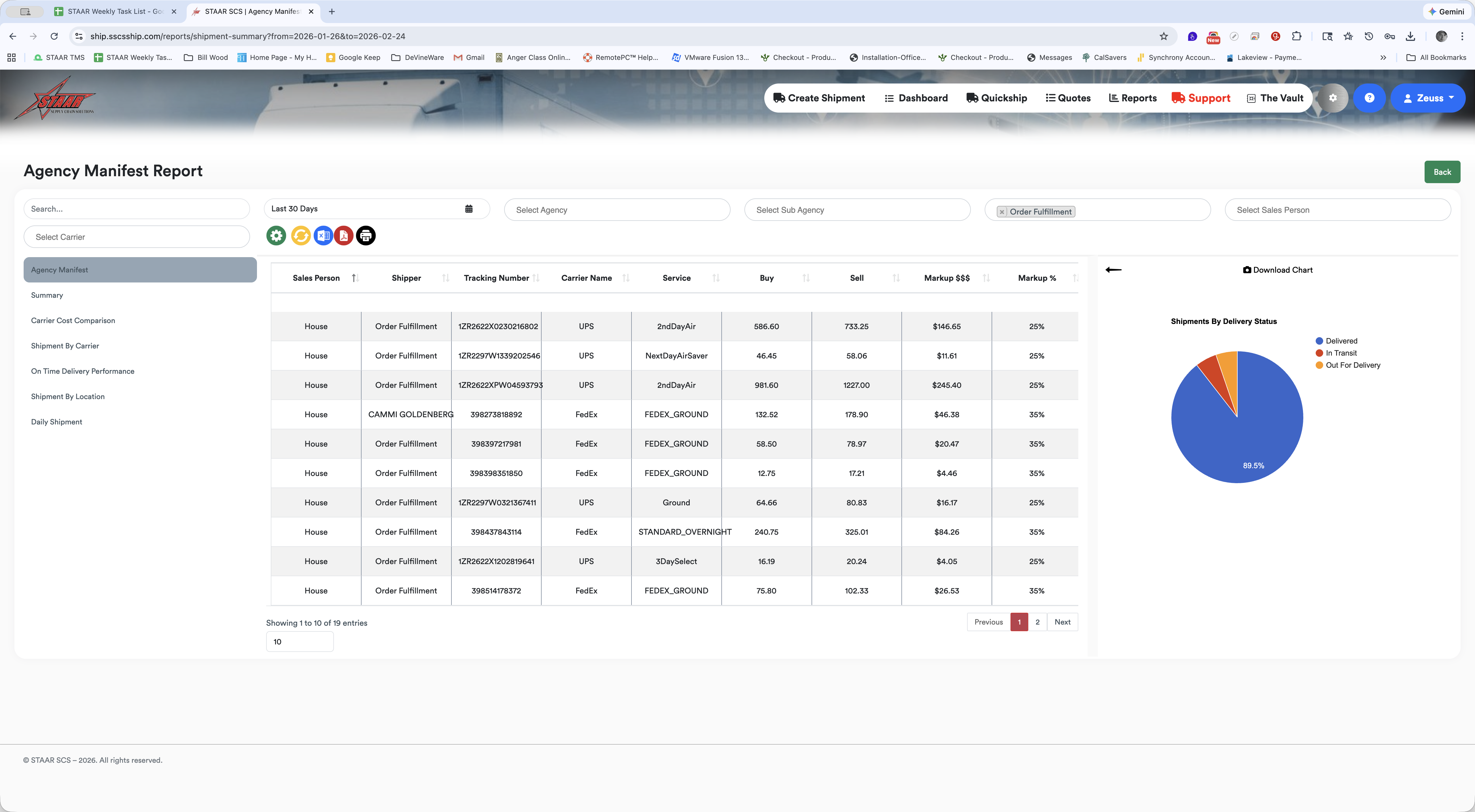
I am looking for salesperson, shipper, tracking number, carrier, service, buy, sell, and the markups. I will save this and use the Excel export to export my report.
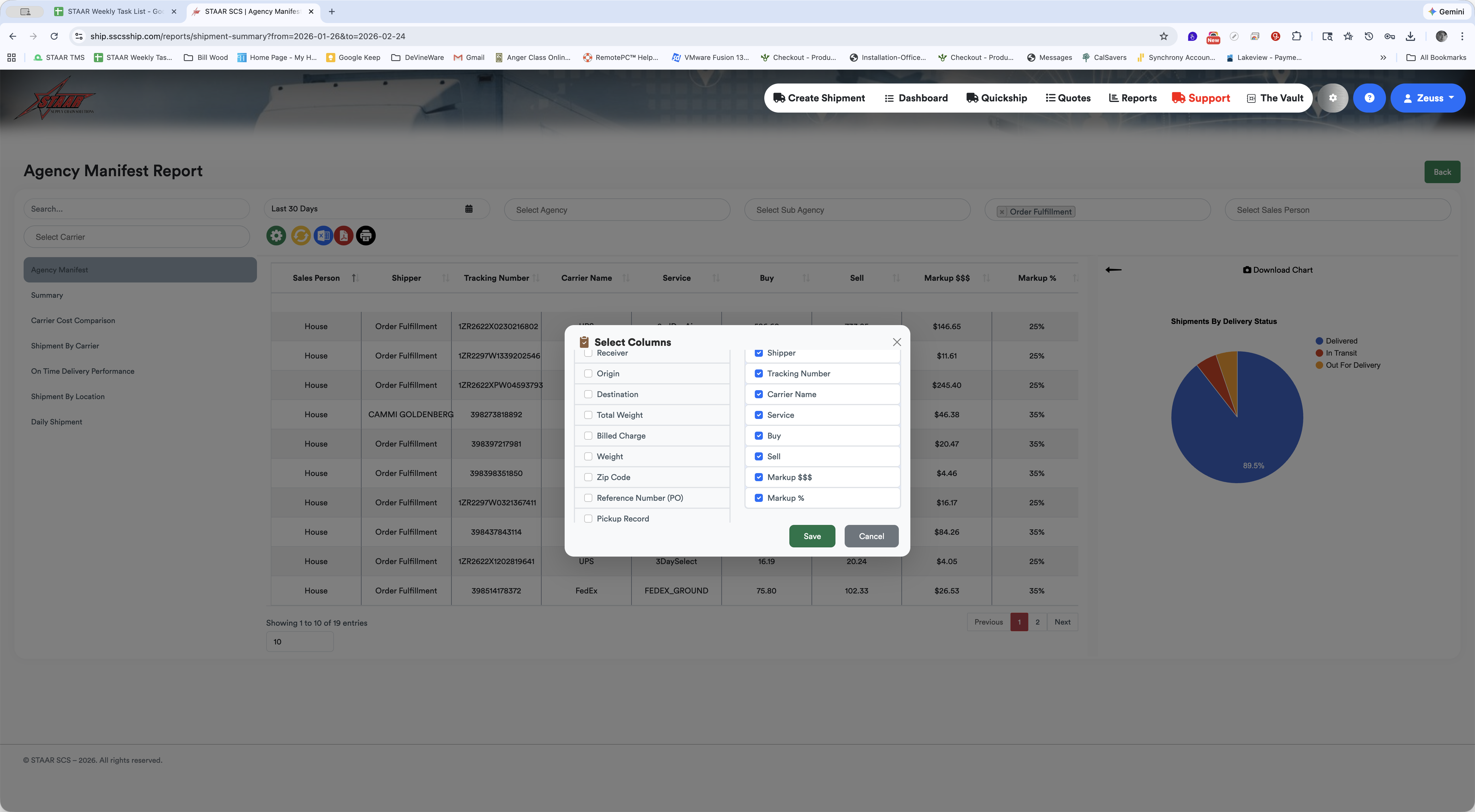
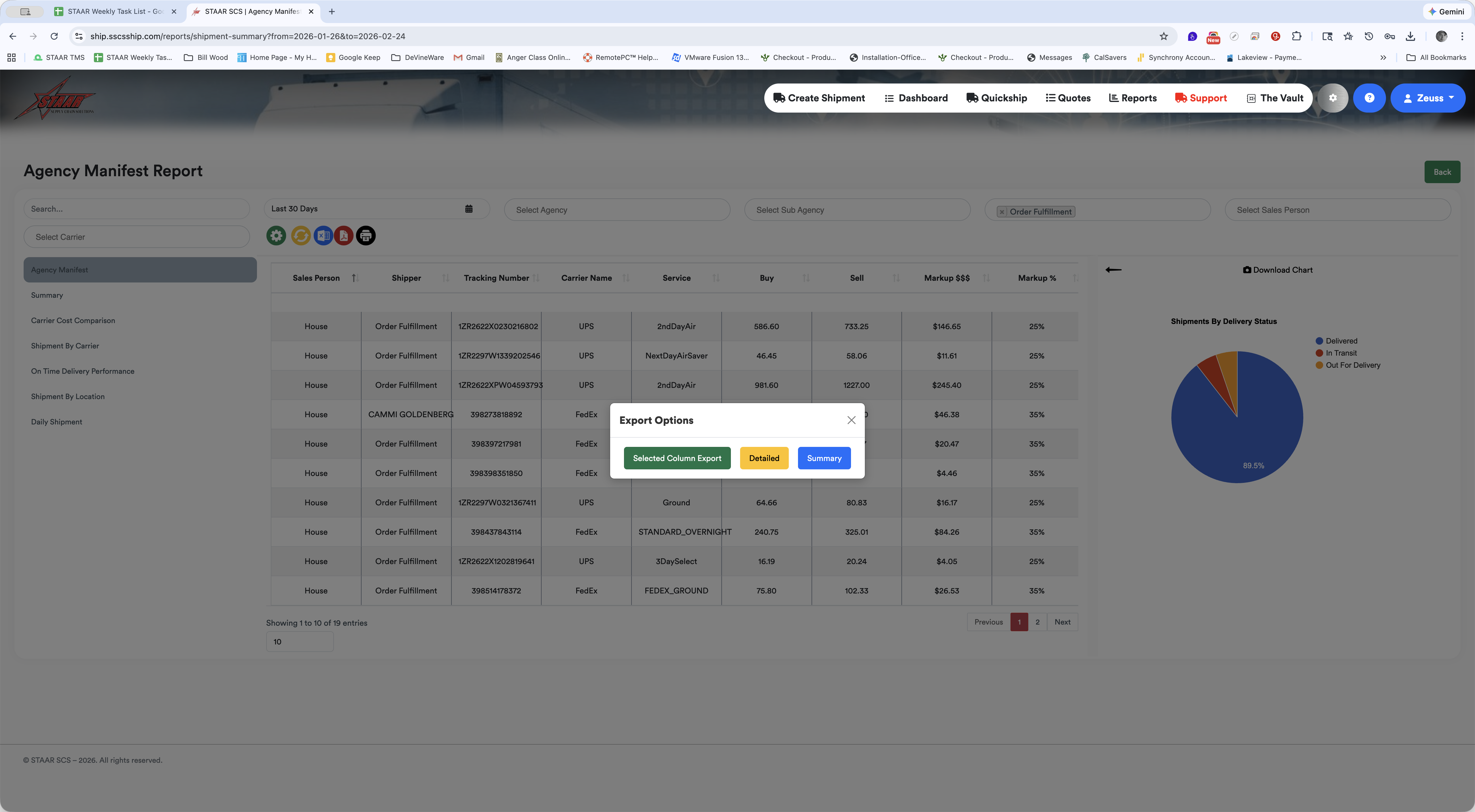
Choose the selected column export, and you're finished.